Example
What you'll build
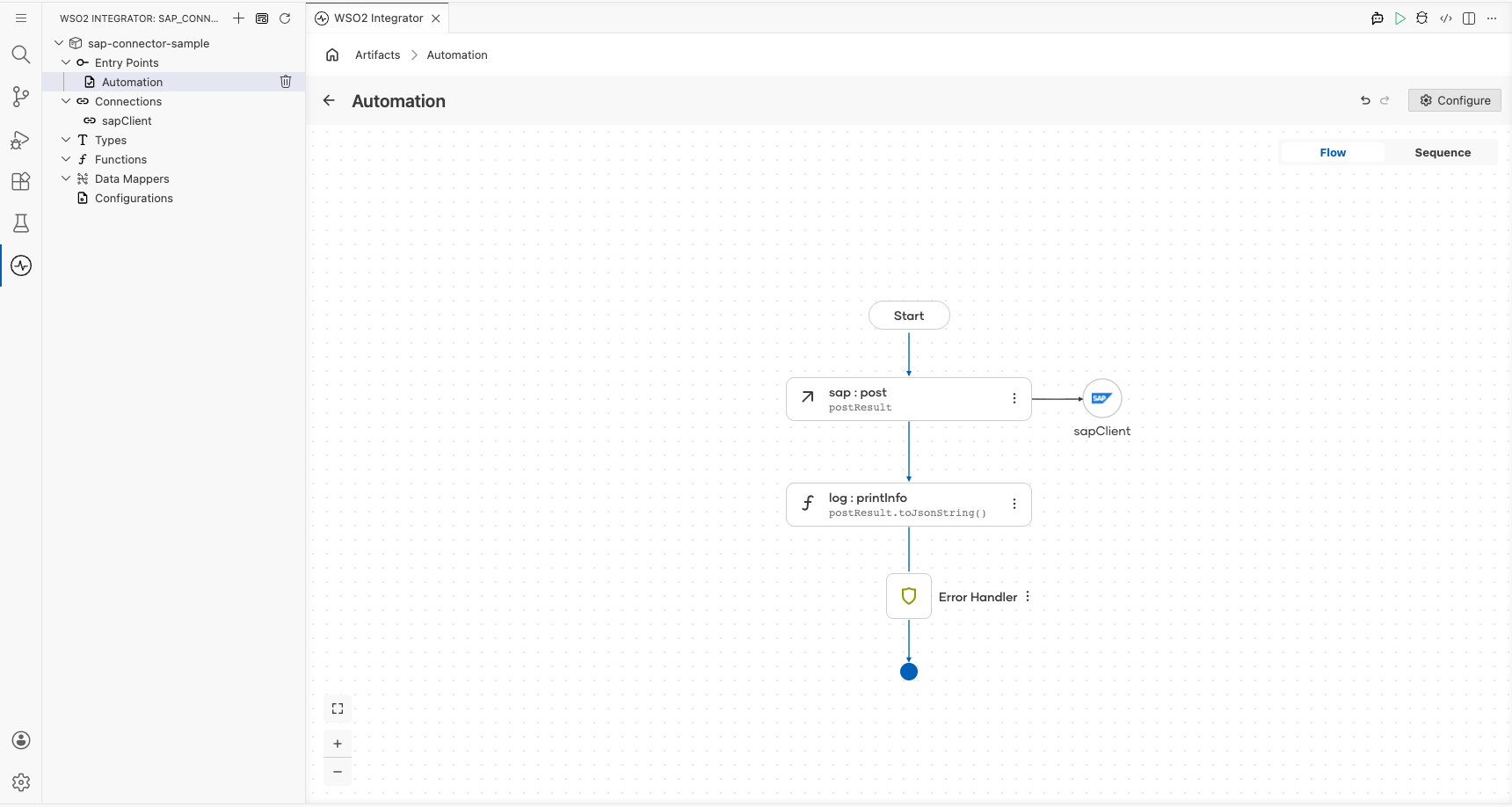
Build an integration that sends an HTTP POST request to an SAP OData service using the SAP connector. The integration creates a Business Partner record by calling the SAP Business Partner API with a JSON payload and logs the response.
Operations used:
- Post : Sends an HTTP POST request to an SAP OData service endpoint to create a Business Partner record
Architecture
Prerequisites
- SAP system endpoint URL
- SAP system credentials configured via
http:ClientConfiguration
Setting up the SAP integration
New to WSO2 Integrator? Follow the Create a New Integration guide to set up your integration first, then return here to add the connector.
Adding the SAP connector
Step 1: Add the SAP connector
- In the WSO2 Integrator side panel, select Add Artifact or navigate to the Connections section.
- Select the + button next to Connections to open the connector palette.
- Search for sap in the search box.
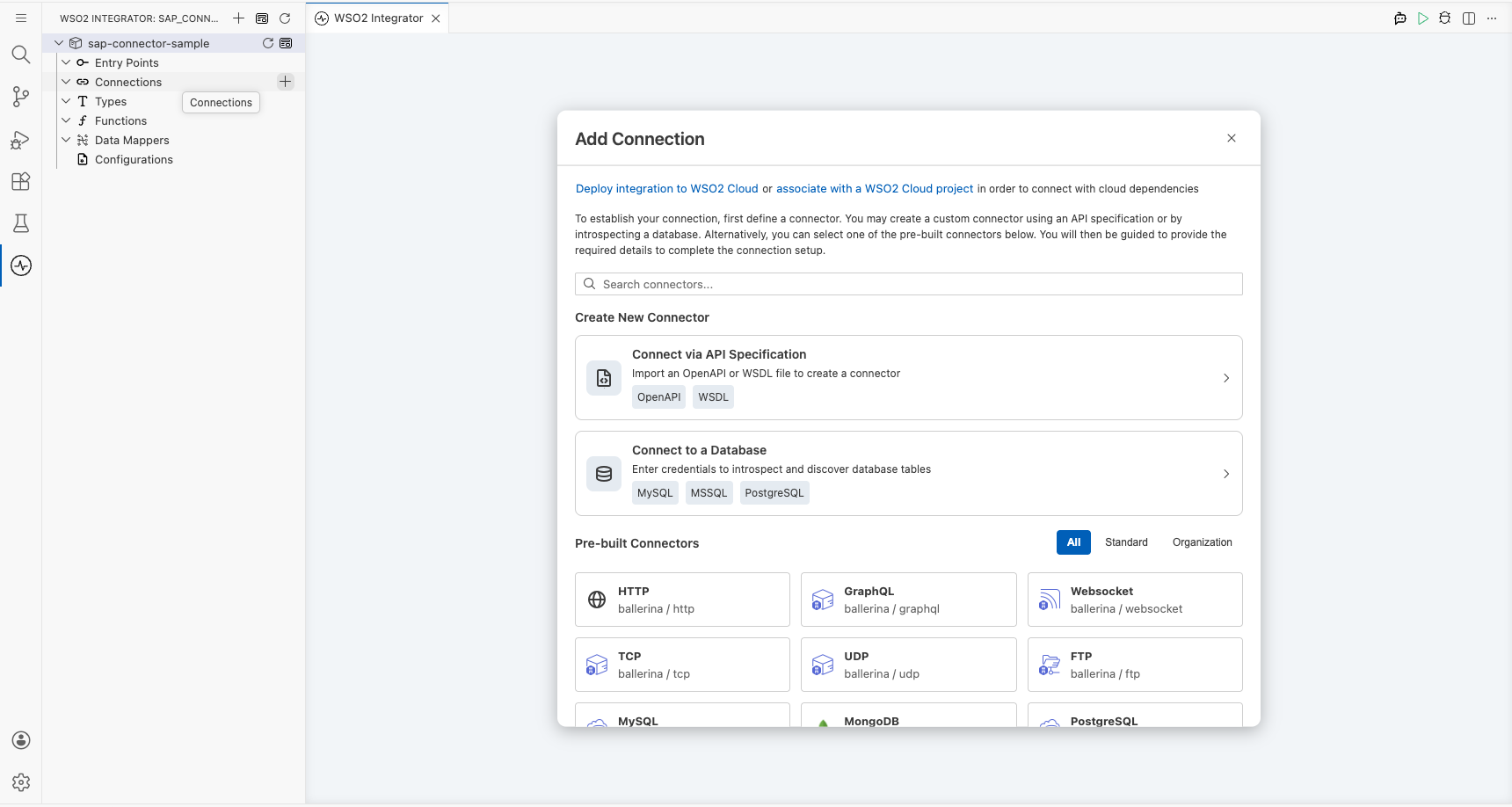
- Select the SAP connector card from the results.
Configuring the SAP connection
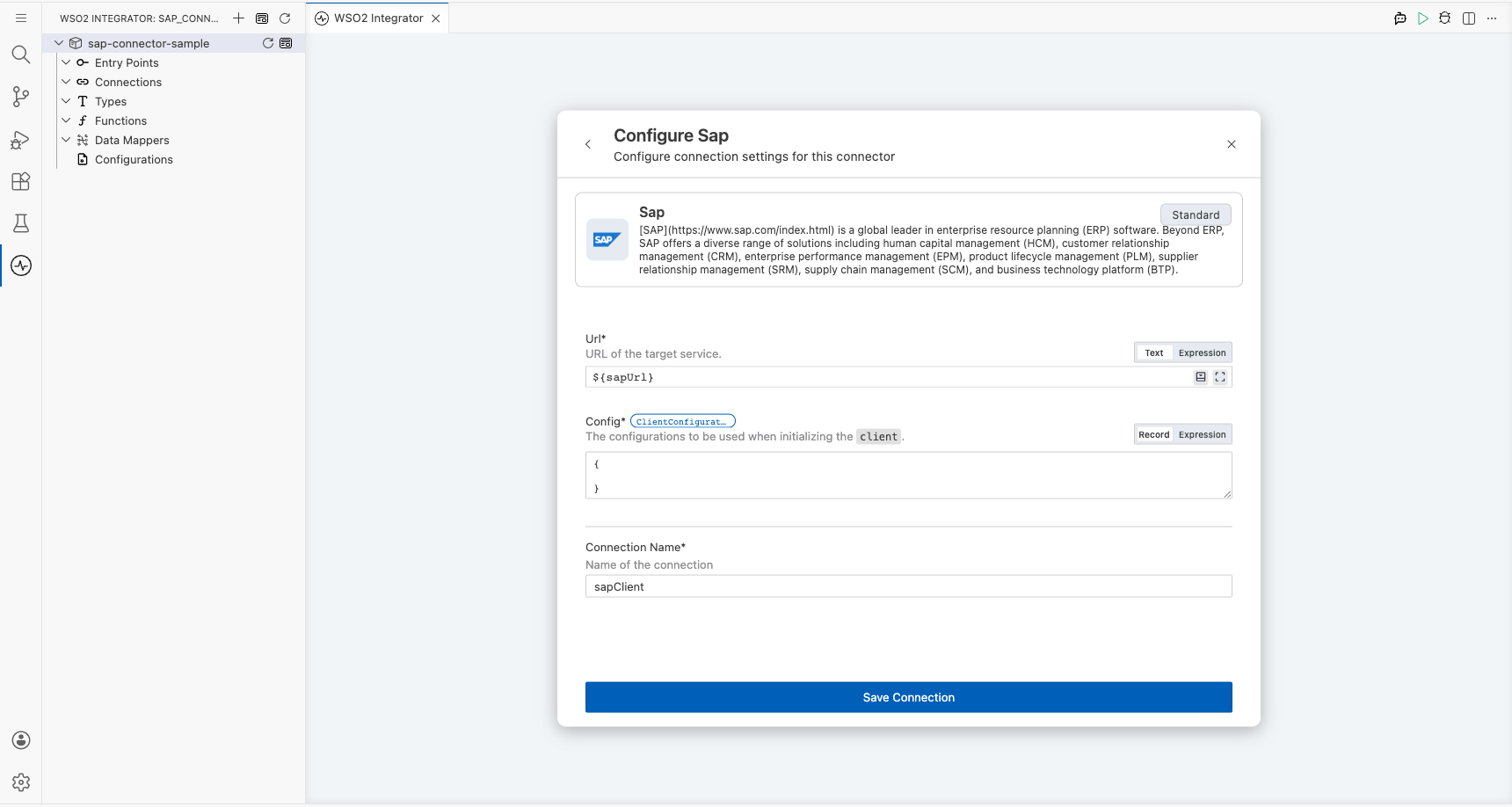
Step 2: Fill in the SAP connection parameters
Enter the connection parameters below, binding each field to a configurable variable:
- Url : The SAP system HTTP endpoint URL
- Config : Optional HTTP client configuration record for authentication, TLS, and timeouts
- Connection Name : The identifier for this connection instance
Step 3: Save the connection
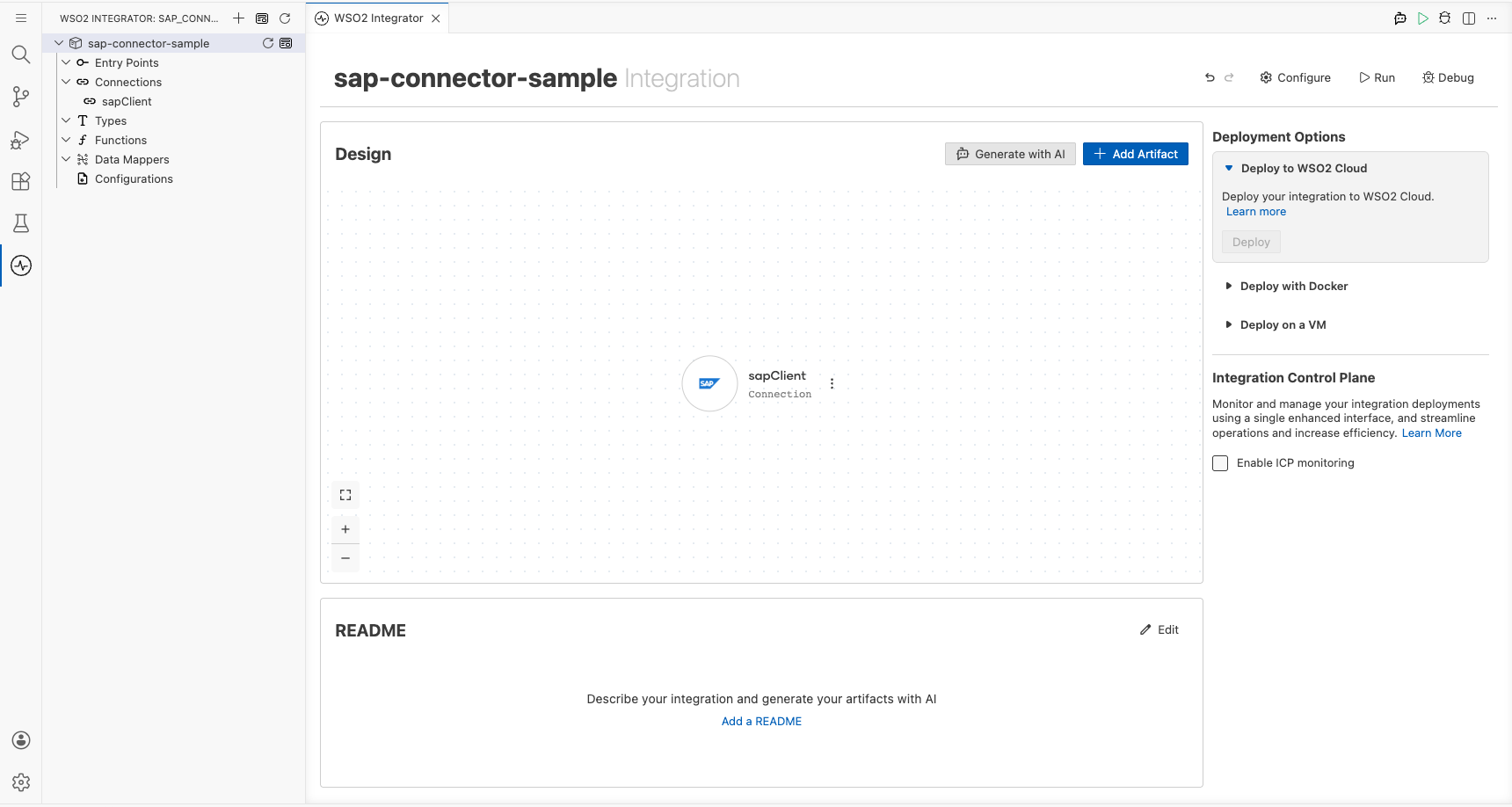
Select Save to create the connection. The sapClient connection appears in the project tree under Connections.
Step 4: Set actual values for your configurables
- In the left panel, select Configurations.
- Set a value for each configurable listed below.
- sapUrl (string) : The base URL of the SAP system
Configuring the SAP post operation
Step 5: Add an automation entry point
- In the WSO2 Integrator side panel, select Add Artifact.
- Select Automation as the entry point type.
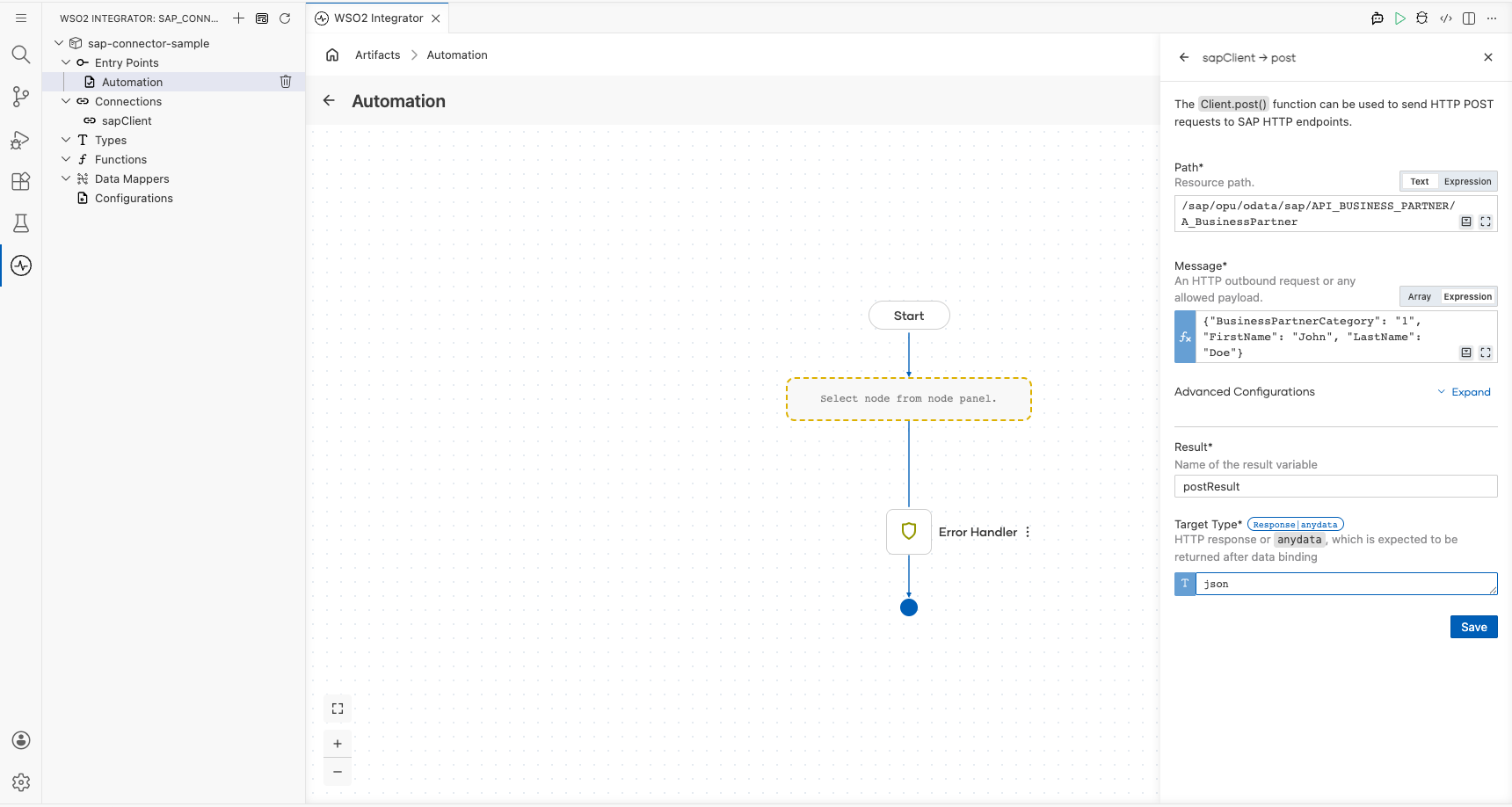
Step 6: Select and configure the post operation
Expand the sapClient connection node in the right-side panel to view available operations, then select Post.
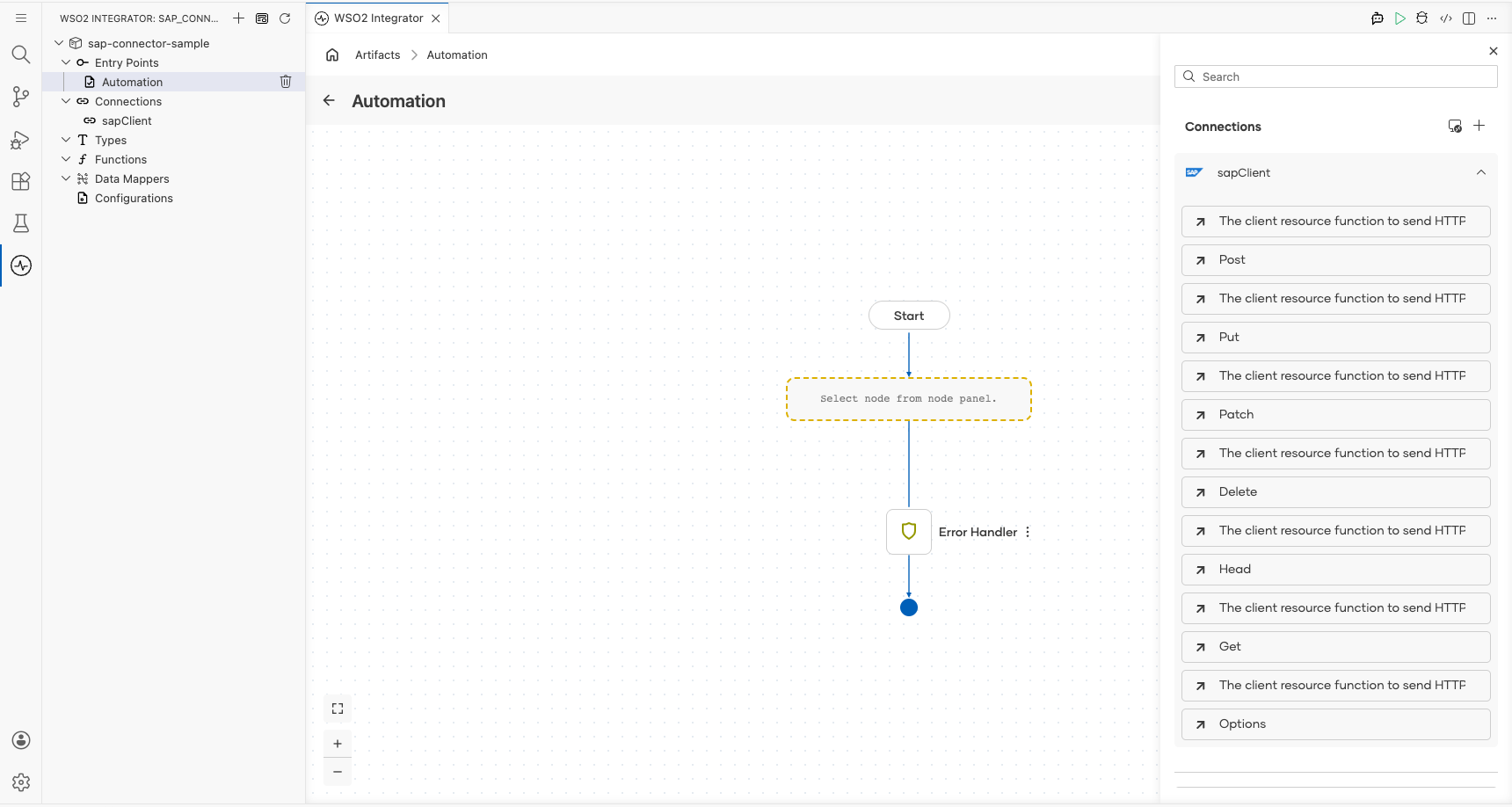
Configure the operation with the following values:
- Path : The SAP OData service resource path (for example,
/sap/opu/odata/sap/API_BUSINESS_PARTNER/A_BusinessPartner) - Message : The JSON payload for the request body
- Result : Variable name to store the operation response
- Target Type : Expected response type for data binding
Select Save to add the operation to the automation flow.
Try it yourself
Try this sample in WSO2 Integration Platform.

More code examples
The sap connector provides practical examples illustrating usage in various scenarios. Explore
these examples, covering use cases
like accessing S/4HANA Sales Order (A2X) API.
- Send a reminder on approval of pending orders -
This example illustrates the use of the
sap:Clientin Ballerina to interact with S/4HANA APIs. Specifically, it demonstrates how to send a reminder email for sales orders that are pending approval.