Example
What you'll build
Build a WSO2 Integrator automation that connects to Salesforce Marketing Cloud and sends a transactional email using the Send Email Message operation. The integration creates a connection to Marketing Cloud using OAuth 2.0 credentials, then calls the send email endpoint with a recipient payload.
Operations used:
- Send Email Message : Sends a transactional email to one or more recipients using a pre-configured Email Definition key
Architecture
Prerequisites
- A Salesforce Marketing Cloud account with an OAuth 2.0 Client Credentials app created
- Your app's
clientId,clientSecret, andsubDomainvalues ready
Setting up the Salesforce marketing cloud integration
New to WSO2 Integrator? Follow the Create a New Integration guide to set up your integration first, then return here to add the connector.
Adding the Salesforce marketing cloud connector
Step 1: Open the connector palette
In the Connections section of the left panel, select Add Connection to open the connector palette.
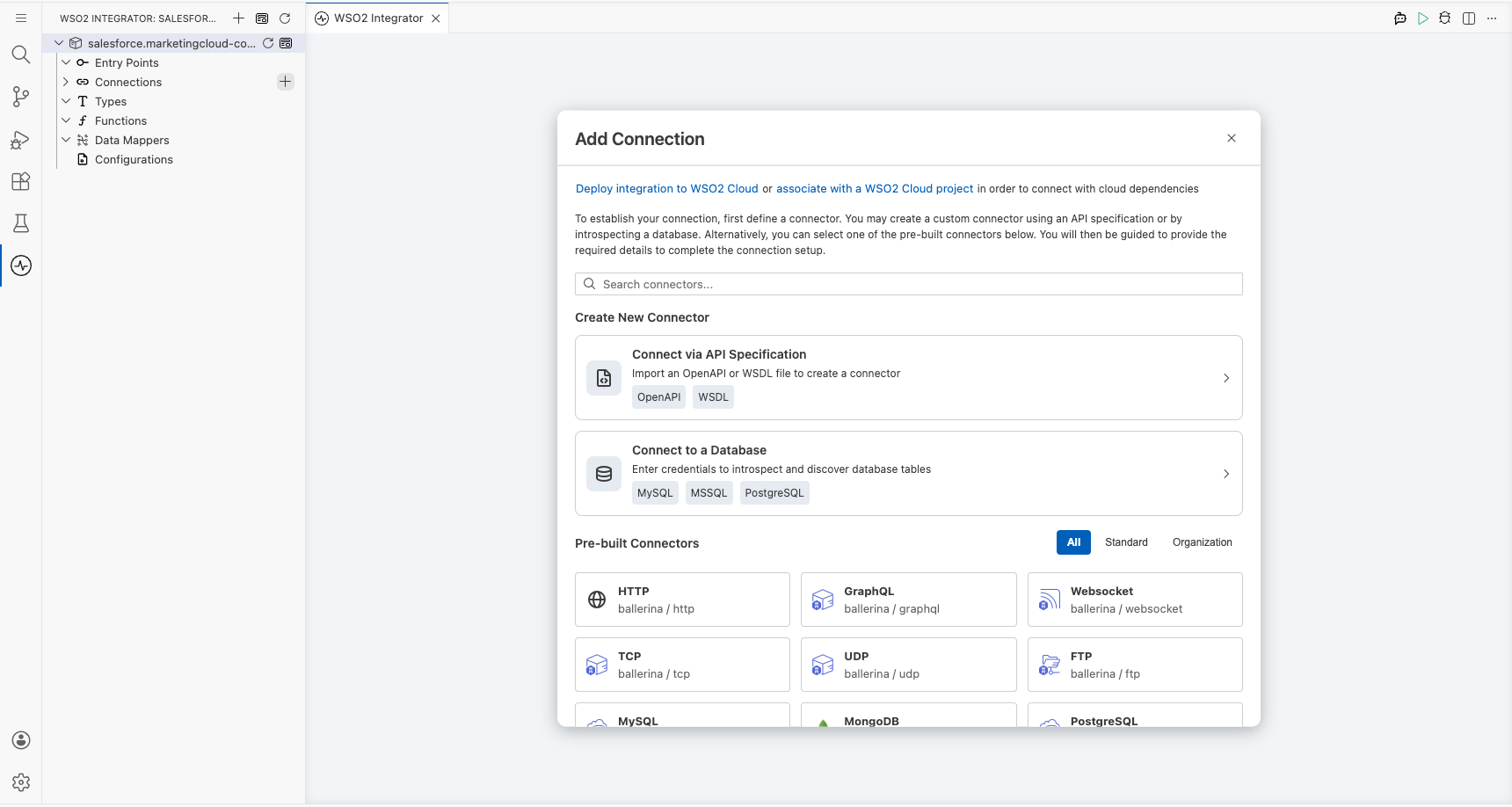
Step 2: Search for and select the marketing cloud connector
- In the search field, enter
marketingcloud. - Locate Marketingcloud (
ballerinax/salesforce.marketingcloud) and select Add.
Configuring the Salesforce marketing cloud connection
Step 3: Fill in the connection parameters
In the Configure Marketingcloud form, bind each field to a configurable variable:
- subDomain : The subdomain prefix of your Marketing Cloud instance
- clientId : The OAuth 2.0 client ID of your Marketing Cloud app
- clientSecret : The OAuth 2.0 client secret of your Marketing Cloud app
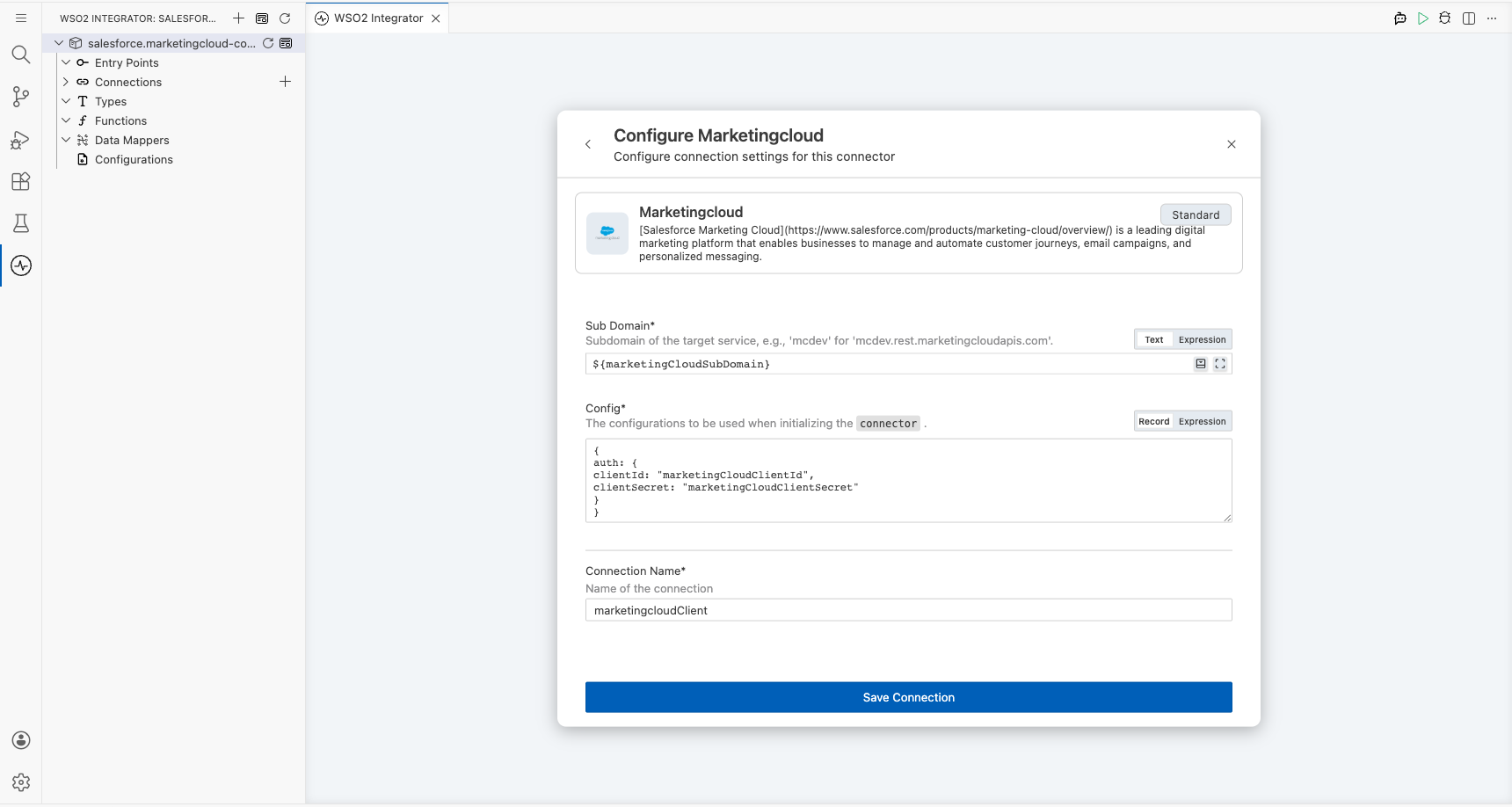
Step 4: Save the connection
Select Save Connection to persist the connection. The marketingcloudClient connection node appears on the design canvas.
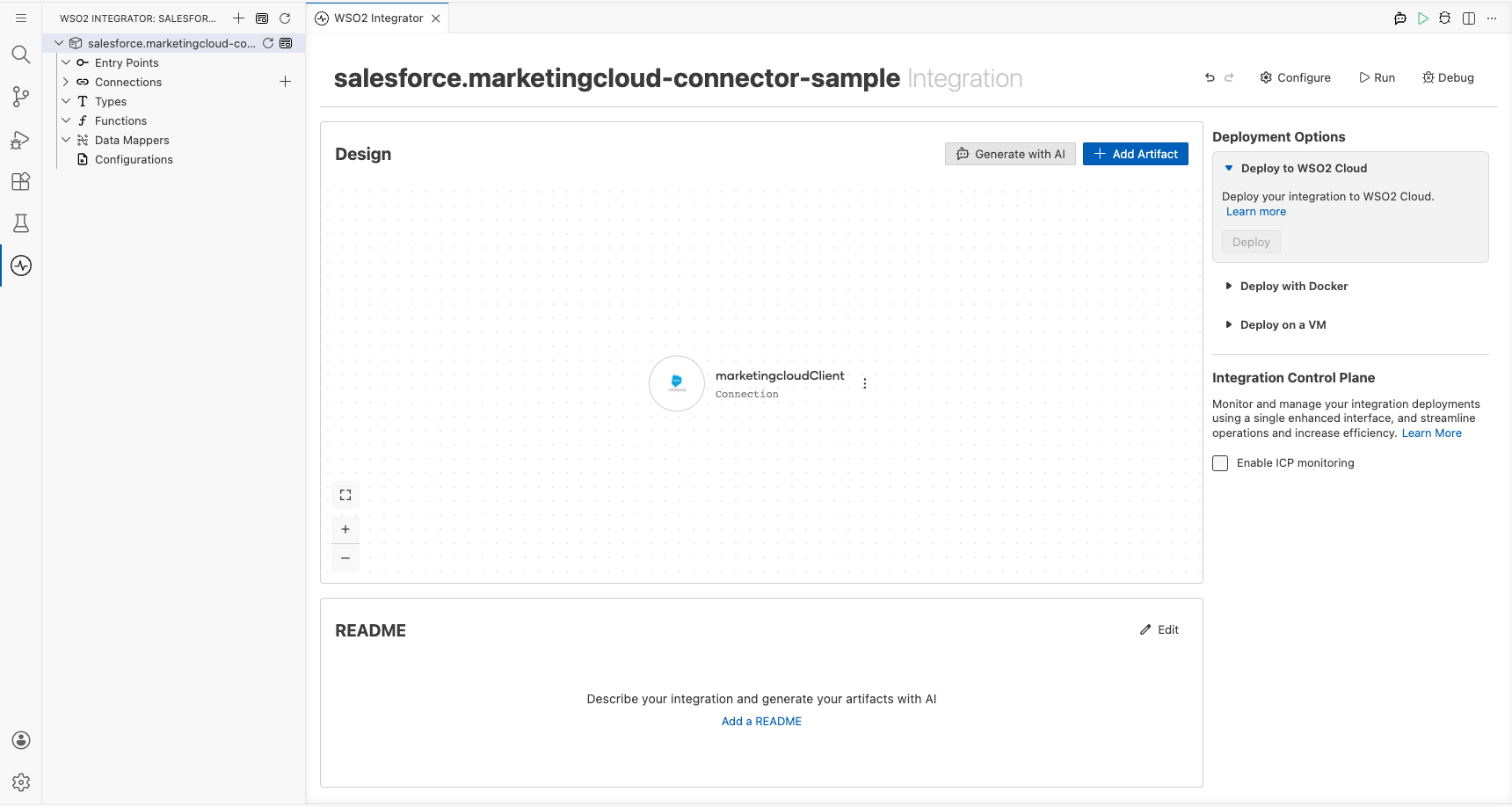
Step 5: Set actual values for your configurables
- In the left panel, select Configurations.
- Set a value for each configurable listed below.
- marketingCloudSubDomain (string) : The subdomain prefix of your Marketing Cloud instance (for example,
mcdev) - marketingCloudClientId (string) : The OAuth 2.0 client ID of your Marketing Cloud app
- marketingCloudClientSecret (string) : The OAuth 2.0 client secret of your Marketing Cloud app
Configuring the Salesforce marketing cloud send email message operation
Step 6: Add an automation entry point
- On the design canvas, select + Add Artifact.
- Select Automation in the artifacts panel.
- Accept the defaults in the Create New Automation form and select Create.
The main automation is created and the flow canvas opens, showing a Start node and an Error Handler.
Step 7: Select the send email message operation and configure its parameters
- Select the + placeholder node between Start and Error Handler.
- Under Connections, expand
marketingcloudClientto see all available operations.
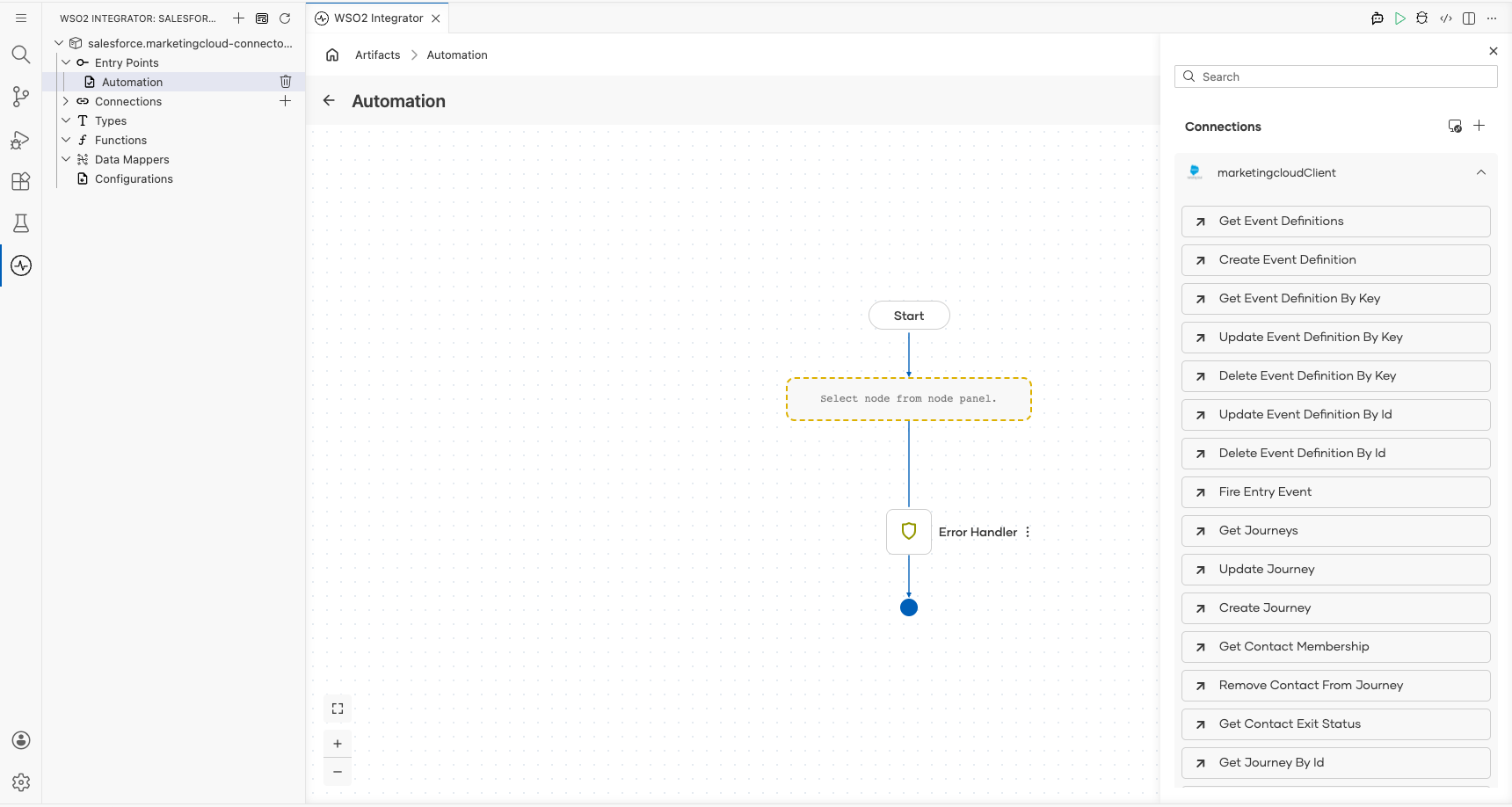
- Select Send Email Message to open its configuration form.
- Fill in the operation fields:
- payload : A
SendEmailMessageRequestrecord containing thedefinitionKey(the key of the Email Definition in Marketing Cloud) andrecipients(a list of recipient objects each with acontactKeyandtoemail address) - Result : Auto-generated variable name
marketingcloudSendemailmessageresponse
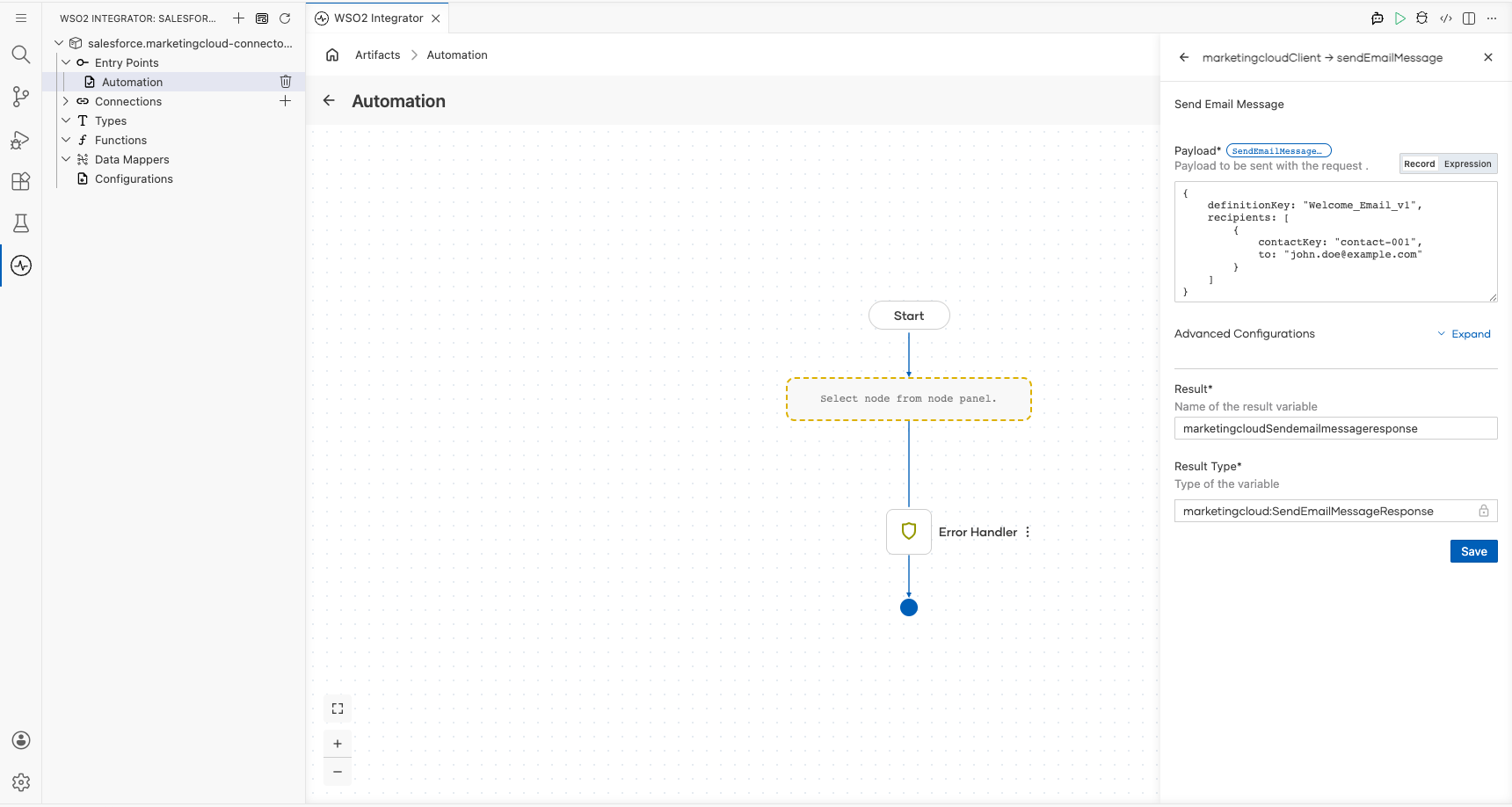
- Select Save.
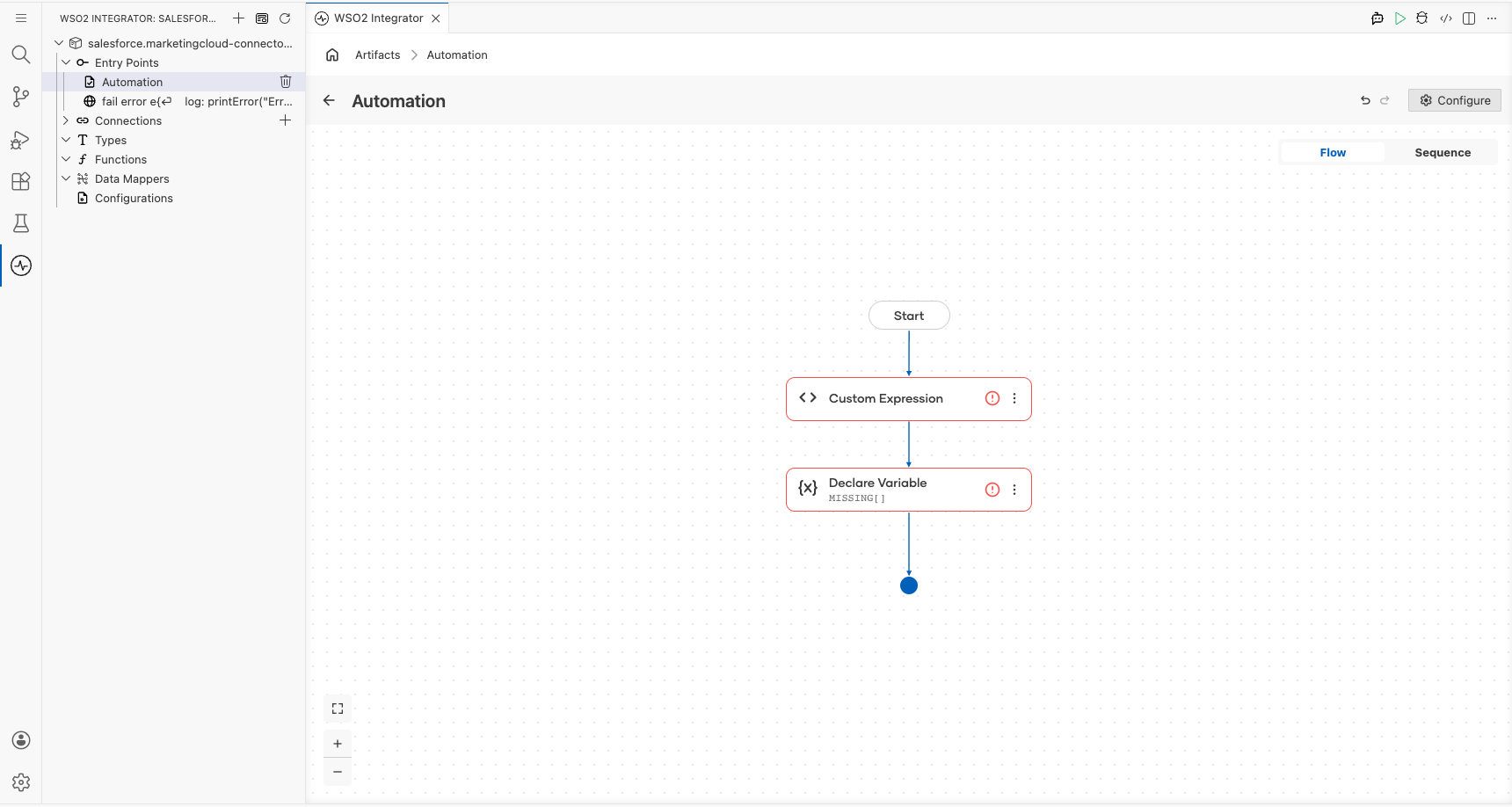
Try it yourself
Try this sample in WSO2 Integration Platform.

More code examples
The ballerinax/salesforce.marketingcloud connector provides practical examples illustrating usage in various scenarios. Explore these examples to understand common Salesforce Marketing Cloud integration patterns.
- Seasonal Journey – Shows how to enroll new users into the Seasonal Journey by adding a row to a Data Extension, with checks to prevent enrolling users who are already part of the Rewin Journey.
- Sync Images - demonstrates how to synchronize images from Digital Asset Management (DAM) systems to Salesforce Marketing Cloud Content Builder using the Ballerina client. It retrieves images from external URLs, encodes them in base64, and uploads them to a specified category (folder) in Content Builder.