Example
What you'll build
This integration connects WSO2 Integrator to the Asana project management API using the ballerinax/asana connector. It demonstrates how to authenticate with the Asana API using a Personal Access Token, configure the Asana connection with configurable variables, and call the getWorkspaces operation on a schedule using an Automation entry point. The complete flow on the canvas shows an Automation trigger → Asana Remote Function → End, running periodically to retrieve all Asana workspaces accessible to the authenticated user.
Operations used:
- Get multiple workspaces: Retrieves all Asana workspaces accessible to the authenticated user
Architecture
Prerequisites
- An active Asana account with API access enabled.
- An Asana Personal Access Token (PAT) generated from your Asana developer settings at
https://app.asana.com/0/my-apps. - (Optional) An Asana Workspace GID if operations require a workspace identifier.
Setting up the Asana integration
New to WSO2 Integrator? Follow the Create a New Integration guide to set up your integration first, then return here to add the connector.
Adding the Asana connector
Step 1: Open the connector palette
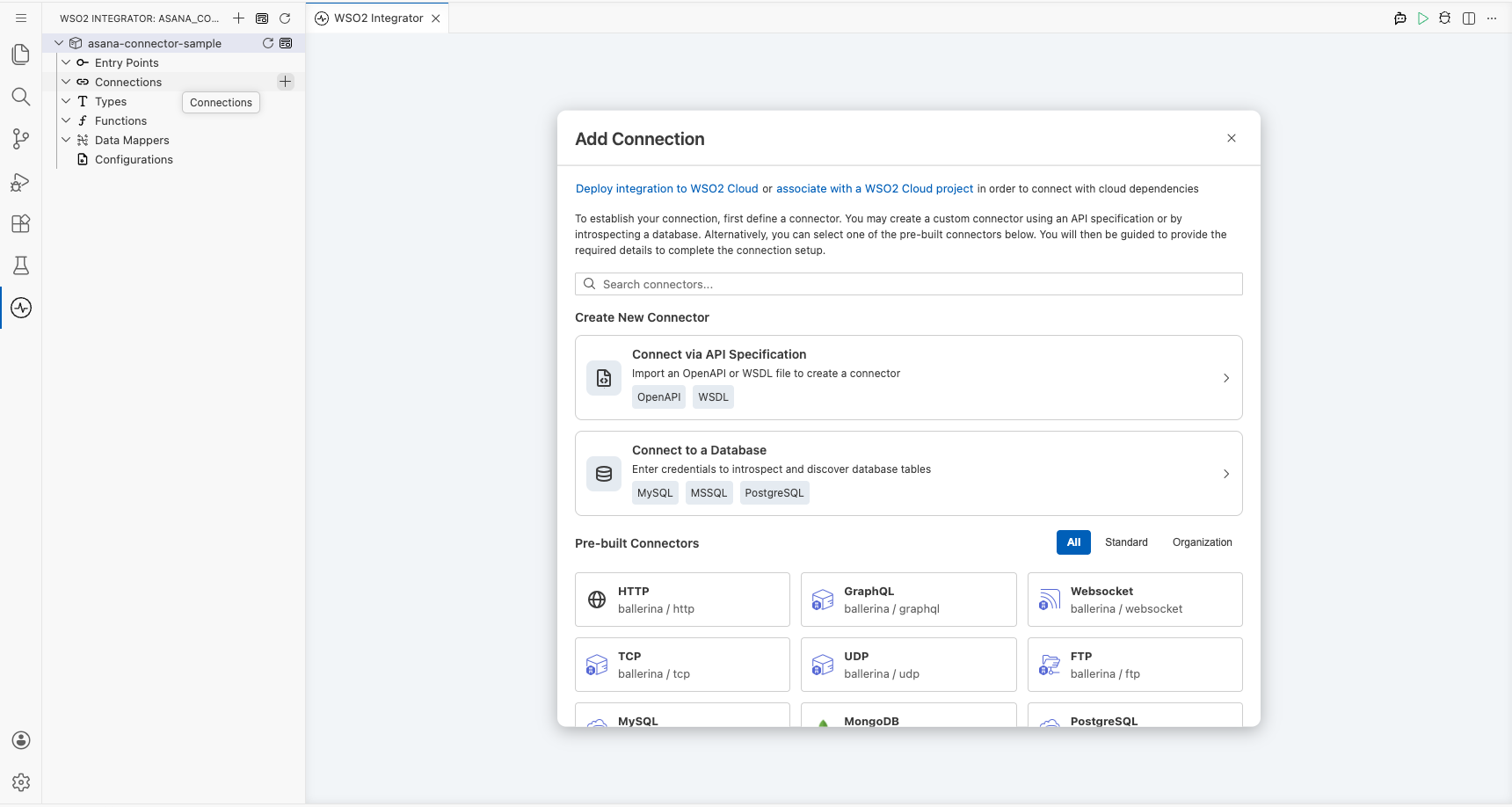
Select Add Connection in the Connections section of the left sidebar to open the connector search palette, which displays a search field and a list of pre-built connectors.
Step 2: Search for and select the Asana connector
Enter "asana" in the search box to filter the connector list, then select the Asana connector card (ballerinax/asana) to open its connection configuration form.
Configuring the Asana connection
Step 3: Bind Asana connection parameters to configurable variables
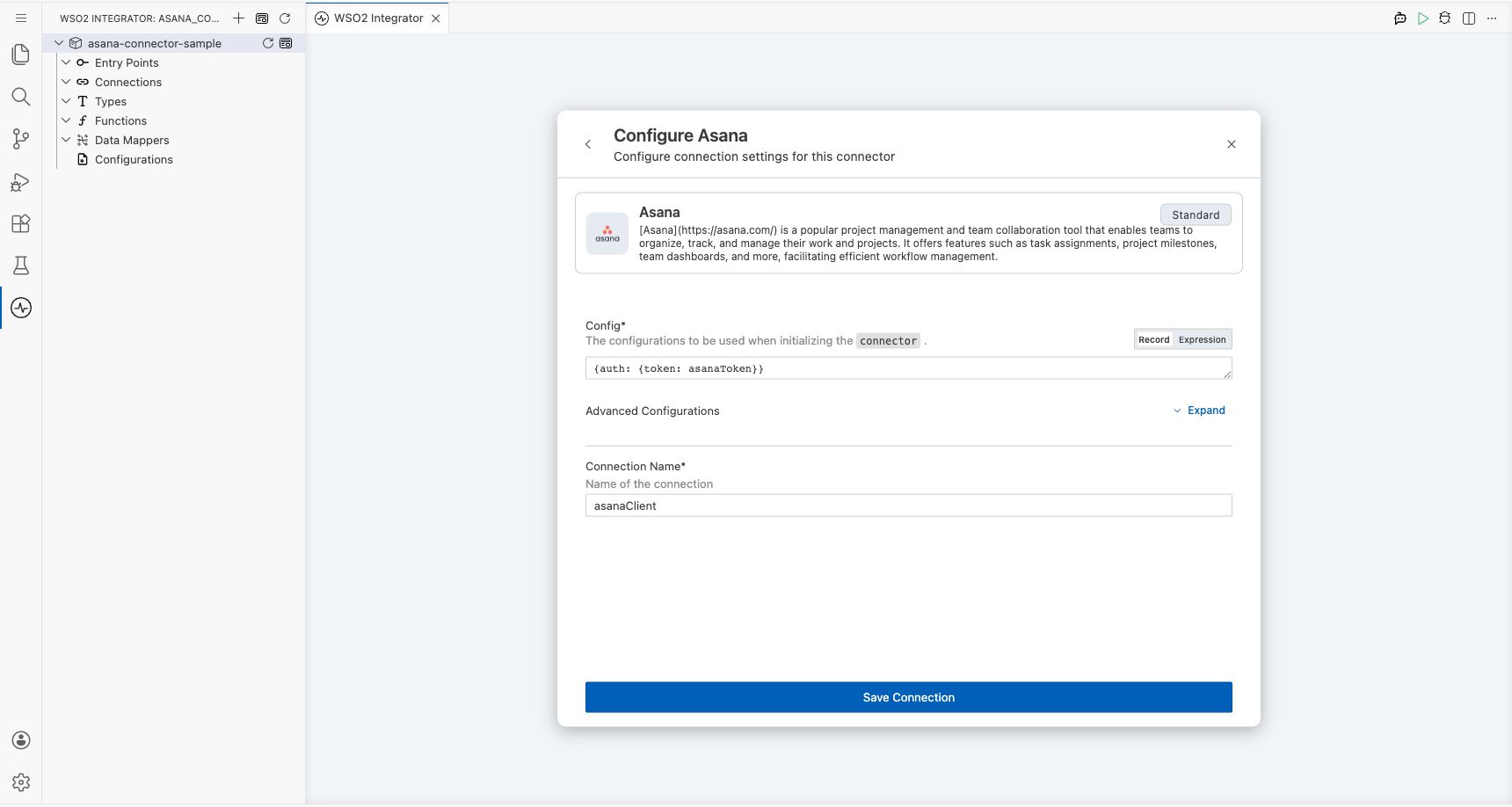
In the connection configuration form, bind each required field to a configurable variable. The following parameters were configured:
- Config : The connection configuration record containing the authentication settings for the Asana connector. The
auth.tokenfield is bound to theasanaTokenconfigurable variable.
Step 4: Save the Asana connection
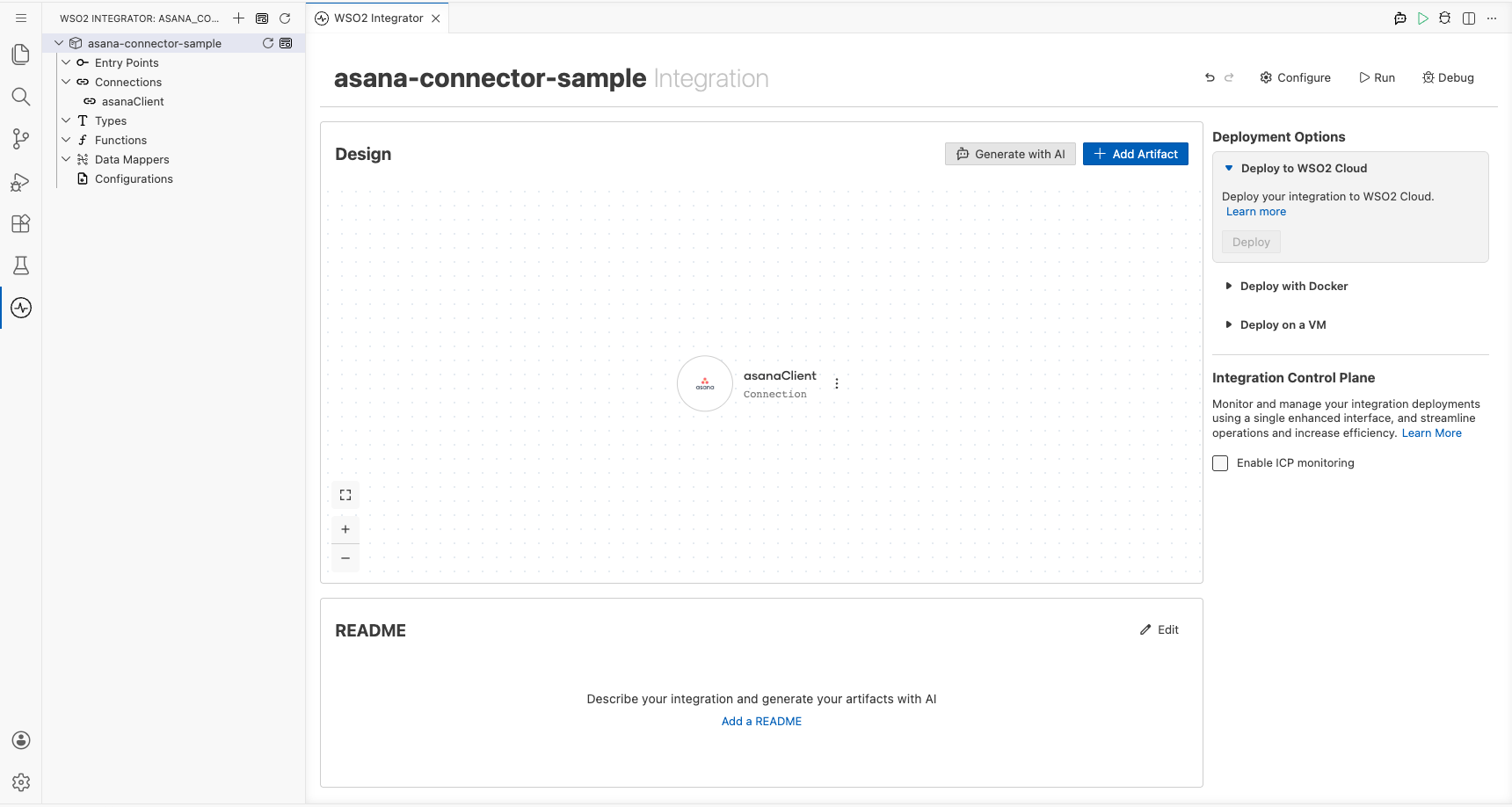
Select Save Connection to persist the Asana connection configuration. The asanaClient connector node now appears on the integration design canvas.
Step 5: Set actual values for your configurables
- In the left panel of WSO2 Integrator, select Configurations (listed at the bottom of the project tree, under Data Mappers).
- Set a value for each configurable listed below.
- asanaToken (string) : Your Asana Personal Access Token from
https://app.asana.com/0/my-apps
Configuring the Asana get multiple workspaces operation
Step 6: Add an automation entry point
- In the low-code canvas, select Add Artifact in the Design section.
- Select Automation in the artifact selection panel.
- Accept the default schedule settings and select Create to add the automation to the canvas.
Step 7: Expand the Asana connection and select the get multiple workspaces operation
- In the automation flow body on the canvas, select the + (Add Step) button between the Start and Error Handler nodes to open the step-addition panel.
- Under Connections in the step panel, select the asanaClient connection node to expand it and reveal all available Asana API operations.
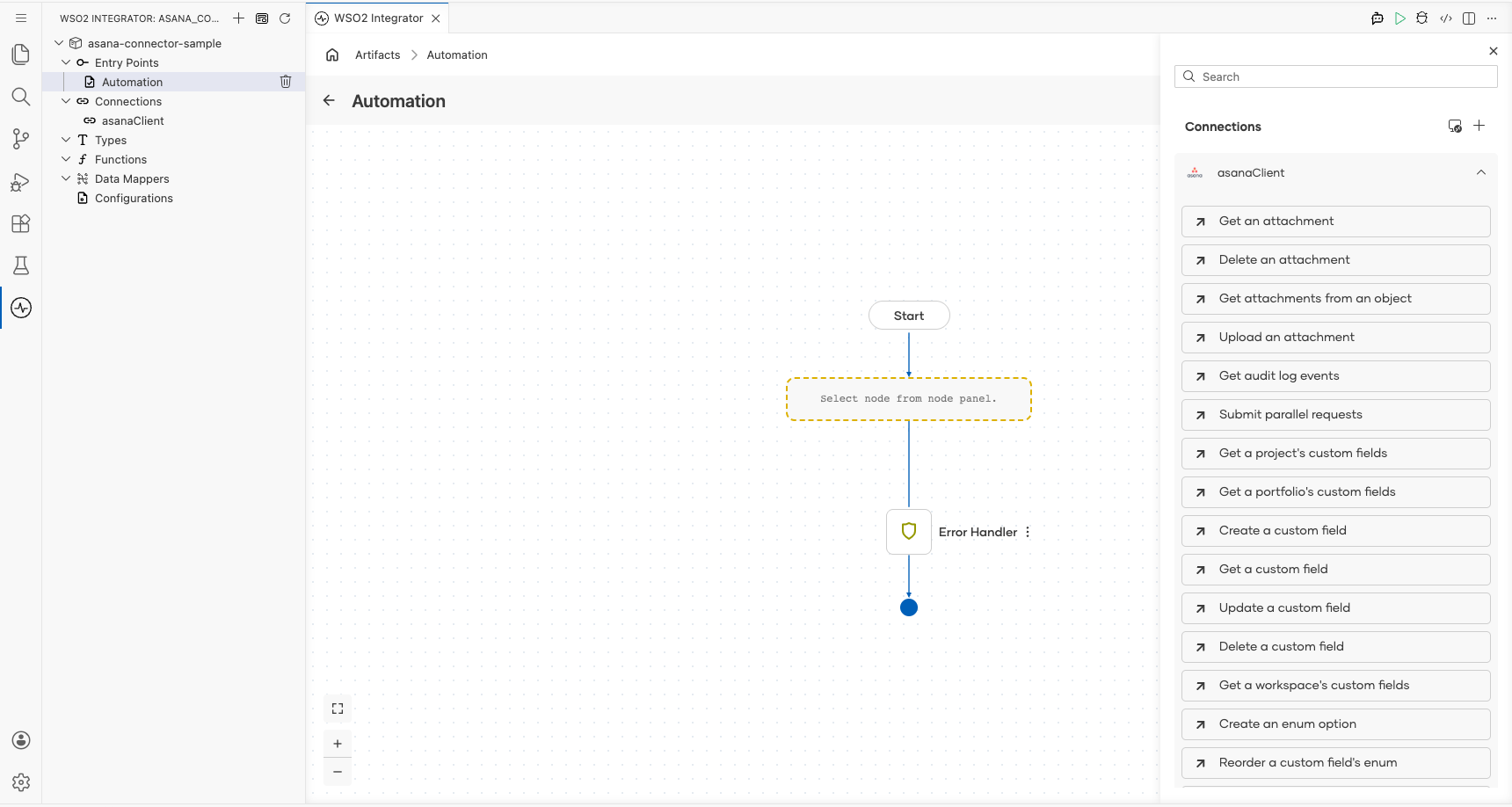
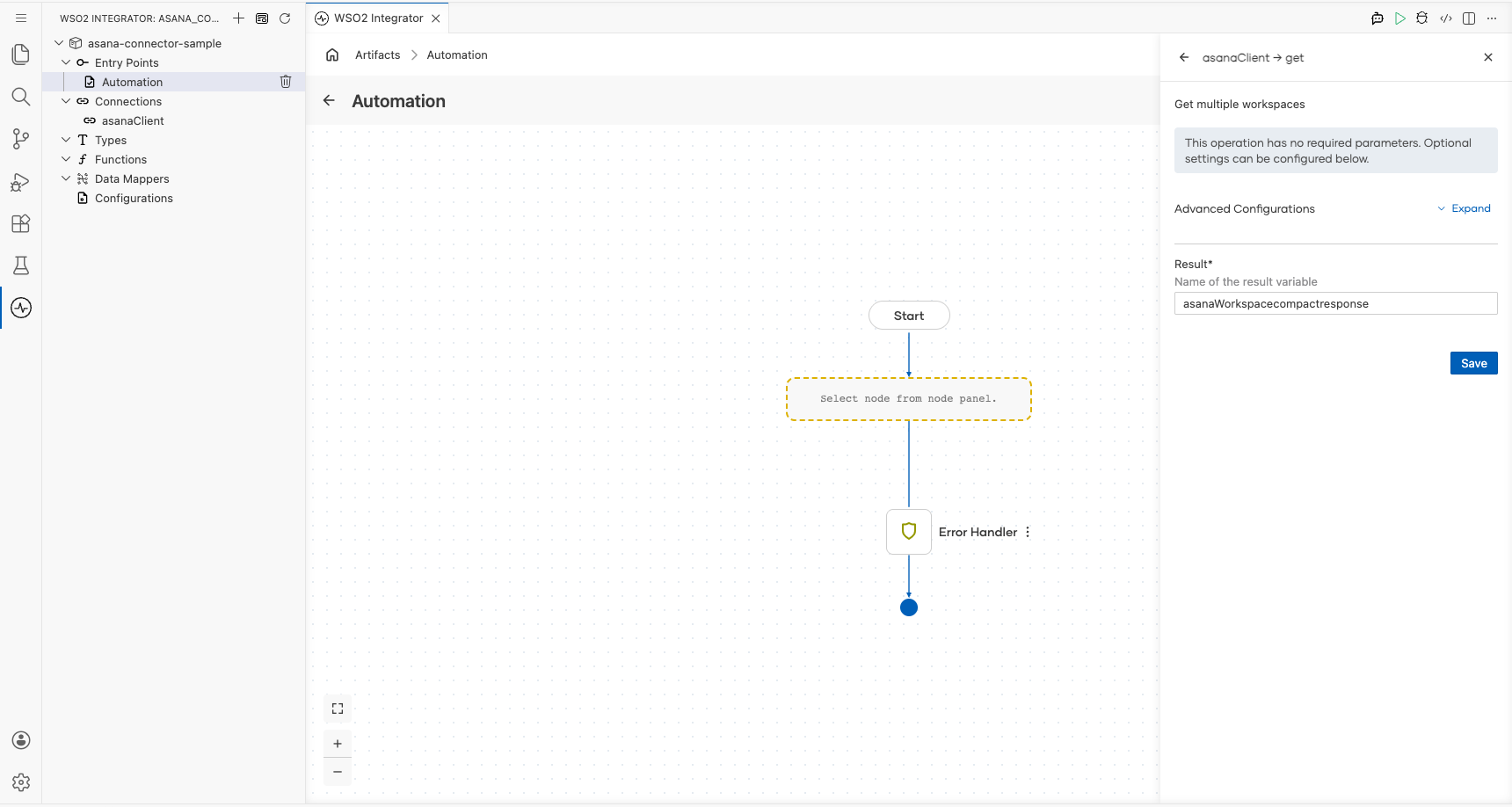
- Select Get multiple workspaces from the list, then fill in the operation fields:
- Result : Name of the result variable that stores the response from the Get multiple workspaces operation.
- Select Save to add the Asana operation step to the automation flow.
Step 8: Verify the completed automation flow
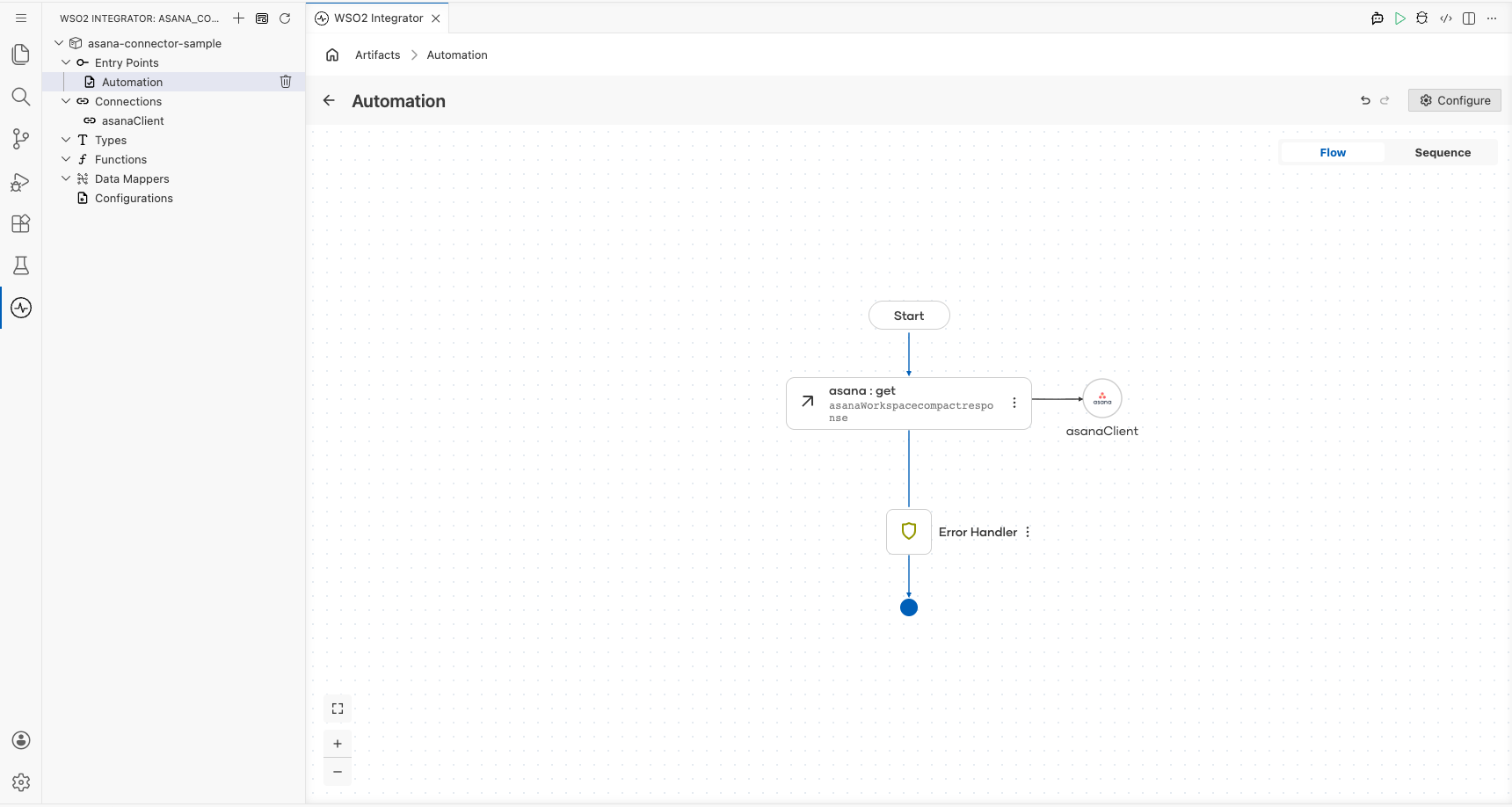
The completed canvas flow shows the Automation entry point → asana : get (Get multiple workspaces) → Error Handler → End, with the asanaClient connection linked to the operation node.
Try it yourself
Try this sample in WSO2 Integration Platform.

More code examples
The Asana connector offers practical examples illustrating its use in various scenarios.
Explore these examples, covering the following use cases:
- Employee onboarding process automation: Automate the onboarding process of new employees using Asana projects and tasks.
- Team workload balancer: Evaluate and balance the workload of a given team using Asana tasks and assignments.