Example
What you'll build
Build a WSO2 Integrator automation that connects to the DocuSign DS Admin API and retrieves a list of organizations for the authenticated user. The integration uses configurable variables to securely manage credentials and invokes the DS Admin connector's get operation via an Automation entry point.
Operations used:
- get : Returns a list of organizations that the authenticated user belongs to
Architecture
Prerequisites
- A DocuSign account with Admin API access
- A valid OAuth 2.0 bearer token from the DocuSign Identity Provider
Setting up the DS admin integration
New to WSO2 Integrator? Follow the Create a New Integration guide to set up your integration first, then return here to add the connector.
Adding the DS admin connector
Step 1: Open the connector palette
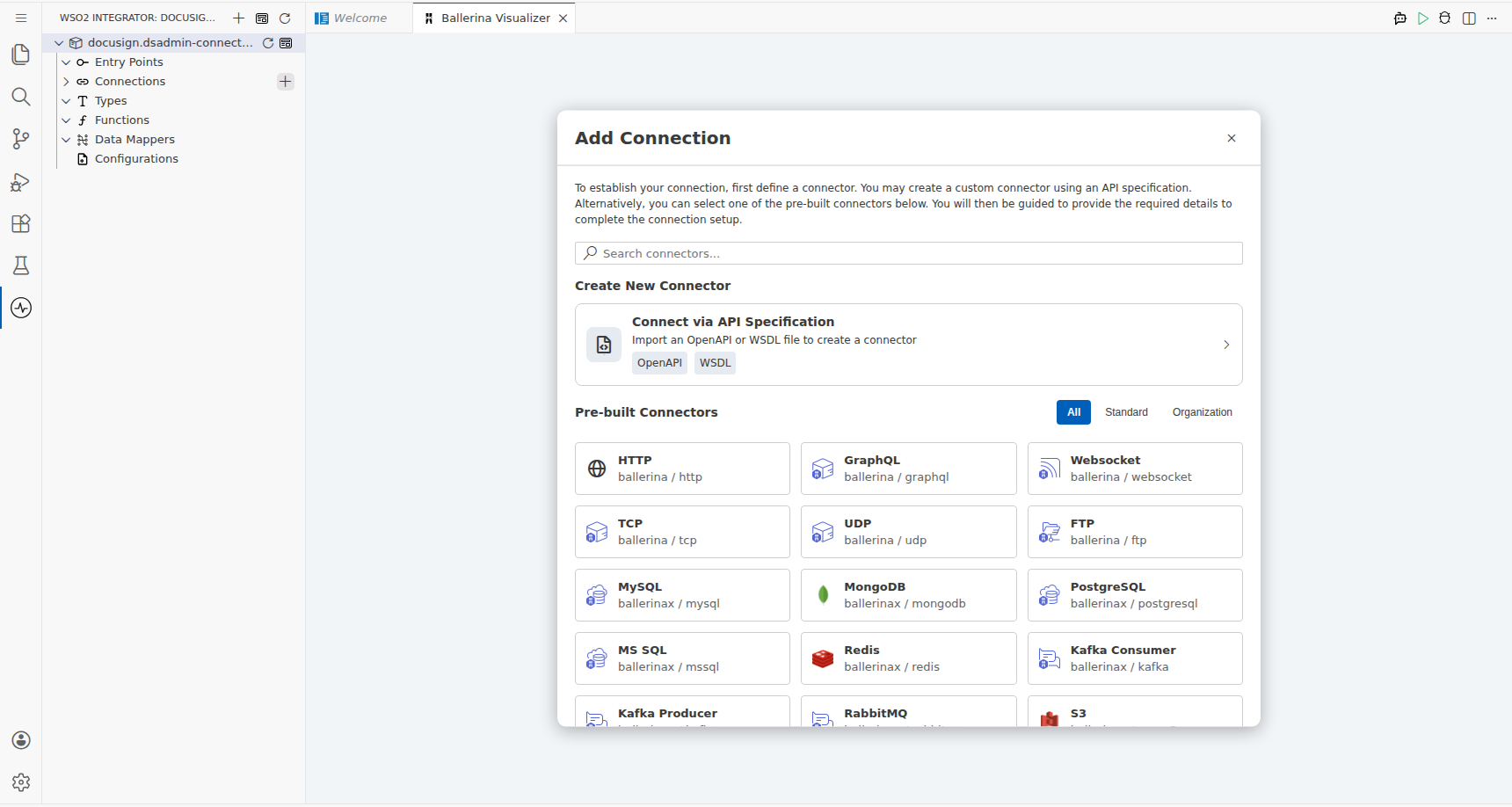
Select + Add Connection in the Connections section to open the connector palette.
Step 2: Search for and select the DS admin connector
- Enter
docusignin the search field. - Select the DS Admin card (
ballerinax/docusign.dsadmin) to open the connection form.
Configuring the DS admin connection
Step 3: Fill in the connection parameters
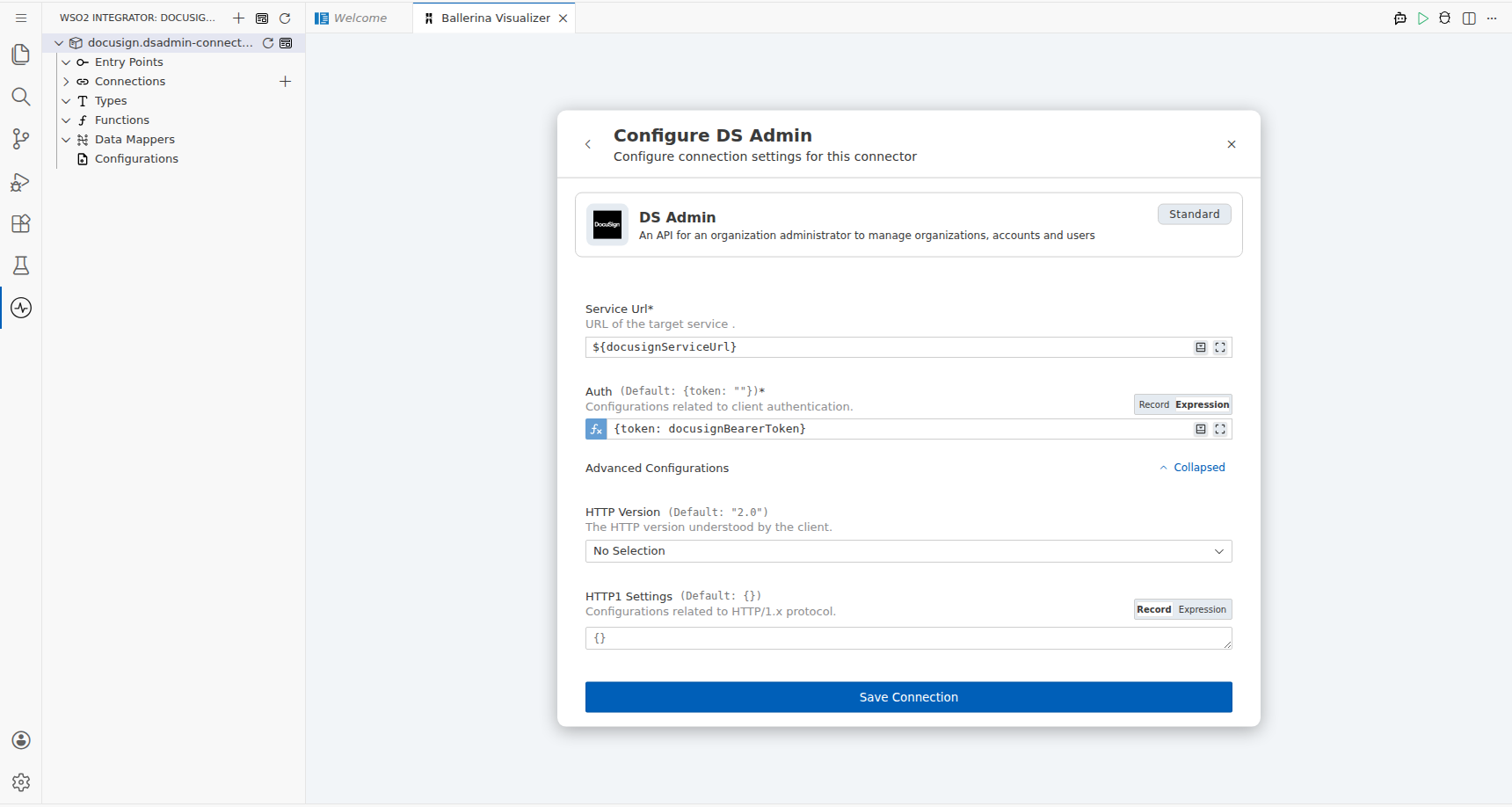
Bind each connection parameter to a configurable variable so no secrets are hard-coded.
- serviceUrl : Enter the DocuSign Admin API base URL, bound to the
docusignServiceUrlconfigurable variable - auth : Set to the bearer token expression referencing the
docusignBearerTokenconfigurable variable usingBearerTokenConfig - connectionName : Pre-filled as
dsadminClient; no change required
Step 4: Save the connection
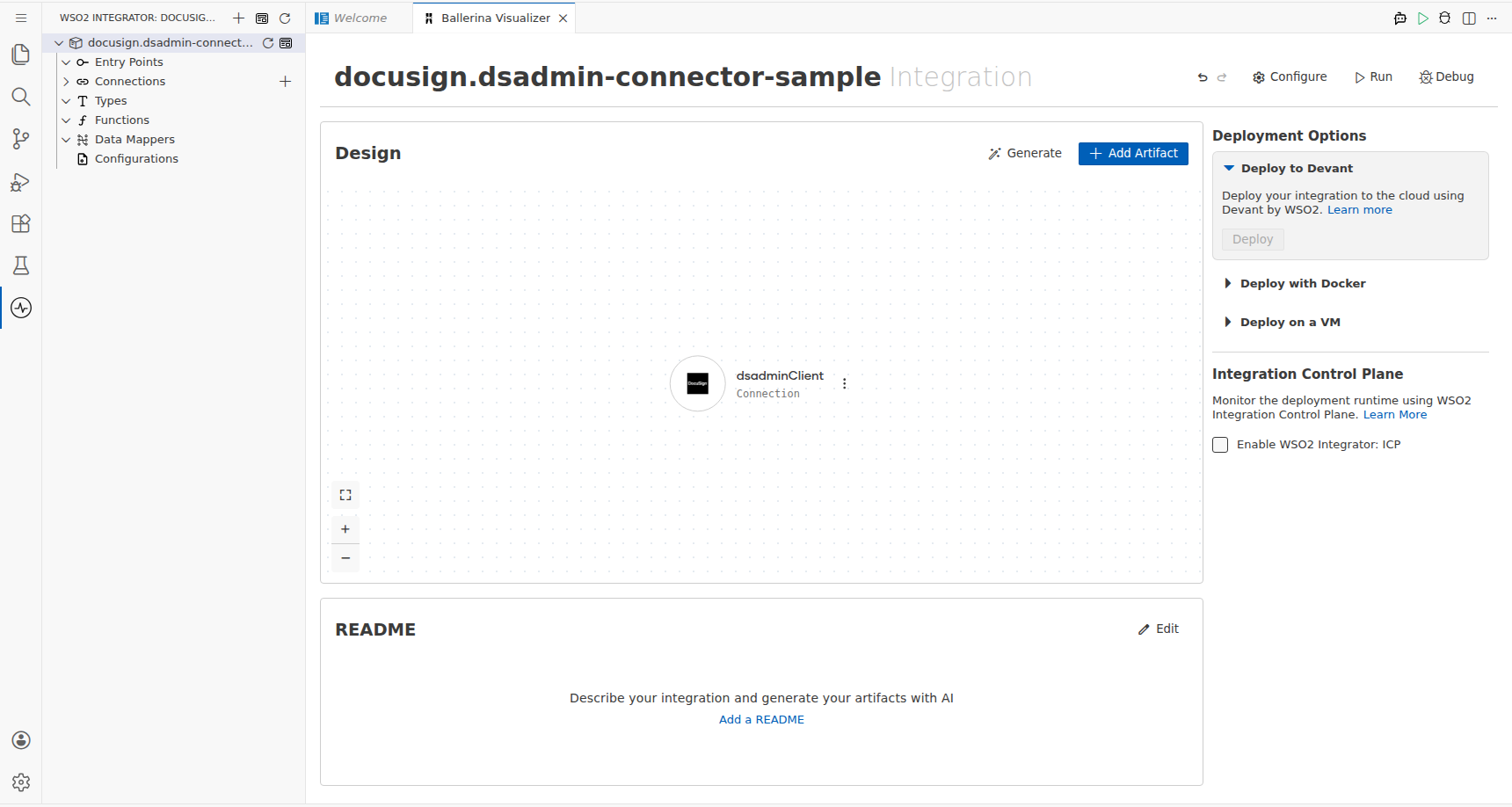
Select Save Connection to persist the connection. The dsadminClient node appears on the integration canvas.
Step 5: Set actual values for your configurables
- In the left panel, select Configurations (at the bottom of the project tree, under Data Mappers).
- Set a value for each configurable listed below.
- docusignServiceUrl (string) : The DocuSign Admin API base URL, for example
https://api.docusign.net/Management - docusignBearerToken (string) : A valid OAuth 2.0 bearer token obtained from the DocuSign Identity Provider
Configuring the DS admin get operation
Step 6: Add an automation entry point
- Select + Add Artifact on the canvas toolbar.
- Select Automation from the artifact type list.
- Leave the defaults as-is and select Create.
Step 7: Select and configure the get operation
- Select the + button between Start and Error Handler to open the step-addition panel.
- Under Connections, expand dsadminClient to see all available operations.
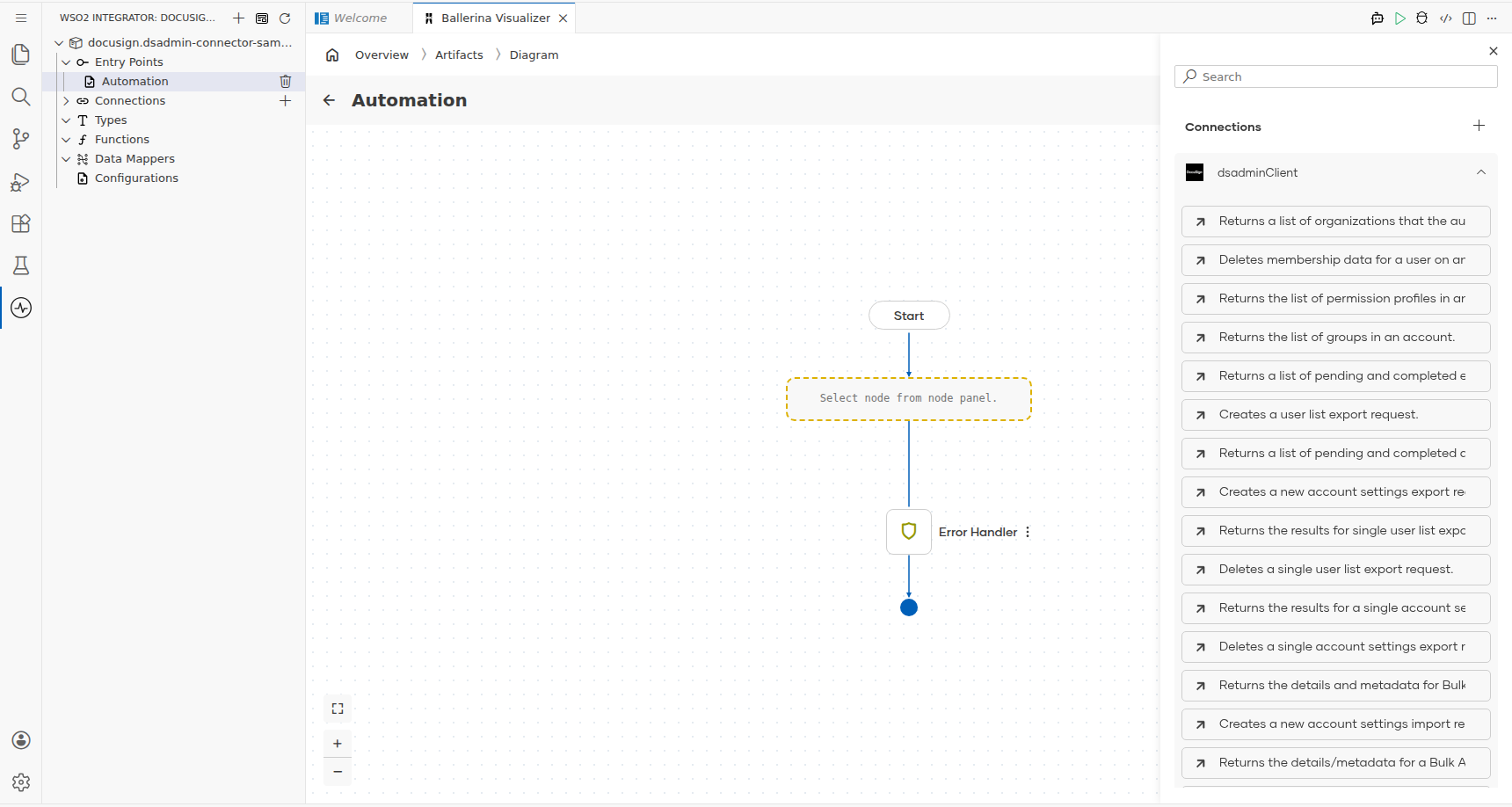
- Select "Returns a list of organizations that the authenticated user belongs to." (maps to
get()). - In the operation configuration panel, set the result variable to
dsAdminResult. This operation requires no additional parameters.
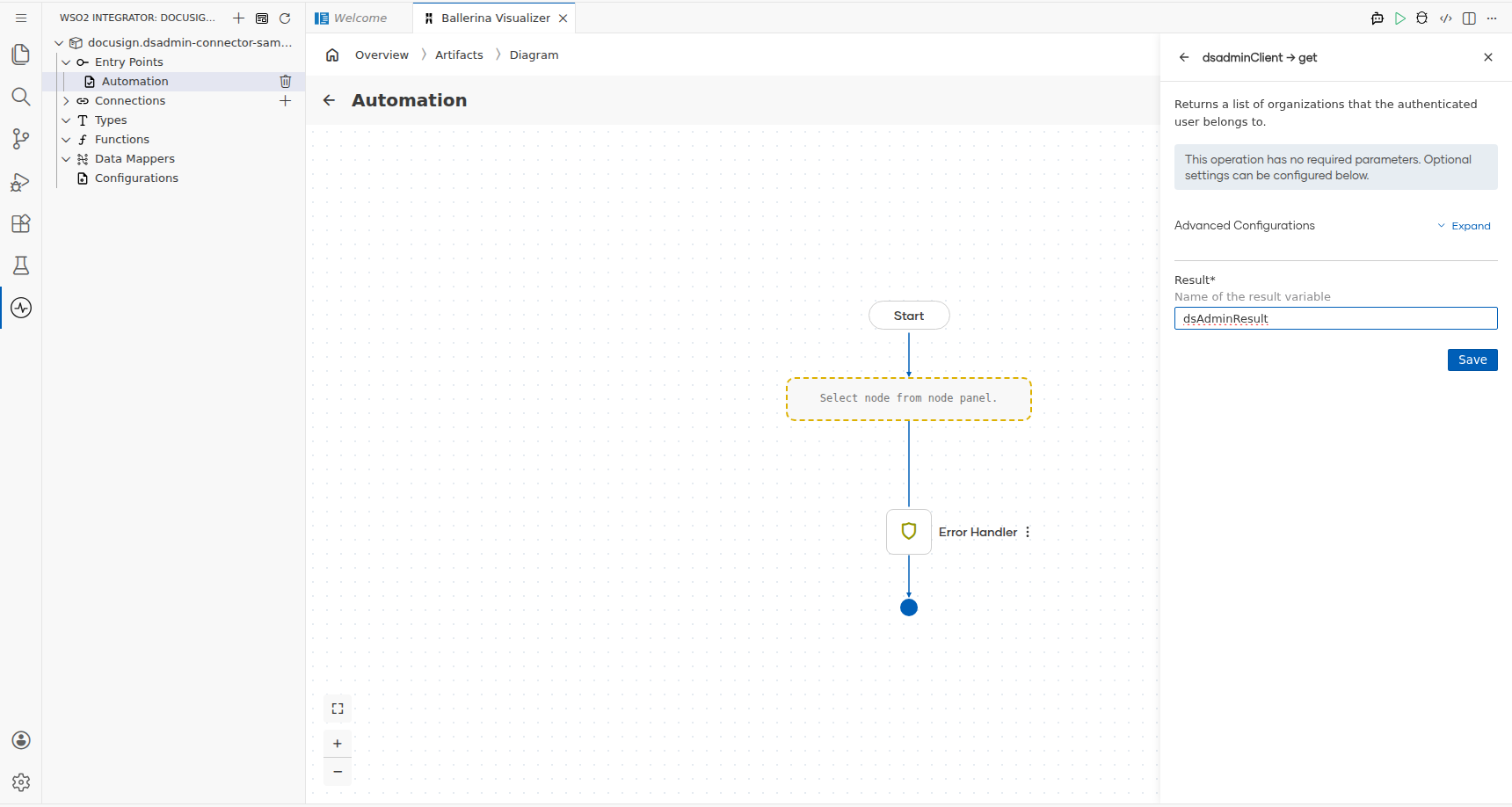
- Select Save.
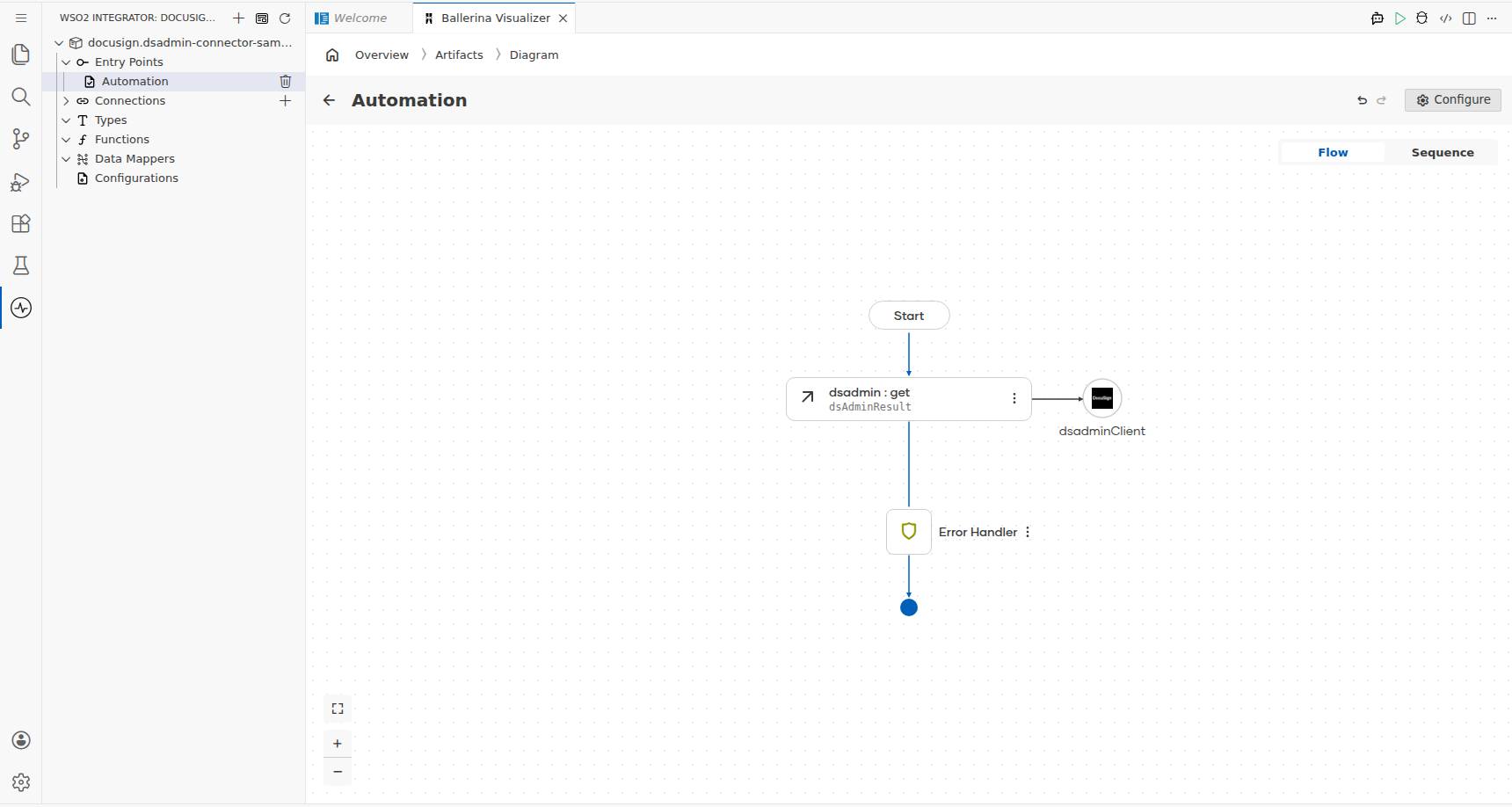
Try it yourself
Try this sample in WSO2 Integration Platform.

More code examples
The DocuSign Admin connector provides practical examples illustrating usage in various scenarios. Explore these examples.
-
Manage user information with DocuSign Admin This example shows how to use the DocuSign Admin API to create users and retrieve user information related to eSignature tasks.
-
Access permissions in user accounts This example shows how to use the DocuSign Admin API to view permission details of user accounts.