Managing Projects
A project is the top-level container for your integrations on WSO2 Cloud - Integration Platform. This page explains how to create a project from scratch, edit its details, and remove it when it is no longer needed.
View projects
Click Organization in the top navigation to open the organization overview. The overview lists all projects in your organization. By default a project named Default is automatically created on first sign-up.
Create a project
-
In the organization overview page, click + Create to create a new project from scratch.
tipTo import an existing project from a Git repository instead, click Import. See Import a project for instructions.
-
Fill in the project details:
Field Description Display name A human-readable label shown in the console. Name A unique identifier for the project. Must be unique within the organization. Description An optional summary of the project's purpose. -
Optionally, connect a Git repository to embed repository metadata with the project. To import integrations from a repository rather than just linking metadata, use the Import a project flow instead.
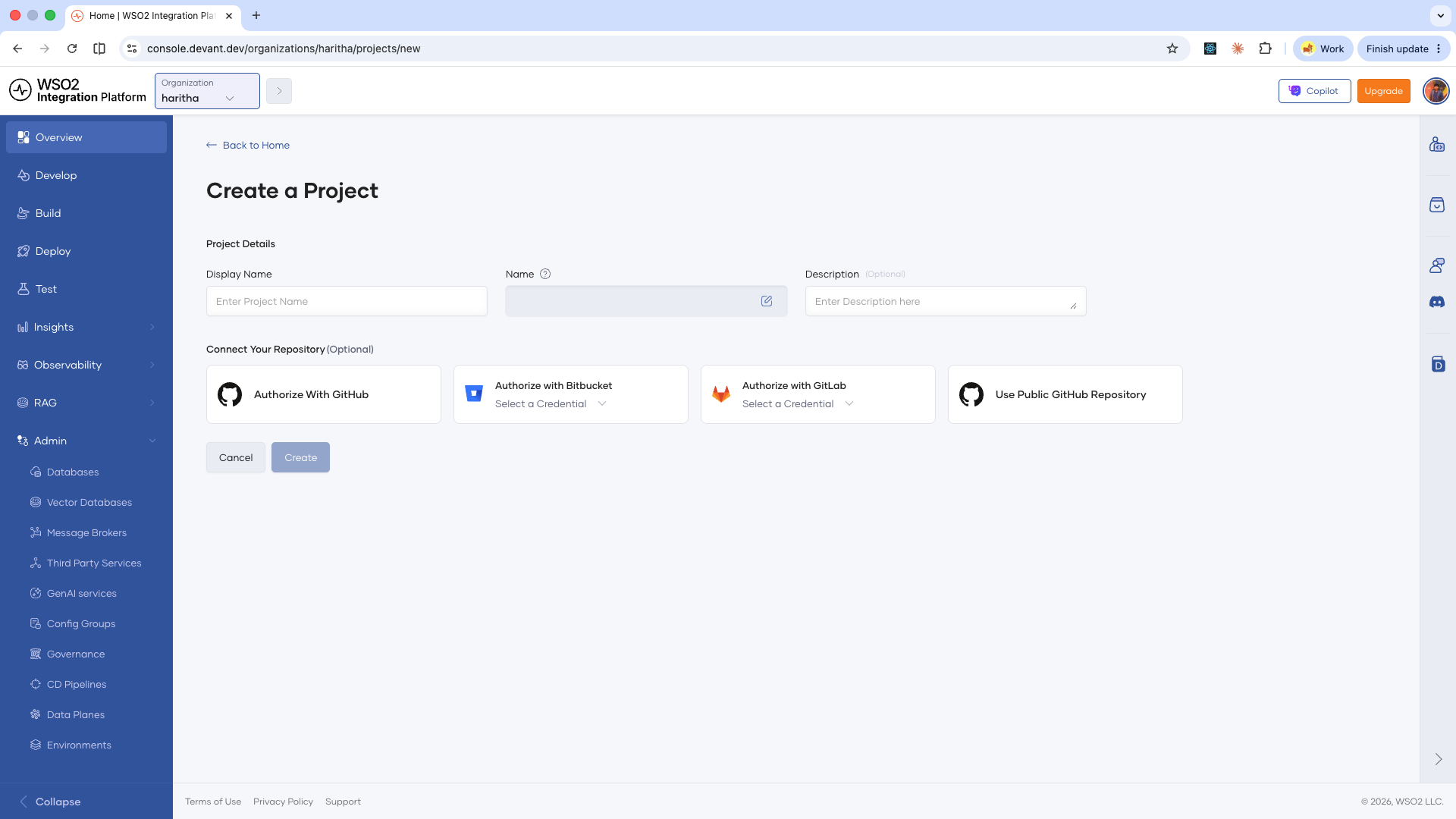
-
Click Create.
WSO2 Cloud creates the project and navigates you to the project home.
Edit a project
-
From the project home, go to Admin > Settings.
-
Update the Name or Description as needed by clicking the respective fields.
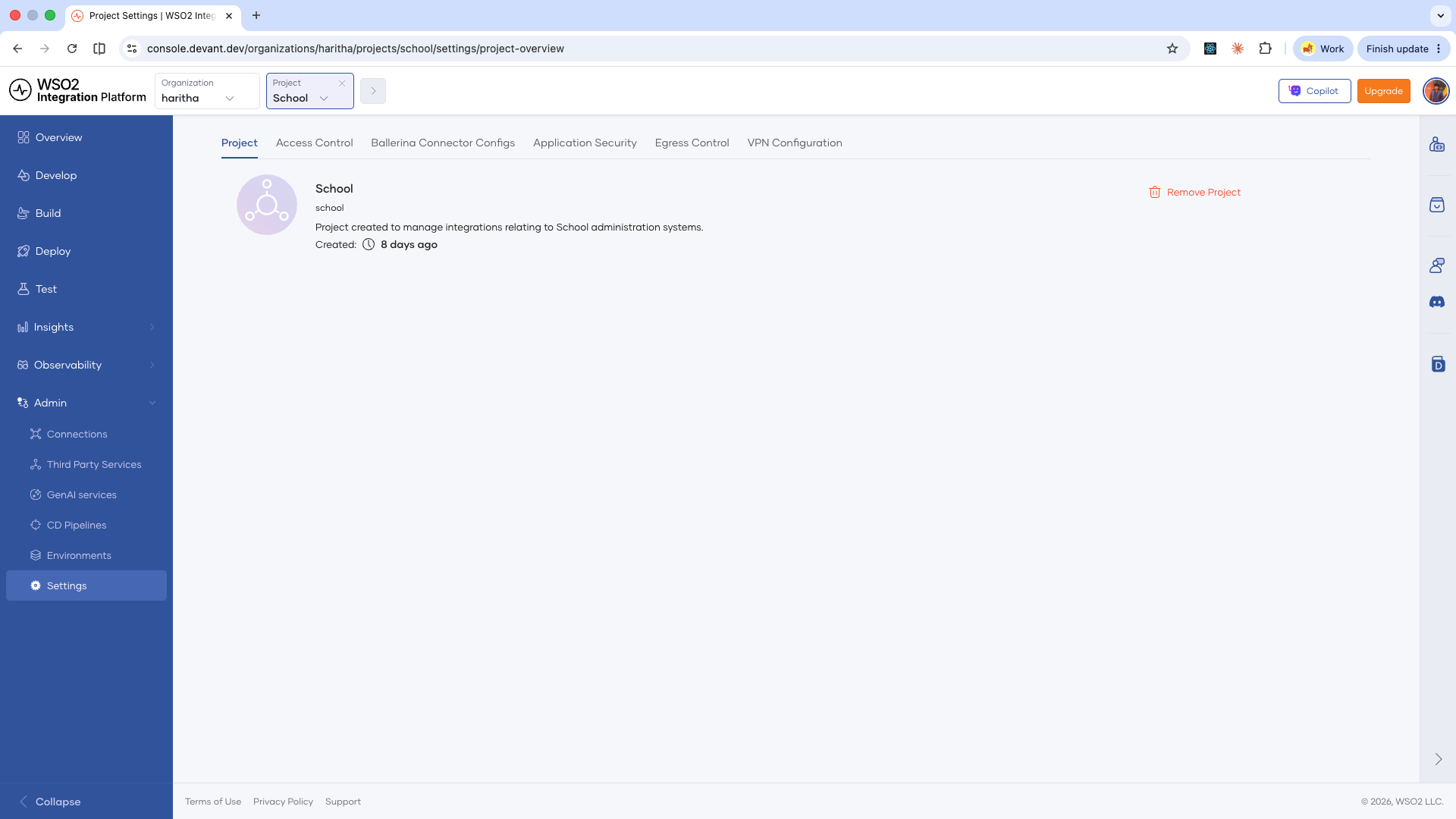
-
Save your changes.
Remove a project
A project cannot be deleted without deleting all its integrations first.
Removing a project is permanent. All history within the project is deleted and cannot be recovered.
- From the project home, go to Admin > Settings.
- Click Remove Project on the right side of the page.
- Enter the project name to confirm, then click Remove.
The project and all its contents are permanently deleted.
What's next
- Import a project — Bring an existing WSO2 Integrator project from a Git repository into WSO2 Cloud.
- Access control — Manage roles and permissions for members of your project.