RAG Ingestion
Retrieval-augmented generation (RAG) improves LLM answers by using relevant external data. RAG has two core stages: ingestion and retrieval. This page explains how to configure scheduled ingestion in WSO2 Cloud - Integration Platform.
- Access to WSO2 Cloud paid subscription with permission to create automations.
- API credentials for a supported vector store, embedding provider, and data source.
- A Google Drive folder or Amazon S3 bucket that contains source files.
WSO2 Cloud supports file types such as PDF, including scanned PDFs, DOCX, PPTX, XLSX, CSV, HTML, Markdown, images, and audio files (MP3, WAV, M4A, FLAC, and OGG).
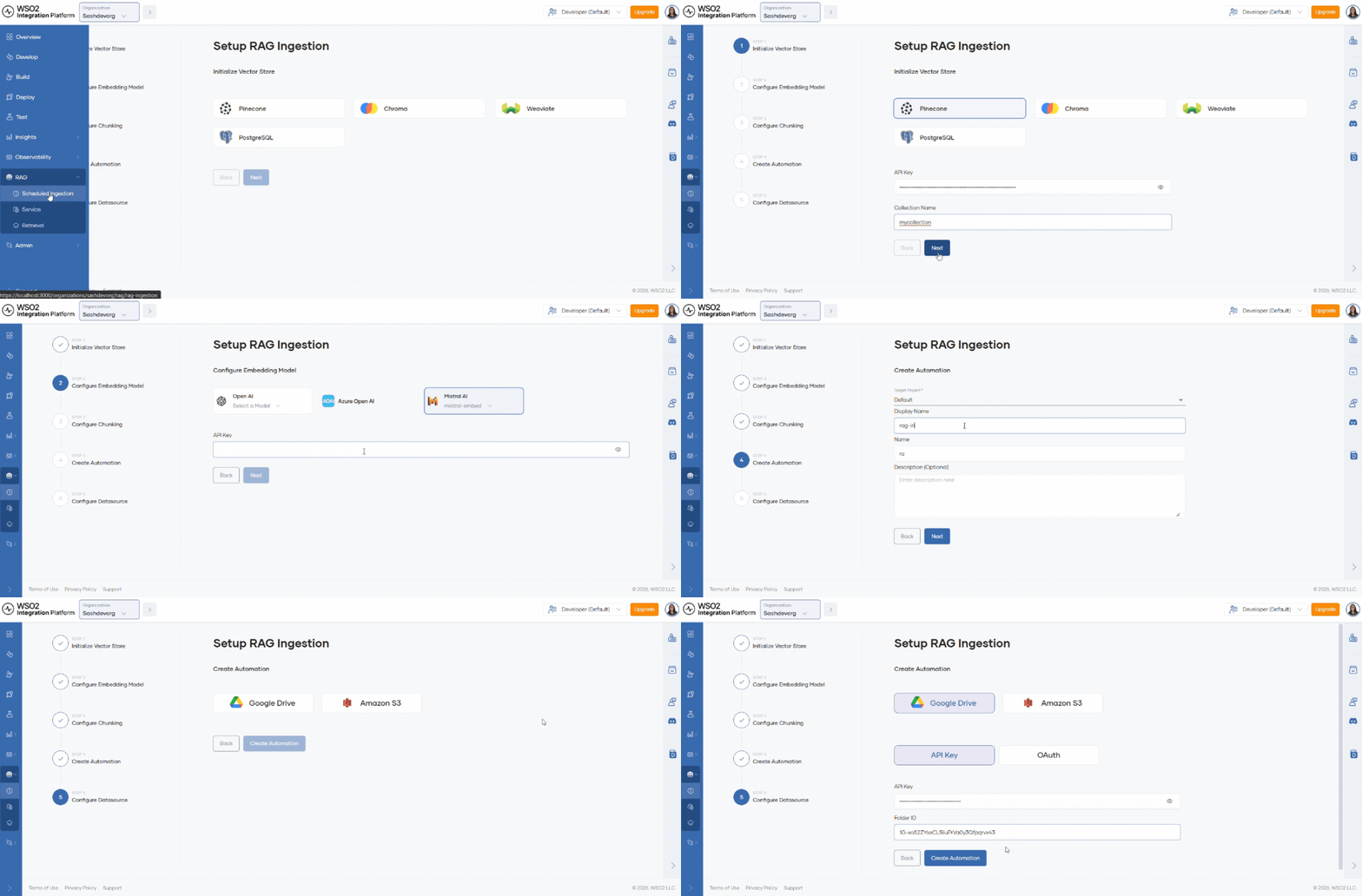
Navigate to your organization using the Organization dropdown in the console header. In the left navigation menu, click RAG, then select Scheduled ingestion.
Set up scheduled ingestion
Step 1: Initialize the vector store
LLMs receive context as numerical vectors (embeddings). A vector store keeps these embeddings for efficient retrieval.
- Select
Pineconeas the vector database. - Enter the key in API Key.
To create a key, see the Pinecone API key documentation.
- Enter Collection Name. The collection is created automatically if it does not exist.
- Click Next.
Step 2: Configure the embedding model
- Select
text-embedding-ada-002from the OpenAI provider list. - Enter the key in Embedding model API key.
To create a key, see the OpenAI embeddings documentation.
- Click Next.
Step 3: Configure chunking
Chunking splits large documents into smaller segments that the ingestion pipeline can process efficiently.
- Review Chunking strategy, Max segment size, and Max overlap size.
- Keep the defaults or update values based on your document size and retrieval quality needs.
- Click Next.
- Chunking strategy controls how text is split into chunks.
- Max segment size sets the maximum token length for a chunk.
- Max overlap size sets how many tokens overlap between consecutive chunks.
Step 4: Create the automation
Fill in the automation details:
| Field | Value |
|---|---|
| Project | Select the target project from the available project list. |
| Display name | Sample Automation |
| Name | sample-automation |
| Description (optional) | My sample automation description |
Step 5: Configure the data source
The data source defines where files are read from. WSO2 Cloud supports Google Drive folders and Amazon S3 buckets.
- Select
Google Driveas the data source. - Enter the key in API Key.
Create a key in Google Cloud Console and restrict it to the Google Drive API as explained in the Google API key documentation.
The target folder must be public with Anyone with the link access. API keys cannot access private files.
Alternatively, if you have an enterprise account, you can use the OAuth flow to authenticate instead of an API key.
- Enter the Folder ID for the folder to ingest.
You can find the folder ID in the Google Drive URL, after /folders/.
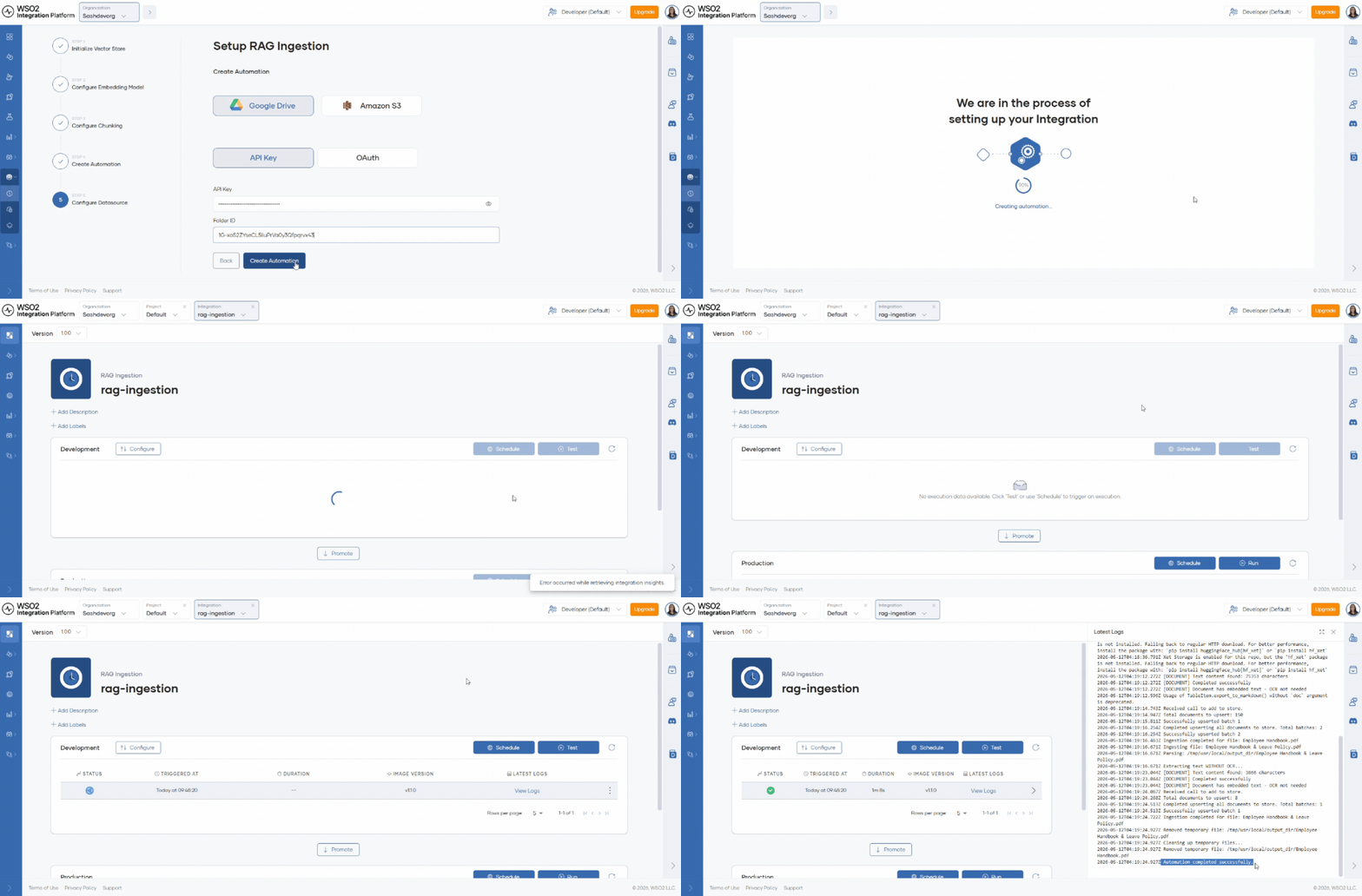
- Click Create automation. The platform redirects you to the automation overview page.
- When you create a scheduled RAG ingestion automation, WSO2 Cloud increases container CPU and memory for stable execution.
- For very large files or high ingestion volume, scale resources in Admin > Containers.
Step 6: Schedule ingestion
After creation, the automation is deployed to the development environment with your saved configuration.
- Click Test to run ingestion immediately.
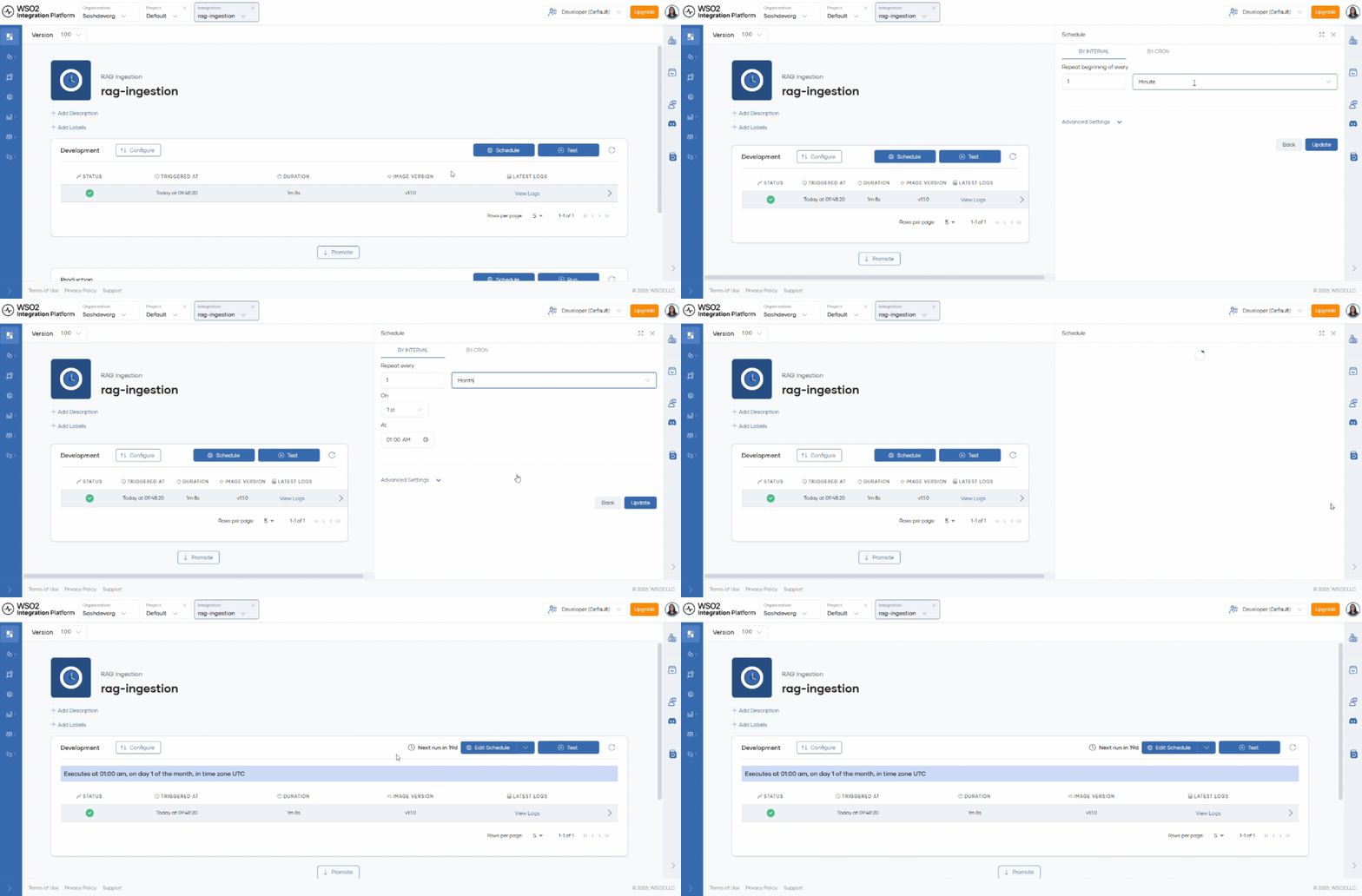
- Click Schedule to configure recurring ingestion.
- Check automation logs to verify successful ingestion.
You can run ingestion at intervals such as minutely, hourly, daily, monthly, or yearly. In each run, the system detects new files in the data source and ingests them into the vector store.
What's next
- RAG retrieval — Query the vector store after ingestion completes.
- RAG service — Ingest, chunk, and retrieve documents through the service API.
- Managed PostgreSQL and vector databases — Provision the vector store used by RAG.