WSO2 Integration Cloud Setup
WSO2 Integrator runs entirely in the browser on WSO2 Integration Cloud, no local installation required. Sign up for an account, then launch the cloud editor to start building integrations.
WSO2 Cloud is the identity and access layer for WSO2 Integration Platform. When you sign up, you create an organization and become its admin. An organization is a logical grouping of users and their associated resources. Users and resources in one organization are isolated from all others. Access across organizations is only possible when an admin explicitly invites a user as a member.
A WSO2 Cloud account gives you access to:
- WSO2 IPaas: Deploy and run integrations in a managed cloud environment with built-in CI/CD, environment promotion, observability, and access control.
- WSO2 Integrator Copilot features: Use AI-assisted development in WSO2 Integrator to generate integrations, mappings, and configurations.
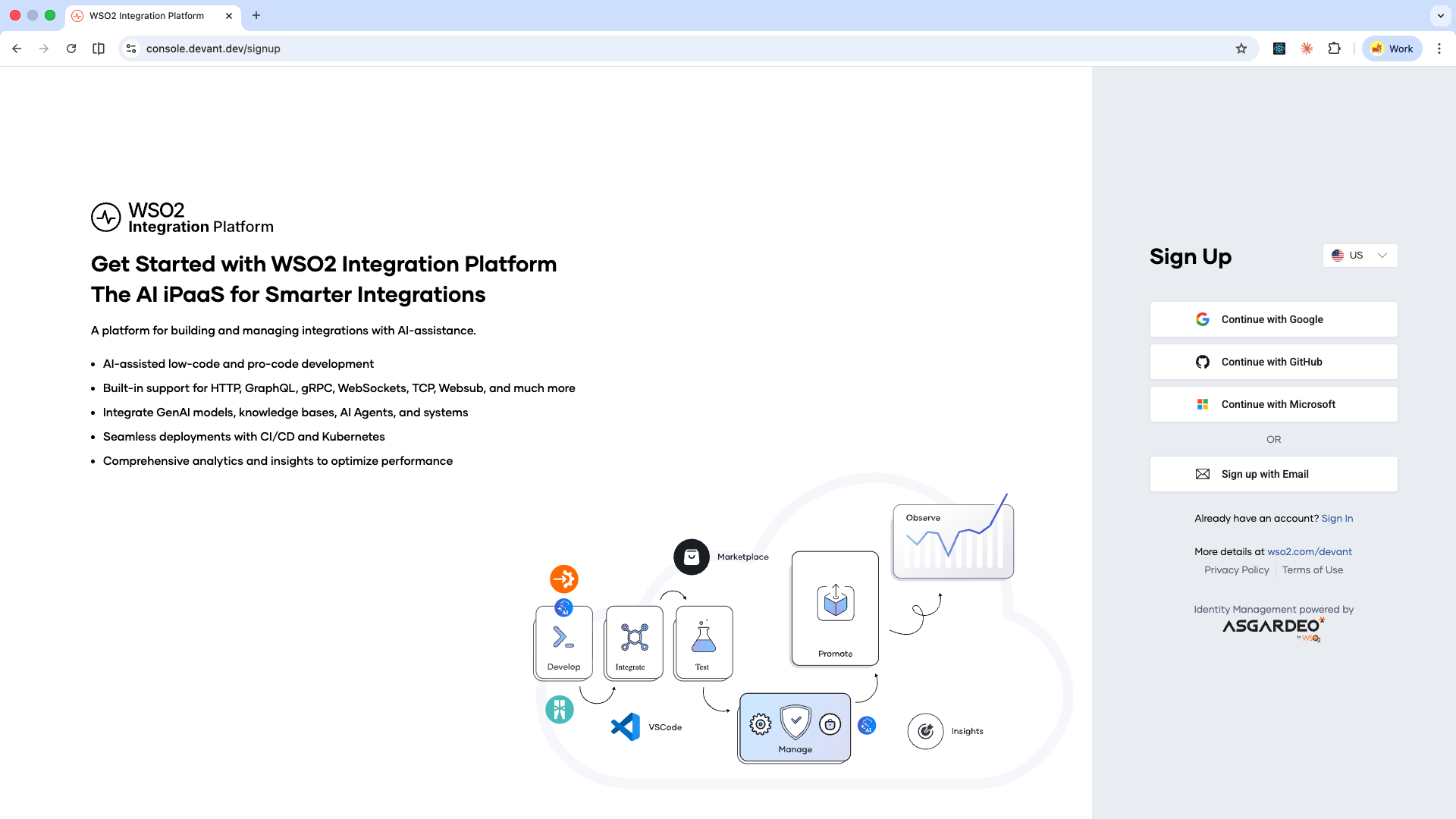
Step 1: Go to the sign-up page
Go to WSO2 Cloud and choose your preferred sign-up option.
Step 2: Create an organization
Enter a unique name for your organization.
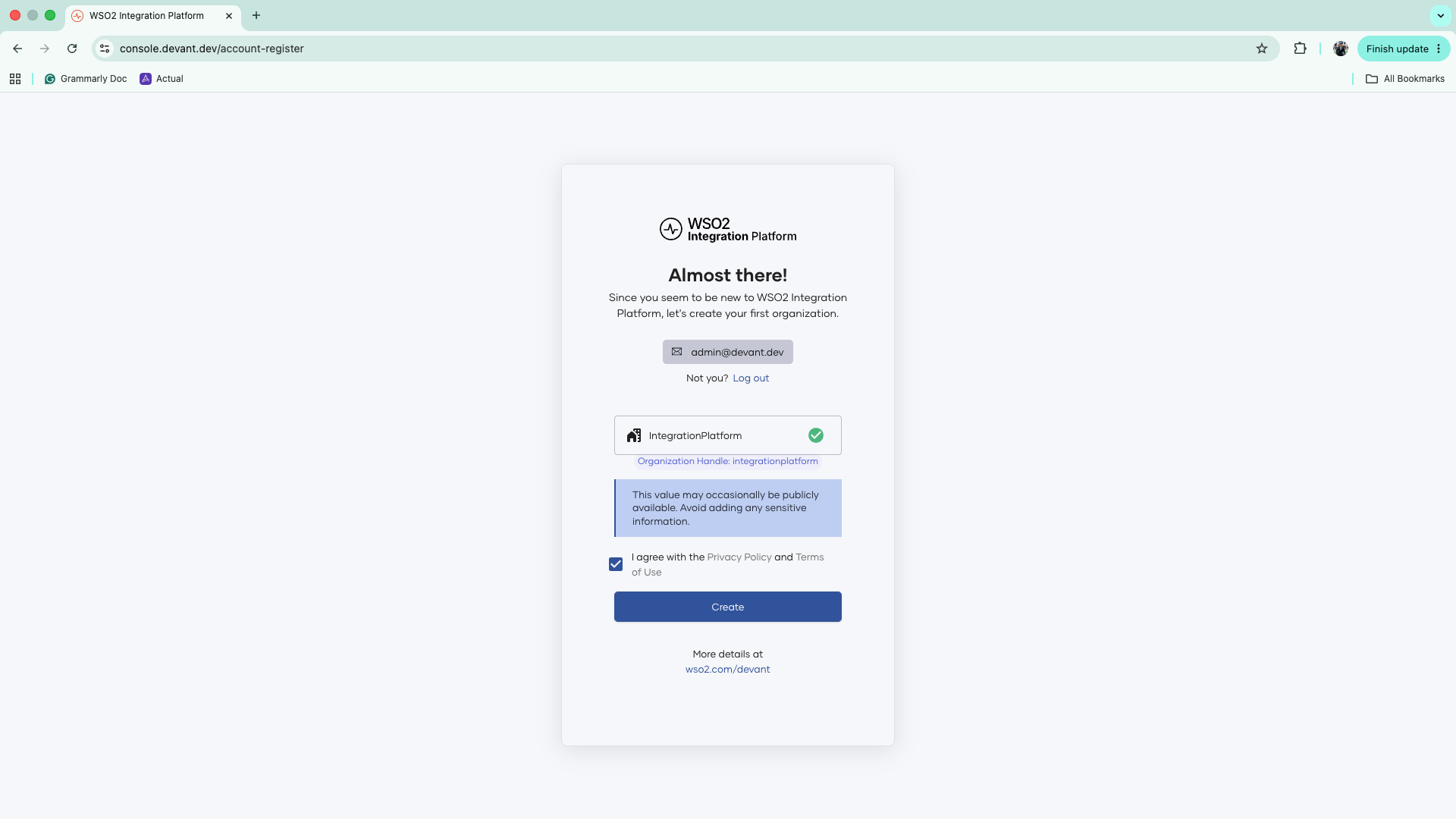
The name must:
- Be between 4 and 30 characters
- Begin with a letter
- Contain only uppercase letters, lowercase letters, hyphens, spaces, or underscores
Step 3: Accept the terms
Read and accept the Privacy Policy and Terms of Use, then click Create.
Step 4: Select a region
Select the cloud region where you want to deploy your integrations and click Confirm.
You land on the Overview page of the default project in your new organization.
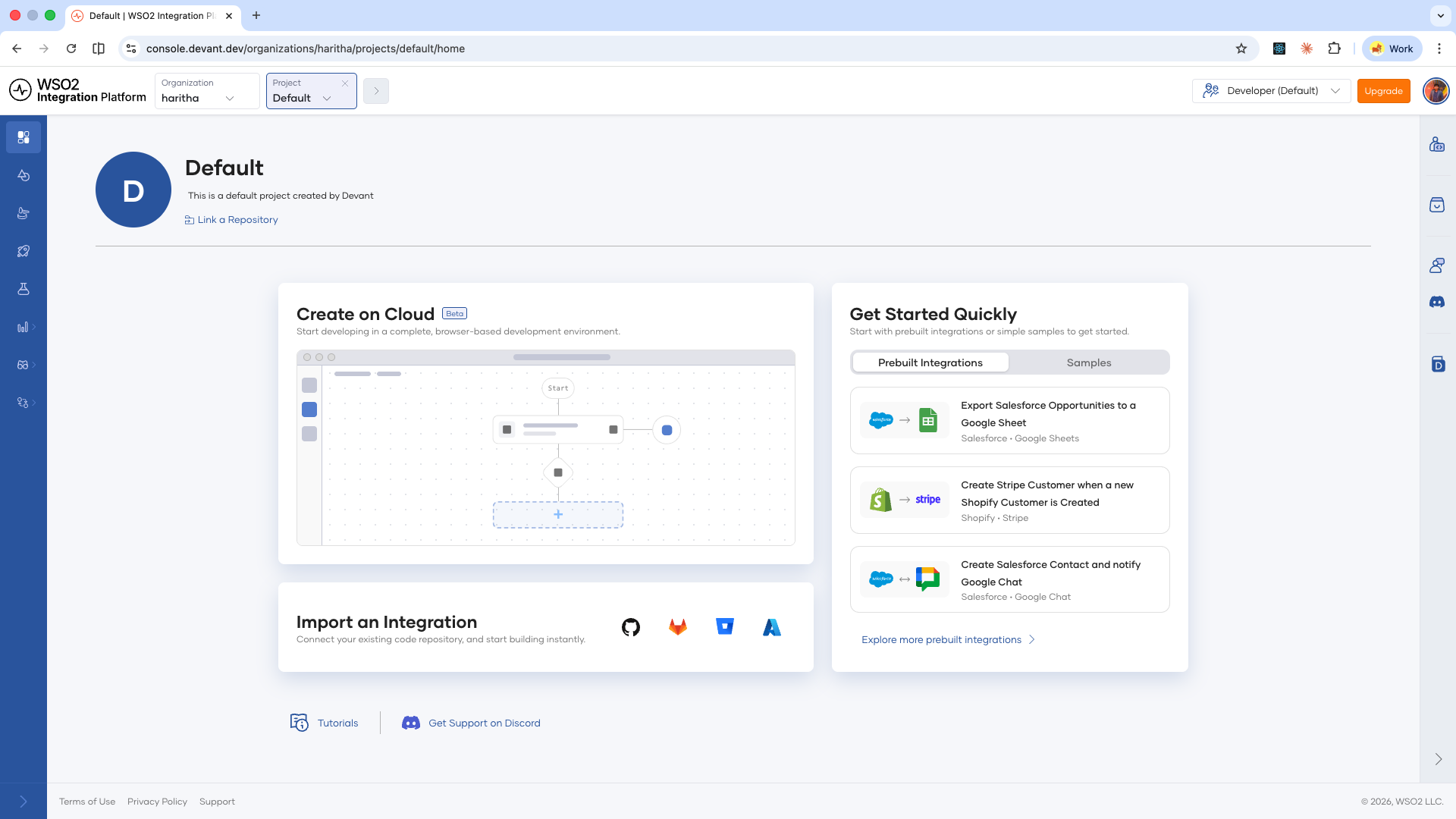
To give teammates access, an organization admin can invite them from the organization settings. Invited users can only see resources within that organization. See Users and access control for more information.
Step 5: Open the cloud editor
On the project overview page, click Create on Cloud. WSO2 Integrator provisions a cloud editor instance for you, showing progress through each setup stage.
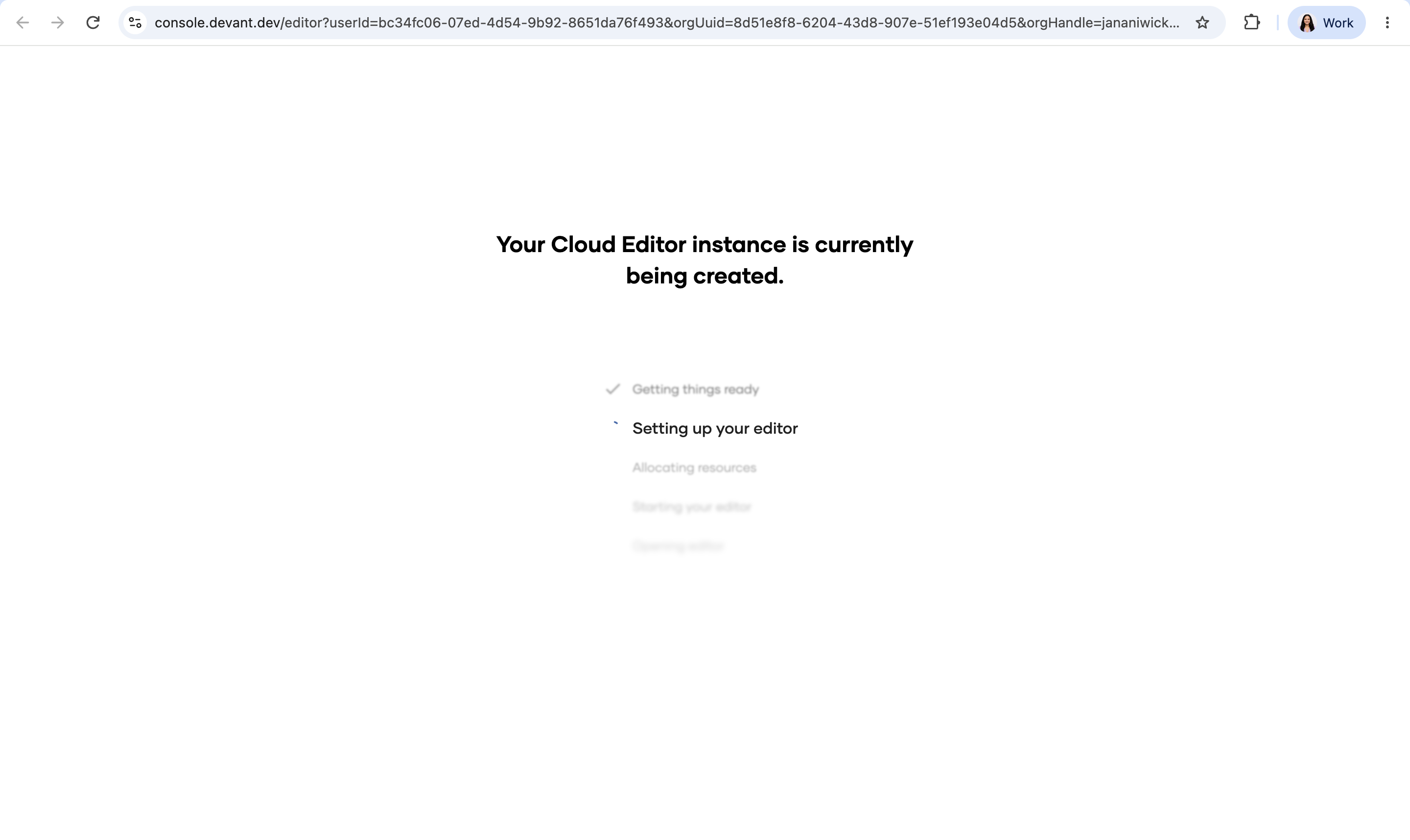
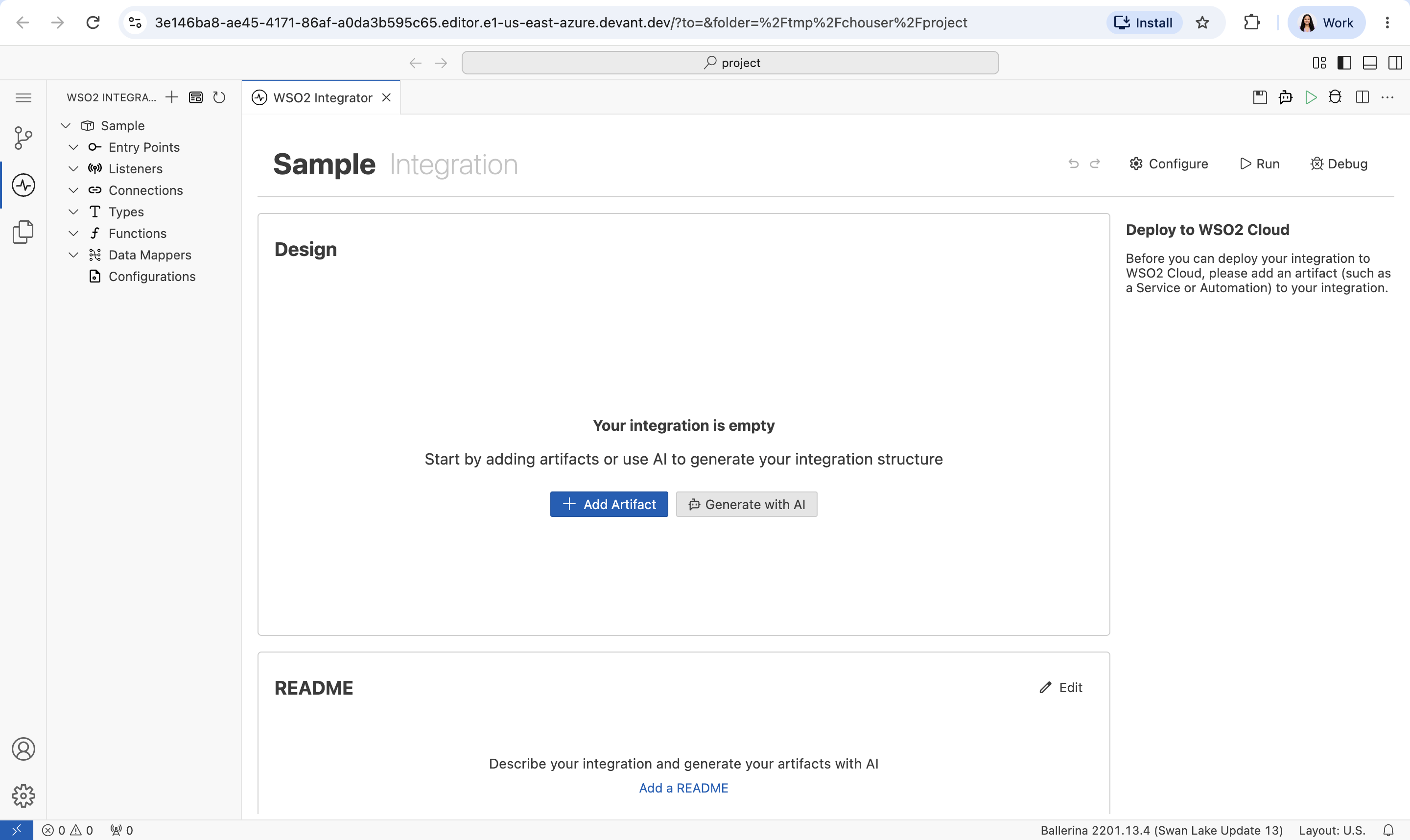
Once the instance is ready, the WSO2 Integrator cloud editor opens in your browser, using the same visual designer and pro-code editor available in the desktop IDE. Add an artifact to your integration, then deploy it to WSO2 Cloud from the Deploy to WSO2 Cloud panel on the right.
To work on a different project, go to the organization overview page by clicking your organization name in the top navigation, then create a new project from there.