WSO2 Integrator Copilot
If you are already signed in with your WSO2 Cloud account, WSO2 Integrator Copilot uses the same account and is ready to use. Otherwise, sign in from the Copilot welcome screen.
Sign in from the Copilot welcome screen
-
Open your integration's overview to start working with Copilot.
-
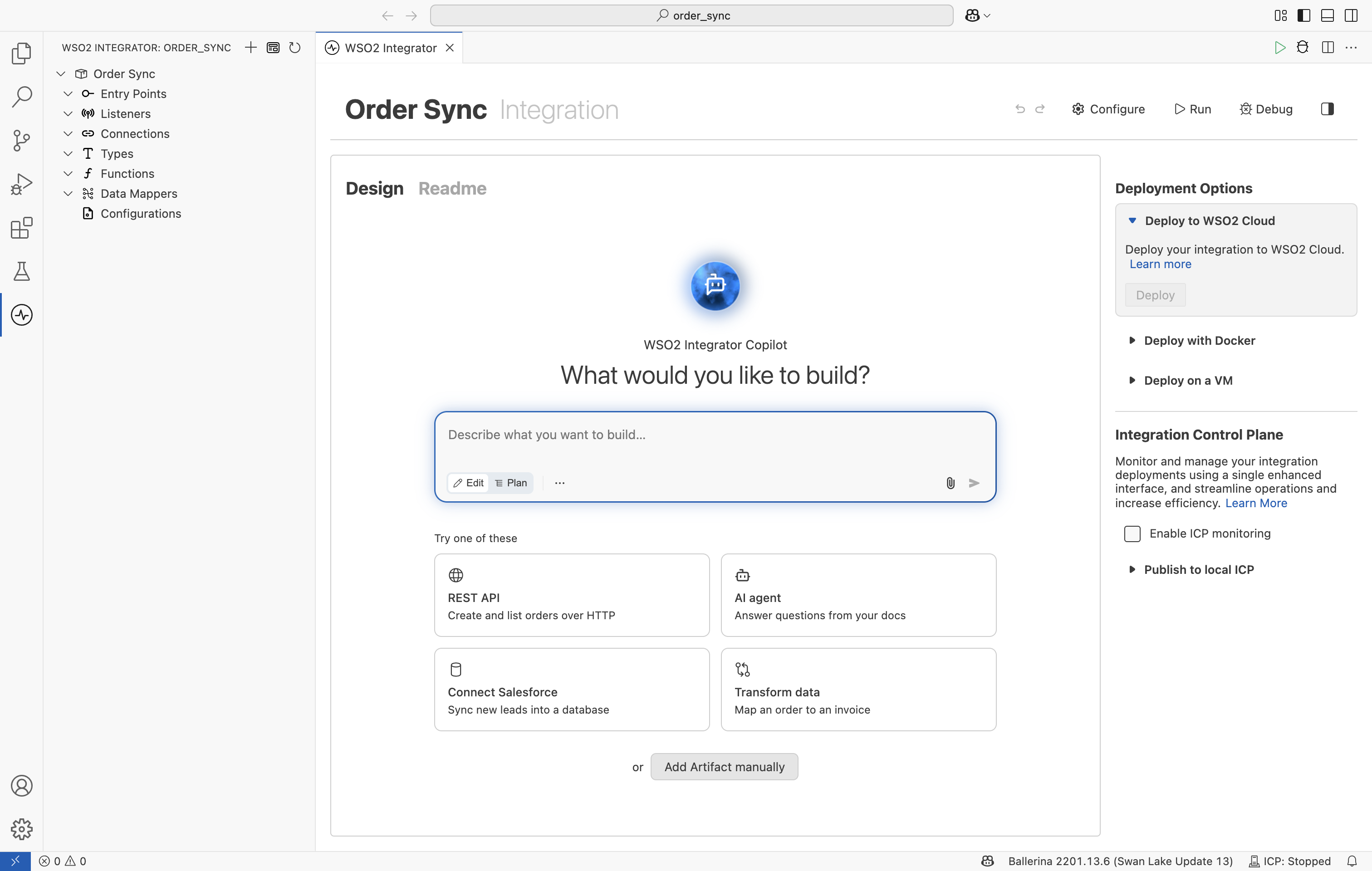
New integration: The overview shows the Copilot composer. Describe what you want to build and send it, or pick one of the examples under Try one of these. To open the Copilot panel without a prompt, select the Copilot orb above the composer.
-
Integration with artifacts: Select the Copilot orb in the bottom-right corner. Select it once for a quick chat, or double-click it to open the full Copilot panel.
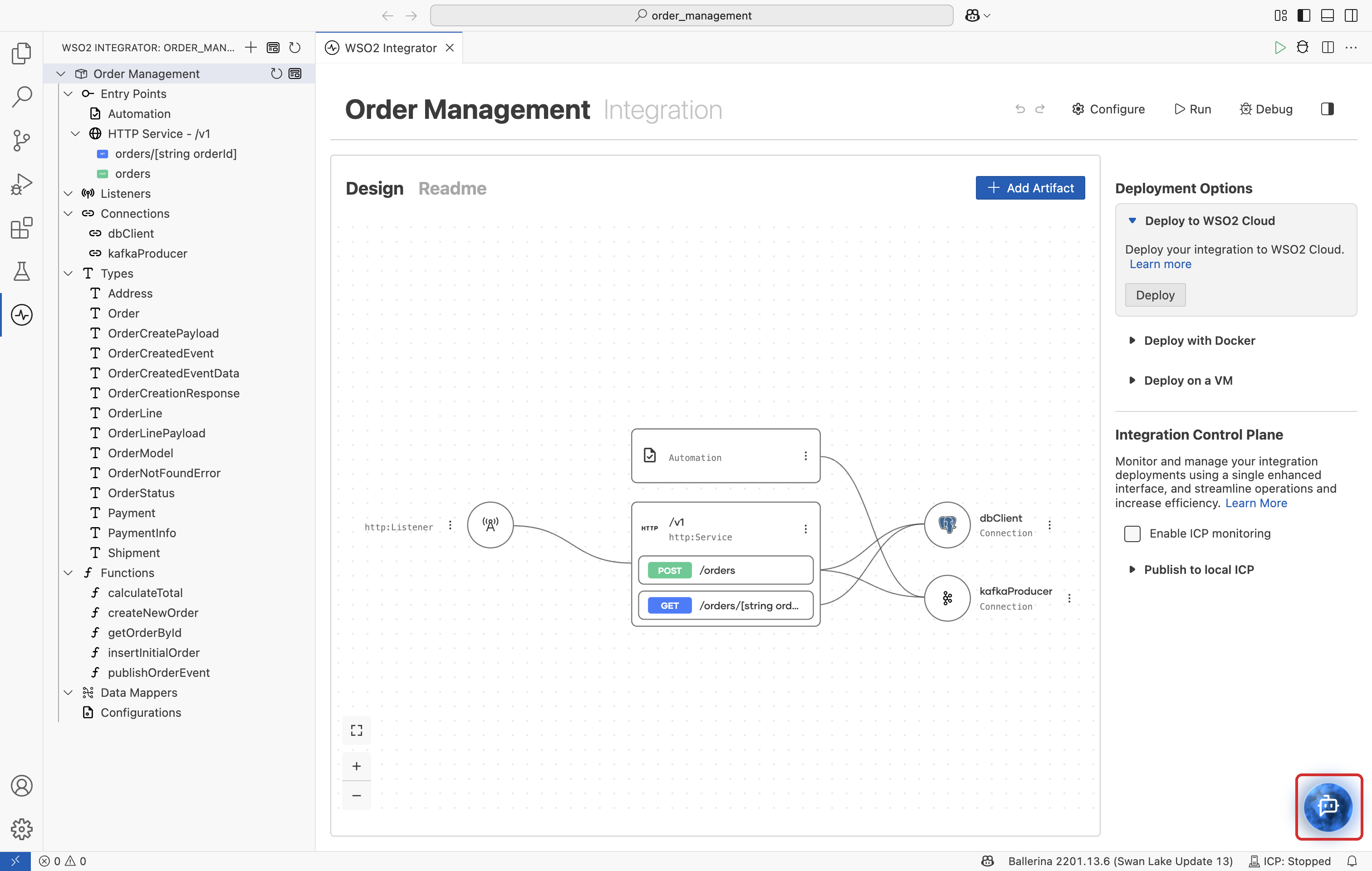
When a Ballerina file or diagram is open, you can also select the Open WSO2 Integrator Copilot icon in the editor toolbar.
-
-
The Copilot panel opens on the welcome screen with the available sign-in options.
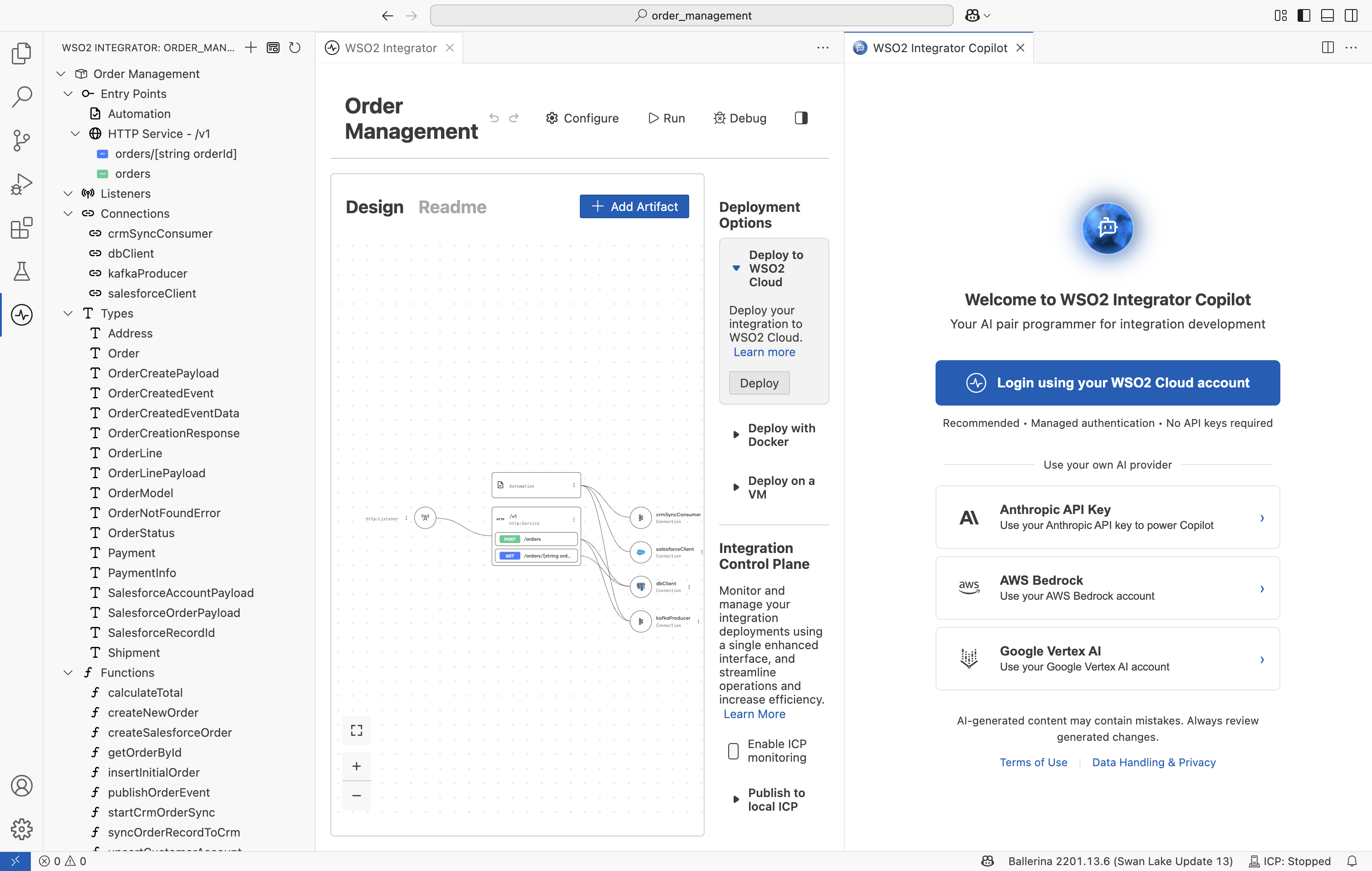
- Login using your WSO2 Cloud account (recommended): Sign in with your WSO2 Cloud account. No API keys are required.
- Under Use your own AI provider:
- Anthropic API Key: Use your own Anthropic API key to power Copilot.
- AWS Bedrock: Use your AWS Bedrock account.
- Google Vertex AI: Use your Google Vertex AI account.
-
Select one option and complete the sign-in. Once authenticated, Copilot opens its chat view and is ready to use.
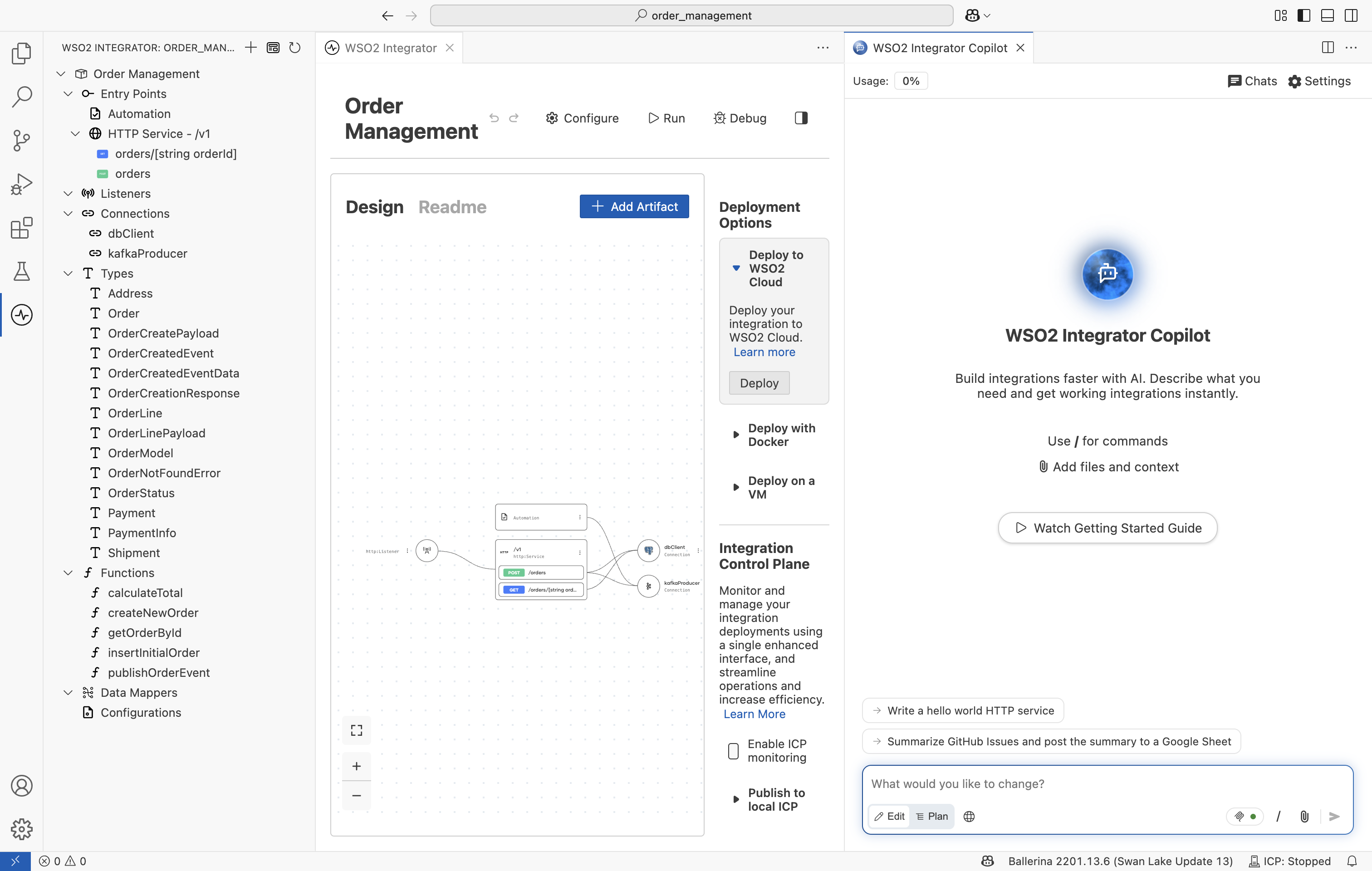
By signing in, you agree to the WSO2 Integrator Copilot Terms of Use shown on the welcome screen. See Copilot architecture and data handling for how Copilot handles your data.
What's next
- Copilot Chat Interface — Learn the chat input bar's controls, slash commands, and modes.
- Built-in Capabilities — Explore planning, review, testing, and more.
- Customize Copilot — Give Copilot project instructions, reusable skills, and your own tools through MCP servers.
- Usage Limits — See how much of your Copilot usage remains, and how to ask for more.