Flow Canvas
The Flow Canvas is the visual designer for an integration's logic. Each step in the integration is a node on the canvas, and the canvas generates valid Ballerina source as you build. Switch to pro-code at any time to read or edit the generated code.
The Flow Canvas opens wherever you build the logic of an integration, such as when you open an entry point or any other artifact whose body is a series of steps.
Anatomy of the canvas
The Flow Canvas has two main parts.
Canvas
The canvas shows the flow as a sequence of nodes connected from a Start node down to an end terminator. The canvas shows the order of execution, how data passes between nodes, and any branching or concurrency in the integration.
To add a step to the flow, select + between two nodes (or below Start) to open the node palette.
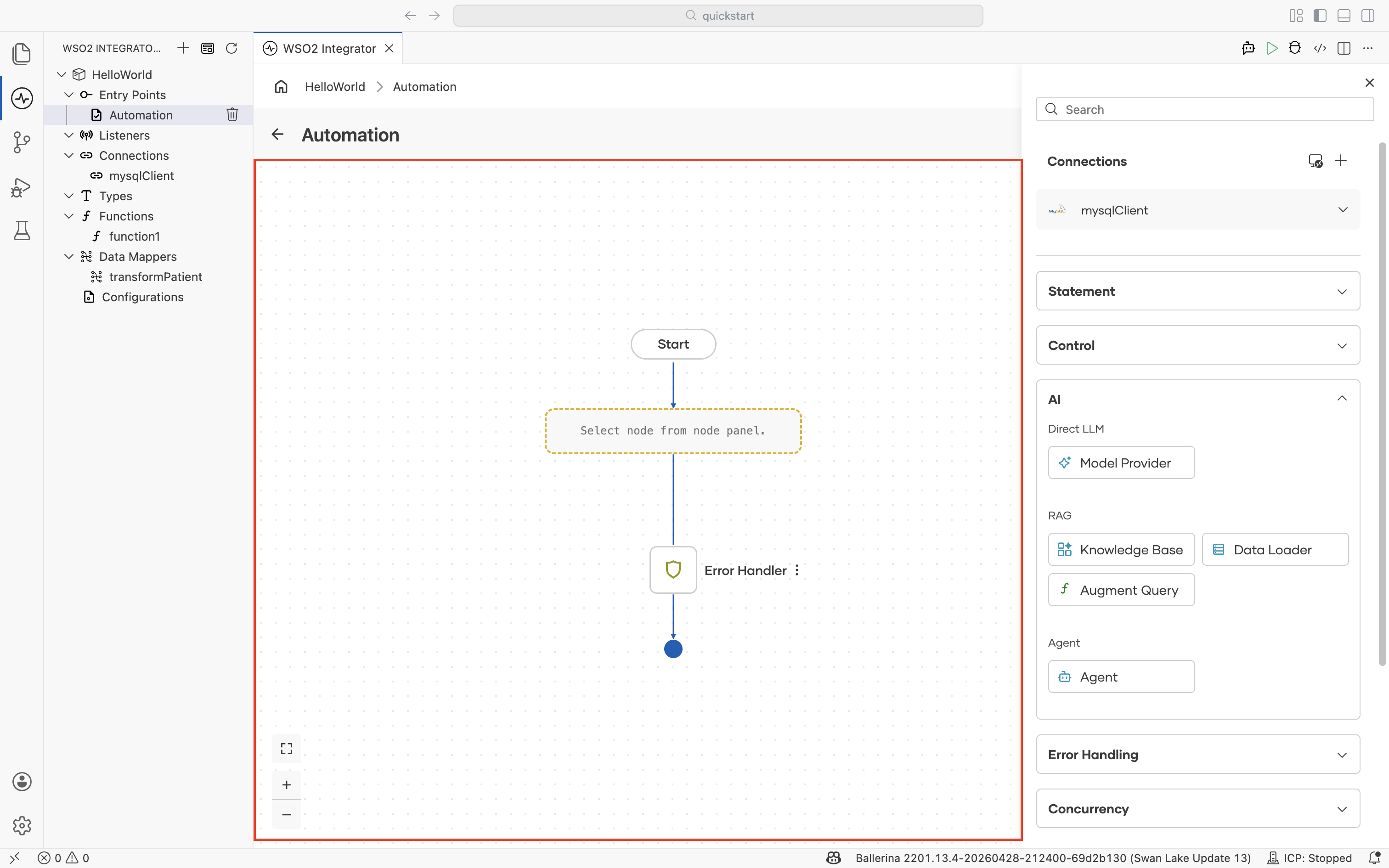
Node palette
The node palette on the right lists every node you can add to the flow, organized into categories such as Connections, Statement, Control, AI, Error Handling, Concurrency, and Logging, plus a Show More Functions action at the bottom that opens the full functions picker.
See the Node Palette reference for every node in each category and the fields exposed on their configuration forms.
Configuring a node
Most nodes open a configuration form in a side panel when you add them. Forms commonly include:
- Expression fields for writing Ballerina expressions. The Expression Panel provides type-aware autocomplete and inline validation in any expression field.
- Type fields for choosing or defining record, enum, union, or other types. Use the Type Panel to create new types inline.
- Variable fields that bind a result to a named variable for downstream nodes to read.
Save the form to add the node to the flow. The visual designer keeps the canvas and the source in sync, so any change in either view is immediately reflected in the other.
What's next
- Node Palette — Every node, by category, with its configuration fields.
- Expression Panel — Author Ballerina expressions with autocomplete and validation.
- Type Panel — Define the types used in node fields.