Configure Email Provider
This document explains the steps to configure WSO2 Identity Platform to send emails during multiple email-related customer identity and access management tasks such as email OTP, email notifications, and account recovery.
WSO2 Identity Platform supports SMTP-based and HTTP-based email providers. To learn how to configure each email provider per organization, please see the relevant section.
Configure SMTP based email provider
- On the WSO2 Identity Platform Console, go to Notification Channels > Email Provider.
- Click the SMTP tab, provide the required details.
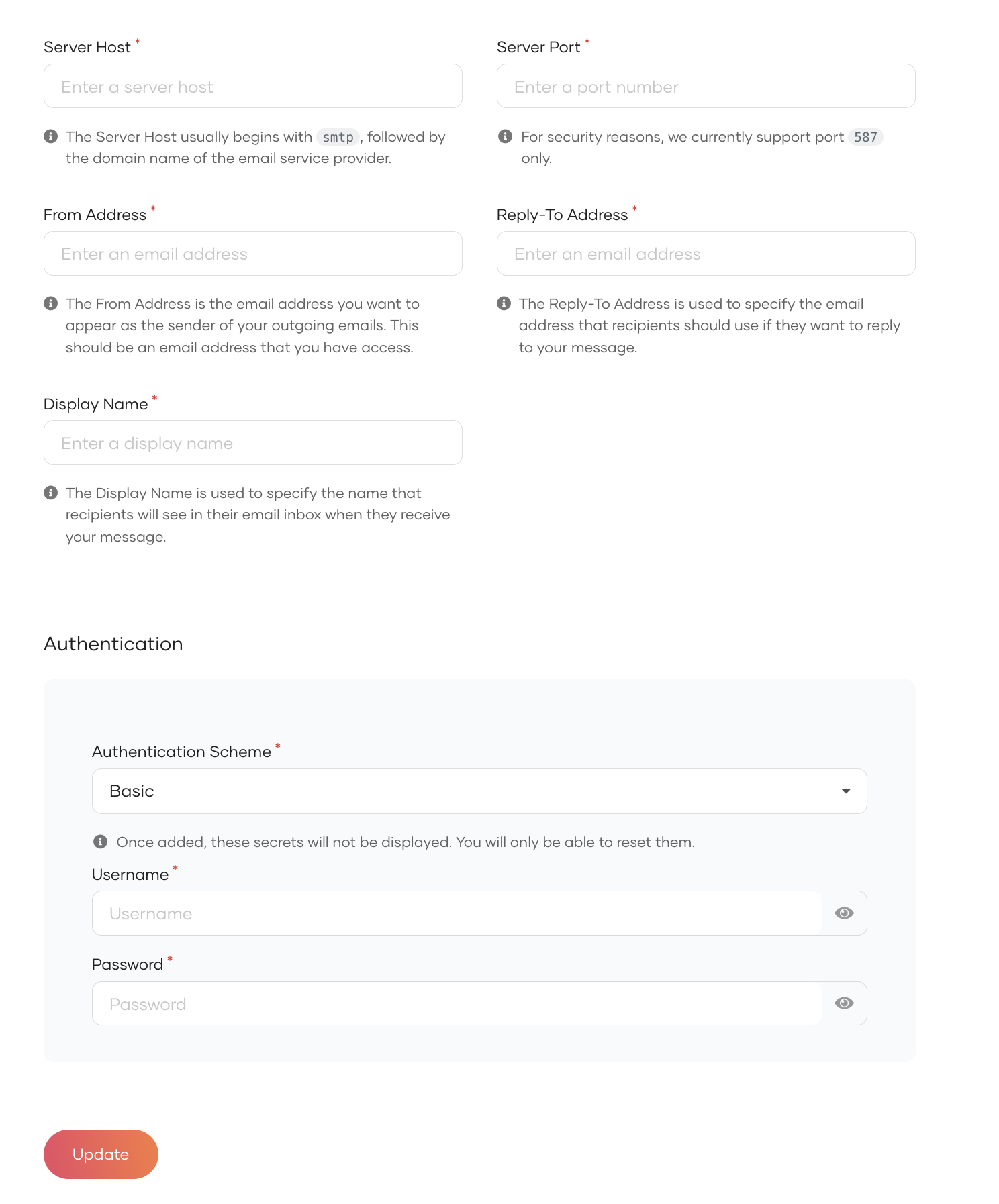
- Click Update.
Supported providers
Configuring Gmail as the email provider
If you use a Gmail account as the from_address, you must create an App Password.
After you get an App Password from Google, update the password.
Configuring Microsoft 365 Exchange Online as the email provider
Before you start
- You must have a Microsoft 365 account with an active subscription.
- Ensure your Microsoft 365 subscription is licensed to send emails through Exchange Online.
- You need at a minimum a paid subscription to Microsoft Business Basic plan to use the SMTP Auth for Exchange Online.
- Emails will be sent from WSO2 Identity Platform to your SMTP provider. Your ports should be open and allow inbound connections from specific WSO2 Identity Platform IP addresses.
Configure Microsoft 365
Application Configuration and Permissions
- Register a Azure Active Directory Application resource if you currently do not have one.
- Navigate to your Active Directory Application resource.
- Select Services > App registrations, and then select the application you will be using to send emails.
-
Configure the required application permissions by navigating to Manage > API permissions. Please refer Application permissions for SMTP
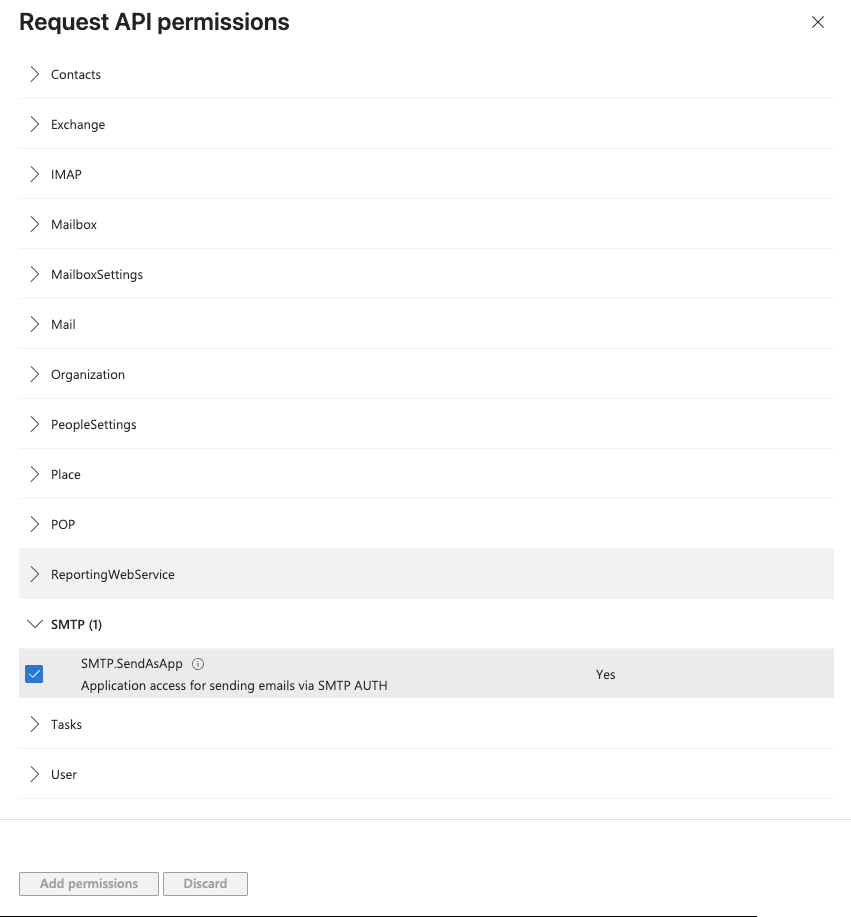
Register service principals in Exchange
- Please refer Register service principals in Exchange.
Enable SMTP AUTH for specific mailboxes
- Please refer Enable SMTP AUTH for specific mailboxes.
Retrieve required email provider configurations
- Navigate to the Application Overview of your Azure Active Directory Application and retrieve the Application (client) ID.
- Navigate to Manage > Certificates & secrets and collect the Value to create an application secret.
- Navigate to Overview > Endpoints and copy the OAuth 2.0 token endpoint (v2) URL.
Configure SMTP settings in WSO2 Identity Platform
- Go to Notification Channels > Email Provider.
- Provide the From email address and other relevant details. Click on Client Credentials from the Authentication type dropdown.
- Provide the required details retrieved from the previous step.
NOTE: The scope required for Microsoft 365 Exchange Online is https://outlook.office365.com/.default and the token endpoint URL should be in the format of https://login.microsoftonline.com/{tenant_id}/oauth2/v2.0/token.
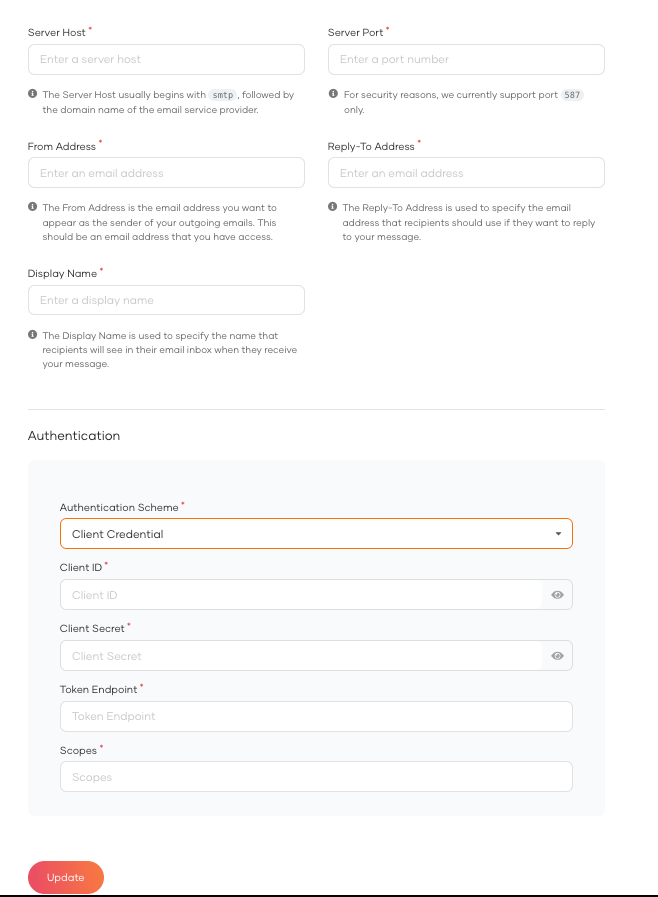
- Click Update to save the configurations.
Configure HTTP based email provider
Integrate with a custom email service by sending email data to an external HTTP endpoint. When an email is triggered, WSO2 Identity Platform constructs a request using the configured payload template and delivers it to the specified URL.
- On the WSO2 Identity Platform Console, go to Notification Channels > Email Provider.
-
Click the HTTP tab, provide the required details and click Update.
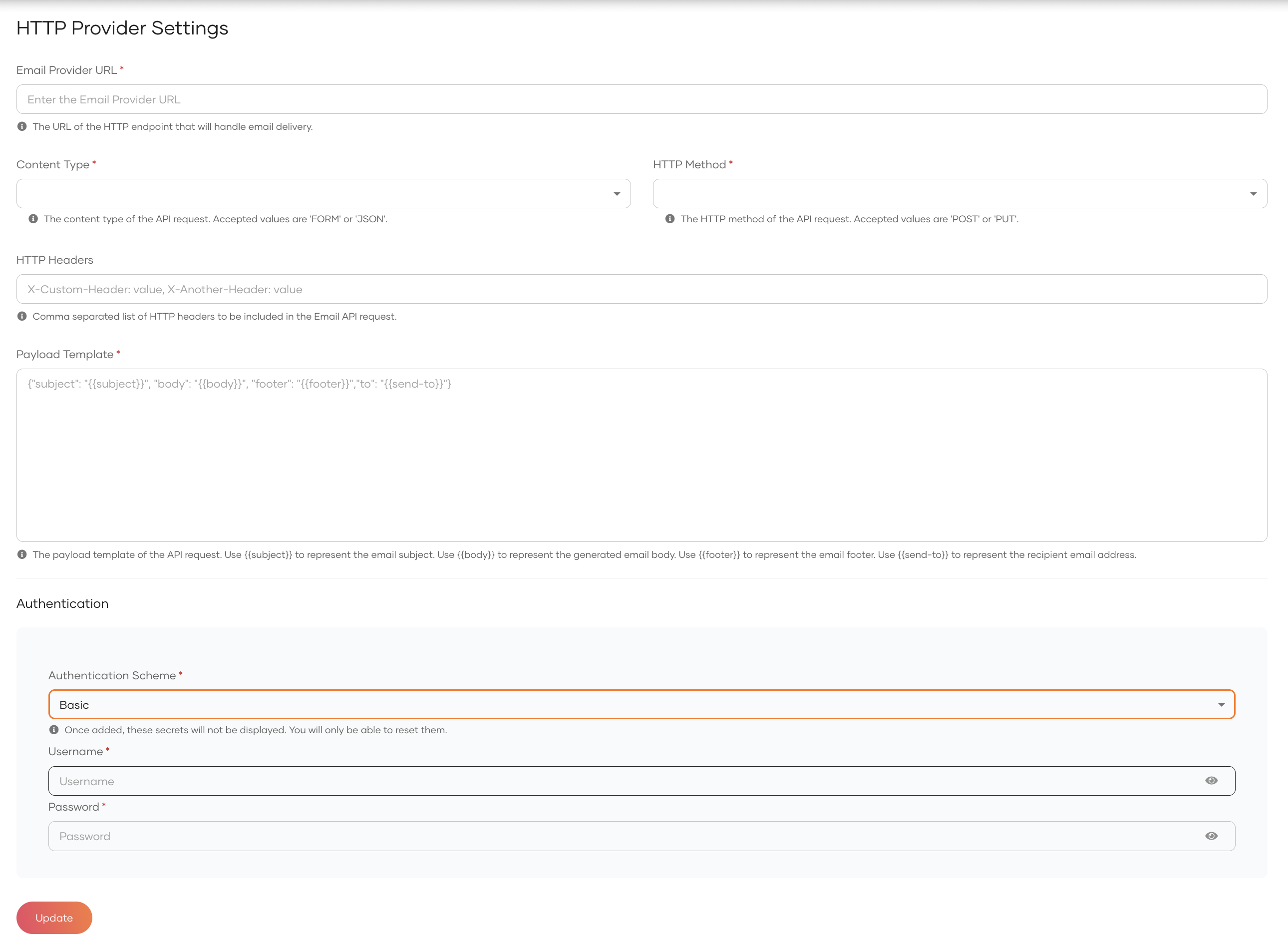
Name Description Example Email Provider URL URL of the Email gateway where the payload should be published. https://api.example.com/api/v1Content Type Content type of the payload. Possible values are JSONorFORMJSONHTTP Method HTTP method that should be used when publishing the payload to the provider URL. Possible values: PUT,POST.POSTHTTP Headers Custom static headers need to be passed. If multiple headers need to be passed, they should be comma separated. (Optional) x-csrf: true, x-abc: some-valuePayload Template How the payload template should be. Placeholders: {{subject}}- Subject of the Email.{{body}}- Generated body of the Email.{{footer}}- Footer of the Email.{{send-to}}- Email address that this email should be sent to.Example JSON payload template: {“subject”: “{{subject}}”, “body”: “{{body}}”, “footer”: “{{footer}}”, “to”: “{{send-to}}”}({{subject}},{{body}}{{footer}}and{{send-to}}will be replaced with the corresponding values at the runtime.)Authentication Authentication settings for the HTTP-based email provider. Select the preferred authentication scheme and enter the required authentication properties. Authentication Scheme Basicwith username and password.