Build a Hotel Finder Agent
Time: 10 minutes | What you'll build: A conversational agent that helps users find hotels in a specific city and check availability through natural conversation, with session-scoped memory so the user can refer back to earlier messages.
- Visual designer
- Ballerina code
Step 1: Create the integration
- Open WSO2 Integrator.
- Select Create in the Create New Integration card.
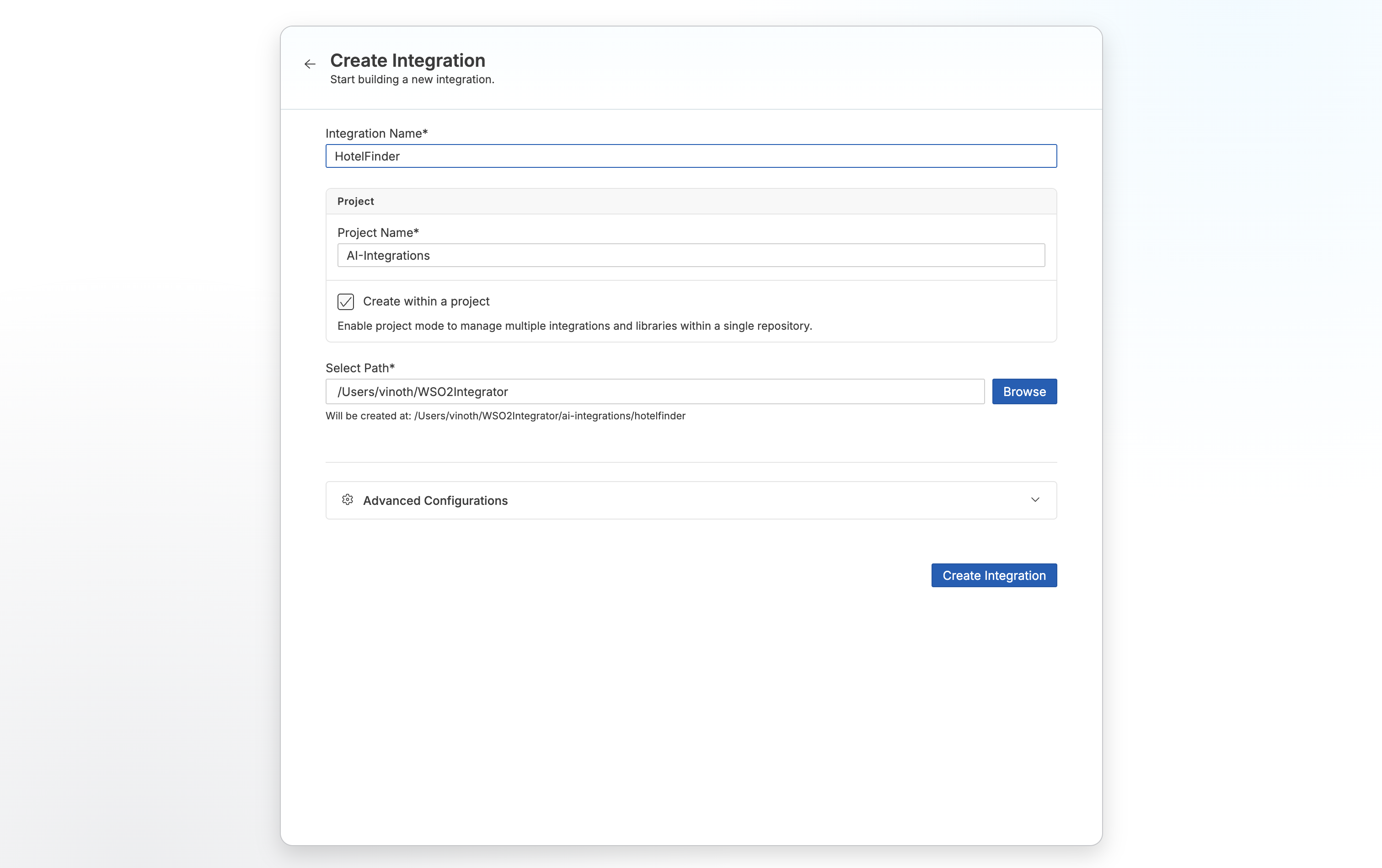
- Set Integration Name to
HotelFinder. - Set Project Name as
AI-Integrations. - Select Create Integration.
Step 2: Add an AI chat agent
- In the design view, select + Add Artifact.
- Select AI Chat Agent under AI Integration.
- Set Name to
HotelFinderAssistant. - Select Create.
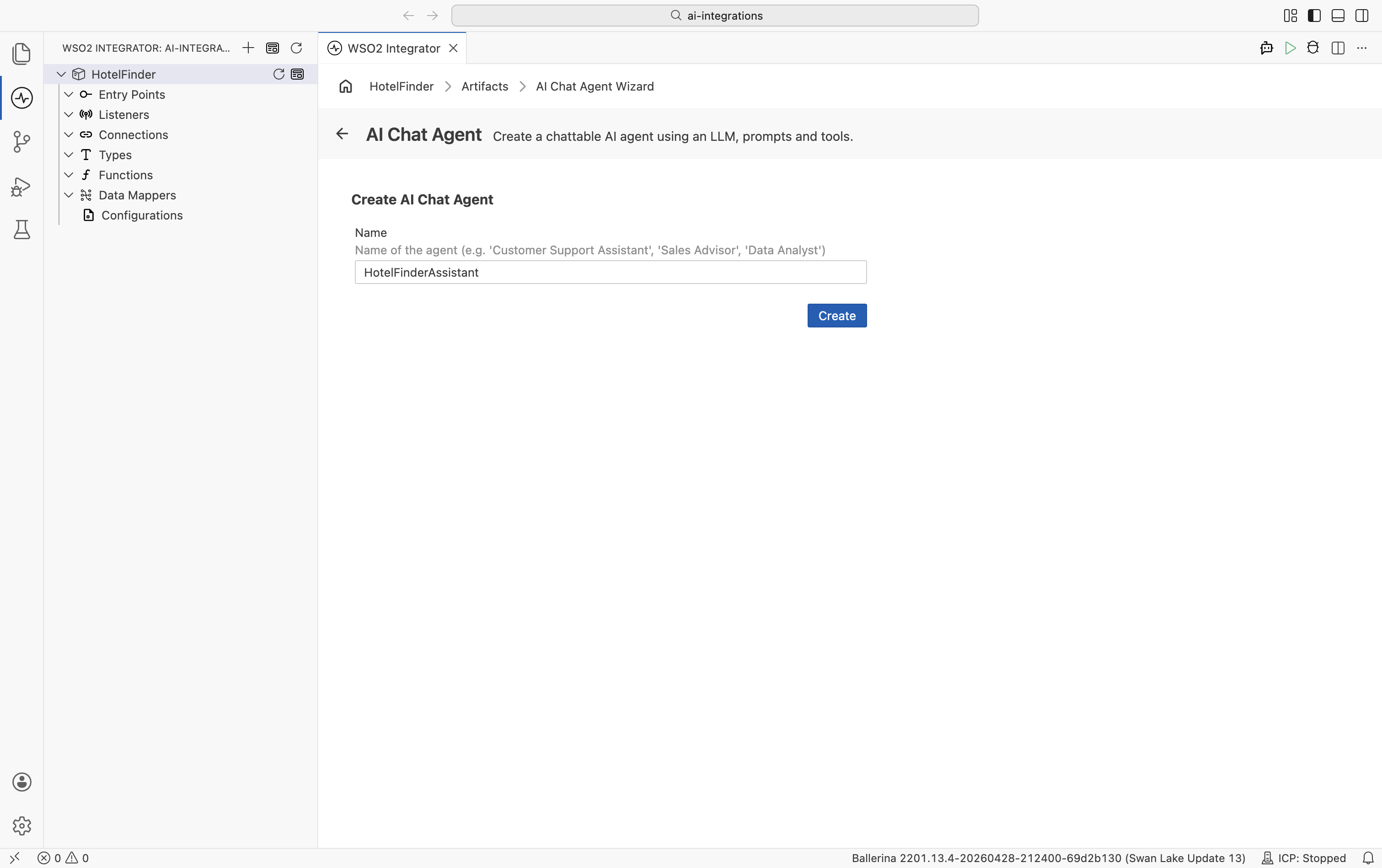
By default, the agent is created with the WSO2 model provider. If you have not signed in to WSO2 Integrator Copilot yet, sign in when prompted. No third-party API key is required.
To use a different LLM instead, see Model providers for the full list of supported providers (OpenAI, Anthropic, Azure OpenAI, and others).
Step 3: Configure the agent
-
Select the AI Agent node in the design canvas.
-
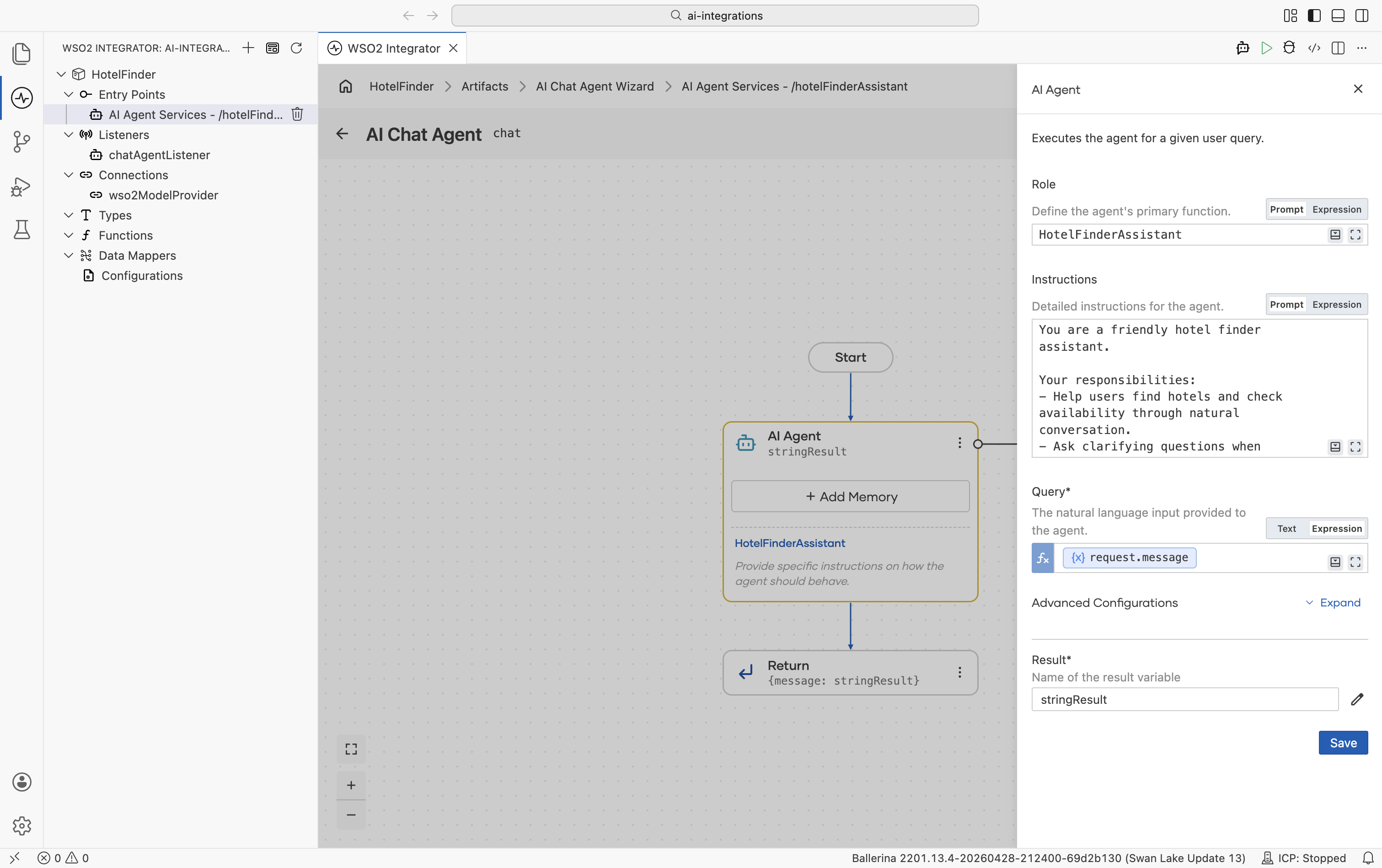
Set Role to
HotelFinderAssistant. -
Set Instructions to:
You are a friendly hotel finder assistant.

Your responsibilities:
- Help users find hotels and check availability through natural conversation.
- Ask clarifying questions when information is missing.

Tool usage:
- Use searchHotels when the user mentions a city or destination.
- Use checkAvailability when the user wants to verify dates and pricing.

Presentation:
- Show hotels clearly with price, rating, and key amenities. -
Select Save.
Step 4: Add the searchHotels tool
Create the searchHotels tool
-
Select the + button on the AI Agent node.
-
Select Create Custom Tool.
-
Set Name to
searchHotels. -
Set Description to
Searches for hotels in a city. -
Under Parameters, select + Add Parameter and add:
Type Name Description stringcityCity name, e.g. "Paris" or "New York" -
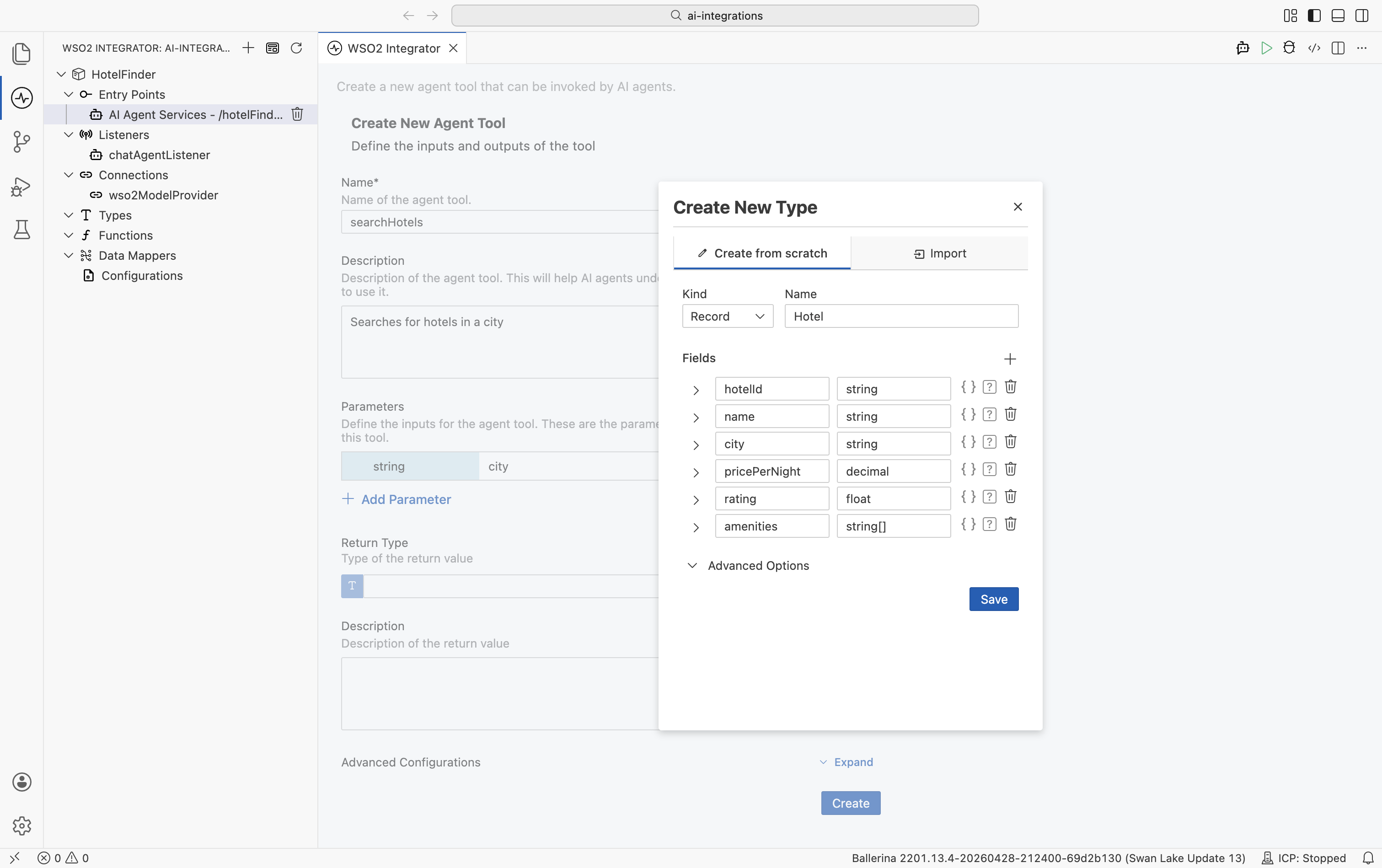
Under Return Type, select the field and choose Create New Type. The Create New Type dialog opens:
a. Set Kind to
Recordand Name toHotel.b. Add the following fields:
Name Type hotelIdstringnamestringcitystringpricePerNightdecimalratingfloatamenitiesstring[]c. Select Save.
-
Set Return Type to
Hotel[]. -
Set Description (return value) to
Hotels available in the city. -
Select Create.
![Completed Create New Agent Tool form for searchHotels showing the city parameter, Hotel[] return type, and return description](/integration-platform/docs/img/genai/getting-started/build-a-hotel-finder-agent/05-create-search-hotels-tool.png)
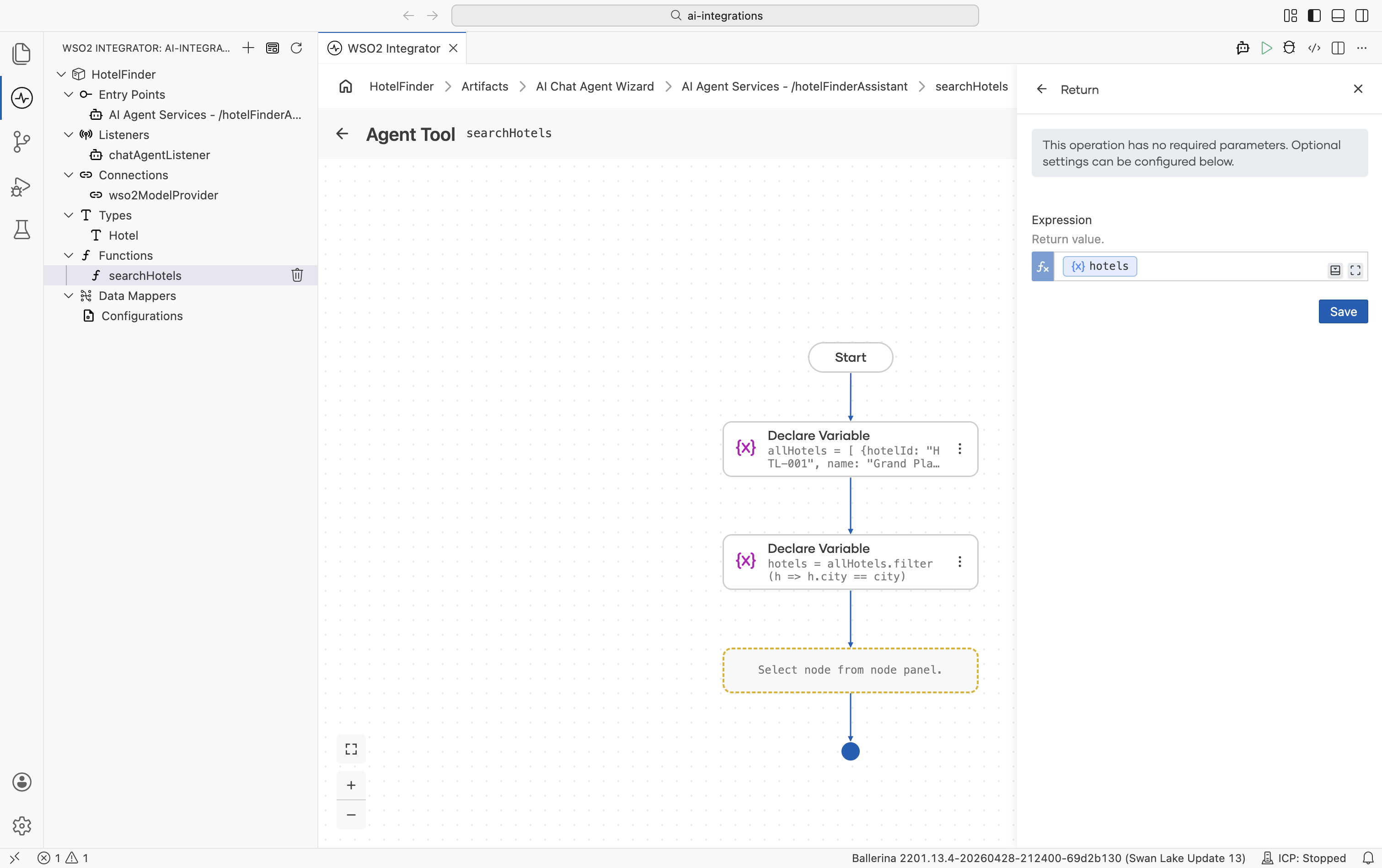
Build the searchHotels logic
The tool's visual flow opens. Add the logic:
-
Select the + button and select Declare Variable under Statement. Set Name to
allHotelsand Type toHotel[]. Set the Expression to the following hotel array and select Save:[
{hotelId: "HTL-001", name: "Grand Plaza Hotel", city: "Paris", pricePerNight: 199.99, rating: 4.5, amenities: ["WiFi", "Pool", "Gym"]},
{hotelId: "HTL-002", name: "City Center Inn", city: "Paris", pricePerNight: 129.99, rating: 4.0, amenities: ["WiFi", "Breakfast"]},
{hotelId: "HTL-003", name: "Luxury Suites", city: "New York", pricePerNight: 349.99, rating: 4.8, amenities: ["WiFi", "Pool", "Spa", "Restaurant"]}
]noteThis uses hardcoded sample data. In a real scenario, you would call an external hotel API, query a database, or connect an MCP tool.
![Declare Variable node configured with Name set to allHotels, Type set to Hotel[], and the hotel array set as the Expression](/integration-platform/docs/img/genai/getting-started/build-a-hotel-finder-agent/06-declare-variable-allhotels.png)
-
Select + and select Declare Variable under Statement. Set Name to
hotelsand Type toHotel[]. Set the Expression to the following and select Save:allHotels.filter(h => h.city == city)
![Declare Variable node configured with Name set to hotels, Type set to Hotel[], and the filter expression set as the Expression](/integration-platform/docs/img/genai/getting-started/build-a-hotel-finder-agent/07-declare-variable-hotels.png)
- Select + and select Return under Control. Set Expression to
hotelsand select Save.
Step 5: Add the checkAvailability tool
Create the checkAvailability tool
-
Navigate back to the AI Chat Agent view.
-
Select + on the AI Agent node and choose Create Custom Tool.
-
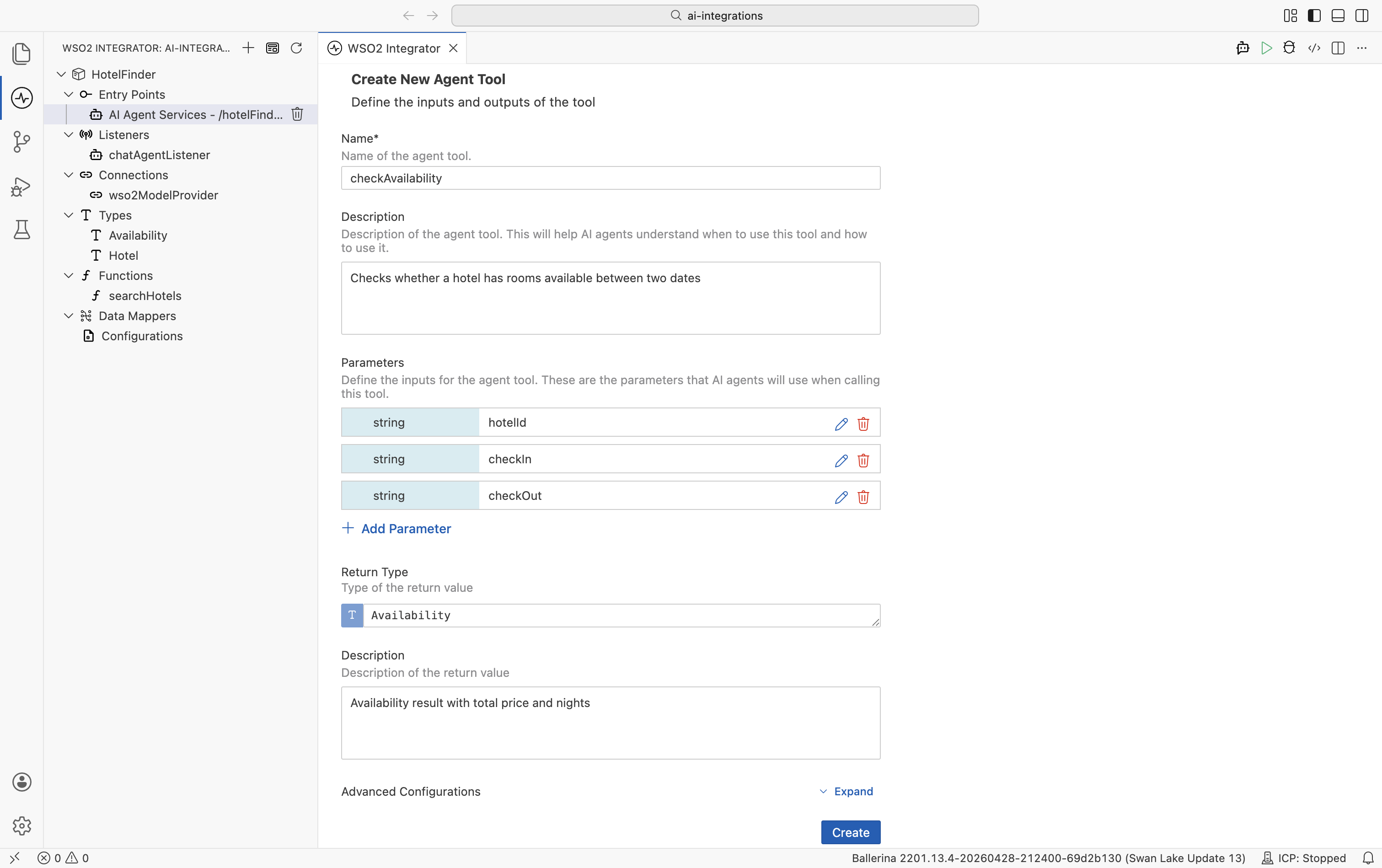
Set Name to
checkAvailability. -
Set Description to
Checks whether a hotel has rooms available between two dates. -
Under Parameters, select + Add Parameter and add:
Type Name Description stringhotelIdHotel identifier returned from searchHotelsstringcheckInCheck-in date in YYYY-MM-DDformatstringcheckOutCheck-out date in YYYY-MM-DDformat -
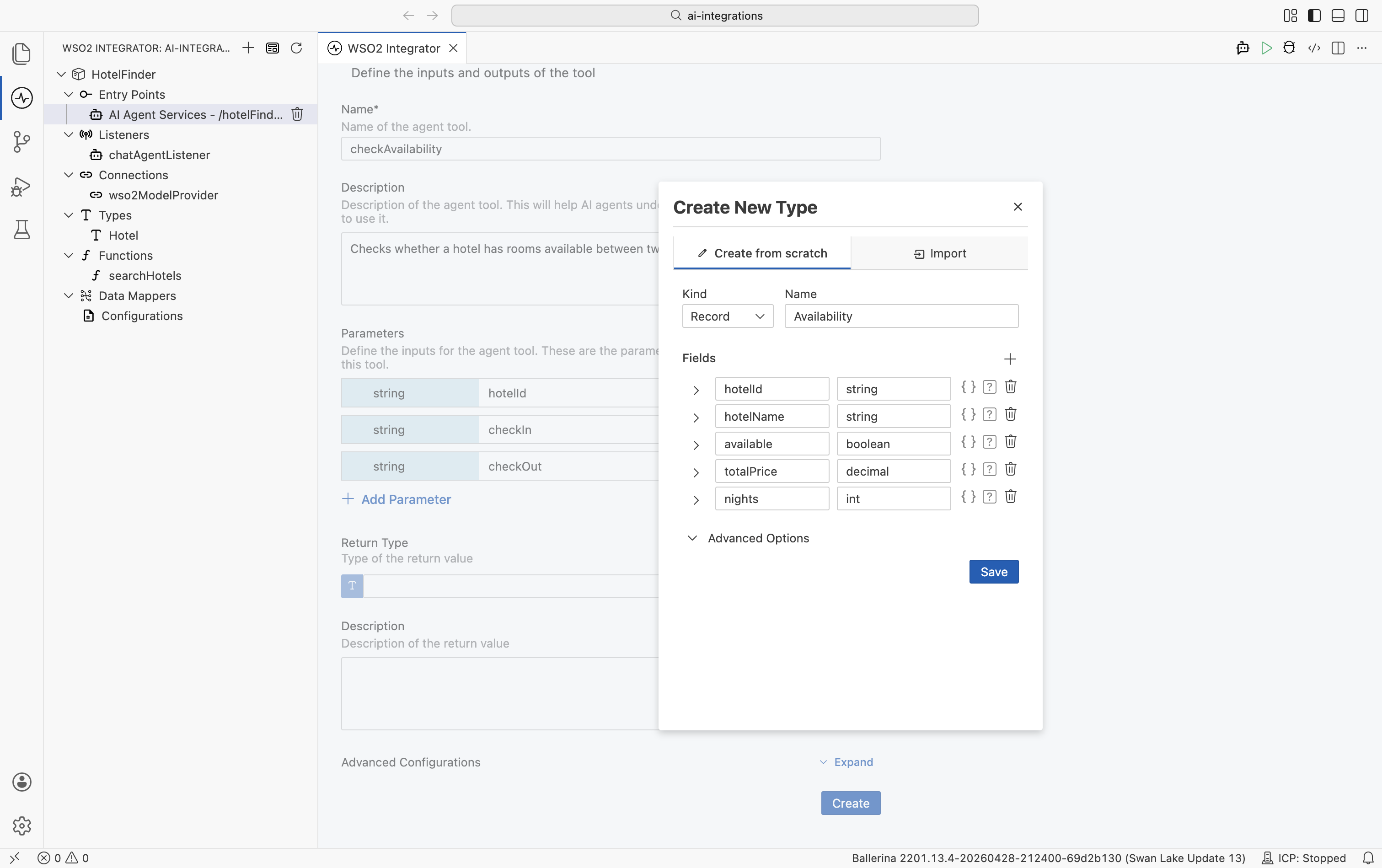
Under Return Type, select the field and choose Create New Type. The Create New Type dialog opens:
a. Set Kind to
Recordand Name toAvailability.b. Add the following fields:
Name Type hotelIdstringhotelNamestringavailablebooleantotalPricedecimalnightsintc. Select Save.
-
Set Return Type to
Availability. -
Set Description (return value) to
Availability result with total price and nights. -
Select Create.
Build the checkAvailability logic
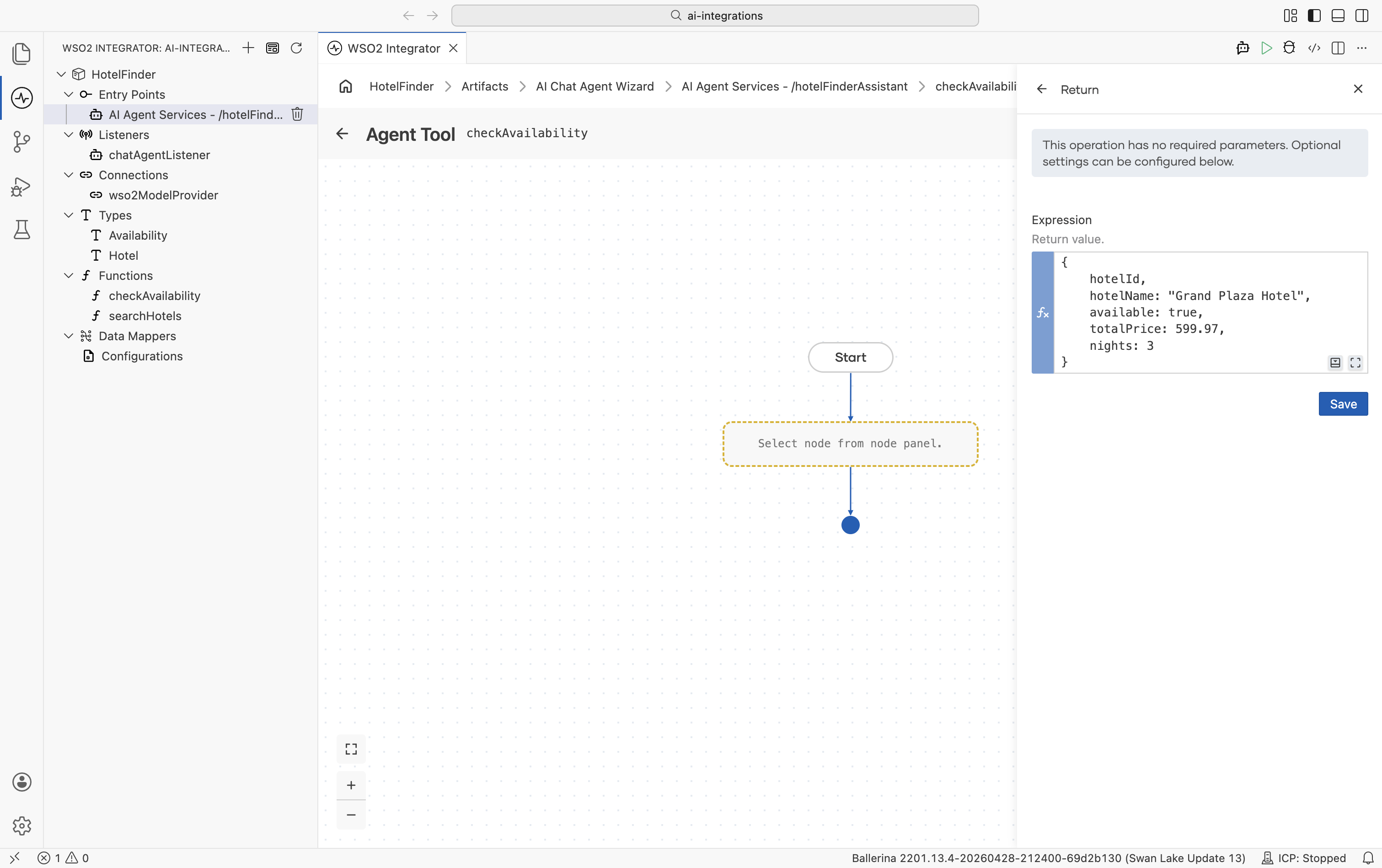
In the tool's visual flow, select + and select Return under Control. Set Expression to the following and select Save:
{
    hotelId,
    hotelName: "Grand Plaza Hotel",
    available: true,
    totalPrice: 599.97,
    nights: 3
}
This returns hardcoded sample data. In a real scenario, you would query a booking system, call an availability API, or connect an MCP tool.
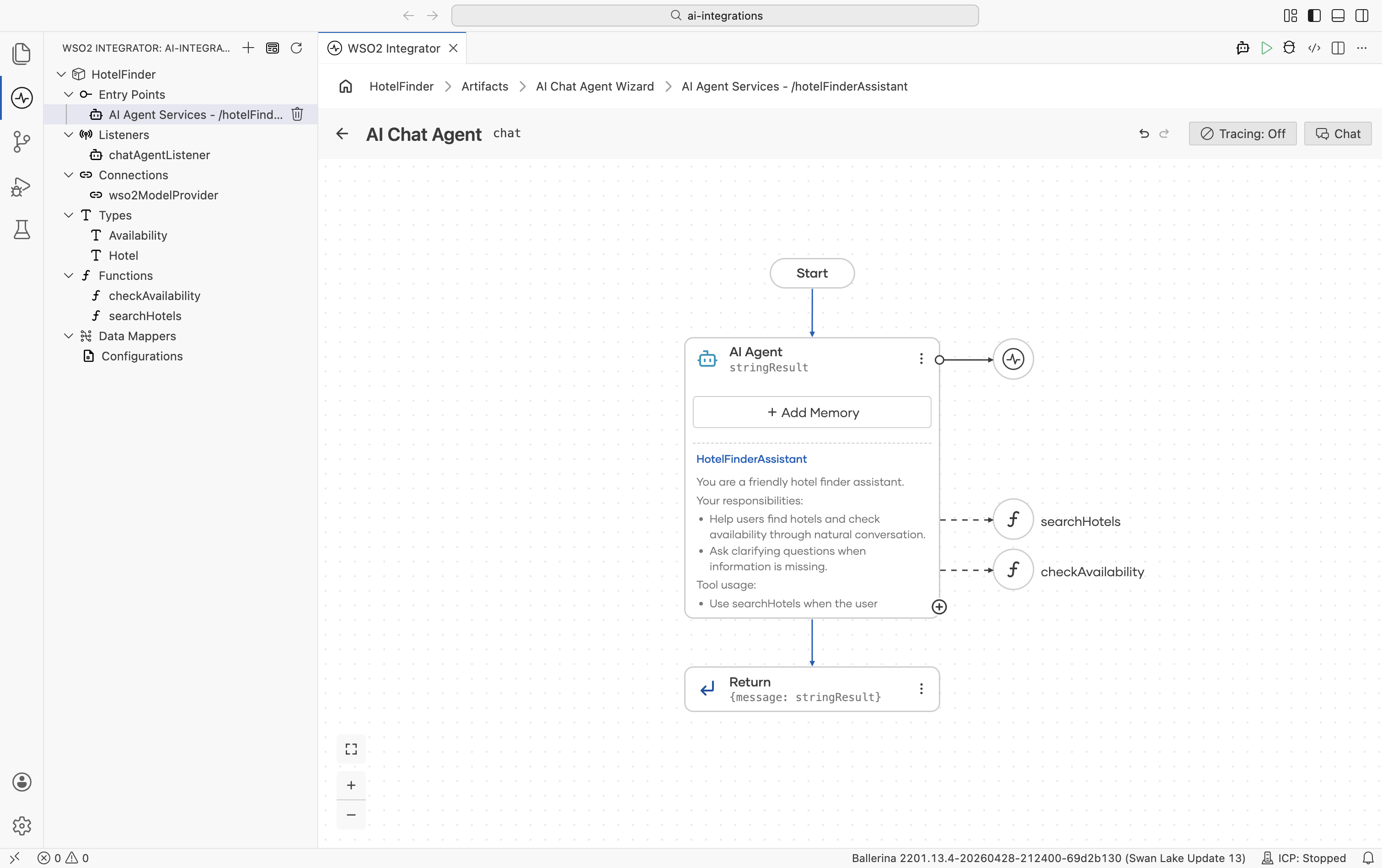
After both tools are created, the agent shows them connected in the design canvas.
Step 6: Run and test
- Select Run.
- Select Chat.
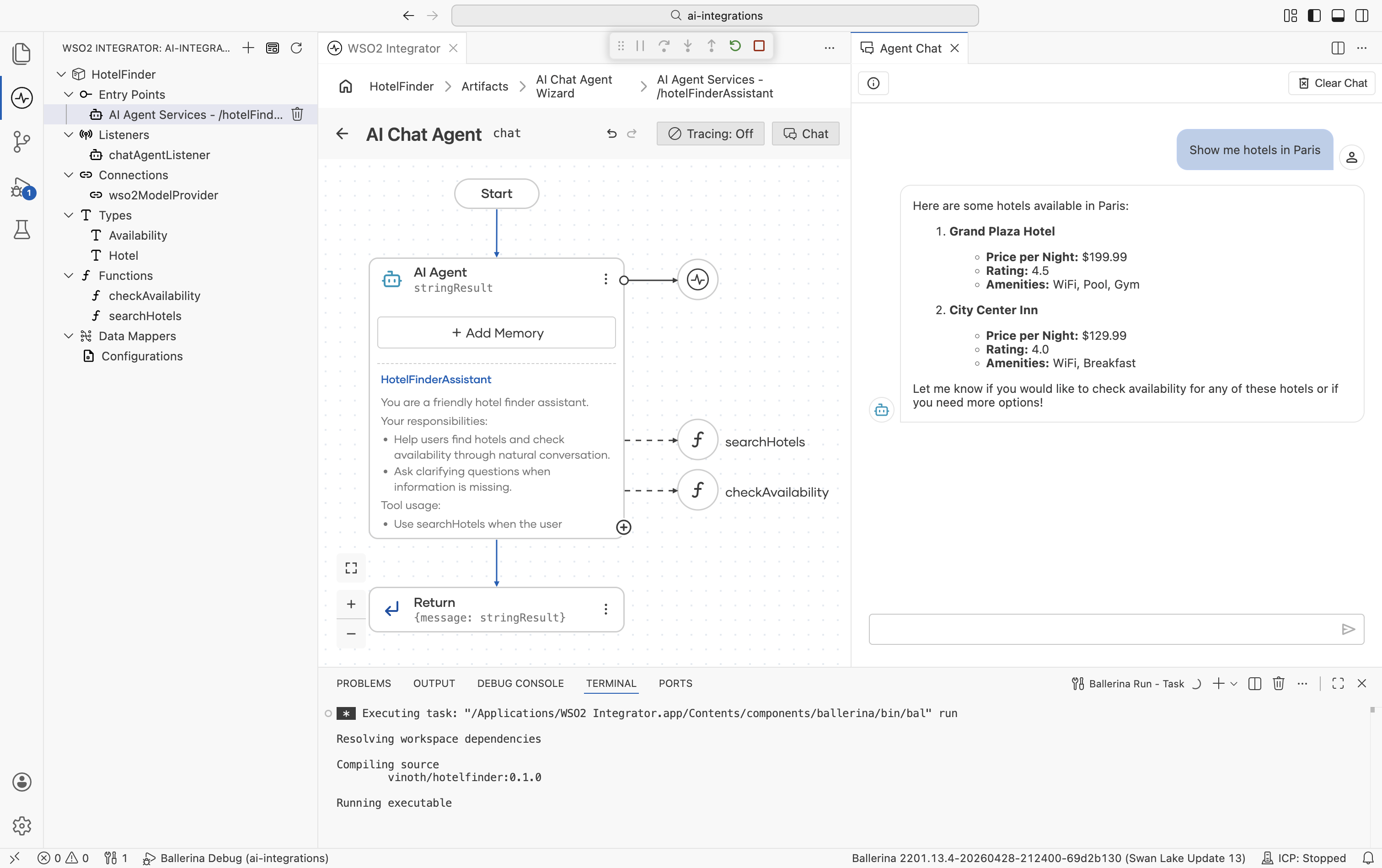
- Type
Show me hotels in Paristo check if it works.
The agent calls searchHotels and returns matching options. Continue the conversation using the same session to check availability.
Step 1: Define data types
Create a file named types.bal to hold the domain types:
type Hotel record {|
    string hotelId;
    string name;
    string city;
    decimal pricePerNight;
    float rating;
    string[] amenities;
|};

type Availability record {|
    string hotelId;
    string hotelName;
    boolean available;
    decimal totalPrice;
    int nights;
|};
Step 2: Configure the model provider
Create a file named connections.bal to initialize the model provider:
import ballerina/ai;

final ai:Wso2ModelProvider wso2ModelProvider = check ai:getDefaultModelProvider();
Step 3: Define tools and create the agent
Create a file named agents.bal. Each tool is an isolated function annotated with @ai:AgentTool. The LLM uses the summary line and + param - description lines from the Ballerina doc comment to decide when and how to call the tool.
Both tools use hardcoded sample data. In a real scenario, you would call external APIs, query a database, or connect MCP tools.
import ballerina/ai;

final ai:Agent hotelFinderAssistantAgent = check new (
    systemPrompt = {
        role: string `HotelFinderAssistant`,
        instructions: string `You are a friendly hotel finder assistant.

Your responsibilities:
- Help users find hotels and check availability through natural conversation.
- Ask clarifying questions when information is missing.

Tool usage:
- Use searchHotels when the user mentions a city or destination.
- Use checkAvailability when the user wants to verify dates and pricing.

Presentation:
- Show hotels clearly with price, rating, and key amenities.`
    }, model = wso2ModelProvider, tools = [searchHotels, checkAvailability]
);

# Searches for hotels in a city
# + city - City name, e.g. "Paris" or "New York"
# + return - Hotels available in the city
@ai:AgentTool
isolated function searchHotels(string city) returns Hotel[] {
    Hotel[] allHotels = [
        {hotelId: "HTL-001", name: "Grand Plaza Hotel", city: "Paris", pricePerNight: 199.99, rating: 4.5, amenities: ["WiFi", "Pool", "Gym"]},
        {hotelId: "HTL-002", name: "City Center Inn", city: "Paris", pricePerNight: 129.99, rating: 4.0, amenities: ["WiFi", "Breakfast"]},
        {hotelId: "HTL-003", name: "Luxury Suites", city: "New York", pricePerNight: 349.99, rating: 4.8, amenities: ["WiFi", "Pool", "Spa", "Restaurant"]}
    ];
    Hotel[] hotels = allHotels.filter(h => h.city == city);
    return hotels;
}

# Checks whether a hotel has rooms available between two dates
# + hotelId - Hotel identifier returned from searchHotels
# + checkIn - Check-in date in YYYY-MM-DD format
# + checkOut - Check-out date in YYYY-MM-DD format
# + return - Availability result with total price and nights
@ai:AgentTool
isolated function checkAvailability(string hotelId, string checkIn, string checkOut) returns Availability {
    return {
        hotelId,
        hotelName: "Grand Plaza Hotel",
        available: true,
        totalPrice: 599.97,
        nights: 3
    };
}
Step 4: Expose the agent as a chat service
Create a file named main.bal. The ai:Listener provides session-scoped chat memory. Pass the sessionId into agent.run(...) and the runtime retrieves and updates the conversation history for that session automatically.
import ballerina/ai;
import ballerina/http;

listener ai:Listener chatAgentListener = new (listenOn = check http:getDefaultListener());

service /hotelFinderAssistant on chatAgentListener {
    resource function post chat(@http:Payload ai:ChatReqMessage request) returns ai:ChatRespMessage|error {
        string stringResult = check hotelFinderAssistantAgent.run(request.message, sessionId = request.sessionId);
        return {message: stringResult};
    }
}
Step 5: Run and test
Run the project:
bal run
Have a multi-turn conversation. Use the same sessionId across requests so the agent remembers context:
# Turn 1 — search for hotels
curl -X POST http://localhost:9090/hotelFinderAssistant/chat \
  -H "Content-Type: application/json" \
  -d '{"sessionId": "guest-42", "message": "Show me hotels in Paris"}'

# Turn 2 — refer back to an earlier result
curl -X POST http://localhost:9090/hotelFinderAssistant/chat \
  -H "Content-Type: application/json" \
  -d '{"sessionId": "guest-42", "message": "Can you check the City Center Inn from March 20 to March 23?"}'
Because the listener keeps session history, the agent resolves "the City Center Inn" from the earlier message without the user having to repeat themselves.
How it works
This example demonstrates two patterns you will reuse in production agents:
- Session-scoped memory:
ai:Listenerkeeps a short history of messages persessionId, so the LLM sees recent turns on every call. - Sequential tool calls: The agent calls
searchHotelsand thencheckAvailability, using each result to inform the next step. The chaining is driven entirely by the LLM's reasoning.
What's next
- Creating an agent — Full reference for agent configuration
- Tools — Advanced tool patterns, including connection-backed tools and MCP servers
- Memory — Custom memory strategies beyond the default session store