Build a Sentiment Analyzer
Time: Under 10 minutes | What you'll build: An HTTP service that listens on POST /analyze, sends a customer review to an LLM, and returns the sentiment (POSITIVE, NEGATIVE, or NEUTRAL) along with a confidence score.
A direct LLM call is the simplest way to use AI in an integration: you send a prompt, the model returns a value, and Ballerina enforces the return type. This quick start shows the full cycle: define the result type, configure a model provider, make the call, and test it.
- Model Providers for LLMs
- A project to work in. If you do not have one, see Create a new integration.
- Visual Designer
- Ballerina Code
Step 1: Add an HTTP service
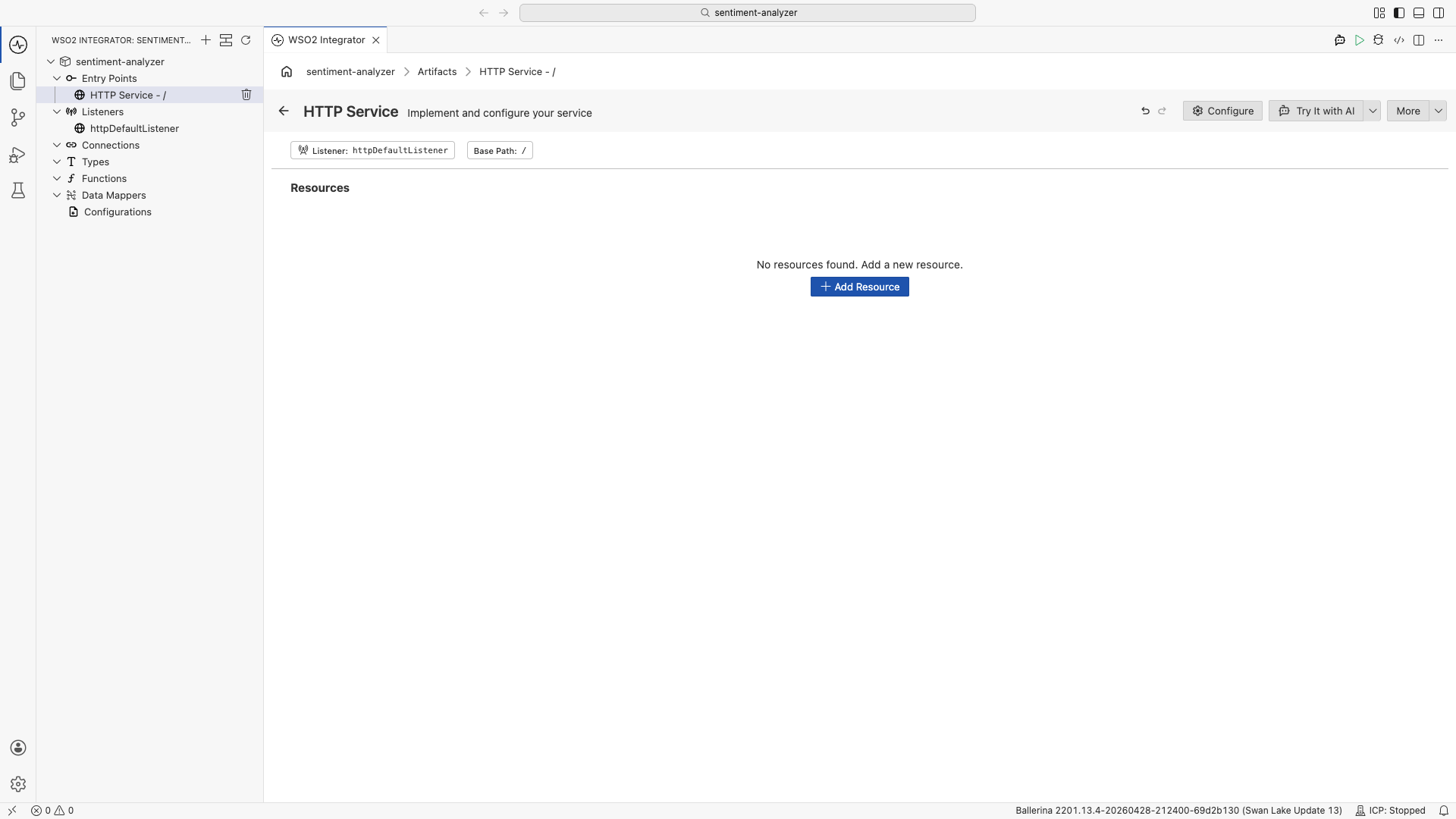
- Select your integration from the Project overview canvas.
- In the Design canvas, select Add Artifact.
- Select HTTP Service under Integration as API.
- Keep Service Contract as Design From Scratch.
- Set Service Base Path to
/. - Select Create.
Step 2: Define the Sentiment type
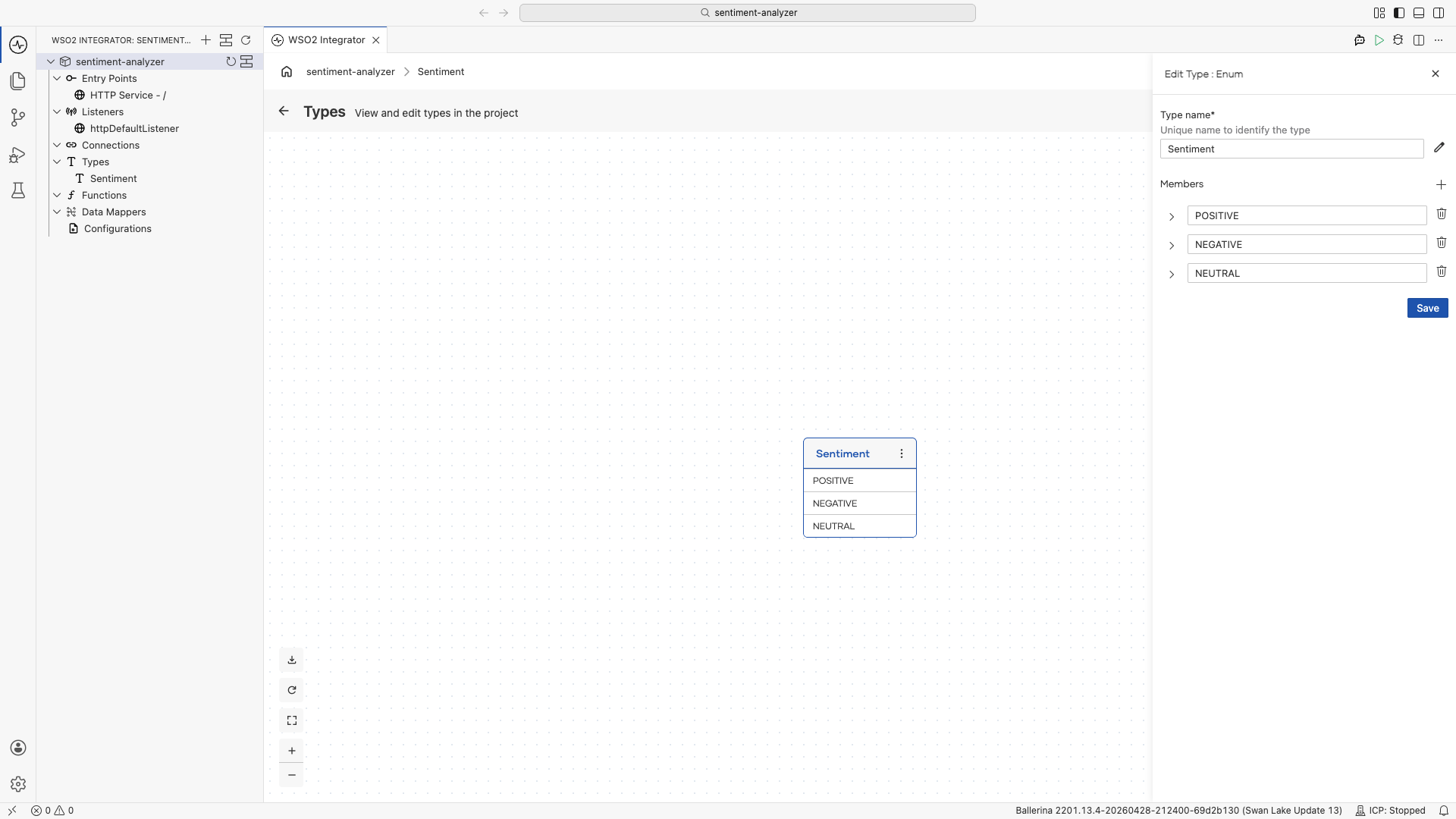
The LLM call returns one of three values. Define an enum so Ballerina can enforce the result.
- In Project Explorer, click the + next to Types.
- Set the kind to Enum and Type name to
Sentiment. - Add three members:
POSITIVE,NEGATIVE,NEUTRAL. - Select Save.
Step 3: Add a POST resource
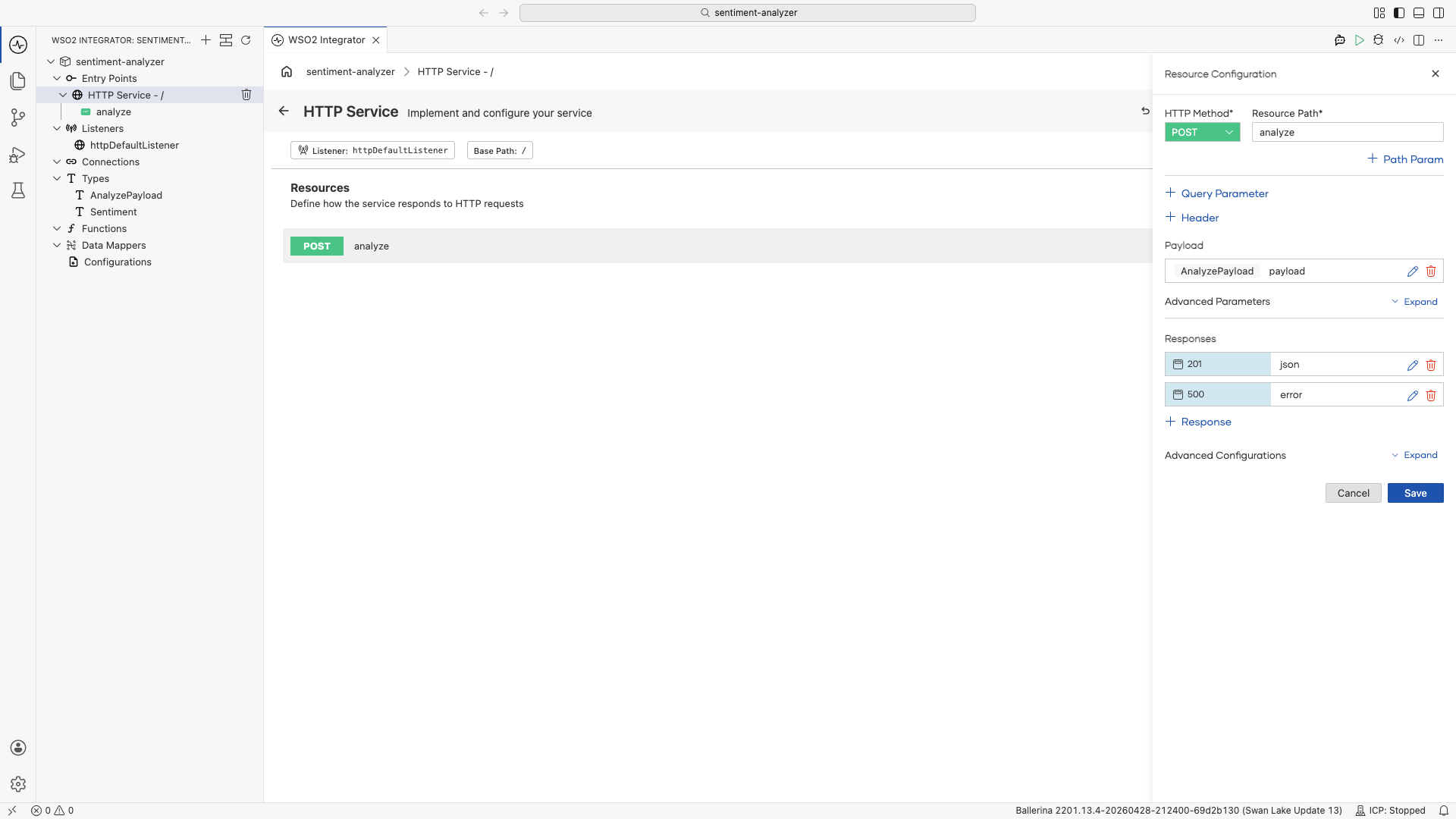
- In the HTTP Service Design editor, select + Add Resource.
- Select POST.
- Set Resource Path to
analyze. - Select + Define Payload.
- In the popup, select Create Type Schema, set the name to
AnalyzePayload, and add a single fieldtextof typestring.
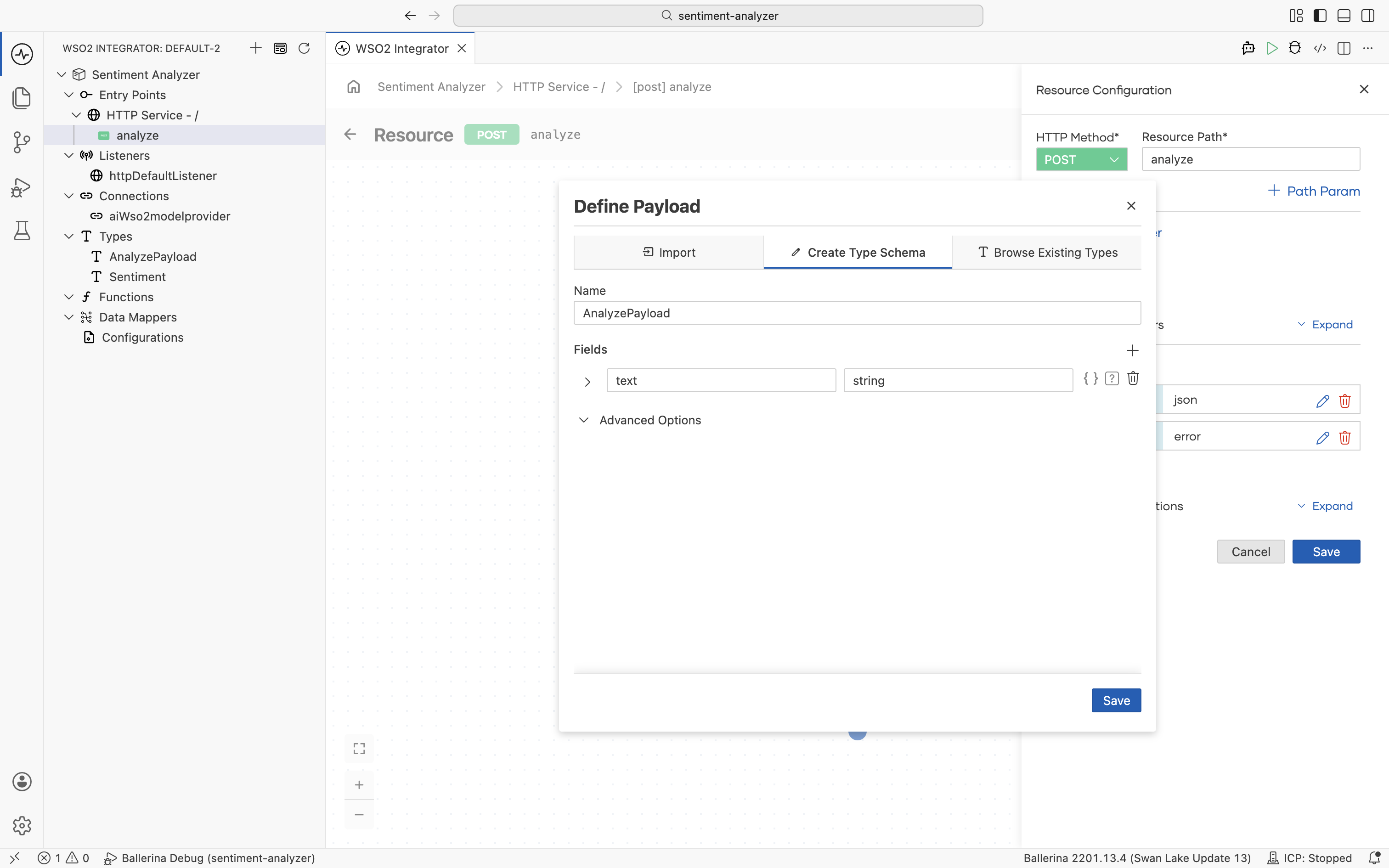
- Select Save on the payload panel, then Save on the resource.
Step 4: Add a direct LLM call
- Select + inside the resource flow.
- Select Model Provider under Direct LLM.
- Select + Add Model Provider, then choose WSO2 Model Provider.
- Keep the default name and select Save. The provider is added under Connections.
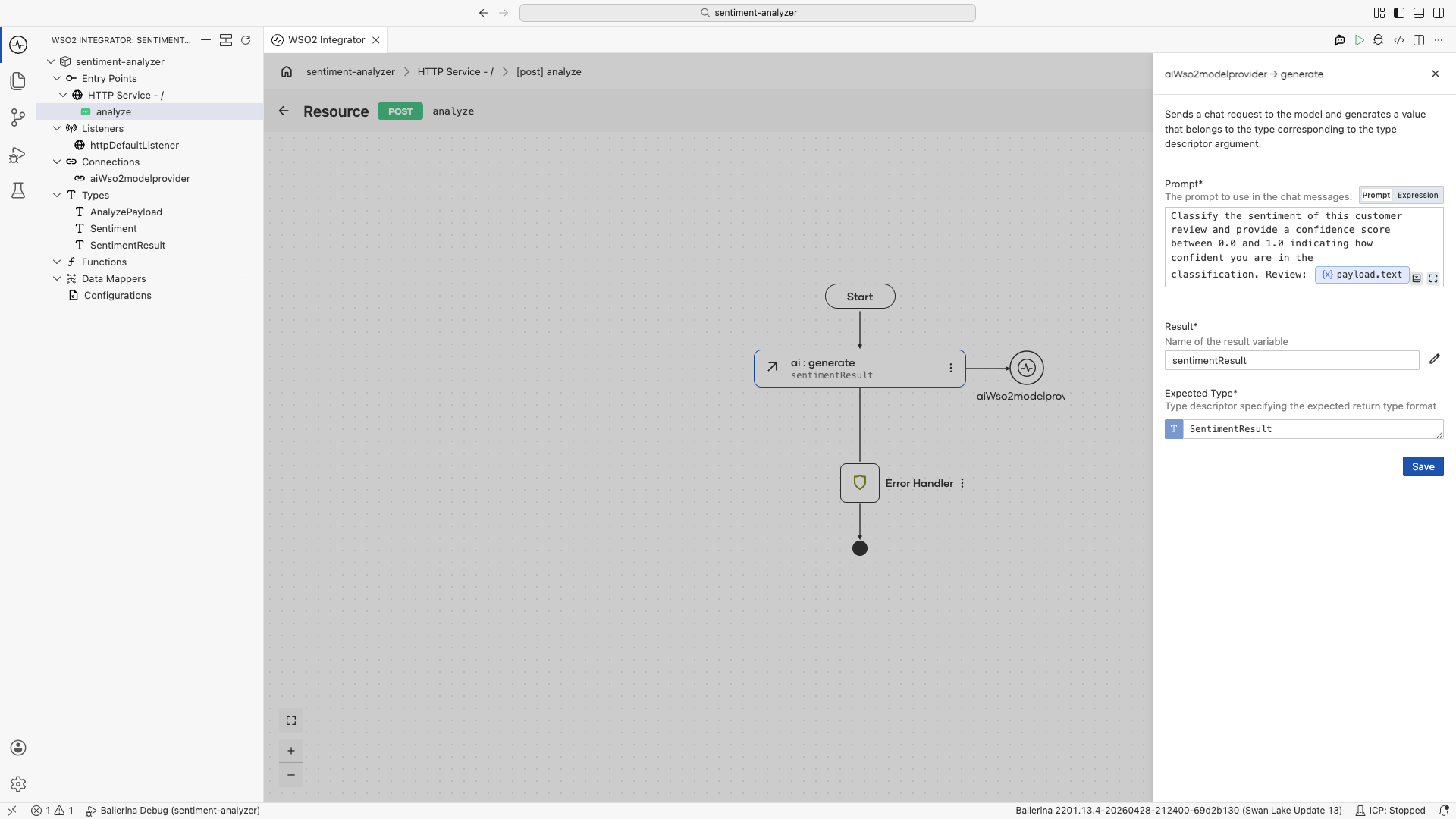
- Select the Generate action.
- Set Prompt to
Classify the sentiment of this customer review and provide a confidence score between 0.0 and 1.0 indicating how confident you are in the classification. Review: ${payload.text}. - Set the result variable name to
sentimentResult. - For Expected Type, create a new record type
SentimentResultwith two fields:sentimentof typeSentimentandconfidenceof typefloat. Select Save in the type creator. - Back in the Generate panel, select
SentimentResultin the Expected Type field, then select Save.
Step 5: Return the result
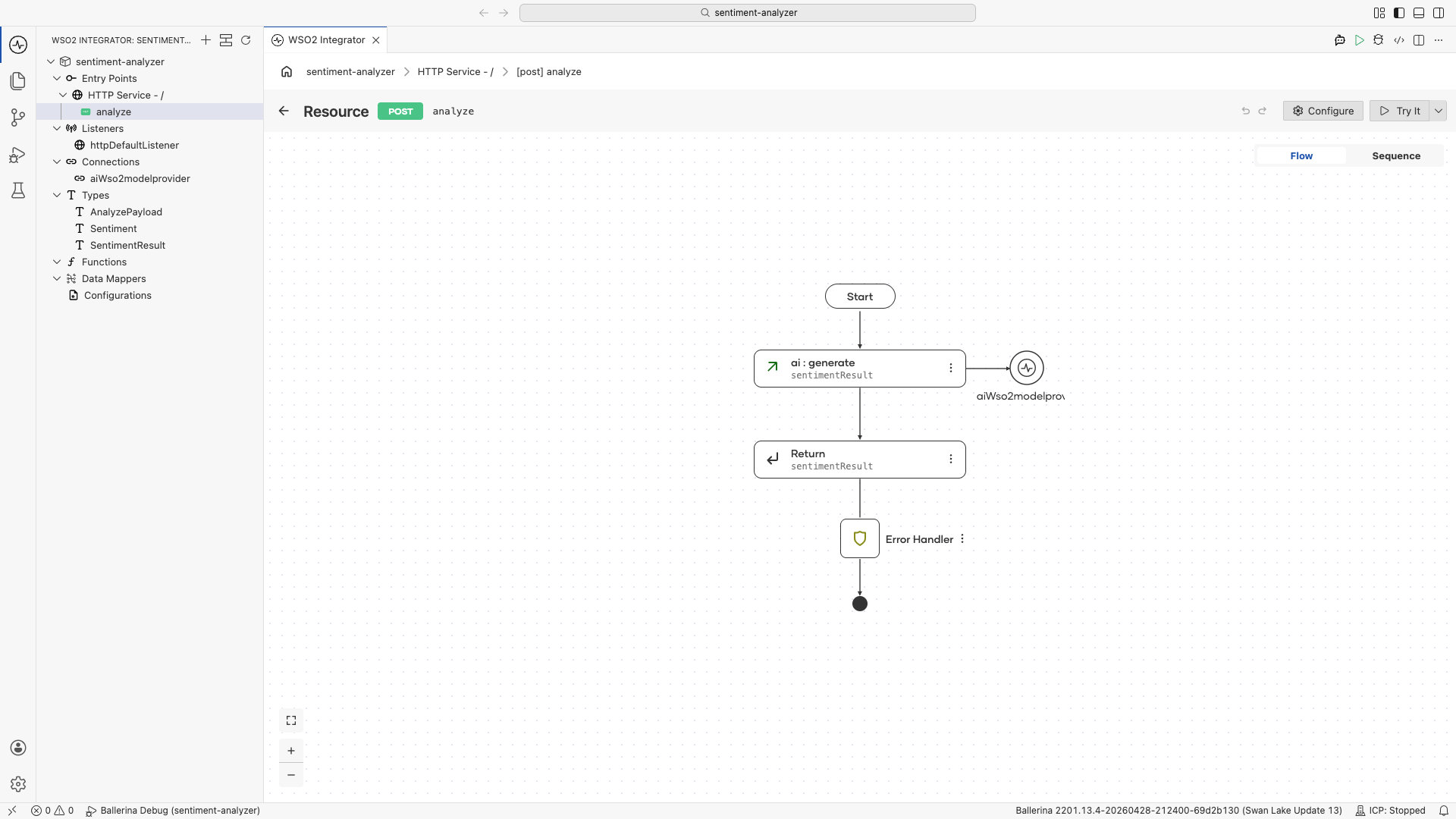
- Select + below the ai:generate node.
- Select Return.
- Set Expression to
sentimentResult. - Select Save.
Step 6: Run and test
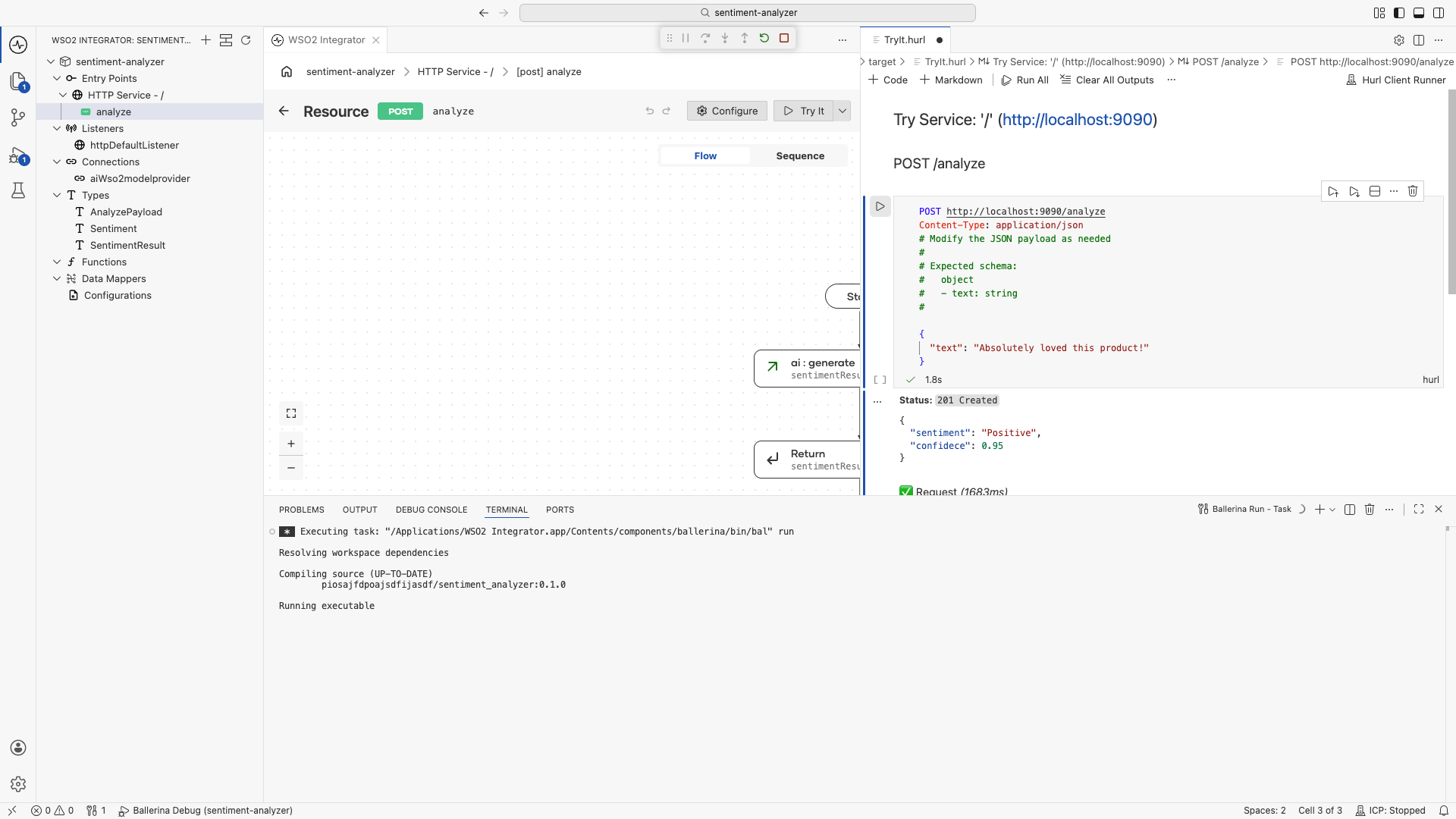
- Select Run.
- Select Try It in the confirmation dialog.
- Send a
POSTto/analyzewith the body{"text": "Absolutely loved this product! Best purchase I made all year."}. - Confirm the response includes
"sentiment":"POSITIVE"along with aconfidencescore.
The following Ballerina program produces the same integration shown in the Visual Designer steps. The LLM returns a SentimentResult record so the response includes both the sentiment and a confidence score (for example, {"sentiment":"POSITIVE","confidence":0.98}).
types.bal:
enum Sentiment {
    POSITIVE,
    NEGATIVE,
    NEUTRAL
}

type AnalyzePayload record {|
    string text;
|};

type SentimentResult record {|
    Sentiment sentiment;
    float confidence;
|};
connections.bal:
import ballerina/ai;

final ai:Wso2ModelProvider aiWso2modelprovider = check ai:getDefaultModelProvider();
main.bal:
import ballerina/http;

listener http:Listener httpDefaultListener = http:getDefaultListener();

service / on httpDefaultListener {
    resource function post analyze(@http:Payload AnalyzePayload payload) returns SentimentResult|error {
        SentimentResult sentimentResult = check aiWso2modelprovider->generate(
            `Classify the sentiment of this customer review and provide a confidence score
            between 0.0 and 1.0 indicating how confident you are in the classification.
            Review: ${payload.text}`
        );
        return sentimentResult;
    }
}
Note that generate takes an expected type descriptor as an argument, but it is not explicitly passed here. Ballerina infers it from the type of the variable the result is assigned to (SentimentResult), so the call stays concise while still being fully type-checked.
Run and test the integration from WSO2 Integrator using the Try It panel as shown in Step 6. The response will look similar to {"sentiment":"POSITIVE","confidence":0.98}, with the actual sentiment and confidence score determined by the model.
How it works
The model provider's generate method takes a backtick template prompt and an expected return type. The expected type is inferred from the variable the result is assigned to when not specified explicitly. Behind the scenes the LLM is instructed to produce output that conforms to that type, and the response is parsed and validated before being returned to your code.
Because the sentiment field is an enum, the LLM cannot return free-form text for it. It must pick one of POSITIVE, NEGATIVE, or NEUTRAL. If the model returns anything else, the call fails with a typed error rather than silently passing bad data downstream.
This is what differentiates a direct LLM call from a raw chat completion: you write the call as if it were a normal function and let the type system do the work.
What's next
- Build a Hotel Finder Agent — Add custom tools and session-scoped memory
- What is an AI Agent? — Understand the agent architecture
- What are Tools? — Learn tool design patterns