GraphQL Canvas
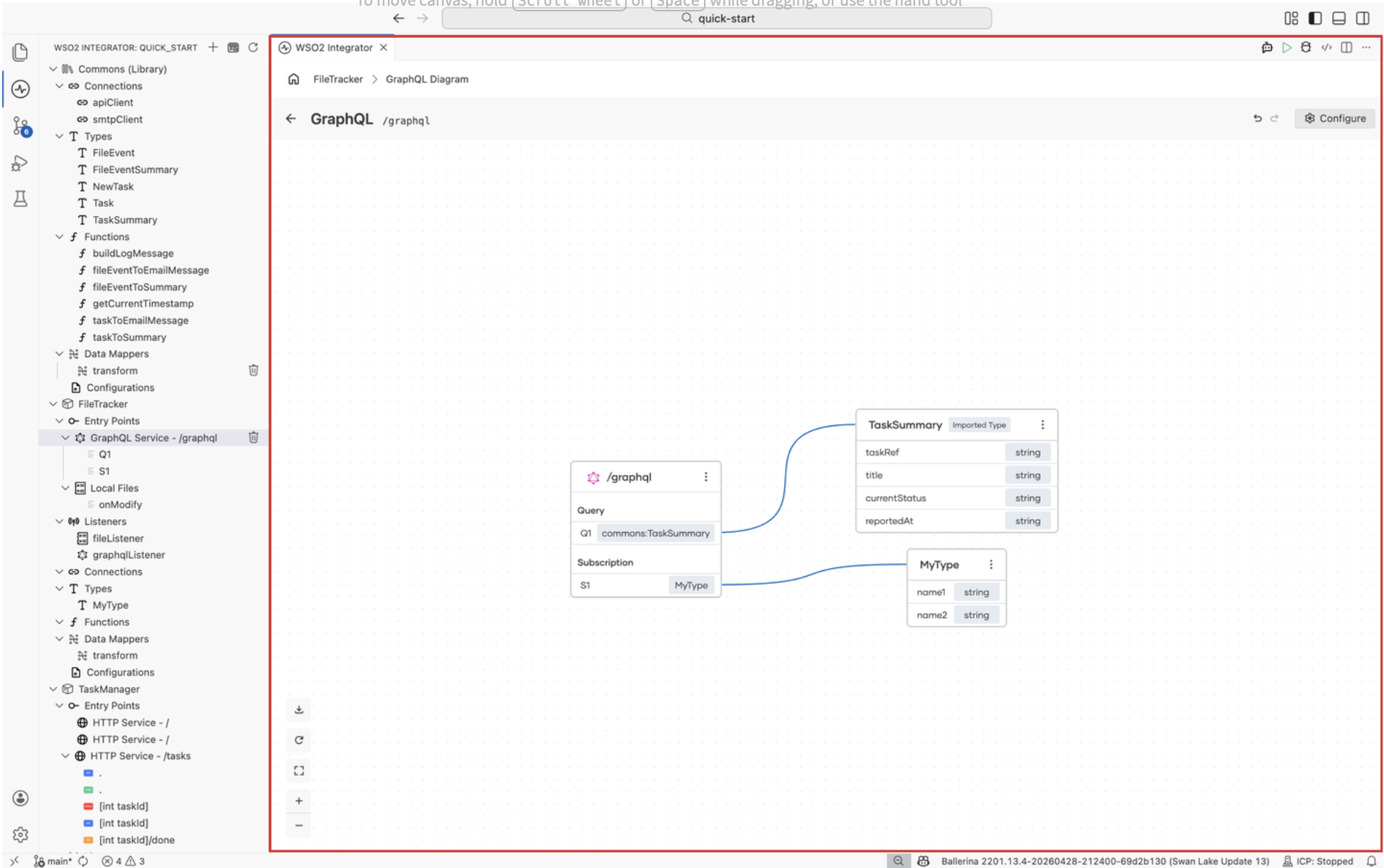
The GraphQL Canvas, also known as the GraphQL diagram, shows a GraphQL service as a node, with every query, mutation, and subscription it exposes. Lines connect each operation to the types it accepts or returns. Use it to add or remove operations, edit their signatures, and go to the resolver code.
For end-to-end usage, including how to create a GraphQL service from scratch or import an existing schema, see GraphQL Service.
Open the canvas
Select a GraphQL service under Entry Points in the project explorer, or select the service node on the Integration view design canvas. The canvas opens with the service node and the types it references.
Header
The header runs along the top of the canvas and combines the breadcrumb, the service title, and the high-level actions.
| Control | Description |
|---|---|
| Breadcrumb | Shows the path from the parent artifact (for example, FileTracker > GraphQL Diagram). Select a segment to return to it. |
| Back | Returns to the previous view, typically the Integration view. |
| Title | Displays GraphQL followed by the service base path (for example, /graphql). |
| Undo / Redo | Reverses or reapplies recent changes to the service. |
| Configure | Opens the Configuration Panel for the GraphQL service. Use it to change the base path, port, listener, or other service-level settings. |
Service node
The service node is the card on the canvas that represents the GraphQL service itself. It is labeled with the service base path (for example, /graphql) and groups the operations the service exposes into sections.
| Section | What it contains |
|---|---|
| Query | Read operations the service exposes. Each row shows the operation name and the type it returns (for example, Q1: commons:TaskSummary). |
| Mutation | Write operations that change server-side state. Rows follow the same name and return-type format. |
| Subscription | Server-push operations that stream values to the client. Rows show the operation name and the type emitted on each event (for example, S1: MyType). |
Select an operation row to open the Flow Canvas for that resolver and edit the logic that runs when the operation is invoked.
The three-dot menu (⋮) on the service node opens the service-level actions:
| Action | Description |
|---|---|
| Edit | Opens the GraphQL Operations side panel, where you can add, edit, or delete the service's queries, mutations, and subscriptions. Selecting the service path on the node (for example, /graphql) does the same thing. |
| Source | Switches to the Ballerina source view at the service definition. |
| Focused View | Hides every other node on the canvas and centers the diagram on this service. |
GraphQL Operations side panel
The GraphQL Operations side panel groups every operation the service exposes into Query, Mutation, and Subscription sections. Each section lists the existing operations by name, with an edit icon and a delete icon on each row. When a section has no operations, the panel shows a placeholder, for example No Mutation fields defined.
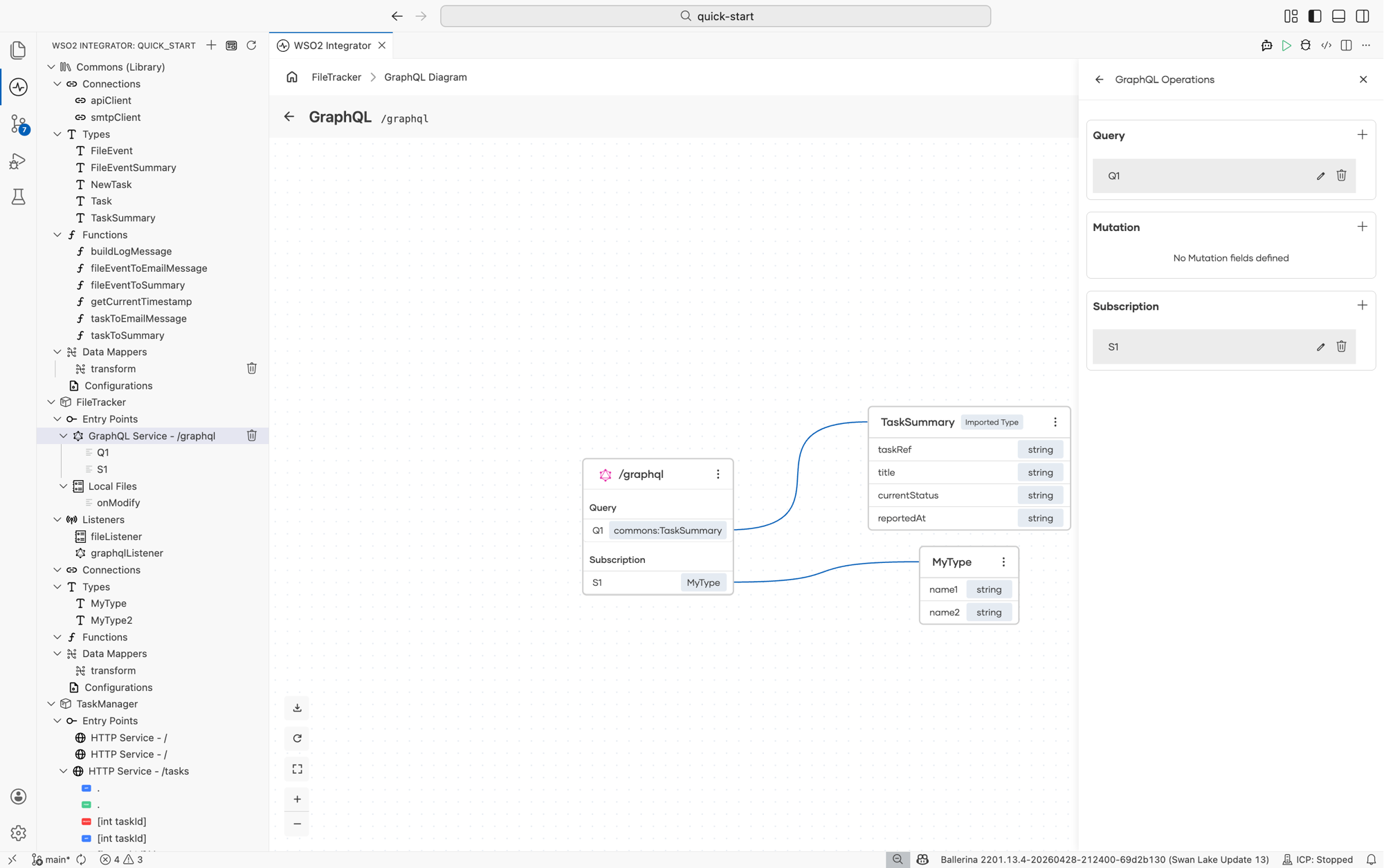
Select + next to a section, or + Create Operations on the service node, to add an operation. Select the edit icon on a row to change the operation's name, arguments, or return type, and the delete icon to remove it. For the steps, see Add an operation.
Type nodes
Every type referenced by an operation appears as its own card on the right of the canvas, with each field of the type rendered as a row showing the field name and its type. Imported types (types defined in a library) are tagged Imported Type so you can tell them apart from types defined in the current integration.
Lines drawn between the service node and a type node show which operations return or accept that type.
The three-dot menu (⋮) on a type node depends on where the type is defined:
| Type | Menu actions |
|---|---|
| Imported types (tagged Imported Type) | Focused View only. Imported types are defined in a library, so you cannot edit or delete them from this service. |
| Locally defined types | Edit, Source, Focused View, and Delete. Use Edit to open the Type Panel and change the fields, Source to jump to the Ballerina source, Focused View to isolate the type on the canvas, and Delete to remove the type from the integration. |
Canvas controls
Use the controls in the bottom-left corner of the canvas to adjust the view.
| Control | Description |
|---|---|
| Download | Exports the GraphQL diagram as an image. |
| Refresh | Reloads the diagram to pick up changes made to the underlying schema or types. |
| Fit to screen | Adjusts the zoom level so every node is visible at once. |
| + | Zooms in. |
| − | Zooms out. |
To pan across the canvas, hold scroll-wheel click or Space while dragging.
What's next
- GraphQL Service — End-to-end guide to creating and configuring a GraphQL service.
- Flow Canvas — Edit the resolver logic for a query, mutation, or subscription.
- Type Panel — Define the types the GraphQL schema exposes.