Integration Control Plane(ICP) Support in Editor
The WSO2 Integrator editor can start a local Integration Control Plane (ICP) server so you can observe and manage your integrations while you are still developing them. Enable ICP for an integration, run it as usual, and its runtime shows up in the ICP console.
The local ICP server is meant for development and trying ICP out. To monitor and manage integrations that are deployed, see the Integration Control Plane documentation.
Enable ICP for your integrations
You can enable ICP for every integration in a project at once, or for one integration at a time.
Enable ICP for all integrations in a project
-
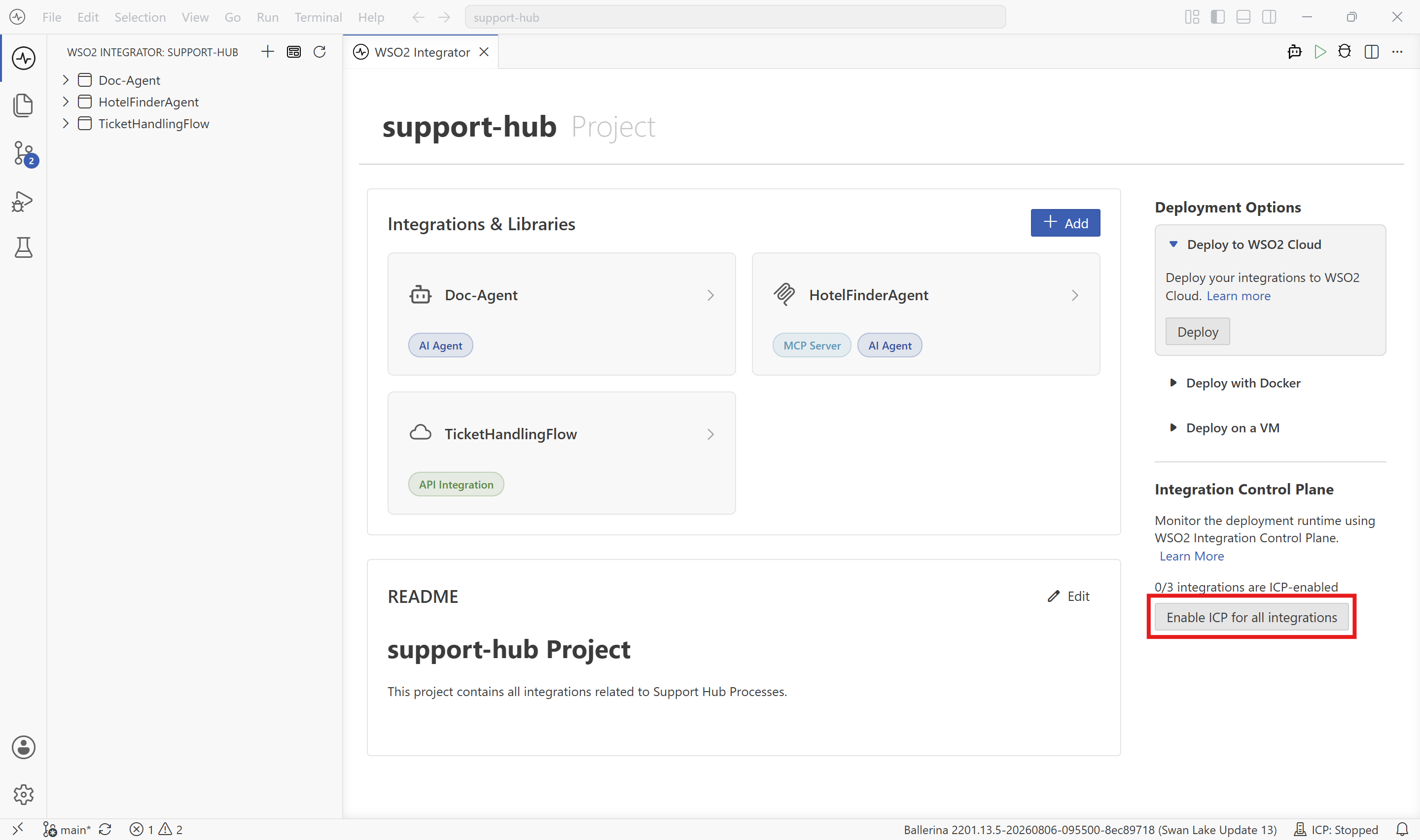
Open the project overview. The Integration Control Plane section on the right shows how many integrations are ICP-enabled, for example 0/3 integrations are ICP-enabled.
-
Select Enable ICP for all integrations.
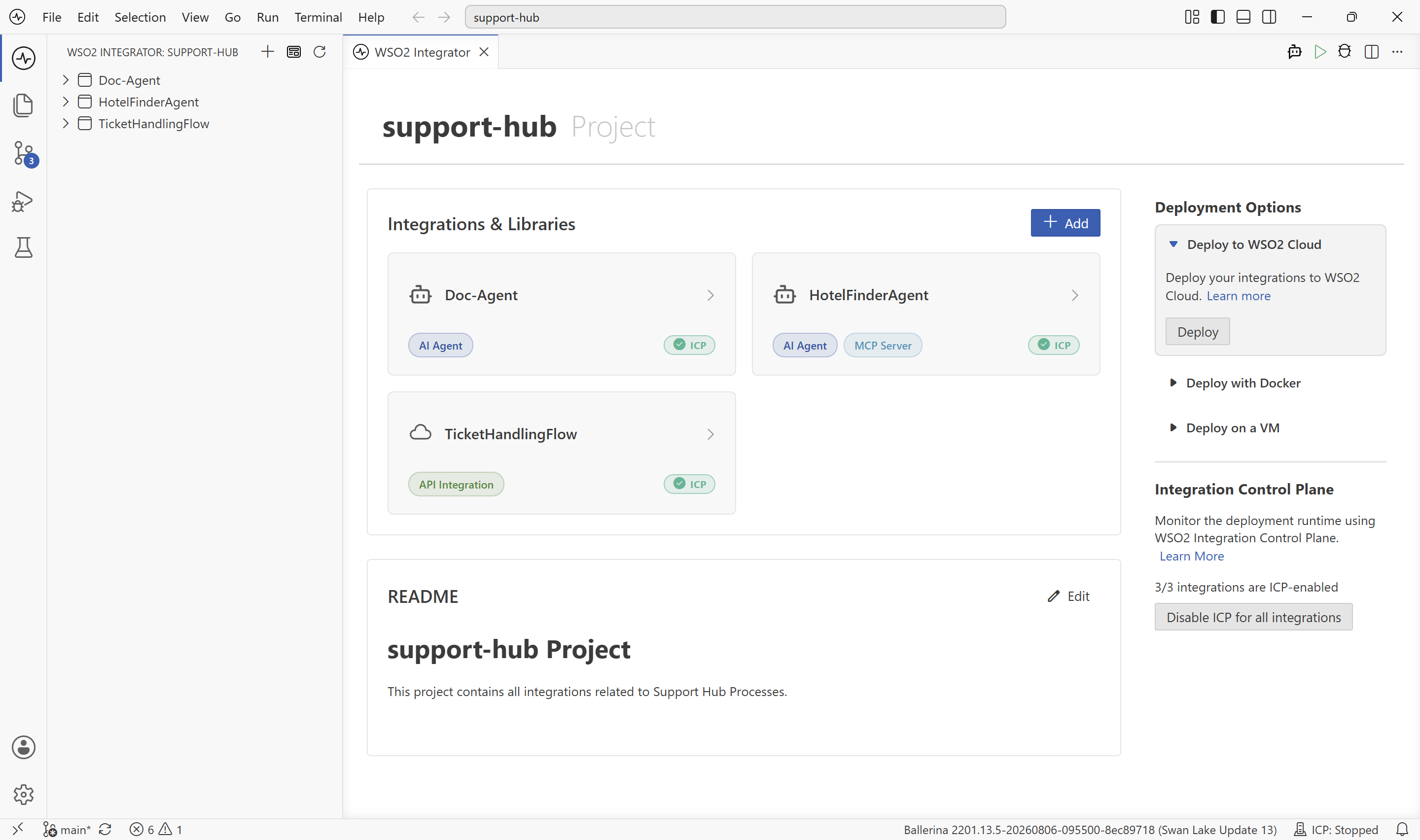
Each integration card now carries an ICP badge, and the ICP-enabled count is also updated.
Enable ICP for a single integration
-
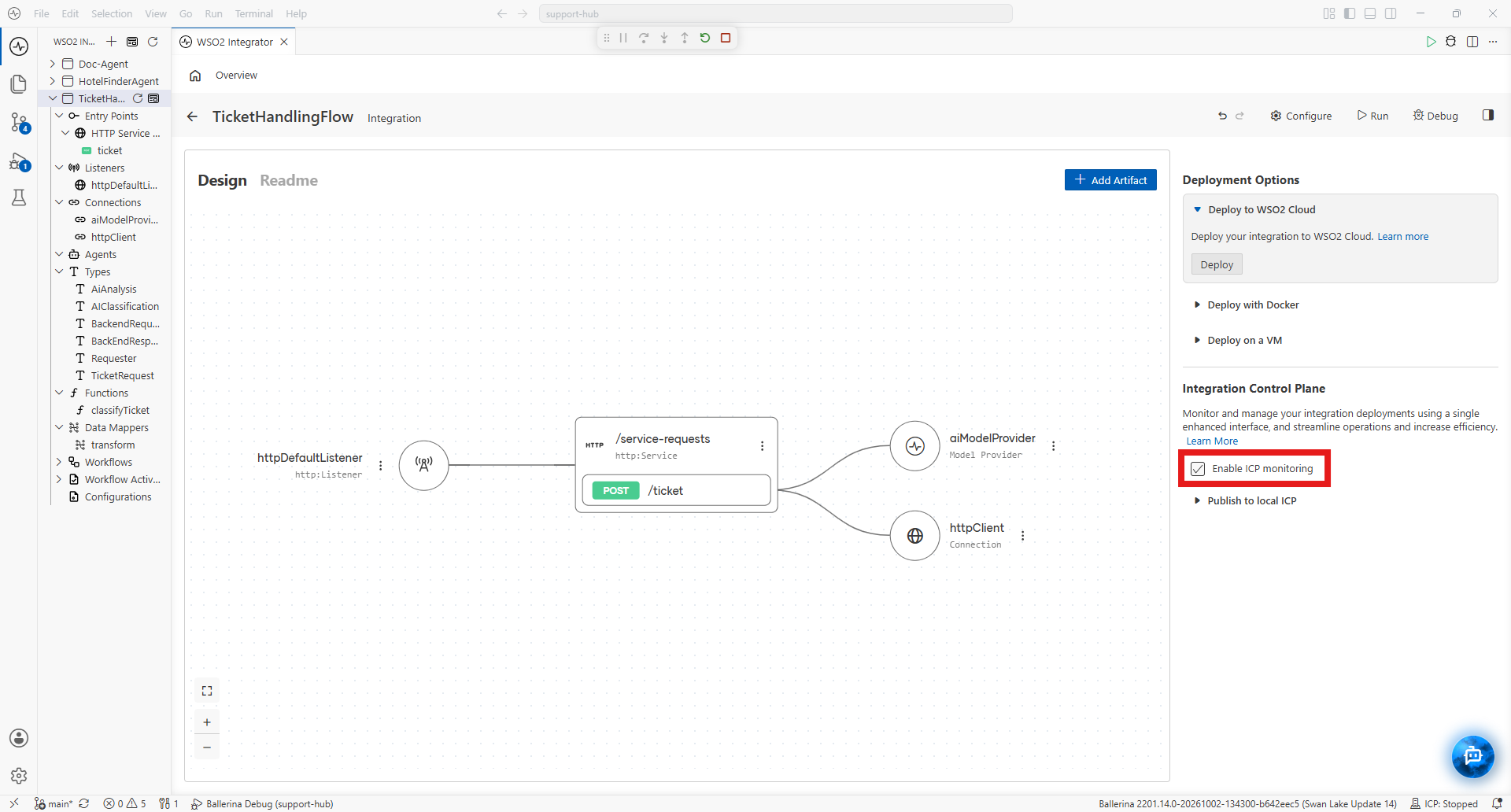
Open the integration's overview.
-
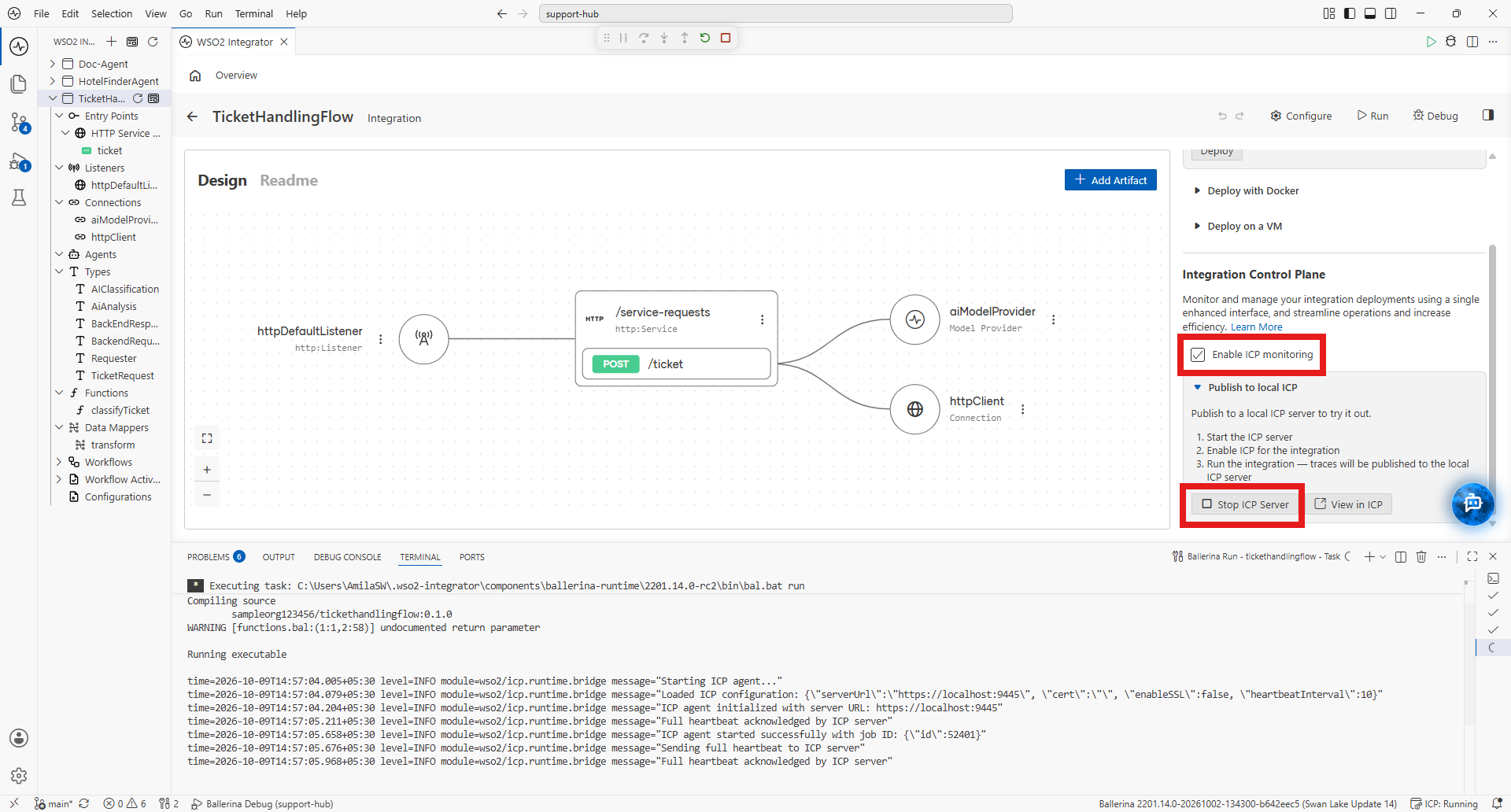
In the Integration Control Plane section, select Enable ICP monitoring.
Start the local ICP server
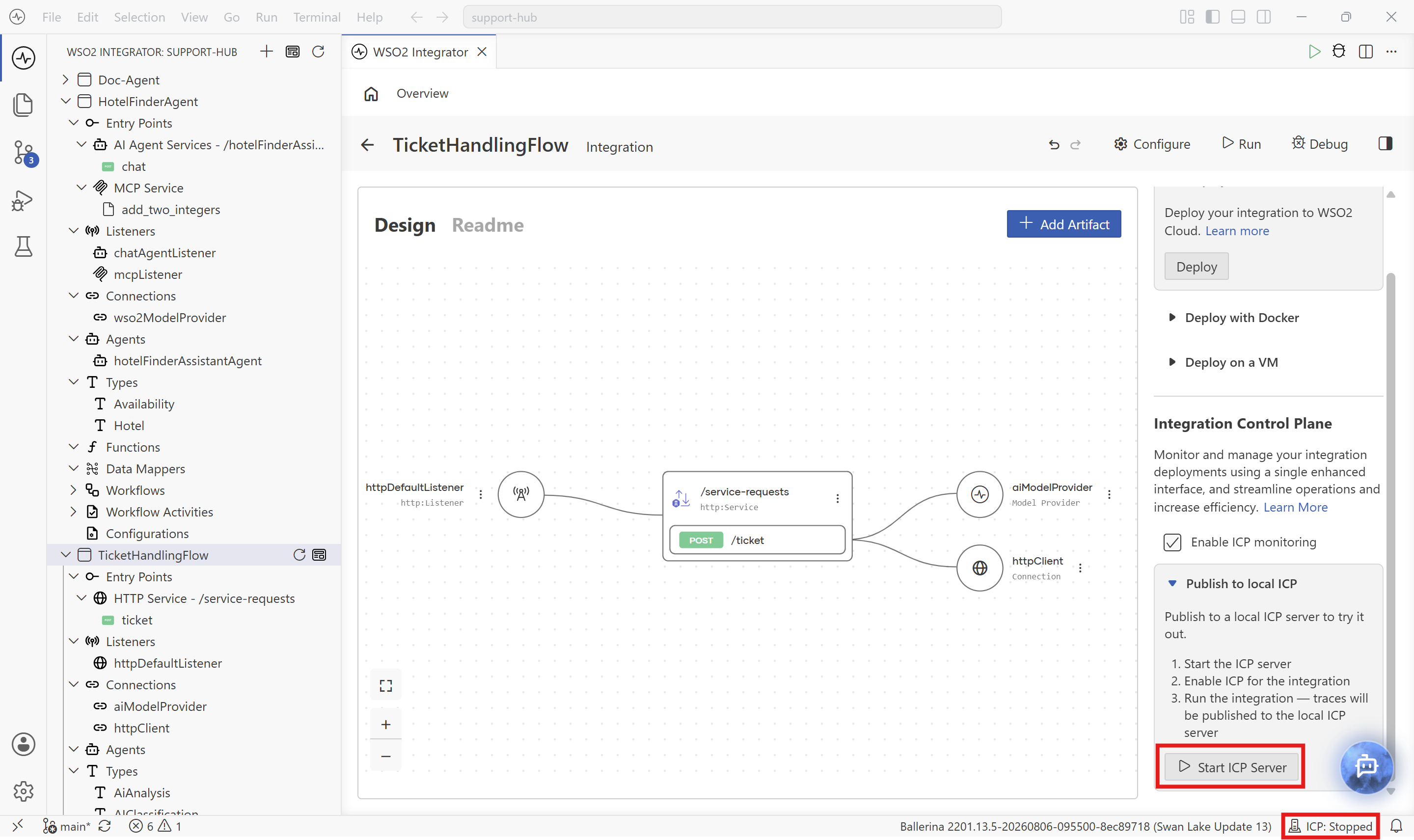
With ICP enabled, the editor needs an ICP server to publish to. You can find ICP server in the status bar as, ICP: Stopped or ICP: Running.
-
Start it from the integration overview. Under Publish to local ICP, select Start ICP Server.
-
Start it when you run. If you run an ICP-enabled integration while the server is stopped, the editor warns that ICP is enabled but the ICP server is not running. Select Start & Setup to start and configure the server, or Run Anyway to run the integration without publishing to ICP.
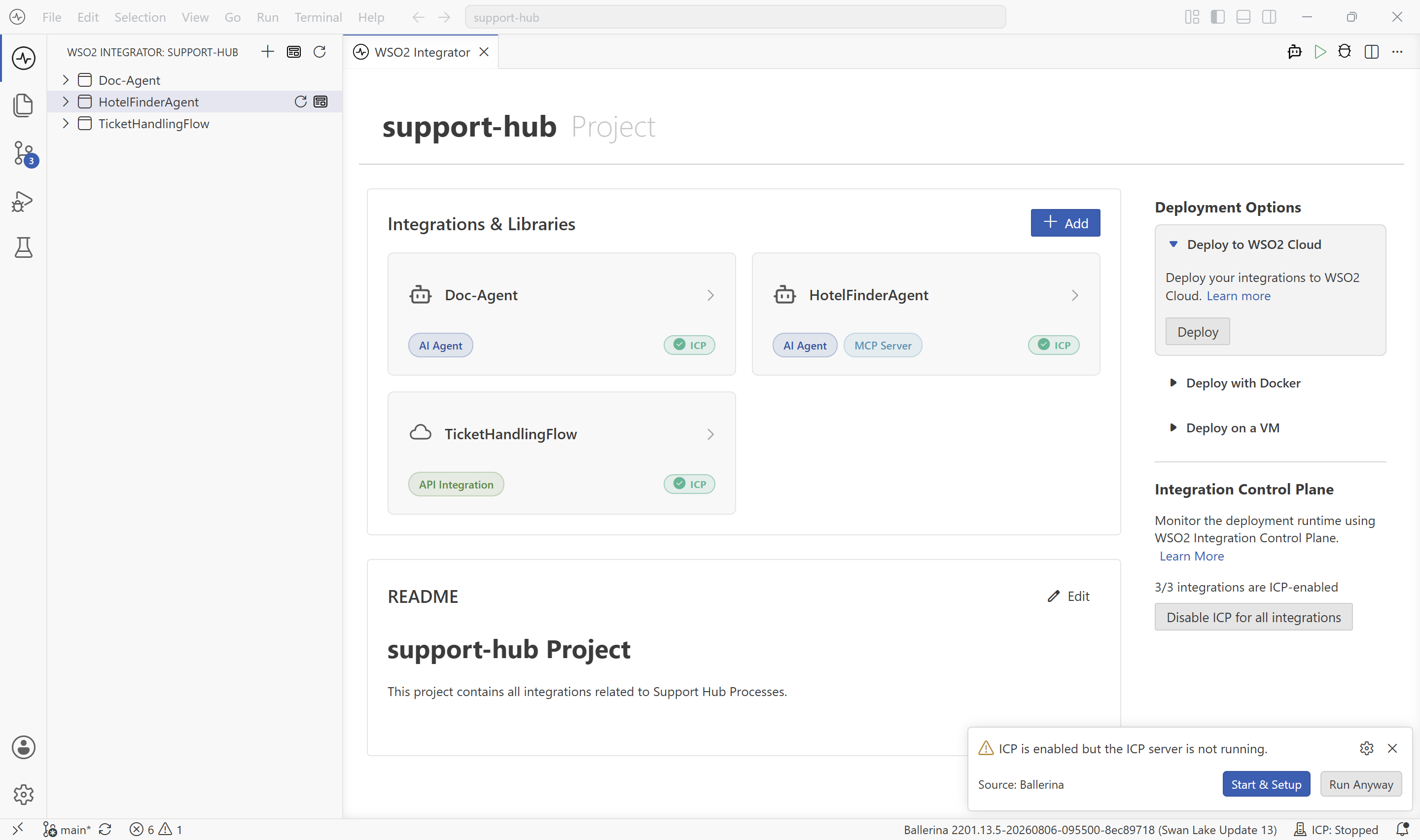
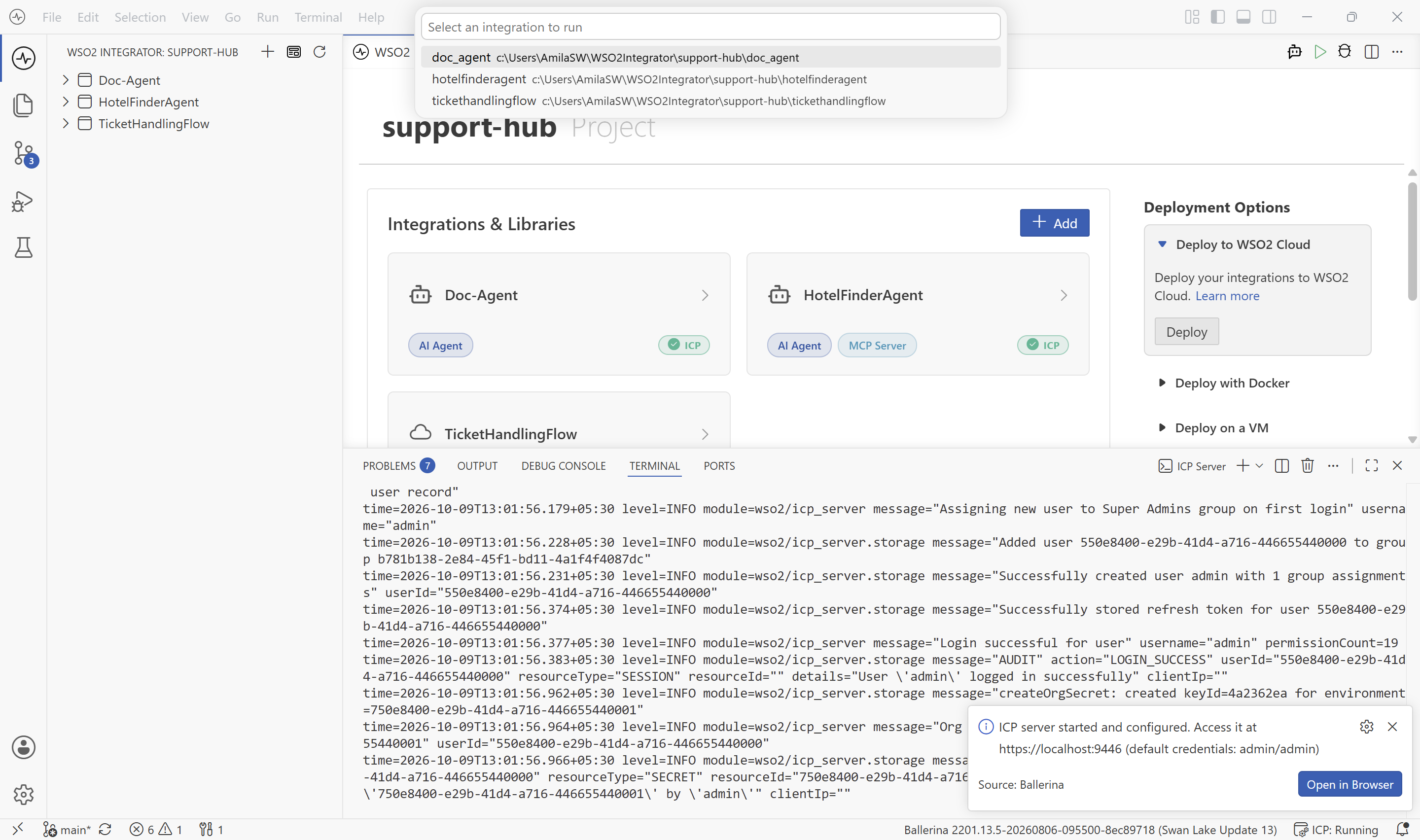
When the server is up, the editor shows a notification with its address, https://localhost:9446, and the default credentials (admin/admin). Select Open in Browser to open the ICP console. The server's logs appear in the ICP Server terminal.
Run and observe your integration
-
Run the integration as you normally would. If the project has more than one integration, pick the one to run from the Select an integration to run list.
-
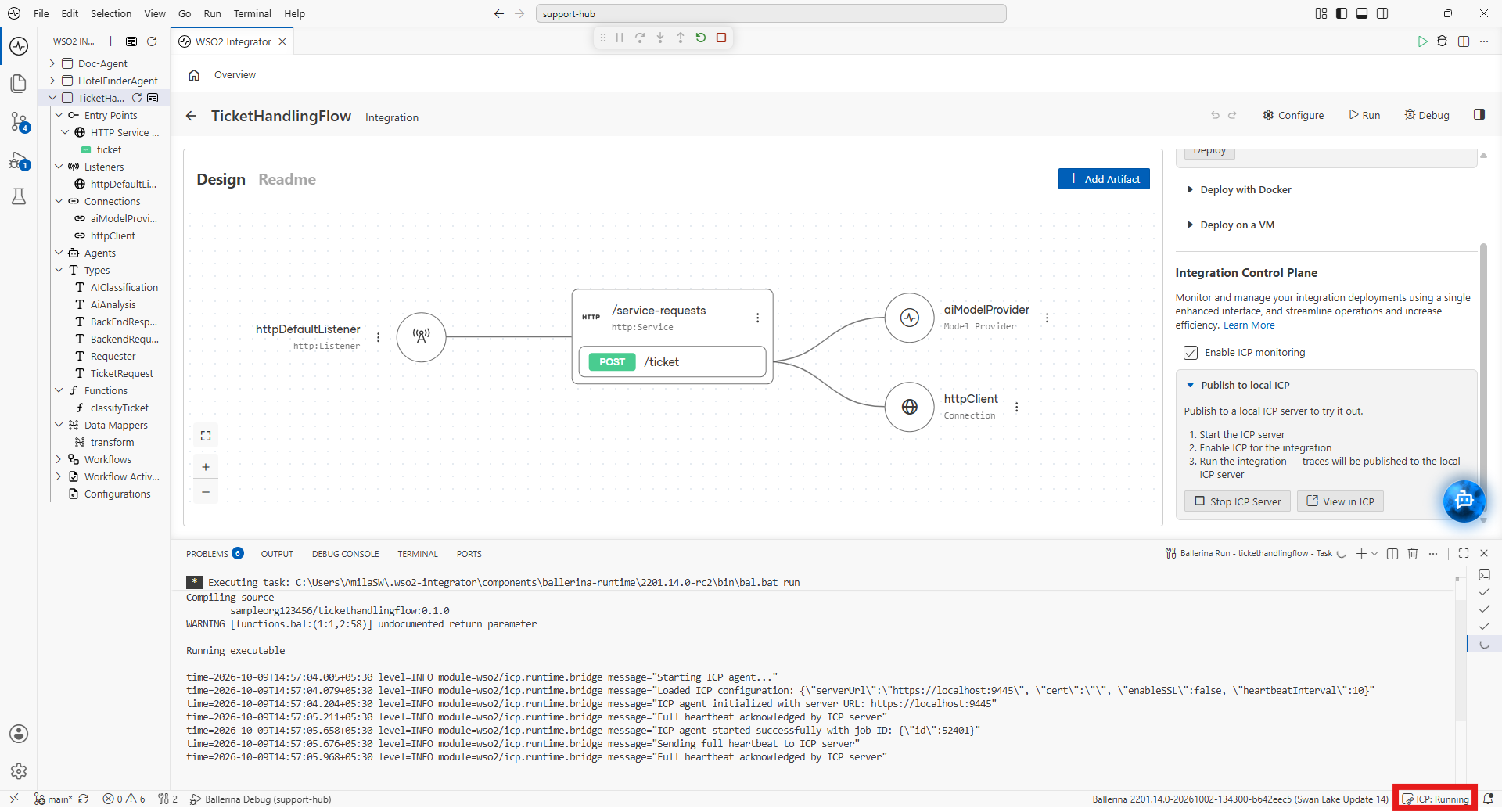
While it runs, the integration connects to the local ICP server. The terminal shows the ICP agent starting and its heartbeat being acknowledged by the server, and the status bar shows ICP: Running.
-
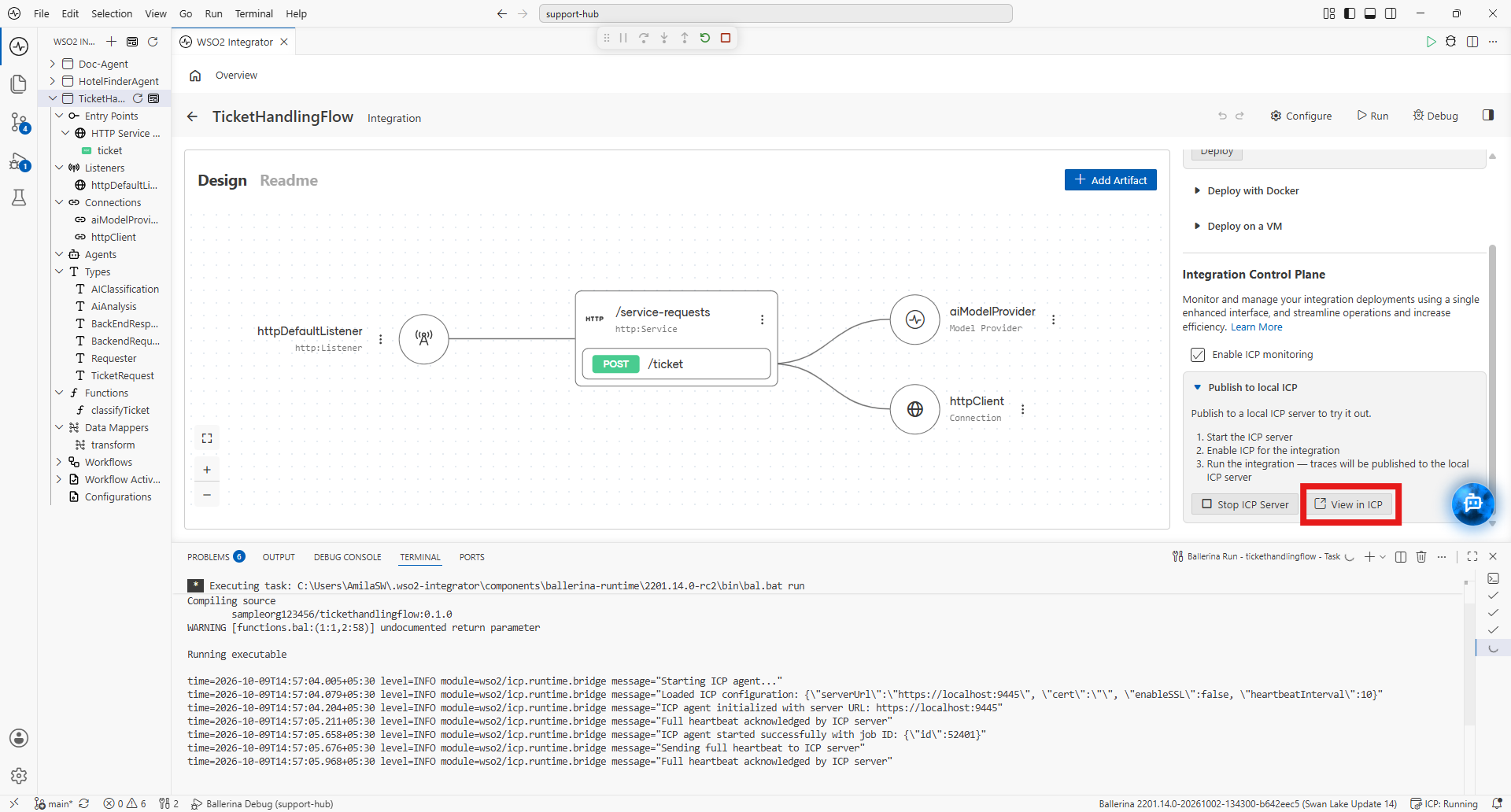
In the Publish to local ICP section, you can also use View in ICP to open the ICP console in your browser.
-
Sign in with the default credentials (
admin/admin). The console opens on All Projects, where the default project holds your integrations.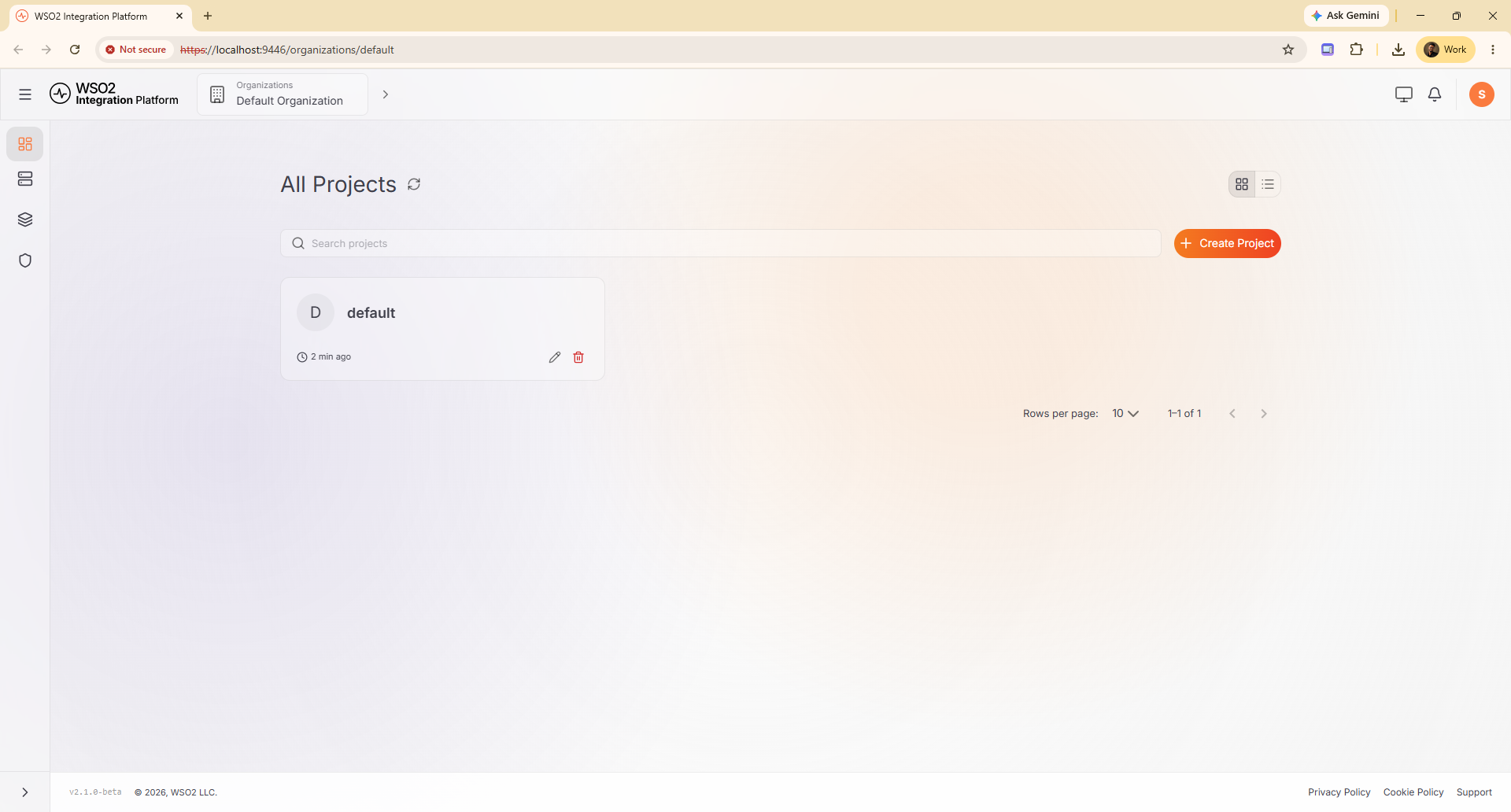
-
Open the default project. Your integration is listed with the WSO2 Integrator technology tag.
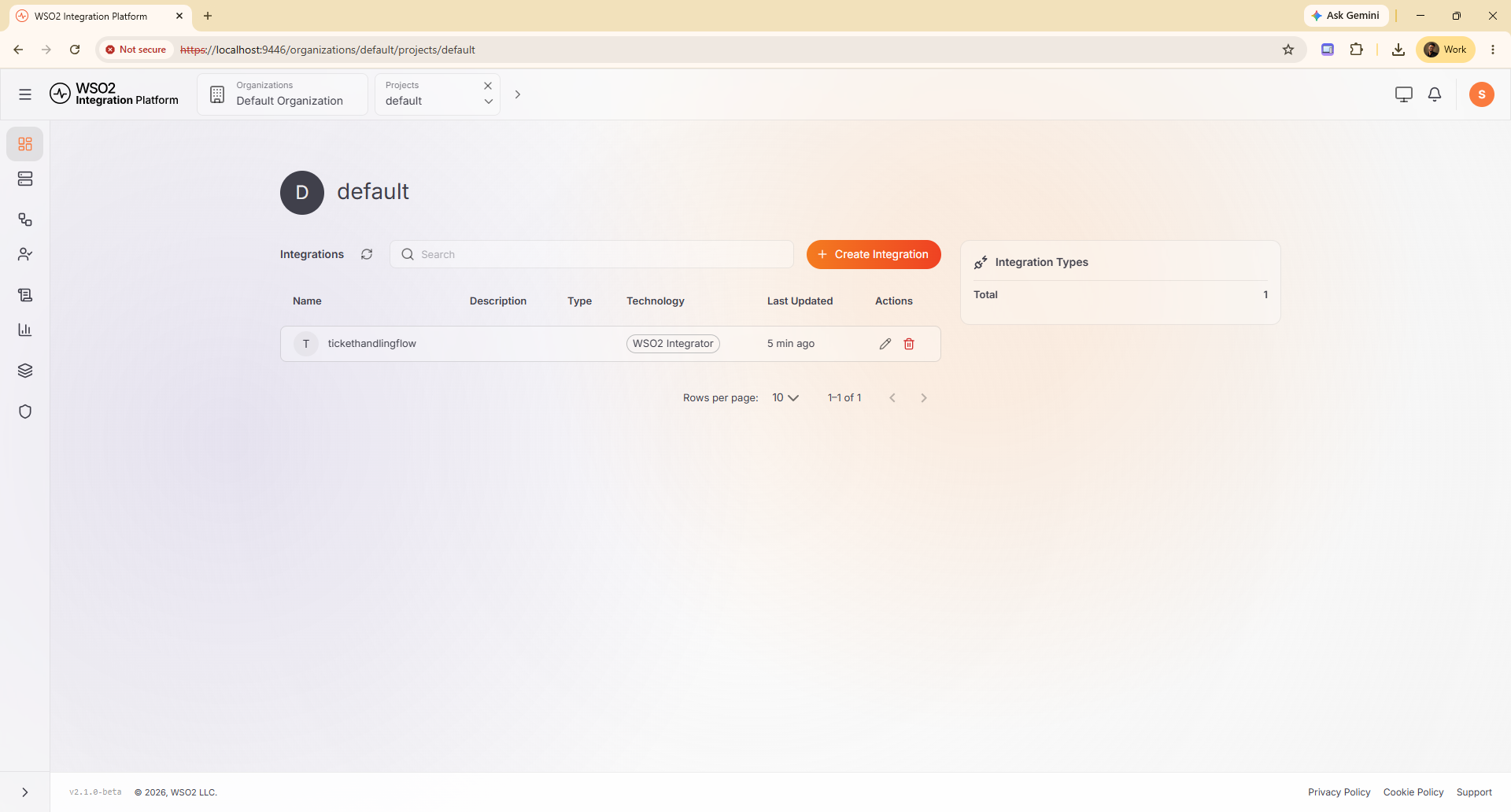
From here you can observe and manage the running integration in the ICP console. See the Integration Control Plane documentation for what you can do there.
Stop the local ICP server or disable ICP
- To stop the server : In the Publish to local ICP section, select Stop ICP Server. The status bar changes to ICP: Stopped.
- To disable ICP : Clear Enable ICP monitoring on an integration, or select Disable ICP for all integrations on the project overview.
What's next
- Integration Control Plane — Learn how ICP monitors and manages your integration runtimes.
- Get Started with ICP — Install ICP and connect your deployed runtimes.
- ICP Console Overview — Find your way around the ICP console.