Understand the Editor
The WSO2 Integrator editor brings together everything you need to develop, build, test, debug and deploy your integrations in one place. This tour works outward from the window you see when you open it, to the surfaces you build on, to the tools available throughout. The map below gives you the shape of it before you go deeper into any one piece.
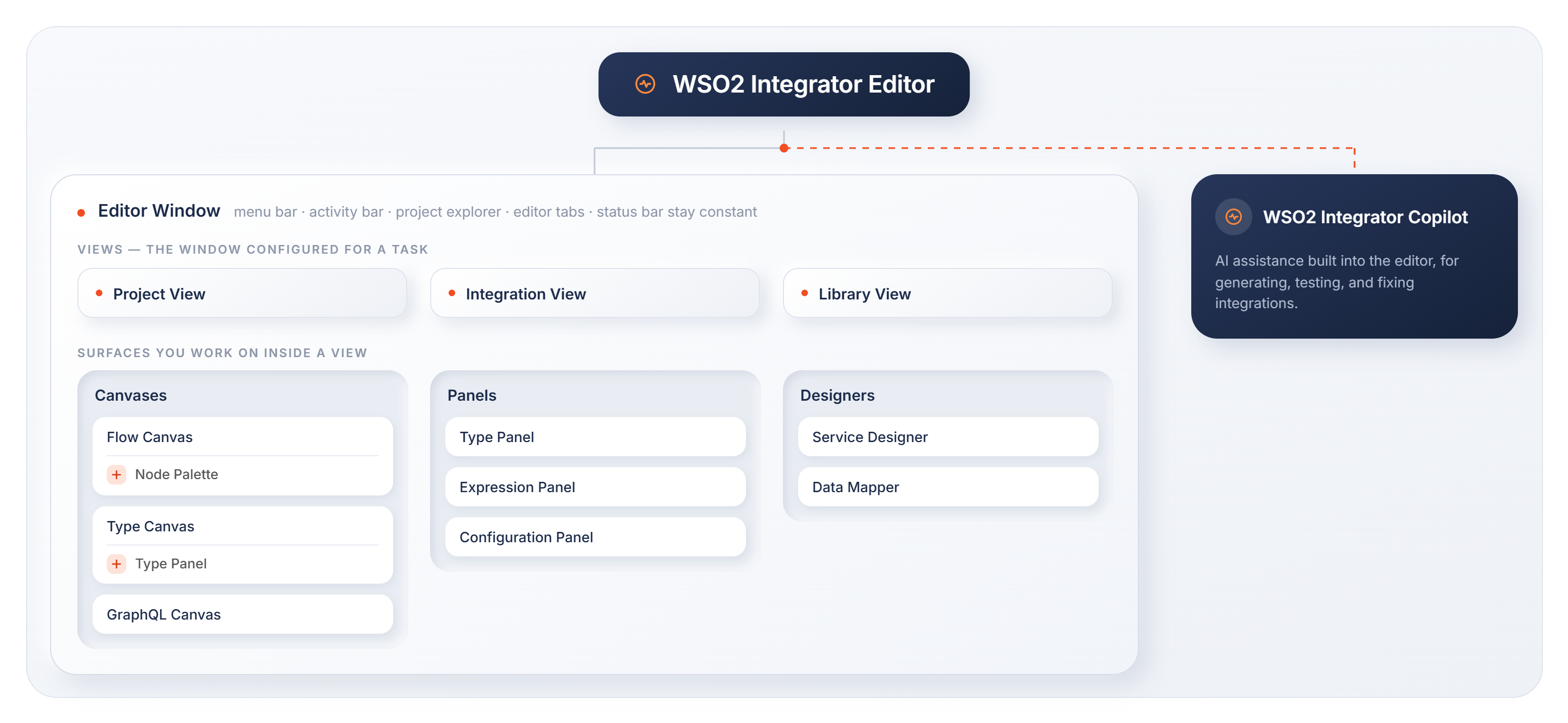
Explore each part of the editor below.
Editor Window
The frame that surrounds every view: a top menu bar, an activity bar, the project explorer, the editor tab area, and a status bar that all stay constant no matter which view is active.
Views
Views are the workspace shells that run inside the editor window. Switch between them depending on whether you are managing a multi-package project, building a single integration, or developing a reusable library.
Canvases
Canvases are spatial, node-based surfaces where you arrange and connect elements to build the visual model of an artifact.
Panels
Panels are focused forms for defining or configuring a single artifact.
Designers
Designers are dedicated surfaces for building one artifact end to end.
AI Assistance
WSO2 Integrator Copilot is the AI assistant built into the editor, for generating, testing, and fixing integrations.
What's next
- The editor window — Explore the shared chrome that surrounds every view.
- Flow Canvas — Design integration logic using the visual flow canvas.
- Create a new integration — Start building your first integration.