Set up WSO2 Integrator
Install WSO2 Integrator on your machine to develop, test, and debug integrations locally. The WSO2 Integrator available for Windows, macOS, and Linux.
System requirements
Before installing WSO2 Integrator, ensure your machine meets the following hardware and software requirements:
| Requirement | Minimum | Recommended |
|---|---|---|
| Operating System | Supported versions of Windows client (64-bit), macOS versions with Apple security update support (typically the latest release and the two previous versions), Linux: Ubuntu Desktop 20.04, Debian 10, Red Hat Enterprise Linux 8, Fedora 36 or later | Latest version of a supported operating system |
| Processor (CPU) | 64-bit dual-core x64 or ARM64 processor, 1.6 GHz or faster | Quad-core or better (Intel Core i5/i7, AMD Ryzen 5/7, or Apple silicon) |
| Memory (RAM) | 4 GB | 8 GB or more (16 GB if you also run Docker or several projects) |
| Disk Space | 4 GB free space | 10 GB free space (SSD recommended) |
| Network | Internet connection to install, update, and pull packages from Ballerina Central | Broadband internet connection |
If your network restricts internet access, see Work in a Restricted Network to configure a proxy before you install.
Installation steps
Step 1: Download WSO2 Integrator
- Visit the WSO2 Integrator Downloads page.
- Select your operating system: Windows, macOS, or Linux.
- Download the installer for WSO2 Integrator.
Step 2: Install WSO2 Integrator
Windows
- Run the
.msiinstaller and follow the installation wizard.
macOS
- Run the
.dmginstaller and drag the application to the Applications folder.
Linux
- Ubuntu or Debian: install the
.debpackage. - RHEL or Fedora: install the
.rpmpackage. - Other distributions: extract the
.tar.gzarchive.
Step 3: Launch WSO2 Integrator
After installation, launch the WSO2 Integrator:
- Windows: Double-click the WSO2 Integrator icon on your desktop or start menu.
- macOS: Open the Applications folder and double-click WSO2 Integrator.
- Linux: Launch WSO2 Integrator from your applications menu (after a
.debor.rpminstall), or run the binary from the extracted directory if you used the.tar.gzarchive.
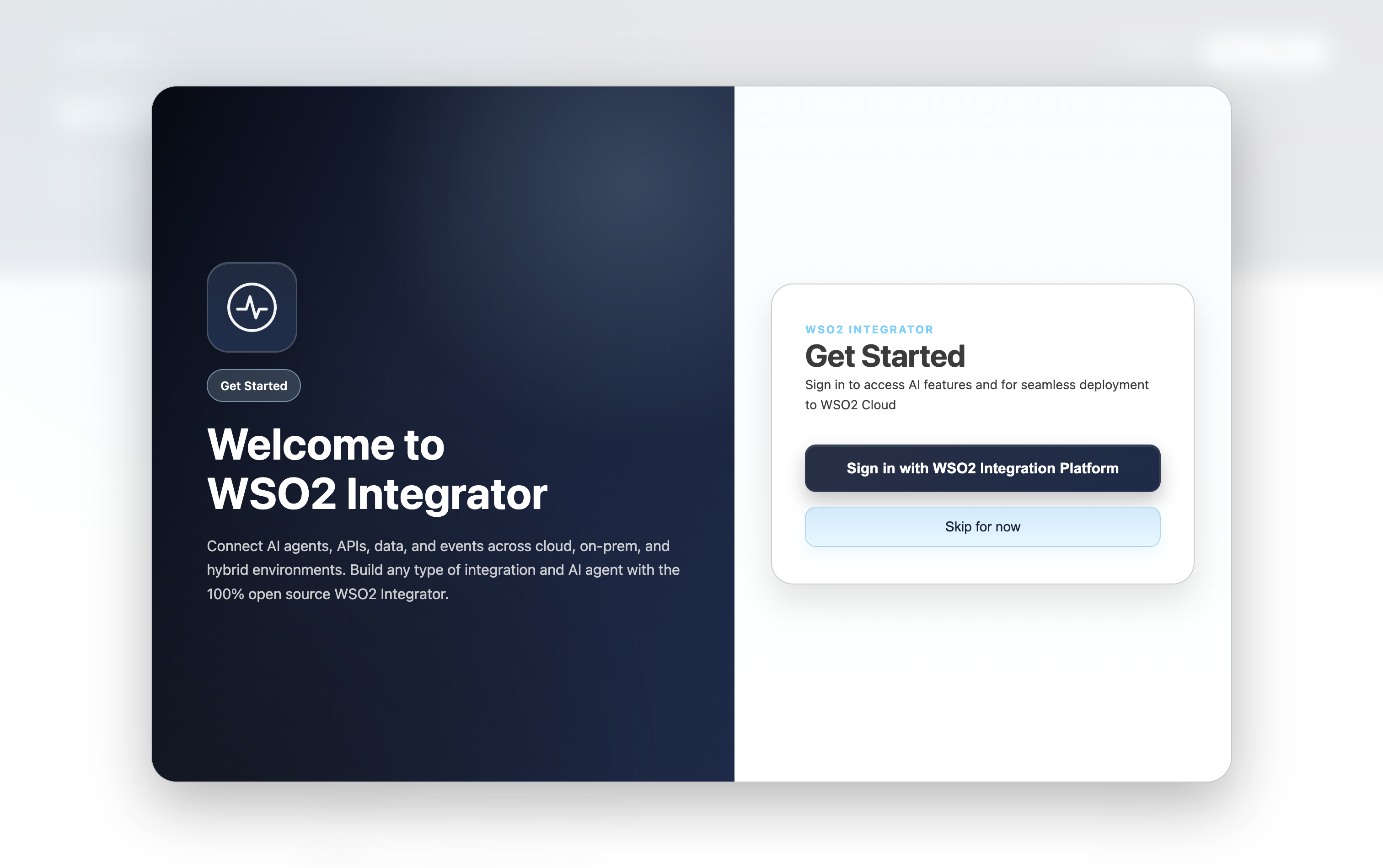
Step 4: Sign in to WSO2 Integrator
Sign in with your WSO2 Cloud account to deploy to WSO2 Cloud, manage environments, access observability features, and use WSO2 Integrator Copilot.
-
On the Welcome to WSO2 Integrator screen that appears when you first launch the editor, click Sign in with WSO2 Integration Platform.
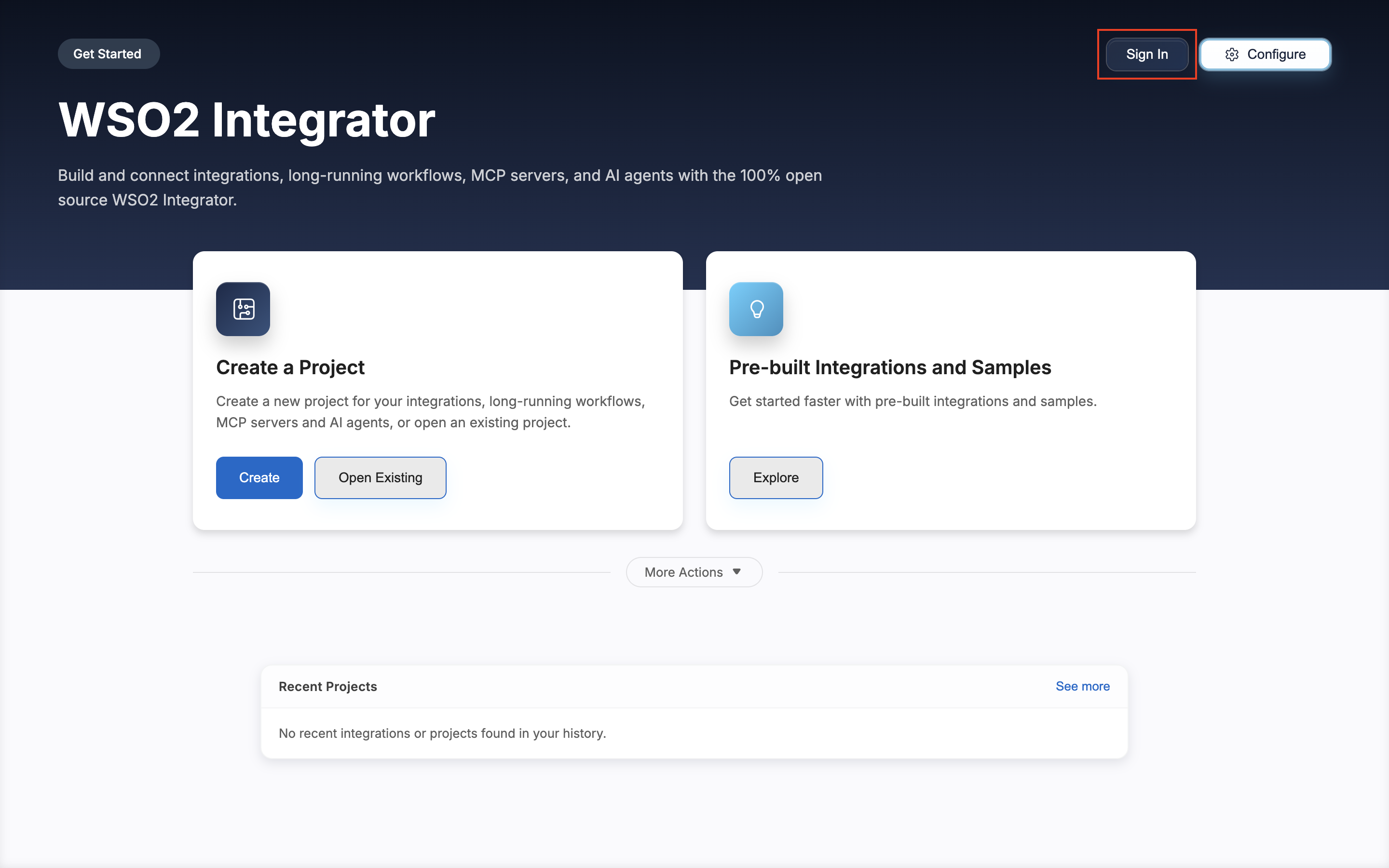
If you click Skip for now, you can sign in later by clicking Sign In in the top-right corner of the Get Started page.
-
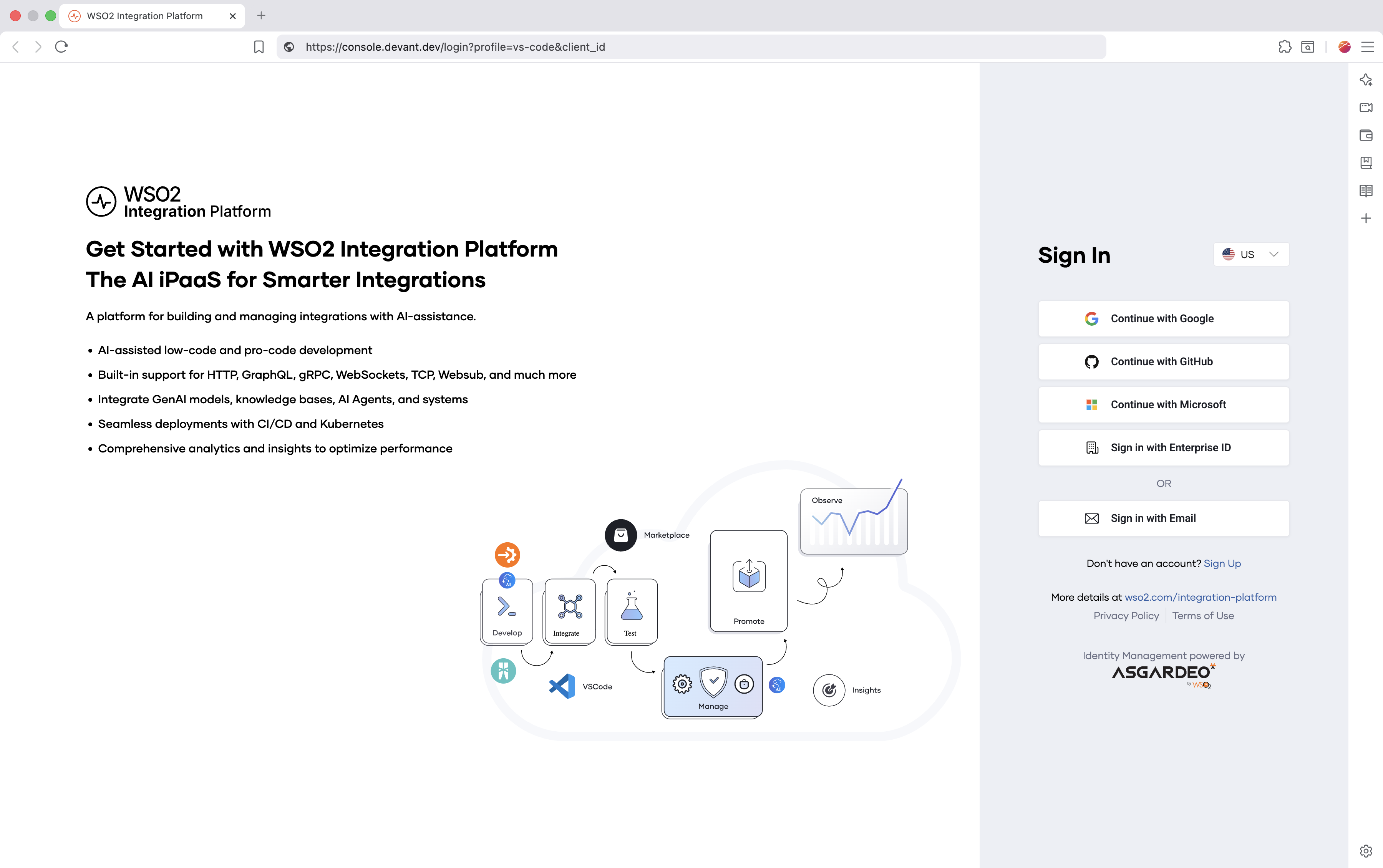
The WSO2 Integration Platform sign-in page opens up in your default browser. Sign in using your preferred method.
-
When the browser prompts you, click Open WSO2 Integrator to return to the editor.
-
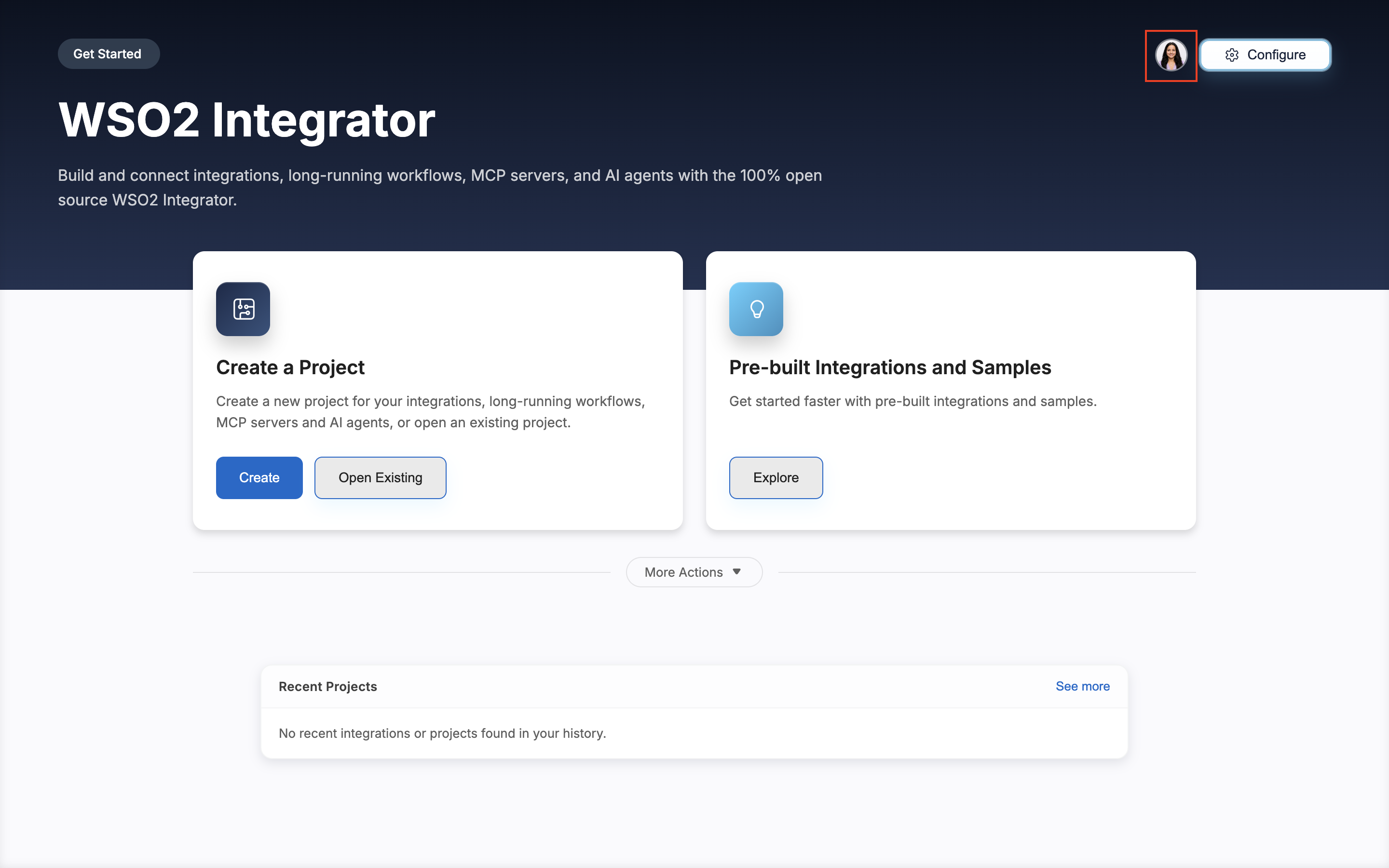
The editor shows a Successfully signed into WSO2 Integration Platform notification, and your account avatar appears in the top-right corner.
Create one and set up your organization by following Cloud setup in the WSO2 Cloud documentation, then return here to sign in.
Next steps
- Cloud setup — Create a WSO2 Cloud account and organization to get the most out of WSO2 Integrator.
- Develop a new integration — Create a new integration project and start building.
- Open an existing integration — Continue working on a project you already have.
- Explore sample integrations — Learn from ready-made examples.