Build an Automation
Hello World to the terminal when it runs.An automation runs your integration logic without requiring an external request, either on demand or on a schedule. Automations are useful for tasks such as data synchronization, report generation, and routine maintenance. This quick start walks you through the full process: adding an automation artifact, building the logic in the visual designer, running it, and reviewing scheduling options for production.
Prerequisites
A working WSO2 Integrator environment.
Local setupInstall and launch WSO2 Integrator on your machine.
WSO2 Cloud AccountFor AI assisted development and WSO2 Cloud deployments.
Step 1: Create the integration
If you're using the cloud editor, a project is already open, so you can skip this step and go directly to Step 2: Add an automation artifact.
-
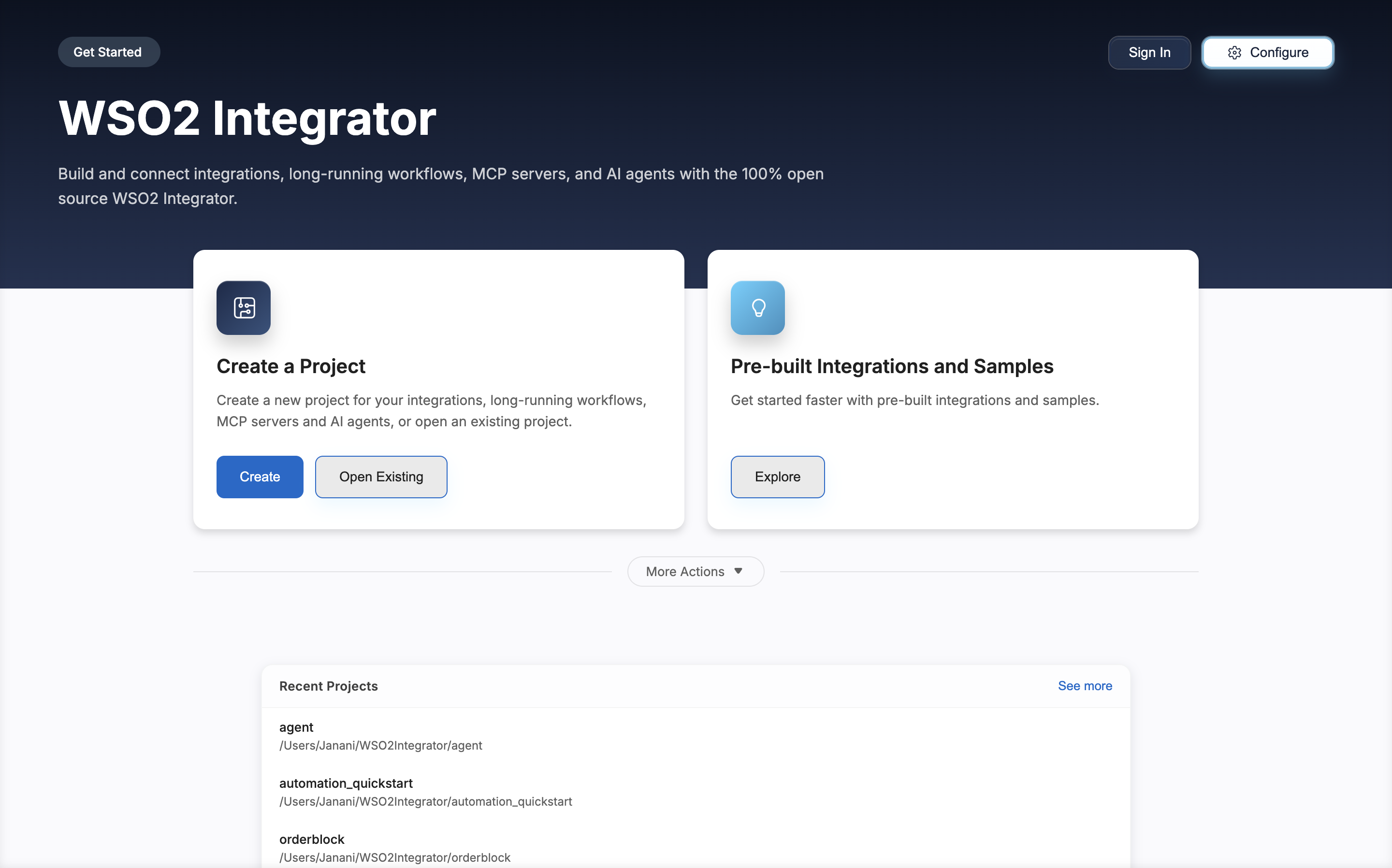
Open WSO2 Integrator.
-
Click Create in the Create a Project card.
-
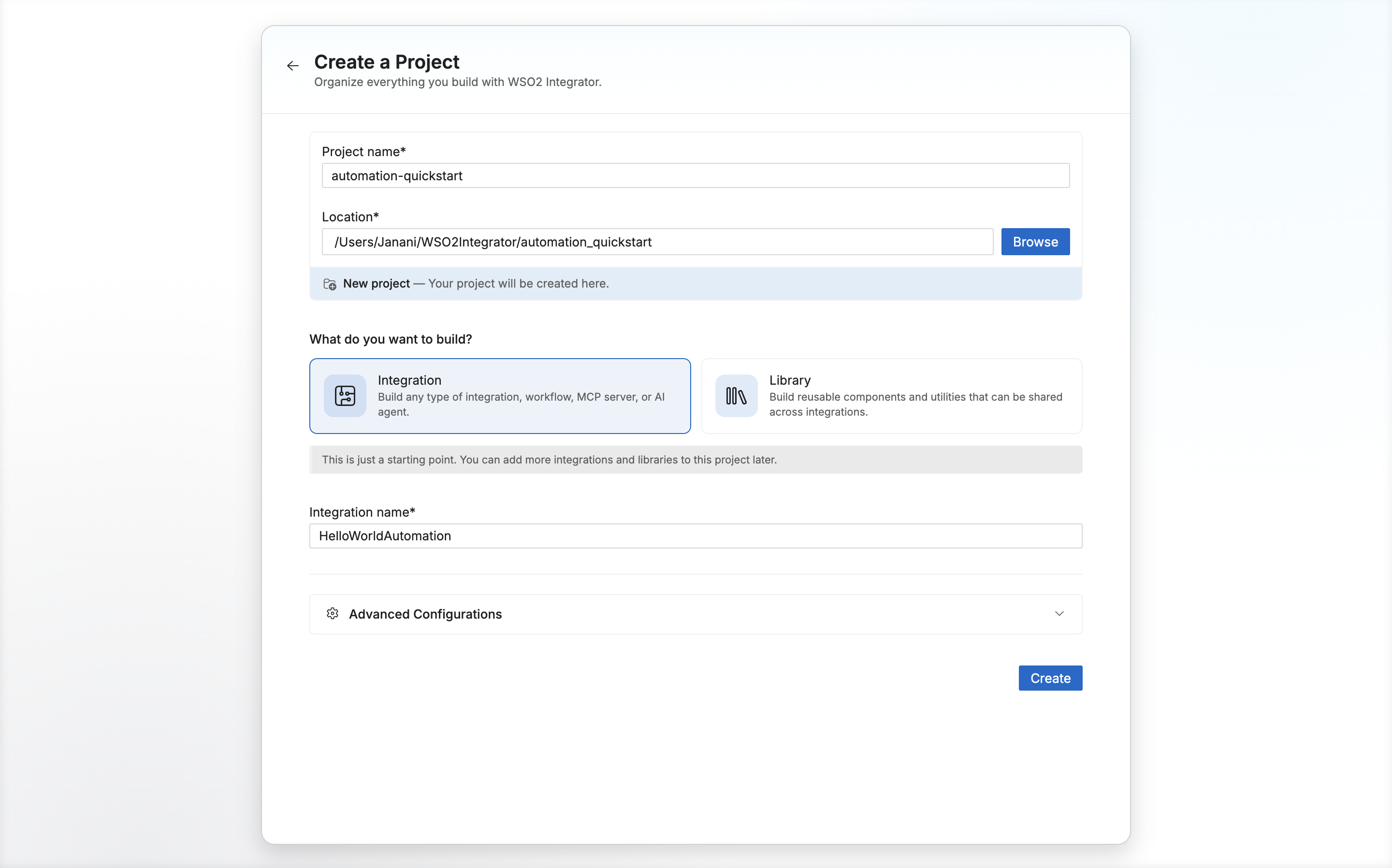
Set Project Name to
automation-quickstart. -
Set Integration Name to
HelloWorldAutomation. -
Click Create.
Step 2: Add an automation artifact
-
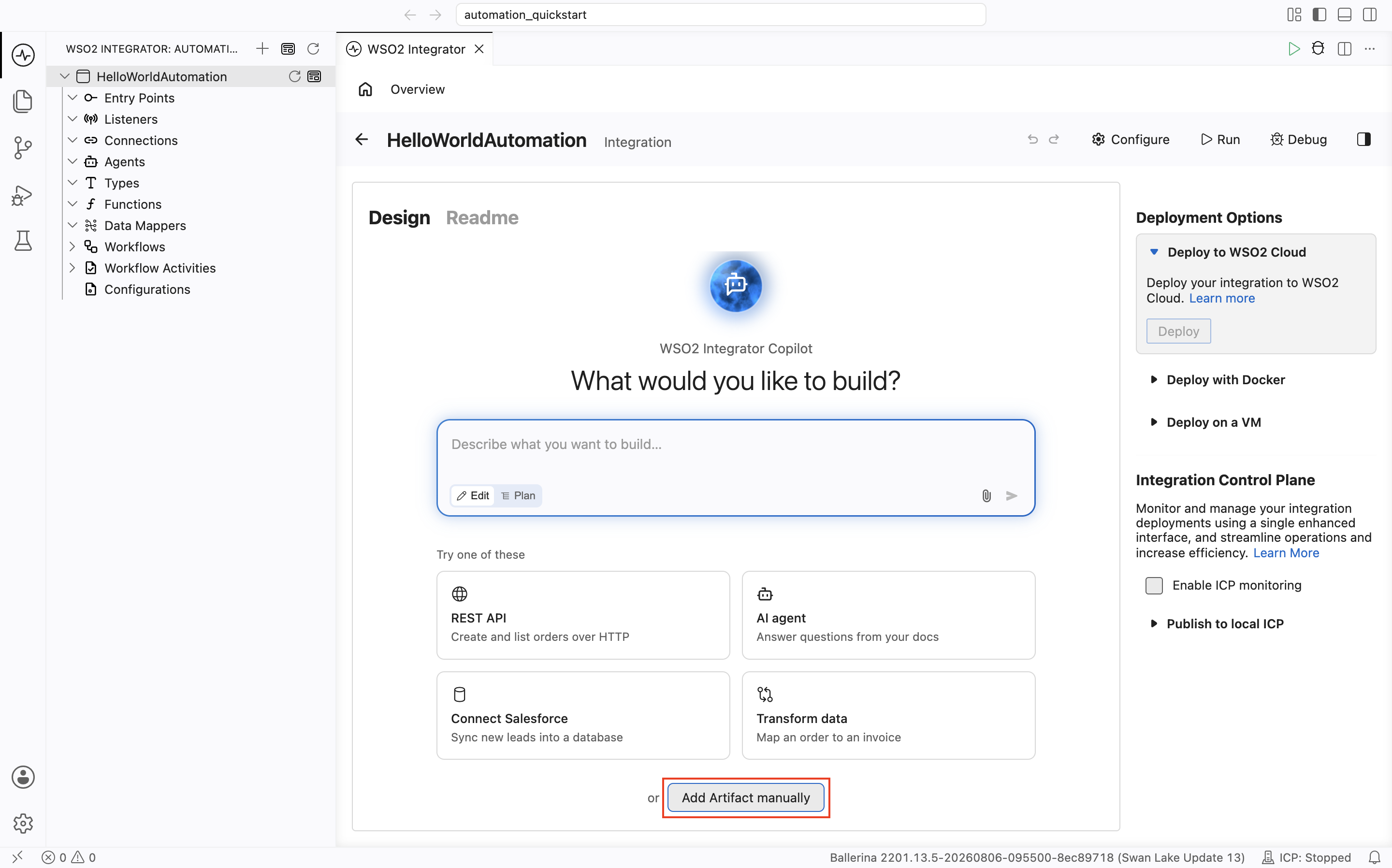
Select your integration from the project overview canvas.
-
In the design view, click Add Artifact Manually.
-
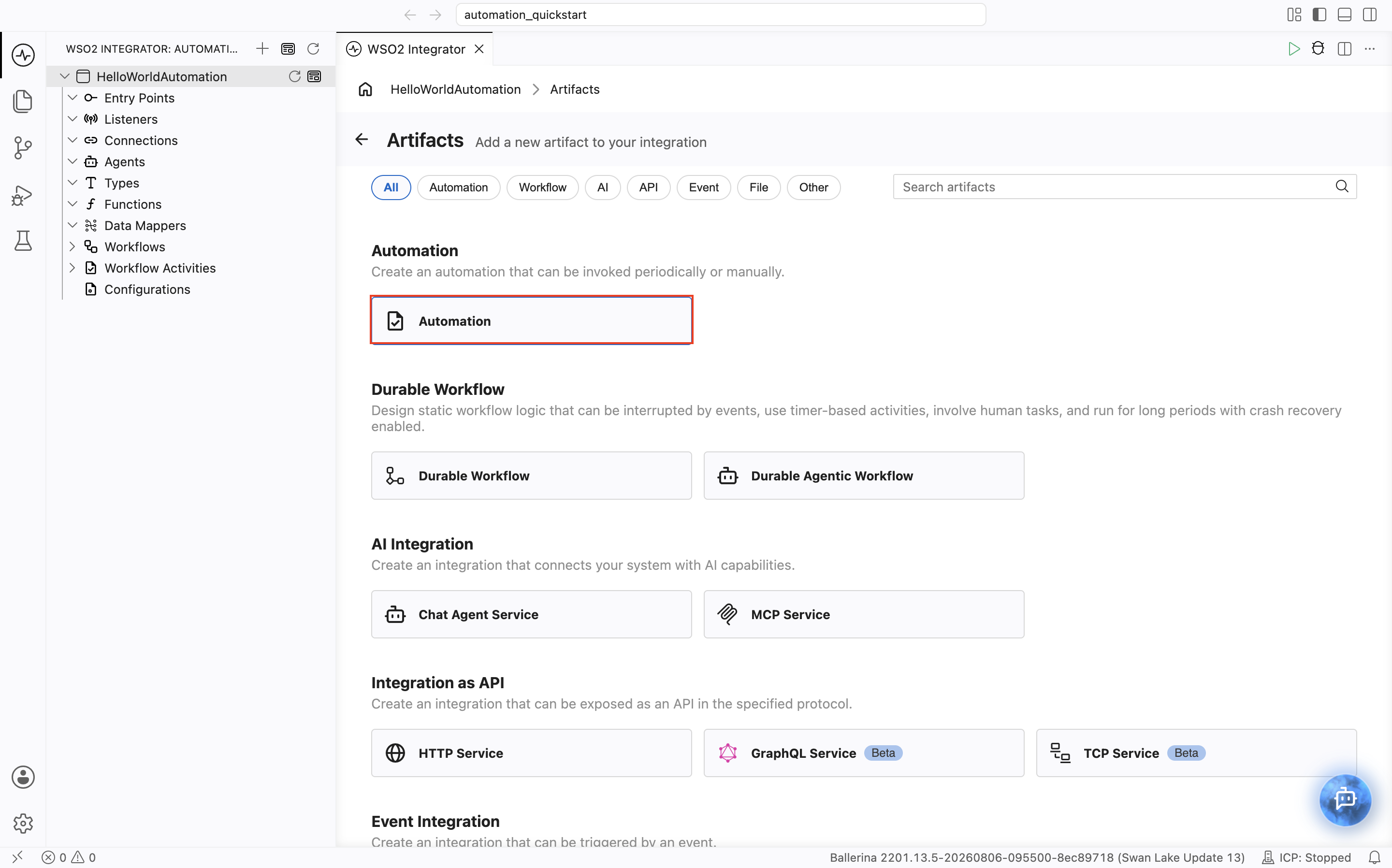
Select Automation under Automation.
-
Click Create.
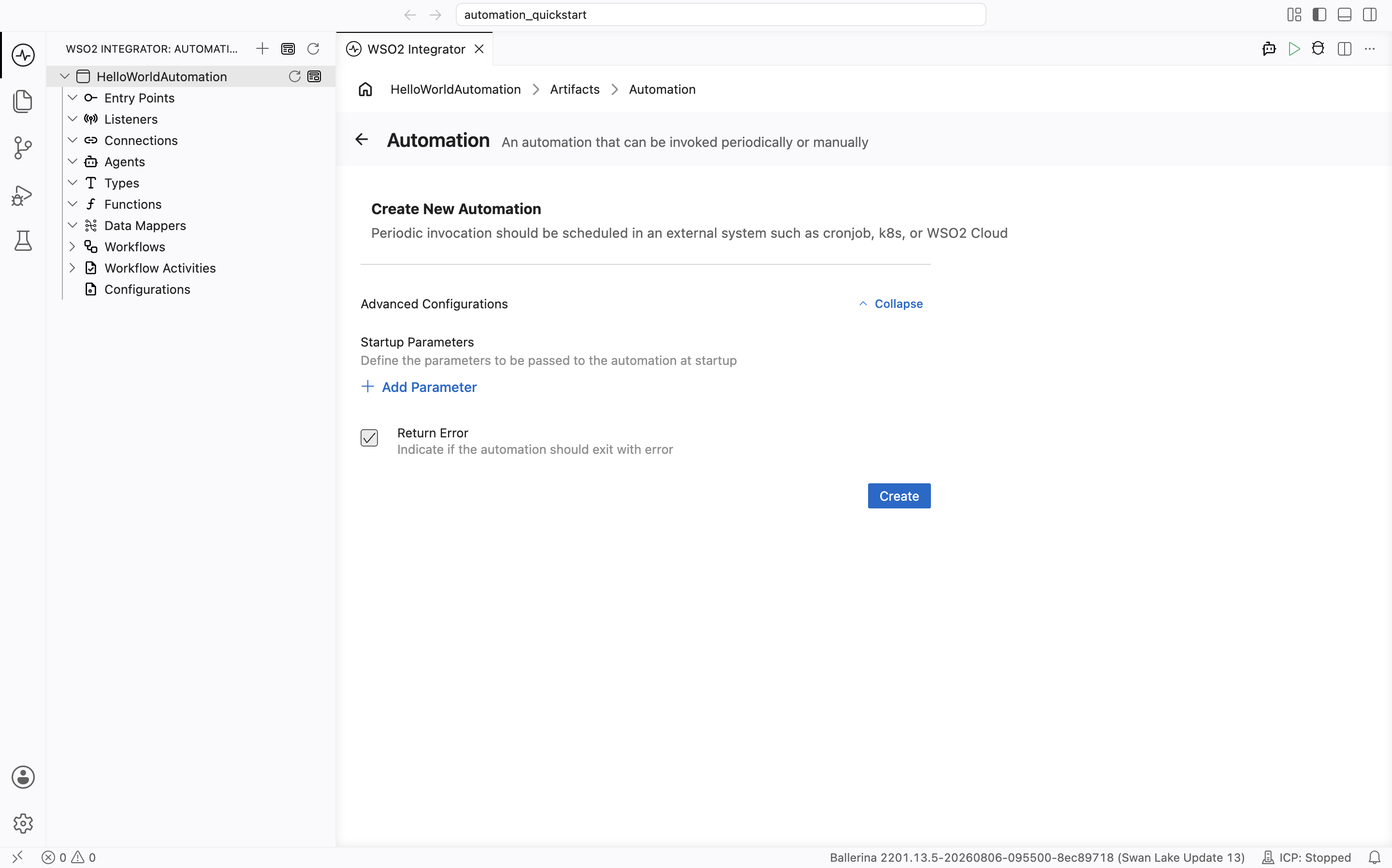
Step 3: Add logic
-
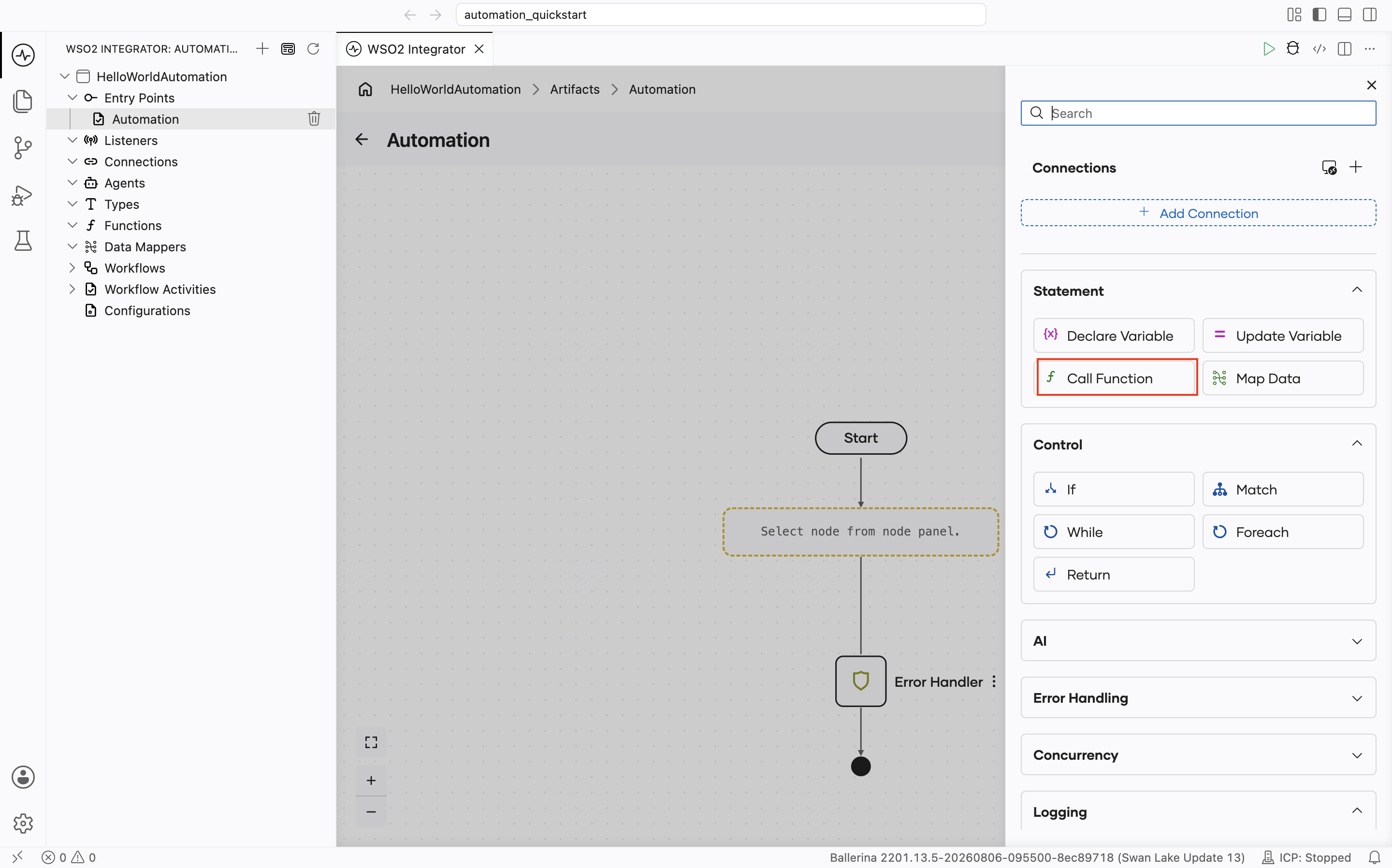
Click + below the Start node to open the node panel.
-
Select Call Function under Statement.
-
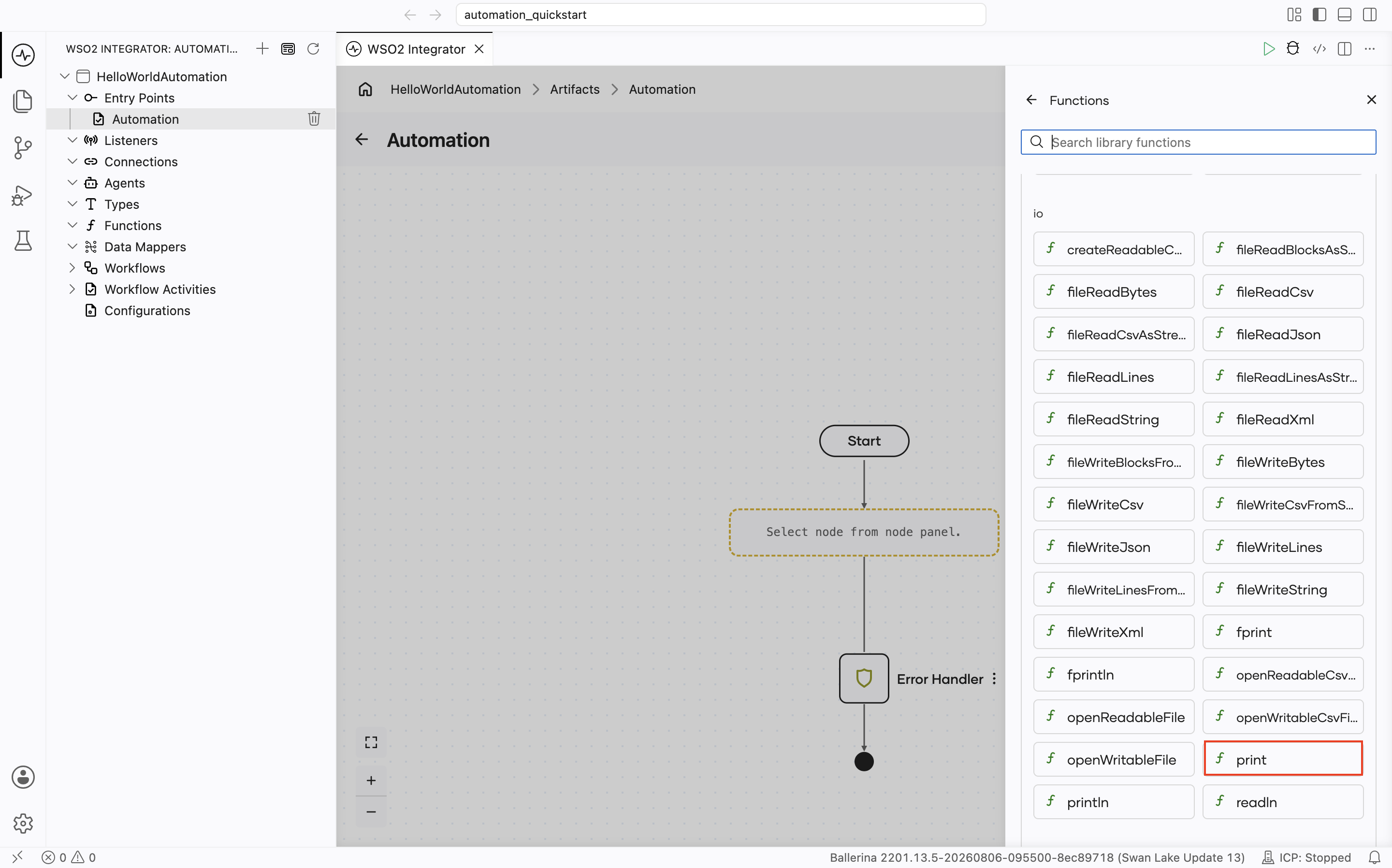
Select Print under io from the functions list.
-
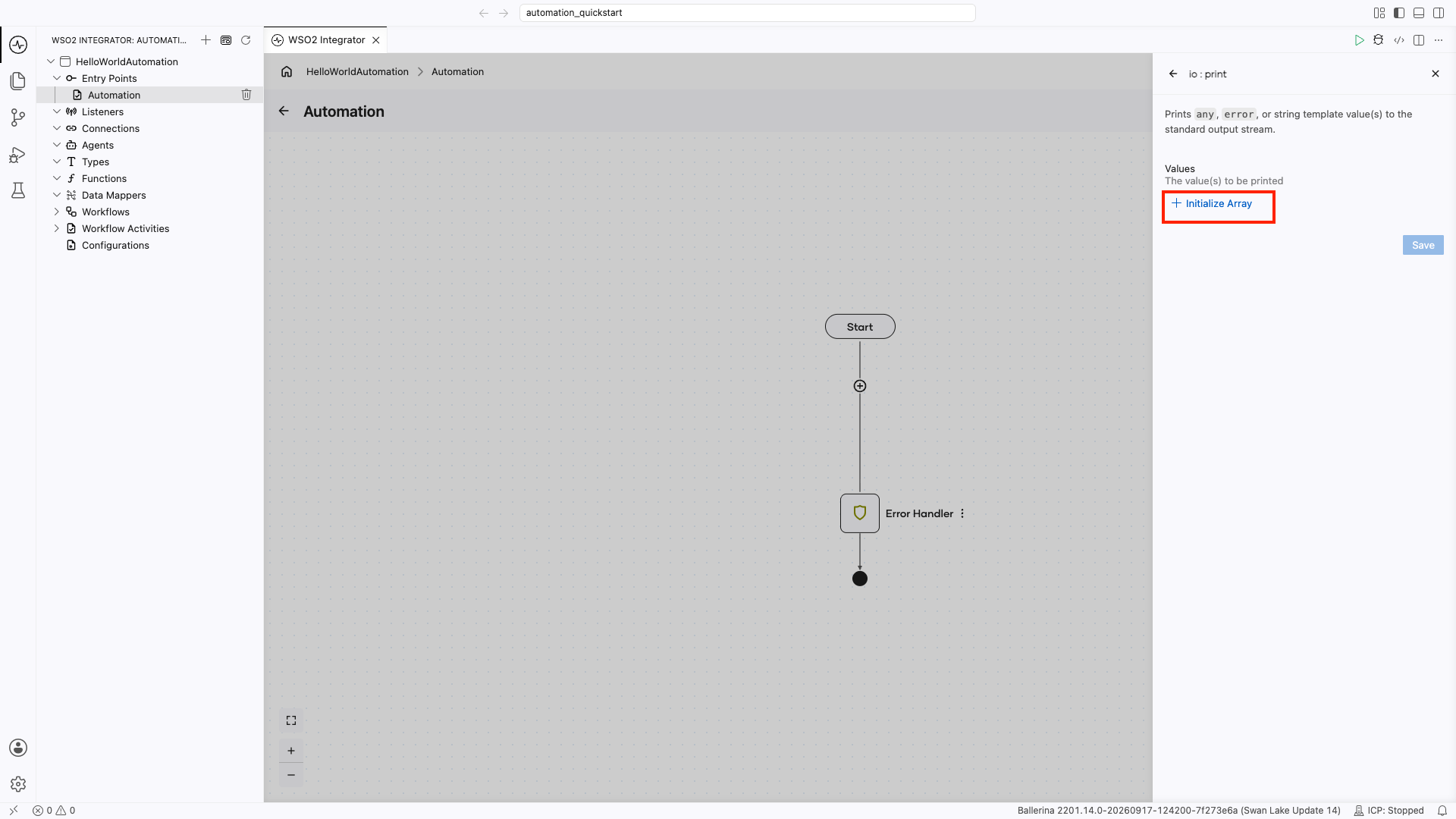
Click Initialize Array for the Values parameter.
-
Set Values to
"Hello World"and select Save.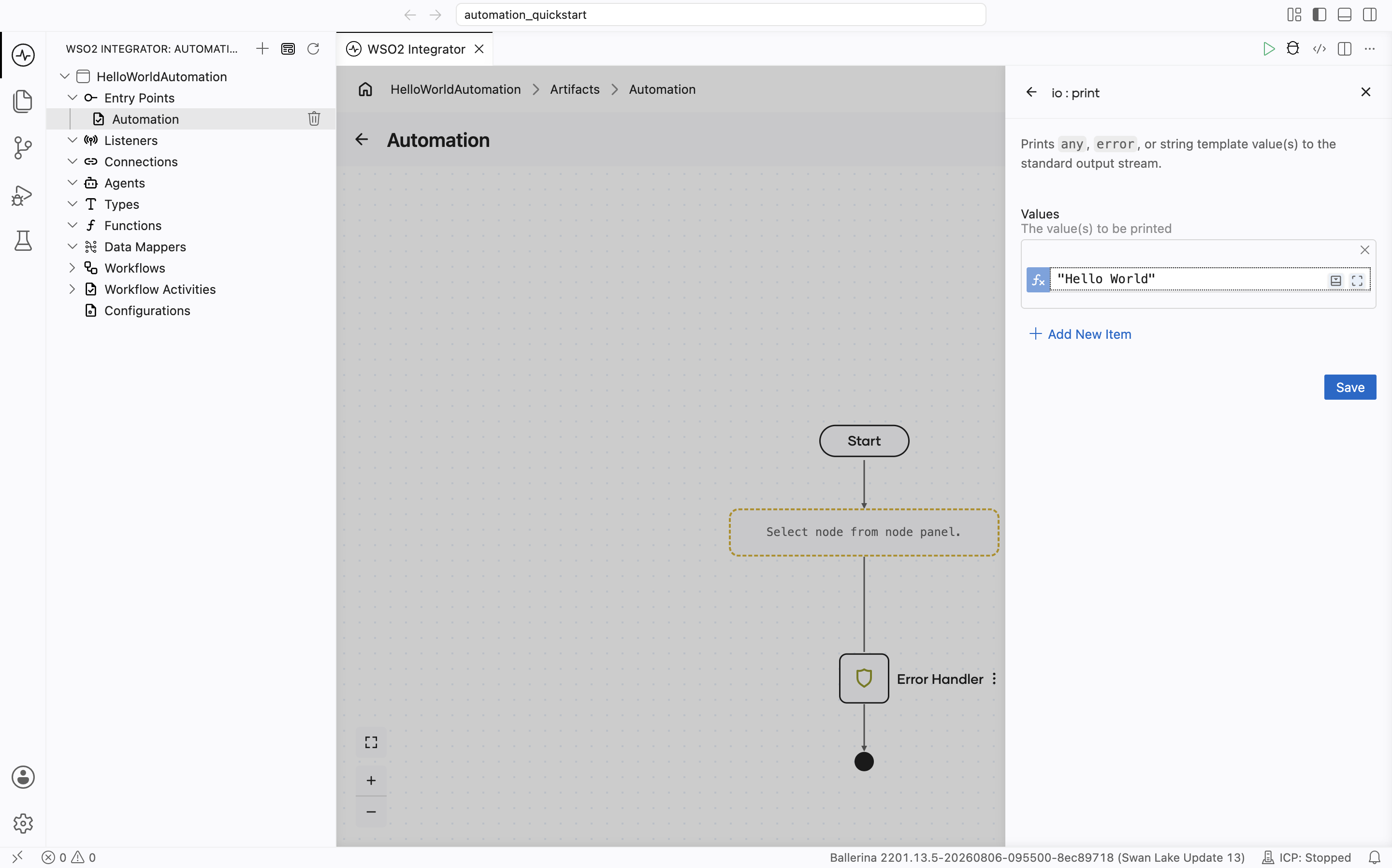
Step 4: Run and test
-
Click Run.
-
Confirm the terminal output contains
Hello World.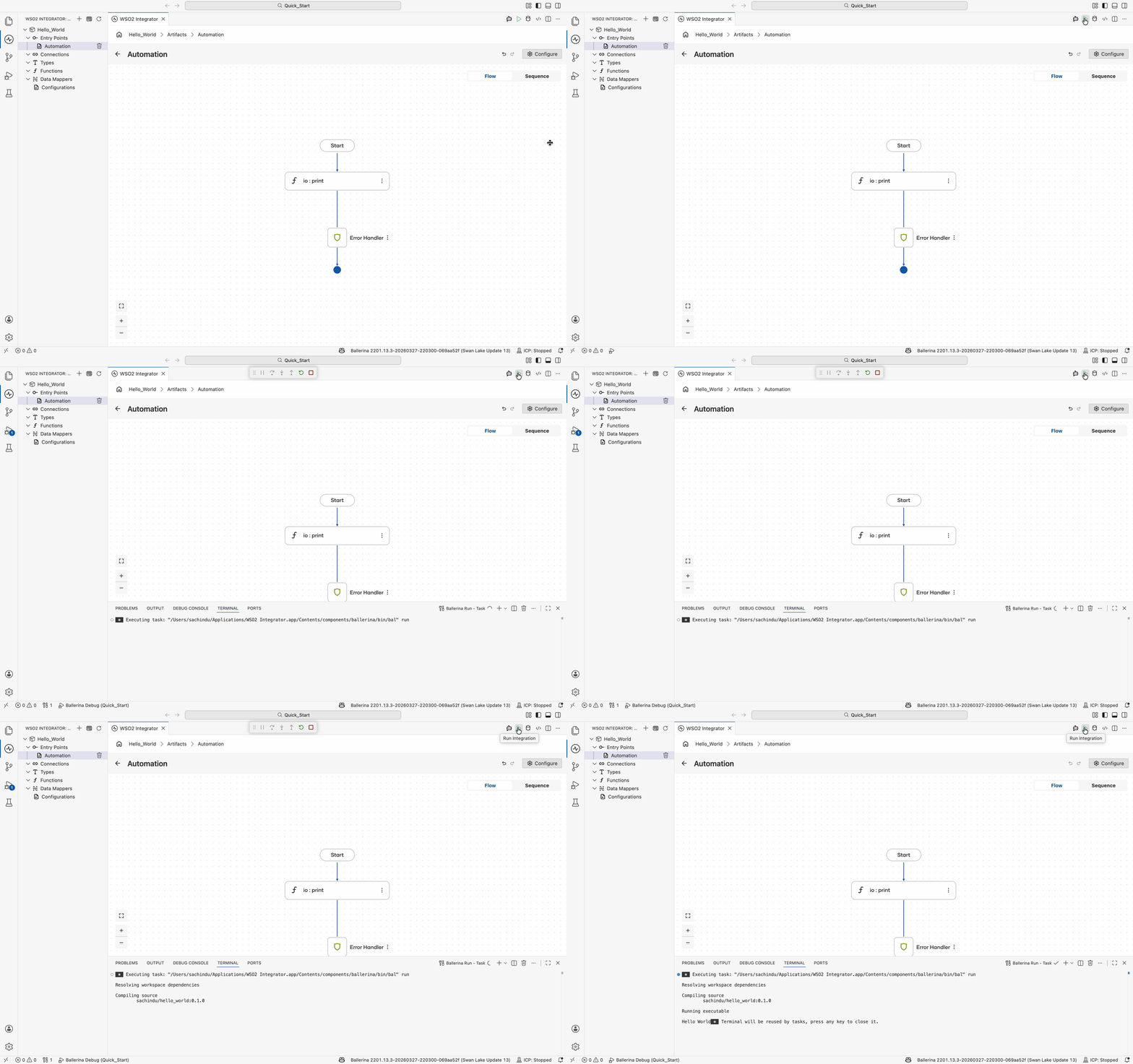
Step 5: Deploy to WSO2 Cloud
Deploy your integration to WSO2 Cloud - Integration Platform in any of the following ways:
- If you're using the cloud editor, see Save and deploy.
- If you're using WSO2 Integrator on your machine, see Deploy from WSO2 Integrator.
Skip ahead: deploy a ready-made sample
Rather not build it yourself? One-click deploy the HelloWorldAutomation sample straight to WSO2 Cloud.

Source code
View the generated Ballerina code
The steps above generate the following complete, runnable Ballerina program:
import ballerina/io;
import ballerina/log;

public function main() returns error? {
   do {
       io:print("Hello World");
   } on fail error e {
       log:printError("Error occurred", 'error = e);
       return e;
   }
}
Scheduling automations
Periodic invocation is configured in an external system once the automation is deployed. Available options include:
- Cron job: schedule the automation from a
cronentry on a Unix or Linux host. - Kubernetes: define a
CronJobresource to run the automation on a recurring schedule. - VM: use a host scheduler such as Windows Task Scheduler or
systemdtimers. - WSO2 Integration Platform: configure the schedule in the WSO2 Integration Platform when the integration is pushed to the cloud.
What's next
- Build an Integration as API — Build an HTTP service
- Build an AI agent — Build an intelligent agent
- Build an event-driven integration — React to messages from brokers
- Build a file-driven integration — Process files from FTP or local directories
- Automation — Configure scheduling, manual execution, and integration logic