Get Started with ICP
This guide walks you through connecting a running Ballerina project to ICP, enabling observability, and configuring access control. By the end, you will have a project and integration created in ICP, a Ballerina runtime connected and sending heartbeats, and optionally centralized logs, metrics, and access control configured.
- ICP installed and running. Follow the Install ICP guide to download, configure, and start the server.
- A running Ballerina project. If you don't have one, follow the Build an Integration as API guide to create one.
- Fluent Bit (optional, required only for step 5). See the Fluent Bit installation page.
For local development, start ICP from WSO2 Integrator. The ICP console opens in your browser at https://localhost:9446. Sign in with the default credentials (username admin, password admin).
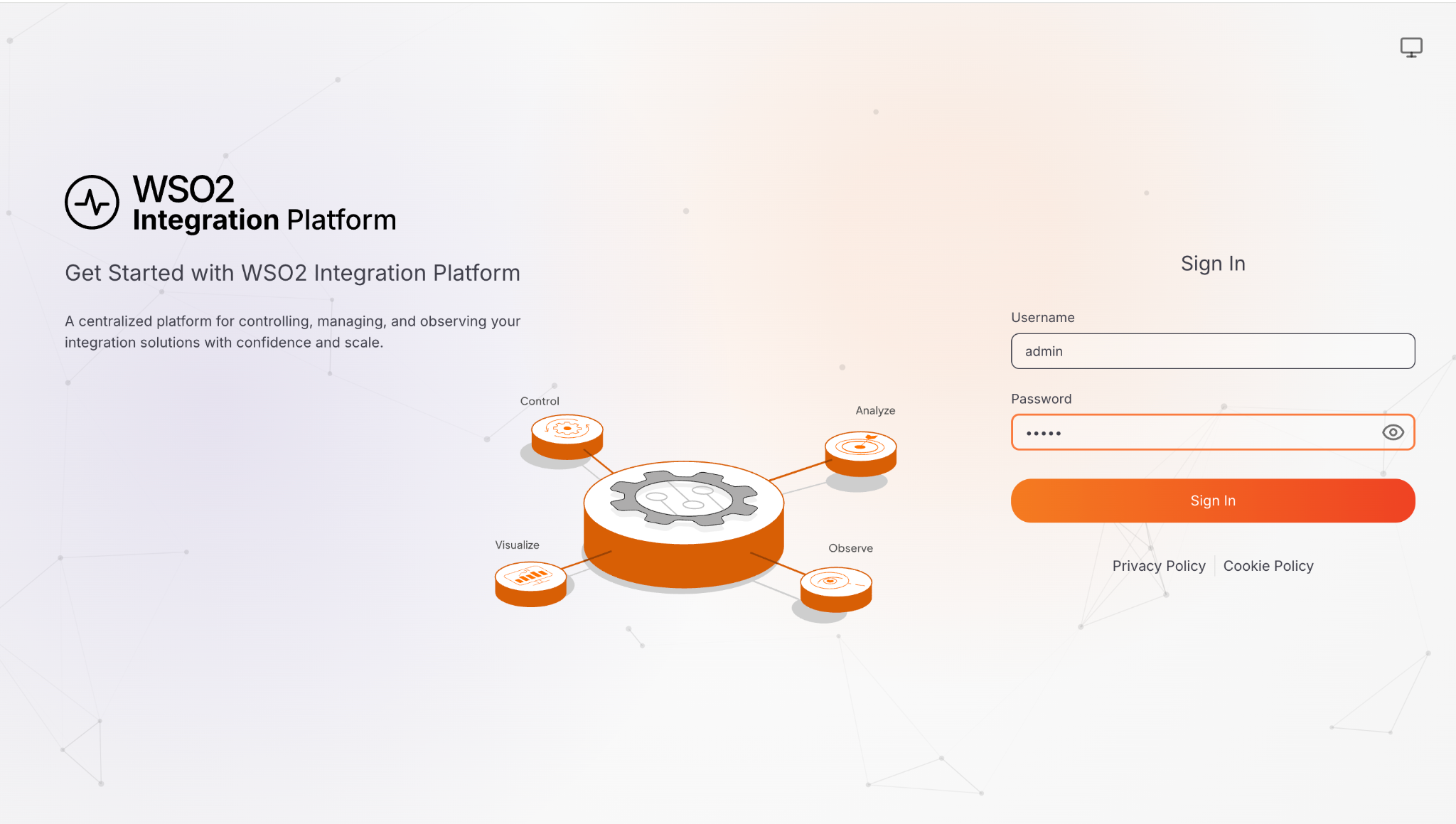
Change the default admin password before using ICP in production. Click the user avatar at the top right, select Profile, and use Change Password.
1. Create a project
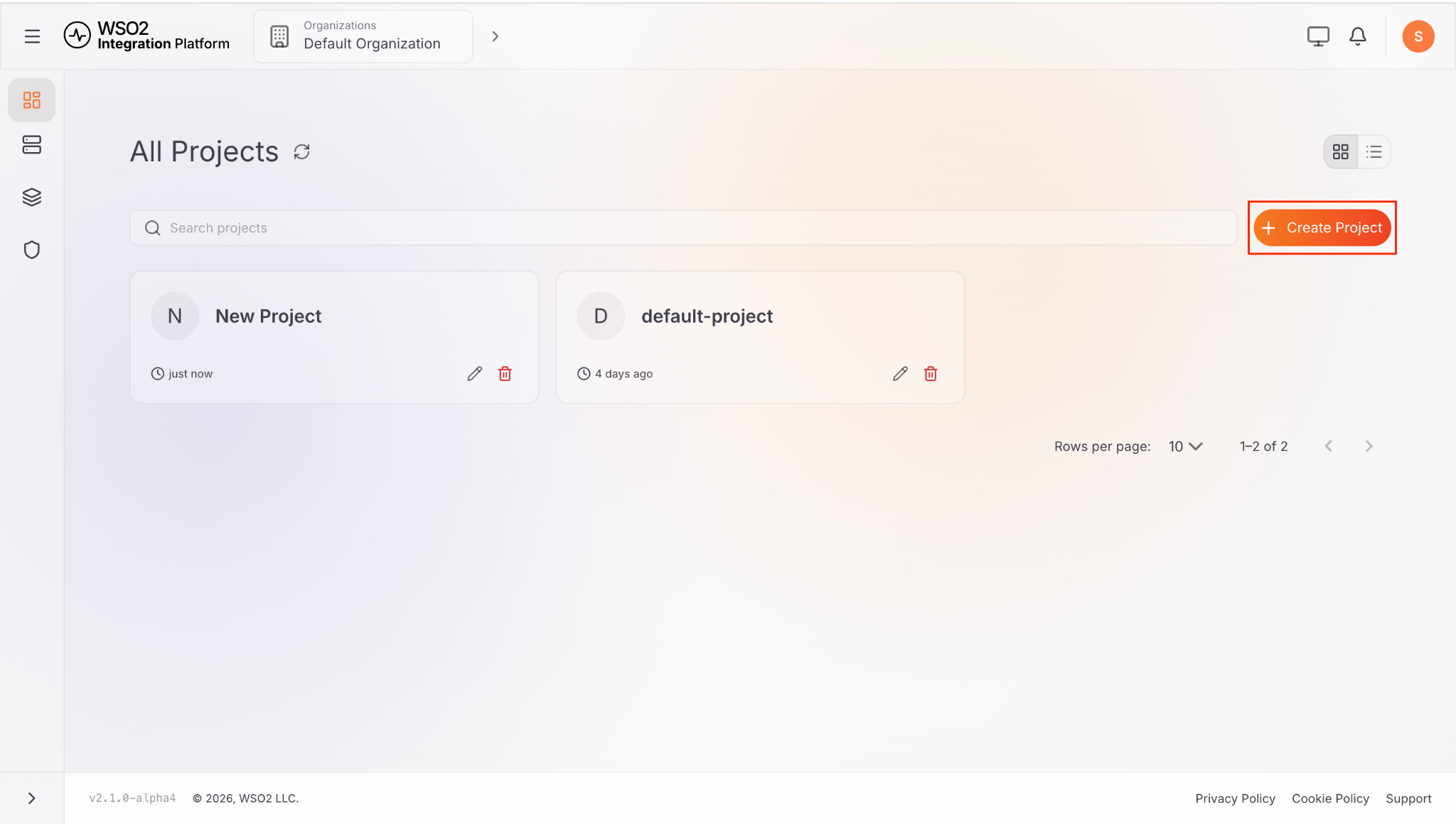
Projects group related integrations. Every integration belongs to exactly one project.
-
On the organization home, click + Create Project.
-
Enter a Display Name (e.g.
My Project). The name slug is auto-generated.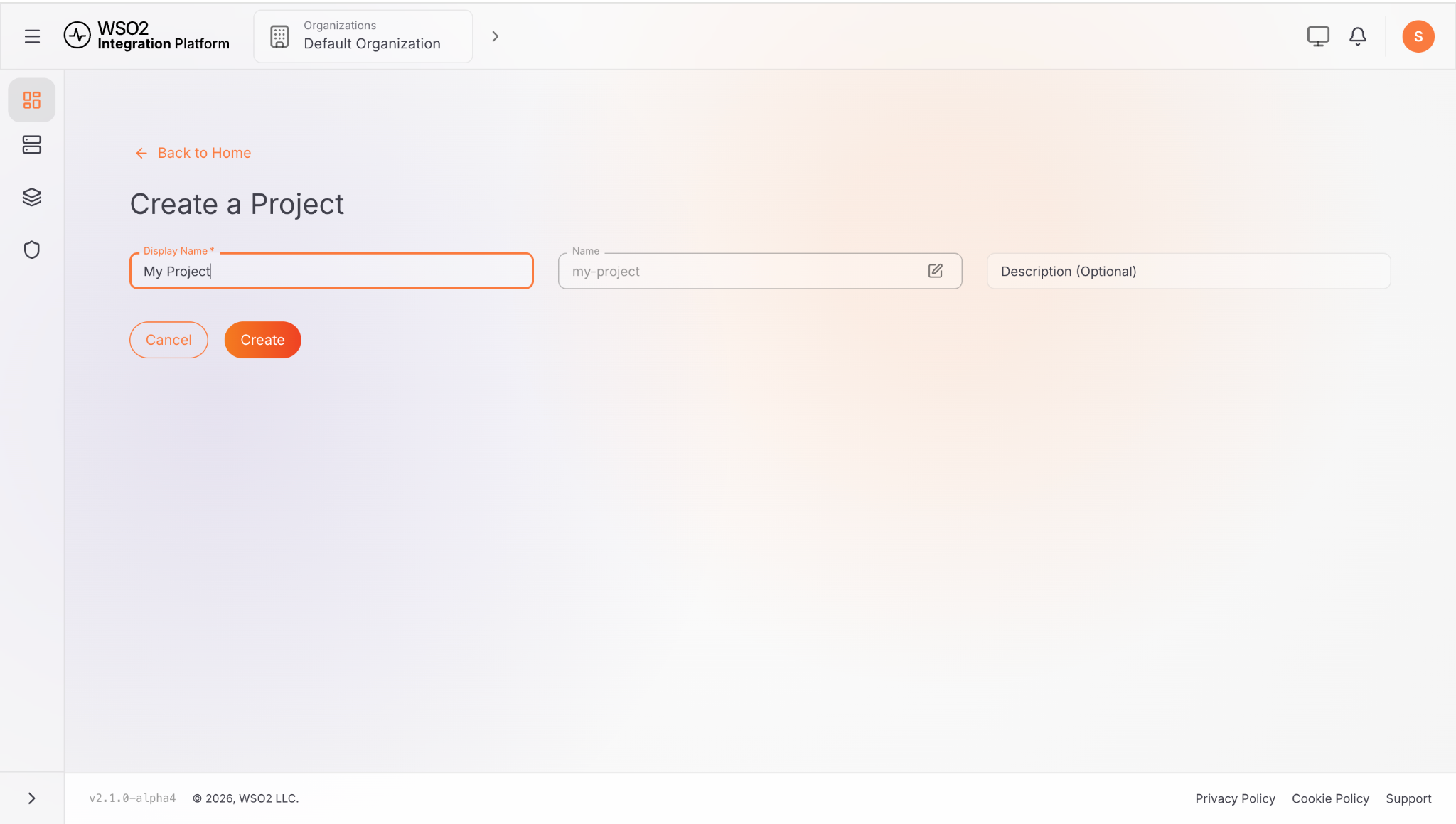
-
Click Create.
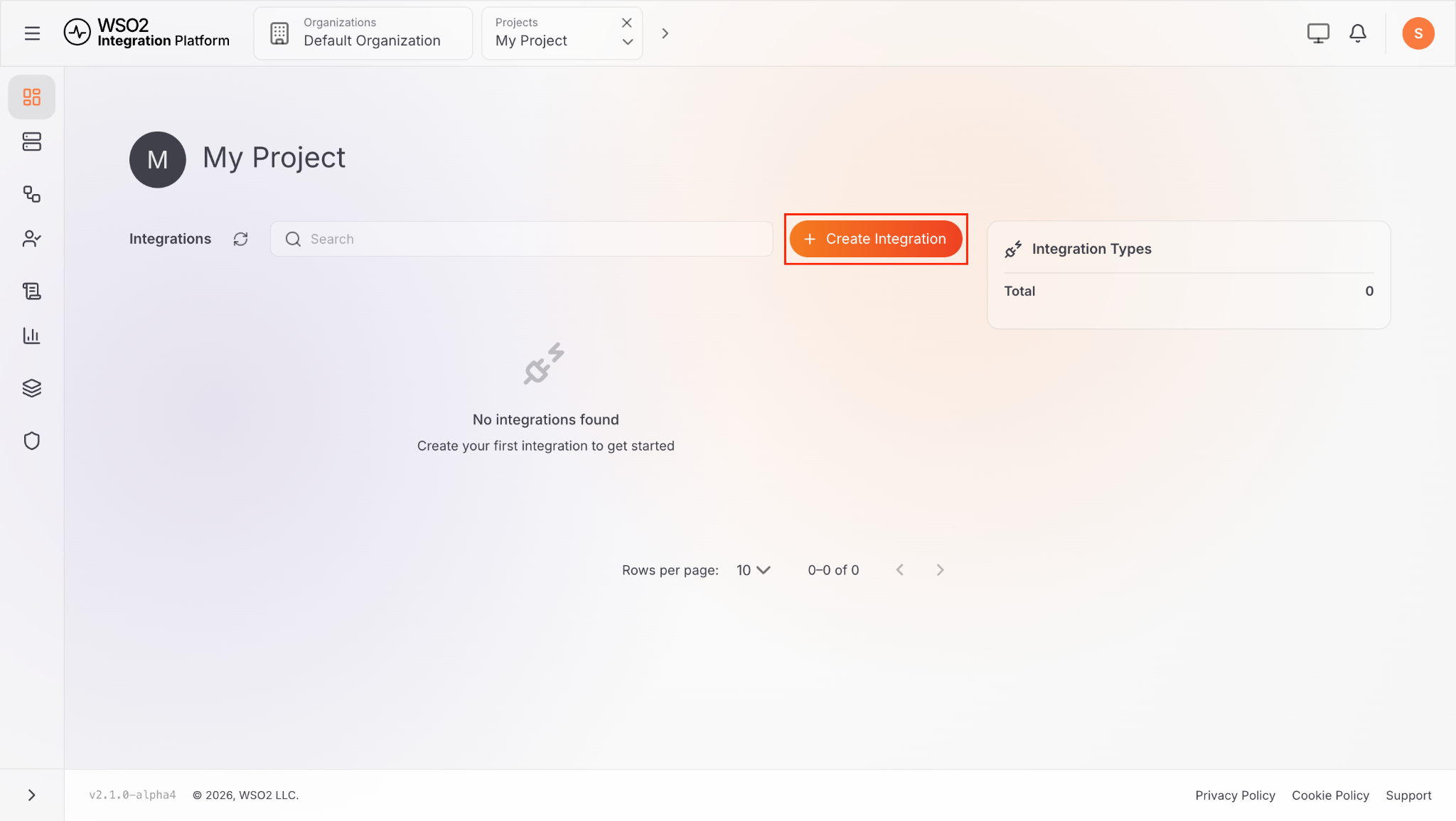
ICP redirects to the new project's home page.
ICP also auto-creates a <project-name-slug> Admins group (for example, my-project Admins) with the Project Admin role. You can use this group to manage access to the project. See Access control.
For full project management options, see Manage projects.
2. Create an integration
-
On the project home page, click + Create Integration.
-
Enter a Display Name (e.g.
My Integration). -
Under Technology, select the runtime type:
Technology Description WSO2 Integrator A Ballerina-based integration. This is the default profile. WSO2 Integrator: MI A Micro Integrator-based integration for existing MI deployments. -
Optionally, under Integration Type, select what you want to build. Workflow is available only for WSO2 Integrator.
Integration type Description Integration as API Expose your integration as a REST, GraphQL or WebSocket API. Automation Run integrations on a schedule or as a recurring task. Workflow Orchestrate long-running processes with durable state and human tasks. File Integration Process files from storage systems like FTP or AWS S3 when they arrive. Event Integration React to events from sources like Kafka, Azure Service Bus, RabbitMQ or NATS. AI Agent Build AI agents that reason over your integrations and call tools and services. MCP Server Expose tools to AI agents and clients over the Model Context Protocol. 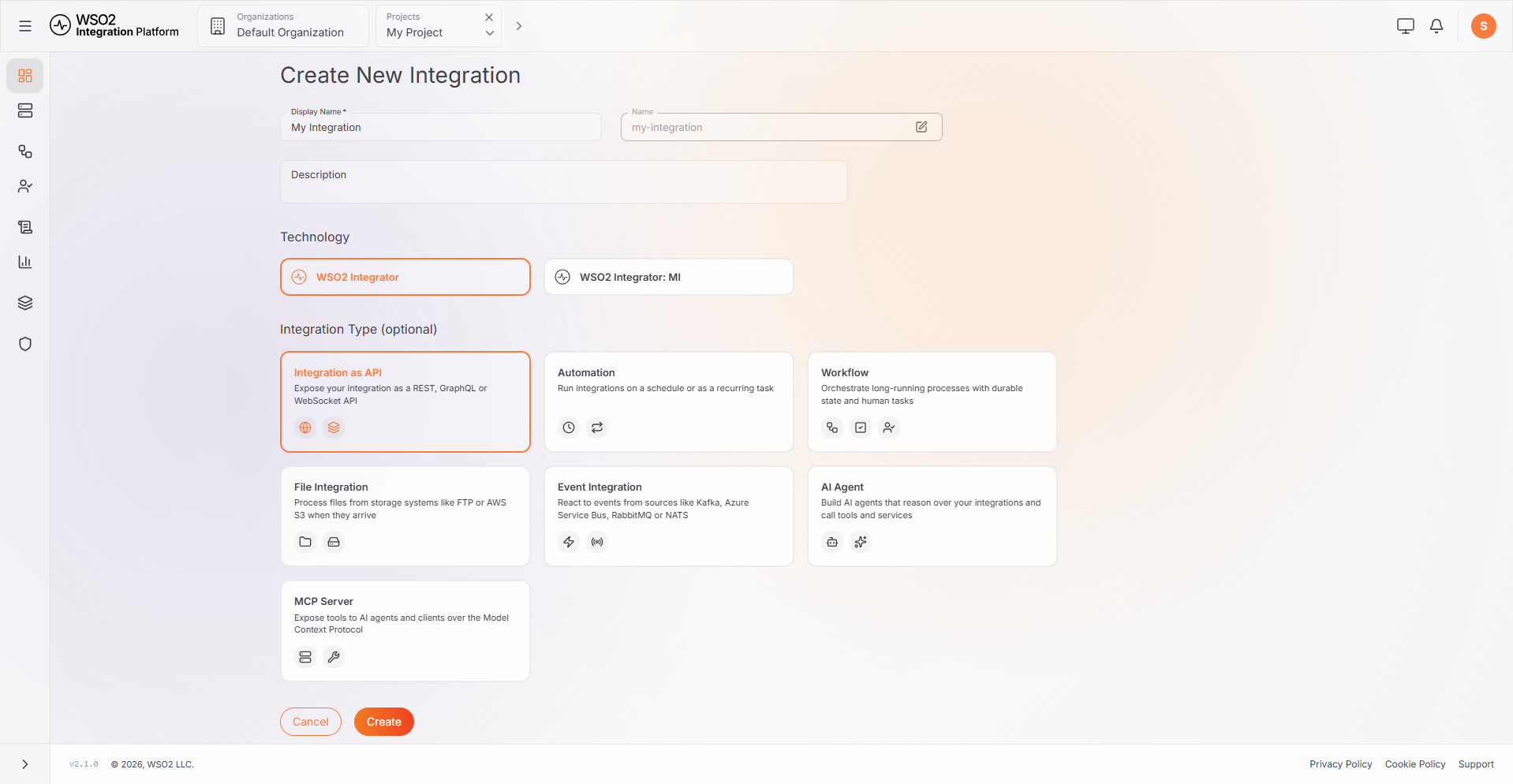
-
Click Create.
ICP opens the new integration's overview page. The integration is also listed under Integrations on the project home page. It has no runtime yet. You will connect one in the next step.
For full integration management options, see Manage integrations.
3. Connect a runtime
After creating the integration, connect your integration runtime to it so ICP can monitor and manage it. To do this, generate a secret from the integration's Runtimes page in the ICP console, add it to your project's configuration, and start the runtime.
For the step-by-step procedure, see Connect an Integration to ICP.
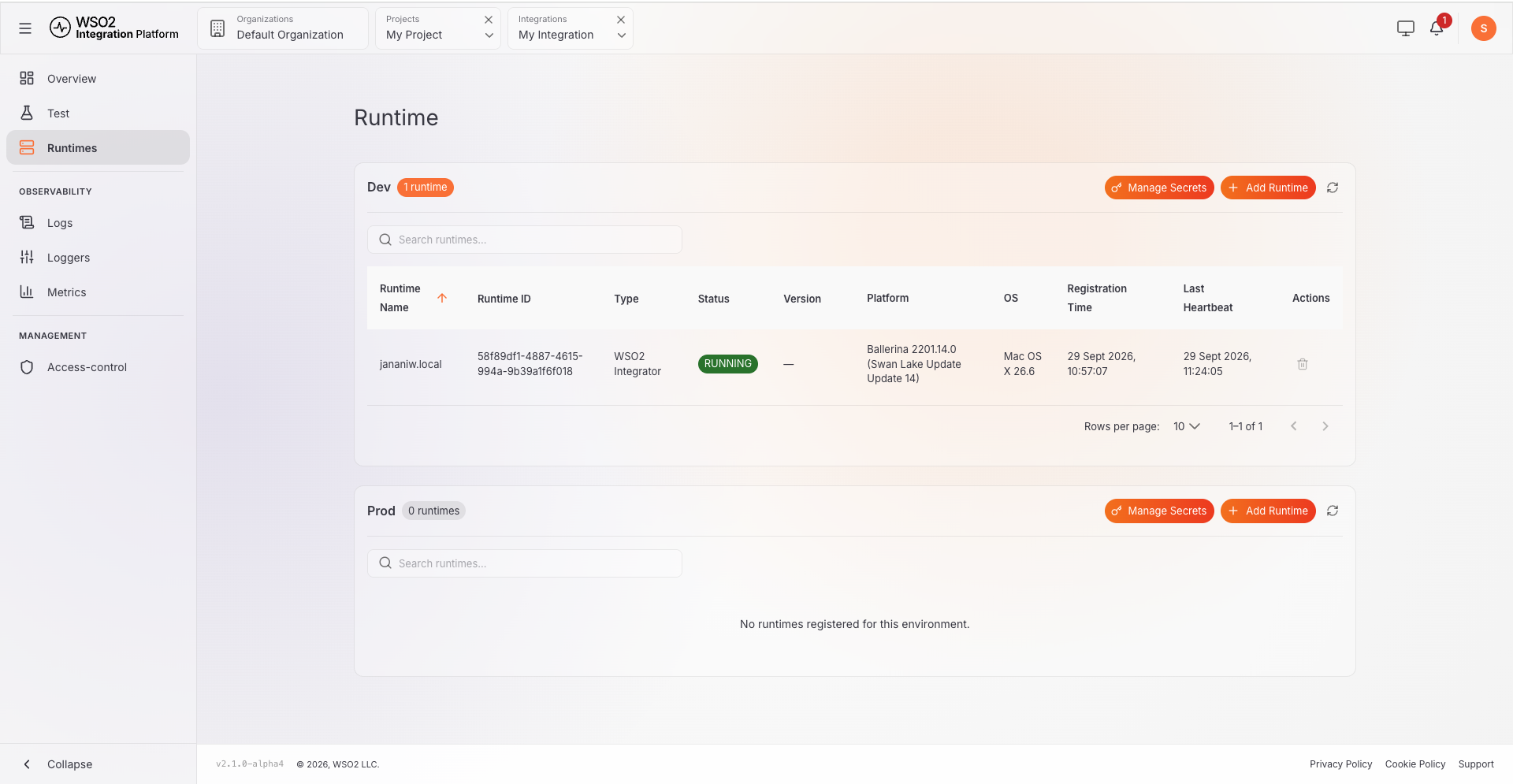
Once connected, the runtime appears in the Runtimes view with status RUNNING.
4. Create an environment (optional)
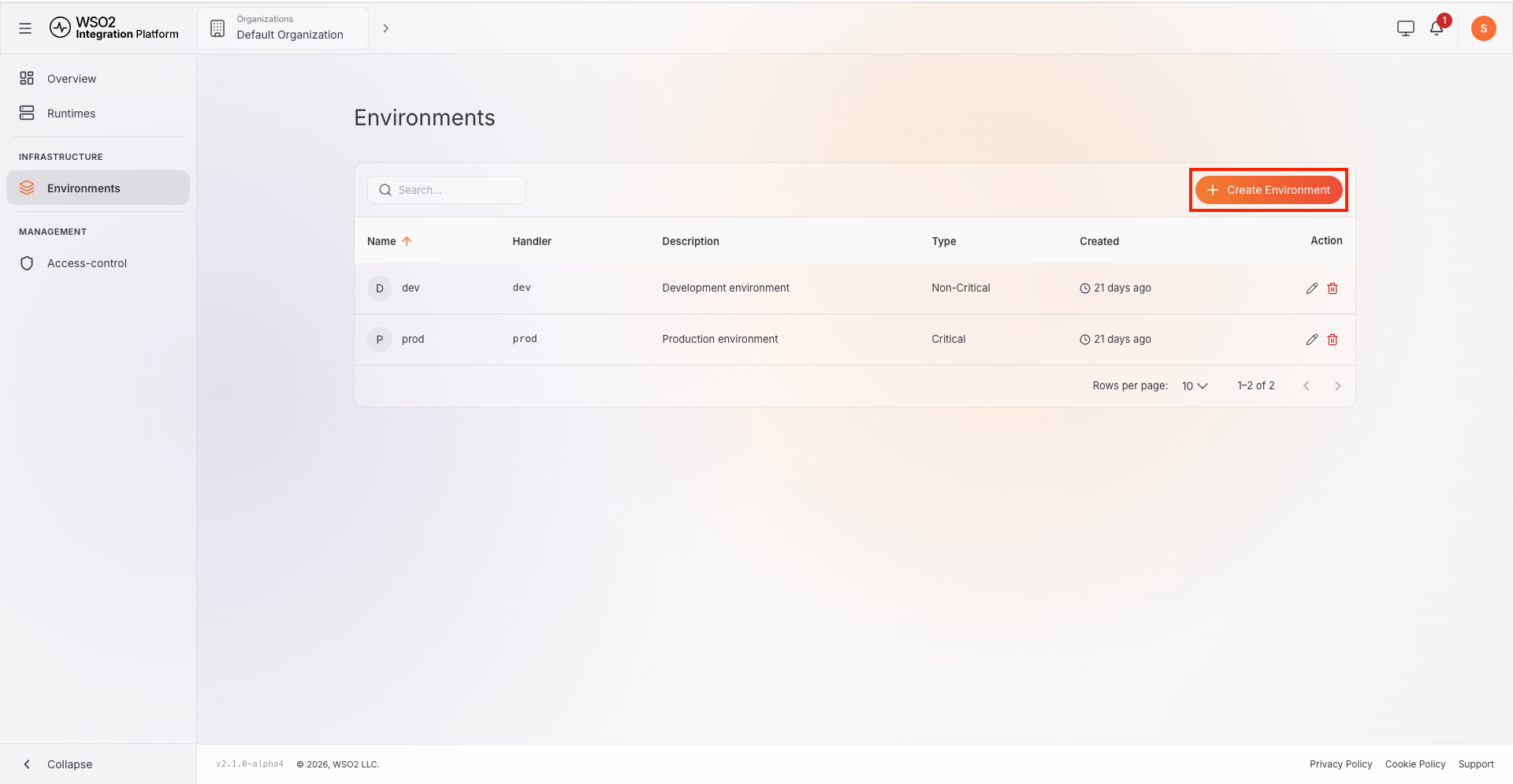
ICP ships with dev and prod environments. If you need additional environments such as staging, follow these steps:
-
Go to Environments in the organization sidebar.
-
Click + Create Environment and enter the environment name and details.
-
Click Create.
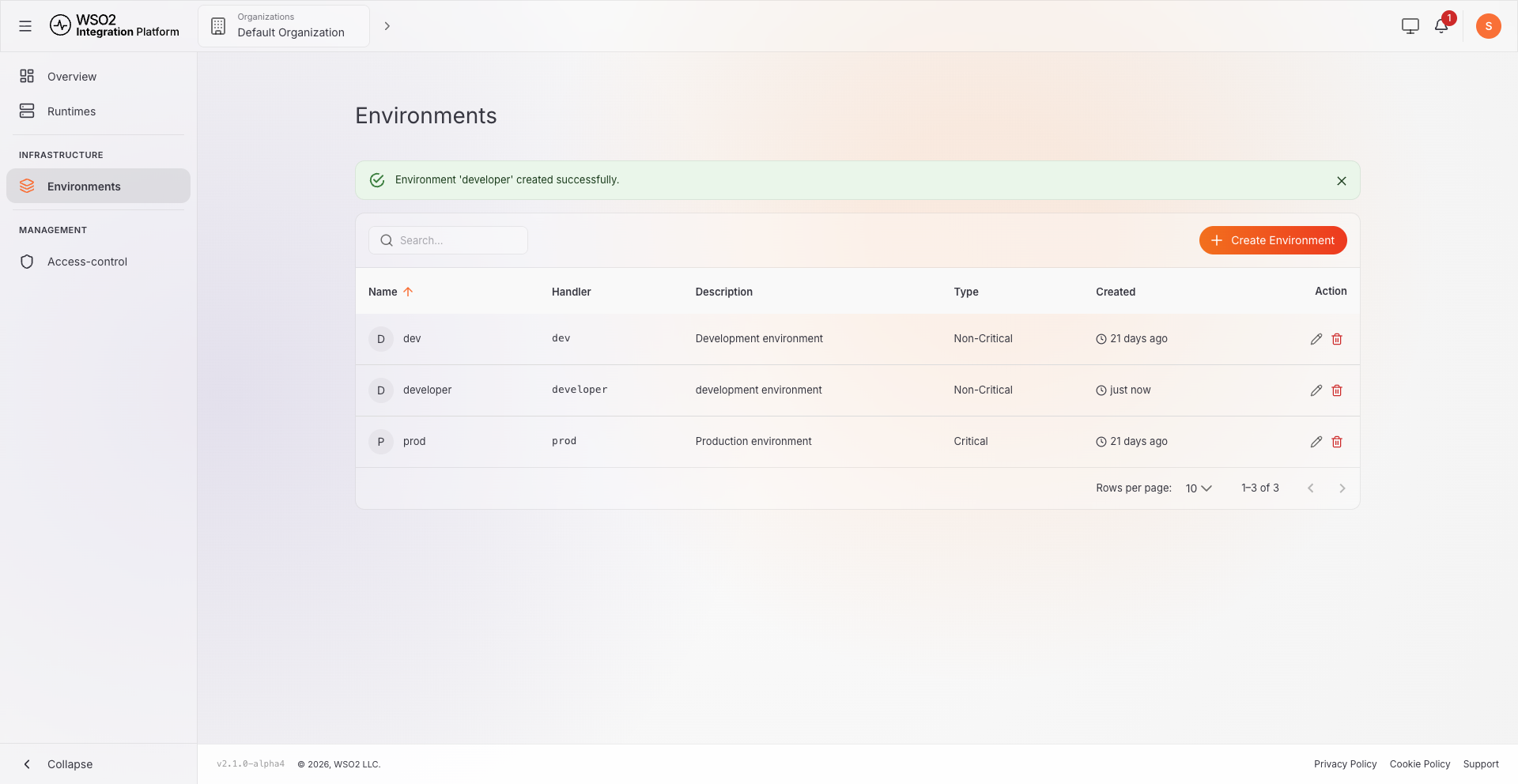
New environments are available immediately to every integration across all projects.
For full environment management options, see Manage environments.
5. Enable observability (optional)
Observability adds centralized logs and metrics to the Logs and Metrics pages in the ICP console. It requires OpenSearch and Fluent Bit.
At a high level, the setup involves:
- Deploying an OpenSearch instance and configuring the ICP server to connect to it.
- Creating index templates for application logs and metrics.
- Adding observability configuration to your Ballerina integration (
observabilityIncluded = true, log file paths). - Configuring Fluent Bit to tail the log files and ship them to OpenSearch.
For the full step-by-step procedure, see Observability setup.
6. Configure access control (optional)
By default, the admin user has full access. To control who can view and manage each project and integration, set up role-to-group mappings.
At a high level, the setup involves:
- Creating users and groups at the organization level.
- Assigning roles to groups (built-in roles: Admin, Developer, Viewer, Project Admin, Super Admin).
- Creating mappings at the organization, project, or integration level to scope access.
For the full access control model and step-by-step procedures, see Access control.
What's next
- Observability setup — enable centralized logs and metrics for connected runtimes
- Access control — set up roles, groups, and permissions
- ICP console overview — understand the console layout, scope levels, and navigation