Temporal Credentials
Workflows run on a Temporal server. A Temporal credential tells WSO2 Cloud which Temporal server and namespace to connect to, and how to authenticate.
You assign each credential to one or more environments. Workflows deployed to an environment connect with that environment's credential. An environment can use only one credential.
Workflows pick up a new or changed credential the next time they are deployed.
Prerequisites
- Permission to manage configuration groups in your organization.
- A Temporal Cloud namespace, or a self-hosted Temporal server that WSO2 Cloud can reach.
- The authentication details for the server: an API key, or a client certificate and private key in PEM format. A self-hosted server can also run without authentication.
Add a Temporal credential
-
Sign in to WSO2 Cloud.
-
In the top navigation, click the Organization list and select your organization.
-
In the left navigation menu, click Settings under Admin.
-
Click the Credentials tab, then click Temporal Credentials.
-
Click Add Credential.
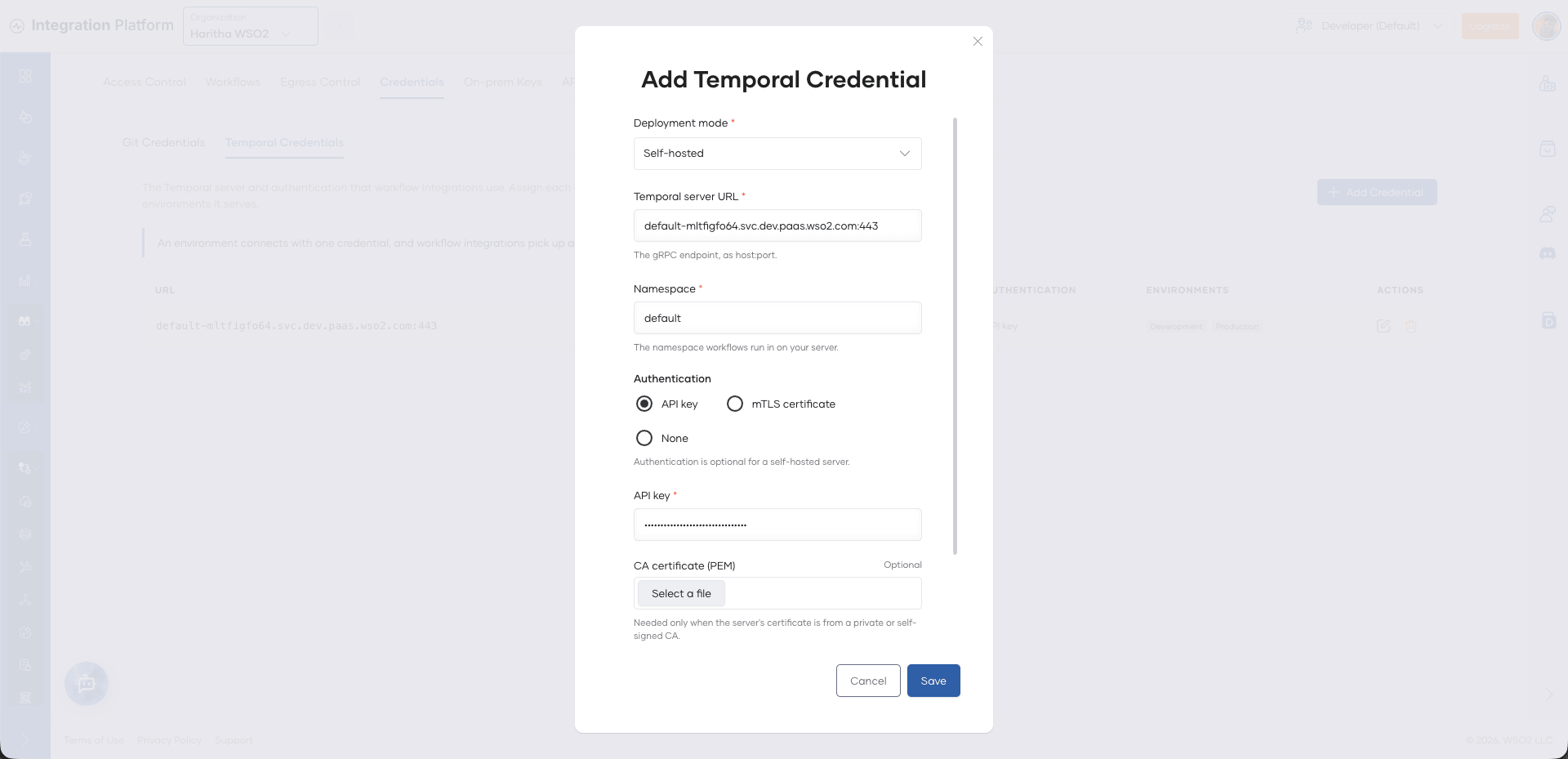
-
Under Deployment mode, select Temporal Cloud or Self-hosted.
-
Enter the connection details:
Field Description Temporal Cloud URL or Temporal server URL The gRPC endpoint as host:port, without a scheme. For example,my-ns.a1b2c.tmprl.cloud:7233ortemporal.mycompany.com:7233.Namespace The namespace that workflows run in. For Temporal Cloud, enter it as <namespace>.<account>, for examplemy-ns.a1b2c. -
Under Authentication, select how to connect to the server:
- API key: Enter the API key.
- mTLS certificate: Select the Client certificate (PEM) and Private key (PEM) files.
- None: Connect without authentication. This option is available for self-hosted servers only.
-
Optional: If the server's certificate is issued by a private or self-signed certificate authority, select the CA certificate (PEM) file.
-
Under Environments, select the environments that use this credential. An environment that another credential already uses is not available.
-
Click Save.
Add a credential when you import a workflow
You can also add a Temporal credential when you import a workflow. If the first environment of the project has no Temporal credential, the import page shows a warning with an Add Credential button. Click it to open the Add Temporal Credential dialog, then follow steps 6 to 11.
Edit a Temporal credential
- In your organization, go to Admin > Settings > Credentials > Temporal Credentials.
- Click the edit icon for the credential.
- Update the details, then click Save.
The stored API key, certificates, and private key are kept unless you enter new ones. You must enter them again if you change the authentication method or add an environment, because they are stored per environment and cannot be read back.
To move an environment from one credential to another, first remove it from the credential that uses it, then add it to the other credential.
Delete a Temporal credential
- In your organization, go to Admin > Settings > Credentials > Temporal Credentials.
- Click the delete icon for the credential.
- Click Delete.
- In the confirmation dialog, click Delete again.
Workflows in the credential's environments stop using it the next time they are deployed. They cannot connect to Temporal in those environments until you assign another credential to them.