Voice Agents
Voice agents are in feature preview. Behavior and configuration options may change before general availability.
A voice agent lets users talk to an AI agent instead of typing. WSO2 Cloud deploys a voice pipeline in front of your AI agent: it streams the user's audio through LiveKit, converts speech to text, sends the text to the AI agent over WebSocket, and speaks the agent's reply back using a text-to-speech provider.
You don't write any extra code for the voice pipeline. It's created and deployed as a separate integration from the AI agent's overview page.
First, build the AI agent as a Voice Agent Service in WSO2 Integrator and deploy it to WSO2 Cloud. See Voice Agent for the steps. This page then covers adding the voice pipeline to that agent in WSO2 Cloud.
- A paid WSO2 Cloud subscription. On the free tier, Enable Voice Agents is disabled with the tooltip Upgrade your plan to enable Voice Agents.
- An AI agent integration deployed in WSO2 Cloud that exposes a WebSocket endpoint. Without one, Enable Voice Agents is disabled with the tooltip Add a WebSocket endpoint to this AI Agent to enable voice. Build it as a Voice Agent Service in WSO2 Integrator. See Expose an AI agent over WebSocket.
- A LiveKit project: the LiveKit URL (for example,
wss://your-project.livekit.cloud), an API key, and an API secret. See LiveKit credentials. - API keys for your speech-to-text and text-to-speech providers. For OpenAI, create a key on the OpenAI API keys page.
Expose an AI agent over WebSocket
The voice pipeline sends each transcribed user utterance to the AI agent as a chat message and speaks the returned string. In WSO2 Integrator, create a Voice Agent Service and call your agent from its onChatMessage handler. See Voice Agent for the full walkthrough. The generated code is similar to the following:
import ballerinax/ai.wso2.integration;

listener integration:CloudVoiceListener voiceListener = new (8080);

isolated service integration:VoiceService on voiceListener {
    isolated remote function onChatMessage(integration:ChatMessage message) returns string|error {
        string response = check customerSupportAgent.run(message.message, message.sessionId);
        return response;
    }
}
In this example, customerSupportAgent is a customer support agent with tools to check order status, explain the return policy, and create support tickets, plus short-term memory. Passing message.sessionId to the agent keeps the conversation context for the duration of a voice session.
Deploy the integration to WSO2 Cloud so its WebSocket endpoint is running.
Write the agent's system prompt for speech: ask for short replies (one or two sentences) with no Markdown, lists, or code. Long or formatted replies take longer to synthesize and sound unnatural when read aloud.
Enable the Voice Agents preview
-
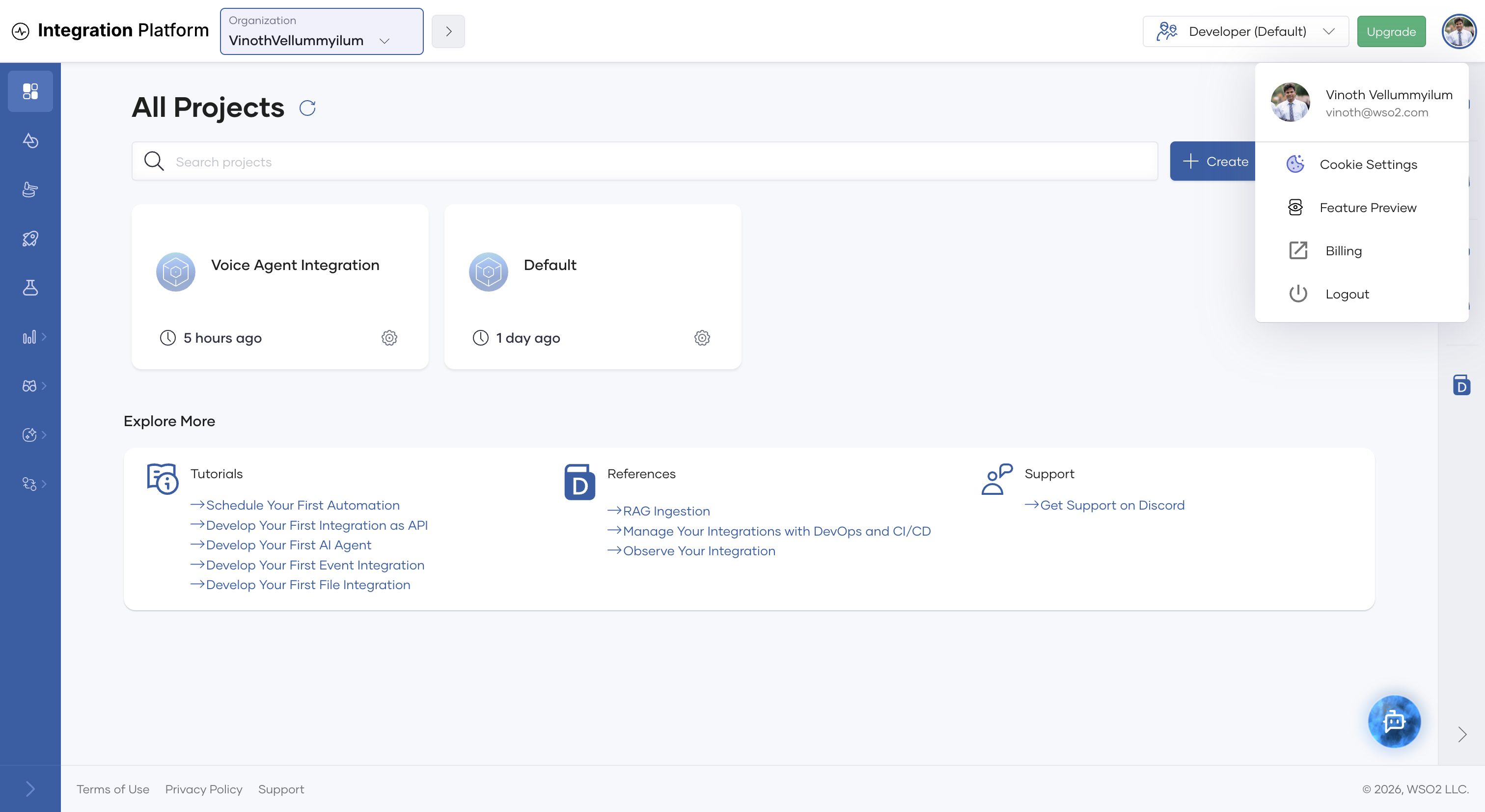
Click your profile icon in the top-right corner of the console and select Feature Preview.
-
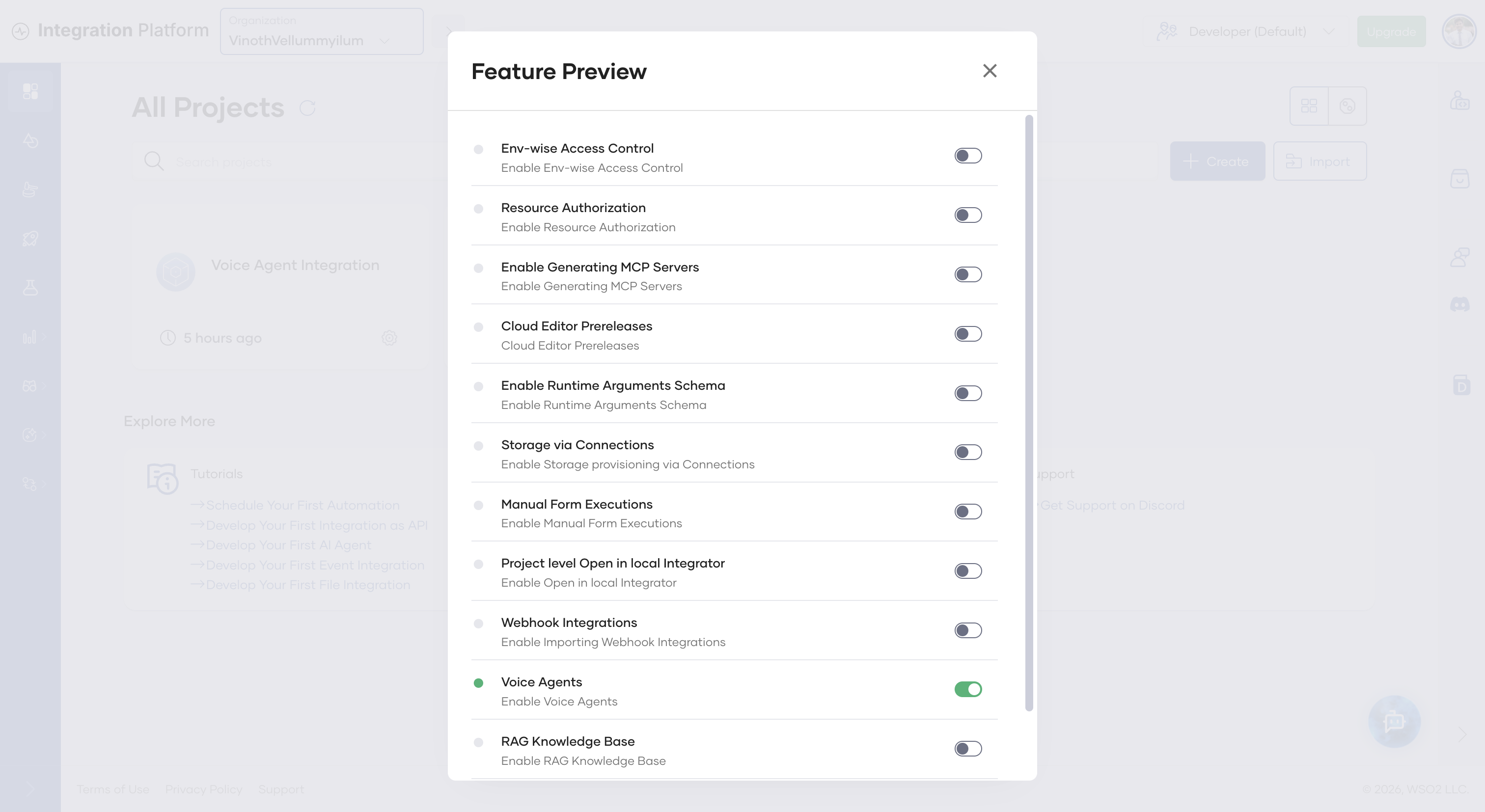
Turn on Voice Agents, then close the dialog.
Create a voice agent
You can create a voice agent in two ways:
- From the AI agent's overview page: the quickest option when the AI agent is deployed in WSO2 Cloud. The agent is preselected for you.
- From AI Services > Voice Agents: lets you pick the project and the target agent yourself. The target can be an agent deployed in WSO2 Cloud (Platform-Hosted Agent) or any agent you host yourself that's reachable over WebSocket (Externally-Hosted Agent).
Both options then continue through the same LiveKit, speech-to-text, text-to-speech, and deploy steps.
From the AI agent overview page
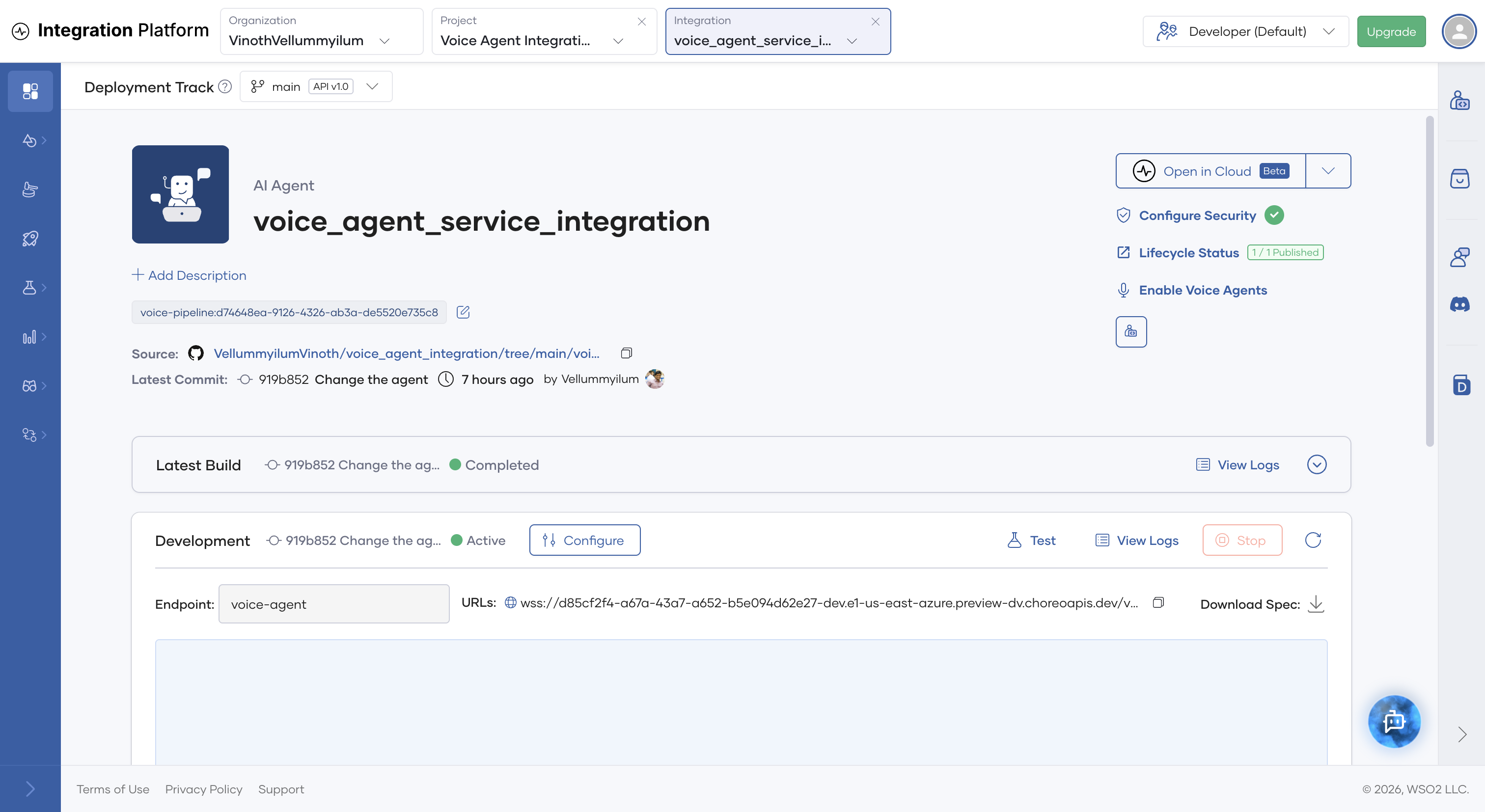
Open the AI agent integration's Overview page and click Enable Voice Agents (on the right, under Lifecycle Status).
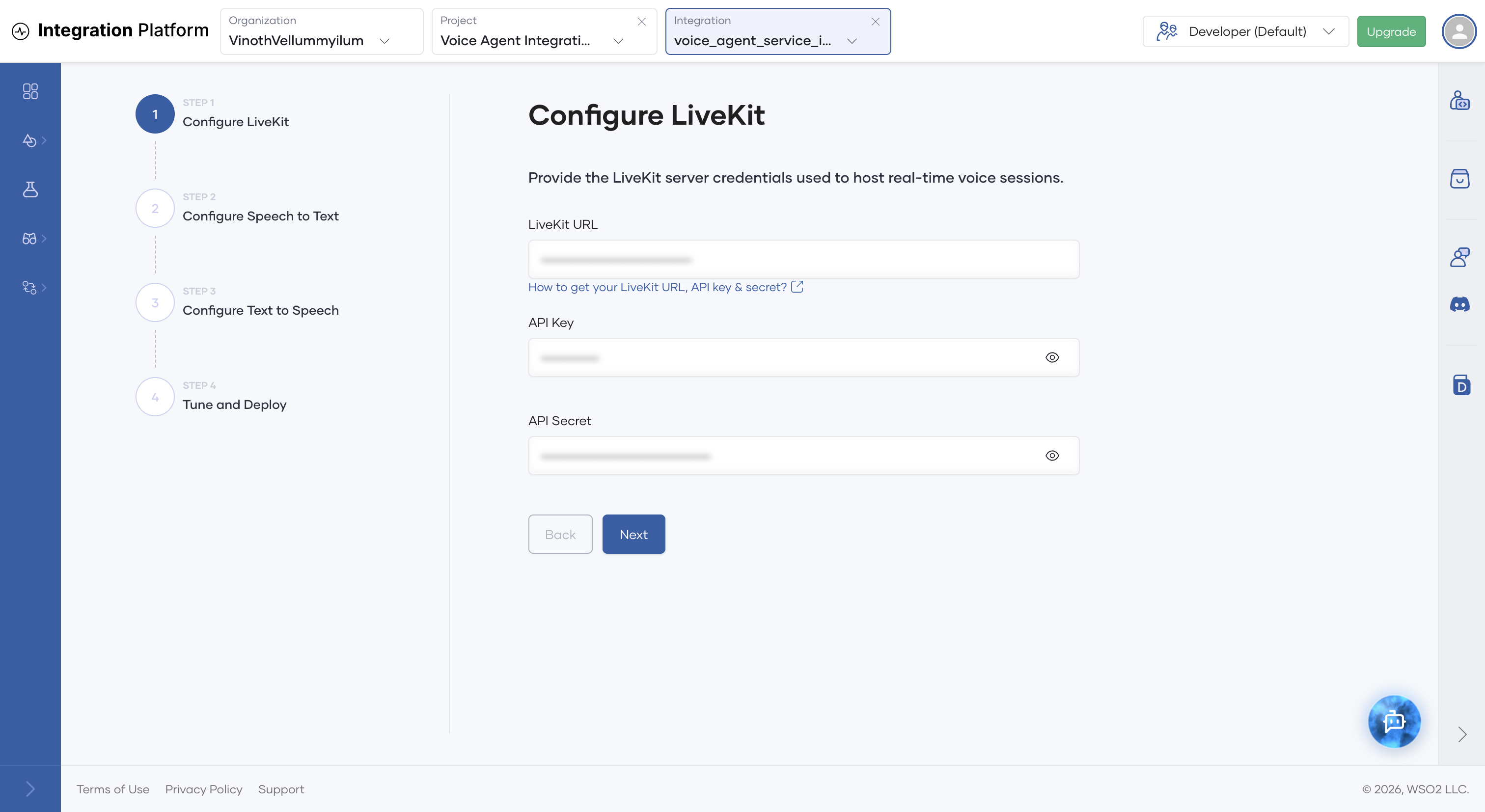
A four-step wizard opens. The current AI agent is preselected as the target, so there's no Configure Agent step: the wizard starts at Configure LiveKit.
From AI Services > Voice Agents
-
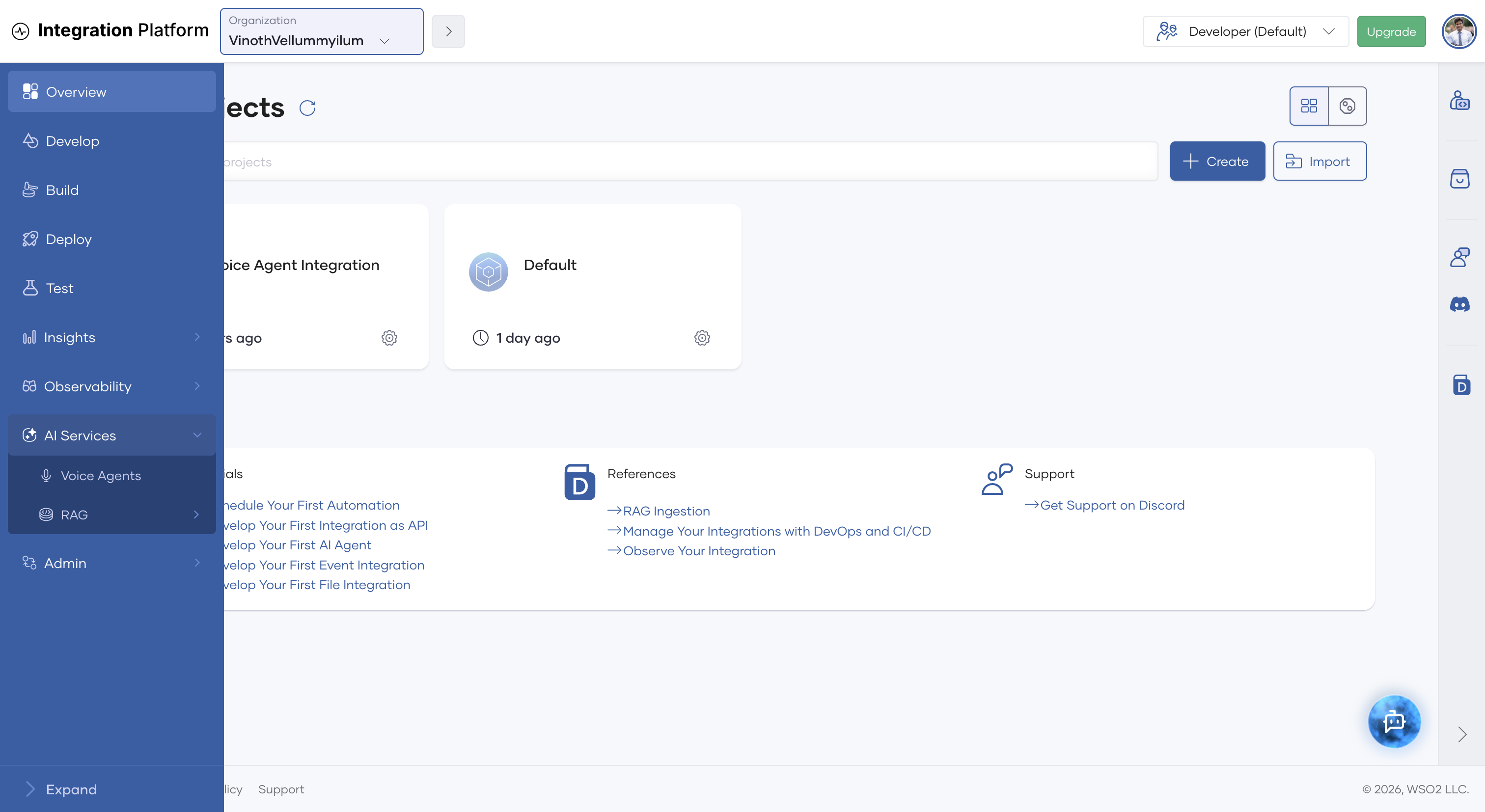
In the left navigation, expand AI Services and click Voice Agents. The page lists the voice agents in the selected project.
-
Click Create. A five-step wizard opens at Configure Agent.
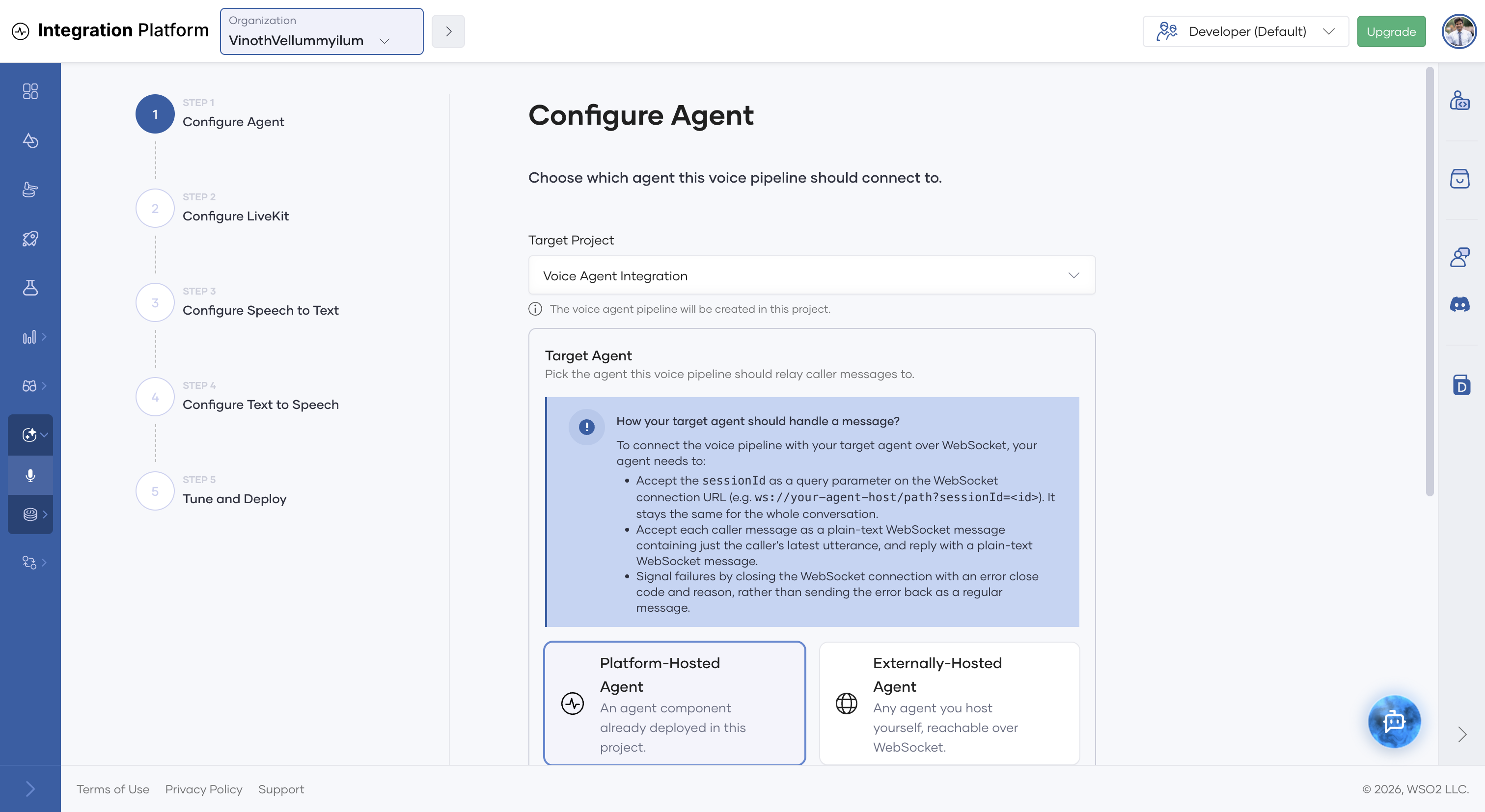
Configure agent
-
Select the Target Project. The voice agent is created in this project.
-
Under Target Agent, choose where the agent that answers the caller runs:
-
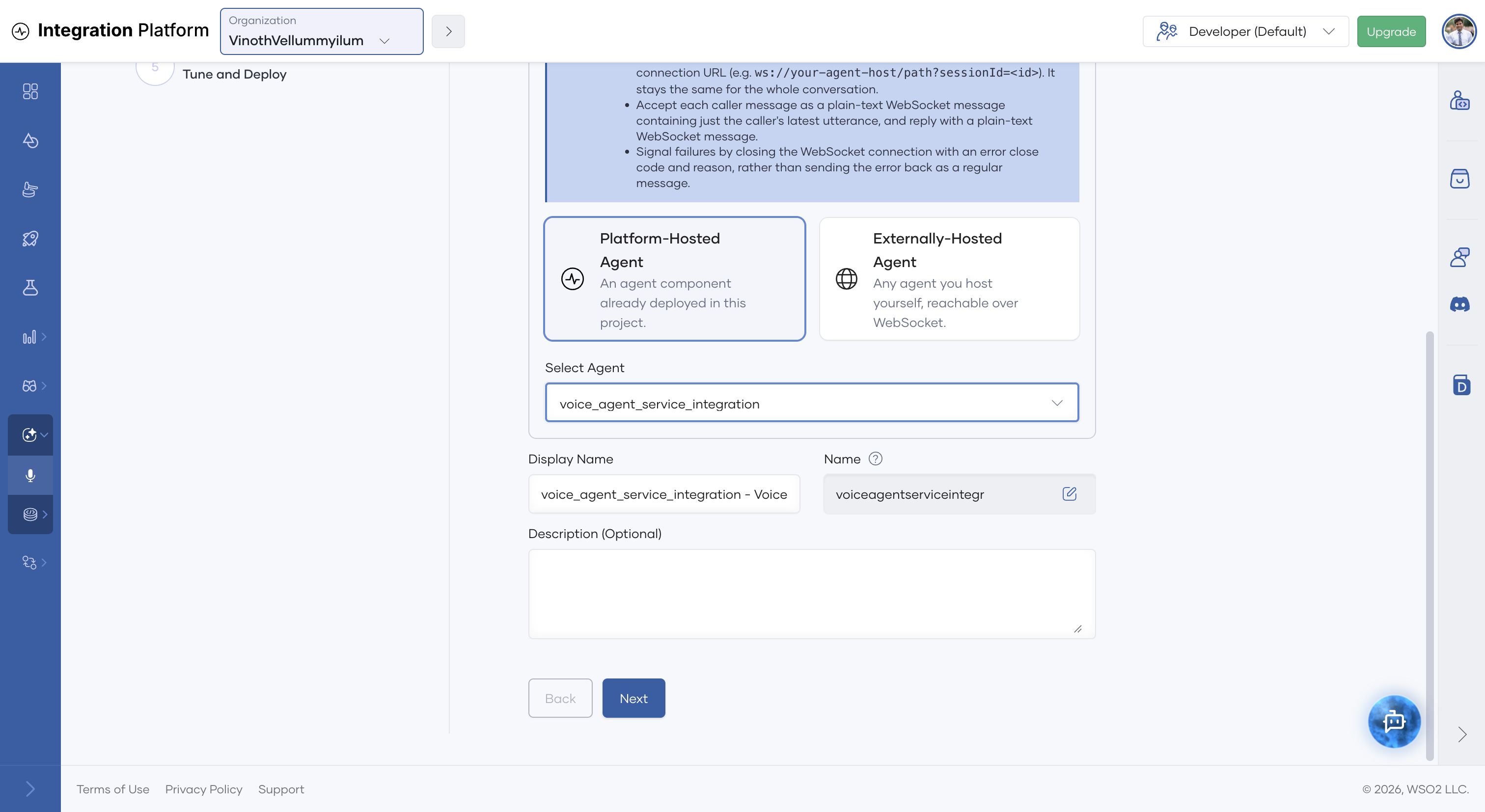
Platform-Hosted Agent: an AI agent that's already deployed in WSO2 Cloud, in the selected project. Pick it from Select Agent. The list shows only agents with a deployed WebSocket endpoint. WSO2 Cloud resolves the agent's WebSocket URL for you when it deploys the voice agent. This gives the same result as clicking Enable Voice Agents on that agent's overview page.
-
Externally-Hosted Agent: any agent you host yourself, outside WSO2 Cloud, that's reachable over WebSocket. Enter its WebSocket URL, which must start with
wss://(orws://for local setups), for example a public tunnel URL such aswss://<your-host>/voice-agent. The voice agent uses this URL as its Target Agent WebSocket URL configuration.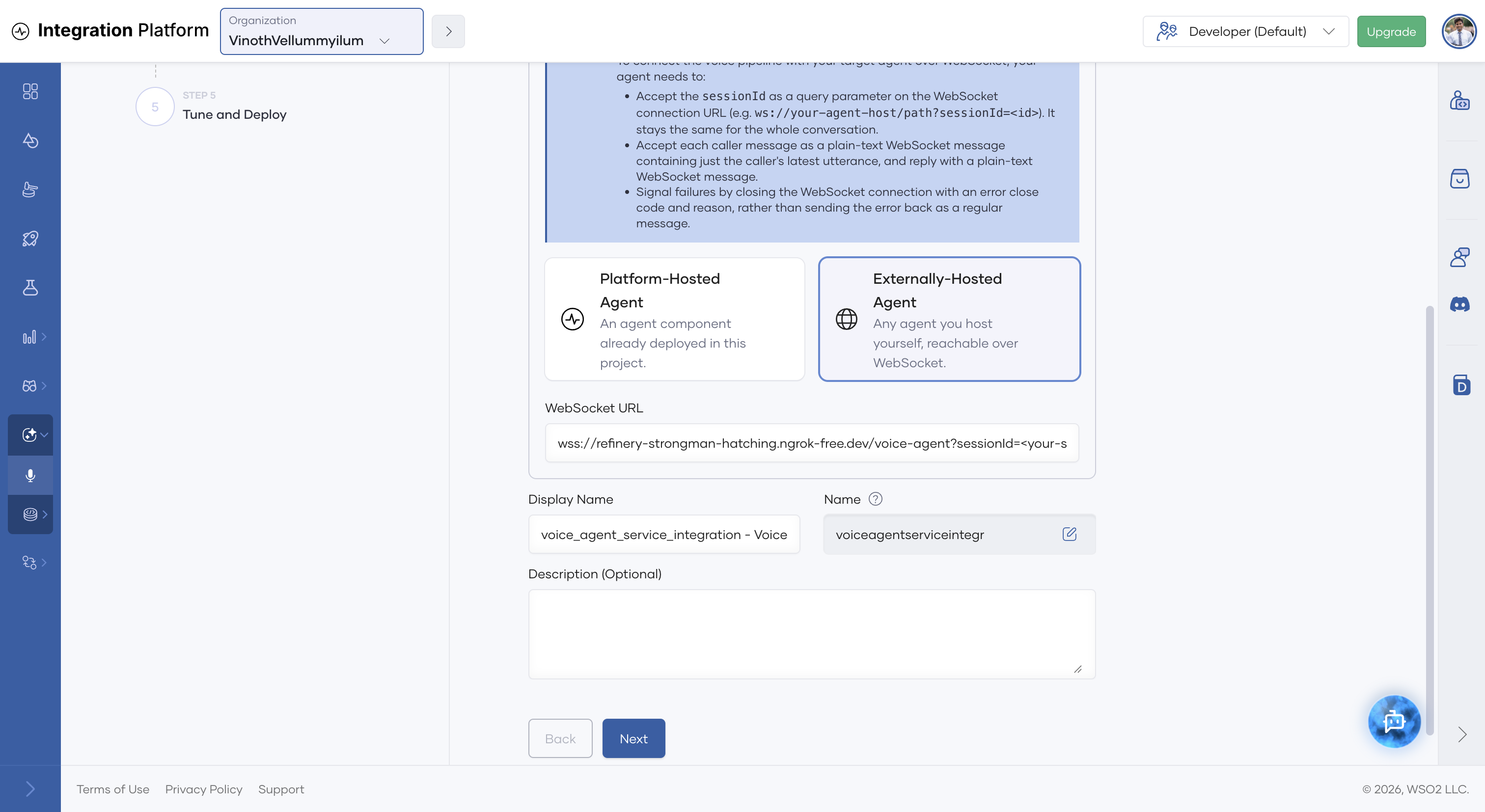
An externally hosted agent must follow the same WebSocket contract as a Voice Agent Service. The wizard summarizes it under How your target agent should handle a message?:
- Accept the
sessionIdas a query parameter on the WebSocket connection URL (for example,wss://your-agent-host/path?sessionId=<id>). It stays the same for the whole conversation. - Accept each caller message as a plain-text WebSocket message containing only the caller's latest utterance, and reply with a plain-text WebSocket message.
- Signal failures by closing the WebSocket connection with an error close code and reason, instead of sending the error back as a regular message.
-
-
Check the Display Name and Name. For a platform-hosted agent, they default to
<agent-name> - Voice Agent. Optionally, add a Description. -
Click Next.
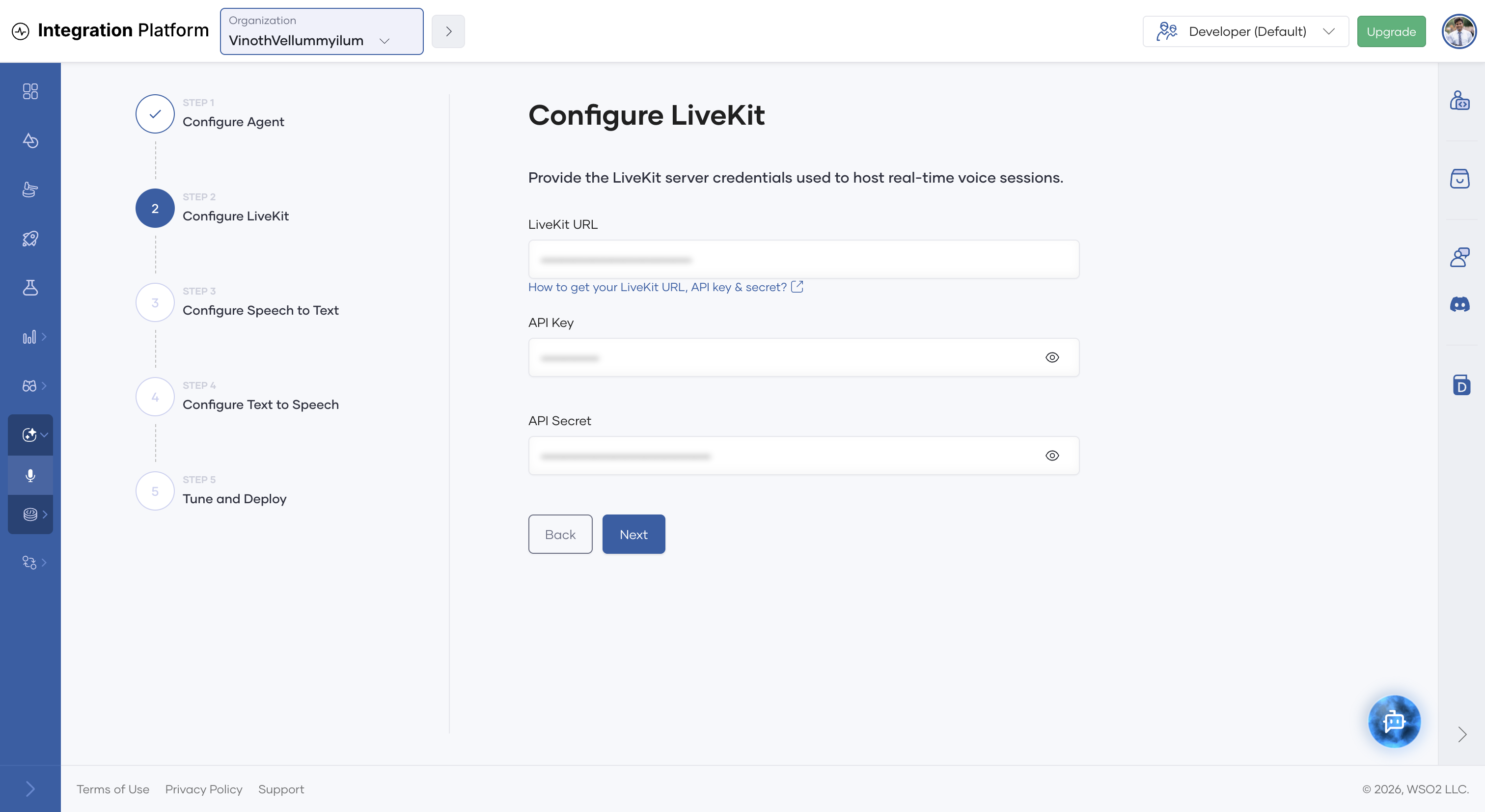
Configure LiveKit
LiveKit handles the real-time audio connection between the user's browser and the voice pipeline.
- Enter the LiveKit URL, for example
wss://your-project.livekit.cloud. - Enter the API Key and API Secret of your LiveKit project.
- Click Next.
To find these values, see LiveKit credentials. The wizard also links to this page from How to get your LiveKit URL, API key & secret?
Configure speech to text
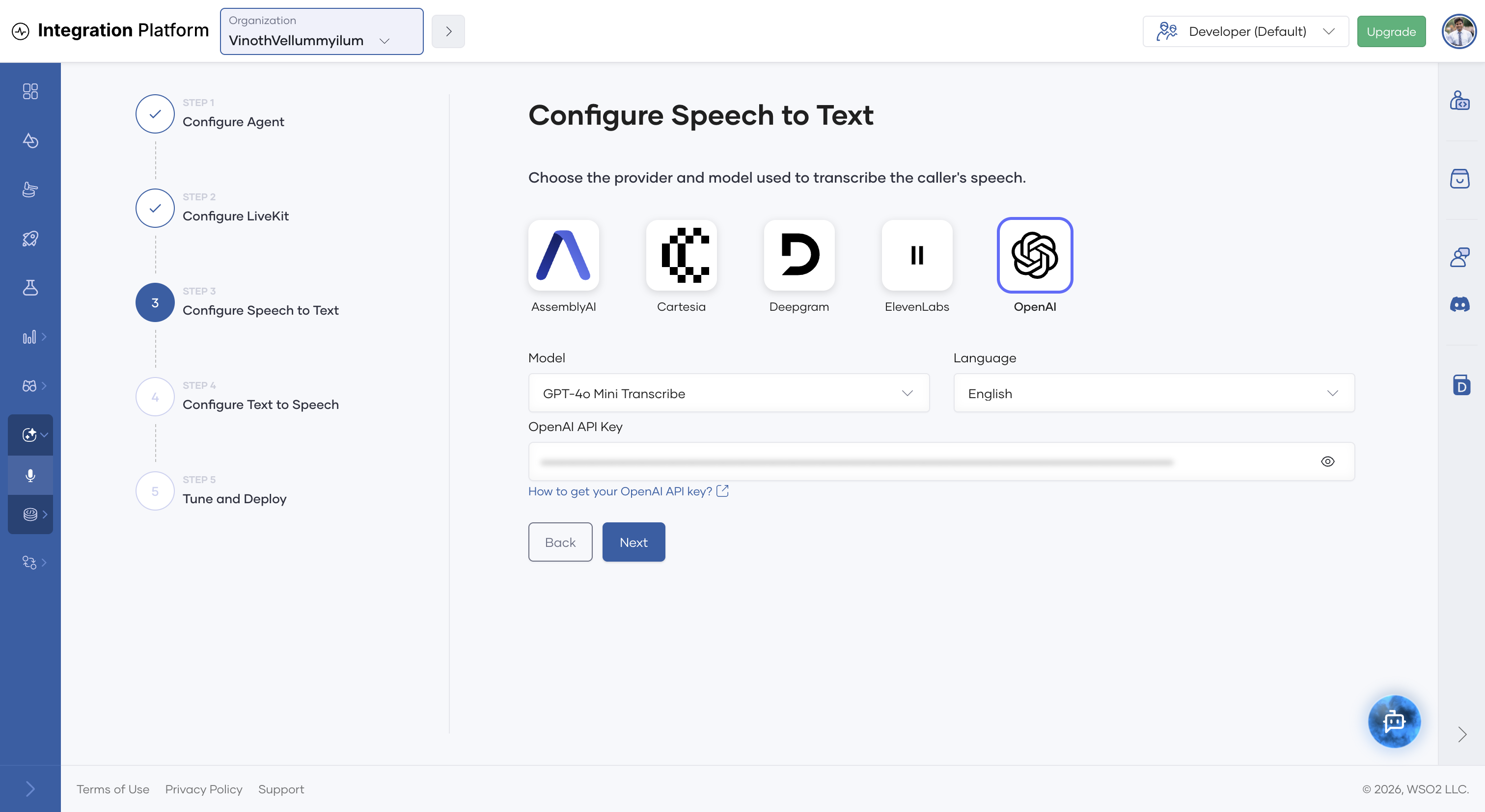
- Select a speech-to-text (STT) provider: Deepgram, AssemblyAI, Cartesia, ElevenLabs, or OpenAI.
- Select the Model and Language.
- Enter the provider's API key. For OpenAI, create one on the OpenAI API keys page. The wizard links to each provider's key page from How to get your provider API key?
- Click Next.
Configure text to speech
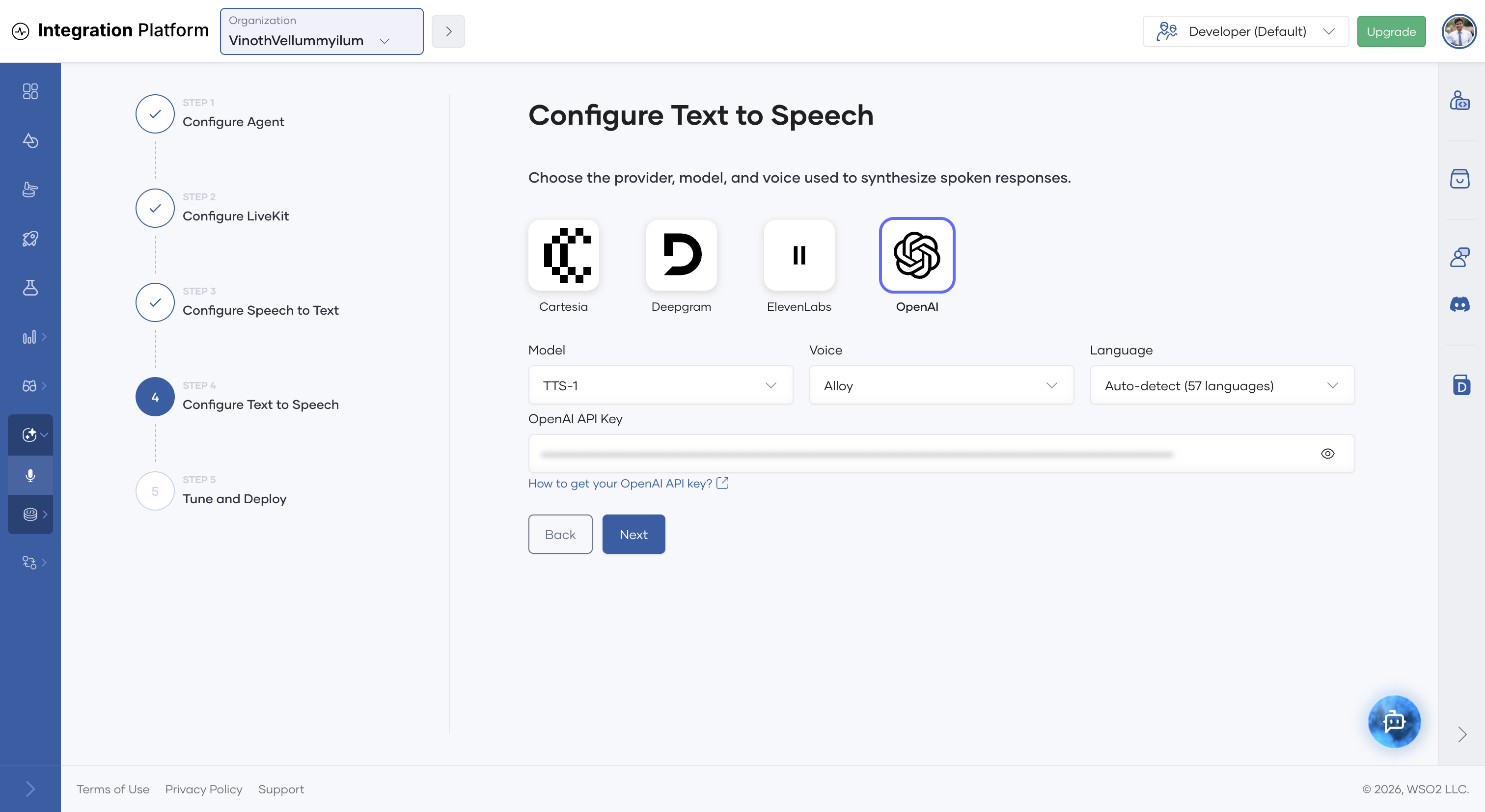
- Select a text-to-speech (TTS) provider: Cartesia, ElevenLabs, Deepgram, or OpenAI.
- Select the Model, Voice, and Language. Cartesia and ElevenLabs also accept a custom voice ID.
- Enter the provider's API key. You can reuse the same OpenAI API key for both speech to text and text to speech.
- Click Next.
For OpenAI, the available models are GPT-4o Mini TTS, TTS-1, and TTS-1 HD, and the available voices are Alloy, Ash, Ballad, Coral, Echo, Fable, Nova, Onyx, Sage, and Shimmer.
Tune and deploy
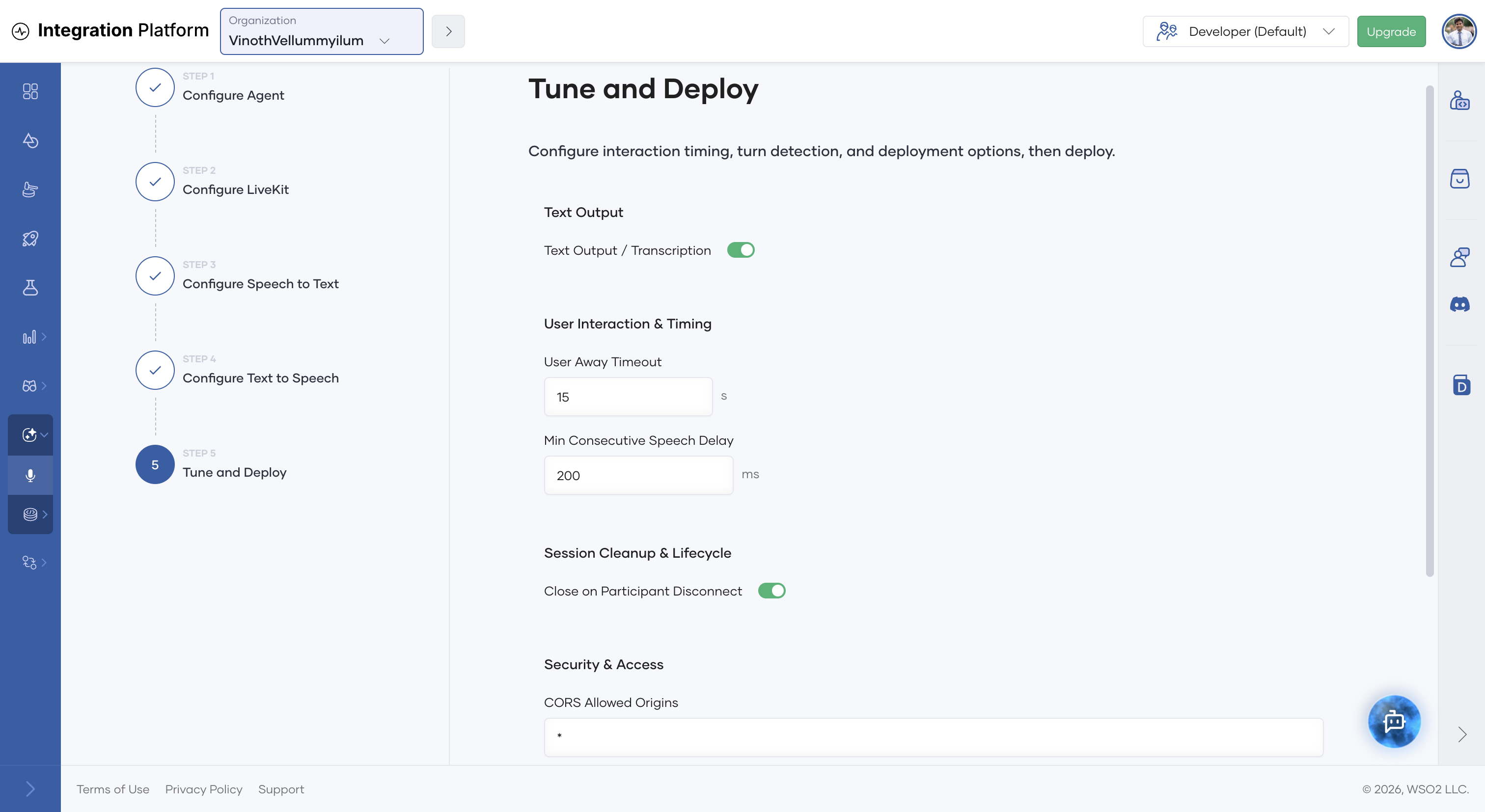
The defaults work for most agents. Adjust them if needed:
| Setting | Default | Description |
|---|---|---|
| Text Output / Transcription | On | Publishes the conversation transcript to the client alongside the audio. |
| User Away Timeout | 15 s | Ends the session after this much silence from the user. |
| Min Consecutive Speech Delay | 200 ms | Minimum gap between consecutive agent utterances. |
| Close on Participant Disconnect | On | Closes the LiveKit room when the user leaves. |
| CORS Allowed Origins | * | Origins allowed to request session tokens from the voice agent. Restrict this for production. |
| Token Time-to-Live (TTL) | 3600 s | How long a session token stays valid. |
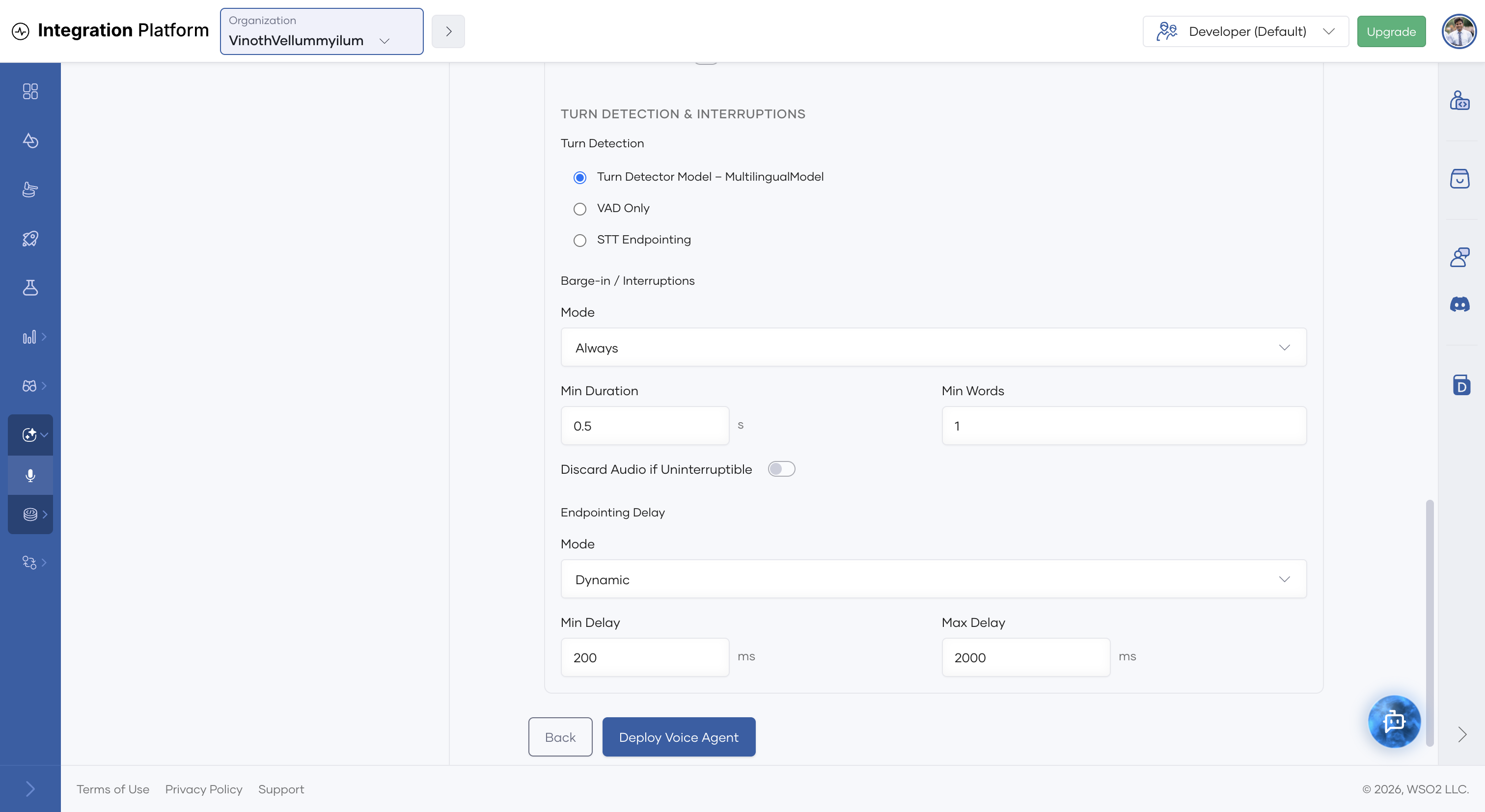
Advanced Settings expose voice activity detection (VAD), turn detection and endpointing, barge-in (interrupting the agent while it speaks), and noise cancellation.
Click Deploy Voice Agent.
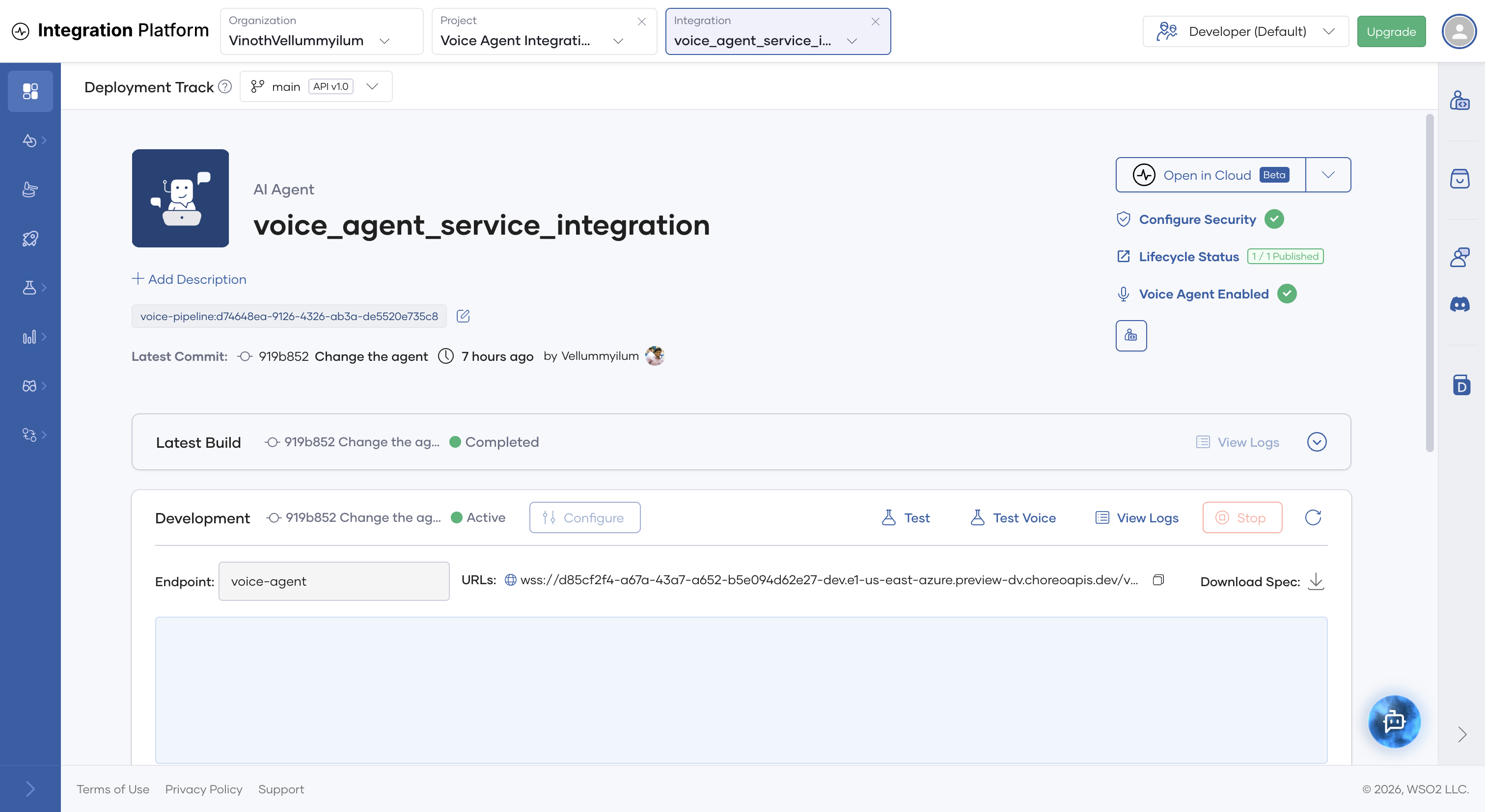
WSO2 Cloud creates a new integration (type Voice Agent) in the project, named <agent-name> - Voice Agent by default, and deploys it to the Development environment. The voice agent connects to the target agent through its Target Agent WebSocket URL configuration. For a platform-hosted agent, the AI agent's overview page now shows Voice Agent Enabled, which links to the new voice agent.
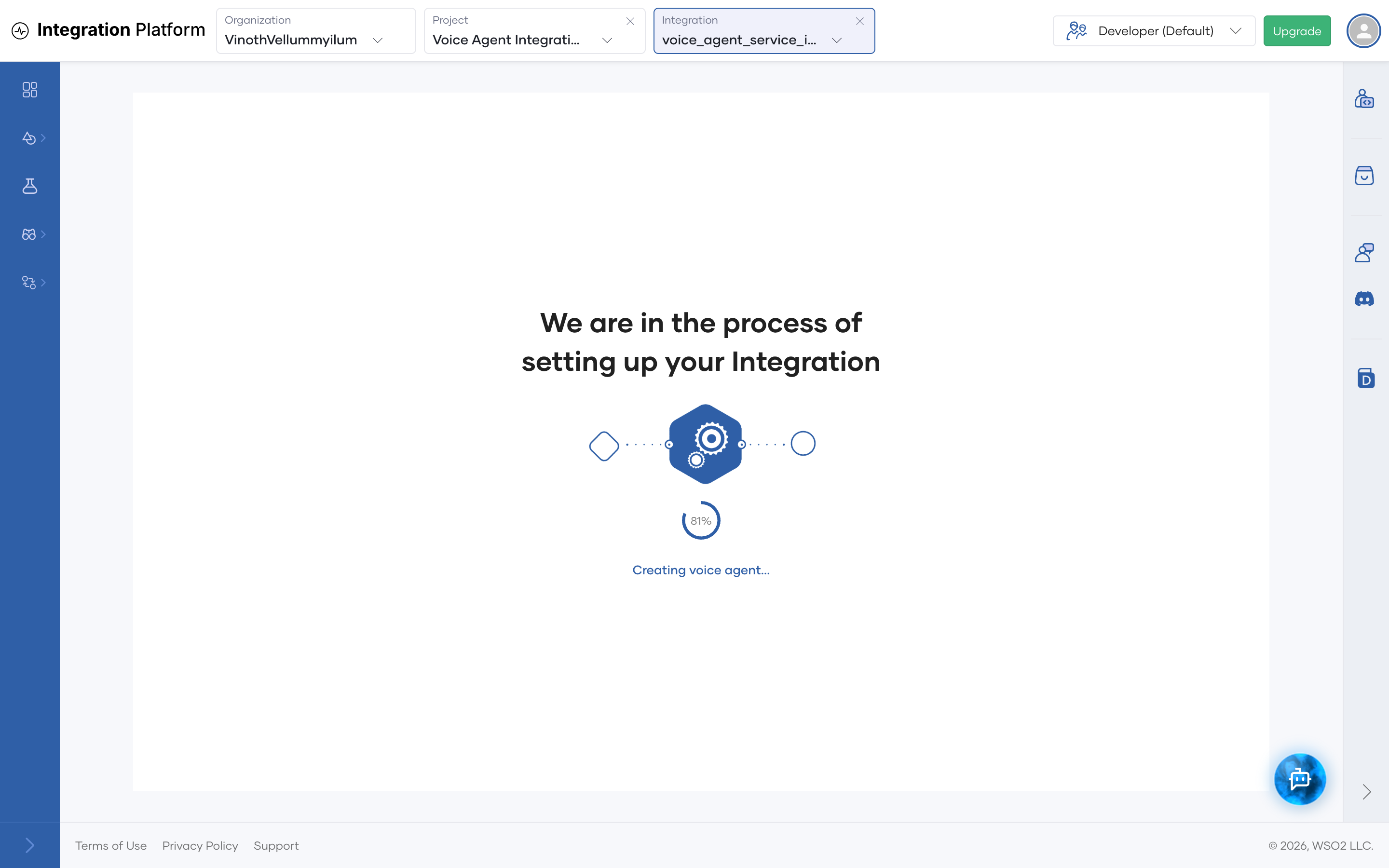
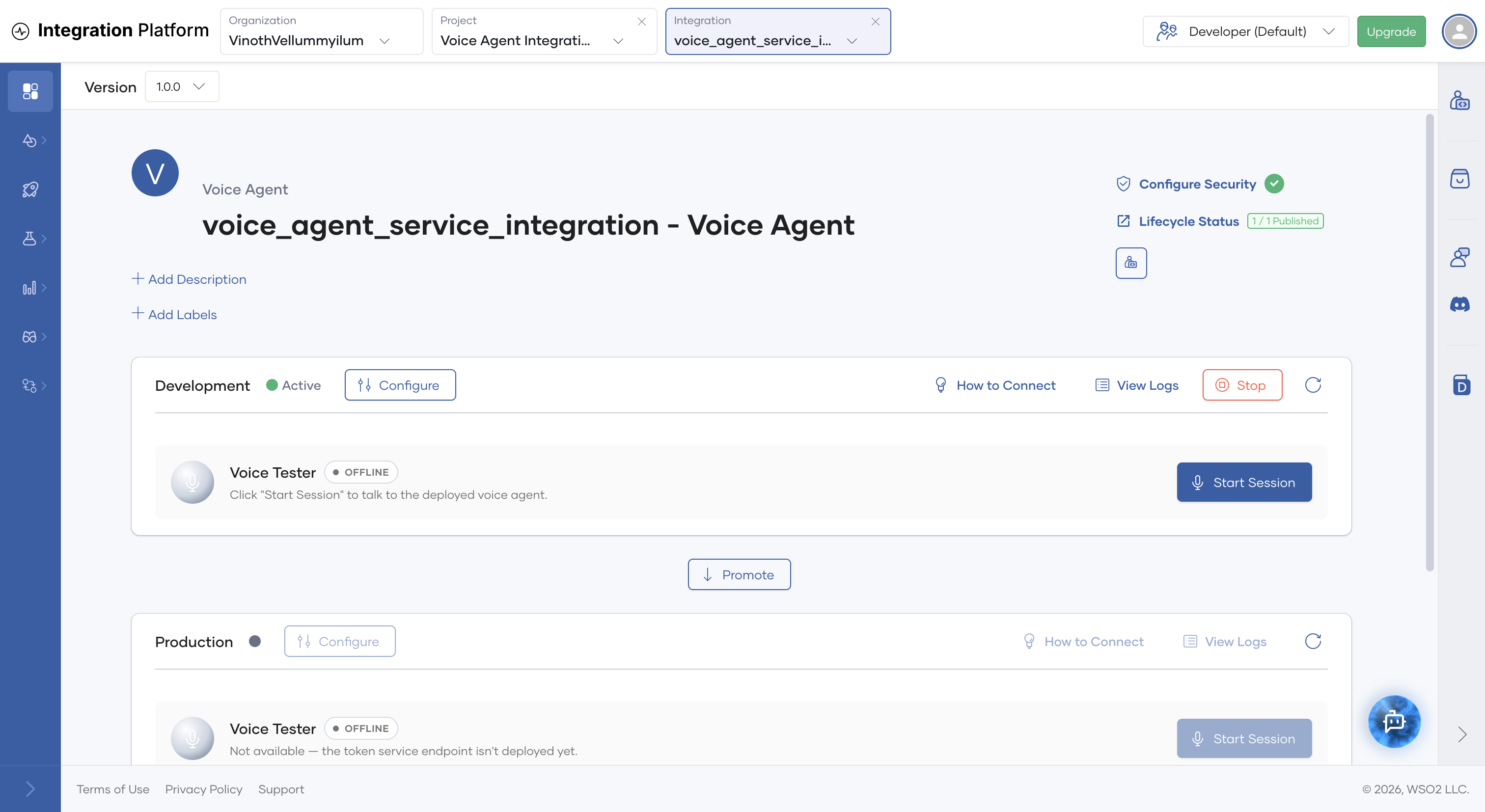
Wait until the Development card on the voice agent's overview page shows Active. The card's Voice Tester is then ready to use.
Test the voice agent
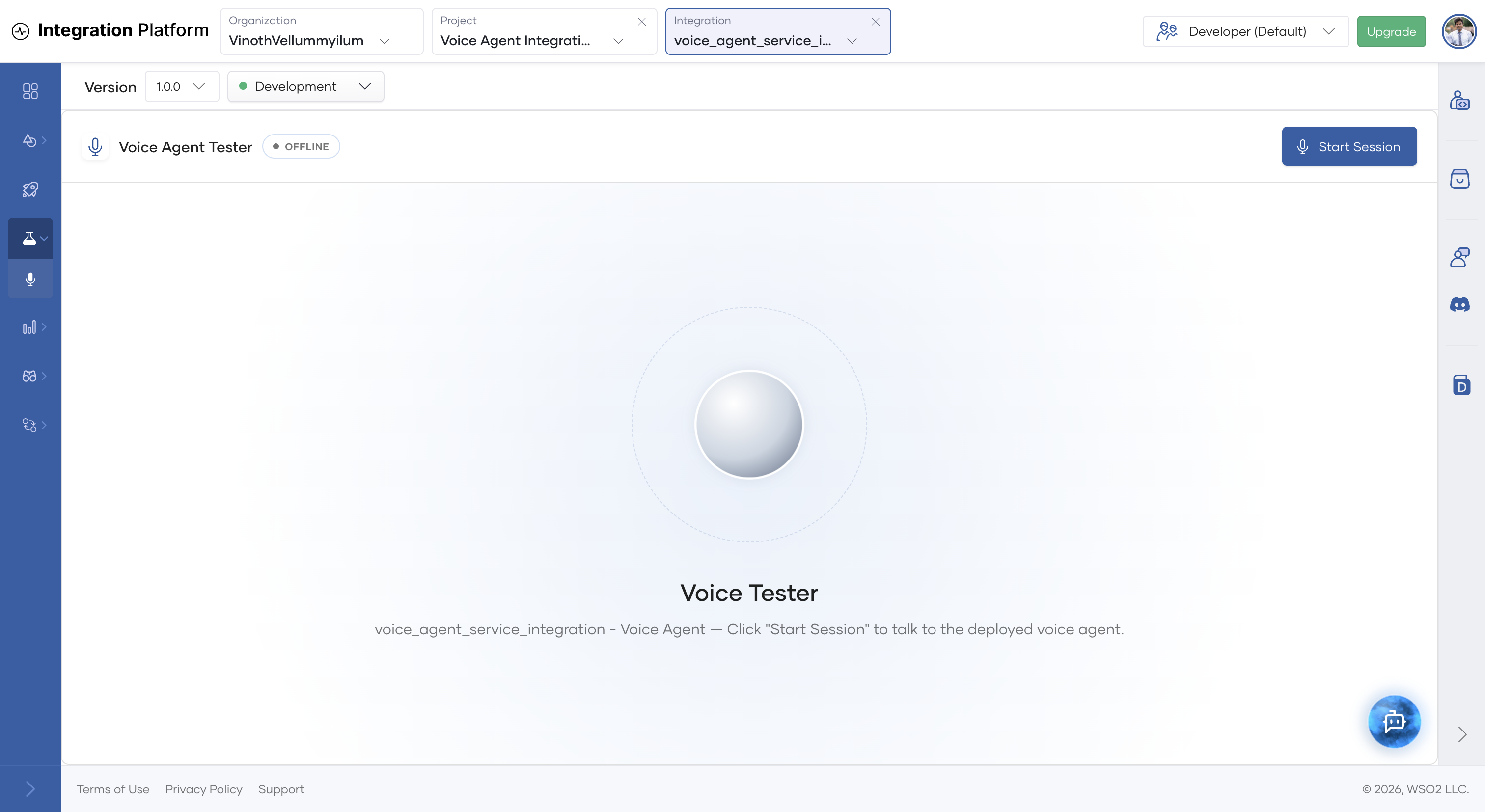
Each environment card on the voice agent's overview page has a Voice Tester. You can also open it from Test > Voice Agent in the left navigation.
-
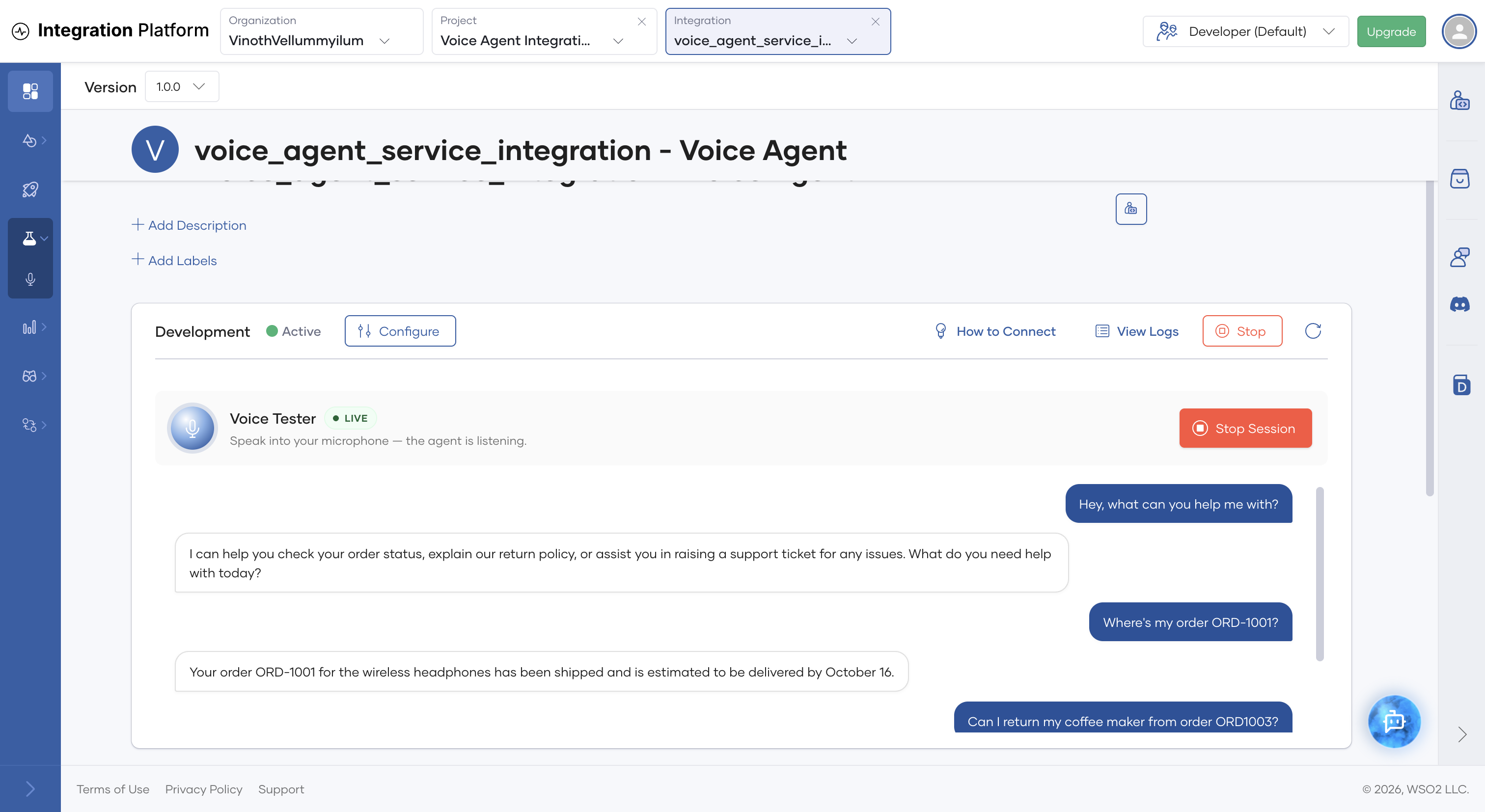
Click Start Session and allow microphone access when the browser asks. The tester shows LIVE and Speak into your microphone — the agent is listening. when it's connected.
-
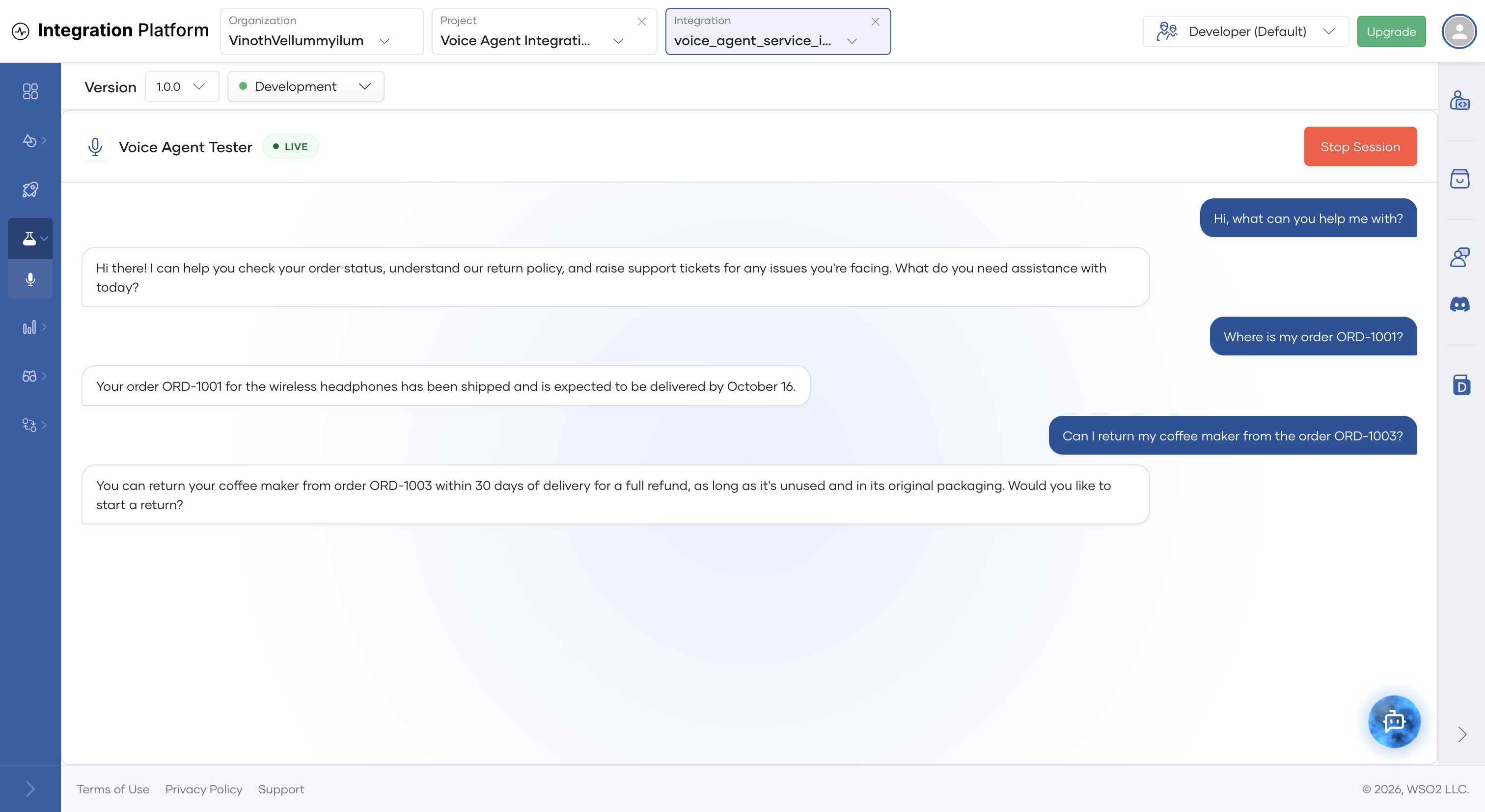
Speak to the agent. The transcript of the conversation appears in the tester, and you hear the agent's reply.
-
Click Stop Session to end the conversation.
For the customer support example, try:
- "Hi, what can you help me with?"
- "Where is my order ORD-1001?"
- "Can I return my coffee maker from order ORD-1003?"
Promote to production
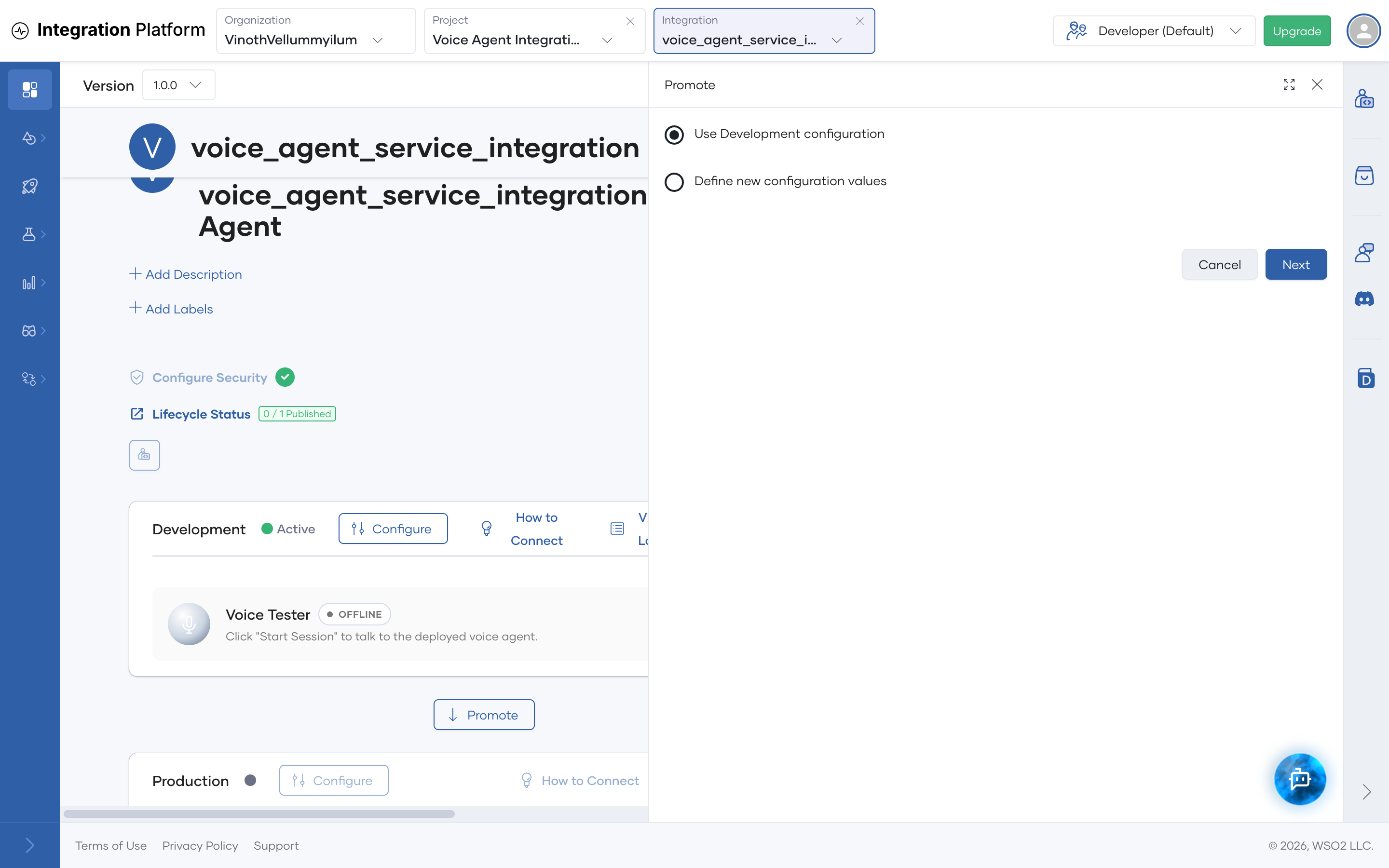
When you're ready to use the voice agent in production, click Promote on the voice agent's overview page. Choose Use Development configuration or Define new configuration values, click Next, and wait until the Production card shows Active.
Troubleshooting
The reply text appears before the audio
The transcript is published as soon as the AI agent returns its full reply, but the audio has to wait for text-to-speech synthesis. To reduce the gap:
- Keep the agent's replies short and voice-friendly: one or two sentences with no Markdown or lists.
- Use a low-latency TTS model. For OpenAI, TTS-1 is faster than TTS-1 HD or GPT-4o Mini TTS. Cartesia and Deepgram Aura are also fast.
The agent doesn't respond
- Open the voice agent's Development card, click Configure, and check that Target Agent WebSocket URL (under Target Agent) points to the target agent's running WebSocket URL. For an externally hosted agent, this is the WebSocket URL you entered, so check that it's reachable from WSO2 Cloud. When the voice agent is created, it prefers the AI agent's Production URL. If the AI agent isn't running in Production, set the Development URL manually and redeploy.
- Check the AI agent's own logs for errors, such as a missing LLM model or API key configuration.
The session ends on its own
A session ends when the user is silent for longer than User Away Timeout, or when the user leaves and Close on Participant Disconnect is on. Log entries such as publisher data channel '_reliable' closed unexpectedly followed by disconnected from room with reason: RoomClosed are part of normal room teardown, not an error.