Migrate from TIBCO BusinessWorks
TIBCO BusinessWorks builds an integration as a process definition, assembled in Business Studio and stored as XML. WSO2 Integrator describes the same integration as real Ballerina code you can compile. An automated migration tool does most of that conversion for you. This page covers running it, and how TIBCO concepts map to their WSO2 Integrator equivalents.
Prerequisites:
- WSO2 Integrator installed (wizard path), or Ballerina installed with
balon your PATH (CLI path)
Overview
The migration tool converts TIBCO BusinessWorks process definitions to Ballerina code. It handles process flows, activities, transitions, shared resources, error handling configurations, and more, using either the WSO2 Integrator migration wizard or the bal migrate-tibco CLI command. Both paths produce a migration report; the wizard additionally offers an optional AI enhancement pass that resolves unmapped elements automatically.
Run the migration tool
- WSO2 Integrator
- CLI
The migration wizard guides you through a 5-step process to convert your TIBCO BusinessWorks project(s) into a WSO2 Integrator project.
Prerequisite
- Ensure WSO2 Integrator is installed and available on your system.
Step 1: Configure source
-
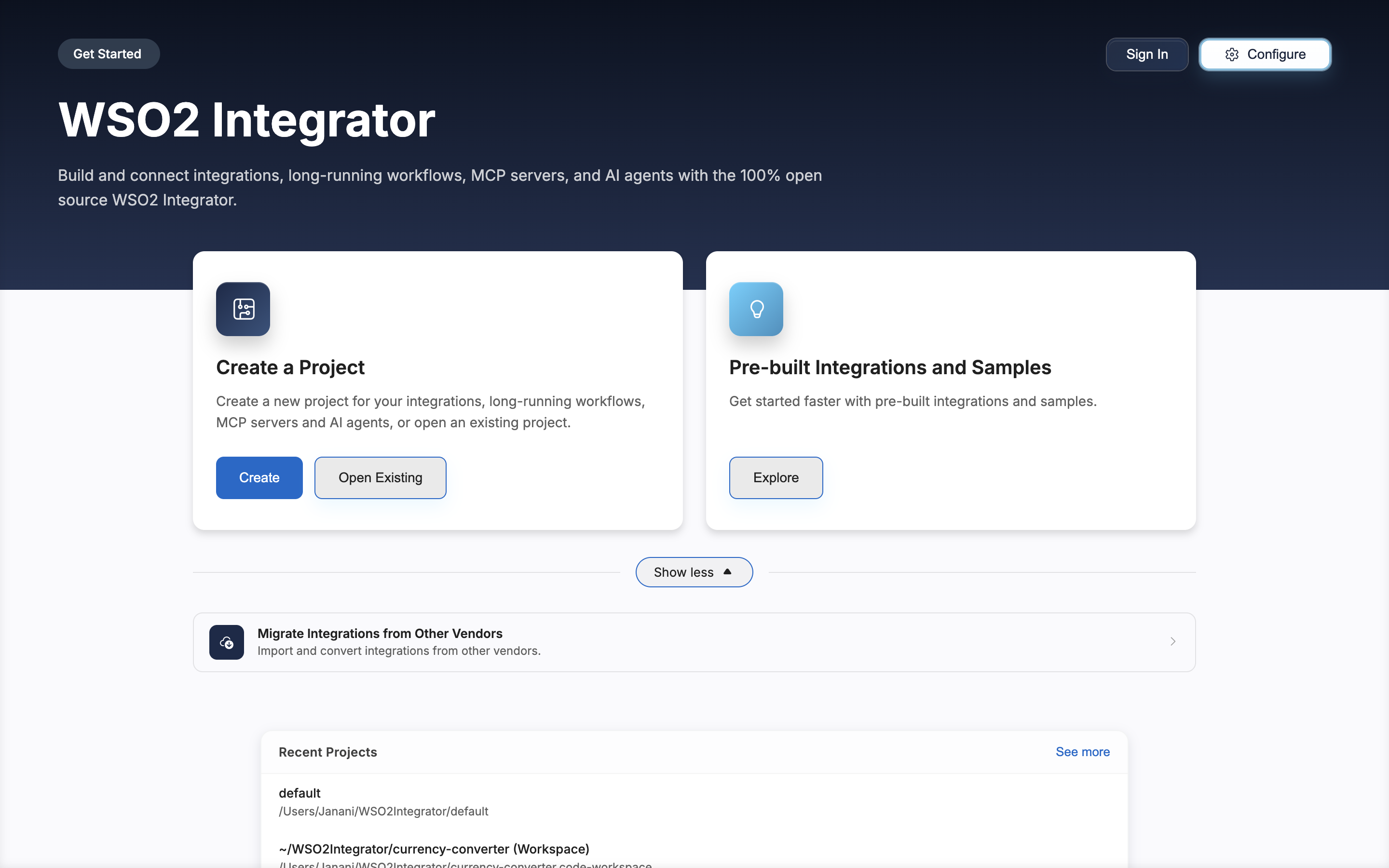
Open WSO2 Integrator, click More Actions, and select Migrate Integrations from Other Vendors.
-
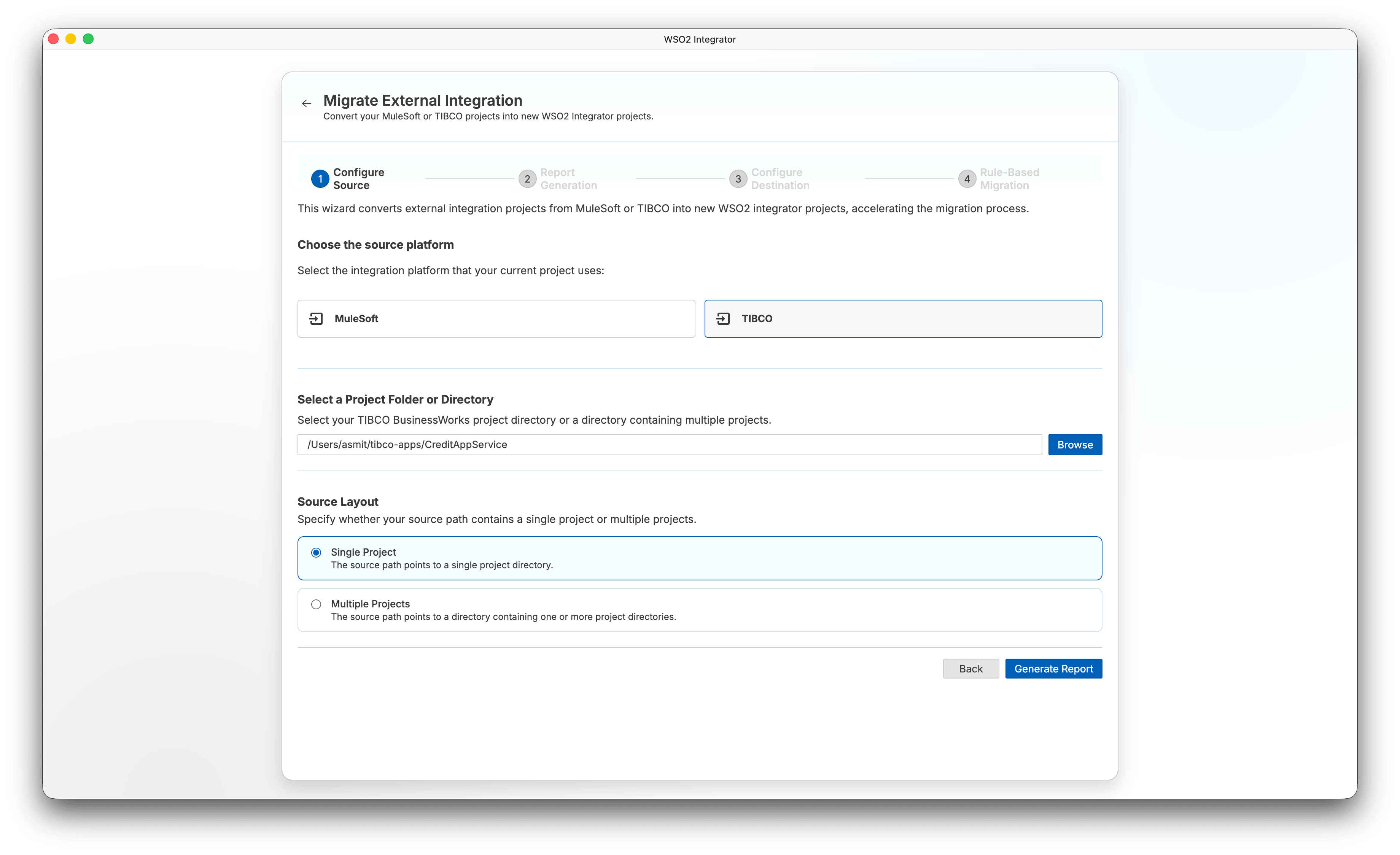
Select TIBCO as the source platform.
-
Under Select a Project Folder or Directory, click Browse and select your TIBCO BusinessWorks project directory or a directory containing multiple projects.
-
Under Source Layout, select one of the following:
- Single Project — The source path points to a single project directory.
- Multiple Projects — The source path points to a directory containing one or more project directories.
Note: The Source Layout section appears only after you select a directory.
-
Click Generate Report.
Step 2: Report generation
The wizard performs a dry run against your source project(s) to generate a coverage report before the actual migration begins.
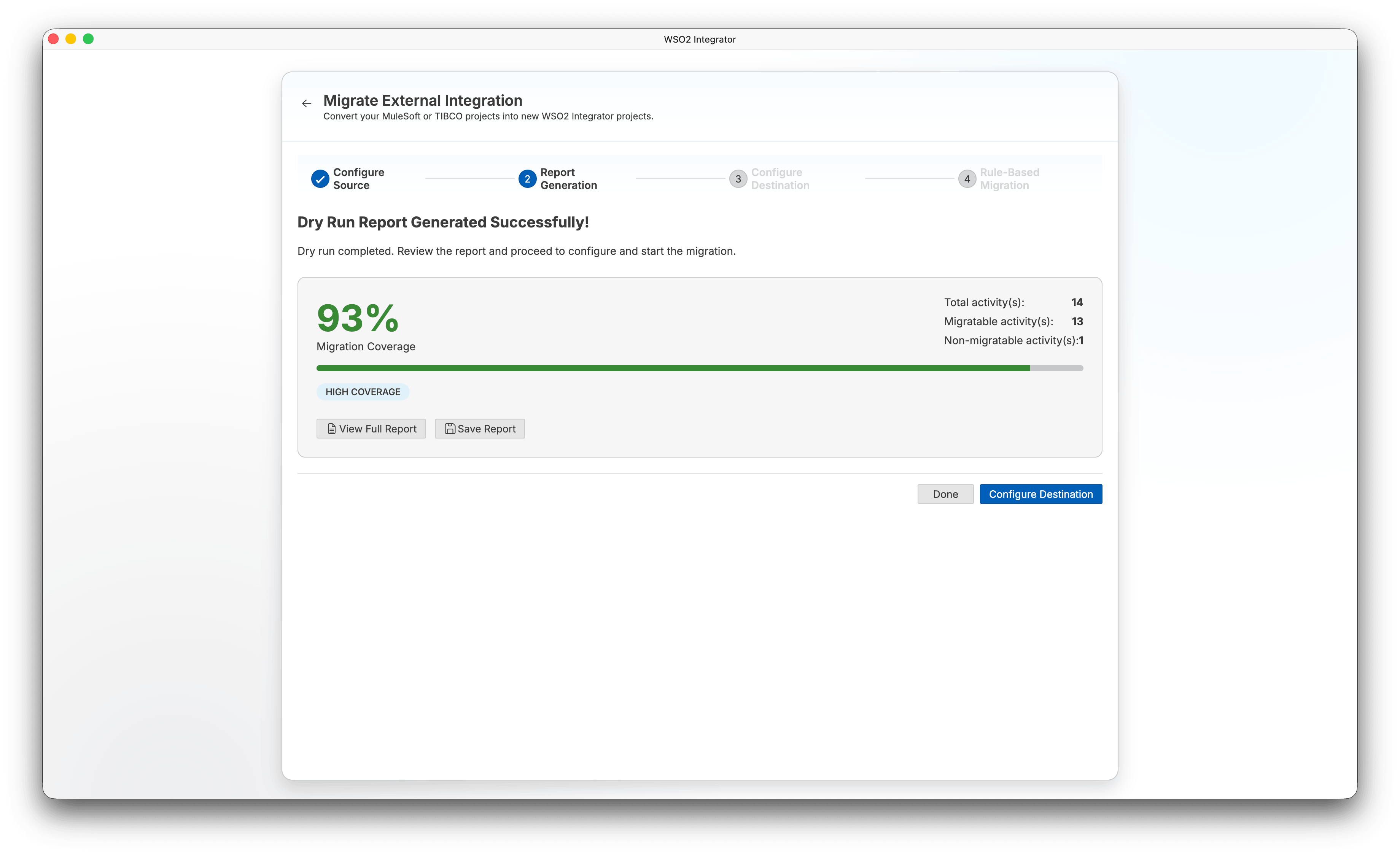
When the dry run completes, the wizard displays a summary of the migration coverage:
-
Migration Coverage — Percentage of code lines that were automatically migrated.
-
Total code lines — Total number of source code lines analyzed.
-
Migratable code lines — Lines successfully converted to Ballerina.
-
Non-migratable code lines — Lines that require manual attention.
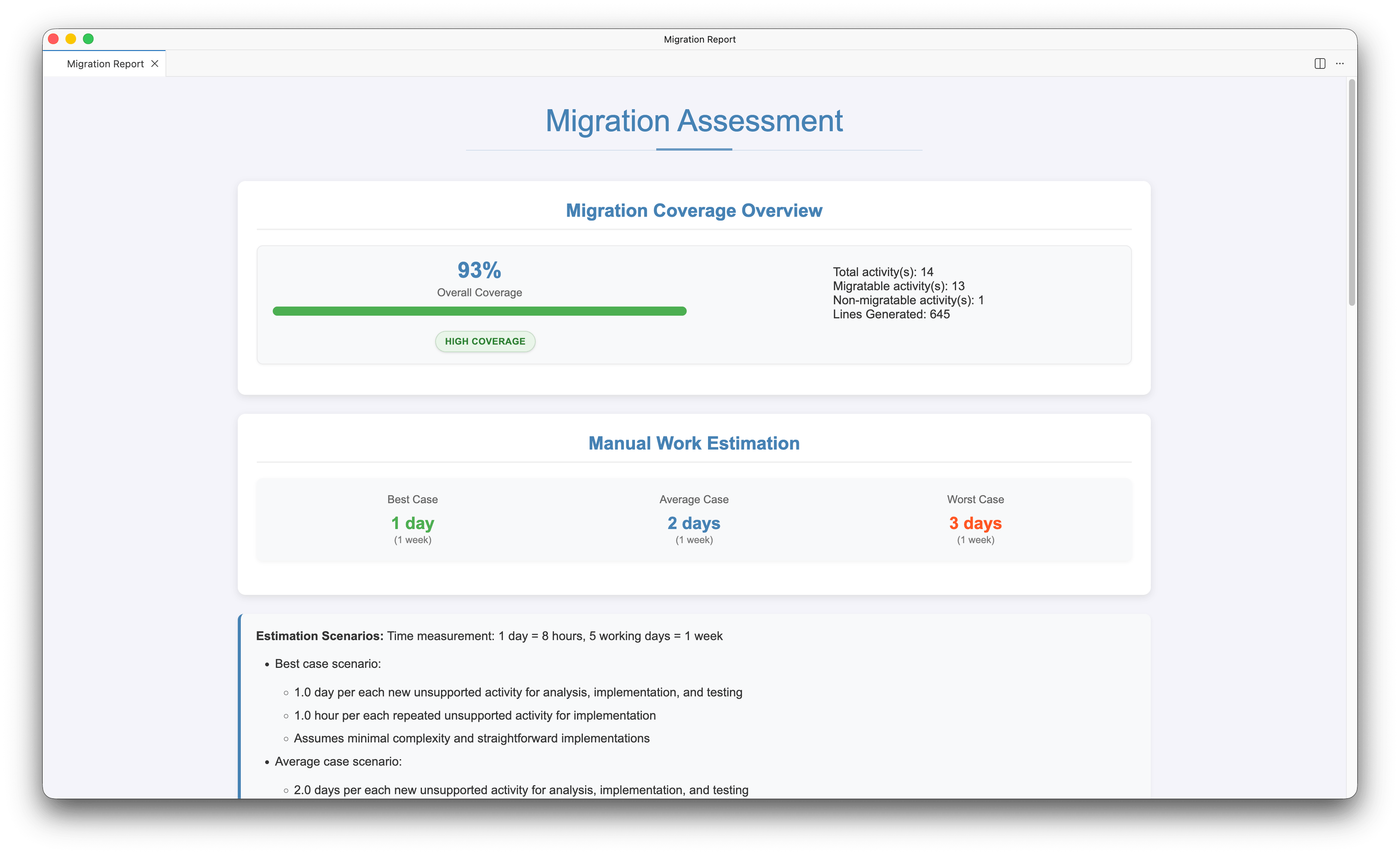
Click View Full Report to open the full HTML report. The report includes:
-
Migration Coverage Overview — Overall coverage percentage with a breakdown of total, migratable, and non-migratable code lines.
-
Manual Work Estimation — Estimated effort (best, average, and worst case) for completing non-migratable items.
-
Currently Unsupported Elements — List of elements that could not be automatically migrated.
-
Element Blocks that Require Manual Conversion — Specific code blocks that need manual implementation.
Click Save Report to download the report for future reference.
Click Configure Destination to proceed, or Done to exit the wizard.
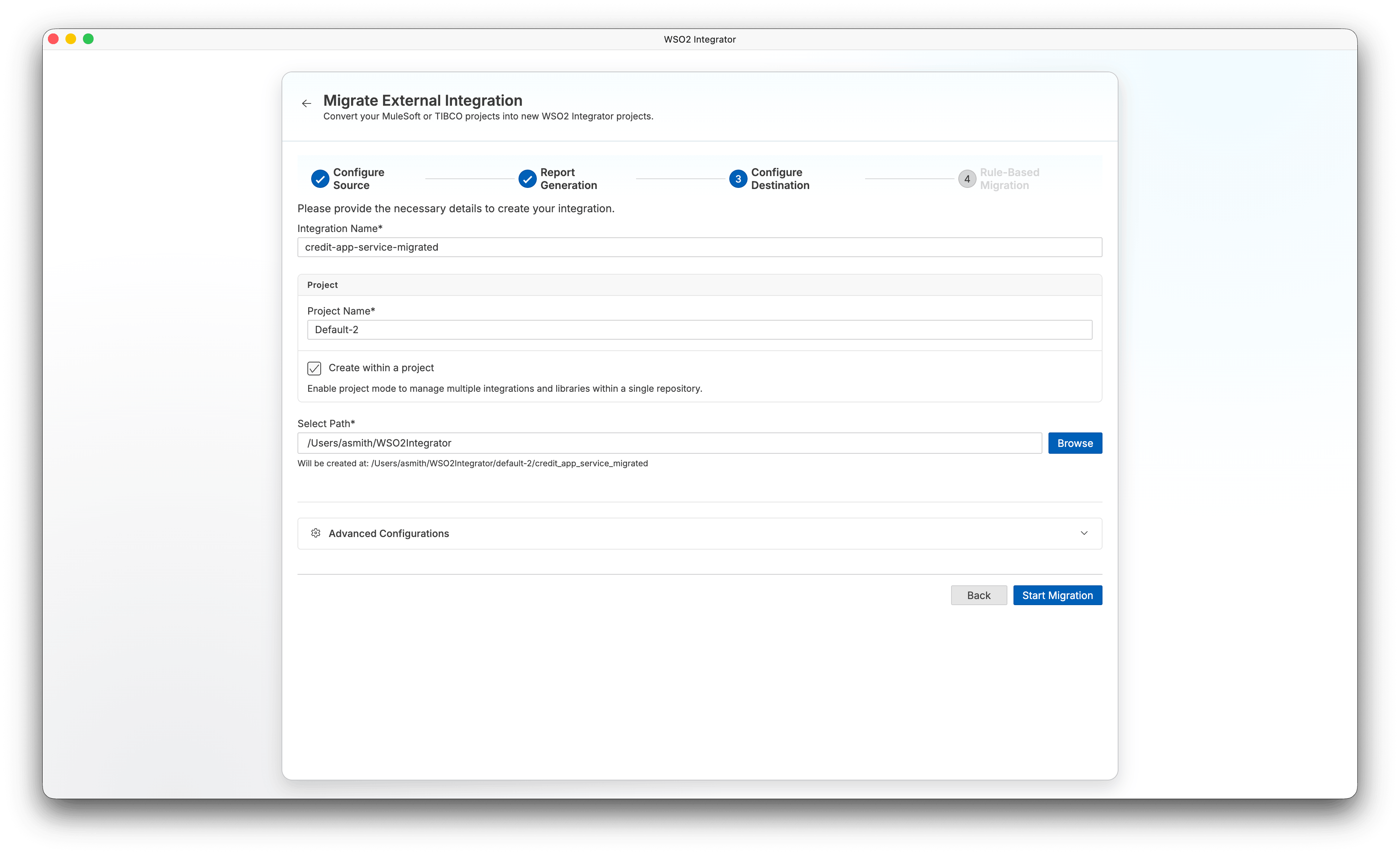
Step 3: Configure destination
-
Enter an Integration Name for your migrated project.
-
Configure the project settings:
- Project Name — Name of the project (defaults to
Default). - Create within a project — Enable project mode to manage multiple integrations and libraries within a single repository.
- Select Path — Choose where to create the migrated project.
- Project Name — Name of the project (defaults to
-
Click Start Migration.
Step 4: Rule-based migration
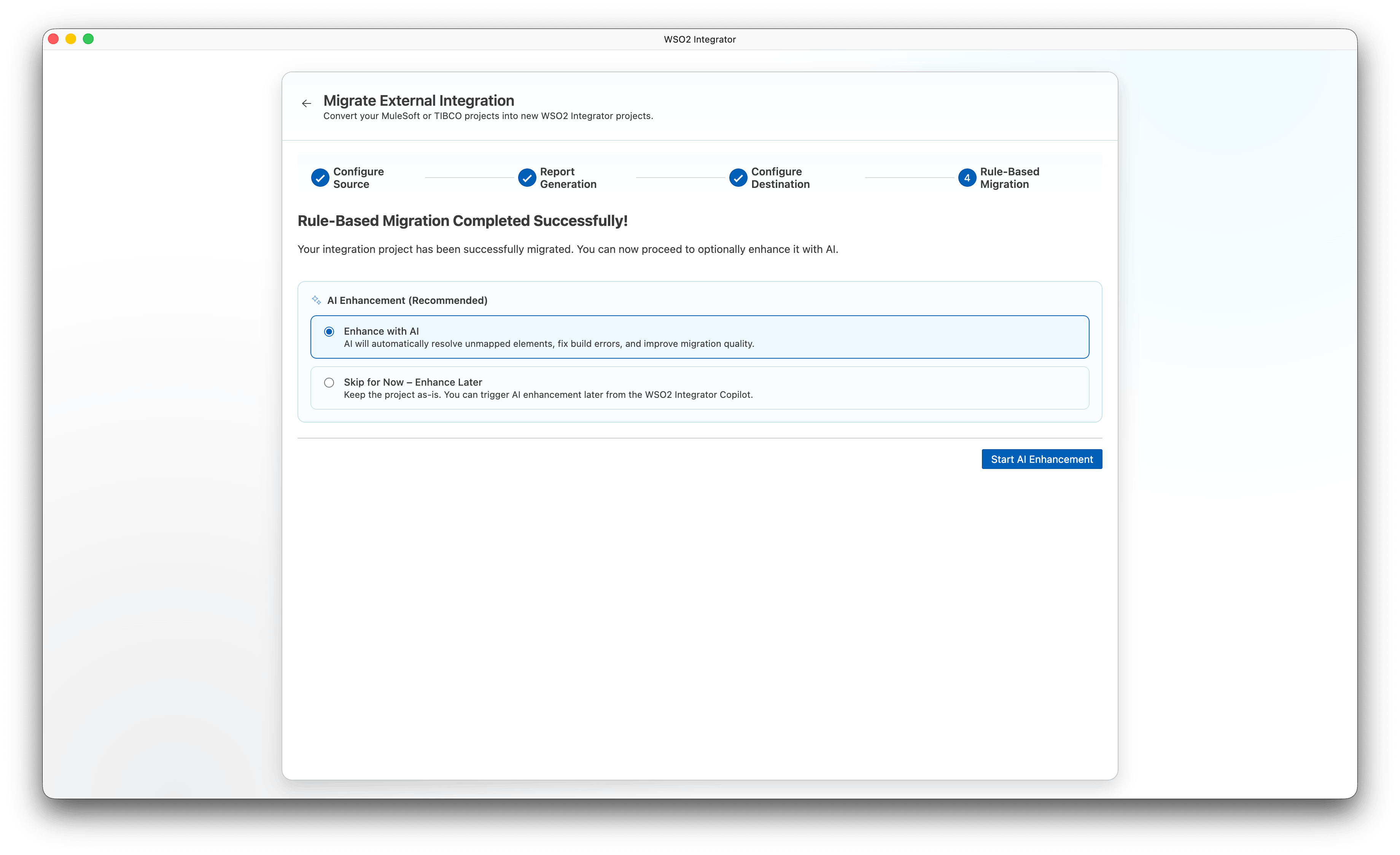
The wizard runs the automated rule-based migration and displays progress in the migration log.
After the migration completes successfully, the AI Enhancement (Recommended) section appears. Select one of the following:
- Enhance with AI — AI automatically resolves unmapped elements, fixes build errors, and improves migration quality.
- Skip for Now – Enhance Later — Keep the project as-is. You can trigger AI enhancement later from WSO2 Integrator Copilot.
Click Start AI Enhancement to proceed to Step 5, or if you chose to skip, click Open Project to open the migrated project or Done to exit.
Step 5: AI enhancement
This step runs only if you selected Enhance with AI in Step 4.
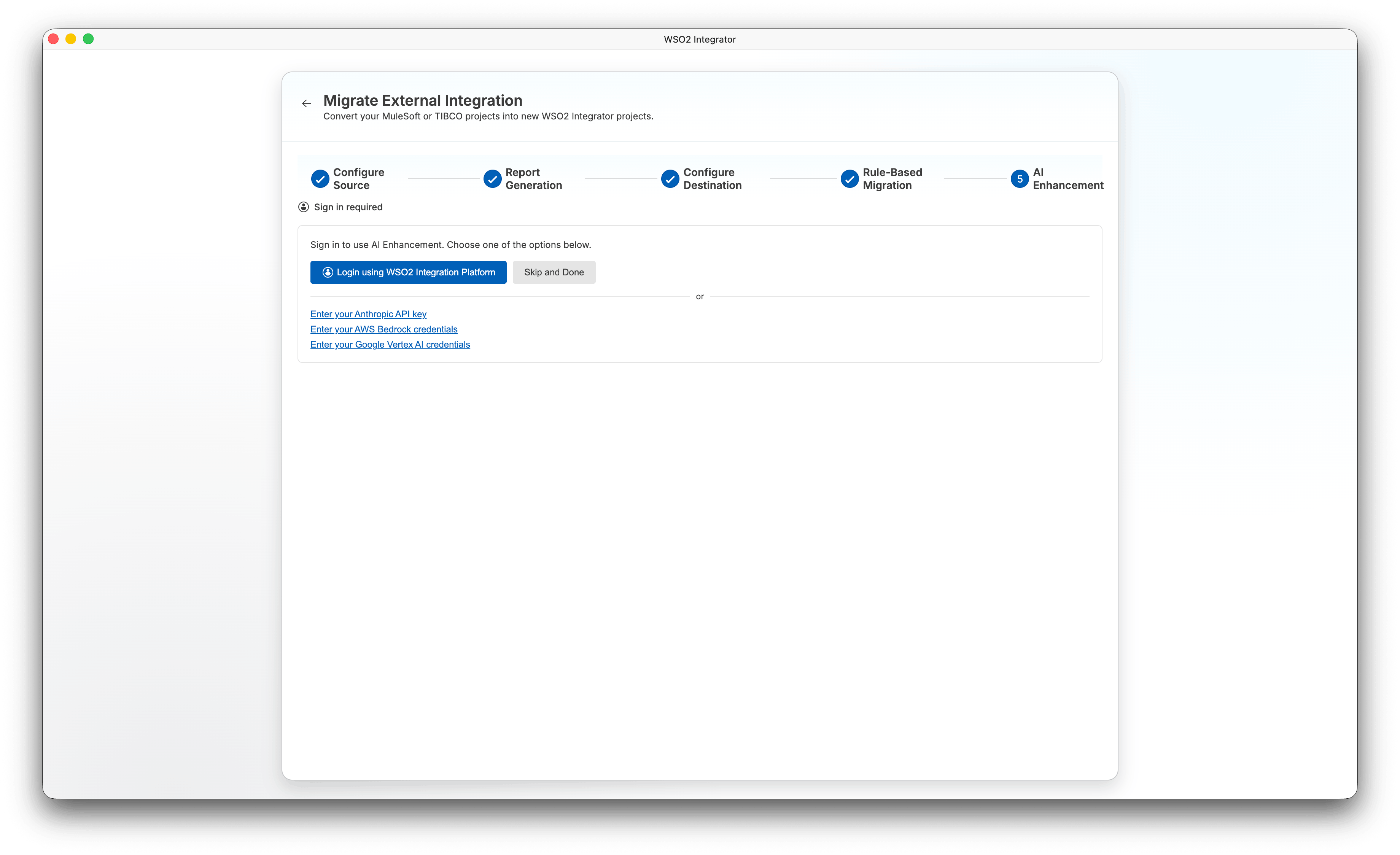
The wizard first checks whether you are signed in. If not, a sign-in panel appears:
-
Click Login using WSO2 Integration Platform to sign in using SSO, or use one of the alternative options:
- Enter your Anthropic API key
- Enter your AWS Bedrock credentials
- Enter your Google Vertex AI credentials
-
To skip AI enhancement and exit, click Skip and Done.
After signing in, the AI agent runs automatically and streams its progress. The agent resolves unmapped elements, fixes build errors, and improves the overall quality of the migrated code.
While the agent is running:
-
Click Pause to pause the AI enhancement. Click Resume to continue.
-
Click Done to exit the wizard, or Open Project to open the project without waiting for the agent to finish.
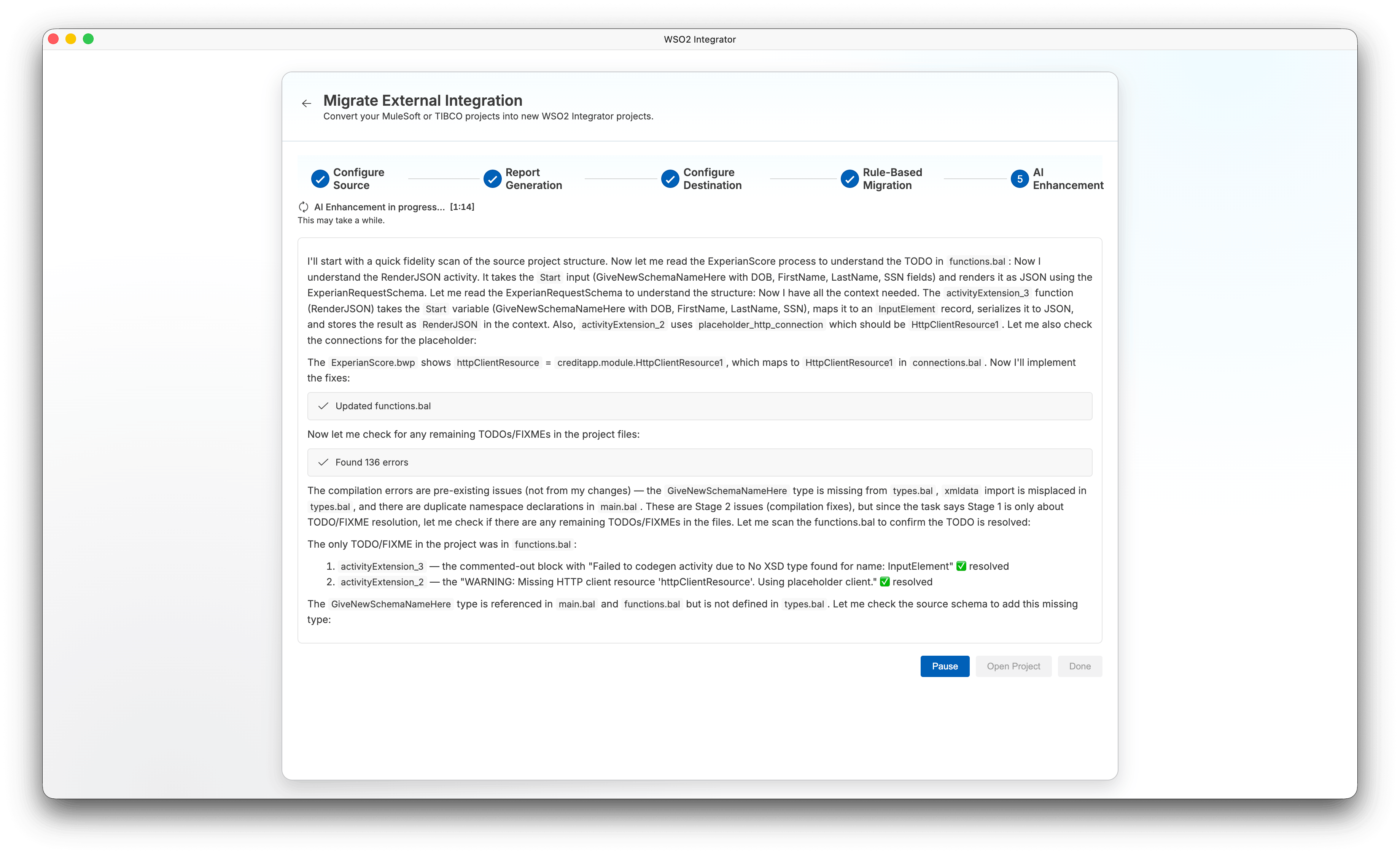
When the AI enhancement completes, the status shows AI Enhancement completed. Click Open Project to open the migrated project or Done to exit.
CLI prerequisite
- Ensure Ballerina is installed, and the
balcommand is available in your environment.
Steps
- Install the migration tool:
bal tool pull migrate-tibco - Run the migration command:
bal migrate-tibco <source-project-directory-or-file> [-o|--out <output-directory>] [-k|--keep-structure] [-v|--verbose] [-d|--dry-run] [-m|--multi-root] [-g|--org-name <organization-name>] [-p|--project-name <project-name>]
Key parameters
| Parameter | Description |
|---|---|
<source-project-directory-or-file> | Path to the TIBCO BusinessWorks project directory or a standalone process file |
-o, --out <output-directory> | (Optional) Output directory for the generated Ballerina package |
-k, --keep-structure | (Optional) Preserve original process structure |
-v, --verbose | (Optional) Enable verbose output |
-d, --dry-run | (Optional) Analyze and generate a migration report without creating Ballerina code |
-m, --multi-root | (Optional) Treat each child directory as a separate TIBCO project and convert all |
-g, --org-name <organization-name> | (Optional) Organization name for the generated Ballerina package |
-p, --project-name <project-name> | (Optional) Project name for the generated Ballerina package |
Examples
# Migrate a project to a specific output directory
bal migrate-tibco /path/to/tibco-project -o /path/to/output-dir

# Migrate all TIBCO BusinessWorks projects in a directory (multi-root mode)
bal migrate-tibco /path/to/projects-directory -o /path/to/output-dir -m

# Dry run — generate a report without creating code
bal migrate-tibco /path/to/projects-directory -o /path/to/output-dir -m -d
For more CLI options and usage, see the official migration tool documentation.
Note: AI enhancement is available only in the WSO2 Integrator wizard, not in the CLI.
Handle manual migration items
The migration tool converts everything it can automatically. The output directory contains:
migration_report.html— the rule-based migration report listing every TIBCO activity, its conversion status, and any items that need manual attention.ENHANCEMENT_SUMMARY.md— present only if you opted in to AI enhancement. It summarizes the AI-assisted improvements applied on top of the rule-based migration.
Open migration_report.html and work through any non-migratable items. If you opted in to AI enhancement, check ENHANCEMENT_SUMMARY.md first — many of these items may already have been resolved automatically. Only address what remains:
- Unsupported activities: Implement the equivalent Ballerina logic manually. Refer to the concept mapping table below.
- Custom XSLT/XPath transformations: Replace with Ballerina query expressions or use the Visual Data Mapper.
- Complex Mapper Activity expressions: Open the Visual Data Mapper in the WSO2 Integrator editor and redraw the mappings.
Configure credentials
The migration tool extracts TIBCO Global Variables and connection settings into a Config.toml in the output directory. The generated file contains placeholder values — replace them with the correct values for your environment before running the migrated project:
# Config.toml — generated by the tool; update values before running
dbHost = "localhost"
dbUser = "myuser"
dbPassword = "mypassword"
httpEndpoint = "https://api.example.com"
Test the migrated integration
If the source TIBCO project had tests, the migration tool converts them to Ballerina. Run them with:
bal test
You can also use the Try-It tool built into WSO2 Integrator to send requests to your HTTP service interactively without leaving the editor. Open the service file, click Try it, and test each endpoint against the responses returned by the original TIBCO application.
Deploy
Once tests pass, run the integration locally:
bal run
To build a deployable artifact:
bal build
See Deploy for Docker, Kubernetes, and cloud deployment options.
Concept mapping
| In TIBCO BusinessWorks | In WSO2 Integrator | Notes |
|---|---|---|
| Process Definition | Service / Automation | HTTP-triggered processes become services; timer-triggered processes become automations |
| Activity | Node in flow designer | Visual flow nodes map to activities |
| Sub-Process | Function | Reusable process fragments become Ballerina functions |
| Palette | Connector catalog | Pre-built integrations available on Ballerina Central |
| Process Variable | Ballerina variable | Typed variables; no implicit context object |
| Shared Variable | Configurable variable | configurable keyword in Ballerina; values from Config.toml |
| Global Variables | Config.toml | Externalized configuration with environment override support |
| JDBC Connection | Database connector | ballerinax/mysql, ballerinax/postgresql, etc. |
| HTTP Connection | HTTP client | ballerina/http:Client |
| JMS Connection | Messaging connector | ballerinax/kafka, ballerinax/rabbitmq |
| WSDL/SOAP Palette | WSDL tool | bal wsdl generates type-safe Ballerina clients |
| Mapper Activity | Visual Data Mapper | Drag-and-drop field mapping with expression support |
| Group (Transaction) | transaction block | Ballerina has first-class transaction support |
| Catch / Fault Handler | do/on fail | Typed error handling; each error type handled separately |
| Checkpoint | transaction block | Use Ballerina transactions for rollback boundaries |
| Timer | Automation with schedule | task:Listener with cron or interval configuration |
| Log Activity | log:printInfo / log:printError | Structured logging |
| Engine | Ballerina runtime | JVM-based runtime; distributable as a standalone JAR |
| Administrator | WSO2 Integrator editor + ICP | Development editor + Integration Control Plane for monitoring |
Key differences
Development model
TIBCO BusinessWorks uses Eclipse-based Business Studio with XML process definition files. WSO2 Integrator uses a visual designer that is bidirectionally synced with Ballerina code. You can switch between the visual canvas and the code editor at any time; changes in one are instantly reflected in the other, with no separate export or import step.
| Aspect | TIBCO BusinessWorks | WSO2 Integrator |
|---|---|---|
| Editor | TIBCO Business Studio (Eclipse) | WSO2 Integrator editor |
| Process definition | XML files | Ballerina code (visual designer synced) |
| Deployment | TIBCO Admin + AppNode | JAR, Docker, Kubernetes |
| Configuration | Global variables + properties | Config.toml + environment variables |
| Testing | TIBCO Test Suite | Built-in Ballerina test framework (bal test) |
| Version control | Limited XML diff | Standard Git workflows on .bal files |
Process definitions vs. Ballerina services
In TIBCO, a Process Definition is an XML file describing a sequence of activities. In WSO2 Integrator, the equivalent is a Ballerina service (for HTTP-triggered processes) or an automation (for timer-triggered processes). The logic is expressed in Ballerina code, not XML.
TIBCO (process overview):
HTTP Receiver → JDBC Query → Mapper Activity → Send HTTP Response
WSO2 Integrator (Ballerina):
import ballerina/http;
import ballerinax/mysql;

configurable string dbHost = ?;
configurable string dbUser = ?;
configurable string dbPassword = ?;

final mysql:Client db = check new (host = dbHost, user = dbUser, password = dbPassword, database = "orders");

service /api on new http:Listener(8090) {
    resource function get orders/[string id]() returns json|error {
        record {|string orderId; string customer; decimal total;|} result =
            check db->queryRow(`SELECT order_id, customer, total FROM orders WHERE order_id = ${id}`);
        return result.toJson();
    }
}
Mapper Activity vs. Visual Data Mapper
TIBCO's Mapper Activity uses an XML-based mapping editor to transform data between activities. WSO2 Integrator has the Visual Data Mapper, a drag-and-drop tool where you define typed source and target record types and draw field connections. Expressions and function calls can be added inline. For complex transformations, write Ballerina query expressions directly in the code editor.
Error handling
TIBCO uses Catch Activities and Fault Handlers at the process level. WSO2 Integrator uses do/on fail blocks inline in the code. Ballerina errors are typed: each error type is handled separately, similar to how TIBCO lets you match specific fault types.
TIBCO (Fault Handler concept):
Catch (FaultType = DB_FAULT) → Log → SetOutput("Database unavailable")
Catch (FaultType = *) → Log → SetOutput("Unexpected error")
WSO2 Integrator:
do {
    record {|string orderId; string customer;|} result =
        check db->queryRow(`SELECT order_id, customer FROM orders WHERE order_id = ${id}`);
    return result.toJson();
} on fail mysql:DatabaseError dbErr {
    // Equivalent to catching DB_FAULT
    log:printError("Database error", dbErr);
    return <http:ServiceUnavailable>{body: {message: "Database unavailable"}};
} on fail error err {
    // Equivalent to catching all other faults
    log:printError("Unexpected error", err);
    return <http:InternalServerError>{body: {message: "Unexpected error"}};
}
The key advantage is that Ballerina errors are typed. You handle mysql:DatabaseError specifically rather than matching on a string fault type like DB_FAULT.
How the migration tool converts your project
1. Process inventory
The tool categorizes each TIBCO process definition:
- HTTP Receiver processes → WSO2 Integrator services
- Timer-triggered processes → automations
- JMS/Kafka listener processes → event handlers
- Sub-processes → Ballerina functions
2. Mapper Activity conversion
For each Mapper Activity:
- Simple field mappings become Visual Data Mapper mappings (drag and drop).
- Complex XPath/XSLT expressions become Ballerina query expressions or inline Ballerina expressions.
- Format conversions (XML to JSON, CSV, etc.) use
ballerina/data.xmldata,ballerina/data.csv, etc.
3. Connection mapping
For each TIBCO connection resource:
- JDBC Connection →
ballerinax/mysql,ballerinax/postgresql, etc. - HTTP Connection → the
ballerina/httpclient - JMS Connection →
ballerinax/kafkaorballerinax/rabbitmq - WSDL/SOAP service → run
bal wsdlto generate a type-safe Ballerina client - File Connection →
ballerina/file,ballerina/io, orballerina/ftp - Check the Connectors page for the full list.
4. Activity constructs
The tool maps TIBCO's built-in activities to their Ballerina equivalents:
- HTTP Receiver →
serviceresource function - HTTP Client →
http:Clientcall - JDBC Query / JDBC Update → database client
query/execute - JMS Send / JMS Receive → Kafka/RabbitMQ producer/consumer
- Mapper Activity → Visual Data Mapper or query expression
- Assign Activity → local variable assignment
- Log Activity →
log:printInfo/log:printError - Group (Transaction) →
transactionblock - Catch / Fault Handler →
do/on fail - Sub-Process Call → direct function call
- Receive Timer →
task:Listenerautomation - Checkpoint →
transactionblock boundary
Common gotchas
- No XML process files: The migration output is Ballerina code, not XML. If your CI/CD pipeline references TIBCO XML files, update it to use
bal buildandbal run. - Shared Variables scope: TIBCO Shared Variables are global and mutable. In Ballerina, use
configurablevariables (read fromConfig.toml) for static config, or a database/cache for runtime-mutable shared state. - Checkpoint vs. transaction: TIBCO Checkpoints define recovery points in a process. In Ballerina, use
transactionblocks for rollback boundaries. True process-level checkpointing requires external state storage. - Mapper Activity output format: The TIBCO Mapper Activity works on XML data. The migration tool converts these to Ballerina record types, but review complex mappings (especially those with namespace-qualified XML) as they may need adjustments.
- Palette connectors: Not all TIBCO Palette connectors have direct equivalents on Ballerina Central. Check the Connectors page; for connectors without a match, use the generic
http:Clientor implement a custom Ballerina client. - Sub-process calling conventions: TIBCO sub-processes can be called synchronously or asynchronously. In Ballerina, use a regular function call for synchronous and
startfor fire-and-forget.
Examples
HTTP service with database query
TIBCO (Process Definition):
HTTP Receiver → JDBC Query → Mapper Activity → Send HTTP Response
WSO2 Integrator (Ballerina):
import ballerina/http;
import ballerinax/mysql;

configurable string dbHost = ?;
configurable string dbUser = ?;
configurable string dbPassword = ?;

final mysql:Client db = check new (host = dbHost, user = dbUser, password = dbPassword, database = "orders");

service /api on new http:Listener(8090) {
    resource function get orders/[string id]() returns json|error {
        record {|string orderId; string customer; decimal total;|} result =
            check db->queryRow(`SELECT order_id, customer, total FROM orders WHERE order_id = ${id}`);
        return result.toJson();
    }
}
Scheduled automation
TIBCO (Timer-triggered process):
Timer (every 5 min) → JDBC Query → JMS Send
WSO2 Integrator (Ballerina):
import ballerina/task;
import ballerinax/mysql;
import ballerinax/kafka;

configurable string dbHost = ?;
configurable string dbUser = ?;
configurable string dbPassword = ?;
configurable string kafkaBootstrap = ?;

final mysql:Client db = check new (host = dbHost, user = dbUser, password = dbPassword, database = "events");
final kafka:Producer kafkaProducer = check new ({bootstrapServers: kafkaBootstrap});

service "eventPoller" on new task:Listener({intervalInMillis: 300000}) {
    remote function onTrigger() returns error? {
        stream<record {|string eventId; string payload;|}, error?> events =
            db->query(`SELECT event_id, payload FROM events WHERE processed = FALSE`);
        check from var event in events
            do {
                check kafkaProducer->send({topic: "events", value: event.payload.toBytes()});
            };
    }
}