Configure an LLM provider template
When the built-in templates don't cover the upstream LLM service you want to use, create a custom template for it. This guide shows how to create a custom template, complete its configuration, manage its versions, and deploy it to a gateway.
Prerequisites
- A user whose token carries two scopes:
ap:llm_template:manageto create, edit, and delete templates, andap:llm_template:readto list them. In the role-to-scope mapping,ap_adminandap_operatorgrant both scopes.ap_publisherandap_viewergrant onlyap:llm_template:read, which permits listing templates but not modifying them. - At least one AI Gateway created and set up
- The endpoint URL and OpenAPI specification of the upstream service
Create a custom template
- Navigate to AI Workspace > Settings > LLM Provider Templates.
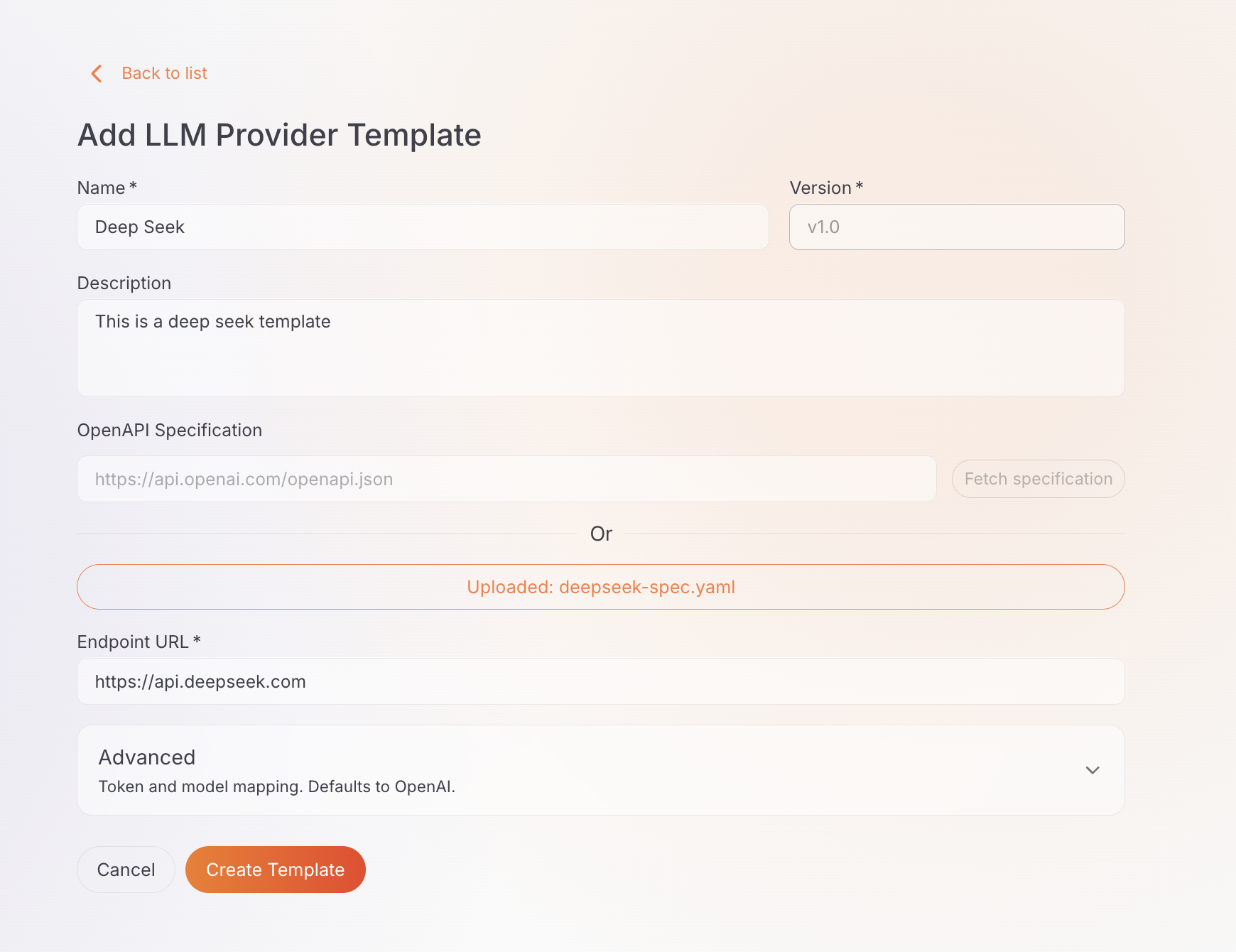
- Click Create.
- Enter the relevant details, including the template name and the upstream endpoint URL (for example,
https://api.example.com). - Click Create.
The new template starts at version v1.0. Open it to complete the rest of the configuration.
Configure the template
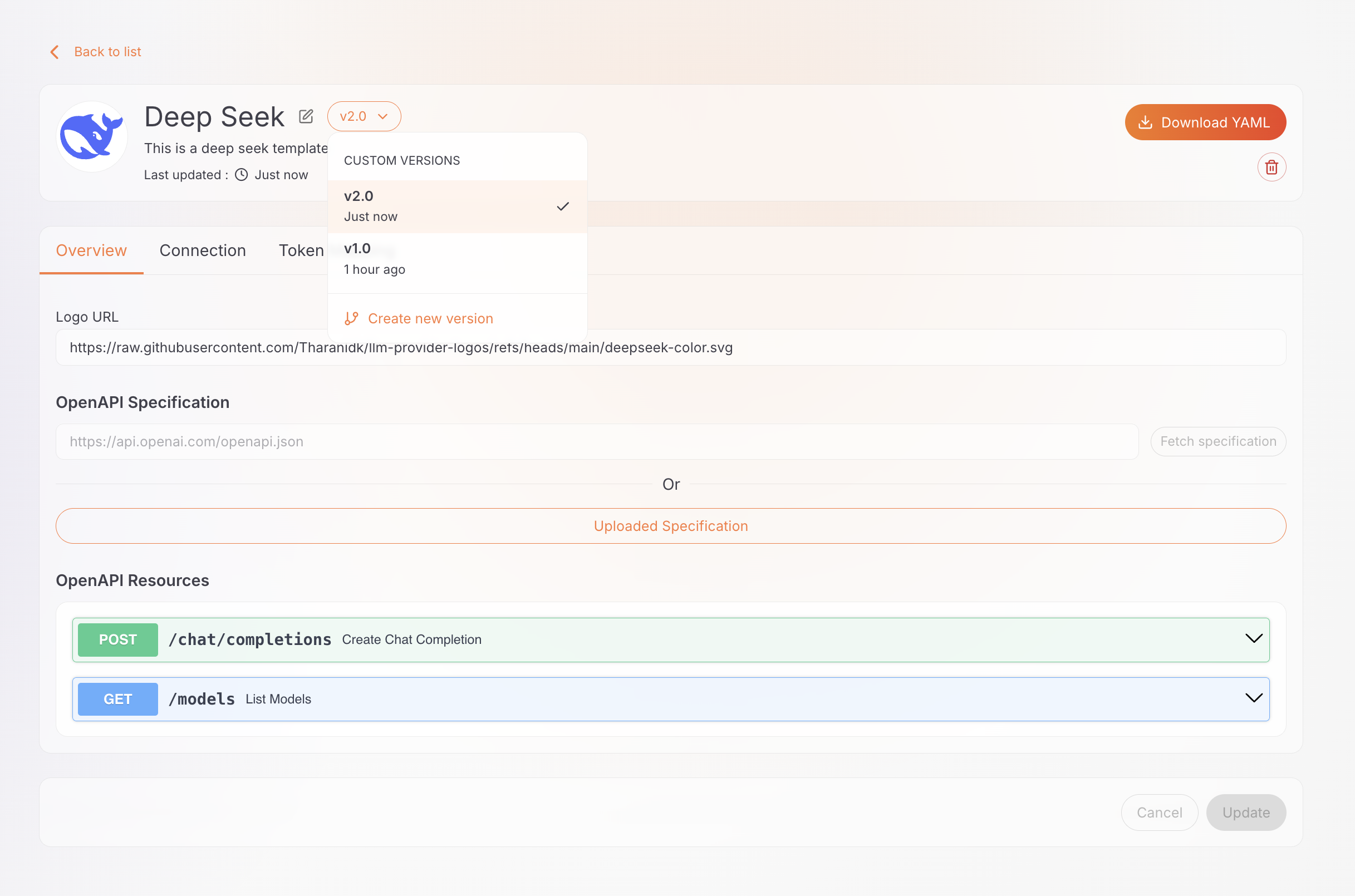
The template details page has an overview, a version selector, and the tabs described below.
Overview
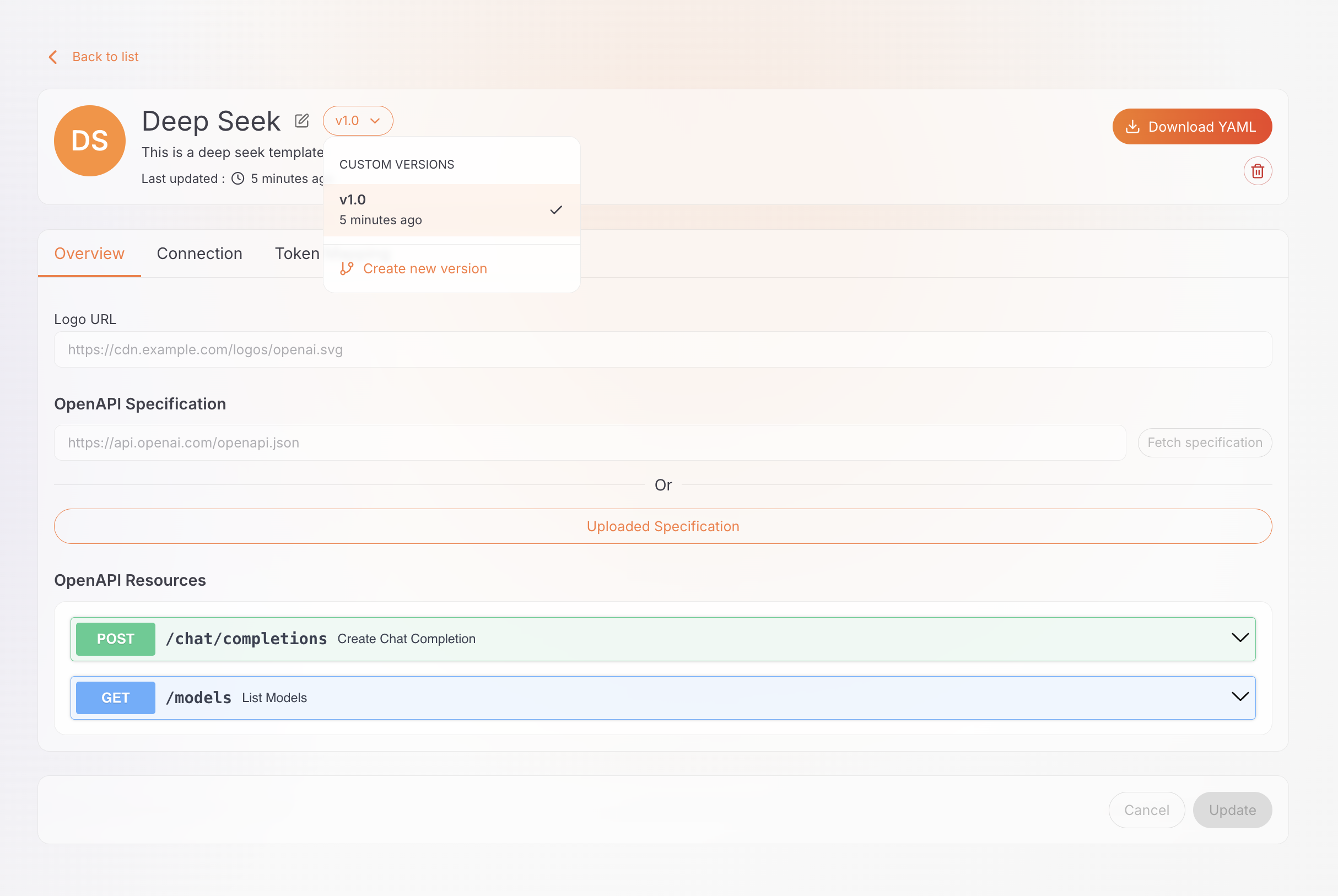
Shows the template's logo, description, current version, and when it was last updated. For custom templates, you can edit details such as the logo URL and description here. From here you can also:
- Download YAML: export the current version as a manifest you can apply to a gateway.
- Enable or Disable the current version (built-in templates only).
- Delete the current version (custom templates only).
Connection
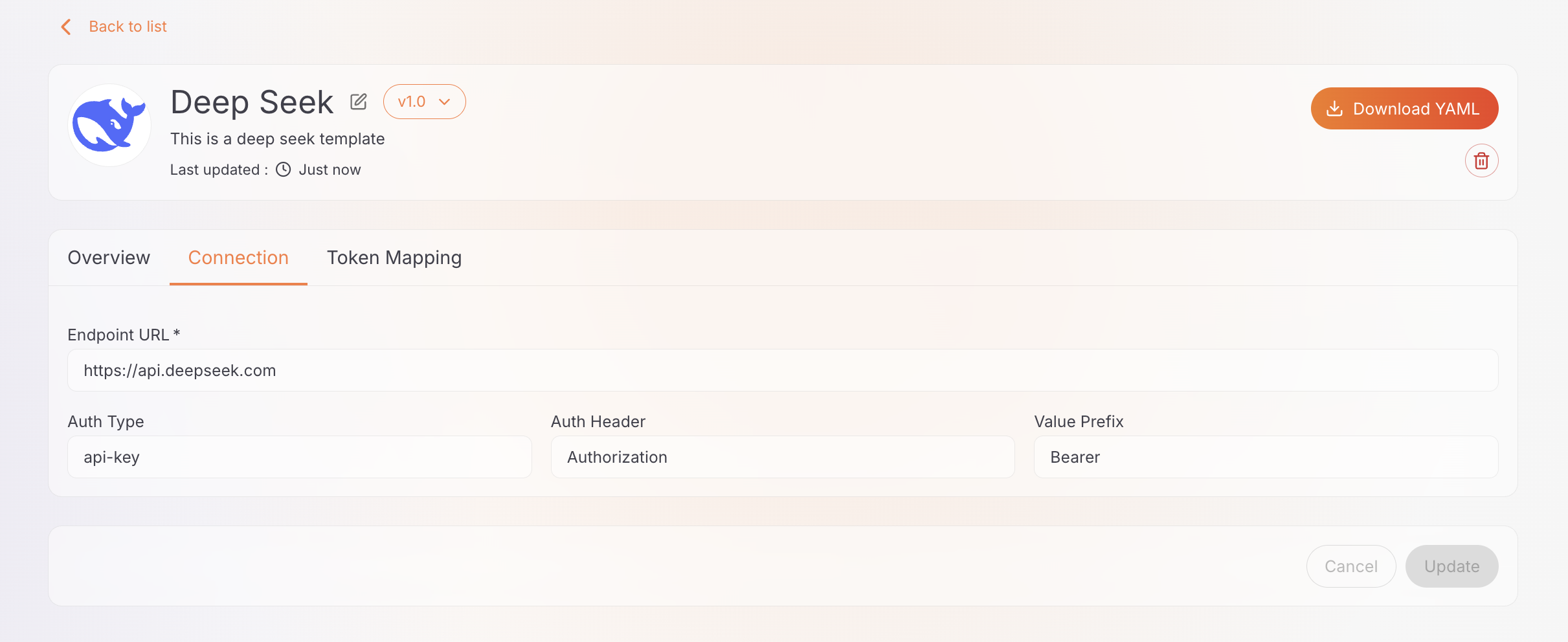
Configure how the gateway connects to the upstream service:
- Endpoint URL: the base URL of the upstream service.
- OpenAPI specification: provide a URL and click Fetch to load it, or upload the file.
- Authentication: the inbound auth type, header or parameter name, and value prefix.
Token mapping
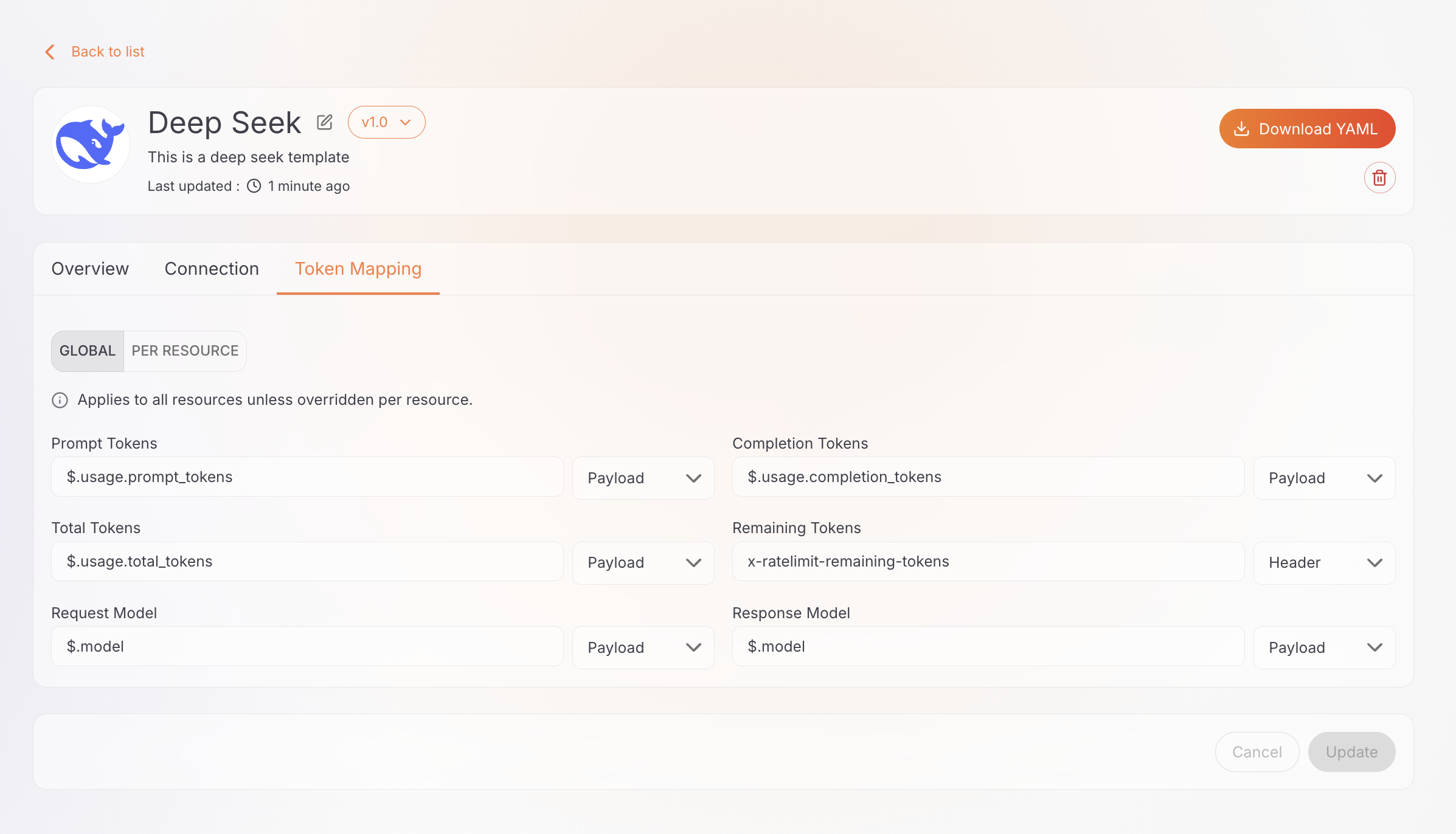
Define where token usage and model information are read from in requests and responses:
- Default (Global) mappings: prompt, completion, total, and remaining tokens, plus the request and response model.
- Per-resource overrides: different mappings for individual API resources.
Versioning
Built-in template versions are read-only. You can edit a custom template version in place at any time. You can also create a new version to introduce a different configuration while keeping the earlier version available. Either way, providers already created from a version aren't affected—a provider copies the template configuration at creation time.
To create a new version:
- Open the template and click the version selector (for example, v1.0).
- Click Create new version.
- Enter the new version (for example,
v2.0) and adjust the configuration as needed. - Click Create.
Note
Creating a new version of a built-in template produces a custom version.
Deploy a custom template to the gateway
Built-in templates are already available on the gateway, but a custom template has to be deployed manually:
- Open the template's Overview tab and click Download YAML.
- Apply the downloaded manifest to the target gateway.
Required step
A provider created from a custom template only works after the template is deployed to the gateway that serves the provider.
Info
You can apply the template manifest through the gateway's management API. See the LLM provider template Management API reference for details.
Next steps
- Manage an LLM provider template: create providers from a template, and edit, enable, disable, or delete templates
- Configure an LLM provider: create a provider from your template