Manage an LLM provider template
This guide shows how to create an LLM provider from a template, and how to edit, enable, disable, and delete templates.
Use a template to create a provider
When adding an LLM provider:
-
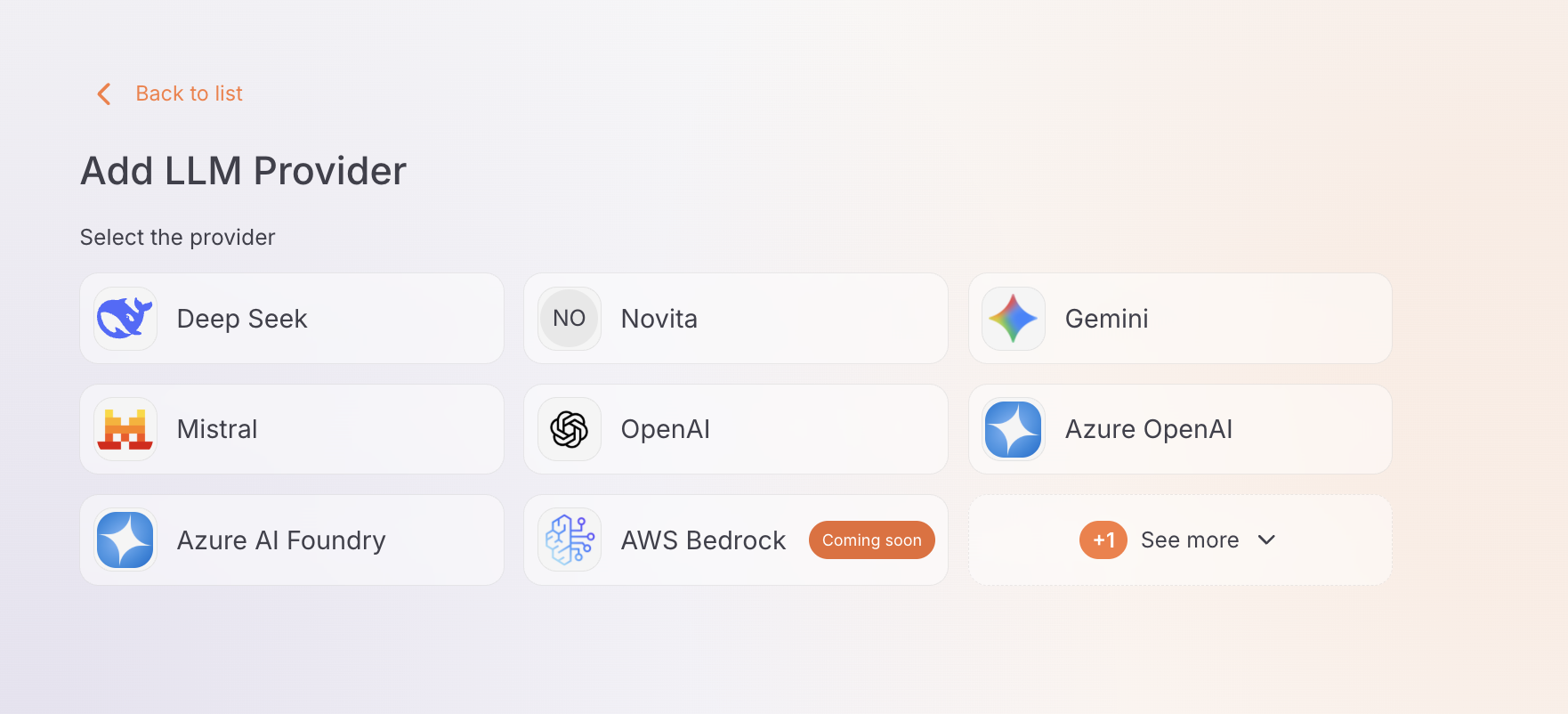
Pick a template from the template picker. Custom templates appear alongside the built-in ones.
-
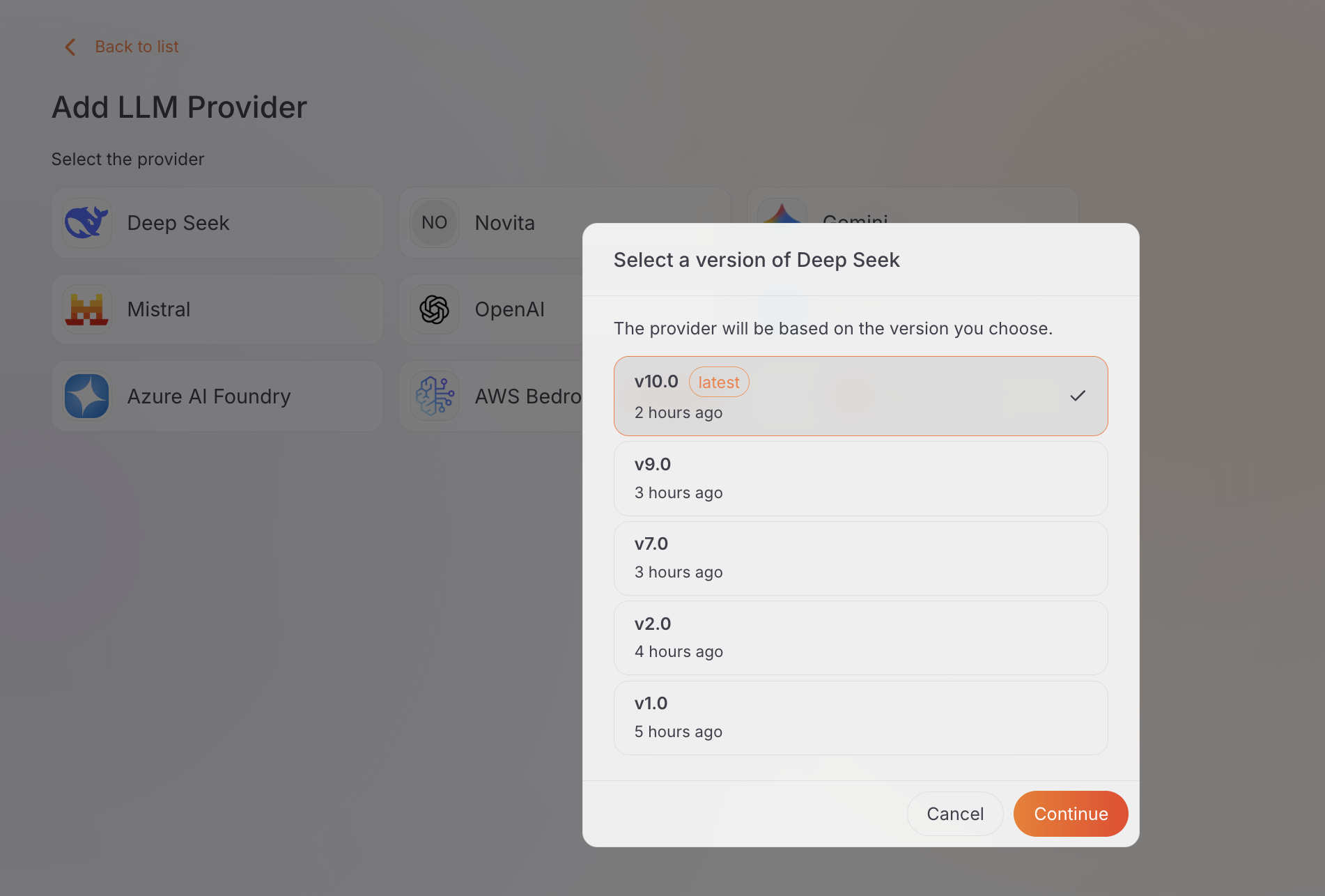
If the template has more than one version, select the version you want and click Continue. If there is only one version, it is selected for you.
-
Enter the provider name and credentials. The provider takes its endpoint, authentication, and token mappings from the selected template version.
Warning
A provider created from a custom template only works after the template is deployed to the gateway that serves the provider.
Edit a template
You can only edit custom templates; built-in templates are read-only. There are two ways to make a change:
- Edit a version in place through the Overview, Connection, and Token Mapping tabs — for example, to update the logo URL, endpoint, or mappings.
- Create a new version to introduce a different configuration while keeping the existing version available.
Editing a template version doesn't affect the providers already created from it. A provider copies the template configuration at creation time, so template changes apply only to providers created afterward.
Enable or disable a template
You can turn a built-in template version on or off from the template's Overview tab.
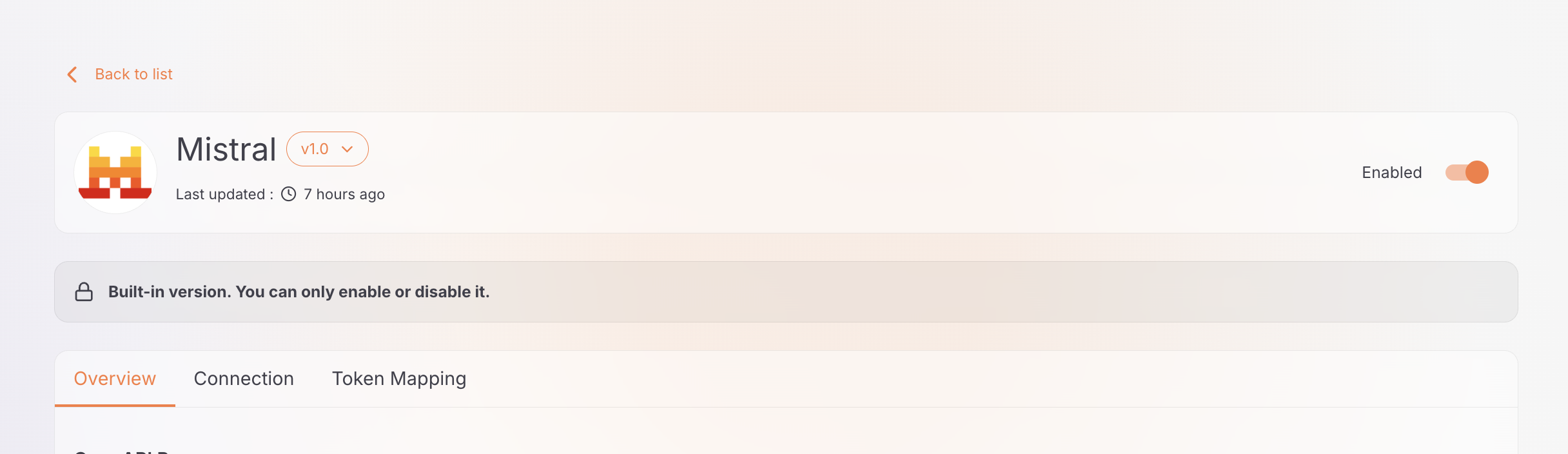
- Only built-in templates can be enabled or disabled. To remove a custom template, delete it instead.
- A version can't be disabled while a provider is using it.
- Disabled templates appear dimmed in the listing, and you can't create providers from them.
Delete a template
To remove a custom template version:
- Navigate to Settings > LLM Provider Templates and open the template.
- Pick the version you want to remove from the version selector.
- Click Delete and confirm.
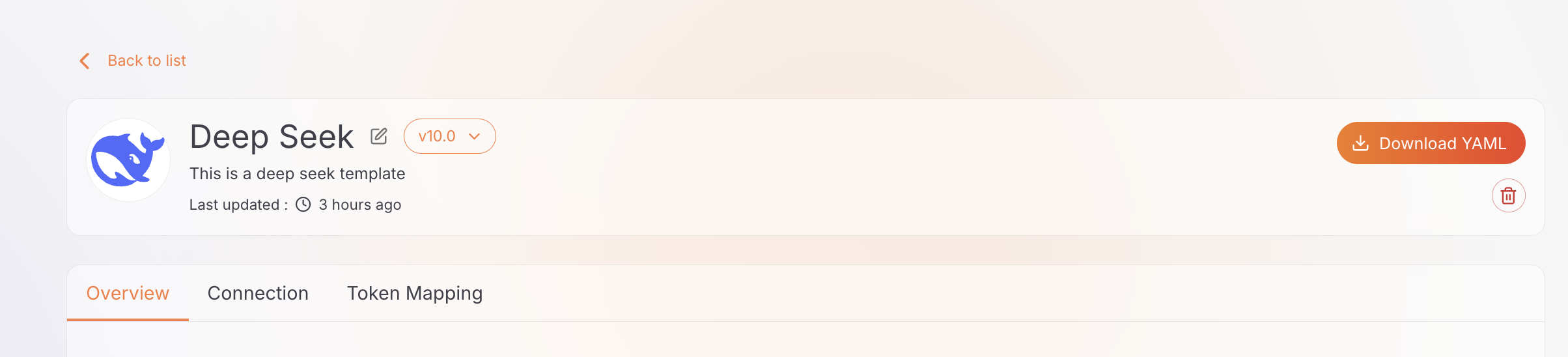
Deletion is blocked while in use
You can't delete a template version while a provider created from it still exists. The console shows the error Cannot delete: one or more providers were created from this template. Delete those providers first, then try again.
Deleting the last remaining version removes the whole template.
Next steps
- LLM providers overview: create a provider from a template
- App LLM proxies overview: add application-facing endpoints on top of a provider