Track File Changes on an Azure Files Share
Time: About 20 minutes | What you'll build: A scheduled automation that reports every change on an Azure Files share, logging a "file created", "file modified", or "file deleted" event for each difference since its previous run.
Azure Files has no change feed and no file-level events, but many integrations genuinely need change events: syncing a share to another system, auditing edits, or triggering downstream work only when a file is new or different. In this guide you derive those events yourself, from information the share already keeps.
The key is the entity tag (eTag), a value Azure replaces on every write to a file. The tracker you build runs on a schedule: each run lists the share, compares every file's entity tag against a snapshot saved by the previous run, fires a hook for each difference, saves the new snapshot back to the share, and exits. A listing carries metadata only, so a run never downloads file content: checking a share costs a few list calls whether it holds megabytes or terabytes. And because the snapshot lives on the share itself, runs need no local state, and deletions that happen between runs are still reported.
How it works
The WSO2 Integrator Scheduler invokes the automation periodically, and each run follows the same short flow:
- Load the snapshot the previous run saved on the share. On the very first run there is none, so the run starts from an empty baseline.
- List the share with extended info, collecting each file's path and entity tag. The listing reads metadata only; no file content is transferred.
- Compare the listing against the snapshot: an unknown path is a creation, a changed entity tag is a modification, and a snapshot entry missing from the listing is a deletion. Each difference fires the matching event hook, which is where your real integration logic goes.
- Save the new snapshot to the share and exit.
Before you begin
- A working WSO2 Integrator environment. See Cloud setup.
- An Azure storage account with a file share, and its account name and access key. The Azure Files connector setup guide walks through creating these.
- The share must already exist. A tracker watches a share, it does not provision one.
Build the change tracker
Build the automation in the Visual Designer; only the three event hooks are added in the code view. Switch to the Ballerina Code tab at any point to see the finished source.
- Visual Designer
- Ballerina Code
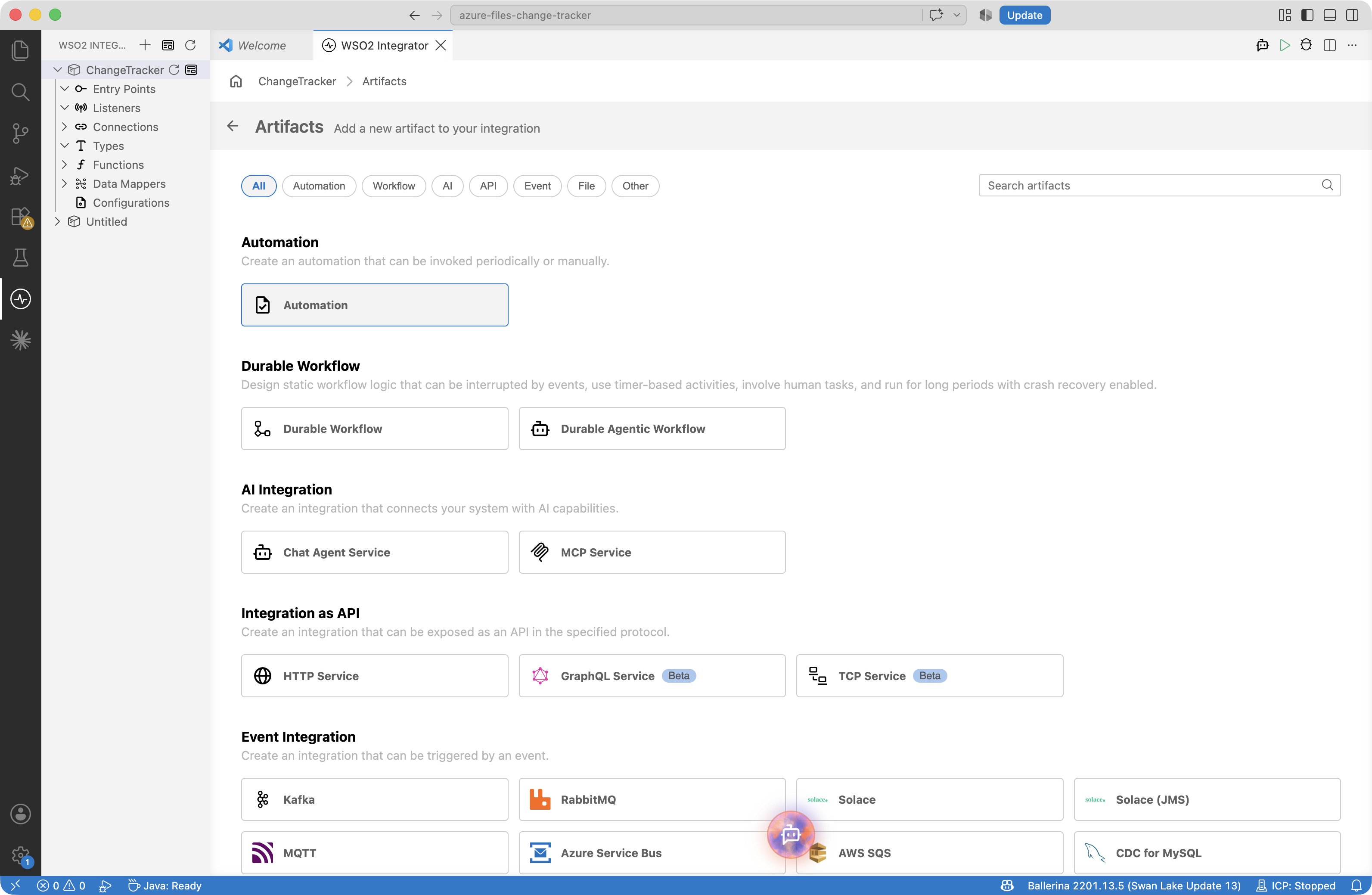
Step 1: Create the automation
An automation runs on a schedule with no inbound request, which is the right artifact for a tracker: each run checks the share once and exits, so nothing stays resident between checks.
- Create a new integration named
ChangeTrackerin a project namedazure-files-change-tracker. - Add an Automation artifact to the integration.
You land in the flow editor with a single Start node, the entry point the scheduler will call.
Step 2: Connect to the share
The tracker lists the share and stores its snapshot through one connection.
-
Add a connection: select Add Connection, open Search Connectors, then search for
azure.storage.filesand select ballerinax/azure.storage.files. -
Configure the connection:
Field Value Share Name The name of the share to watch Auth The storage account name and access key Best practiceDon't hardcode these values into the connection. Click each field and select Configurables in the Expression Panel's helper pane, then click New Configurable, so the values are supplied at runtime instead of stored in the flow. The tracker uses four:
shareName,accountName,accountKey, and the defaultedsnapshotPath, which only needs overriding to relocate the snapshot.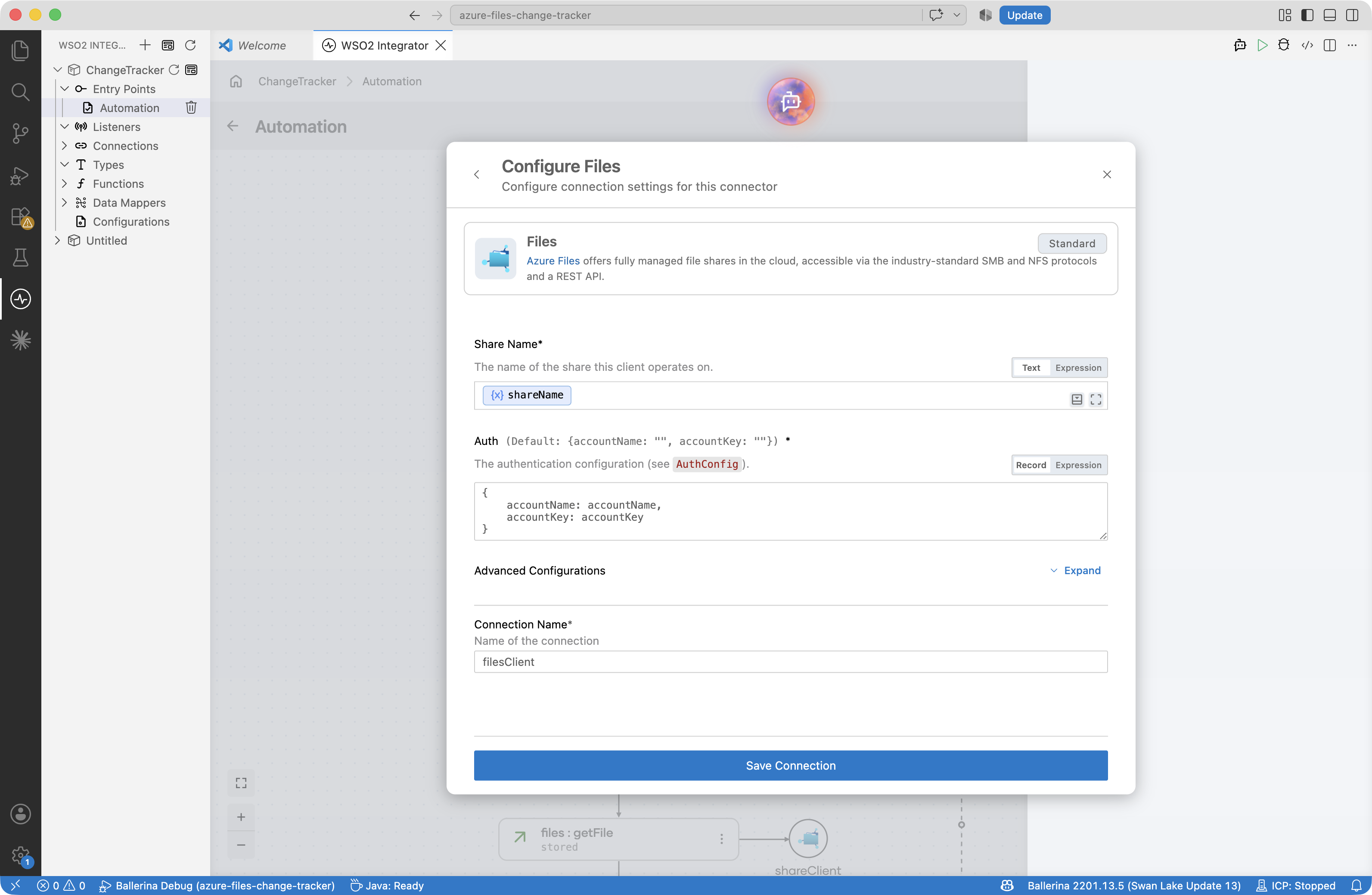
-
Set Connection Name to
shareClient, then select Save Connection.
Step 3: Add the event hooks
The three hooks are where the tracker becomes your integration: the guide logs, but a real one might push a notification, enqueue downstream work, or sync the file elsewhere. Add them to functions.bal in the code view first, so the flow you build next can call them.
// Replace these three hooks with whatever the change should trigger.
isolated function onFileCreated(string path) {
    log:printInfo("file created", path = path);
}

isolated function onFileModified(string path) {
    log:printInfo("file modified", path = path);
}

isolated function onFileDeleted(string path) {
    log:printInfo("file deleted", path = path);
}
Step 4: Build the diff flow
The flow makes three moves: load the previous run's view of the share, list what is there now, and report every difference before saving the new view. The view is the Snapshot record in types.bal, saved on the share itself at the snapshotPath configurable and excluded from the diff so the tracker does not report its own bookkeeping. Build the moves on the canvas:
- Add a Declare Variable node for
previous, aSnapshot, initialized to{}. - Add the
hasFileoperation from theshareClientconnection, pointed atsnapshotPath, with its result insnapshotExists. - Add an If node on
snapshotExists. Inside it, thegetFileoperation reads the saved snapshot directly intoprevious: the operation binds the file's content by the target's record type, so no conversion step follows it. - Add a Declare Variable node for
current(anotherSnapshot,{}), then thelistoperation withrecursiveandincludeExtendedInfoenabled, its result inentries. A Custom Expression node drains the listing intocurrent.entries, keyed path to entity tag, skipping directories andsnapshotPathitself. - Add a Foreach node over
current.entries.entries(). Inside it, declareknown = previous.entries[path], and an If node callsonFileCreatedwhenknown is ()andonFileModifiedwhenknown != eTag. - Close the flow with a Foreach over
previous.entriesthat callsonFileDeletedfor every path missing fromcurrent.entries, and theuploadoperation that savescurrenttosnapshotPath: a record uploads as JSON resolved from the destination extension.
Two details are load-bearing. The listing's includeExtendedInfo is what puts each file's entity tag on its listing entry; without it the tags are absent and every comparison would be meaningless. And the snapshot is saved only after every difference has been reported, so a run that fails midway reports the same differences again on its next attempt instead of losing them.
Your flow should match the checkpoint below.
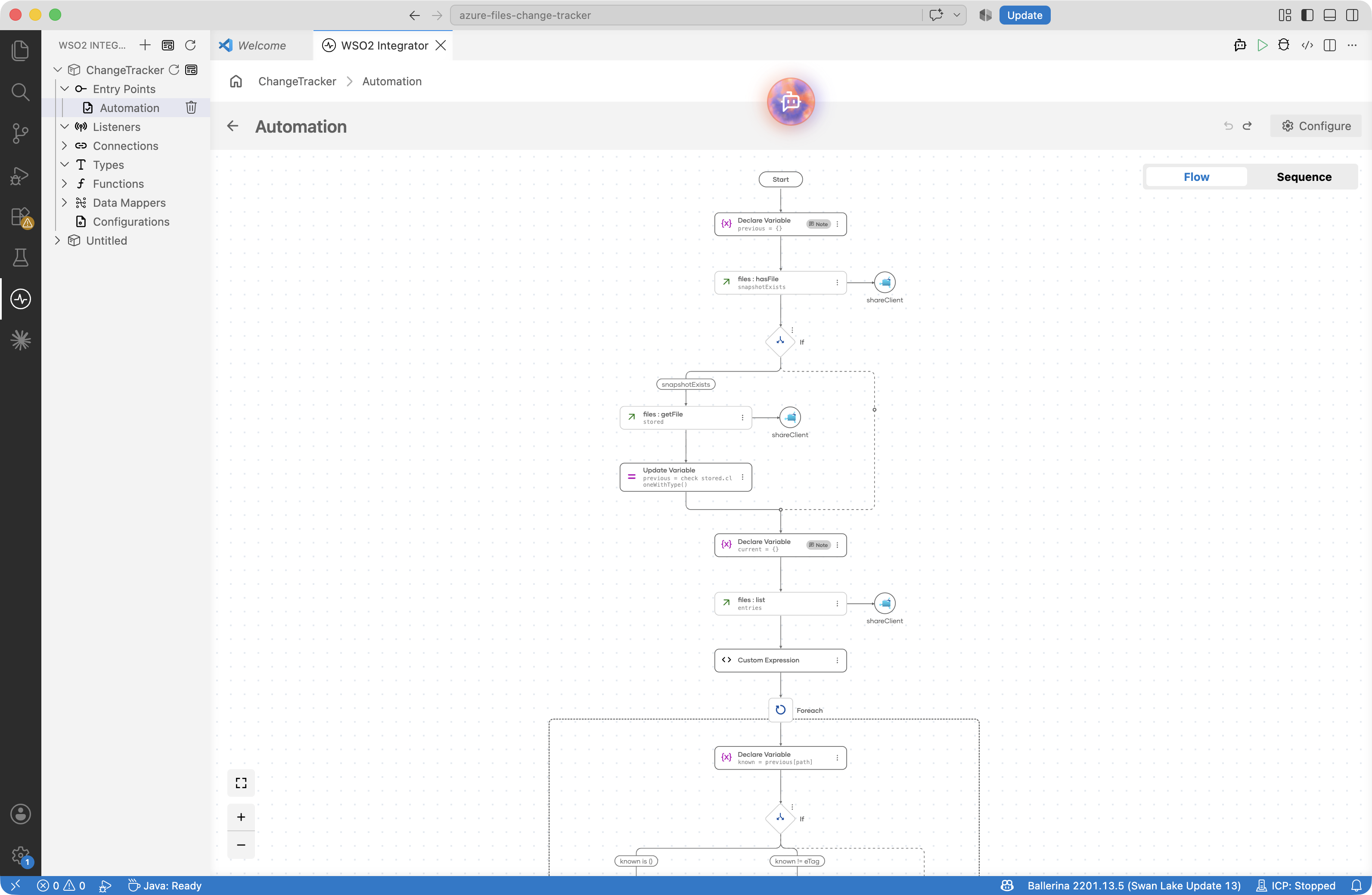
The Visual Designer keeps the source in sync as you build; only the three hooks in functions.bal are written by hand. The finished integration looks like this.
// config.bal
configurable string accountName = ?;
configurable string accountKey = ?;
configurable string shareName = ?;
// The snapshot the previous run saved on the share; excluded from the diff.
configurable string snapshotPath = "/.change-tracker-snapshot.json";
// connections.bal
import ballerinax/azure.storage.files;

// The tracker lists the share and stores its snapshot through this client.
final files:Client shareClient = check new (shareName, auth = {accountName, accountKey});
// types.bal
// What the tracker remembers between runs, saved on the share itself.
type Snapshot record {|
    // The share's files at the previous run: file path -> entity tag.
    map<string> entries = {};
|};
// automation.bal
import ballerina/log;

import ballerinax/azure.storage.files;

public function main() returns error? {
    do {
        // The previous run's view of the share, bound straight into the snapshot record.
        Snapshot previous = {};
        boolean snapshotExists = check shareClient->hasFile(snapshotPath);
        if snapshotExists {
            previous = check shareClient->getFile(snapshotPath);
        }

        // The share's current files, each with its entity tag (a new tag on every write).
        Snapshot current = {};
        stream<files:Entry, files:Error?> entries = check shareClient->list("/",
                {recursive: true, includeExtendedInfo: true});
        check entries.forEach(function(files:Entry entry) {
            if !entry.isDirectory && entry.path != snapshotPath {
                current.entries[entry.path] = entry.eTag ?: "";
            }
        });

        // Report every difference since the previous run.
        foreach [string, string] [path, eTag] in current.entries.entries() {
            string? known = previous.entries[path];
            if known is () {
                onFileCreated(path);
            } else if known != eTag {
                onFileModified(path);
            }
        }
        foreach string path in previous.entries.keys() {
            if !current.entries.hasKey(path) {
                onFileDeleted(path);
            }
        }

        // Save the current view on the share for the next run.
        check shareClient->upload(current, snapshotPath);
    } on fail error e {
        log:printError("Error occurred", 'error = e);
        return e;
    }
}
// functions.bal
import ballerina/log;

// Replace these three hooks with whatever the change should trigger.
isolated function onFileCreated(string path) {
    log:printInfo("file created", path = path);
}

isolated function onFileModified(string path) {
    log:printInfo("file modified", path = path);
}

isolated function onFileDeleted(string path) {
    log:printInfo("file deleted", path = path);
}
Run and verify
-
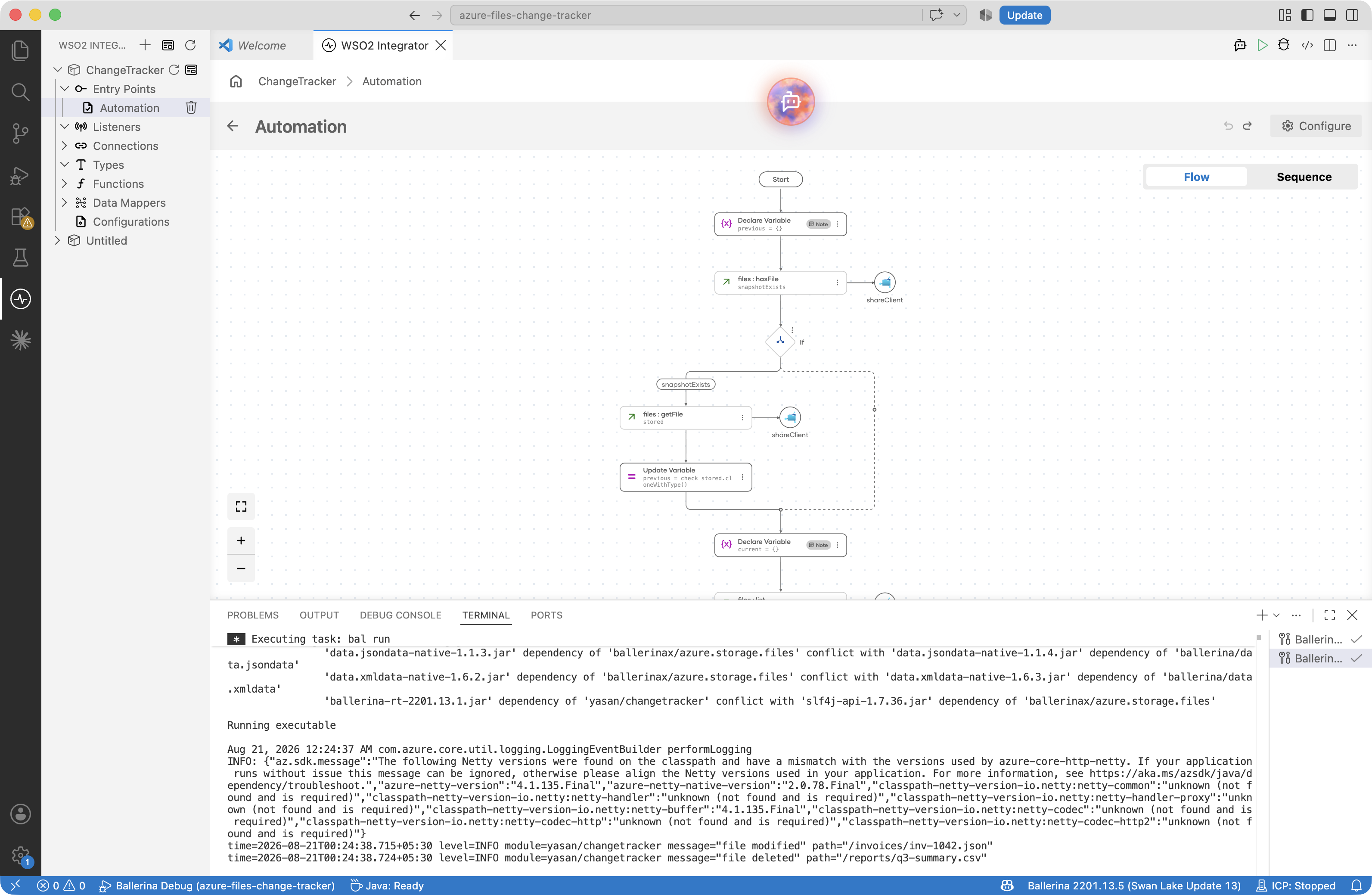
Go to Configurations, supply the storage account name, the access key, and the share name, then select Run on the integration overview.
-
The first run reports every file already on the share as created: there is no previous snapshot, so the first listing is the baseline. The run then saves its snapshot to the share (at
/.change-tracker-snapshot.jsonunlesssnapshotPathsays otherwise) and exits. -
Upload a file to the share, through the Azure portal, the Azure CLI, or an SMB mount, and run the automation again for a
file createdline. Overwrite the same file with different content and run again forfile modified, and delete it and run once more forfile deleted.
To operate the tracker continuously, schedule the run instead of starting it by hand: push the integration to the cloud and schedule periodic runs there, or use a cron entry, a Kubernetes CronJob, or a host scheduler. Pick the cadence by how fresh the events must be: a run costs a few list calls regardless of the share's size, so even frequent schedules stay cheap.
What's next
Now that the tracker works, you can take it further:
- Track changes within seconds. If a schedule's granularity is too coarse, run the same diff resident: move the body of
maininto a function and invoke it from atask:Listenerservice withtrigger = {interval: ...}. The diff stays metadata-only, so even a few-second interval costs only listing calls; the trade is a process that never exits. - Make the hooks idempotent. The snapshot is saved only at the end of a run, so a run that fails after firing some hooks reports those same differences again on the next run. That at-least-once behavior is what keeps events from being lost, and hooks that tolerate a repeat make it harmless downstream.
- Process the files themselves. To act on file content as files arrive, use the Azure Files trigger: it dispatches each file to a handler and fits consume-style processing, where each handled file is deleted or moved out of the watched path.