Build a Hotel Finder Agent
Time: 10 minutes | What you'll build: A conversational agent that helps users find hotels in a specific city and check availability through natural conversation, with session-scoped memory so the user can refer back to earlier messages.
- Visual designer
- Ballerina code
Step 1: Create the integration
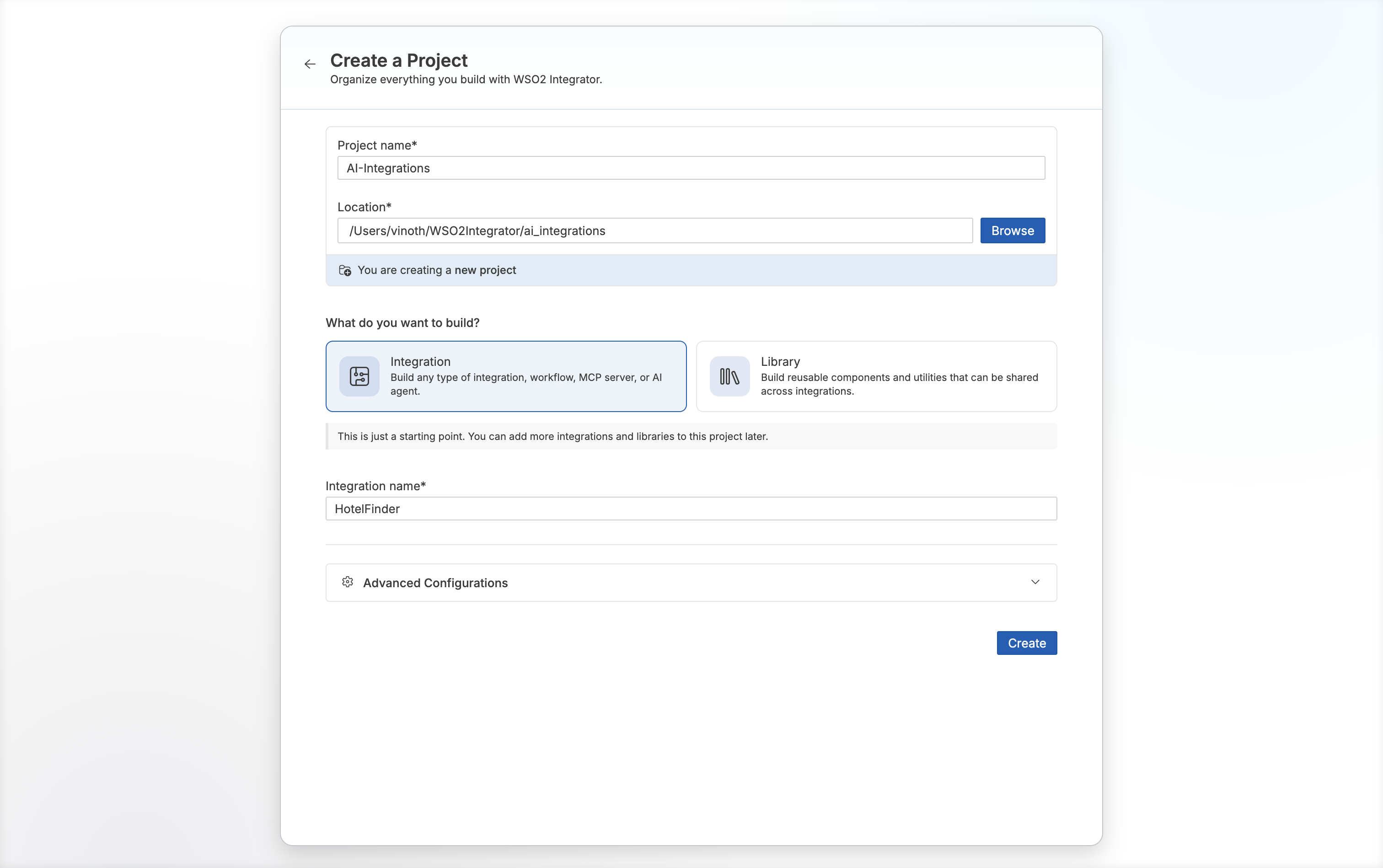
- Open WSO2 Integrator and select Create under Create a Project.
- Set Project name to
AI-Integrationsand choose a Location. - Under What do you want to build?, keep Integration selected.
- Set Integration name to
HotelFinder. - Select Create.
Step 2: Add and configure an AI chat agent
The integration opens on the Design tab with the WSO2 Integrator Copilot. Bypass it for this quick start and create the artifact manually.
-
Select Add Artifact manually.
-
On the Artifacts page, select Chat Agent Service under AI Integration.
-
Set Role to
HotelFinderAssistant. -
Set Instructions to:
You are a friendly hotel finder assistant.

Your responsibilities:
- Help users find hotels and check availability through natural conversation.
- Ask clarifying questions when information is missing.

Tool usage:
- Use searchHotels when the user mentions a city or destination.
- Use checkAvailability when the user wants to verify dates and pricing.

Presentation:
- Show hotels clearly with price, rating, and key amenities. -
Keep Model as Default WSO2 Model Provider.
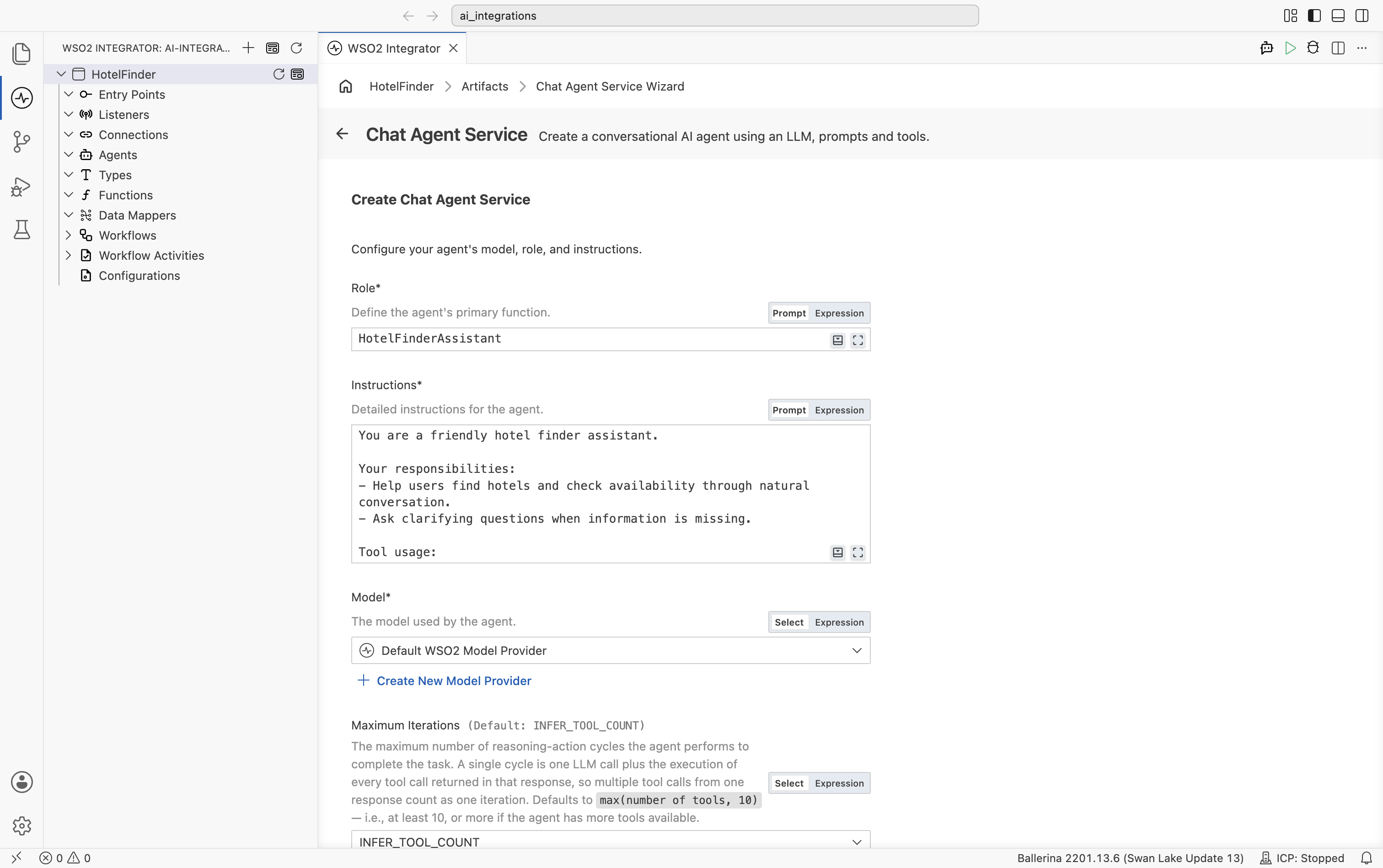
By default, the agent is created with the WSO2 model provider. If you have not signed in to WSO2 Integrator Copilot yet, sign in when prompted. No third-party API key is required.
To use a different LLM instead, see Model providers for the full list of supported providers (OpenAI, Anthropic, Azure OpenAI, and others).
- Leave Maximum Iterations, Verbose, Tool Loading Strategy, and Execute Tool Calls In Parallel at their defaults.
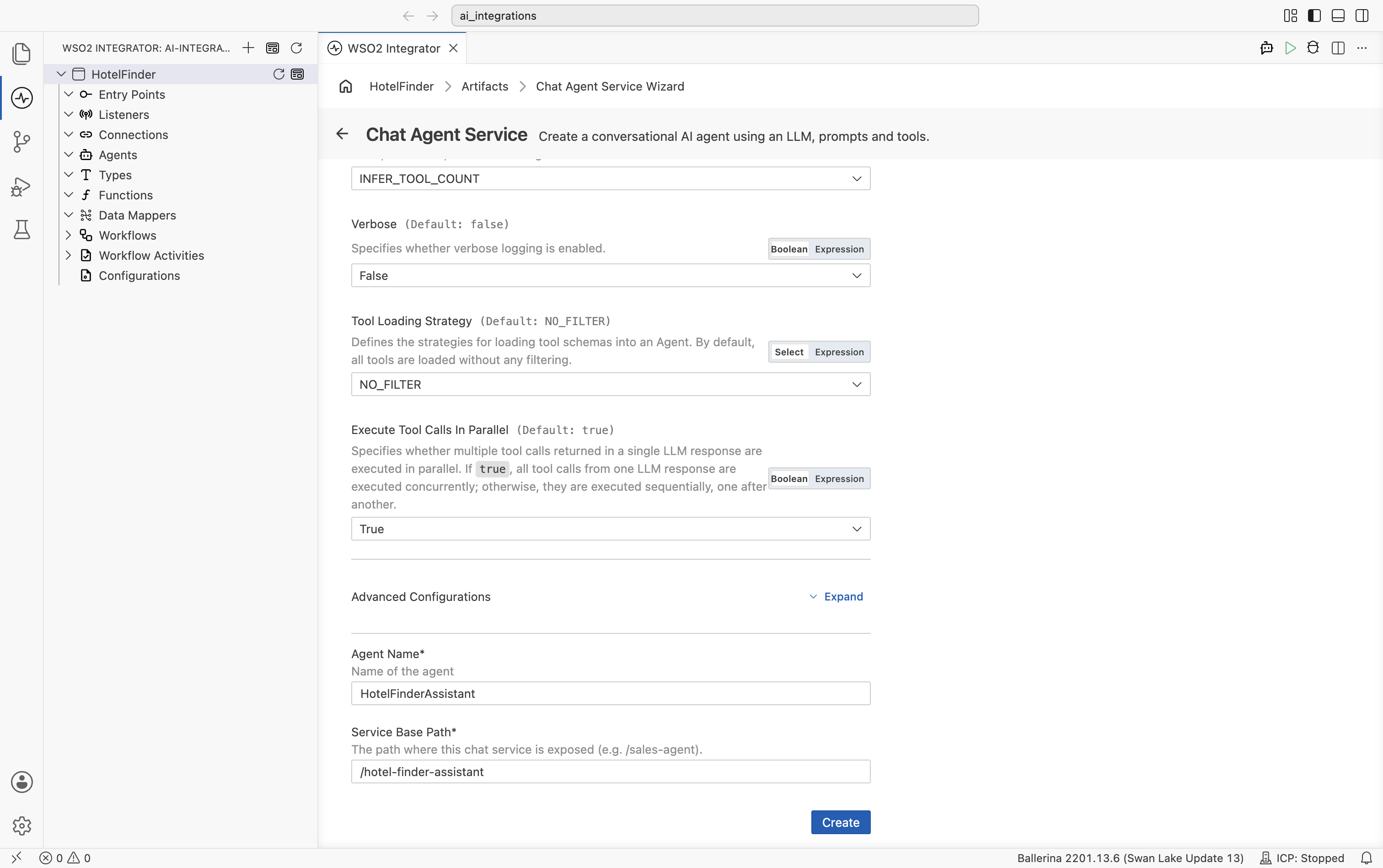
- Set Agent Name to
HotelFinderAssistant. - Set Service Base Path to expose the chat service, for example
/hotel-finder-assistant. - Select Create.
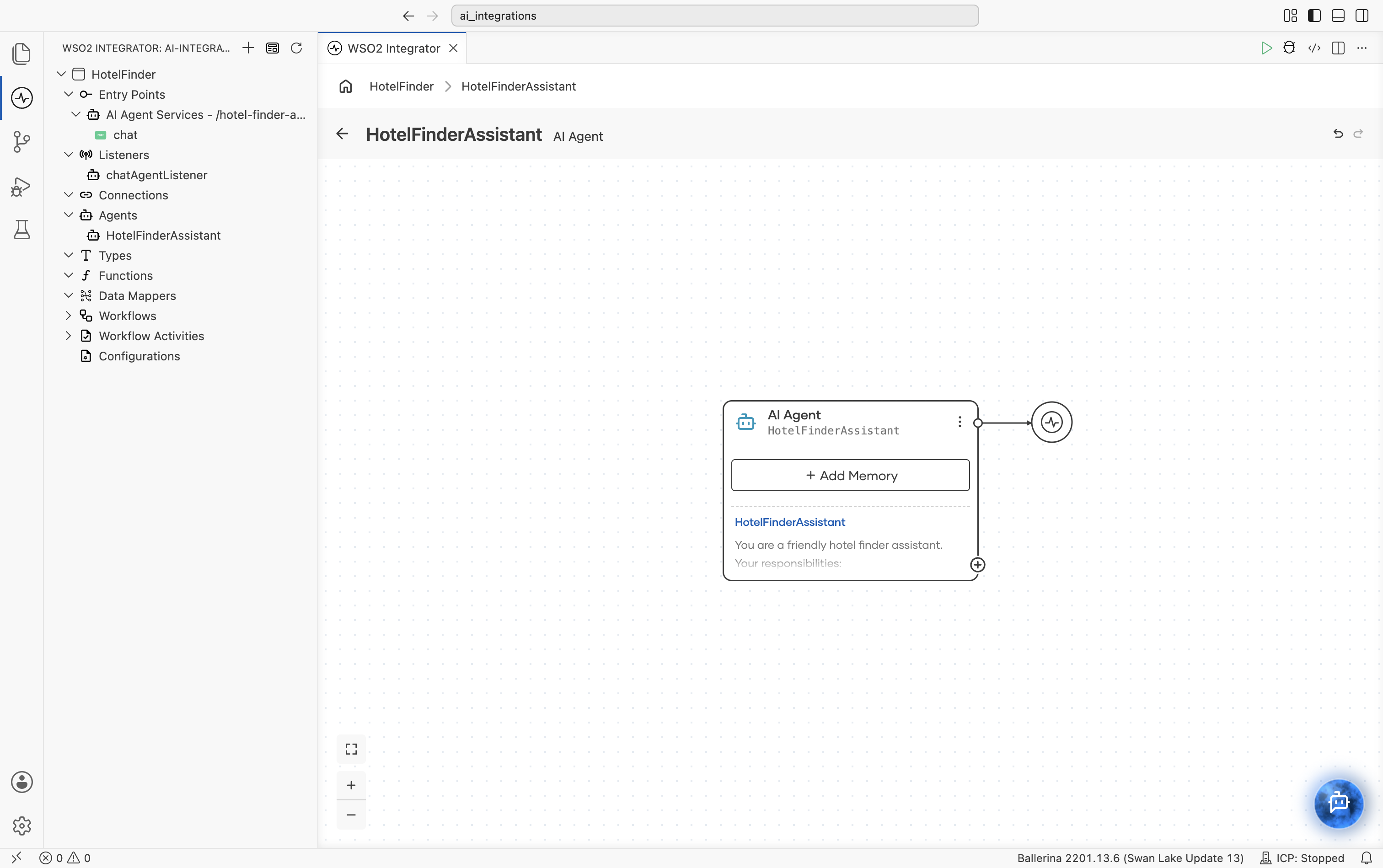
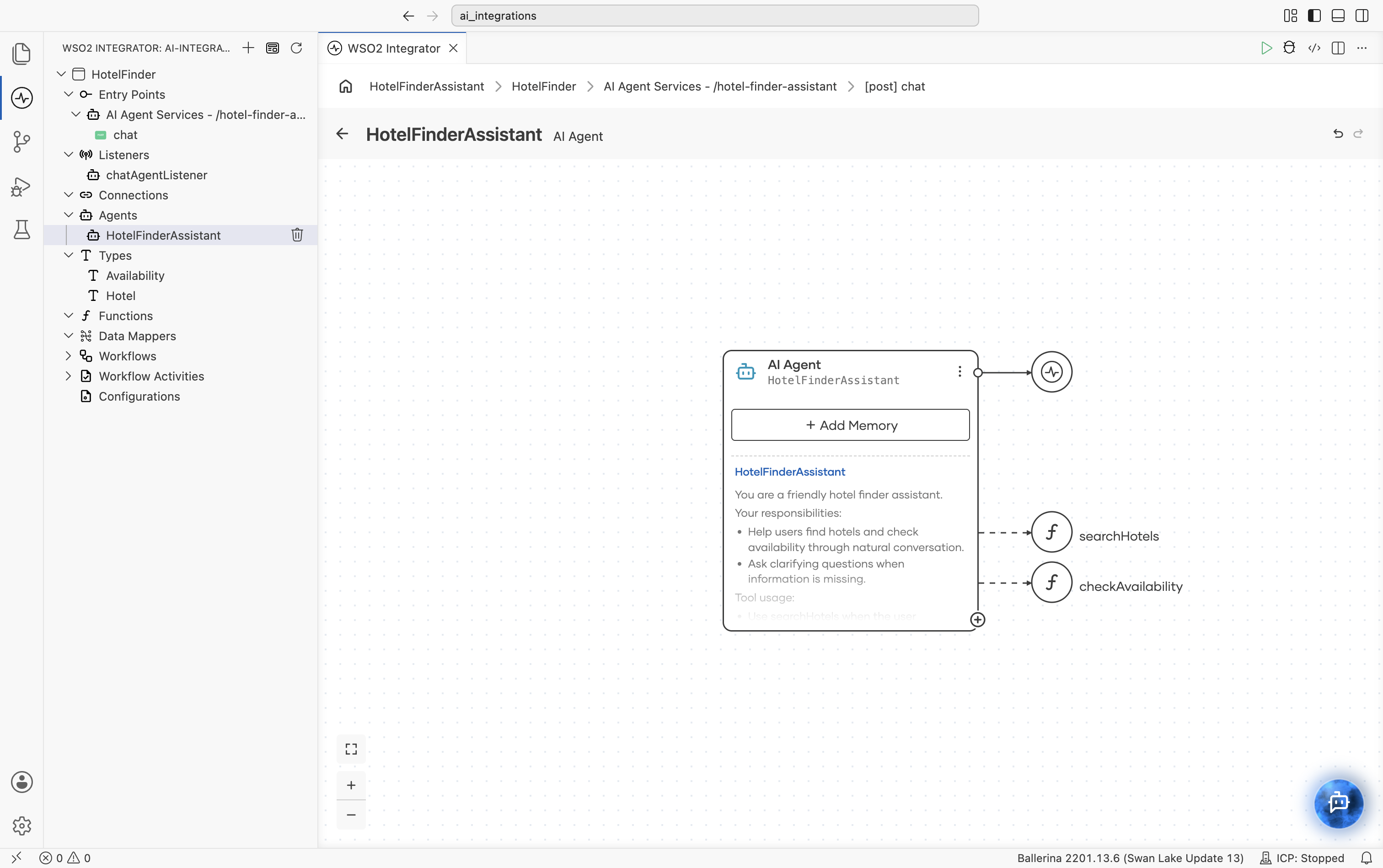
This creates an AI Agent Service with a POST /chat resource and a chatAgentListener, plus the HotelFinderAssistant agent under Agents. Select HotelFinderAssistant under Agents to open its canvas: the AI Agent node is connected to the model provider, with a + button at its bottom-right corner for adding tools.
Step 3: Add the searchHotels tool
Create the searchHotels tool
-
Select the + button at the bottom-right corner of the AI Agent node.
-
Select Create Custom Tool.
-
Set Name to
searchHotels. -
Set Description to
Searches for hotels in a city. -
Under Parameters, select + Add Parameter and add:
Type Name Description stringcityCity name, e.g. "Paris" or "New York" -
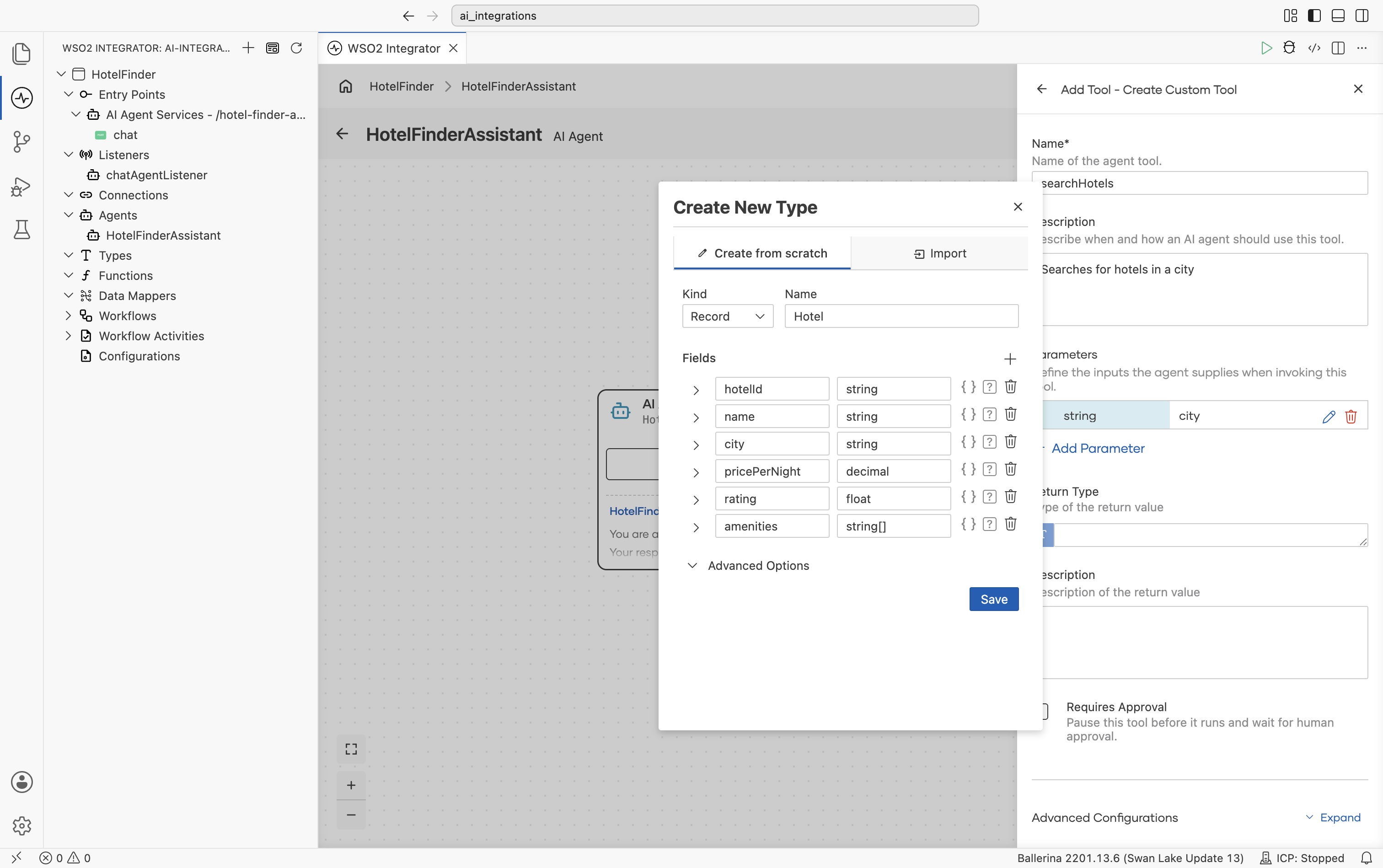
Under Return Type, select the field and choose Create New Type. The Create New Type dialog opens:
a. Set Kind to
Recordand Name toHotel.b. Add the following fields:
Name Type hotelIdstringnamestringcitystringpricePerNightdecimalratingfloatamenitiesstring[]c. Select Save.
-
Set Return Type to
Hotel[]. -
Set Description (return value) to
Hotels available in the city. -
Optionally leave Requires Approval unchecked. Enabling it pauses the tool before it runs and waits for human approval.
-
Select Create Tool.
![Completed Create Custom Tool form for searchHotels showing the city parameter, Hotel[] return type, and return description](/integration-platform/docs/integrator/img/genai/getting-started/build-a-hotel-finder-agent-v5.1/06-create-search-hotels-tool-v5.1.png)
Build the searchHotels logic
The tool now shows as a node connected to the agent. Select it to open its flow. New tools open with a placeholder: Start connected to a Panic node (error("not implemented")). Replace it with the real logic:
-
Select + on the connector between Start and Panic, then select Declare Variable under Statement. Set Name to
allHotelsand Type toHotel[]. Set the Expression to the following hotel array and select Save:[
{hotelId: "HTL-001", name: "Grand Plaza Hotel", city: "Paris", pricePerNight: 199.99, rating: 4.5, amenities: ["WiFi", "Pool", "Gym"]},
{hotelId: "HTL-002", name: "City Center Inn", city: "Paris", pricePerNight: 129.99, rating: 4.0, amenities: ["WiFi", "Breakfast"]},
{hotelId: "HTL-003", name: "Luxury Suites", city: "New York", pricePerNight: 349.99, rating: 4.8, amenities: ["WiFi", "Pool", "Spa", "Restaurant"]}
]noteThis uses hardcoded sample data. In a real scenario, you would call an external hotel API, query a database, or connect an MCP tool.
![Declare Variable node configured with Name set to allHotels, Type set to Hotel[], and the hotel array set as the Expression](/integration-platform/docs/integrator/img/genai/getting-started/build-a-hotel-finder-agent-v5.1/07-declare-variable-allhotels-v5.1.png)
-
Select + and select Declare Variable under Statement. Set Name to
hotelsand Type toHotel[]. Set the Expression to the following and select Save:allHotels.filter(h => h.city == city)
![Declare Variable node configured with Name set to hotels, Type set to Hotel[], and the filter expression set as the Expression](/integration-platform/docs/integrator/img/genai/getting-started/build-a-hotel-finder-agent-v5.1/08-declare-variable-hotels-v5.1.png)
- Select + and select Return under Control. Set Expression to
hotelsand select Save.
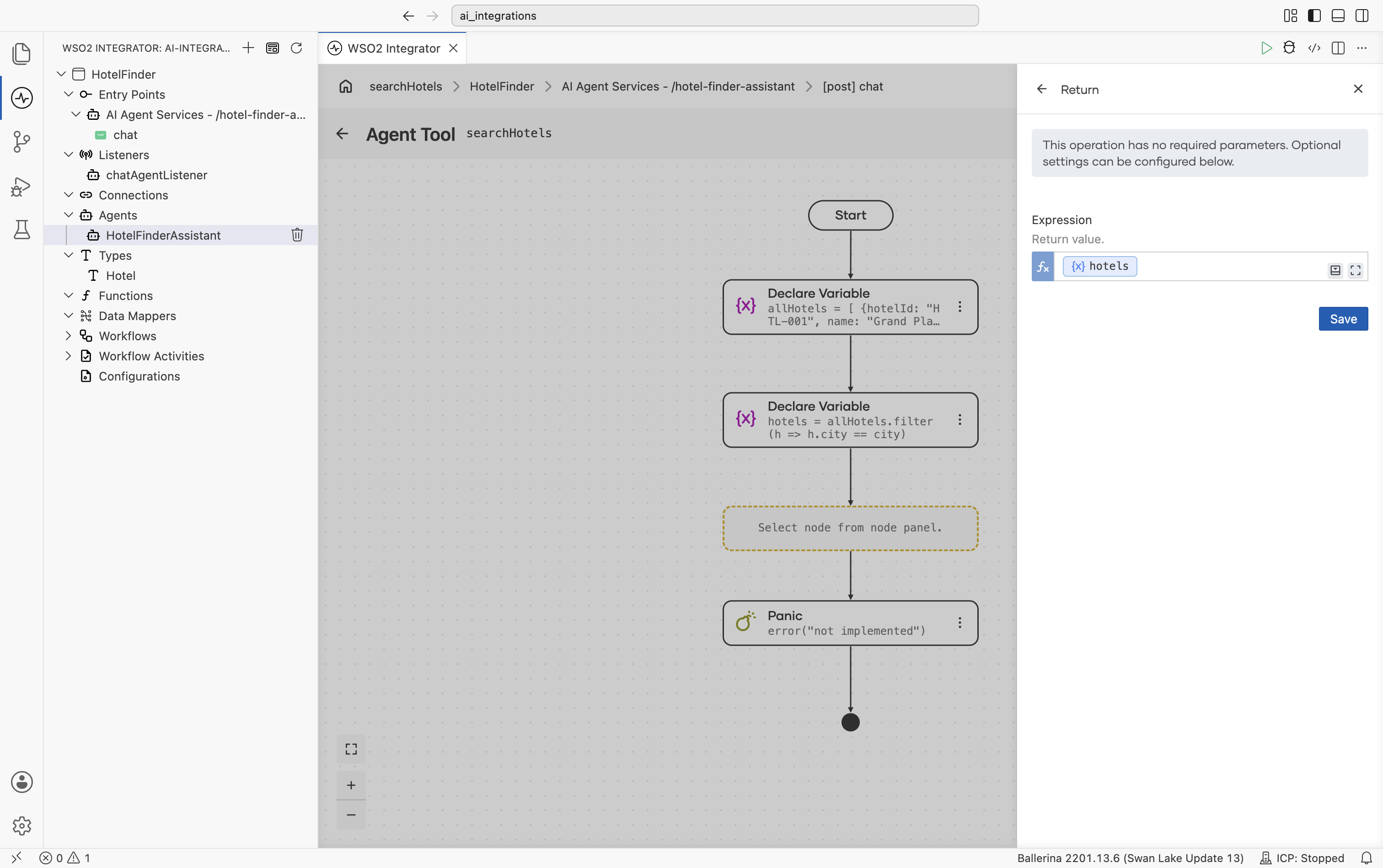
The visual designer currently leaves the placeholder panic error("not implemented") statement in place after the node you add. It becomes unreachable once your Return is in the flow, so it's safe to delete from the pro-code view; leaving it in doesn't affect the build.
Step 4: Add the checkAvailability tool
Create the checkAvailability tool
-
Navigate back to the HotelFinderAssistant agent canvas.
-
Select + on the AI Agent node and choose Create Custom Tool.
-
Set Name to
checkAvailability. -
Set Description to
Checks whether a hotel has rooms available between two dates. -
Under Parameters, select + Add Parameter and add:
Type Name Description stringhotelIdHotel identifier returned from searchHotelsstringcheckInCheck-in date in YYYY-MM-DDformatstringcheckOutCheck-out date in YYYY-MM-DDformat -
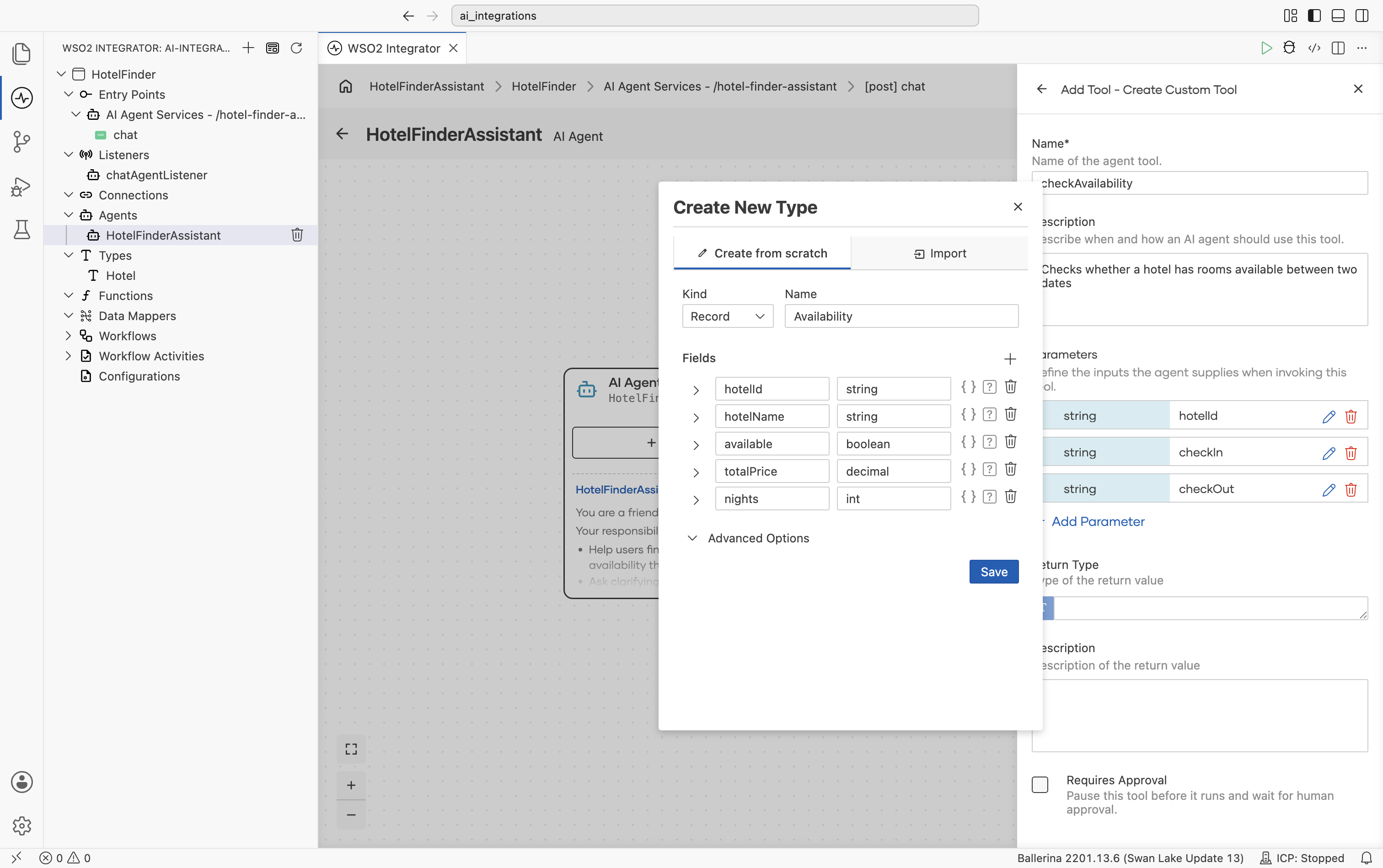
Under Return Type, select the field and choose Create New Type. The Create New Type dialog opens:
a. Set Kind to
Recordand Name toAvailability.b. Add the following fields:
Name Type hotelIdstringhotelNamestringavailablebooleantotalPricedecimalnightsintc. Select Save.
-
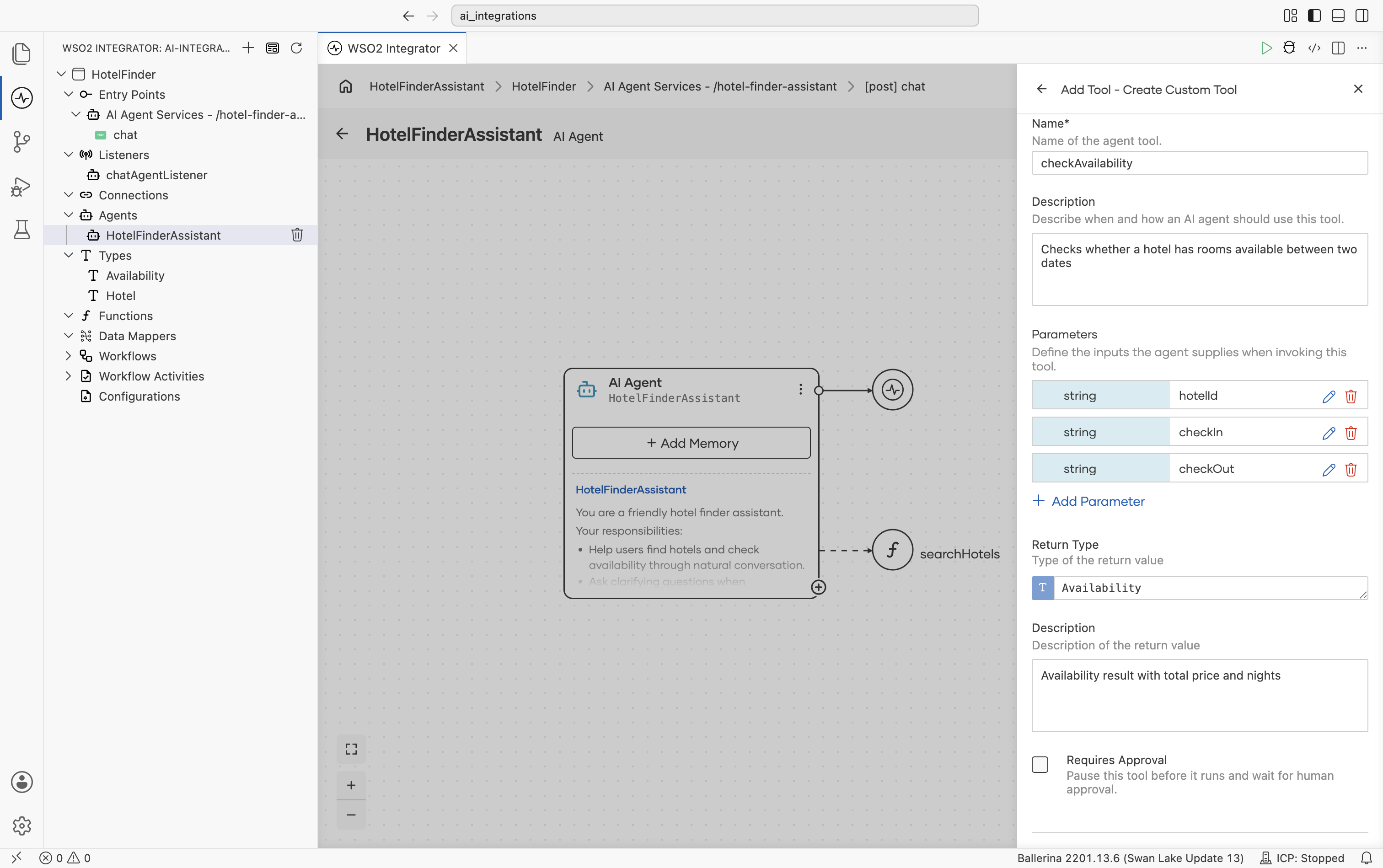
Set Return Type to
Availability. -
Set Description (return value) to
Availability result with total price and nights. -
Select Create Tool.
Build the checkAvailability logic
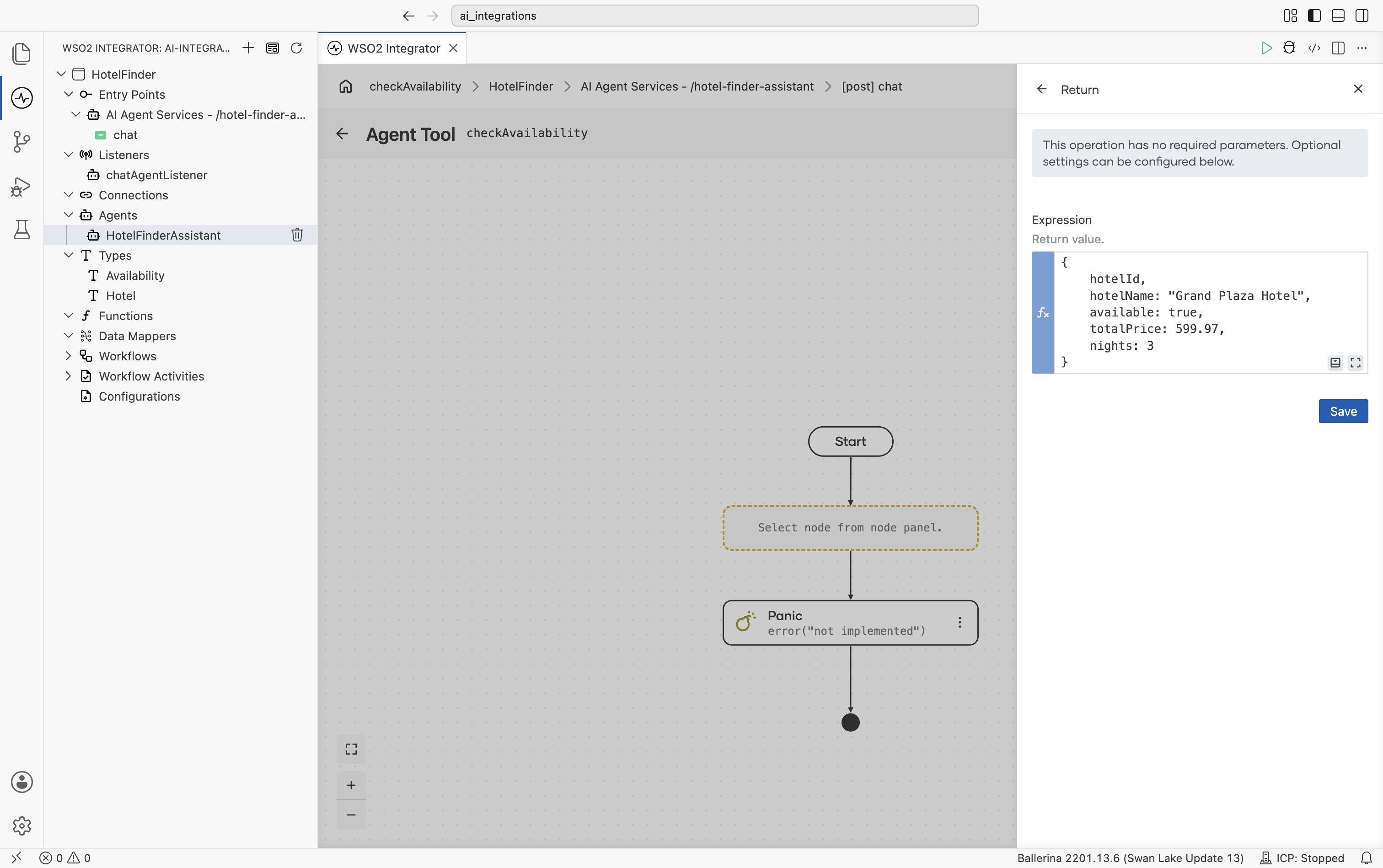
Open the tool's flow. Select + on the connector between Start and Panic, select Return under Control, set Expression to the following, and select Save:
{
    hotelId,
    hotelName: "Grand Plaza Hotel",
    available: true,
    totalPrice: 599.97,
    nights: 3
}
This returns hardcoded sample data. In a real scenario, you would query a booking system, call an availability API, or connect an MCP tool.
After both tools are created, the agent shows them connected in the design canvas.
Step 6: Run and test
- Select Run.
- Once the integration compiles and starts, select Chat on the
chatresource. - Type
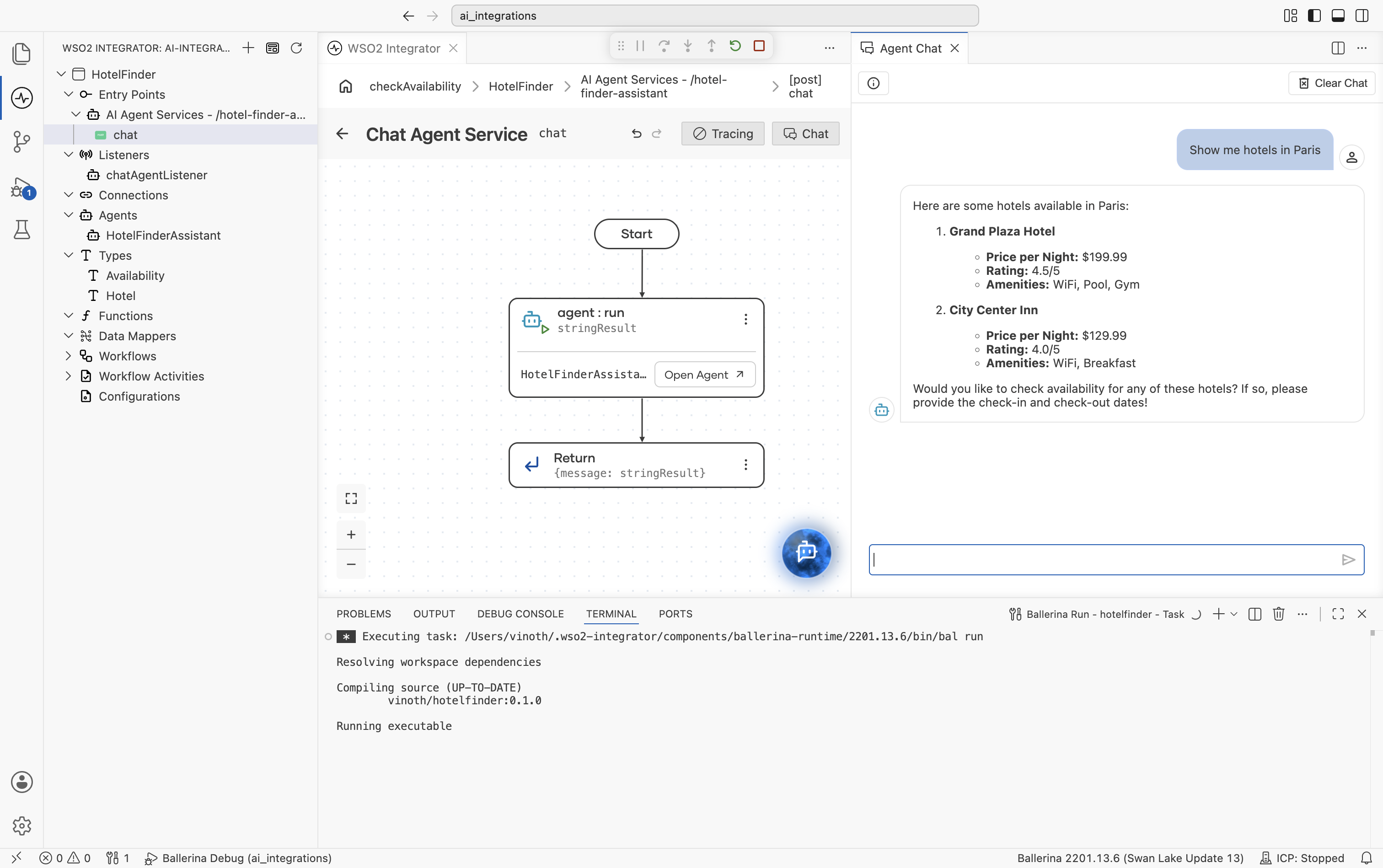
Show me hotels in Paristo check if it works.
The agent calls searchHotels and returns the matching Paris options (Grand Plaza Hotel and City Center Inn, not Luxury Suites, which is in New York). Continue the conversation in the same chat session to check availability.
Step 1: Define data types
Create a file named types.bal to hold the domain types:
type Hotel record {|
    string hotelId;
    string name;
    string city;
    decimal pricePerNight;
    float rating;
    string[] amenities;
|};

type Availability record {|
    string hotelId;
    string hotelName;
    boolean available;
    decimal totalPrice;
    int nights;
|};
Step 2: Define tools and create the agent
Create a file named agents.bal. Each tool is an isolated function annotated with @ai:AgentTool. The LLM uses the summary line and + param - description lines from the Ballerina doc comment to decide when and how to call the tool. The model provider is initialized inline with ai:getDefaultModelProvider(), so no separate connections file is needed for the default WSO2 model provider.
Both tools use hardcoded sample data. In a real scenario, you would call external APIs, query a database, or connect MCP tools.
import ballerina/ai;

final ai:Agent HotelFinderAssistant = check new (
    systemPrompt = {
        role: string `HotelFinderAssistant`,
        instructions: string `You are a friendly hotel finder assistant.

Your responsibilities:
- Help users find hotels and check availability through natural conversation.
- Ask clarifying questions when information is missing.

Tool usage:
- Use searchHotels when the user mentions a city or destination.
- Use checkAvailability when the user wants to verify dates and pricing.

Presentation:
- Show hotels clearly with price, rating, and key amenities.`
    }, model = check ai:getDefaultModelProvider(), tools = [searchHotels, checkAvailability]
);

# Searches for hotels in a city
# + city - City name, e.g. "Paris" or "New York"
# + return - Hotels available in the city
@ai:AgentTool
isolated function searchHotels(string city) returns Hotel[] {
    Hotel[] allHotels = [
        {hotelId: "HTL-001", name: "Grand Plaza Hotel", city: "Paris", pricePerNight: 199.99, rating: 4.5, amenities: ["WiFi", "Pool", "Gym"]},
        {hotelId: "HTL-002", name: "City Center Inn", city: "Paris", pricePerNight: 129.99, rating: 4.0, amenities: ["WiFi", "Breakfast"]},
        {hotelId: "HTL-003", name: "Luxury Suites", city: "New York", pricePerNight: 349.99, rating: 4.8, amenities: ["WiFi", "Pool", "Spa", "Restaurant"]}
    ];
    Hotel[] hotels = allHotels.filter(h => h.city == city);
    return hotels;
}

# Checks whether a hotel has rooms available between two dates
# + hotelId - Hotel identifier returned from searchHotels
# + checkIn - Check-in date in YYYY-MM-DD format
# + checkOut - Check-out date in YYYY-MM-DD format
# + return - Availability result with total price and nights
@ai:AgentTool
isolated function checkAvailability(string hotelId, string checkIn, string checkOut) returns Availability {
    return {
        hotelId,
        hotelName: "Grand Plaza Hotel",
        available: true,
        totalPrice: 599.97,
        nights: 3
    };
}
Step 3: Expose the agent as a chat service
Create a file named main.bal. The ai:Listener provides session-scoped chat memory. Pass the sessionId into agent.run(...) and the runtime retrieves and updates the conversation history for that session automatically.
import ballerina/ai;
import ballerina/http;

listener ai:Listener chatAgentListener = new (listenOn = check http:getDefaultListener());

service /hotel\-finder\-assistant on chatAgentListener {
    resource function post chat(@http:Payload ai:ChatReqMessage request) returns ai:ChatRespMessage|error {
        string stringResult = check HotelFinderAssistant.run(request.message, request.sessionId);
        return {message: stringResult};
    }
}
Step 4: Run and test
Run the project:
bal run
Have a multi-turn conversation. Use the same sessionId across requests so the agent remembers context:
# Turn 1: search for hotels
curl -X POST http://localhost:9090/hotel-finder-assistant/chat \
  -H "Content-Type: application/json" \
  -d '{"sessionId": "guest-42", "message": "Show me hotels in Paris"}'

# Turn 2: refer back to an earlier result
curl -X POST http://localhost:9090/hotel-finder-assistant/chat \
  -H "Content-Type: application/json" \
  -d '{"sessionId": "guest-42", "message": "Can you check the City Center Inn from March 20 to March 23?"}'
Because the listener keeps session history, the agent resolves "the City Center Inn" from the earlier message without the user having to repeat themselves.
How it works
This example demonstrates two patterns you will reuse in production agents:
- Session-scoped memory:
ai:Listenerkeeps a short history of messages persessionId, so the LLM sees recent turns on every call. - Sequential tool calls: The agent calls
searchHotelsand thencheckAvailability, using each result to inform the next step. The chaining is driven entirely by the LLM's reasoning.
What's next
- Creating an agent — Full reference for agent configuration
- Tools — Advanced tool patterns, including connection-backed tools and MCP servers
- Memory — Custom memory strategies beyond the default session store