Connect to SAP S/4HANA and Check Stock Availability
Time: About 45 minutes | What you'll build: An HTTP service with one GET resource that returns the live unrestricted-use stock of a material in a plant, read from SAP S/4HANA Cloud, with the total quantity and the quantity in each storage location.
Web shops, point-of-sale systems and warehouse apps all need the same answer before they promise anything to a customer: how much of this material is actually in stock? SAP S/4HANA knows, but its OData API speaks in SAP field names and returns quantities as text. In this guide you build a small REST API in front of it: a client calls GET /inventory/stock/{material}?plant={plant}, and the API asks SAP S/4HANA for that material's unrestricted-use stock in that plant and returns a clean JSON answer.
How it works
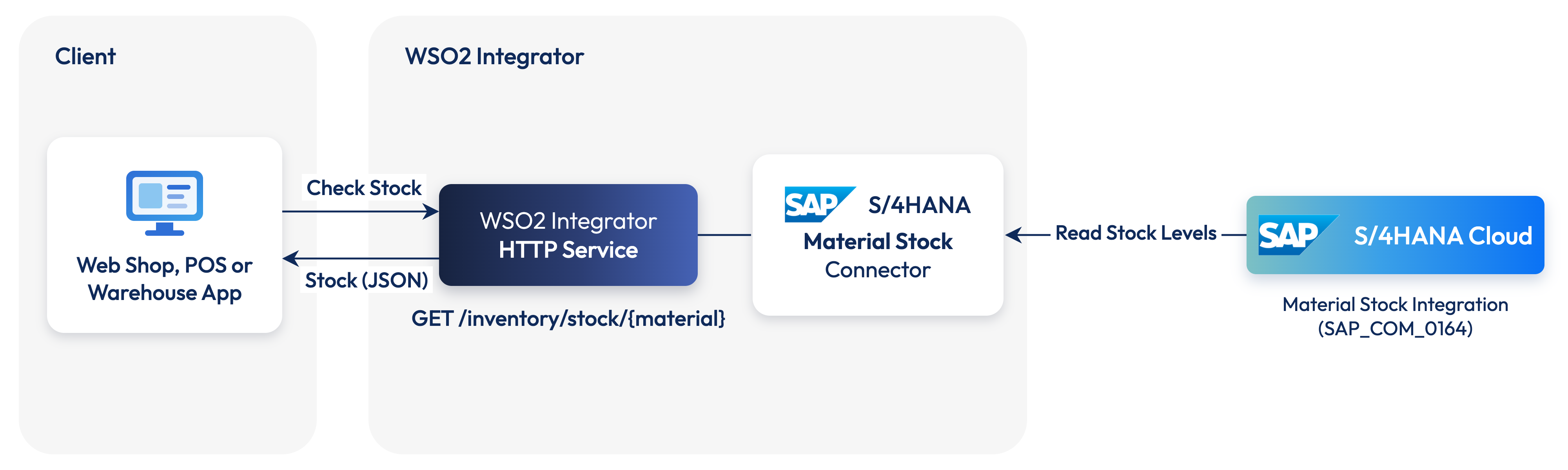
Each request follows the same short flow:
- Read the stock records for the material and plant from the Material Stock API, filtered to unrestricted-use stock (stock type
01). - Turn each SAP record into a simple
{storageLocation, quantity, unit}entry, converting the quantity from text to a number. - Add the quantities up into a total.
- Return the material, plant, total and per-storage-location breakdown as JSON.
Before you begin
- A working WSO2 Integrator environment. See Setup.
- Access to an SAP S/4HANA Cloud system, with a user that has the
SAP_BR_ADMINISTRATORrole (or equivalent) to create communication users, systems and arrangements. You set up API access in Set up access in SAP S/4HANA. - A material that has stock in your system, and the plant it is stored in. The examples in this guide use material
RM019in plant1710.
Set up access in SAP S/4HANA
SAP S/4HANA Cloud exposes each API through a communication scenario. Before the integration can read stock, you create a communication user for it, register WSO2 Integrator as a communication system, and activate the Material Stock Integration (SAP_COM_0164) scenario for that system with a communication arrangement. All the apps used below are in the Communication Management group of the SAP Fiori launchpad.
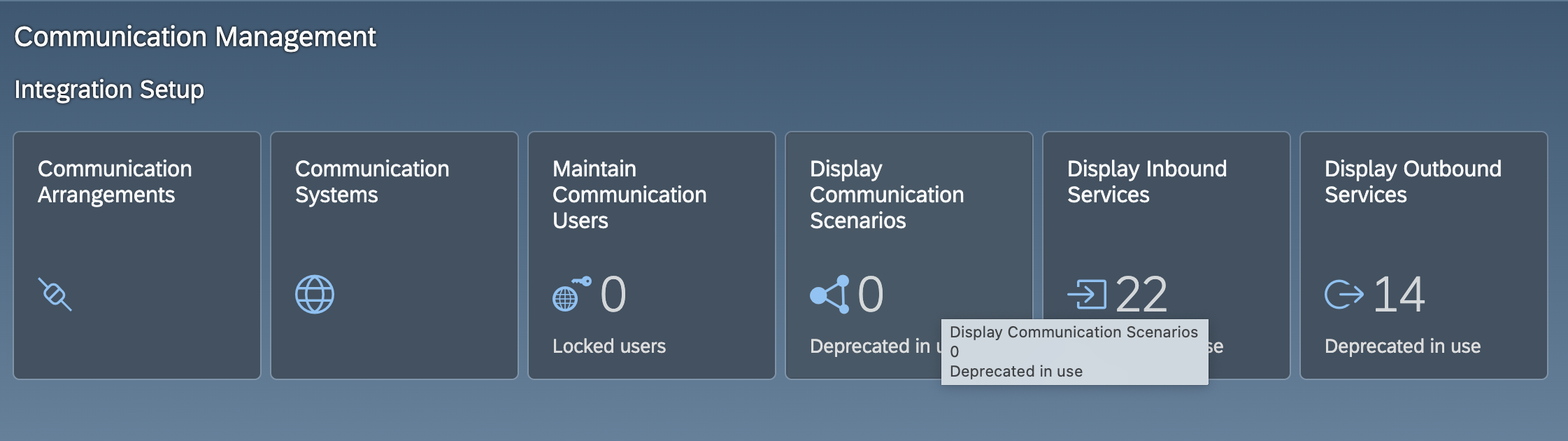
Create a communication user
- Open Maintain Communication Users and select New.
- Enter a User Name and a Description, set a Password, and select Create.
Note the user name and password. The integration uses them to call the API.
Create a communication system
A communication system represents the external system that calls SAP S/4HANA, here your WSO2 Integrator integration.
-
Open Communication Systems and select New.
-
Enter a System ID and a System Name, then select Create.
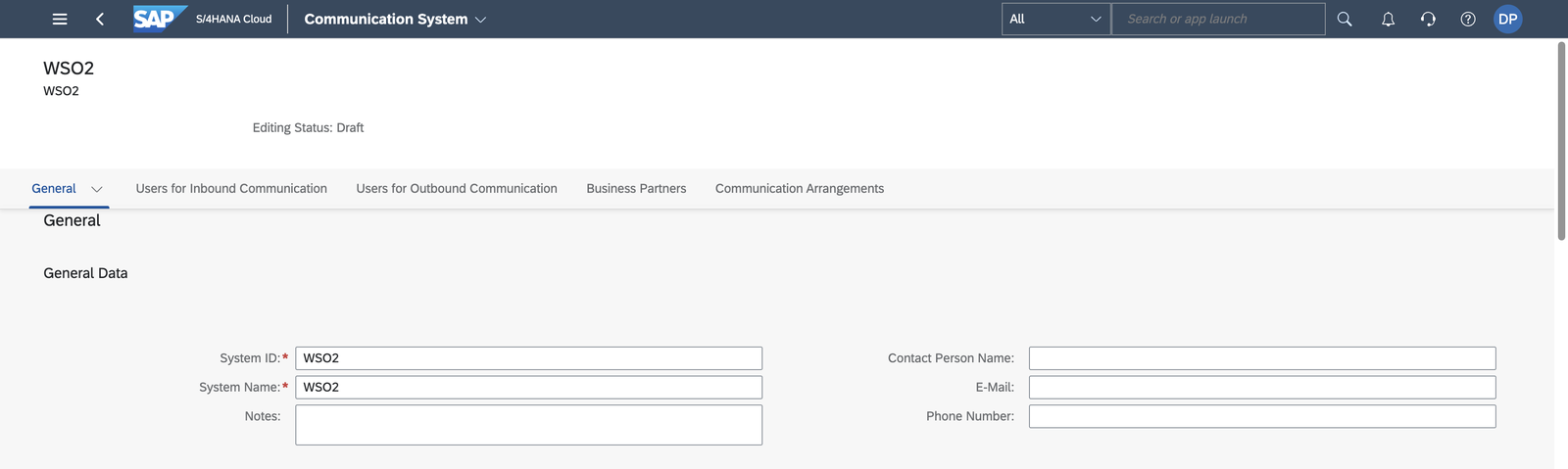
-
Under General > Technical Data, enter a Host Name and a Logical System (an uppercase ID of up to 10 characters, for example,
INTEGRATOR). -
Under Users for Inbound Communication, add the communication user you created, with the User Name and Password authentication method.
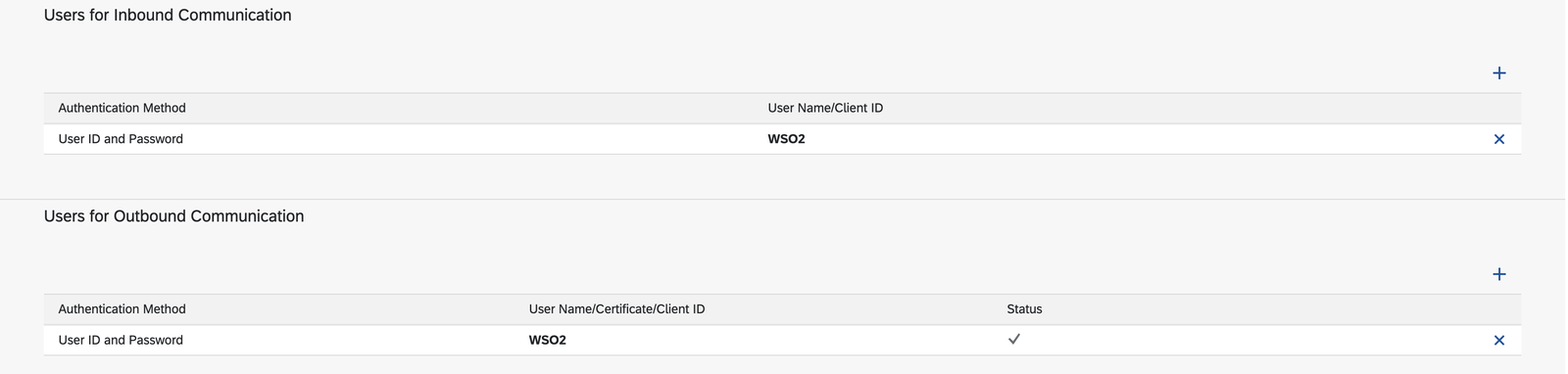
-
Select Save.
Create the communication arrangement
A communication arrangement activates a communication scenario for a communication system, which decides the APIs that system may call.
-
Open Communication Arrangements and select New.
-
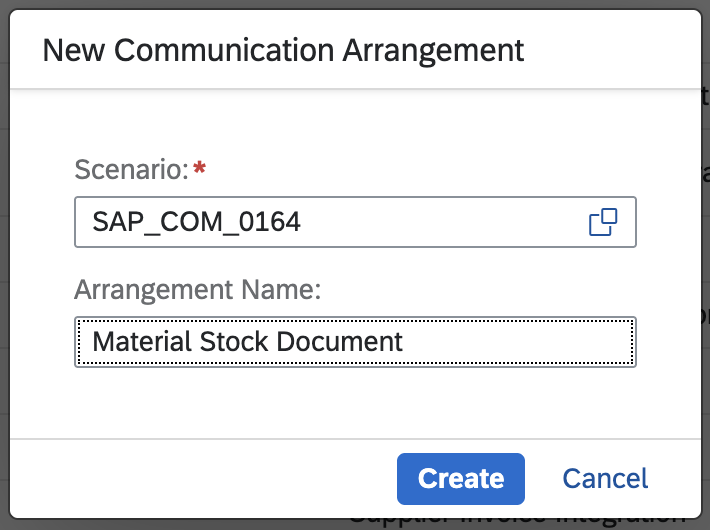
In the Scenario value help, search for Material Stock Integration and select
SAP_COM_0164. This scenario exposesAPI_MATERIAL_STOCK_SRV, the service the Material Stock connector calls.
-
Enter an Arrangement Name and select Create.
-
Select the communication system you created. The communication user is filled in as the inbound user.
-
Select Save.
Note the hostname
In the saved arrangement, the API-URL next to Own SAP Cloud System shows your API hostname (<unique id>-api.s4hana.cloud.sap).
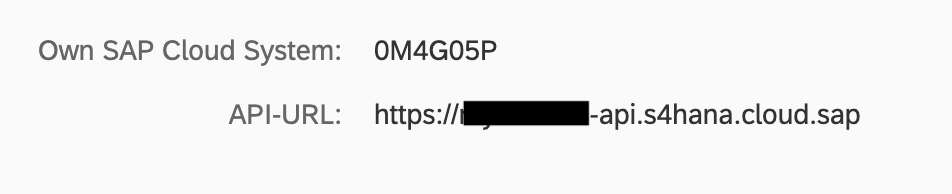
You now have the three values the integration needs: the hostname (for example, my123456-api.s4hana.cloud.sap), and the communication user's username and password. For more detail, see the SAP Material Stock connector setup guide.
Build the integration
Build the flow in the Visual Designer, or switch to the Ballerina Code tab to see the equivalent source the designer generates for you.
- Visual Designer
- Ballerina Code
Step 1: Create the integration and the HTTP service
An HTTP service exposes your integration as a REST API, which is what the calling applications need.
-
Create a new integration named
StockAvailabilityin a project namedStockAvailability.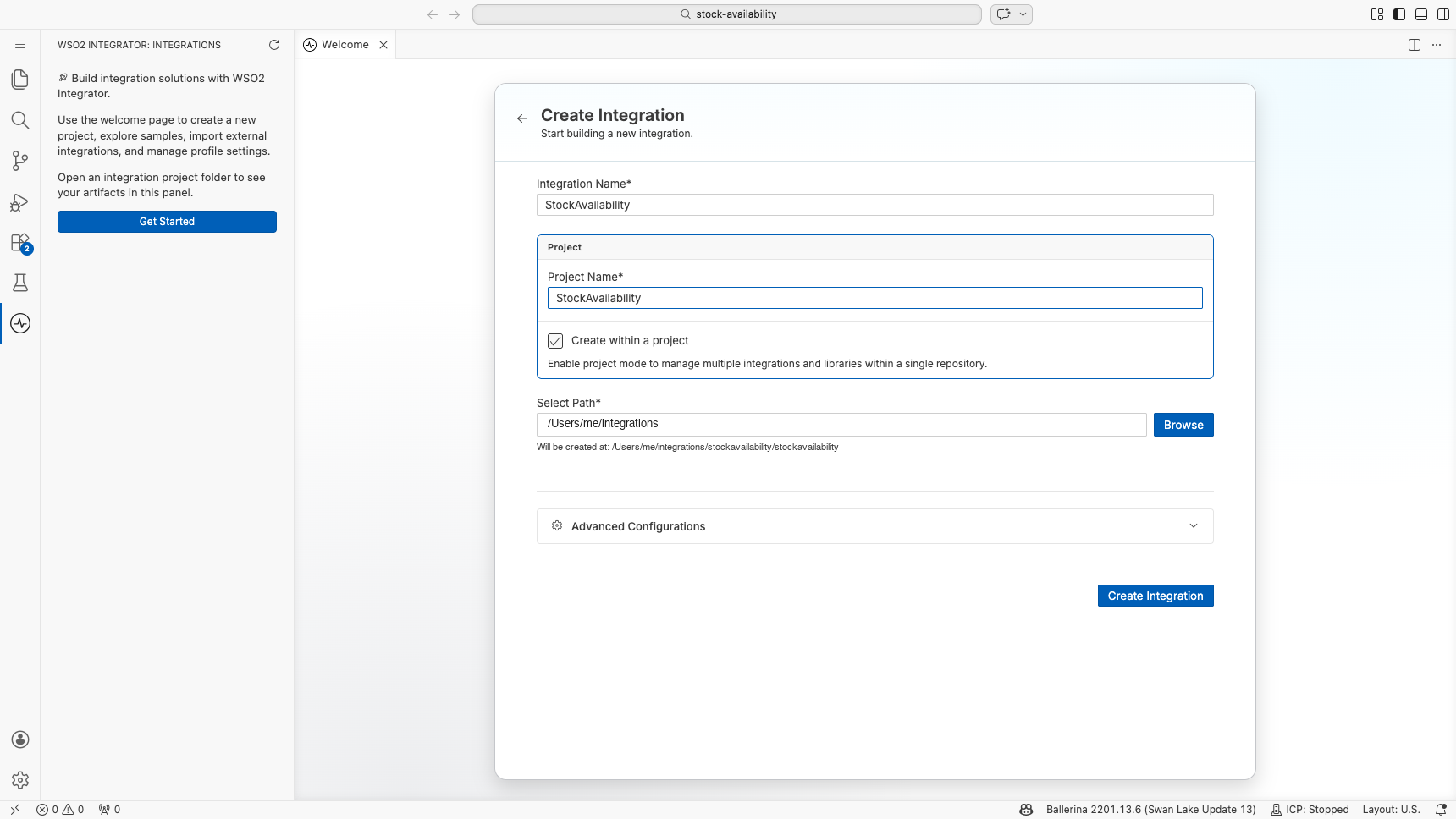
-
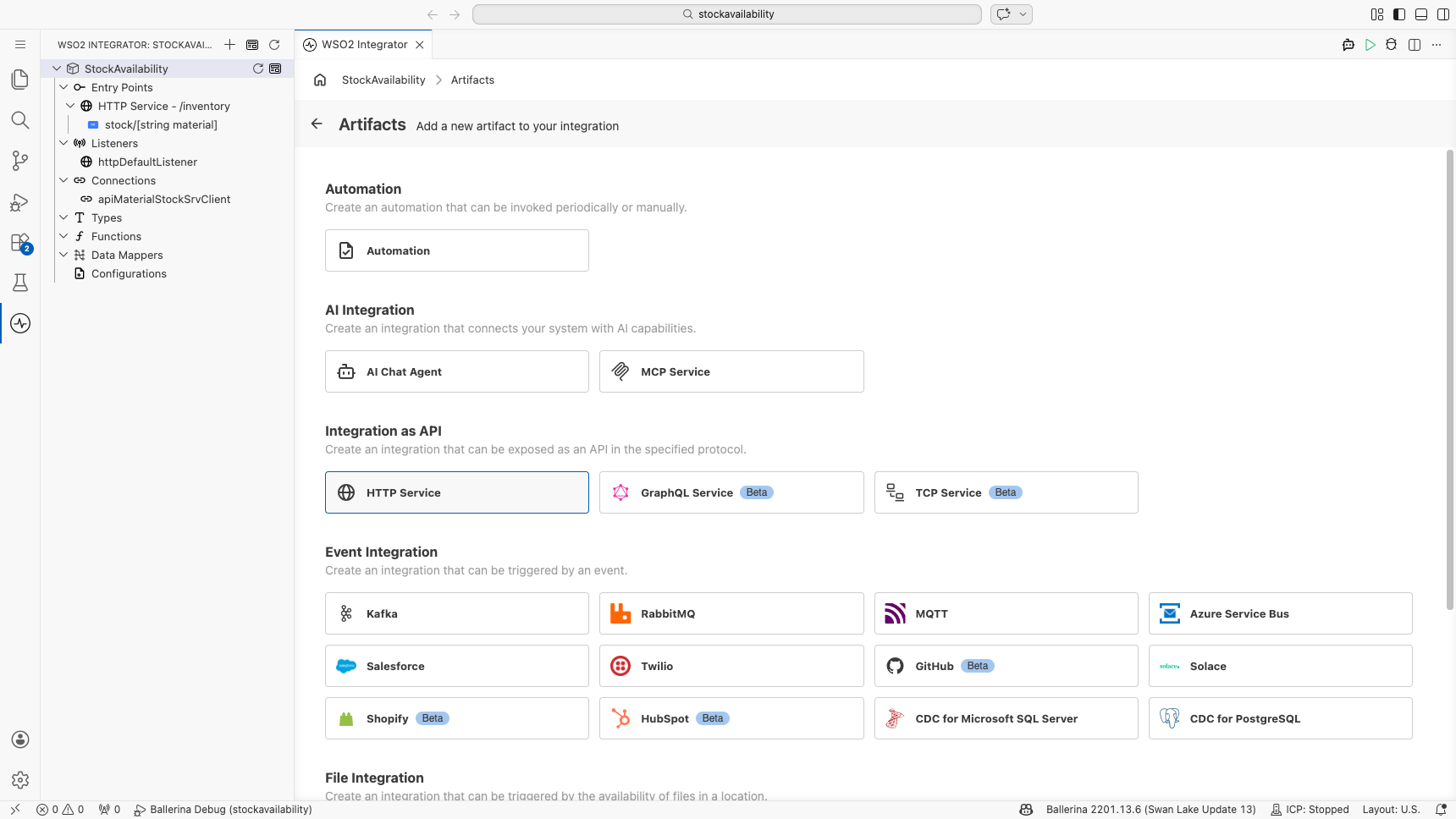
On the Artifacts page, select HTTP Service under Integration as API.
-
Keep Design From Scratch, set Service Base Path to
/inventory, and select Create.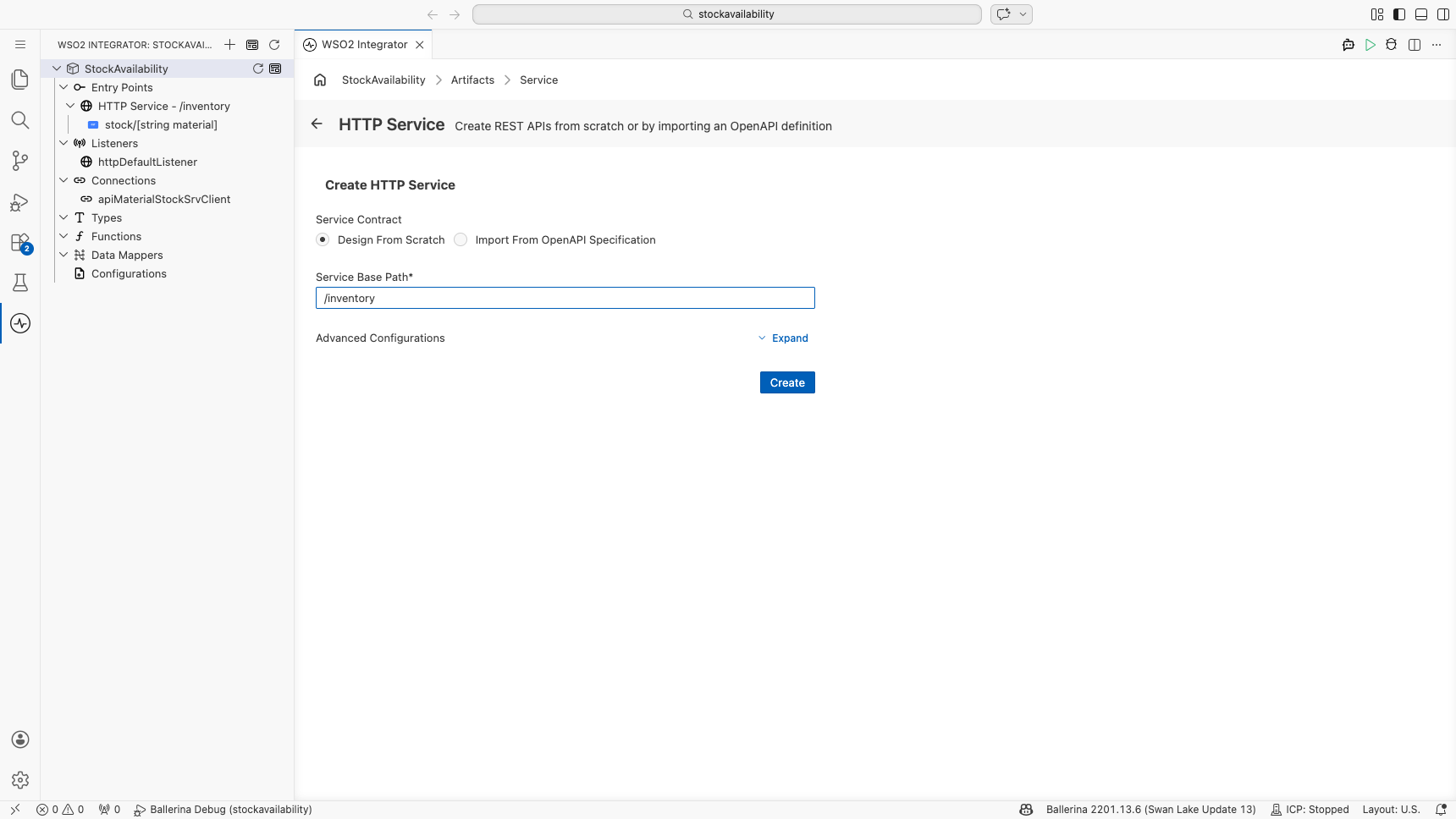
Step 2: Add the stock resource
-
Select Add Resource, then GET.
-
Set Resource Path to
stock/[string material]. The part in square brackets is a path parameter, so the material number arrives as thematerialvariable. -
Select Query Parameter, enter
plantas the name, and select Save. A query parameter of typestringis required by default, so a request without?plant=is rejected with400 Bad Request. -
Keep the default responses (
200withjson,500witherror) and select Save.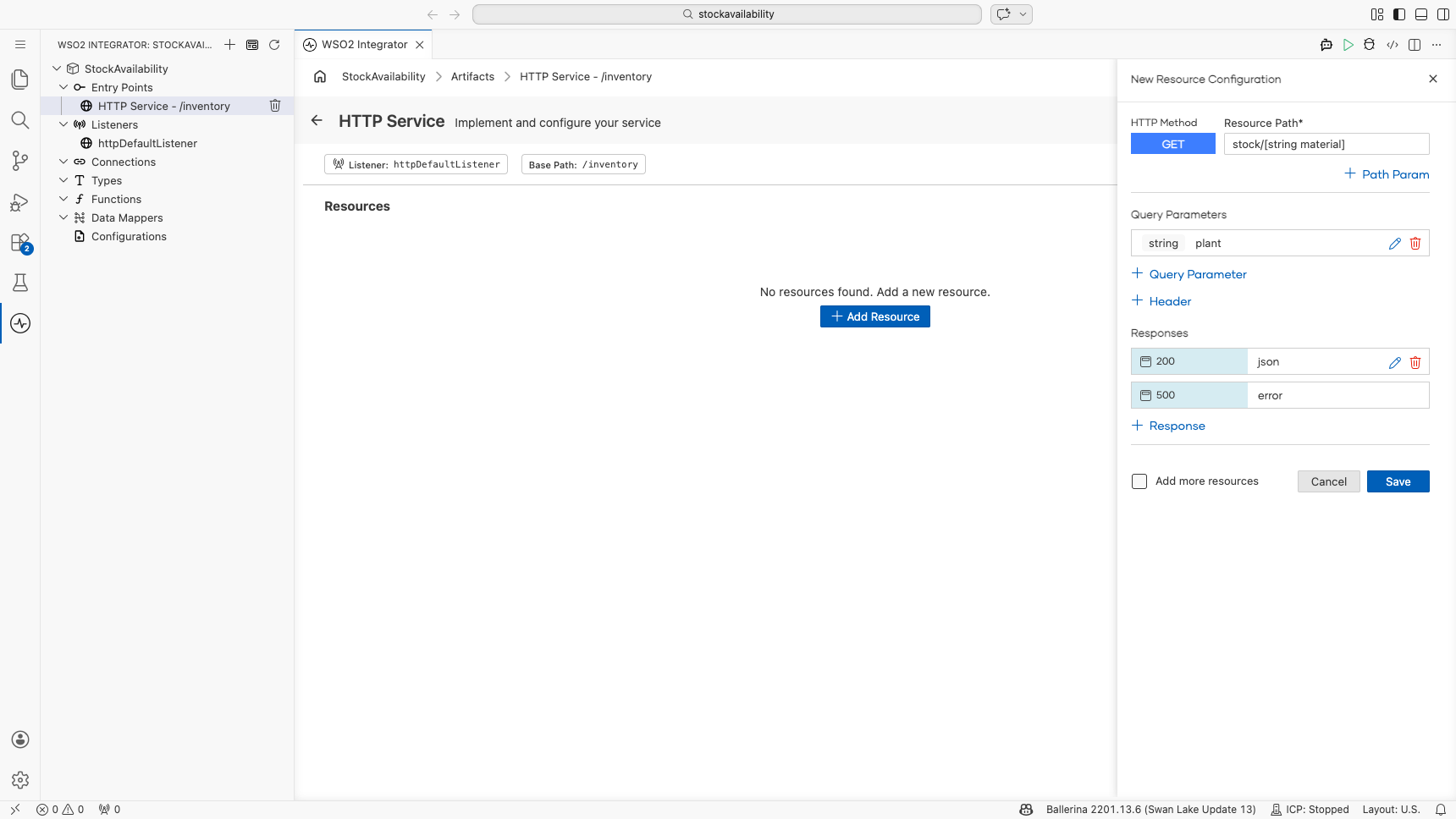
The resource opens in the flow designer, with Start, an empty step and the Error Handler.
Step 3: Connect to SAP S/4HANA
-
Select the + below Start, then Add Connection. Search for
api_material_stock(1) and select the Api_material_stock_srv connector (2).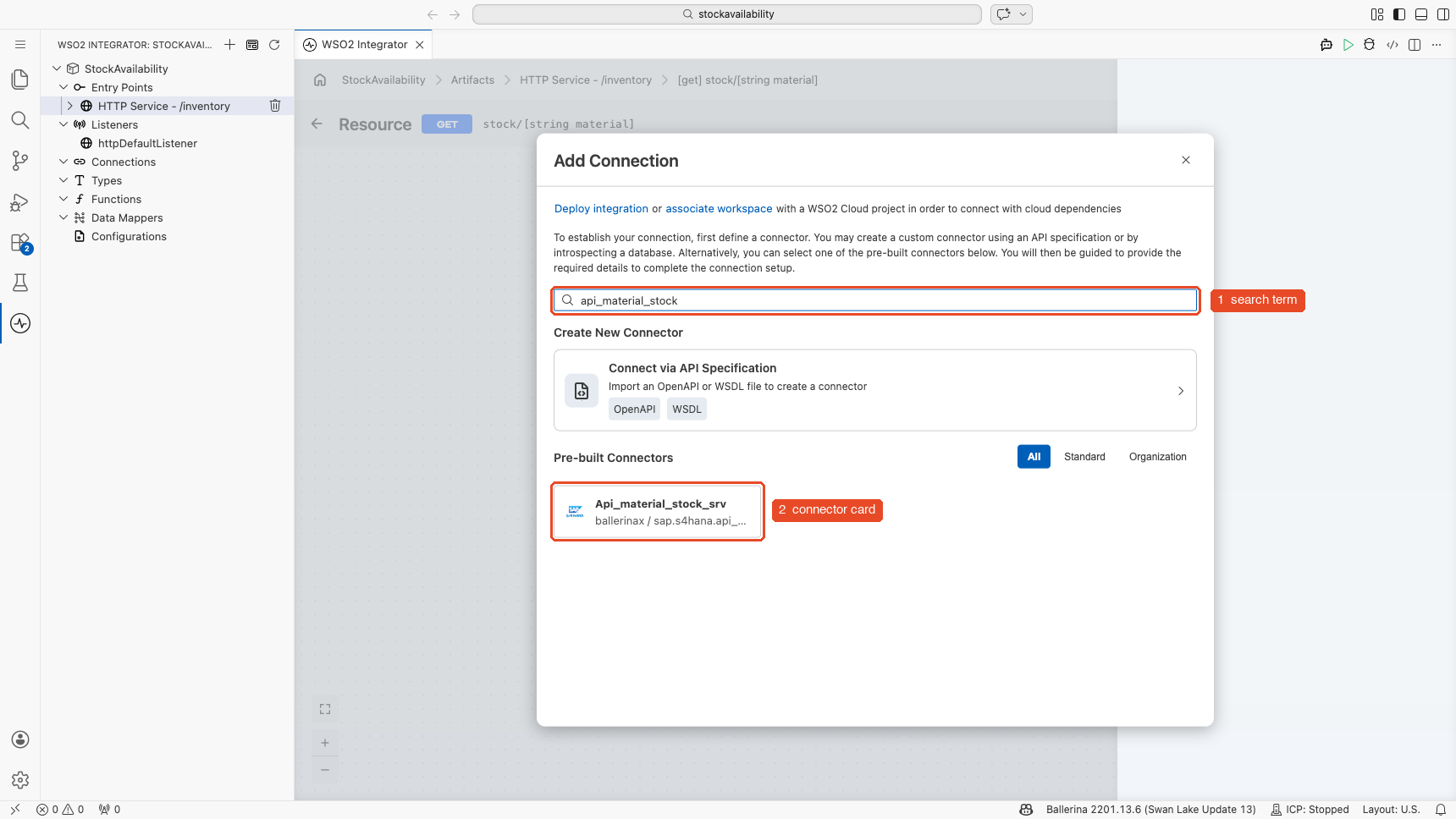 Why is the connector called Api_material_stock_srv?
Each SAP S/4HANA connector is generated from one API on the SAP Business Accelerator Hub, and takes its name from that API's technical name. The technical name is the last part of the API's URL on api.sap.com, and also the name of the OData service the connector calls on your system (
/sap/opu/odata/sap/API_MATERIAL_STOCK_SRV).Example API on api.sap.com Material Stock (A2X) api.sap.com URL https://api.sap.com/api/API_MATERIAL_STOCK_SRV/overviewBallerina package ballerinax/sap.s4hana.api_material_stock_srv(sap.s4hana.plus the technical name in lower case)Connector card in WSO2 Integrator Api_material_stock_srv So, to find the connector for any other SAP S/4HANA API, open the API on api.sap.com, copy the technical name from its URL, and search for it in lower case. For example, Outbound Delivery (A2X) at
https://api.sap.com/api/API_OUTBOUND_DELIVERY_SRV_0002/overviewis thesap.s4hana.api_outbound_delivery_srv_0002connector. -
Create three
stringconfigurables for the hostname, username and password you noted in Set up access in SAP S/4HANA, so the credentials are supplied at runtime instead of stored in the flow: in a field's Expression editor helper pane, select Configurables, then New Configurable. Name themsapS4HanaHostname,sapS4HanaUsernameandsapS4HanaPassword. -
Bind Hostname to
sapS4HanaHostname. -
Switch Config to Expression and enter:
{auth: {username: sapS4HanaUsername, password: sapS4HanaPassword}}The connector uses Basic Authentication with the communication user from the setup guide.
-
Keep the connection name
apiMaterialStockSrvClientand select Save Connection.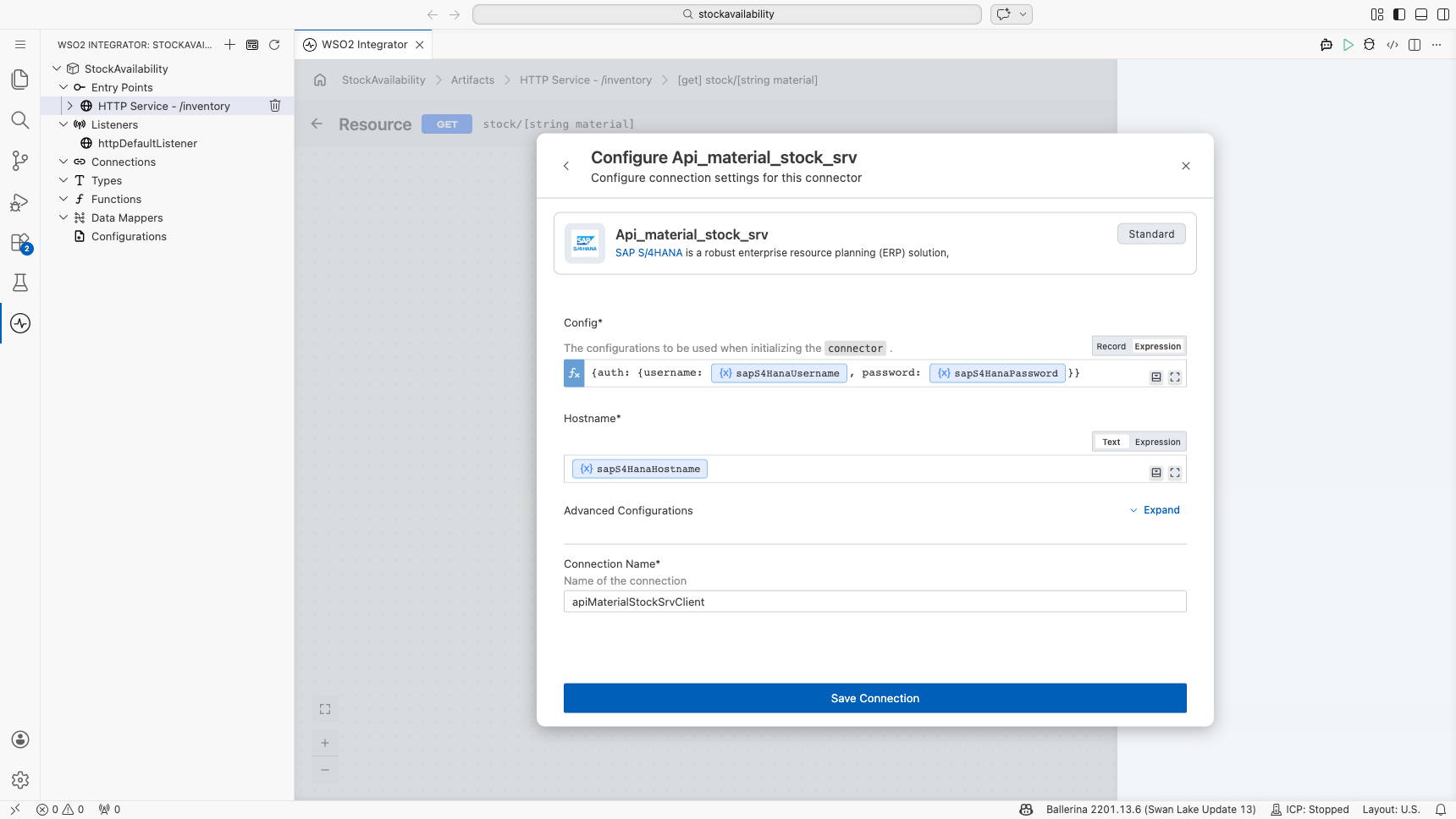
Step 4: Read the stock records
The Material Stock API exposes stock "in the account model": one record per combination of material, plant, storage location, batch, stock type and special stock. You read the records for one material and plant and keep only unrestricted-use stock.
-
In the node panel, expand apiMaterialStockSrvClient under Connections and select List A Matl Stk In Acct Mods (
listA_MatlStkInAcctMods).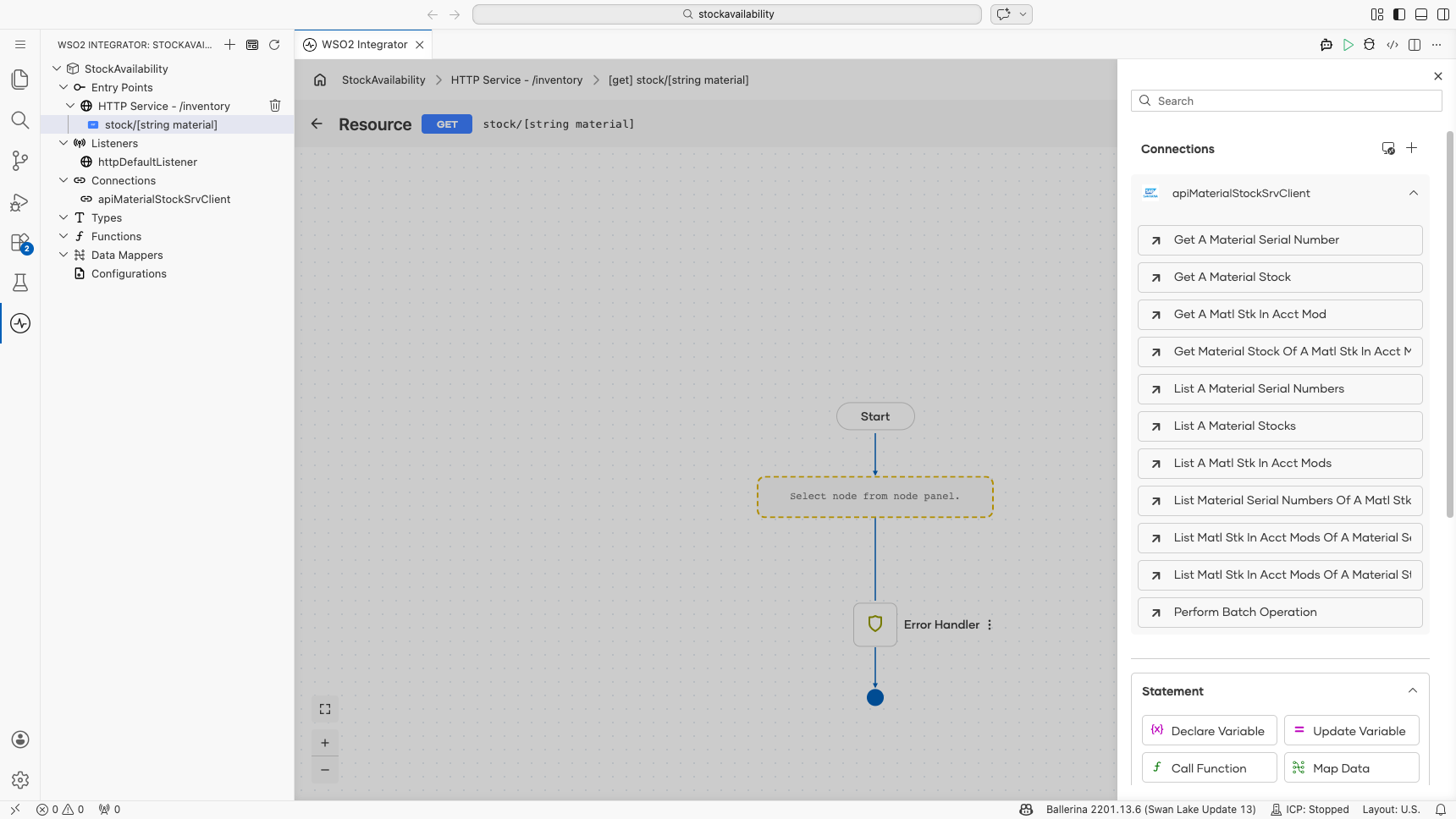
-
Expand Advanced Configurations, switch $Filter to Expression, and enter this string template. It inserts the
materialpath parameter and theplantquery parameter into an OData filter:string `Material eq '${material}' and Plant eq '${plant}' and InventoryStockType eq '01'`InventoryStockType eq '01'keeps only unrestricted-use stock, the stock you can actually sell or issue. Drop that condition if you also want quality-inspection or blocked stock. -
Set Result to
stockRecordsand select Save.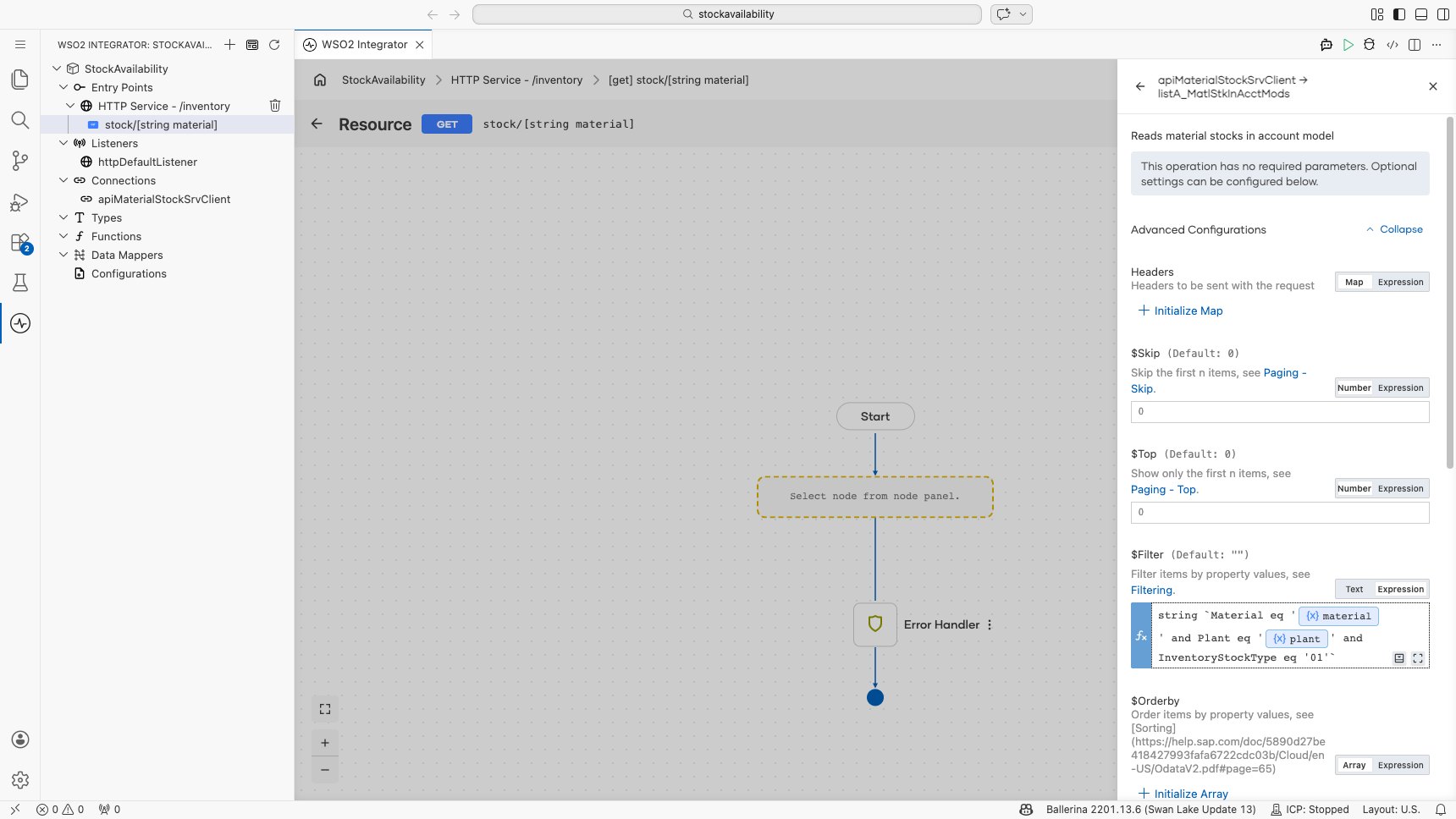
Step 5: Shape the response
SAP returns the records inside an OData envelope (d.results) and the quantity, MatlWrhsStkQtyInMatlBaseUnit, as text. Two Declare Variable steps turn that into the response.
-
Select the + after the operation, then Declare Variable. Name it
storageLocations, set Type tojson[], and enter this expression. It builds one entry per storage location and converts the quantity to adecimal:from var s in stockRecords.d?.results ?: [] select {storageLocation: s?.StorageLocation, quantity: check decimal:fromString(s?.MatlWrhsStkQtyInMatlBaseUnit ?: "0"), unit: s?.MaterialBaseUnit}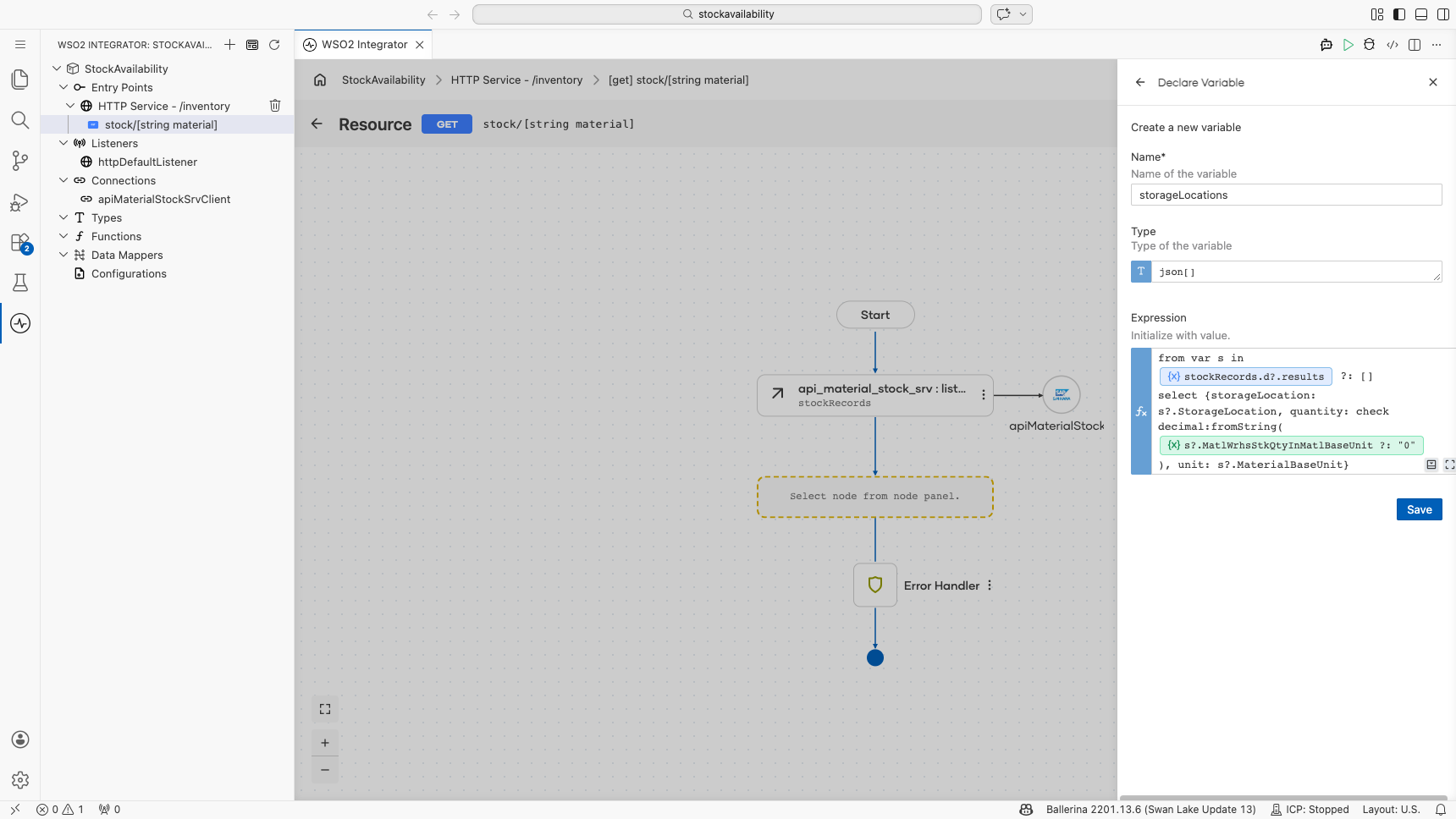
-
Add another Declare Variable after it. Name it
totalQuantity, set Type todecimal, and enter:decimal:sum(...from var s in stockRecords.d?.results ?: [] select check decimal:fromString(s?.MatlWrhsStkQtyInMatlBaseUnit ?: "0"))The designer shows this step as decimal : sum on the canvas, because its value comes from a function call.
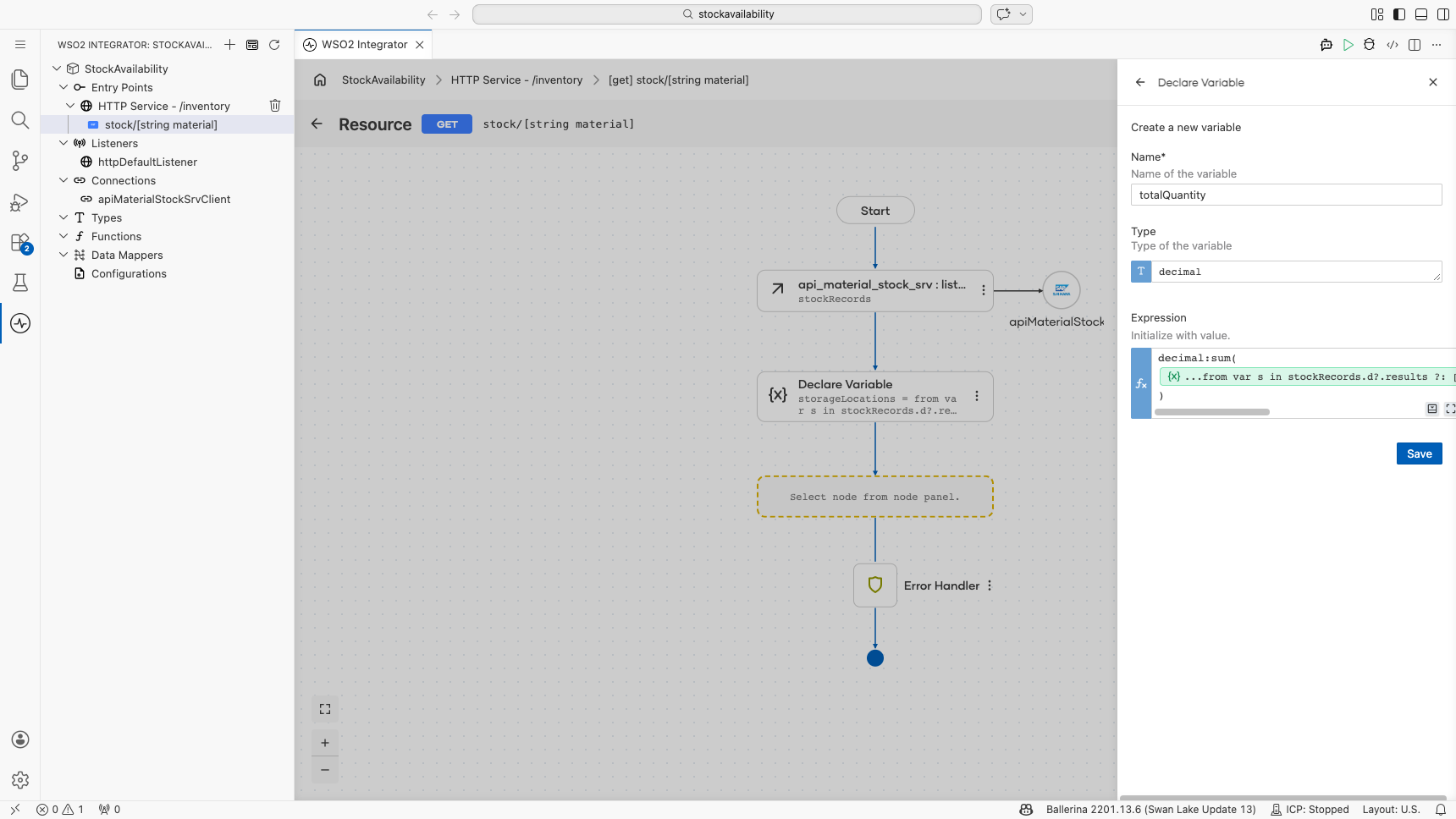
Step 6: Return the result
-
Add a Return step after
totalQuantityand enter:{material: material, plant: plant, totalQuantity: totalQuantity, storageLocations: storageLocations}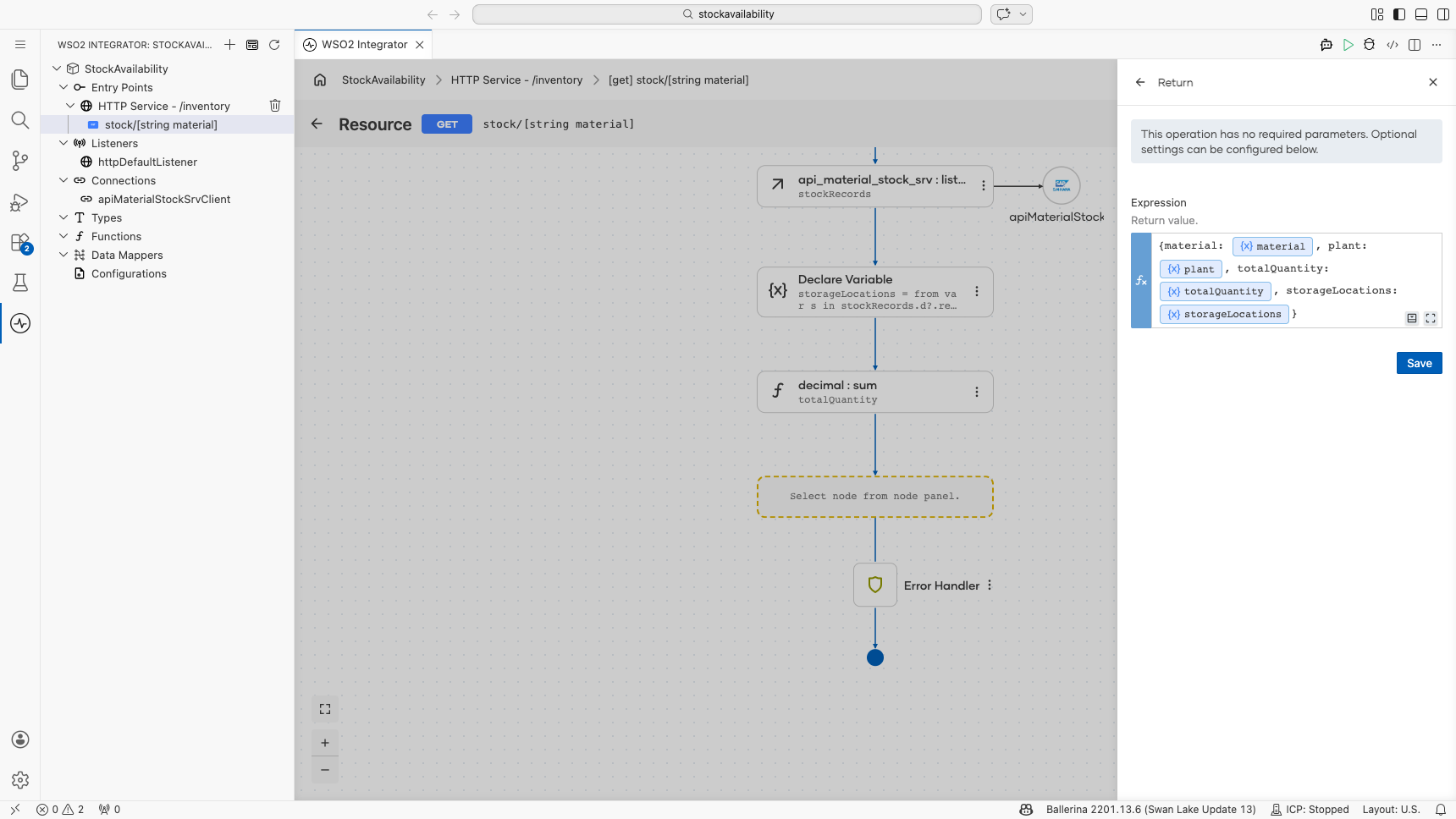
-
Select Save. The completed flow reads the stock, builds the breakdown, totals it and returns it.
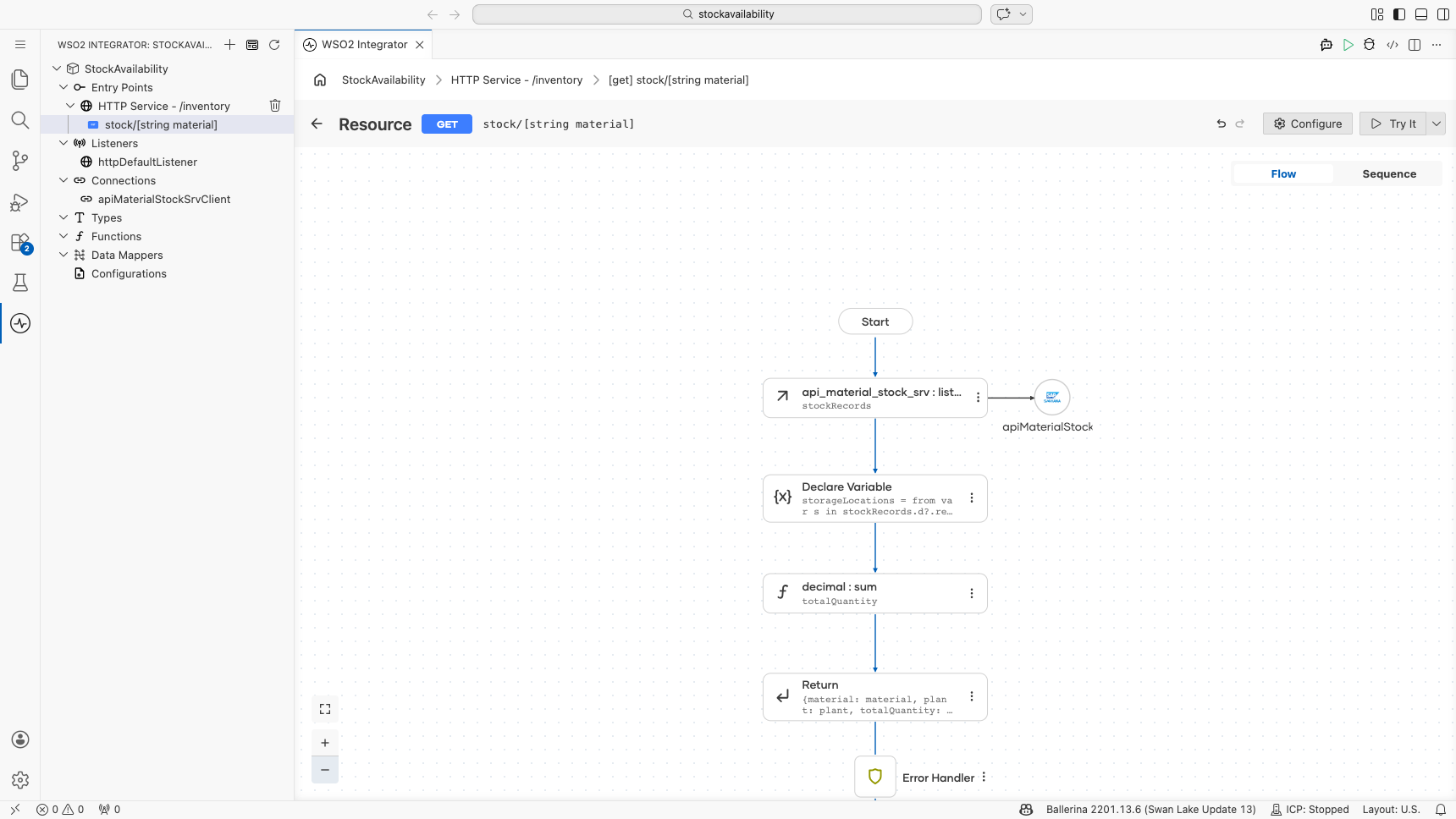
If the SAP call fails (for example, wrong credentials or a missing communication arrangement), the Error Handler returns the error, and the client receives 500 Internal Server Error.
// config.bal
configurable string sapS4HanaHostname = ?;
configurable string sapS4HanaUsername = ?;
configurable string sapS4HanaPassword = ?;
// connections.bal
import ballerinax/sap.s4hana.api_material_stock_srv;

final api_material_stock_srv:Client apiMaterialStockSrvClient = check new ({auth: {username: sapS4HanaUsername, password: sapS4HanaPassword}}, string `${sapS4HanaHostname}`);
// main.bal
import ballerina/http;
import ballerinax/sap.s4hana.api_material_stock_srv;

listener http:Listener httpDefaultListener = http:getDefaultListener();

service /inventory on httpDefaultListener {
    resource function get stock/[string material](@http:Query string plant) returns json|error {
        do {
            api_material_stock_srv:CollectionOfA_MatlStkInAcctModWrapper stockRecords = check apiMaterialStockSrvClient->listA_MatlStkInAcctMods(\$filter = string `Material eq '${material}' and Plant eq '${plant}' and InventoryStockType eq '01'`);
            json[] storageLocations = from var s in stockRecords.d?.results ?: []
                select {storageLocation: s?.StorageLocation, quantity: check decimal:fromString(s?.MatlWrhsStkQtyInMatlBaseUnit ?: "0"), unit: s?.MaterialBaseUnit};
            decimal totalQuantity = decimal:sum(...from var s in stockRecords.d?.results ?: []
                        select check decimal:fromString(s?.MatlWrhsStkQtyInMatlBaseUnit ?: "0"));
            return {material: material, plant: plant, totalQuantity: totalQuantity, storageLocations: storageLocations};
        } on fail error err {
            // handle error
            return error("unhandled error", err);
        }
    }

}
Run and verify
-
Open Configurations and supply values for
sapS4HanaHostname,sapS4HanaUsernameandsapS4HanaPassword, or add them toConfig.tomlwith Edit Config.toml. See Configurations. KeepConfig.tomlout of source control.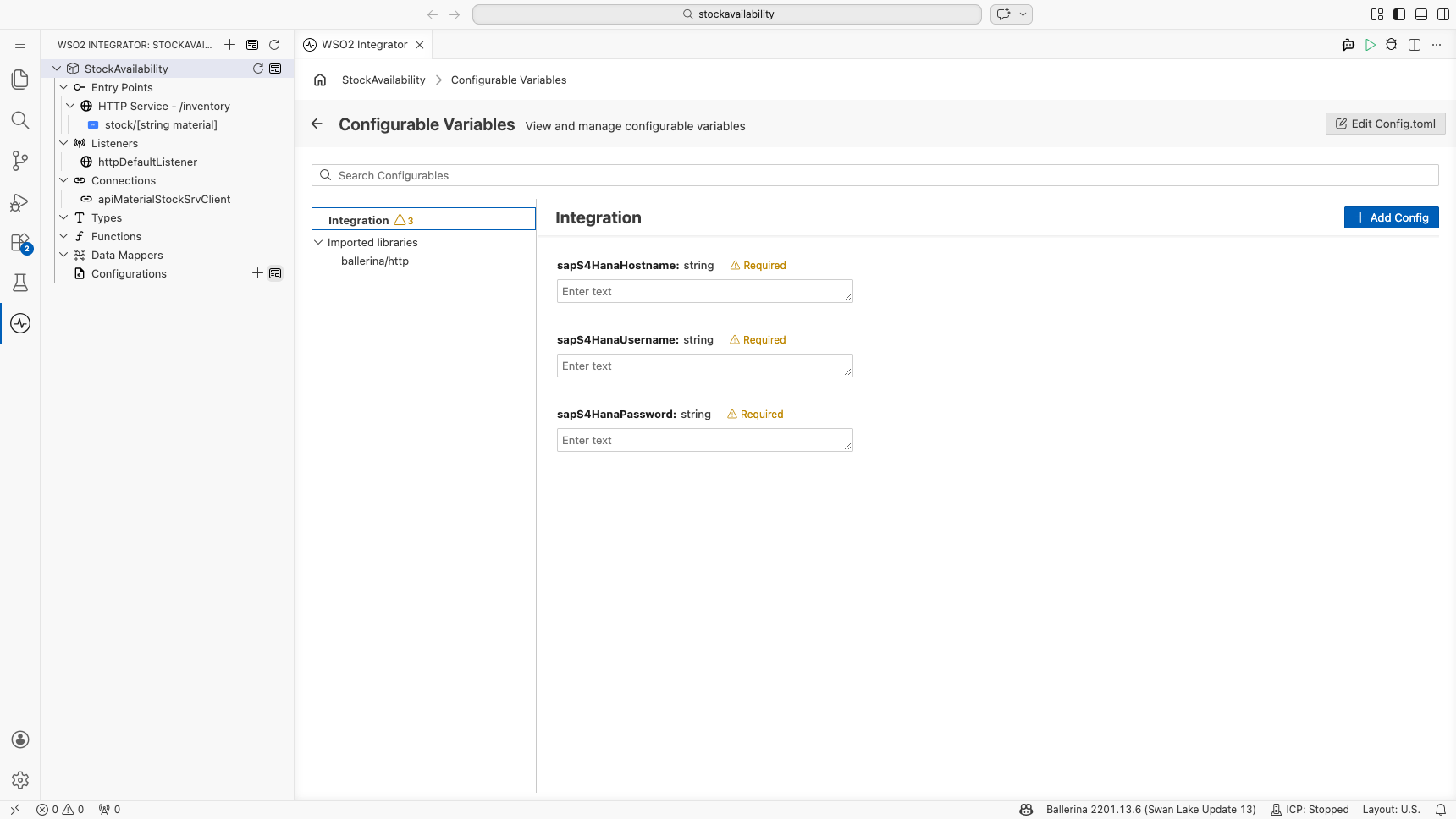
-
Select Run. The service starts on port
9090. -
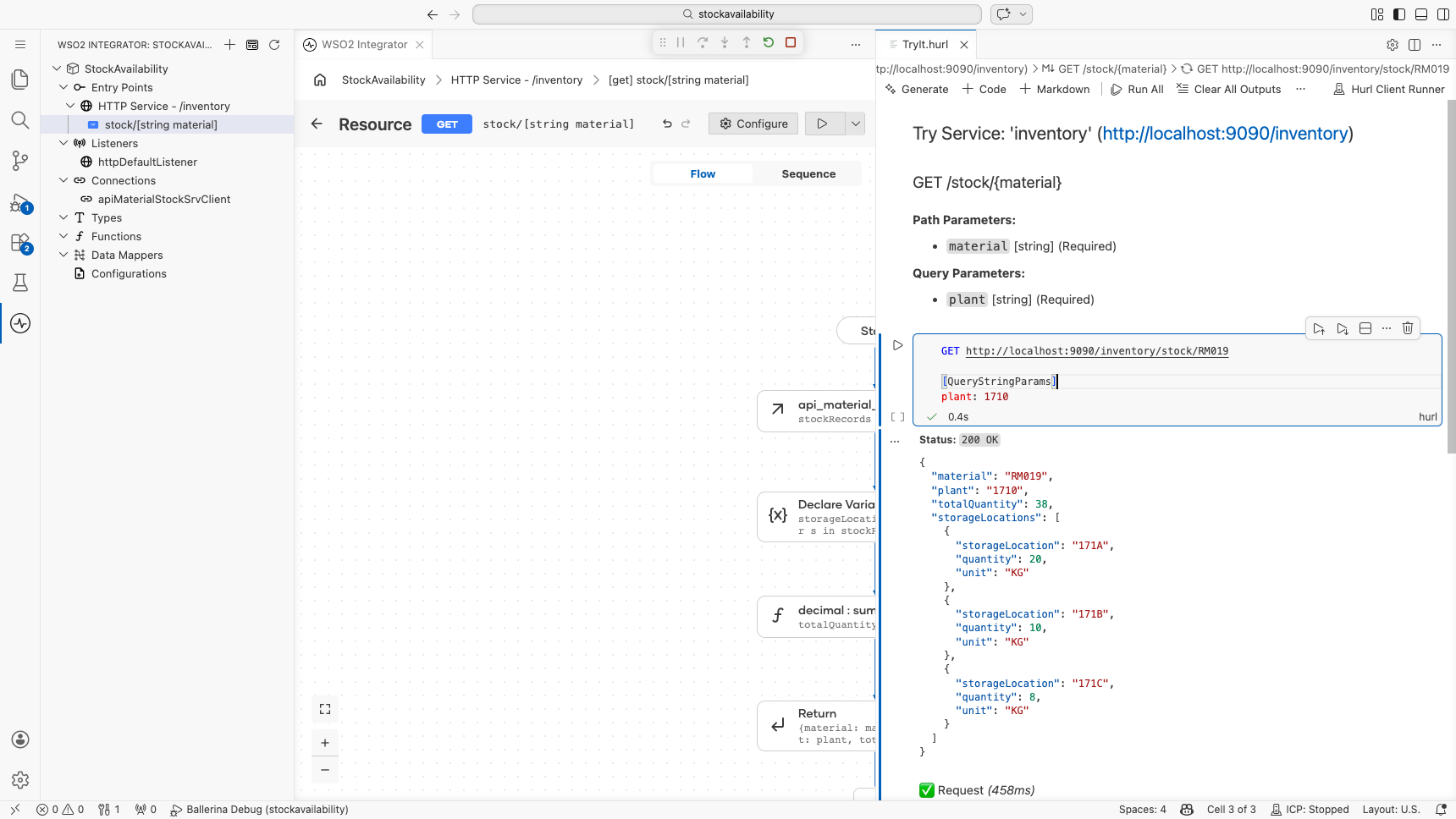
On the resource, select Try It, then Try It (Try resource with Hurl Client). Replace the placeholders so the request reads as follows, and run the cell:
GET http://localhost:9090/inventory/stock/RM019

[QueryStringParams]
plant: 1710
You can also call the API with any HTTP client, for example
curl "http://localhost:9090/inventory/stock/RM019?plant=1710". -
The response lists the unrestricted-use stock of the material in each storage location of the plant, and the total:
{
  "material": "RM019",
  "plant": "1710",
  "totalQuantity": 38.000,
  "storageLocations": [
    {"storageLocation": "171A", "quantity": 20.000, "unit": "KG"},
    {"storageLocation": "171B", "quantity": 10.000, "unit": "KG"},
    {"storageLocation": "171C", "quantity": 8.000, "unit": "KG"}
  ]
}
A material with no unrestricted-use stock in the plant returns
"totalQuantity": 0and an emptystorageLocationslist.
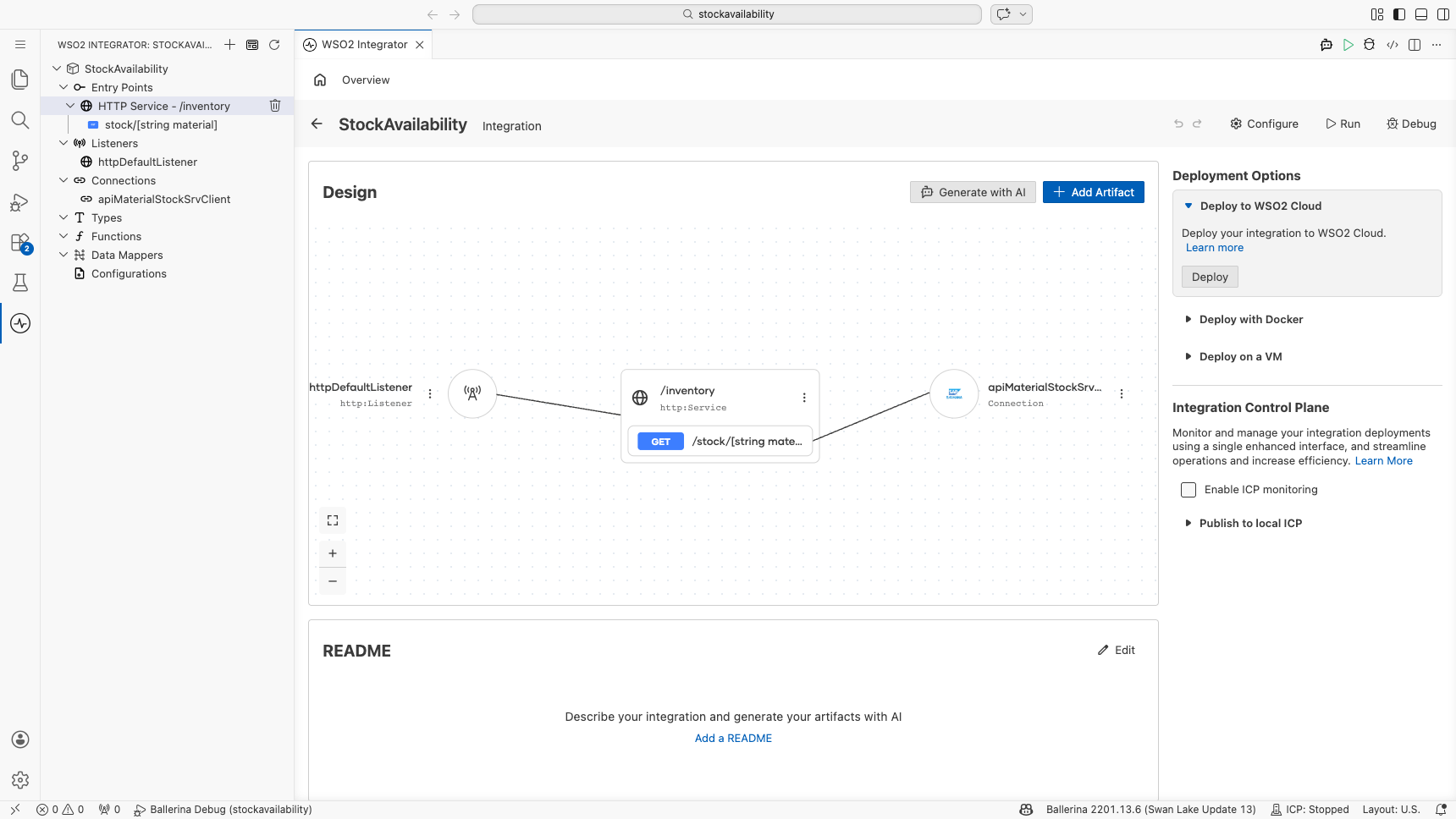
The integration overview now shows the whole API: the HTTP listener, the /inventory service with its GET resource, and the SAP S/4HANA connection it uses.
What's next
Now that the API works, you can take it further:
- Deploy it. Ship it to WSO2 Cloud, a Docker container, Kubernetes, or a virtual machine, and put it behind your API gateway.
- Check several materials at once. Add a
POST /inventory/stockresource that takes a list of materials and builds an OData filter such as(Material eq 'RM019' or Material eq 'FG011') and Plant eq '1710', so a shopping cart needs a single call. - Reserve the stock. Once availability is confirmed, create a reservation with the SAP Reservation Document connector so the quantity is held for the order.
- Explore the other operations. The Material Stock action reference covers every operation, including reading serial numbers for serialized materials.