Manage Deployment Pipelines
A deployment pipeline defines the ordered sequence of environments through which an integration is promoted. WSO2 Cloud - Integration Platform provides a default pipeline and lets you create additional pipelines to match different promotion strategies across your projects.
Default pipeline
Every organization starts with a Default pipeline containing two environments: Development and Production. The default pipeline cannot be deleted.
Manage pipelines at the organization level
To view and manage deployment pipelines, navigate to the organization level.
- Sign in to WSO2 Cloud.
- In the top navigation menu, click the Organization list and select your organization.
- In the left navigation menu under Admin, click CD Pipelines.
This page lists all existing pipelines in your organization.
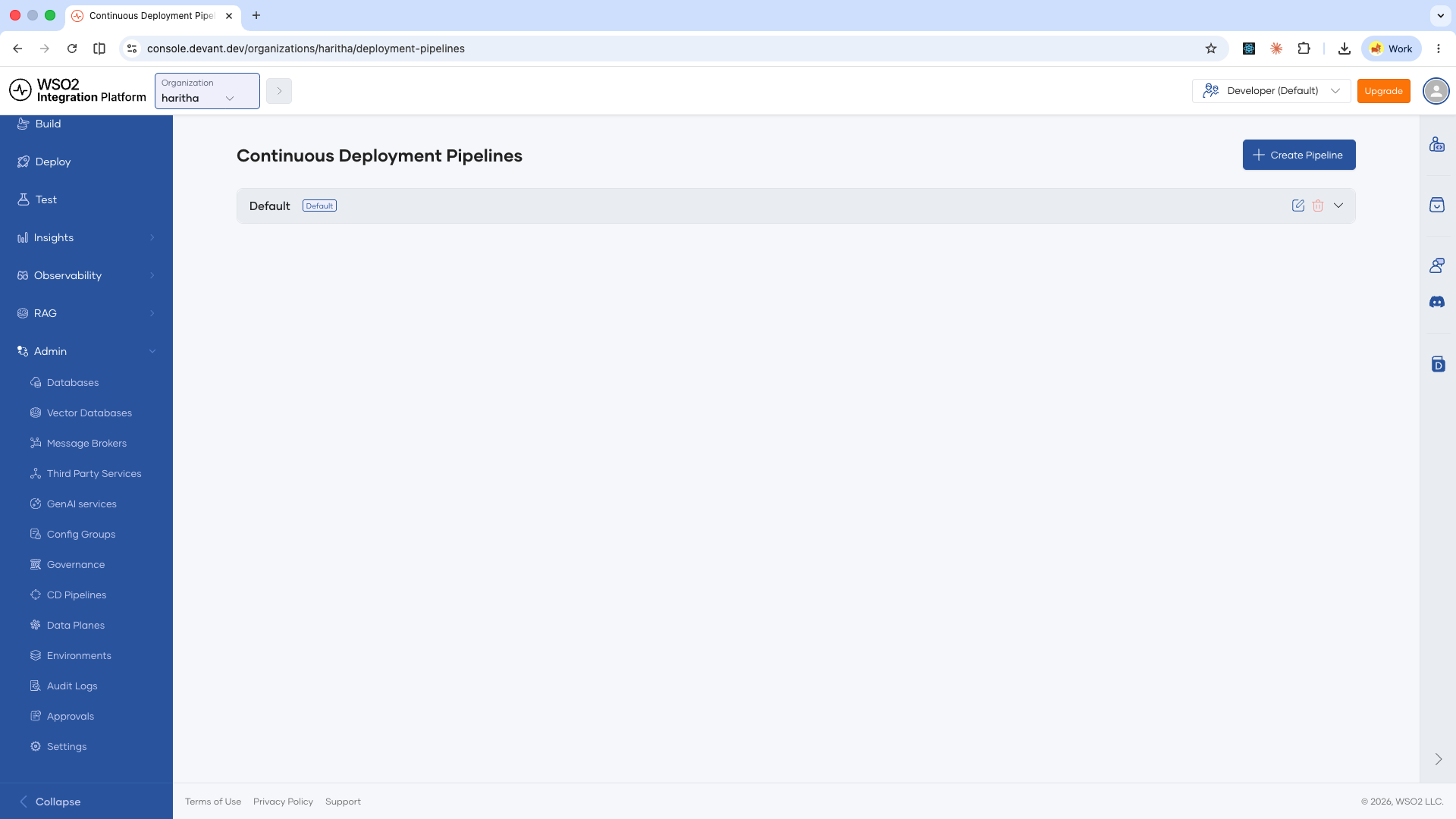
Create a pipeline
-
On the CD Pipelines page, click + Create Pipeline.
-
In the pipeline creation page, configure the following:
Field Description Name A display name for the pipeline. Promotion hierarchy The ordered sequence of environments through which integrations are promoted. Add environments and arrange them to define the promotion flow. If you need a new environment, create one first before configuring the pipeline. 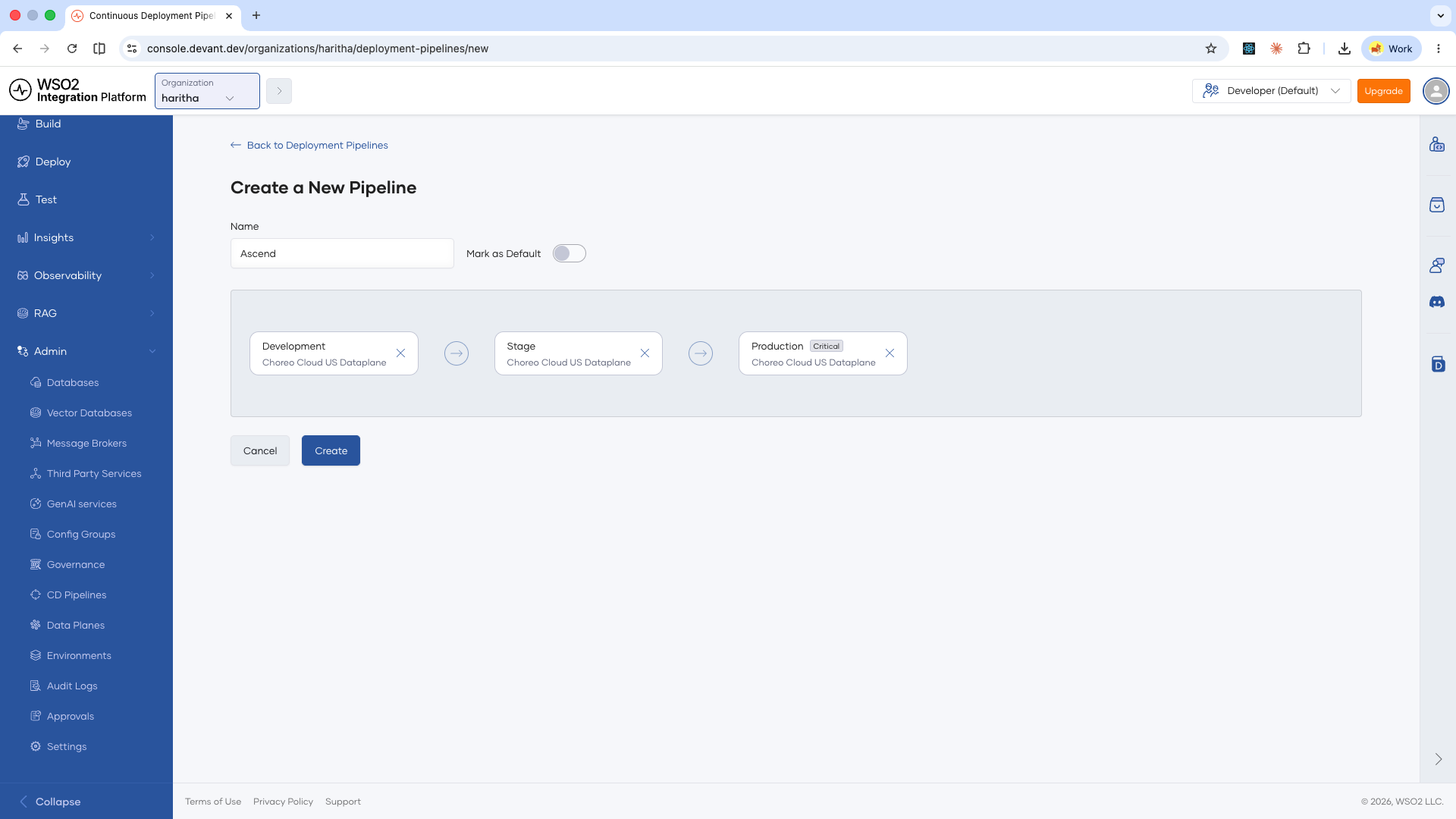
-
Click Create.
The new pipeline is added to the list on the CD Pipelines page.
Edit a pipeline
On the CD Pipelines page, click the edit icon on the pipeline you want to modify. Update the name or promotion hierarchy and save your changes.
Delete a pipeline
On the CD Pipelines page, click the delete icon on the pipeline you want to remove.
Assign a pipeline to a project
Once you create a pipeline, you can assign it to one or more projects. Multiple pipelines can be active in the same project at the same time.
- In the top navigation menu, click the Project list and select the project you want to configure.
- In the left navigation menu under Admin, click CD Pipelines.
- Add the pipeline to the project from the list of available pipelines.
Select a pipeline for an integration
When multiple pipelines are assigned to a project, you can choose which pipeline to use for a specific integration.
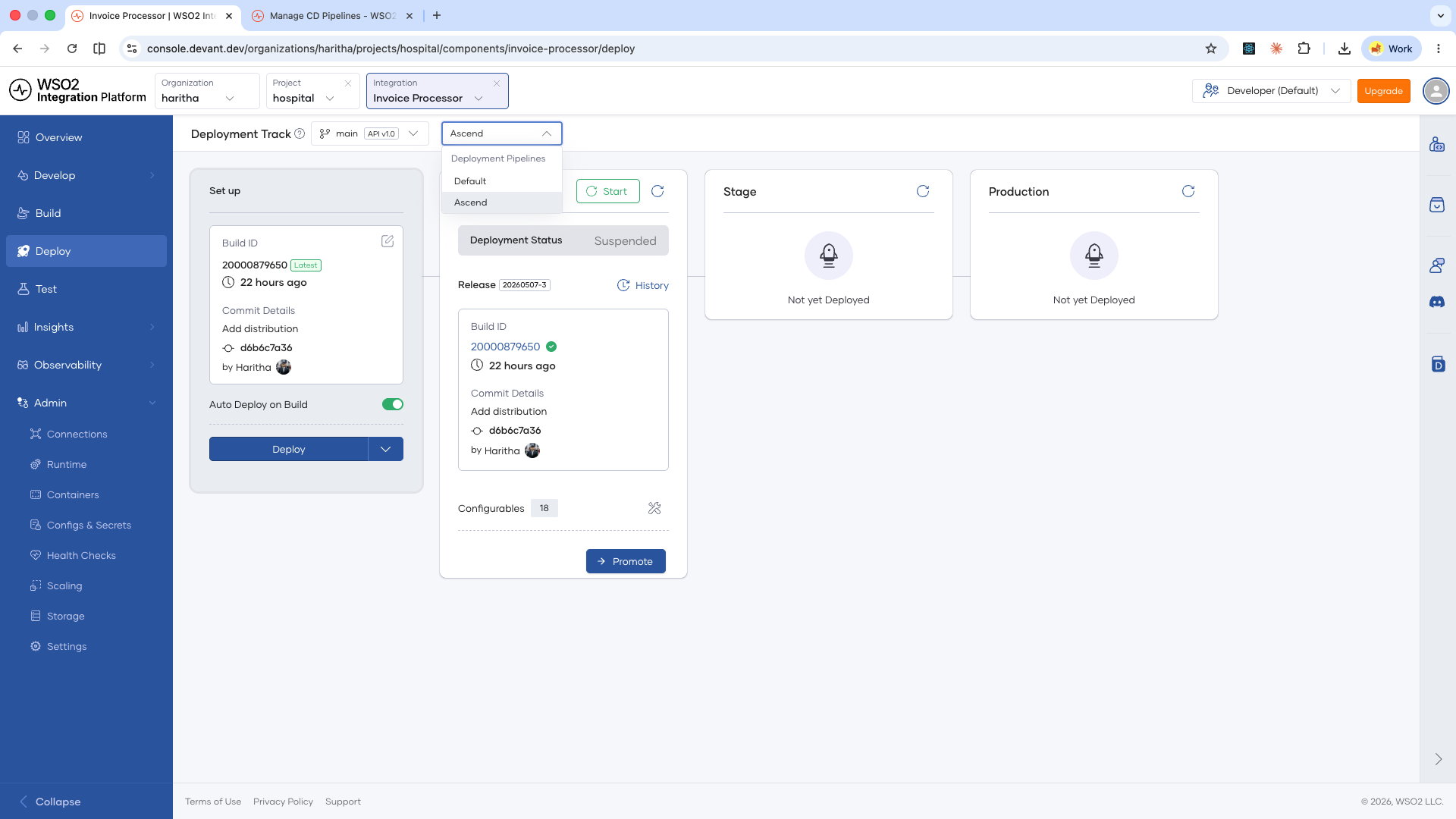
- Open the integration and go to its Deploy page.
- Switch the active pipeline using the pipeline selector on the Deploy page.
What's next
- Environments overview — Understand how environments work and how integrations are isolated across them
- Promote an integration — Move an integration from one environment to the next in your pipeline