Promotion Approvals
You can configure the Environment Promotion workflow to require an approval before any integration is promoted to the next environment. When the workflow is active, promotion requests are gated behind a review step, and the promotion only proceeds after an authorized reviewer approves the request.
Enable the promotion approval workflow
-
In the top navigation, click your organization name to switch to the organization level.
-
In the left navigation, go to Admin > Settings.
-
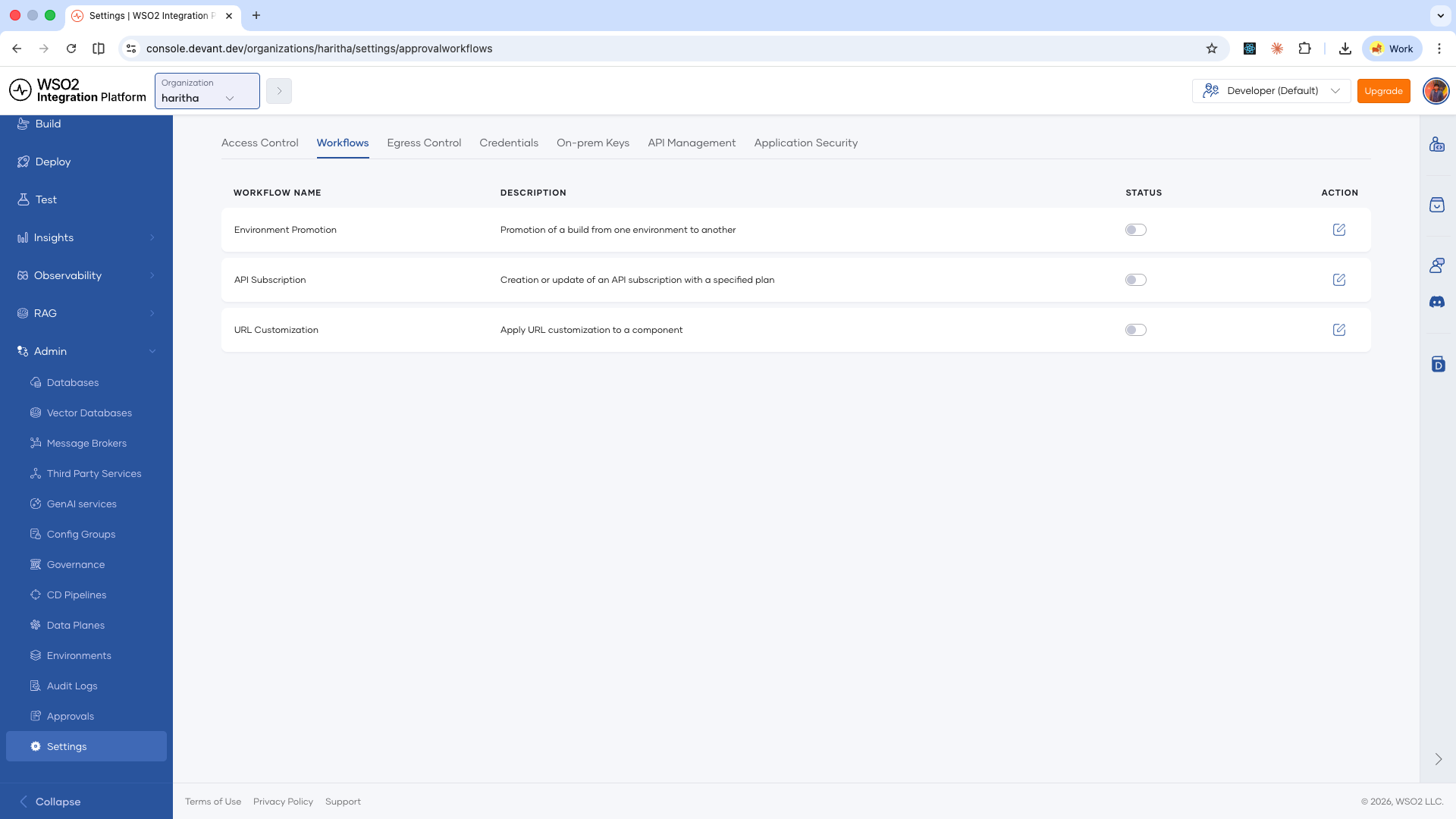
On the Settings page, click the Workflows tab.
-
In the Environment Promotion row, click the toggle to enable the workflow.
-
In the opened Configure Workflow dialog, specify who can review promotion requests.
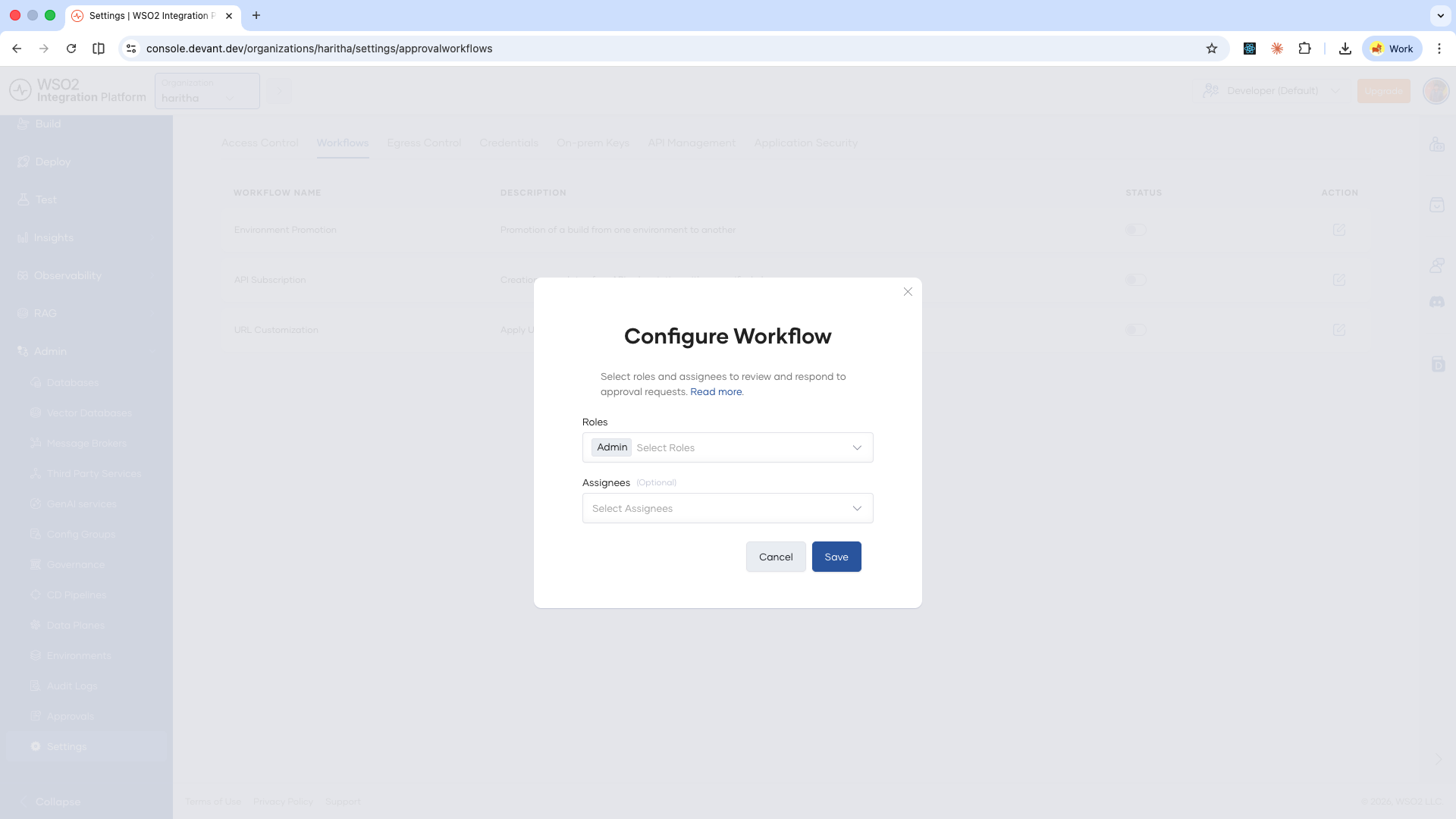
Field Description Roles Select the roles whose members can review and respond to approval requests. Assignees Optional. Select specific individuals within the chosen roles who can respond. infoYou can also update these settings later by clicking the edit icon next to the workflow toggle.
-
Click Save.
Request to promote
Once the workflow is enabled, the Promote button in the integration overview page changes to Request to Promote.
-
Open your integration from the project home.
-
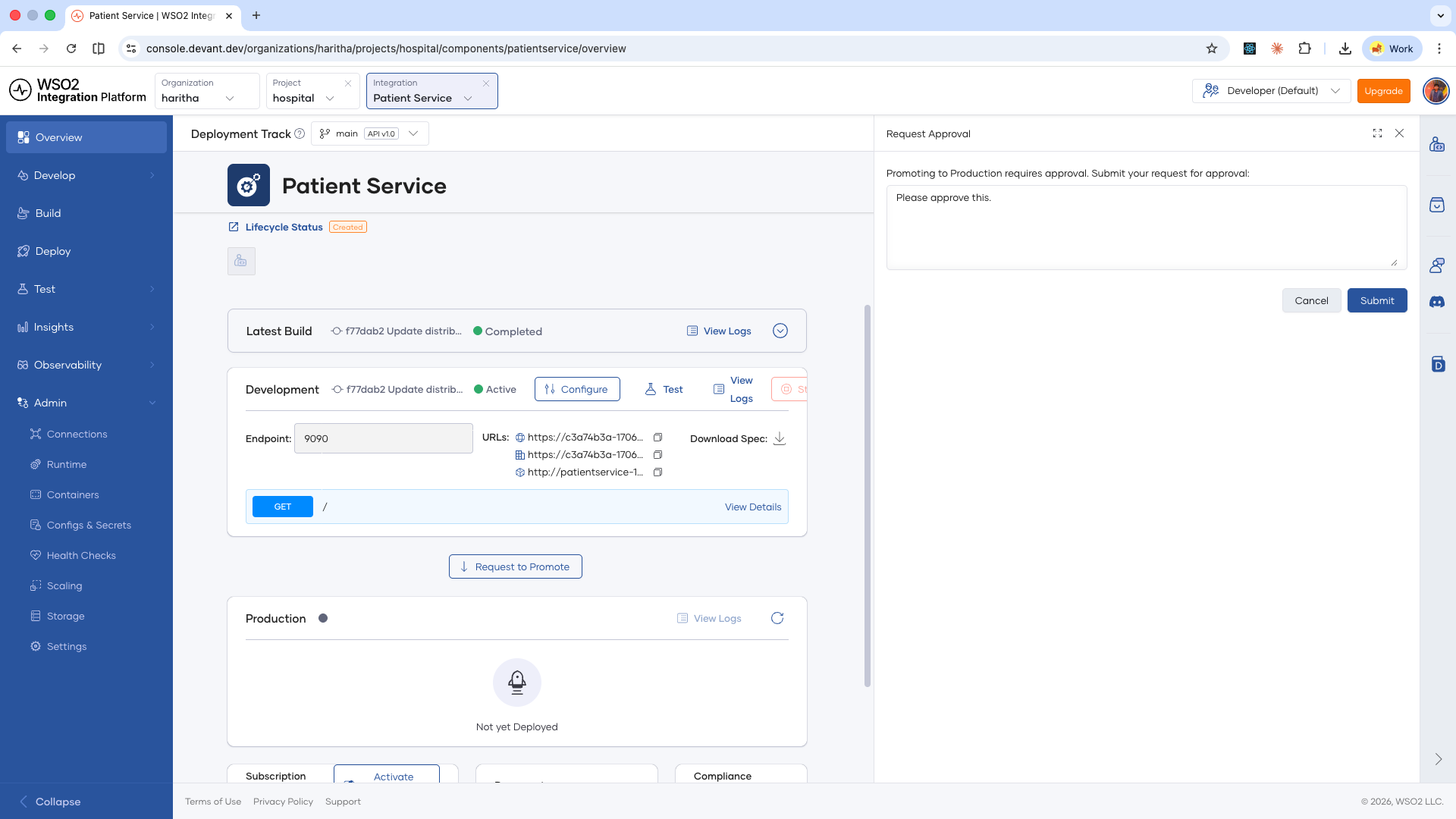
On the integration overview page, click Request to Promote below the environment card.
The Request Approval drawer opens.
-
Optionally, type a message for the reviewer.
-
Click Submit.
The reviewer receives an email notification with the promotion request details.
Review a promotion request
Reviewers can act on pending requests from the organization-level Approvals page.
-
In the top navigation, click your organization name to switch to the organization level.
-
In the left navigation, go to Admin > Approvals.
-
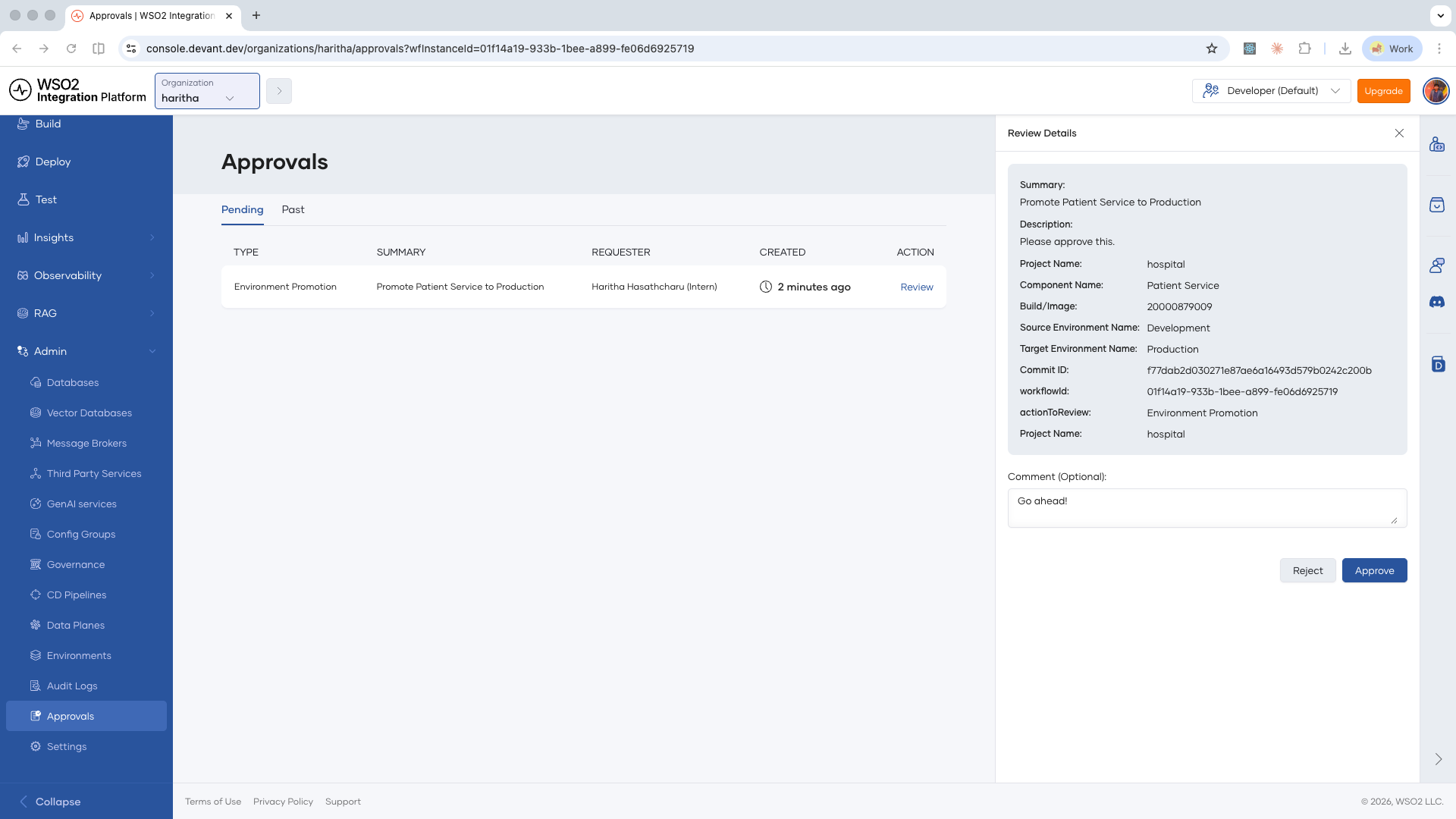
On the Pending tab, locate the promotion request and click Review.
The Review Details panel opens, showing the project name, integration name, source and target environments, build, and the requester's message.
-
Optionally, type a comment.
-
Click Approve or Reject.
The requester receives an email notification with the outcome. If the request is approved, they can return to the integration overview page and click Promote to complete the promotion.