Type Panel
The Type Panel is the side panel you open whenever you create or change a custom type in WSO2 Integrator. It gives you one form to define records, enums, unions, arrays, and service classes, configure each member or field, and toggle advanced options such as additional fields and read-only types. Every change you save in the panel updates the type's Ballerina source and the type card on the Type Canvas.
For an introduction to types and how an integration uses them, see Concepts. For a canvas-level view of how all the types in your integration relate to each other, see the Type Canvas.
Open the panel
You can open the Type Panel from two places, depending on where you are working.
-
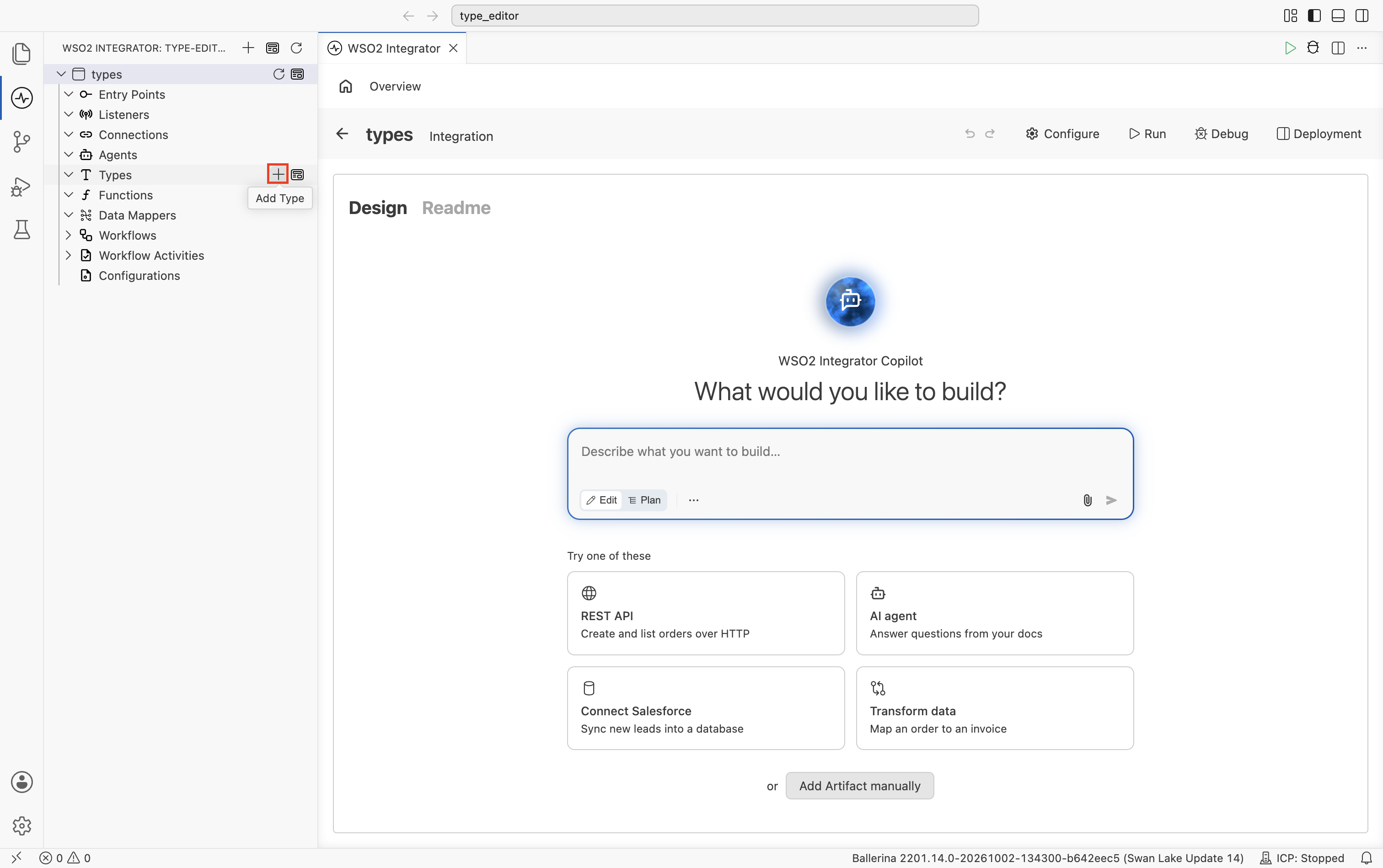
From the project explorer. Select + next to Types to add a new type, or select an existing type name to edit it.
-
From the Type Canvas. Select + Add Type in the header to add a new type, or select Edit from the three-dot menu on a type card to edit an existing one.
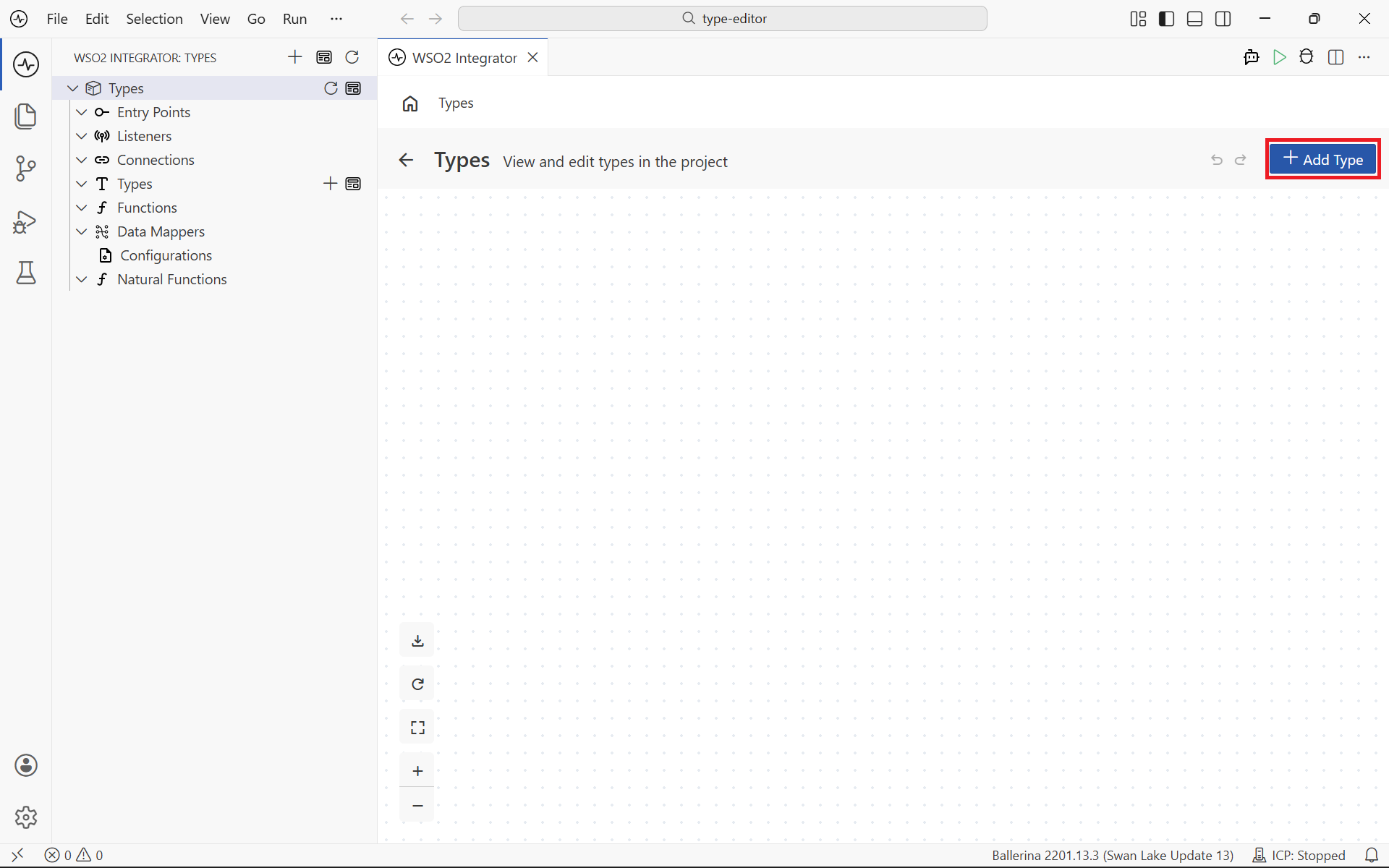
The panel opens the new-type form when you add a type, and reopens populated with the current definition when you edit one.
Supported types
The Type Panel supports the following kinds of types. Pick the kind from the Kind field at the top of the form.
| Kind | Use it for |
|---|---|
| Record | A structured value with named fields and a type per field, similar to a struct or DTO. |
| Enum | A fixed set of named string members, useful for status codes and choices. |
| Union | A value that can be one of several types, including primitives and other custom types. |
| Array | A list of values of the same type, with an optional fixed size. |
| Service Class | A class that exposes resource methods, used as a return type for GraphQL resolvers and similar service patterns. |
Every type form shares the same header fields:
| Field | Description |
|---|---|
| Kind | The kind of type to create (record, enum, union, array, or service class). |
| Name | A unique name to identify the type. Use PascalCase. |
Record
A record defines a structured value with named fields. Each field has a name, a type, and an optional flag, and the panel renders one row per field under the Fields section.
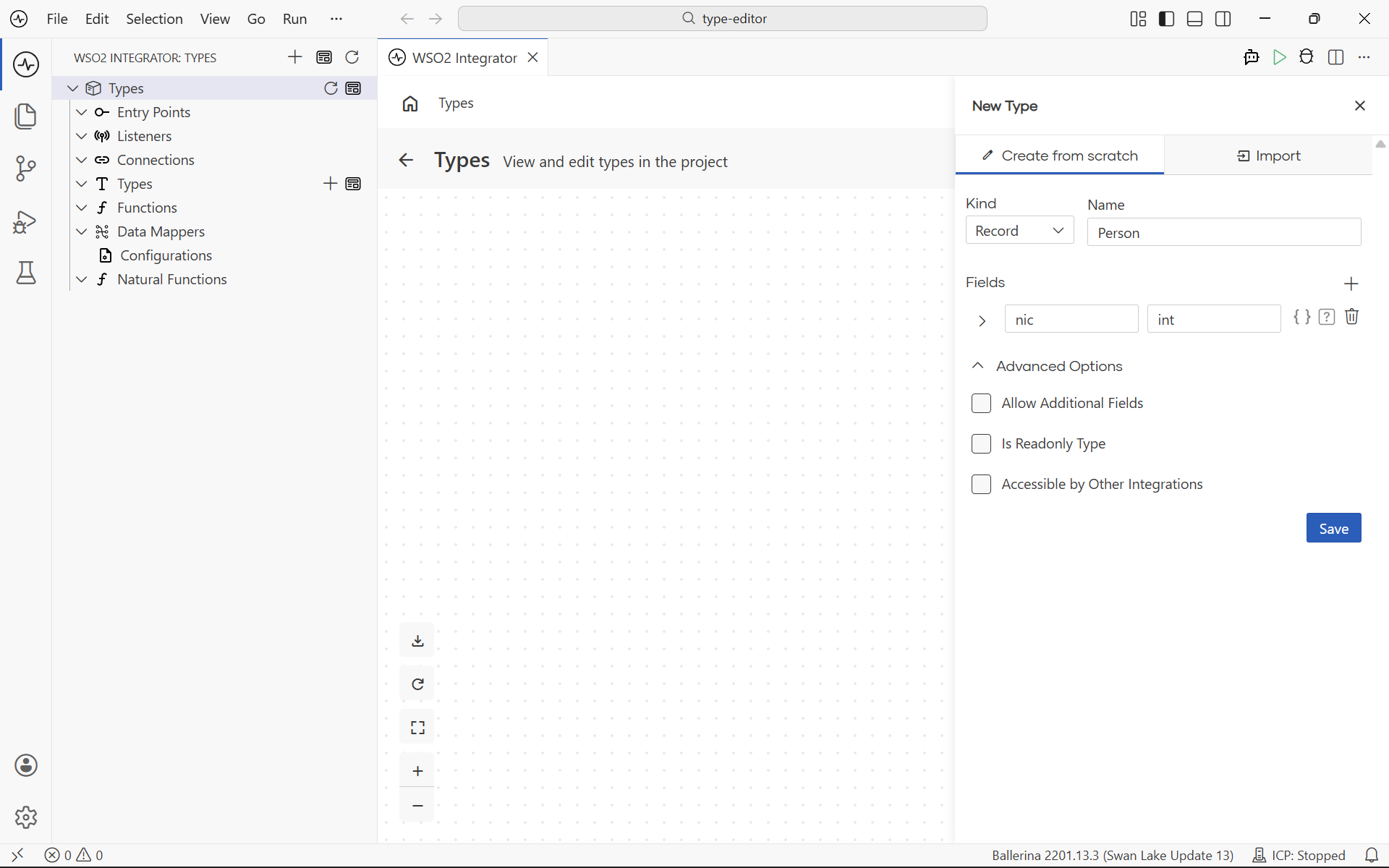
Select + next to Fields to add a new field. Each field row exposes the following options.
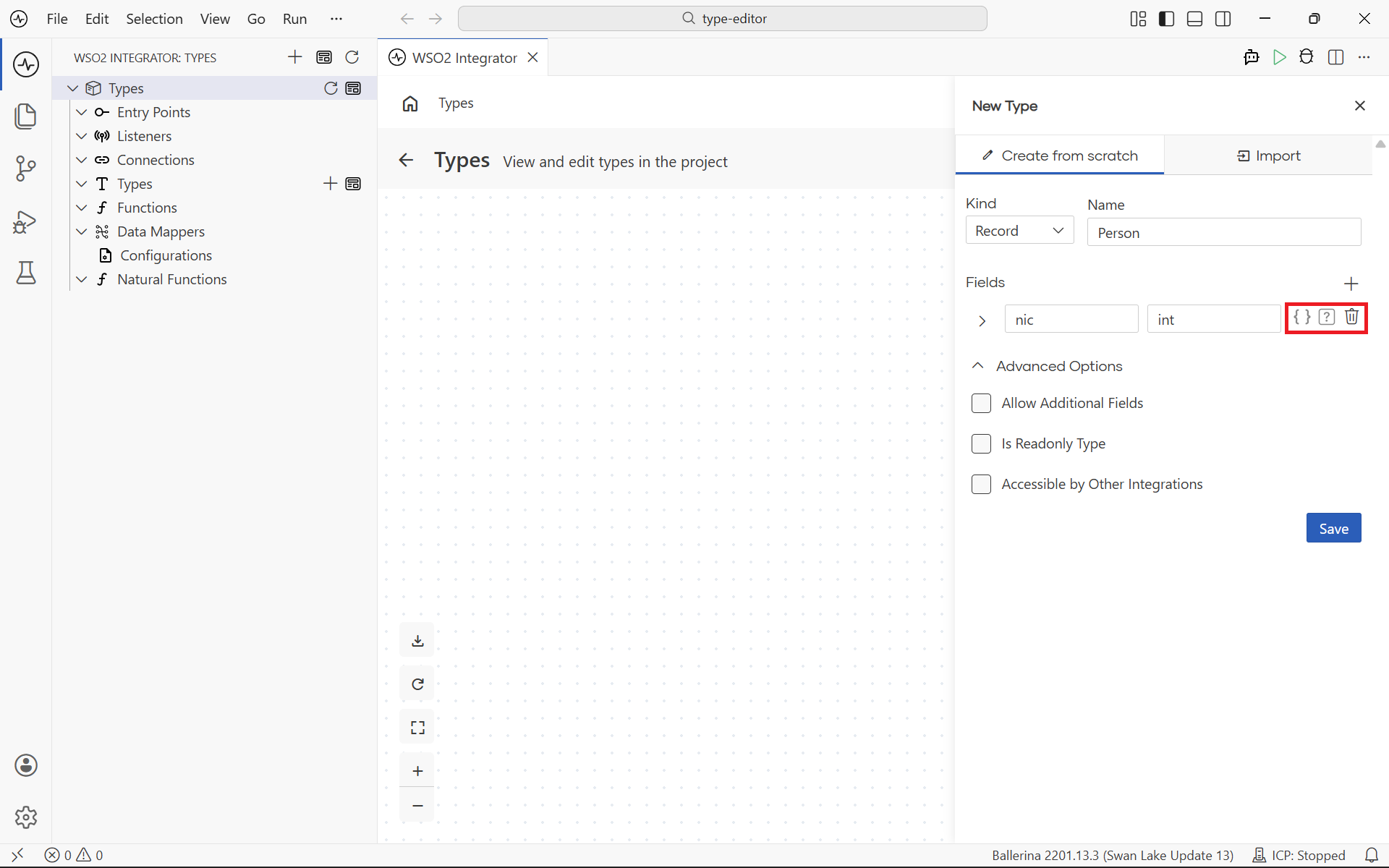
| Option | Description |
|---|---|
| Inline record | Define the field's type inline instead of pointing at a named type. Use this when the nested shape is only used by this field and you don't want to create a separate type for it. |
| ? (optional) | Mark the field as optional. An optional field is allowed to be missing or null when a value of the record is constructed. |
| Delete | Removes the field from the record. |
To make a field reference another type in the integration, set the field type to the name of that type. The Type Canvas draws the connecting line when you save.
Enum
An enum defines a fixed set of named members. Use it for closed sets of values such as status codes, channels, or roles.
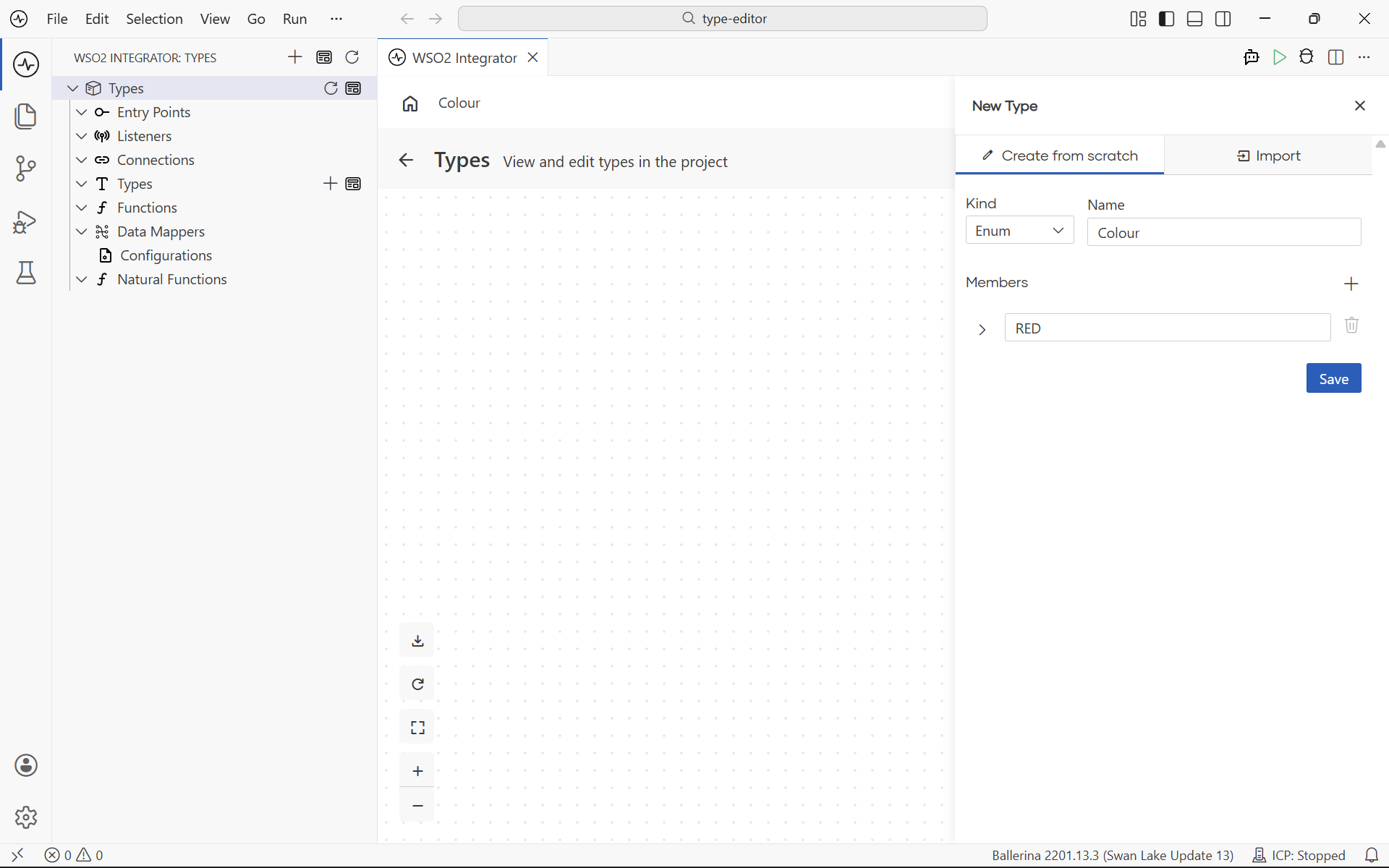
Select + under Members to add a member, and the delete icon on a row to remove it. Each member has a single name (for example, DRAFT, SUBMITTED, APPROVED, REJECTED).
Union
A union defines a value that can be one of several types. Use it when a field or variable can legitimately hold more than one shape, for example, a response that is either a success record or an error.
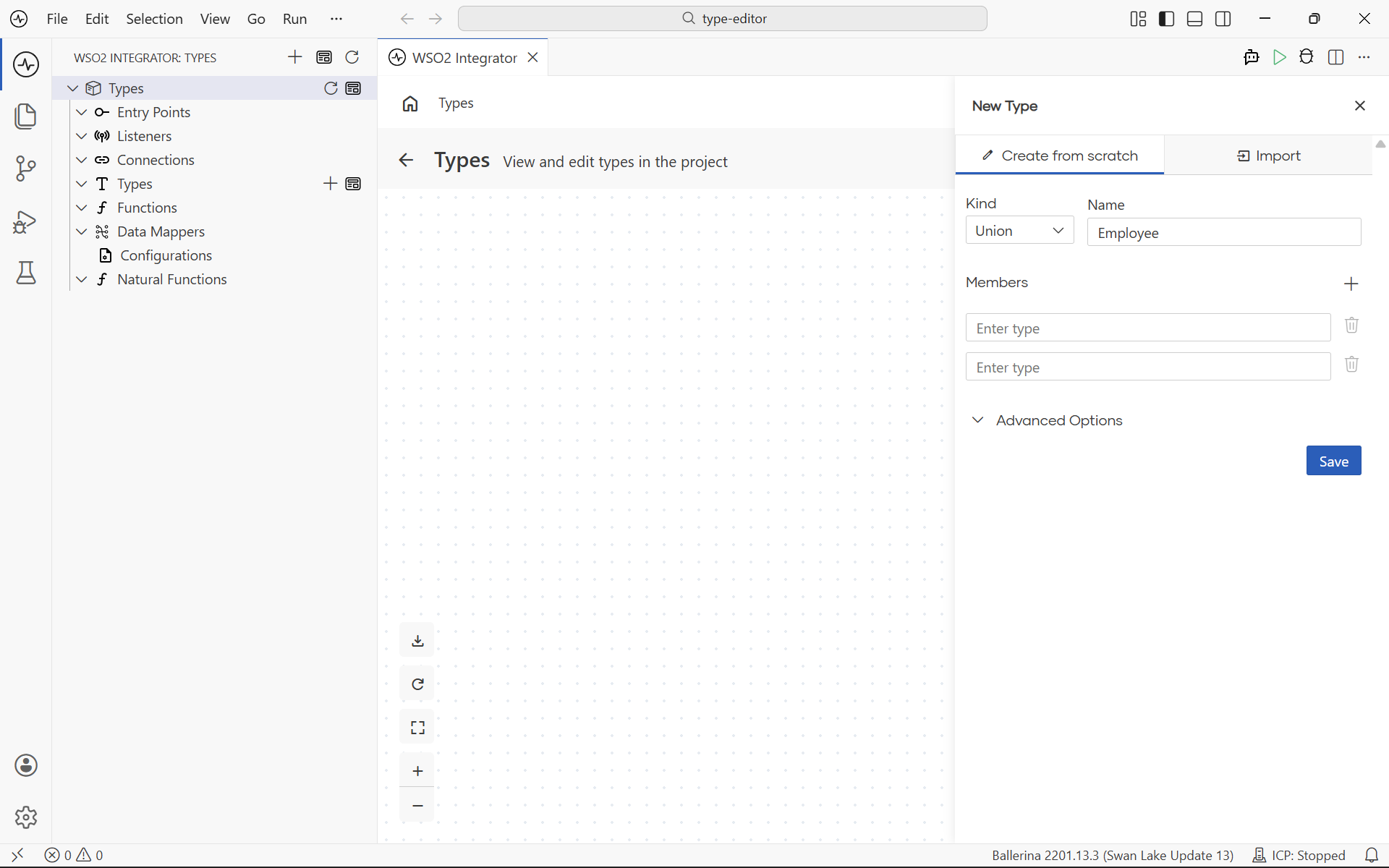
Select + under Members to add a member type, and the delete icon to remove one. Each member can be a primitive (string, int, boolean, and so on) or another type you have already defined in the integration.
Array
An array defines a list of values of the same type, with an optional fixed size.
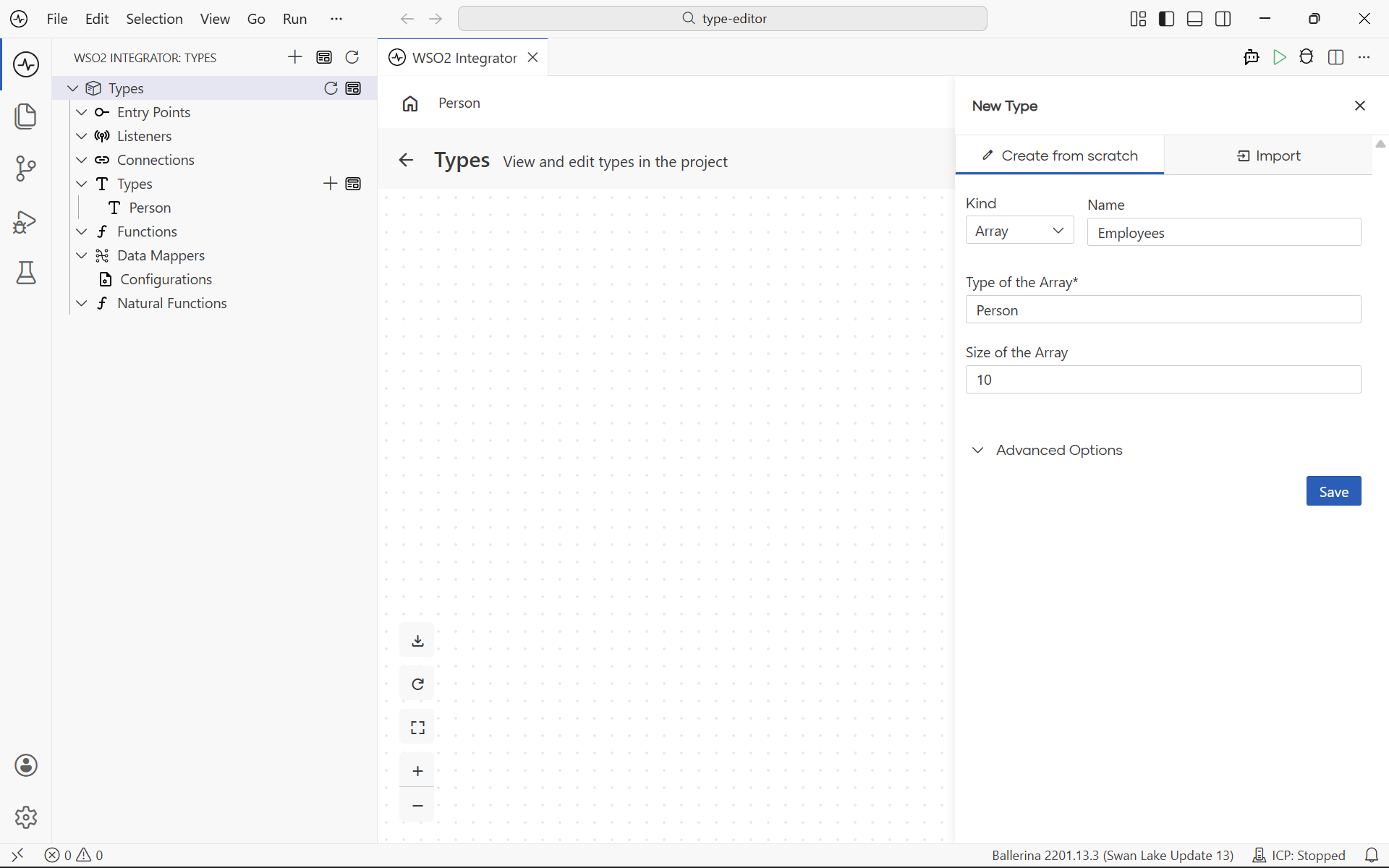
| Field | Description |
|---|---|
| Type | The type of each element in the array. Can be a primitive or a custom type defined in the integration. |
| Size | Optional fixed size for the array. Leave empty for a dynamically sized array. |
Service class
A service class defines a class with one or more resource methods. Use it as the return type of a GraphQL service resolver, or anywhere you need a typed object that exposes behavior alongside data.
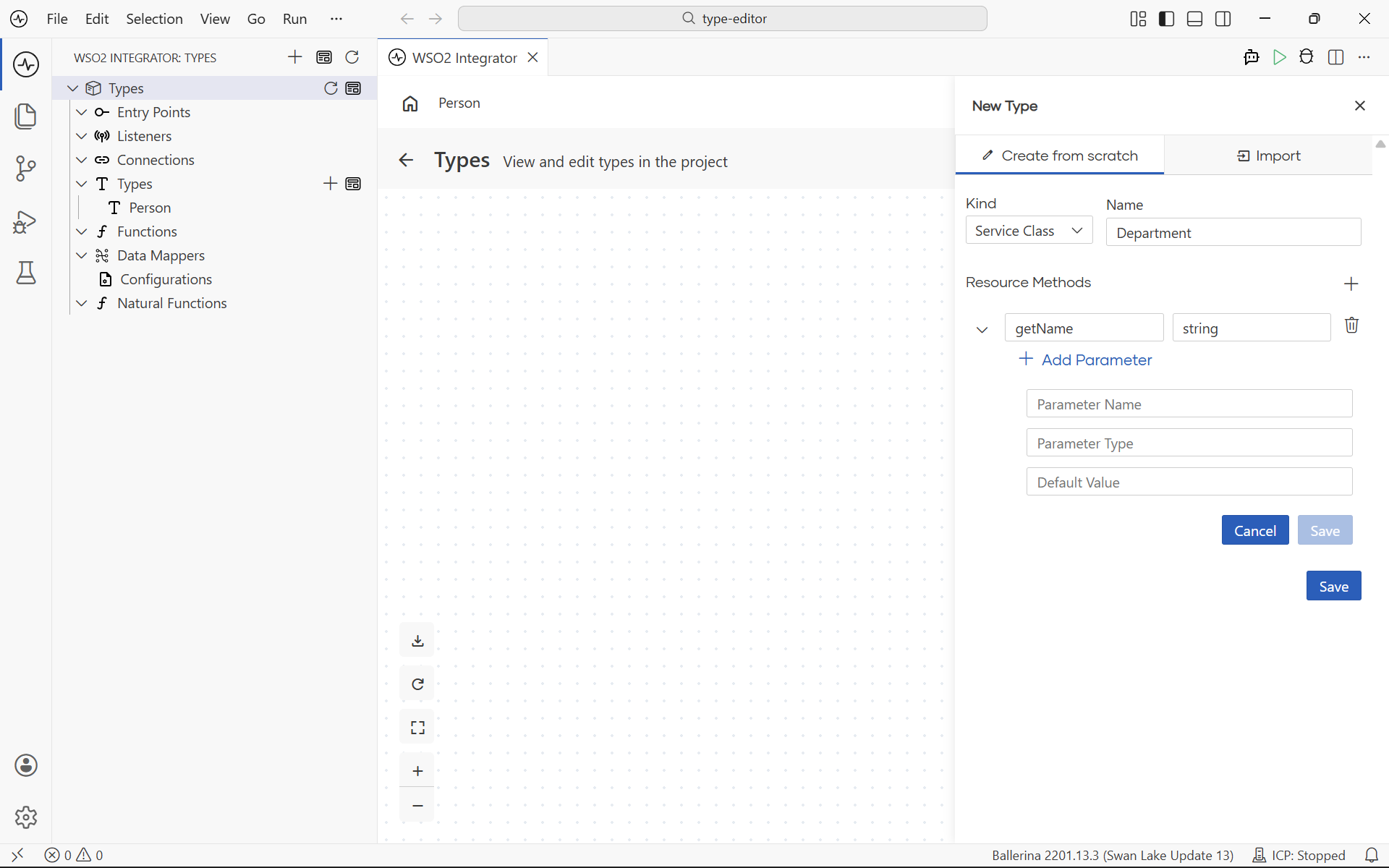
For each resource method, configure:
| Field | Description |
|---|---|
| Name | The resource method name. |
| Return Type | The type the resource method returns. |
| Parameters | Parameters the resource method accepts. Select Add Parameter to add one, and the delete icon to remove. |
Select + under Resource Methods to add a new method, and the delete icon on a row to remove one.
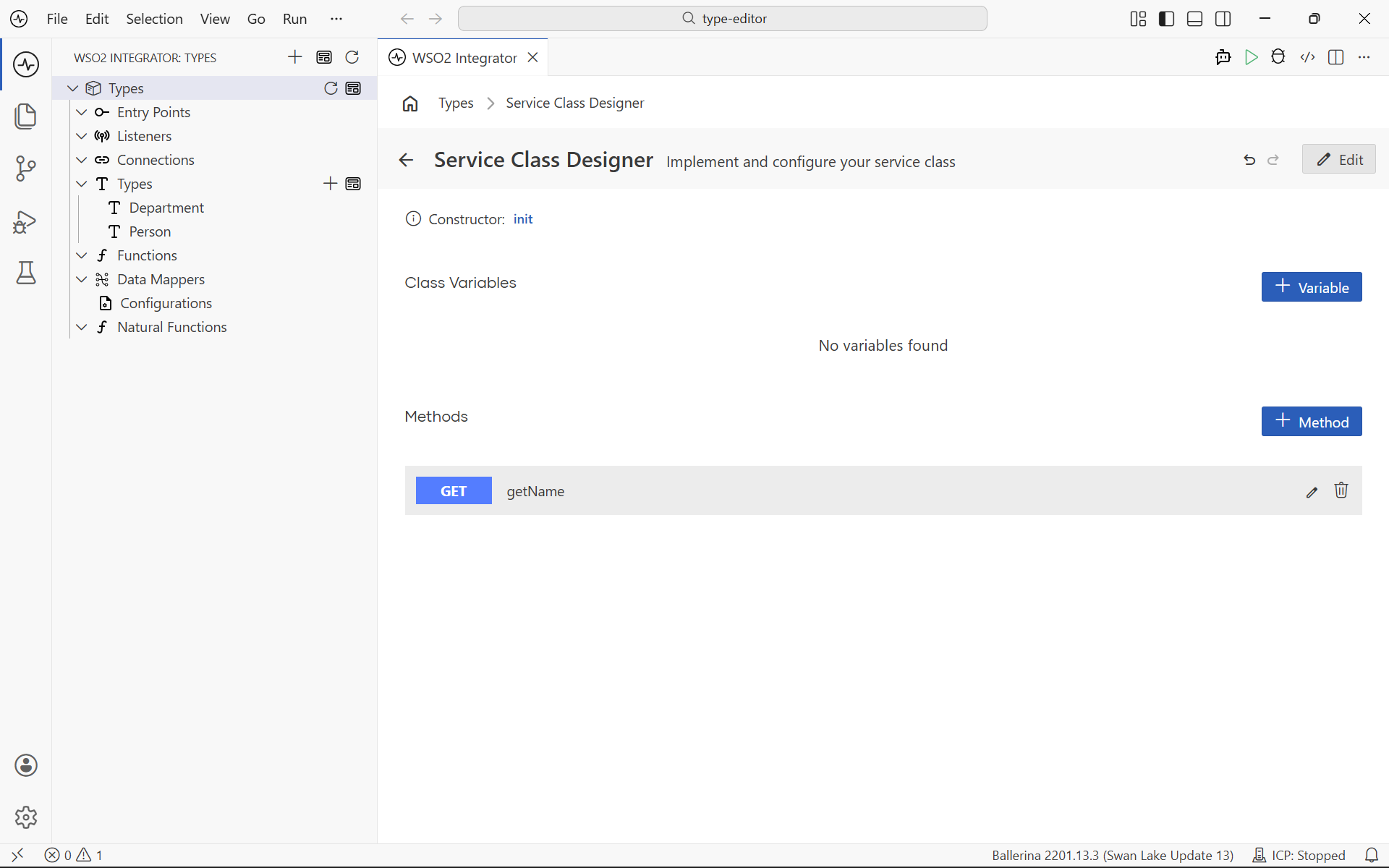
Once you save the service class, it appears as a card on the Type Canvas next to records and enums. Select the card to open the Service Class Designer, where you can edit resource methods, parameters, and the implementation of each method.
Advanced options
The Advanced Options section at the bottom of the form exposes type-level toggles. The available options depend on the kind of type you are editing.
| Option | Applies to | Description |
|---|---|---|
| Allow Additional Fields | Records | Generates an open record instead of a closed one. Open records accept extra fields at runtime; closed records reject them. Use this when the payload may carry keys you don't want to model explicitly. |
| Is Readonly Type | All kinds | Marks the type as read-only. Values of a read-only type cannot be modified after construction. |
| Accessible by other integrations | All kinds | Marks the type as public so other integrations and libraries can import and reuse it. The generated Ballerina source uses the public qualifier. |
Import a type from JSON or XML
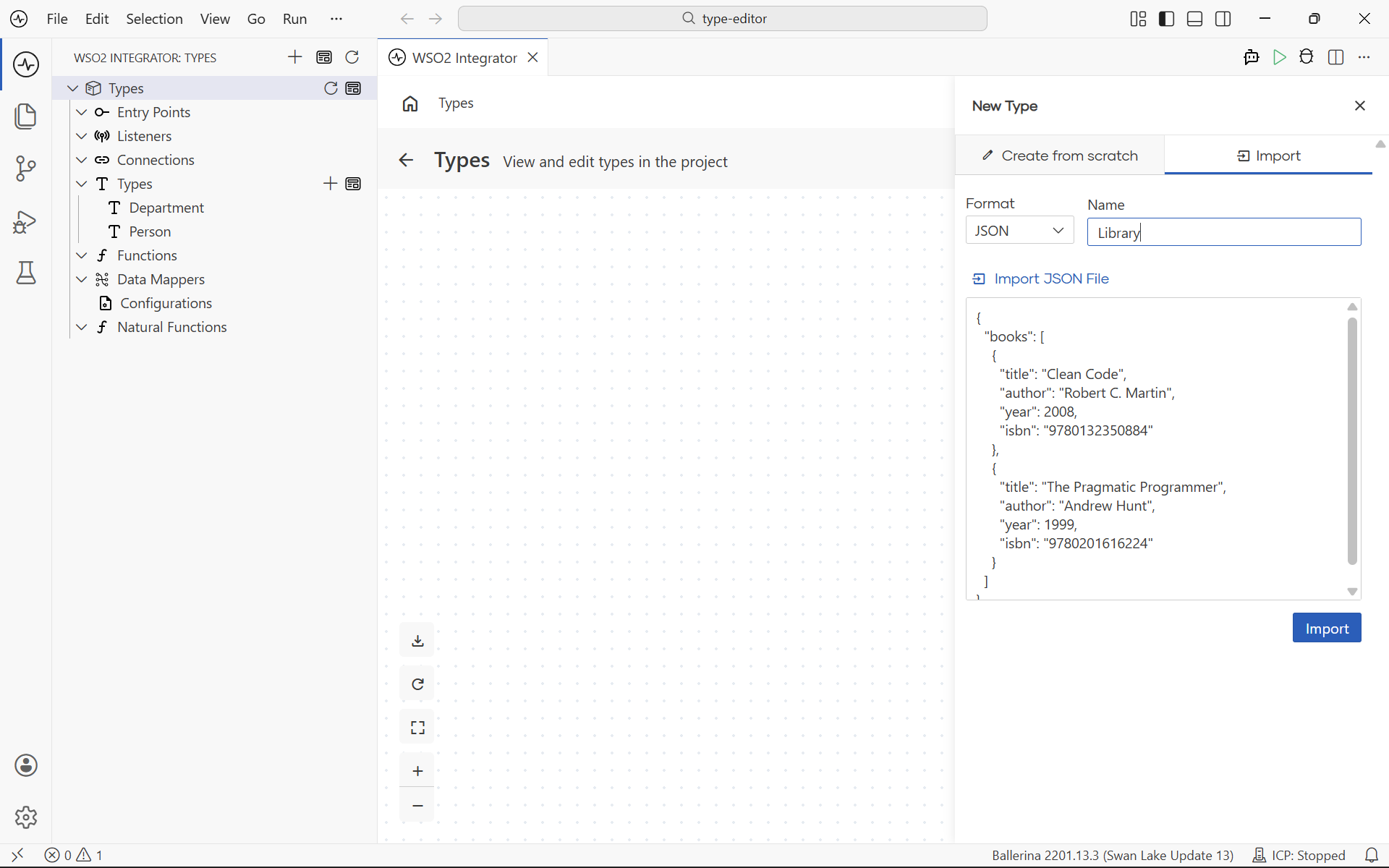
When you already have a sample payload, you can let the Type Panel generate the matching record types for you instead of defining each field by hand. The panel inspects the sample, infers a record for the top-level object, and adds nested records for any embedded objects or arrays. The generated records are added to the integration and appear on the Type Canvas as soon as you save.
In the new-type form, open the kind picker and select Import from Json or Import from Xml. You then provide the sample in one of two ways:
- Paste a sample. Paste the JSON or XML into the field and the form previews the inferred records as you type.
- Import from a file. Select Import from file to pick a
.jsonor.xmlfile from disk. The panel reads the file and fills the sample area for you.
Give the root record a name in the Name field. Nested objects are named automatically based on the parent field, and you can rename any of them before saving.
Import from JSON
For a JSON sample such as:
{
  "books": [
    {
      "title": "Clean Code",
      "author": "Robert C. Martin",
      "year": 2008,
      "isbn": "9780132350884"
    },
    {
      "title": "The Pragmatic Programmer",
      "author": "Andrew Hunt",
      "year": 1999,
      "isbn": "9780201616224"
    }
  ]
}
The panel generates a root record with a books array field and a nested record for each book entry, with title, author, year, and isbn typed as string or int based on the sample values.
Import from XML
For an XML sample such as:
<library>
  <book>
    <title>Clean Code</title>
    <author>Robert C. Martin</author>
    <year>2008</year>
    <isbn>9780132350884</isbn>
  </book>
  <book>
    <title>The Pragmatic Programmer</title>
    <author>Andrew Hunt</author>
    <year>1999</year>
    <isbn>9780201616224</isbn>
  </book>
</library>
The panel generates a Library record with a book array field and a nested record for each book element, with one field per child element.
Once the records look right, save the form. The new types are added to the integration and become available everywhere a custom type can be used.
- Use the generated record as a request or response payload in a service.
- Map fields from the imported record onto another type in the Data Mapper.
- Expose the record from a GraphQL service resolver.
What's next
- Type Canvas: visualize every type in the integration and the relationships between them.
- Service Designer: use the types you defined as request and response payloads for a service.
- GraphQL Canvas: expose service classes and records as GraphQL types.
- Data Mapper: map fields between the types you defined here.
- Flow Canvas: use the types as variables and parameters in a flow.