Type Canvas
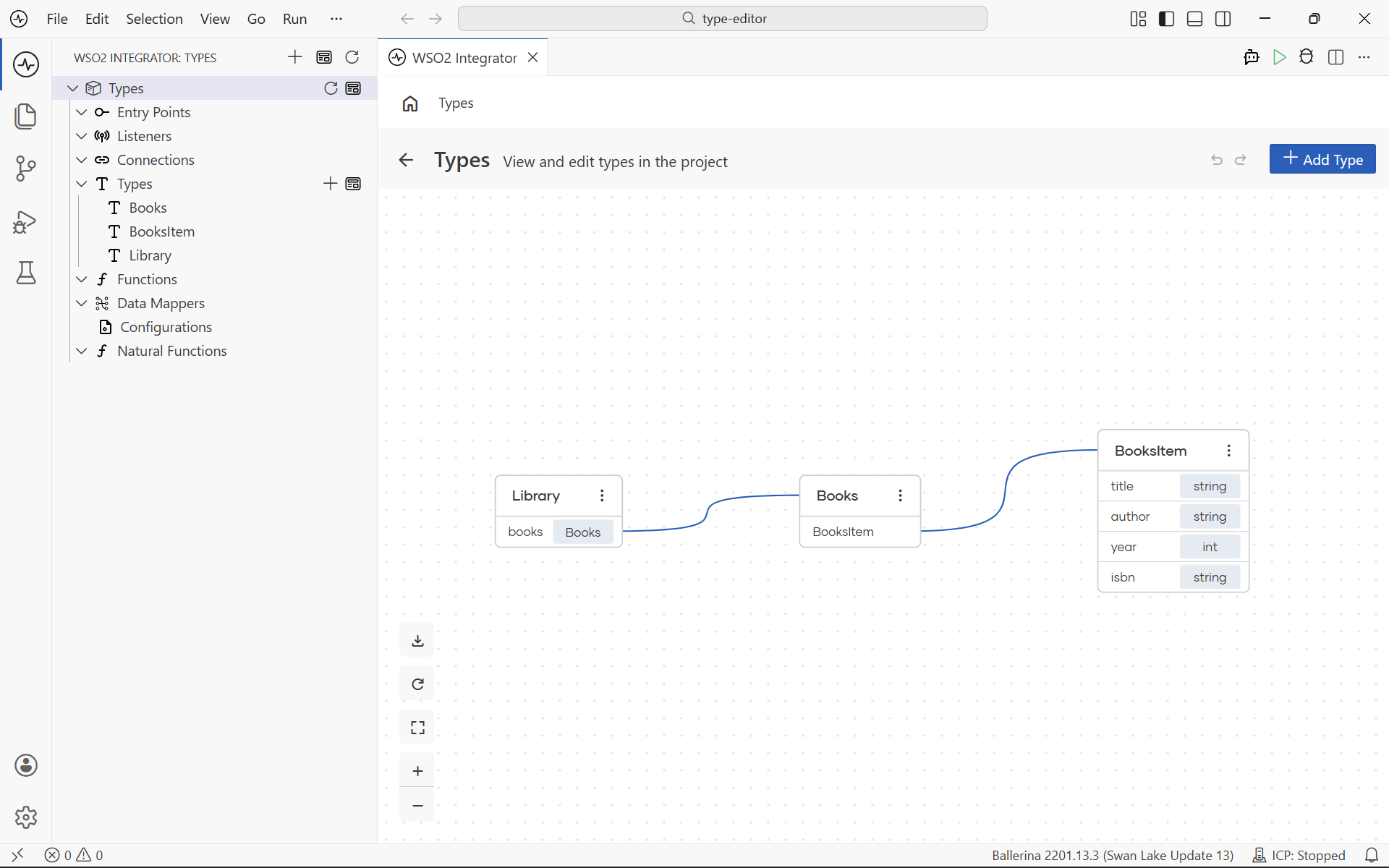
The Type Canvas, also known as the type diagram, is the canvas you open to see every type in your integration on one screen. It renders each record, enum, and service class as its own card, with the fields, members, or resource methods of the type listed as rows, and draws lines between cards to show which types reference which. Use it to explore the data model of an integration, jump from a field to its referenced type, and edit, delete, or add types without leaving the canvas.
For background on what types are and how to define them field by field, see the Type Panel.
Open the canvas
The project explorer groups every type in the current integration under Types, so the diagram is one click away from any type in the project.
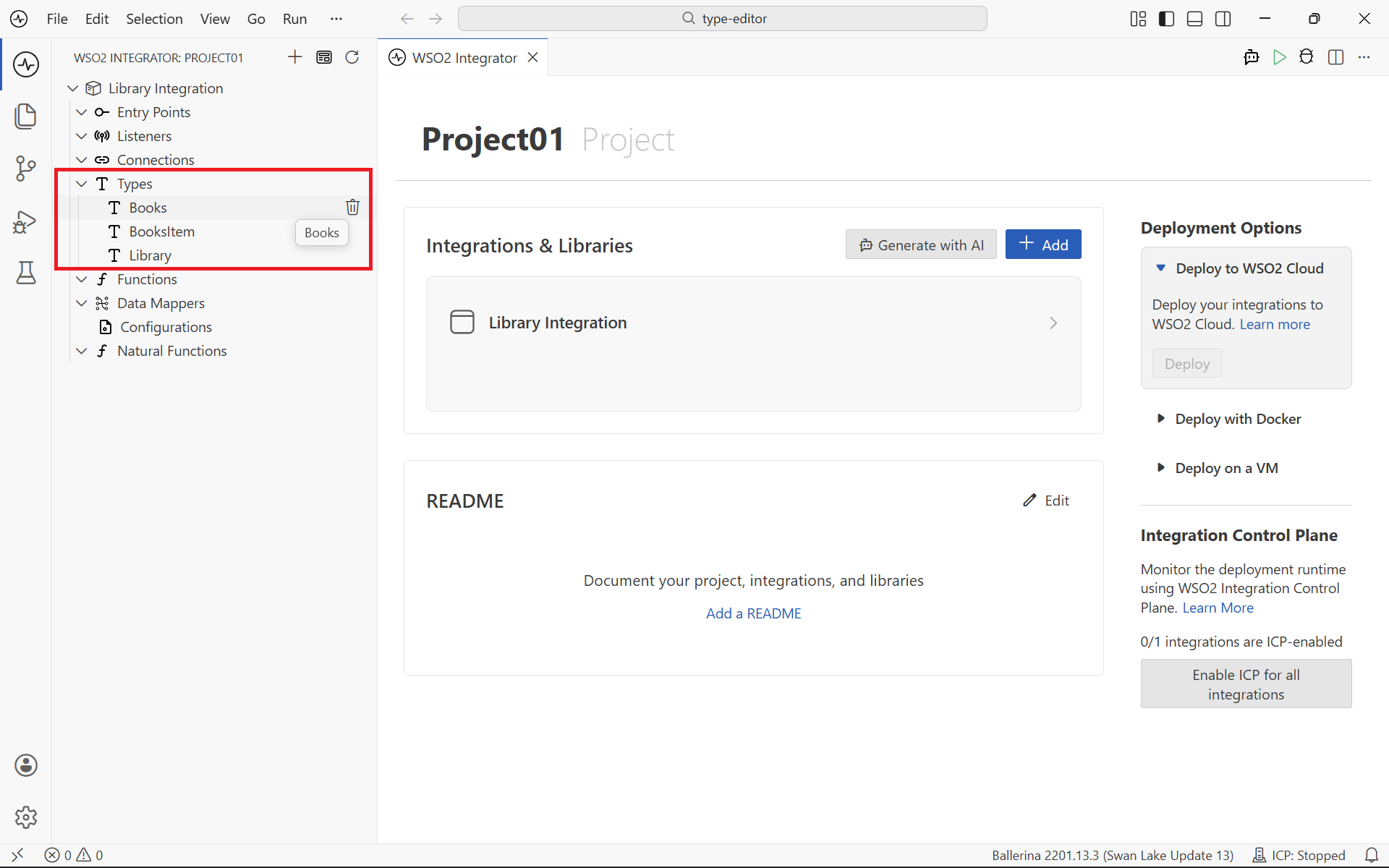
You have two ways to open the canvas:
- Select the View Type Diagram icon next to Types in the project explorer to open the diagram with every type in the integration.
- Select the View Type Diagram icon next to a specific type name to open the diagram focused on that type and the types it references.
To create a new type before opening the canvas, see the Type Panel.
Header
The header runs along the top of the canvas and combines the breadcrumb, the canvas title, and the high-level actions.
| Control | Description |
|---|---|
| Breadcrumb | Shows the path from the project to the diagram (for example, TimeTrackingToHRCore > Types). Select a segment to return to it. |
| Back | Returns to the previous view, typically the Integration view. |
| Title | Displays Types with the tagline View and edit types in the project. |
| Undo / Redo | Reverses or reapplies recent changes to the types in the diagram. |
| Add Type | Opens the new type form so you can add a record, enum, union, or other custom type to the integration. The new type appears as a card on the canvas as soon as you save it. |
Type nodes
Every type in the integration appears as its own card on the canvas. The card shape depends on the kind of type:
- Records show the record name in the header and each field as a row, with the field name on the left and its type on the right (for example,
timesheetId: string,totalHours: decimal). - Enums show the enum name in the header and each member on its own row (for example,
DRAFT,SUBMITTED,APPROVED,REJECTED). - Service classes show the class name in the header and each resource method as a row, with the method name on the left and its return type on the right. See Service class for how to define one.
When a field, member, or method type points to another type defined in the integration, the canvas draws a line from that row to the referenced card. Hover a line to highlight the source field and the target type.
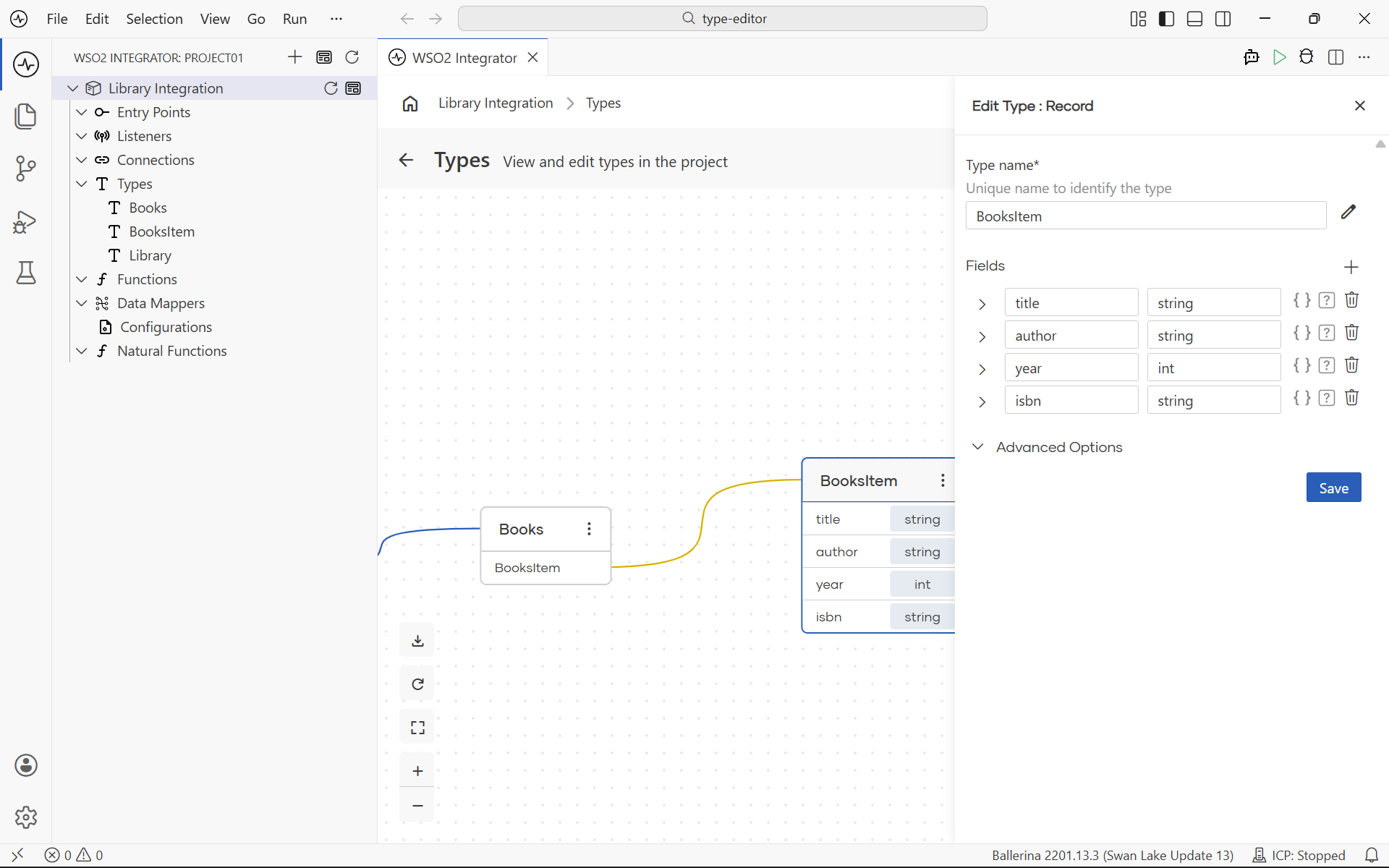
Select a type card to open the side panel for that type. The panel lists every field with its name and type, and lets you rename the type, add or remove fields, change a field's type, and configure advanced options. Any change you save in the side panel updates the card on the canvas and the underlying Ballerina source.
Add a type
Select Add Type at the top right of the canvas to add a new type to the integration. The canvas opens the new type form where you choose the kind of type (record, enum, union, and so on), give it a name, and define its fields or members. The new type appears as a card on the canvas as soon as you save it, ready to be referenced from other types.
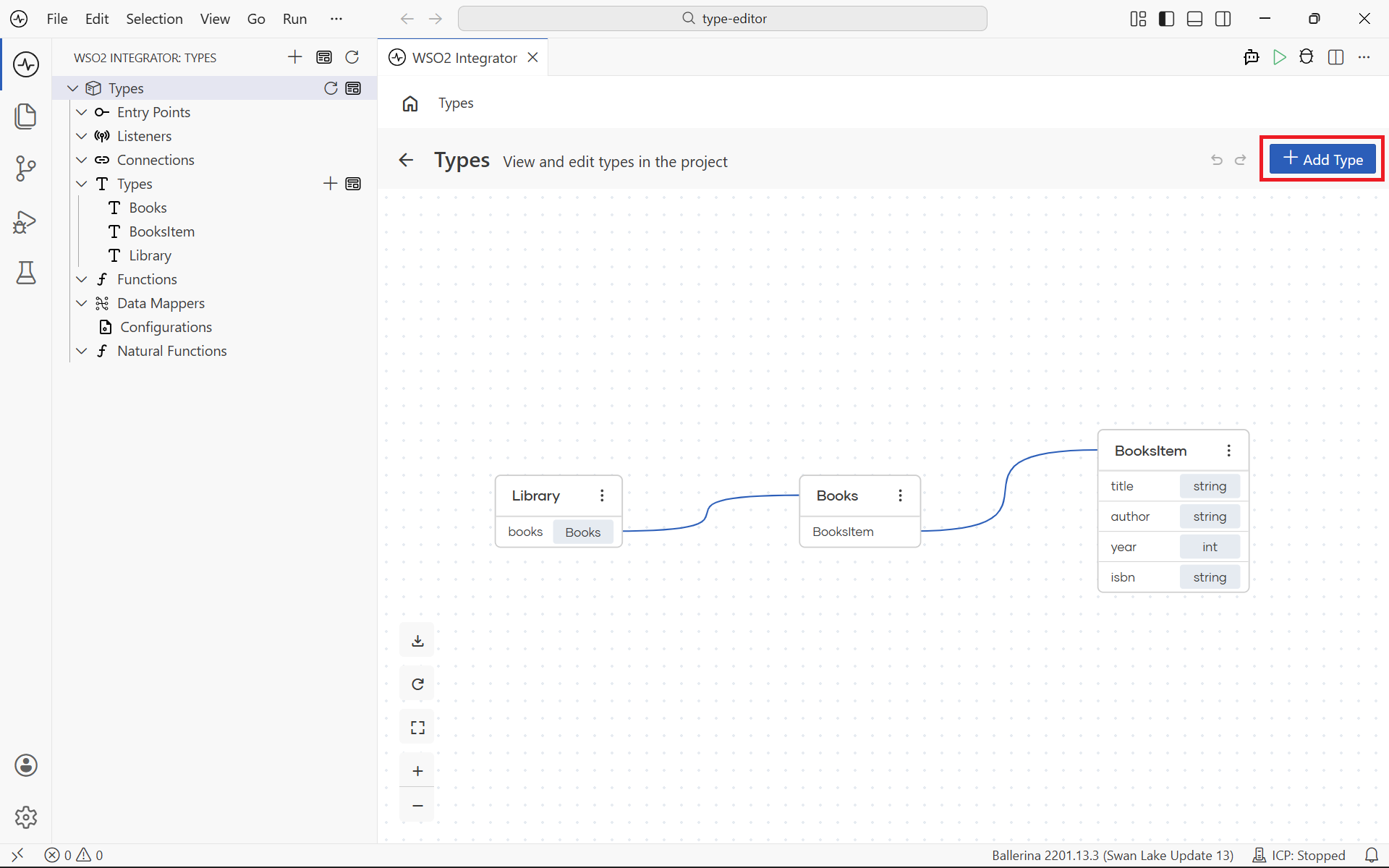
To add a field that references an existing type, set the field type to the name of that type. The canvas draws the connecting line for you when you save. For the full set of options (records, enums, unions, arrays, service classes, and JSON or XML import), see the Type Panel.
Type node menu
The three-dot menu (⋮) on a type card opens the actions for that type.
| Action | Description |
|---|---|
| Edit | Opens the side panel for the type so you can rename it, add or remove fields, and change field types. |
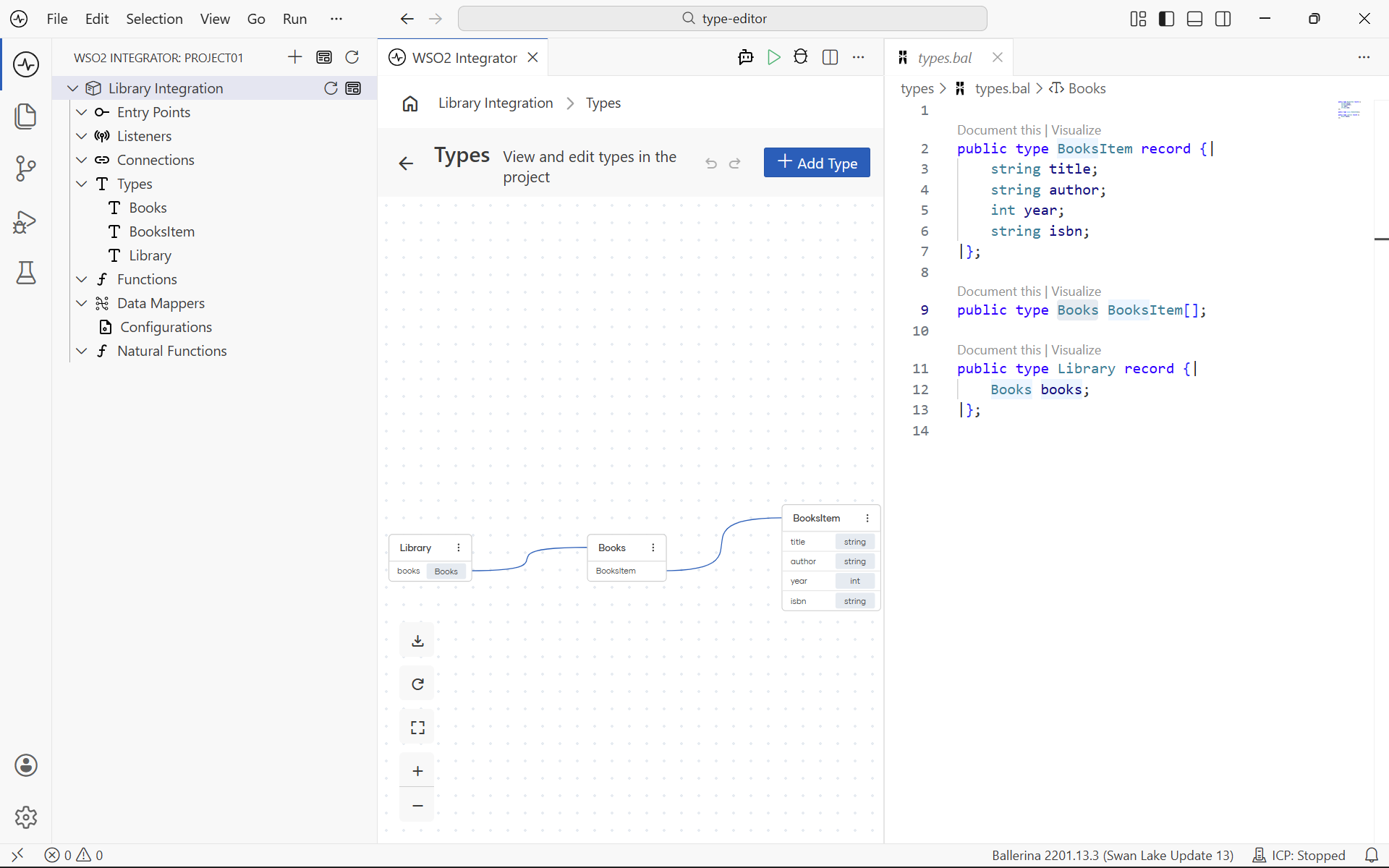
| Source | Opens the type definition in the source view, side by side with the diagram. |
| Delete | Removes the type from the integration. The canvas asks you to confirm first. |
| Focused View | Hides every other card on the canvas and centers the diagram on this type and the types it references. |
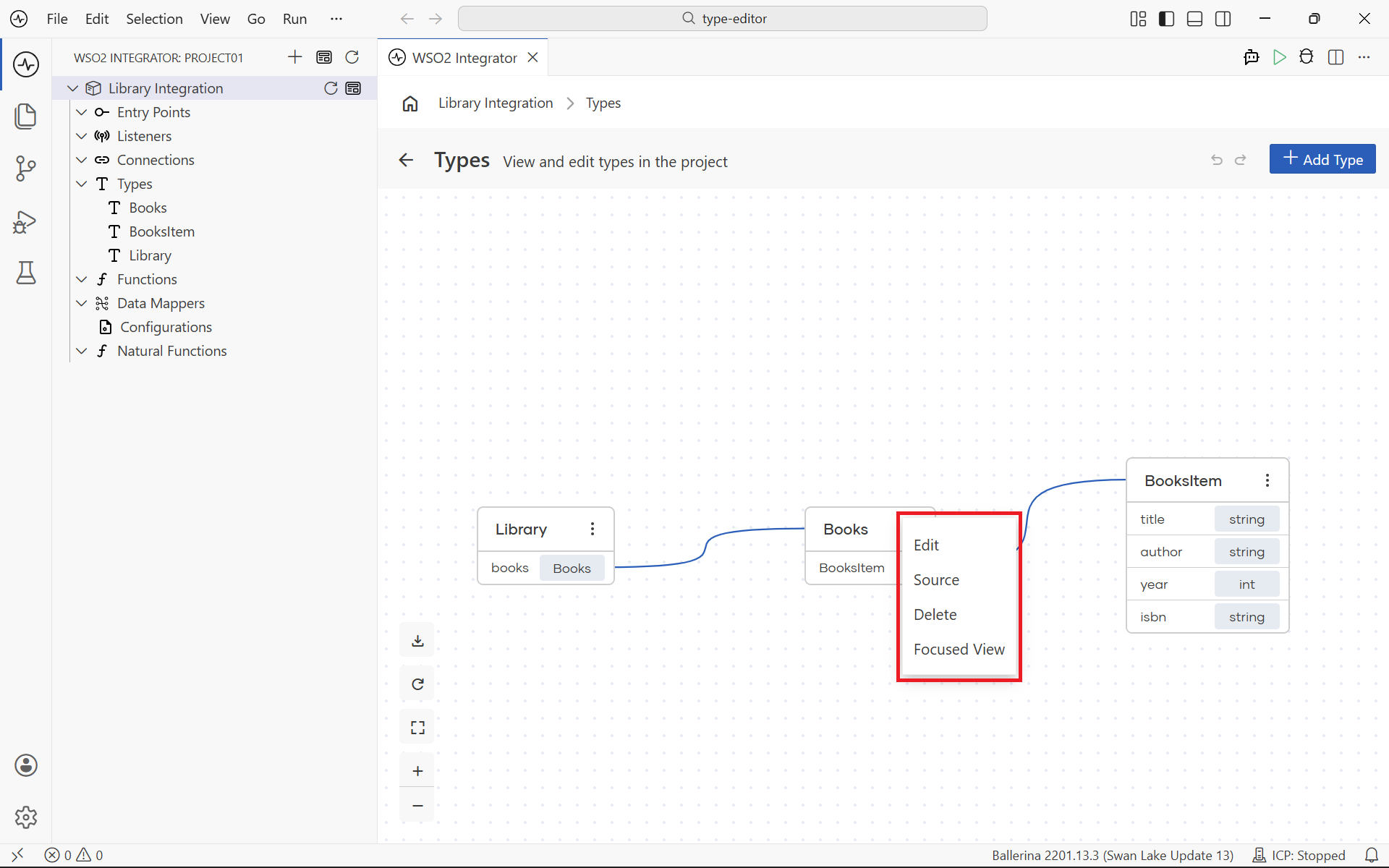
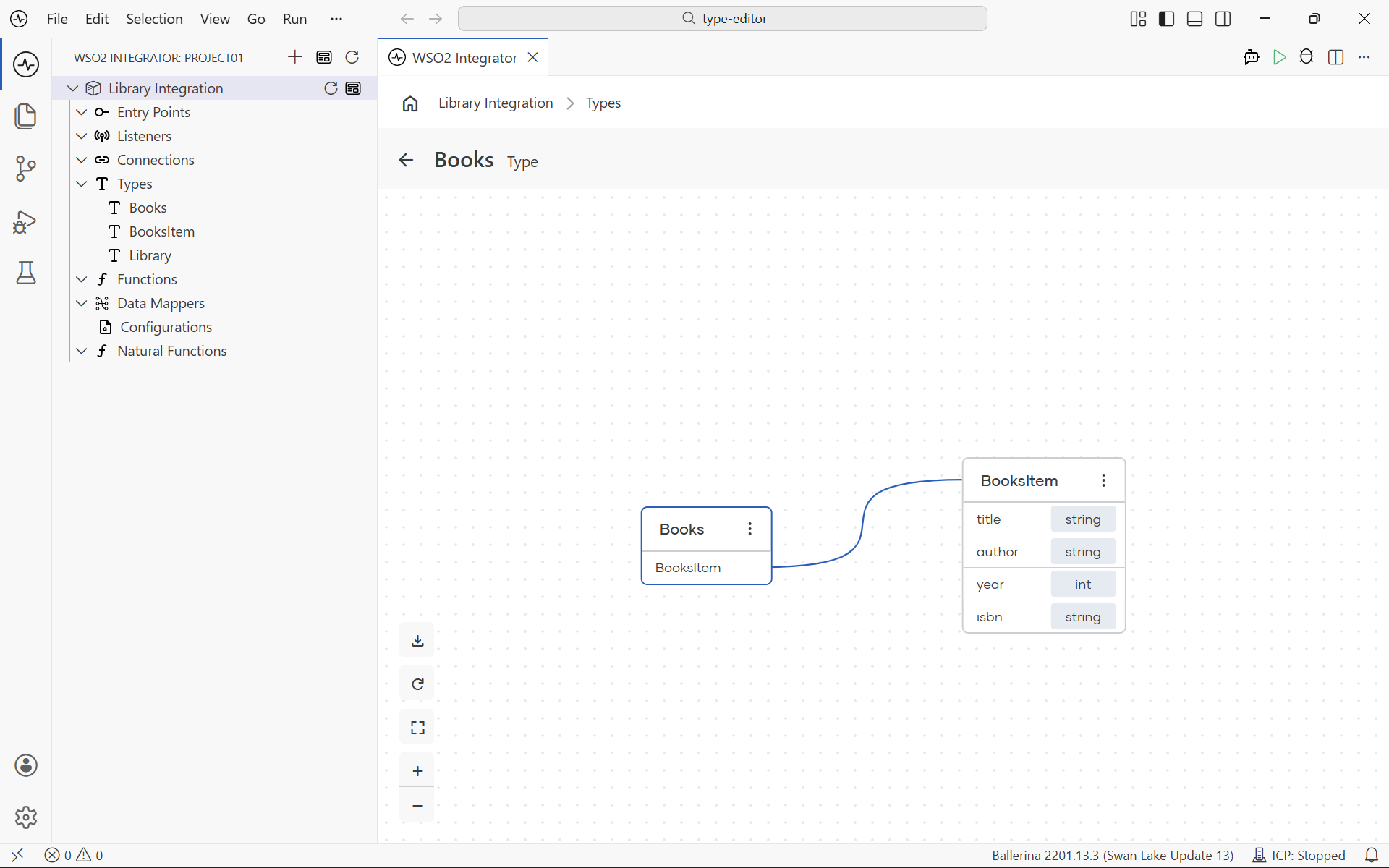
Focused view
Focused View narrows the canvas to a single type and the types it references, so you can study one part of the data model without the rest of the diagram in the way. Open it from the three-dot menu on a type card, or select a type name in the project explorer.
For example, opening Focused View on LeaveRequest shows the LeaveRequest record alongside the LeaveType and TimeEntryStatus enums it points to, with the lines between them. Other types in the integration are hidden until you return to the full diagram from the breadcrumb.
Source view
Source opens the Ballerina source for types.bal next to the diagram, so you can edit the type definition as code while still seeing the cards and lines update on the canvas. Use this view when you want to copy a type definition, jump to a specific field, or make a change that is faster to type than to click through the side panel.
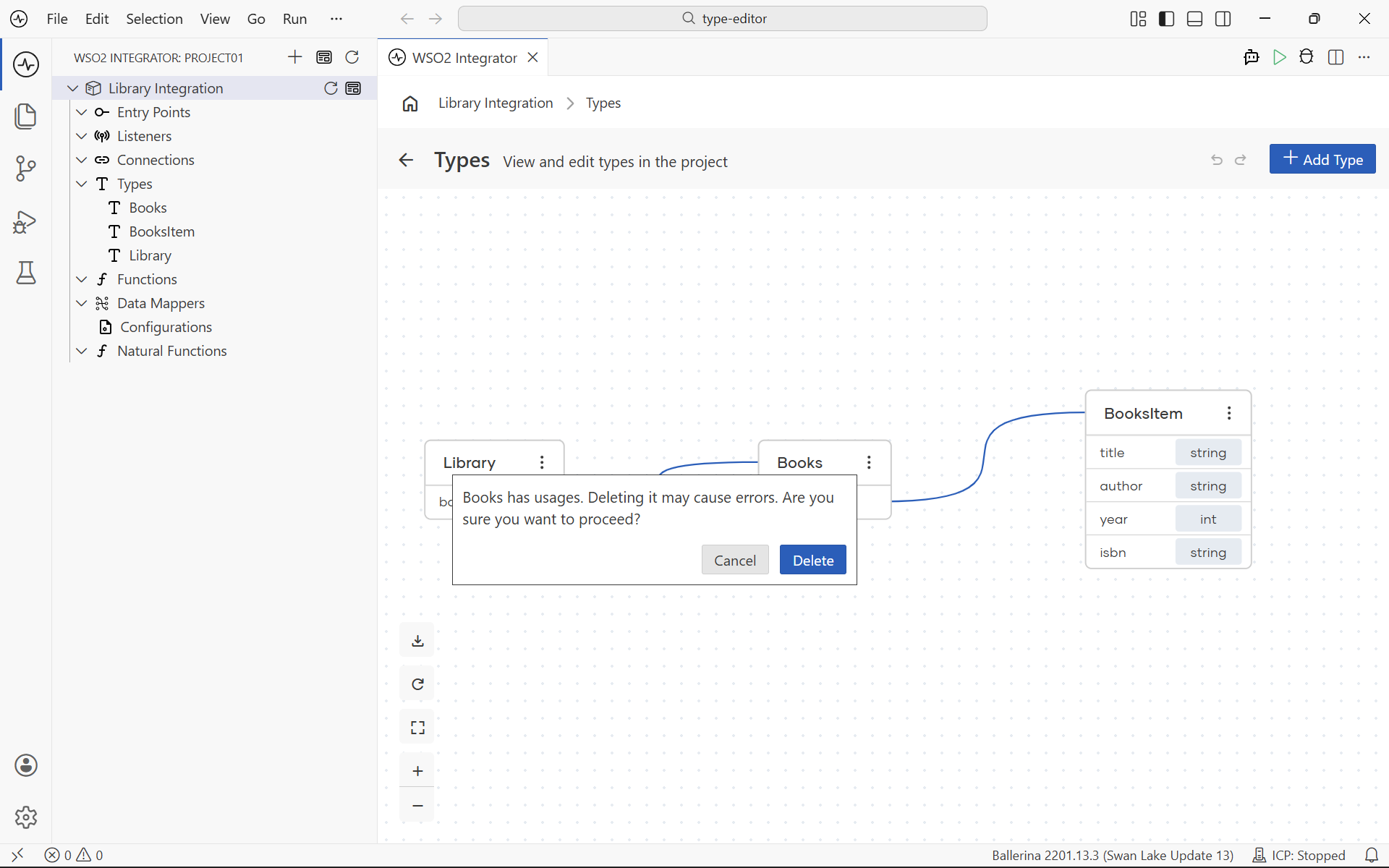
Delete a type
Select Delete from the three-dot menu on a type card. The canvas opens a confirmation prompt, for example Are you sure you want to delete EmployeeTimeReport?, with Cancel and Delete actions. Select Delete to remove the type from the integration and the diagram.
Fields, parameters, and return types in other types or flows that pointed at the deleted type are left in the source and will produce compile errors. Review every type, data mapper, and service that referenced the deleted type, and update or remove those references before running the integration.
Canvas controls
Use the controls in the bottom-left corner of the canvas to adjust the view.
| Control | Description |
|---|---|
| Download | Exports the type diagram as a JPEG image. |
| Refresh | Reloads the diagram to pick up changes made to the underlying types or source. |
| Fit to screen | Adjusts the zoom level so every type card is visible at once. |
| + | Zooms in. |
| − | Zooms out. |
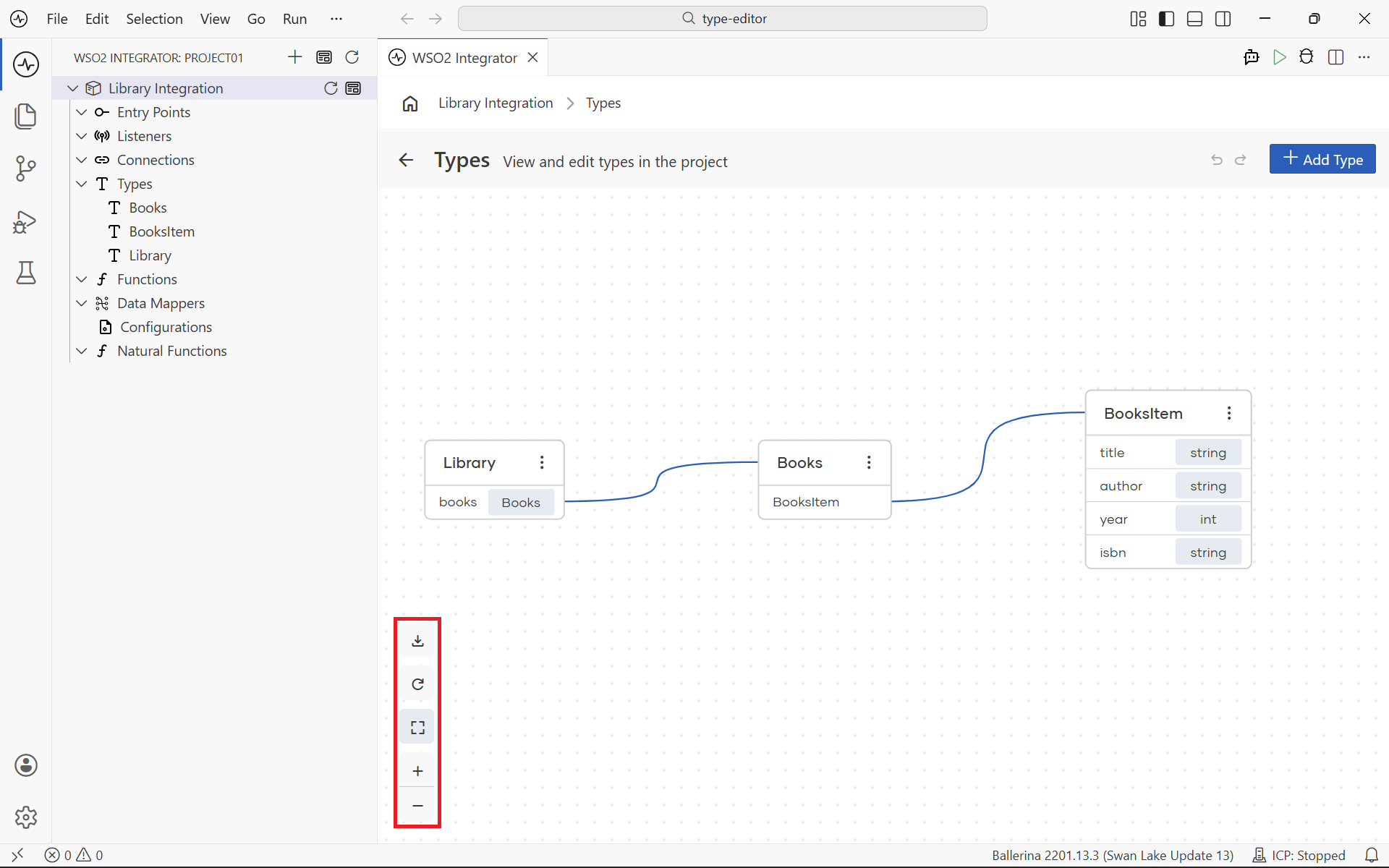
To move around the canvas, scroll up and down to pan vertically and scroll left and right to pan horizontally. Use Fit to screen at any time to bring every type card back into view.
What's next
- Type Panel: define the fields, members, and advanced options of a single type.
- Service Designer: see how services use the types defined in the diagram for request and response payloads.
- GraphQL Canvas: visualize a GraphQL service alongside the types it exposes.
- Data Mapper: map fields between the types you defined in the diagram.
- Flow Canvas: use the types from the diagram in the variables and parameters of a flow.