Node Palette
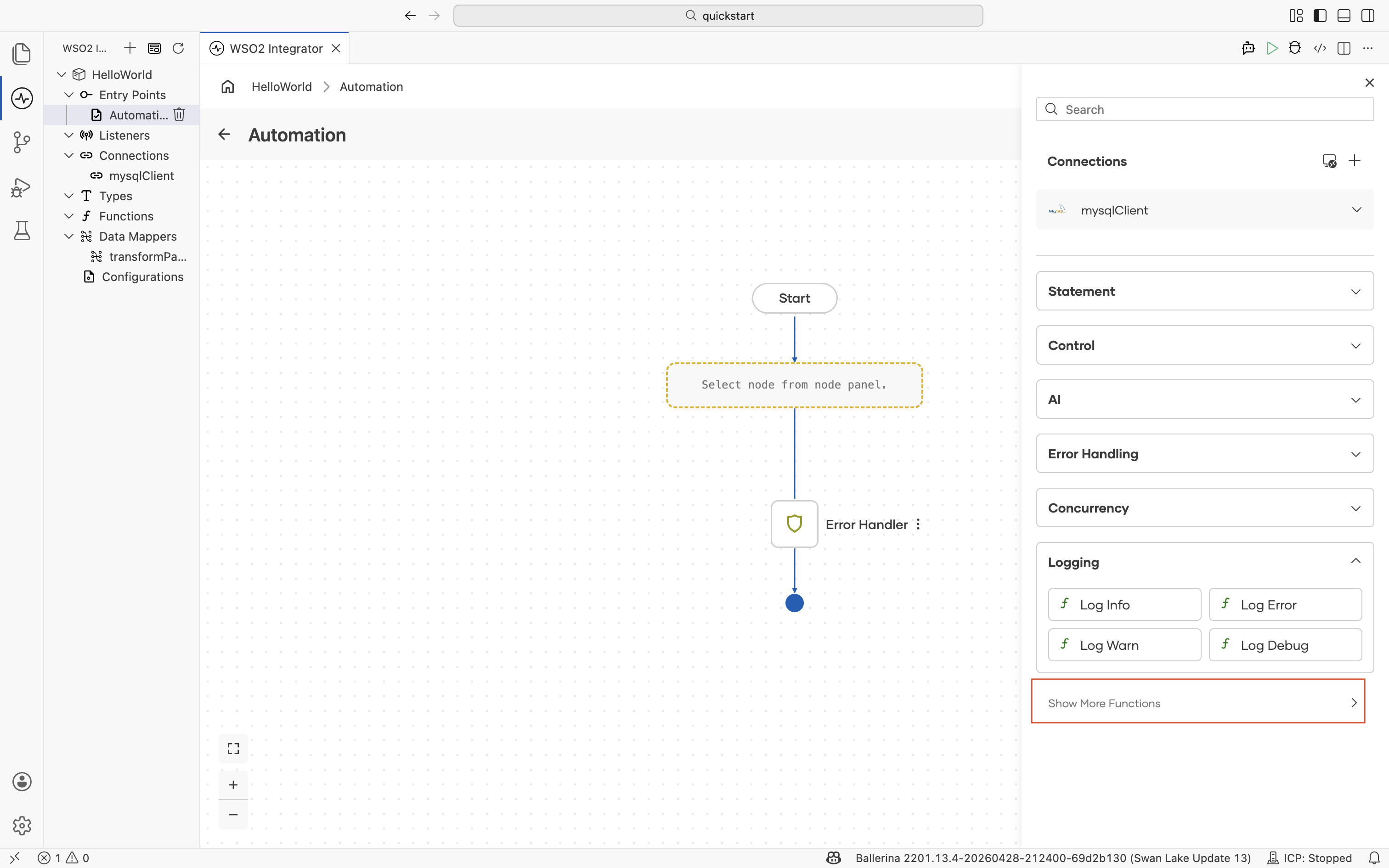
The node palette is the panel on the right of the Flow Canvas that lists every node you can add to a flow. From top to bottom, the palette contains a Search field, the project's Connections, the category sections below, and a Show More Functions action at the bottom that opens the full functions picker.
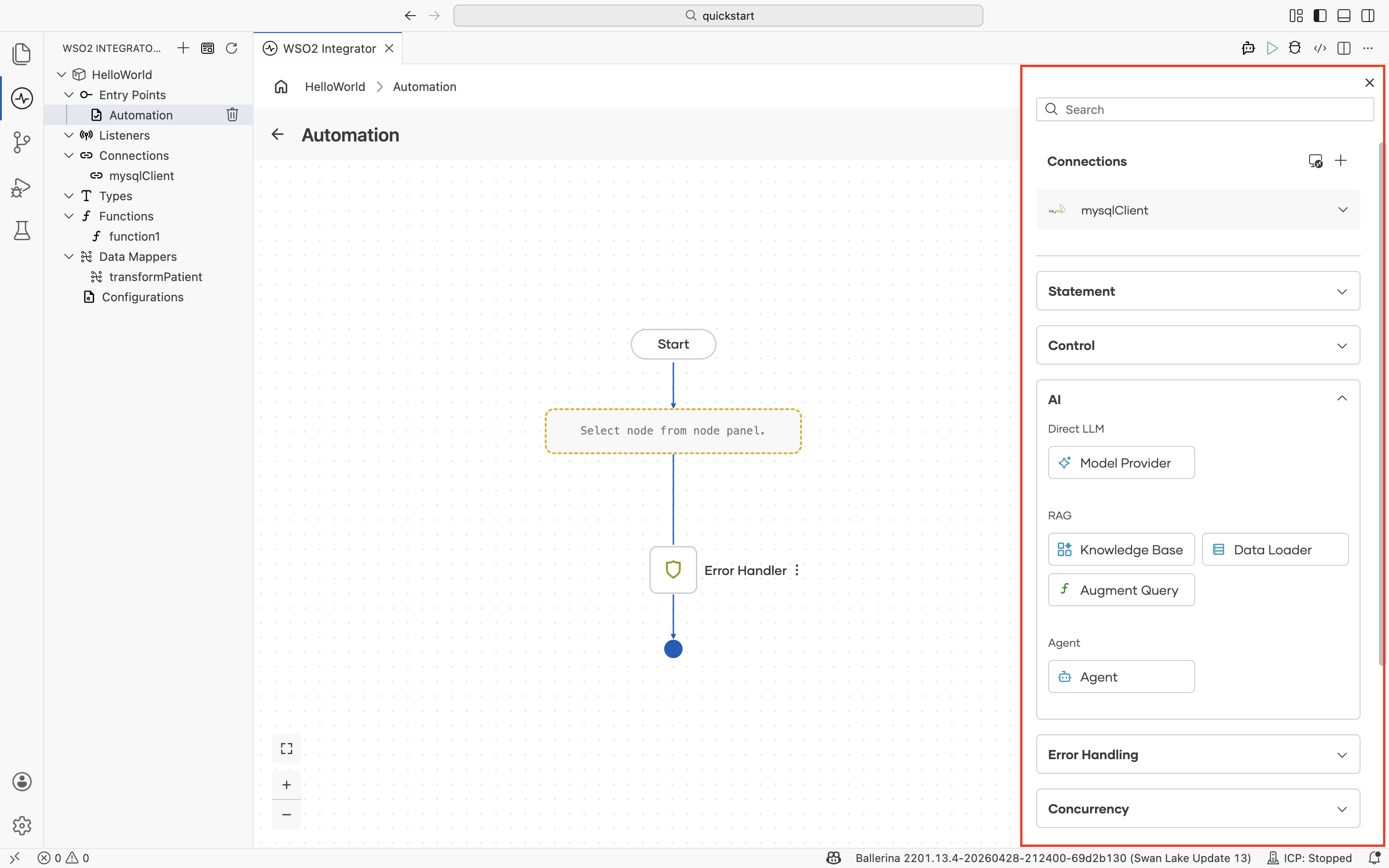
Select a category below to jump to its nodes.
Statement
Declare and update variables, call functions, and map data.
AI
Call LLMs directly, build RAG pipelines, and run agents.
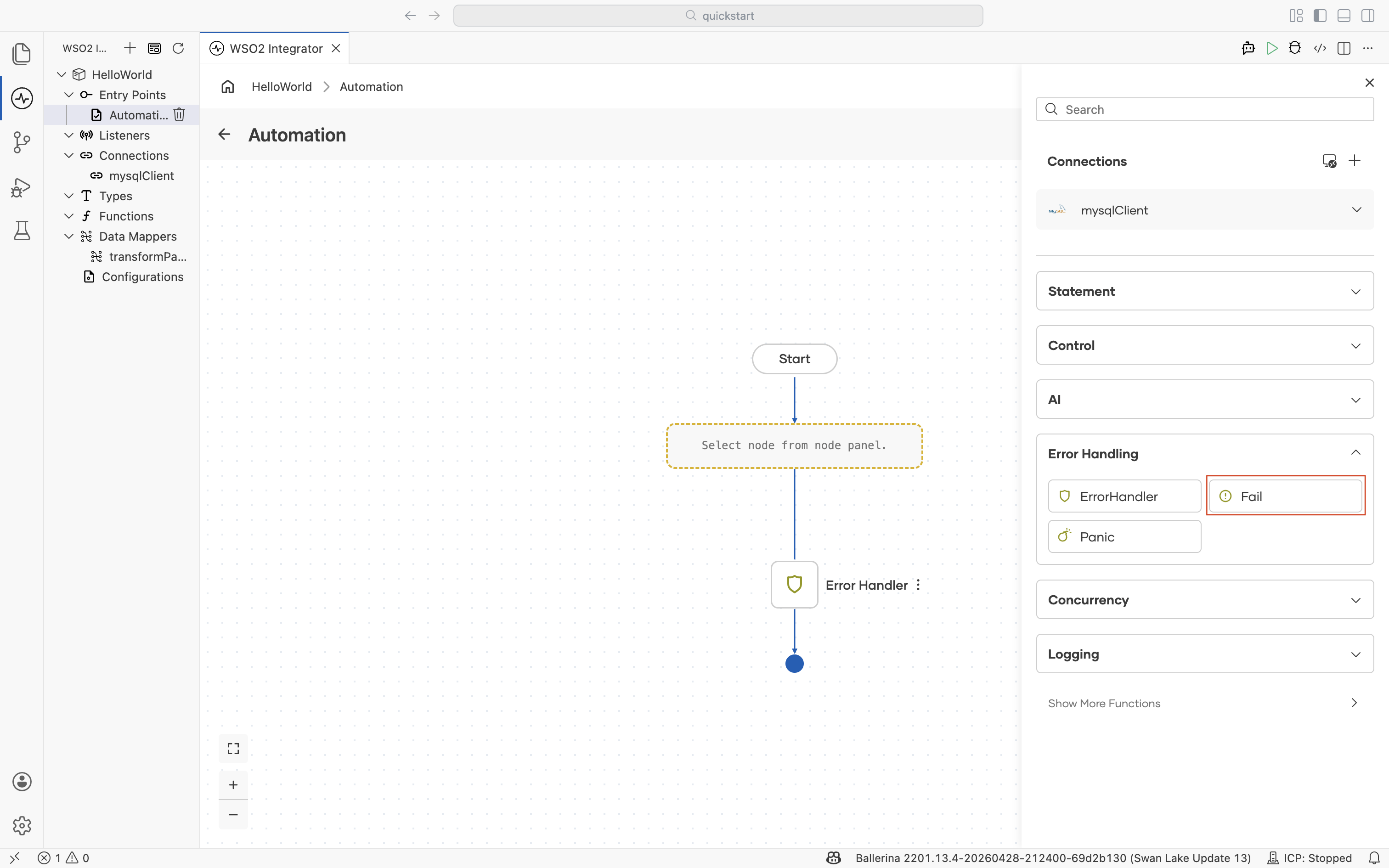
Error Handling
Catch errors, raise failures, and abort on unrecoverable conditions.
Show More Functions
Reach any function the project has access to when the panel doesn't list it as a shortcut.
Connections
A connection is a reusable, pre-configured client to an external system such as an HTTP service, database, message broker, or SaaS API. Connections appear in the Connections section at the very top of the node panel, above all other categories. Use them to invoke remote operations from the flow without re-creating the client each time.
Connection
Selecting a connection in the node panel adds a step bound to that connection.
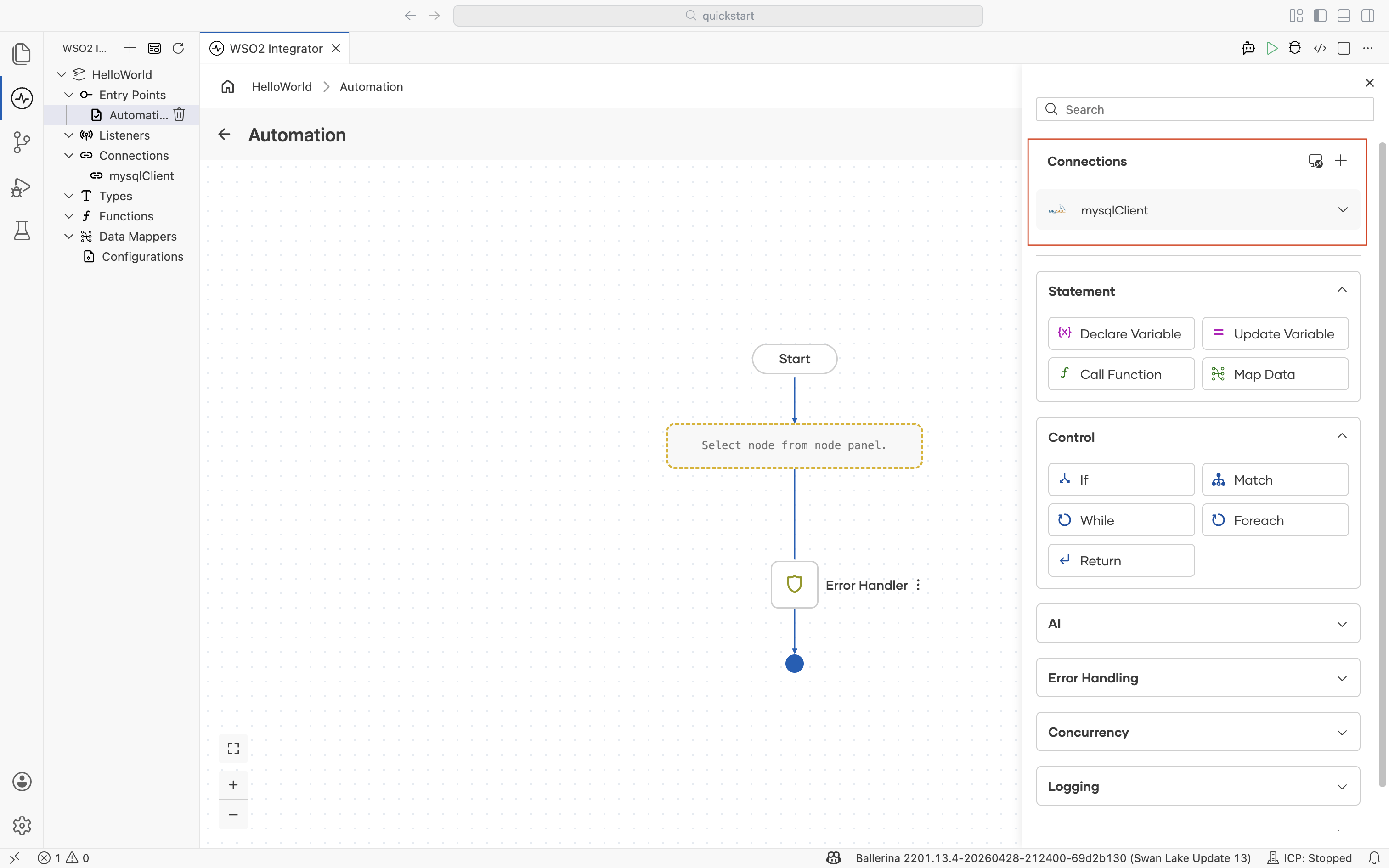
To create a new connection, select + next to Connections. For details on connection types, scopes, and credential management, see the Connections reference.
Connection actions
Selecting a connection lists every action it supports. Choosing an action drops it into the flow as a step bound to that connection. The action set depends on the connection type. For a database client, the actions are Query, Query Row, Execute, Batch Execute, Call, and Close.
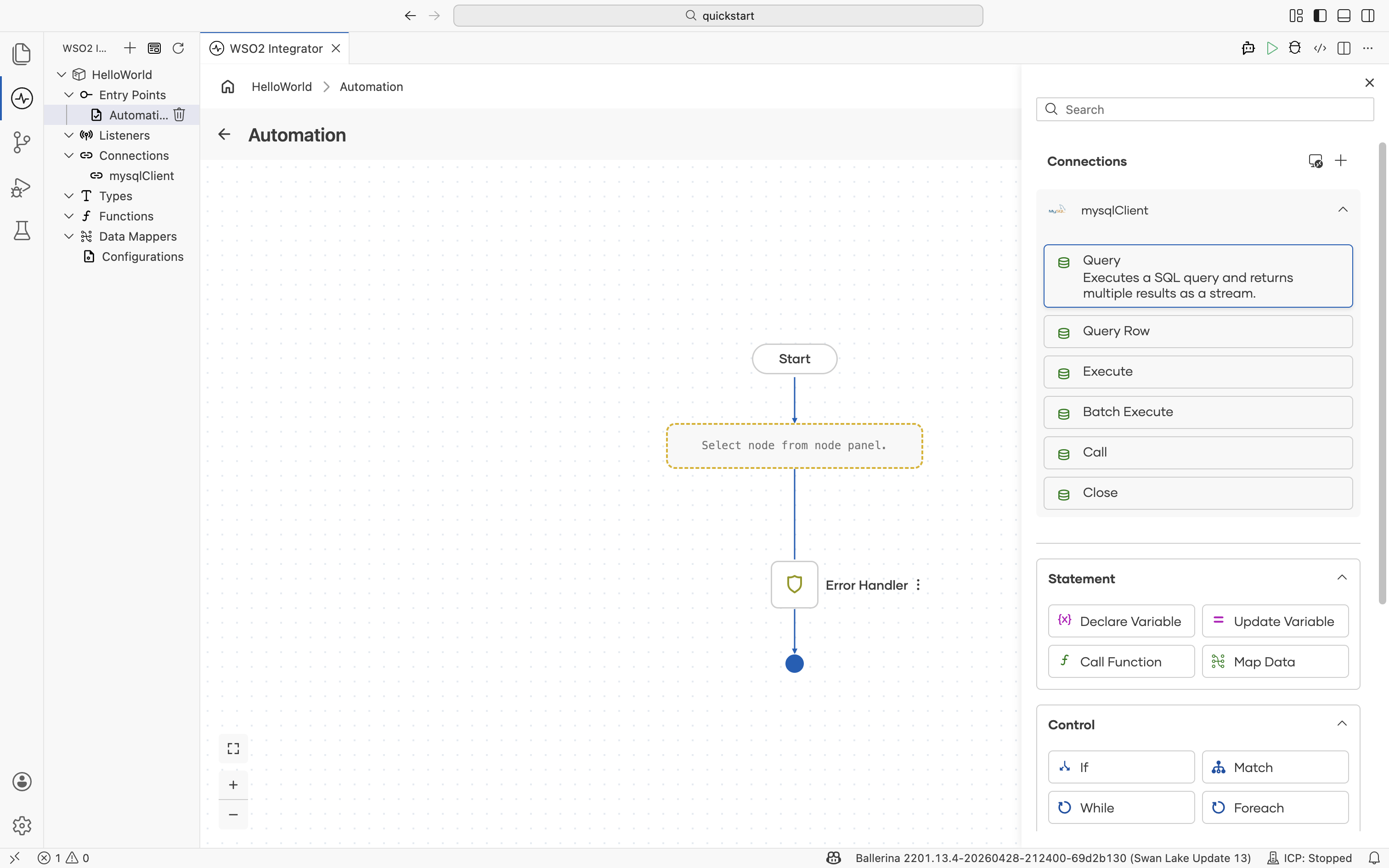
Each action opens its own configuration form when selected. Action forms typically include a query or payload field, parameter bindings, and a result variable. Use the Expression Panel to author parameter expressions, and the Type Panel to bind the result to a typed variable.
Statement
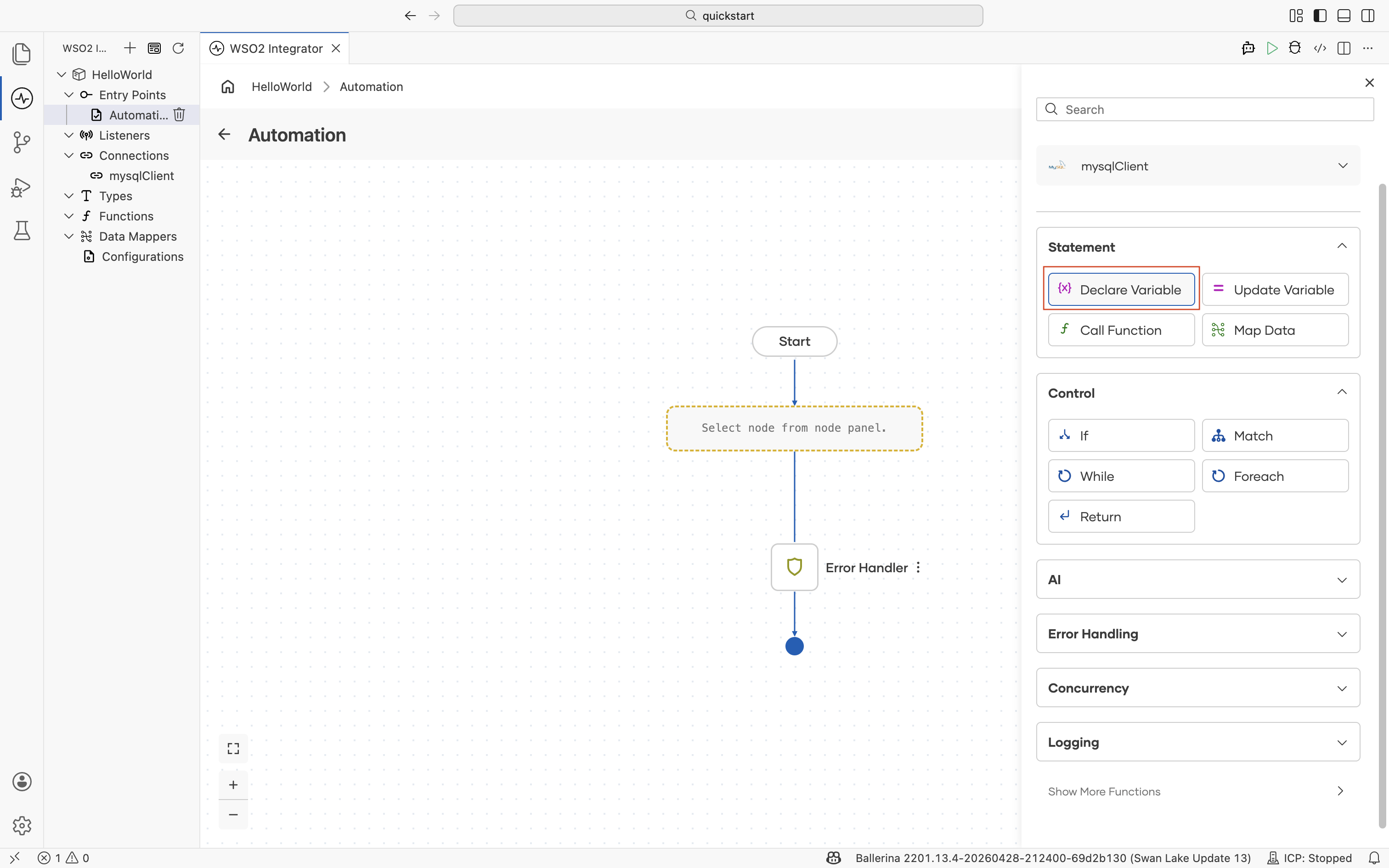
The Statement section of the node panel covers the workhorse operations of an integration flow: declaring and updating variables, calling functions, and transforming records. It sits at the top of the categories list, just below the project's Connections.
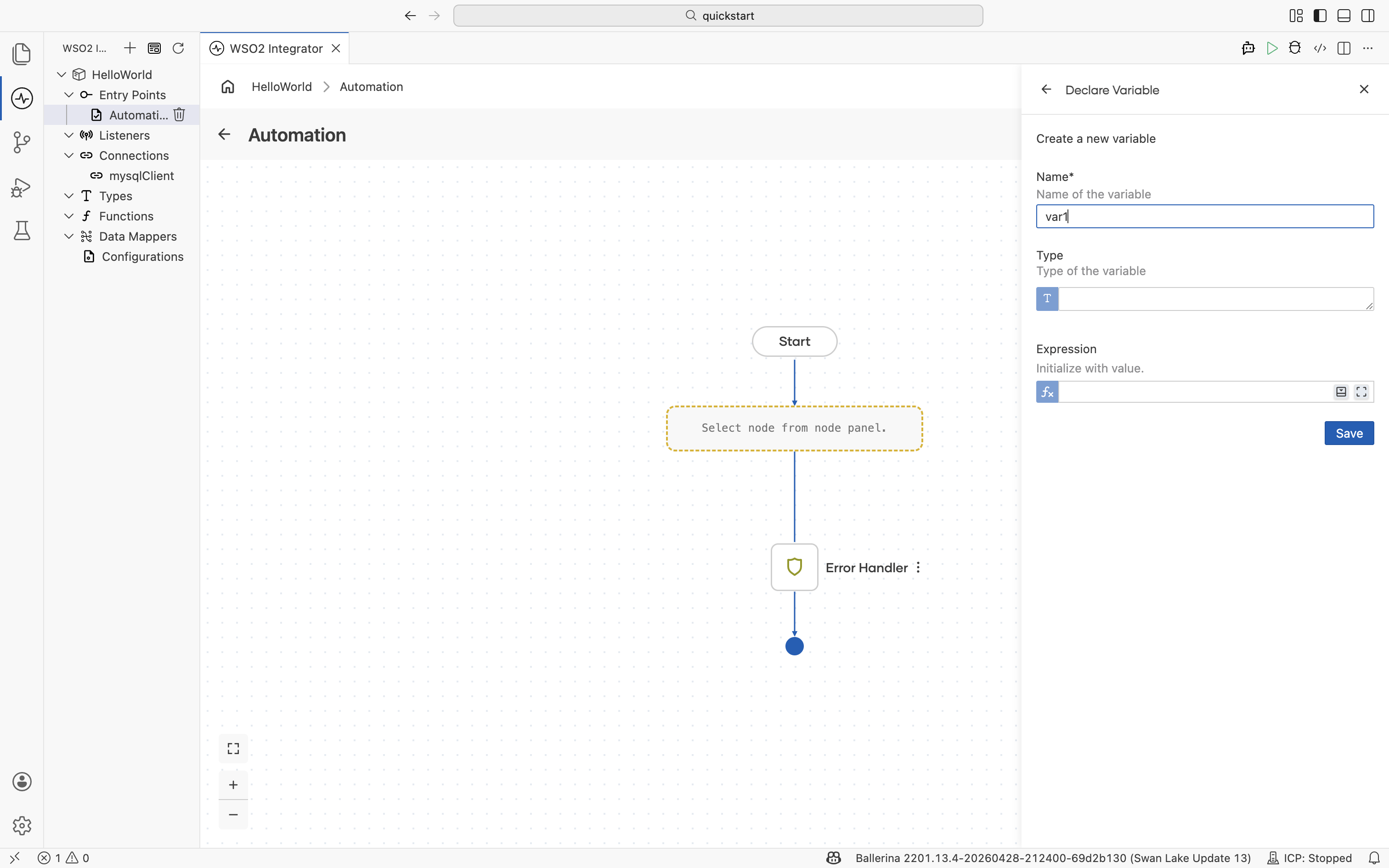
Declare Variable
Creates a typed variable in the current flow scope. Use it whenever a downstream node needs a named value that does not come directly from a previous step's result.
| Field | Description |
|---|---|
| Name | Name of the variable. |
| Type | Type of the variable. Use a record, enum, primitive, or json. Define new types inline with the Type Panel. |
| Expression | Initialize with a value. Author the expression with assistance in the Expression Panel. Leave it empty to declare an unbound variable. |
Update Variable
Assigns a new value to an existing variable.
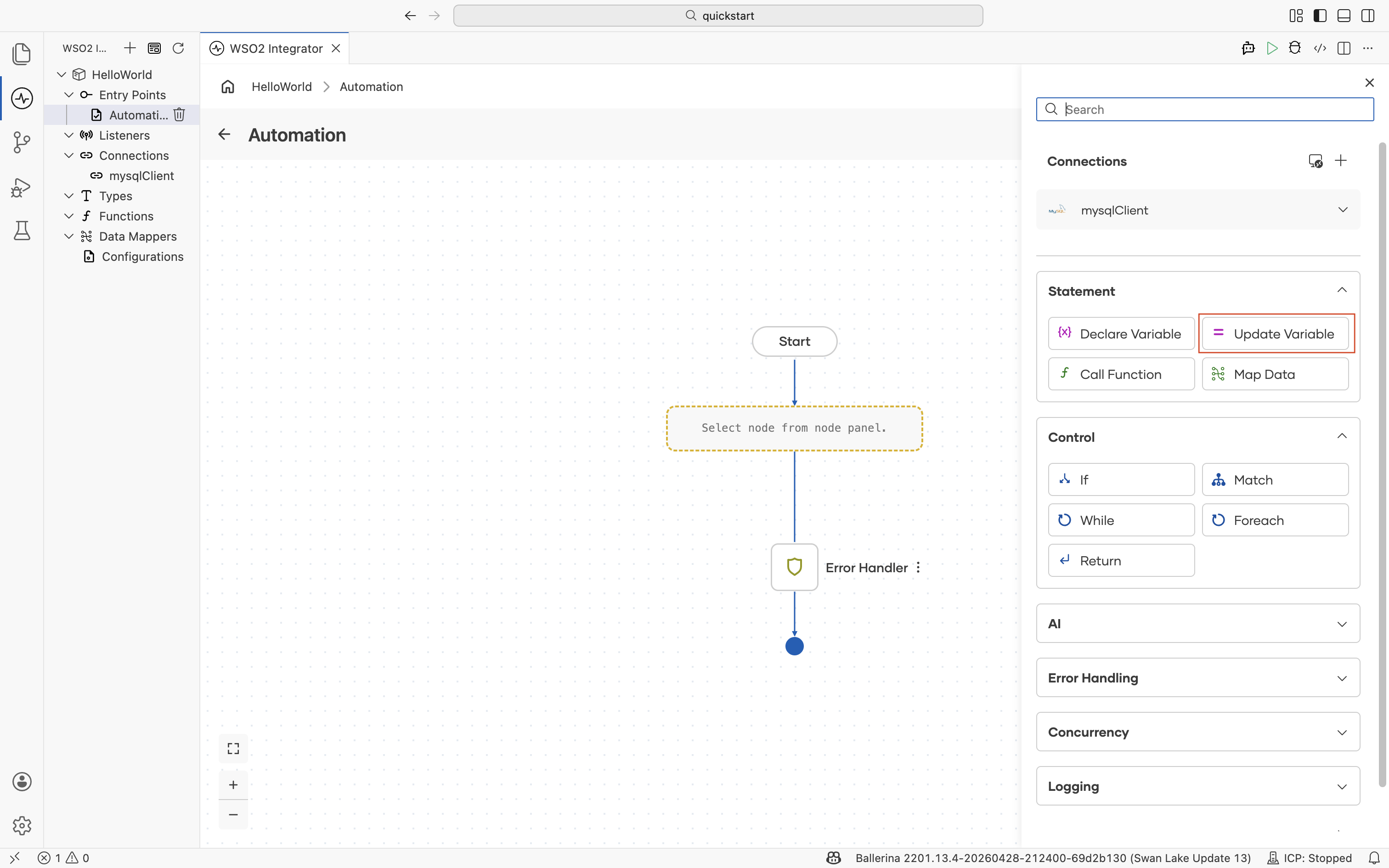
| Field | Description |
|---|---|
| Variable | Name of the variable or field to update. |
| Expression | The new value. Use the Expression Panel for type-aware suggestions. |
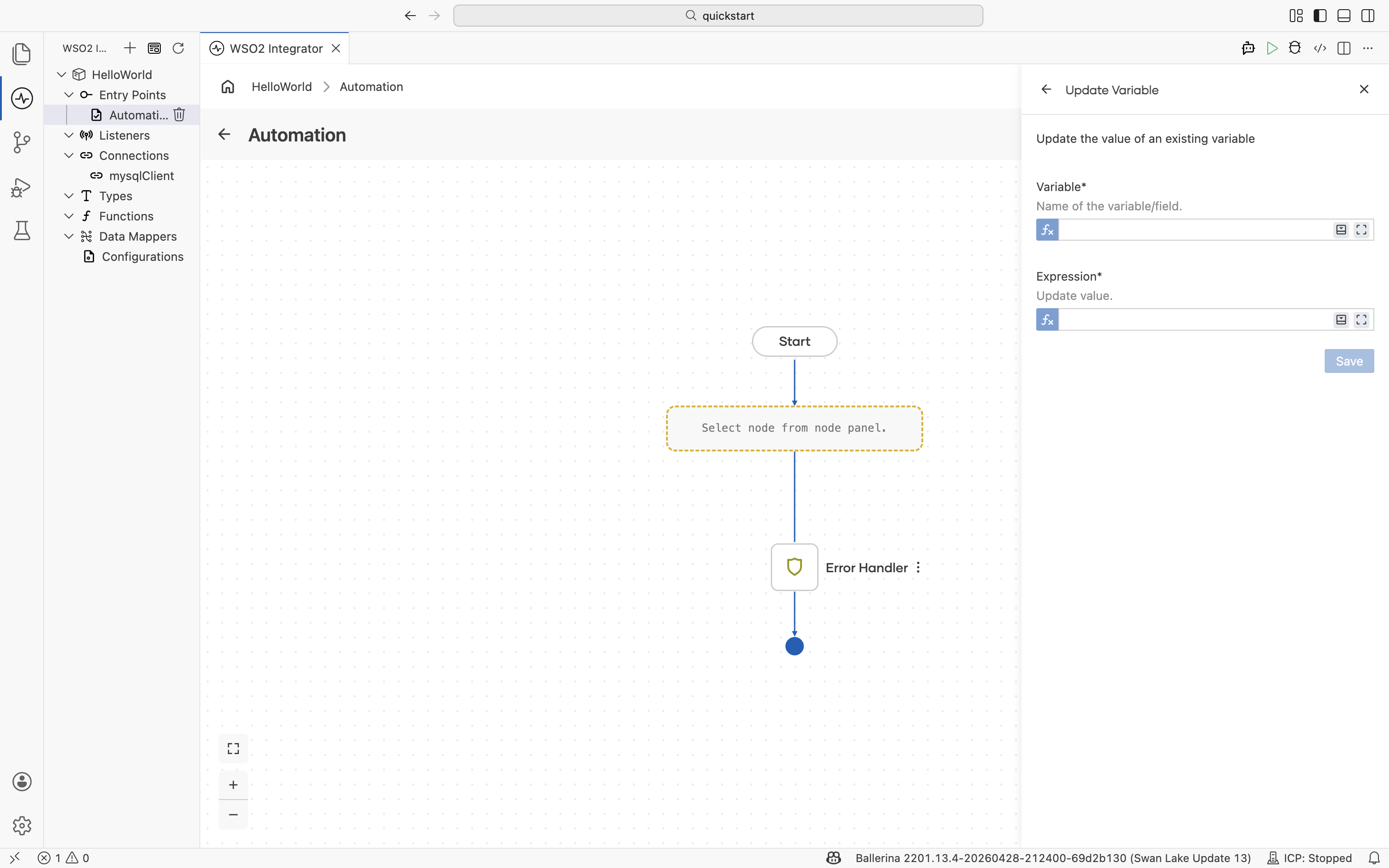
Call Function
Calls a function defined in the project, an imported library, or the Ballerina standard library. Use it to reuse logic across the integration without copying expressions into every node.
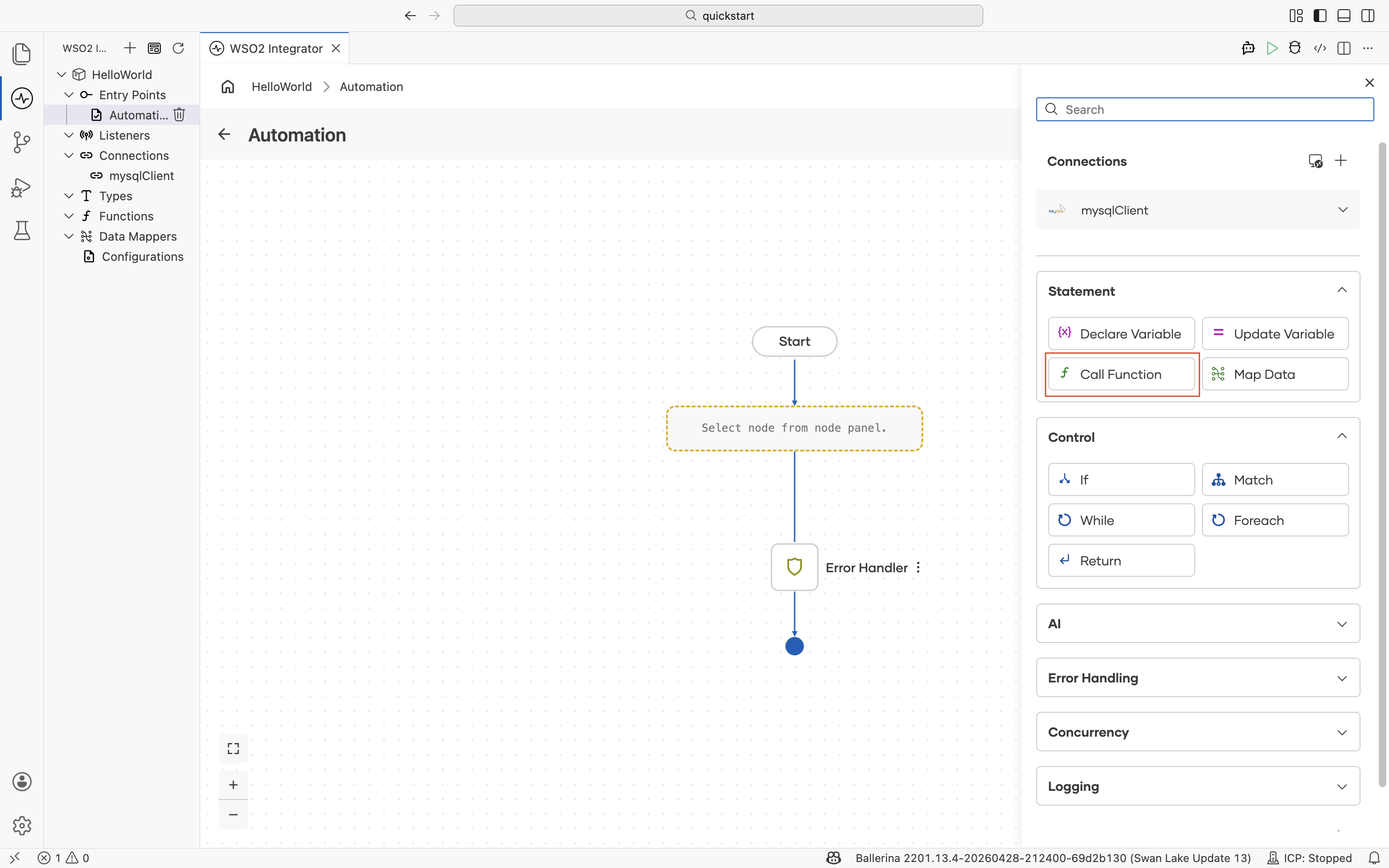
The function picker lists functions in three sections: Within Project, Imported Functions (functions from imported libraries such as log), and Standard Library. Select Create Function under Within Project to define a new function inline.
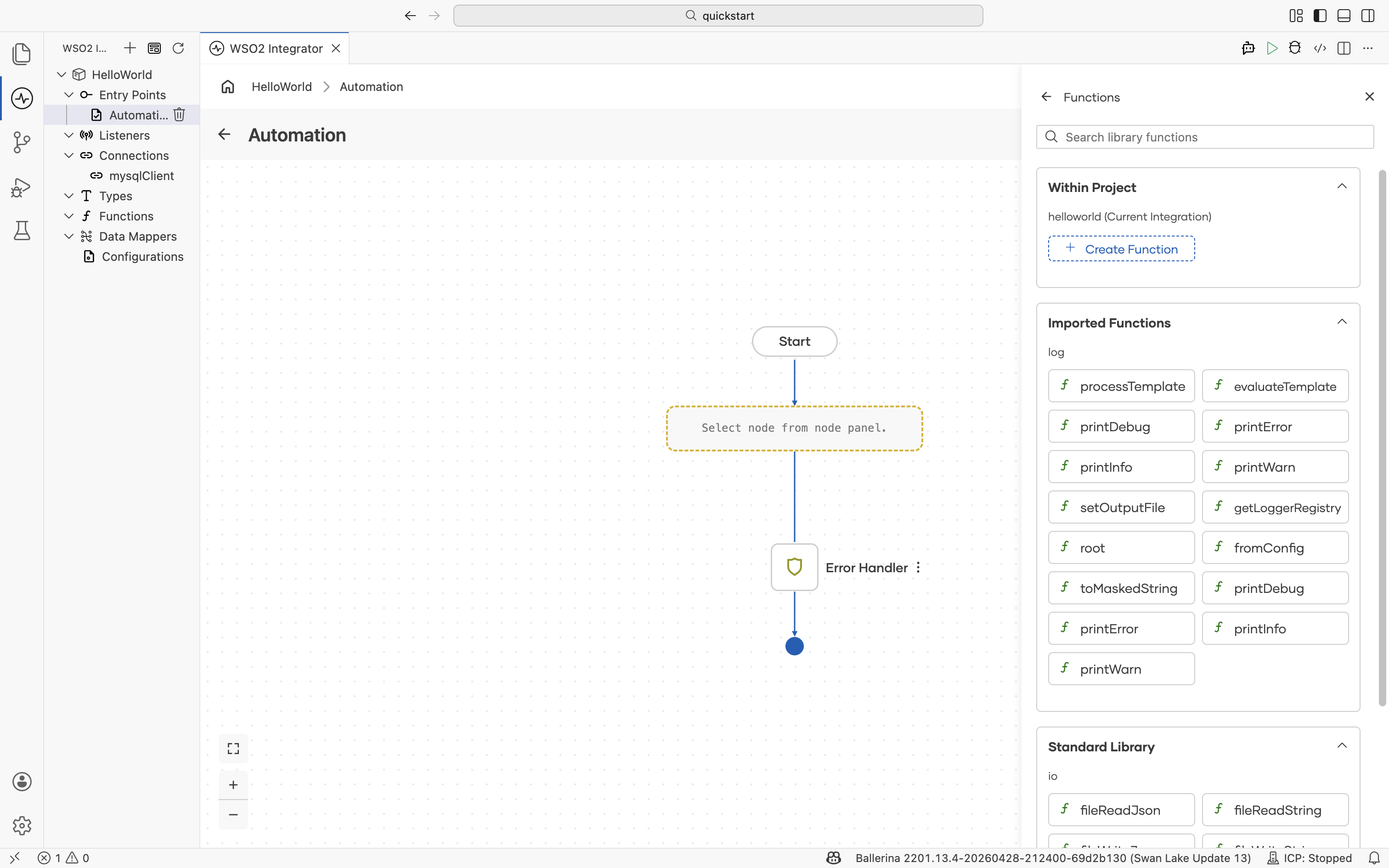
For details on creating, organizing, and reusing functions across artifacts, see the Functions reference.
Map Data
Adds a data mapper call that transforms data from one record shape to another. Use it whenever the source data and the downstream consumer expect different record types.
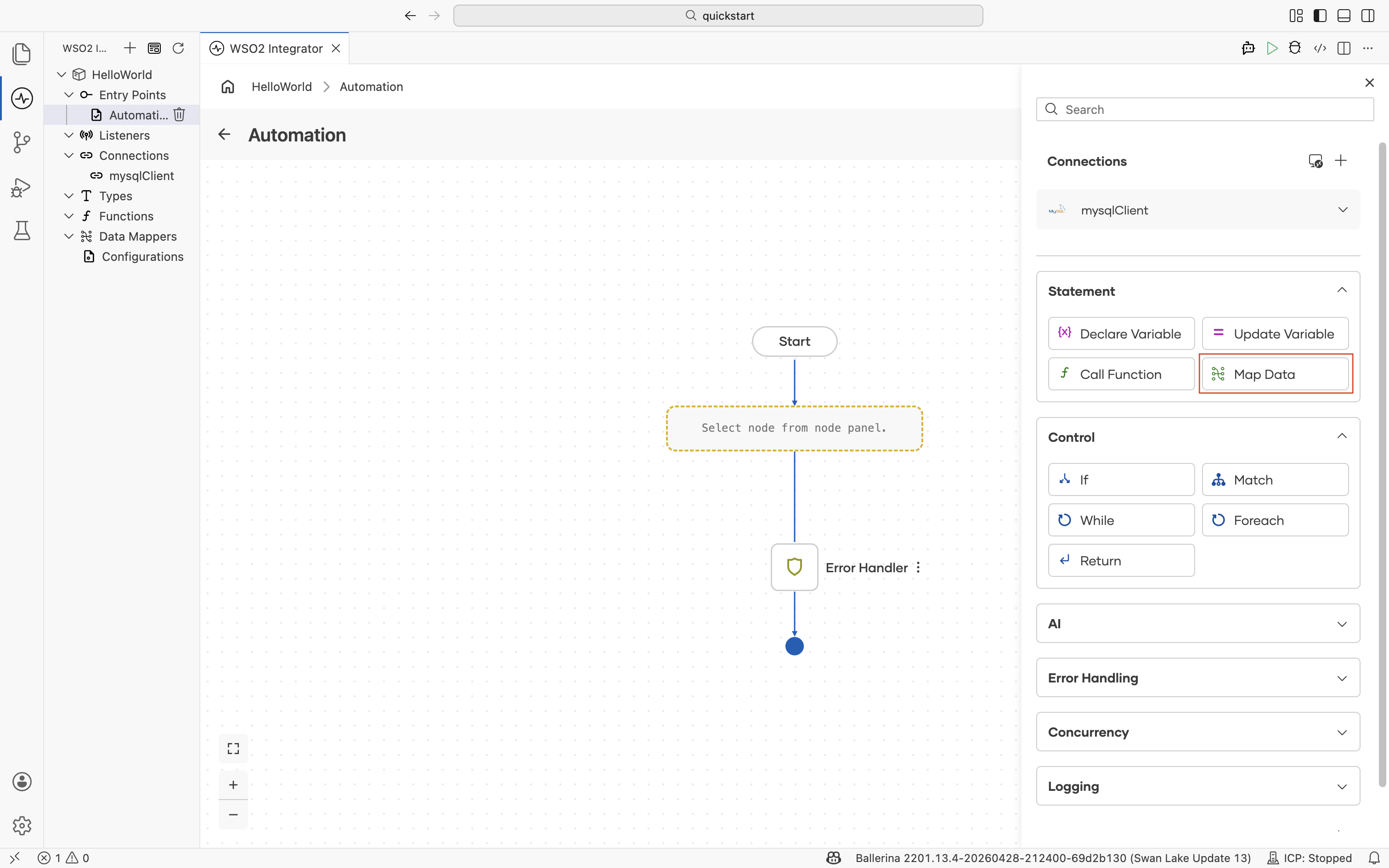
The picker lists every data mapper in the project under Within Project. Select an existing mapper to invoke it from the flow, or select Create Data Mapper to define a new one. New and existing mappers open in the Data Mapper, where you draw connections between source and target fields, write inline expressions, or use Auto Map.
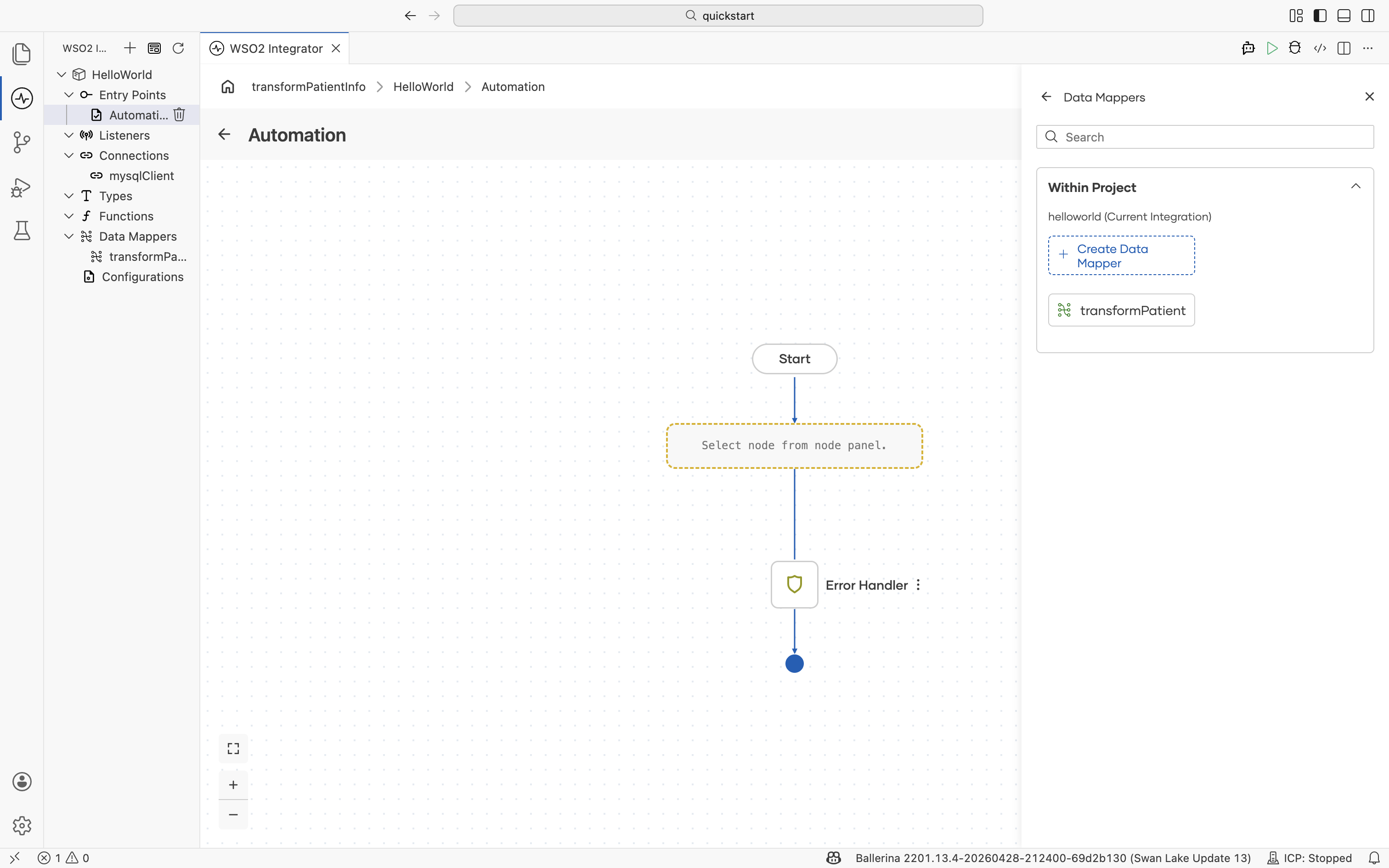
For mapping capabilities, array handling, and sub mappings, see the Data Mapper reference.
Control
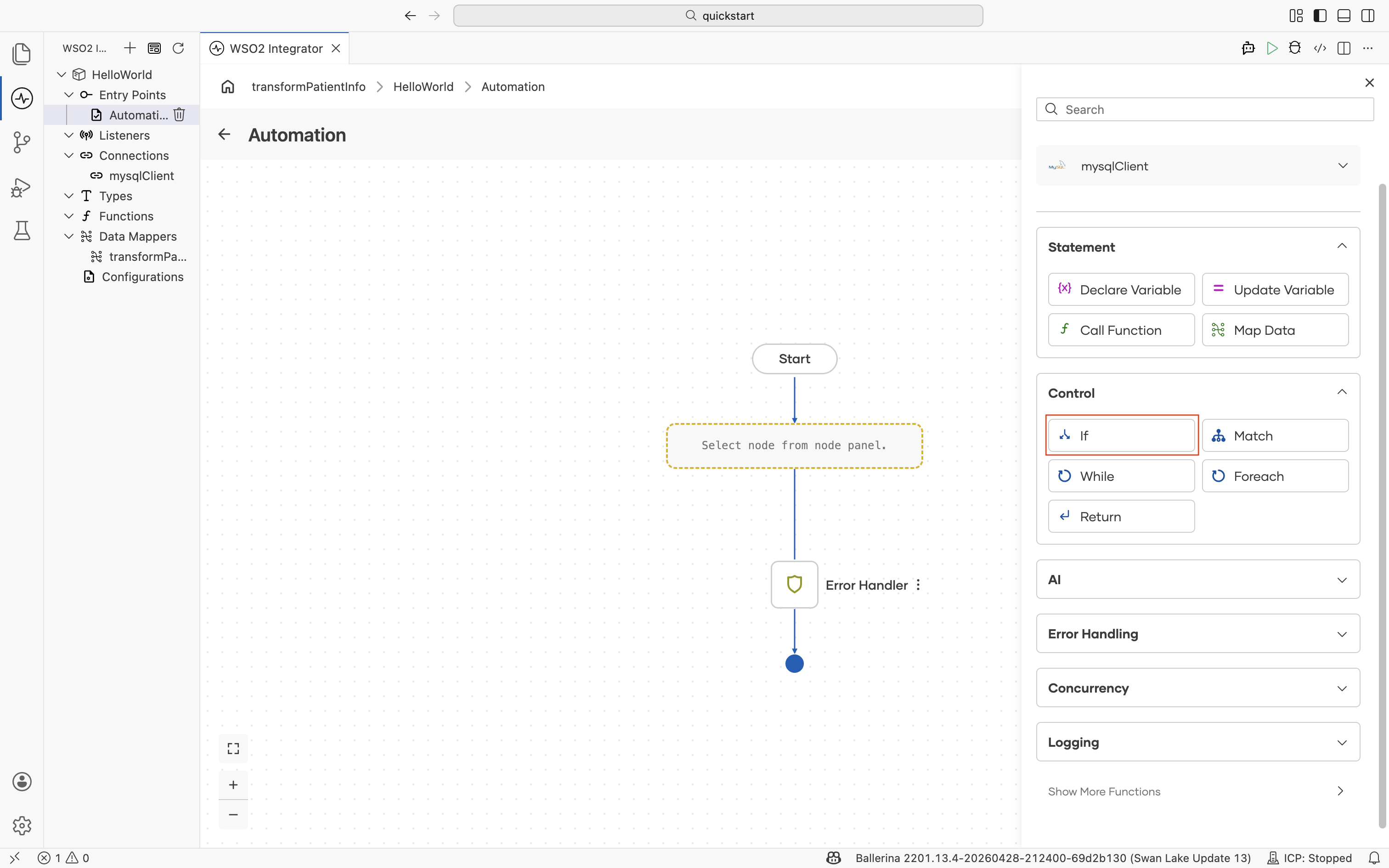
The Control section of the node panel shapes the path the flow takes. Use it to branch on a condition, dispatch on a pattern, repeat steps, iterate over a collection, or return a value to the caller. Every form in this section accepts Ballerina expressions; author them with assistance from the Expression Panel.
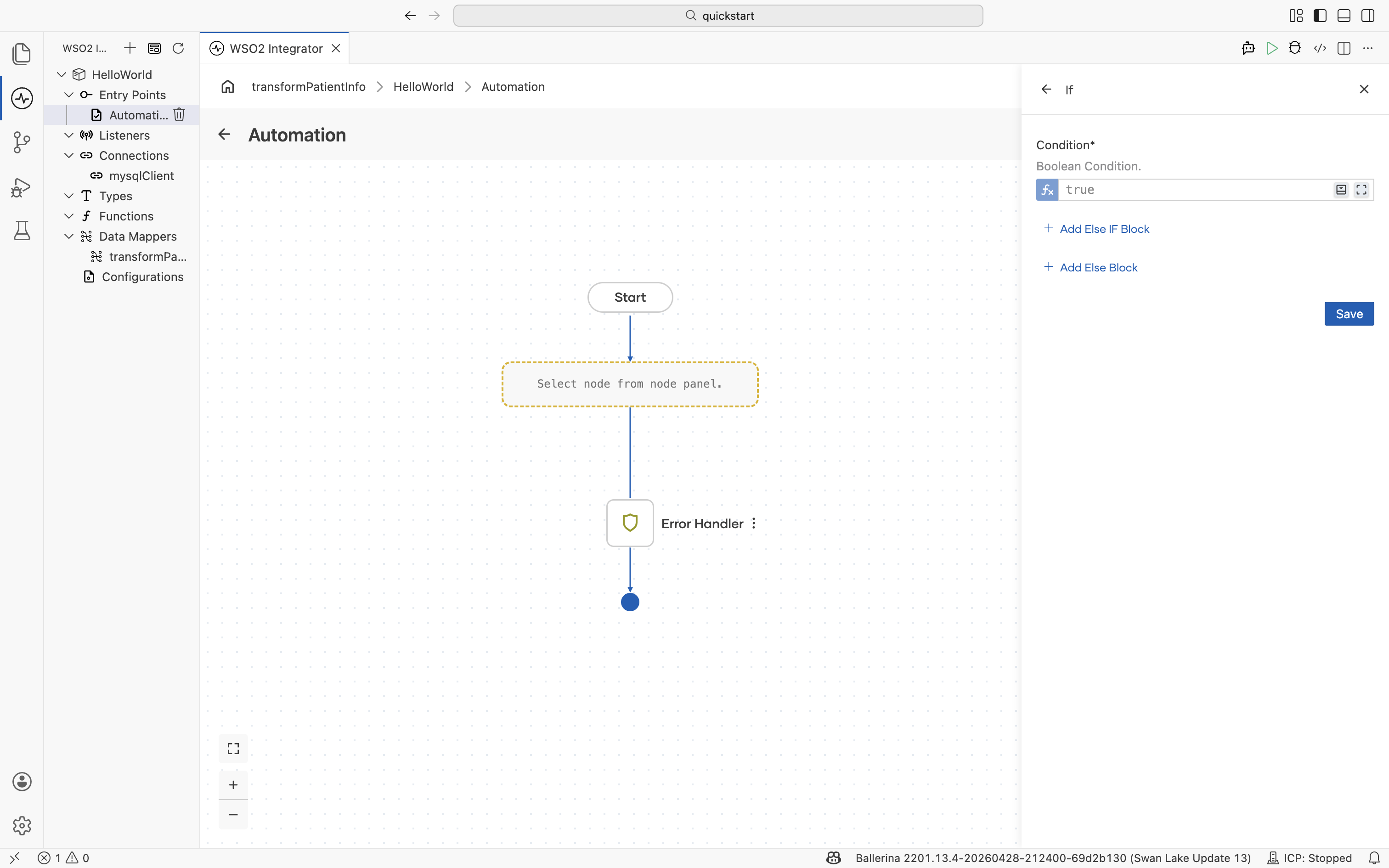
If
Branches the flow on a Boolean condition and runs the matching block. Add Else If blocks for additional conditions and an Else block for a fallback path when none of the conditions match.
| Field | Description |
|---|---|
| Condition | Boolean condition. |
The form provides Add Else IF Block and Add Else Block to extend the branch.
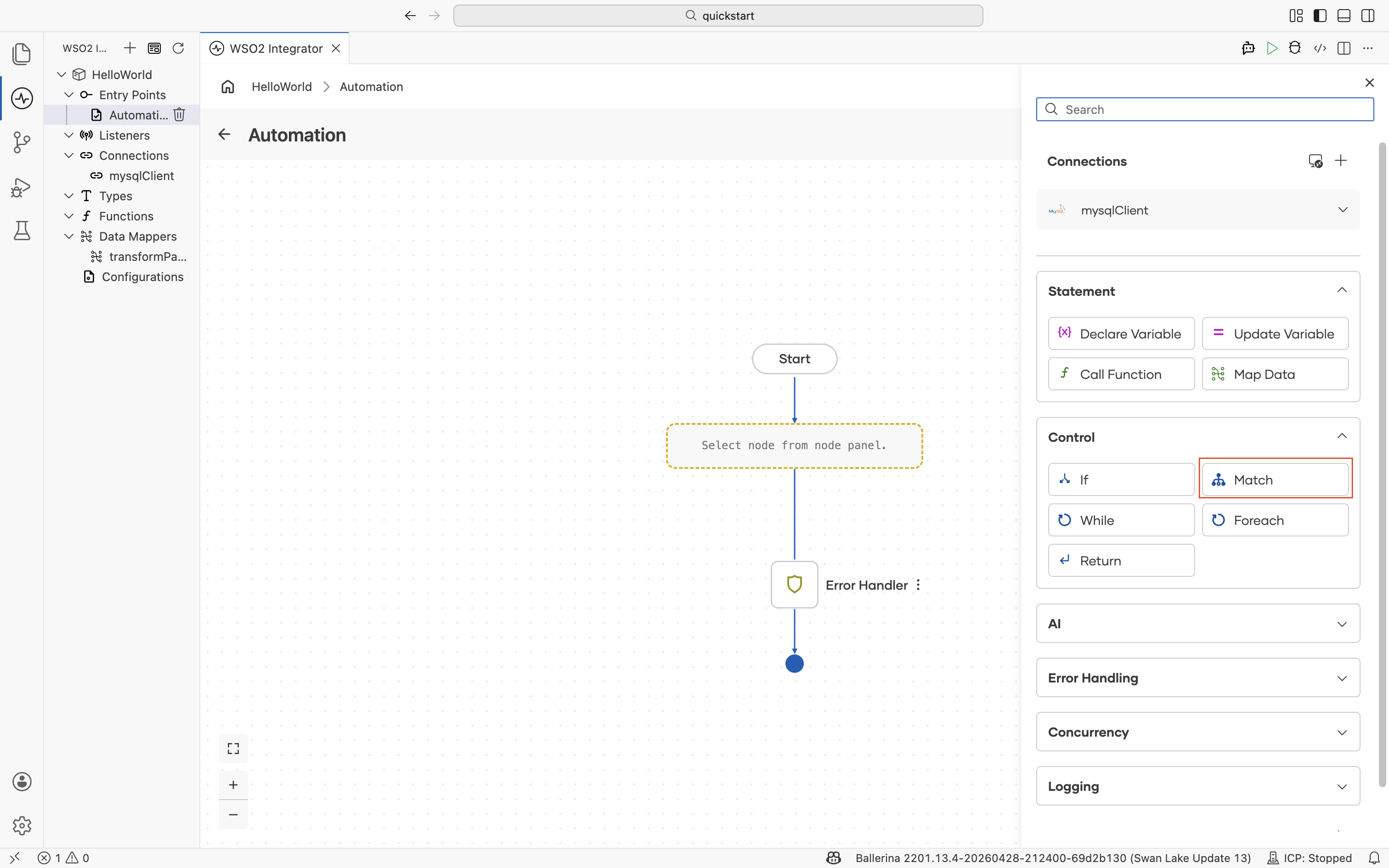
Match
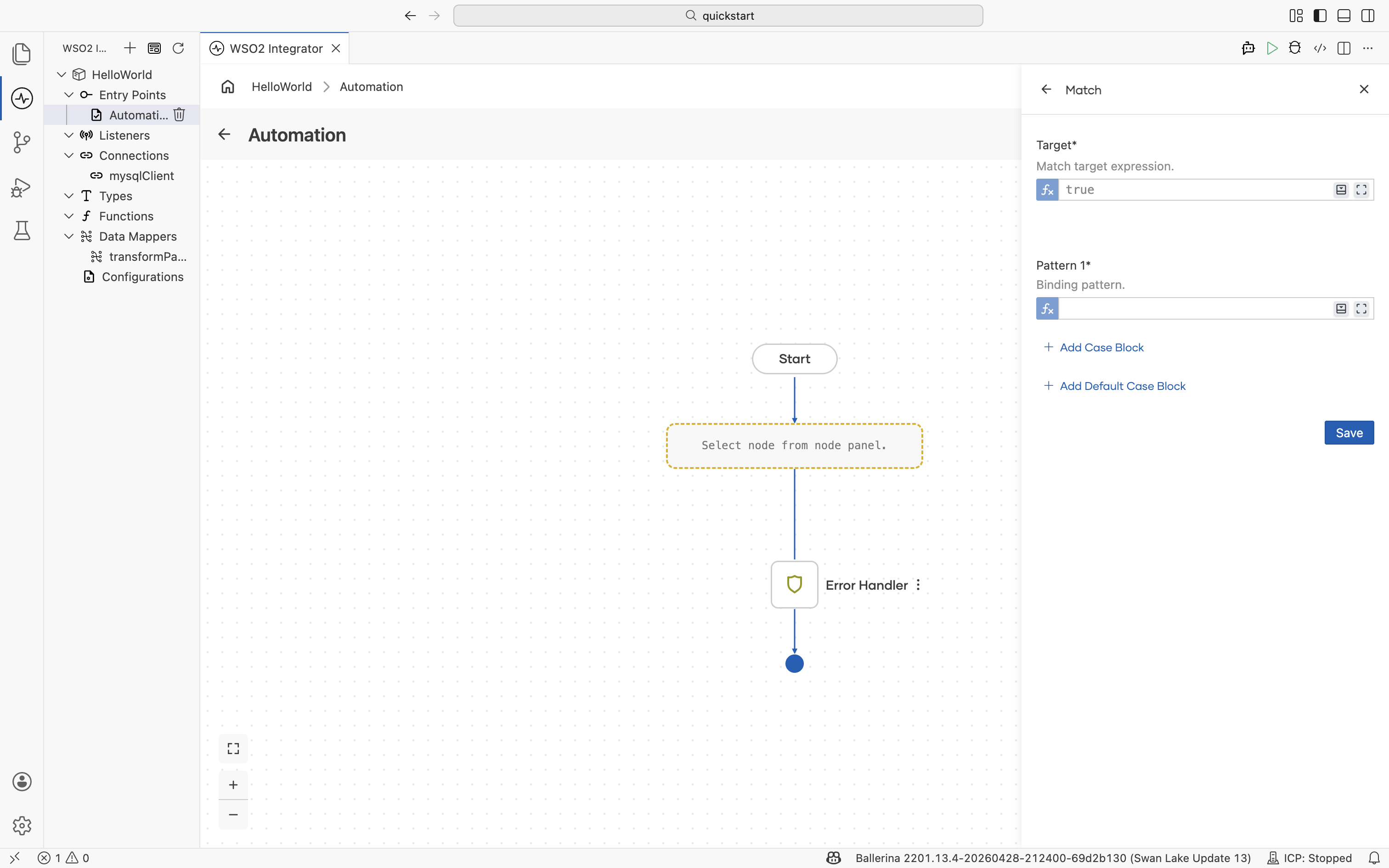
Matches a value against one or more patterns and runs the steps under the first matching pattern. Use Match instead of a chain of If/Else If blocks when dispatching on a finite set of values or shapes.
| Field | Description |
|---|---|
| Target | Match target expression. |
| Pattern 1 | Binding pattern that the target is matched against. |
The form provides Add Case Block to add more patterns and Add Default Case Block for a fallback that runs when no pattern matches.
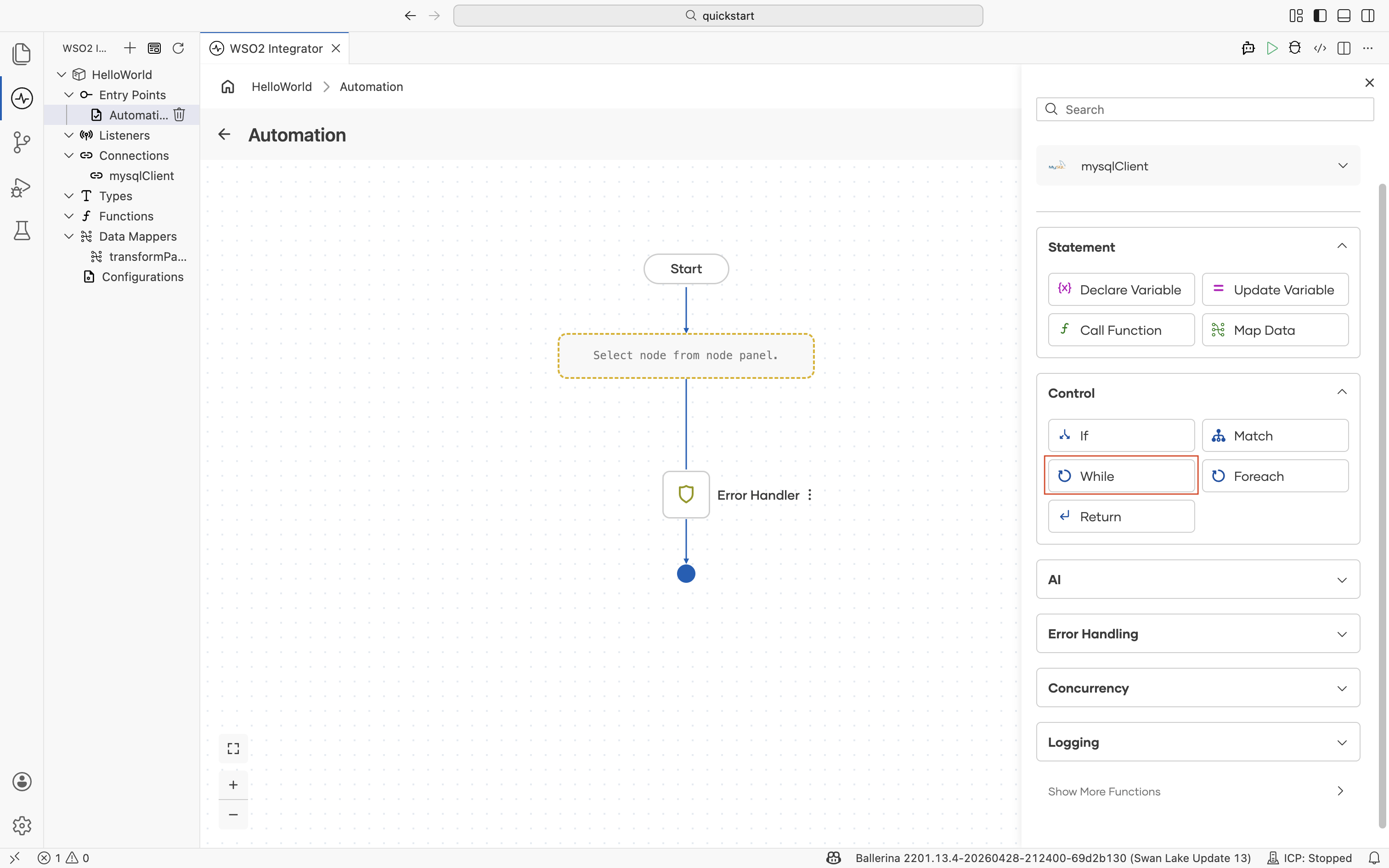
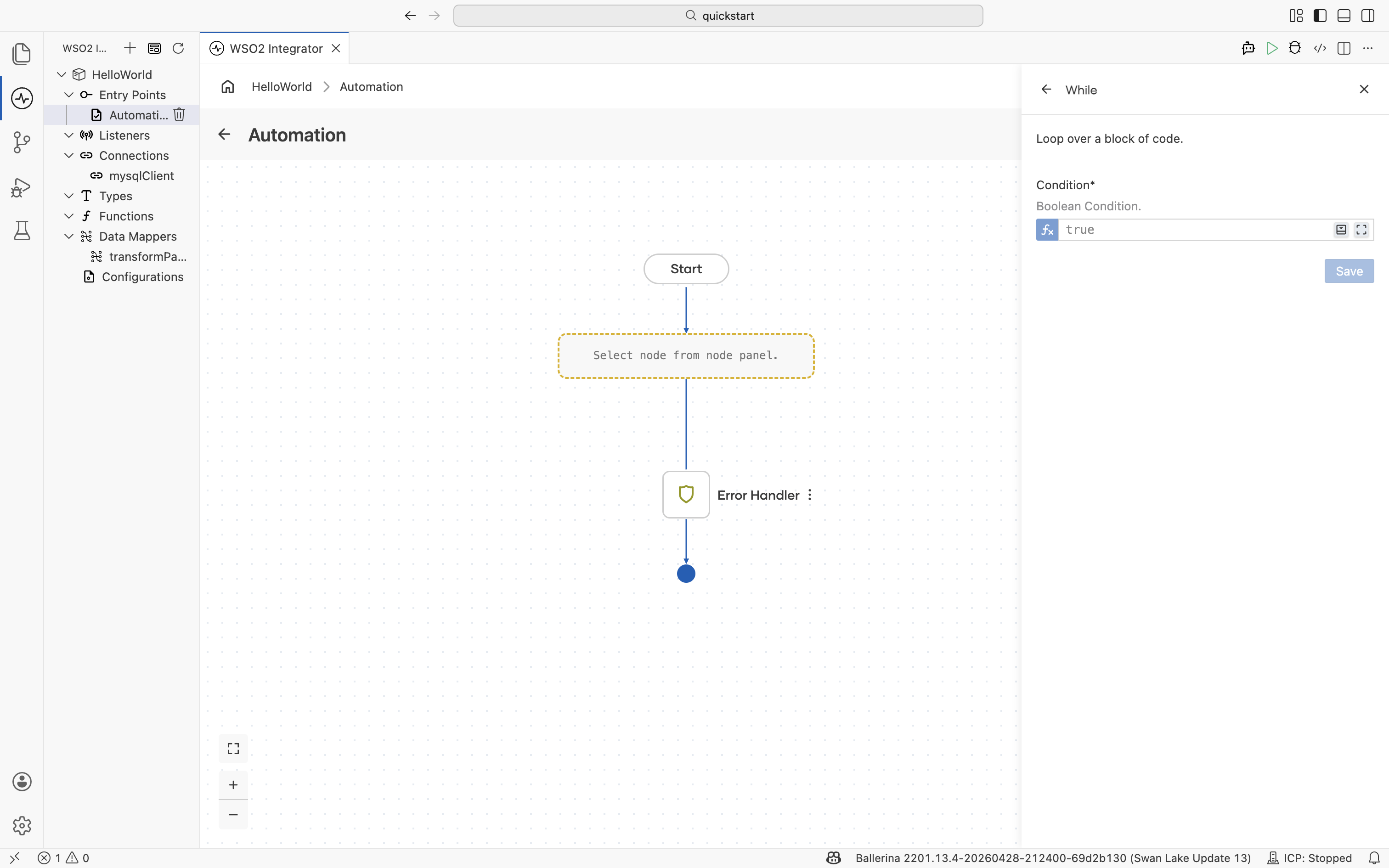
While
Loops over a block of code as long as a Boolean condition holds. The condition is evaluated before each iteration; the loop ends when it becomes false.
| Field | Description |
|---|---|
| Condition | Boolean condition. |
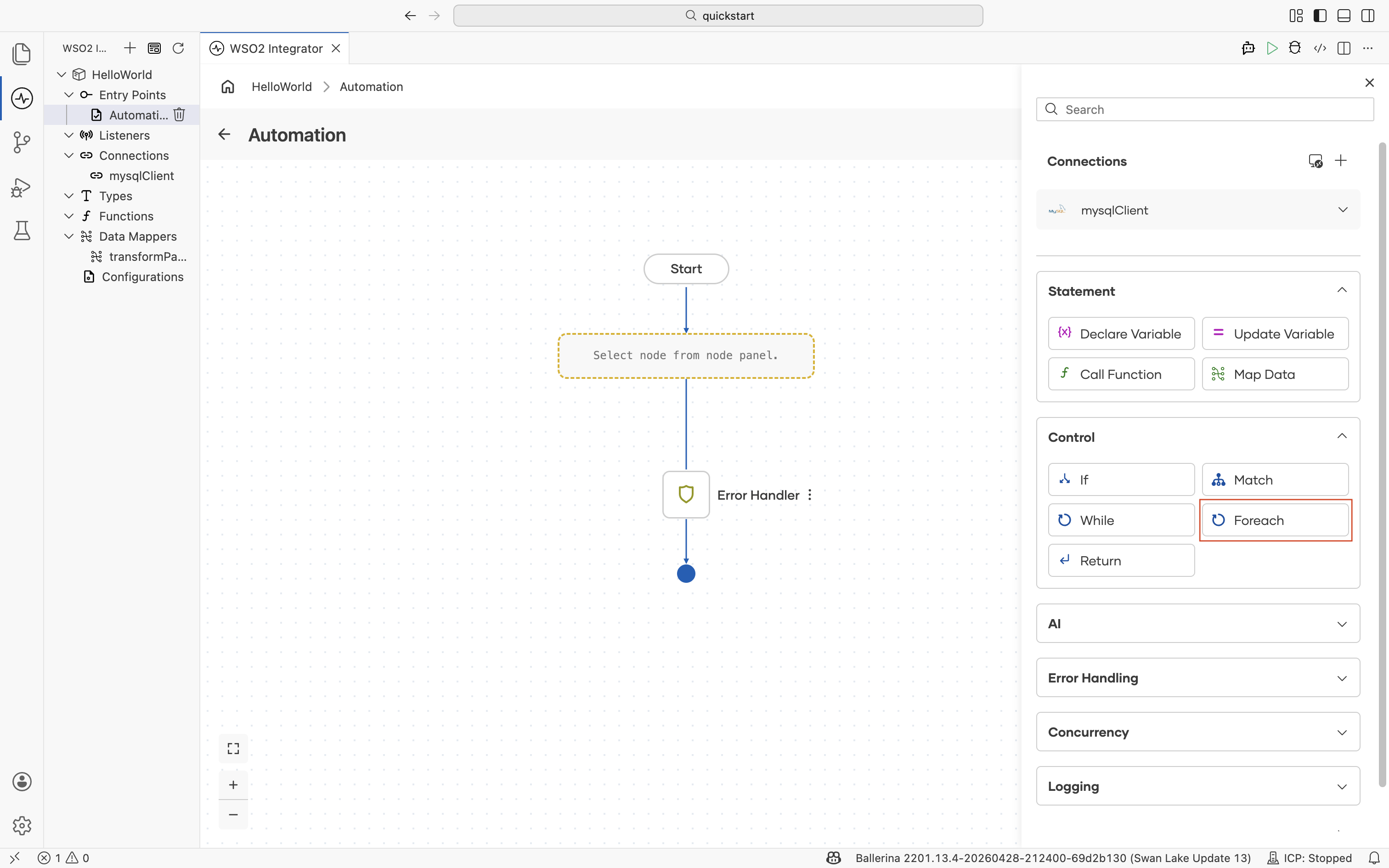
Foreach
Iterates over a block of code for each item in a collection. Use it for arrays, query results, ranges, and any other iterable value.
| Field | Description |
|---|---|
| Collection | Collection to iterate. |
| Variable Name | Name of the loop variable bound to each element. |
| Variable Type | Type of the loop variable. Define new types inline with the Type Panel. |
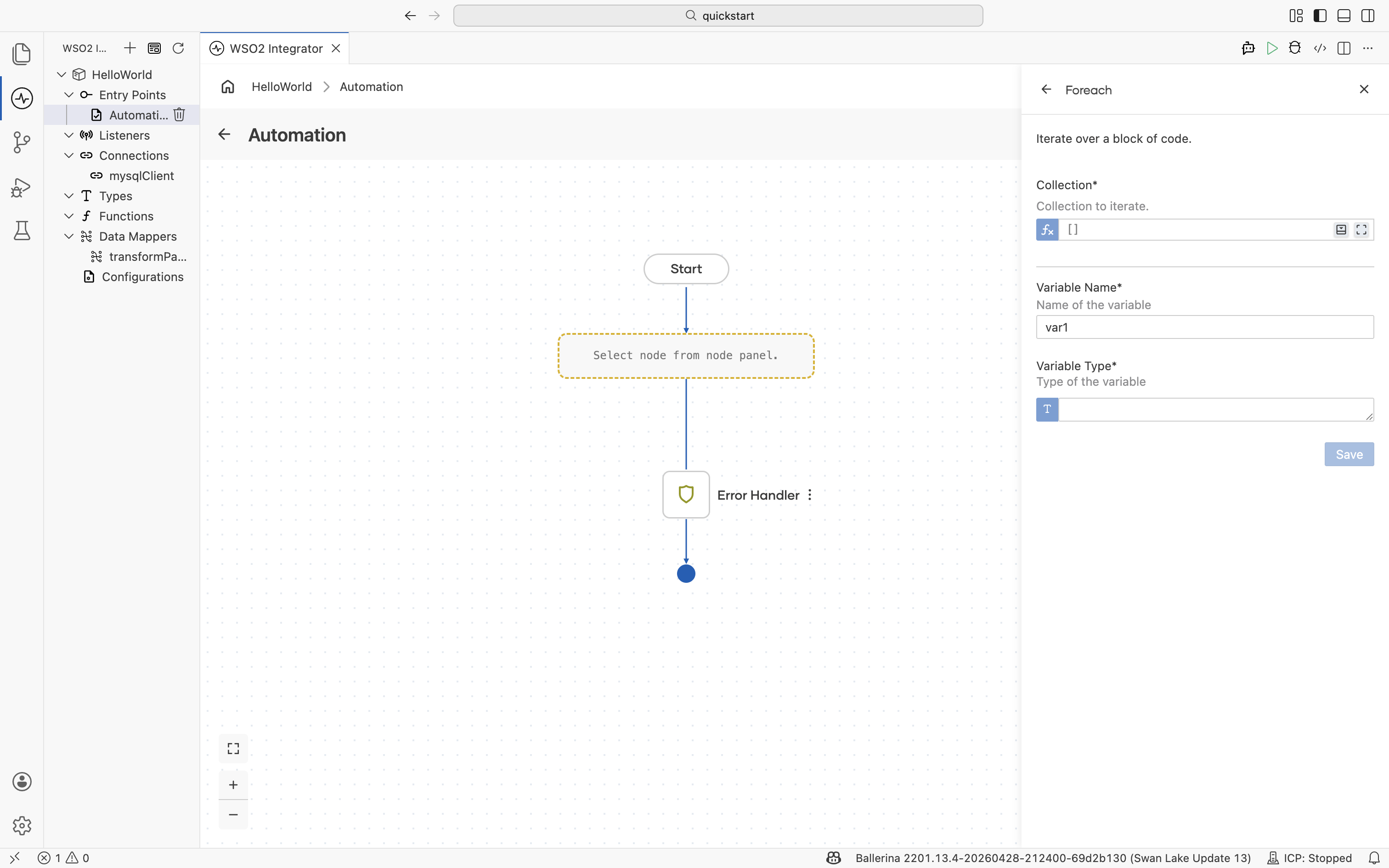
Return
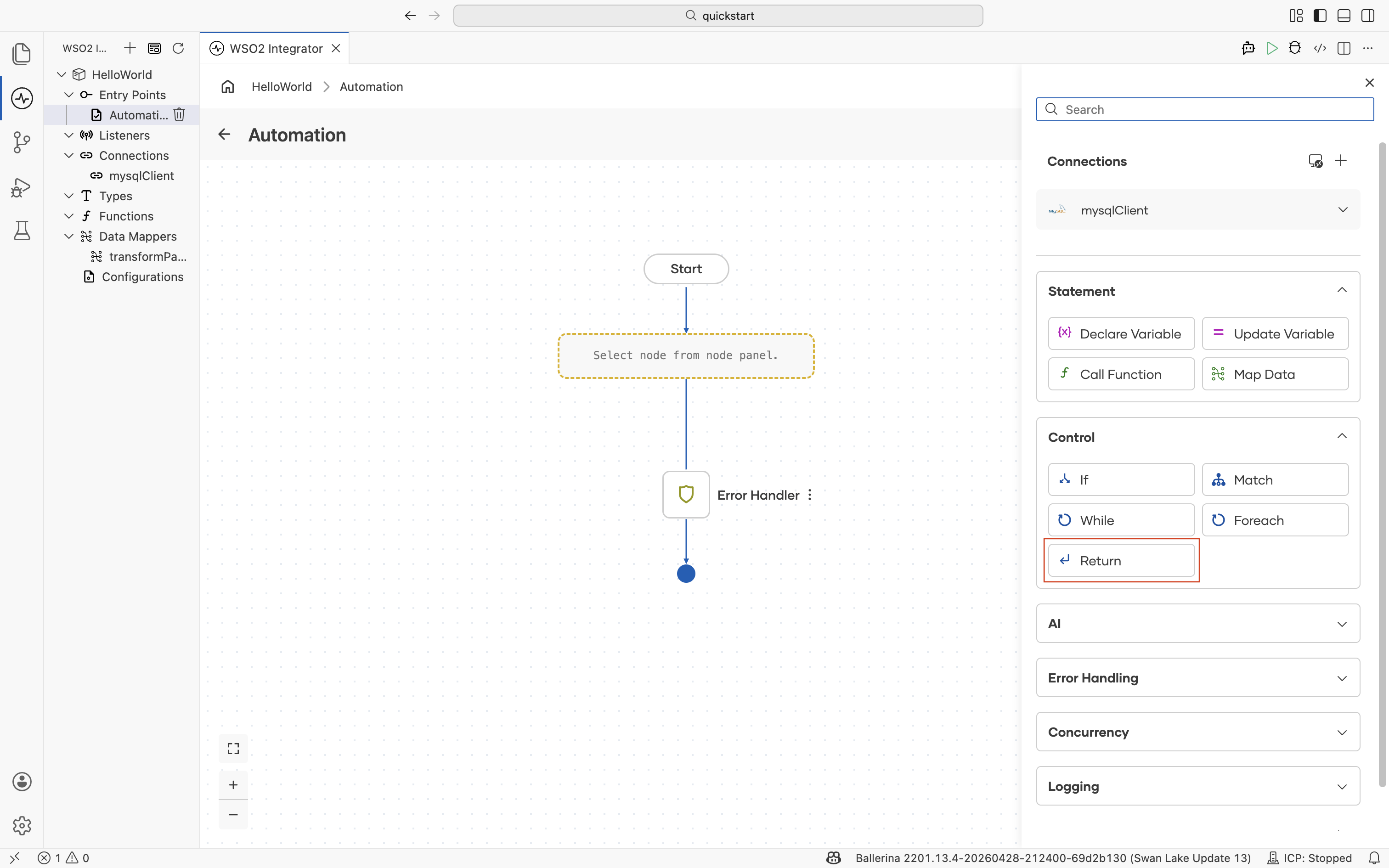
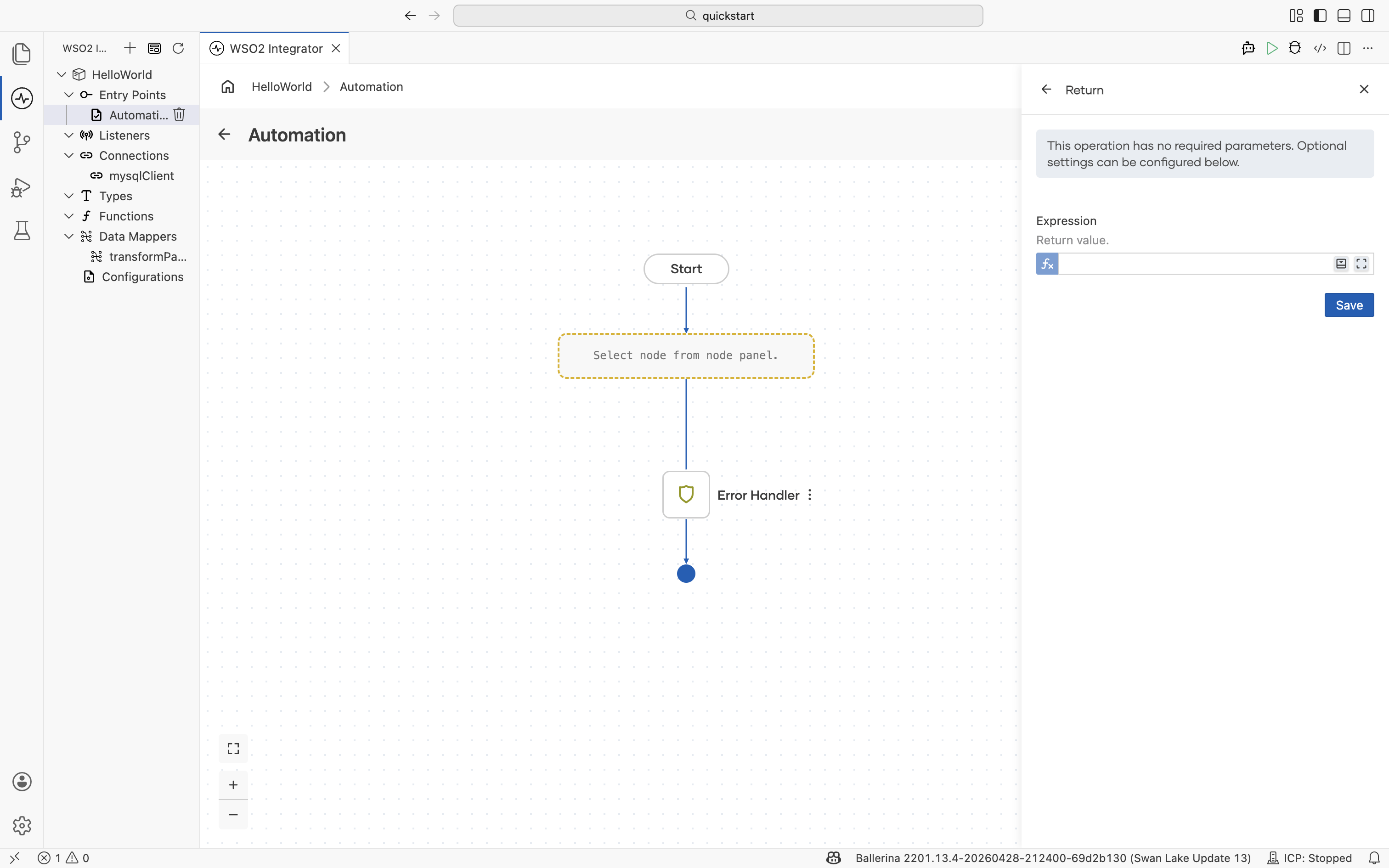
Ends the current function or service flow and produces a value to the caller. The operation has no required parameters; the optional Expression field configures the value to return.
| Field | Description |
|---|---|
| Expression | Return value. Leave it empty for () returns. |
AI
The AI section of the node panel lets you build AI-powered integrations directly in the flow. It is split into three sub-sections that map to the GenAI building blocks.
| Sub-category | Use it for | Reference |
|---|---|---|
| Direct LLM | Send a prompt to an LLM and bind the response to a typed variable. | Direct LLM calls |
| RAG | Ground LLM responses in your own documents by retrieving relevant chunks at query time. | RAG |
| AI Agent | Run multi-turn workflows where an LLM plans the next step, calls tools, and uses memory. | AI agents |
For an end-to-end orientation to the AI building blocks in WSO2 Integrator, see the AI Integrations overview.
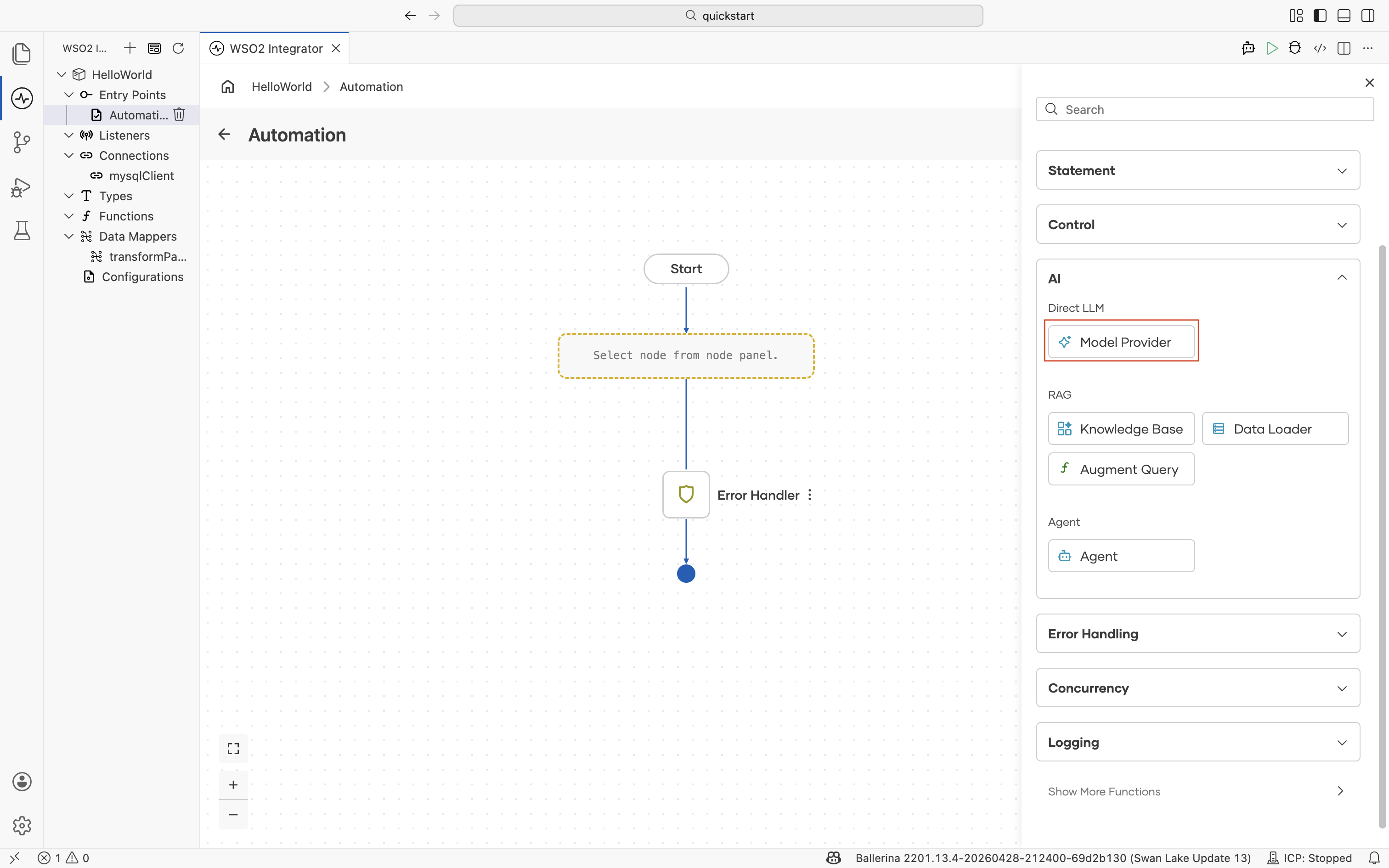
Model Provider
A model provider is the connection that abstracts a specific LLM behind a consistent API. Add a Model Provider once per project and reference it from any node that needs to call an LLM, such as Augment Query, Agent, or a generate action.
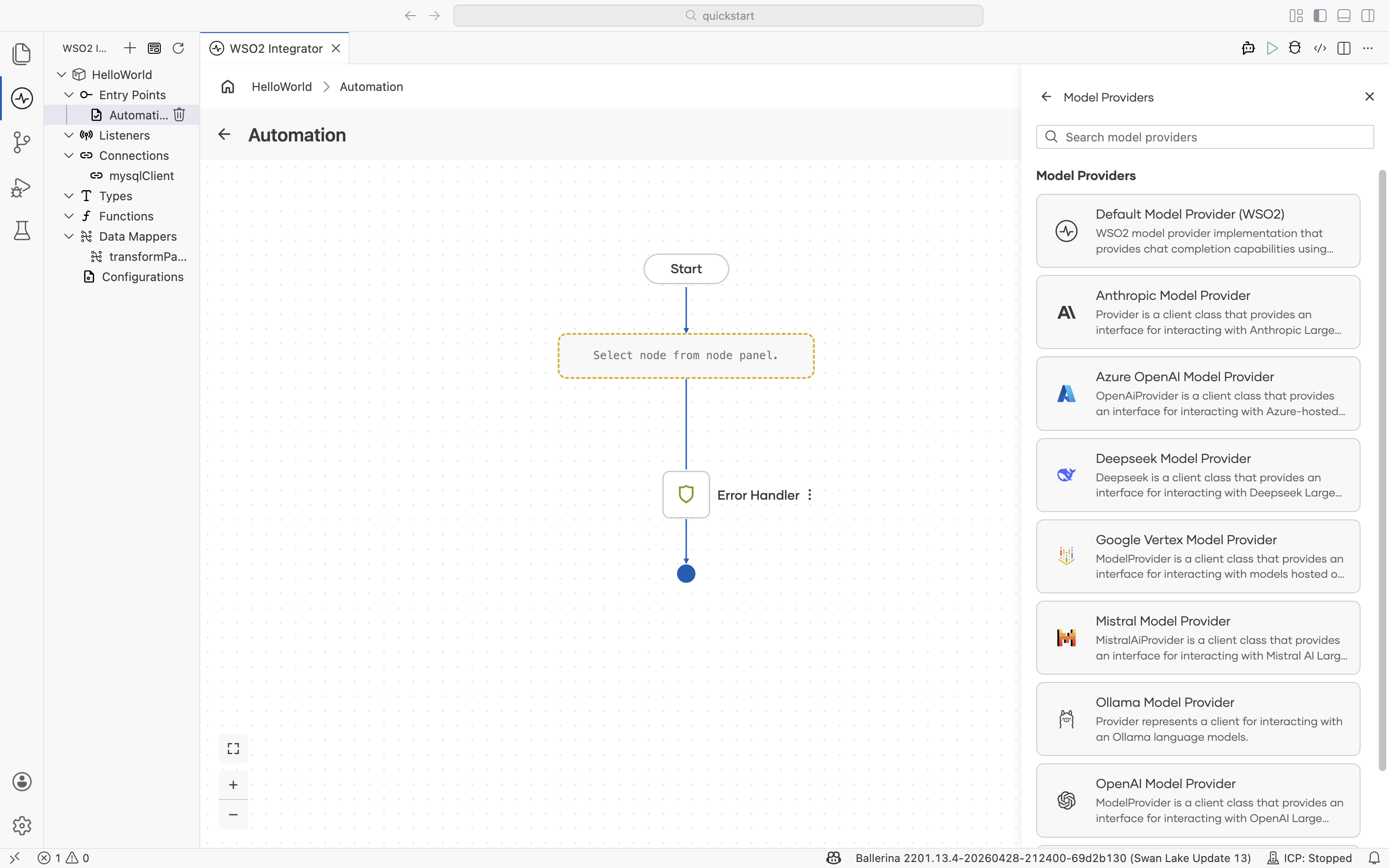
When you add a Model Provider, the picker lists the supported provider implementations. Select one and configure its credentials.
| Provider | Description |
|---|---|
| Default Model Provider (WSO2) | WSO2-managed model provider that supports chat completion. Useful when you don't have your own provider account. |
| Anthropic Model Provider | Client for Anthropic Claude models. |
| Azure OpenAI Model Provider | Client for Azure-hosted OpenAI models. |
| Deepseek Model Provider | Client for Deepseek models. |
| Google Vertex Model Provider | Client for models hosted on Google Vertex AI. |
| Mistral Model Provider | Client for Mistral AI models. |
| Ollama Model Provider | Client for Ollama models running locally or on-premises. |
| OpenAI Model Provider | Client for OpenAI models. |
| OpenRouter Model Provider | Client for interacting with LLMs via OpenRouter. |
For provider-specific configuration, model selection, and usage patterns, see Model providers.
Knowledge Base
A knowledge base is the central abstraction for RAG. It owns three things: a Vector Store where embeddings live, an Embedding Provider that turns text into vectors, and a Chunker that splits documents before embedding. Build the knowledge base once per project, and any flow in the project can ingest into it or retrieve from it.
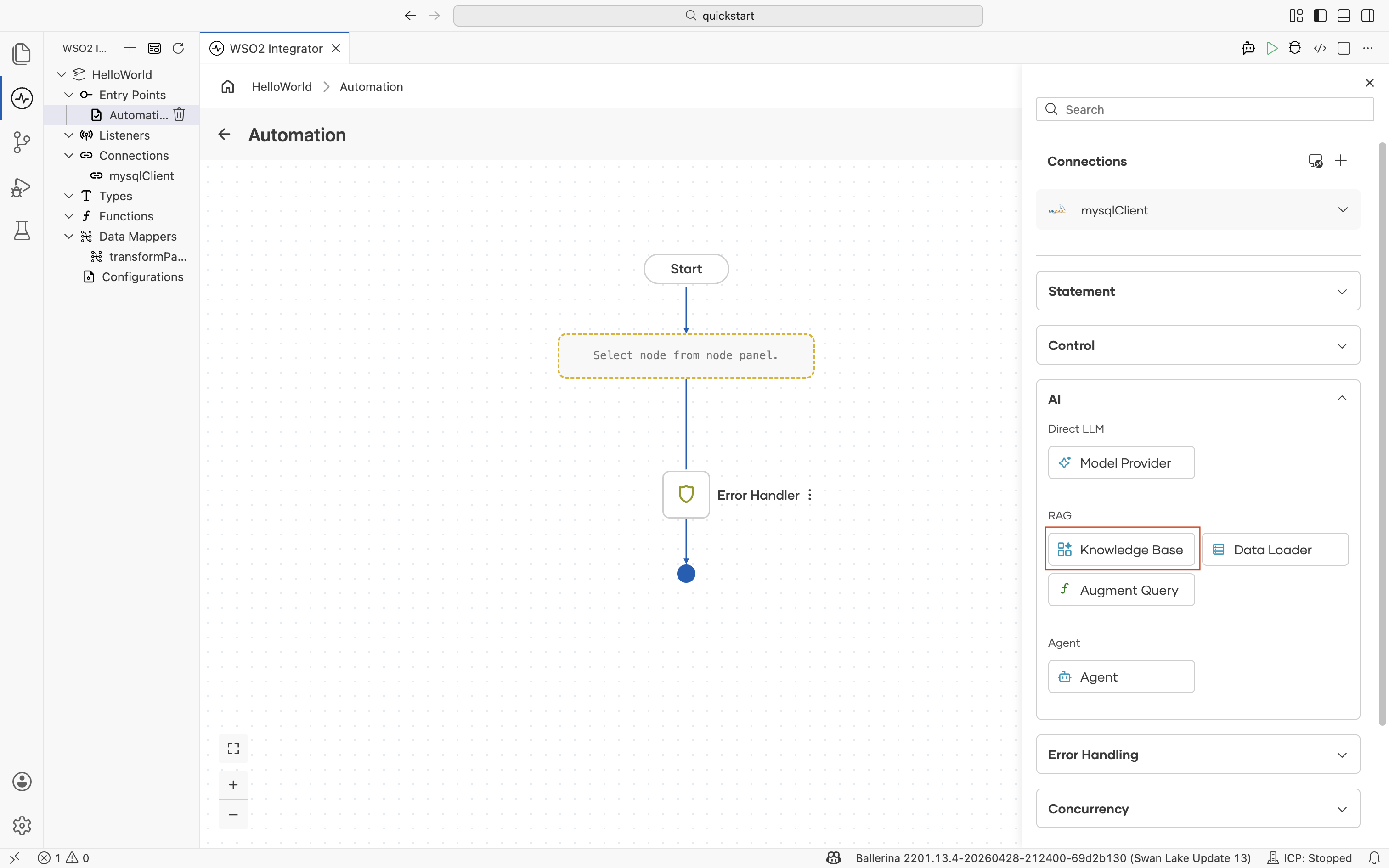
The picker lists the supported knowledge base implementations.
| Knowledge base | Description |
|---|---|
| Vector Knowledge Base | Generic vector knowledge base for managing chunk indexing and retrieval. Plug in any supported Vector Store, Embedding Provider, and Chunker. |
| Azure AI Search Knowledge Base | Implementation backed by Azure AI Search. |
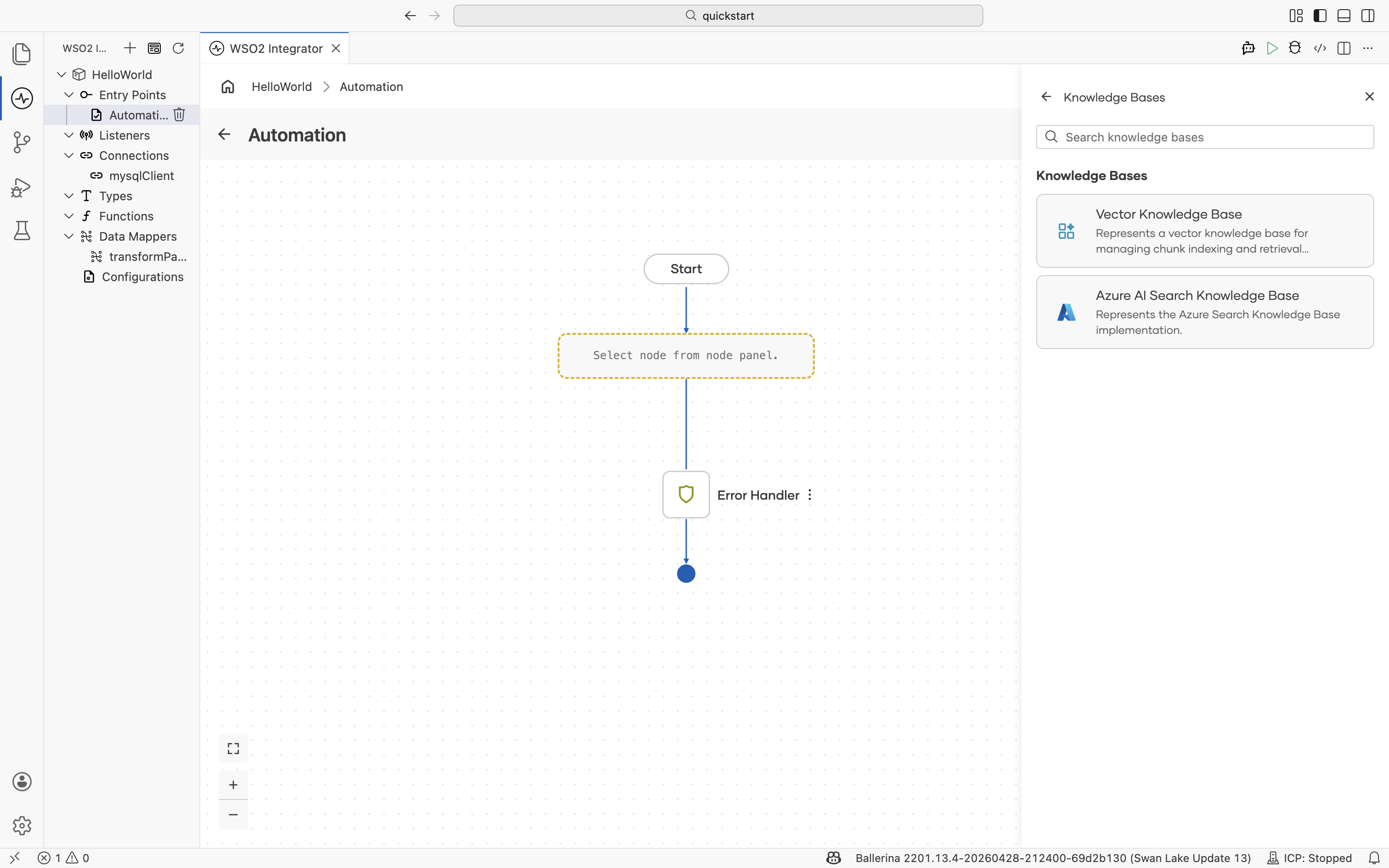
For the full reference, see Knowledge bases.
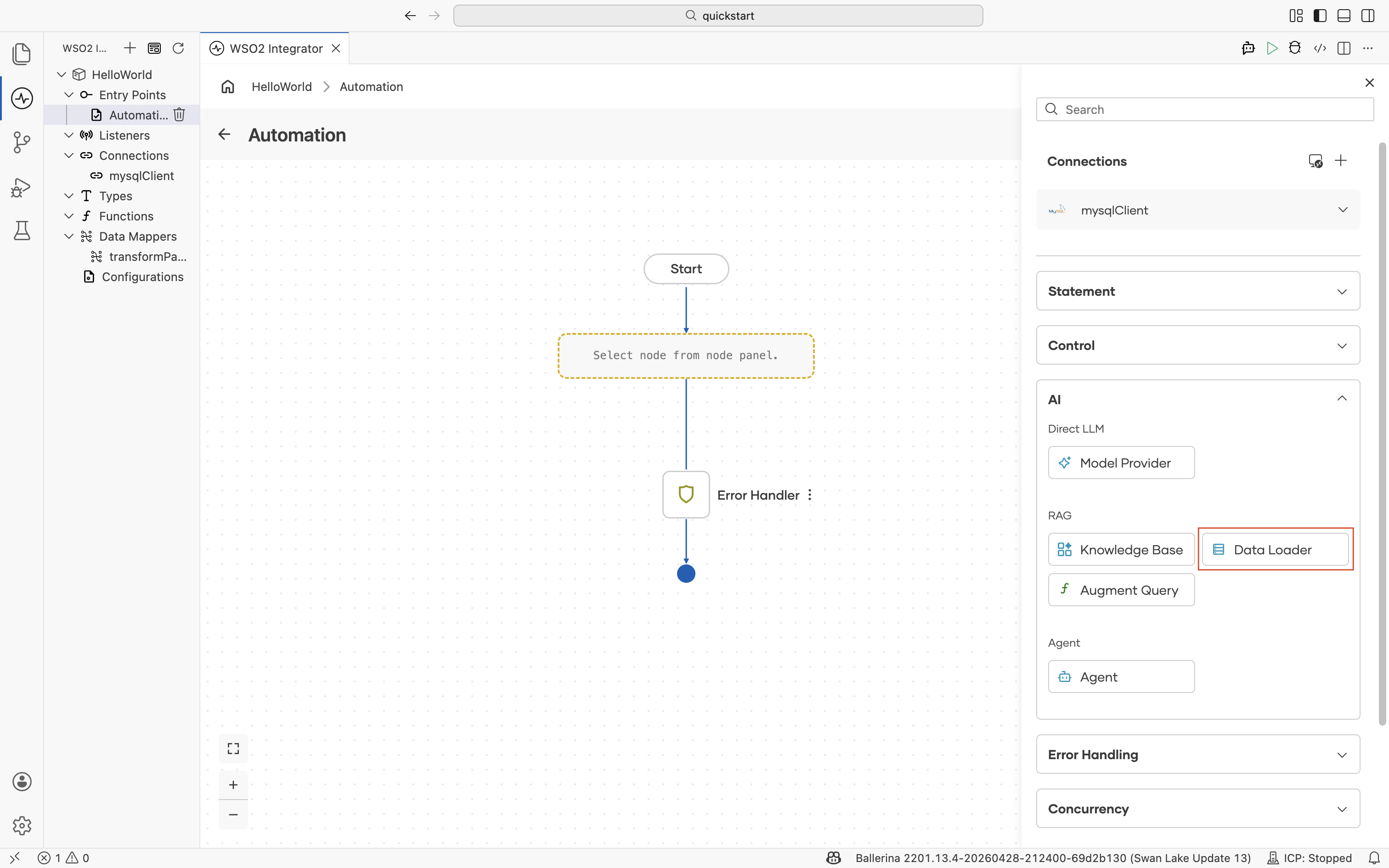
Data Loader
A data loader reads documents from disk into memory so the knowledge base can ingest them. Place a Data Loader at the start of an ingestion flow; the resulting documents are then handed to the knowledge base's Ingest action.
| Data loader | Description |
|---|---|
| Text Data Loader | Loads supported file types as TextDocument for indexing. |
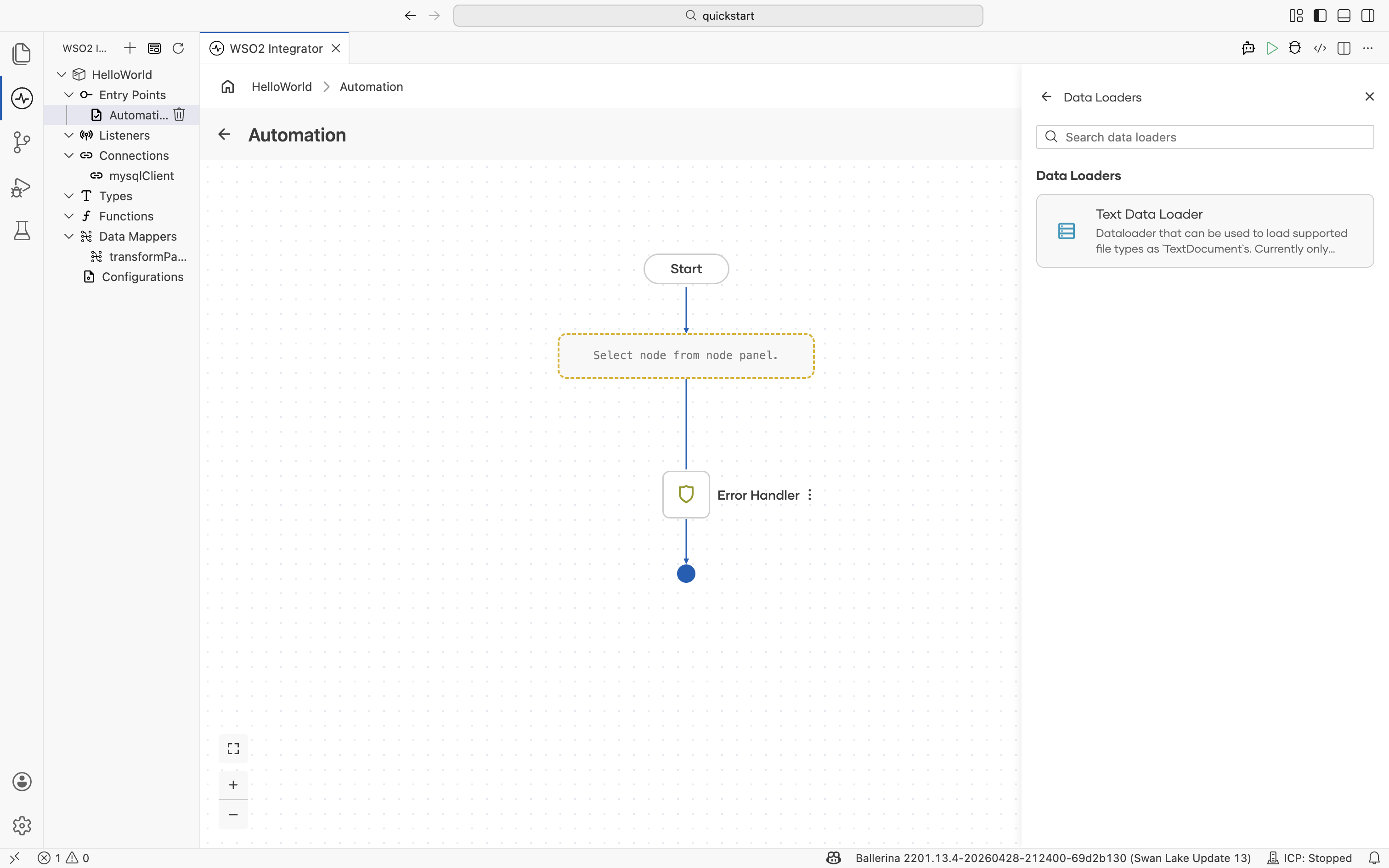
For the ingestion flow, supported formats, and how to point the loader at a directory of documents, see the RAG ingestion.
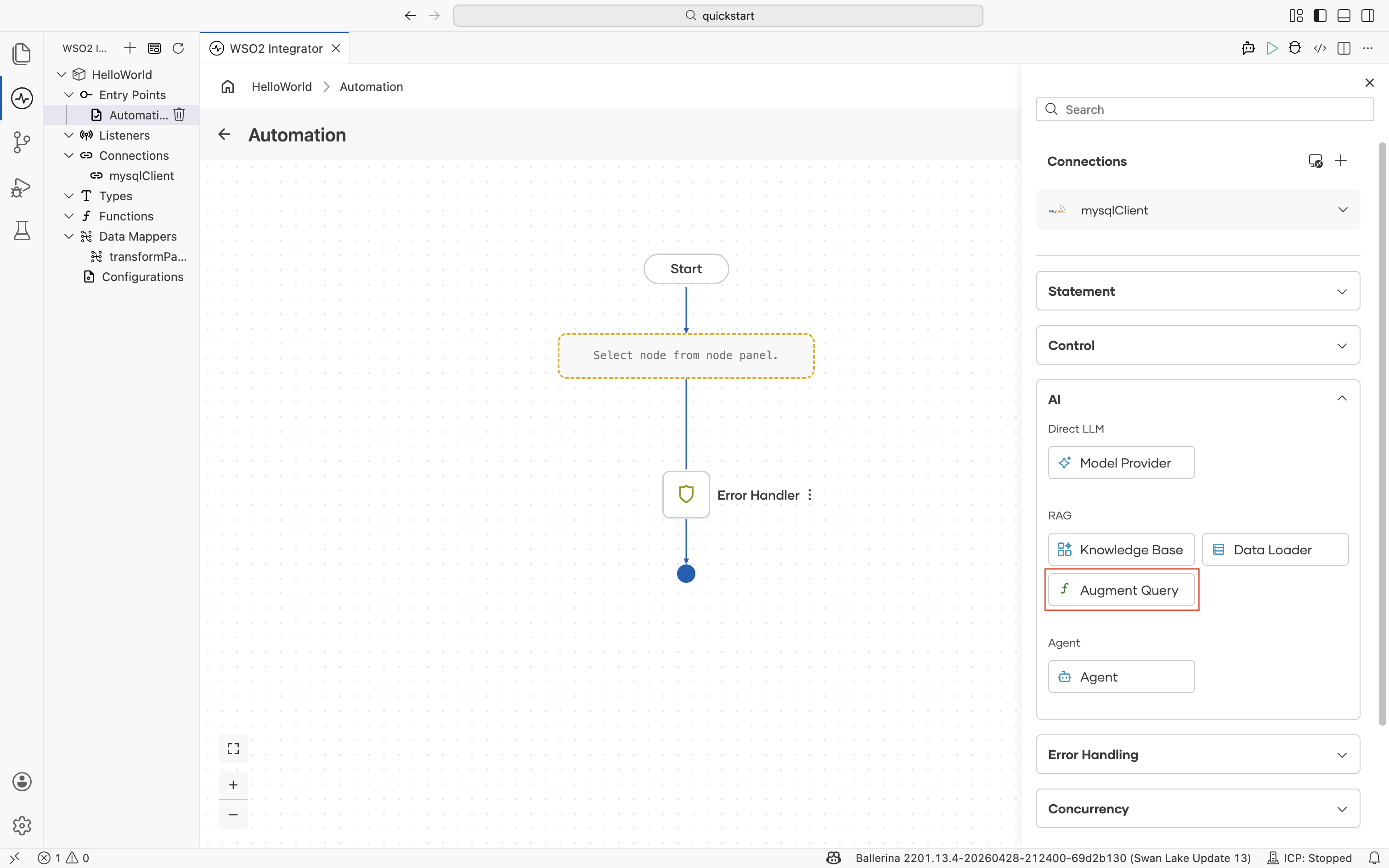
Augment Query
augmentUserQuery is the bridge between RAG and the LLM. It takes the chunks already retrieved from a knowledge base and the user's original question, and produces a chat user message that bundles them in a format the LLM understands. Pass the result directly to a generate call or to an agent.
| Field | Description |
|---|---|
| Context | Array of matched chunks or documents to include as context. Typically the result of a retrieve action against a knowledge base. |
| Query | The user's original question. |
| Result | Name of the result variable. |
| Result Type | Type of the result variable. |
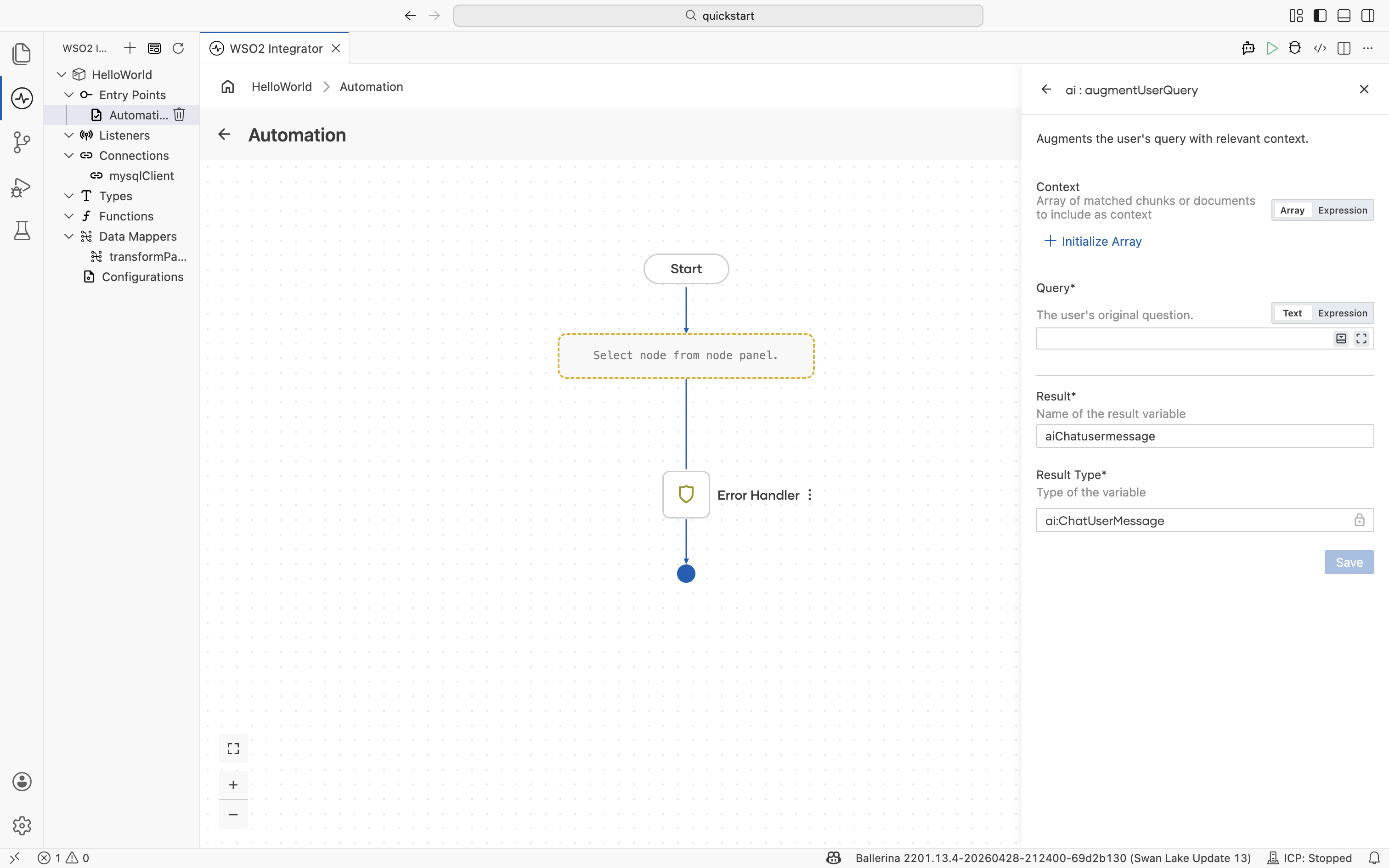
For the full RAG query flow (retrieve, augment, generate), see RAG query.
Agent
An agent runs an autonomous workflow against a model and a set of tools. Given a query, it plans the next step, calls tools or other integrations, observes the results, and iterates until the task is complete or the iteration budget is reached.
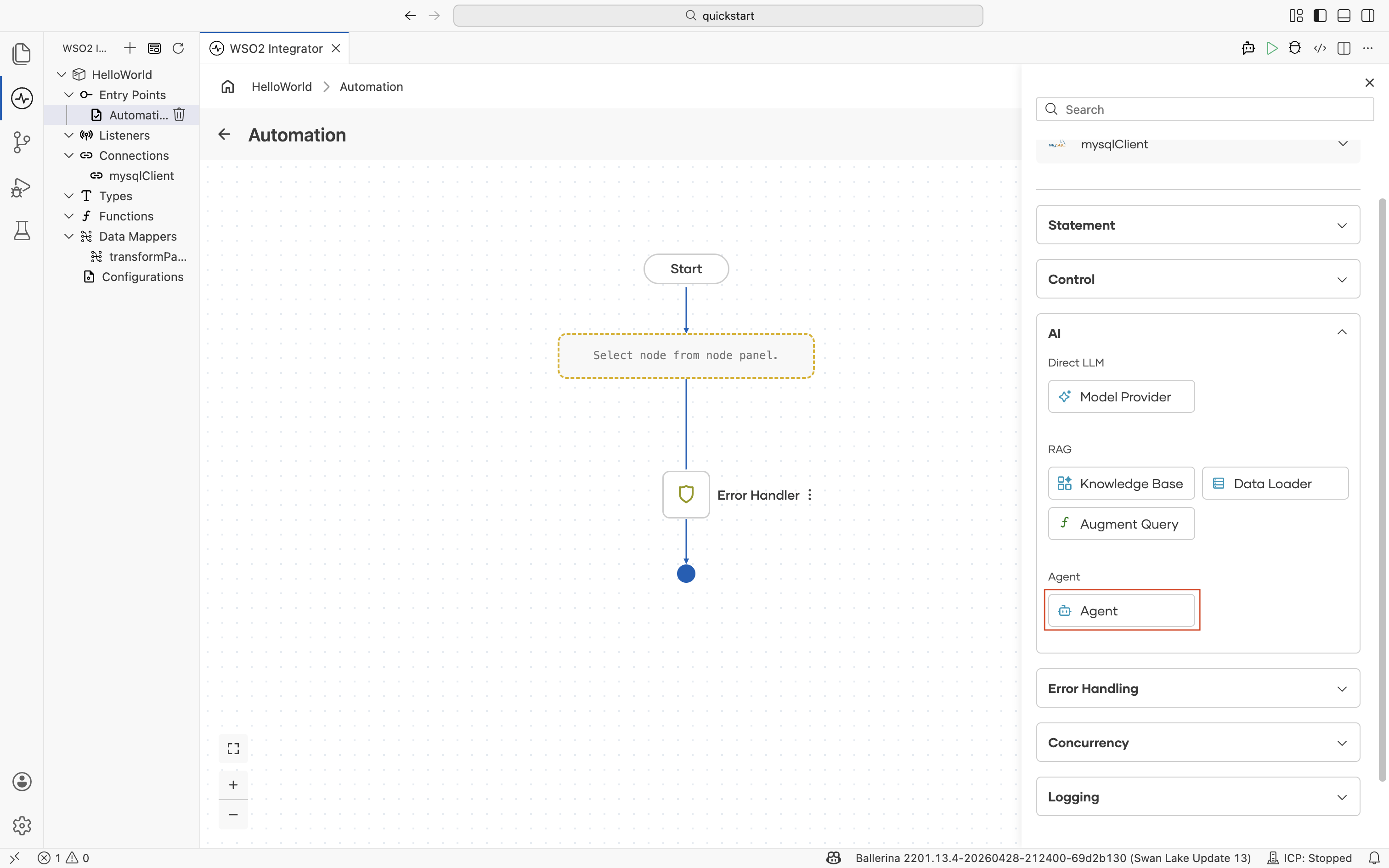
| Field | Description |
|---|---|
| Role | The agent's primary function. For example, Customer Support Assistant, Sales Advisor, or Data Analyst. |
| Instructions | Detailed system instructions that govern the agent's behavior. |
| Query | The natural language input provided to the agent. |
| Advanced Configurations | Tools, model selection, max iterations, and memory settings. |
| Result | Name of the result variable. |
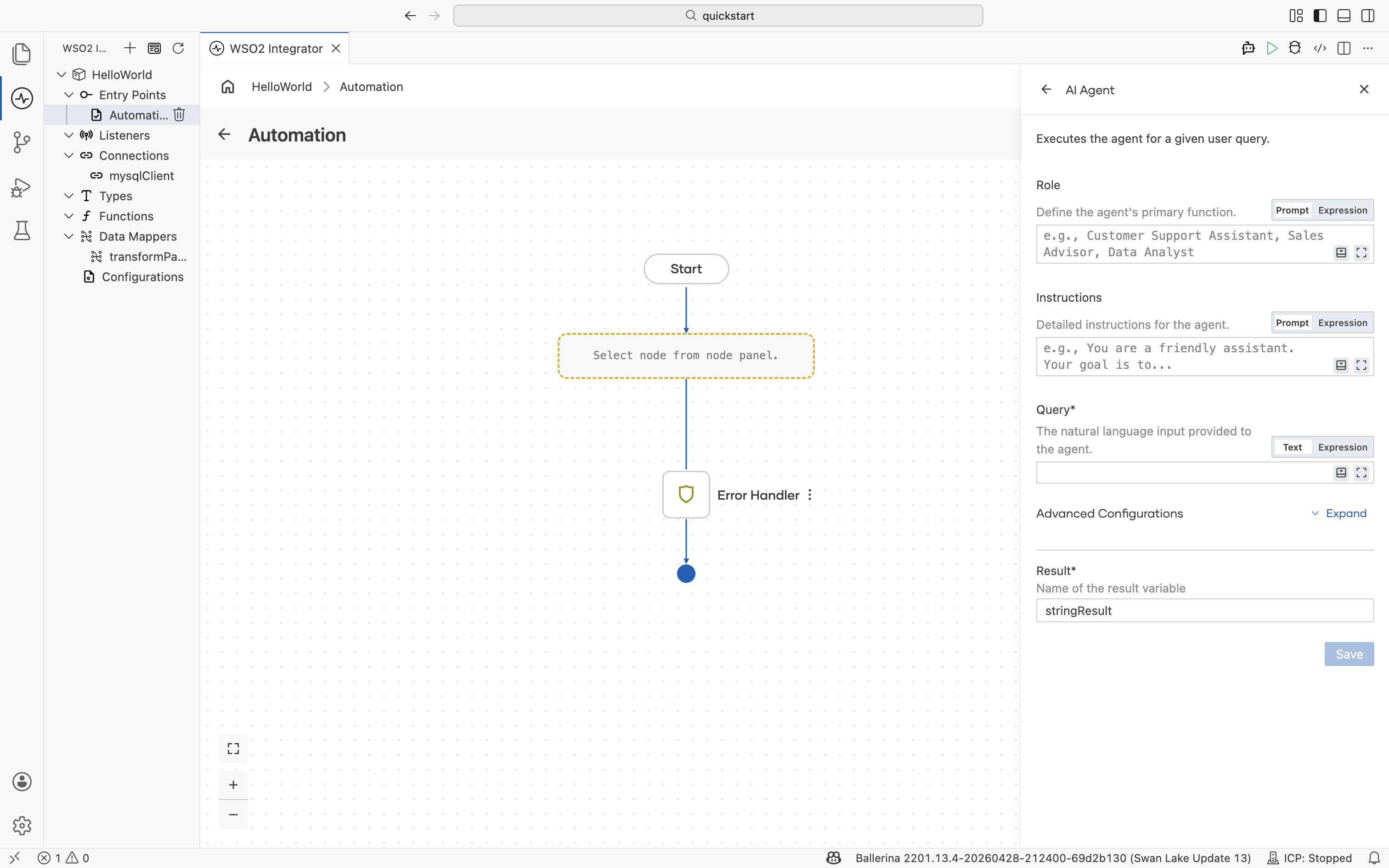
For tool binding, memory, and observability, see AI agents. For a stand-alone chat agent service, create the AI Chat Agent artifact from the Artifacts panel instead of adding the node by hand. To reach the same agent over a voice call instead, add this node to a Voice Agent Service instead of a chat service.
Error Handling
The Error Handling section of the node palette covers nodes that catch errors in the flow, raise an error value to the caller, or abort the strand entirely. Use the nodes here to add error-handling logic to a flow or to raise errors yourself.
ErrorHandler
Wraps a section of the flow in a do { } on fail error err { } block so that any error raised inside the do block is caught and routed to the on fail branch. Add the node where you want to start catching errors.
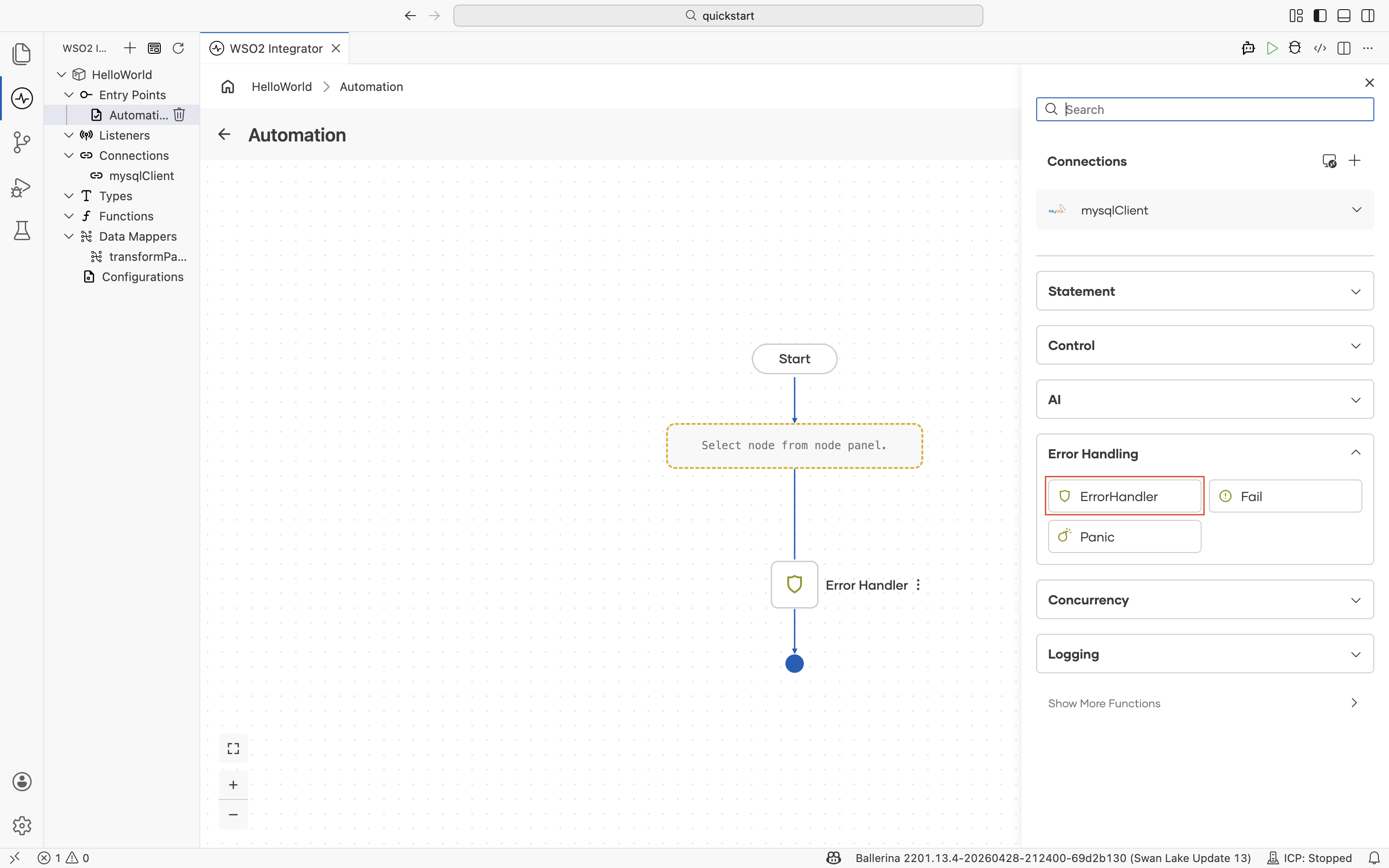
The configuration form requires no parameters and does not return a result. The form confirms this with a Configuration Complete message.
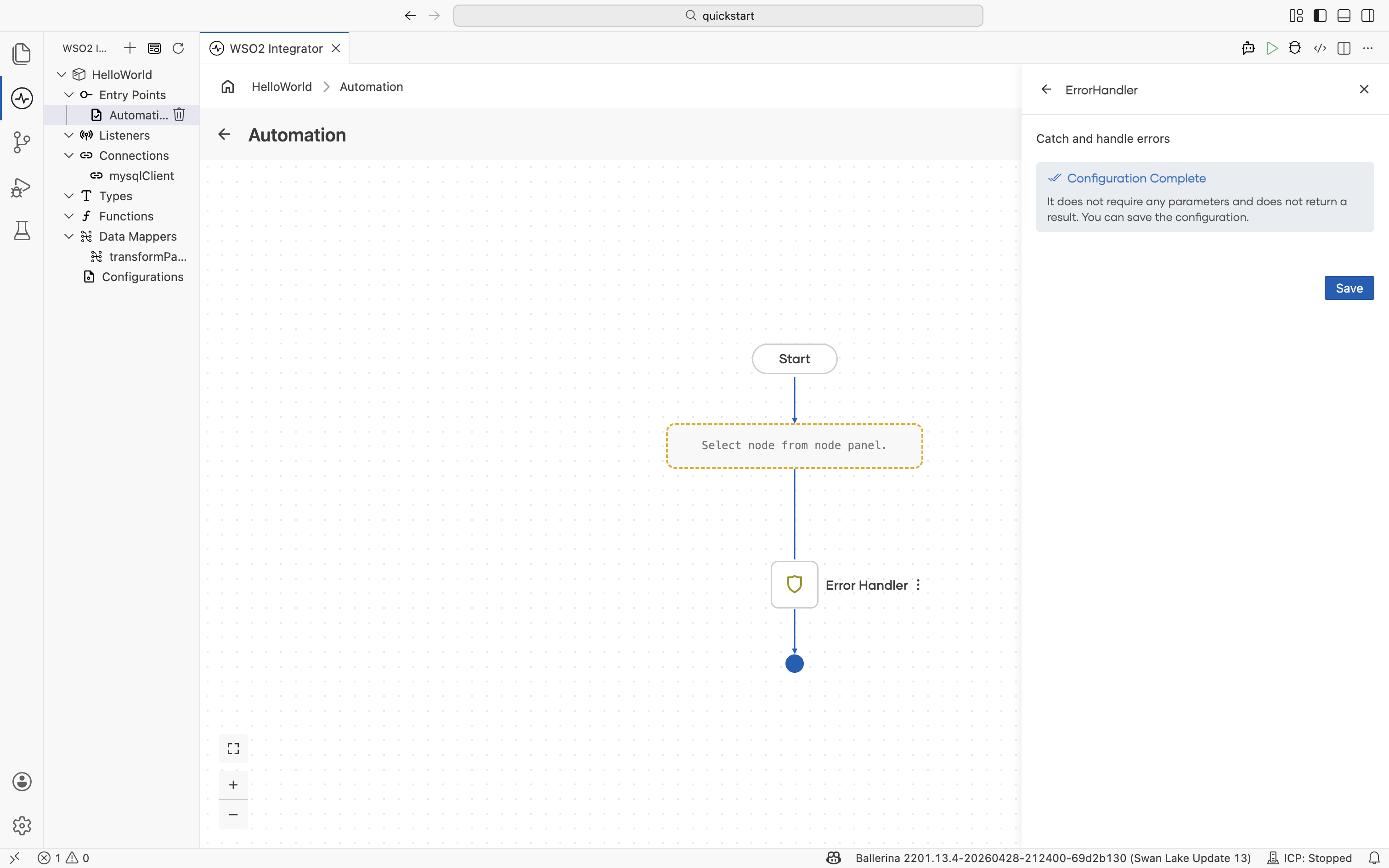
Add steps inside the ErrorHandler branch to log, transform, or compensate when an error is caught. For example, log the error with the nodes in Logging, transform it into an HTTP error response, or trigger a compensating action.
Fail
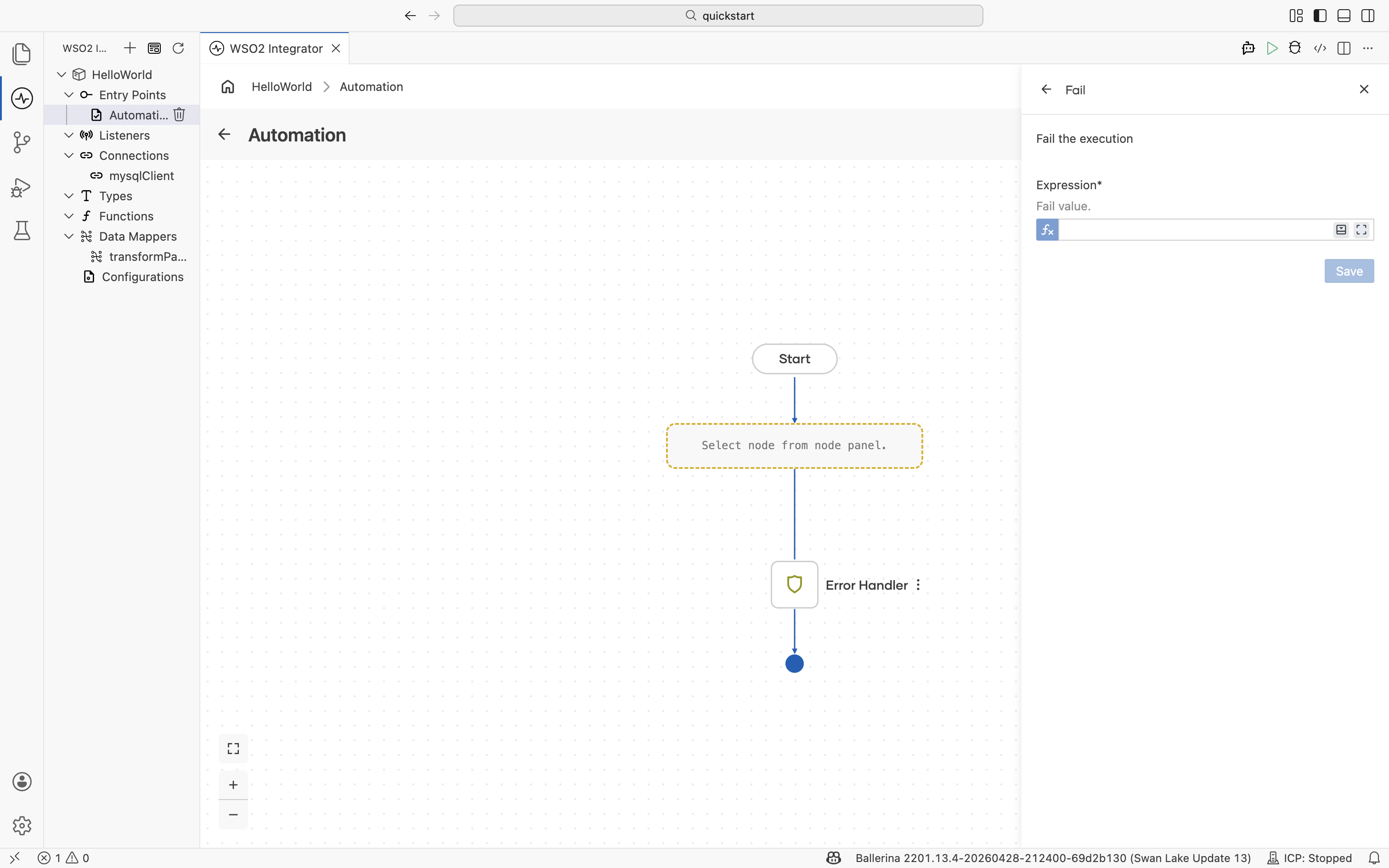
Raises a Ballerina error value that propagates up the call stack until an enclosing ErrorHandler catches it or the error is returned to the caller. Use Fail when the integration cannot proceed but you want callers (or an enclosing handler) to recover or report meaningfully.
| Field | Description |
|---|---|
| Expression | Fail value. Construct an error with error("message"), or pass an existing error variable. Use the Expression Panel for type-aware suggestions. |
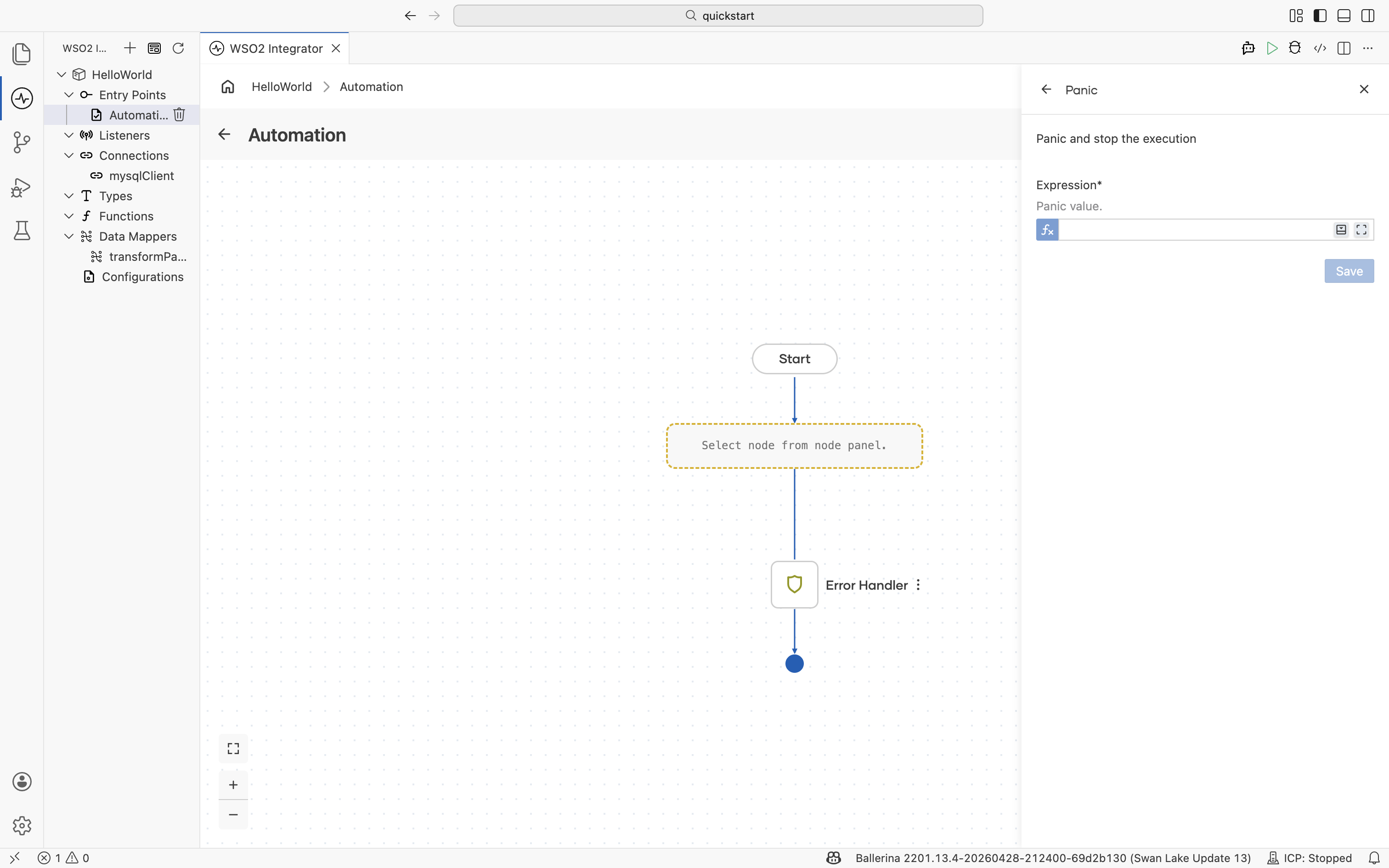
Panic
Aborts the current strand and unwinds the call stack. A panic represents an abnormal, unrecoverable condition that should not be handled as a regular error, such as a division by zero or an out-of-memory failure. Unlike a value raised with Fail, a panic bypasses the normal on fail error path and is not caught by an enclosing ErrorHandler. Reserve Panic for conditions where the integration genuinely cannot continue, and use Fail for expected, recoverable errors. See the Panics example in the Ballerina documentation for the underlying language semantics.
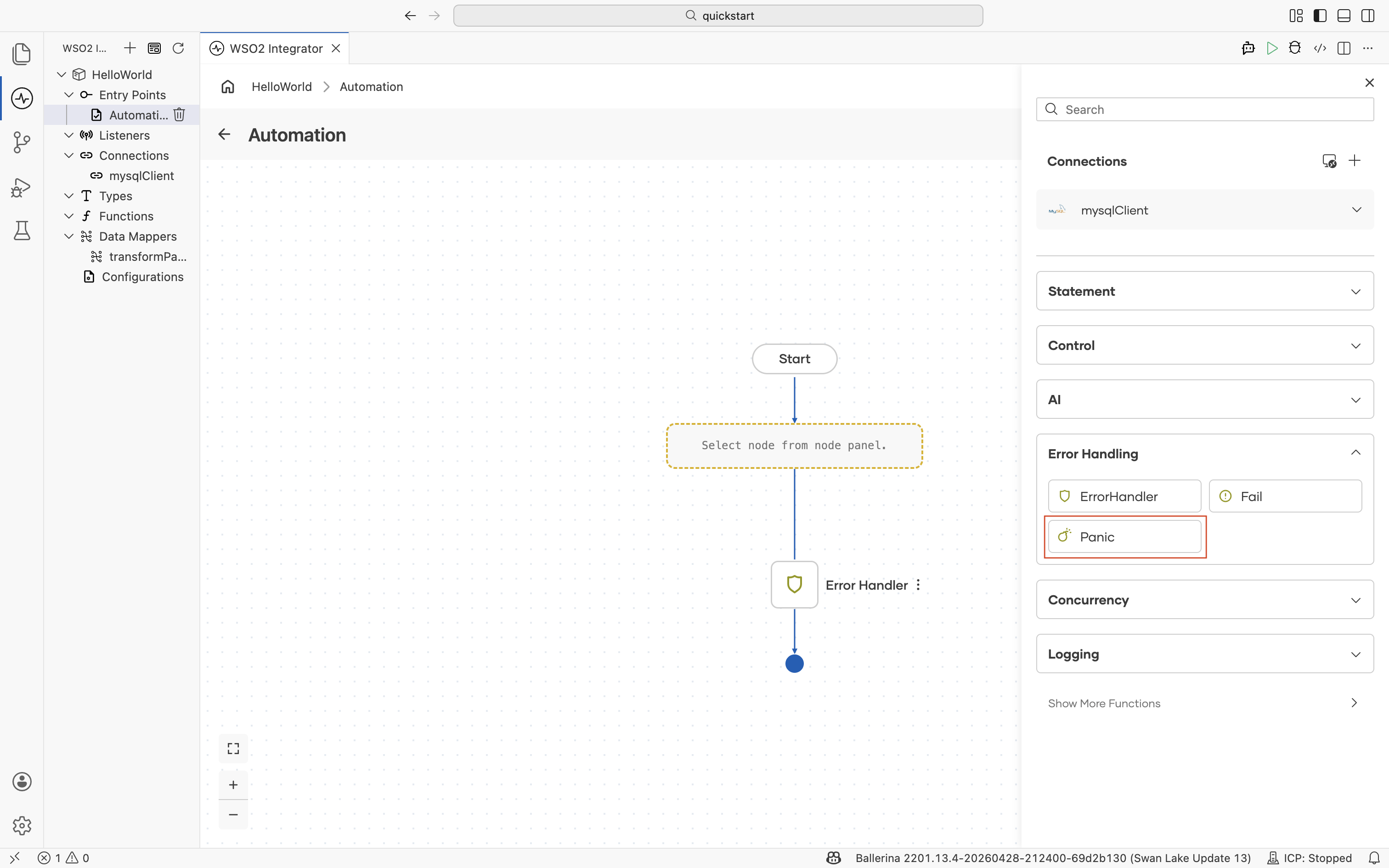
| Field | Description |
|---|---|
| Expression | Panic value. |
Concurrency
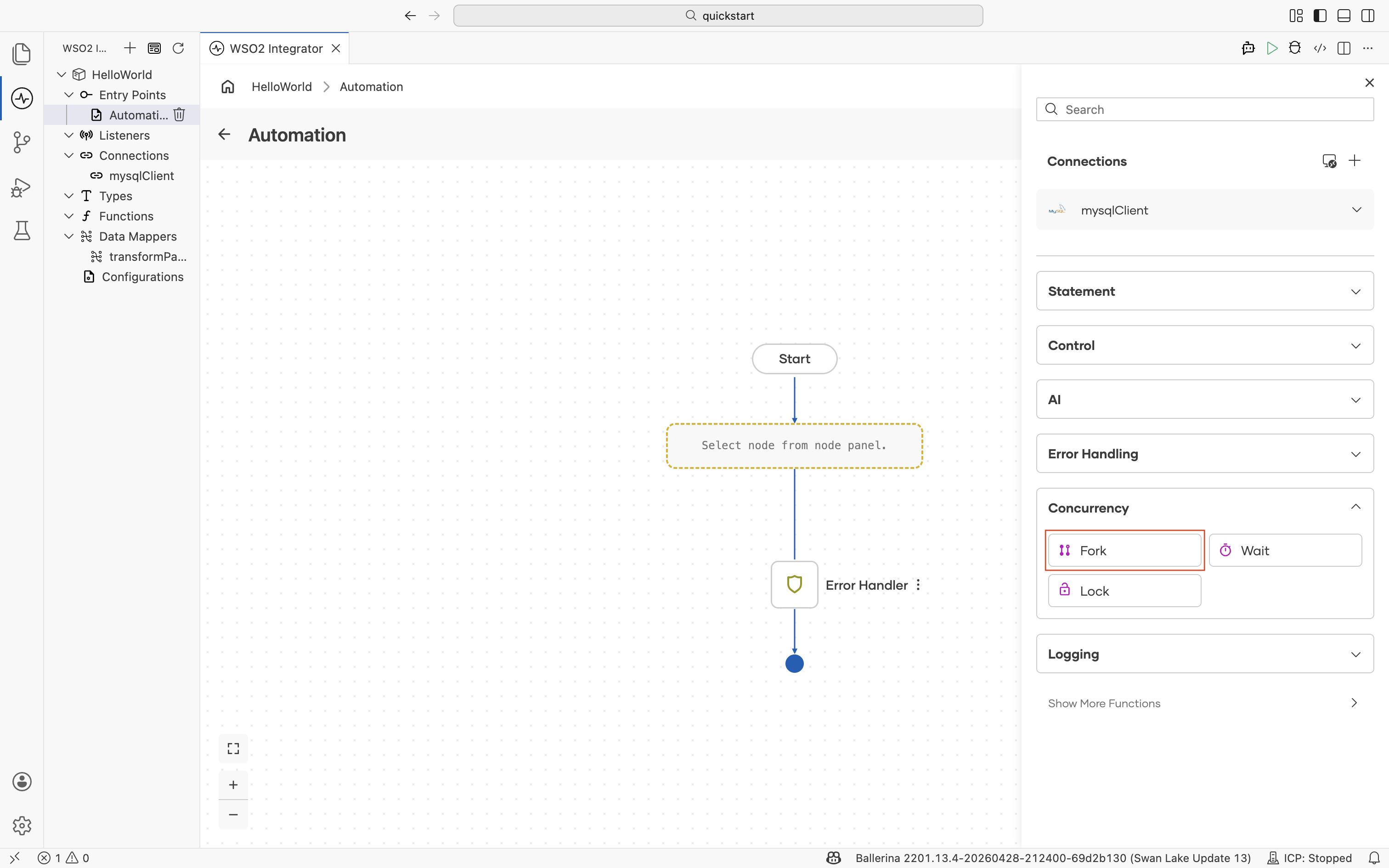
The Concurrency section of the node palette starts parallel work, waits for results, and protects mutable state. Use it when an integration needs to call multiple downstream services at the same time, gather their results, or guard shared state from concurrent updates.
Fork
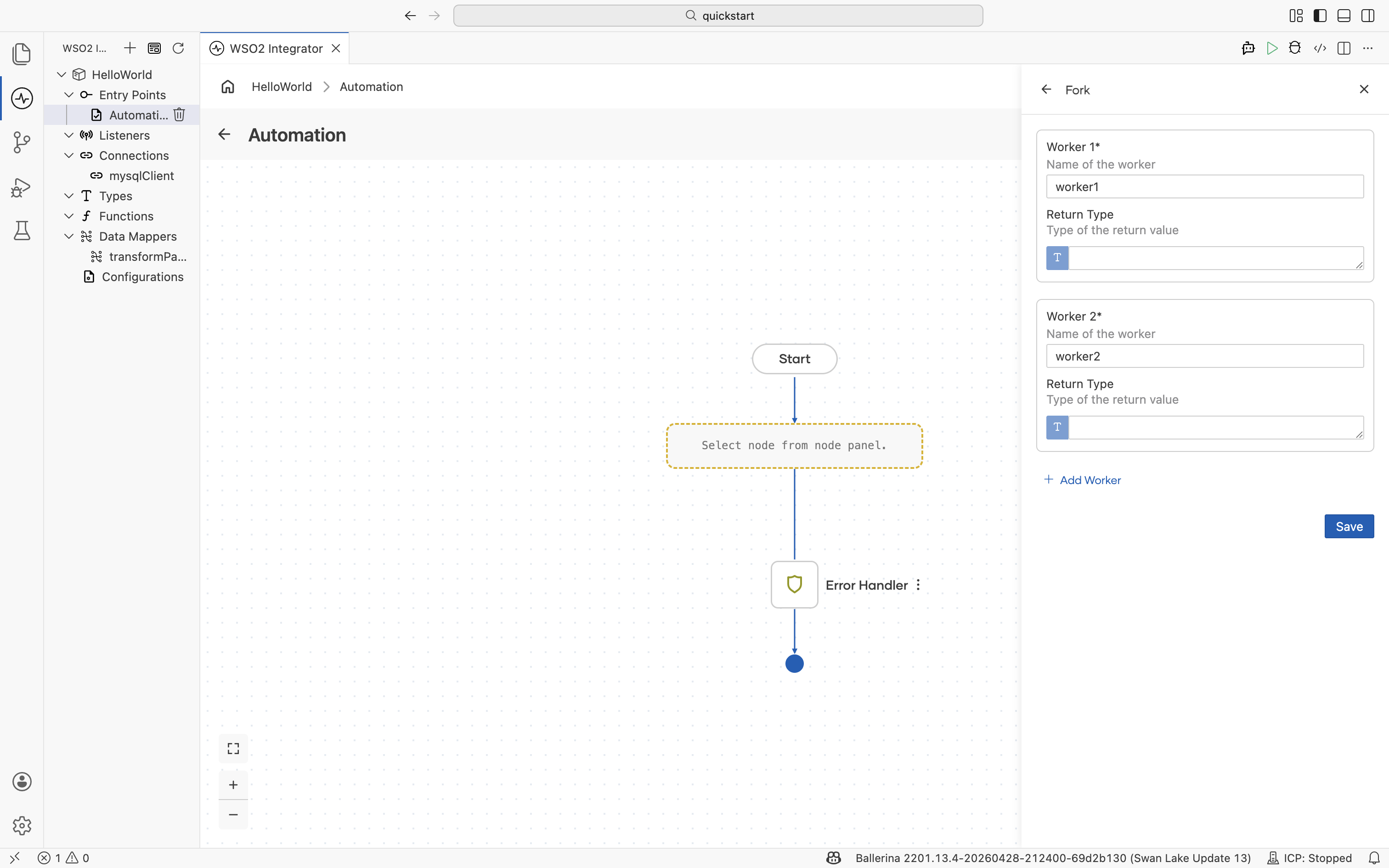
Spawns one or more named worker strands that execute in parallel with the main flow. Each worker has its own block of steps and runs independently until joined with Wait.
Each worker is configured with a name and a return type. Select Add Worker to add more workers.
| Field | Description |
|---|---|
| Worker | Name of the worker. |
| Return Type | Type of the value the worker returns. Define new types inline with the Type Panel. |
When the Fork is added to the flow, the canvas also receives a default Wait node that joins every worker in the fork. The generated code is equivalent to:
map<any|error> waitResult = wait {worker1, worker2};
Reconfigure the Wait node to join only a subset of workers or to name the joined values, as described below.
Use Fork to fan out independent calls. For example, hit two different APIs in parallel and combine their results downstream.
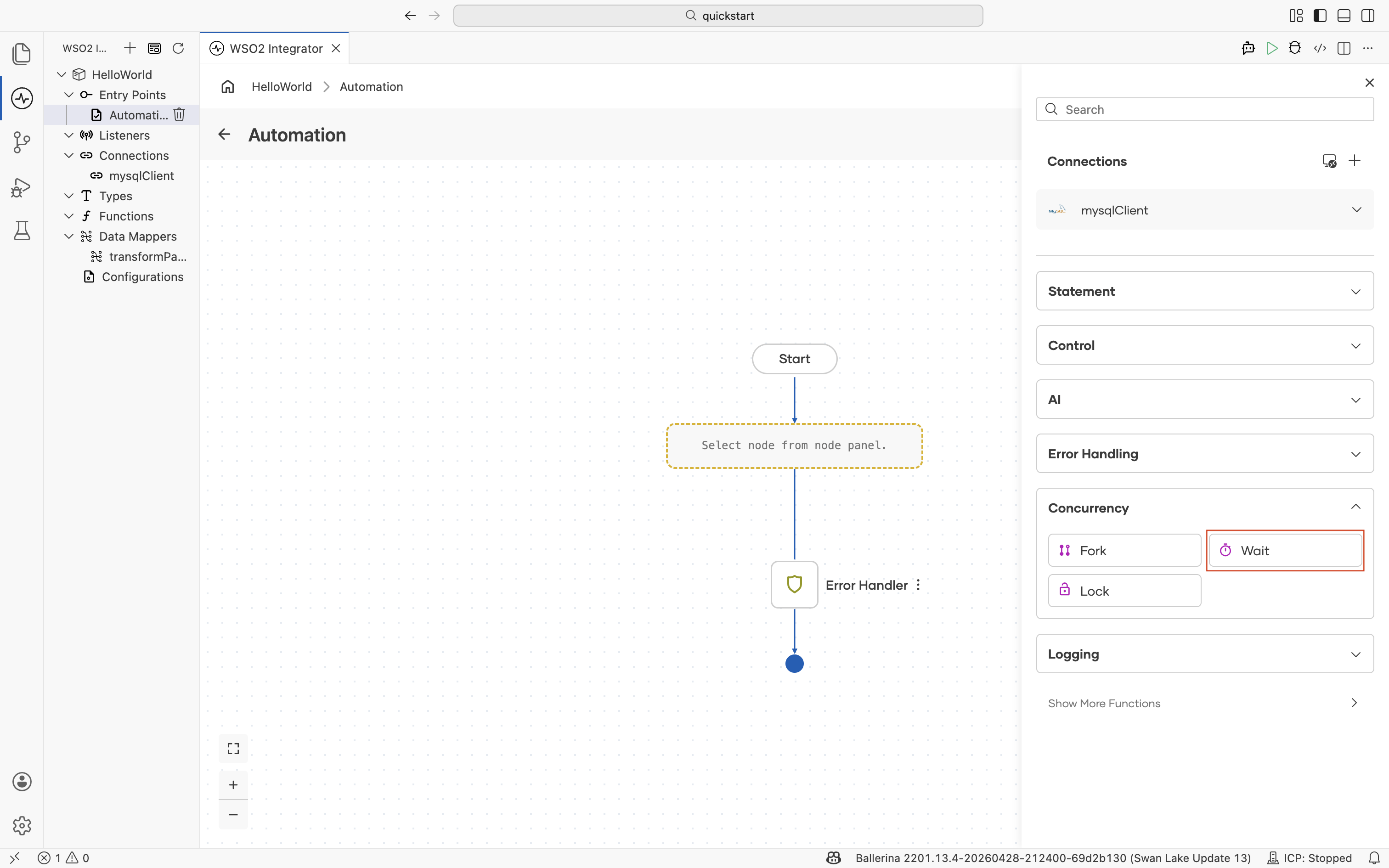
Wait
Joins one or more worker strands started by Fork and collects their return values into a single result. The matching Wait node is the join point for the workers spawned by an earlier Fork.
Each row in the form pairs a Key with the worker whose result should be bound to that key. Select + Add to add more key/worker pairs.
| Field | Description |
|---|---|
| Key | Name of the field in the joined result record. |
| Variable | Worker whose result is bound to the key. |
| Variable Name | Name of the variable that holds the joined result on the canvas. |
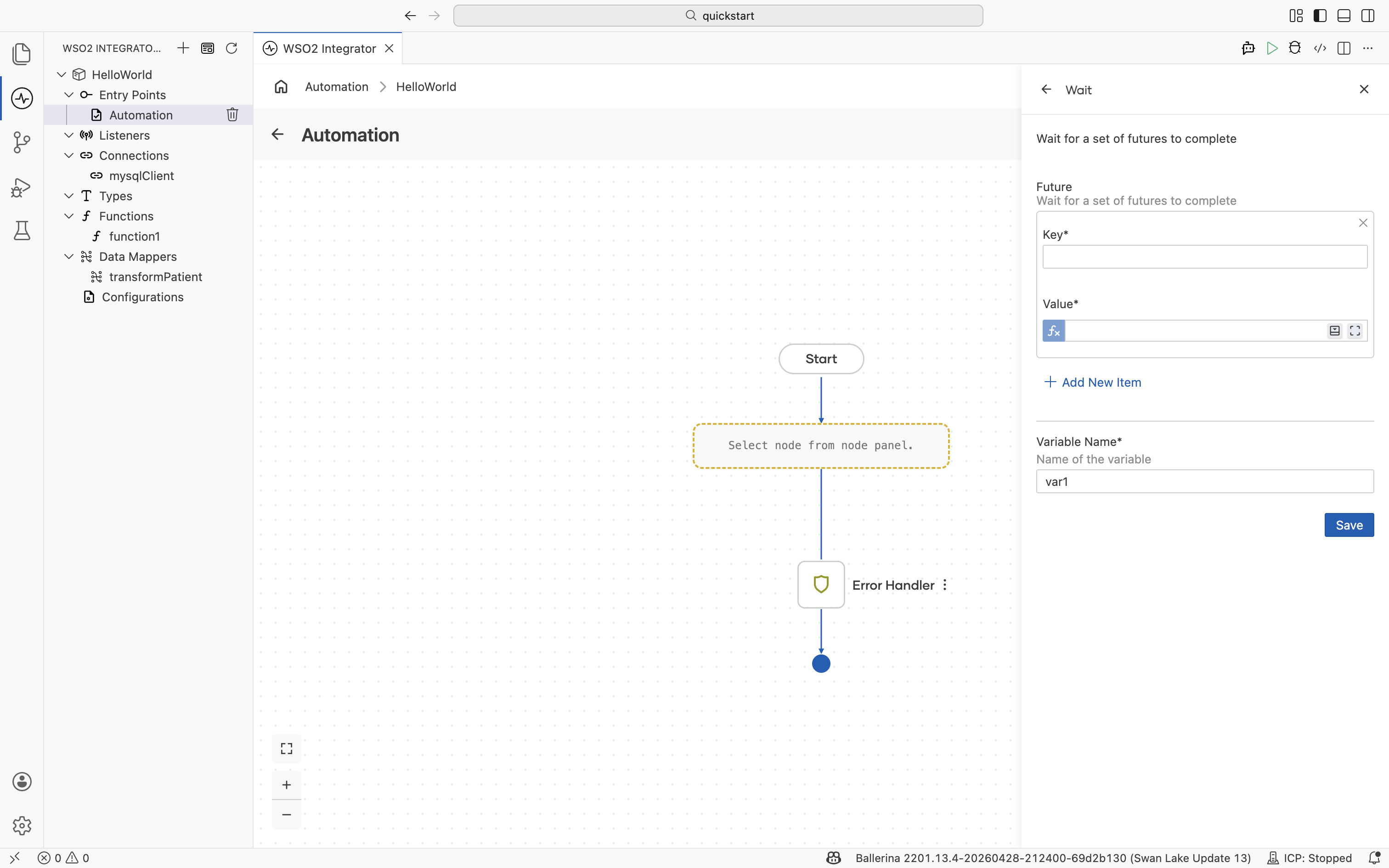
The configured pairs generate a wait expression of the form:
var var1 = wait {work1: worker1, work2: worker2};
Each key in the resulting record holds the return value of its paired worker.
Lock
Acquires a lock to serialize access to a block of steps that touches shared mutable state. The lock is released when the block exits. Wrap any code path that mutates a shared variable from multiple strands in a Lock to prevent race conditions.
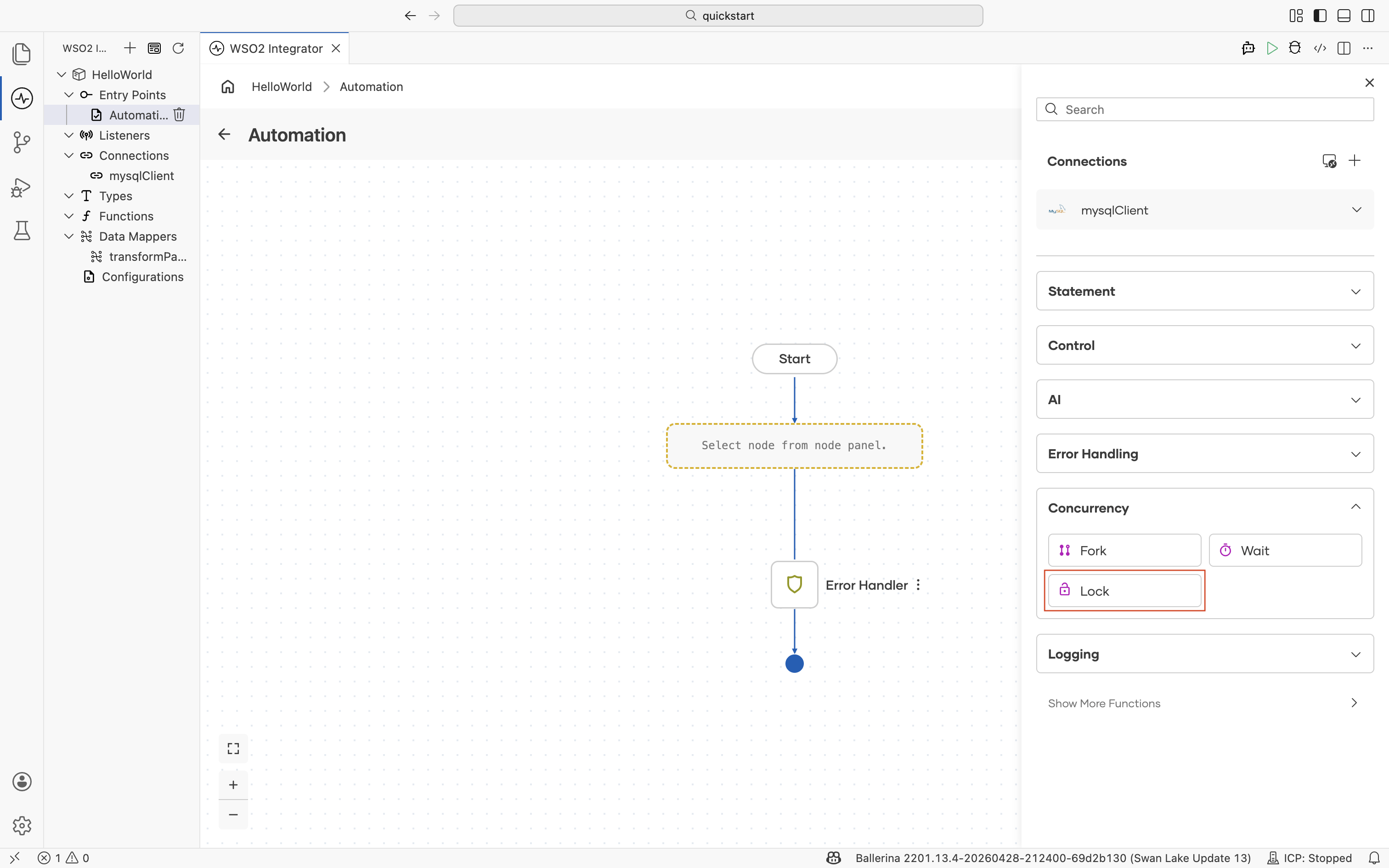
The configuration form requires no parameters and does not return a result. Add the steps that need protection inside the Lock block on the canvas.
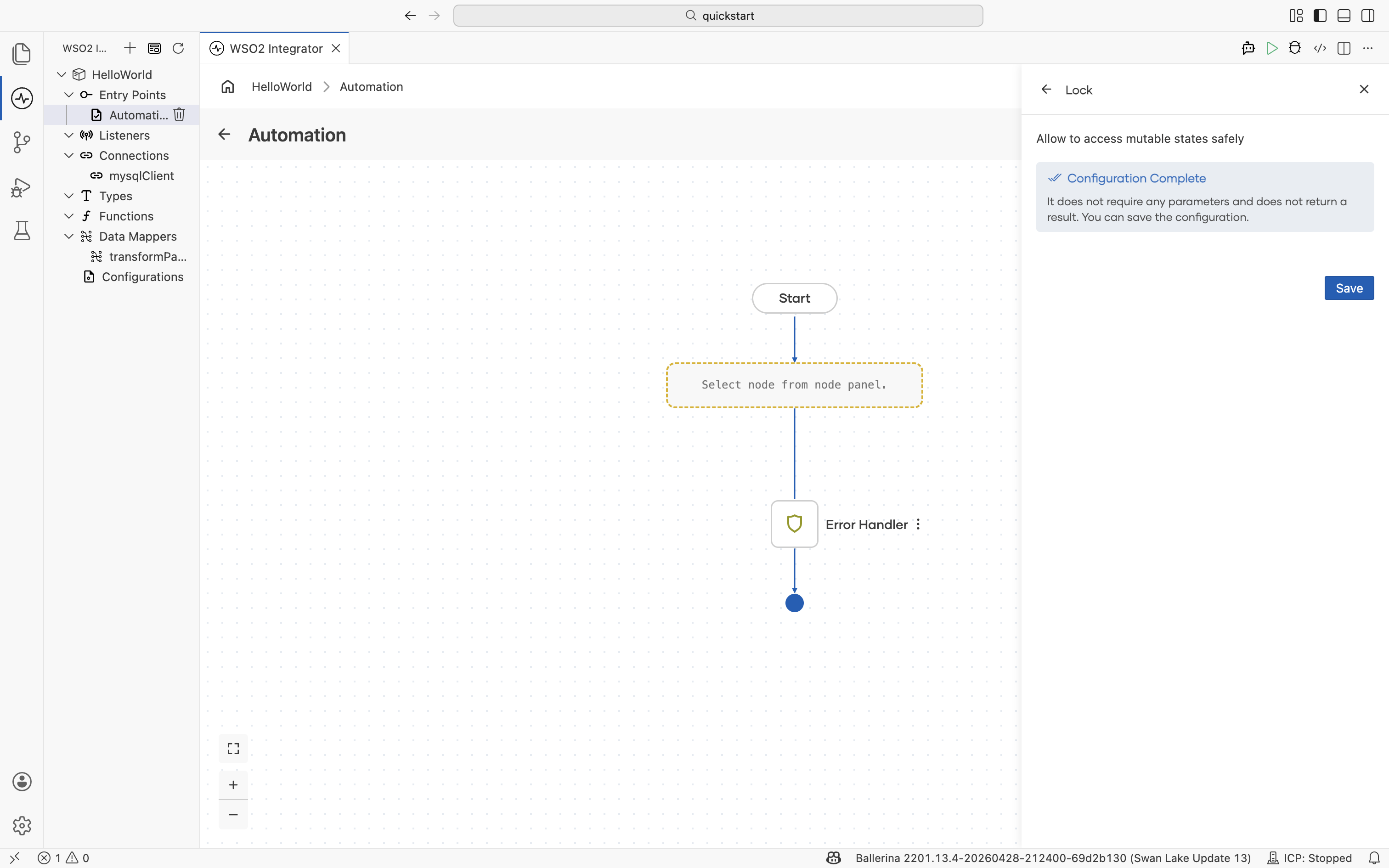
For most integration flows, prefer immutable values to avoid the need for locks entirely.
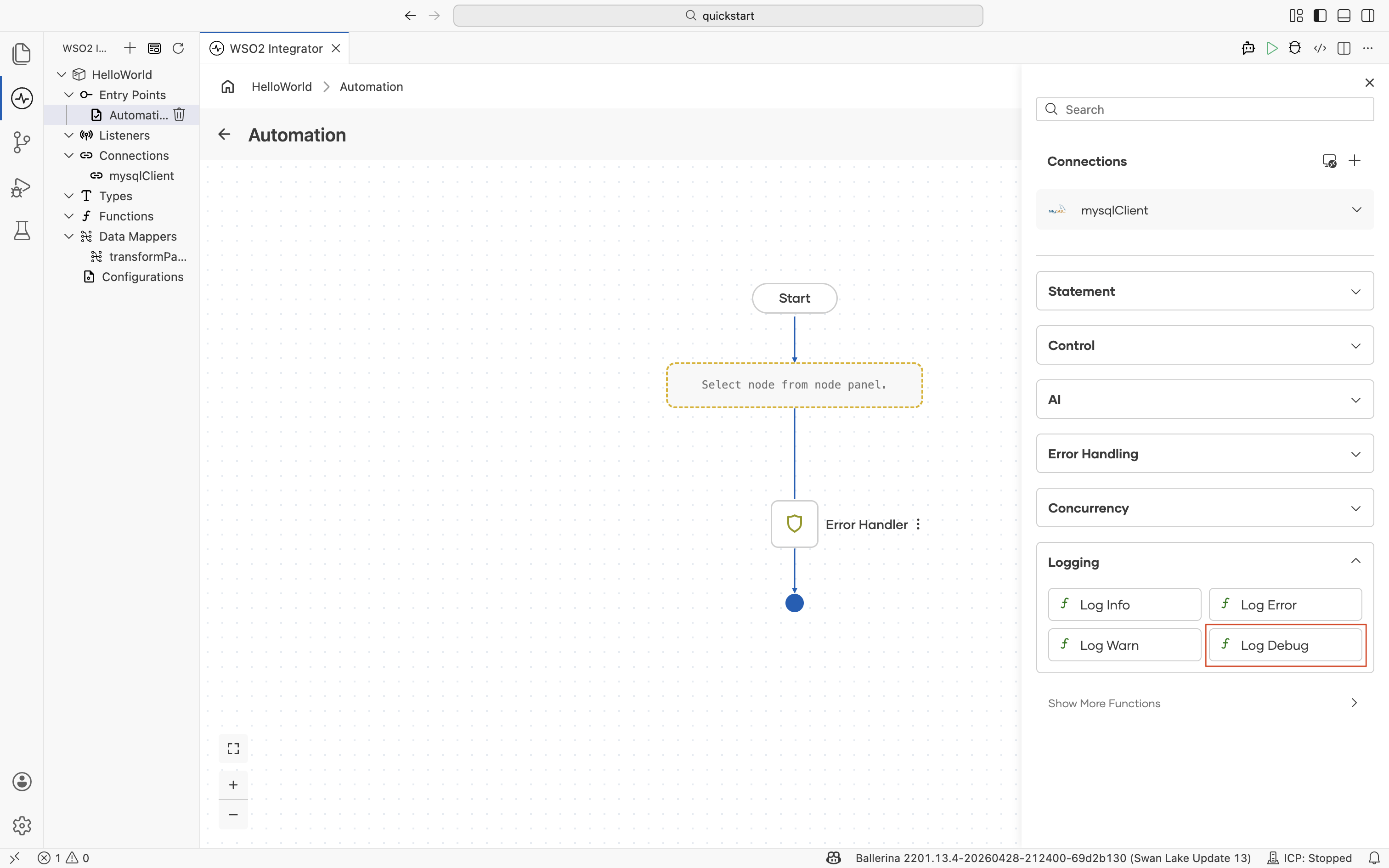
Logging
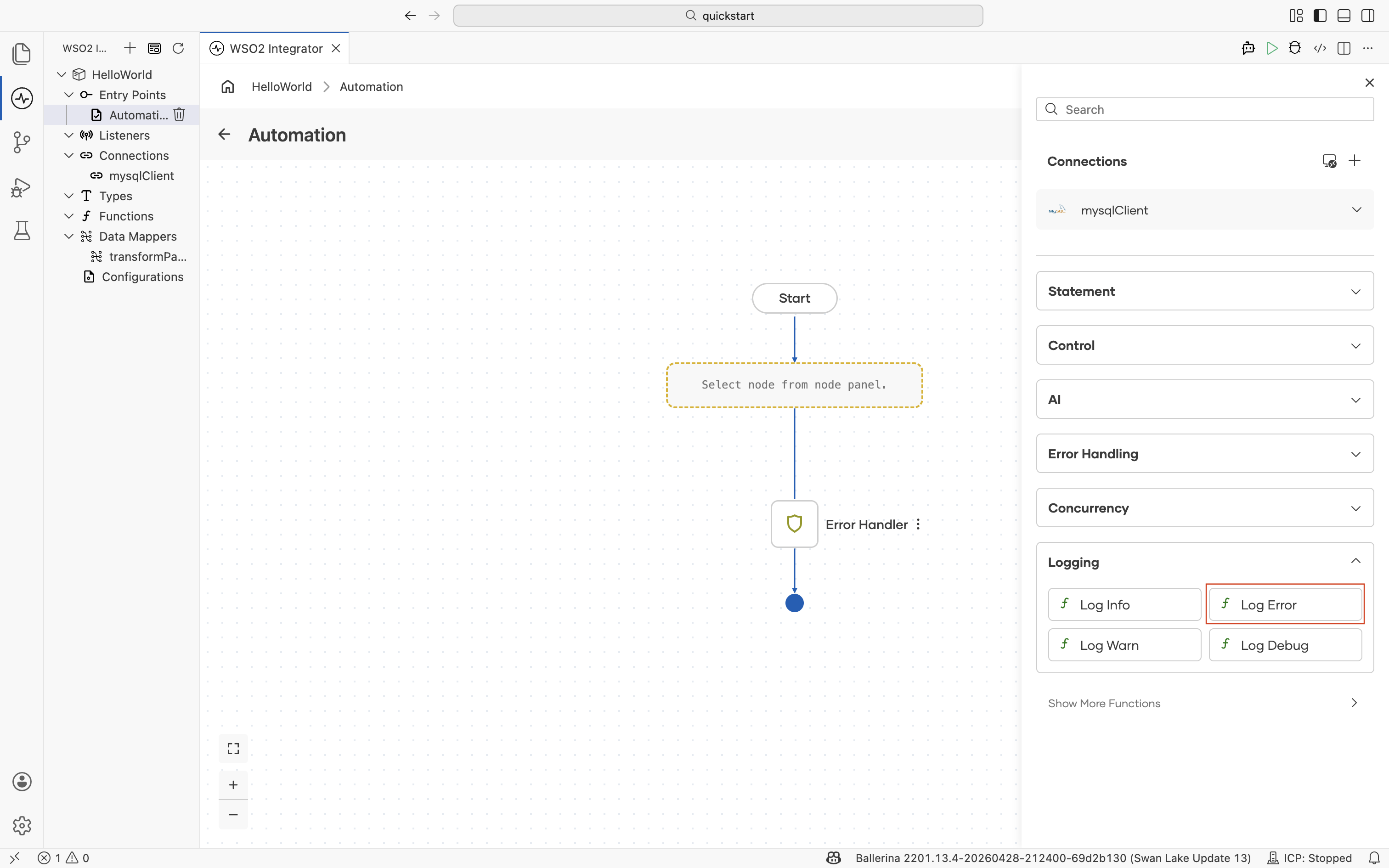
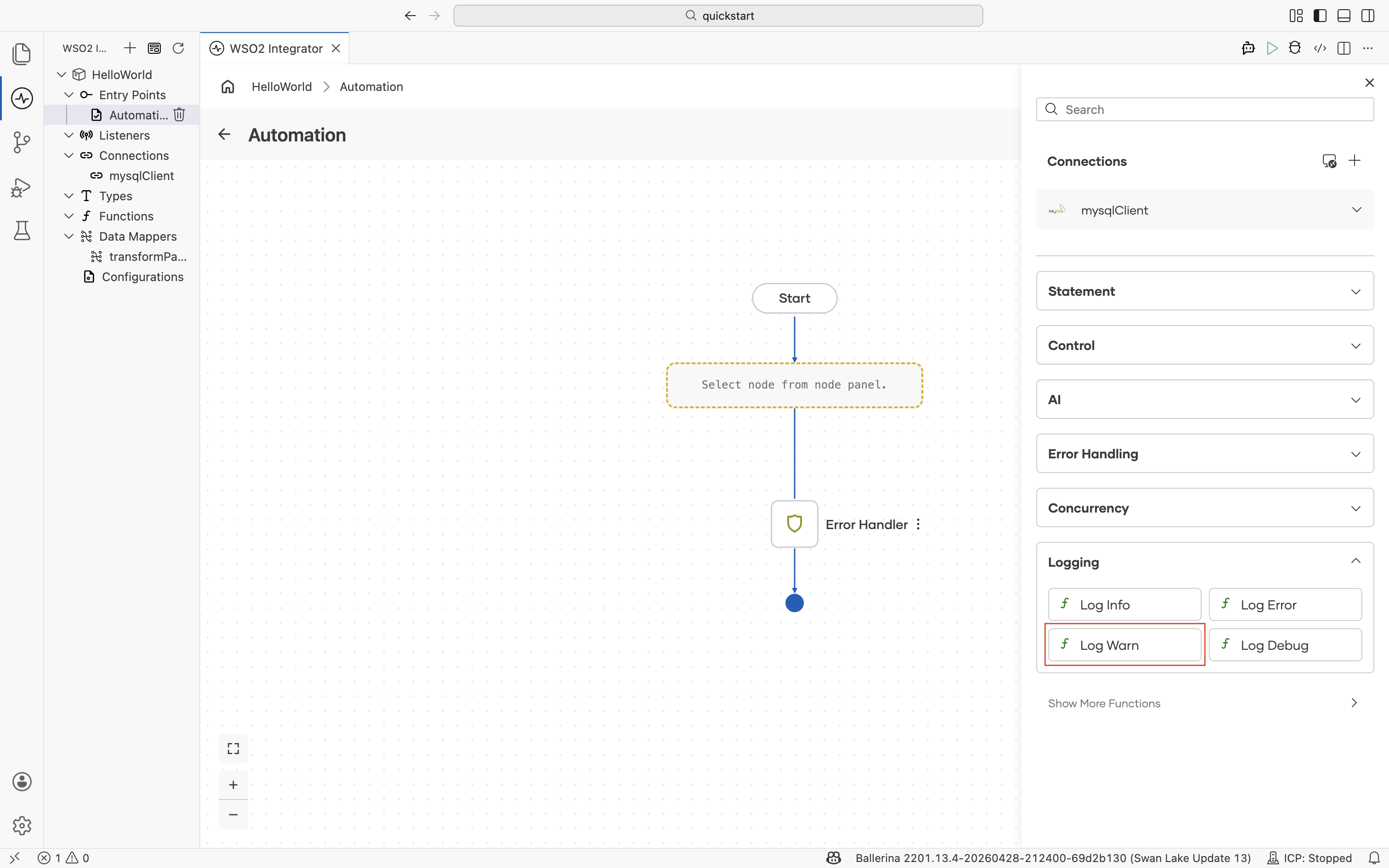
The Logging section of the node panel emits a message to the integration's log output at a specific severity level. Use it to trace execution, surface errors, and aid debugging in development and production.
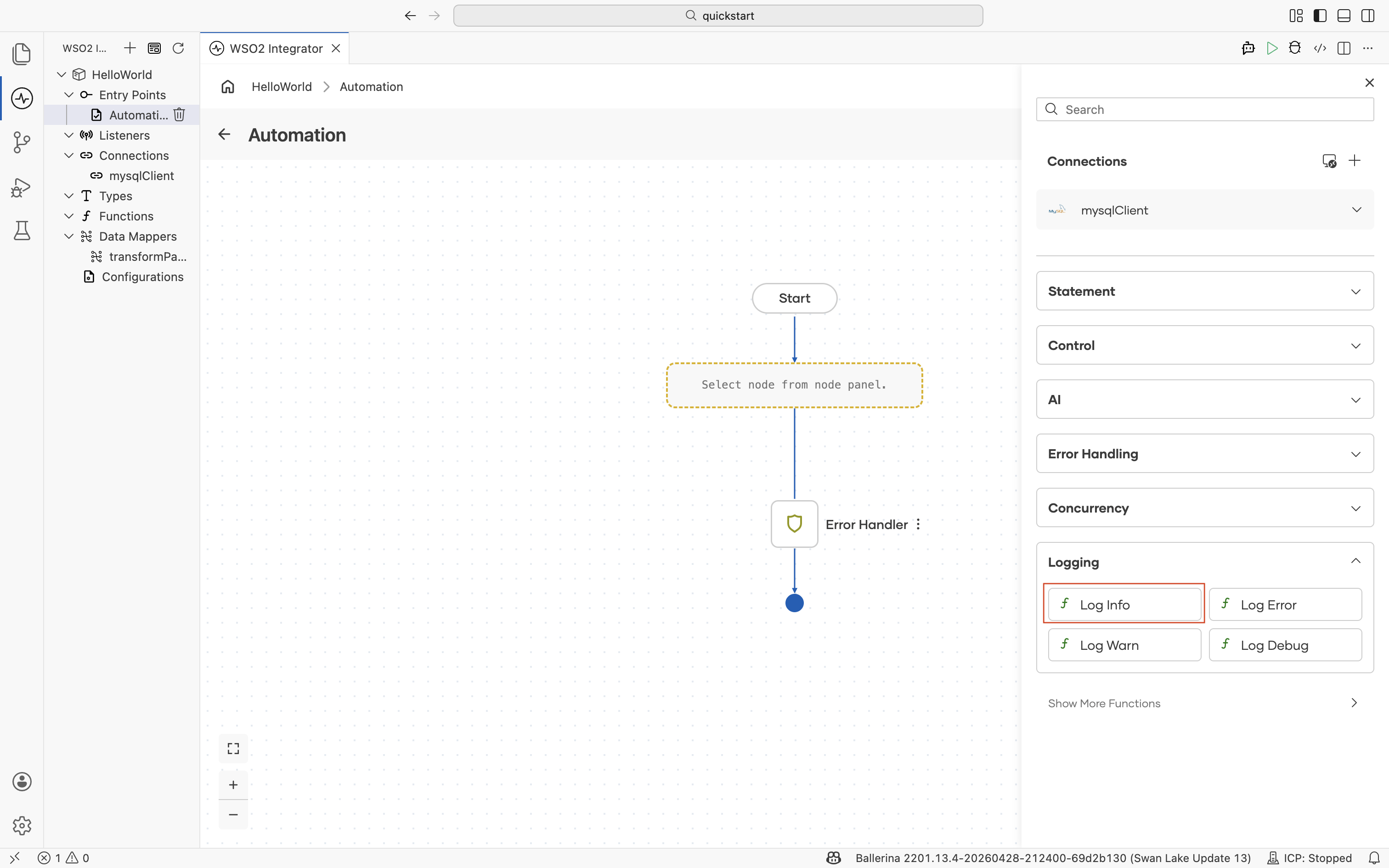
The four logging nodes are shortcuts to the corresponding log:print* functions in the Ballerina log library. Each form takes a single required Msg field. Additional options (an attached error, a stack trace, structured key-value pairs) are available under Advanced Configurations in the form.
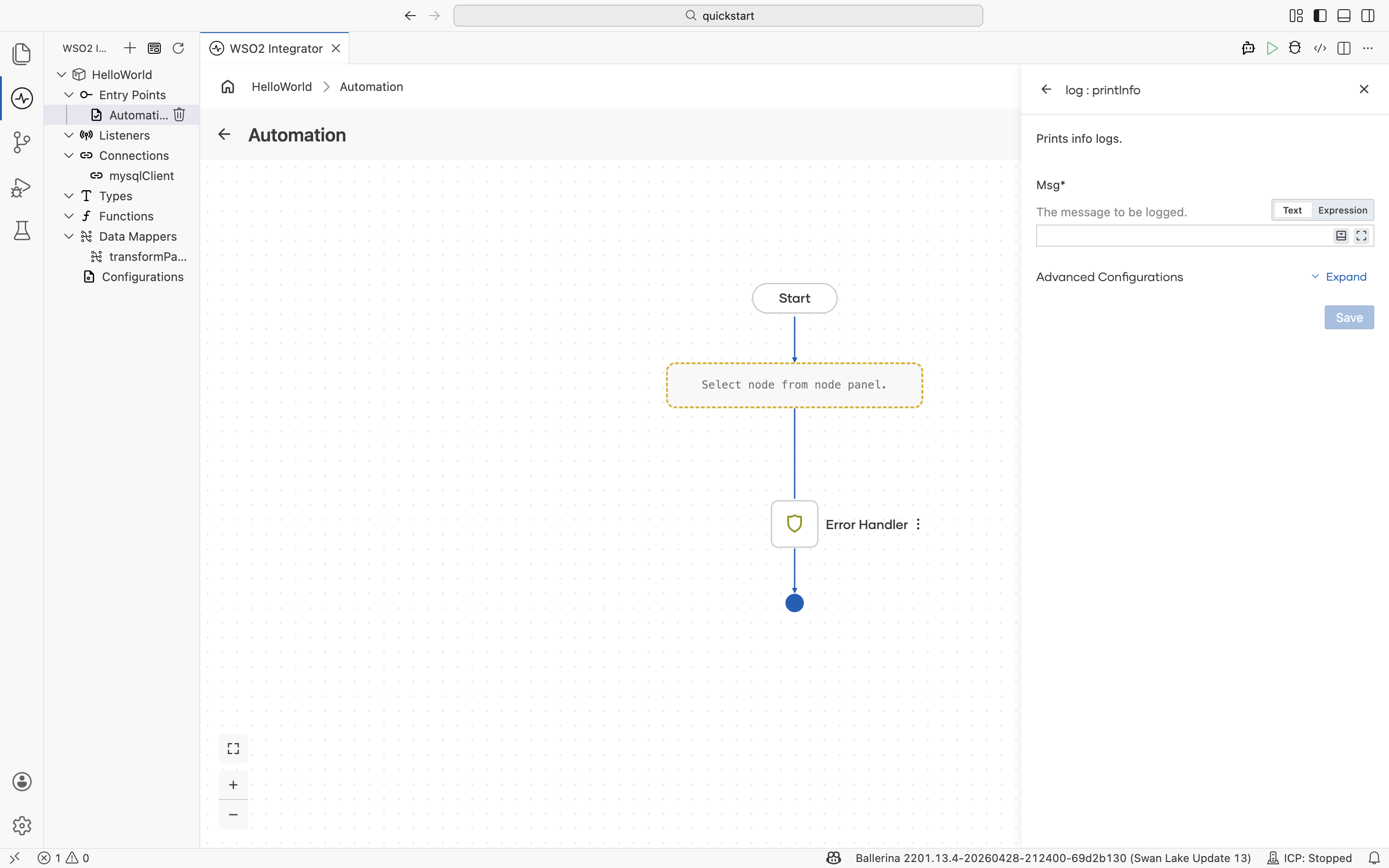
Log Info
Prints info logs. Use Log Info for routine progress updates such as "request received", "step completed", or a summary metric.
| Field | Description |
|---|---|
| Msg | The message to be logged. Supports Ballerina string templates with embedded expressions; author them in the Expression Panel. |
Log Error
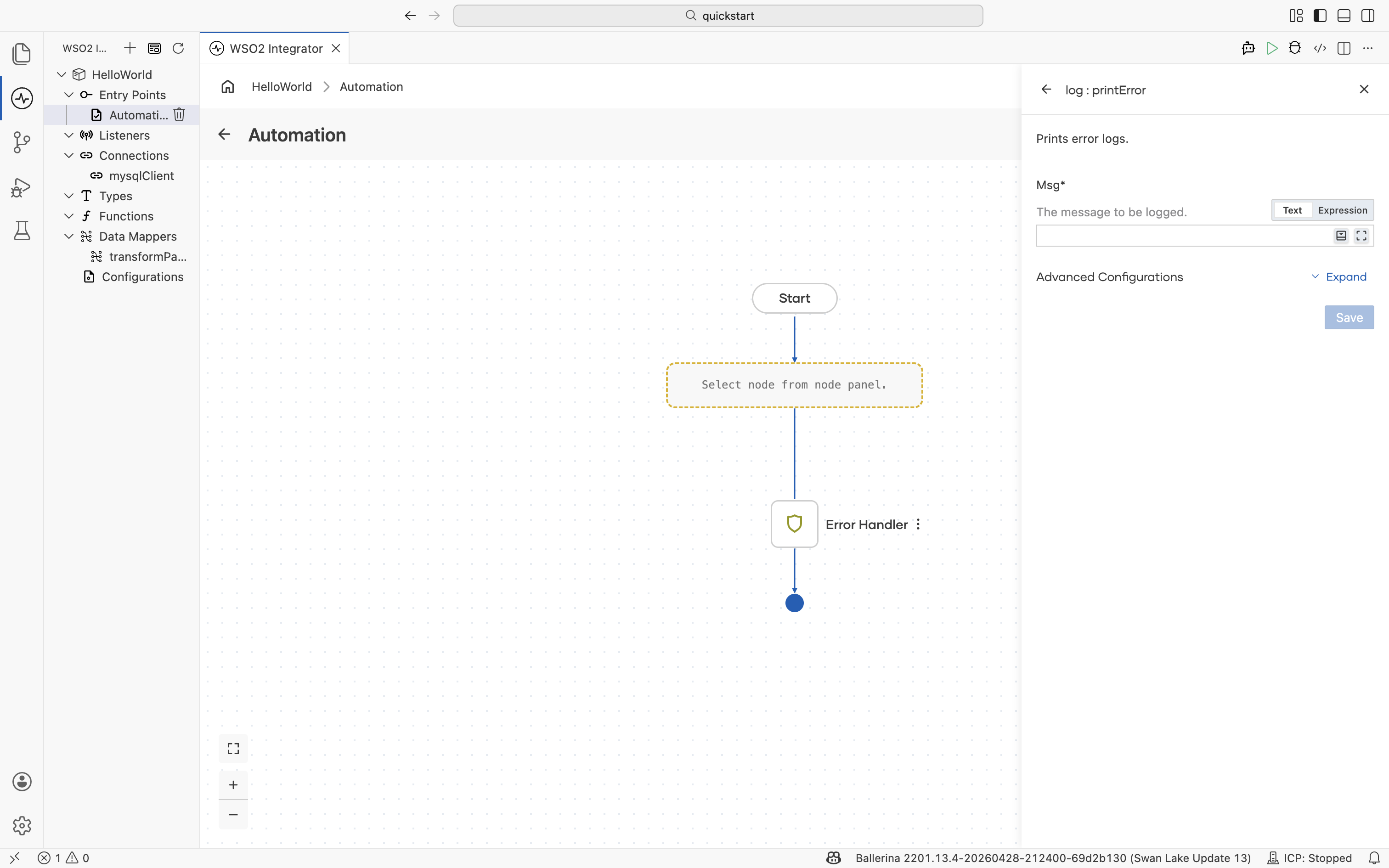
Prints error logs. Use Log Error for failures that the integration handled or escalated, such as a failed downstream call, a validation failure, or a caught exception.
| Field | Description |
|---|---|
| Msg | The message to be logged. |
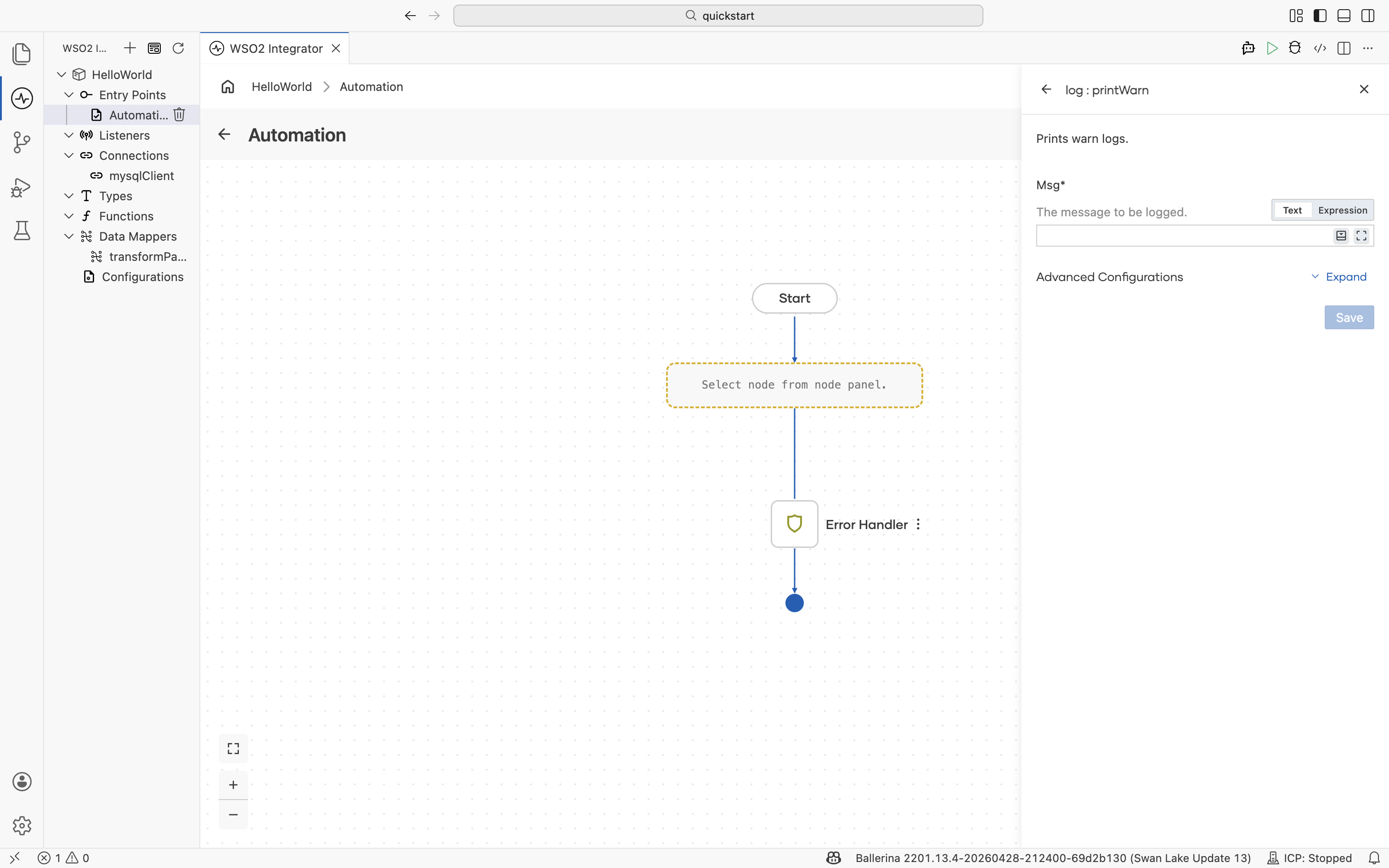
Log Warn
Prints warn logs. Use Log Warn for conditions that are unexpected but recoverable, such as a fallback path being taken, a retry being attempted, or deprecated input being encountered.
| Field | Description |
|---|---|
| Msg | The message to be logged. |
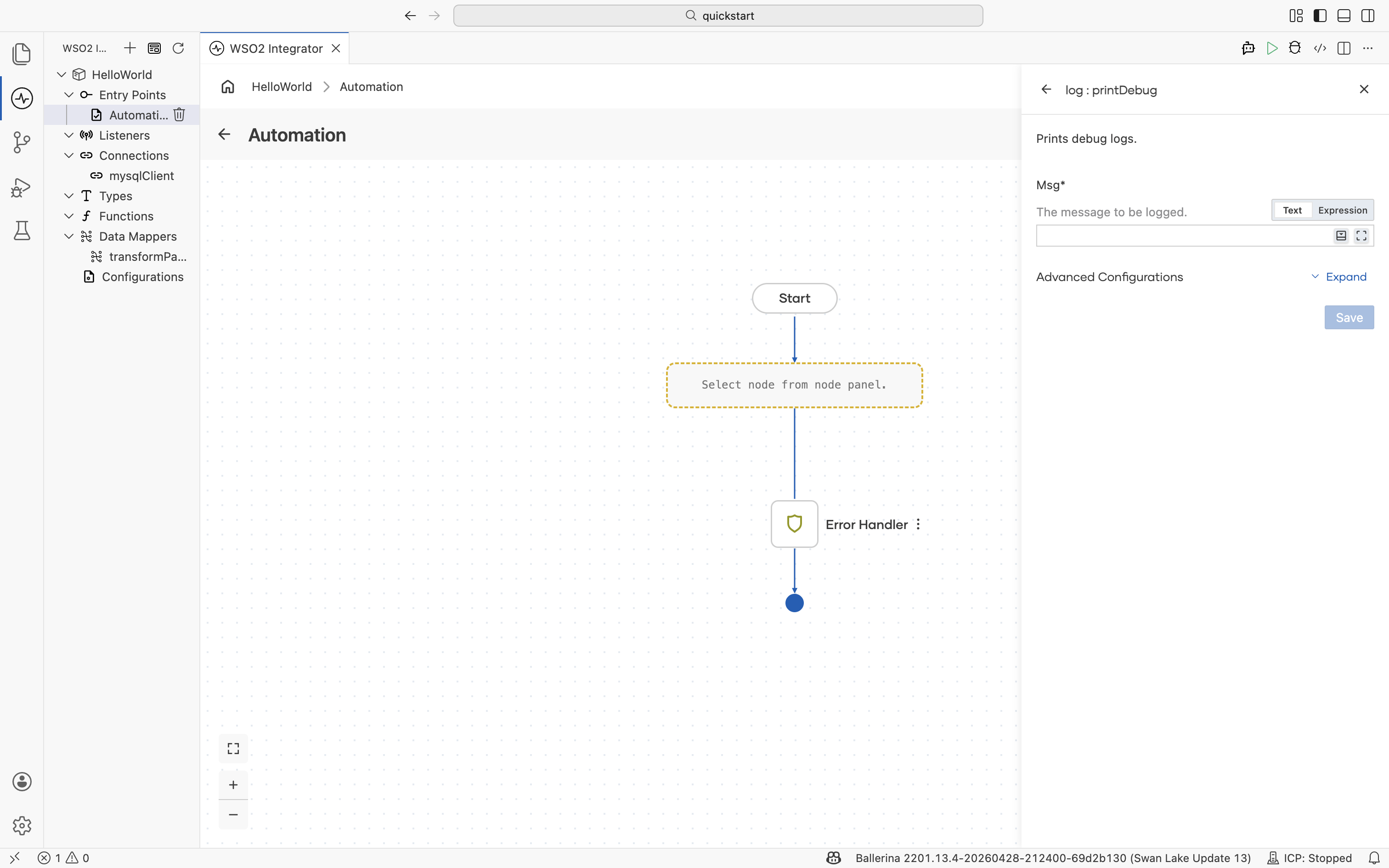
Log Debug
Prints debug logs. Use Log Debug for verbose information you want available in development and typically suppressed in production.
| Field | Description |
|---|---|
| Msg | The message to be logged. |
Show More Functions
The node panel surfaces only the most common nodes and shortcut functions for each section. Show More Functions is the action at the very bottom of the node panel that opens the full functions picker, so you can reach any function the project has access to even if it is not listed as a shortcut.
Open the picker
Scroll to the bottom of the node panel and select Show More Functions.
What the picker contains
The picker organizes functions in three sections.
| Section | Contents |
|---|---|
| Within Project | Functions defined in the current integration project. Use Create Function to define a new one inline. |
| Imported Functions | Functions exposed by libraries imported into the project, grouped by library (for example, log). |
| Standard Library | Functions from the Ballerina standard library. |
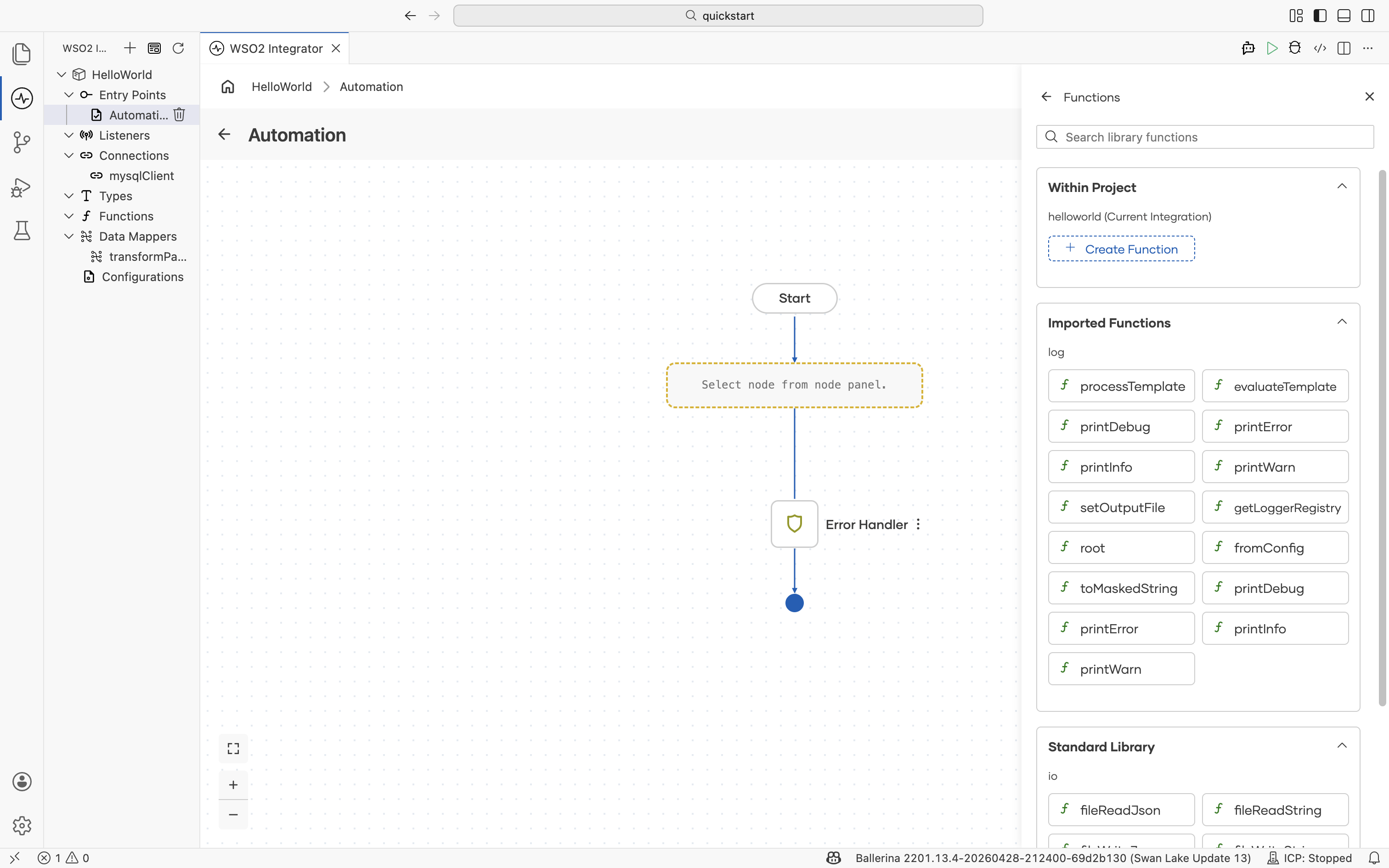
This is the same picker that opens from the Call Function node. Use it whenever a node panel shortcut does not expose the function variant you need. For example, every log:print* variant beyond the four shortcuts in the Logging section is reachable from this picker.
See also
- Flow Canvas — The canvas these nodes are added to.
- Type Panel — Define the record, enum, union, or other types used in node fields.
- Expression Panel — Author Ballerina expressions with autocomplete and validation.
- Data Mapper — The visual surface a Map Data node opens.
- AI Integrations overview — All AI building blocks at a glance.
- Connections reference — Create, configure, and reuse clients to external systems.
- Functions — Create, organize, and reuse functions across artifacts.