Copilot Built-in Capabilities
WSO2 Integrator Copilot builds integrations from natural language prompts. It produces ready-to-use artifacts in your project. Iterate through follow-up prompts to refine logic, add features, or modify behavior.
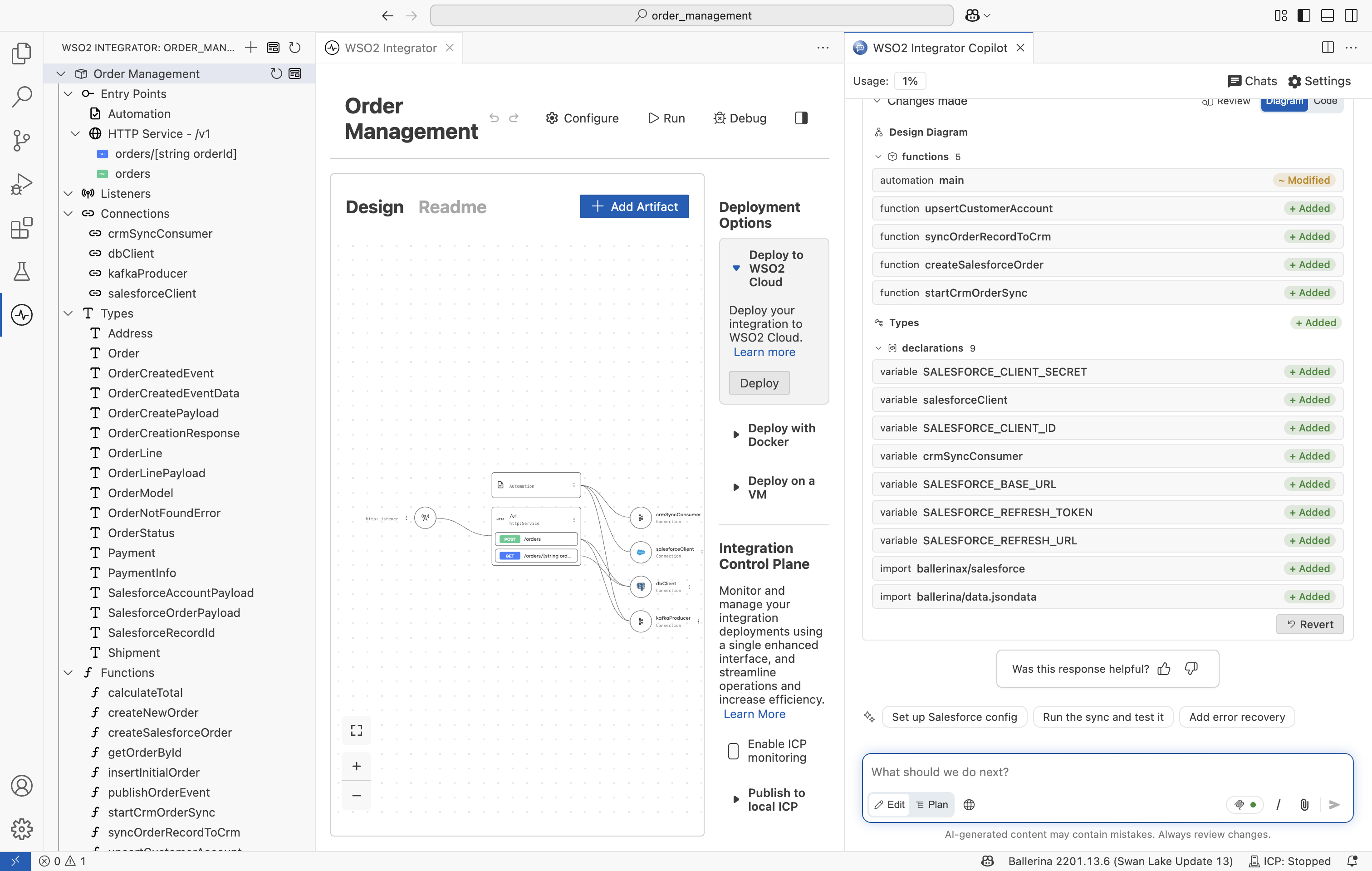
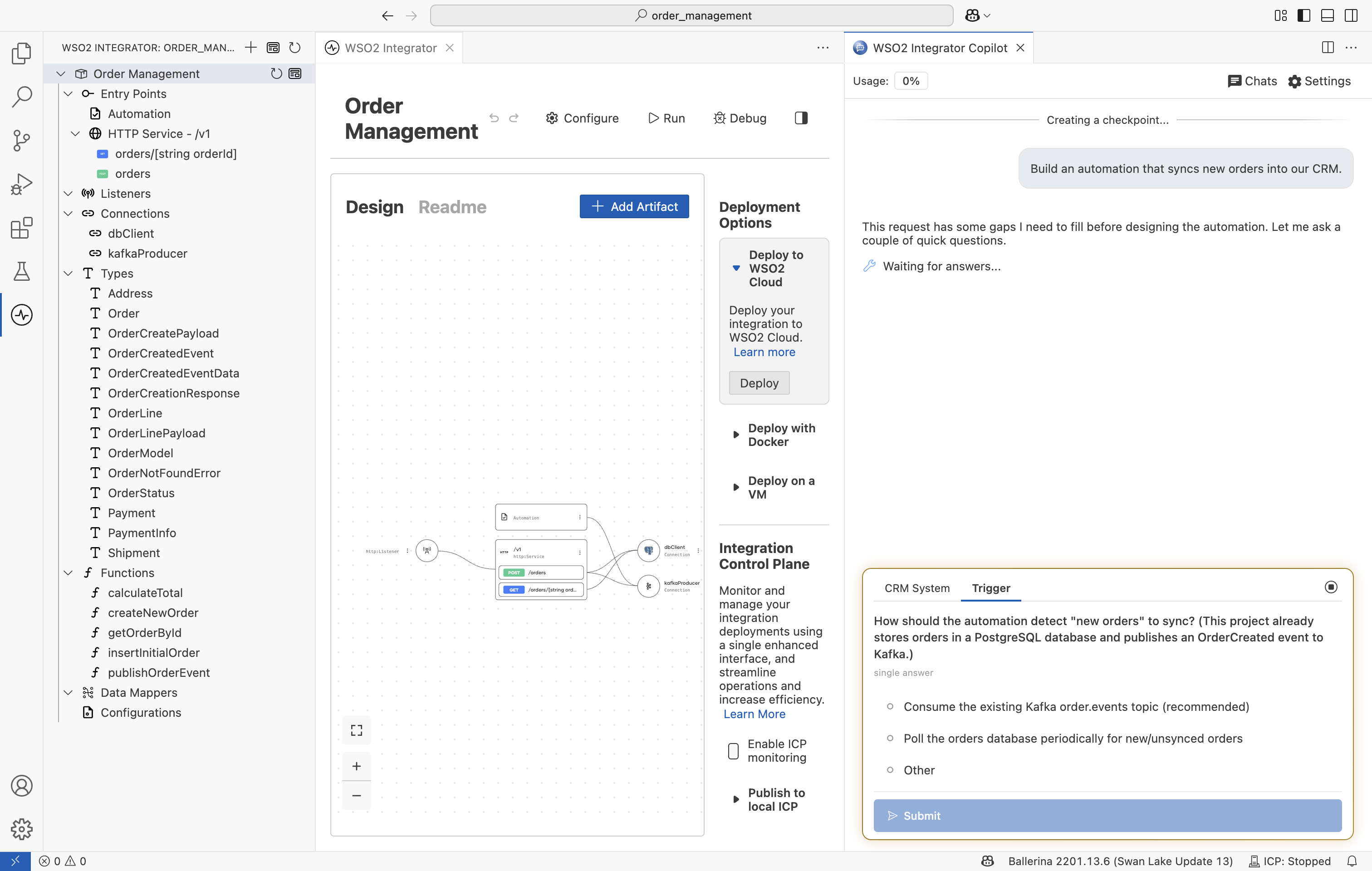
Clarifying requirements
During the planning or generation phase, Copilot may identify missing information that is critical to the integration. If a requirement is ambiguous, it pauses and presents a list of suggested options. Select one, or select Other to type your own answer.
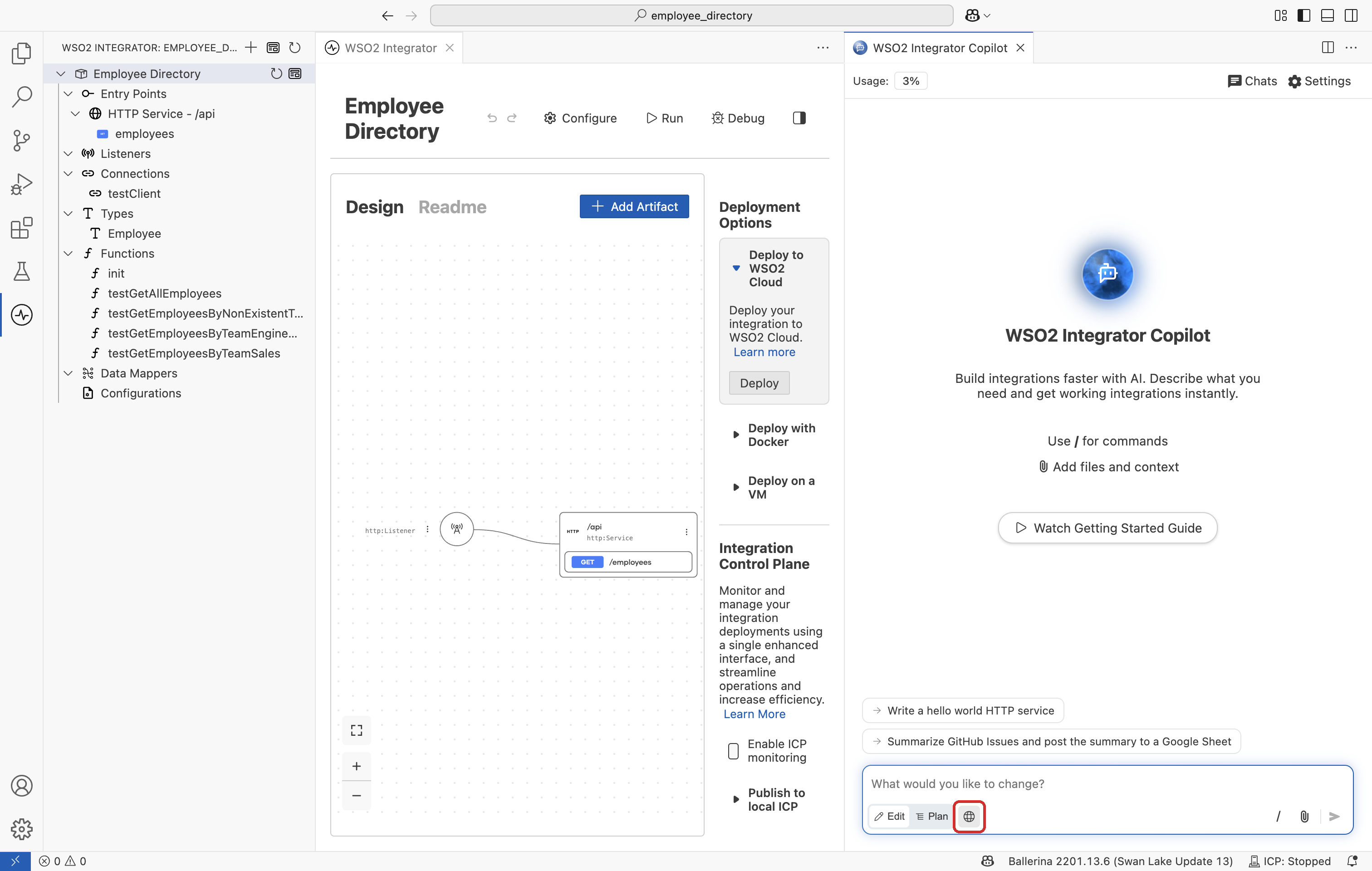
Using web tools
Copilot can search the internet for external context or up-to-date documentation. It asks for permission before each search unless you enable the web tools toggle in the input bar.
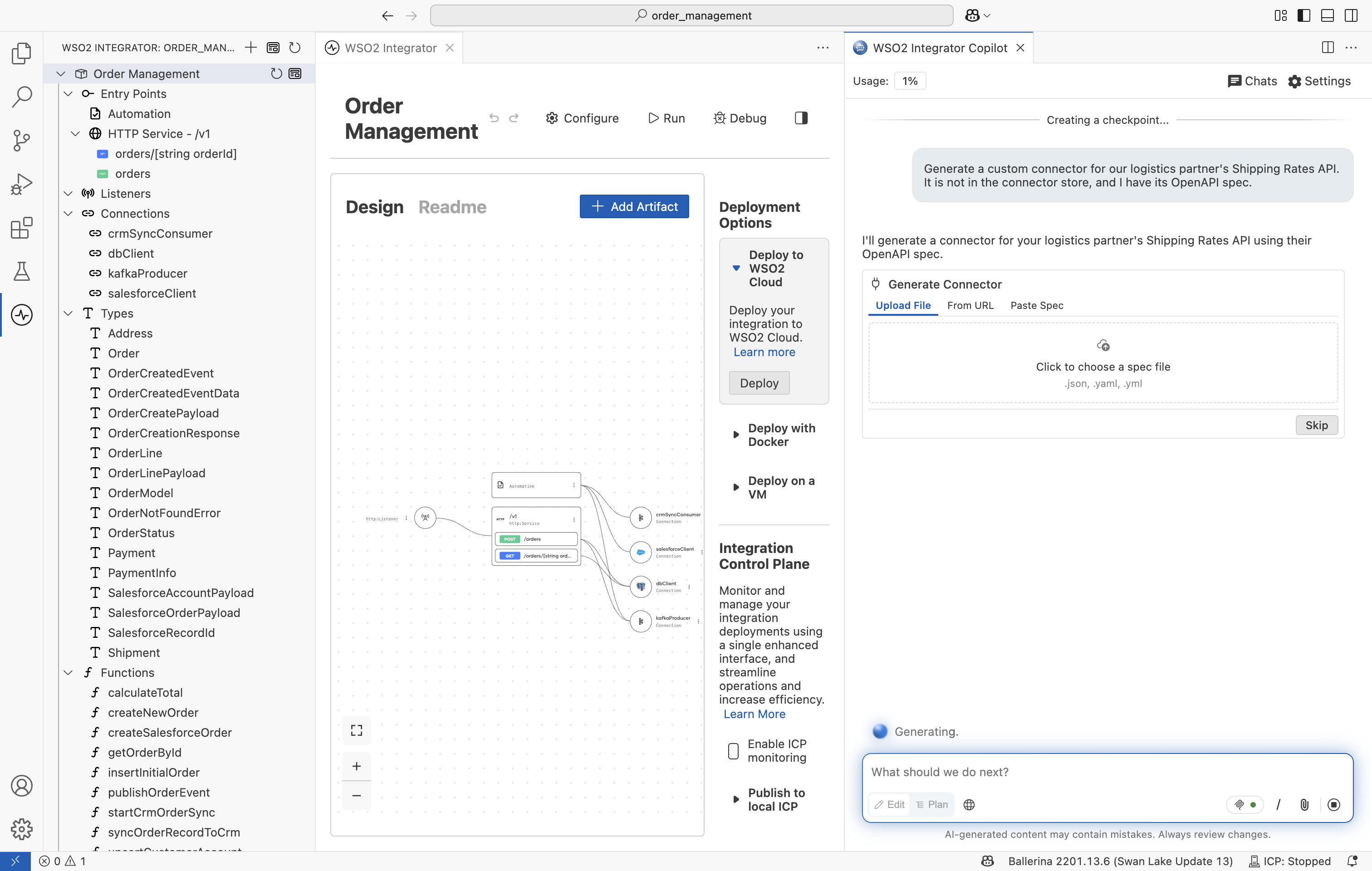
Generating connectors
Copilot can generate a custom connector when a pre-built one is not available. During integration generation, if no pre-built connector exists, Copilot prompts the user for an OpenAPI specification. The user can also directly request to generate a custom connector. Once generated, the connector is available for Copilot to use in the flow.
Running in the background
Copilot runs in the background, so closing the panel does not stop a run. While it works, a status bar item, a floating status orb, and a mini chat keep you informed and let you follow along or reply without opening the full panel. See Copilot in the Background.
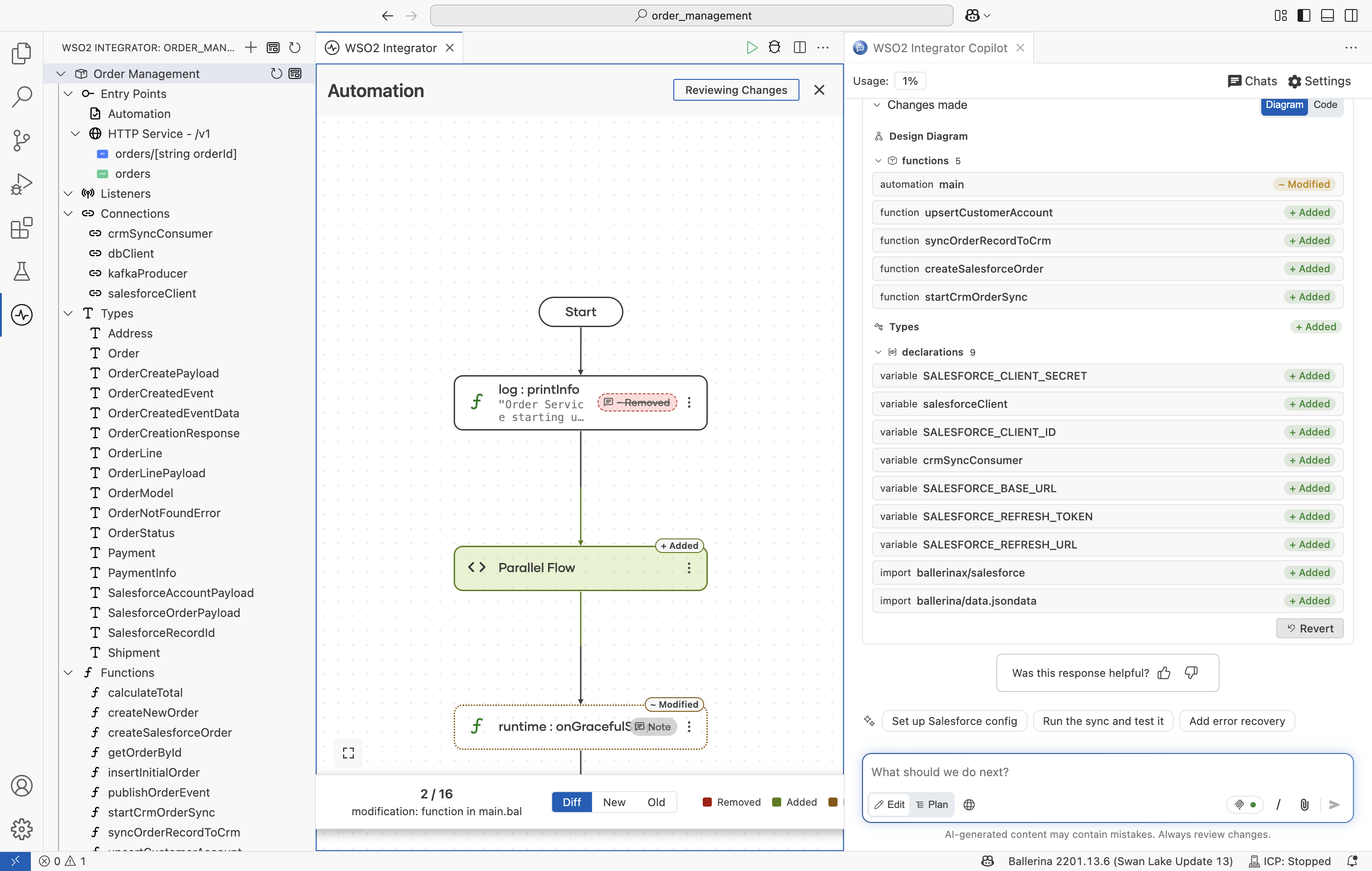
Review generated artifacts
After generation completes, you can inspect exactly what was built or changed before finalizing the changes. Copilot shows the change set in a unified diff diagram that marks added, removed, and modified parts, and you can step through the resulting and previous versions of each artifact. See Reviewing Changes.
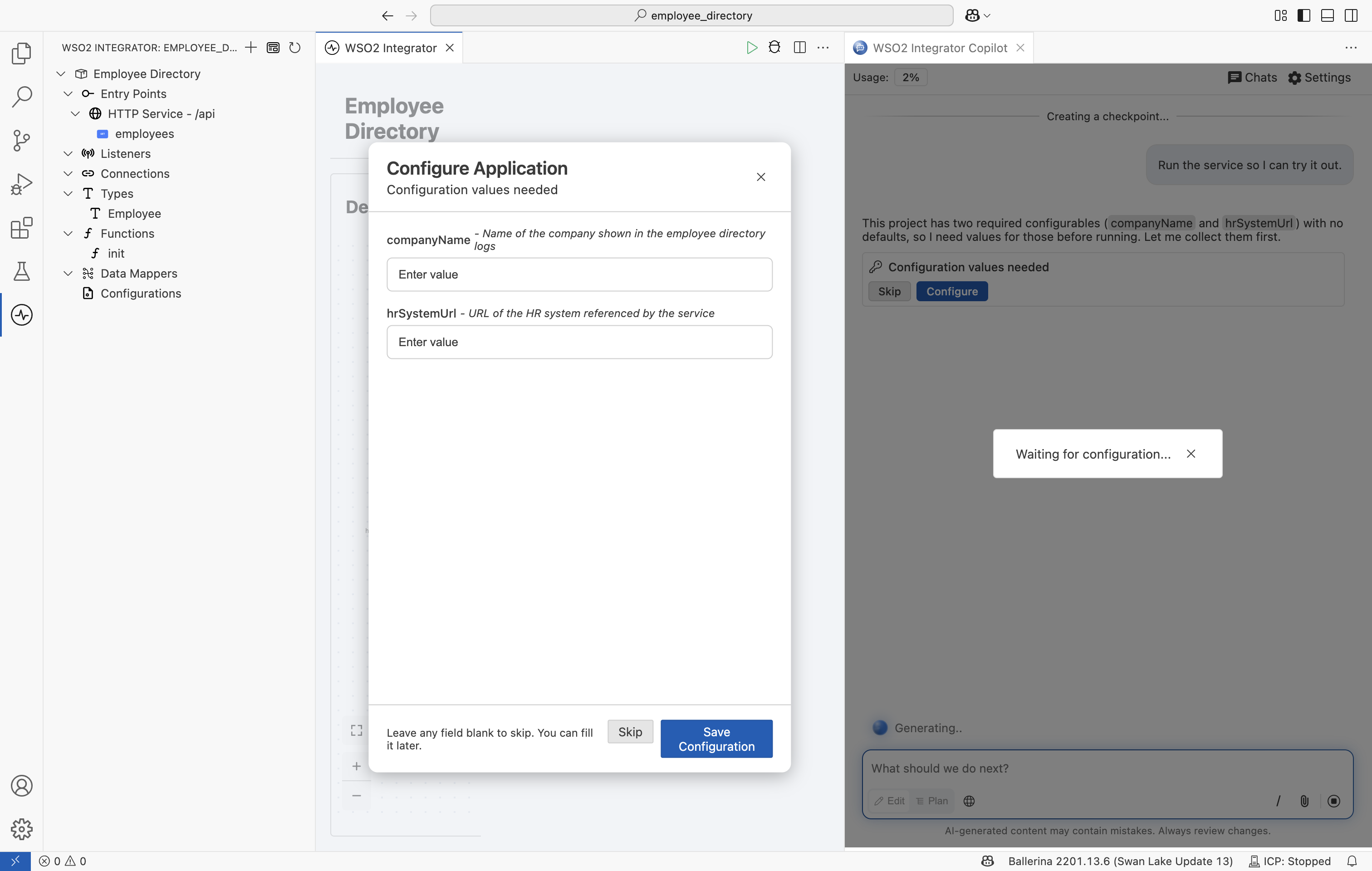
Configure to Run/Test
When you run or test the integration, Copilot identifies the required configurables and prompts you to enter them.
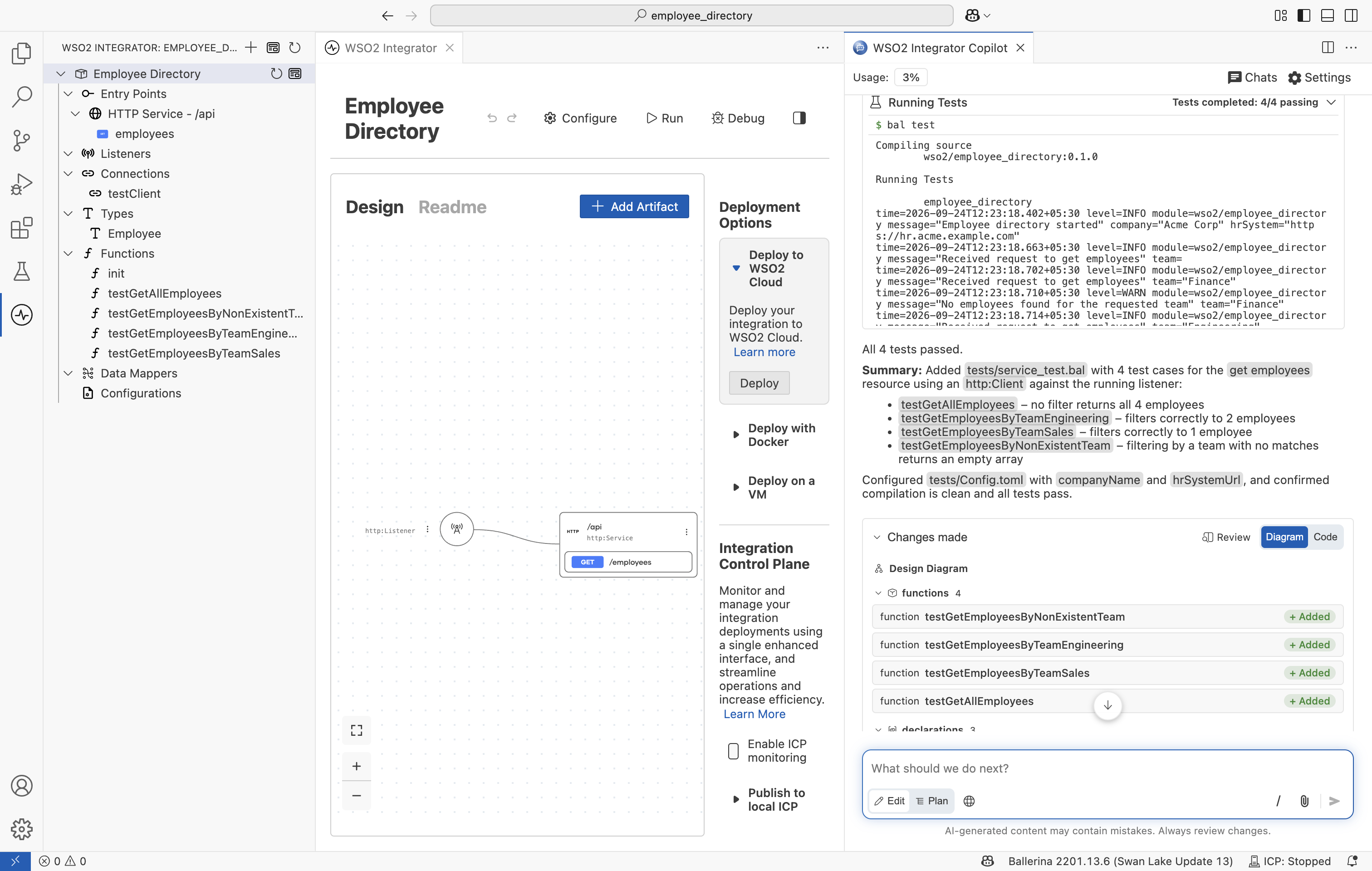
Generate Integration Tests
Copilot generates tests for your integration and runs them with the built-in test runner, allowing you to verify the generated artifacts immediately.
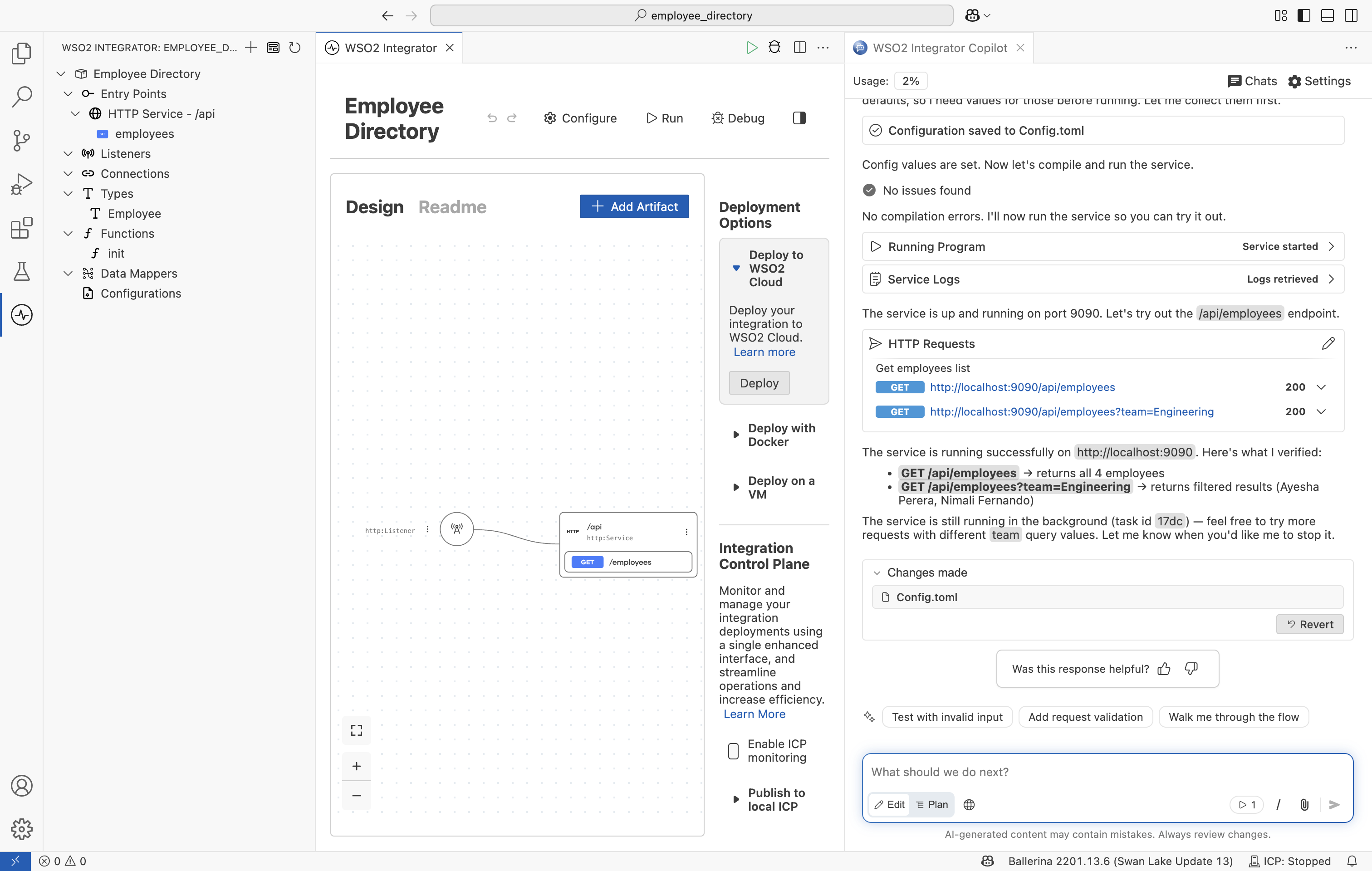
TryOut your services
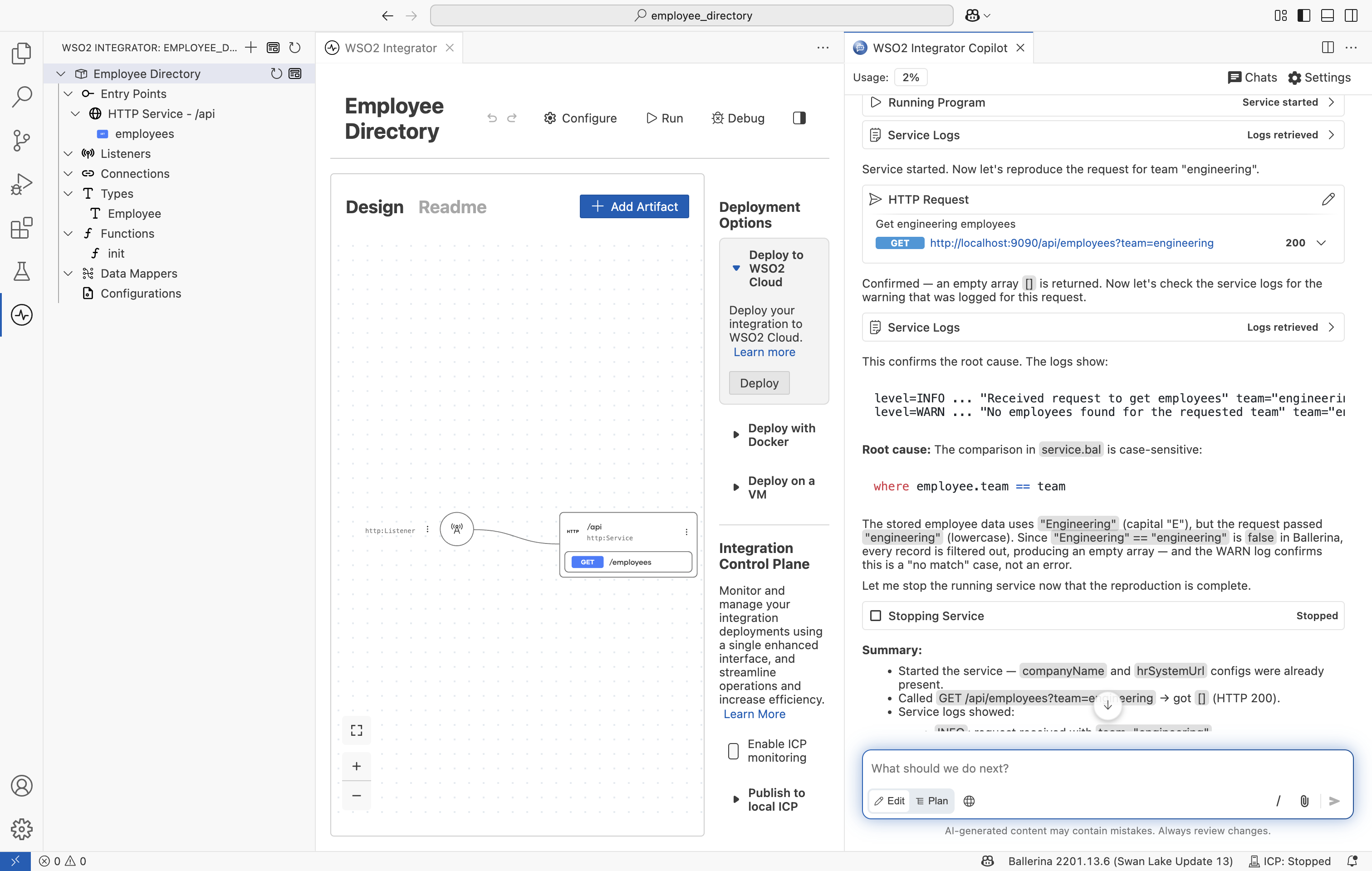
Once your integration is running, you can send test requests to your services from Copilot. Describe what you want to test in plain language, and Copilot calls your service and returns the response.
Debug Runtime Issues
Copilot can run your integrations and read the runtime logs to debug issues as they occur.
Follow-up suggestions
When Copilot finishes a response, it offers a few follow-up suggestions as chips below the message. Each chip is a short label for a sensible next step, such as adding a test, handling an error case, or running the service.
Select a chip to place its full prompt in the input bar. Copilot doesn't send it, so you can reword the prompt or add detail first.
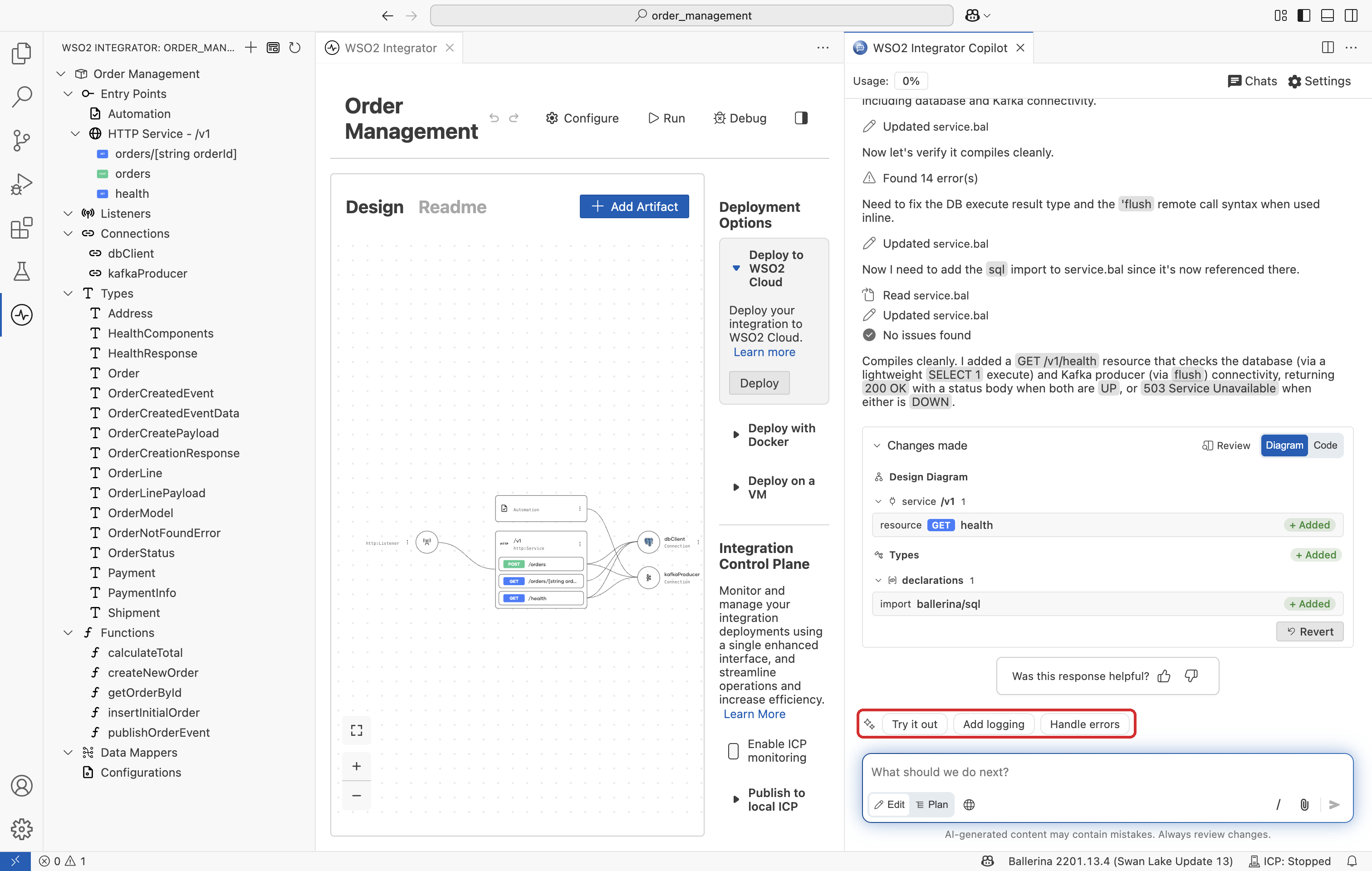
Suggestions appear under the most recent response only, and they clear when you send your next message.
To turn suggestions off, set ballerina.copilot.followupSuggestions to false in your editor settings.
Chat sessions
Each conversation with Copilot is a session. Copilot saves every session for the project, so your work stays available after you reload or restart the editor. Sessions are tied to the project's location on disk, so they no longer appear if you move or rename the project, or open it from a different path.
Select Chats in the panel header to list the project's sessions, grouped by when you last used them. Each row shows the session name, the number of prompts it holds, and when it was last updated. Select a row to switch to that session.
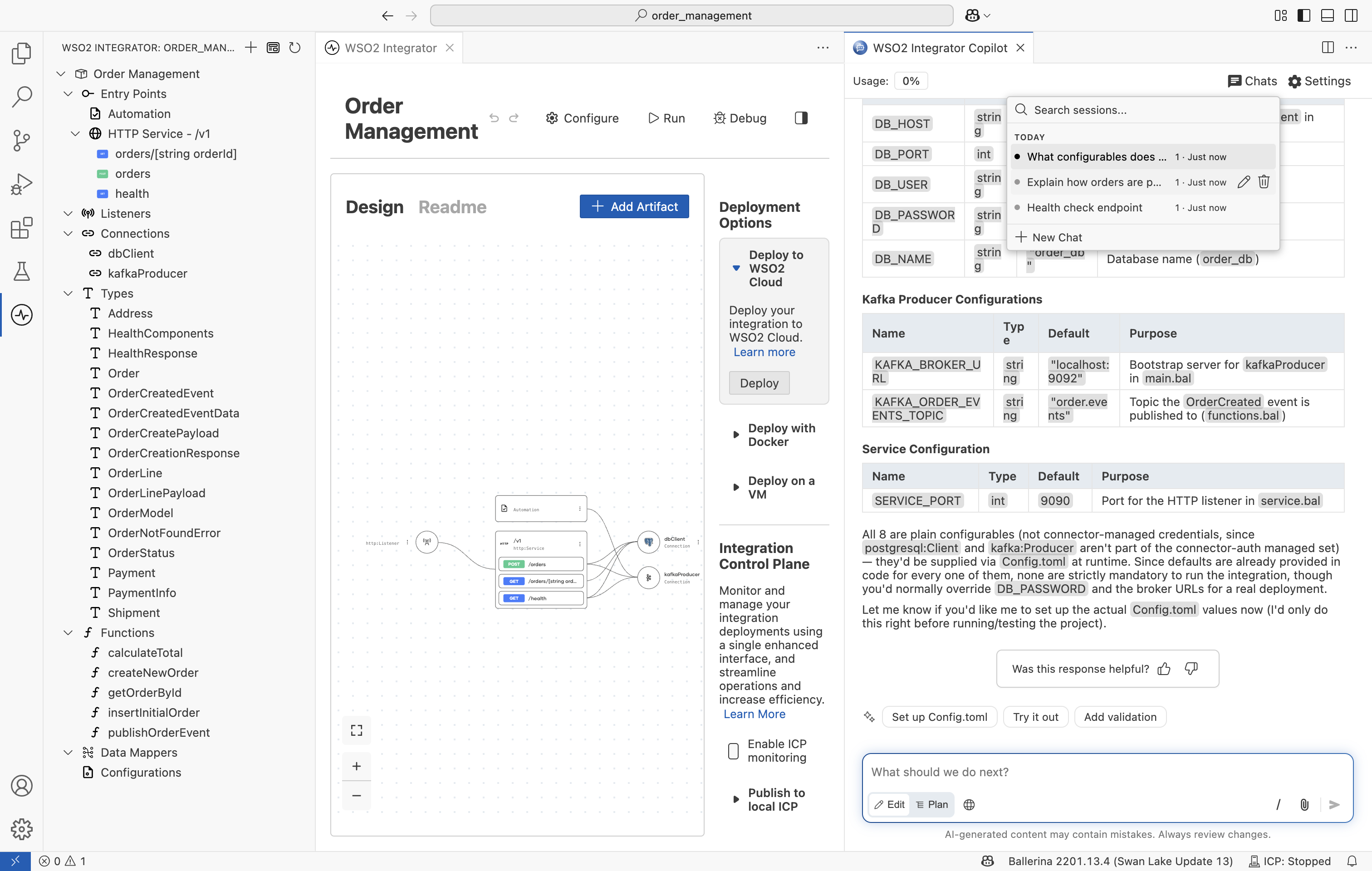
From this list you can:
- Start a session: Select New Chat. Your existing sessions are kept.
- Find a session: Type in Search sessions to filter the list by name.
- Rename a session: Select the edit icon on the row. Copilot names a session after its first prompt, so renaming helps when several sessions begin alike. If you clear the name, Copilot restores the original.
- Delete a session: Select the delete icon, then confirm.
You can't switch sessions while Copilot is generating a response. Finish or stop the response first.
To undo what Copilot changed, select Restore Checkpoint. It rolls your integration back to a saved checkpoint and removes the prompts that came after it.
See also
- WSO2 Integrator Copilot — Sign in to WSO2 Integrator Copilot.
- Copilot Chat Interface — Chat controls, slash commands, and modes.
- Copilot in the Background — Follow a run while the panel is closed.
- Reviewing Changes — Inspect a run's changes in a unified diff.
- Customize Copilot — Give Copilot project instructions, reusable skills, and your own tools through MCP servers.
- Generate tests with AI — Use Copilot to generate test cases.
- AI data mapper — Generate data mappings using AI.
- Try-It tool — Test services without leaving the editor.
- Copilot architecture and data handling — How Copilot handles your data.