Copilot in the Background
Copilot does its work in the background rather than inside the panel that started it. Closing the Copilot panel does not stop a run, and Copilot keeps you informed through the status bar, a floating status orb, and a compact mini chat. You can switch views, edit files, or work in another panel while a long generation continues, then step back in from wherever you are.
Close and reopen the panel
A run belongs to the project, not to the panel, so you are free to close the panel while Copilot is working.
- The run keeps going. Copilot continues generating, calling tools, and applying changes.
- Reopen the panel at any time and Copilot rebuilds the turn in progress, including tool calls and streamed text. Streaming resumes from where it is rather than starting over.
- If the run finishes while the panel is closed, reopening the panel shows the completed turn and saves it to the chat history, so nothing you missed is lost.
Copilot holds an in-progress run for as long as the editor window stays open. Reloading the window restarts the extension and clears that in-progress state, so an unfinished turn's transcript is not restored. Changes Copilot already applied to your project are unaffected.
Status bar
While Copilot is working, the status bar shows the current state at a glance.
| State | What you see |
|---|---|
| Running | A spinner and the current step. |
| Needs your input | WSO2 Integrator Copilot needs your input, highlighted in the warning color. |
| Finished | WSO2 Integrator Copilot finished. |
| Error | WSO2 Integrator Copilot error, highlighted in the error color. |
Select the status bar item to open the Copilot panel. The item appears only when the panel is closed and no other Copilot surface is already reporting the status, so it never duplicates something you can already see.
Status orb
When the Copilot panel is closed, a floating orb keeps a subdued Copilot presence over the editor and lights up while a run is in progress. A label beside the orb names the state.
| State | Label |
|---|---|
| Idle | No label. Hovering the orb reveals the input box. |
| Running | The current step, such as Reading the project. |
| Needs your input | Needs your input. |
| Finished | Done — click to open the chat. |
| Error | Something went wrong. |
You can interact with the orb in several ways:
- Select it to open or close the mini chat.
- Double-click it to open the full Copilot panel.
- Drag it anywhere on screen. On release it snaps to the nearest edge position, and Copilot remembers where you left it across reloads.
- Hover it while idle to reveal an input box labeled How can I help?. Type your request and press Enter to start the conversation directly in the mini chat.
Mini chat
The mini chat is a compact overlay anchored next to the orb. It mirrors the live run, showing streamed text and tool steps, and it carries a follow-up input so you can keep the conversation going without opening the full panel.
- Use Open full chat in the header to move the conversation to the full Copilot panel, or Close to dismiss the mini chat.
- When a step needs an answer the mini chat cannot collect, such as a plan to approve, a clarification, a configuration value, or web tool permission, an amber Copilot needs your input banner appears. Select Open full chat to answer it in the full panel.
- The input is disabled while Copilot is working. Wait for the current step to finish before sending your next message.
- If you type a message and then open the full chat, your draft carries over and Copilot does not send it for you.
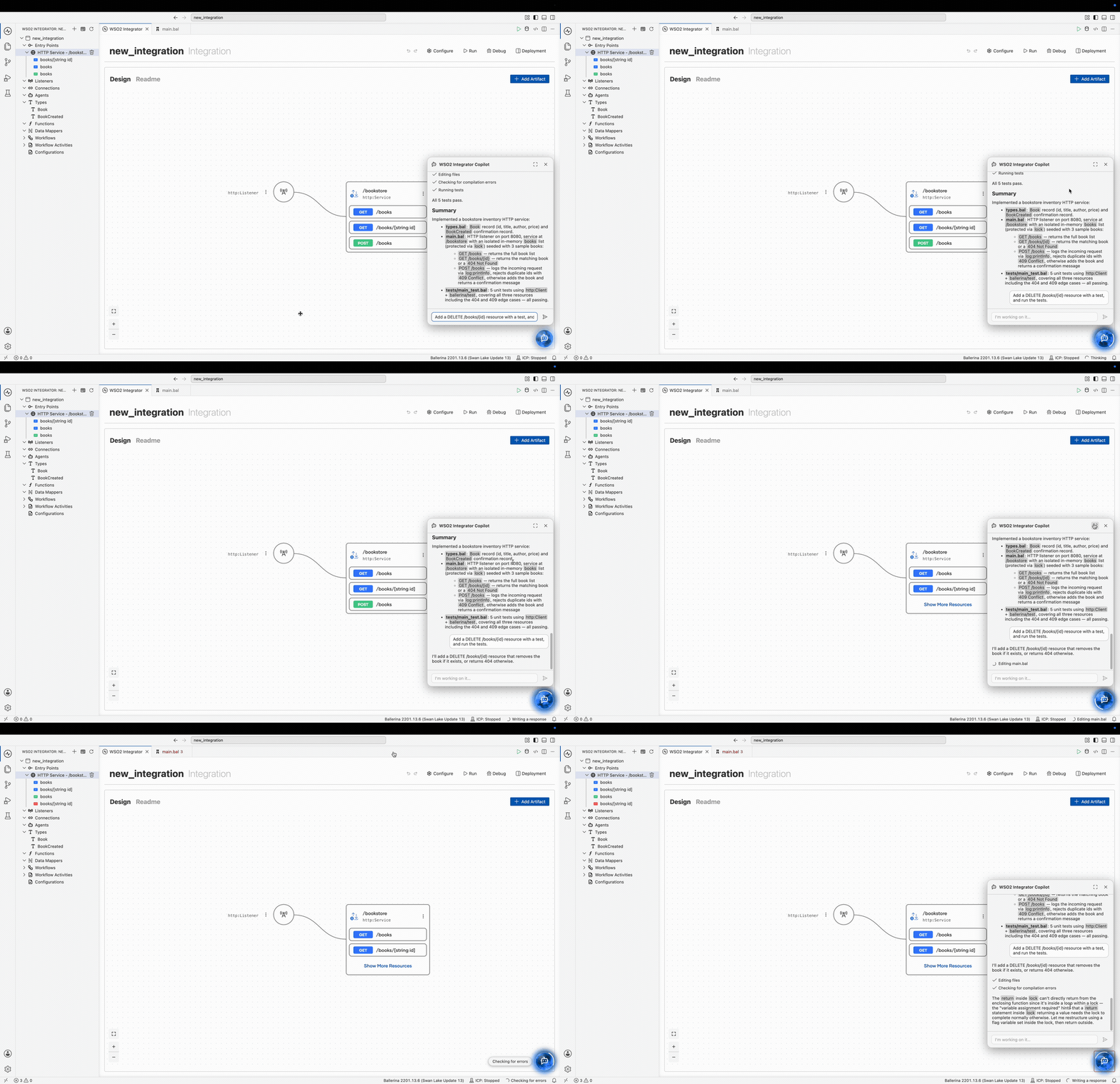
The generating indicator
While Copilot generates, the full panel shows a small animated orb and a label naming the current step just above the chat input. The label changes as Copilot moves between steps, so you can follow progress without reading every line of the transcript.
See also
- Built-in Capabilities — Explore planning, review, testing, and more.
- Reviewing Changes — Inspect a run's changes in a unified diff.