Usage Limits
When you sign in to WSO2 Integrator Copilot with your WSO2 Cloud account, your usage is subject to a limit. Copilot shows how much you have used, lets you know when you reach the limit, and gives you a way to ask for more.
If you signed in with your own AI provider credentials, Copilot shows your provider instead of a usage figure, for example Anthropic (own key). Your provider account handles usage and billing, so this page does not apply to you.
Check your usage
The Copilot panel header shows Usage with how much of your limit you have used so far. Point at it to see when your usage resets.
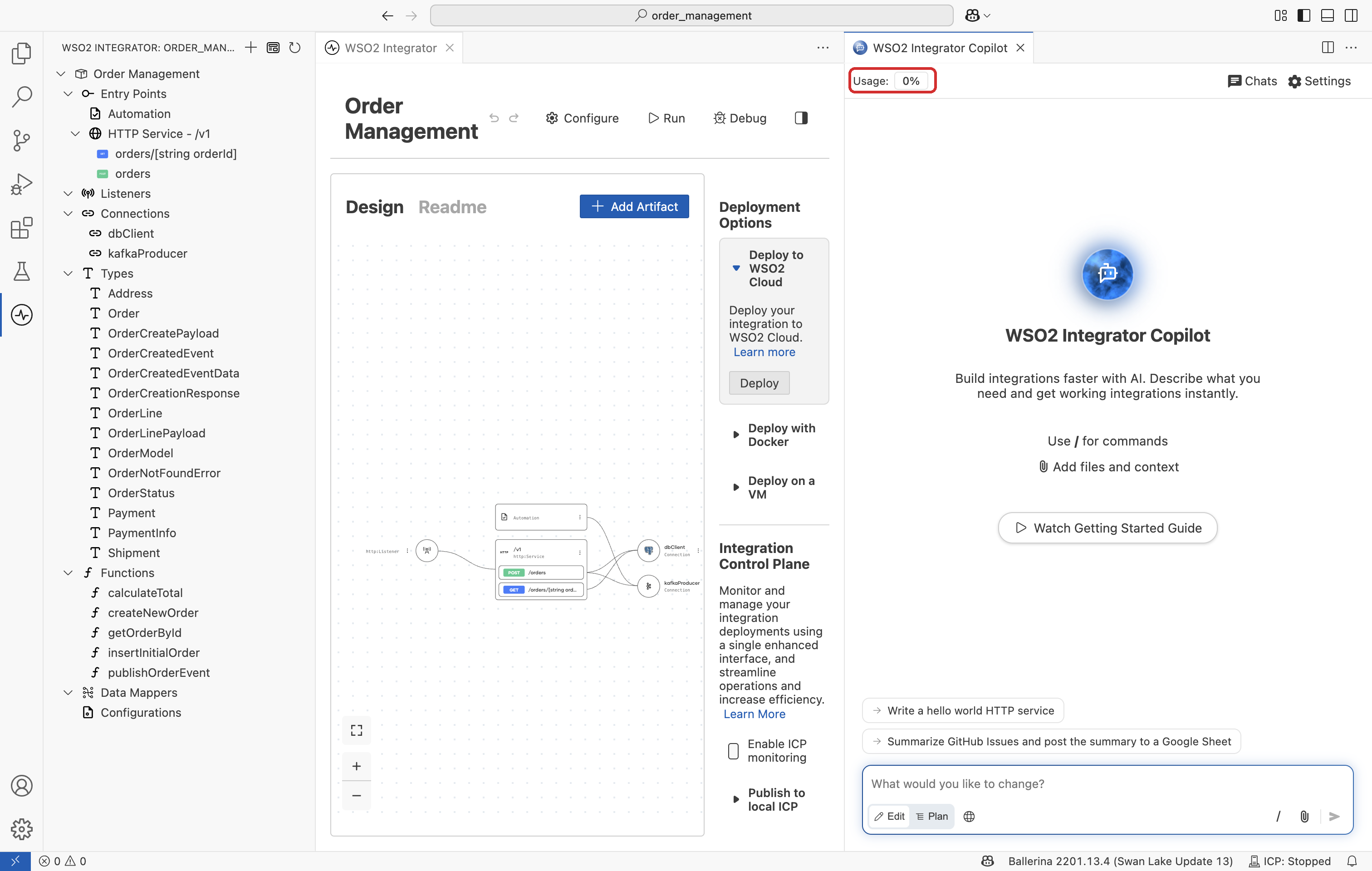
Copilot updates this each time you open the panel and after every response, so the figure is always current.
When you reach the limit
When you reach your limit, Copilot pauses and displays a message above the chat box with the date and time your usage resets.
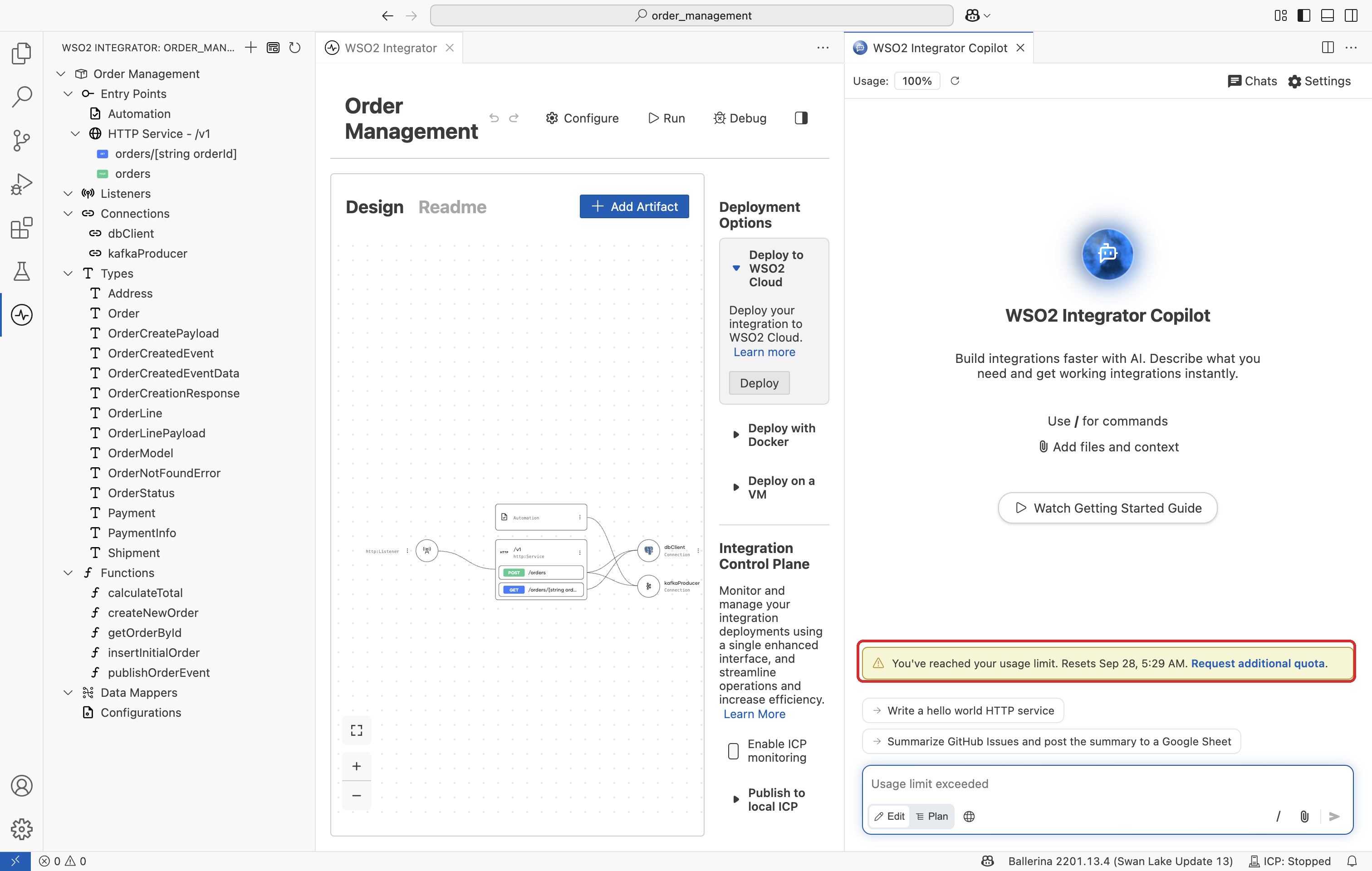
Until your usage resets, Copilot's AI services are unavailable and you cannot send new messages.
A refresh button appears beside Usage. Select it to check your usage again, for example after your usage resets or after the team grants you more.
Your project is unaffected. Reaching the limit only pauses new messages, and everything Copilot has already built remains in place.
Ask for more usage
If you need to continue before your usage resets, select Request additional quota in the message.
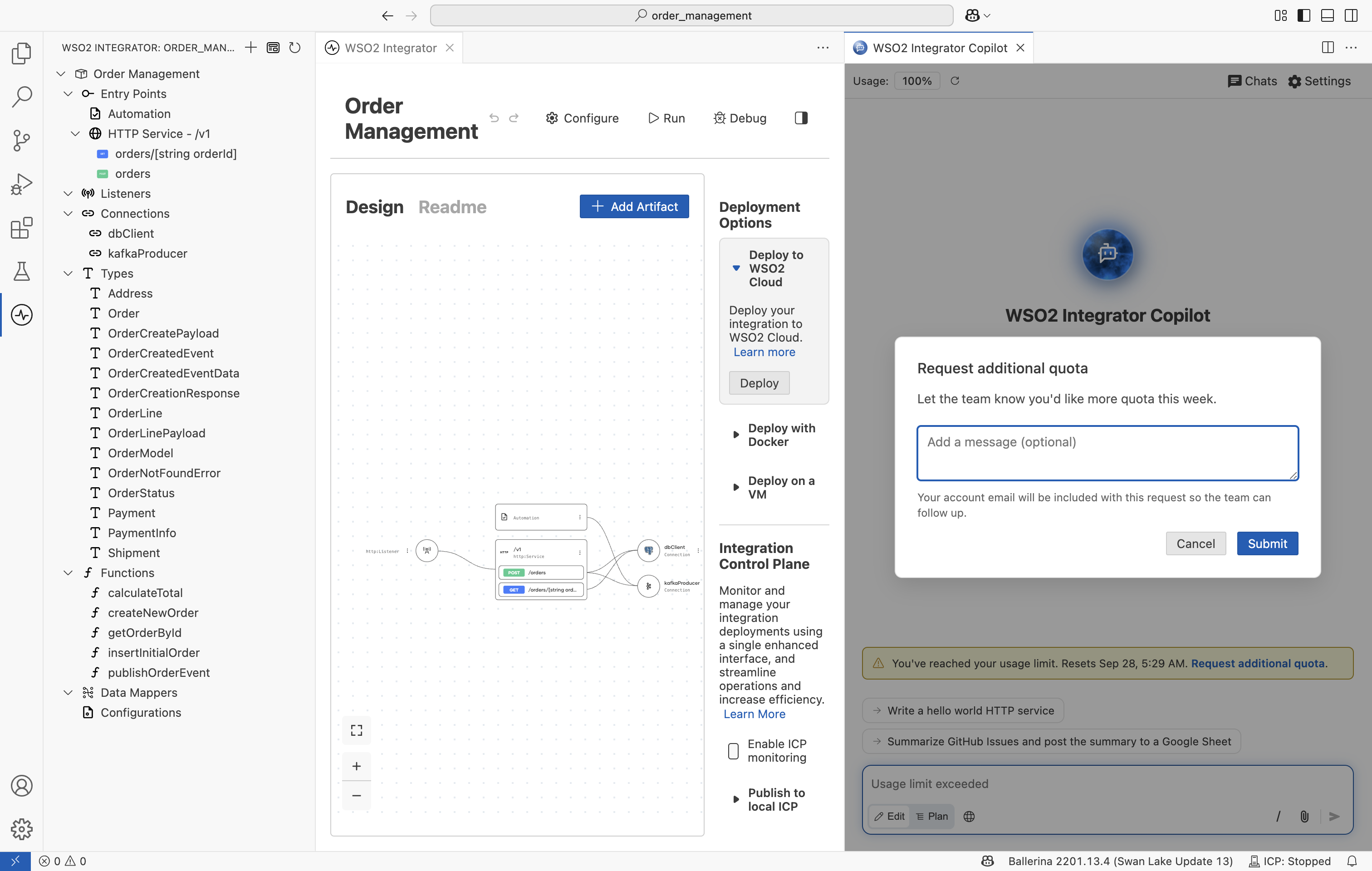
You are welcome to add a short note about what you are working on, then select Submit. Your account email is included with the request so that the team can get back to you.
The team reviews each request and decides how much to grant, so requests are not approved automatically. Once you have submitted a request, the message confirms it and you do not need to ask again.

When the team grants more usage, select the refresh button beside Usage to pick it up.
Get help
If you need assistance while your request is being reviewed, the team is happy to help on Discord.
See also
- WSO2 Integrator Copilot — Sign in to WSO2 Integrator Copilot, including with your own AI provider credentials.
- Copilot Architecture and Data Handling — How Copilot handles your data, and the bring your own key options.