Data Mapper
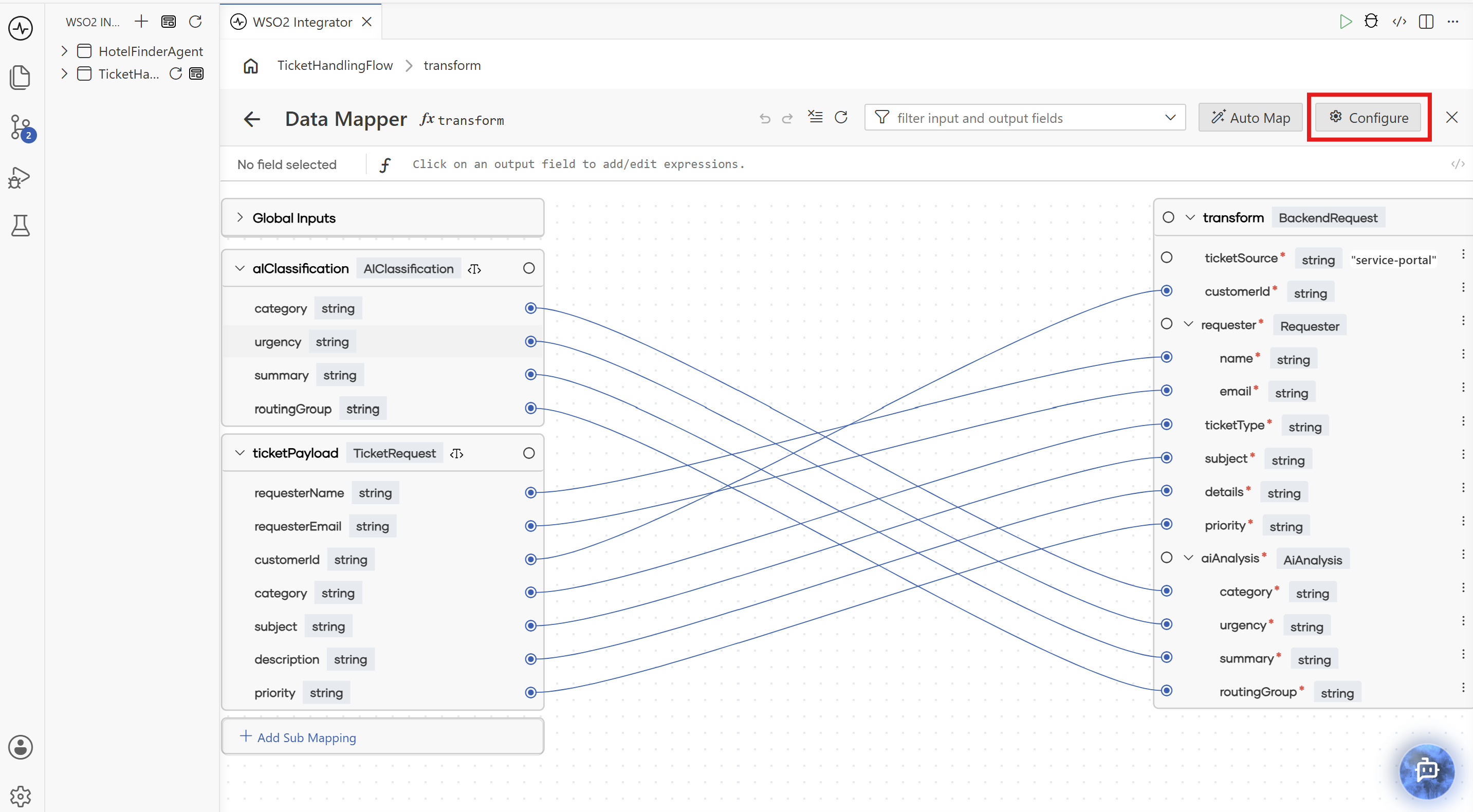
The Data Mapper is the visual surface you open for any data transformation in WSO2 Integrator. It shows the source types on the left, the target type on the right, and the mapping area between them, so you can map fields by creating links or filling expressions instead of writing the conversion function manually. The data mapper is either a typed function with one or more inputs and a single output, or a variable declaration with a supported type. Every change you make here is reflected in the underlying source.
For end-to-end usage, including how to create a data mapper, work with arrays and nested records, and apply transformations, see Data Mapper.
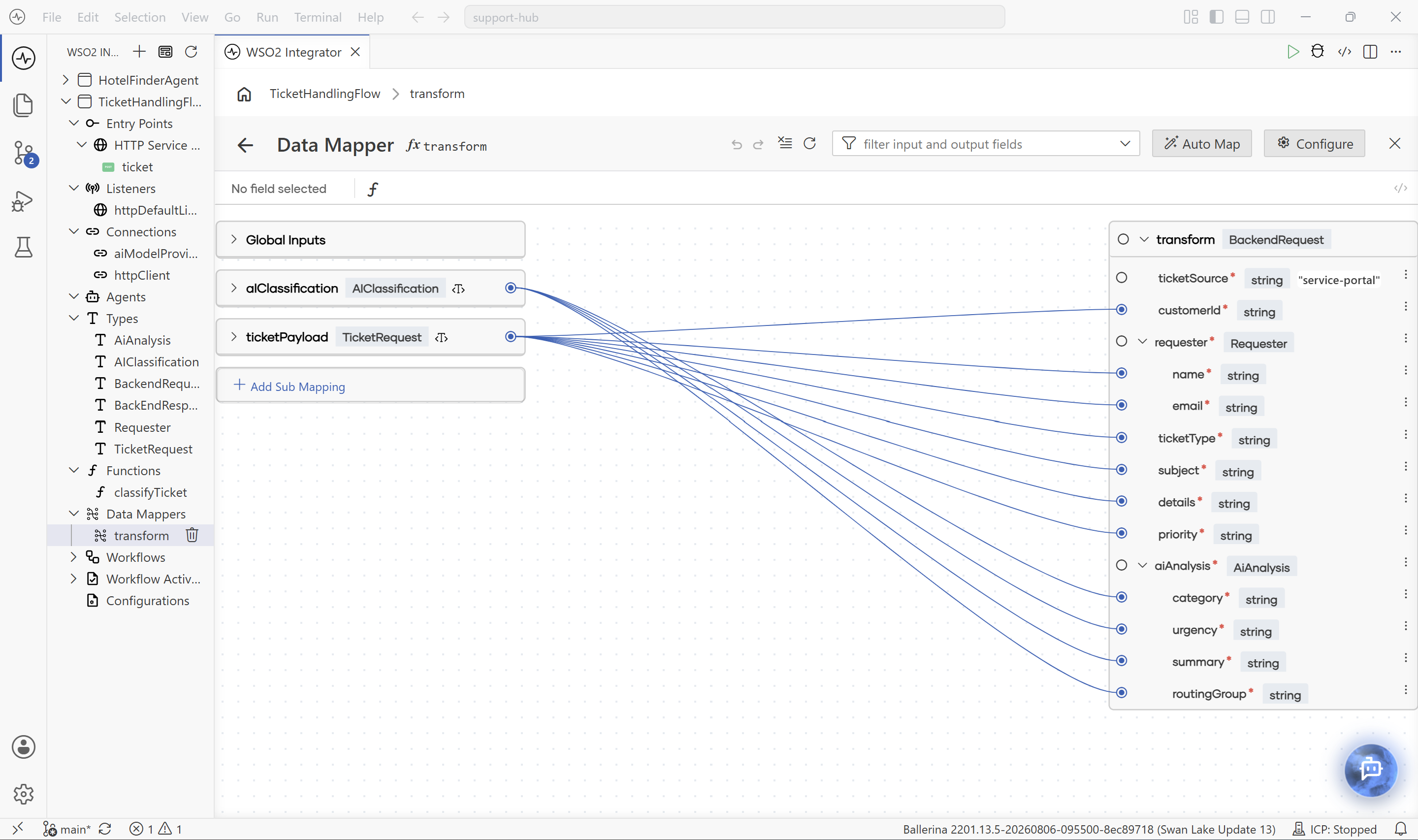
Open the data mapper
Select a data mapper under Data Mappers in the project explorer, or select the View option of the data mapper node from a flow in the Flow Canvas. To open the data mapper for a declare variable node, select the Open in Data Mapper button in the side panel.
To create a new data mapper before opening it, see Data Mapper.
Header
The header runs along the top of the data mapper and combines the breadcrumb, the data mapper title, and the high-level actions.
| Control | Description |
|---|---|
| Breadcrumb | Shows the path from the parent artifact (for example, Commons > transform). Select a segment to return to it. |
| Back | Returns to the previous view. |
| Title | Displays the fx icon followed by the data mapper name (for example, transform). |
| Undo / Redo | Reverses or reapplies recent mapping changes. |
| Clear all | Deletes all mappings. |
| Refresh | Reloads the data mapper to pick up changes made to the underlying types. |
| Filter input and output fields | Filters fields whose names match the search term, useful for large records. |
| Auto Map | Runs the AI-based automatic mapping action described below. |
| Configure | Opens the Configuration Panel for the data mapper. Use it to rename the data mapper, toggle Public, or change its inputs and output. |
| Close | Closes the data mapper and returns to the previous view. |
Expression bar
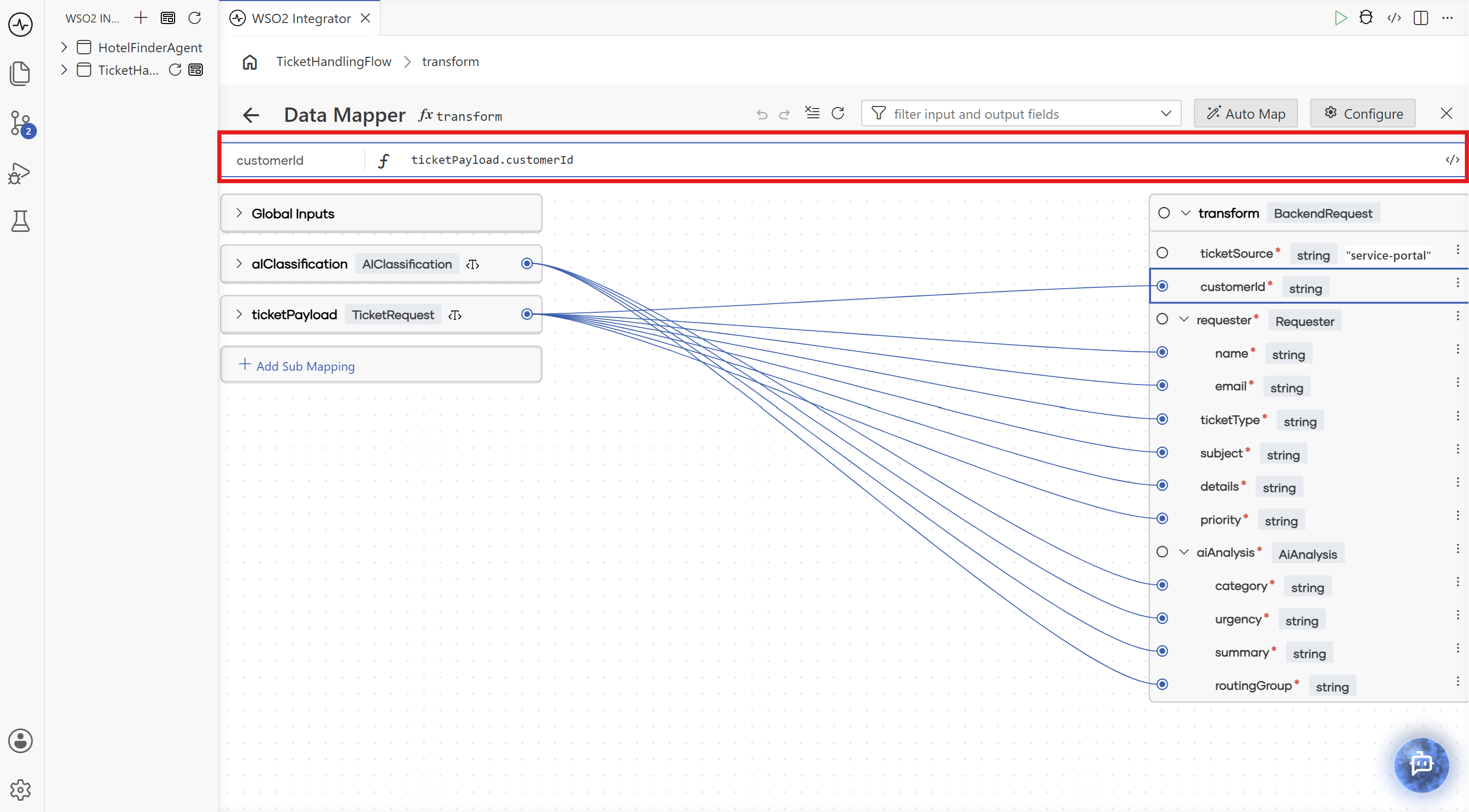
Below the header, the Expression bar shows the field you are currently working with and provides an editor with completion support to write inline expressions when an output field is selected. See Expression bar.
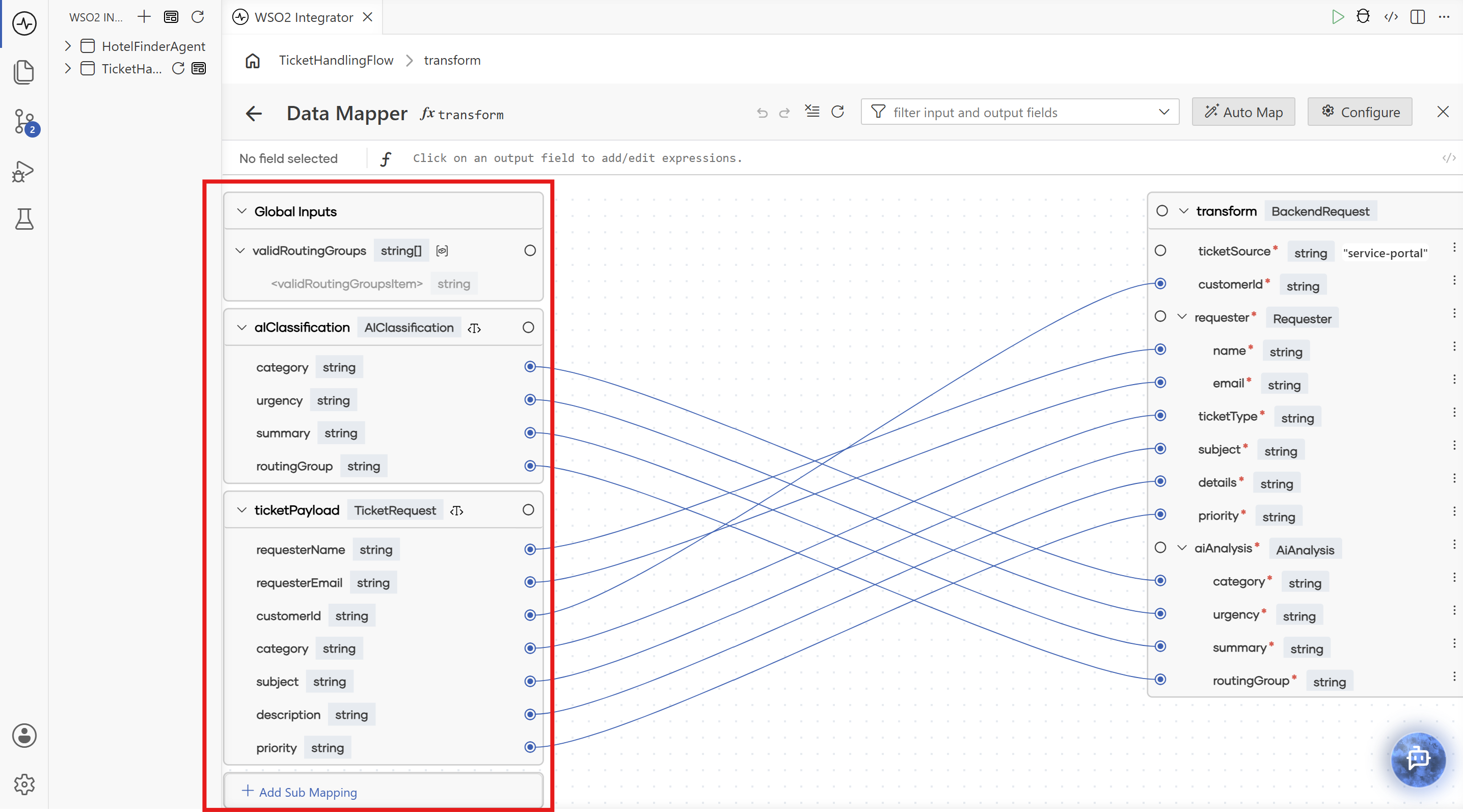
Inputs side
The left side of the data mapper lists every input it receives. Each input appears as a collapsible node showing the parameter name and its type, with each field of the type rendered as a row inside the node.
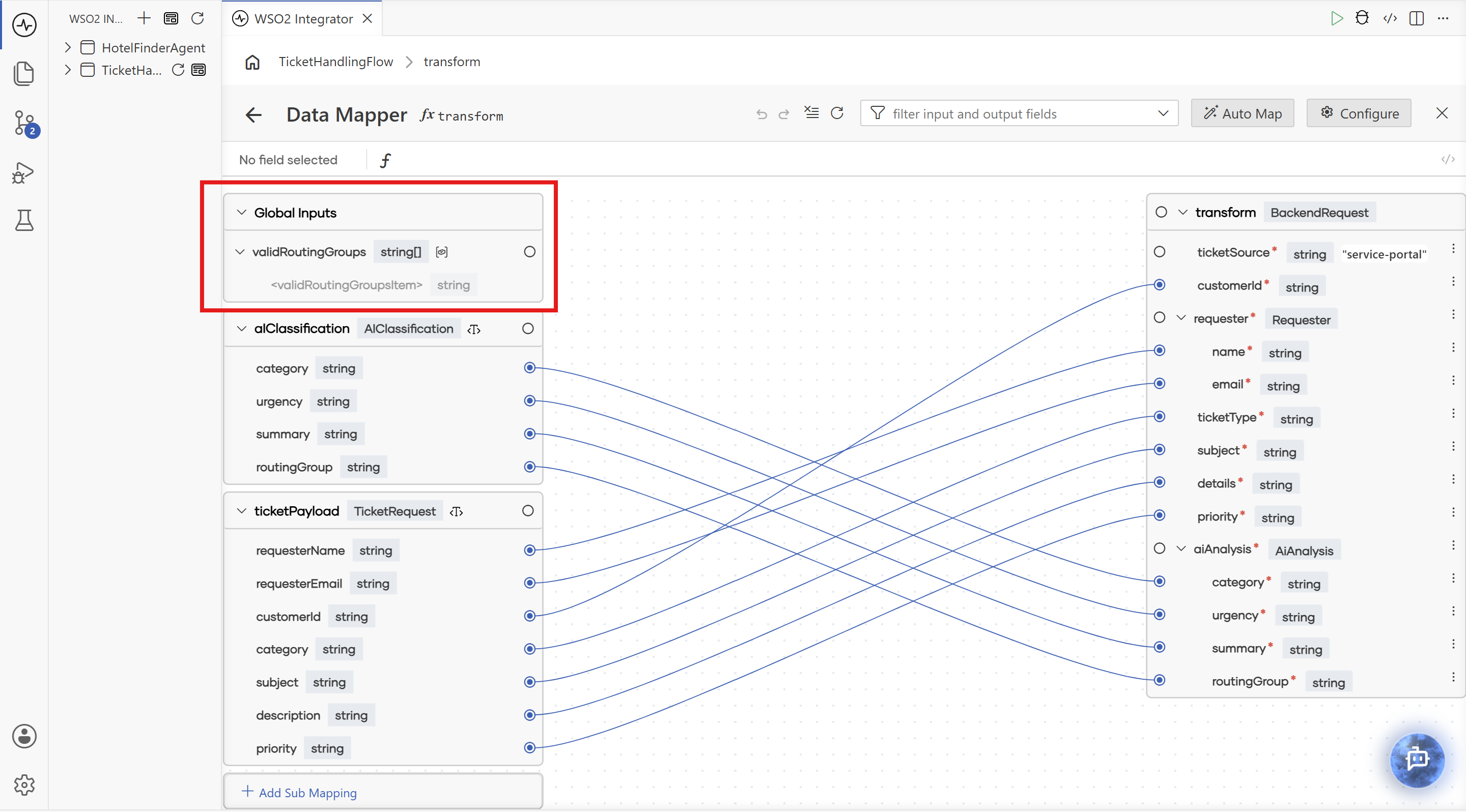
Global Inputs
The Global Inputs section at the top of the inputs side exposes values that are reachable from anywhere in the integration, such as configurable variables. Use this section when a target field should be mapped from global values.
Sub Mappings
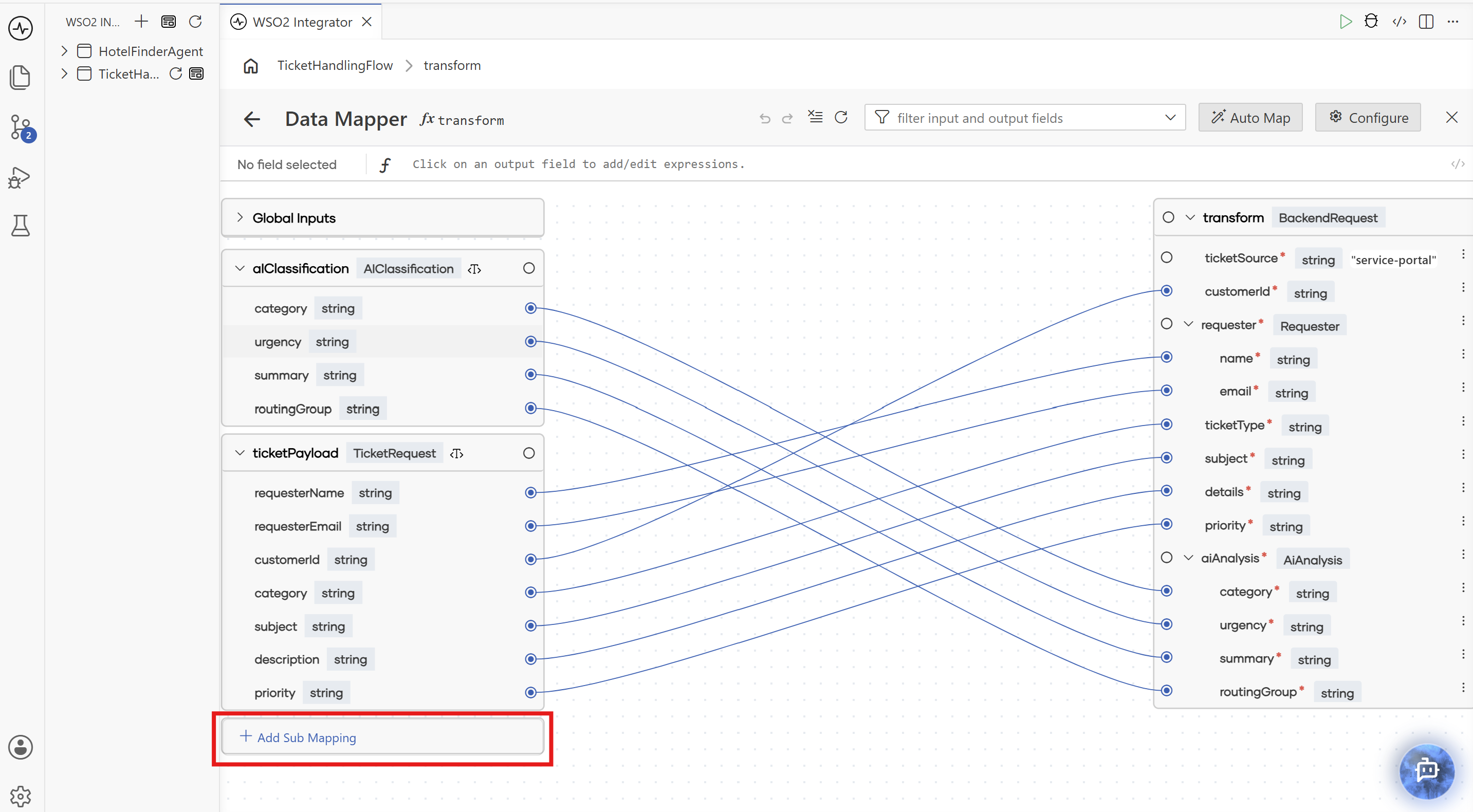
A sub mapping is a named intermediate mapping computed once inside the data mapper and reused across multiple output fields. Select + Add Sub Mapping at the bottom of the inputs side to create one. A sub mapping behaves like an additional input field. Use sub mappings to avoid repeating the same computation across many output fields, or to break a complex transformation into named steps. See Sub Mappings.
Output side
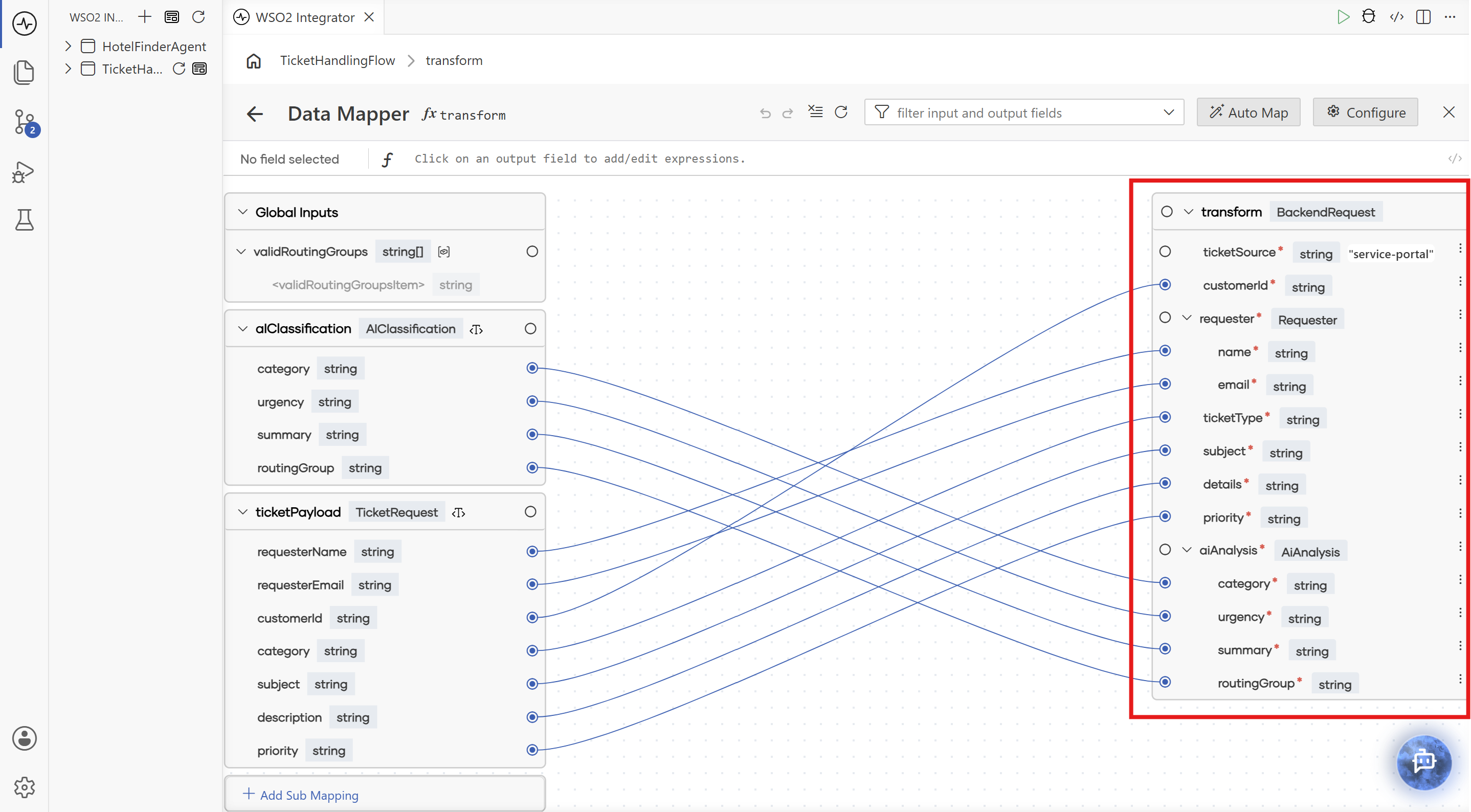
The right side of the data mapper shows the output type with each field rendered as a row. Every required field is marked with a red asterisk. Use the ⋮ menu on a field to access available field options.
Mapping area
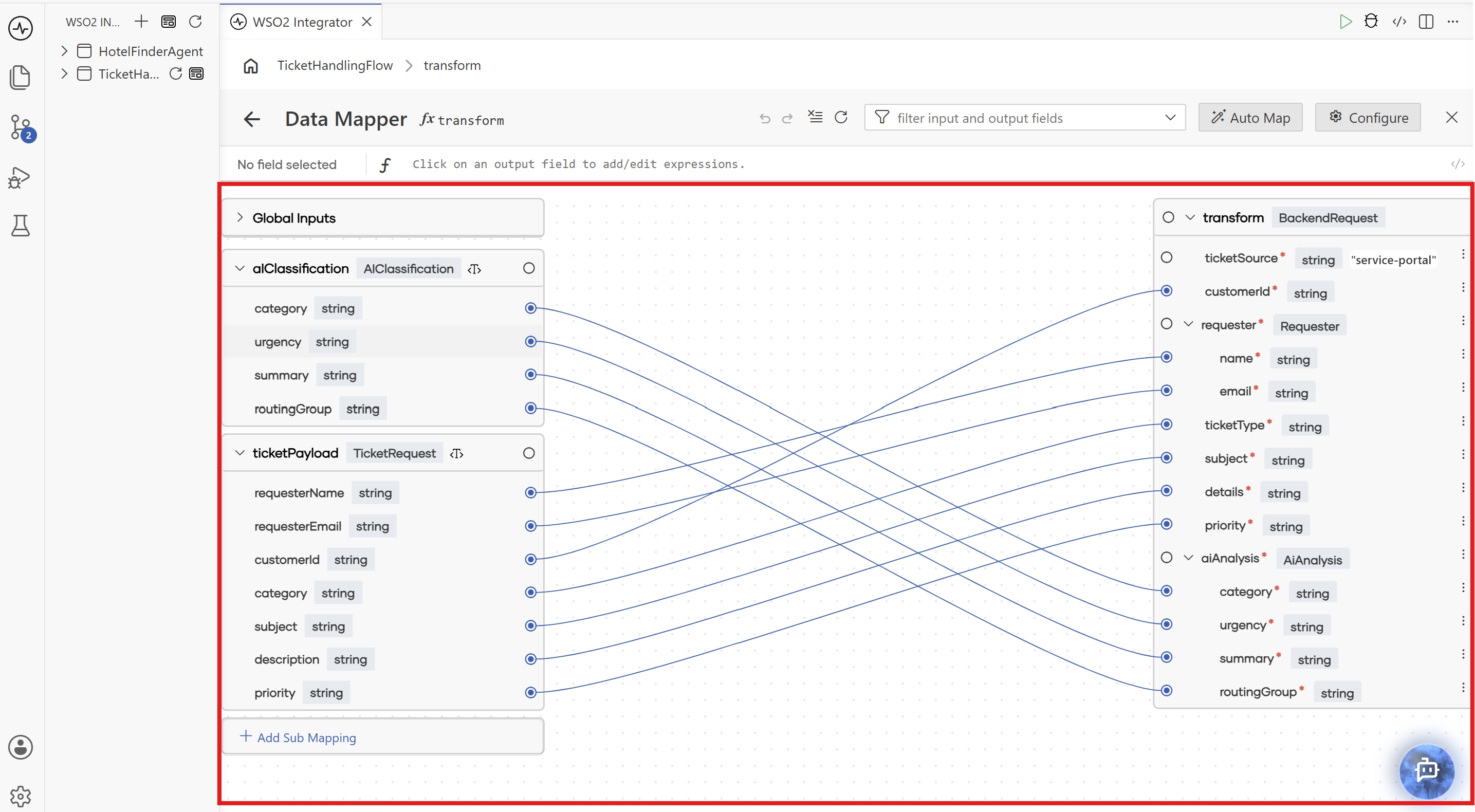
The mapping area is the central region between the input and output sides. Links on this area represent mapping connections.
- Select an input field, then select the desired output field to create a mapping. See Mapping capabilities.
- Select an existing link to see available options for that mapping.
- When there is an issue with a created mapping, the corresponding link shows a diagnostic so you can fix it using the available code actions or the expression bar.
Auto Map
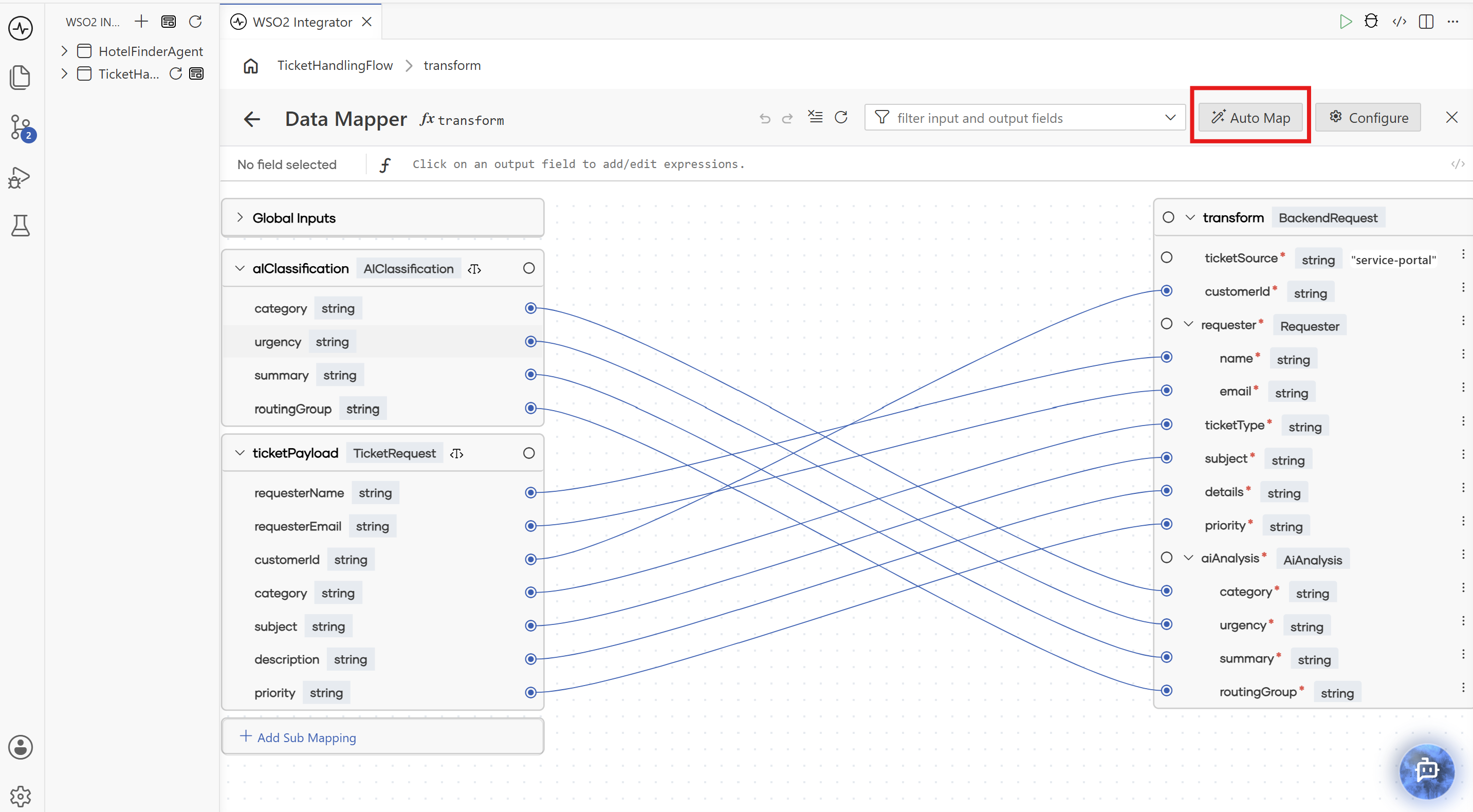
Auto Map in the header opens the WSO2 Integrator Copilot panel alongside the canvas with the /data-map skill preloaded. Submit it to let the Copilot read the project files and generate field mappings based on the input and output types. When complete, mapping lines appear on the canvas.
For more, see AI data mapping.
Configure
Configure in the header opens the data mapper's configuration. Use it to rename the data mapper, toggle Public, or change the Inputs and Output (the same fields you set when you created the data mapper). Any change you make there is reflected in the data mapper when you return.
What's next
- Data Mapper: end-to-end guide to creating and using data mappers.
- Type Panel: define the record types the data mapper maps between.
- Flow Canvas: invoke the data mapper from a flow node.