Manage a Knowledge Base
To manage a Knowledge Base, navigate to AI Services > Knowledge Base and select it from the list. The details page features four tabs that let you configure, connect, and operate your service.
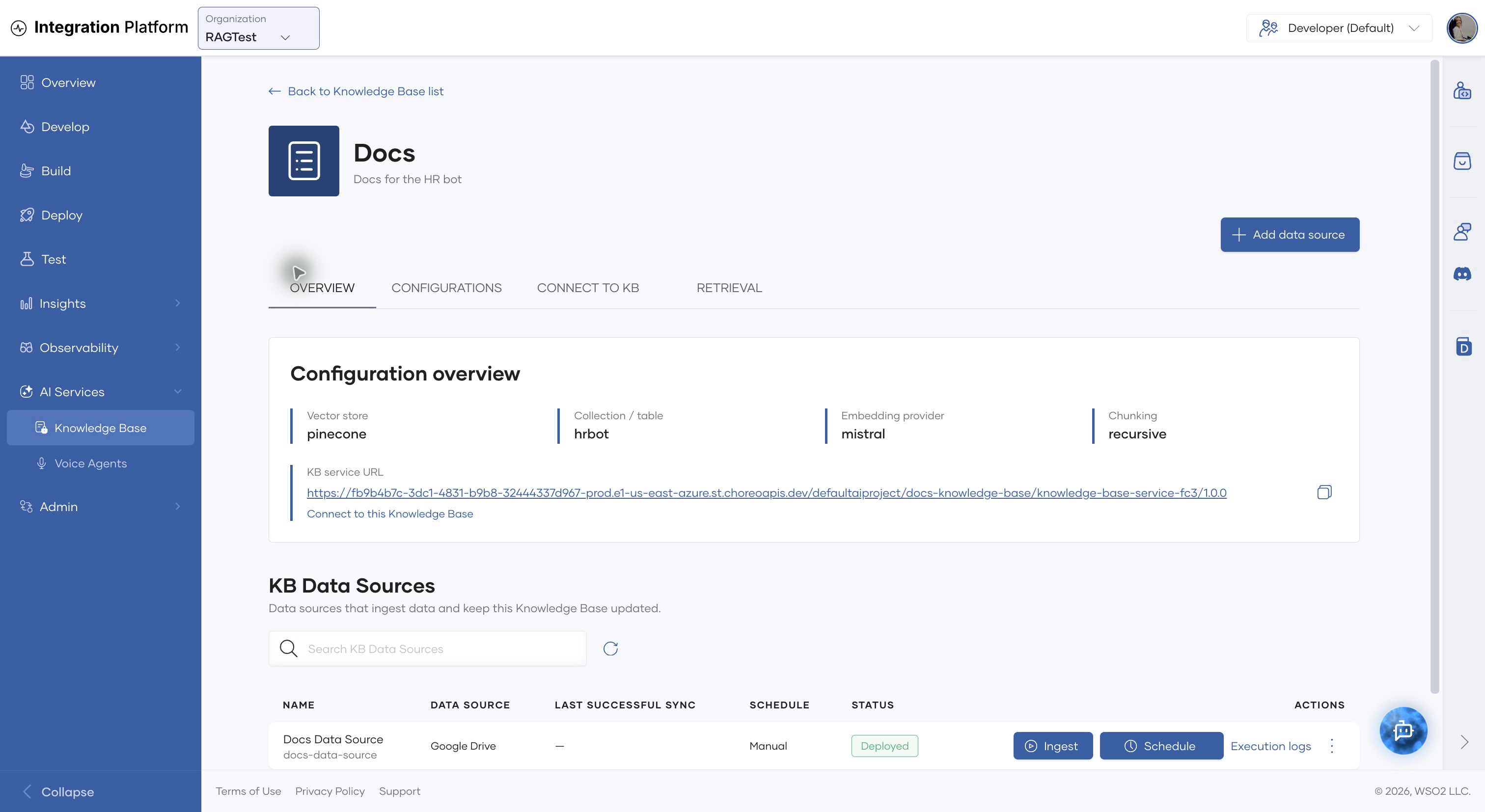
| Tab | What you can do |
|---|---|
| Overview | Review the configuration and service URL; add, search, ingest, schedule, inspect, and remove KB data sources. |
| Configurations | Review environment configuration values and open Edit Knowledge Base. Secret values are not displayed. |
| Connect to KB | Copy the service URL, view KB services, and open the Developer Portal to obtain an API key. |
| Retrieval | Send a test query and tune the maximum result count, similarity threshold, and optional Cohere reranking. |
Manage data sources
On Overview, click Add data source to attach Google Drive or Amazon S3. A Knowledge Base can have multiple data sources.
For each source, the table shows its type, last successful sync, schedule, and deployment status. Use its actions to:
- Click Ingest to start a run immediately.
- Click Schedule to add or change an interval or cron schedule.
- Open Execution logs to inspect completed and failed runs.
- Open the actions menu to access the data-source component or delete it.
After adding or changing a data source, wait until its status is Deployed before starting ingestion. Use the latest successful sync time and execution logs to confirm that content is current.
Edit the Knowledge Base configuration
- Open Configurations.
- Click Edit Knowledge Base.
- Update the name, description, or configuration values.
- Leave a secret field blank to keep its current value. Enter a value only when rotating or replacing that secret.
- Click Update.
Configuration changes affect every component that uses the Knowledge Base. WSO2 Cloud attempts to redeploy those components and notifies you if any deployment requires manual attention. If you change the embedding model, collection, index, table, or chunking settings, re-ingest content and retest retrieval before directing production traffic to it.
Connect an application
Open Connect to KB to copy the KB service URL and review the generated KB service.
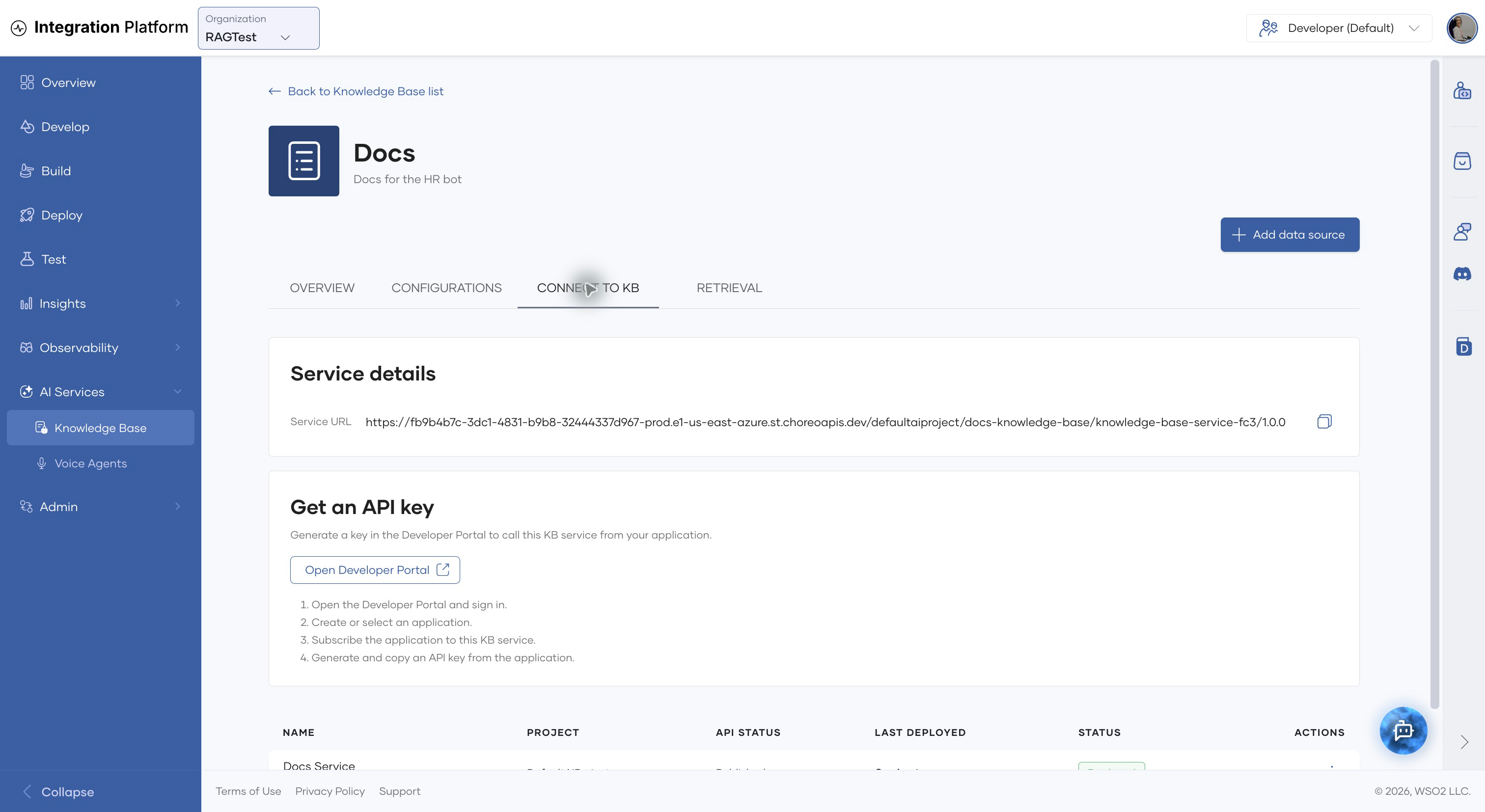
To call the service from an external application:
- Click Open Developer Portal and sign in.
- Create or select an application.
- Subscribe the application to the KB service.
- Generate an API key for the application and store it securely.
- Call the copied service URL with the generated key.
To use the Knowledge Base from a WSO2 Integrator project, add a WSO2 Cloud Knowledge Base connection and select the provisioned Knowledge Base. See Connect to an existing WSO2 Cloud Knowledge Base.
Test retrieval
- Open Retrieval.
- Optional: Click Query Configurations and adjust:
- Maximum chunks to retrieve (default
5). - Minimum similarity threshold (default
0.7). A higher value filters out less similar chunks. - Enable Reranking to reorder results with Cohere. This requires a Cohere API key.
- Maximum chunks to retrieve (default
- Enter a question that is answered by the ingested content.
- Click Send and inspect the returned chunks.
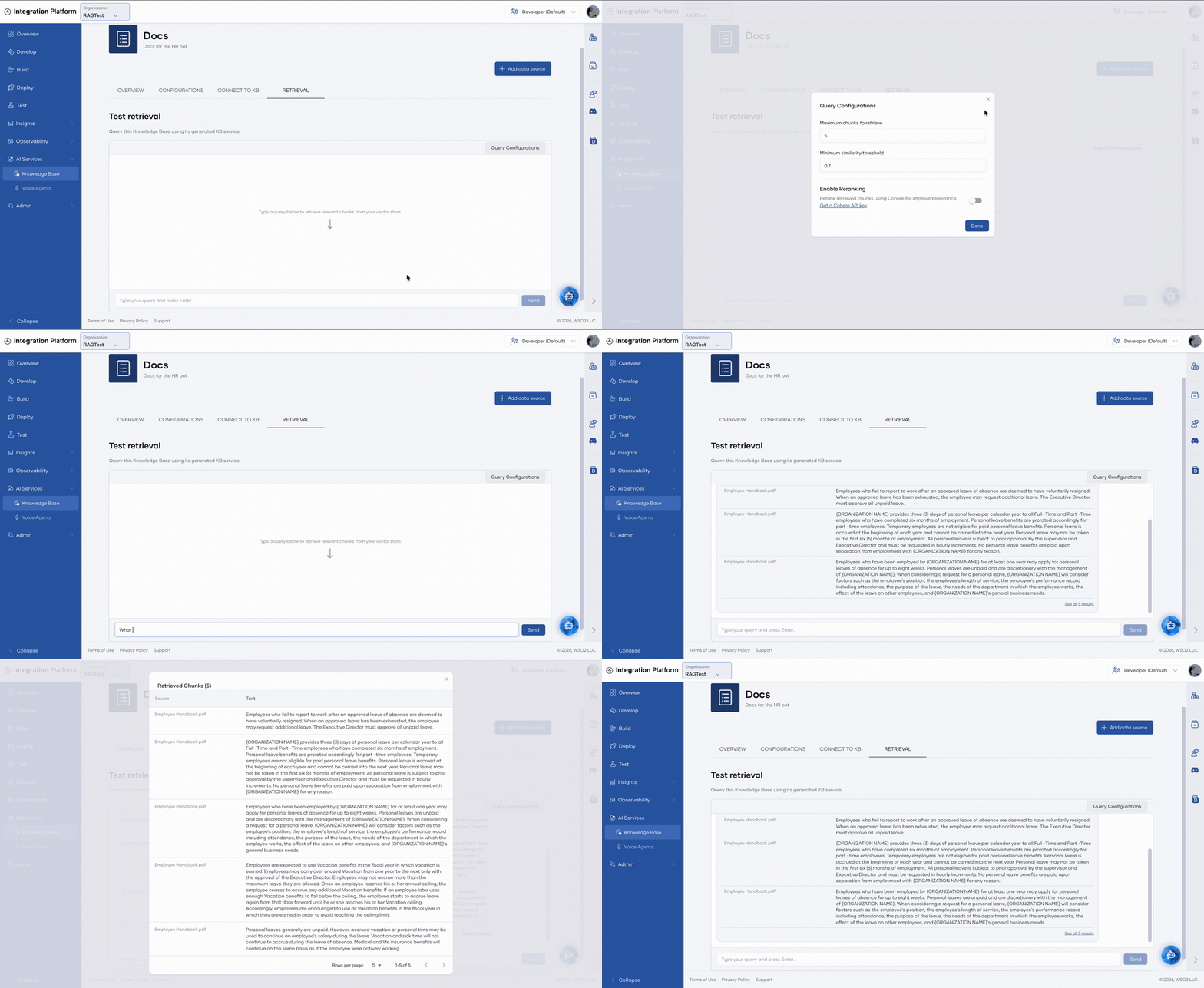
If no useful chunks are returned, check the data source's last successful sync and execution logs first. Then try a lower similarity threshold or a higher maximum chunk count. If results are still poor, review the chunking settings and confirm that ingestion and retrieval use the same embedding model.
Delete a Knowledge Base
Delete a Knowledge Base from the Knowledge Base list. Deletion is available only when no components depend on it. Before deleting it:
- Remove its KB data sources.
- Remove its KB services.
- Disconnect integrations and any other dependent components.
- Return to the Knowledge Base list and use the delete action.
Deleting a Knowledge Base removes the managed configuration. Confirm separately whether content in an externally managed vector store must also be removed according to your data-retention requirements.