Create a Project
A project is a workspace that organizes multiple integrations and libraries in a single repository with shared dependencies. Use projects when you need to manage related packages together.
Open project creation form
To start creating a new project:
- Open the WSO2 Integrator.
- Locate the Create a Project card on the main dashboard.
- Click Create to open the project creation form.
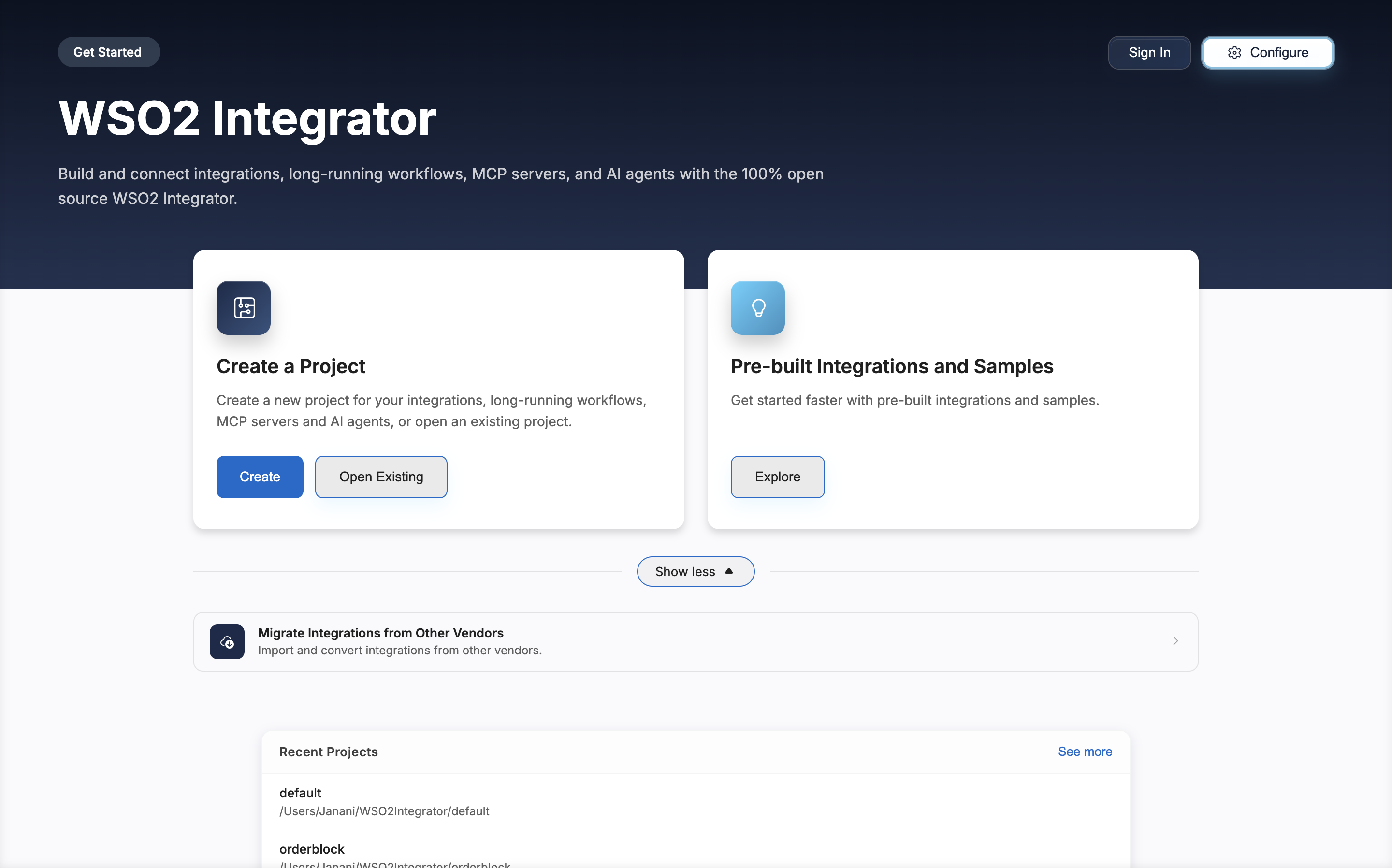
If you have an existing project, click Open Existing on the Create a Project card or select the project from the Recent Projects list. For details, see Open a project.
To import integrations from other vendors and convert them to WSO2 Integrator format, check Migrate Integrations from Other Vendors.
Configure the project
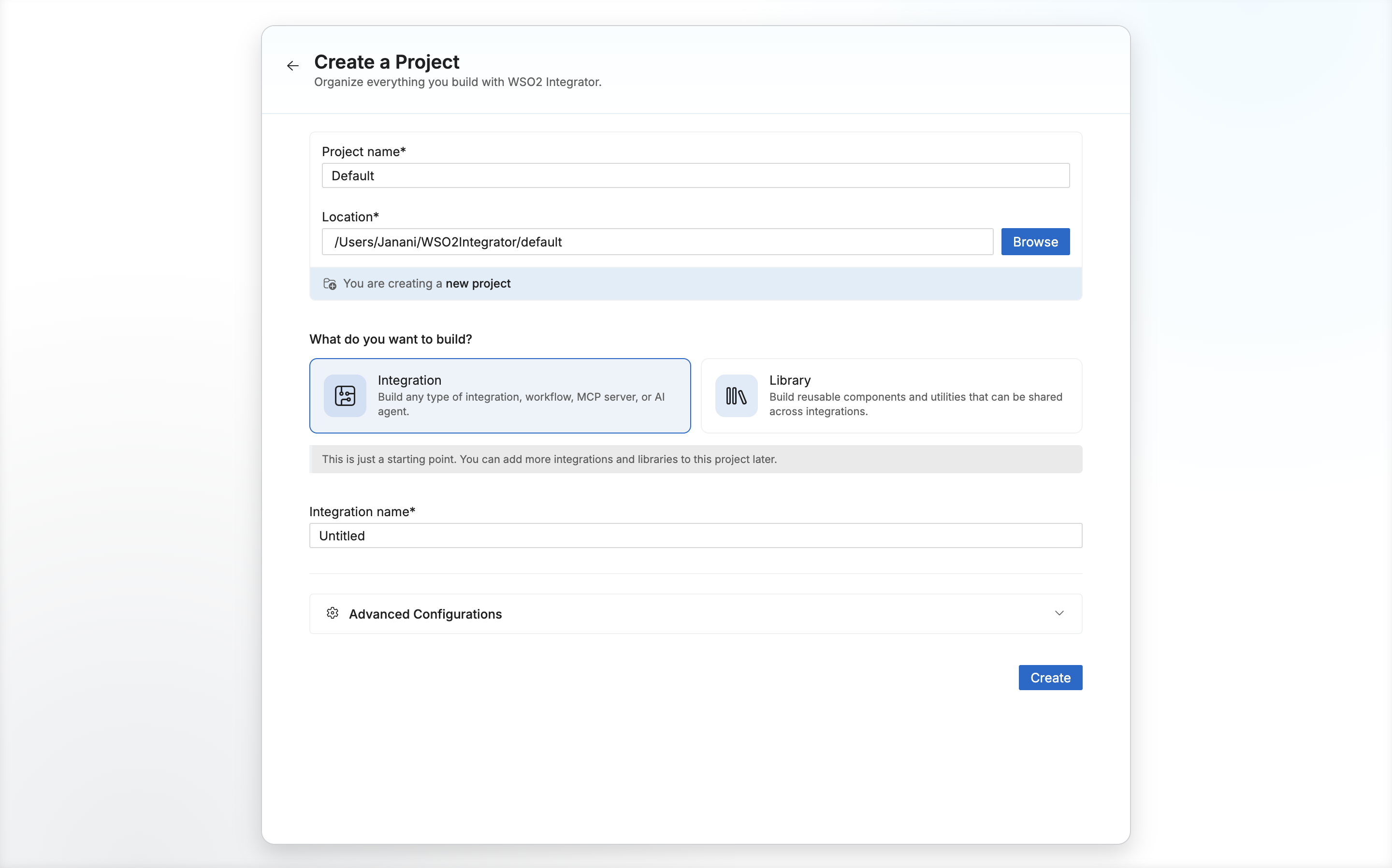
In the Create a Project form, define the core properties of your workspace and select your starting component.
- Add the project details:
| Field | Description | Default |
|---|---|---|
| Project name | A name for your project. | Default |
| Location | The directory where the project will be created. Click Browse to select a specific folder. | ~/WSO2Integrator |
- Under the What do you want to build? section, select your starting component:
- Integration: Build any type of integration, workflow, MCP server, or AI agent.
- Library: Build reusable components and utilities that can be shared across integrations.
Note: This initial selection is just a starting point. You can add more integrations and libraries to this project later.
- Enter a name for your initial component in the Integration name (or Library Name) field.
Advanced configurations
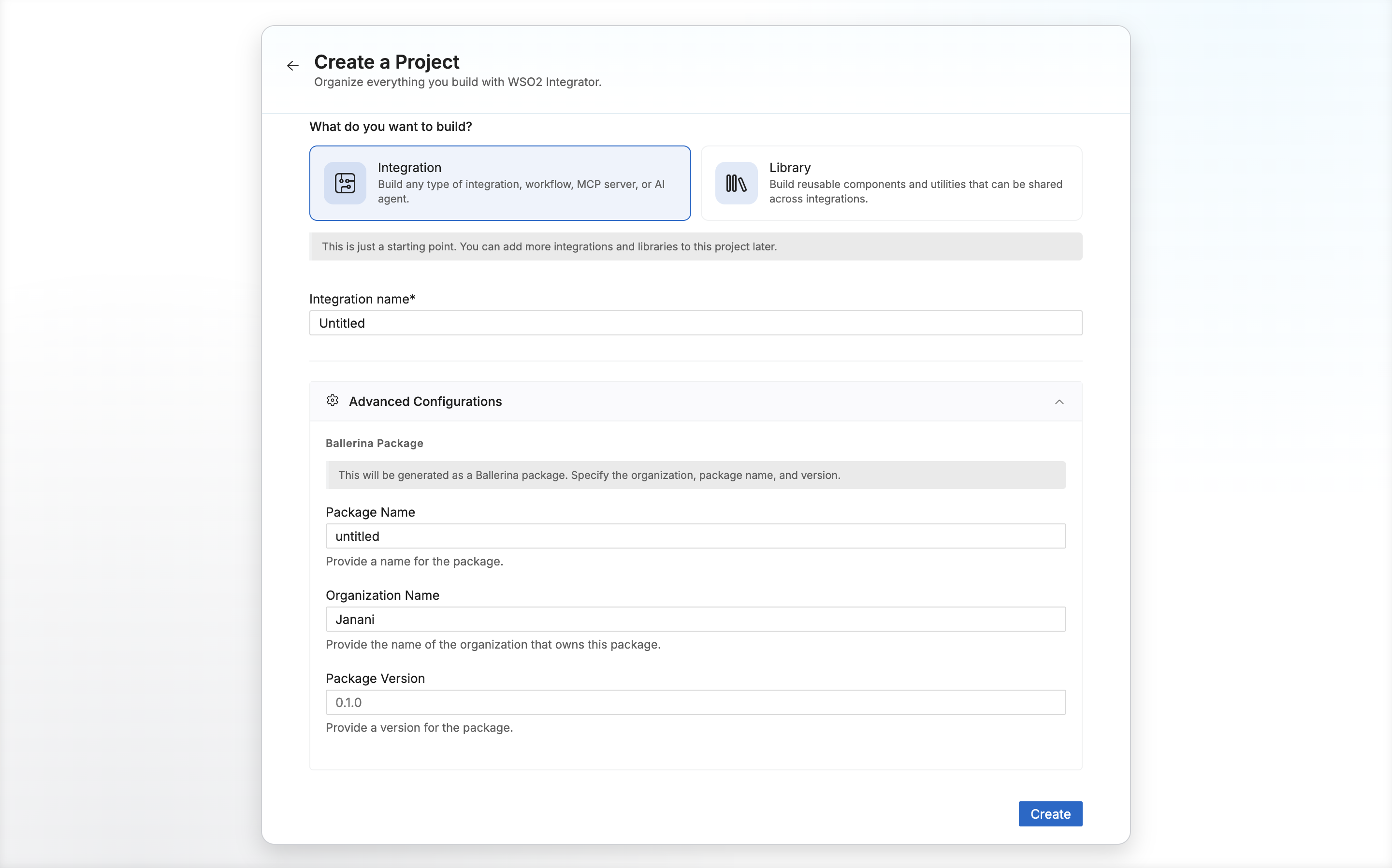
Expand the Advanced Configurations panel to specify the Ballerina Package details. This section defines how the underlying Ballerina package is generated:
| Field | Description |
|---|---|
| Package Name | Provide a name for the package. |
| Organization Name | Provide the name of the organization that owns this package. |
| Package Version | Provide a version for the package. |
- Click Create to generate the project and open the workspace.
Add more integrations and libraries
To add more components, switch to the Project view by clicking Overview in the sidebar. The project view lists all integrations and libraries in the project.
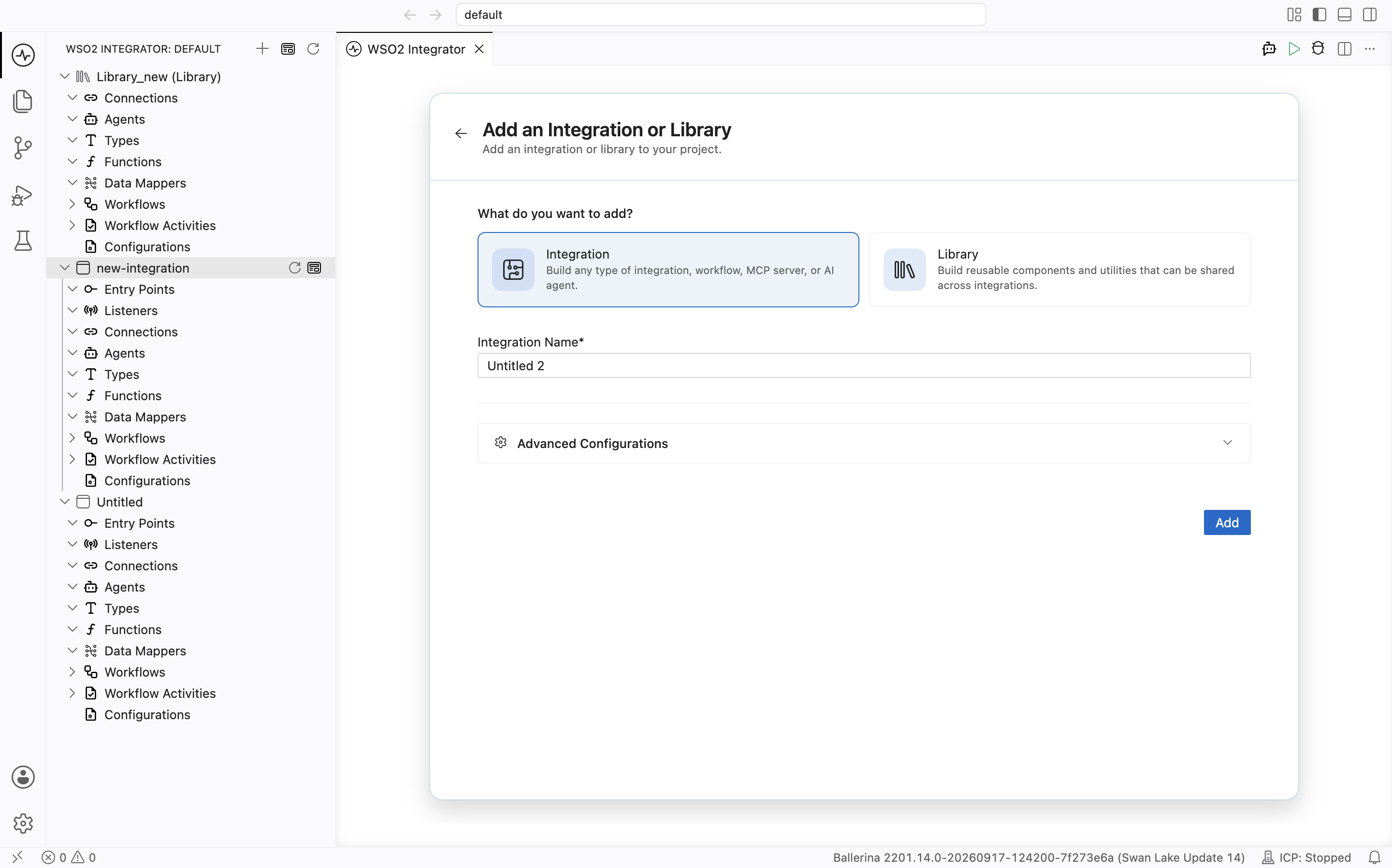
Click + Add under the Integrations & Libraries card. Then Add an Integration or Library form opens.
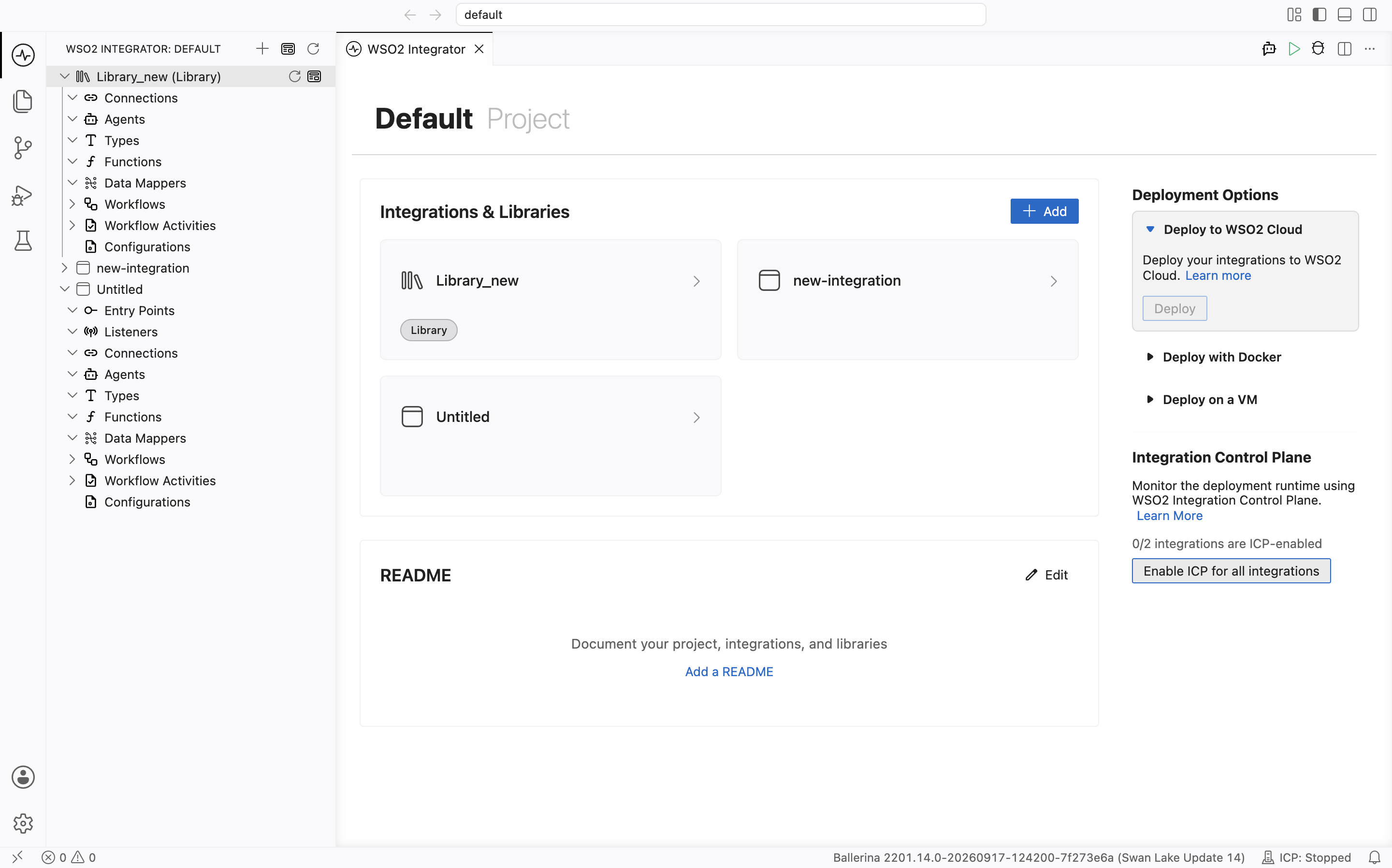
Every project, integration, and library view has its own README file. Use it to document that specific project, integration, or library.
Add an integration
-
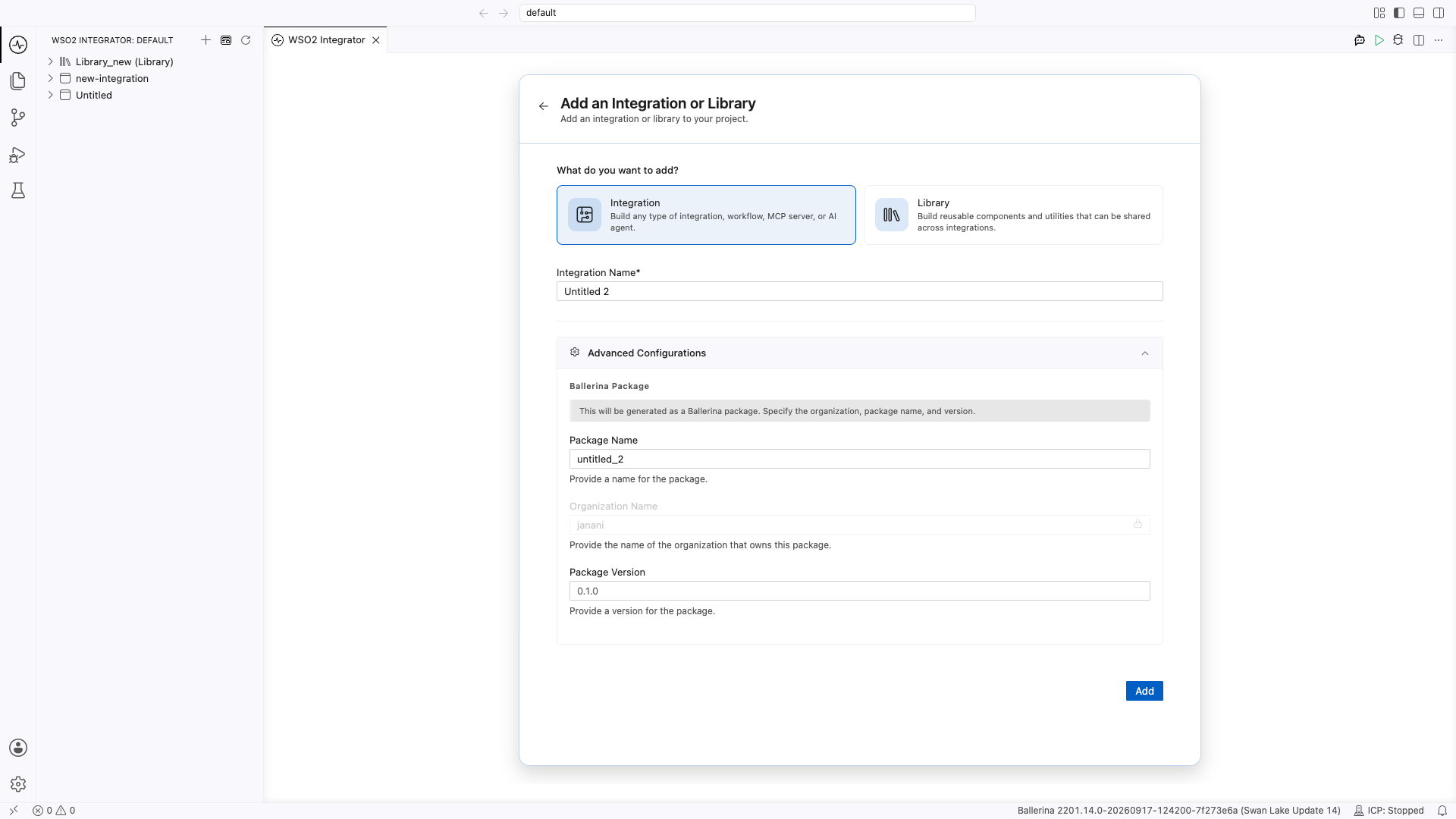
Select Integration as the type.
-
Enter an Integration Name (defaults to
Untitled). -
Optionally expand Advanced Configurations to set Ballerina package details:
Field Description Package Name The Ballerina package name. Defaults to the integration name (for example, untitled).Organization Name Inherited from the parent project and shown as read-only. Package Version The initial version of the package. Defaults to 0.1.0. -
Click Add.
Add a library
-
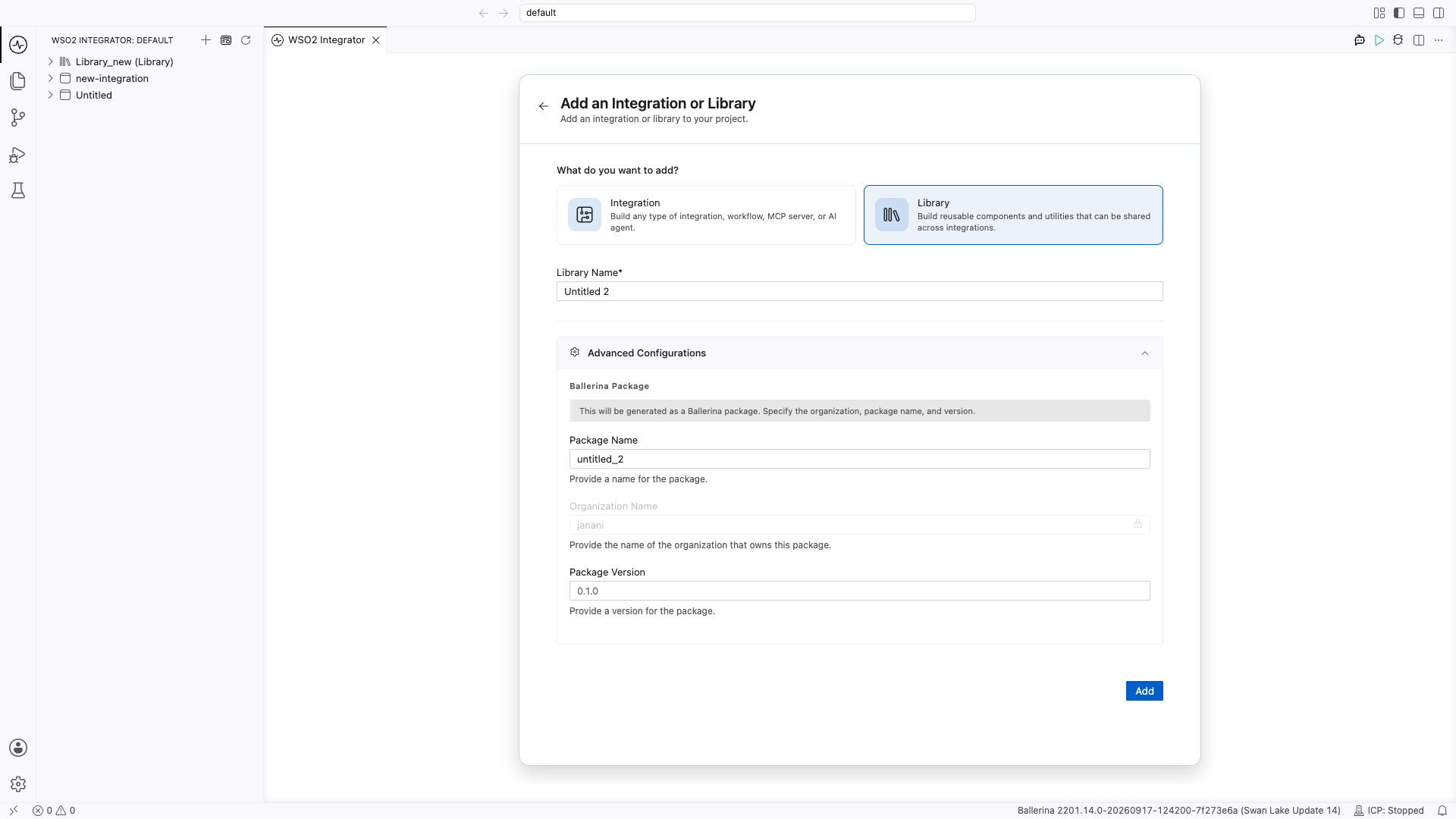
Select Library as the Type.
-
Enter a Library Name (defaults to
Untitled). -
Optionally expand Advanced Configurations to set the same Ballerina package fields as above. Organization Name is inherited from the parent project.
-
Click Add.
What's next
- Open a project — Open an existing project
- Explore sample integrations — Start from a pre-built sample integration