Open a Project
If you already have a project, you can open it from the WSO2 Integrator home screen. You can open projects stored locally on your machine or clone cloud projects from your WSO2 Cloud organization.
On the WSO2 Integrator home screen, click Open Existing on the Create a Project card.
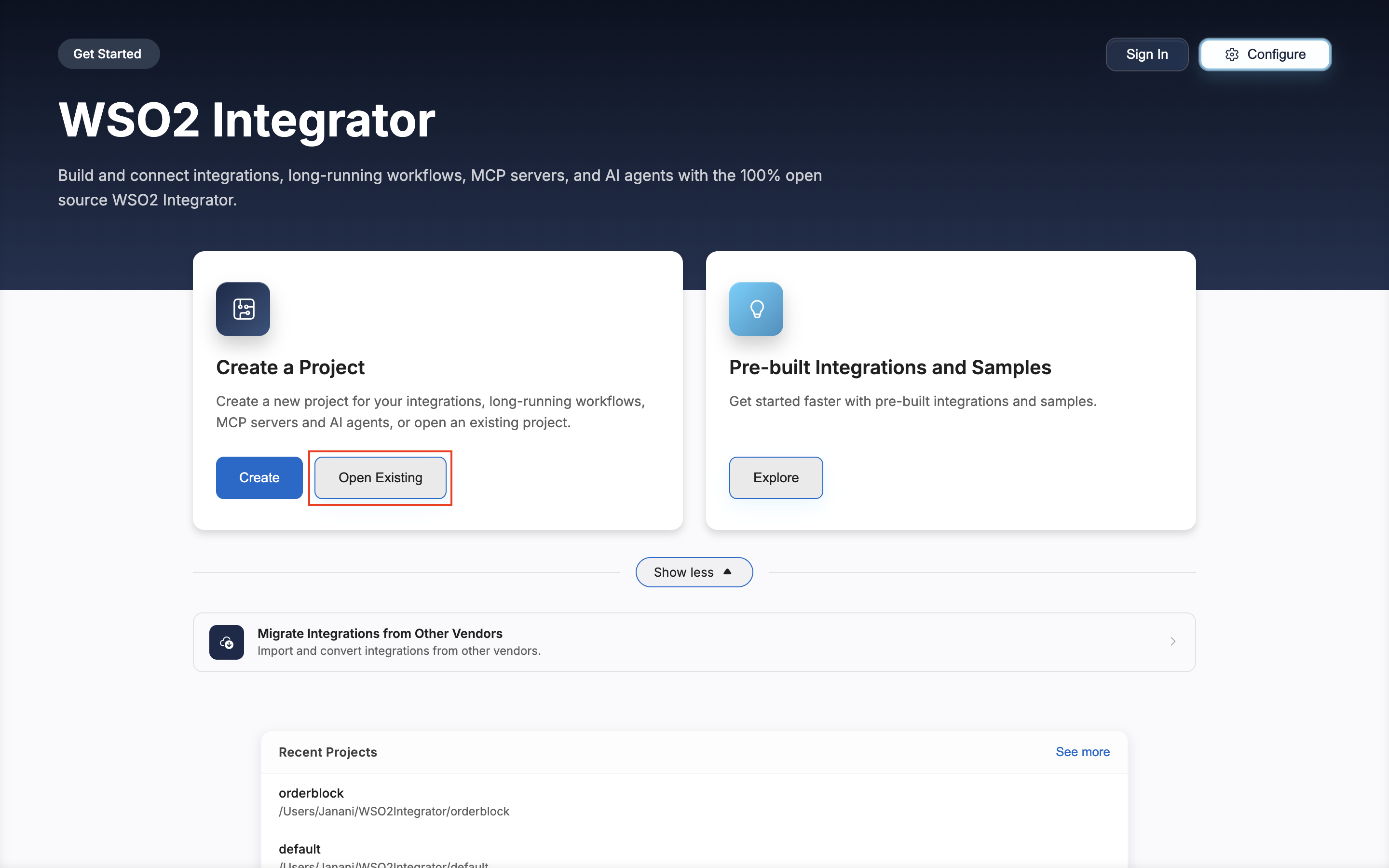
To import integrations from other vendors and convert them to WSO2 Integrator format, check Migrate Integrations from Other Vendors.
Choose a source
The form opens with the prompt Choose how you'd like to open a project and presents two cards.
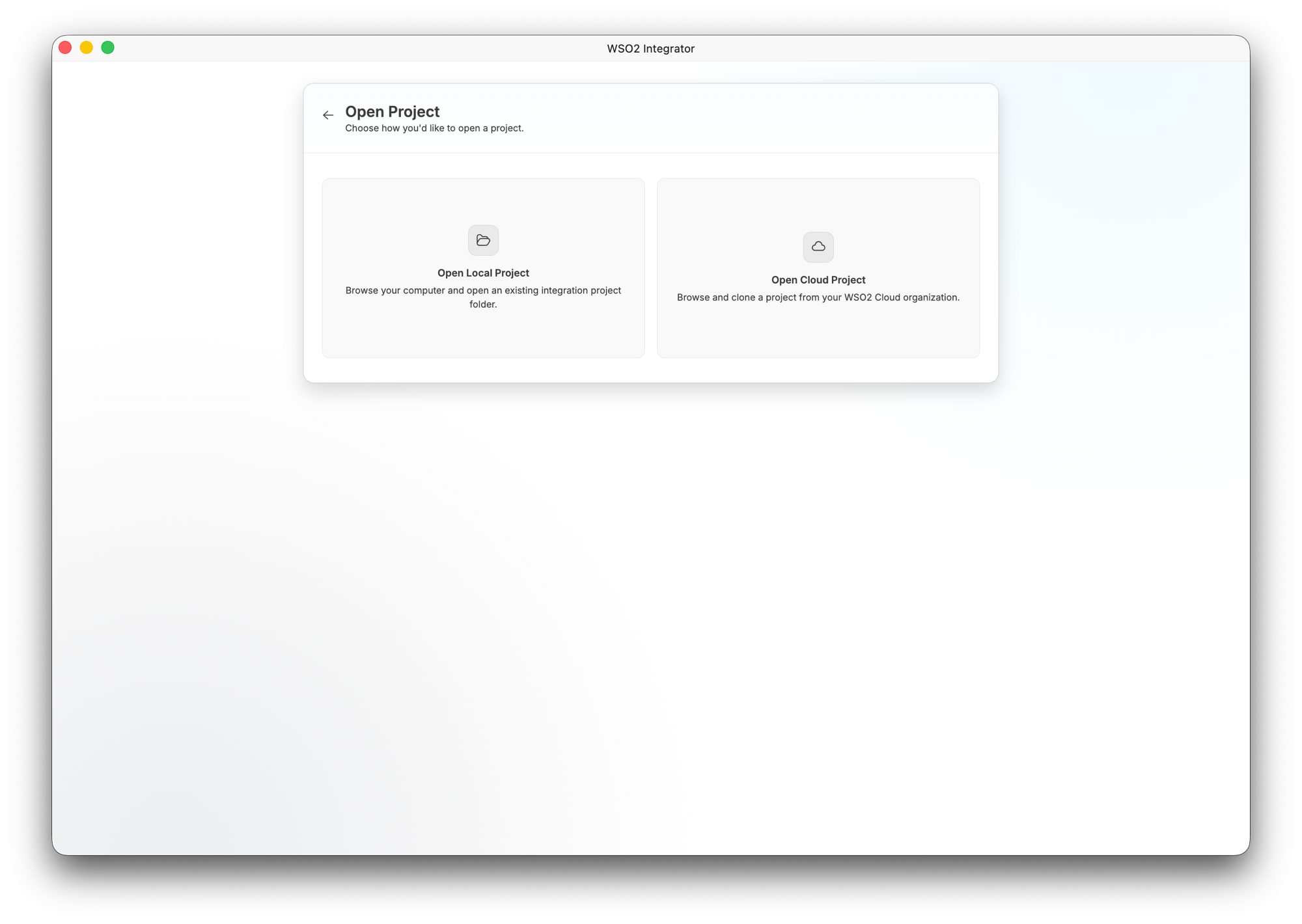
- Open Local Project — Browse your computer and open an existing integration project folder.
- Open Cloud Project — Browse and clone a project from your WSO2 Cloud organization.
Open a local project
- Click Open Local Project.
- A native file browser appears. Navigate to the directory that contains your project.
- Select the project folder and click Open.
WSO2 Integrator detects the project structure and opens the project view.
Open a cloud project
-
Click Open Cloud Project.
-
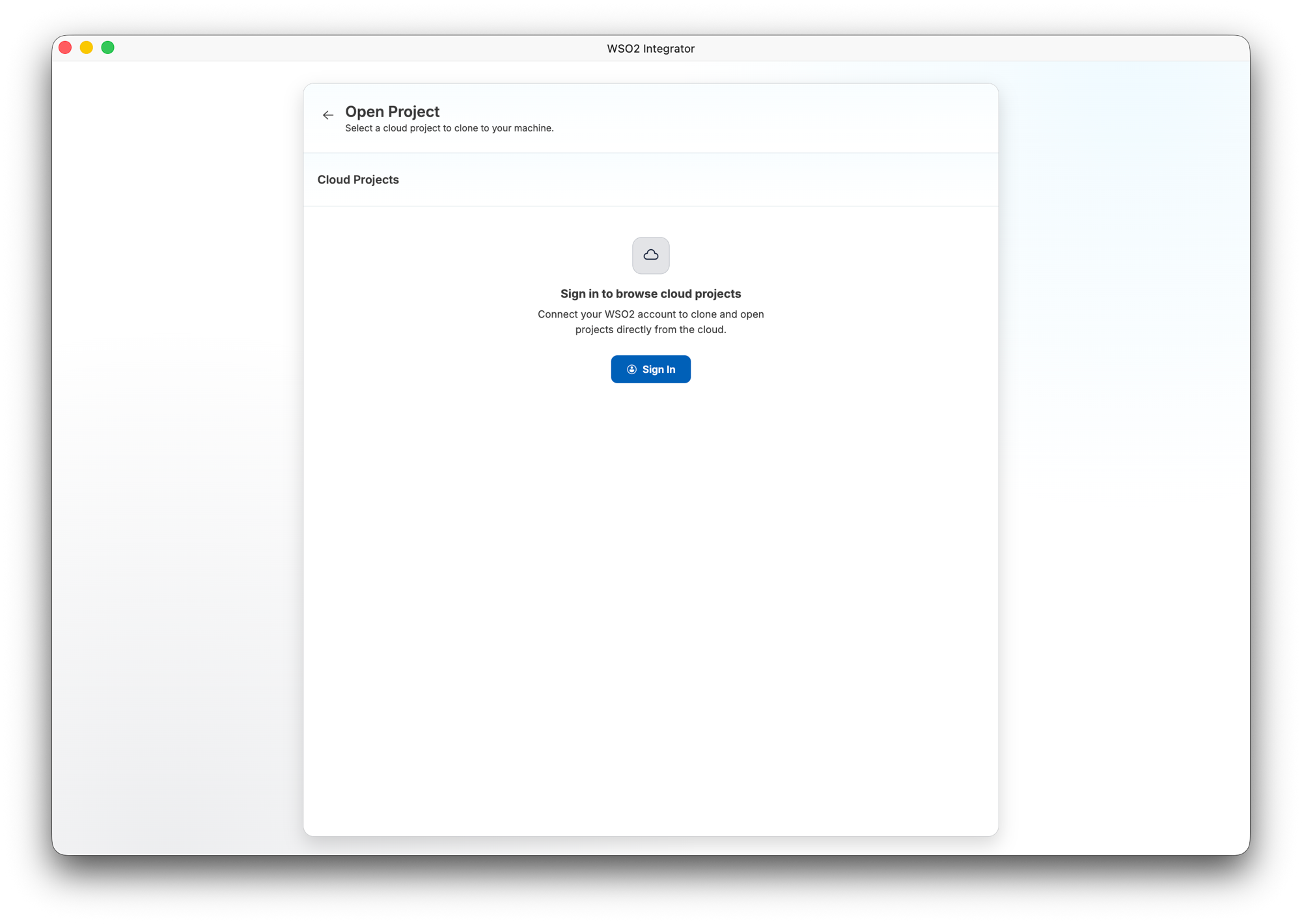
Click Sign In to connect your WSO2 account (if you are not already signed in).
-
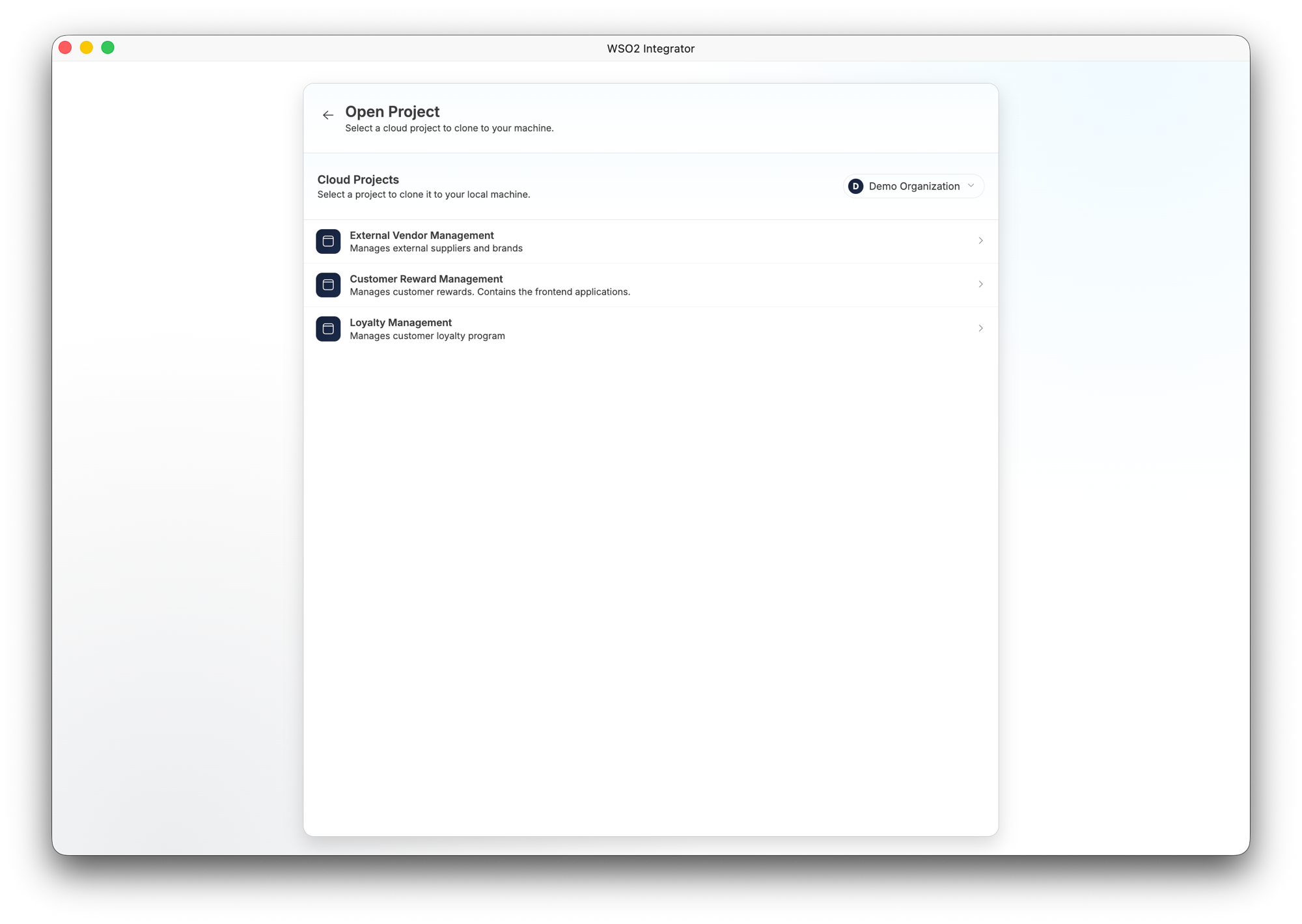
After signing in, the form lists the cloud projects available in your organization. The active organization is shown at the top right (for example, Demo Organization), and each entry displays the project name and description.
-
Click a project to clone it to your local machine and open it in WSO2 Integrator.
Troubleshooting
If the editor shows WSO2 Integrator cannot start or Your project dependencies need to be updated instead of your project, your installed Ballerina version, or the version that resolved the project's dependencies, is earlier than 2201.14.0. See Moving to Ballerina 2201.14 to update, or to stay on your current version.
What's next
- Project view — Manage, run, and debug your project
- Create a project — Create a new project from scratch