Explore Sample Integrations
WSO2 Integrator includes a curated collection of pre-built integration samples that you can download and open as ready-to-use projects. Use these samples to learn common integration patterns or as starting points for your own projects.
Open the sample gallery
On the WSO2 Integrator home screen, click Explore on the Explore Pre-built Integrations and Samples card.
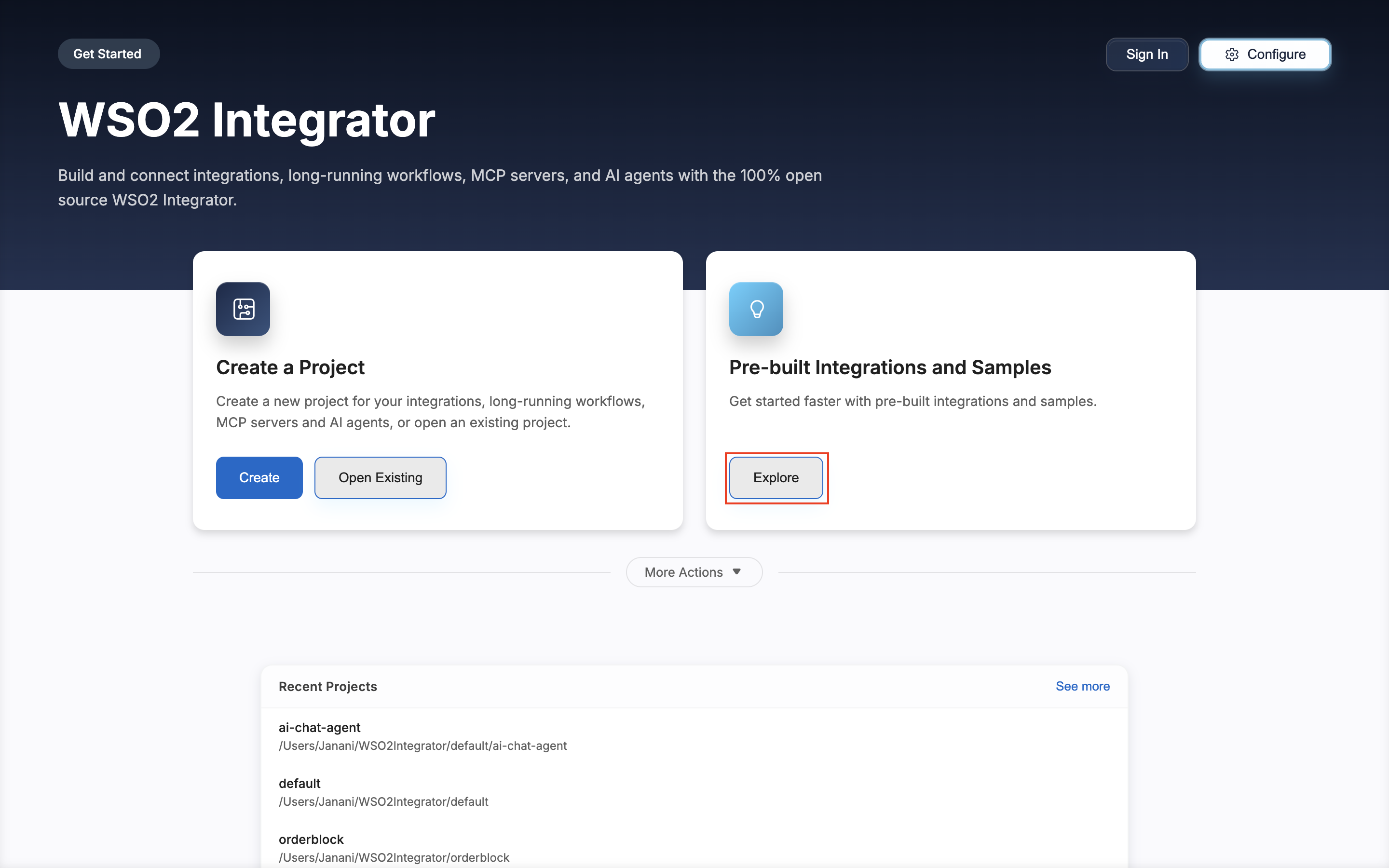
The home screen also shows the Create a Project card, along with a Recent Projects list for projects you've opened recently.
Browse samples
The Browse Samples view opens with the prompt Start quickly by downloading a curated integration sample for your selected profile. Each card shows the sample name, a type tag (for example, ai-agent, service, scheduled-task, automation), a brief description, and a Use action.
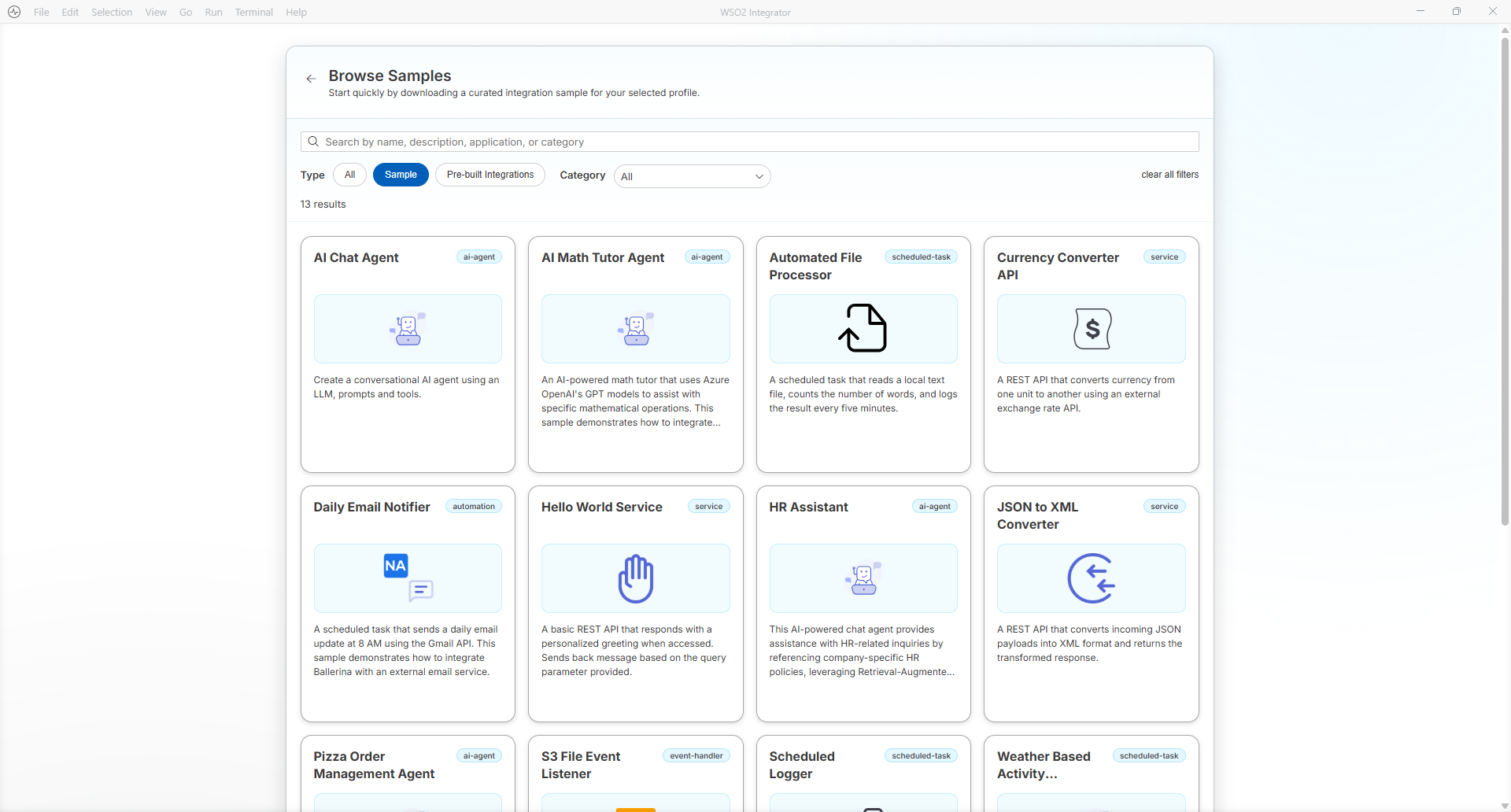
Use the controls at the top of the view to find samples:
- Search bar — Search by name, description, application, or category.
- Type filter — Filter by All, Sample, or Pre-built Integrations.
- Category filter — Narrow results by category (for example, AI Agent, File Integration, Integration as API).
- Clear all filters — Reset every filter and search term.
The result count appears below the controls (for example, 25 results).
Use a sample
Click Use on a sample card. A native file browser appears so you can choose the directory where the sample project will be created.
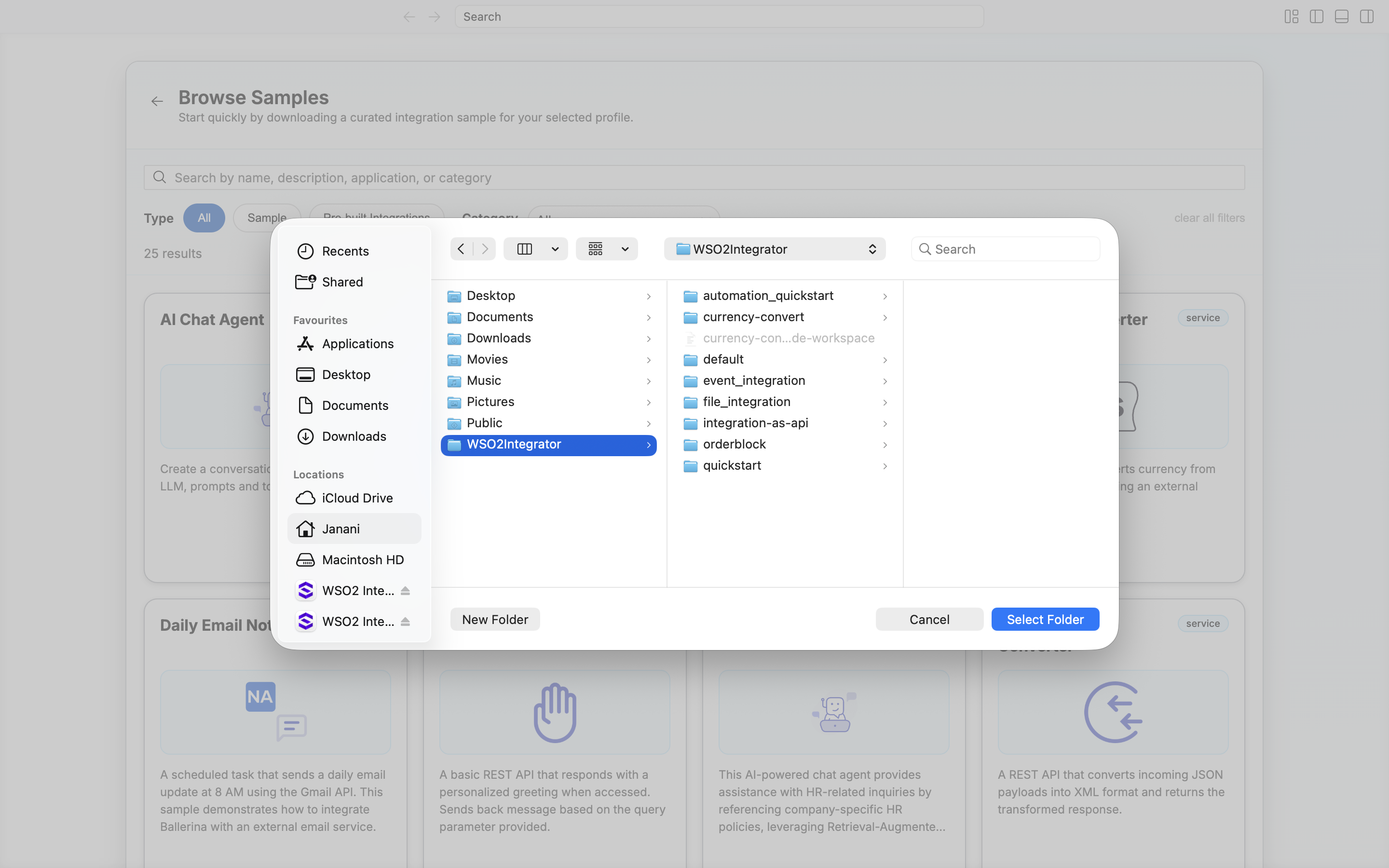
Select a folder and click Select Folder. WSO2 Integrator downloads the sample and opens it as an integration.
What you do next depends on where you saved the sample.
Add the sample to an existing project
If you saved the sample inside an existing project folder inside the WSO2Integrator folder, the sample isn't part of that project yet.
-
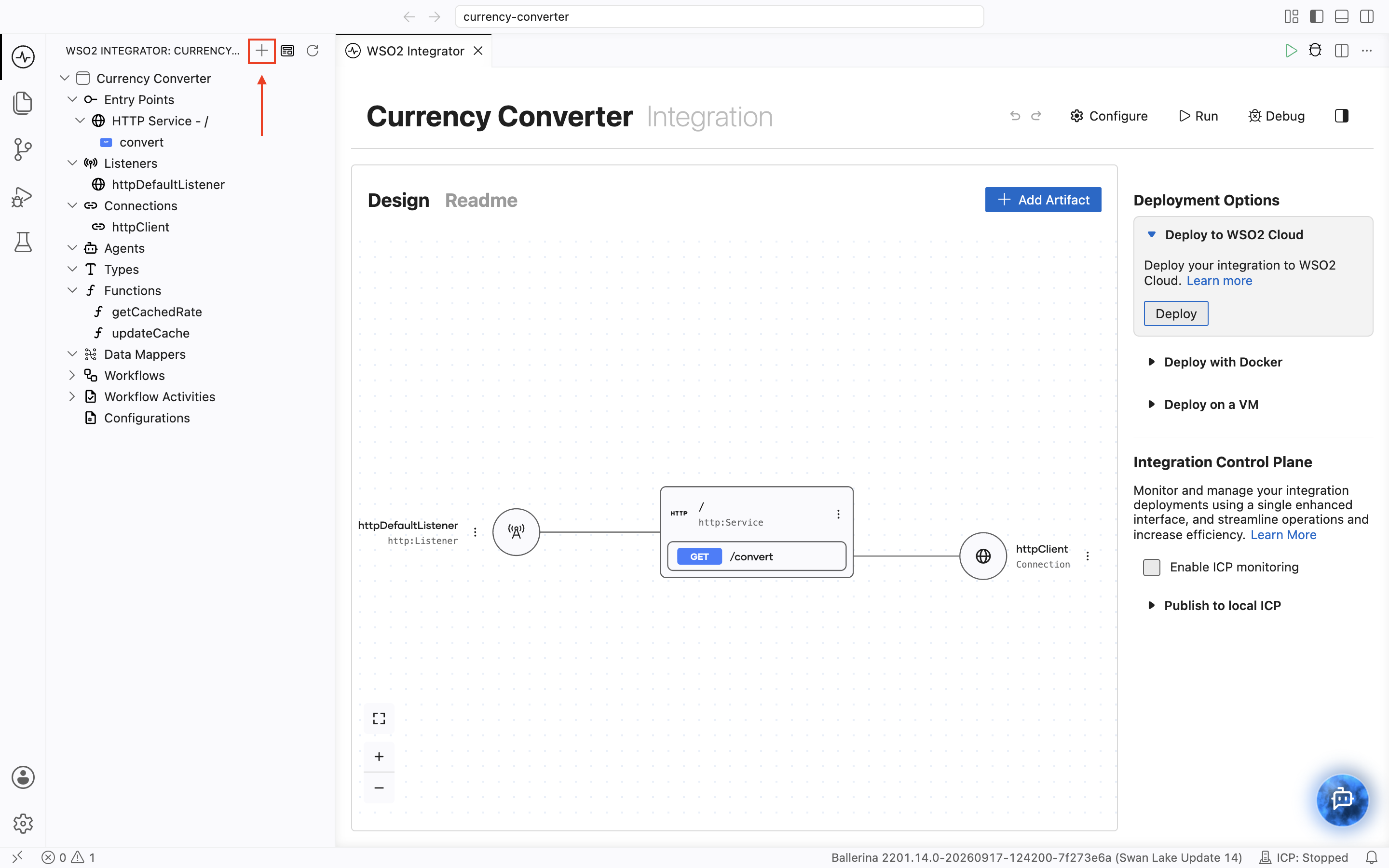
In the side panel, click the + icon next to the integration name.
-
A dialog asks whether to add the integration to the existing project instead of creating a new one. Click Add to Project.
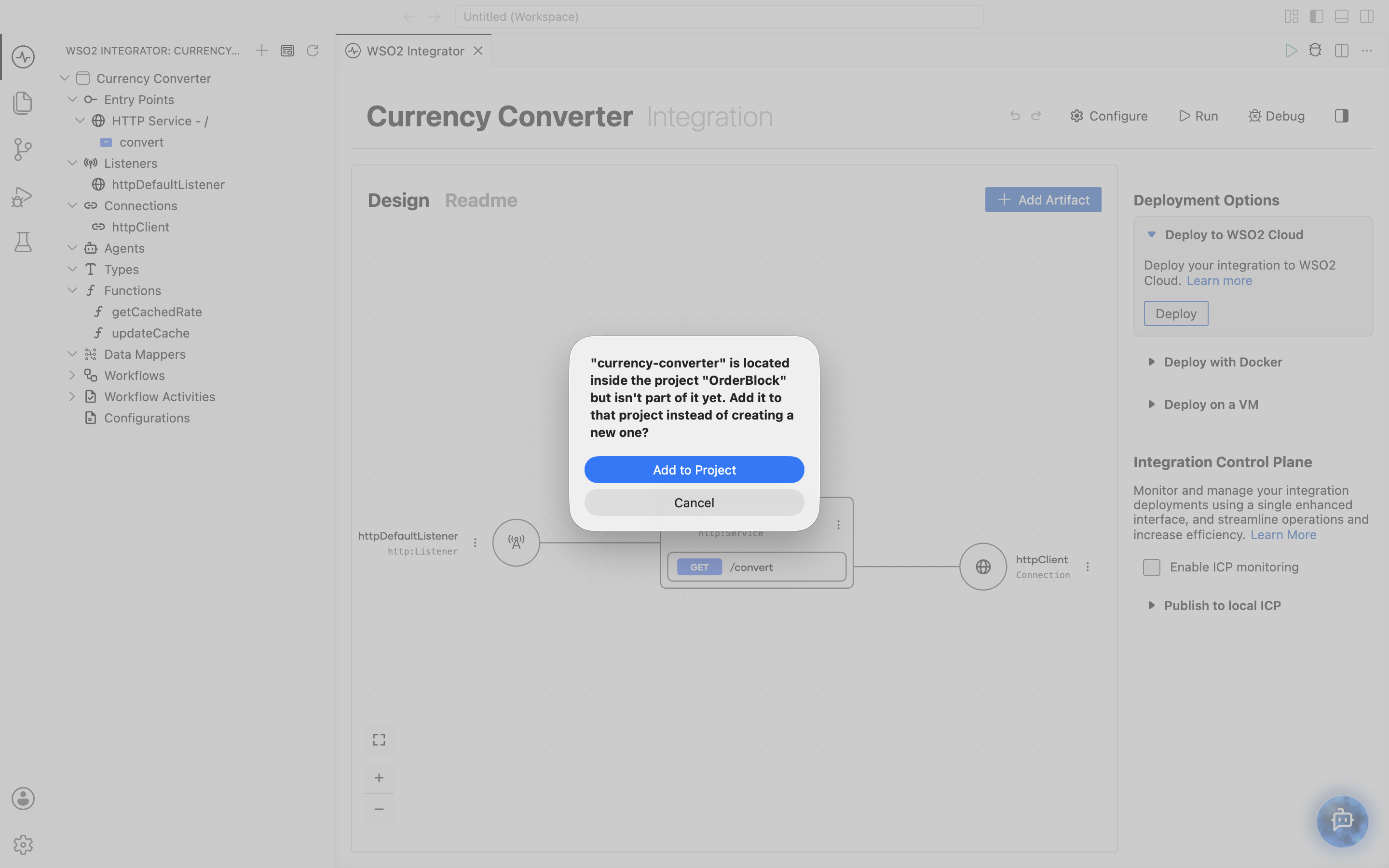
The integration becomes a member of that project.
Convert the sample to a new project
If you saved the sample outside a project, convert it to a new project.
-
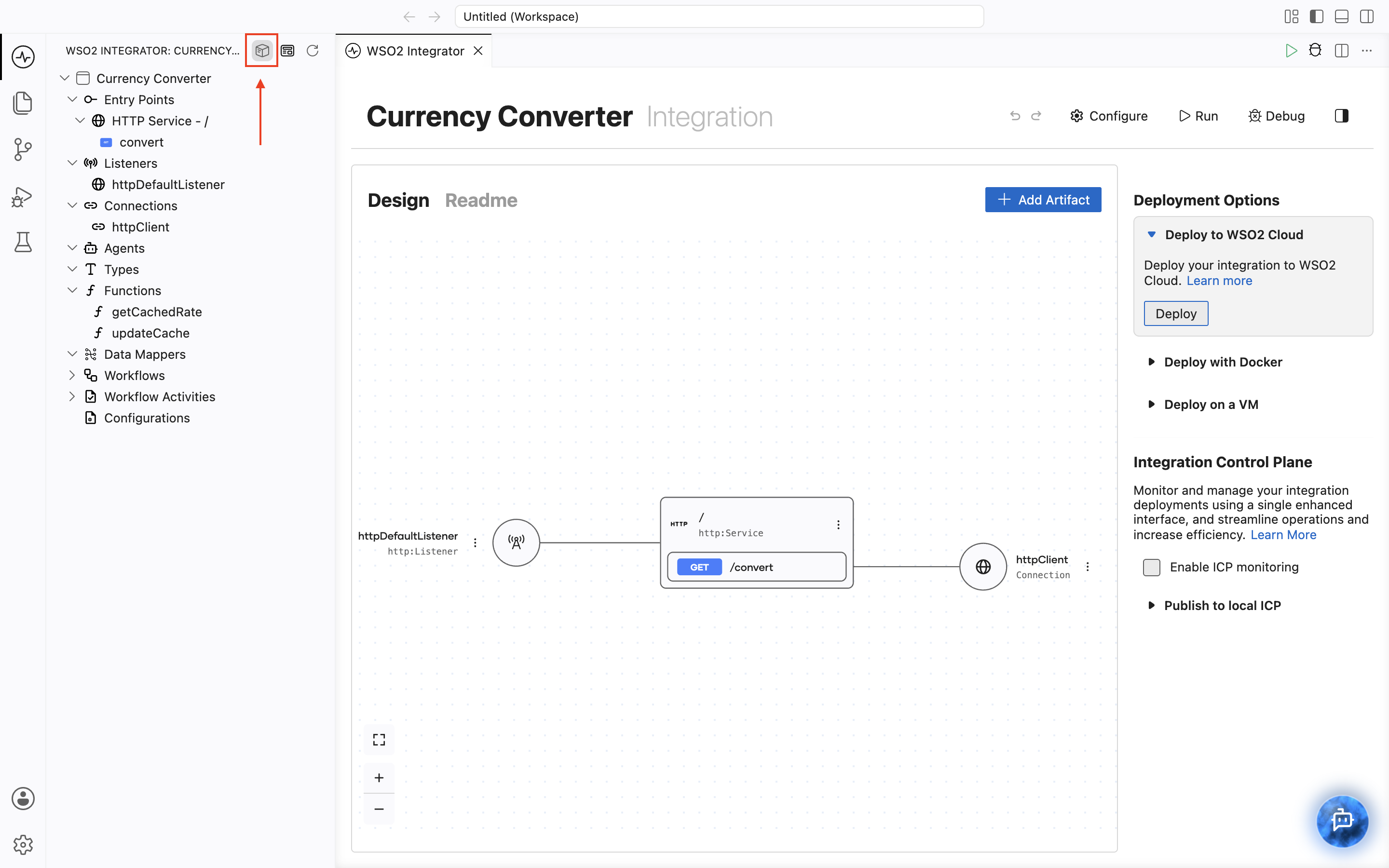
In the side panel, click the Convert to Project icon next to the integration name.
-
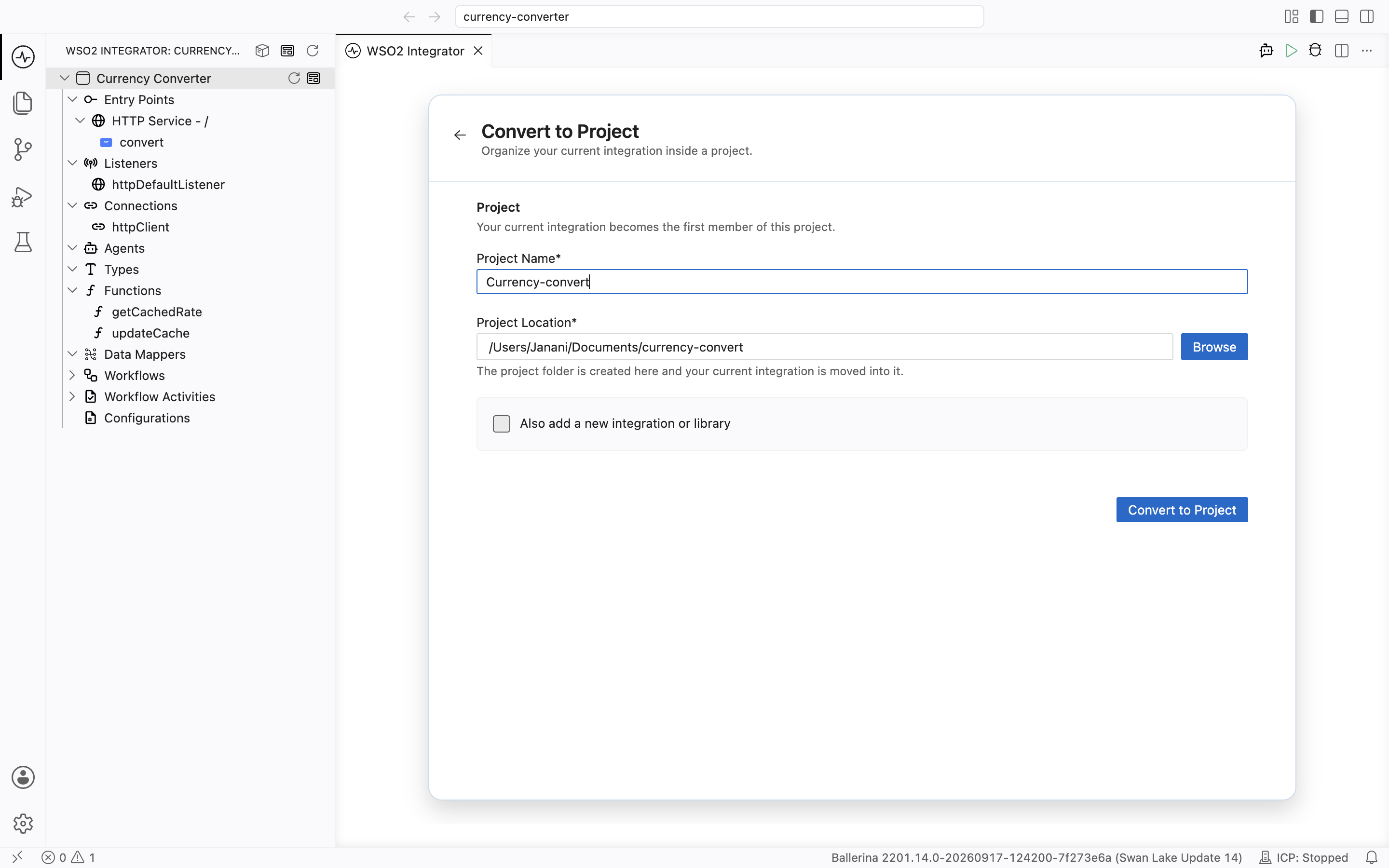
In the Convert to Project form, enter the following details:
Field Description Project Name The name of the new project. Your current integration becomes the first member of this project. Project Location The directory where the project folder is created. Click Browse to select a location. Your current integration is moved into this folder. -
Optionally, check the Also add a new integration or library checkbox to add another integration or library to the project at the same time.
-
Click Convert to Project.
The integration now opens inside the new project. An Overview link appears at the top of the view, which takes you to the project view. From there, you can add more integrations and libraries.
What's next
- Project view — Run, edit, and debug your sample project
- Create a project — Start a new project from scratch
- Integration artifacts — Understand the artifact types used in samples