Try Pre-Built Integrations
Building an integration from scratch means learning the platform's abstractions, wiring up connectors, and testing the logic before anything useful happens, even for a straightforward use case. Pre-built integrations skip all that: each one is a ready-made integration for a real, common use case. Pick the one you need, download it, configure it, and run it.
Sample integrations teach you the platform's abstractions. Pre-built integrations are different: each one is a real, already-wired integration for an actual business use case.
Prerequisites
A working WSO2 Integrator environment.
Local setupInstall and launch WSO2 Integrator on your machine.
WSO2 Cloud AccountFor WSO2 Cloud deployments.
Step 1: Open the catalog
On the WSO2 Integrator home screen, click Explore on the Pre-built Integrations and Samples card.
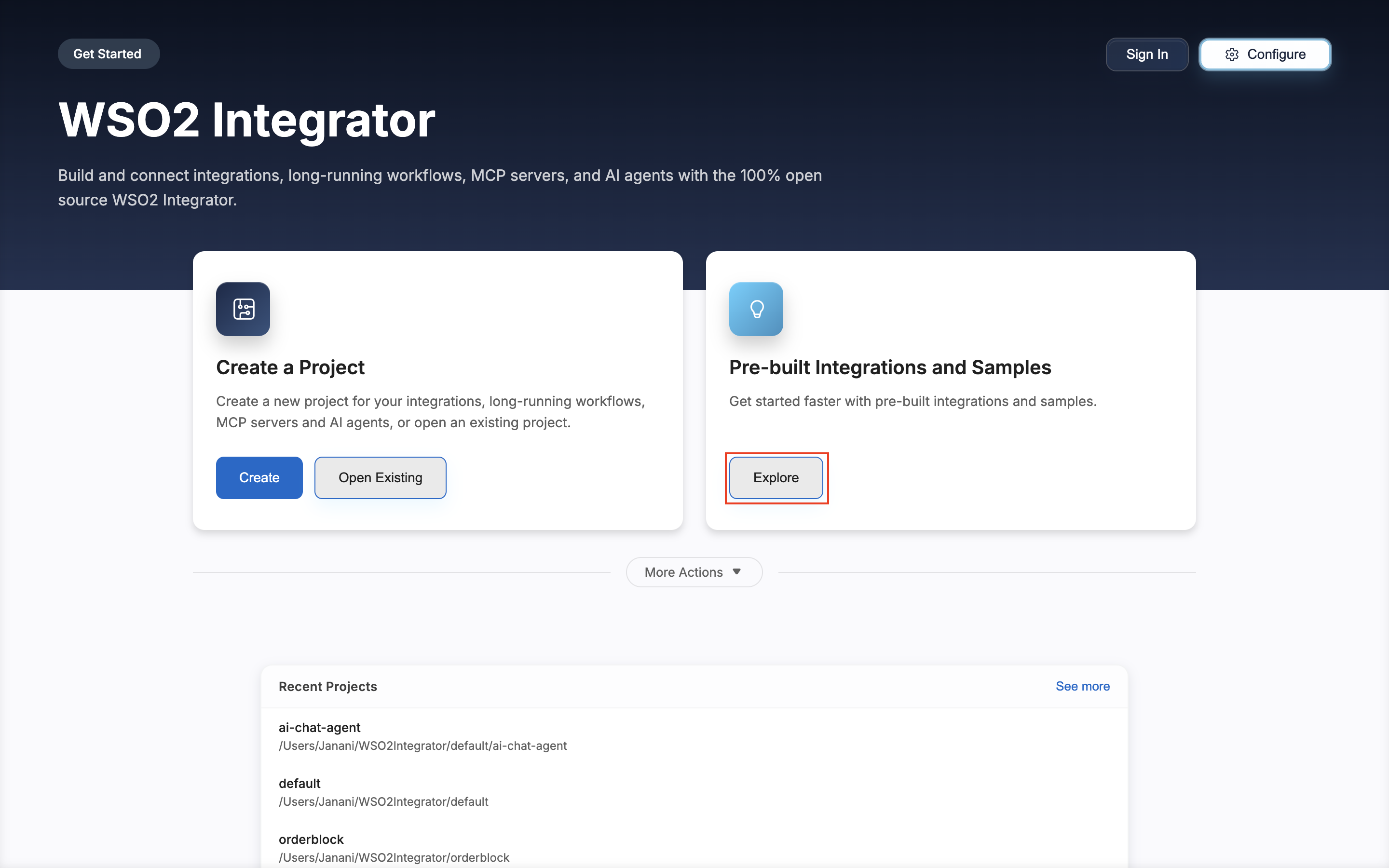
Step 2: Filter for pre-built integrations
The Browse Samples view lists samples and pre-built integrations together. Under Type, select Pre-built Integrations to show only the pre-built ones.
Each card shows the integration name, a type tag (for example, webhook, service, scheduled-task, or event-handler), the two applications it connects, and a short description. To narrow the list, search by name, description, application, or category, or pick a Category.
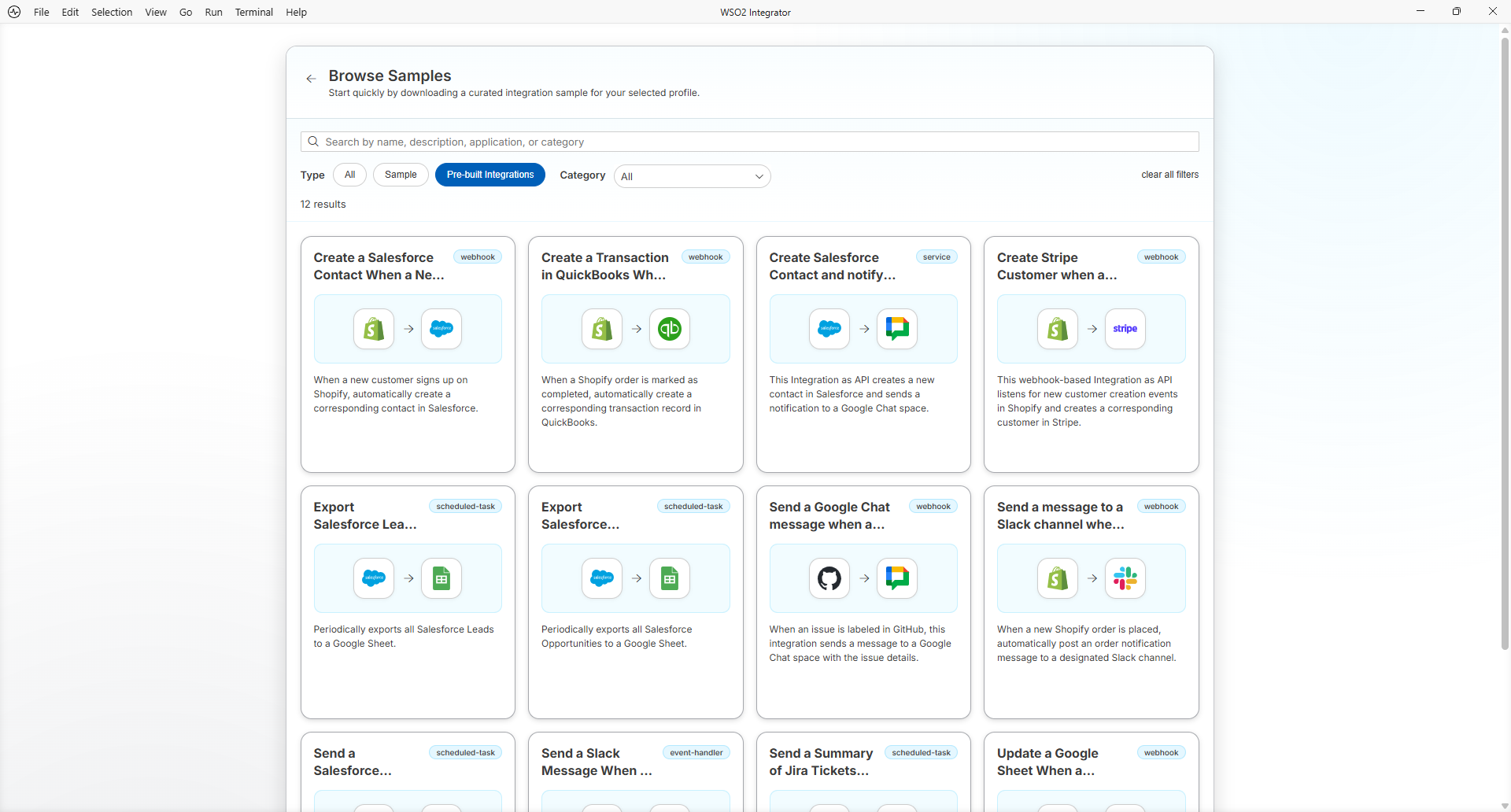
Step 3: Download an integration
Hover over the integration you want and click Use this. For this guide, choose Create a Salesforce Contact When a New Shopify Customer Signs Up.
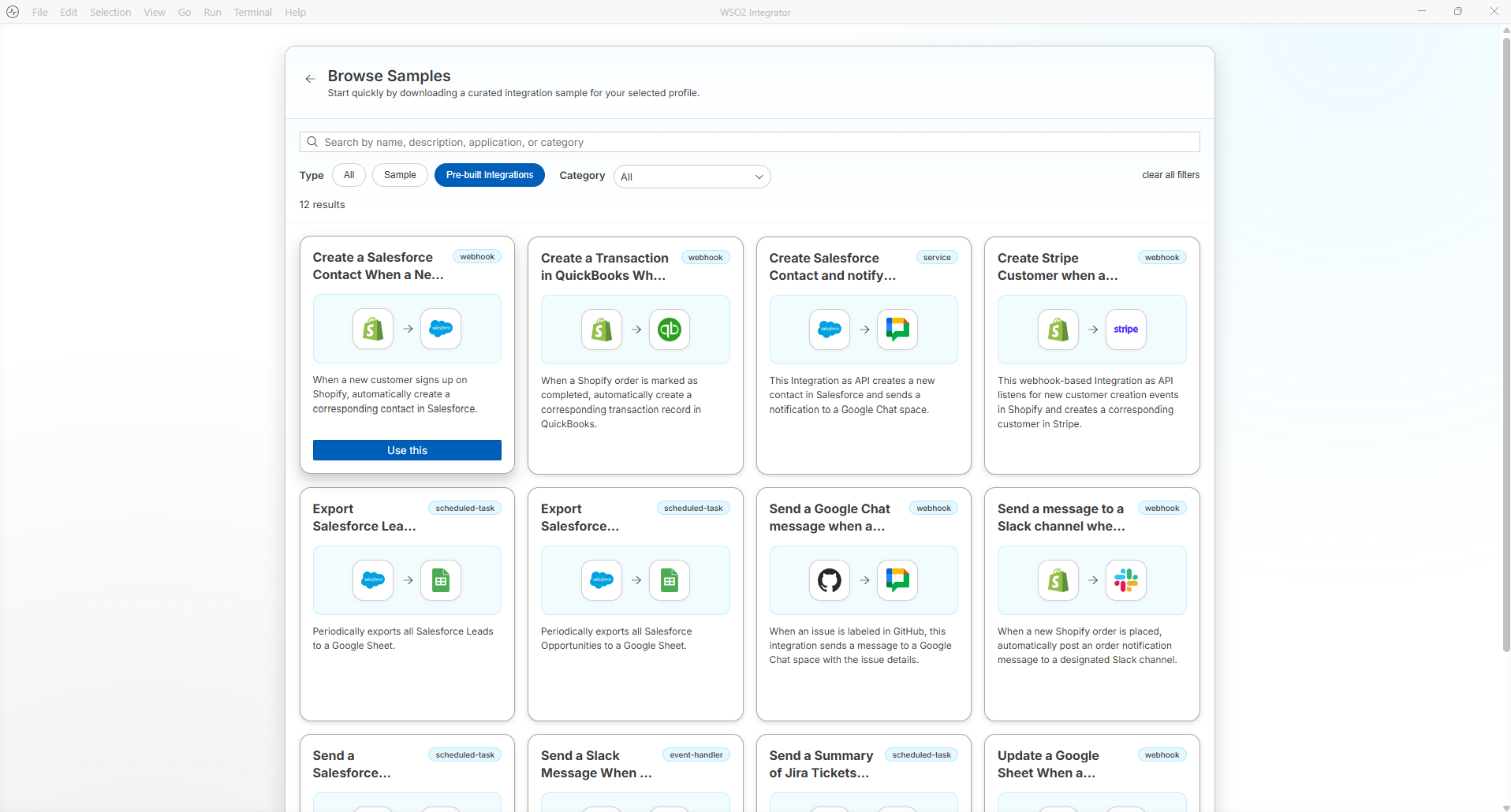
A native file browser appears so you can choose the directory where the integration is created. Select a folder and click Select Folder. WSO2 Integrator starts downloading the integration and shows the progress in a notification.
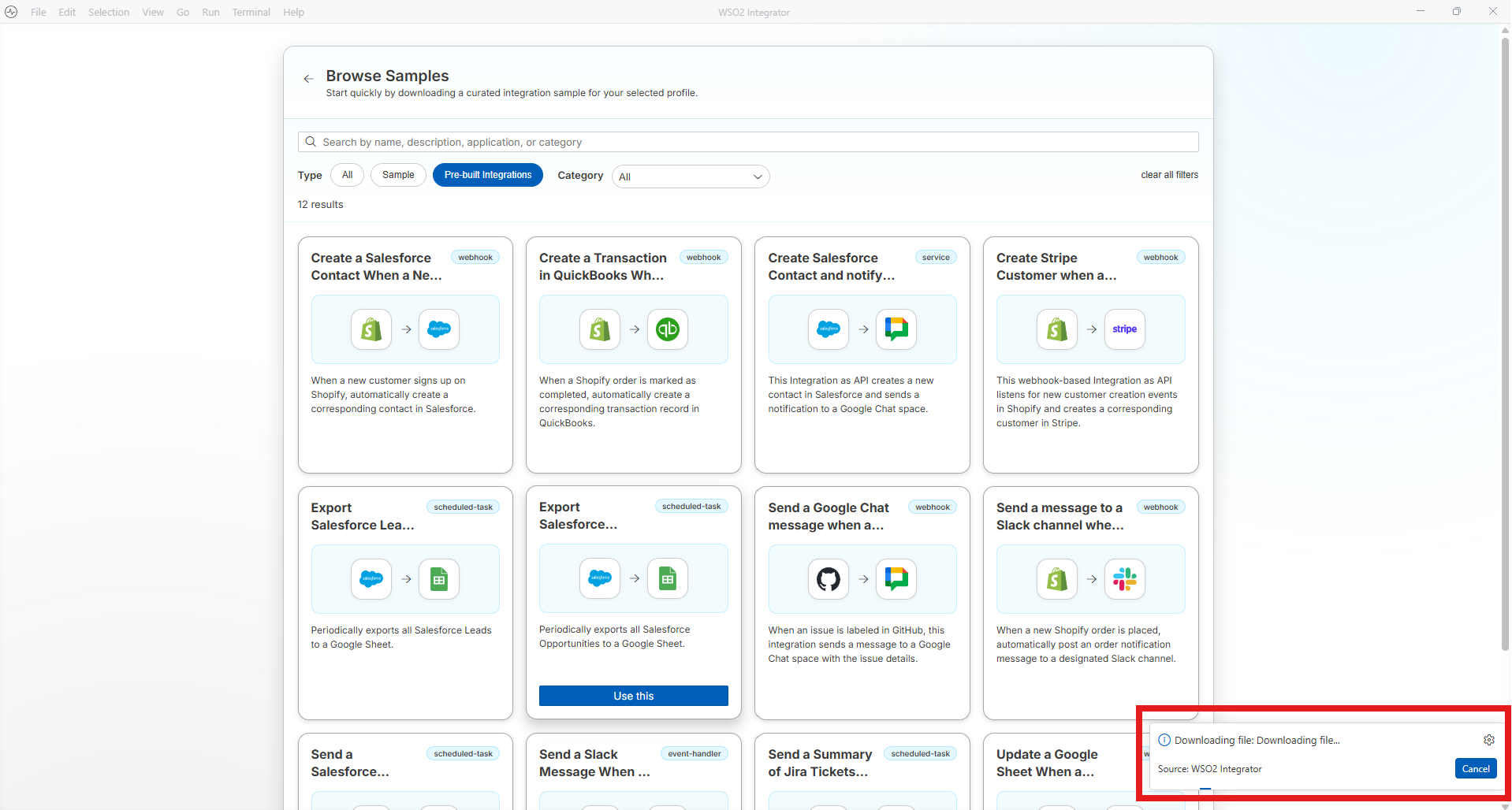
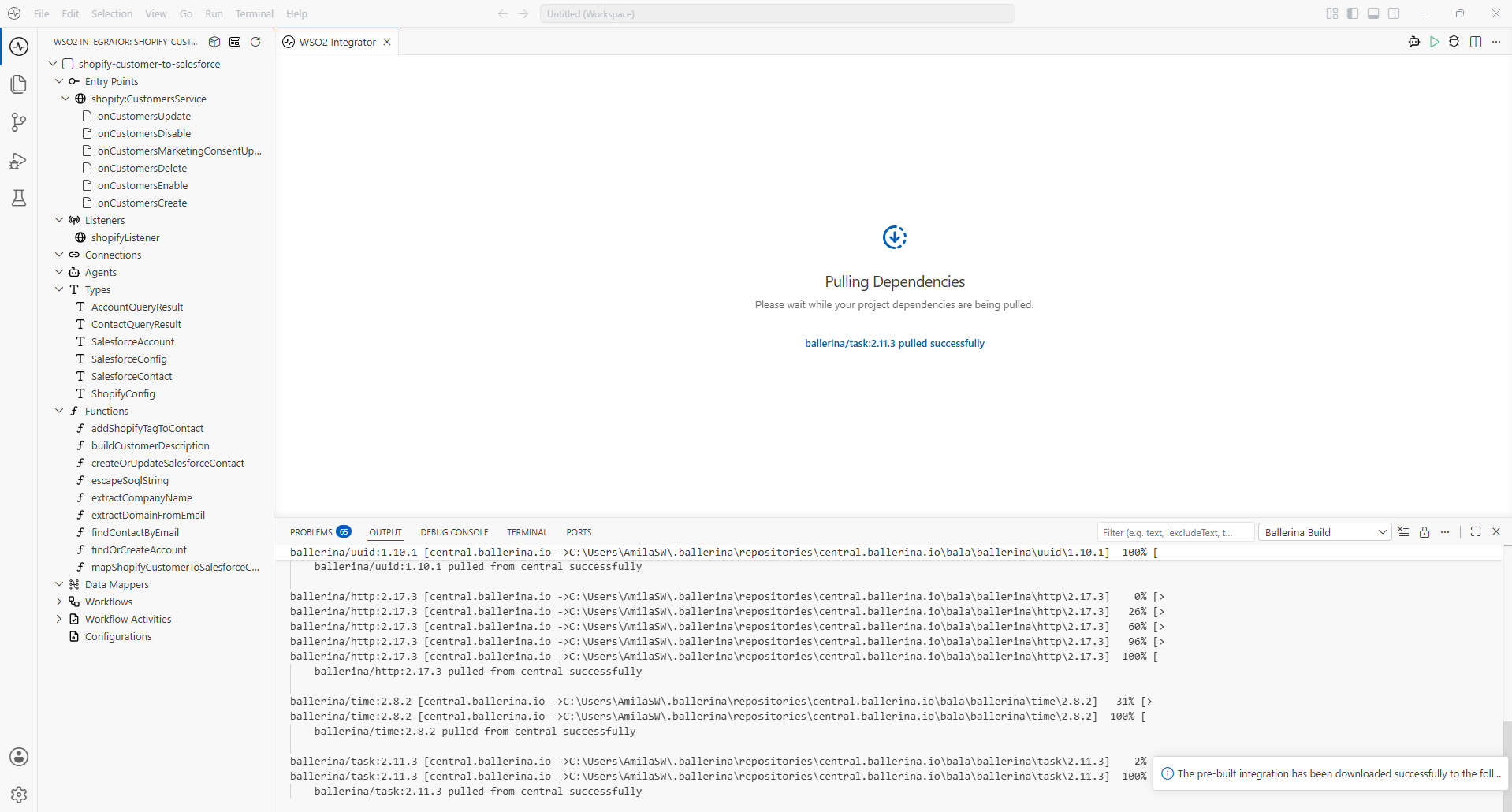
When the download finishes, WSO2 Integrator opens the integration and pulls its dependencies. Wait for the Pulling Dependencies screen to complete. It shows each module as it is pulled.
Step 4: Review the integration
When the dependencies are pulled, the integration opens in the Design view. The canvas shows the whole flow: the listener, the handlers for each event, and the connection to the second application. The side panel lists the integration's artifacts, such as entry points, connections, types, and functions.
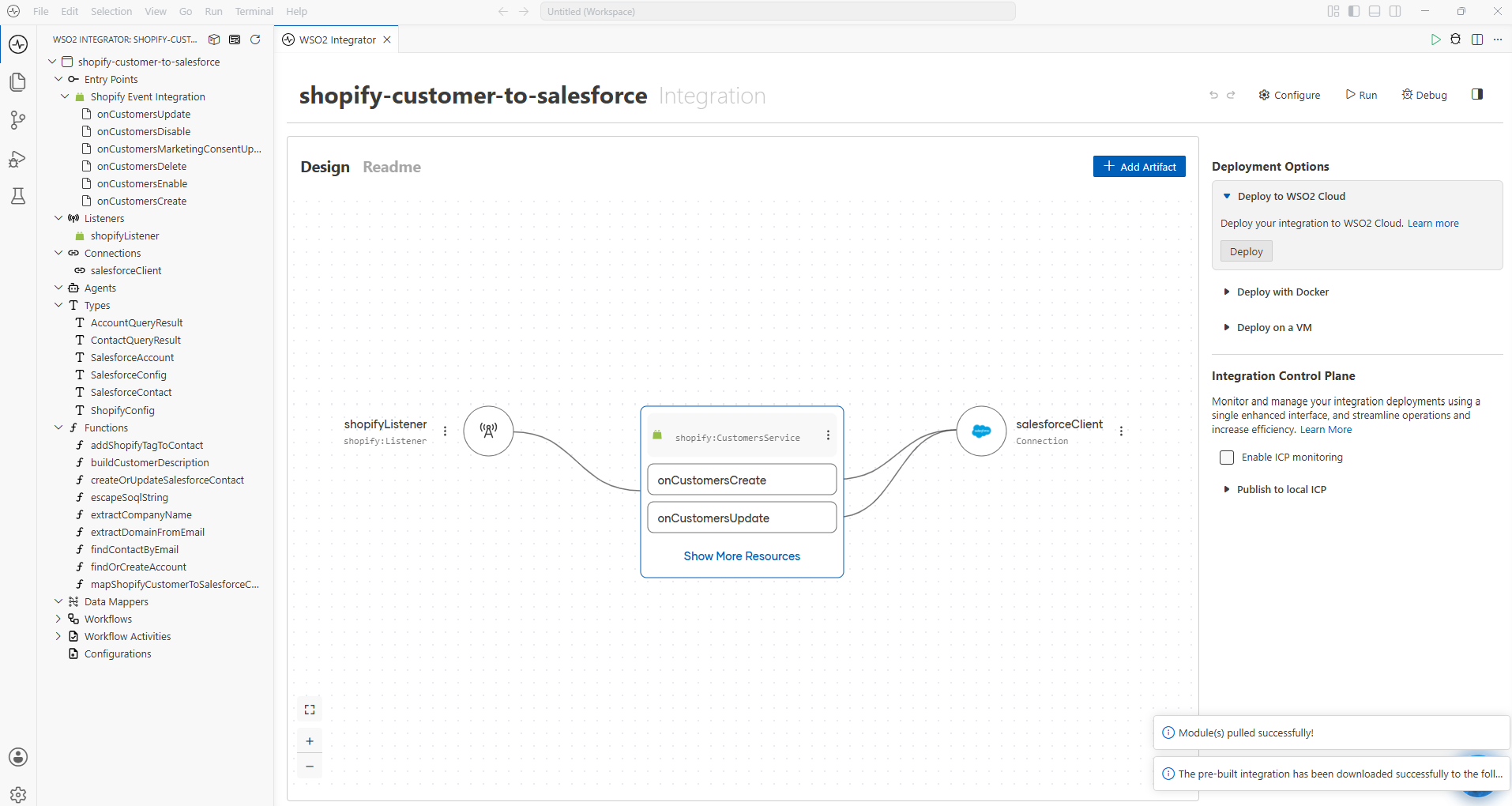
Open the Readme tab next to Design to see what the integration does and what you need to gather before you run it, such as credentials for both applications.
Step 5: Configure, run, and deploy
- Click Configure to enter the values the integration needs, such as the credentials for the two applications.
- Click Run to start the integration locally, or Debug to step through it.
- When you're ready, use the Deployment Options panel on the right to deploy it to WSO2 Cloud, with Docker, or on a VM.
From here, the integration is yours: click Add Artifact to extend it, or edit any of its artifacts, the same as an integration you built from scratch.
Common integration problems are already solved, so you don't have to rebuild them. Pick a use case, run it in minutes, and spend your time on the work that actually needs it.
What's next
- Explore sample integrations — Start from a teaching sample if you'd rather build the integration yourself
- Deploy to WSO2 Cloud — Deploy your integration to a managed cloud environment
- Concepts — Learn the vocabulary used across the docs