Process Inbound EDI Purchase Orders from Trading Partners
Time: About 30 minutes | What you'll build: An integration that picks up EDI purchase orders a trading partner drops on an SFTP server, identifies the sender from the envelope, and parses each order into typed Ballerina records.
Trading partners send purchase orders as EDI files, usually by dropping them in an SFTP mailbox. Two things have to happen: work out who sent the file, and turn the orders inside it into data the integration can use. This guide builds them in that order. The first needs no schema at all, and the second uses a prebuilt package for the standard purchase order message.
Sample project: edi-purchase-order-processing is the finished project, ready to run.
How it works
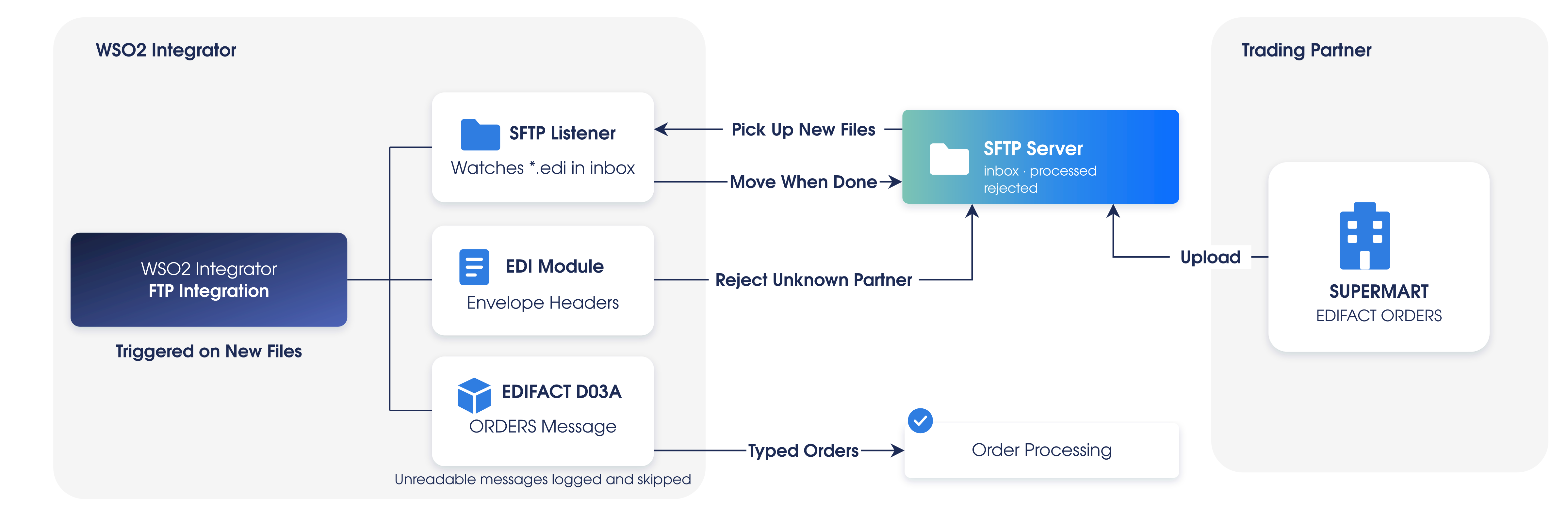
The partner drops each EDI file in an SFTP inbox, and every new .edi file runs through the same flow:
- Read the envelope headers to find the sender. No schema is needed for this.
- If the sender is not the expected partner, reject the file: it moves to the
rejectedfolder. - Parse the interchange into typed purchase orders. A message that cannot be read is logged with its parse error, and the rest are still processed.
- Move the file to the
processedfolder.
An EDI file is an interchange: an envelope (UNB/UNZ in EDIFACT, ISA/IEA in X12) wrapping one or more messages. The envelope carries the sender and recipient, so reading just those segments is enough to route the file. Only once the partner is known does the integration need the message schema to read the orders themselves. EDIFACT treats each message in an interchange independently, which is why one unreadable message does not hold up the others.
Before you begin
- A working WSO2 Integrator environment. See Setup.
- Docker, to run a local SFTP server that stands in for the partner's mailbox.
This guide reads the orders with the prebuilt EDIFACT package ballerinax/edifact.d03a.supplychain, which covers the standard D03A ORDERS message. When a partner deviates from the standard, or sends a message type or directory version no prebuilt package covers, generate your own parser from the specification and adapt the schema to the partner. The generated library has the same interchangeFromEdiString function, so the flow below stays the same.
X12 specifications are licensed from ASC X12, so no X12 specification ships with the tool and no prebuilt X12 packages are published. The flow is identical for X12, starting from a parser generated from the schema your organization is licensed to use. If you need help with that, contact us.
Start the SFTP server
Save the following as docker-compose.yml and run docker compose up -d. It creates the user partner with an inbox for new files and folders for processed and rejected ones.
services:
  sftp:
    image: atmoz/sftp:alpine
    container_name: edi-sftp
    ports:
      - "2222:22"
    command: partner:partner123:::edi/inbox,edi/processed,edi/rejected
The sample interchange
Save the following as orders.edi. It is one interchange from the partner SUPERMART holding two purchase orders, and a third message that is missing its mandatory BGM segment, so there is a message for the integration to reject.
UNB+UNOA:3+SUPERMART:14+SUPPLIER456:14+260101:1200+REF2+++ORDERS'
UNH+0001+ORDERS:D:03A:UN'
BGM+220+PO20001+9'
DTM+137:20260101:102'
NAD+BY+BUYER123::91'
LIN+1++ITEM-A:VP'
QTY+21:100'
UNS+S'
UNT+8+0001'
UNH+0002+ORDERS:D:03A:UN'
BGM+220+PO20002+9'
DTM+137:20260101:102'
NAD+BY+BUYER123::91'
LIN+1++ITEM-B:VP'
QTY+21:40'
UNS+S'
UNT+8+0002'
UNH+0003+ORDERS:D:03A:UN'
DTM+137:20260101:102'
NAD+BY+BUYER123::91'
LIN+1++ITEM-C:VP'
QTY+21:10'
UNS+S'
UNT+7+0003'
UNZ+3+REF2'
The segments are shown one per line for readability. An EDI file has no line breaks: the ' terminator ends each segment.
Part 1: Receive files and identify the trading partner
The envelope headers are read without a schema, so this part works before any message type is involved. ballerina/edi provides edifactHeadersFromEdiString for EDIFACT and x12HeadersFromEdiString for X12.
- Visual Designer
- Ballerina Code
Step 1: Create the project
Create a new project named edi-purchase-order-processing with an integration named Edi Order Processing.
Step 2: Add the SFTP service
-
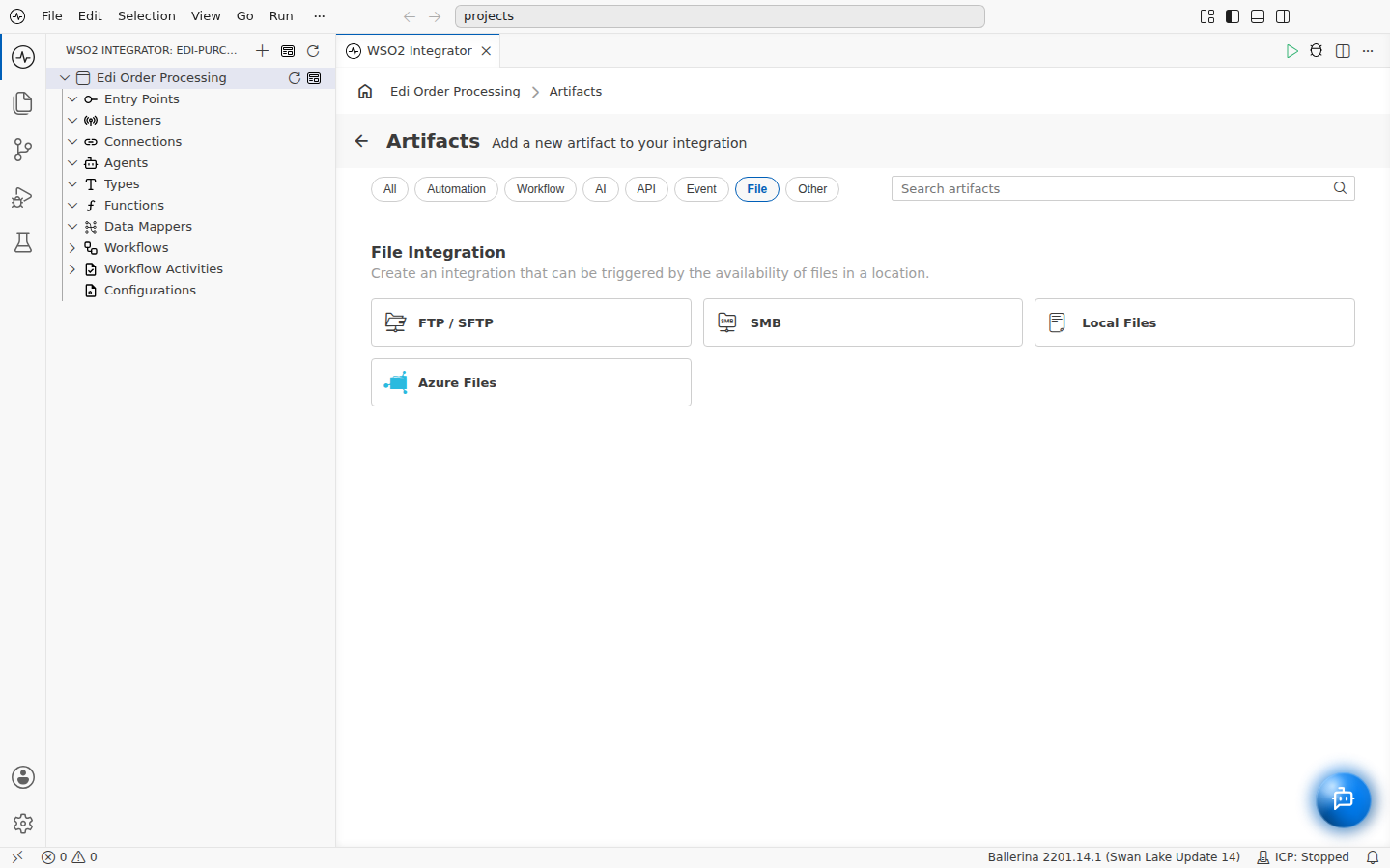
Select + Add Artifact, filter by File, and select FTP / SFTP.
-
Configure the listener:
Field Value Host localhostProtocol SFTP Port 2222Authentication Basic Authentication Username A configurable named sftpUsername(string)Password A configurable named sftpPassword(string)Monitored Path /edi/inbox -
For Username and Password, clear the default text, then open the field's helper pane, select Configurables, then New Configurable, so the credentials are supplied at runtime instead of stored in the flow.
-
Select Create.
Step 3: Add the file handler
-
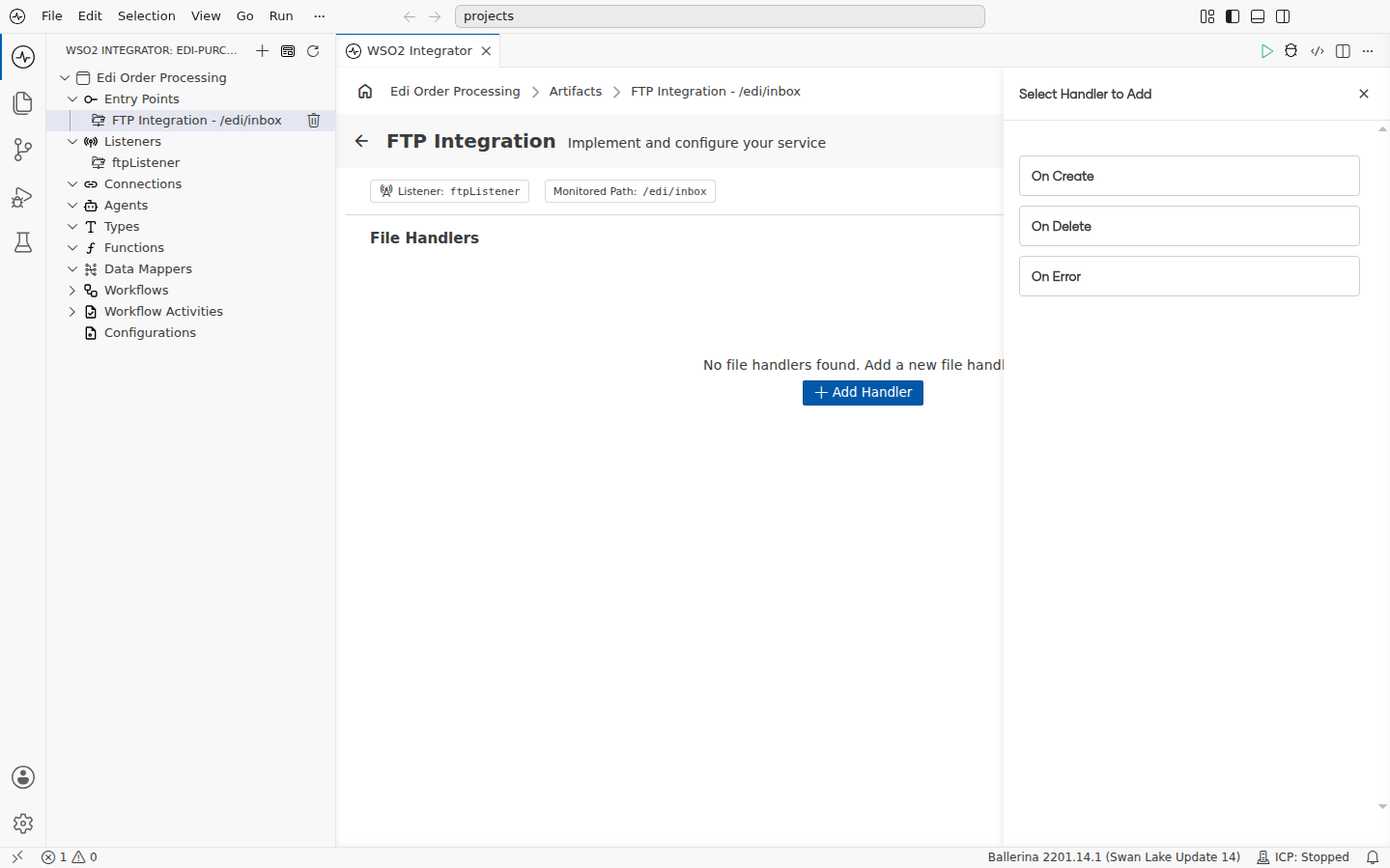
Select + Add Handler, then On Create.
-
Set Format to Raw Bytes. The text handler is invoked only for
.txt,.log, and.mdfiles, while the raw handler receives a file of any extension, including.edi. -
Under File Handling Options, keep Move selected for both outcomes, and set On Success to
/edi/processedand On Error to/edi/rejected. A file the handler finishes with lands in the processed folder, and a file the handler returns an error for lands in the rejected one. -
Under Advanced Configurations, select File Metadata (fileInfo), then select Save.
Step 4: Accept only EDI files
The raw handler receives every file in the inbox, so filter the service down to .edi files.
-
Open the FTP Integration - /edi/inbox service and select Configure.
-
Select the Service Configuration field to open the Record Configuration builder, select fileNamePattern, and set the record to:
{path: "/edi/inbox", fileNamePattern: "^.*\\.edi$"}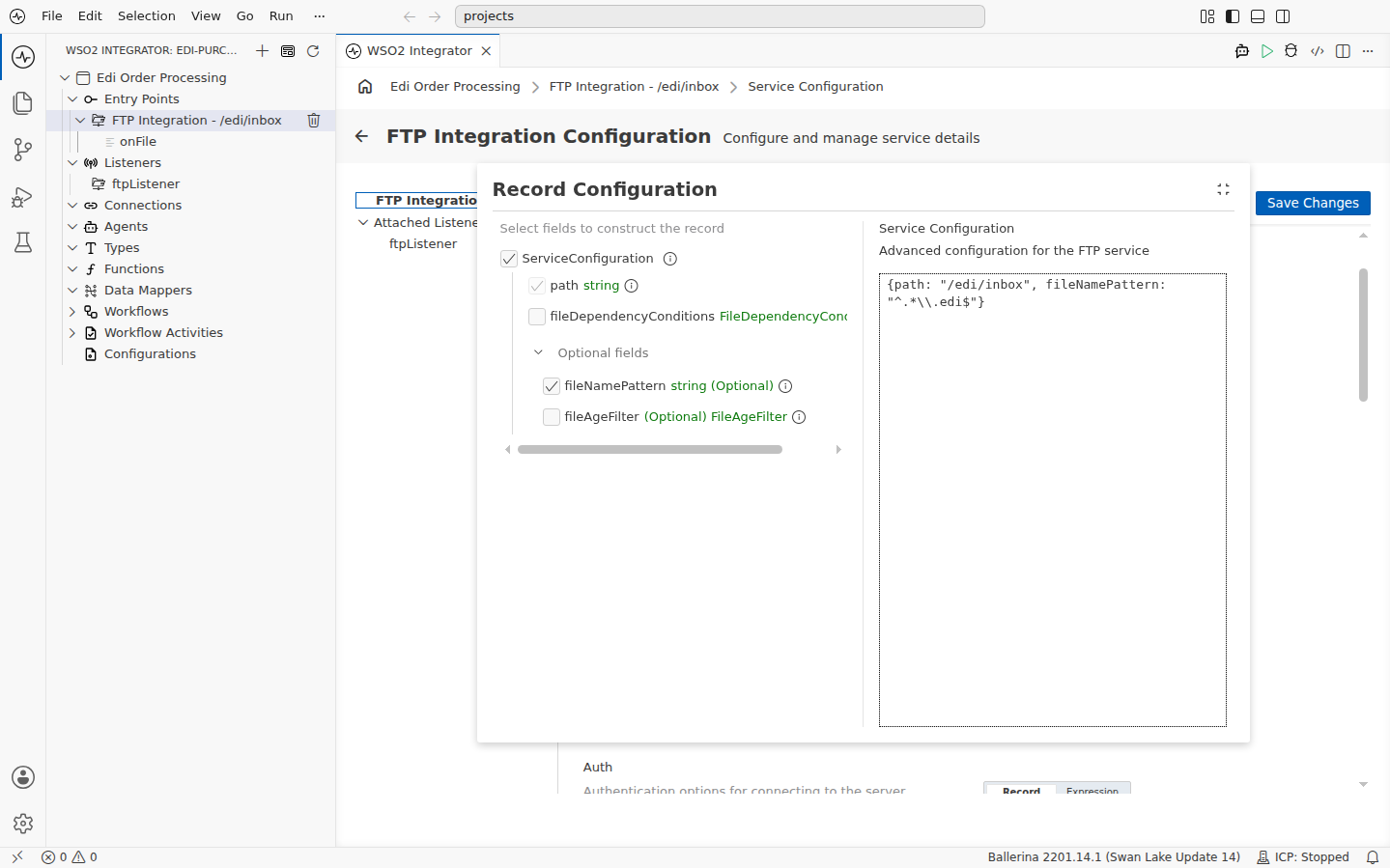
-
Close the builder and select Save Changes. Files that do not match, such as a stray
.txtfile, are left in the inbox.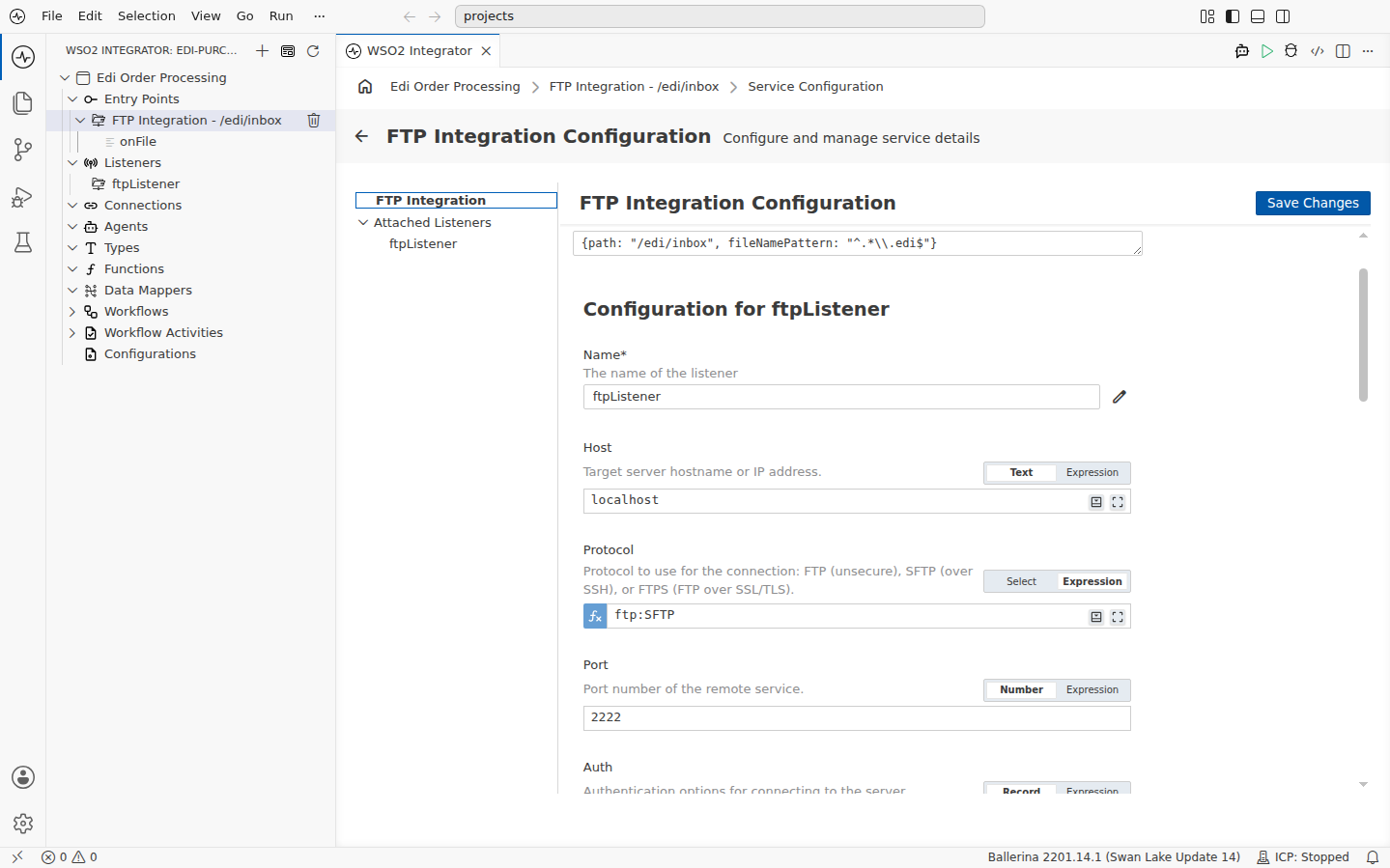
Step 5: Read the envelope headers
-
Open the
onFilehandler. Select + to open the node panel, then Declare Variable. -
Name the variable
ediTextof typestring, with the expressioncheck string:fromBytes(content).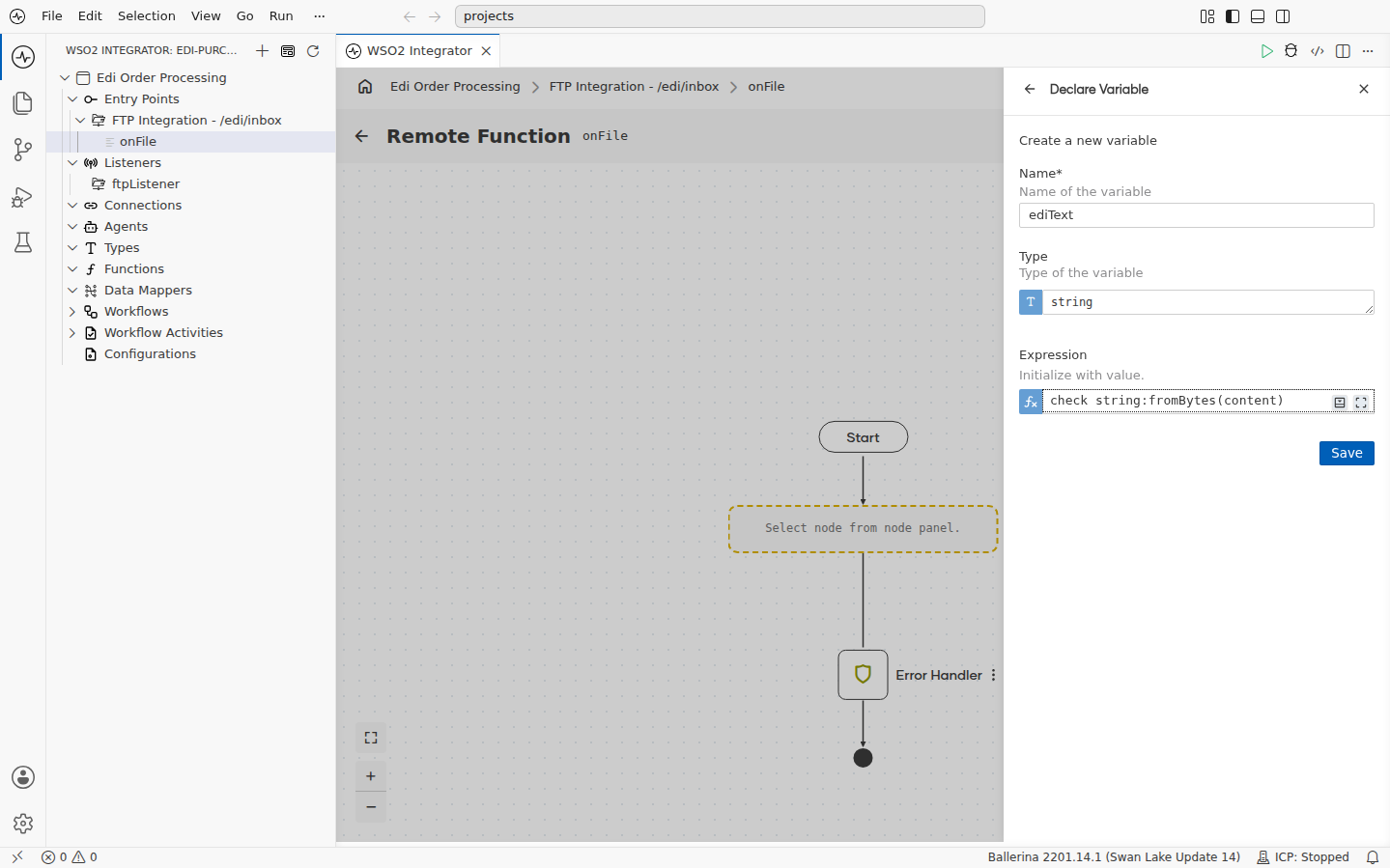
-
Select +, then Call Function, and search for
edifactHeadersFromEdiString. Set Edi Text to the expressionediText, set Result toheaders, and select Save.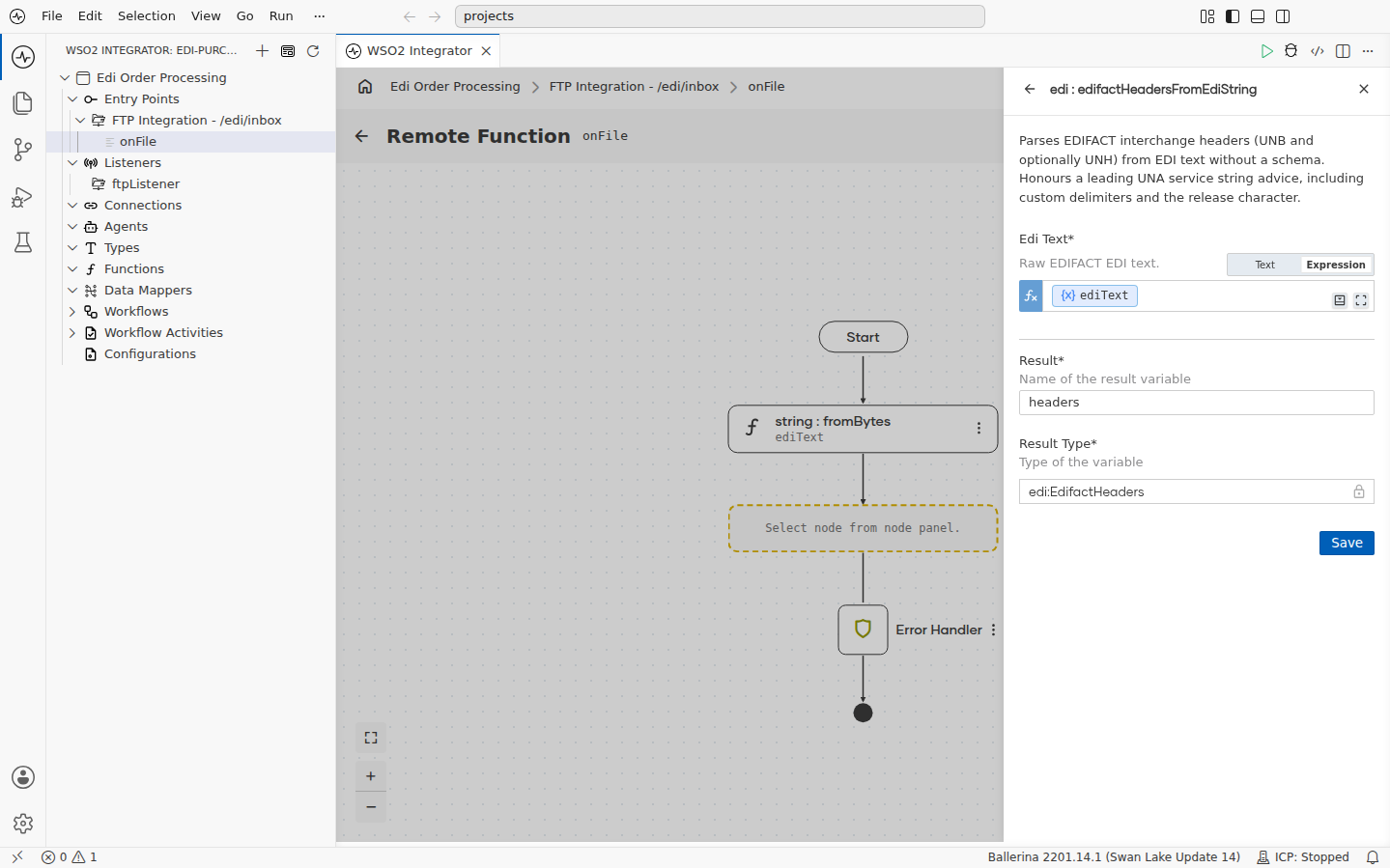
Step 6: Reject files from unknown partners
-
Select + and add an If node. From the condition's helper pane, create a configurable named
tradingPartnerof typestringwith the default value"SUPERMART". Then set the condition toheaders.unb.sender.id != tradingPartner.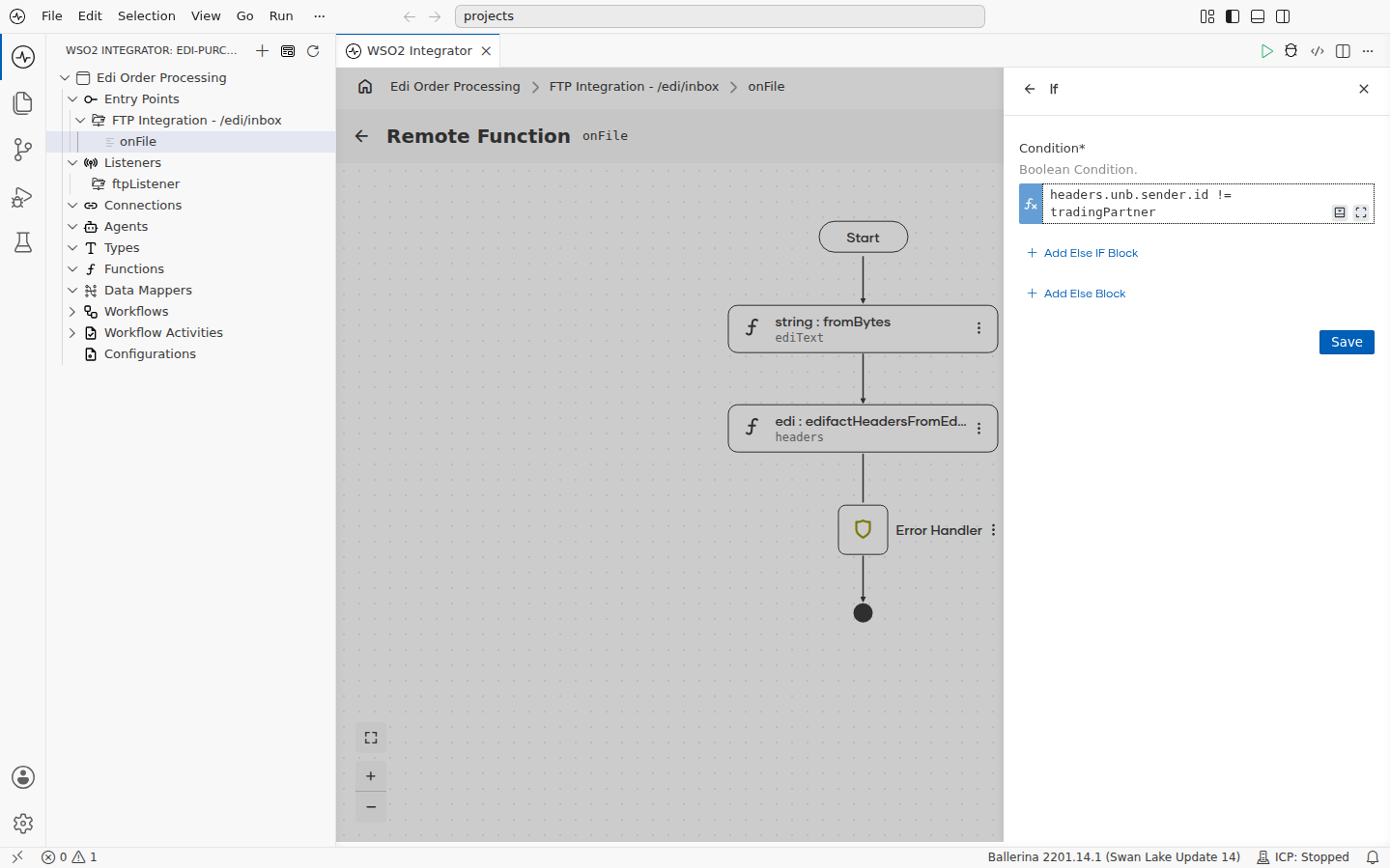
-
Inside the If branch, add a Return node with the expression
error(string `Unknown trading partner: ${headers.unb.sender.id}`). Returning an error is what moves the file to/edi/rejected.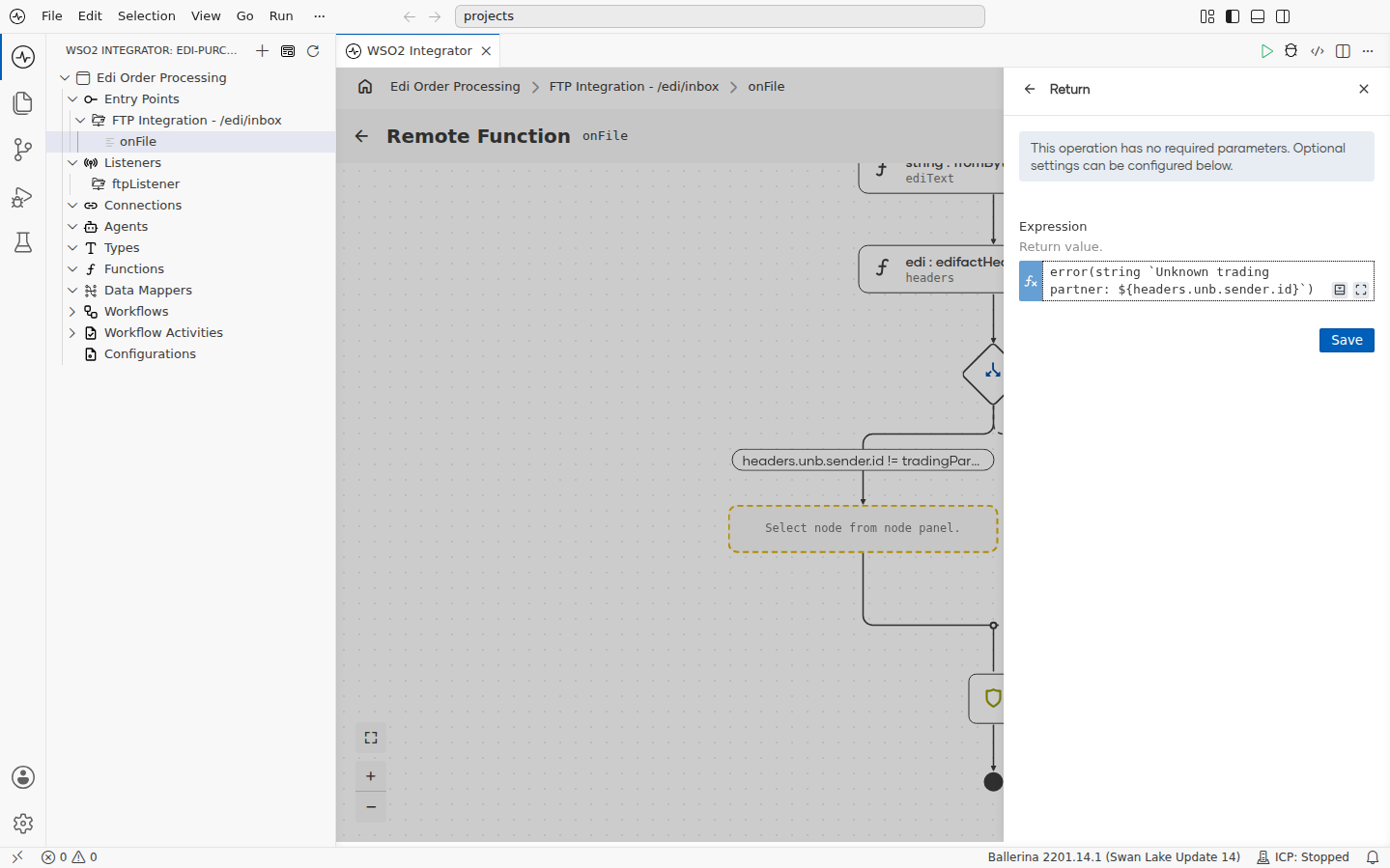
-
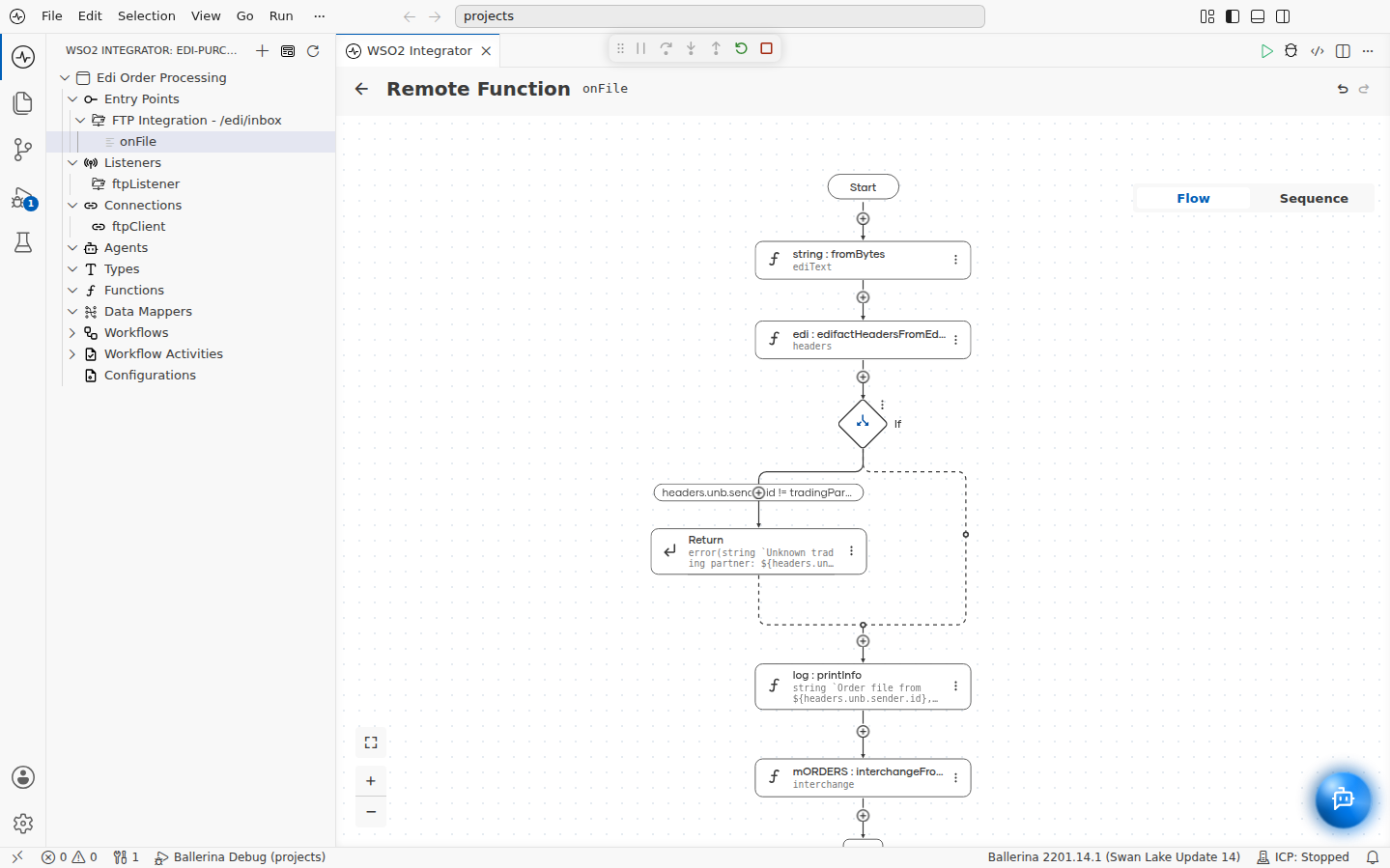
After the If node, add a Log Info node. Switch Msg to Expression and enter
string `Order file from ${headers.unb.sender.id}, reference ${headers.unb.controlRef}`.
// config.bal
configurable string sftpUsername = ?;
configurable string sftpPassword = ?;
# Sender ID of the trading partner this integration accepts files from.
configurable string tradingPartner = "SUPERMART";
// main.bal
import ballerina/edi;
import ballerina/ftp;
import ballerina/log;

listener ftp:Listener ftpListener = new (host = "localhost", protocol = ftp:SFTP, port = 2222, auth = {credentials: {username: string `${sftpUsername}`, password: string `${sftpPassword}`}});

@ftp:ServiceConfig {path: "/edi/inbox", fileNamePattern: "^.*\\.edi$"}
service ftp:Service on ftpListener {
    @ftp:FunctionConfig {afterProcess: {moveTo: "/edi/processed"}, afterError: {moveTo: "/edi/rejected"}}
    remote function onFile(byte[] content, ftp:FileInfo fileInfo) returns error? {
        do {
            string ediText = check string:fromBytes(content);
            edi:EdifactHeaders headers = check edi:edifactHeadersFromEdiString(ediText);
            if headers.unb.sender.id != tradingPartner {
                return error(string `Unknown trading partner: ${headers.unb.sender.id}`);
            }
            log:printInfo(string `Order file from ${headers.unb.sender.id}, reference ${headers.unb.controlRef}`);
            // Part 2 continues here.
        } on fail error err {
            return error("unhandled error", err);
        }
    }
}
Part 2: Parse the purchase orders
Reading the orders themselves needs the ORDERS message schema. The prebuilt ballerinax/edifact.d03a.supplychain package carries it, along with typed records for every segment and the envelope-aware interchangeFromEdiString function.
interchangeFromEdiString reads the whole envelope hierarchy. Envelope segments are fail-fast: a malformed UNB or UNT fails the call. Transaction bodies are fail-safe: a body the schema cannot read leaves its parse error on that transaction, typed EDI_ORDERS_ORDERS|error, and every other message in the interchange still arrives.
- Visual Designer
- Ballerina Code
Step 7: Parse the interchange
-
After the Log Info node from step 6, select +, then Call Function, and search for
ORDERS. Under Extended Library, in the edifact.d03a.supplychain.mORDERS section, select interchangeFromEdiString. The package is pulled from Ballerina Central and imported the first time you use it.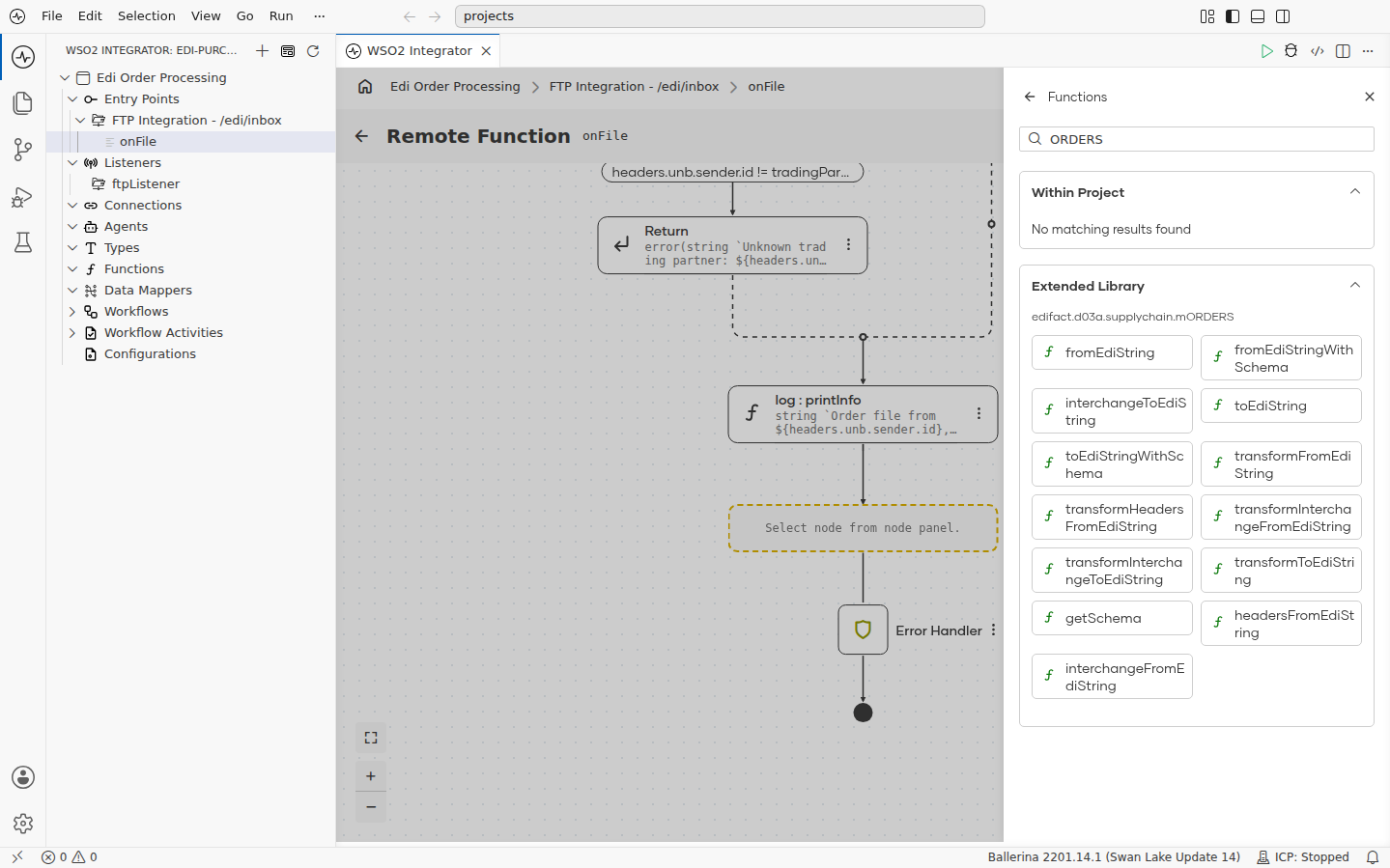
-
Set Edi Text to the expression
ediText, set Result tointerchange, and select Save.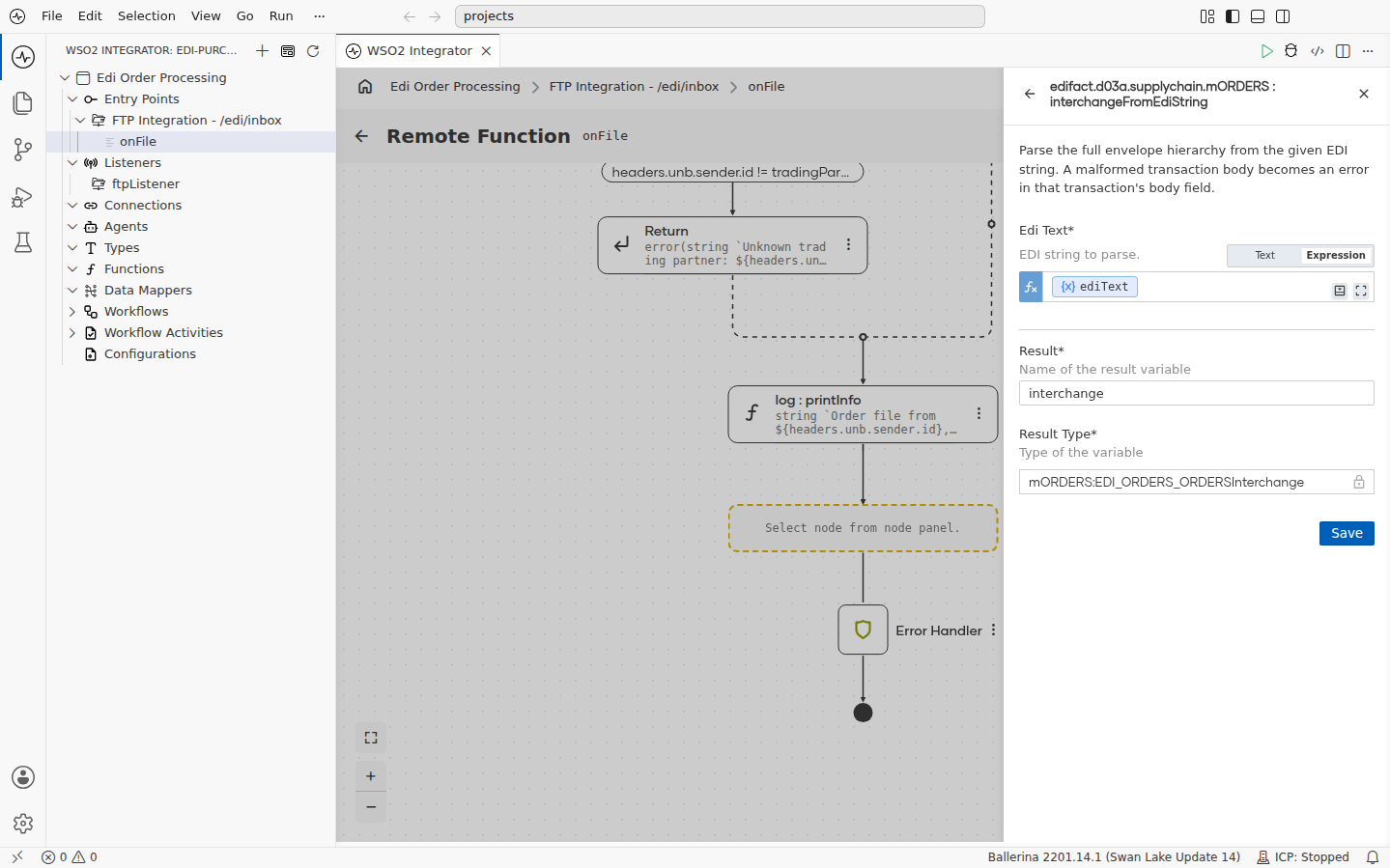
Step 8: Process each order
-
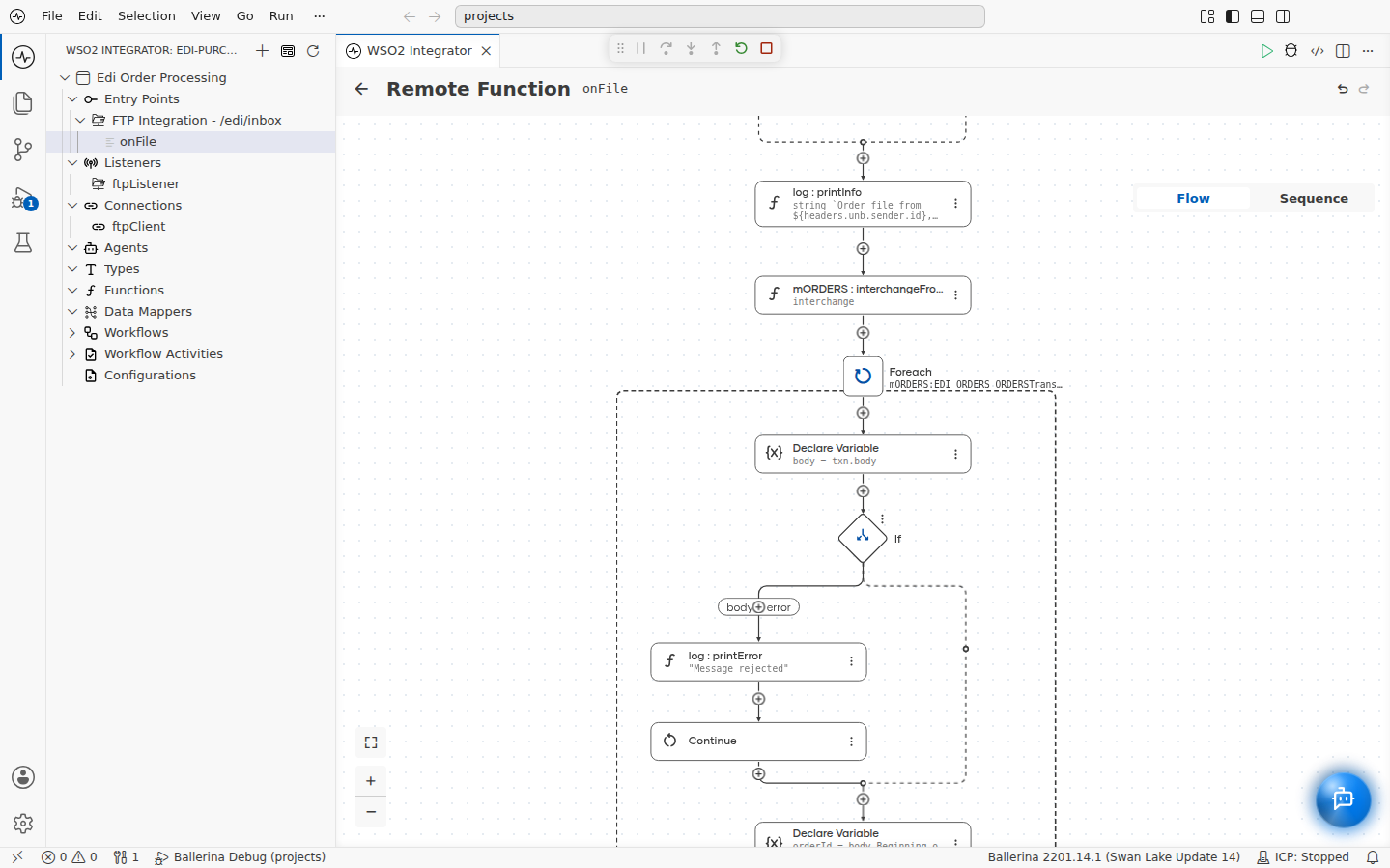
Add a Foreach node over the collection
interchange.transactions, with the variabletxnof typemORDERS:EDI_ORDERS_ORDERSTransaction.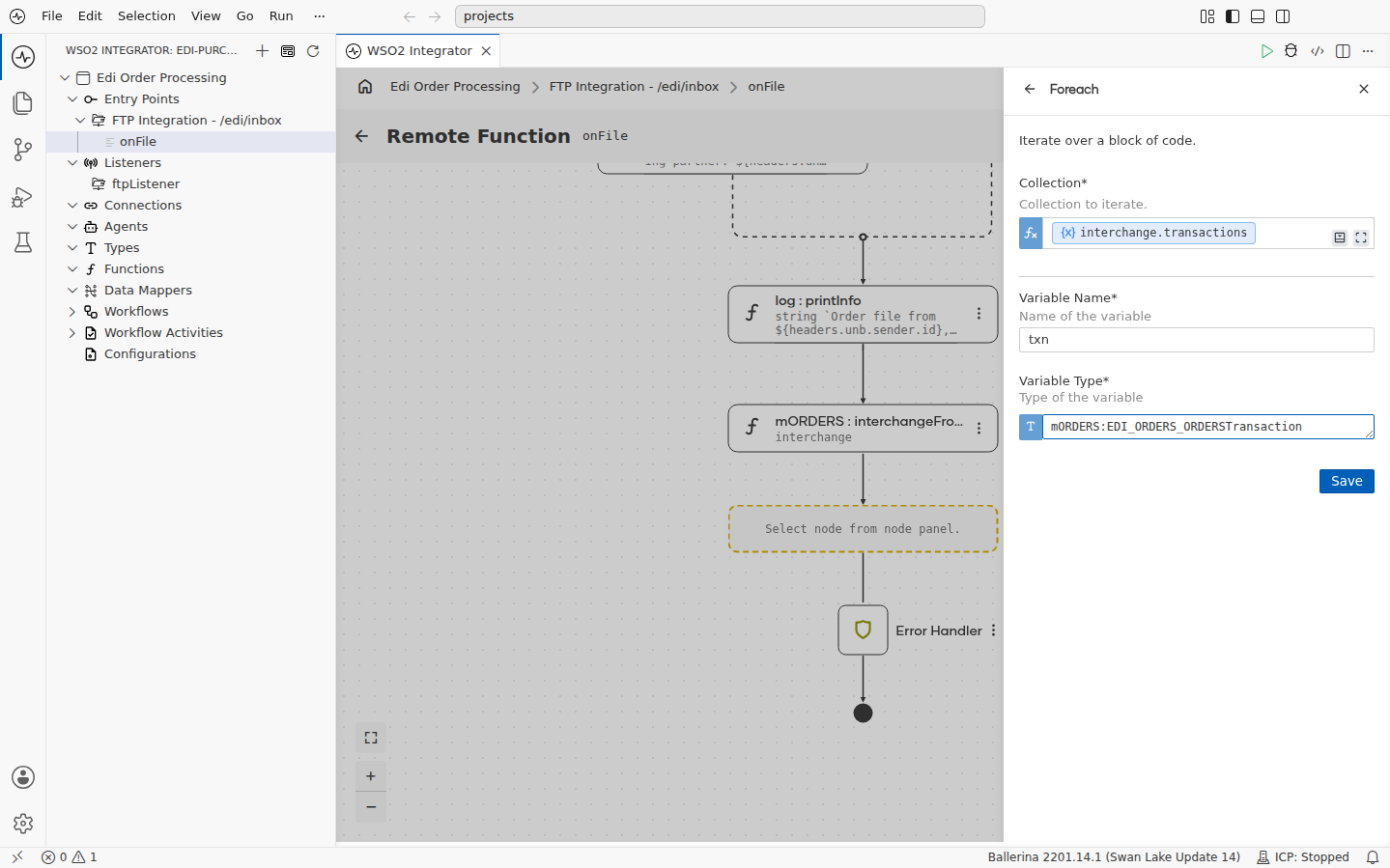
-
Inside the loop, add a Declare Variable node named
bodyof typemORDERS:EDI_ORDERS_ORDERS|errorwith the expressiontxn.body. -
Add an If node with the condition
body is error. Inside its branch:-
Add a Log Error node with the message
Message rejected, the Error set tobody, and an Additional Values entry with the keyreferenceand the valuetxn.transactionHeader.Message_header.message_reference_number.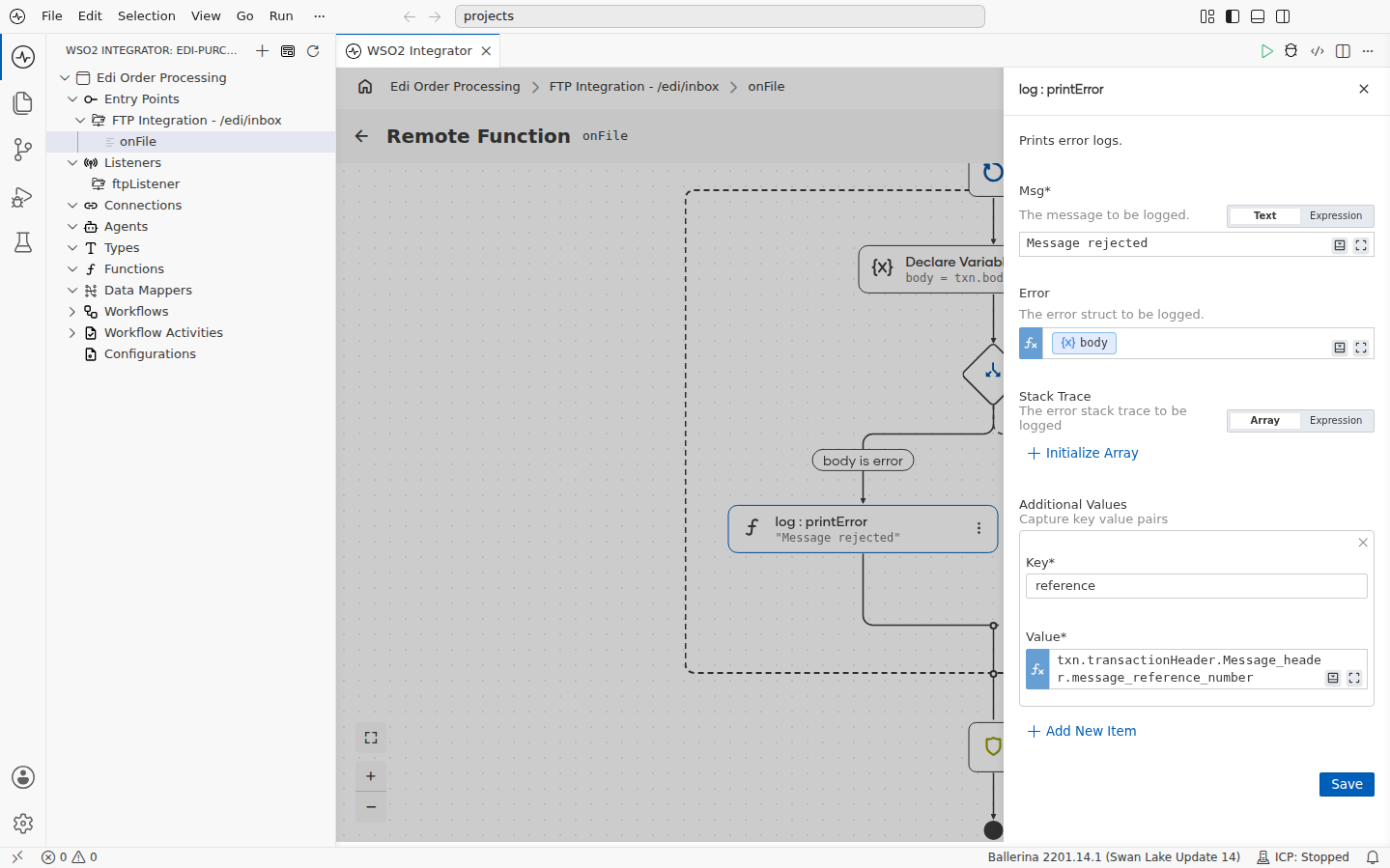
-
Add a Continue node, so the loop moves on to the next message.
-
-
After the If node, still inside the loop, add the processing for a valid order. A Declare Variable node and a Log Info node are enough to see it working:
orderIdof typestringwith the expressionbody.Beginning_of_message?.DOCUMENT_MESSAGE_IDENTIFICATION?.Document_identifier ?: "".- A Log Info node with the expression
string `Order ${orderId} received from ${headers.unb.sender.id}`.
// main.bal, inside the do block
mORDERS:EDI_ORDERS_ORDERSInterchange interchange = check mORDERS:interchangeFromEdiString(ediText);
foreach mORDERS:EDI_ORDERS_ORDERSTransaction txn in interchange.transactions {
    mORDERS:EDI_ORDERS_ORDERS|error body = txn.body;
    if body is error {
        log:printError("Message rejected", body, reference = txn.transactionHeader.Message_header.message_reference_number);
        continue;
    }
    string orderId = body.Beginning_of_message?.DOCUMENT_MESSAGE_IDENTIFICATION?.Document_identifier ?: "";
    log:printInfo(string `Order ${orderId} received from ${headers.unb.sender.id}`);
}
The package is imported as import ballerinax/edifact.d03a.supplychain.mORDERS;.
Trading partners usually expect a reply that lists the orders that were accepted and the messages that were rejected. In EDIFACT that reply is an APERAK (application error and acknowledgement) message. The same package provides the APERAK records in its mAPERAK module and an interchangeToEdiString function to write one. To send it, select FTP Connection (caller) under the handler's Advanced Configurations and write the reply to the partner's outbox with caller->putText. See the EDI acknowledgement example for a function that builds the APERAK from the parsed interchange.
Run and verify
-
Supply the SFTP credentials. Go to Configurations and set
sftpUsernametopartnerandsftpPasswordtopartner123, or add them to aConfig.tomlfile in the integration directory:sftpUsername = "partner"
sftpPassword = "partner123" -
Select Run on the integration.
-
Drop the sample interchange into the partner's inbox:
docker cp orders.edi edi-sftp:/home/partner/edi/inbox/
docker exec edi-sftp chown partner /home/partner/edi/inbox/orders.edi -
Within a minute, the listener's next poll picks the file up. Two orders are logged, and the third message is rejected with the parse error naming the segment that was missing:
level=INFO  message="Order file from SUPERMART, reference REF2"
level=INFO  message="Order PO20001 received from SUPERMART"
level=INFO  message="Order PO20002 received from SUPERMART"
level=ERROR message="Message rejected" error={..."message":"Mandatory unit is missing in the EDI. Unit: Segment BGM ..."} reference="0003"
The file moves to
/edi/processed. -
Change the sender in the
UNBsegment oforders.edito something else, such asOTHERCO, and drop it again. The file is rejected on the envelope alone, without the schema being consulted, and moves to/edi/rejected:error: Unknown trading partner: OTHERCOA file without the
.ediextension stays in the inbox.
What's next
- Pick files up from other places. The same handler works on a local directory, and the FTP/SFTP service supports FTPS and key-based authentication for real partner mailboxes. For partners that post EDI over HTTP, the parsing logic is unchanged: read the request body into
ediText. - Support a partner's own variant. When a partner's messages deviate from the standard, generate a parser from the specification, adapt the schema to what they send, and swap it in for the prebuilt package. Bundle the schemas for every message type a partner sends into one package with
libgen. - Deploy it. Ship the integration to WSO2 Cloud, a Docker container, or a virtual machine, and point the listener at the partner's real SFTP server through the configurables.