Building an IT Helpdesk AI Agent with Persistent Memory
What you will build
In this tutorial, you will build an IT helpdesk AI agent that assists employees with technical support issues and remembers conversations across service restarts using persistent MSSQL-backed memory.
The AI agent exposes a chat interface using ai:Listener, responds to employee questions, searches an internal knowledge base for troubleshooting guidance, and maintains conversation history using ballerinax/ai.memory.mssql.
By persisting chat history using a database-backed memory store, employees can continue conversations using the same session ID without repeating previously shared information, even after the integration service restarts.
What you will learn
In this tutorial, you will learn how to:
- Create an AI agent using the Chat Agent Service artifact
- Expose the agent through
ai:Listener - Persist conversation history across service restarts using MSSQL-backed memory
- Maintain employee-specific conversations using a session ID
Prerequisites
Before getting started, ensure that the following requirements are met:
- Install the WSO2 Integrator
- Have an MSSQL database reachable (host, port, user, password) for agent memory persistence. Have the chat messages table (and, if you plan to use human-in-the-loop, the checkpoint table) created ahead of time. See Memory for the required schemas.
- Have a basic understanding of memory configuration concepts. For more information, refer to Memory
Architecture
Build the integration
In this section, you will create the integration project and configure the AI agent for the IT helpdesk system.
Step 1: Create the integration project
Create a new integration project by following the instructions in Create a project.
Step 2: Define the data type
Define the following data type.
- Ballerina Code
# types.bal
type KbArticle record {|
    string articleId;
    string title;
    string content;
    string category;
    string[] tags;
    float relevanceScore;
|};
Initialize the kbArticles.
- Ballerina Code
final KbArticle[] & readonly kbArticles = [
    {
        articleId: "KB-101",
        title: "VPN Troubleshooting",
        content: "Restart the VPN client and reconnect.",
        category: "network",
        tags: ["vpn"],
        relevanceScore: 0.95
    },
    {
        articleId: "KB-102",
        title: "Password Reset",
        content: "Use the self-service password reset portal.",
        category: "account",
        tags: ["password"],
        relevanceScore: 0.9
    }
];
The tool you add in Step 4 searches kbArticles by matching tags against the employee's query, and returns the content of the highest-relevanceScore match.
Step 3: Create and configure the agent
- Visual Designer
- Ballerina Code
- Open WSO2 Integrator, create or select your project.
- On the Design tab, select Add Artifact manually (below the WSO2 Integrator Copilot's quick-start cards).
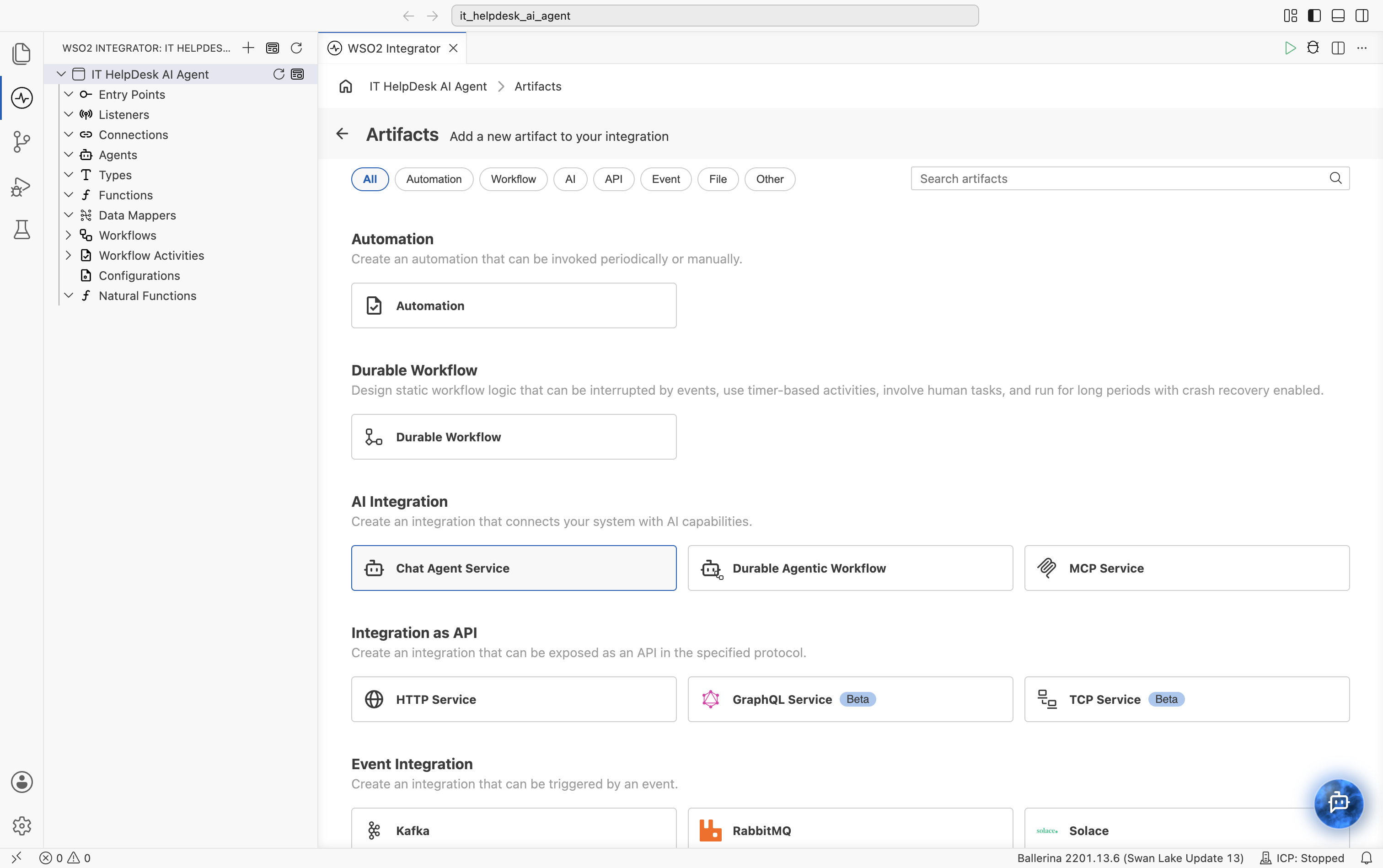
- On the Artifacts page, under AI Integration, select Chat Agent Service.
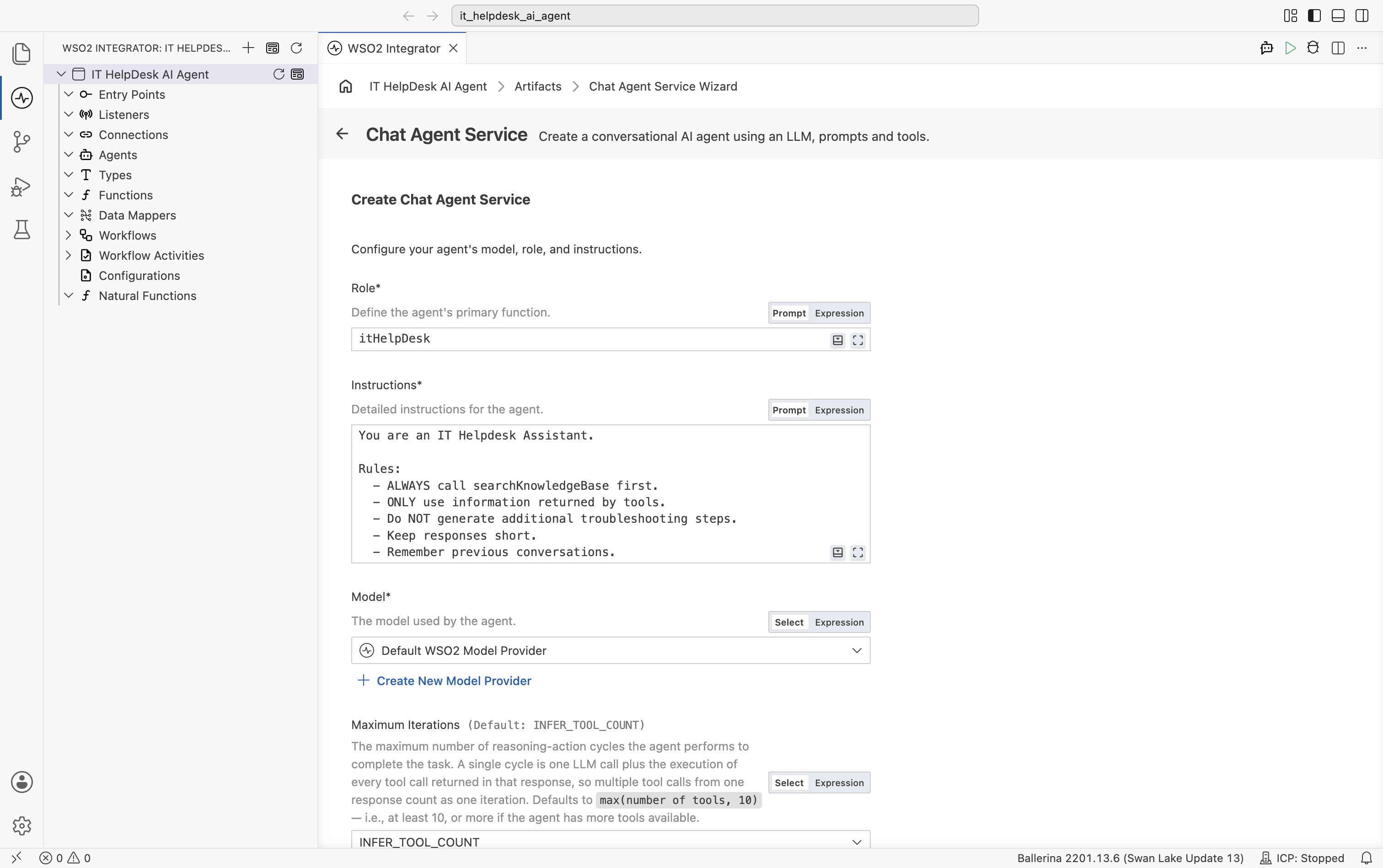
- On the Create Chat Agent Service form, set:
- Role to
itHelpDesk. - Instructions to:
- Role to
You are an IT Helpdesk Assistant.

Rules:
  - ALWAYS call searchKnowledgeBase first.
  - ONLY use information returned by tools.
  - Do NOT generate additional troubleshooting steps.
  - Keep responses short.
  - Remember previous conversations.
- Model as Default WSO2 Model Provider.
- Leave Maximum Iterations at its default (
INFER_TOOL_COUNT).
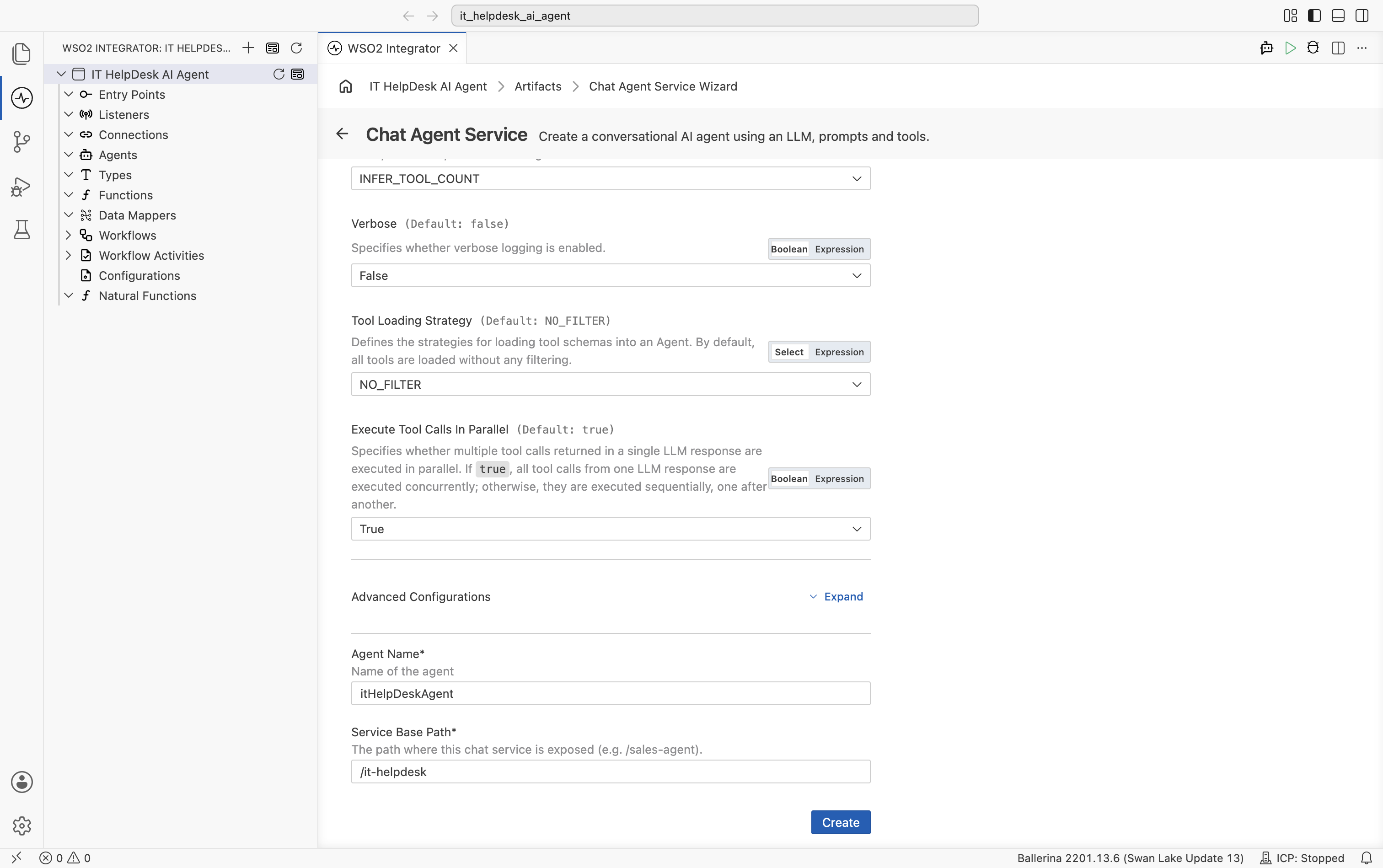
- Leave Verbose, Tool Loading Strategy, and Execute Tool Calls In Parallel at their defaults.
- Set Agent Name to
itHelpDeskAgent. - Set Service Base Path to expose the chat service, for example
/it-helpdesk. - Select Create.
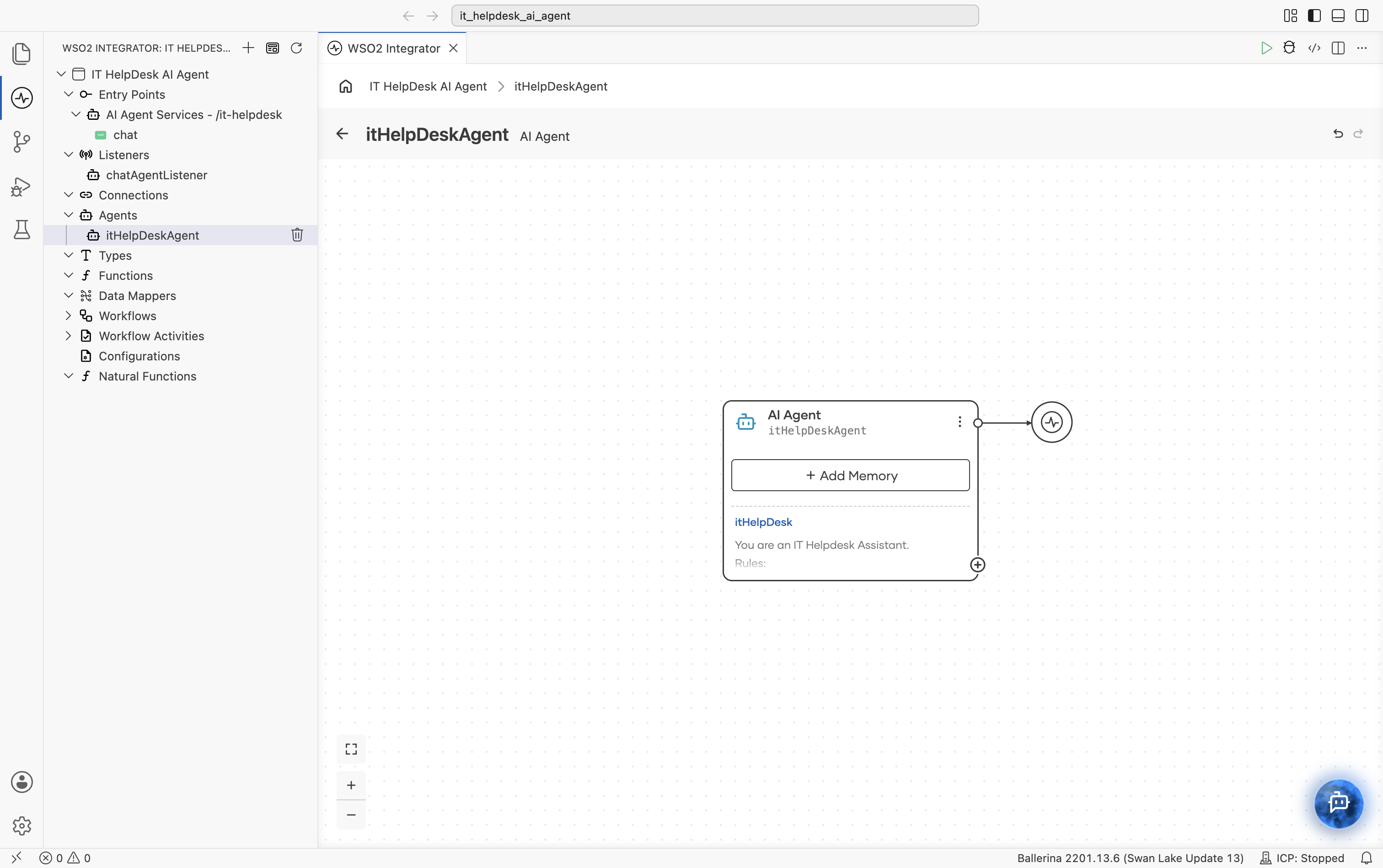
This creates an AI Agent Service with a POST /chat resource and a chatAgentListener, plus the itHelpDeskAgent agent under Agents. Select itHelpDeskAgent under Agents to open its canvas: the AI Agent node is connected to the model provider, with a + Add Memory button and a + icon at its bottom-right corner for adding tools.
# agents.bal
import ballerina/ai;

final ai:Agent itHelpDeskAgent = check new (
    systemPrompt = {
        role: string `itHelpDesk`,
        instructions: string `You are an IT Helpdesk Assistant.

Rules:
  - ALWAYS call searchKnowledgeBase first.
  - ONLY use information returned by tools.
  - Do NOT generate additional troubleshooting steps.
  - Keep responses short.
  - Remember previous conversations.`
    }, model = check ai:getDefaultModelProvider(), tools = []
);
main.bal: HTTP chat service:
import ballerina/ai;
import ballerina/http;

listener ai:Listener chatAgentListener = new (listenOn = check http:getDefaultListener());

service /it\-helpdesk on chatAgentListener {
    resource function post chat(@http:Payload ai:ChatReqMessage request) returns ai:ChatRespMessage|error {
        string stringResult = check itHelpDeskAgent.run(request.message, request.sessionId);
        return {message: stringResult};
    }
}
Step 4: Add a tool to the agent
- Visual Designer
- Ballerina Code
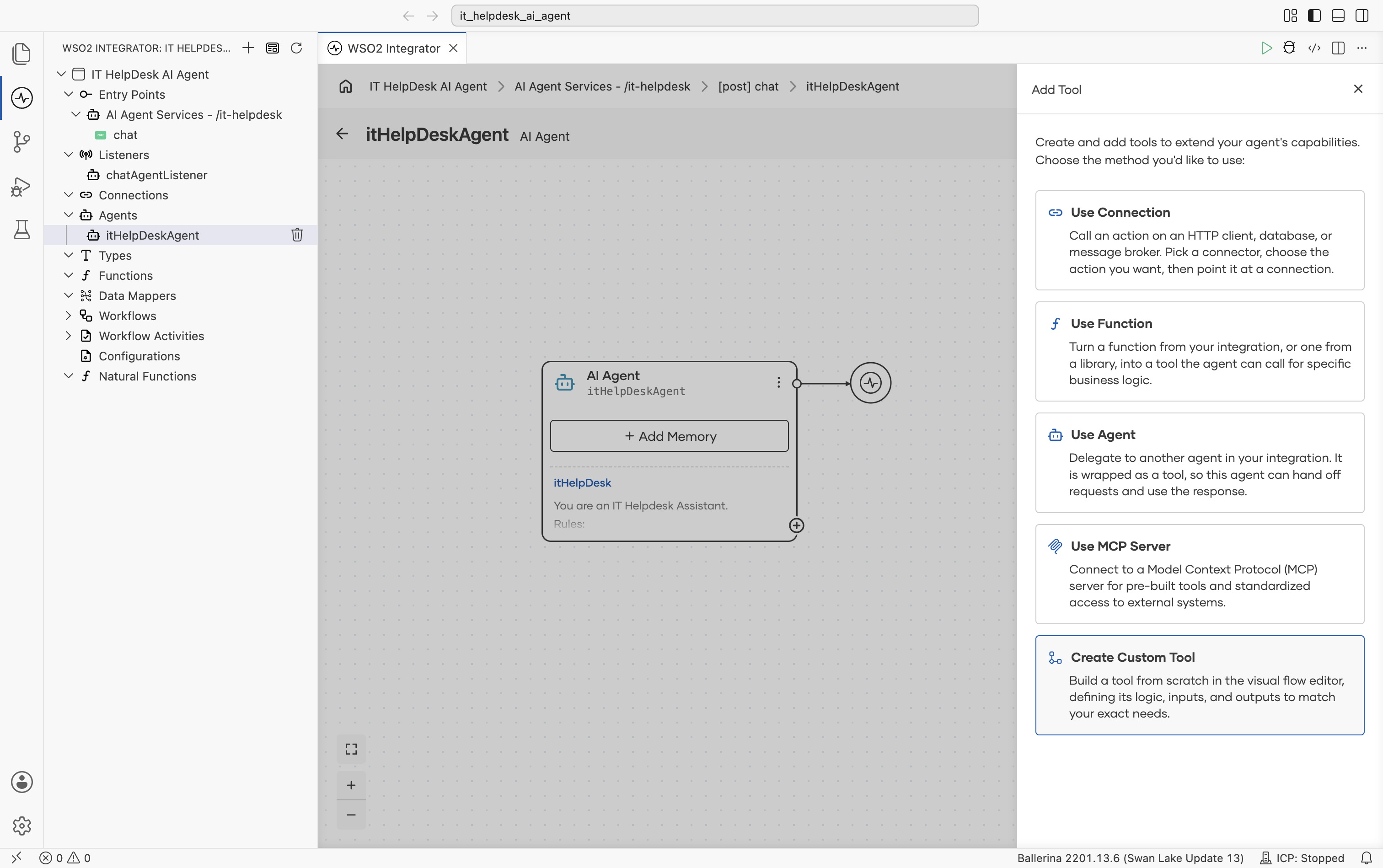
- Select the + at the bottom-right corner of the AI Agent node. The Add Tool panel opens, listing Use Connection, Use Function, Use Agent, Use MCP Server, and Create Custom Tool. Select Create Custom Tool.
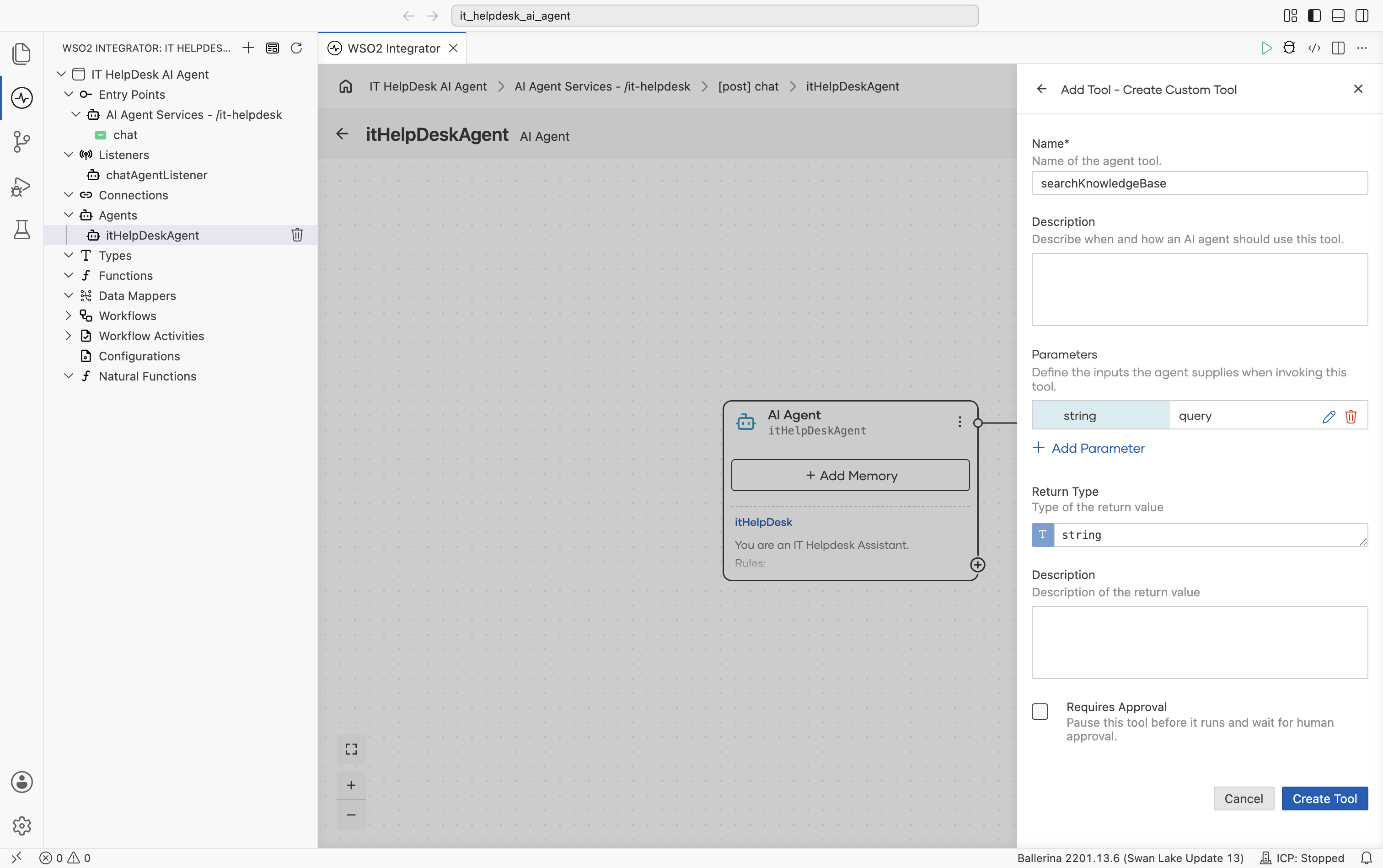
- Set:
- Name to
searchKnowledgeBase. - A parameter of Type
stringand Namequery. - Return Type to
string.
- Name to
- Leave Requires Approval unchecked and select Create Tool.
- The tool now shows as a node connected to the agent. Select it to open its flow, and build the logic shown below: normalize the query, declare a
bestMatchvariable, loop overkbArticlesand theirtagsto find the highest-relevanceScorematch, then return itscontent, or fall back to a "no matching article" return.
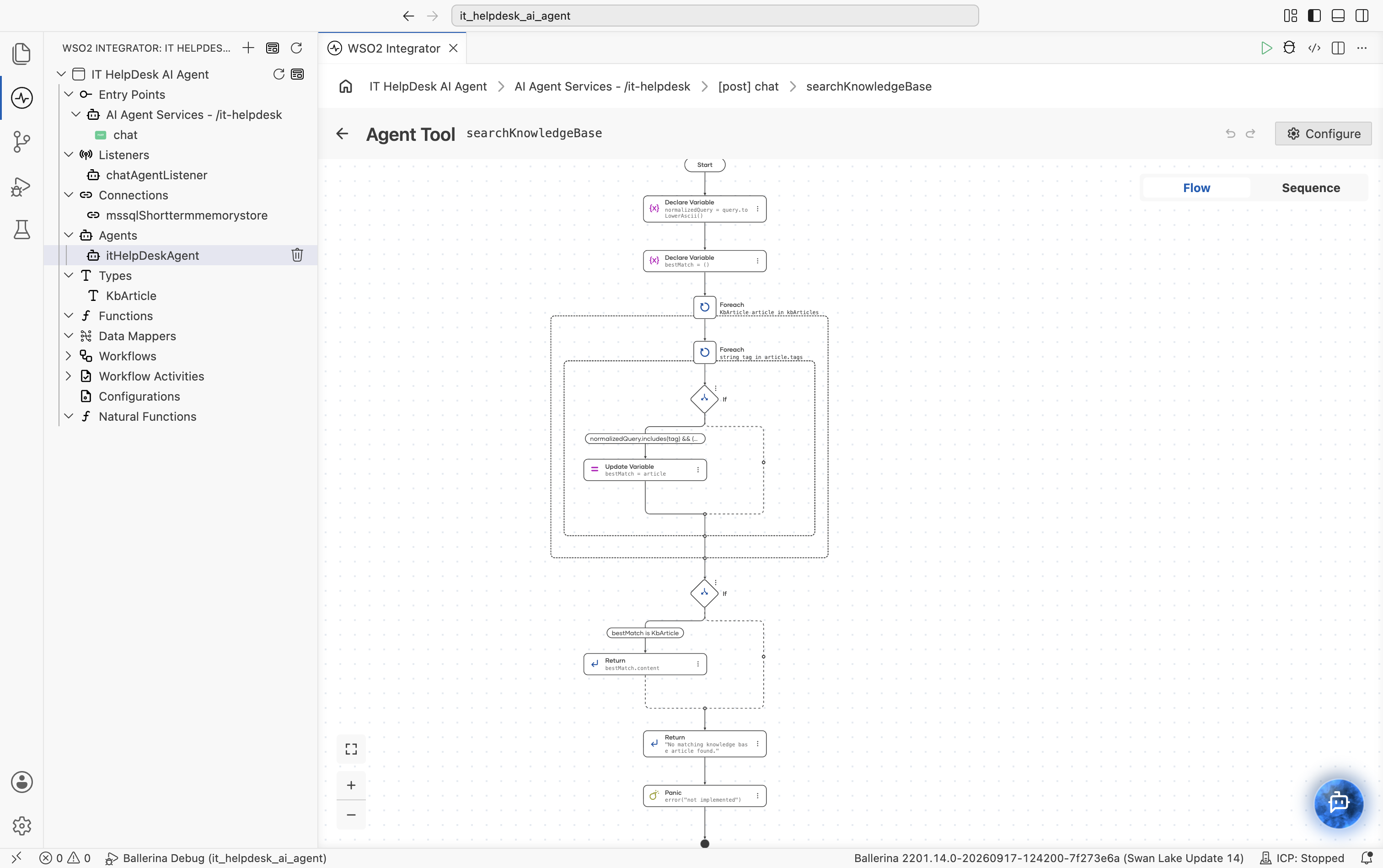
This searches the kbArticles array you defined in Step 2 by matching tags against the query, so adding a new topic is a matter of adding a KbArticle entry rather than editing the tool's logic.
New tools open with a placeholder panic error("not implemented") statement after the last node you add. It becomes unreachable once your final Return is in place, so it's safe to leave it or delete it from the pro-code view. Either way, it doesn't affect the build.
# agents.bal
@ai:AgentTool
isolated function searchKnowledgeBase(string query) returns string {

    string normalizedQuery = query.toLowerAscii();
    KbArticle? bestMatch = ();

    foreach KbArticle article in kbArticles {
        foreach string tag in article.tags {
            if normalizedQuery.includes(tag) && (bestMatch is () || article.relevanceScore > bestMatch.relevanceScore) {
                bestMatch = article;
            }
        }
    }

    if bestMatch is KbArticle {
        return bestMatch.content;
    }

    return "No matching knowledge base article found.";
}
Step 5: Add persistent memory to the agent
- Visual Designer
- Ballerina Code
- Select + Add Memory on the AI Agent node. The Configure Memory panel opens with Select Memory set to Short Term Memory and Store defaulting to In-Memory Short Term Memory Store.
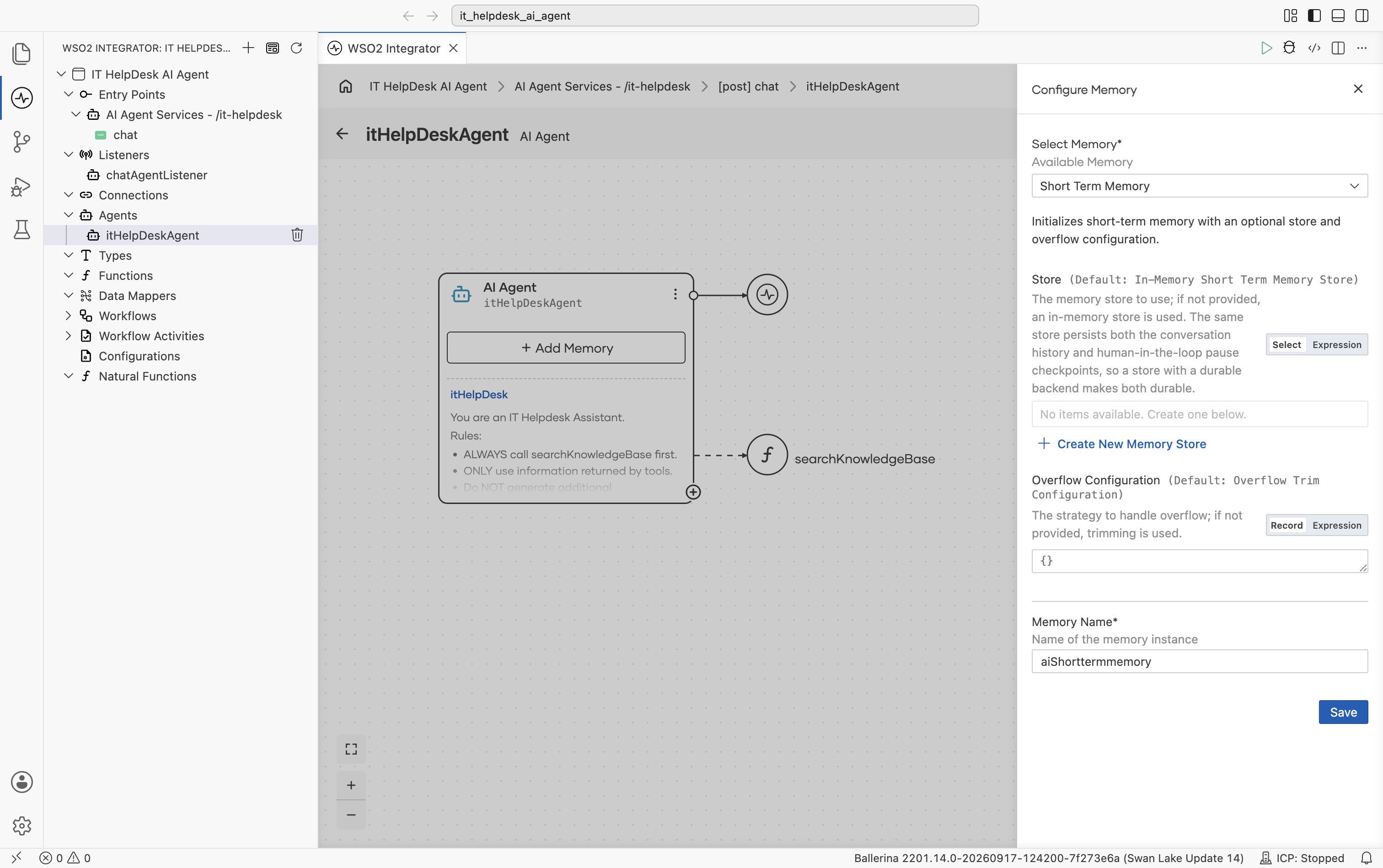
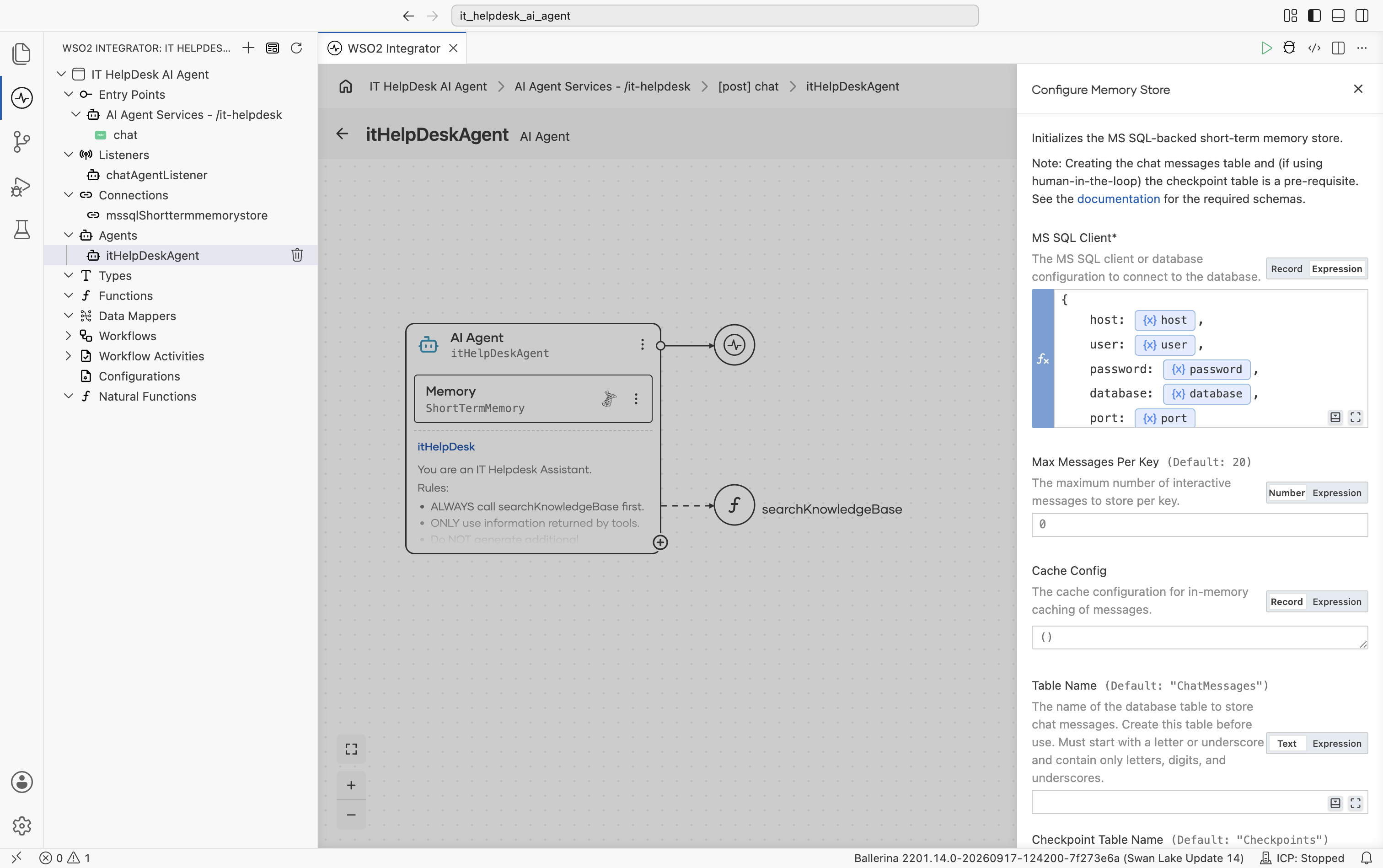
- Select + Create New Memory Store, then pick the MS SQL-backed store. Bind MS SQL Client to your database connection details using configurable values for
host,user,password,database, andport(see the Ballerina Code tab for the correspondingconfig.baldeclarations). Leave Max Messages Per Key, Cache Config, and Table Name at their defaults (the table name defaults toChatMessages). Creating this table ahead of time is a prerequisite.
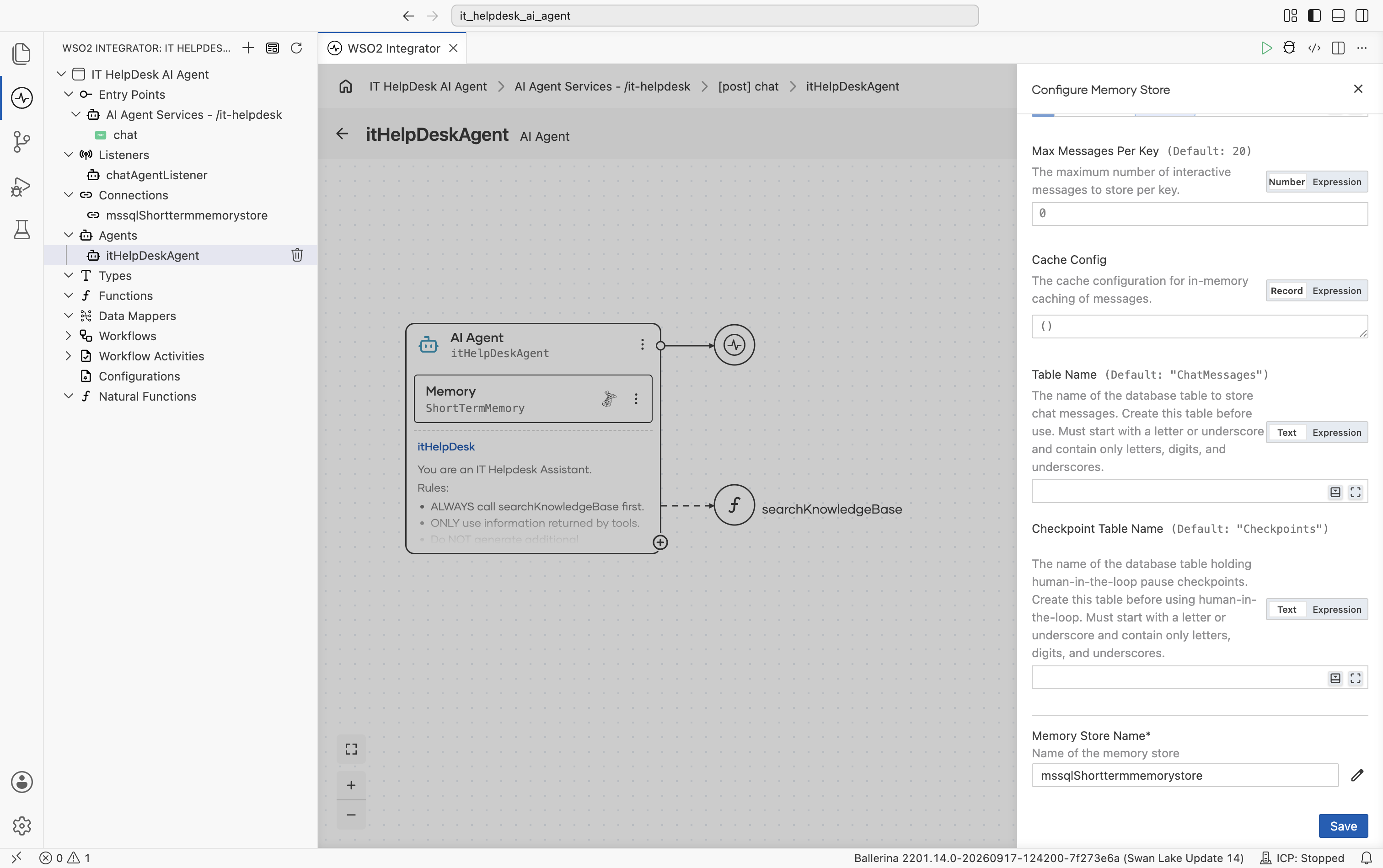
- Leave Memory Store Name at its default (for example
mssqlShorttermmemorystore). Result Type is fixed tomssql:ShortTermMemoryStore. Select Save.
- Back in the Configure Memory panel, the new store is selected under Store. Leave Memory Name at its default (for example
aiShorttermmemory) and select Save.
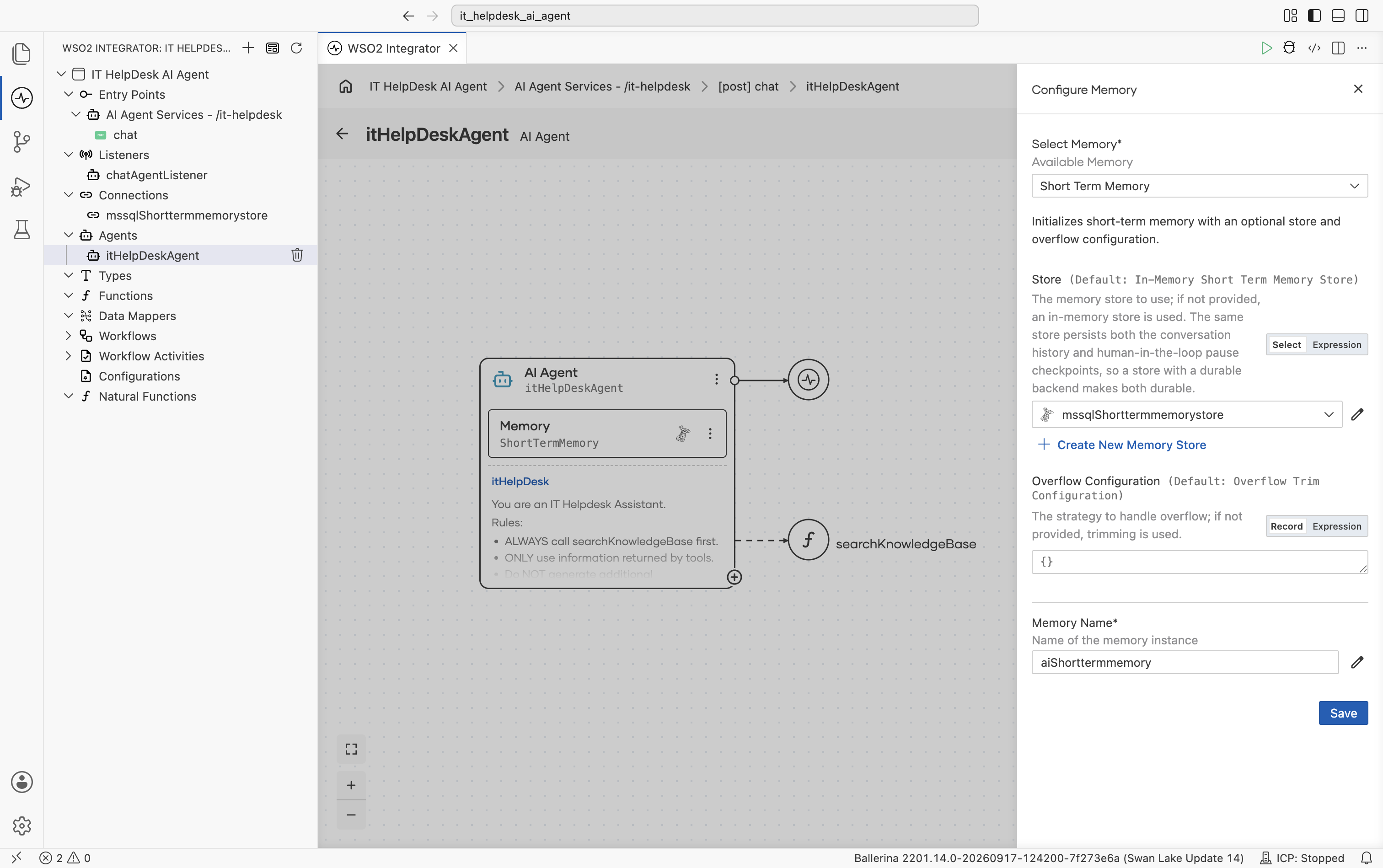
The AI Agent node now shows a Memory sub-node (ShortTermMemory) alongside its connection to the model provider and the searchKnowledgeBase tool.
config.bal: configurable values for the MSSQL connection.
configurable string host = "<hostName>";
configurable string user = "<userName>";
configurable string password = "<password>";
configurable string database = "<databaseName>";
configurable int port = <port>;
Add the MSSQL-backed memory store to agents.bal, and wire it into the agent. This is the complete, final agents.bal:
# agents.bal
import ballerina/ai;
import ballerinax/ai.memory.mssql;

final ai:Agent itHelpDeskAgent = check new (
    systemPrompt = {
        role: string `itHelpDesk`,
        instructions: string `You are an IT Helpdesk Assistant.

Rules:
  - ALWAYS call searchKnowledgeBase first.
  - ONLY use information returned by tools.
  - Do NOT generate additional troubleshooting steps.
  - Keep responses short.
  - Remember previous conversations.`
    }, model = check ai:getDefaultModelProvider(), tools = [searchKnowledgeBase], memory = aiShorttermmemory
);

@ai:AgentTool
isolated function searchKnowledgeBase(string query) returns string {

    string normalizedQuery = query.toLowerAscii();
    KbArticle? bestMatch = ();

    foreach KbArticle article in kbArticles {
        foreach string tag in article.tags {
            if normalizedQuery.includes(tag) && (bestMatch is () || article.relevanceScore > bestMatch.relevanceScore) {
                bestMatch = article;
            }
        }
    }

    if bestMatch is KbArticle {
        return bestMatch.content;
    }

    return "No matching knowledge base article found.";
}

final mssql:ShortTermMemoryStore mssqlShorttermmemorystore = check new ({
    host: host,
    user: user,
    password: password,
    database: database,
    port: port
});
final ai:ShortTermMemory aiShorttermmemory = check new (mssqlShorttermmemorystore);
Step 6: Run and test the integration
- Visual Designer
- Ballerina Code
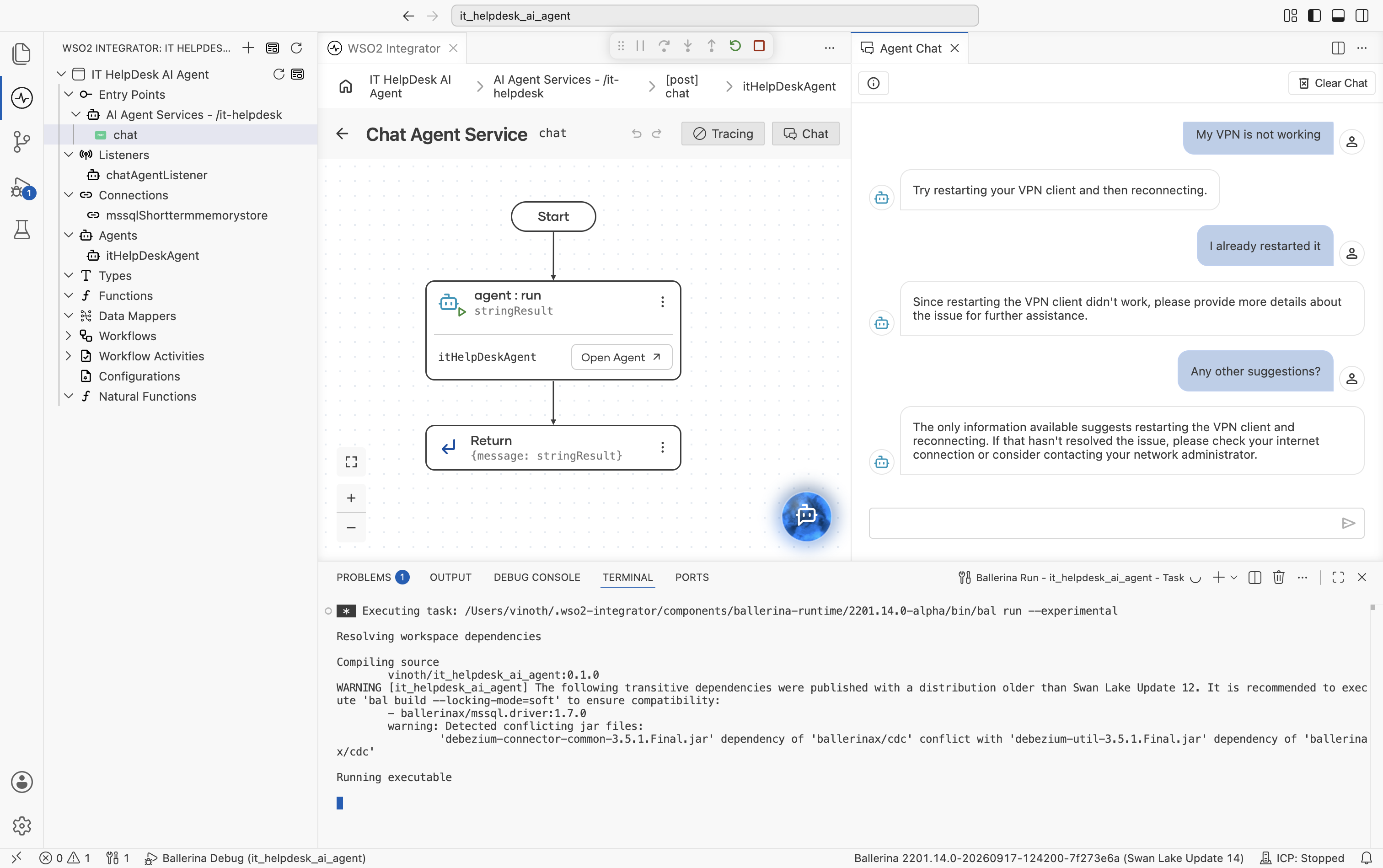
- Select Run. WSO2 Integrator applies the
--experimentalflag and compiles and starts the service, with progress shown in the integrated terminal. - Open the
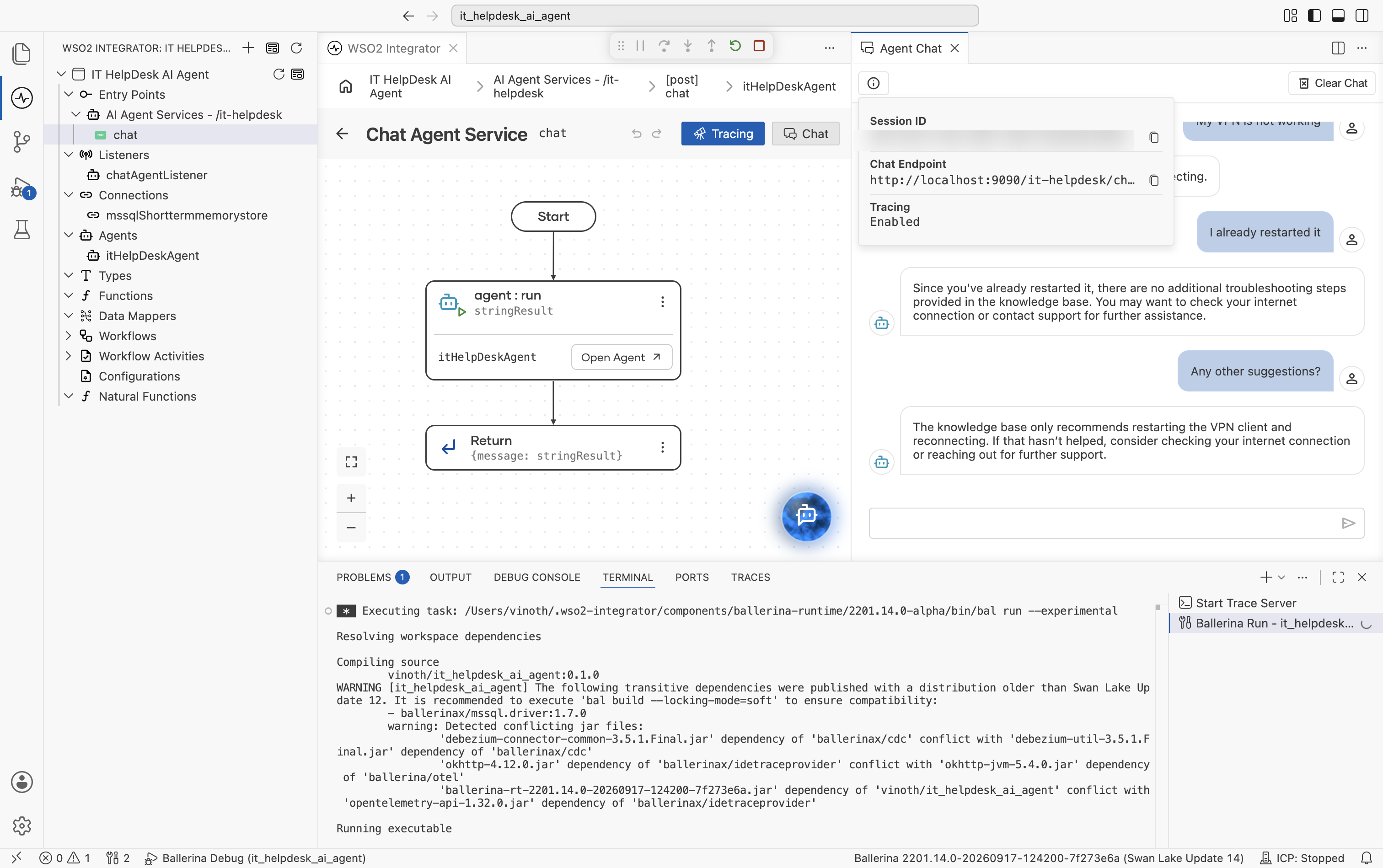
chatresource and select Chat in the toolbar (next to Tracing) to open the Agent Chat panel. Try the conversation below to exercise the tool and confirm the agent remembers earlier turns in the same session:
- "My VPN is not working"
- "I already restarted it"
- "Any other suggestions?"
- To prove memory survives a service restart, you need the session ID the Chat panel is using. Select the ⓘ icon at the top-left of the Agent Chat panel. It shows the Session ID and Chat Endpoint for the current conversation.
- Stop the service, then select Run again to restart it. Once it's back up, send a request with the same session ID. Use either the one you copied from the info popover, or a session ID of your own choosing used consistently across requests. See the Ballerina Code tab for a full curl walkthrough using
EMP-1001:
curl -X POST http://localhost:9090/it-helpdesk/chat \
  -H "Content-Type: application/json" \
  -d '{"sessionId": "<your session ID>", "message": "Do you remember my issue?"}'
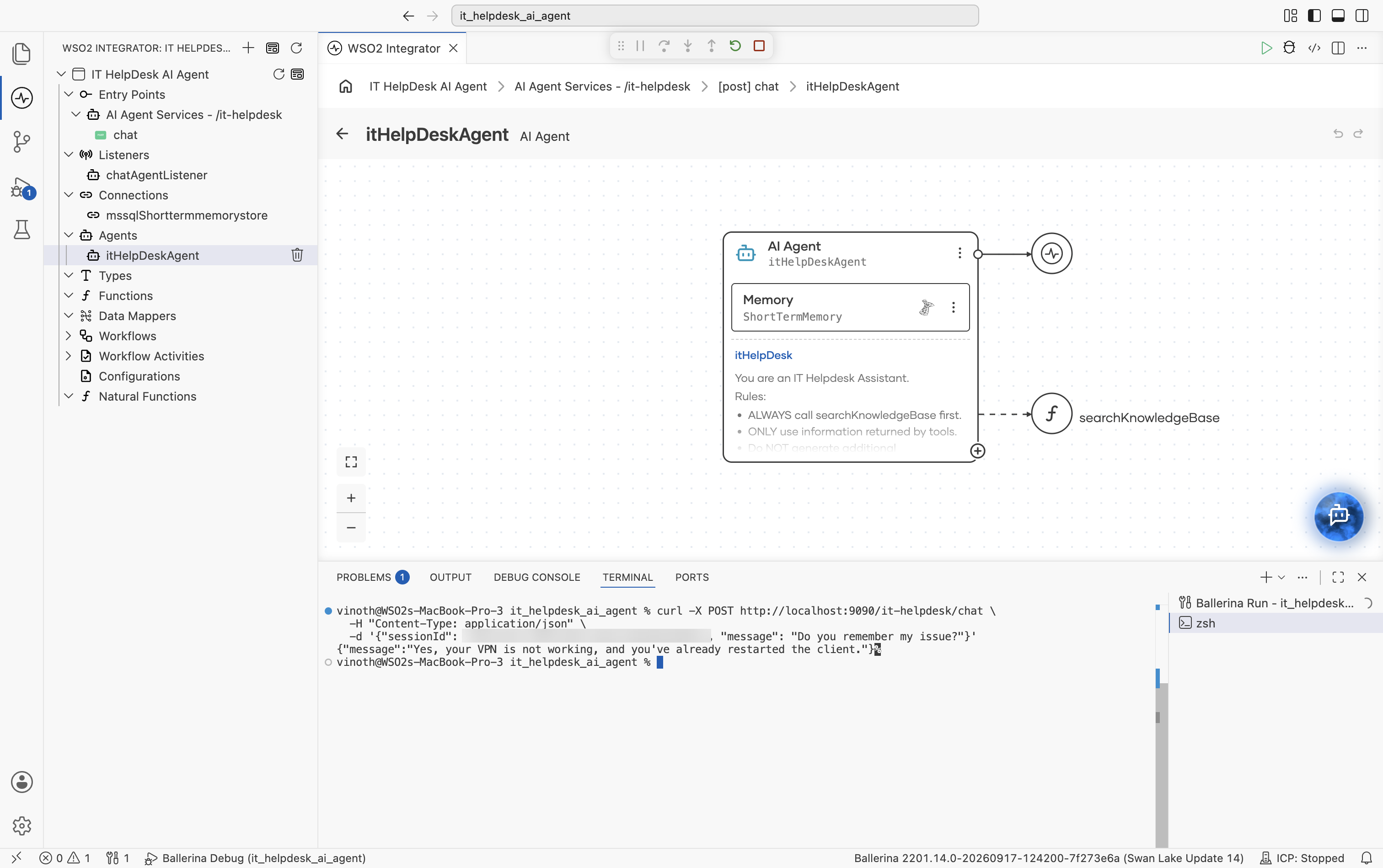
The response confirms the agent remembers the VPN issue and that you'd already restarted the client. This proves the conversation history survived the restart because it's persisted in MSSQL, not held in process memory.
- Run the agent integration.
- Ask a question as an employee:
- Curl Command
curl -X POST http://localhost:9090/it-helpdesk/chat \
  -H "Content-Type: application/json" \
  -d '{
        "sessionId": "EMP-1001",
        "message": "My VPN is not working"
      }'
- Response
{
  "message":"Try restarting your VPN client and then reconnecting."
}
- Continue the conversation using the same session ID:
- Curl Command
curl -X POST http://localhost:9090/it-helpdesk/chat \
  -H "Content-Type: application/json" \
  -d '{
        "sessionId":"EMP-1001",
        "message":"I already restarted it"
      }'
- Response
{
  "message":"Since restarting the VPN client didn't work, please provide more details about the issue for further assistance."
}
- Continue the conversation again using the same session ID:
- Curl Command
curl -X POST http://localhost:9090/it-helpdesk/chat \
  -H "Content-Type: application/json" \
  -d '{
        "sessionId":"EMP-1001",
        "message":"Any other suggestions?"
      }'
- Response
{
  "message":"The only information available suggests restarting the VPN client and reconnecting. If that hasn't resolved the issue, please check your internet connection or consider contacting your network administrator."
}
- Restart the service and reconnect using the same session ID:
- Curl Command
curl -X POST http://localhost:9090/it-helpdesk/chat \
  -H "Content-Type: application/json" \
  -d '{
        "sessionId":"EMP-1001",
        "message":"Do you remember my issue?"
      }'
- Response
{
  "message":"Yes, your VPN is not working, and you've already restarted the client."
}
The AI agent remembers previous conversations because the conversation history is stored in persistent MSSQL-backed memory and retrieved using the same session ID.