Manage Workflows
The Integration Control Plane (ICP) is where you watch and steer the durable workflows an integration runs. This page covers connecting an integration to ICP and finding your way around the workflow views it opens up.
Connect a workflow runtime
A durable workflow runs inside your integration. The Integration Control Plane (ICP) can list its executions, hand out its human tasks, and control running instances only after the integration is registered with an ICP server. There are two ways to do that: run the ICP that ships with WSO2 Integrator, which registers the integration for you, or register it yourself on an ICP server you installed.
Use the ICP bundled with WSO2 Integrator
For development and evaluation, WSO2 Integrator ships its own ICP server and writes the runtime bridge configuration for you, so there is nothing to create in the console by hand.
- Open the integration overview and, under Integration Control Plane, check Enable ICP monitoring.
- Expand Publish to local ICP and click Start ICP Server.
- Start the integration. It registers with the server as it boots.
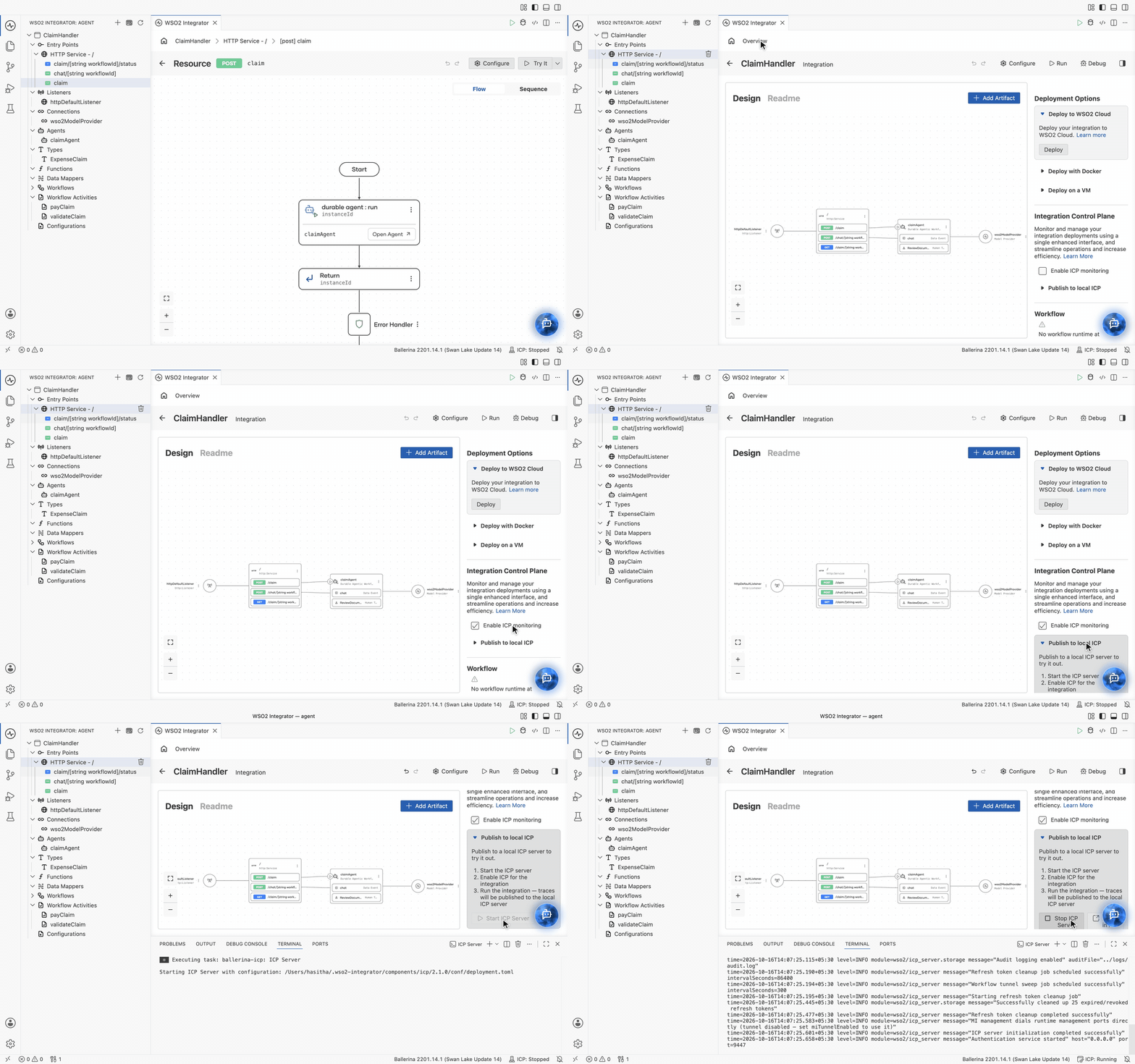
Start ICP before the integration, so the integration has somewhere to publish to as it comes up. The project and the integration are both created for you, and because the integration carries a durable workflow it is registered as a workflow integration.
For more information, see Configuring the integration node with ICP.
Register the integration on an installed ICP
On a server you installed yourself (Install ICP), create the project and the integration in the console, then connect a runtime to it.
1. Create a workflow integration
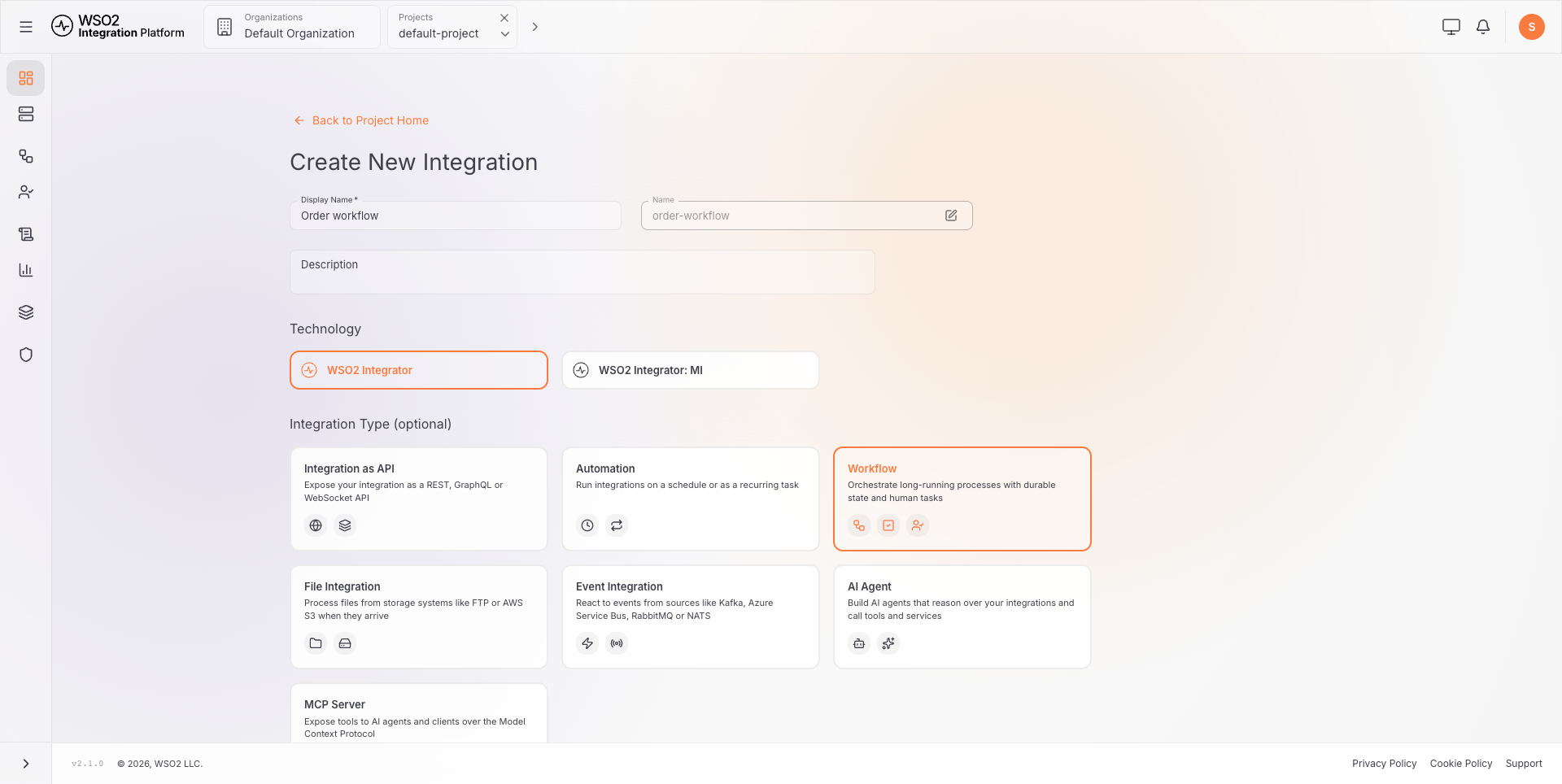
The Workflow integration type is what tells ICP that this integration hosts workflows.
-
Go to Projects > your project, or click Create Project first.
-
Click Create Integration and fill in the Create New Integration form:
Field Value Display Name A readable name, for example Order workflowName The URL-safe handle derived from the display name. Click the edit icon to override it. Technology WSO2 Integrator Integration Type (optional) Workflow, which orchestrates long-running processes with durable state and human tasks -
Click Create.
2. Add a runtime
Add a runtime to the new integration the same way as for any other integration: generate a secret from Add Runtime on the environment card, add the snippet to the integration's Config.toml with a unique runtime name, enable remote management in Ballerina.toml, import the runtime bridge, and start the integration.
The full procedure, with the field reference and troubleshooting, is in Connect an Integration to ICP.
The secret is displayed only once. Copy it before closing the dialog.
3. Verify
Once the runtime's heartbeat reaches ICP:
- Under Runtimes, the runtime appears with status RUNNING.
- The integration's sidebar carries Workflows and Human Tasks.
- The environment card lists the integration's workflows under Workflow Definitions, with View Workflows and Start New Workflow beside them.
Open an integration overview
Once an integration is registered, the Integration Control Plane provides workflow management views for it. From an integration overview, you can review the available workflows, open their executions, start a workflow, and view the connected runtimes.
Select Overview in the console navigation to open the integration overview.
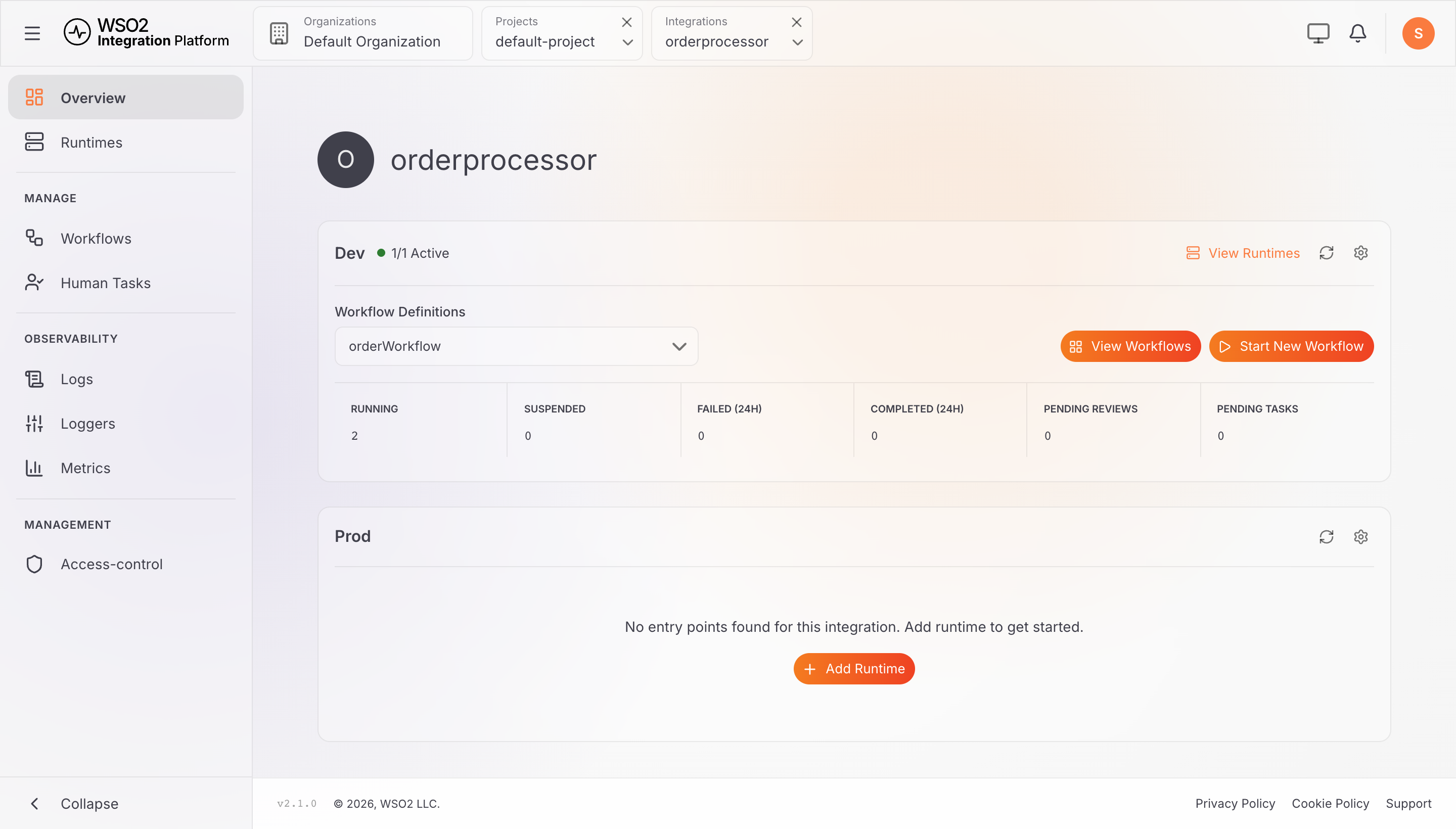
From the overview page you can take three actions:
| Action | What it does |
|---|---|
| Select a workflow definition | The Workflow Definitions dropdown lists the workflows the integration provides. Selecting one scopes the buttons and the counts below to that workflow. |
| View Workflows | Opens the Workflow Executions page, filtered to the selected workflow in that environment. |
| Start New Workflow | Opens the Start Workflow dialog with the selected workflow chosen, where you enter its input values. Shown only to users who can start workflows. See Start a workflow. |
Below the selector, the environment card counts the selected workflow's instances by status. Select a count to open the matching list:
| Status | Description |
|---|---|
| Running | Workflow instances that are currently executing or waiting. Opens the execution list. |
| Suspended | Workflow instances paused by an operator and waiting to resume. |
| Failed (24h) | Workflow instances that failed within the last 24 hours. |
| Completed (24h) | Workflow instances that completed successfully within the last 24 hours. |
| Pending Reviews | Review activities waiting for a decision: approval gates and failed-activity reviews. Opens Human Tasks. |
| Pending Tasks | Human tasks waiting for anyone, in any role. Opens Human Tasks, which lists only the ones you can act on. |
The counts need a workflow-execution permission, and Pending Tasks also needs a human-task permission. See Workflow permissions.
What's next
- Start a workflow — launch a new execution from the console
- Workflow executions — inspect workflow runs and their progress
- Complete human tasks — decide the tasks and reviews a halted run is waiting on
- Workflow permissions — the permissions and roles that control each view
- Management API — the REST API the console calls