Build an Integration as API
/hello/greeting, calls an external API, and returns the response to the caller.An HTTP service exposes your integration logic as a REST endpoint. This quick start shows the full cycle: create a service, add a resource, connect to an external API, and test it using the Try-It/Test panel in WSO2 Integrator.
Prerequisites
A working WSO2 Integrator environment.
Local setupInstall and launch WSO2 Integrator on your machine.
WSO2 Cloud AccountFor AI assisted development and WSO2 Cloud deployments.
Step 1: Create the integration
If you're using the cloud editor, a project is already open, so you can skip this step and go directly to Step 2: Add an HTTP service.
-
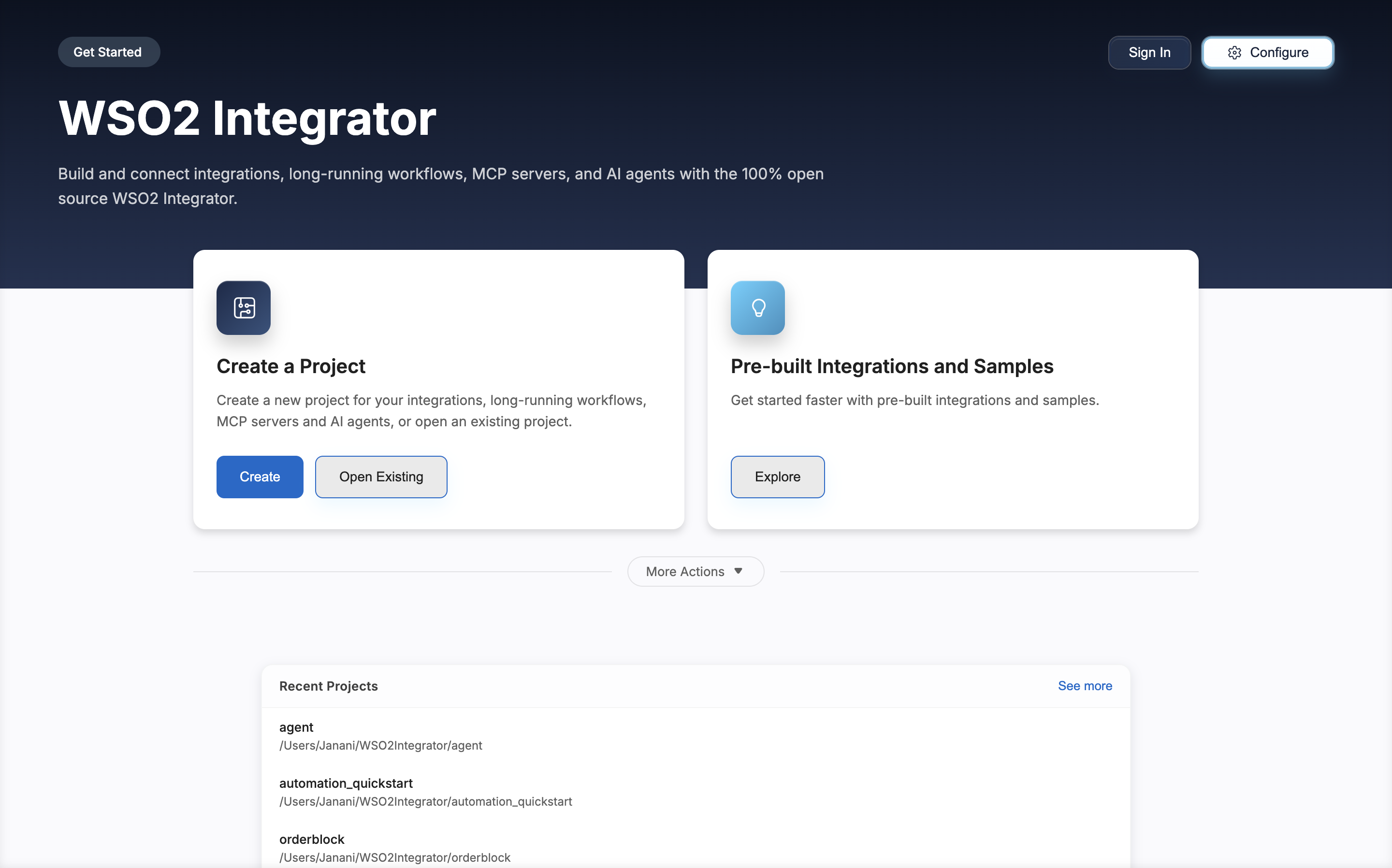
Open WSO2 Integrator.
-
Click Create in the Create a Project card.
-
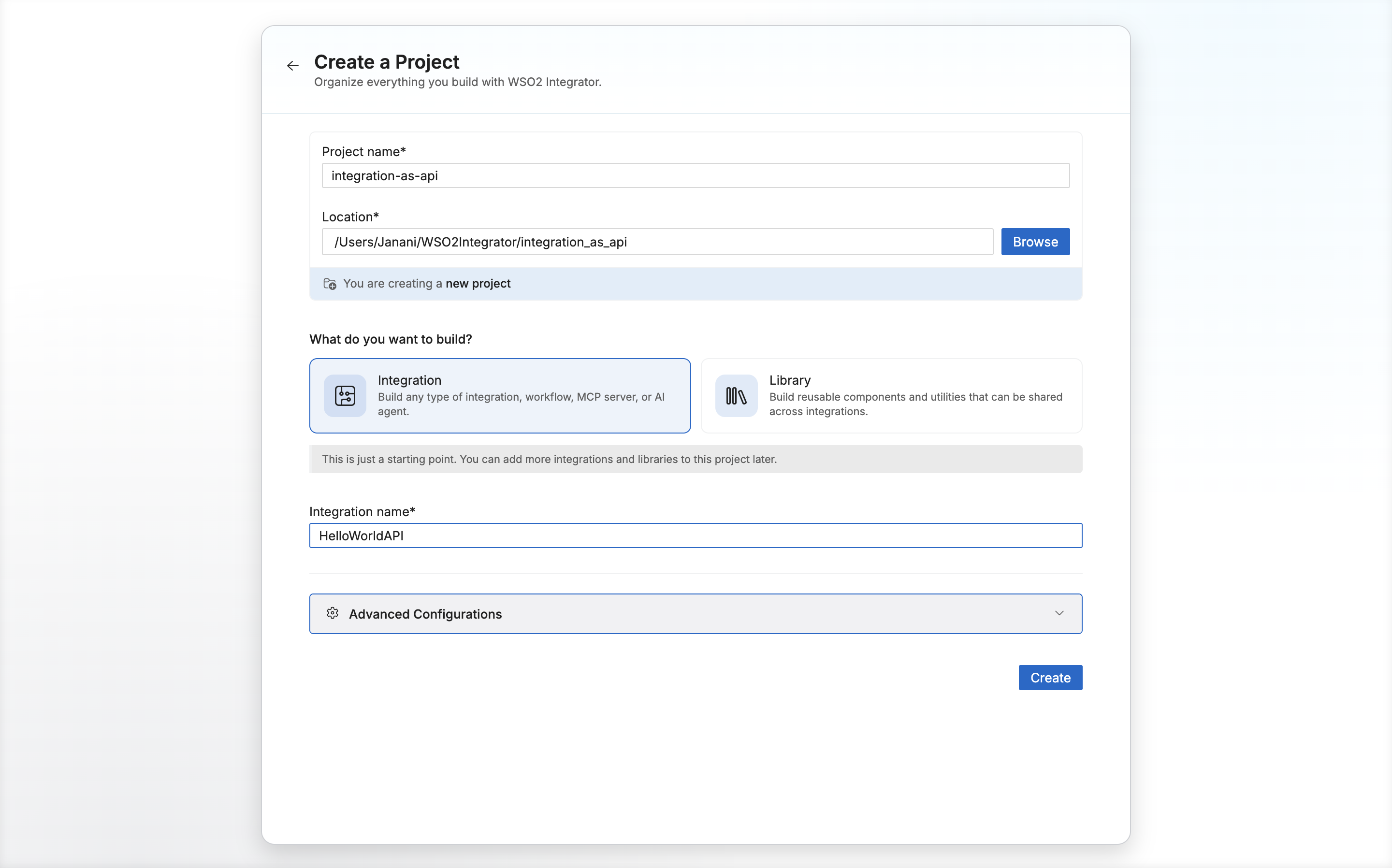
Set Project Name to
integration-as-api. -
Set Integration Name to
HelloWorldAPI. -
Click Create.
Step 2: Add an HTTP service
-
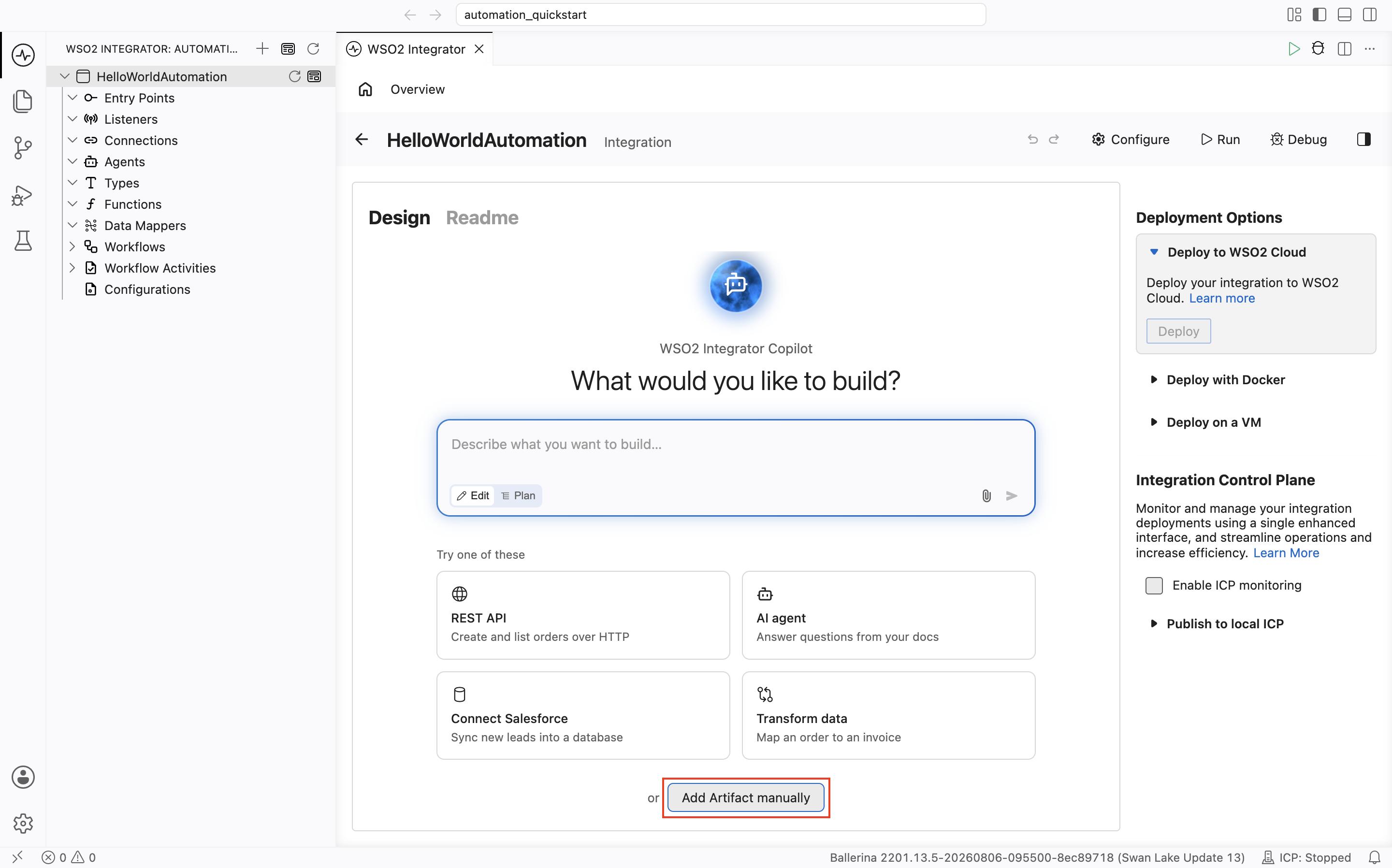
Select your integration from the project overview canvas.
-
In the design view, click Add Artifact Manually.
-
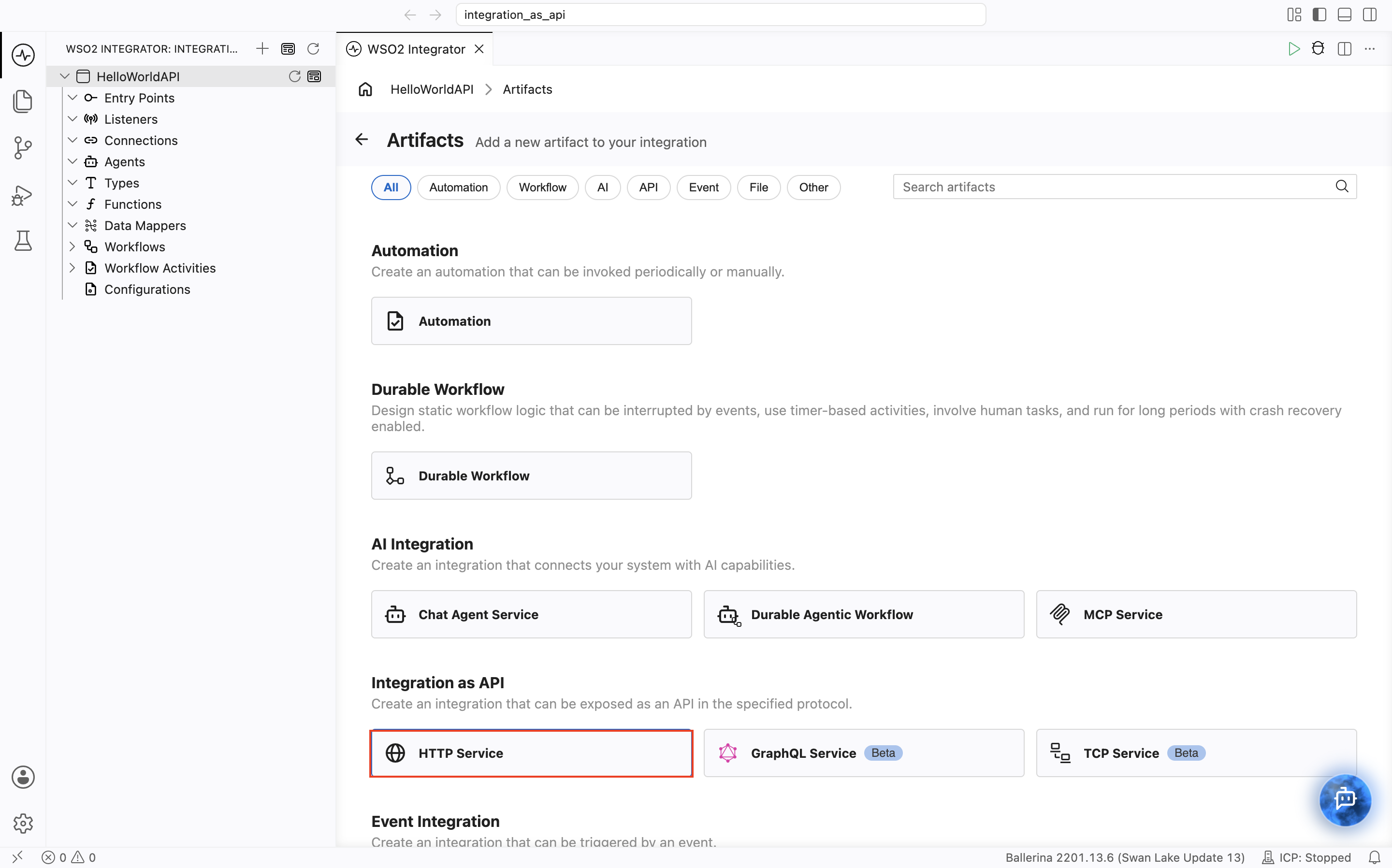
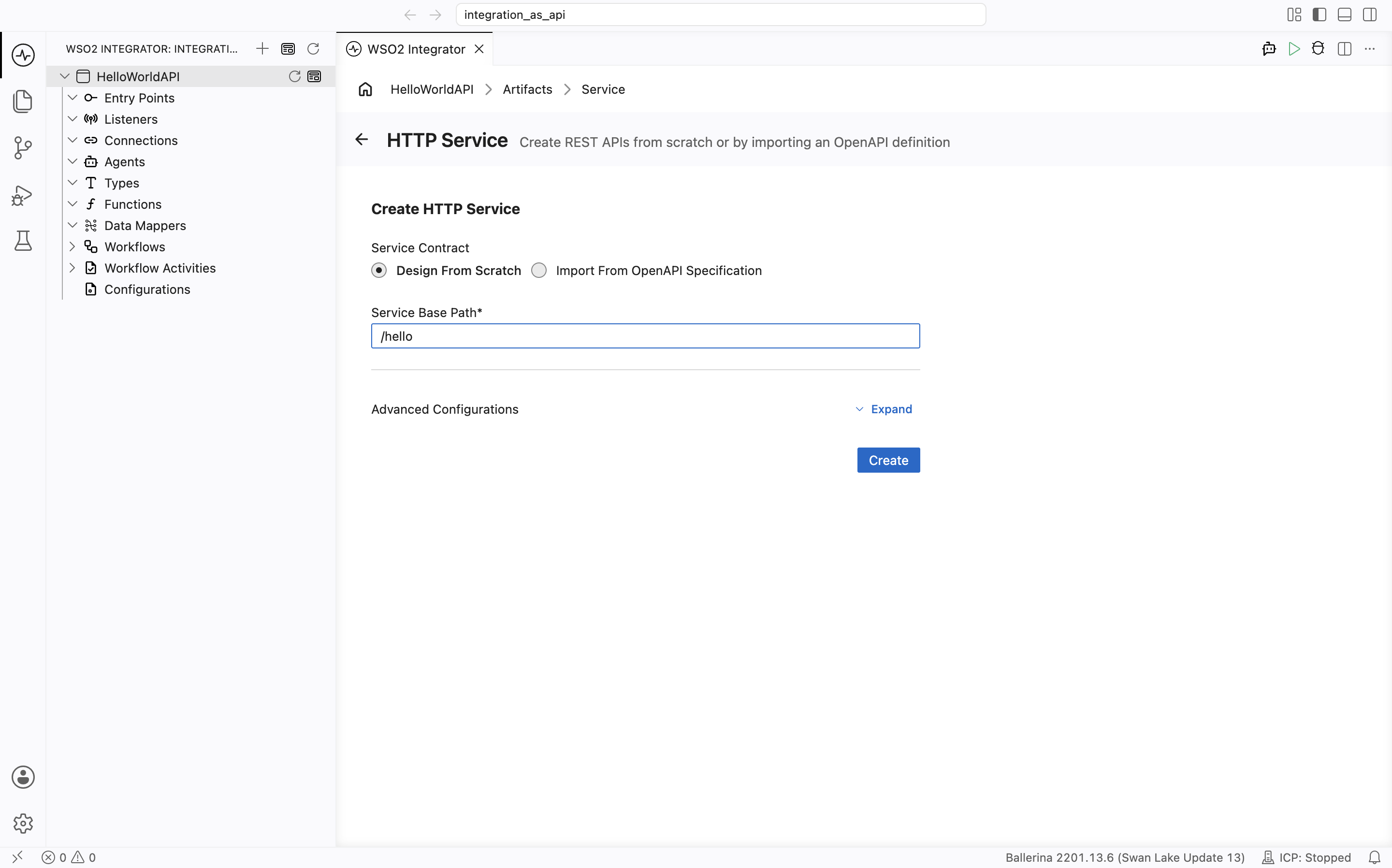
Select HTTP Service under Integration as API.
-
Keep Service Contract as Design From Scratch.
-
Set Service Base Path to
/hello. -
Click Create.
Step 3: Add a resource
-
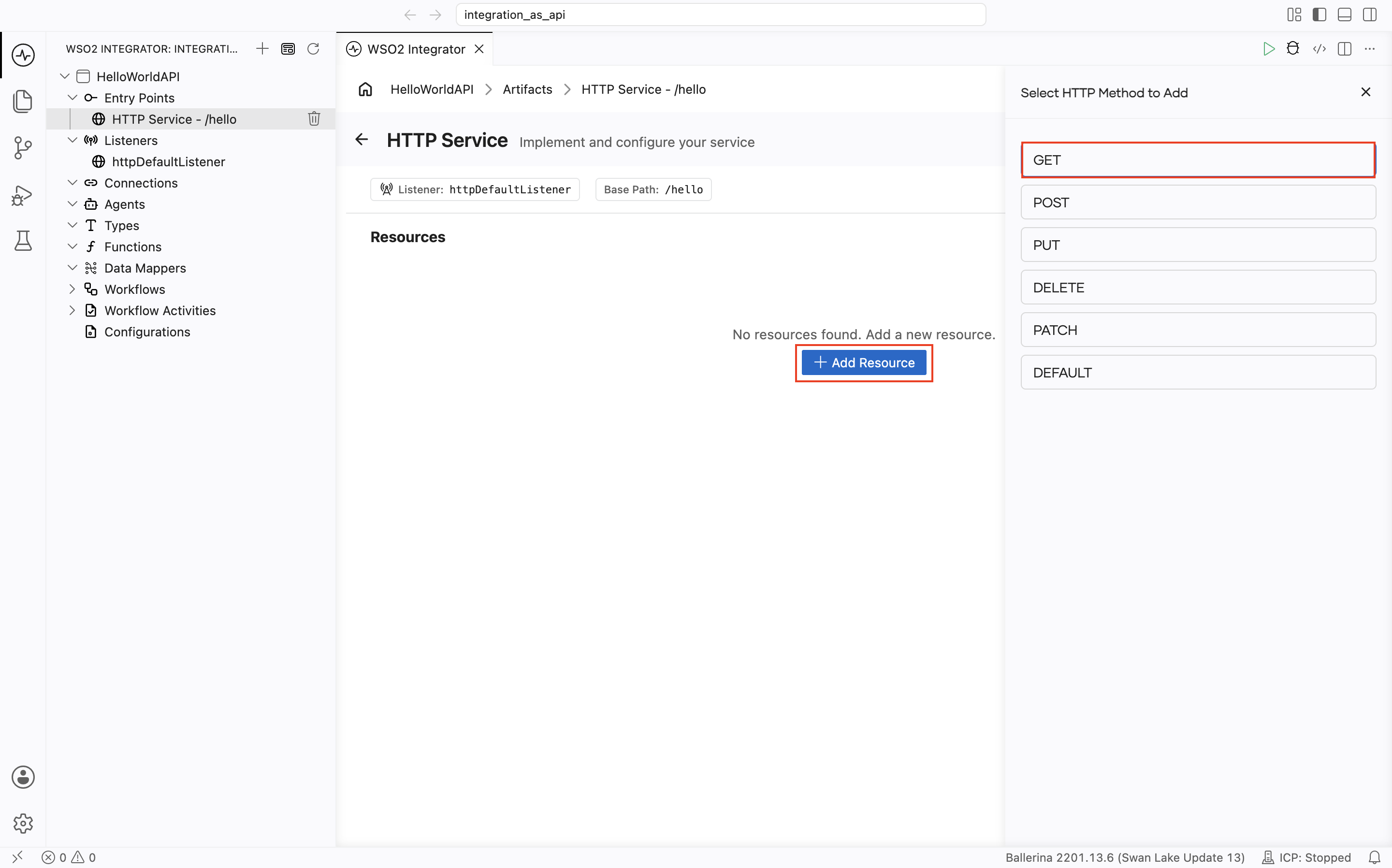
In the HTTP service design view, click + Add Resource.
-
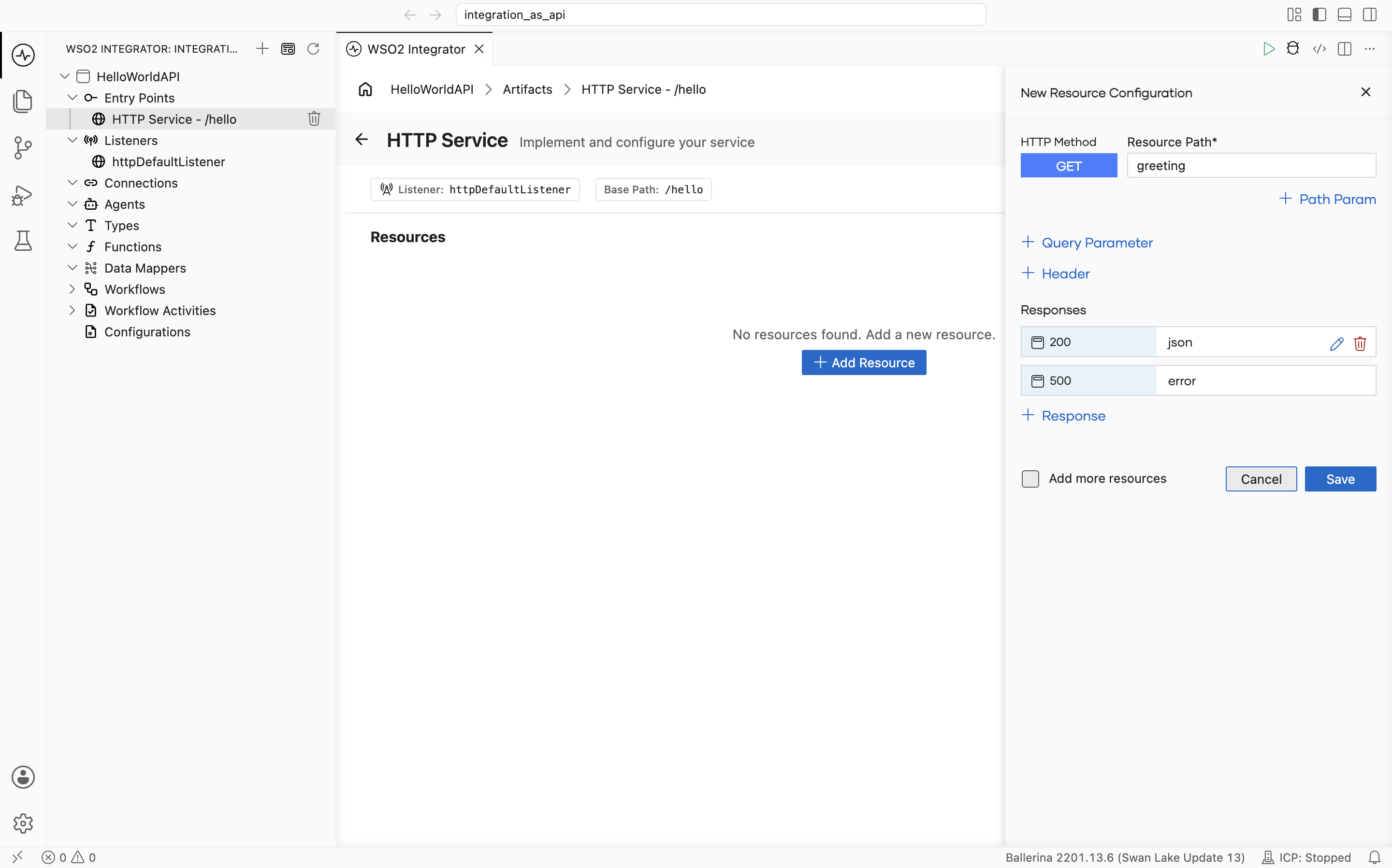
Select GET.
-
Set Resource path to
greeting. -
Click Save.
Step 4: Connect to an external API
-
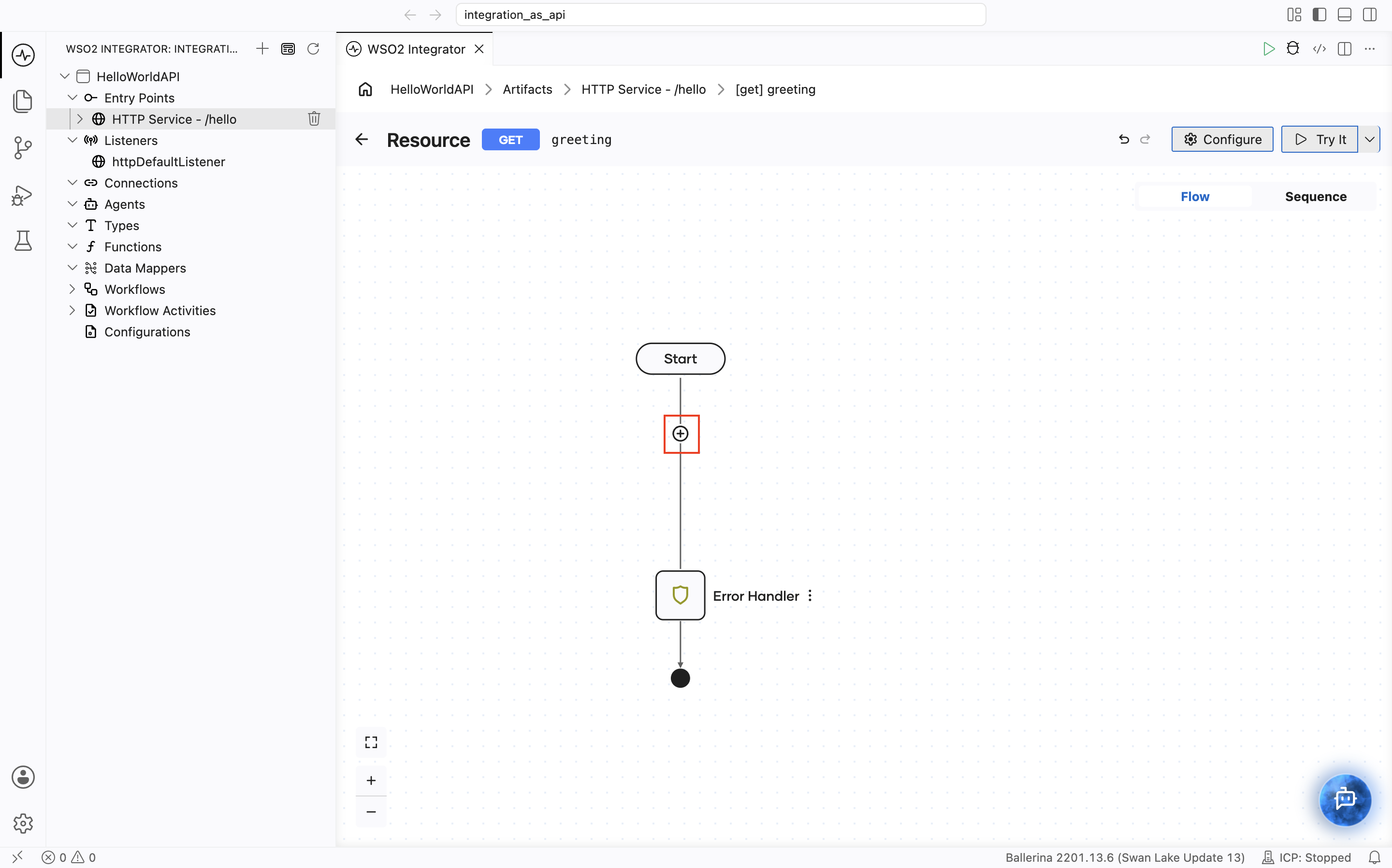
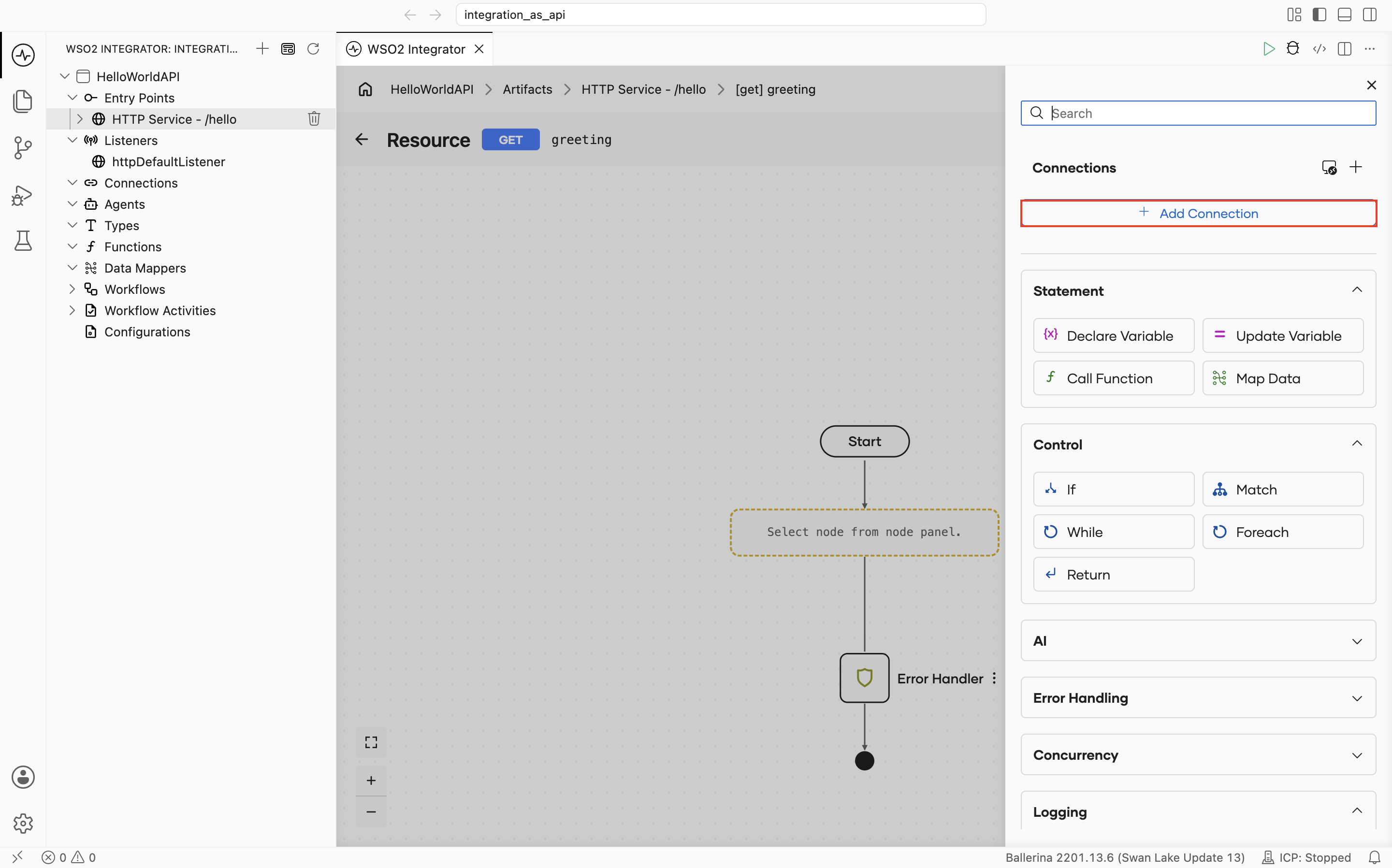
Click + inside the resource flow.
-
Click Add Connection under Connections.
-
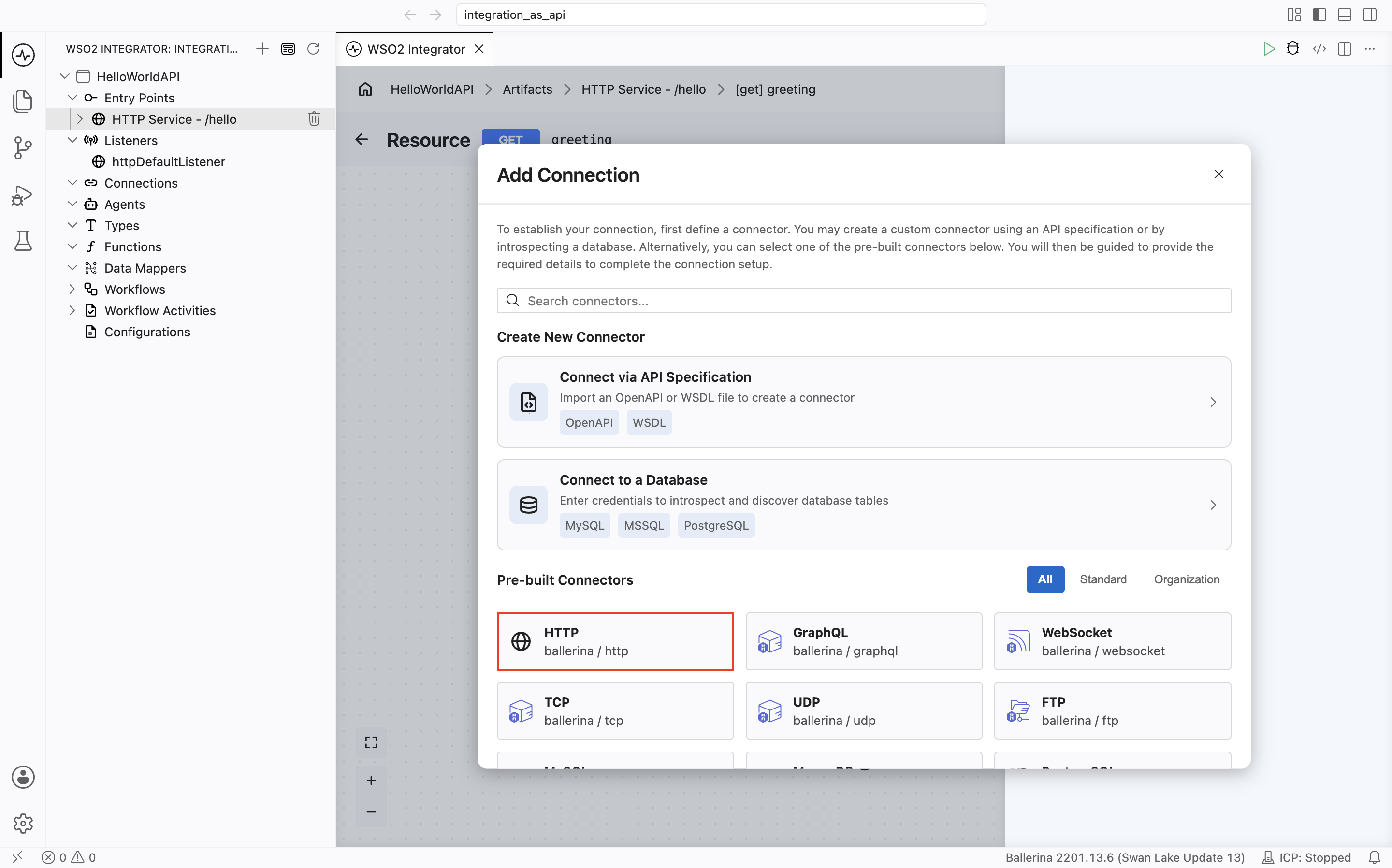
Select HTTP under Pre-built Connectors.
-
The Configure HTTP form opens. Set Url to:
https://apis.wso2.com/zvdz/mi-qsg/v1.0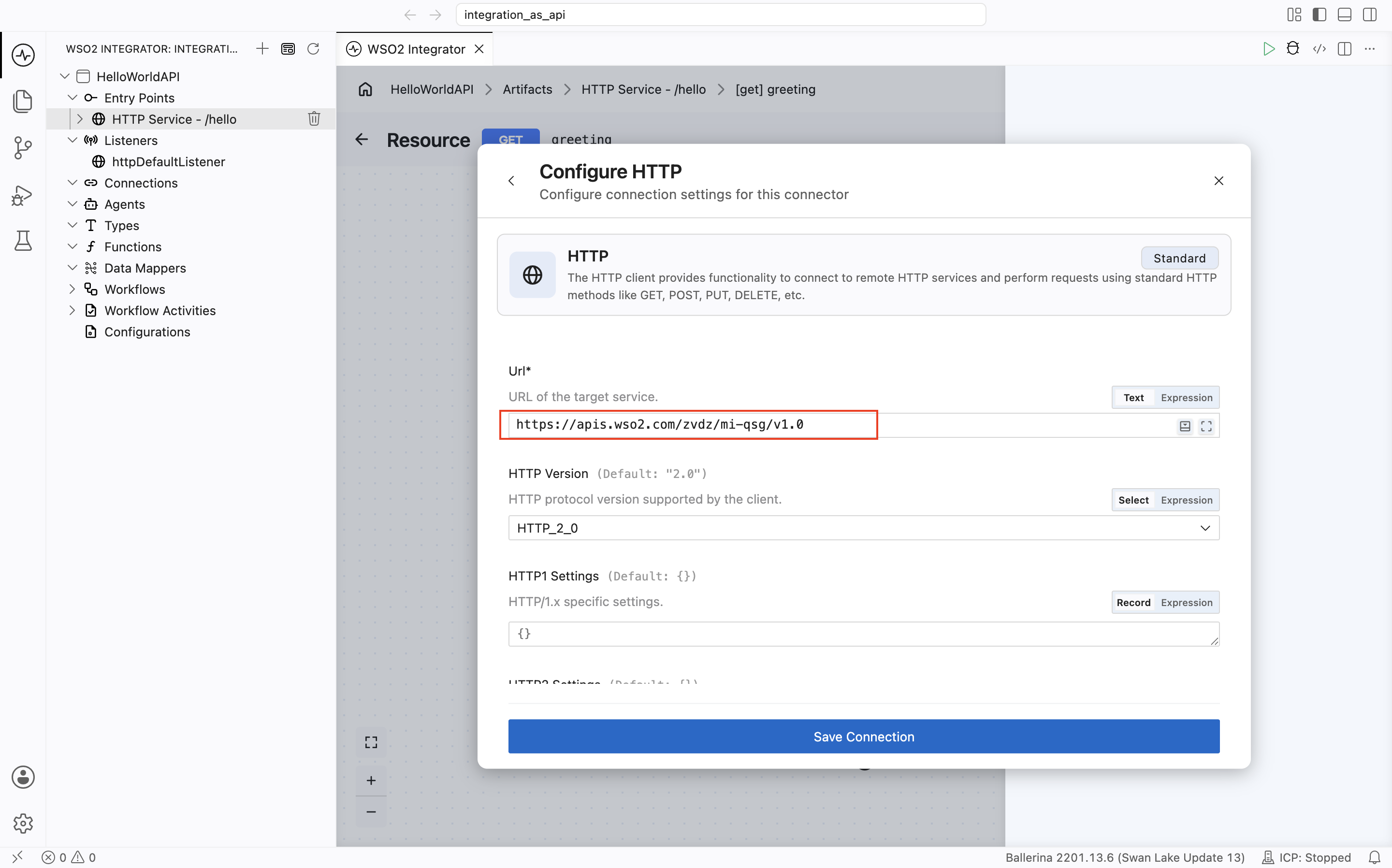
-
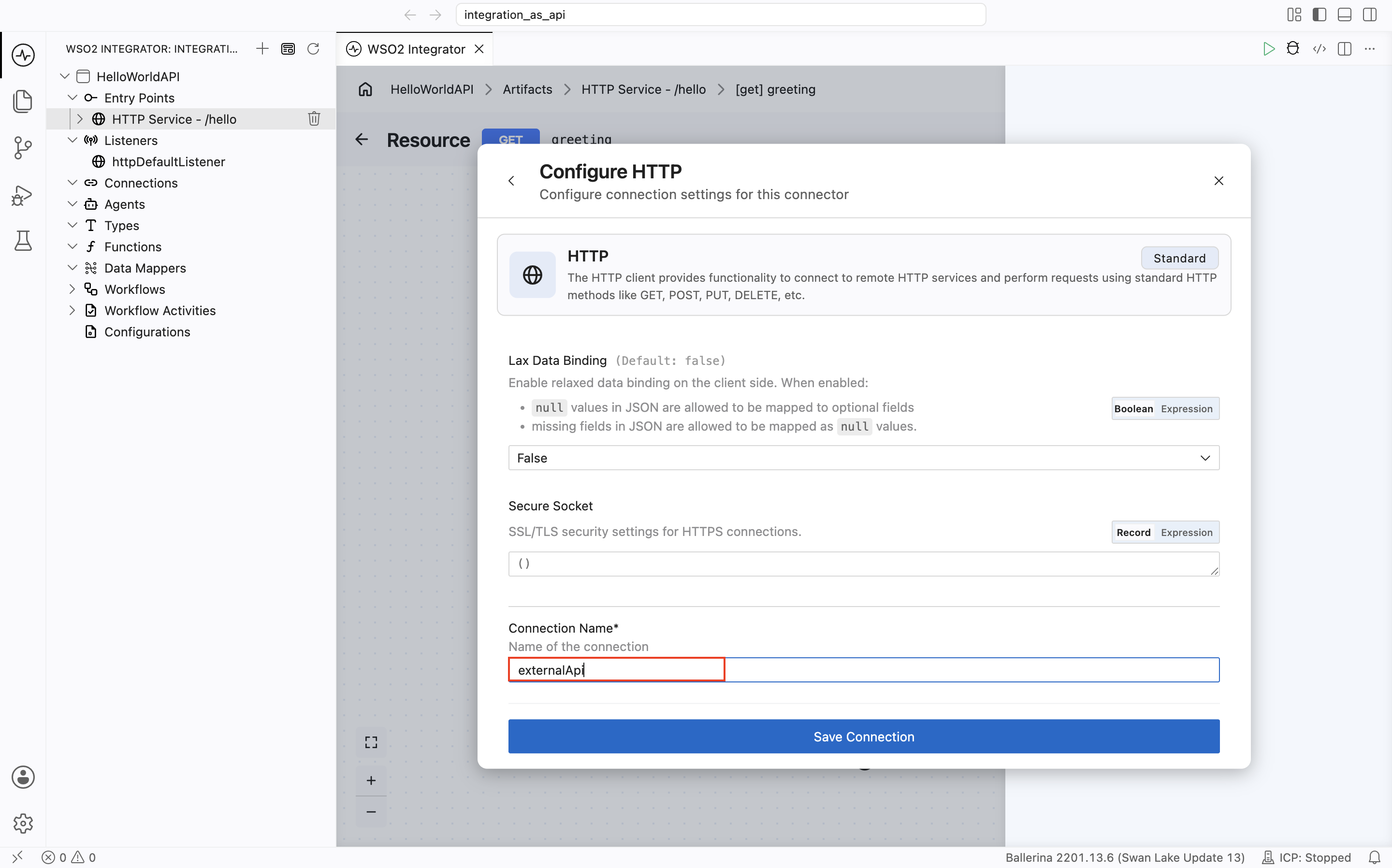
Scroll to the bottom of the form. Set Connection Name to
externalApi. -
Click Save Connection.
Step 5: Call the external API
-
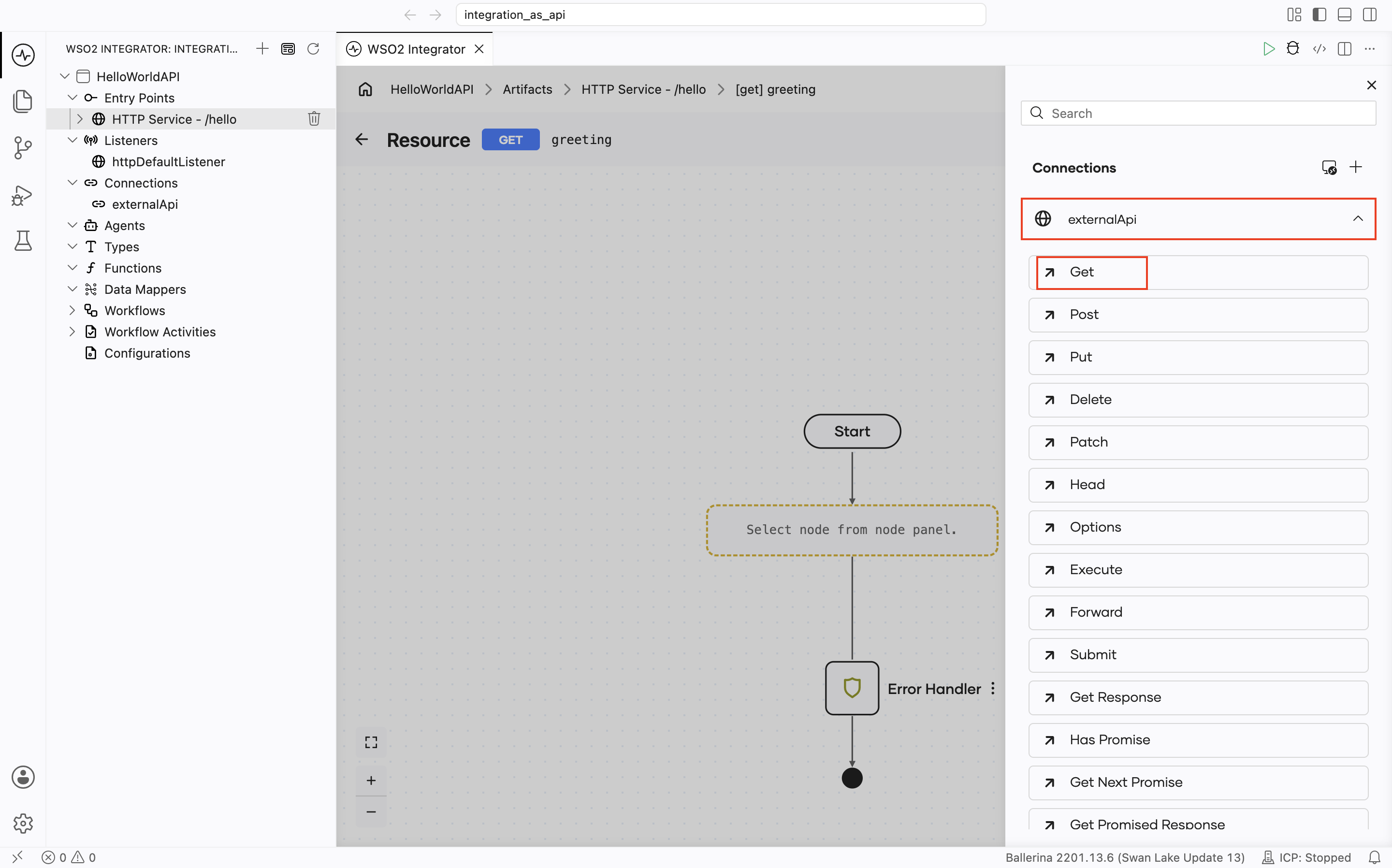
Click + inside the resource flow.
-
Select externalApi.
-
Select Get.
-
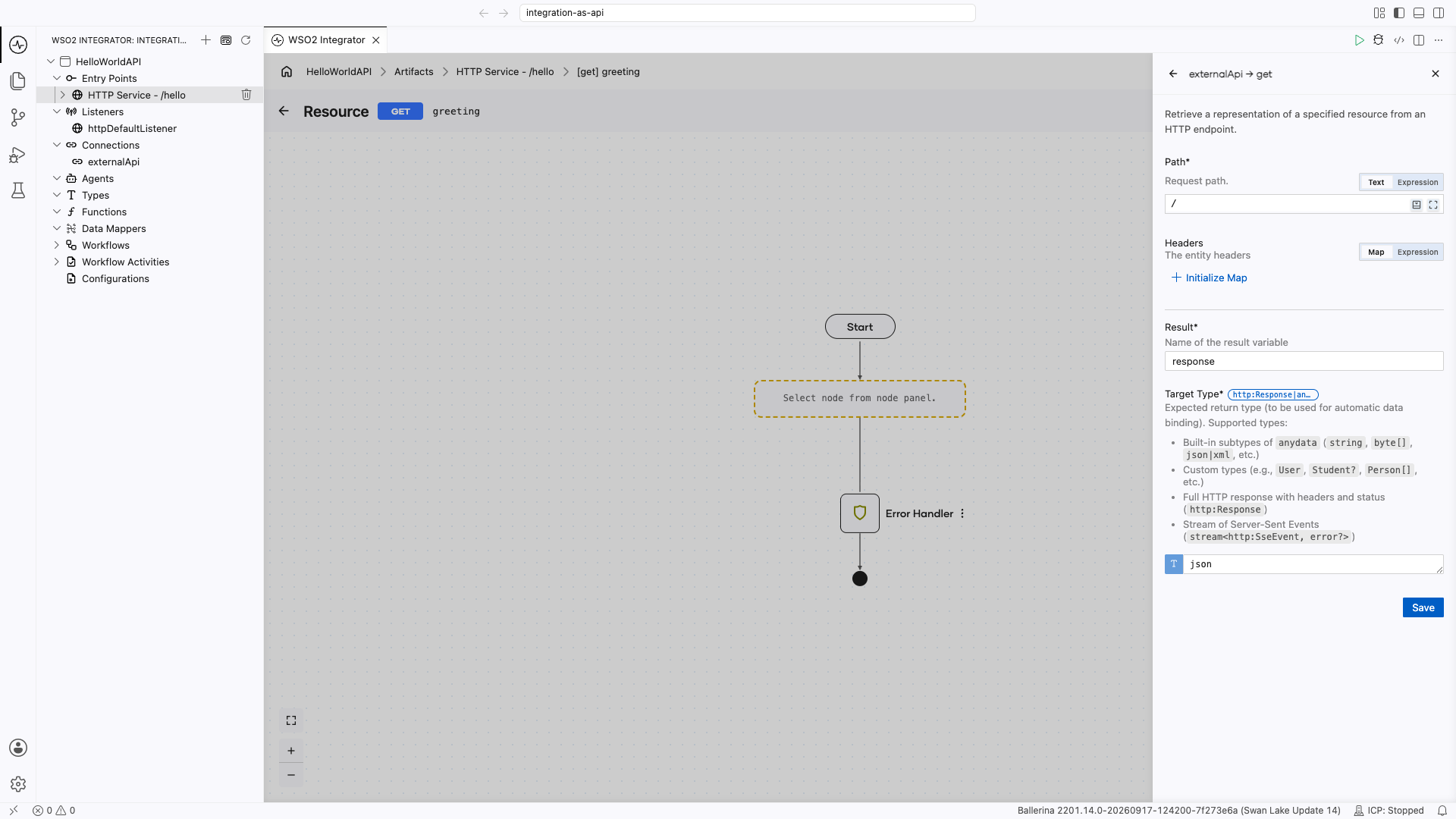
Set Path to
/. -
Set Result to
response. -
Set Target Type to
json. -
Click Save.
Step 6: Return the response
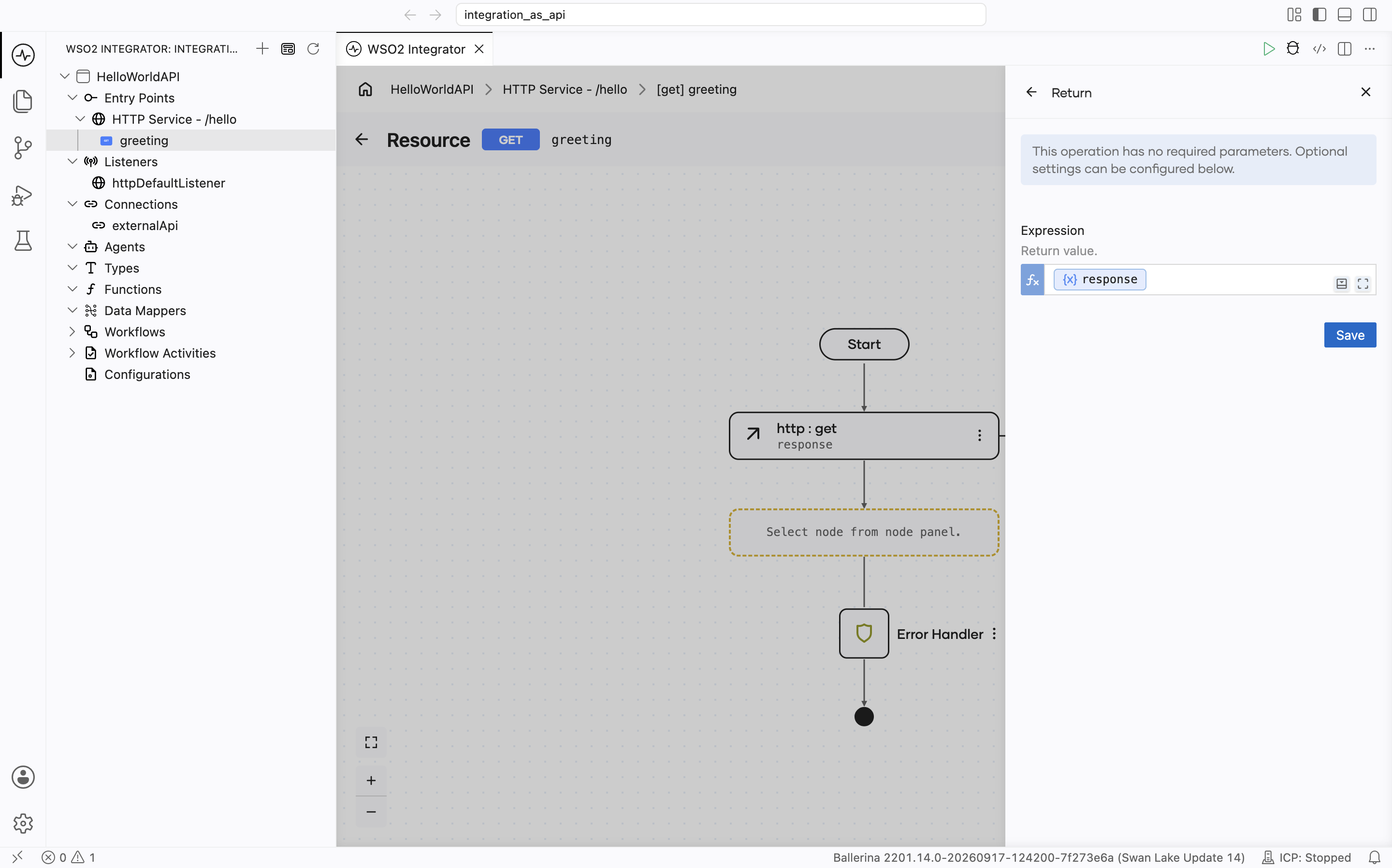
-
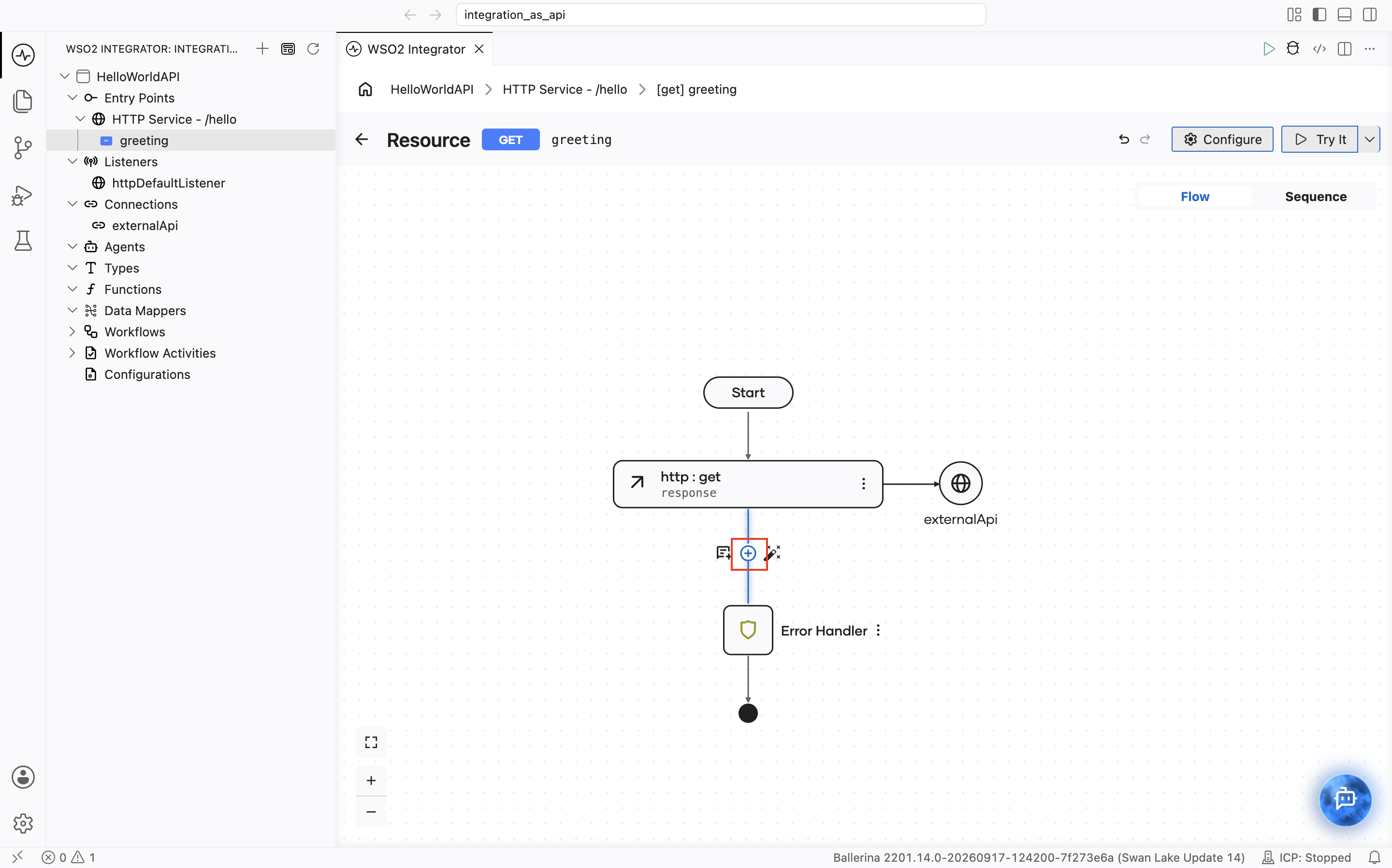
Click + inside the resource flow after the external API call node we just added.
-
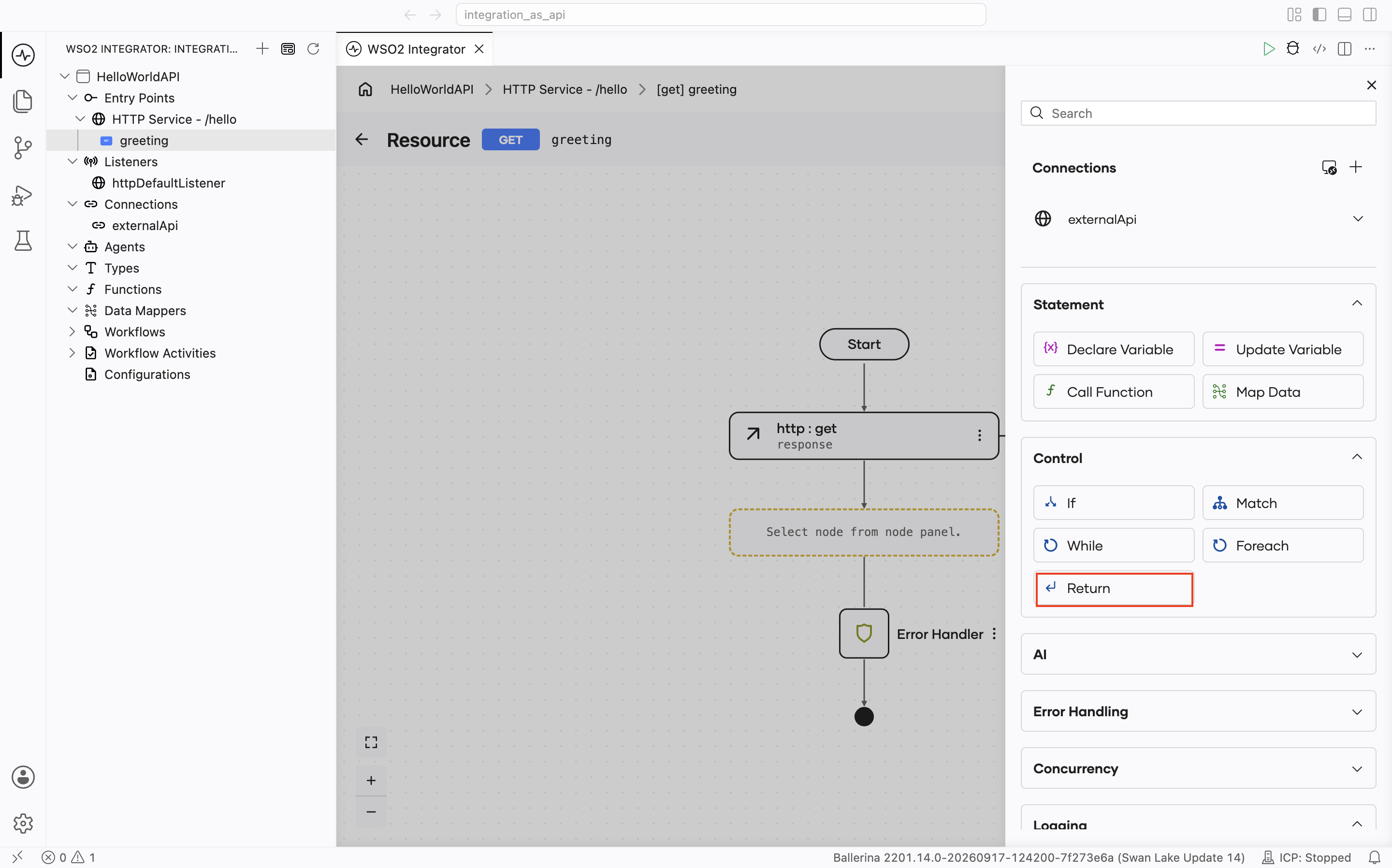
Select Return under Control.
-
In the Expression field, select
responsefrom the variables. -
Click Save.
Step 7: Run and test
-
Click Run.
-
Click Test in the confirmation dialog.
-
Click Execute Cell.
-
Confirm the response shows
200 OKwith aHello Worldbody.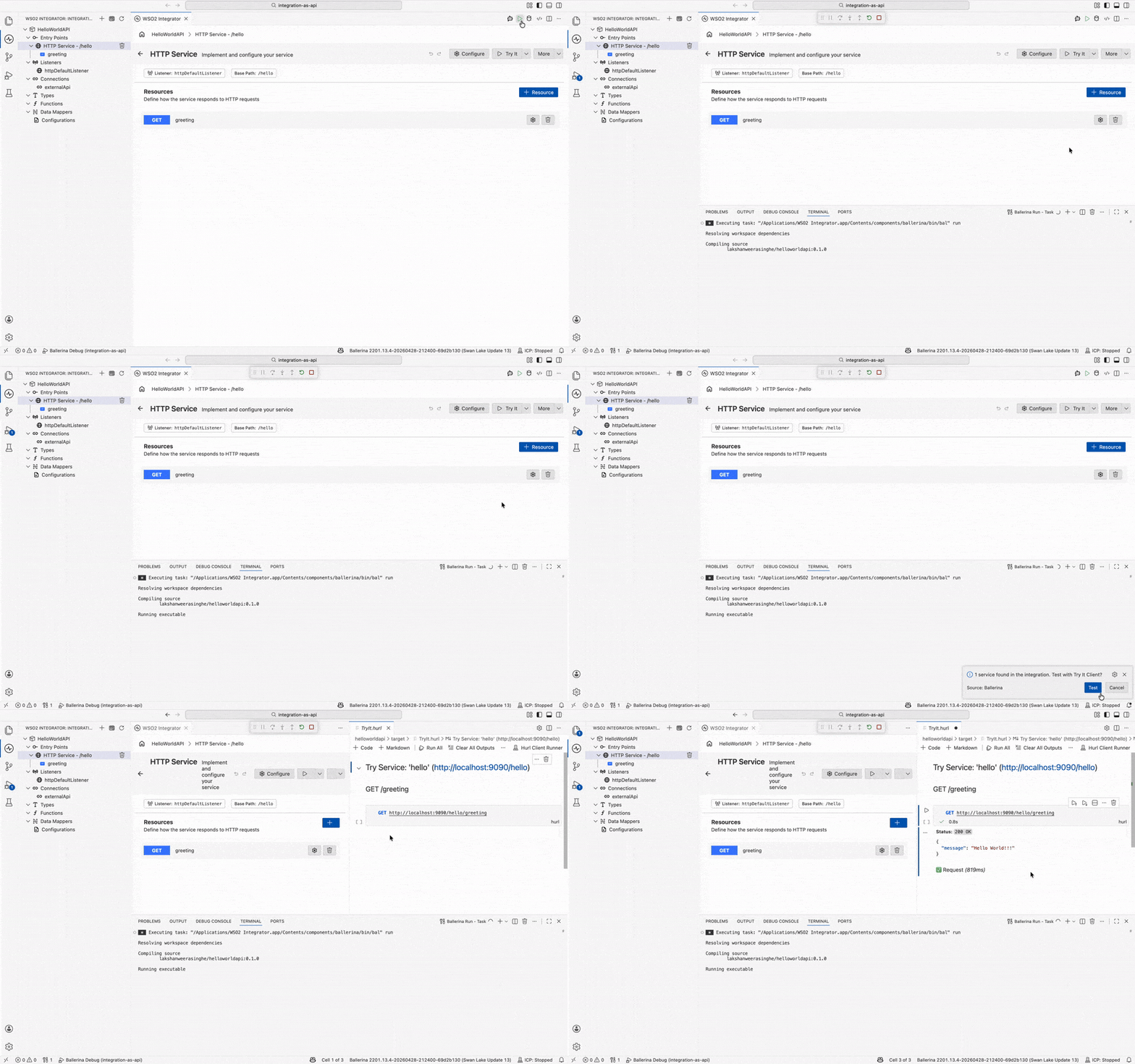
Step 8: Deploy to WSO2 Cloud
Deploy your integration to WSO2 Cloud - Integration Platform in any of the following ways:
- If you're using the cloud editor, see Save and deploy.
- If you're using WSO2 Integrator on your machine, see Deploy from WSO2 Integrator.
Skip ahead: deploy a ready-made sample
Rather not build it yourself? One-click deploy the HelloWorldAPI sample straight to WSO2 Cloud.

Source code
View the generated Ballerina code
The steps above generate the following complete, runnable Ballerina program:
import ballerina/http;

listener http:Listener httpDefaultListener = http:getDefaultListener();

final http:Client externalApi = check new ("https://apis.wso2.com/zvdz/mi-qsg/v1.0");

service /hello on httpDefaultListener {


   resource function get greeting() returns json|error {
       do {
           json response = check externalApi->get("/");
           return response;
       } on fail error err {
           // handle error
           return error("unhandled error", err);
       }
   }
}
What's next
- Build an automation — Build a scheduled job
- Build an AI agent — Build an intelligent agent
- Build an event-driven integration — React to messages from brokers
- Build a file-driven integration — Process files from FTP or local directories
- HTTP service — Learn resource functions, path parameters, and error handling