Start with Sample Integrations
WSO2 Cloud includes a curated collection of sample integrations that you can add to a project with a single click. Use them to learn common integration patterns, or as a starting point for your own integration.
Samples teach you the platform's abstractions. Prebuilt integrations are different: each one is a real, already-wired integration between two applications for an actual business use case.
Open the samples
-
Sign in to WSO2 Cloud and open the project where you want to add the sample.
If the project has no integrations yet, you land on the Create Integration page by default. Continue to the next step.
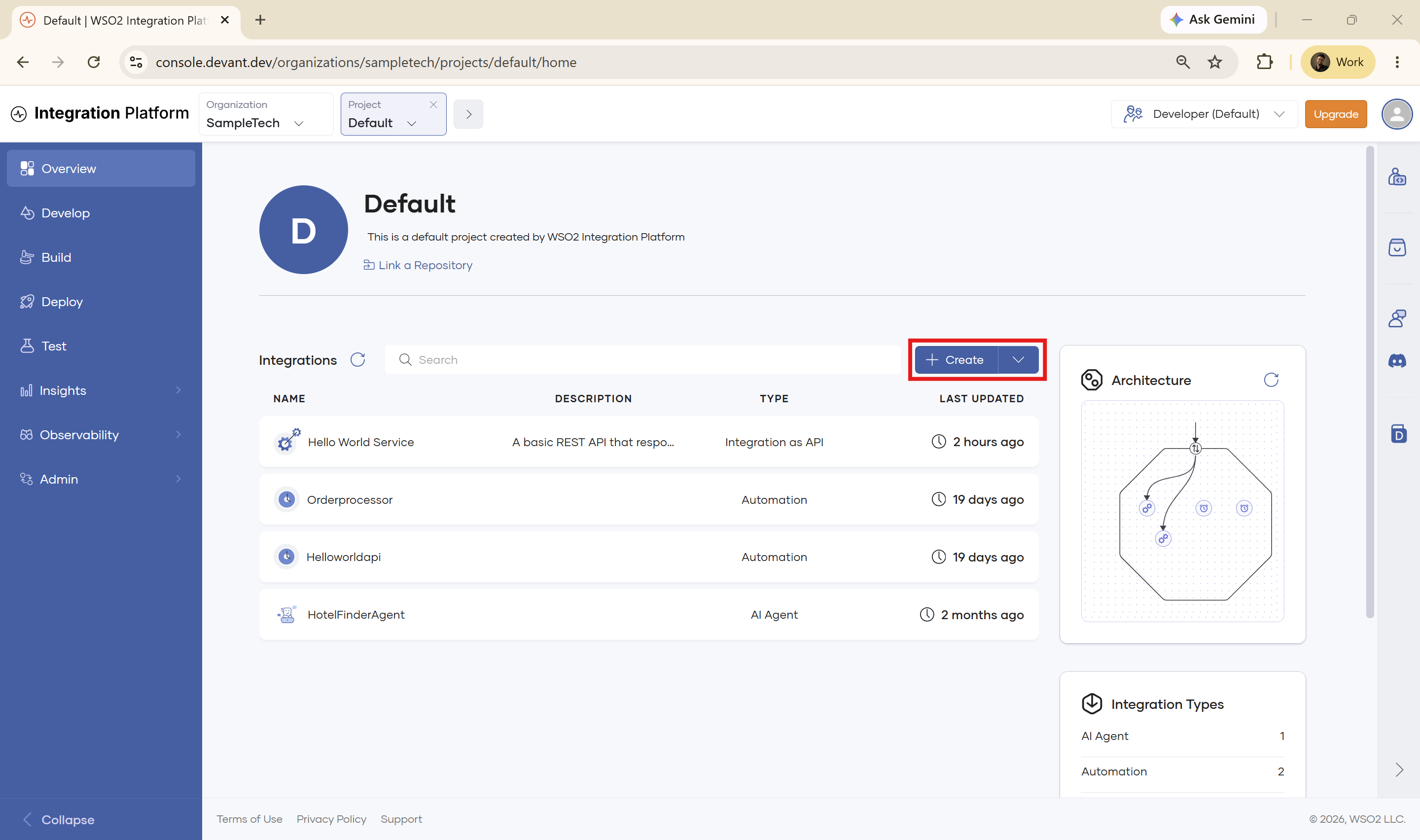
Project already has integrationsA project that already has integrations opens on its overview page instead, which lists them. Click Create to open the Create Integration page.
-
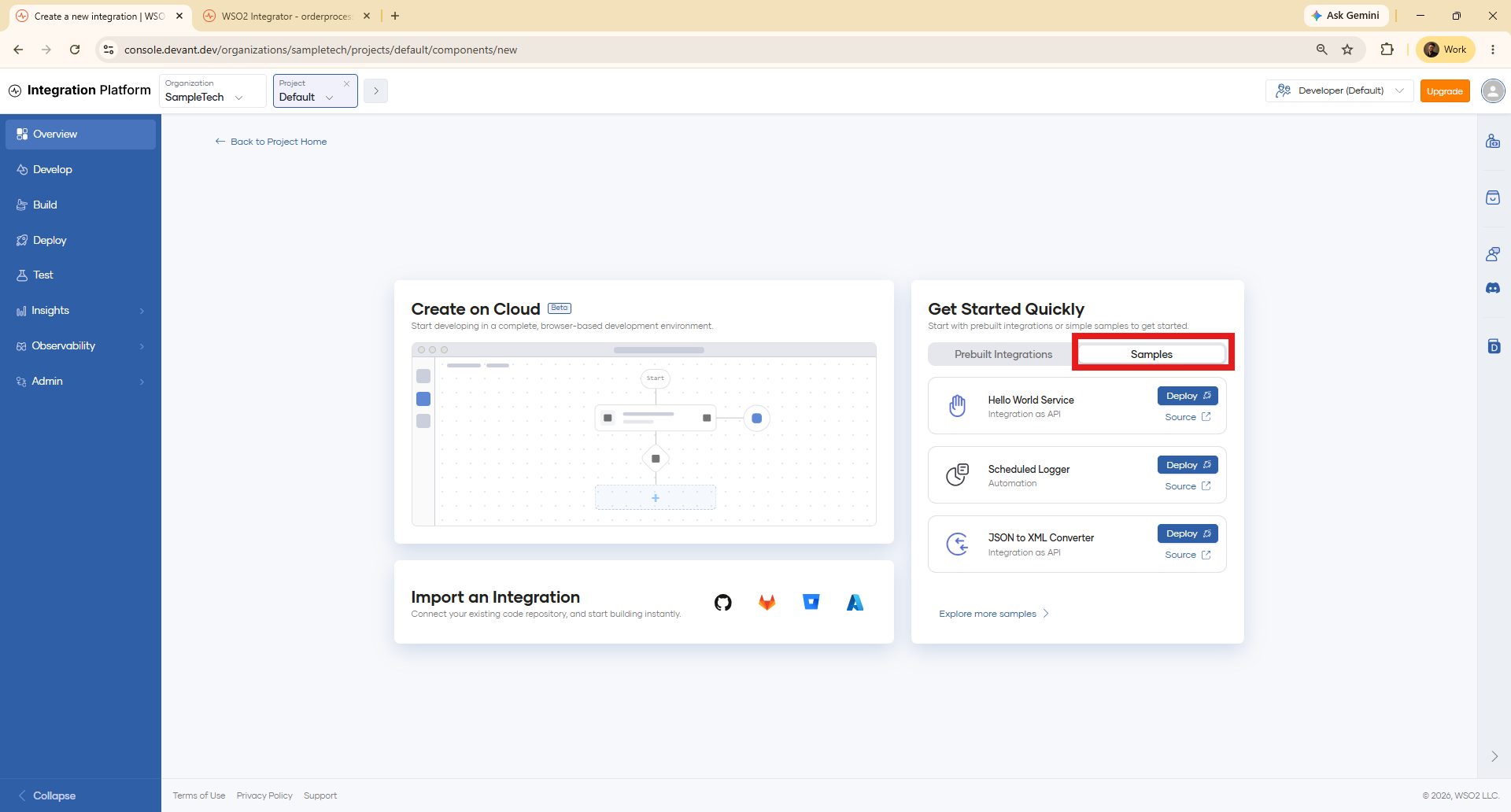
On the Create Integration page, find the Get Started Quickly panel and select the Samples tab. It lists a few samples, each with Deploy and Source actions.
-
To see the full collection, click Explore more samples.
Browse samples
The Try a Sample page lists every available sample. Each card shows the sample name, its type and technology (for example, Automation (Ballerina) or Automation (WSO2 MI)), a short description, and the Quick Deploy and Source actions.
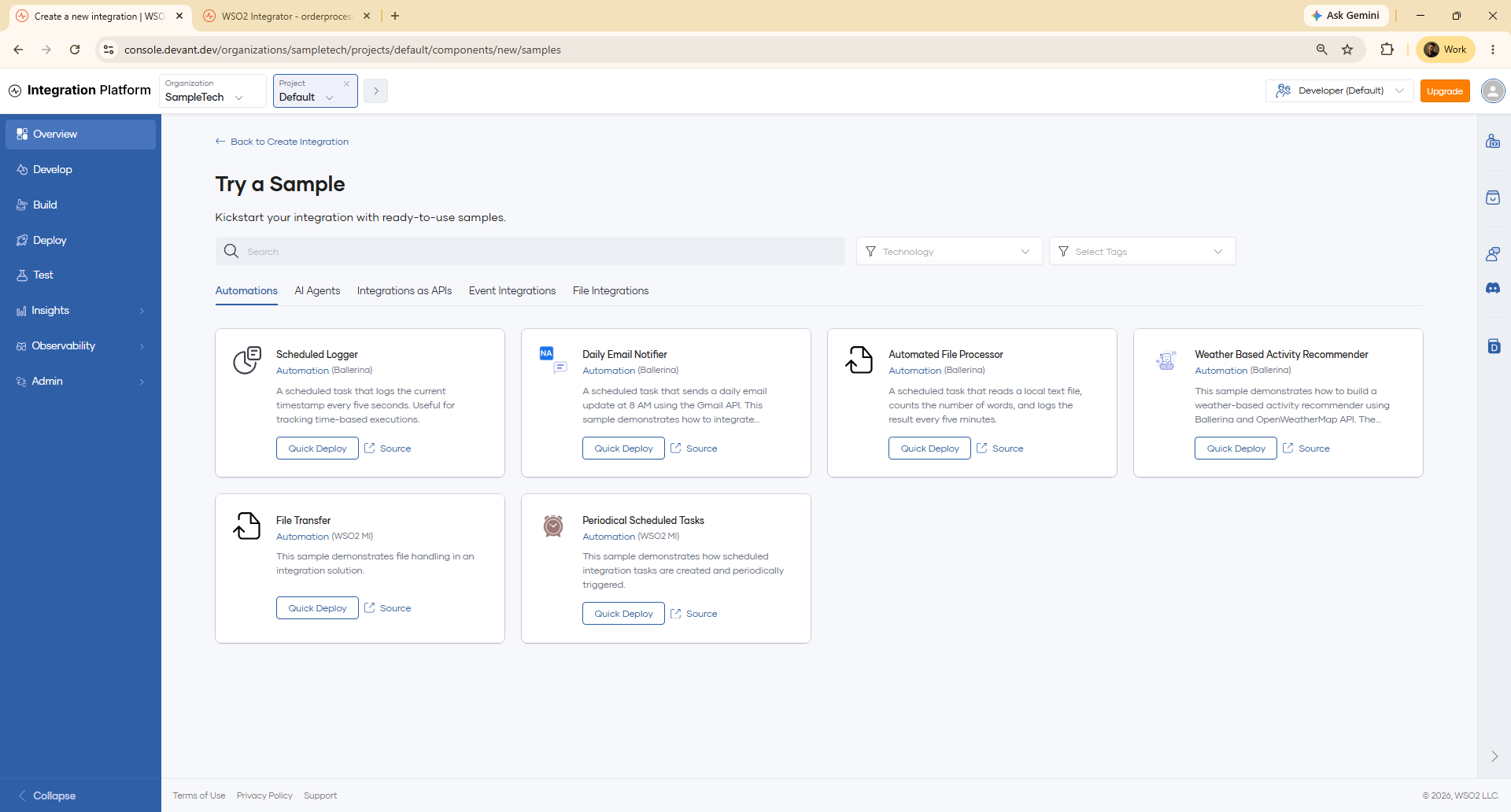
Use the controls at the top of the page to find a sample:
- Search — Search samples by name or description.
- Technology — Filter by the technology a sample is built with.
- Select Tags — Filter by tag.
- Category tabs — Switch between Automations, AI Agents, Integrations as APIs, Event Integrations, and File Integrations.
Click Source on a card to read the sample's code in its GitHub repository before you deploy it.
Deploy a sample
Click Quick Deploy on the sample you want (or Deploy from the Get Started Quickly panel). WSO2 Cloud starts creating the integration in your project and shows its progress.
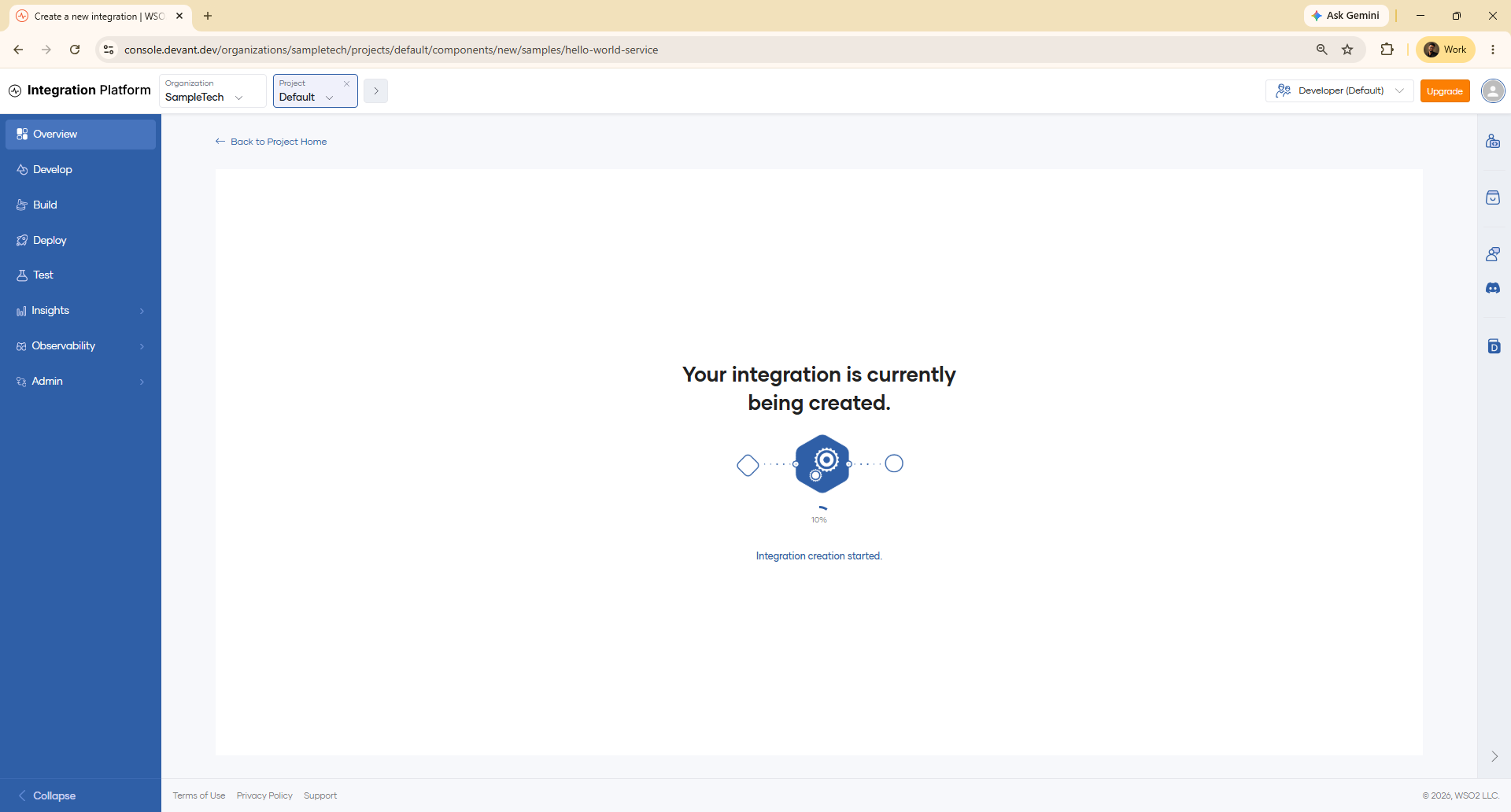
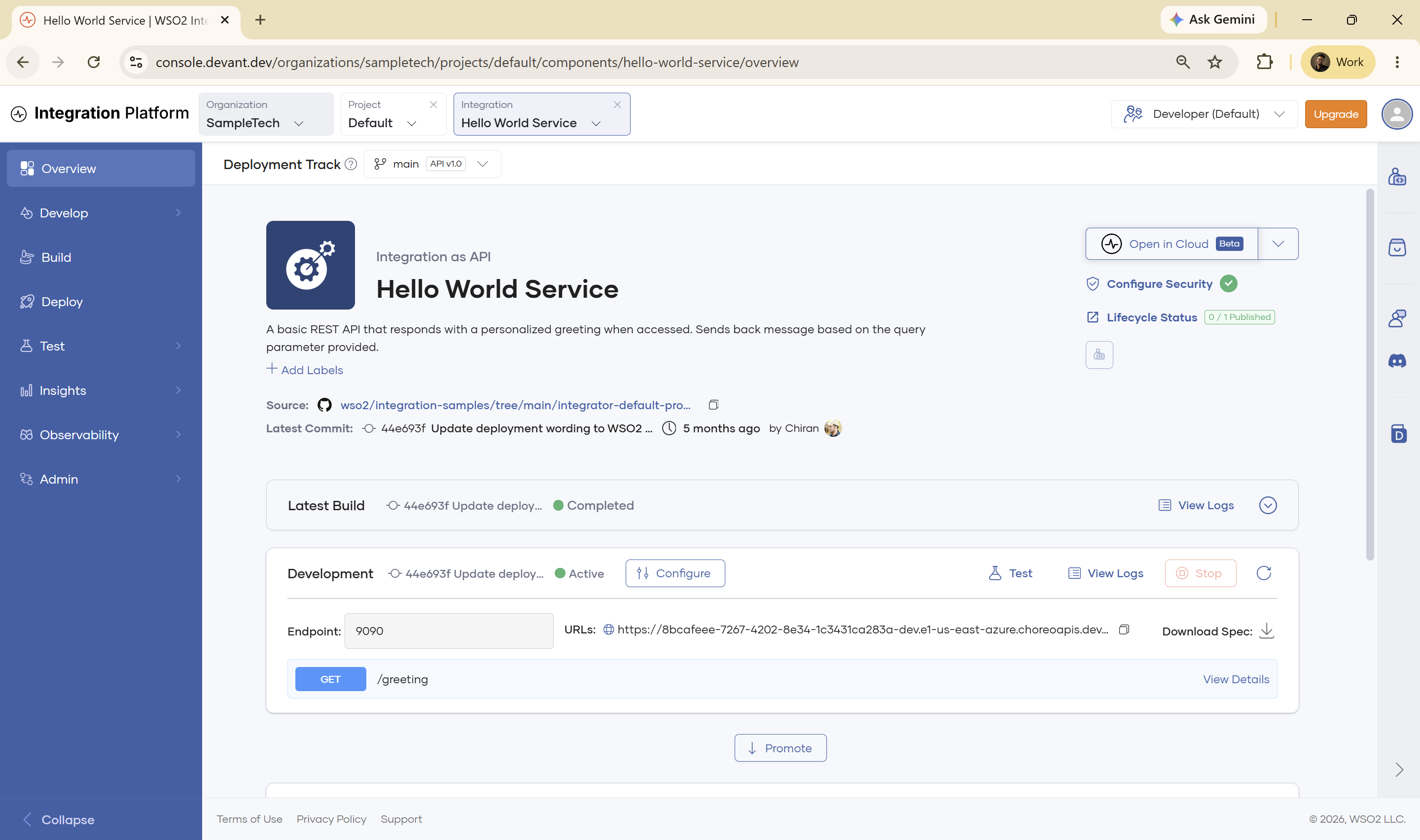
When creation completes, WSO2 Cloud opens the integration's overview page. It shows the integration type, description, source repository, and latest commit, and starts the first build immediately.
When the build finishes, the sample is deployed to the Development environment, like any other integration on WSO2 Cloud. The overview page then shows the build as Completed, the deployment as Active, and the endpoint URL. Select Test on the Development environment to try the sample out.
Explore or edit the sample
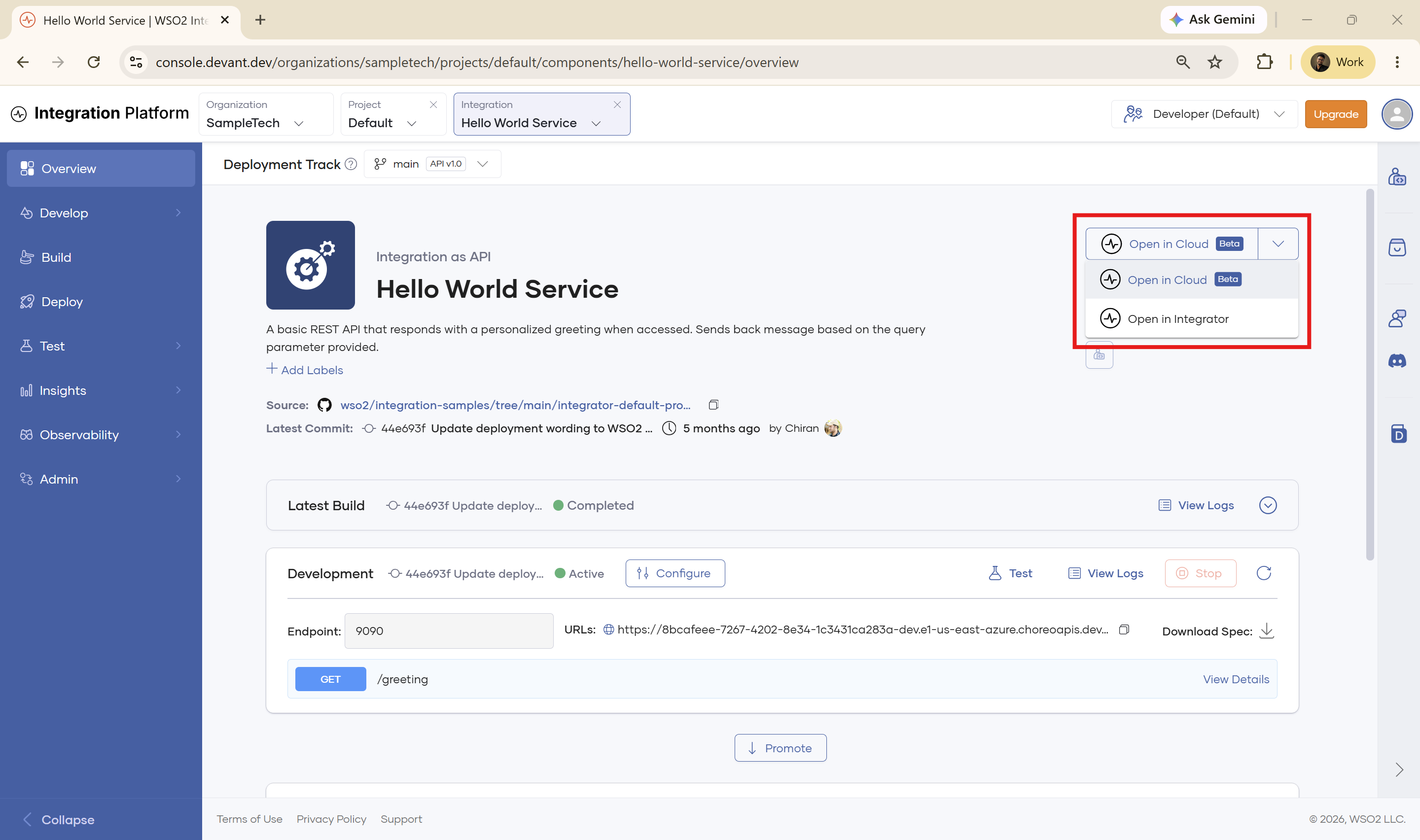
To look inside the sample or change it, use the Open in Cloud button at the top right of the overview page. Open its dropdown to choose where to work:
- Open in Cloud — Edit the sample in the browser-based cloud editor.
- Open in Integrator — Continue in the WSO2 Integrator desktop app.
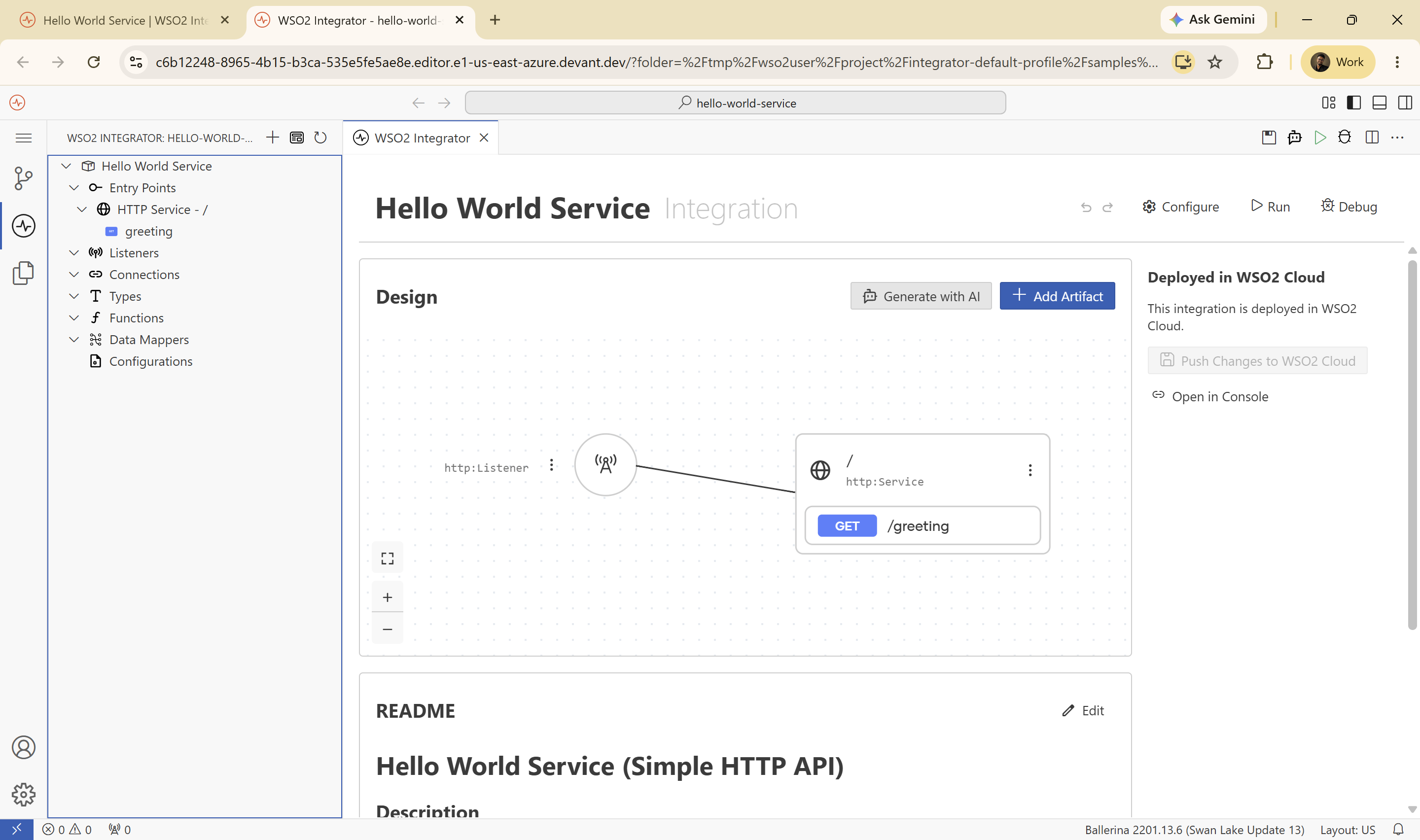
If you choose Open in Cloud, the sample opens in the cloud editor, where you can view its design, add artifacts, run and debug it, and push your changes back to WSO2 Cloud.
What's next
- Create a project — Create a project to hold your integrations
- Import an integration — Bring an existing integration from a Git repository
- Pre-built integrations — Deploy a ready-made integration between two applications
- Manage integrations — View deployment status and manage the lifecycle of a deployed integration