Debug Your Integration
Editor debugging lets you pause an integration mid-run and inspect the values flowing through it. This page covers everything from the everyday quick start (set a breakpoint and launch a debug session) through the full set of features available once a session is running: stepping, inspection panels, advanced breakpoints, and test or remote debugging.
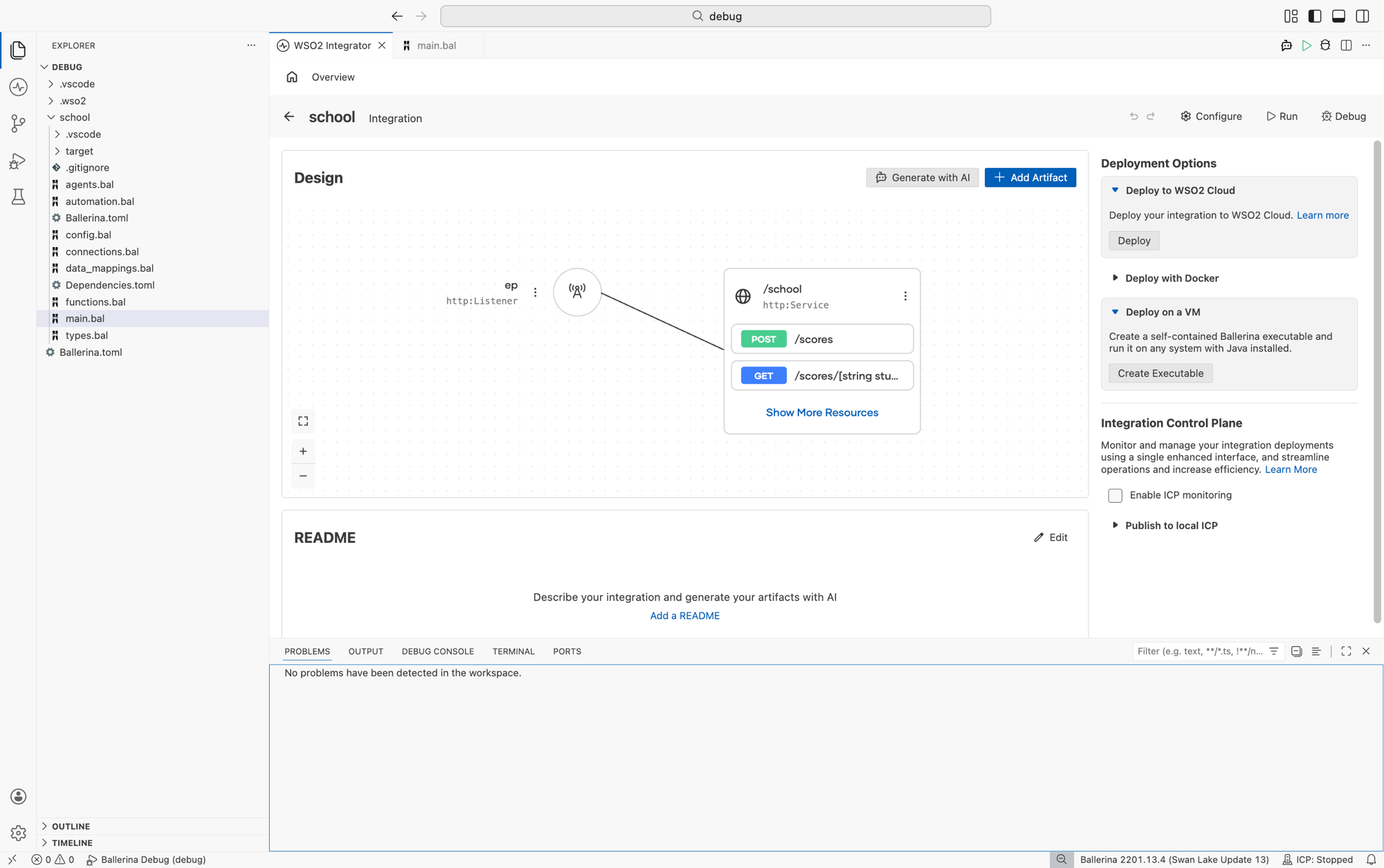
- Open the integration project in WSO2 Integrator.
- Confirm the integration has an executable entry point, such as a service or an automation.
- Open the Problems panel at the bottom of the editor and make sure the workspace is free of compile errors.
Set a breakpoint
Breakpoints tell the debugger where to pause. Set one on the line or node where you want to start inspecting state.
- Visual Designer
- Ballerina Code
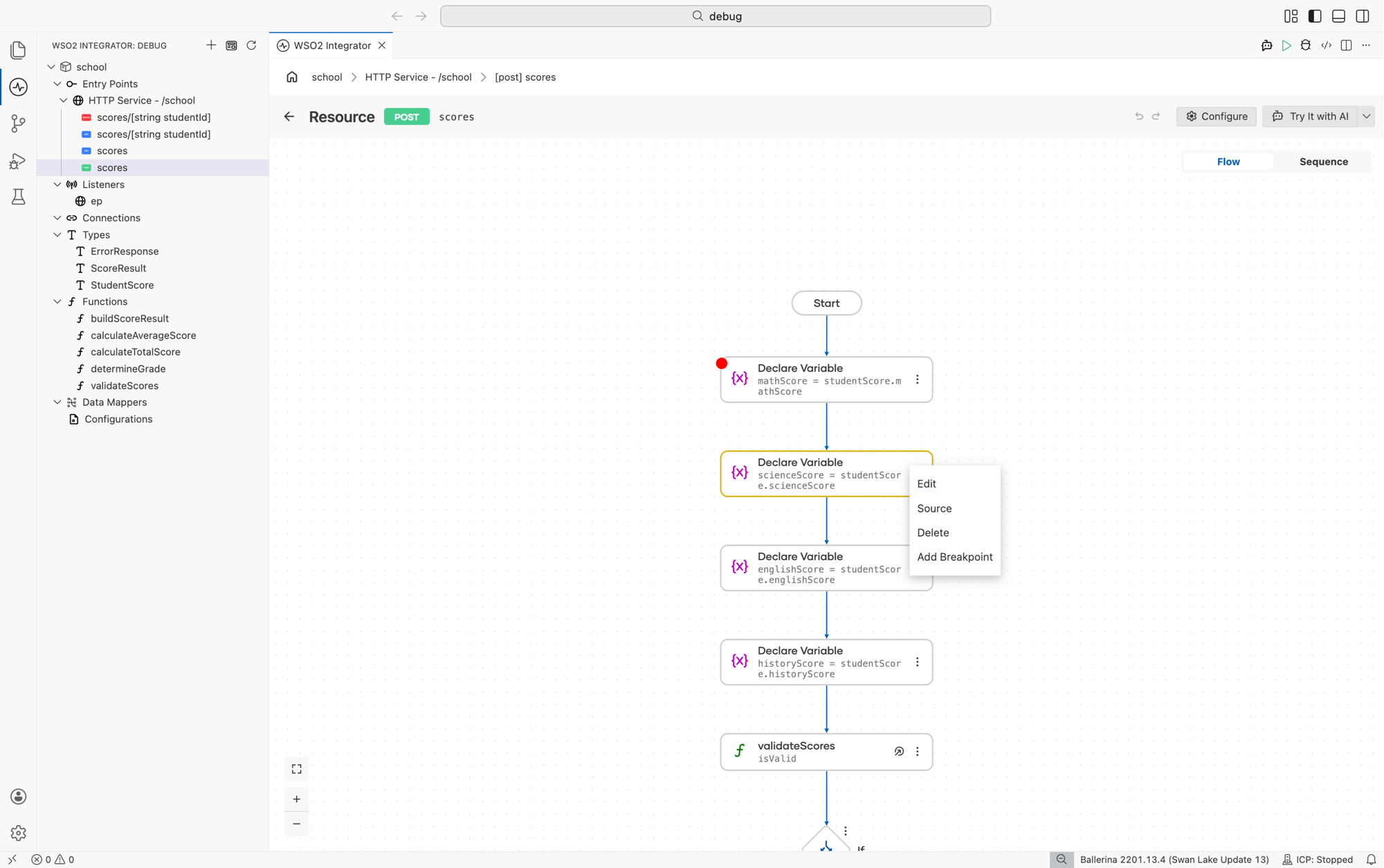
- Open the integration in the visual designer.
- Click the three-dot menu on the node where you want to pause.
- Select Add Breakpoint.
A red dot appears on the node to confirm the breakpoint is active.
- Open the
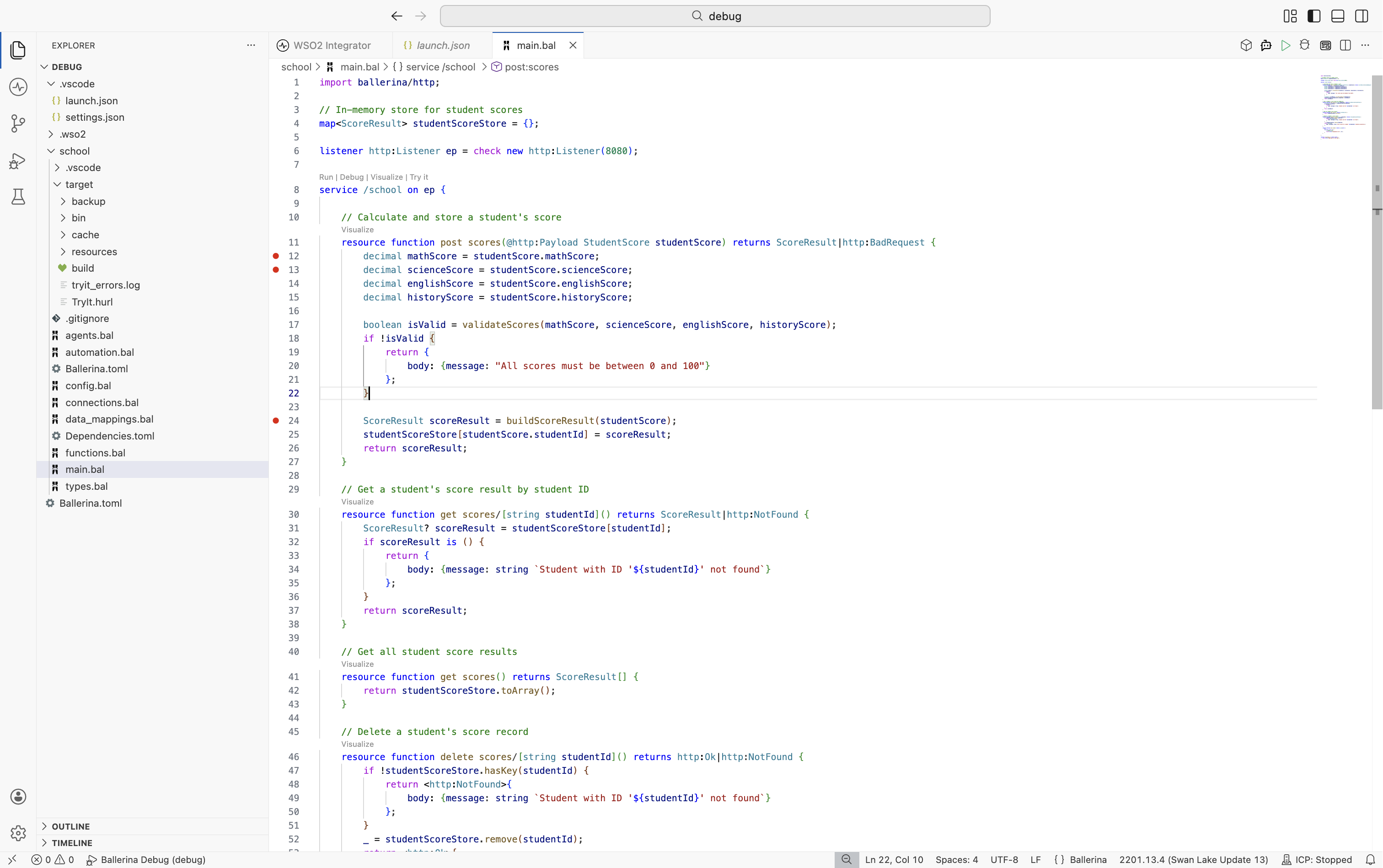
.balfile. - Click in the gutter to the left of the line number where you want to pause.
A red dot appears next to the line.
Breakpoint types
Line breakpoints
The default breakpoint, set above. Execution pauses every time it reaches the marked line or node.
Conditional breakpoints
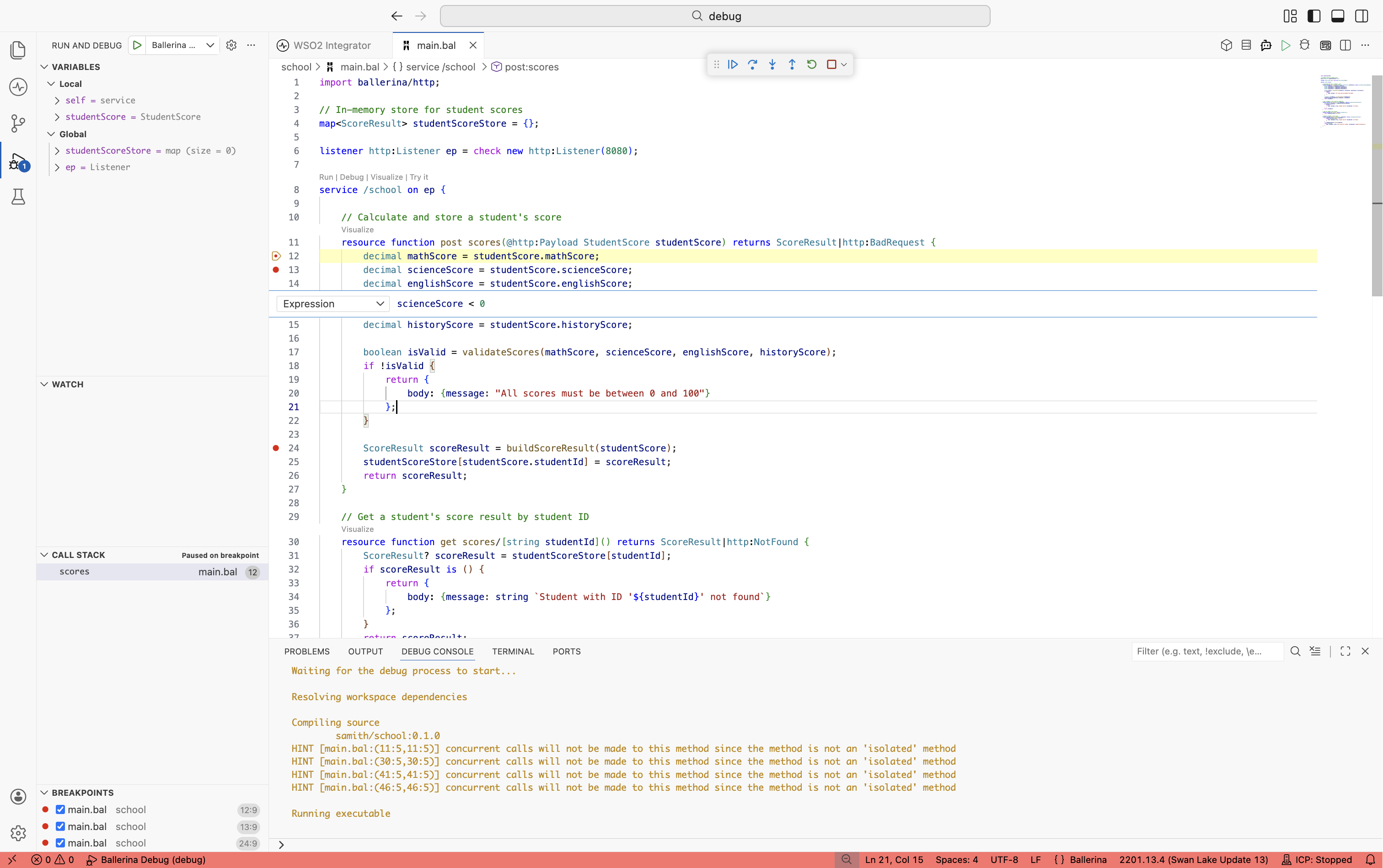
A conditional breakpoint pauses only when a Ballerina expression evaluates to true. Use them to narrow down a problem inside a loop or a high-traffic handler.
- Right-click an existing breakpoint.
- Select Edit Breakpoint.
- Enter a condition, for example
order.total > 1000orcustomer.tier == "premium".
Logpoints
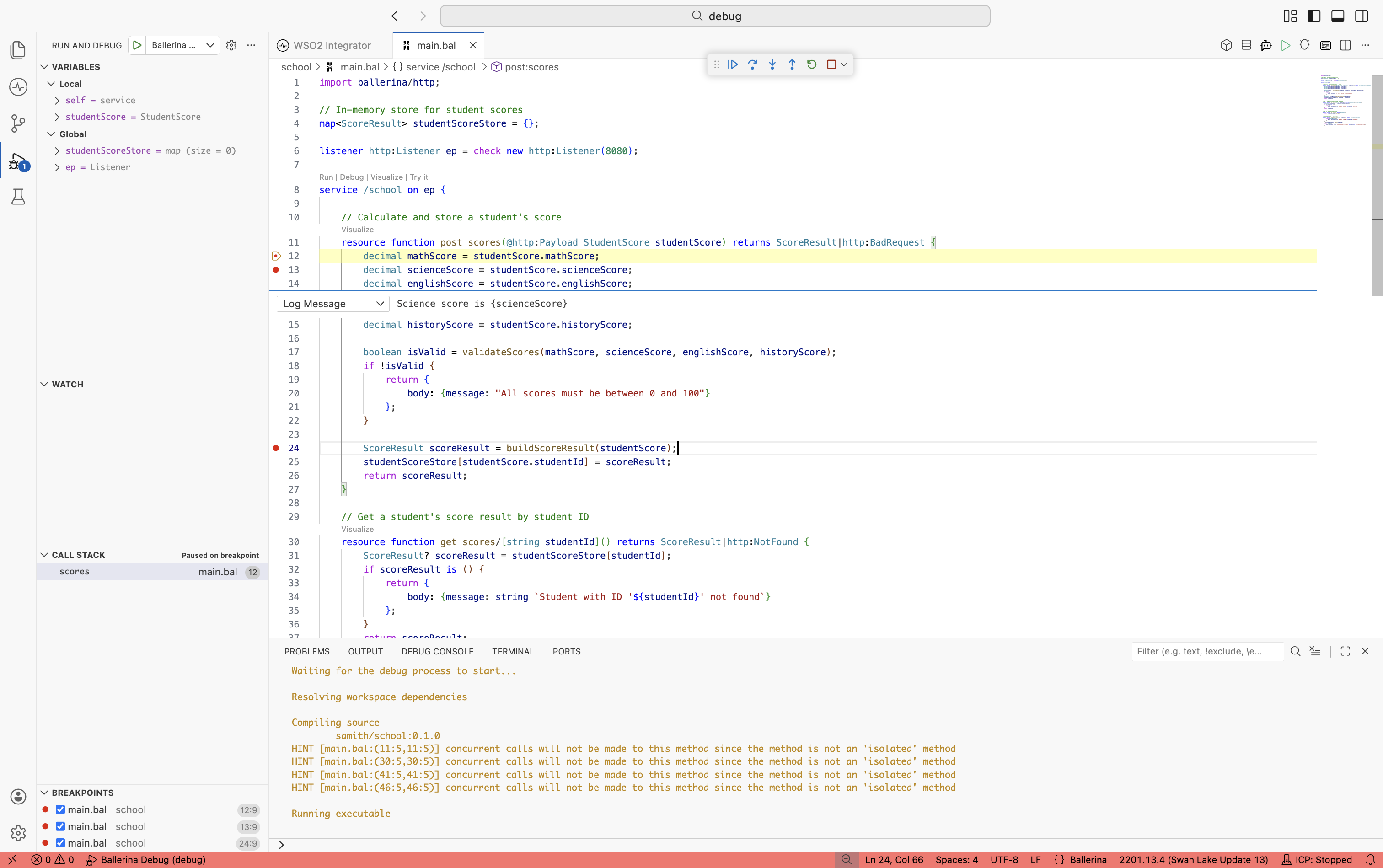
A logpoint prints a message to the Debug Console without pausing execution. Use logpoints when you want trace output but do not want to interrupt the run.
- Right-click in the gutter.
- Select Add Logpoint.
- Enter a message. Wrap expressions in braces, for example
Processing order {order.id} with {items.length()} items.
Start a debug session
Click Debug on the editor toolbar, or open the Run and Debug view from the activity bar and select Ballerina Debug. Either path works for most integrations.
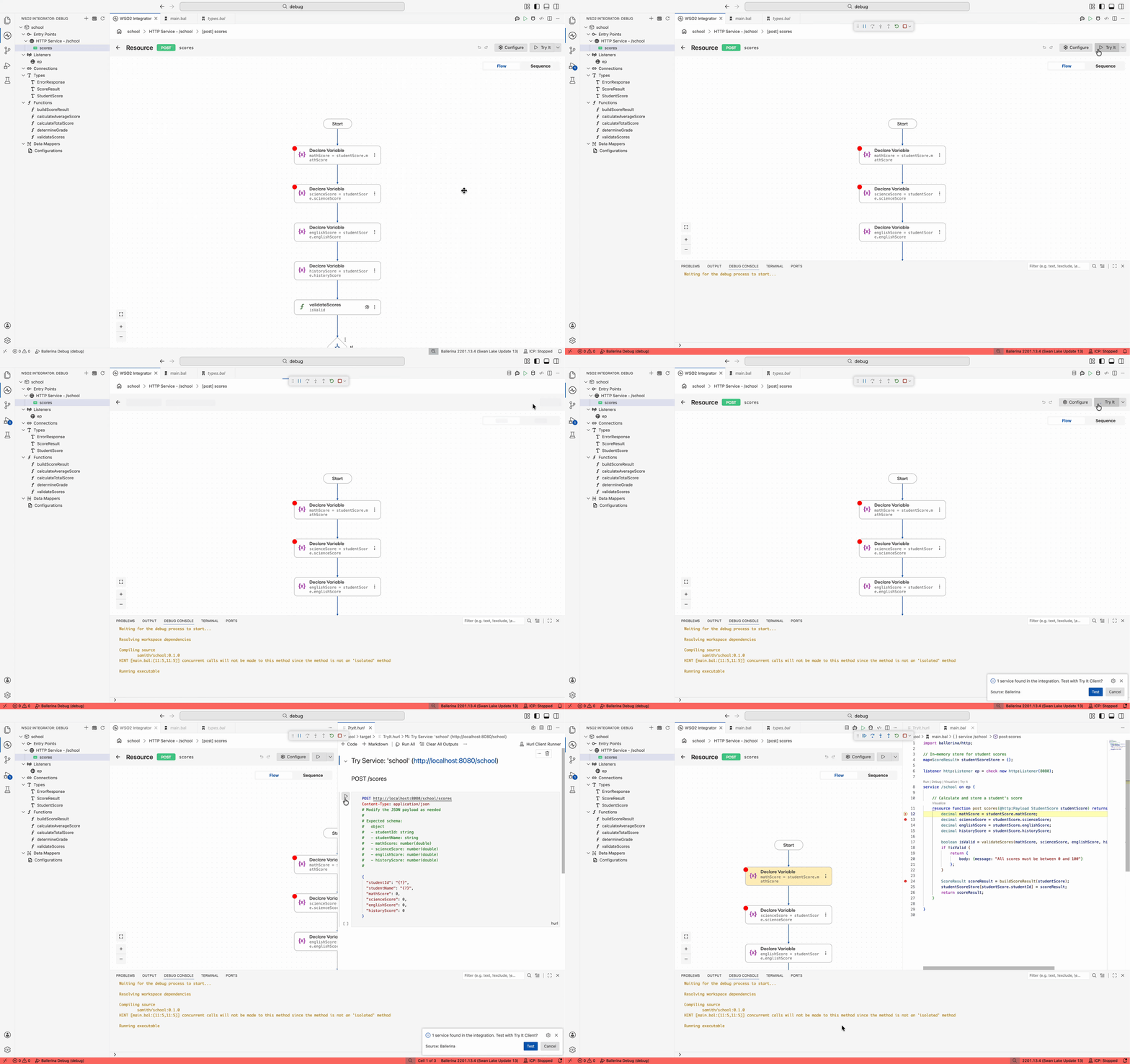
Execution pauses at the first breakpoint it hits. Output streams to the Debug Console.
Stepping through code
Once execution is paused, the debug toolbar appears at the top of the editor. Use it to move through the integration one step at a time.
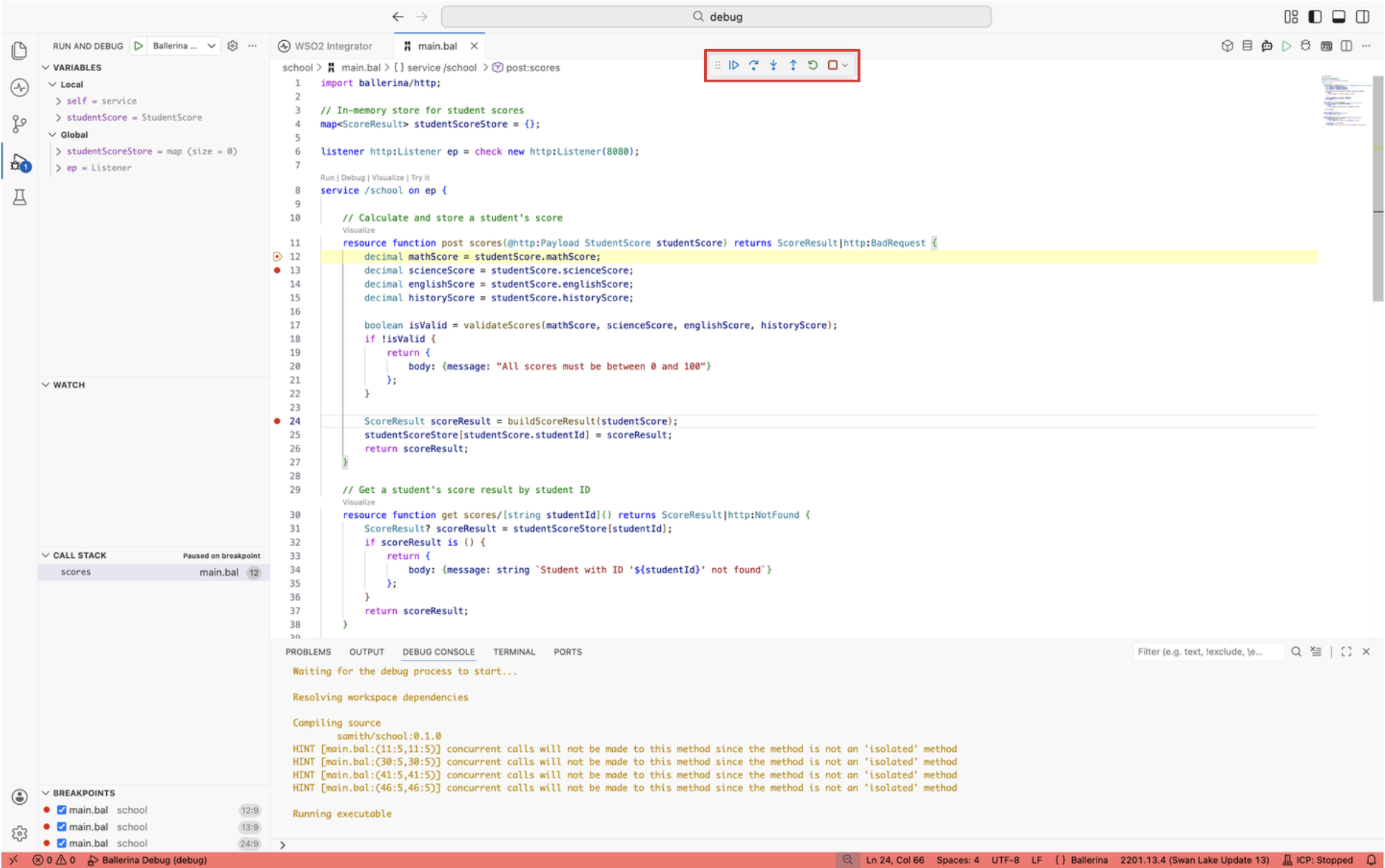
| Action | Shortcut | What it does |
|---|---|---|
| Continue | F5 | Resume execution until the next breakpoint. |
| Pause | F6 | Suspend a running program at its current line. |
| Step Over | F10 | Run the current line and pause on the next one, without entering function calls. |
| Step Into | F11 | Enter the function called on the current line. |
| Step Out | Shift+F11 | Run the rest of the current function and pause when it returns. |
| Restart | Cmd+Shift+F5 or Ctrl+Shift+F5 | Stop the current session and start a new one. |
| Stop | Shift+F5 | End the debug session. |
Pause and continue
The Pause action suspends a program that is running but is not sitting on a breakpoint. It is the fastest way to investigate an integration that appears to hang or to be caught in an infinite loop: click Pause, look at where execution stopped in the Call Stack panel, then step or continue from there.
Inspect program state
While paused, use the side panels and the debug console to see what data the integration is holding.
Variables panel
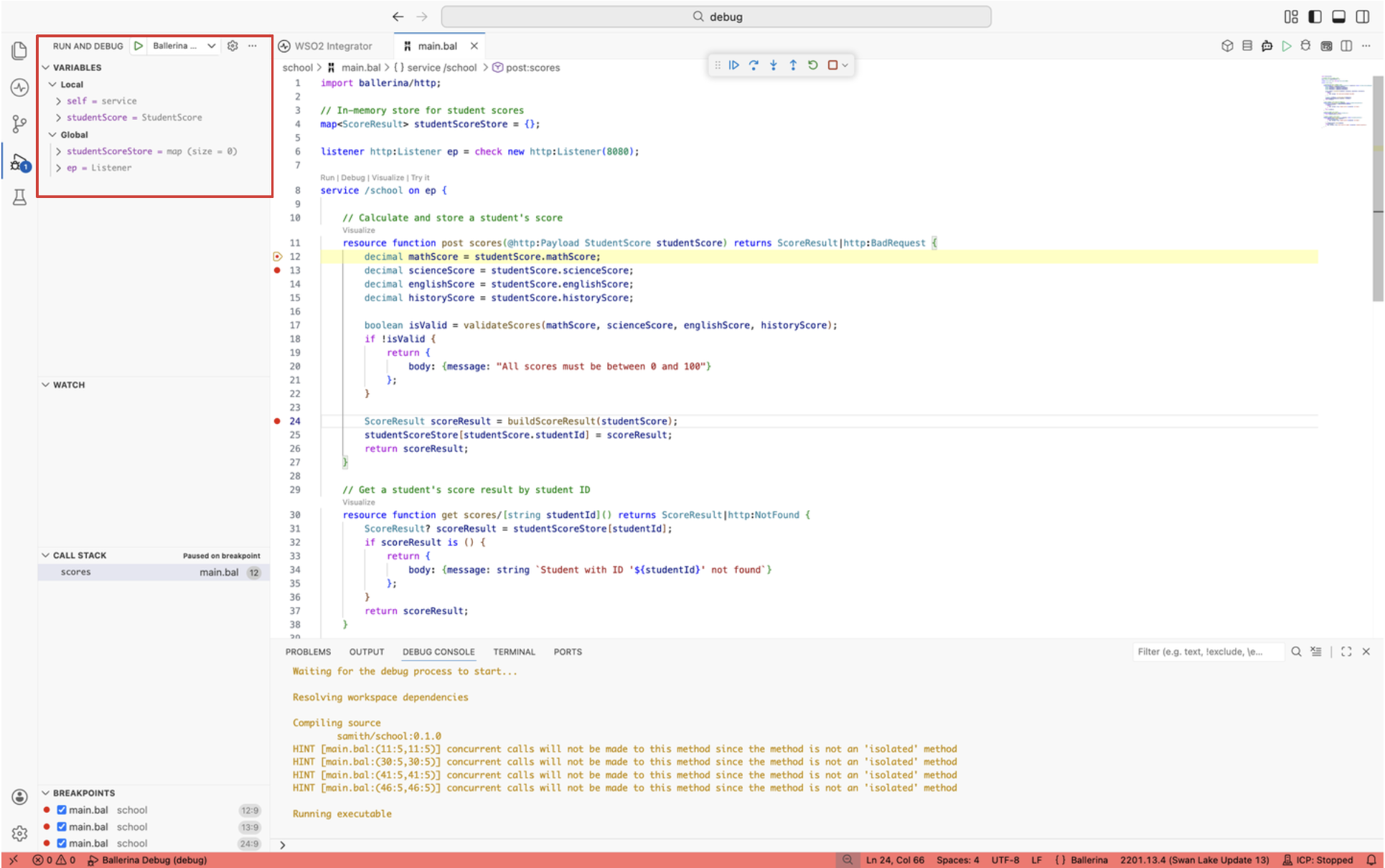
The Variables panel groups data into Local (current function scope) and Global (module-level) sections. Expand records, arrays, and maps to drill into nested fields.
Hover inspection
Hover over any variable in the editor while paused. The current value appears in a tooltip.
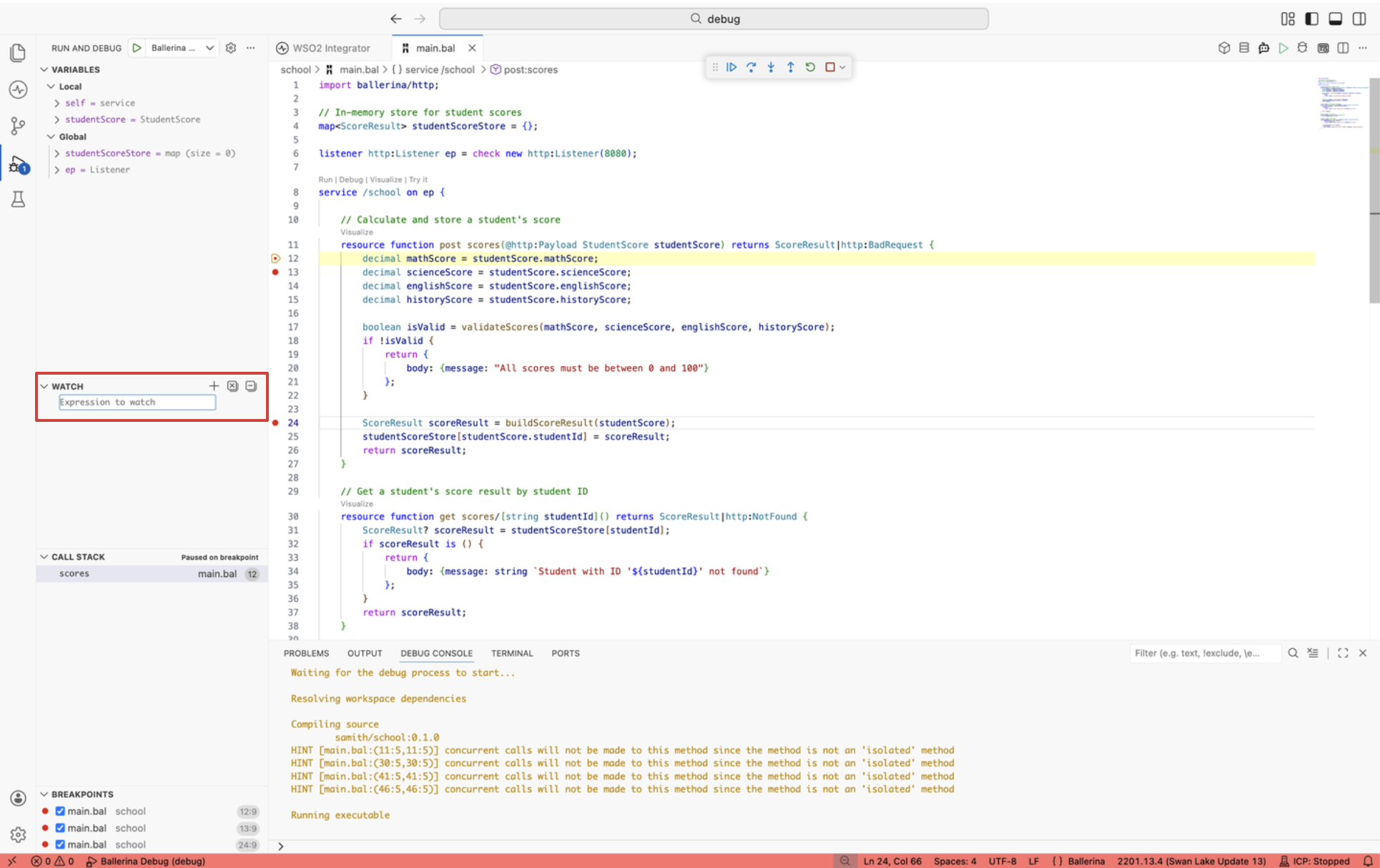
Watch panel
Use the Watch panel to track specific expressions across breakpoints. Add an expression once and it re-evaluates every time execution pauses. For example:
payload.toString(). View the full payload as a string.order.items.length(). Count items in the order.response.statusCode. Check the current HTTP status.
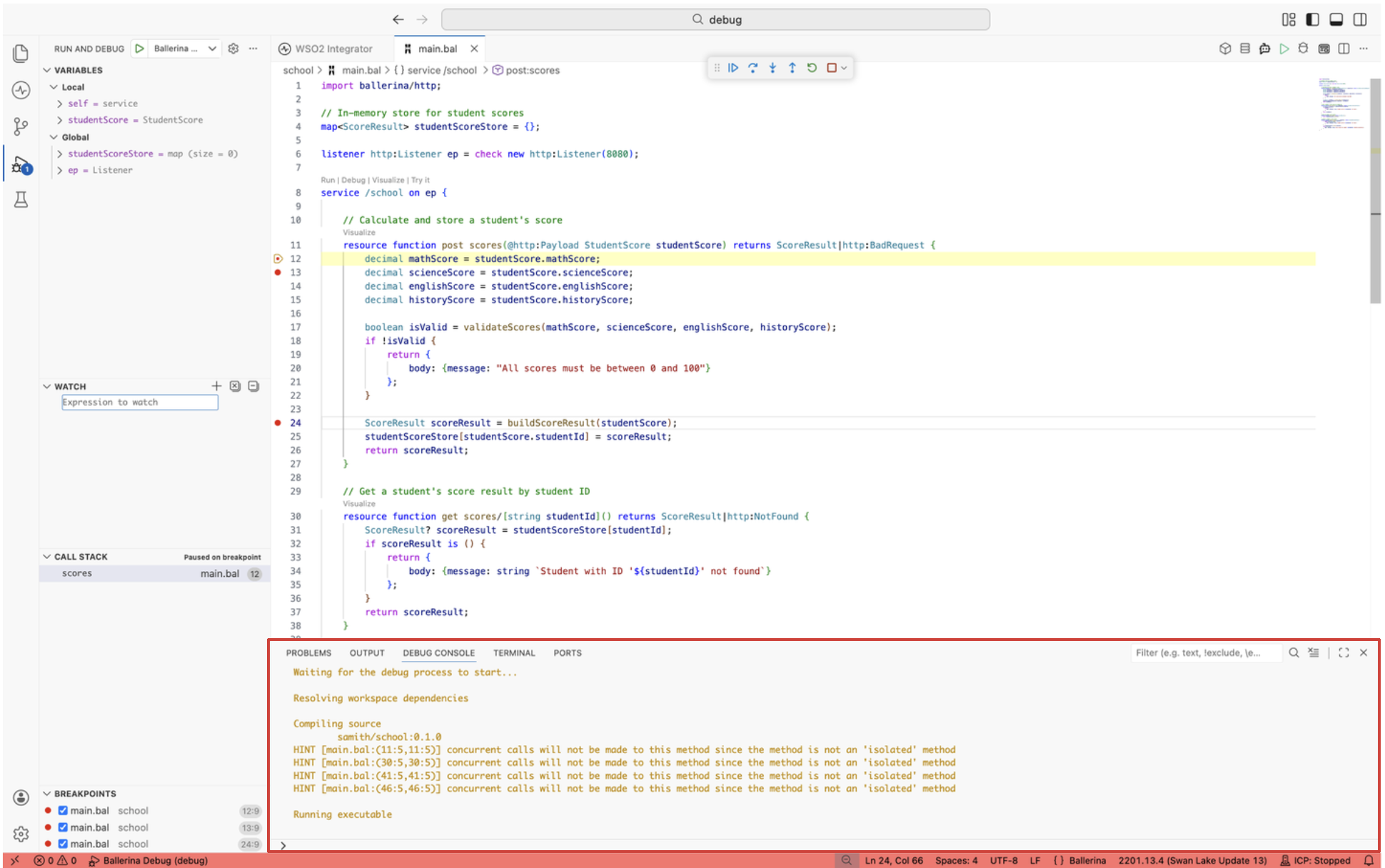
Debug console
The Debug Console evaluates any Ballerina expression in the current scope while the session is paused. Use it for one-off checks that do not warrant a watch expression. The console is also where program output and logpoint messages appear.
Call stack and strands
The Call Stack panel shows the chain of function calls that led to the current pause point. Each frame is clickable. Selecting a frame retargets the Variables and Debug Console to that frame's scope, so you can inspect state at any level of the call chain. For concurrent integrations, the panel also exposes the active strands, letting you switch between them while paused.
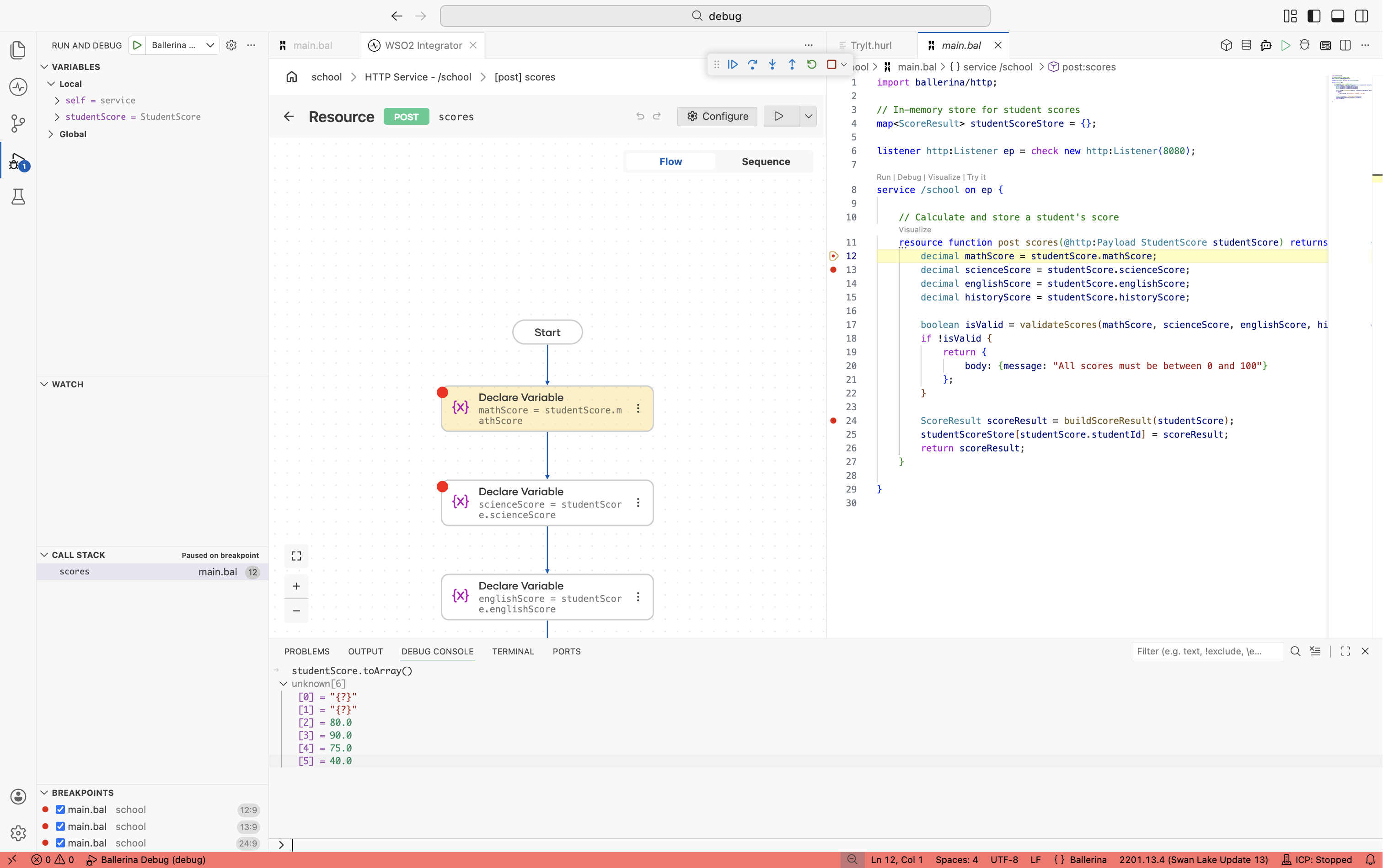
Expression evaluation
Expression evaluation lets you run any Ballerina expression against the current paused state. Use it to verify a fix idea, transform a value, or call a function without editing source and restarting the session.
You can evaluate expressions in three places:
- Debug Console. Type an expression at the prompt and press Enter. The result prints inline.
- Watch panel. Add an expression once and it re-evaluates on every pause.
- Hover. Select an expression in the editor and hover to see its value in a tooltip.
Expressions run in the scope of the selected stack frame, so switching frames in the Call Stack panel changes what is in scope.
Advanced debugging methods
Most debugging happens against a program running locally from the editor. The next two methods cover the cases that do not fit that pattern: debugging tests, or attaching to an integration that is already running somewhere else.
Test debugging
Set breakpoints inside the test functions first, then launch the test session in one of two ways:
- Open the Run and Debug view from the activity bar, select Ballerina Test from the configuration dropdown, and click Start Debugging.
- Click the Debug CodeLens that appears above each test function to launch the debugger scoped to that single test.
Use test debugging when a test fails and you want to inspect the inputs and intermediate values that produced the failure, rather than the full integration.
Remote debugging
Remote debugging attaches the editor to an integration that is already running on another machine, in a container, or as an executable JAR. Start the integration in debug mode with one of the following commands:
bal run --debug <port> <path>     # package or file
bal run --debug <port> <jar>      # executable JAR
bal test --debug <port> <path>    # tests
Then attach the editor to the running process:
- Open the Run and Debug view from the activity bar.
- Select Ballerina Remote from the configuration dropdown.
- Click Start Debugging.
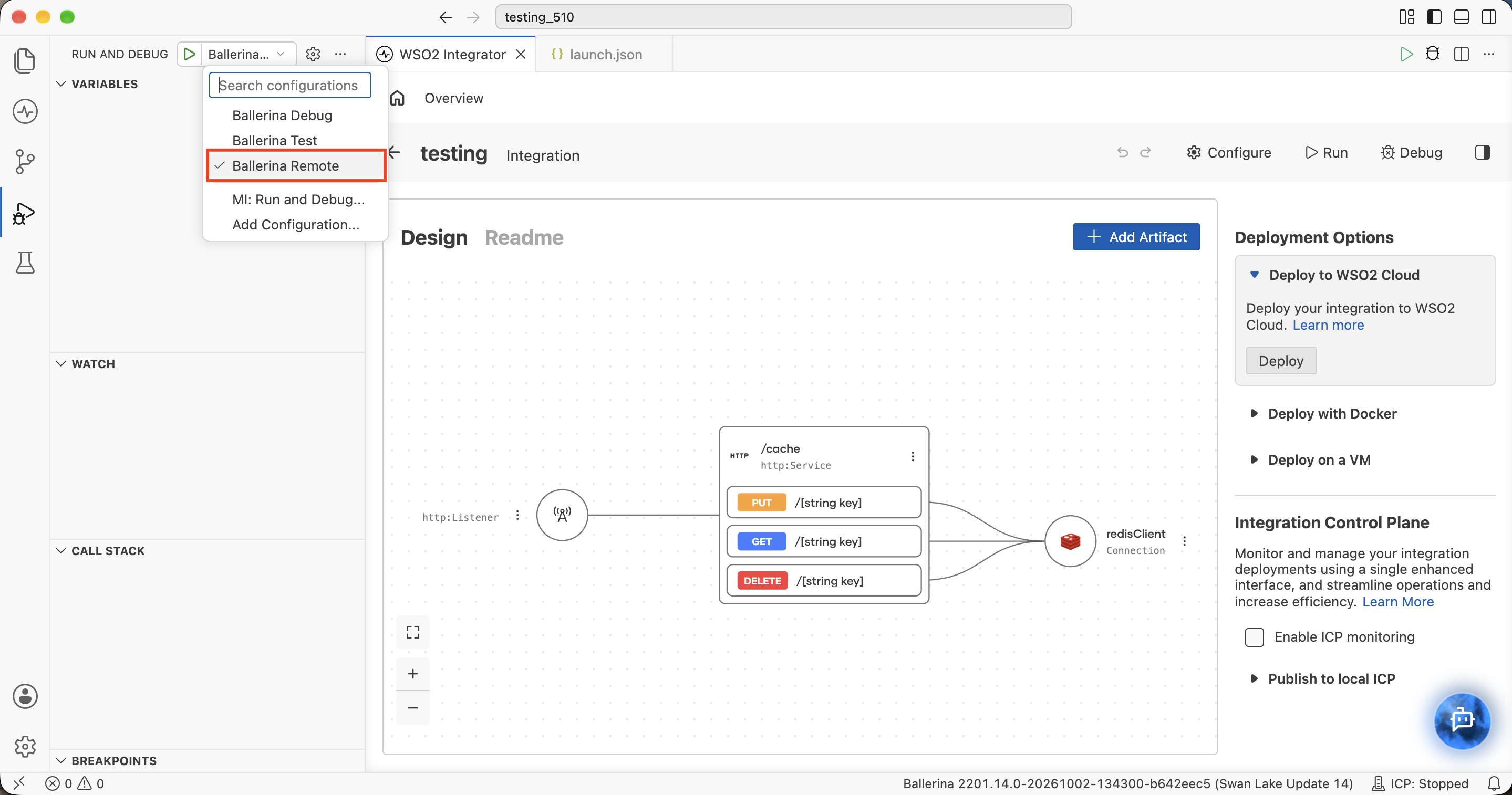
The same breakpoints, stepping, and inspection features work against the remote process.
The default Ballerina Remote configuration attaches to 127.0.0.1 on port 5005. To attach to another host or port, edit debuggeeHost and debuggeePort in .vscode/launch.json to match the host of the running process and the port you passed to --debug. If Ballerina Remote is missing from the dropdown, add it to .vscode/launch.json:
{
    "version": "0.2.0",
    "configurations": [
        {
            "name": "Ballerina Remote",
            "type": "ballerina",
            "request": "attach",
            "debuggeeHost": "127.0.0.1",
            "debuggeePort": "5005"
        }
    ]
}
What's Next
- Logging — add a persistent record instead of a live debug session.
- Errors and stack traces — read the error output when you cannot attach a debugger.
- Test Your Integration — write tests that catch issues before you need to debug them.