Create a Project
A project is the top-level container for your integrations on WSO2 Cloud. Use projects to group related integrations and manage them together. WSO2 Cloud creates a project named Default when you first sign up, and you can create more at any time.
If your project already exists in a Git repository, import it instead. See Import a project.
Create the project
-
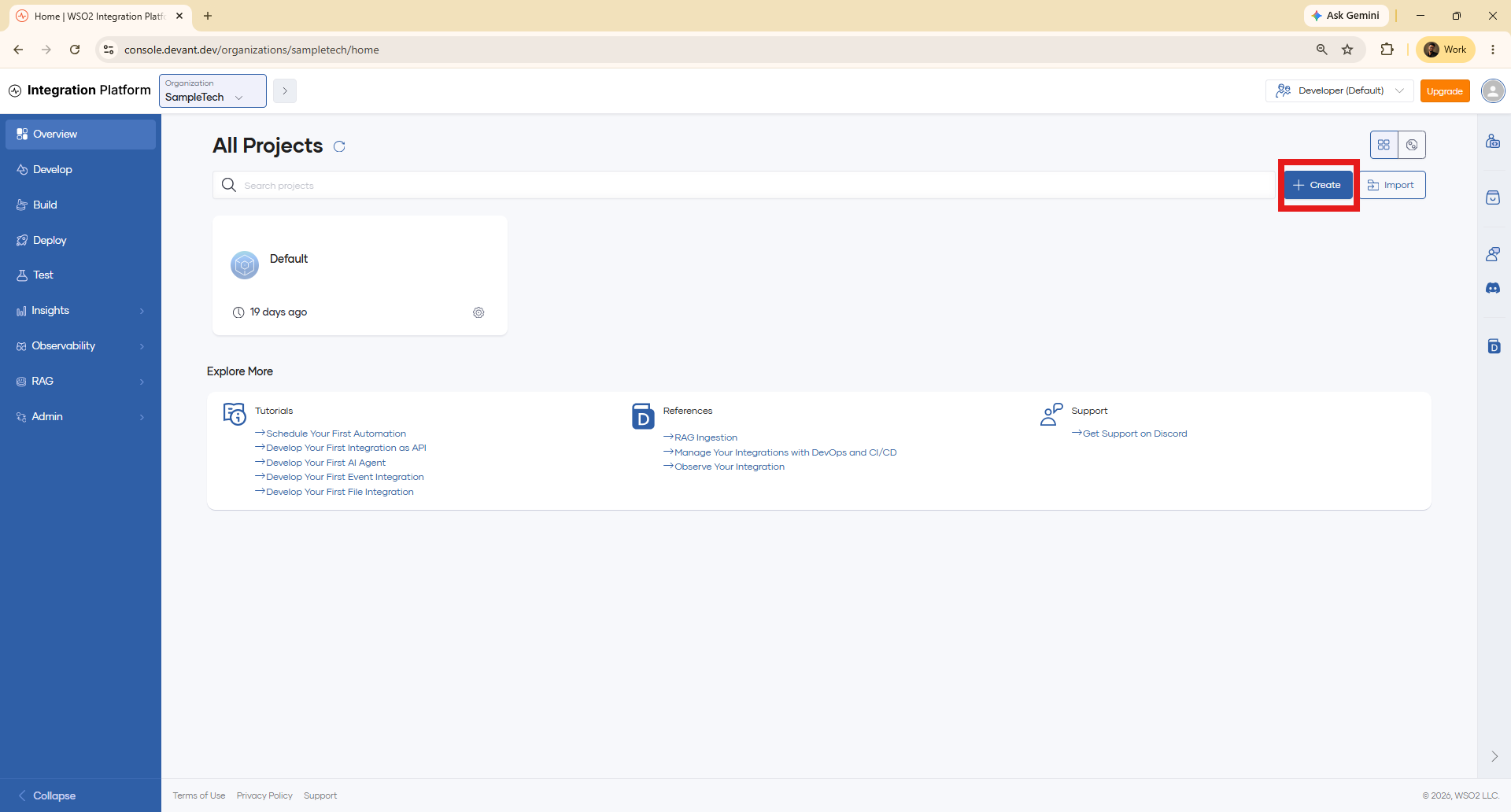
Sign in to WSO2 Cloud and click Organization in the top navigation to open the organization overview. It lists all the projects in your organization.
-
Click + Create.
-
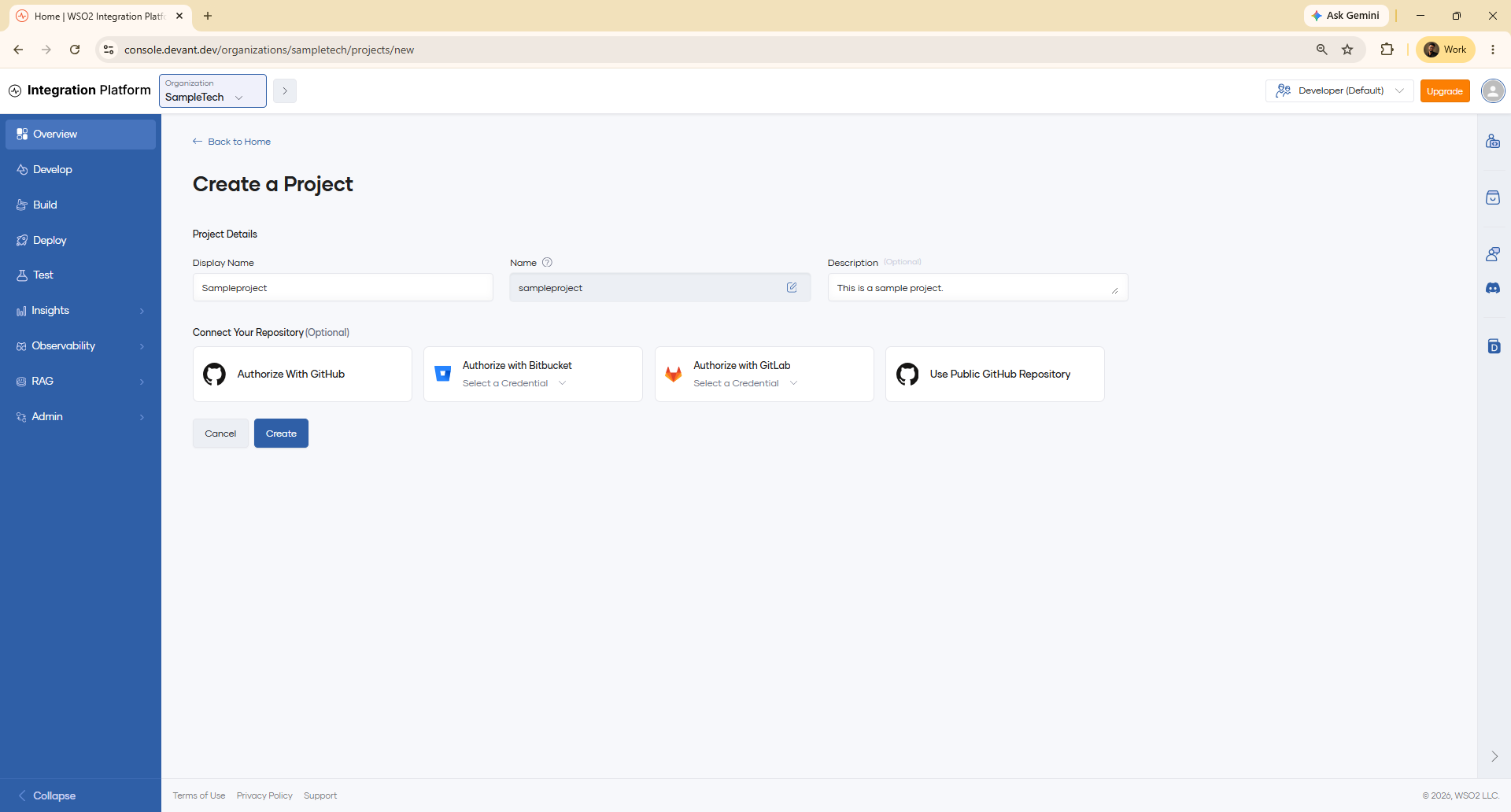
In the Create a Project form, enter the project details:
Field Description Display Name A human-readable label shown in the console. Name A unique identifier for the project. It is generated from the display name, and you can edit it. It must be unique within the organization. Description An optional summary of the project's purpose. -
Optionally, under Connect Your Repository, link a Git repository to the project. Choose Authorize With GitHub, Authorize with Bitbucket, Authorize with GitLab, or Use Public GitHub Repository. For Bitbucket and GitLab, select a saved credential. See Connect a Git provider to add one.
 note
noteConnecting a repository here only links its metadata to the project. To bring existing integrations in from a repository, use Import a project or Import an integration.
-
Click Create.
WSO2 Cloud creates the project and opens the project home.
Add integrations to the project
The Create Integration page, which a new project opens on, offers several ways to add your first integration:
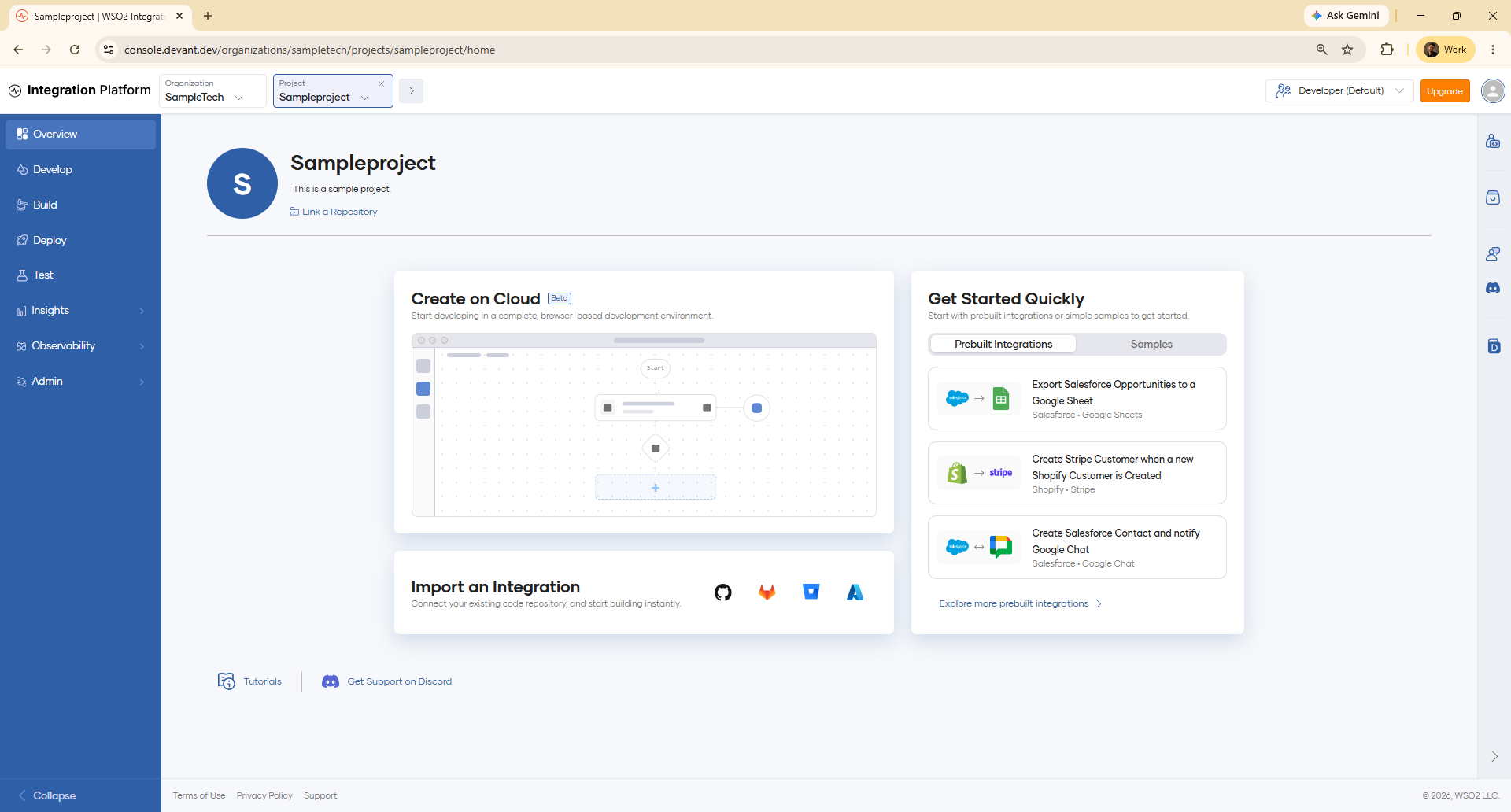
- Create on Cloud — Build an integration in the browser-based cloud editor, without installing anything locally. See Deploy from the cloud editor.
- Import an Integration — Connect a Git provider and bring in an existing integration. See Import an integration.
- Get Started Quickly — Start from a prebuilt integration or a sample. See Pre-built integrations and Start with sample integrations.
What's next
- Import a project — Bring an existing project from a Git repository
- Import an integration — Bring a single integration from a Git repository
- Manage projects — View, edit, and delete projects