AI Data Mapping
The AI Data Mapper uses WSO2 Integrator Copilot to generate mappings between data structures, without manual field-by-field matching. It is especially useful for large or complex schemas with many fields, deeply nested records, or domain-specific formats.
For the Data Mapper editor and manual mapping, see Data Mapper editor.
How to use
- Visual designer
- Ballerina code
-
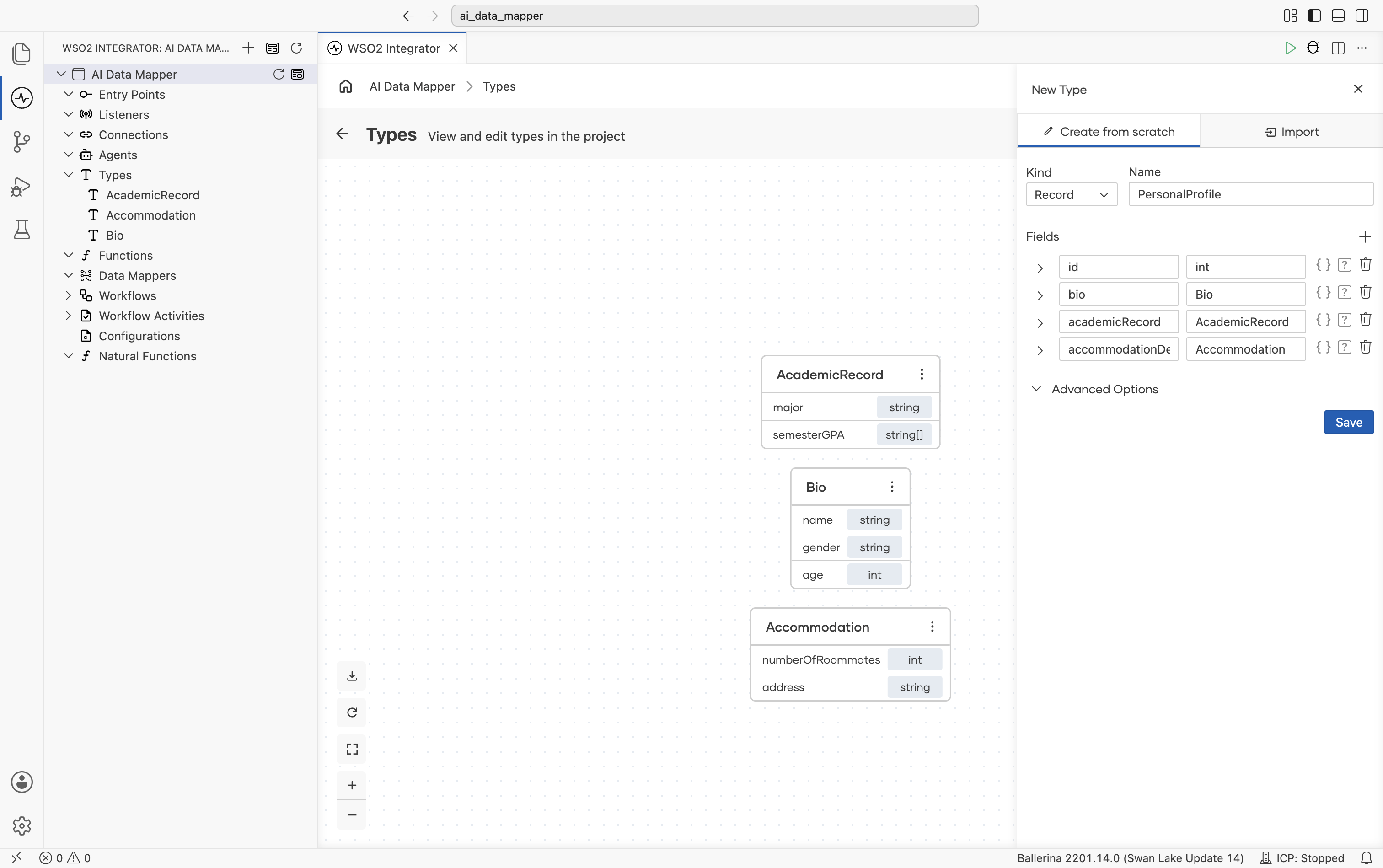
Define the input and output record types in the Types panel. Define inner records first, then compose them into the parent input and output records. For details on creating records, see Type editor.
-
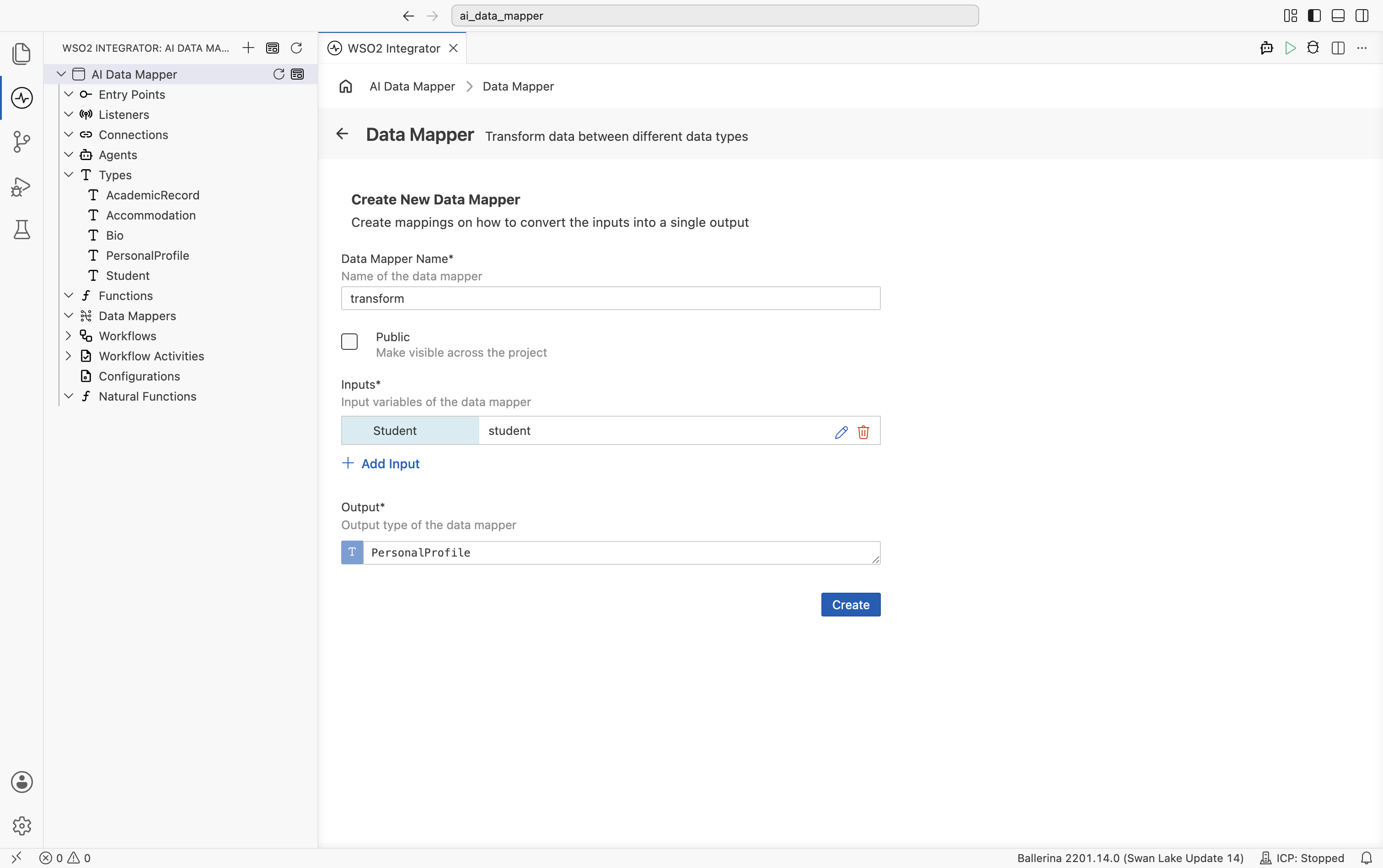
Create the data mapper. Under Data Mappers in the project explorer, select +. Set a name, add the input type with a parameter name, set the output type, and select Create. Select Add Input to map from more than one input, and select Public to make the data mapper visible across the project.
-
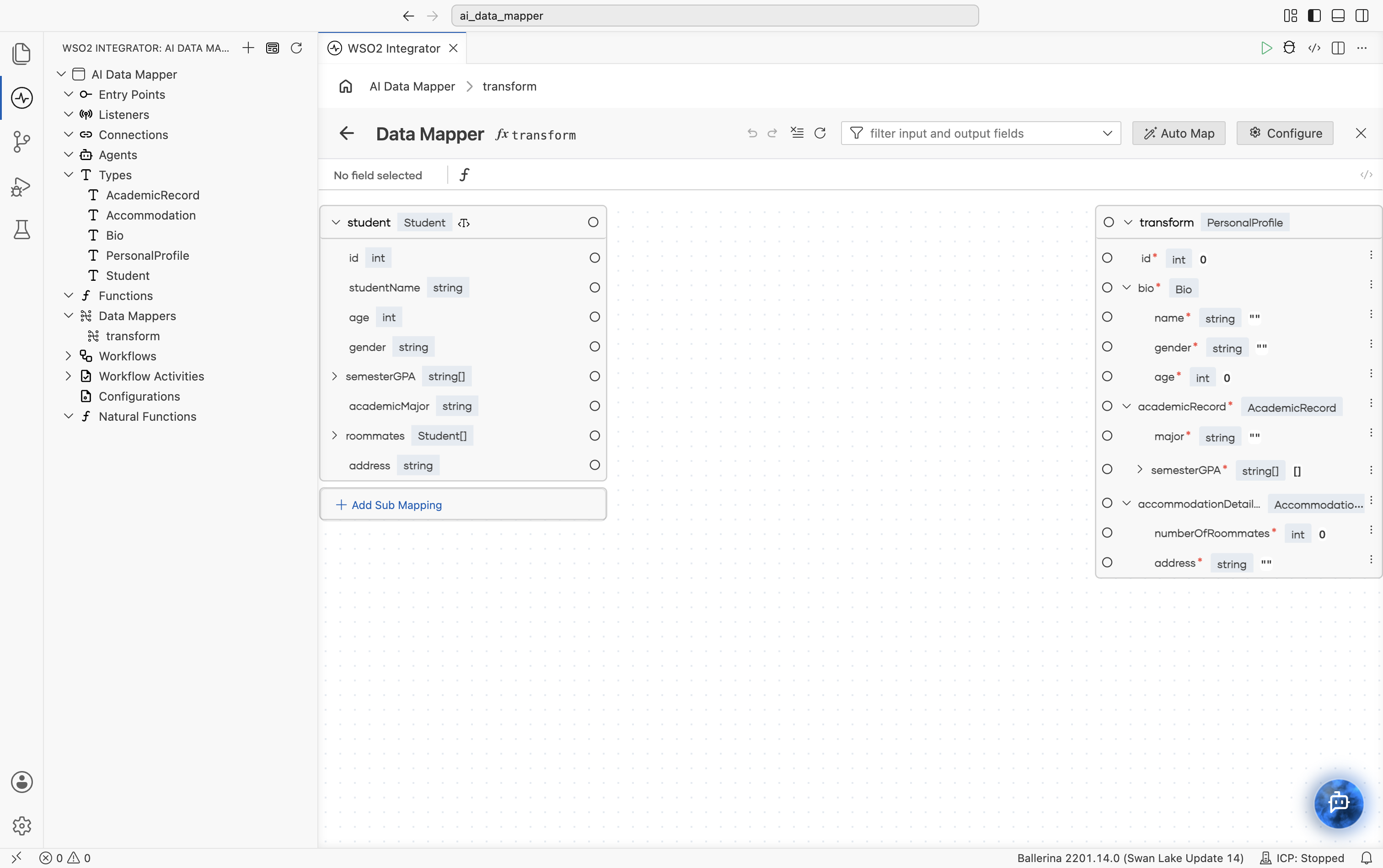
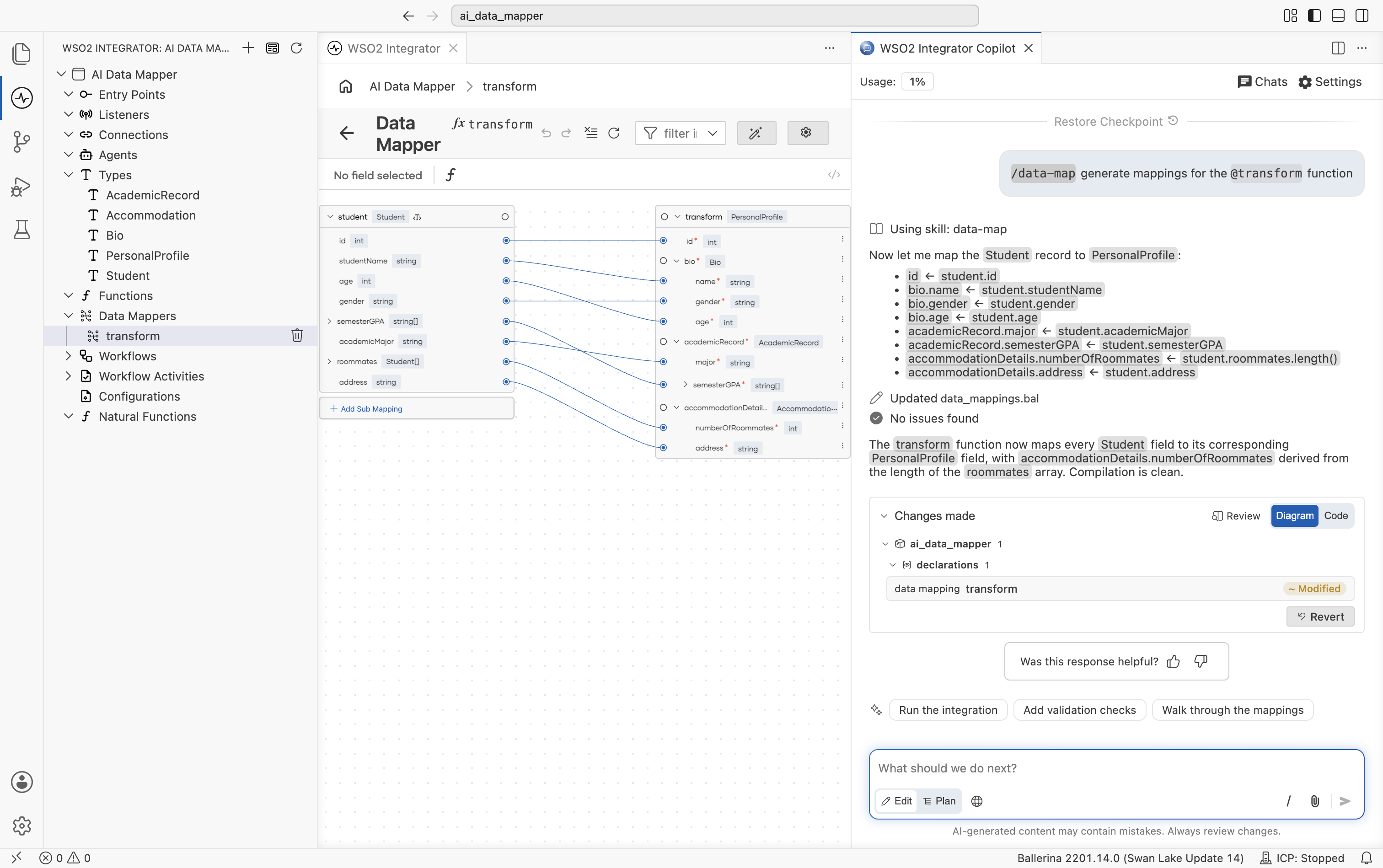
The Data Mapper editor opens with the input schema on the left and the output schema on the right. The toolbar has Auto Map and Configure, and Add Sub Mapping appears below the inputs.
-
In the top-right corner of the canvas, select Auto Map. The WSO2 Integrator Copilot panel opens alongside the canvas with a prompt already filled in. Before you send it, you can add your own business rules to the prompt or attach reference documents. See Supporting documentation to improve accuracy.
noteAuto Map is disabled when an input or the output is a generic
jsonorxmltype whose structure isn't defined yet. Add a sample payload first, as described in Generic type mappings, and then select Auto Map.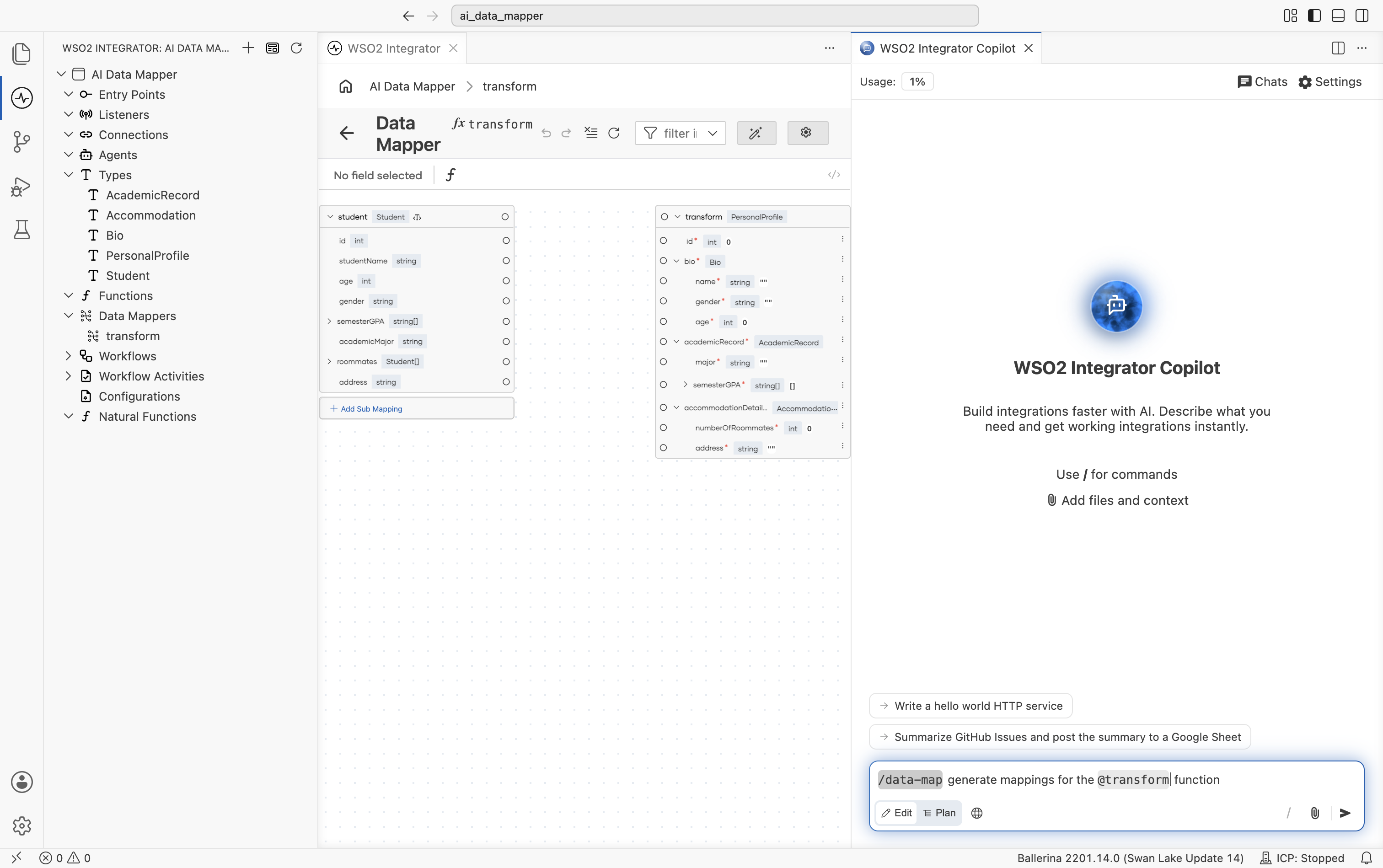
-
Send the prompt. Copilot reads the input and output types, writes the mappings, and checks for errors, fixing any it finds. When it finishes, it summarizes the mappings it made, and mapping lines appear between the matched fields on the canvas.
-
Review the result in the Changes made card. You can check what changed, or select Revert to undo it. For details, see Reviewing Changes.
Define data types
Define the input and output record types in types.bal:
type Student record {
    int id;
    string studentName;
    int age;
    string gender;
    string[] semesterGPA;
    string academicMajor;
    Student[] roommates;
    string address;
};

type PersonalProfile record {
    int id;
    Bio bio;
    AcademicRecord academicRecord;
    Accommodation accommodationDetails;
};

type Bio record {
    string name;
    string gender;
    int age;
};

type AcademicRecord record {
    string major;
    string[] semesterGPA;
};

type Accommodation record {
    int numberOfRoommates;
    string address;
};
Define the data mapper function
Define the transform function stub in data_mappings.bal:
function transform(Student student) returns PersonalProfile => {};
Select Visualize above the transform function to open it in the Data Mapper editor. In the editor, select Auto Map to generate the field mappings. The function is updated with the generated implementation:
function transform(Student student) returns PersonalProfile => {
    id: student.id,
    bio: {name: student.studentName, gender: student.gender, age: student.age},
    academicRecord: {major: student.academicMajor, semesterGPA: student.semesterGPA},
    accommodationDetails: {numberOfRoommates: student.roommates.length(), address: student.address}
};
Inline mappings
Auto Map also works on inline mappings, not only on standalone data mappers. For example, add a Declare Variable node inside a service resource or function, and select Open in Data Mapper. Copilot then writes the mappings directly into that node instead of creating a separate data mapper.
Features
Automated mapping generation
Mapping generation takes into account:
- Field names and naming conventions
- Semantic relationships between fields
- Nested data structures
- Array types and cardinality
- Optional and nullable fields
Copilot also:
- Keeps any mappings you already made.
- Follows the business rules you add to the prompt or attached documents.
- Reuses existing sub-mappings where they fit.
Supported types
The AI Data Mapper maps between records, JSON, XML, arrays, and simple values such as text and numbers, including records from other packages. It handles optional fields, nested records, arrays, union types, and enums, and converts values between types, such as text to a number.
Supporting documentation to improve accuracy
Attach reference materials to the Copilot prompt to improve mapping accuracy. Copilot can map from the types alone, but documents such as a mapping spec help it understand field relationships and business rules.
Supported formats:
- PDF documents
- Images (JPEG, JPG, PNG)
- CSV files
- Plain text files
If your requirements are spread across several documents, attach all of them.
Error check
After writing the mappings, Copilot checks the project for errors and tries to fix any it finds. It reports No issues found when there are none. Always review the result before you use it.
Auto Map uses data-map, one of the built-in Copilot skills. For more on skills, see Skills.
Responsible use
Large language models can produce unexpected results when processing highly domain-specific or atypical schema patterns. Follow these practices to ensure accuracy:
- Review all generated mappings before deploying to production.
- Test with representative data samples that reflect actual use cases.
- Verify that the generated transformation logic aligns with your business requirements.
- Provide feedback on incorrect or incomplete mappings to support continuous improvement.
What's next
- Data Mapper editor — Open, configure, and work with the visual mapping canvas.
- Data mapper — End-to-end guide to creating and using data mappers.
- Expression editor — Write custom expressions for individual field mappings.