Email Generator with Direct LLM
This tutorial walks through building an HTTP service that generates professional emails using an LLM. It's a complete, end-to-end scenario that exercises the Direct LLM Calls feature surface.
By the end you will have a POST /emails/generate endpoint that takes recipient details and a meeting intent, and returns a fully written, structured email, subject and body, produced by an LLM.
What you'll build
- Create the HTTP service with typed request and response payloads.
- Add a model provider as the connection to the LLM.
- Add a
generatenode with a prompt that writes the email. - Bind the response to the structured response type.
- Run and test the service end to end.
1. Create the service
Step 1.1: Create an HTTP service
- On the Design tab, select Add Artifact manually below the WSO2 Integrator Copilot's quick-start cards.
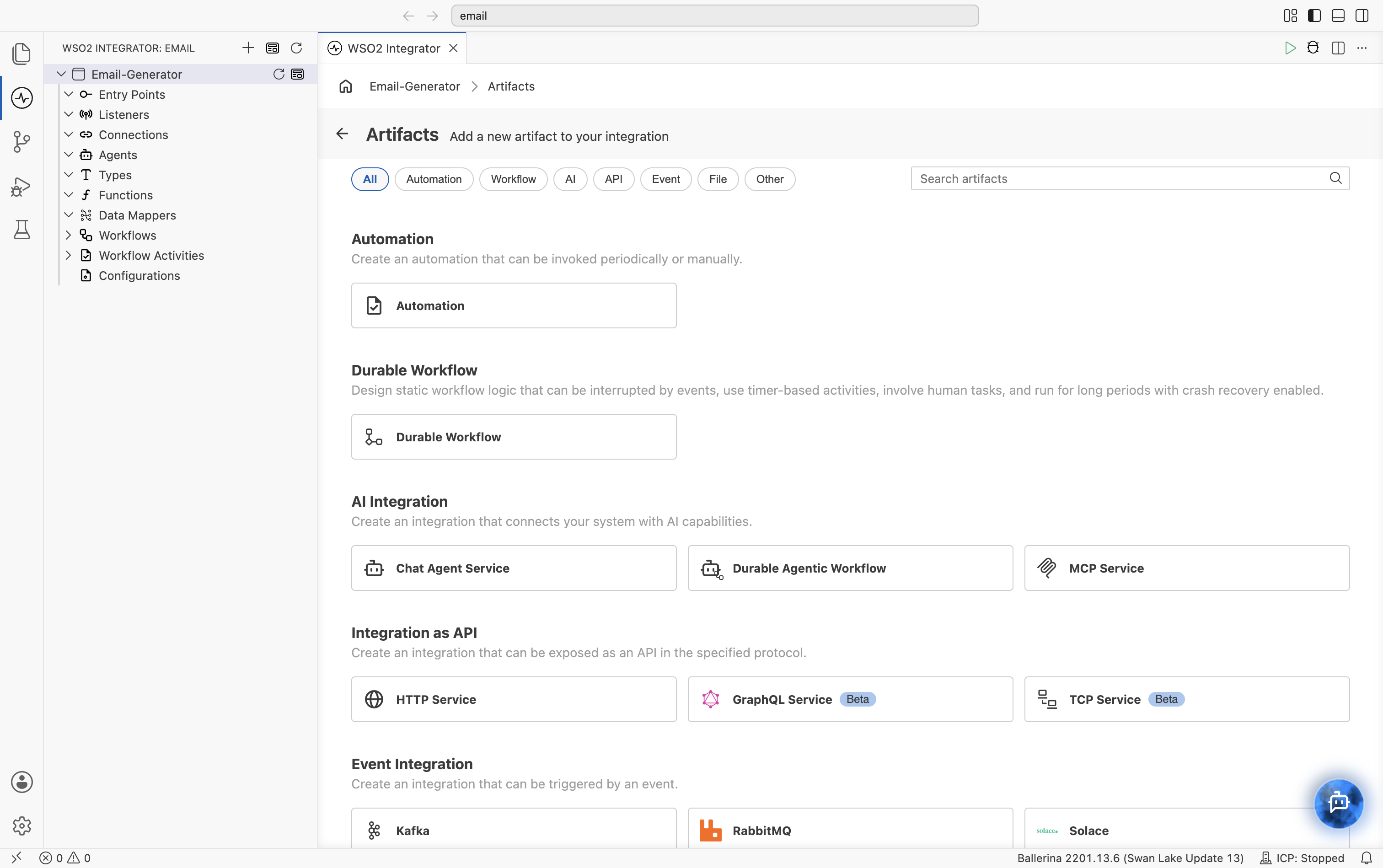
- On the Artifacts page, under Integration as API, click HTTP Service.
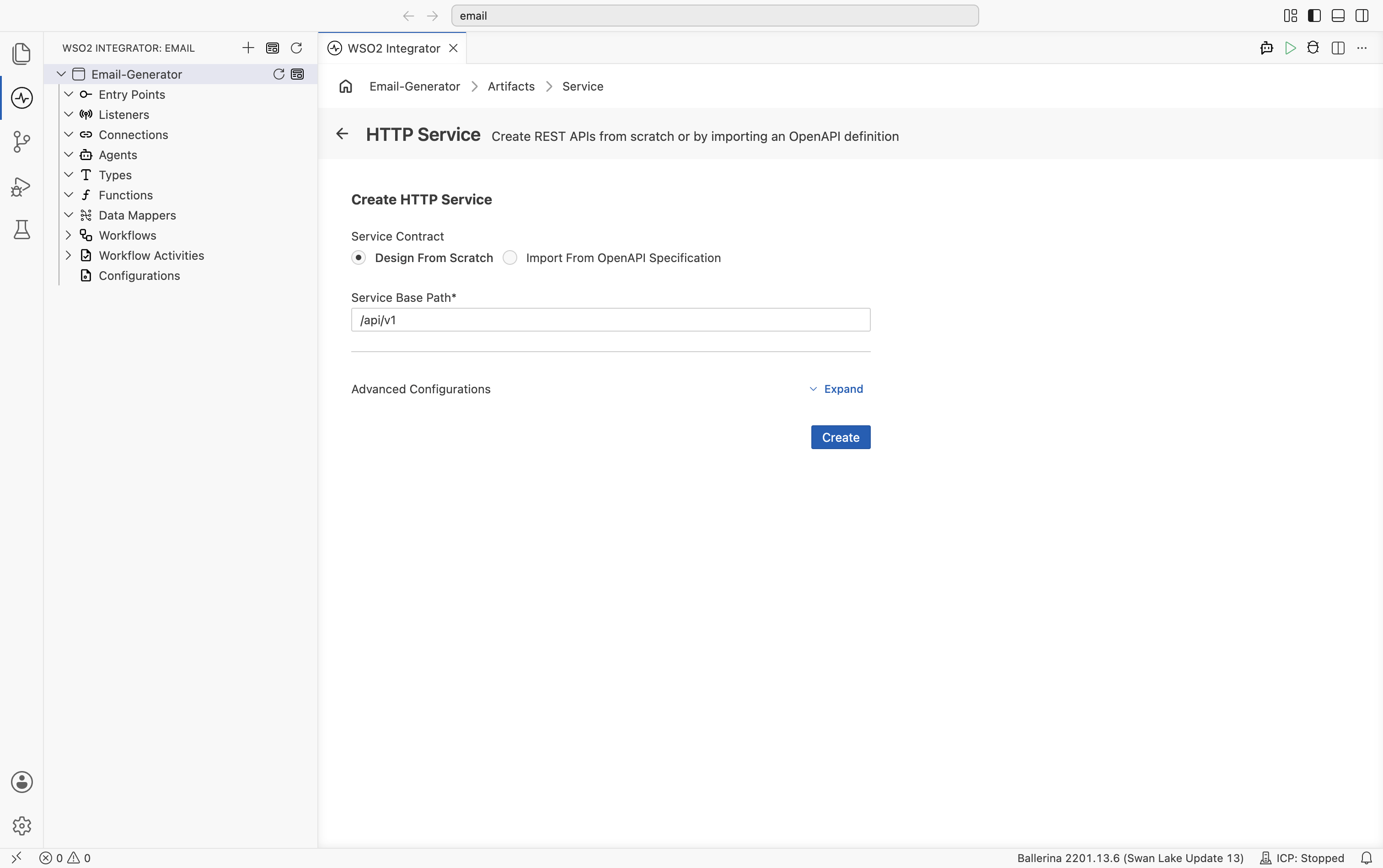
- In the Create HTTP Service form, select Design From Scratch, enter
/api/v1as the Service Base Path, and click the blue Create button.
Step 1.2: Define the request payload
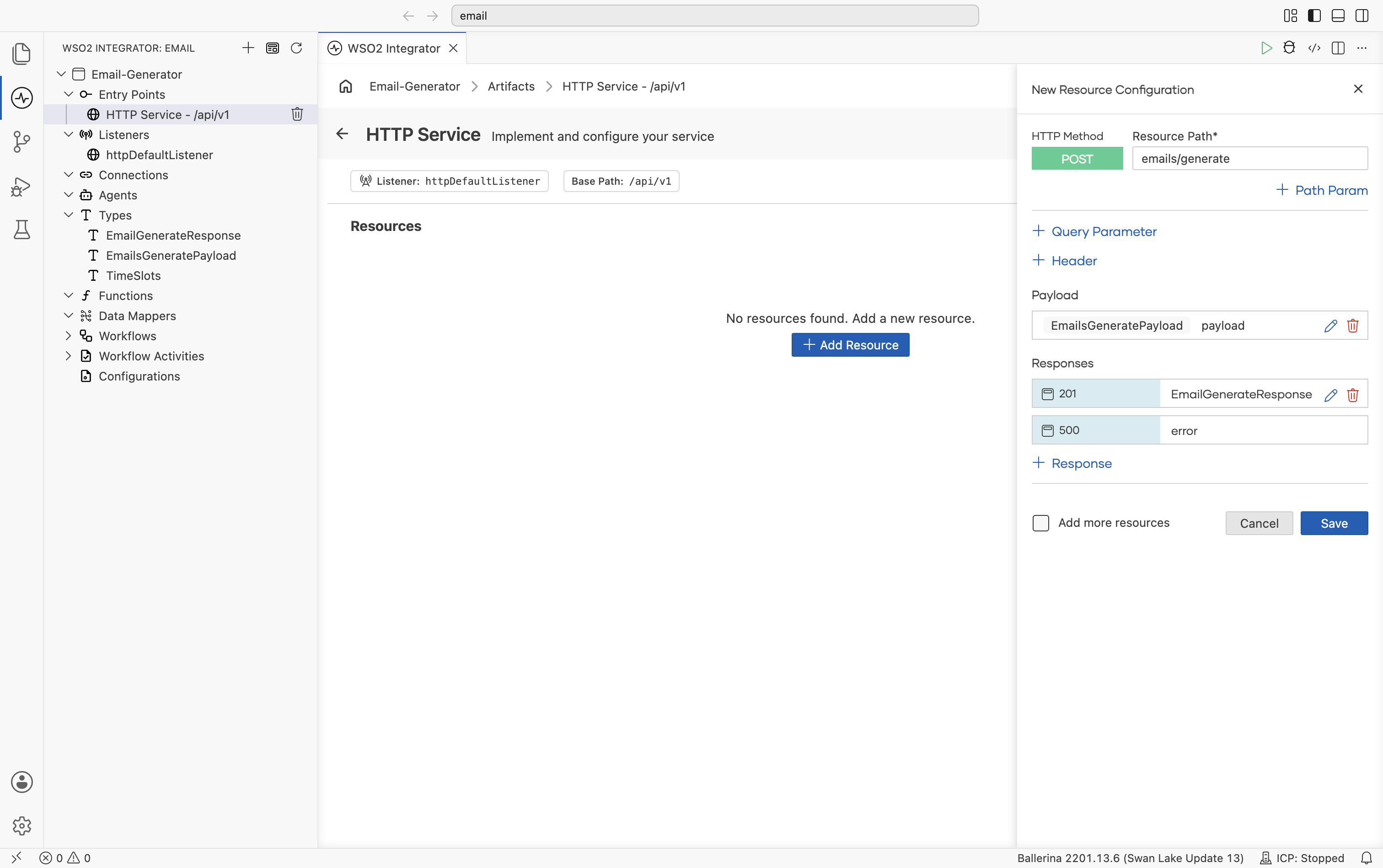
The New Resource Configuration panel opens. Set the HTTP Method to POST and the Resource Path to /emails/generate.
Click Define Payload and:
-
Switch to the Import tab.
-
Paste the following sample JSON into Sample data:
{
  "recipientName": "Sarah Fernando",
  "senderName": "John Perera",
  "timeSlots": ["2026-01-15 10:00 AM", "2026-01-16 02:00 PM"],
  "intent": "Discuss a new website project"
} -
Set Type Name to
EmailsGeneratePayload. -
Click Import Type.
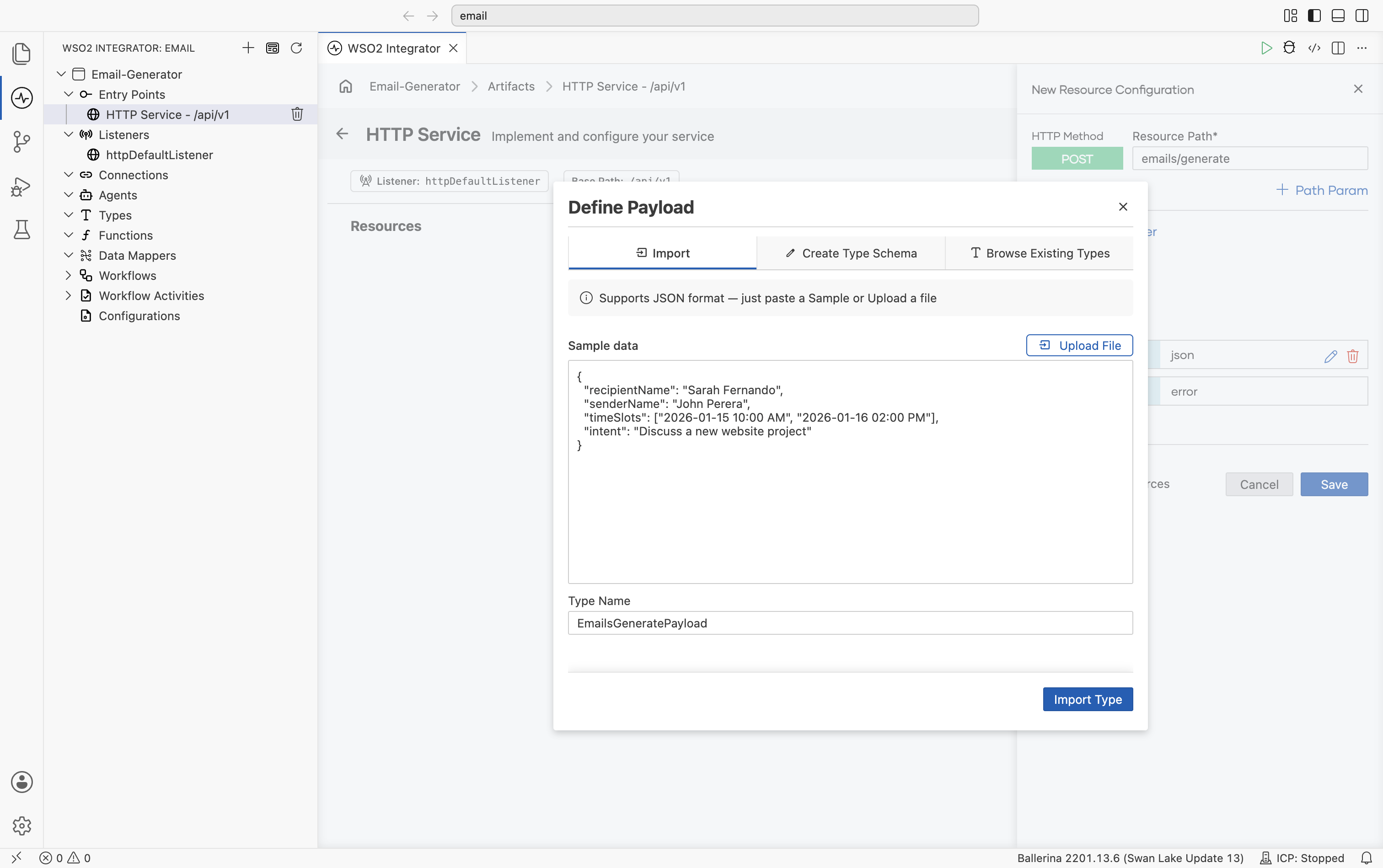
The dialog produces a record with the right fields. There is no need to write the type by hand. The JSON sample drives it.
Step 1.3: Define the response type
Still on the resource configuration, click the response type for status 201 (Ballerina returns 201 Created for POST resources by default) and choose Create New Type:
-
Switch to the Import tab.
-
Set Name to
EmailGenerateResponse. -
Paste:
{
  "subject": "Meeting Request - New Website Project",
  "content": "Dear Sarah, I hope this message finds you well..."
} -
Click Import.
The response configuration panel also prefills a 500 (error) response, and its Advanced Configurations section lets you set the Response Body Schema, Content Type, and Headers, plus a Make This Response Reusable option. Leave these at their defaults for this tutorial.
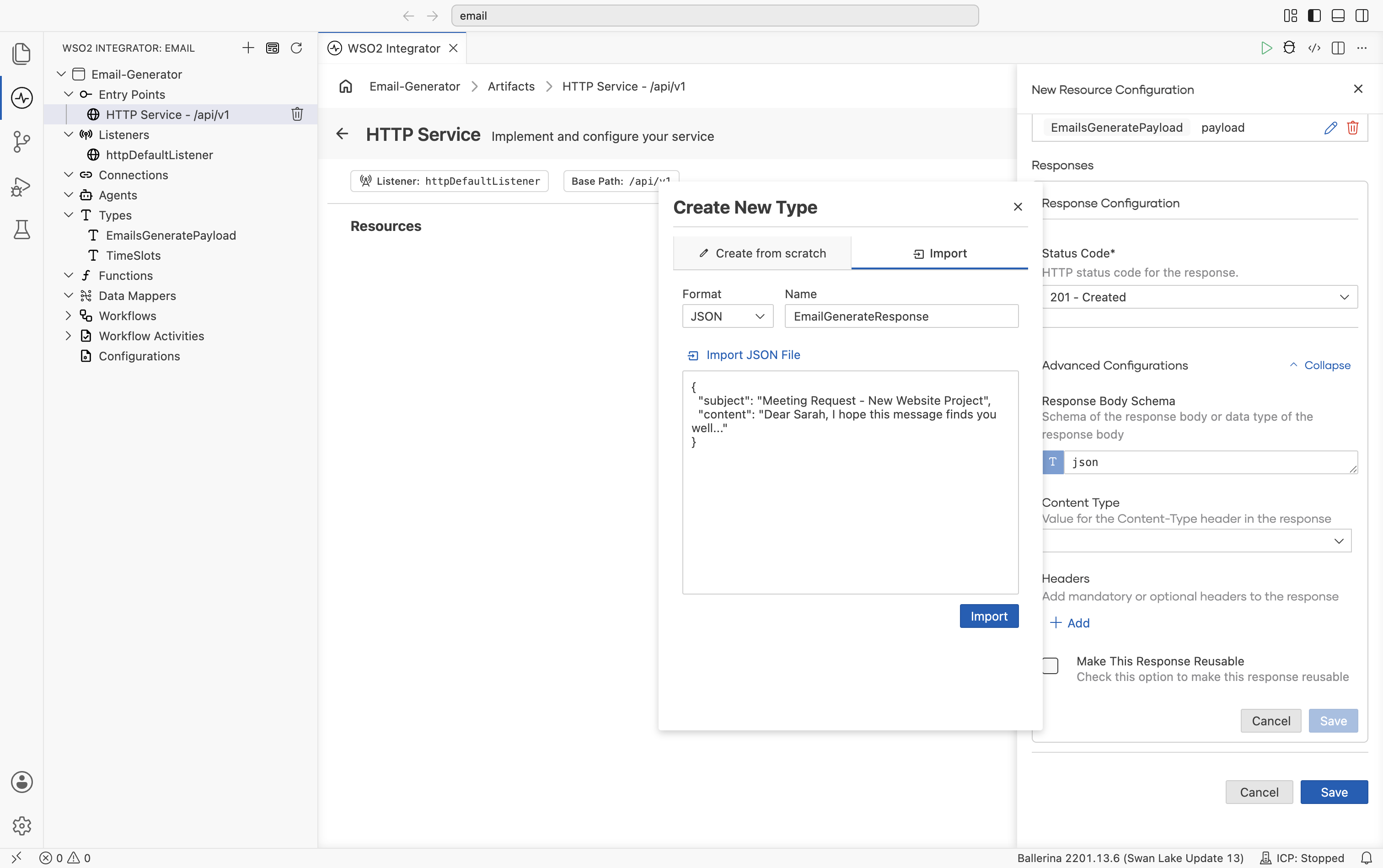
Click Save on the resource. The configuration should now show EmailsGeneratePayload for the request, and EmailGenerateResponse for the 201 response with error prefilled for 500.
2. Add a model provider
After saving, the resource opens as a visual flow with Start connected to an Error Handler. The visual designer adds this node automatically to catch failures from the LLM call you're about to add. Click + on the connector between Start and Error Handler. In the Add Node panel, scroll to the AI section and click Model Provider. Then click Add Model Provider. The provider list appears on the right side.
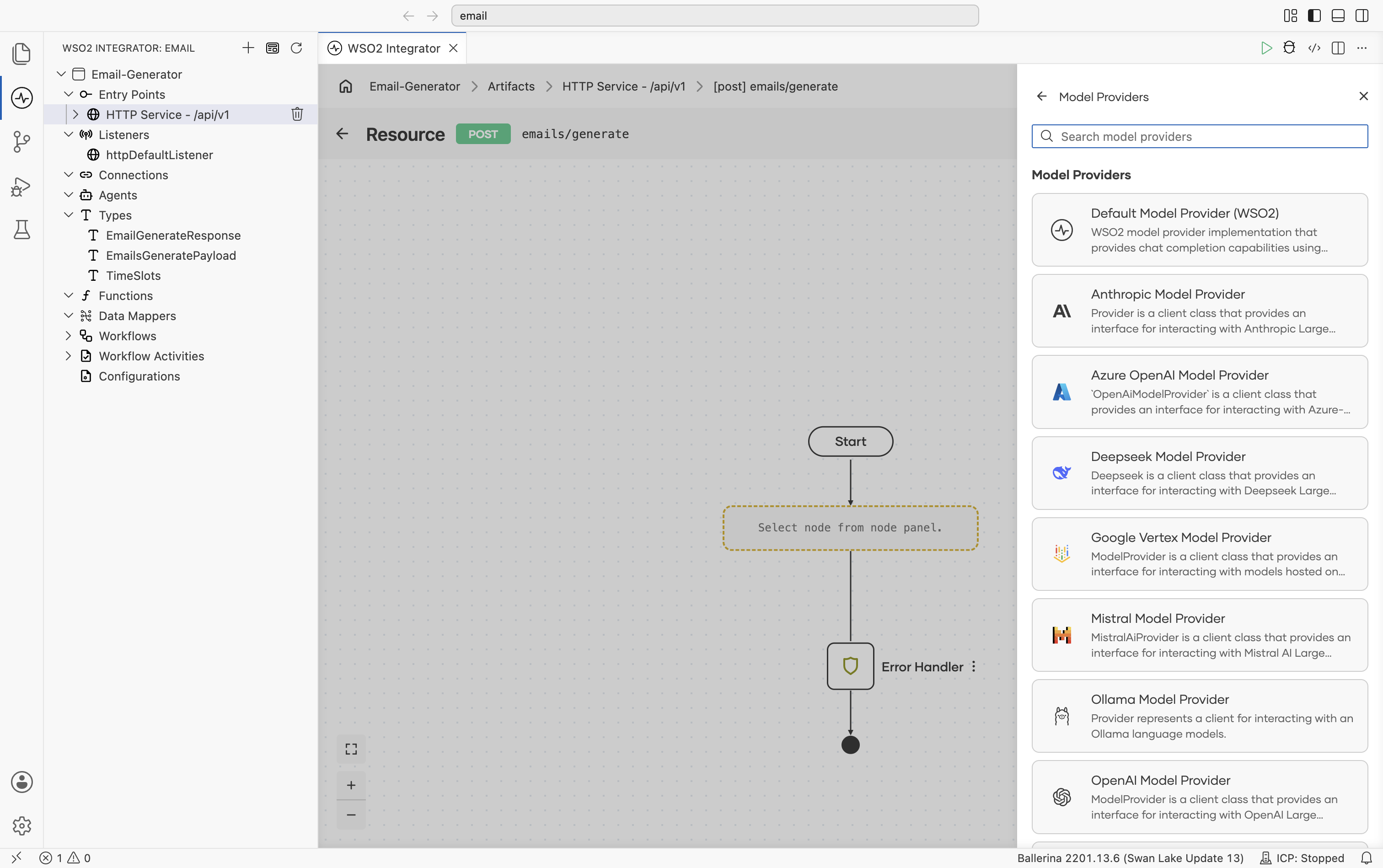
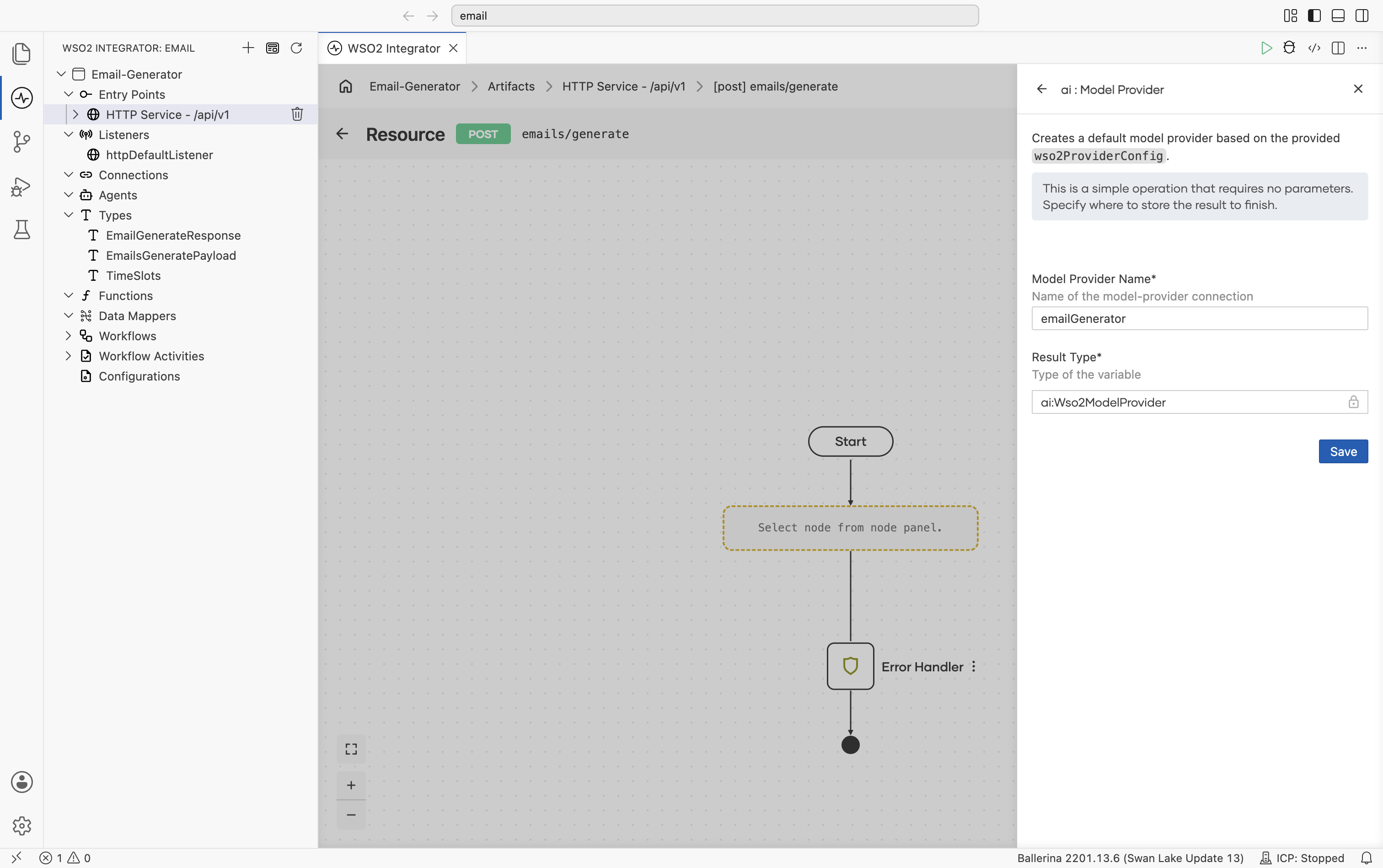
Click Default Model Provider (WSO2). The panel describes it as creating a default model provider based on the provided wso2ProviderConfig, with no required parameters. In the configuration form:
- Model Provider Name =
emailGenerator. - Result Type is fixed to the provider's connection type (
ai:Wso2ModelProviderfor the WSO2 default) and cannot be edited. - Click Save.
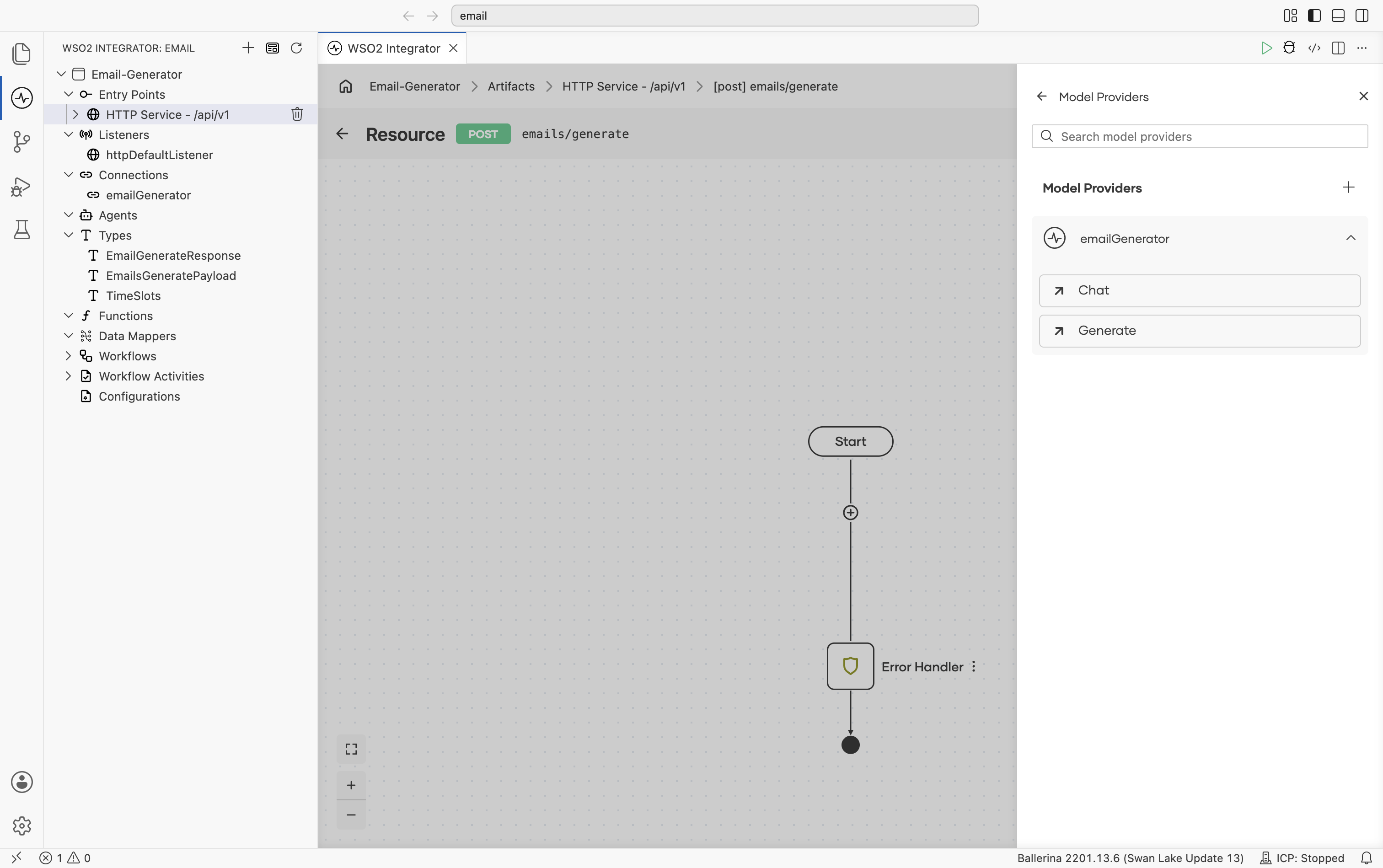
The provider is added under Connections as emailGenerator. It doesn't appear as a step in the flow itself. The generate node you add next connects to it as a referenced connection.
Tip: The Default WSO2 Model Provider does not require an API key. For a different provider see AI Connections and Stores → Model Providers.
3. Add the generate node
In the Model Providers panel on the right, expand the emailGenerator section and select the Generate action.
Step 3.1: Write the prompt
The Generate panel opens with a description ("Sends a chat request to the model and generates a value that belongs to the type corresponding to the type descriptor argument") and a rich-text Prompt editor with formatting controls, an Insert menu, and Preview/Source toggles. Click the Prompt field and enter:
"You are an email writing assistant. Write a short email from
${payload.senderName}to${payload.recipientName}asking for a 30-minute meeting to discuss${payload.intent}. Offer the recipient the following time slots and ask them to pick one:${payload.timeSlots}. Keep it under 150 words and use a polite, professional tone."
Use the Insert → Inputs menu to add each ${payload....} reference, or just type the placeholders by hand. The editor renders them as tokens (for example {x} payload.senderName) and stores them as a Ballerina template literal.
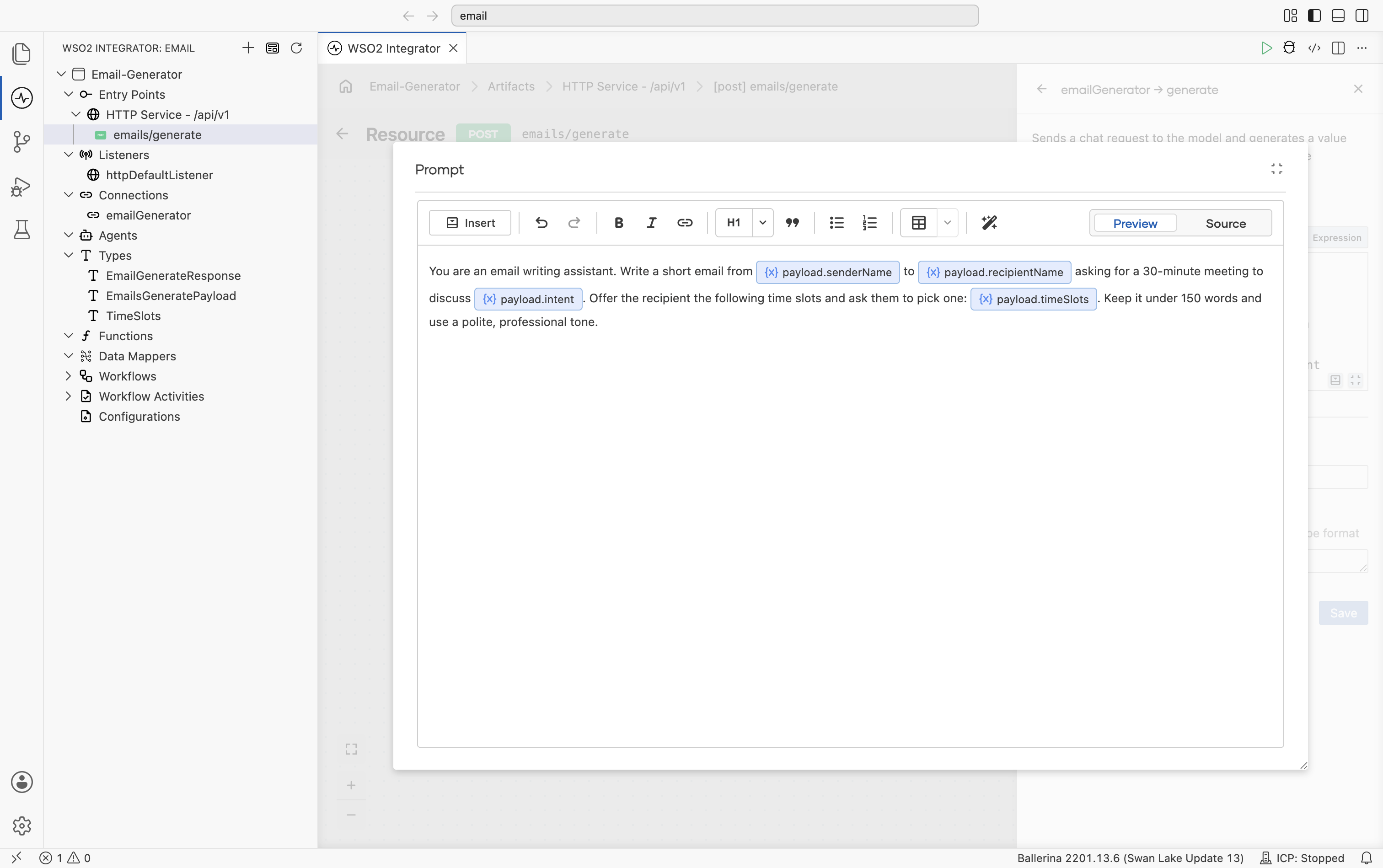
The prompt has three natural parts:
| Role | "You are an email writing assistant." |
| Inputs | ${payload.senderName}, ${payload.recipientName}, ${payload.intent}, ${payload.timeSlots}, pulled in from EmailsGeneratePayload. |
| Task | "Write a short email… ask them to pick one… polite, professional tone." |
Why no "return JSON" instruction? The Expected Type field on the next step handles that for you. You don't have to put the schema in the prompt.
Step 3.2: Bind the result and save
In the same form fill in:
| Field | Value |
|---|---|
| Result | generatedEmail |
| Expected Type | EmailGenerateResponse |
Click Save.
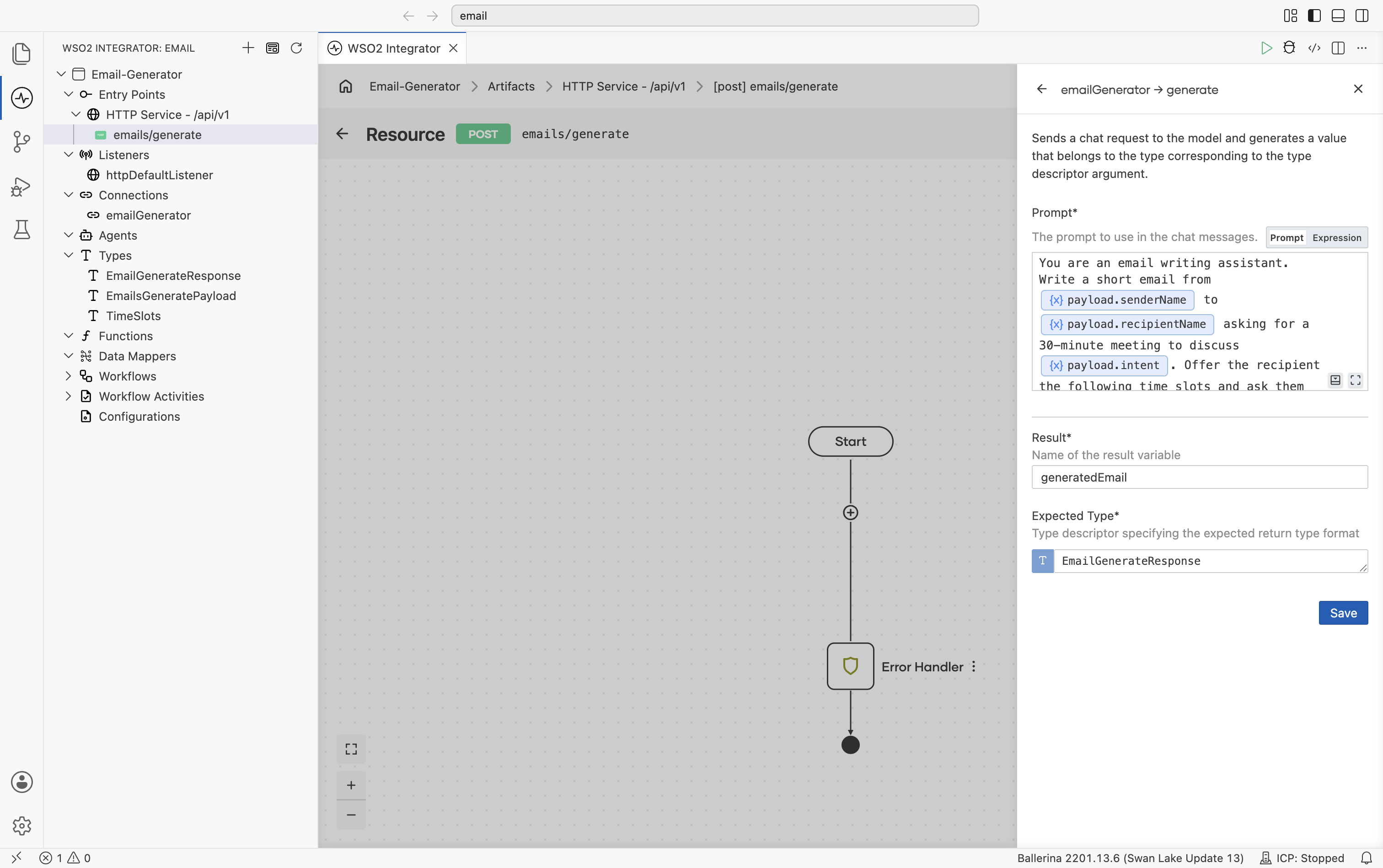
The Expected Type is what makes the response come back structured. Without it you'd get a string and have to parse JSON yourself; with it, you get a typed EmailGenerateResponse directly.
Step 3.3: Add a return step
- Click + below the
ai:generatenode. - In Add Node under Control, pick Return.
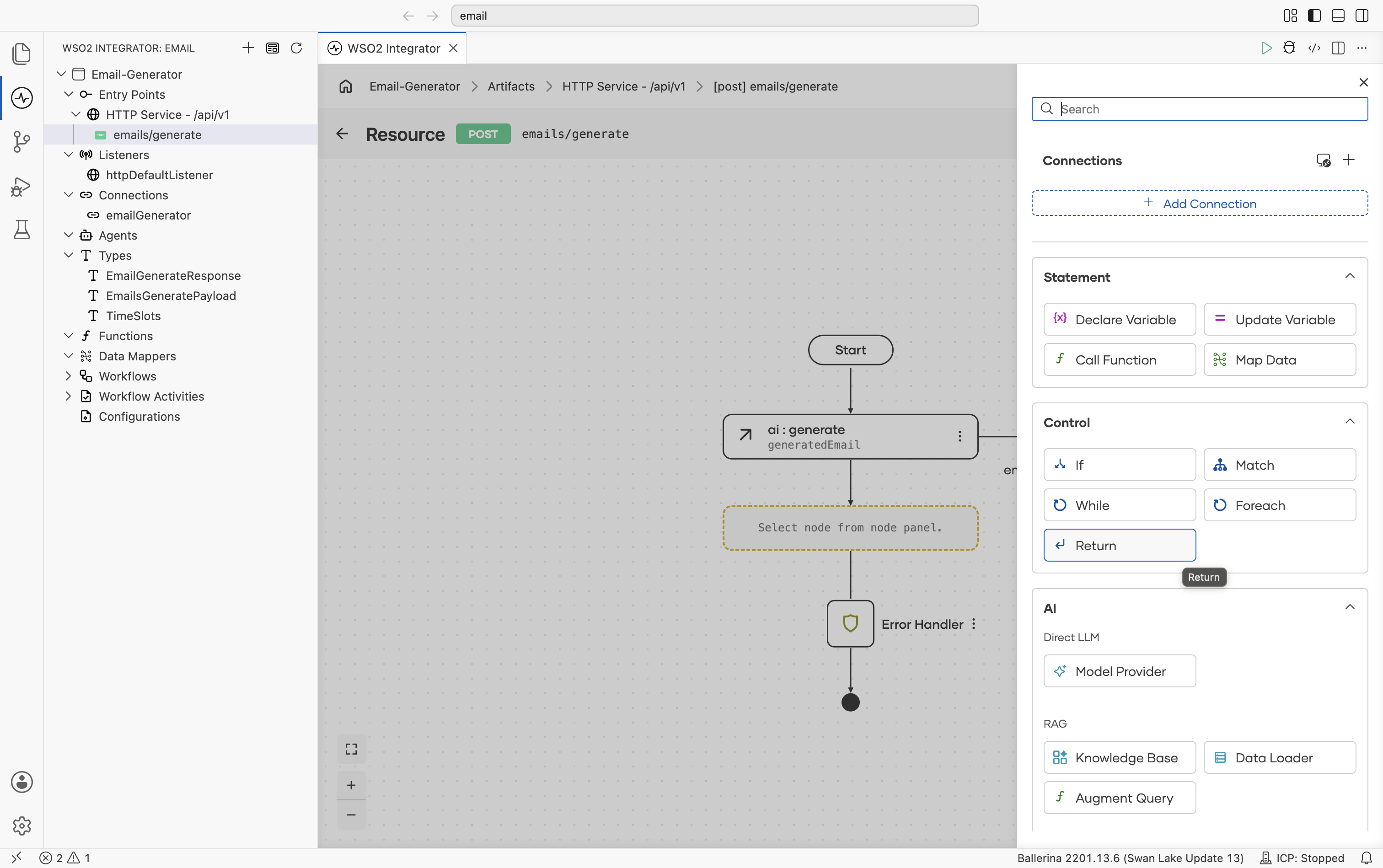
- Set the return expression to
generatedEmailand click Save.
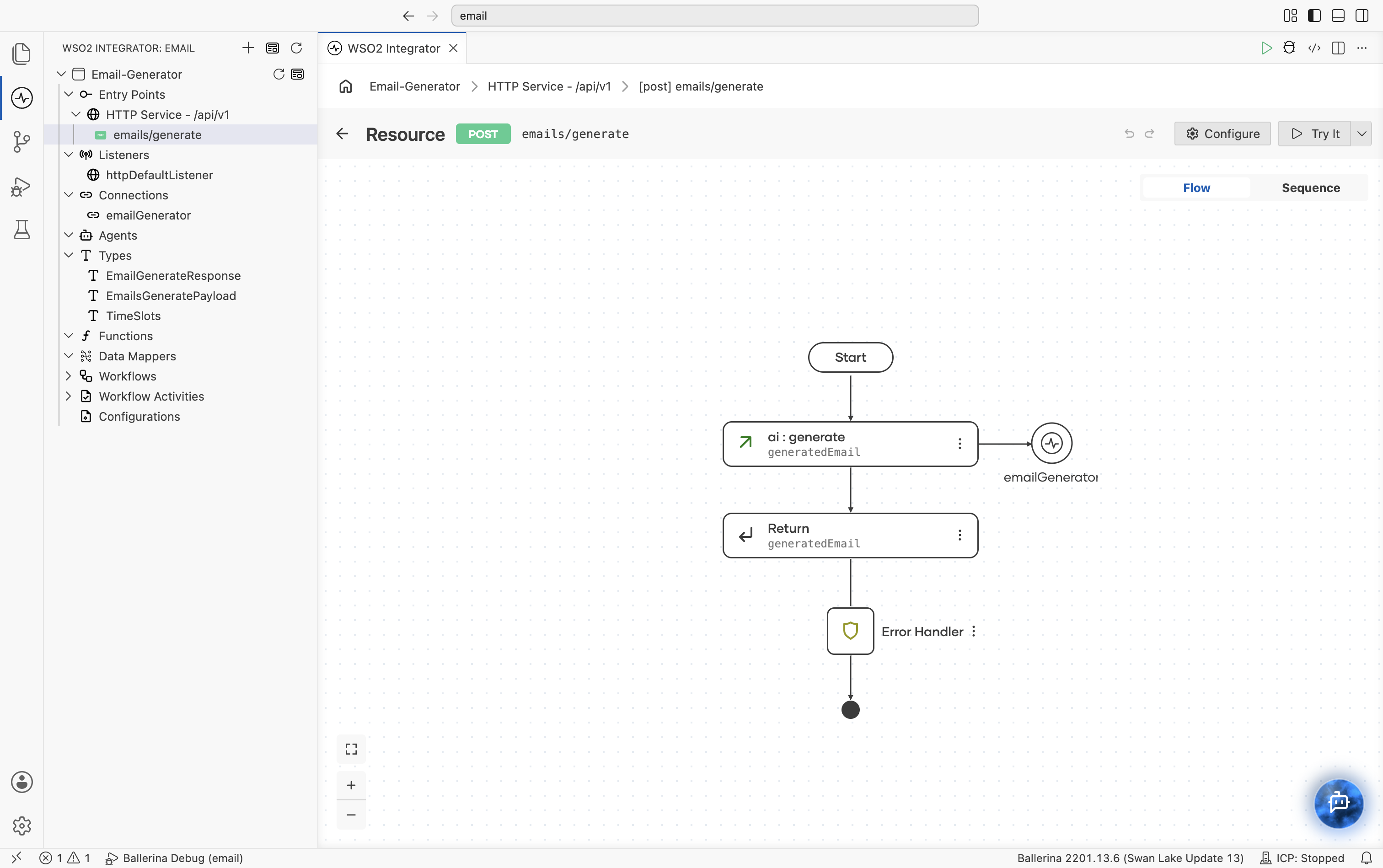
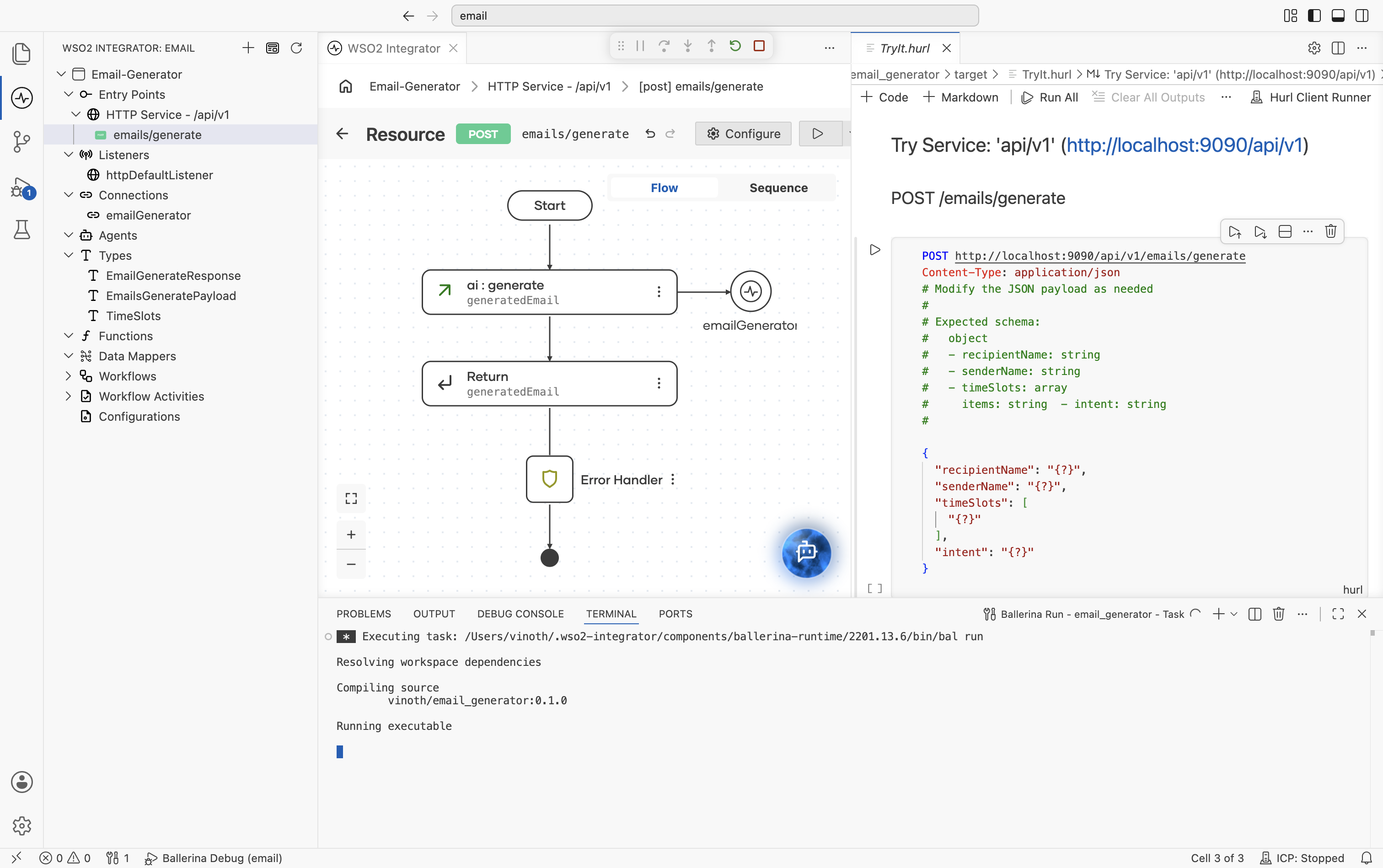
The completed flow now shows Start, ai:generate (bound to generatedEmail and connected to the emailGenerator model provider), Return, and the Error Handler the visual designer added automatically to catch failures from the LLM call. A Try It button is now available at the top right, alongside the Flow/Sequence toggle for switching between the diagram and a linear step list.
4. Run and test
Step 4.1: Try it
- Select Run. WSO2 Integrator compiles and starts the integration, with progress shown in the integrated terminal.
- Select Try It. A
TryIt.hurlfile opens in a new tab via the Hurl Client Runner, with aPOSTrequest to/emails/generateprefilled. The request includes a comment block describing the expected schema (recipientName,senderName,timeSlots,intent) and a JSON body with{?}placeholders for each field.
Step 4.2: Send a request
Replace the placeholder values in the JSON body, for example:
{
  "recipientName": "Jane Doe",
  "senderName": "James Smith",
  "timeSlots": ["2026-01-18 10:00 AM", "2026-01-21 11:00 AM"],
  "intent": "Discuss a new project"
}
Select the run icon (▷) next to the request to send it.
Step 4.3: Read the response
The response appears inline below the request, in the same TryIt.hurl tab, along with the elapsed request time. It shows Status: 201 Created (Ballerina's default for POST resources; see Step 1.3) and a JSON body matching EmailGenerateResponse:
{
  "subject": "Request for Meeting to Discuss New Project",
  "content": "Dear Jane,\nI hope this message finds you well. I would like to request a 30-minute meeting to discuss an exciting new project that I believe aligns with our goals.\nPlease let me know if either of the following time slots works for you:\n1. January 18, 2026, at 10:00 AM\n2. January 21, 2026, at 11:00 AM\nI appreciate your consideration and look forward to your reply.\nBest regards,\nJames Smith"
}
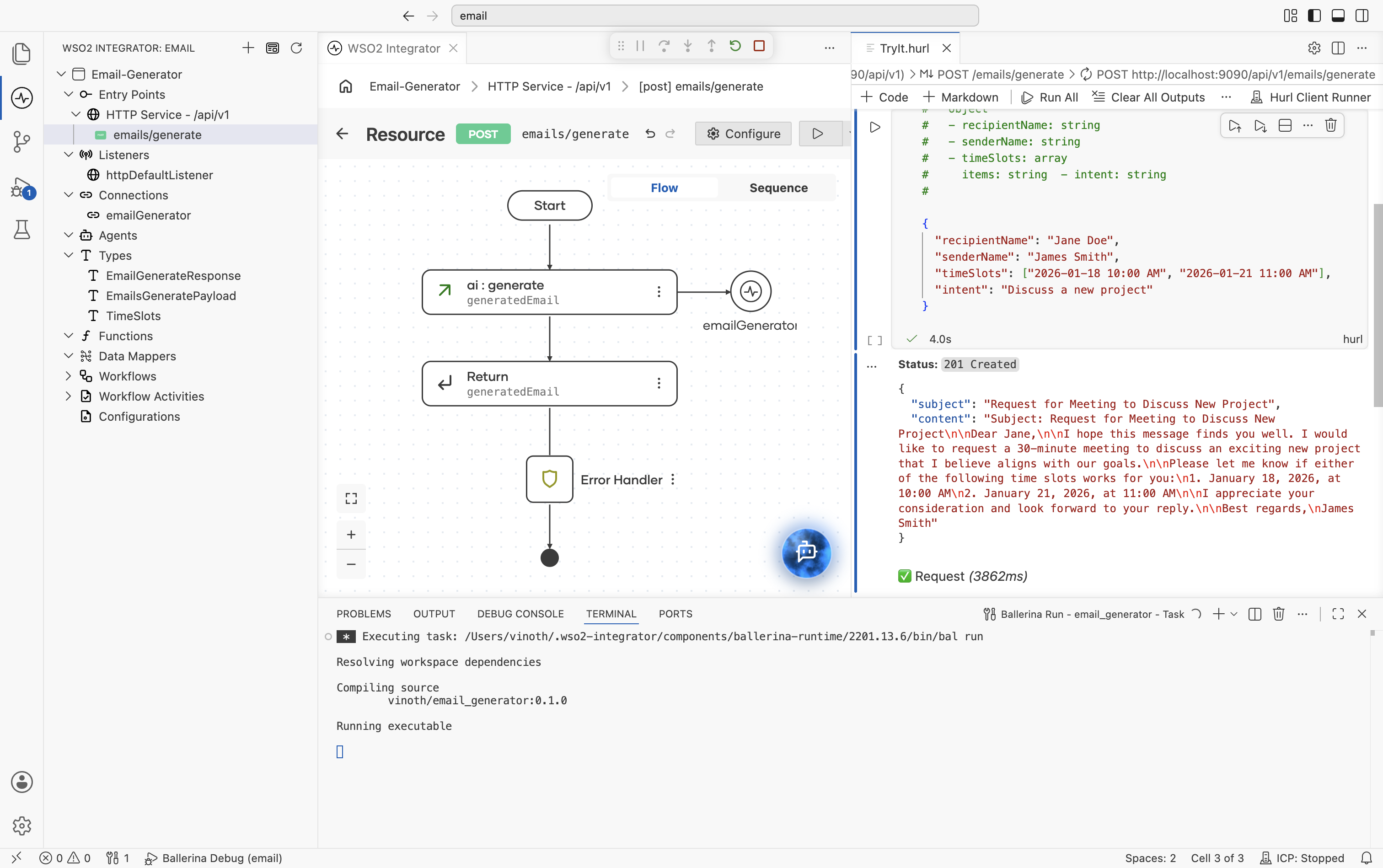
The LLM produced a complete, professionally written email, subject and body, exactly in the shape declared by EmailGenerateResponse.
What's next
- Direct LLM Calls reference — the single-page feature reference covering the
generatenode, prompt editor, and typed responses. - Model Providers — switch the LLM provider for production (init params, supported models, advanced HTTP configs for OpenAI, Azure, Anthropic, Vertex, Mistral, DeepSeek, Ollama, OpenRouter).