Build an Event-Driven Social Media Backend
Overview
In this tutorial you build a complete, Twitter-style social media backend with WSO2 Integrator, the low-code integration platform built on Ballerina. You design everything visually, and WSO2 Integrator generates clean Ballerina underneath. Most parts show both: the visual steps on one tab, and the exact code the platform produced on the other.
By the end, a single POST will flow from the API through a user check and sentiment screening into MySQL, and out to a Slack channel.
A backend for a small social network where people register, publish short posts, and follow each other. Every new post is first screened by a sentiment-analysis service; anything negative is rejected before it is stored. An accepted post is saved to MySQL and, without making the author wait, announced to a team Slack channel through a RabbitMQ event pipeline. You build it as three small integrations, and every part is something you design on the canvas.
Architecture
You build three focused integrations inside one project rather than a single monolith, the way you would in production.
| Integration | Type | Responsibility |
|---|---|---|
| Social Media API | HTTP service | Users and posts REST API. Checks the user, screens posts for sentiment, persists to MySQL, and publishes a new-post event to RabbitMQ. |
| Sentiment API | HTTP service | A small service that scores post text as positive, negative, or neutral. |
| Post Notifier | RabbitMQ event integration | Consumes new-post messages and posts to Slack. |

The integrations collaborate through a deliberate choice of contract. The Social Media API calls the Sentiment API over HTTP because it needs the verdict synchronously to decide whether to store the post. It hands the notification off to RabbitMQ because the author should not wait on Slack, and because you can add more consumers later (email, analytics) without touching the API.
The Social Media API is the orchestrator: it depends on the sentiment service, a database, and the message pipeline. So you build the two standalone integrations it leans on first (Steps 2 and 3), then assemble the API itself (Step 4) and run the whole thing (Step 5).
RabbitMQ is a first-class event integration trigger: you build the consumer entirely in the Visual Designer. The pattern is broker-agnostic; the platform also ships triggers for Kafka, MQTT, Solace, and Azure Service Bus.
Before you start, make sure you have:
- WSO2 Integrator installed.
- A running MySQL instance. A setup script for the
social_mediadatabase is below. See also Set up a MySQL database and user. - A running RabbitMQ broker. See the RabbitMQ setup guide.
- A Slack app with a bot token. See Create a Slack application.
Set up the MySQL database
Run this script against your MySQL instance. It creates the database, an application user, the three tables, and a couple of seed users:
CREATE DATABASE IF NOT EXISTS social_media;

-- Application user the integration connects as
CREATE USER IF NOT EXISTS 'social_media_user'@'localhost' IDENTIFIED BY 'social_media_pass';
GRANT ALL PRIVILEGES ON social_media.* TO 'social_media_user'@'localhost';
FLUSH PRIVILEGES;

USE social_media;

CREATE TABLE users (
    id            INT          NOT NULL AUTO_INCREMENT PRIMARY KEY,
    name          VARCHAR(255) NOT NULL,
    mobile_number VARCHAR(15)  NOT NULL,
    birth_date    DATE
);

CREATE TABLE posts (
    id           INT          NOT NULL AUTO_INCREMENT PRIMARY KEY,
    description  VARCHAR(255) NOT NULL,
    category     VARCHAR(255),
    tags         VARCHAR(255),
    created_date DATE,
    user_id      INT          NOT NULL,
    FOREIGN KEY (user_id) REFERENCES users(id) ON DELETE CASCADE
);

CREATE TABLE followers (
    id           INT  NOT NULL AUTO_INCREMENT PRIMARY KEY,
    leader_id    INT  NOT NULL,
    follower_id  INT  NOT NULL,
    created_date DATE,
    UNIQUE (leader_id, follower_id),
    FOREIGN KEY (leader_id)   REFERENCES users(id) ON DELETE CASCADE,
    FOREIGN KEY (follower_id) REFERENCES users(id) ON DELETE CASCADE
);

INSERT INTO users (name, mobile_number, birth_date) VALUES
    ('Alice', '+94771234001', '1995-03-12'),
    ('Bob',   '+94771234002', '1998-07-25');
You now have a social_media database reachable with these credentials, which you give to the dbClient connection in Step 4:
| Setting | Value |
|---|---|
| Host | localhost |
| Port | 3306 |
| Database | social_media |
| User | social_media_user |
| Password | social_media_pass |
Step 1: Set up the project
Everything you build sits inside one project, so you set that up first. WSO2 Integrator creates the project and your first integration together, in a single form.
Create the project and open the Design view
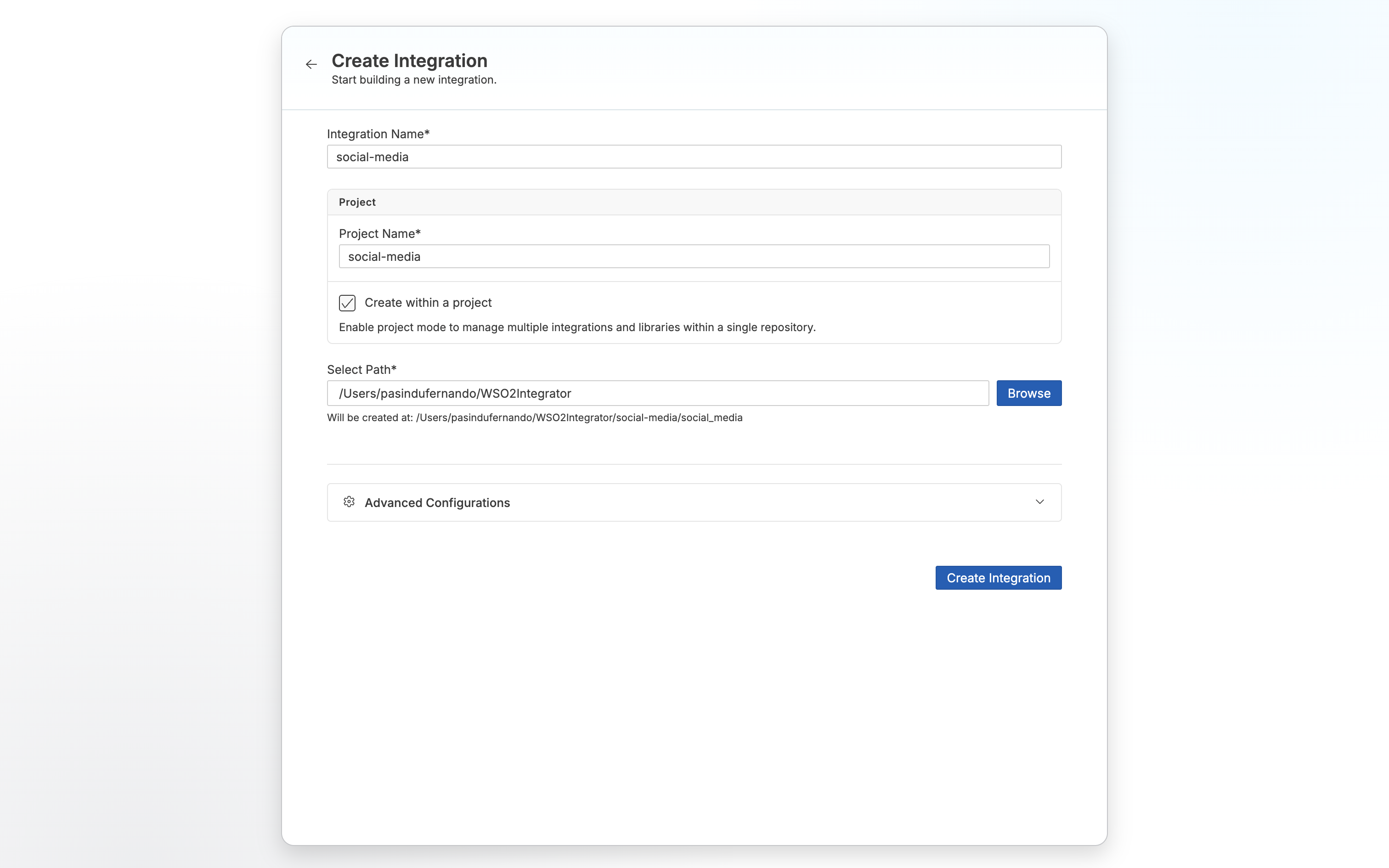
- Launch WSO2 Integrator and, on the Create a Project card, click Create to create a project.
- Name the project
social-mediaand choose where it lives on disk. This is the one project that will hold all three integrations from the architecture. - Under What do you want to build?, select Integration, name it
social-media, and click Create.
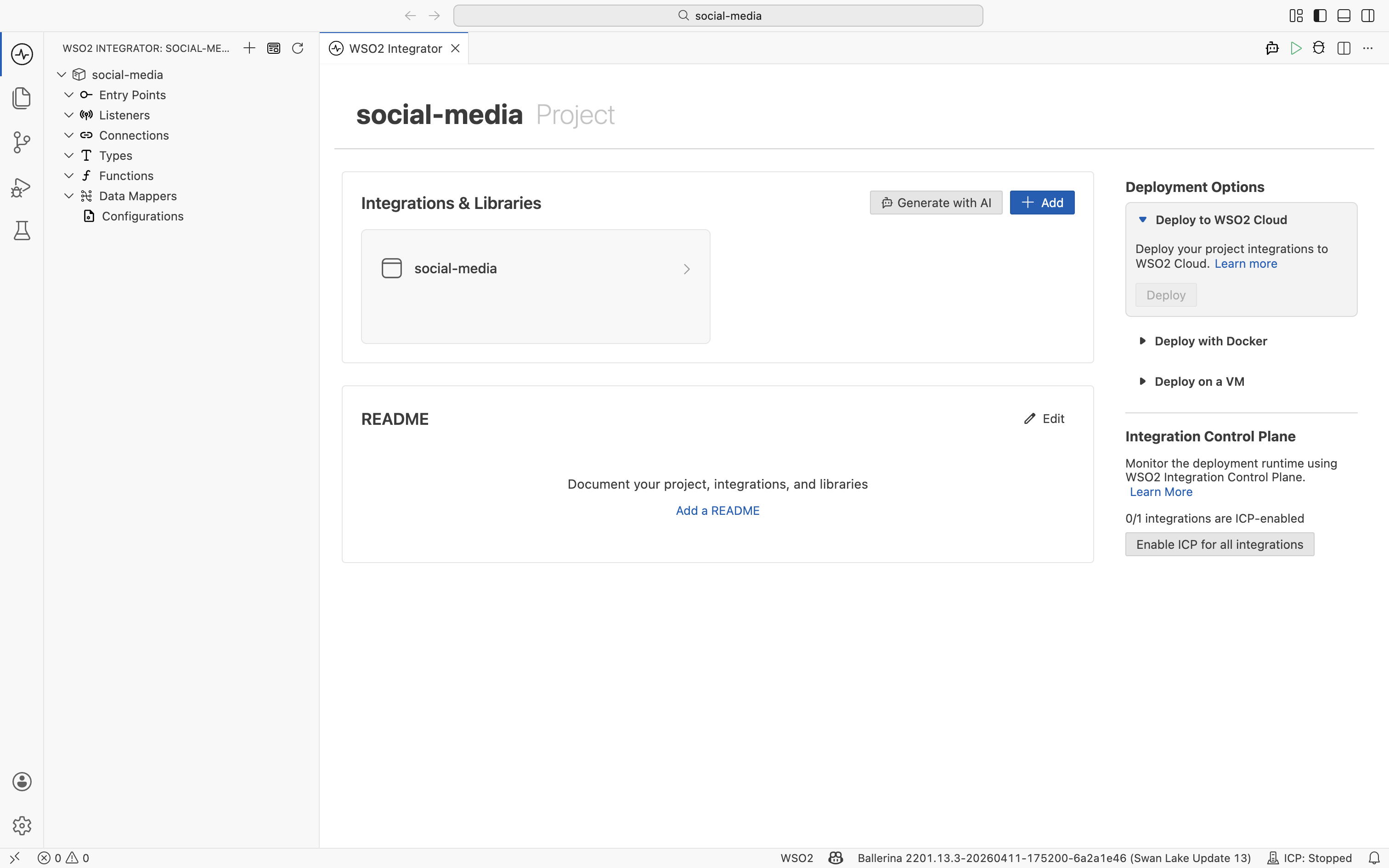
The project opens to its landing view. The artifacts panel on the left is where your integration takes shape: Entry Points, Connections, Types, Functions, Data Mappers, and Configurations are all empty for now, and you fill the ones you need as the tutorial goes. The center pane lists the social-media integration you just created.
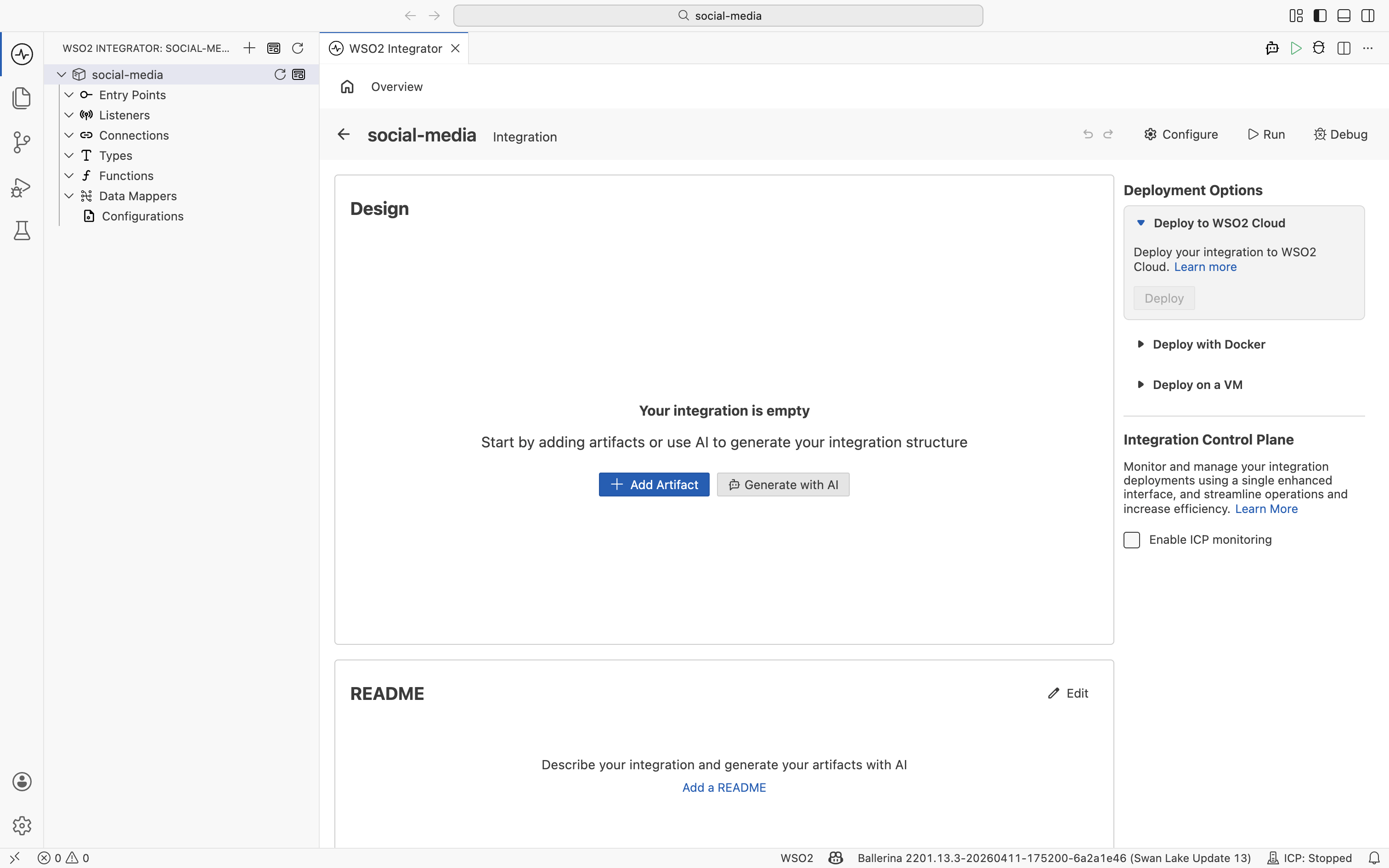
Open the integration and you land in the Design view, where the canvas shows the flow of whichever artifact you select. The integration is empty, so the Design view invites you to add your first artifact. Every part that follows starts here, with + Add Artifact. Use the Show Source toggle whenever you want to see the generated code; you never have to edit it.
The Social Media API ties three pieces together: a service to screen posts, a pipeline to announce them, and a store to keep them. Build the two standalone integrations first, the Sentiment API and the Post Notifier.
Step 2: Build the Sentiment API
The first standalone integration is the screening service. Build a small Sentiment API that takes post text and returns a sentiment label with probabilities. For the tutorial it returns hardcoded values, so you can focus on the integration rather than a real model.
- Visual Designer
- Ballerina Code
Create the service, types, and the response flow
-
From the project view, click + Add to add another integration to the same
social-mediaproject.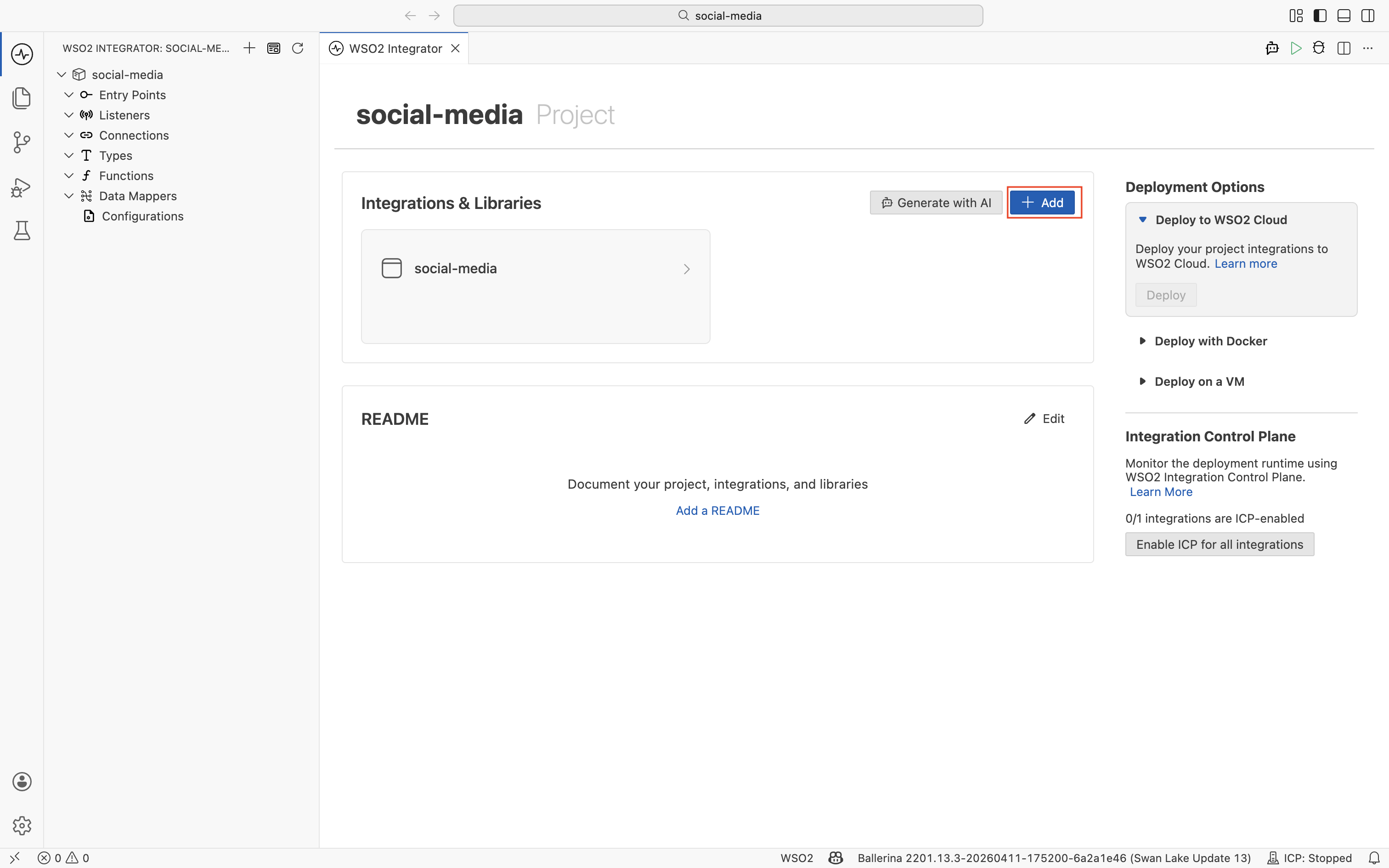
Select Integration, name the new integration
sentiment-api; the package name defaults from the name and the organization is inherited from the project. Click Add.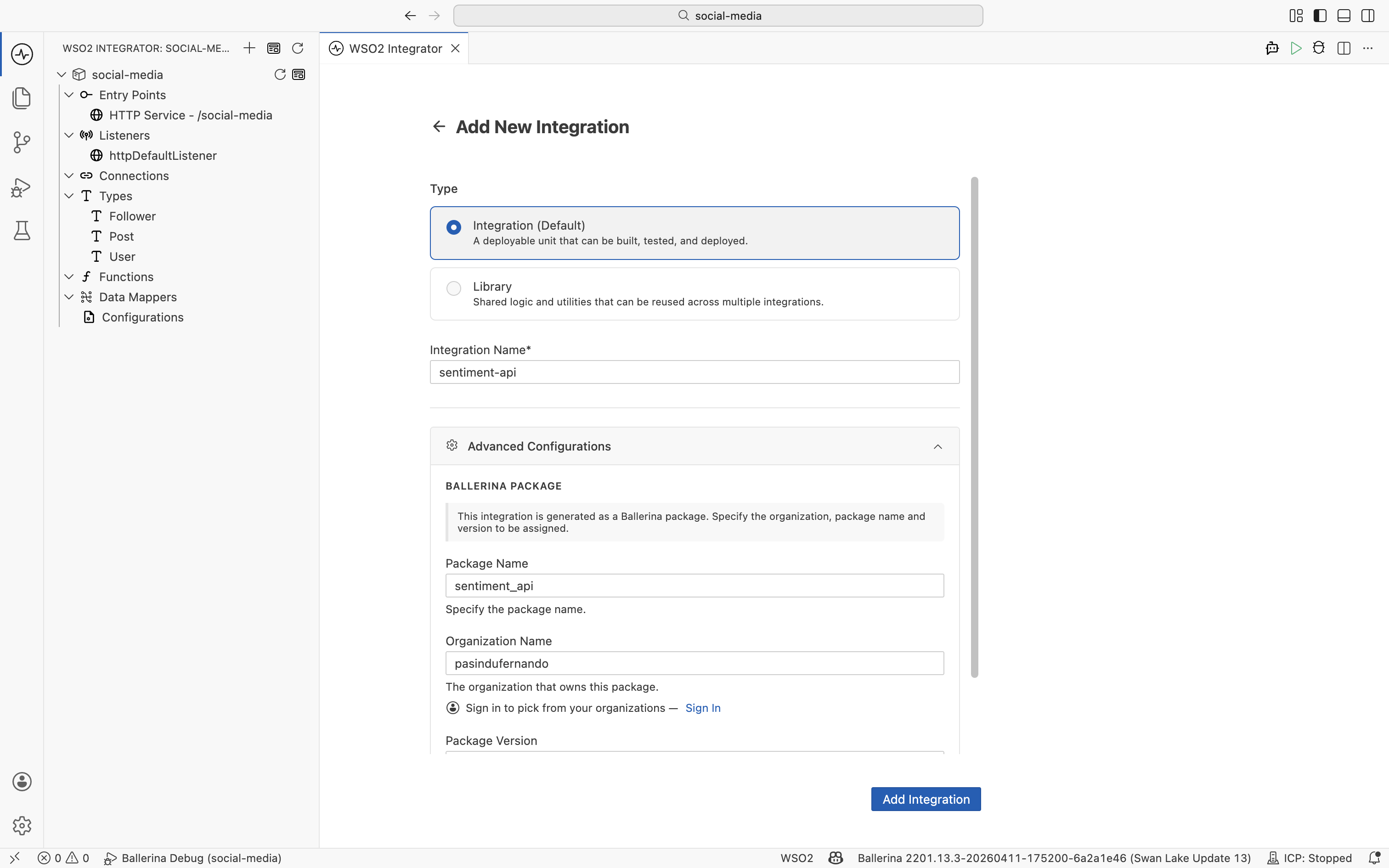
-
In the new integration, click + Add Artifact, then HTTP Service. Set the Service Base Path to
/text-processing, choose a Custom Listener on Port9000namedhttpListener, and click Create.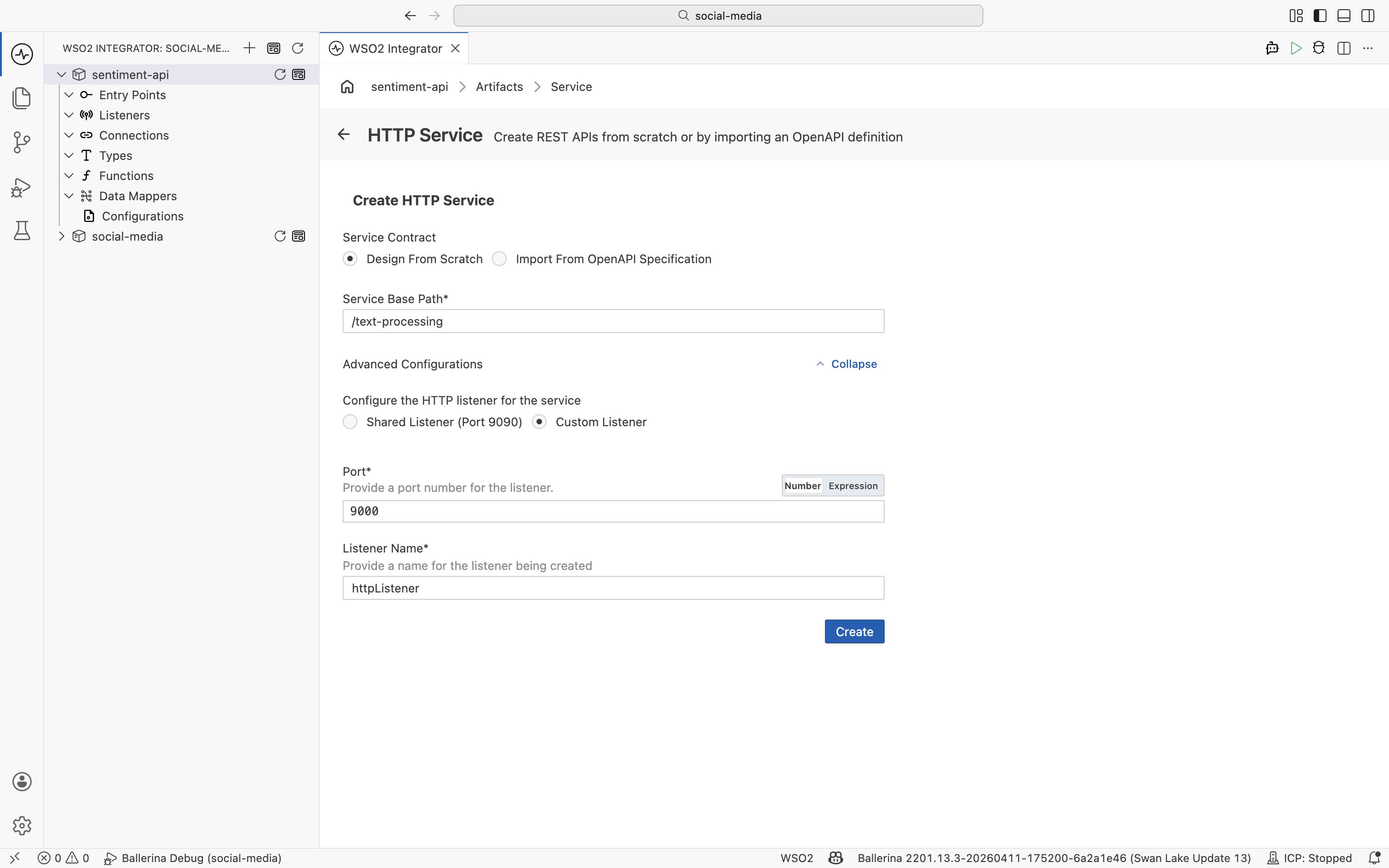
-
Add three types: a
Postwith atextfield, aProbabilitywithneg,neutral, andposdecimals, and aSentimentholding aProbabilityand alabel. When adding each type, expand Advanced configs and tick Accessible by other integrations: the Social Media API in Step 4 importsPostandSentimentdirectly from this module.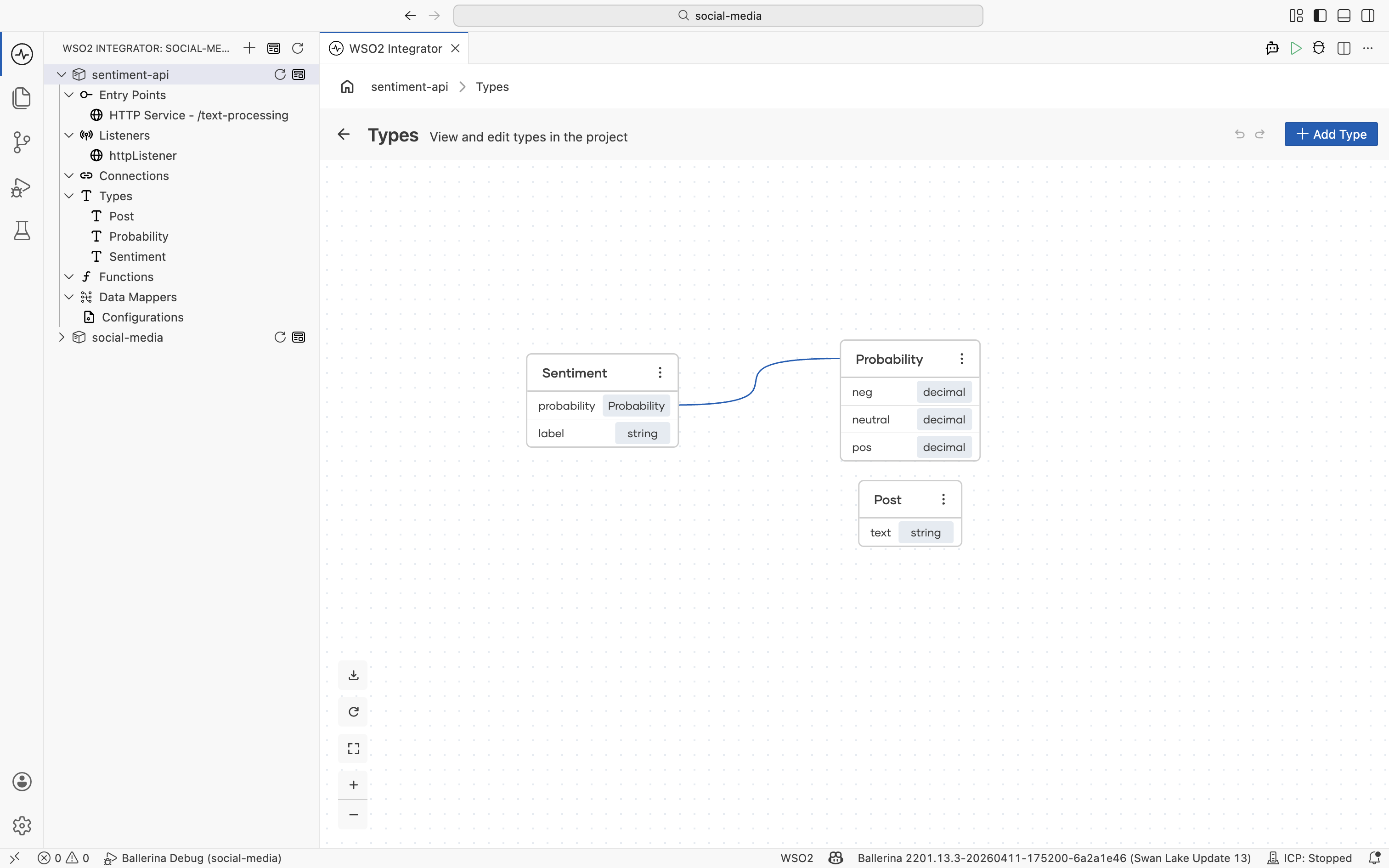
-
Click + Add Resource. Set the method to POST and the path to
api/sentiment, bind the Payload toPost, and define responses201returningSentimentand500returningerror. Click Save.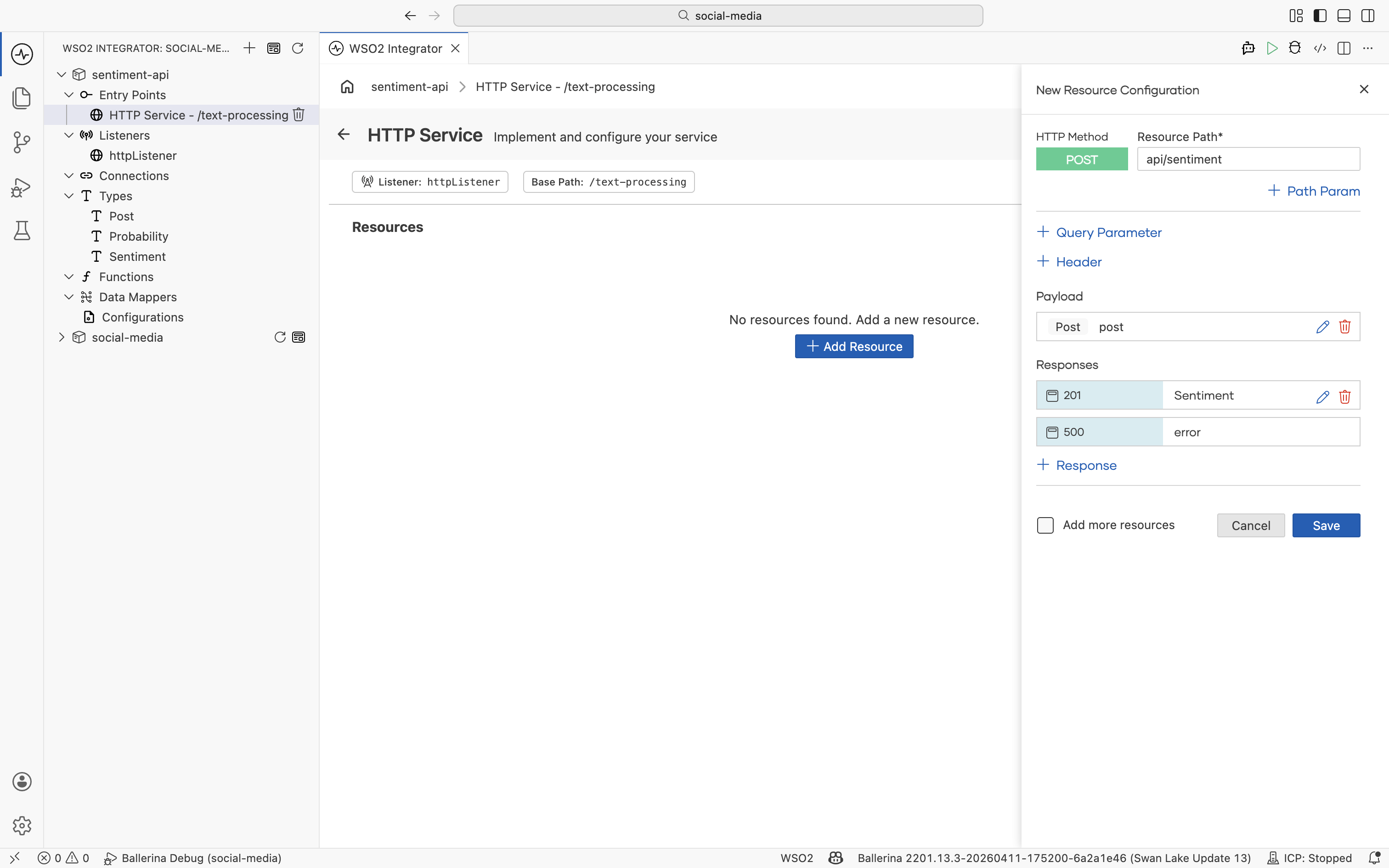
-
Open the resource flow and build the response with Declare Variable nodes: one for the
probability, one for thesentiment, then a Return. The values are hardcoded for the tutorial.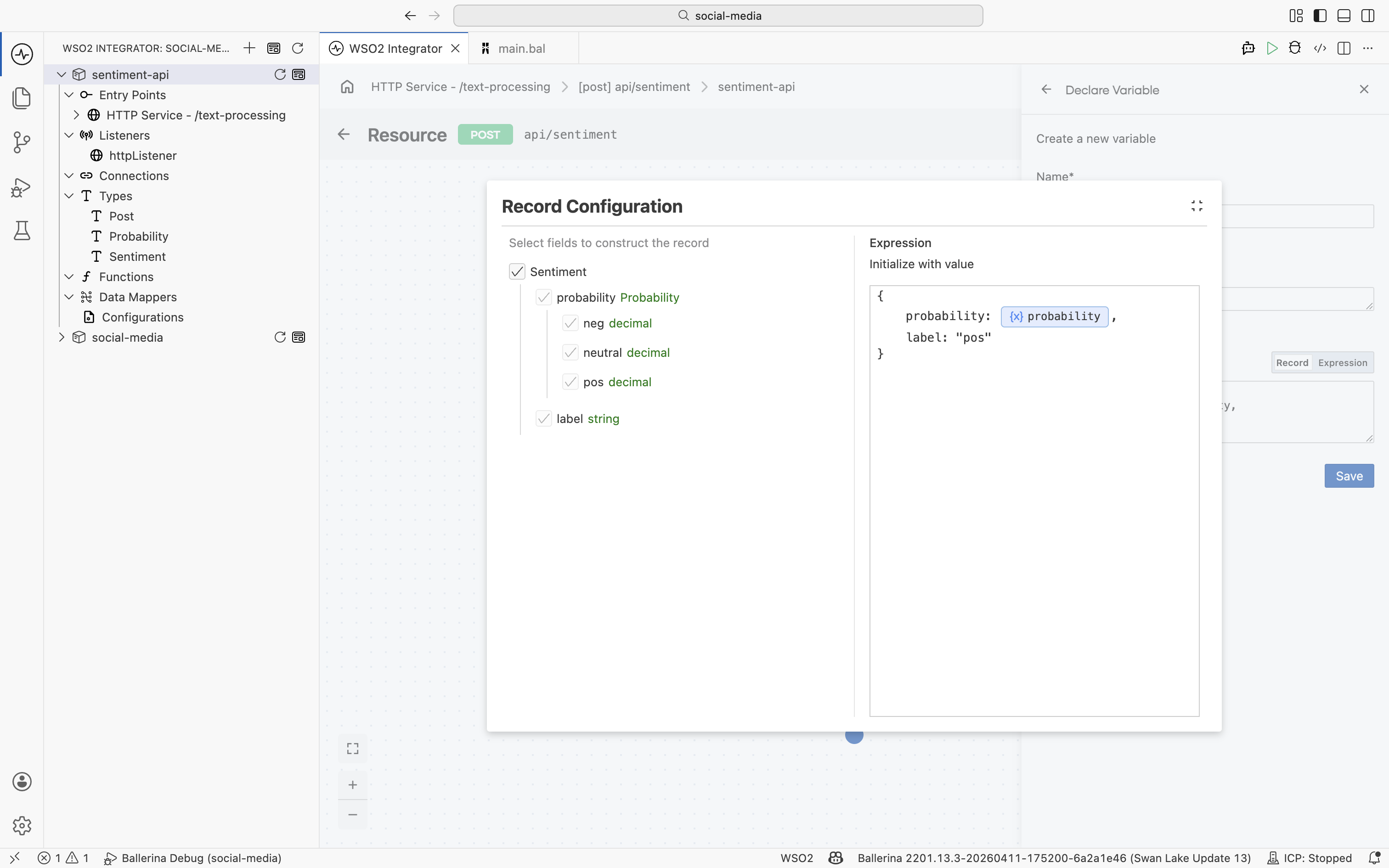
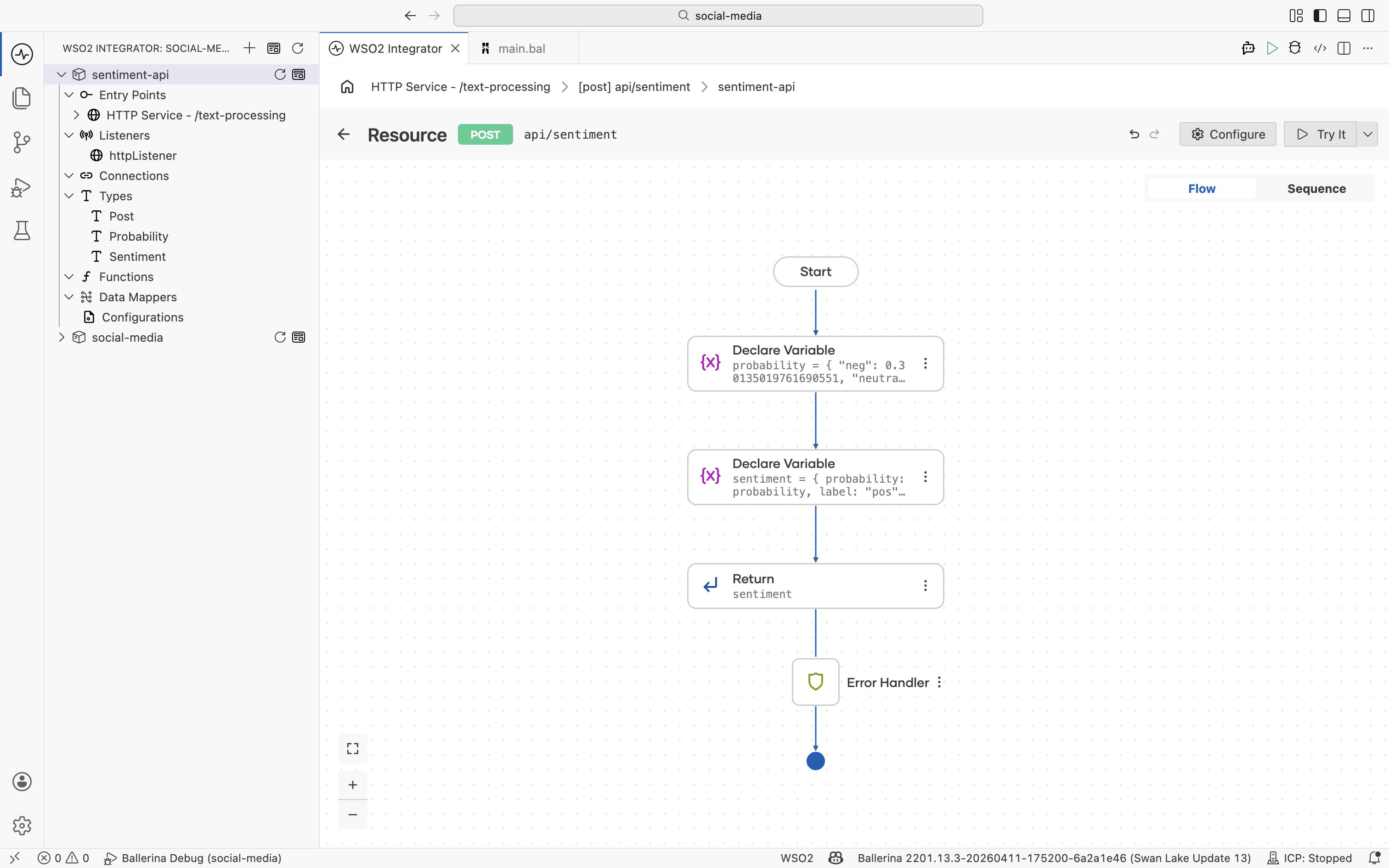
The Visual Designer wrote this to sentiment_api/main.bal. The probability and label are hardcoded for the tutorial; in production you would score post.text with a real model.
import ballerina/http;

listener http:Listener httpListener = new (9000);

service /text\-processing on httpListener {
    resource function post api/sentiment(@http:Payload Post post) returns Sentiment|error {
        do {
            Probability probability = {
                "neg": 0.30135019761690551,
                "neutral": 0.27119050546800266,
                "pos": 0.69864980238309449
            };
            Sentiment sentiment = {
                probability: probability,
                label: "pos"
            };
            return sentiment;
        } on fail error err {
            // handle error
            return error("unhandled error", err);
        }
    }
}
The records live alongside it in types.bal:
public type Probability record {
    decimal neg;
    decimal neutral;
    decimal pos;
};

public type Sentiment record {
    Probability probability;
    string label;
};

public type Post record {
    string text;
};
Capability: Low-code HTTP service design. You define the types, the resource, and its response flow visually, and the platform writes the service for you.
Step 3: Build the Post Notifier: RabbitMQ to Slack
The other standalone integration is the announcement pipeline. Build the Post Notifier, a RabbitMQ-triggered event integration that consumes new-post messages and posts to Slack. Declare the configurations it needs first, the broker details and the Slack token, then build the connector and the event integration on top of them. This is where RabbitMQ's first-class trigger support shines: you build the consumer entirely in the designer.
- Visual Designer
- Ballerina Code
Add configurations, the Slack connection, and the RabbitMQ handler
-
From the project view, click + Add to add a third integration to the same project. Select Integration, name it
post-notifier, and click Add.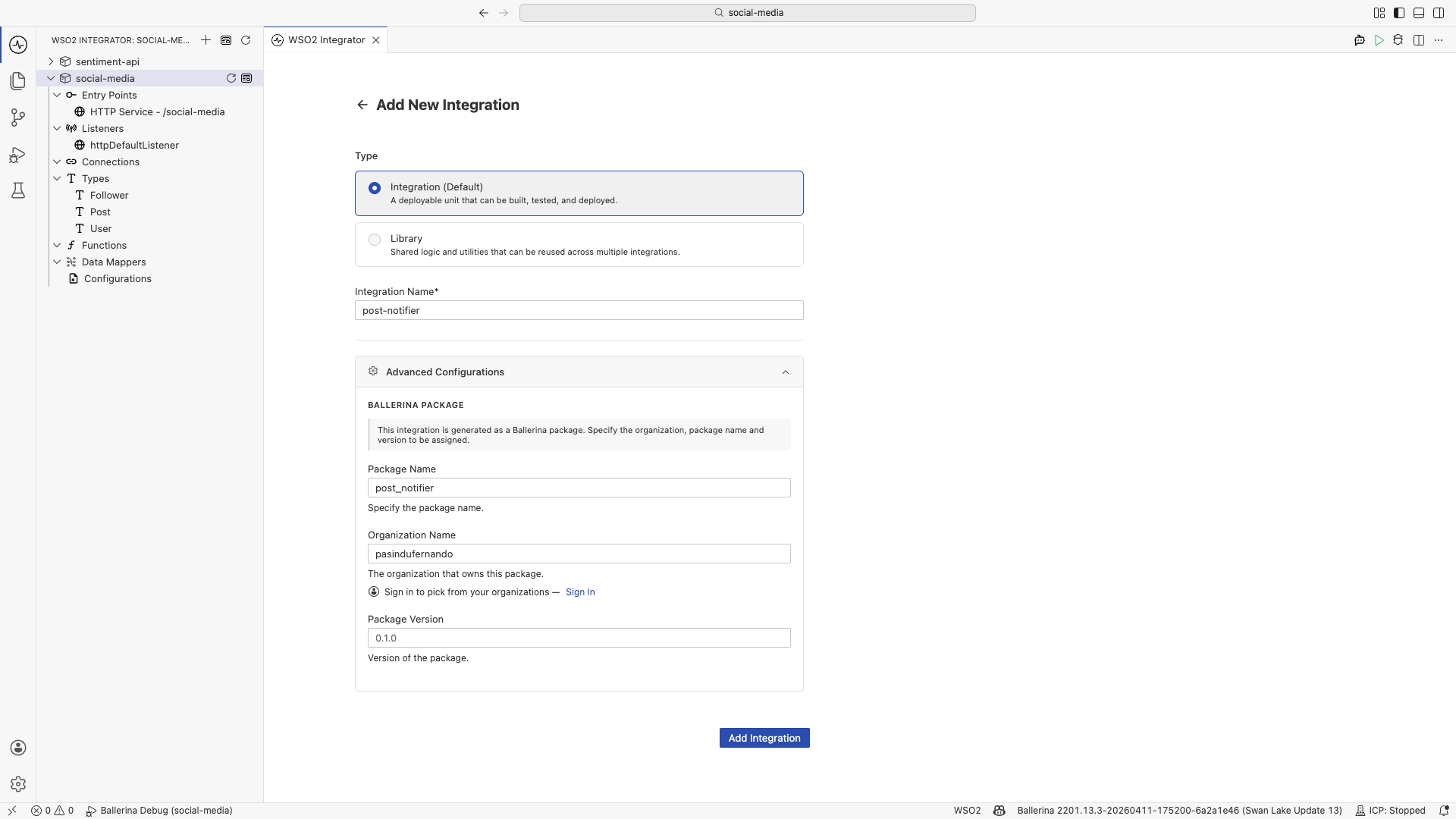
-
Add the configurations the integration needs:
rabbitmqHost(string) andrabbitmqPort(int) for the broker, andslackAuthToken(string) for the Slack app.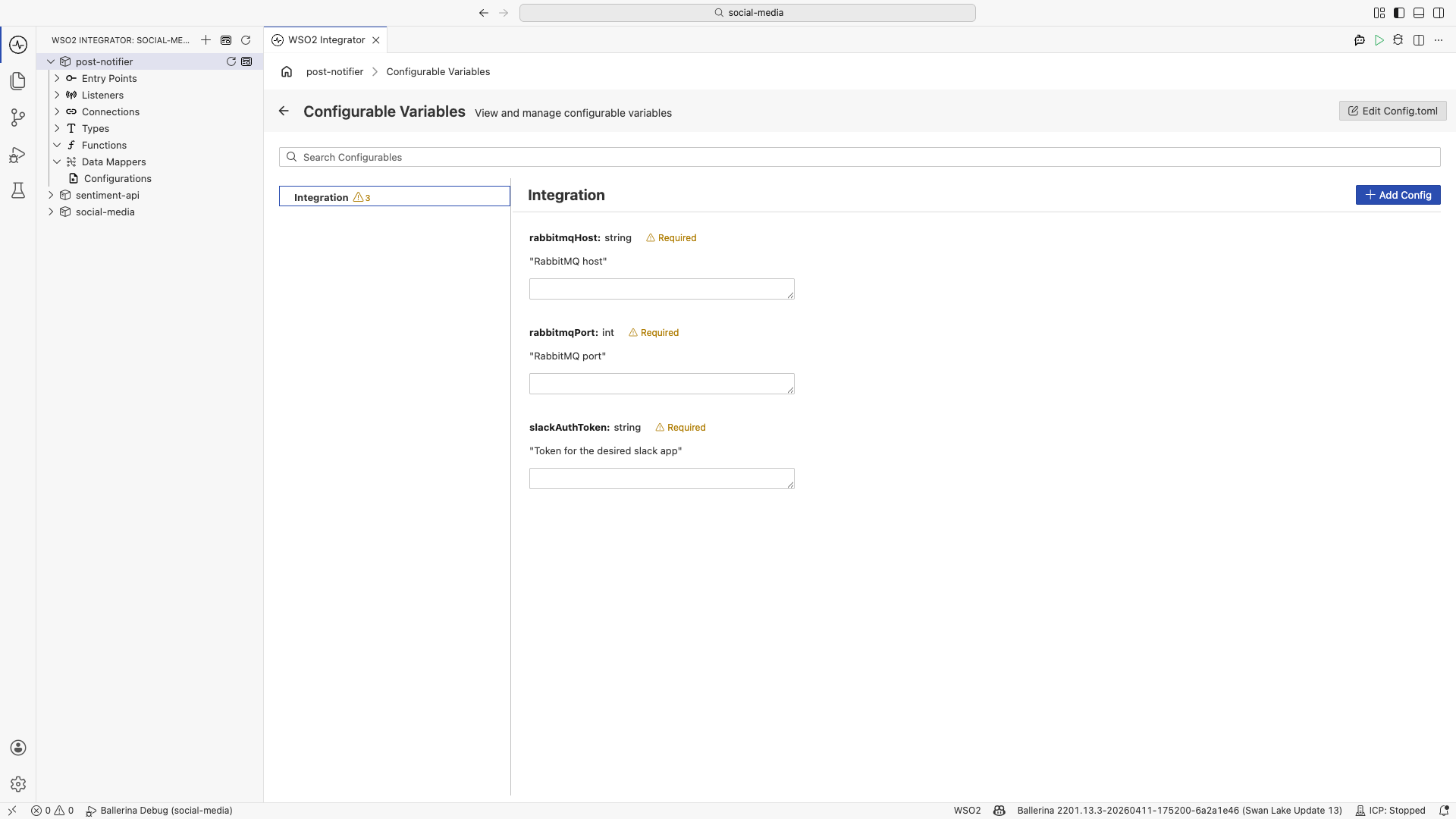
-
Add the Slack connector. Set its Config to bind the token to
slackAuthToken, and name the connectionslackClient. Follow the Slack setup guide to create an app and copy a bot token, then add scopes.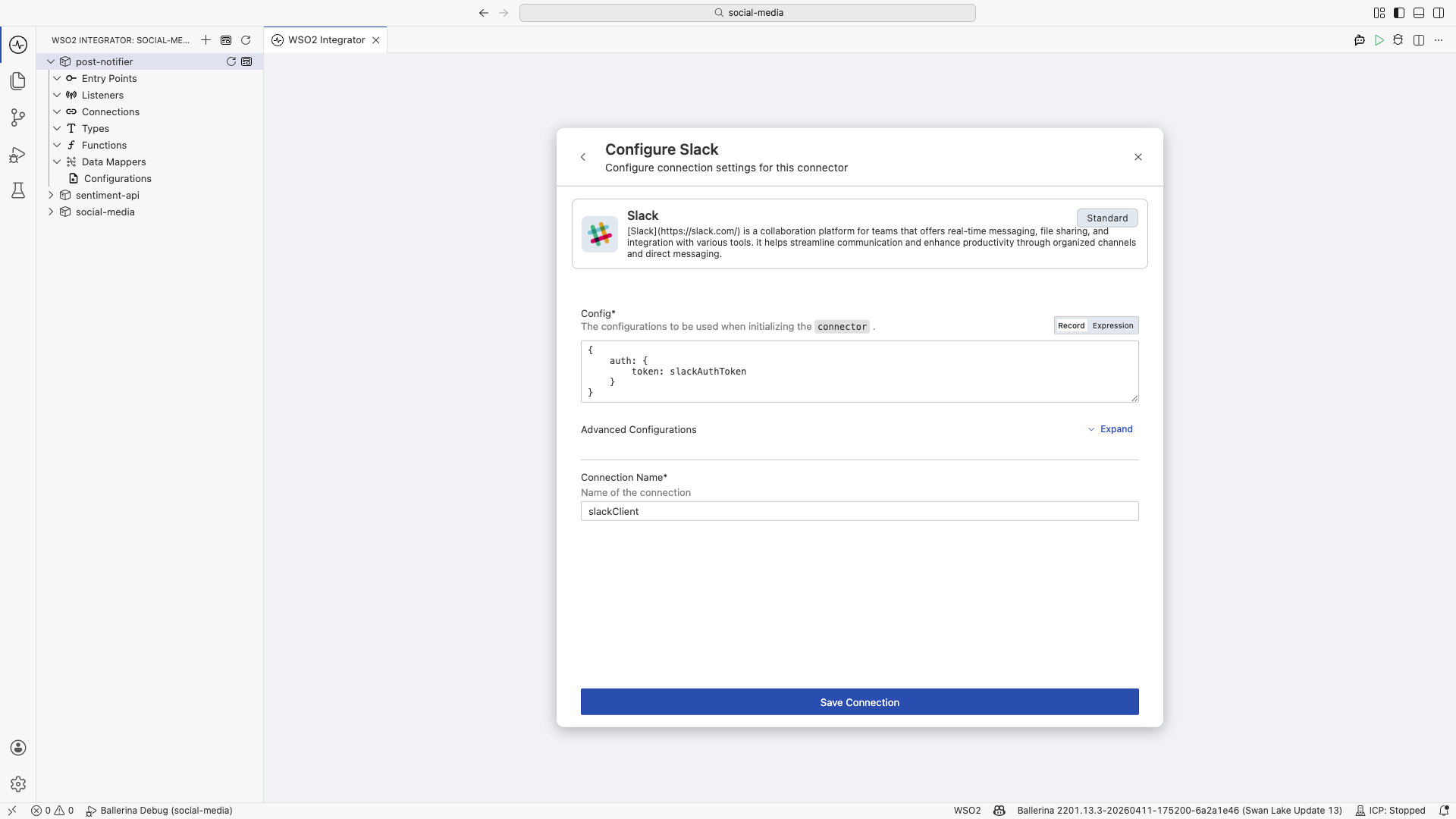
-
Click + Add Artifact, choose Event Integration, then RabbitMQ.
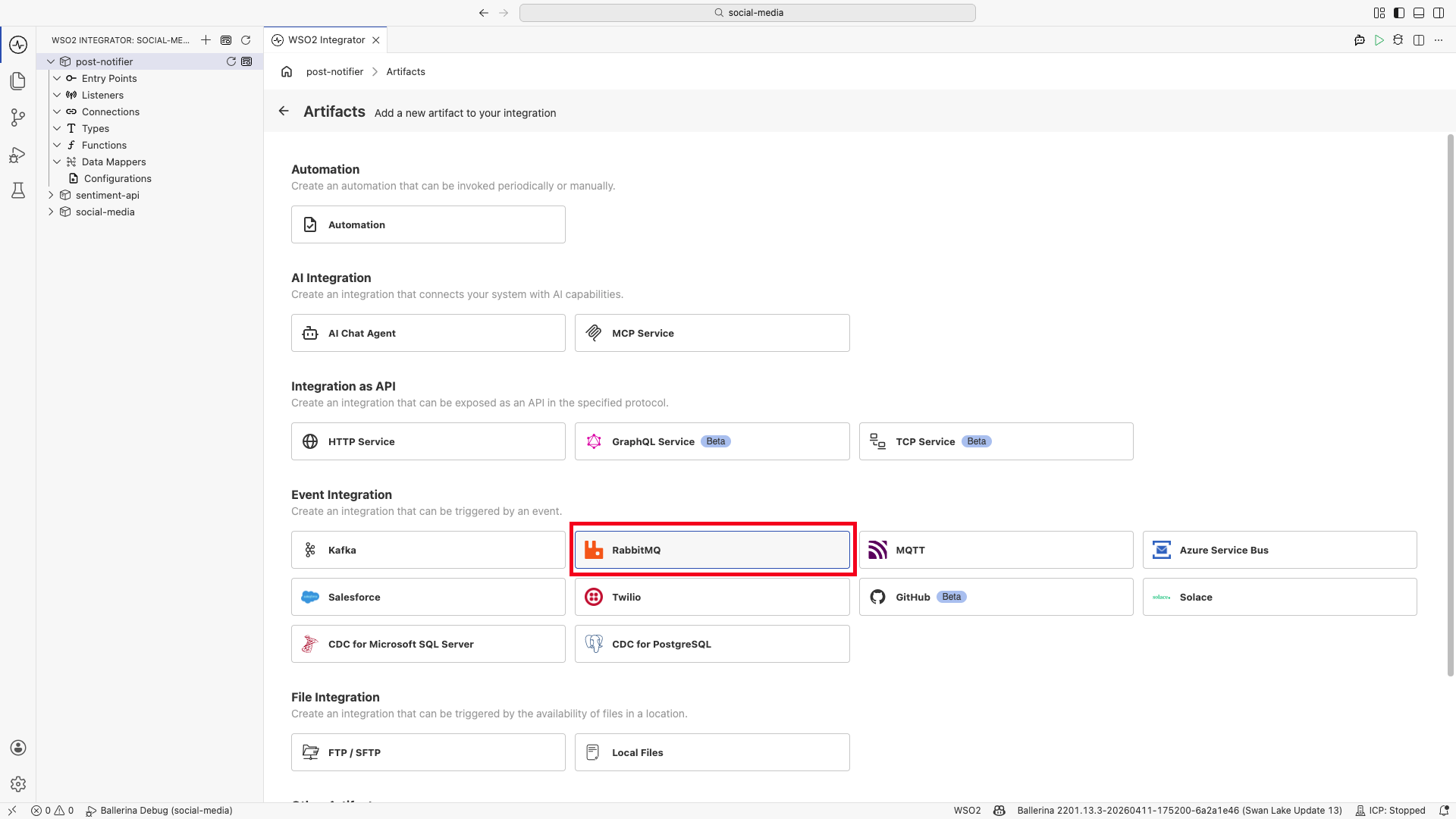
Name the listener
rabbitmqListener, point its Host and Port atrabbitmqHostandrabbitmqPort, and set the Queue Name toballerina.social.media. Click Create.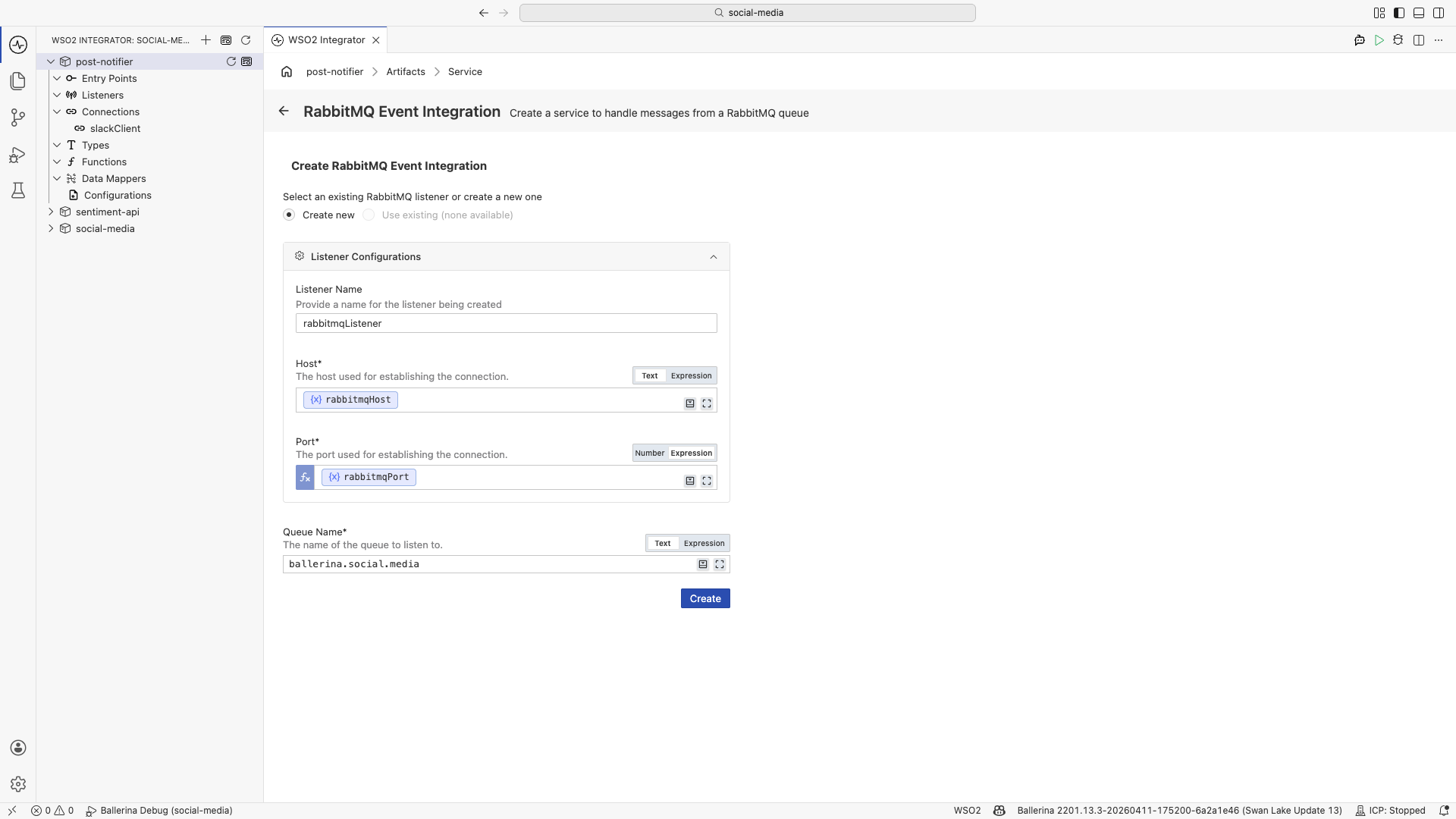
-
Add an event handler and choose onMessage. Define the message content as a
NotificationEventtype with aleaderIdfield.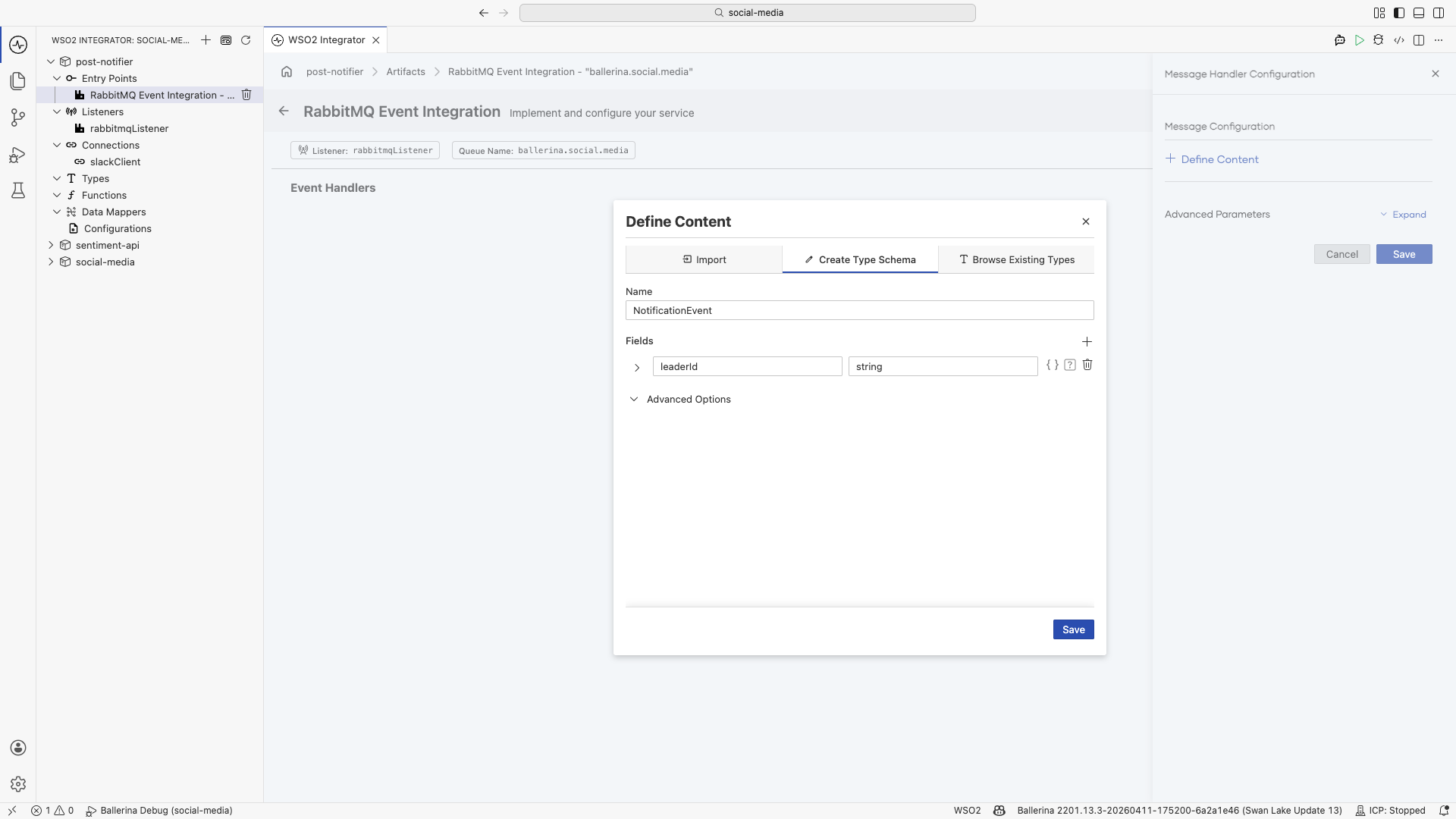
-
In the
onMessageflow, add theslackClientconnection's Send a message to a channel operation. Set the channel and a text built from the event'sleaderId.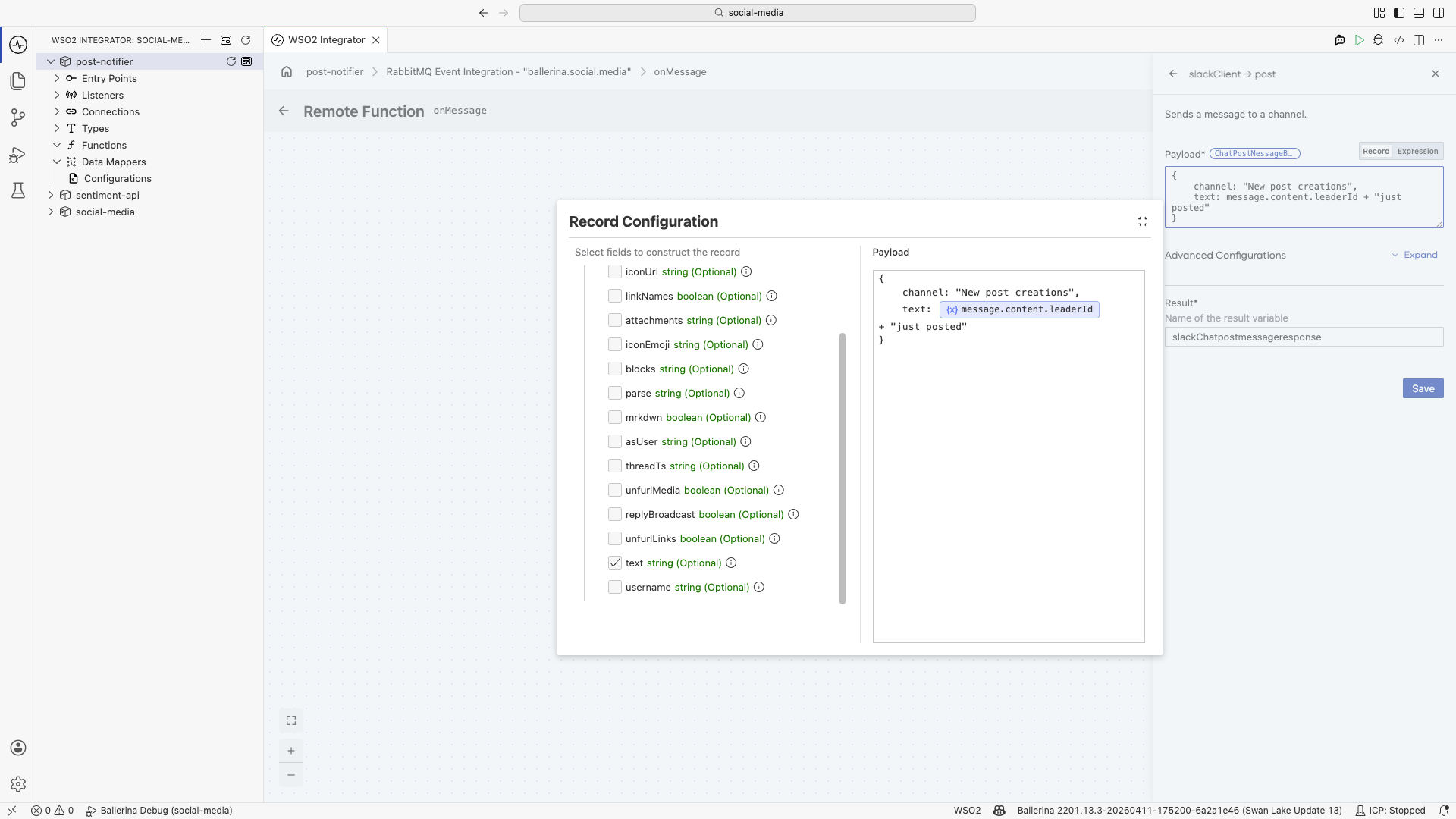
The completed handler posts to Slack whenever a message lands on the queue.
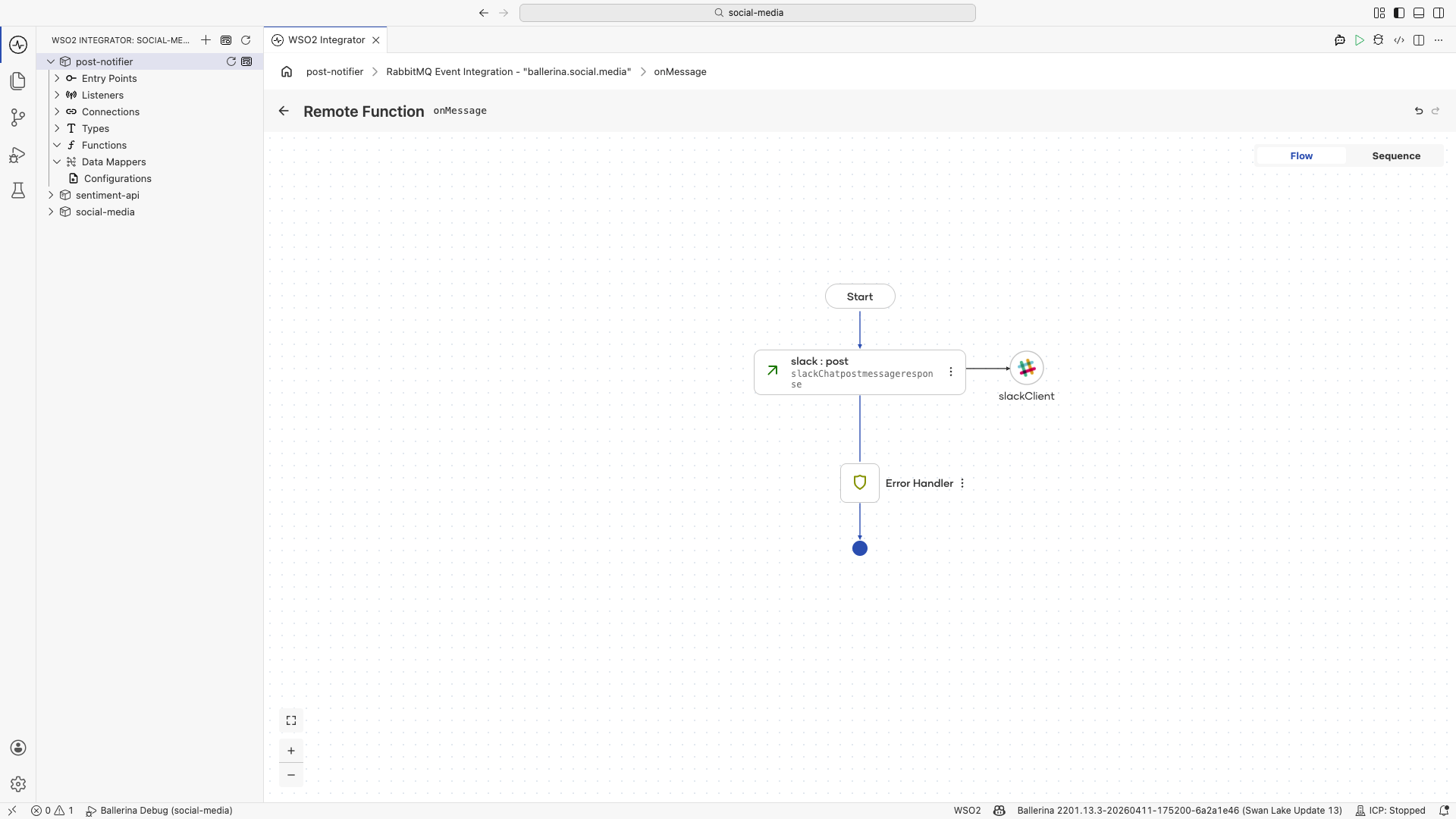
Behind the scenes, the Visual Designer generated this. The configurations are declared first, then the connection and the event integration use them:
import ballerinax/rabbitmq;
import ballerinax/slack;

// config.bal: provide the values in Config.toml
configurable string rabbitmqHost = ?;
configurable int rabbitmqPort = ?;
configurable string slackAuthToken = ?;

// connections.bal: the Slack client
final slack:Client slackClient = check new ({
    auth: {token: slackAuthToken}
});

// types.bal: the event shape and the message wrapper the listener delivers
public type NotificationEvent record {|
    string leaderId;
|};

public type RabbitMQAnydataMessage record {|
    *rabbitmq:AnydataMessage;
    NotificationEvent content;
|};

// main.bal: for each message on the queue, post to Slack
listener rabbitmq:Listener rabbitmqListener = new (string `${rabbitmqHost}`, rabbitmqPort);

service "ballerina.social.media" on rabbitmqListener {
    remote function onMessage(RabbitMQAnydataMessage message, rabbitmq:Caller caller) returns error? {
        do {
            slack:ChatPostMessageResponse slackChatpostmessageresponse = check slackClient->/chat\.postMessage.post({
                channel: "New post creations",
                text: message.content.leaderId + " just posted"
            });
        } on fail error err {
            return error("unhandled error", err);
        }
    }
}
You provide the values in Config.toml:
rabbitmqHost = "localhost"
rabbitmqPort = 5672
slackAuthToken = "xoxb-your-bot-token"
Capability: RabbitMQ trigger and connectors. A broker message drives an integration that calls a SaaS connector, the core of event-driven, connector-rich integration.
With the Sentiment API and the Post Notifier built, assemble the Social Media API that uses them.
Step 4: Build the Social Media API
This is the heart of the backend. The Social Media API is the orchestrator: it exposes the users-and-posts REST API, stores everything in MySQL, screens each post with the Sentiment API from Step 2, and announces accepted posts through the Post Notifier from Step 3. You build all of it here, in the social-media integration: add the connections it needs, then design the resources and the post-creation flow on the canvas. The social_media database and its tables were created in the Prerequisites.
Add the connections
The API talks to three things, so add a connection for each before you build the flow: the MySQL database (through the persist feature), the RabbitMQ broker, and the Sentiment API.
- Visual Designer
- Ballerina Code
Add the database, RabbitMQ, and Sentiment connections
-
Database. In the artifacts panel, open Connections and click +, then choose Connect to a Database. Select MySQL and enter the
social_mediacredentials from the Prerequisites.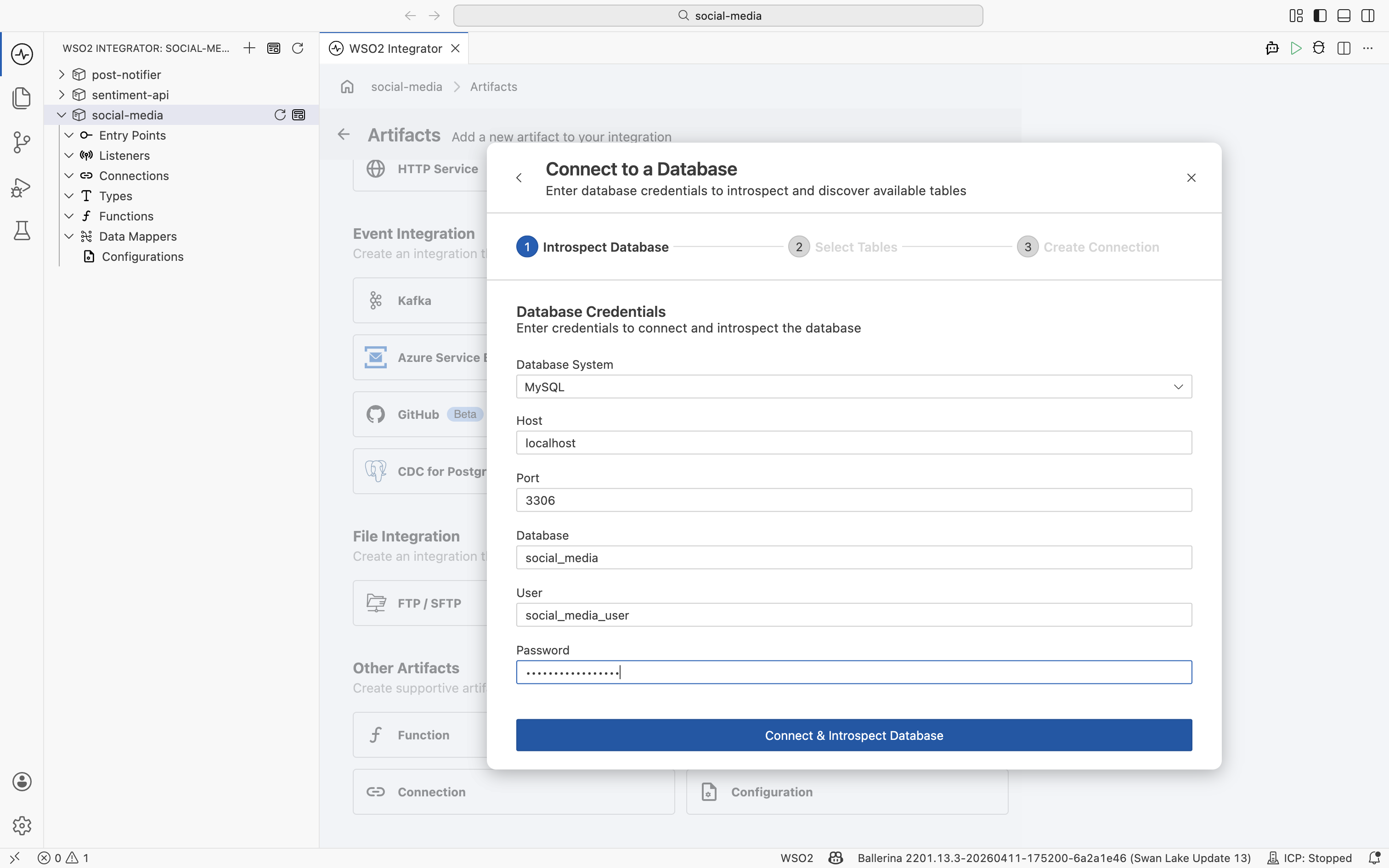
Select all three tables, then name the connection
dbClient. The persist feature generates a type-safe client with CRUD functions and the matchingUser,Post, andFollowerentities.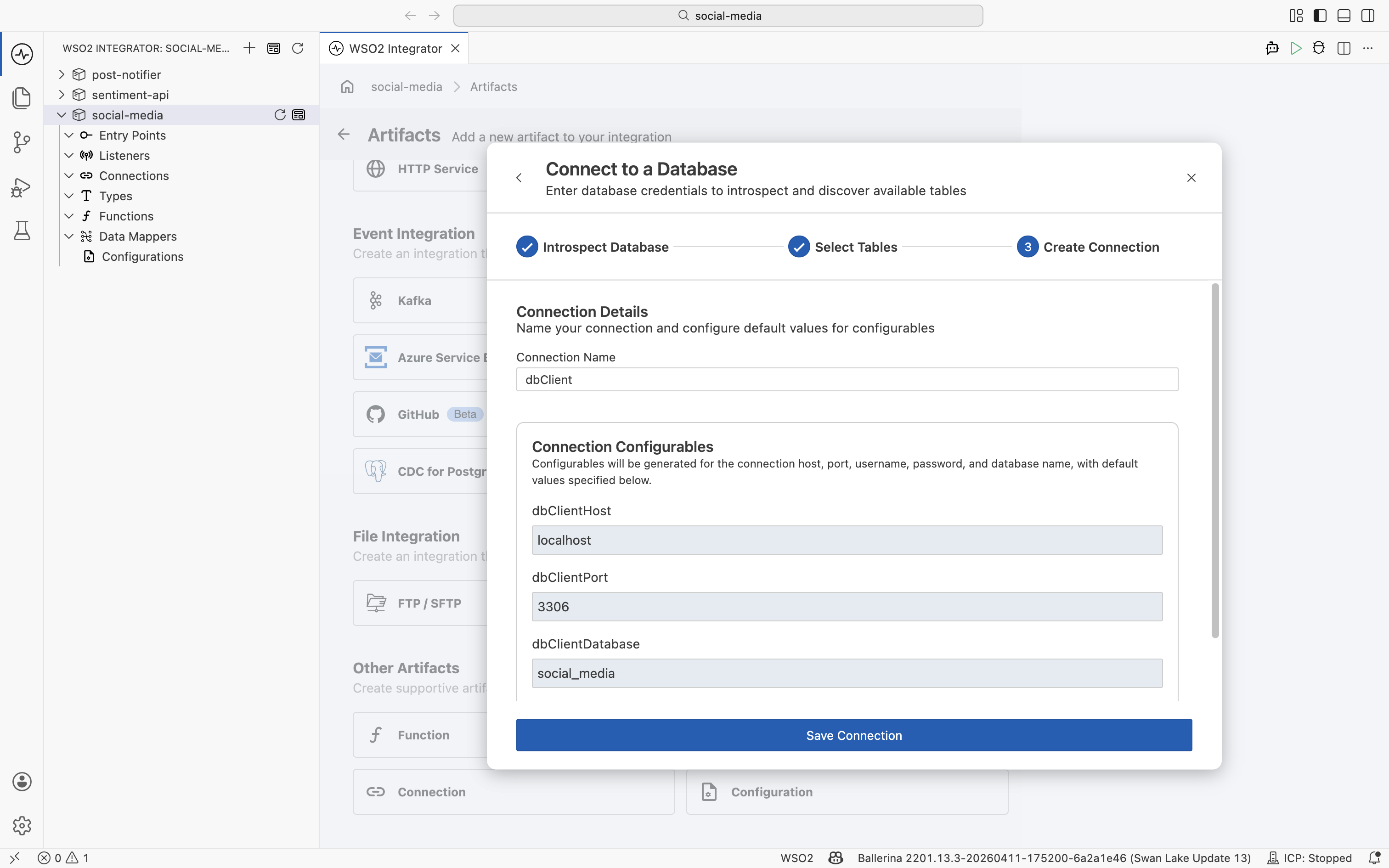
-
RabbitMQ. Add a RabbitMQ connection, bind its Host and Port to
rabbitmqHostandrabbitmqPortconfigurables, and name itrabbitmqClient.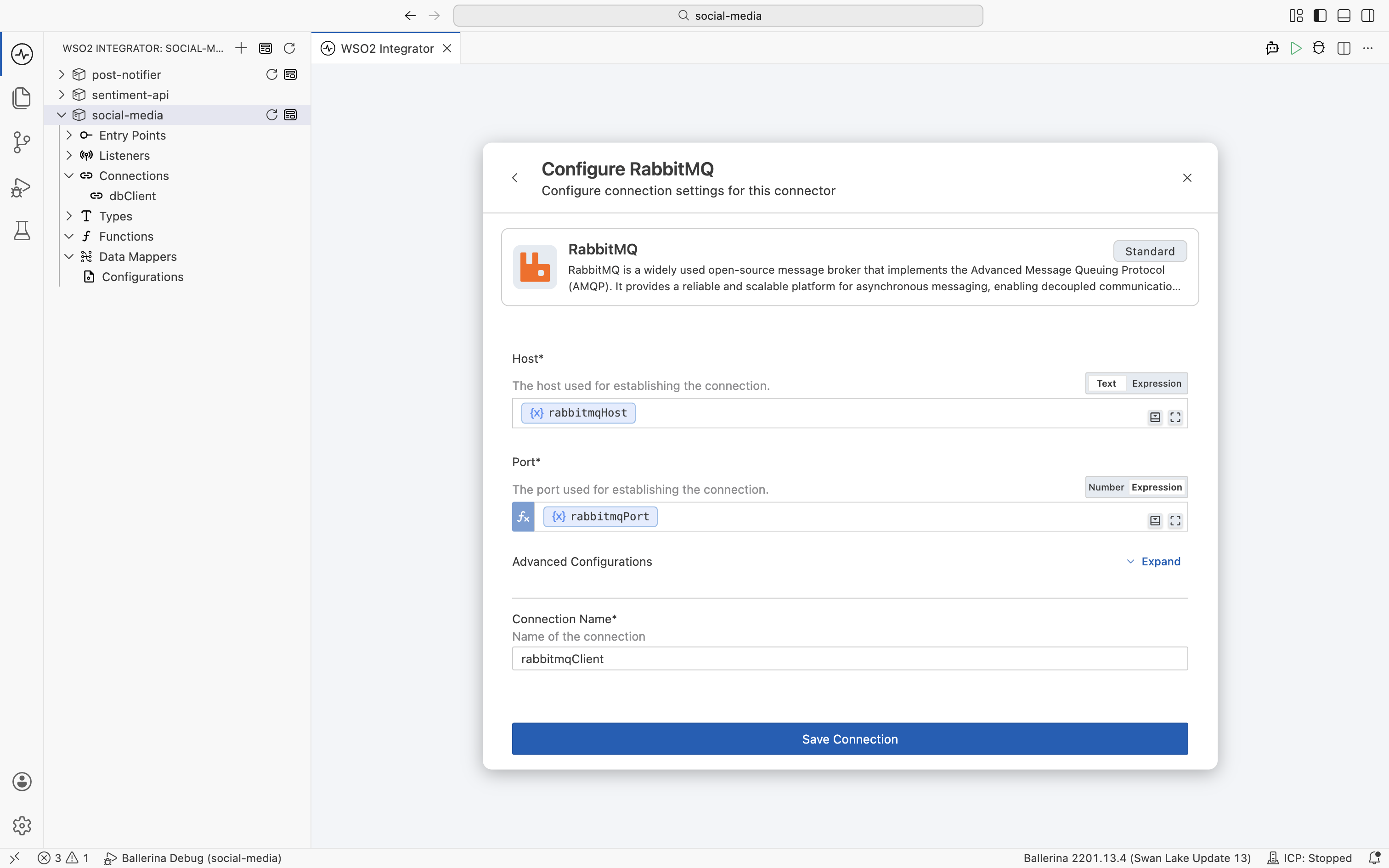
-
Sentiment API. Add an HTTP connection with the Url of the Sentiment API,
http://localhost:9000/text-processing, and name itsentimentClient.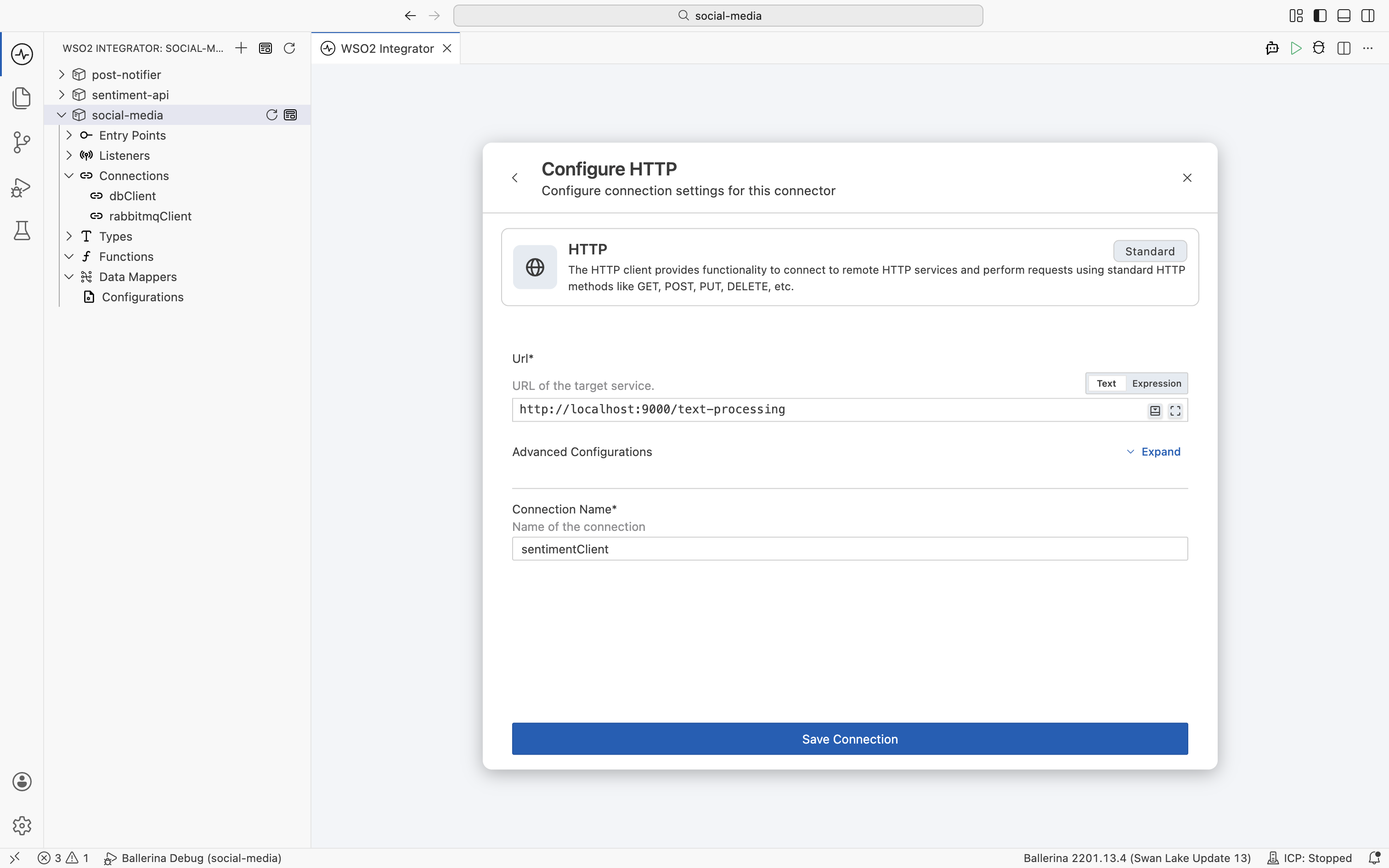
import social_media.socialmedia; // the persist module generated from your schema

import ballerina/http;
import ballerinax/rabbitmq;

// Connection settings (config.bal). The wizard generates these;
// you supply the values in Config.toml.
configurable string dbClientHost = "localhost";
configurable int dbClientPort = 3306;
configurable string dbClientUser = "social_media_user";
configurable string dbClientPassword = ?;
configurable string dbClientDatabase = "social_media";
configurable string rabbitmqHost = ?;
configurable int rabbitmqPort = ?;

// One client per dependency (connections.bal).
final socialmedia:Client dbClient = check new (dbClientHost, dbClientPort, dbClientUser, dbClientPassword, dbClientDatabase); // MySQL, via persist
final rabbitmq:Client rabbitmqClient = check new (rabbitmqHost, rabbitmqPort); // RabbitMQ broker
final http:Client sentimentClient = check new ("http://localhost:9000/text-processing"); // Sentiment API
Create the service and list users
With the connections in place, add the HTTP service and build your first resource: list all users straight from the database.
- Visual Designer
- Ballerina Code
Create the service and the get-users resource
-
Click + Add Artifact, then HTTP Service under Integration as API. Keep Design From Scratch, set the Service Base Path to
/social-media, and accept the Shared Listener (Port 9090). Click Create.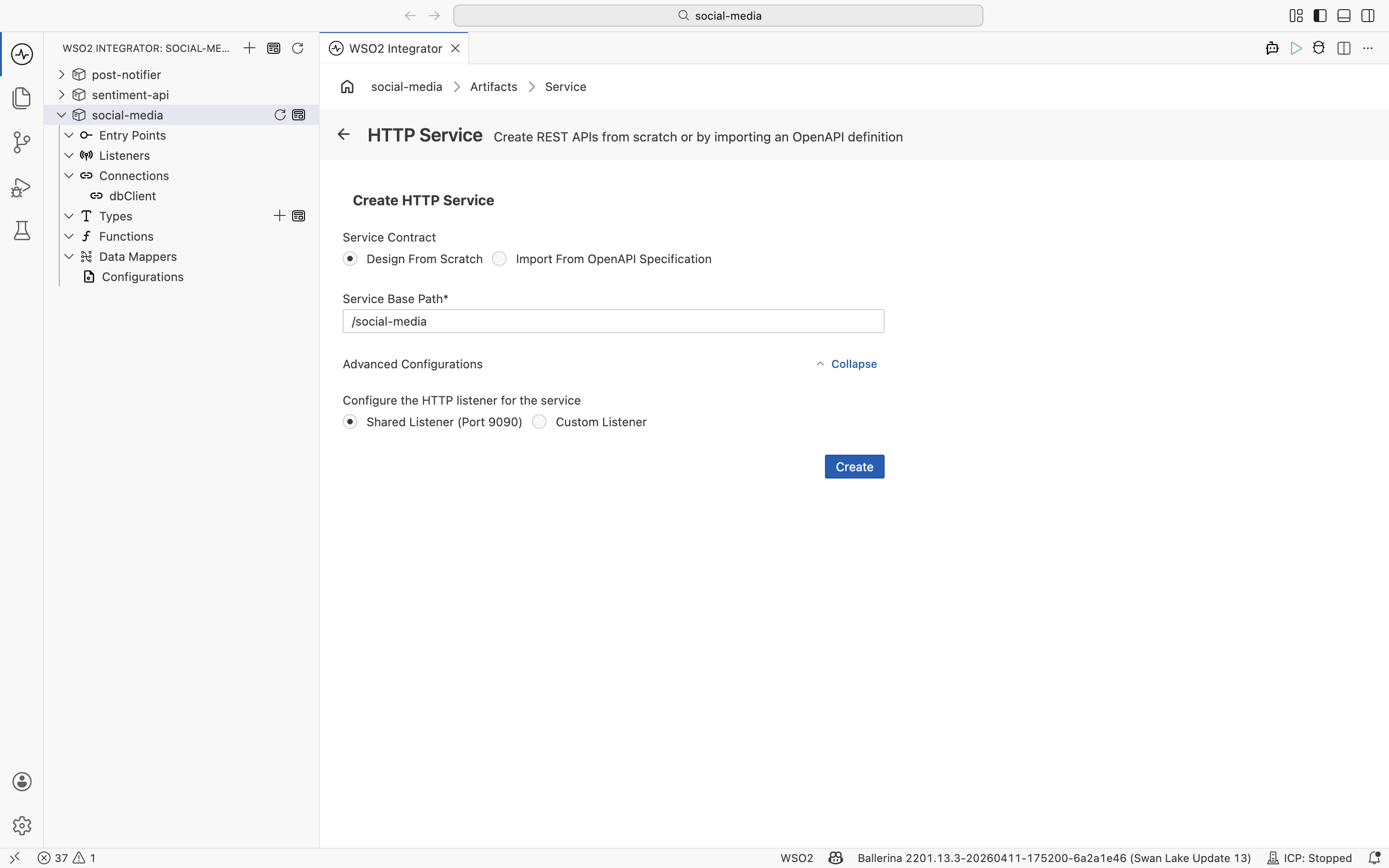
-
Add the resources your API exposes. This walkthrough builds two of them in full; the rest follow the same pattern:
Method Path Returns GET/usersall users POST/users/{id}/poststhe created post -
Open the
get usersresource. Click +, expanddbClient, and add Get rows from users. Name the resultusersand select the fields to return.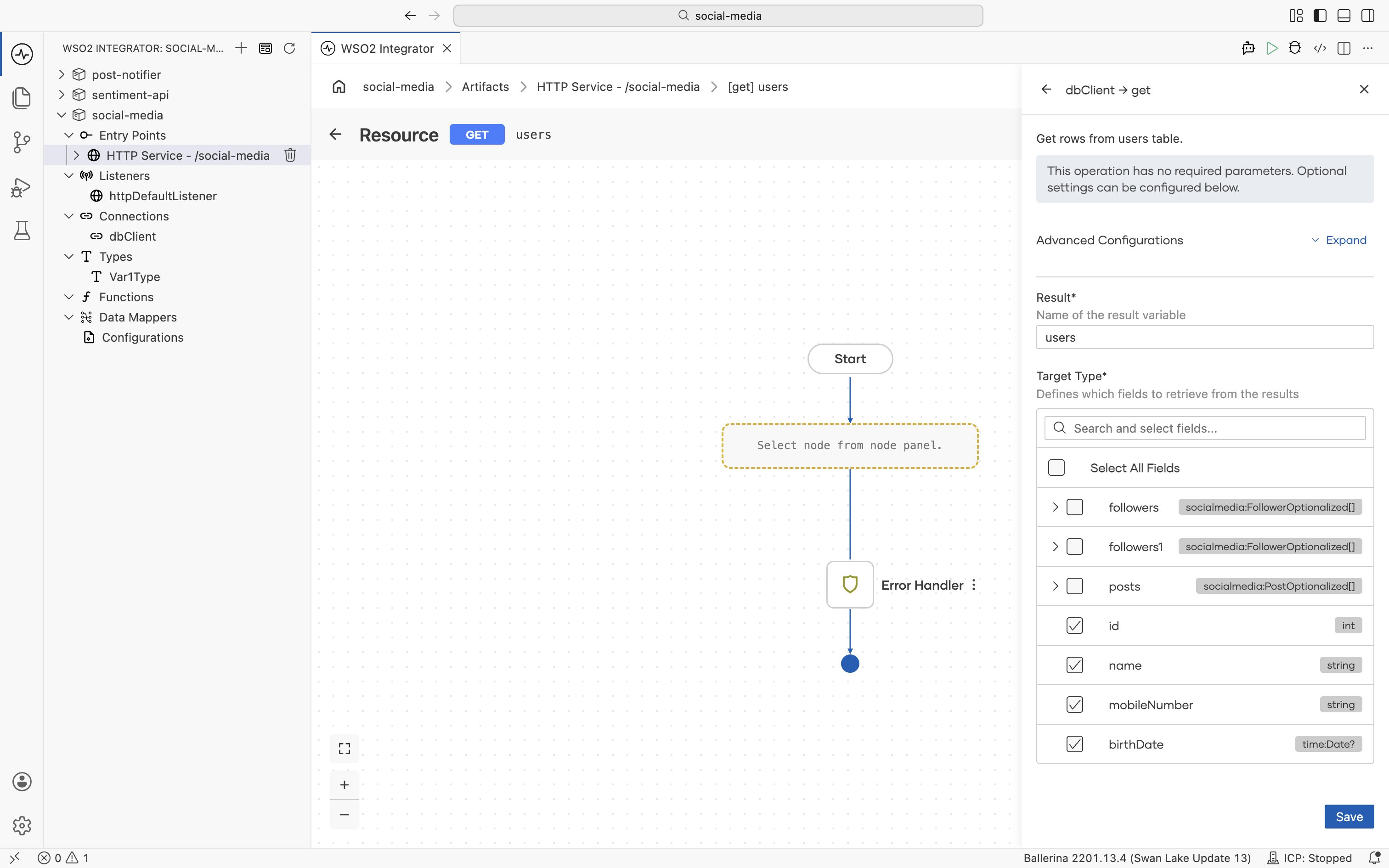
-
Add a Return node that returns
users.toJson().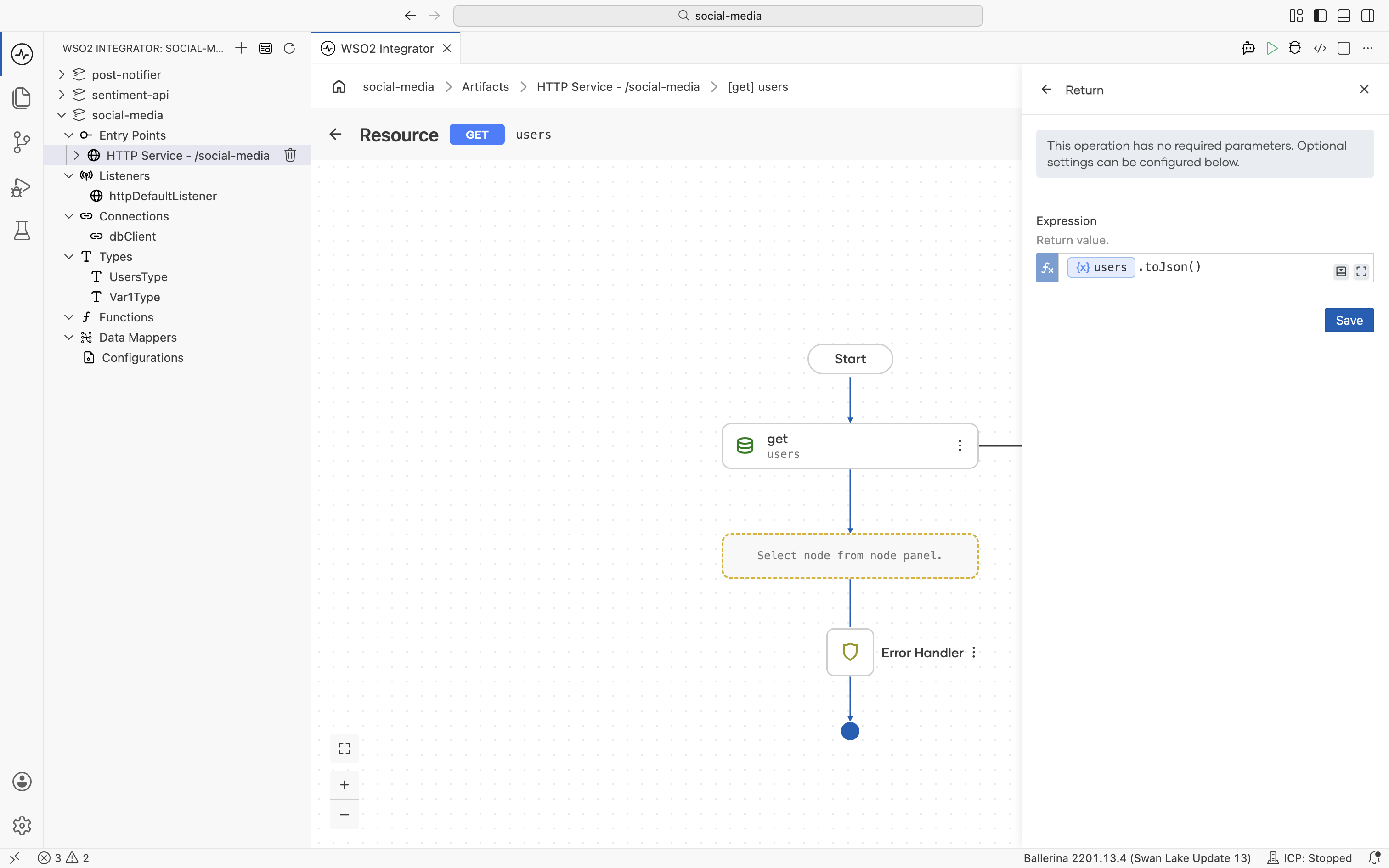
import ballerina/http;

// The service runs on the project's shared default listener (port 9090).
listener http:Listener httpDefaultListener = http:getDefaultListener();

service /social\-media on httpDefaultListener {

    // GET /social-media/users: list every user.
    resource function get users() returns json|error {
        do {
            // The persist client runs the SELECT and maps each row to UsersType.
            UsersType[] users = check dbClient->/users.get();
            return users.toJson();
        } on fail error err {
            return error("unhandled error", err);
        }
    }

    // The post resource follows in the next section.
}
Handle a new post
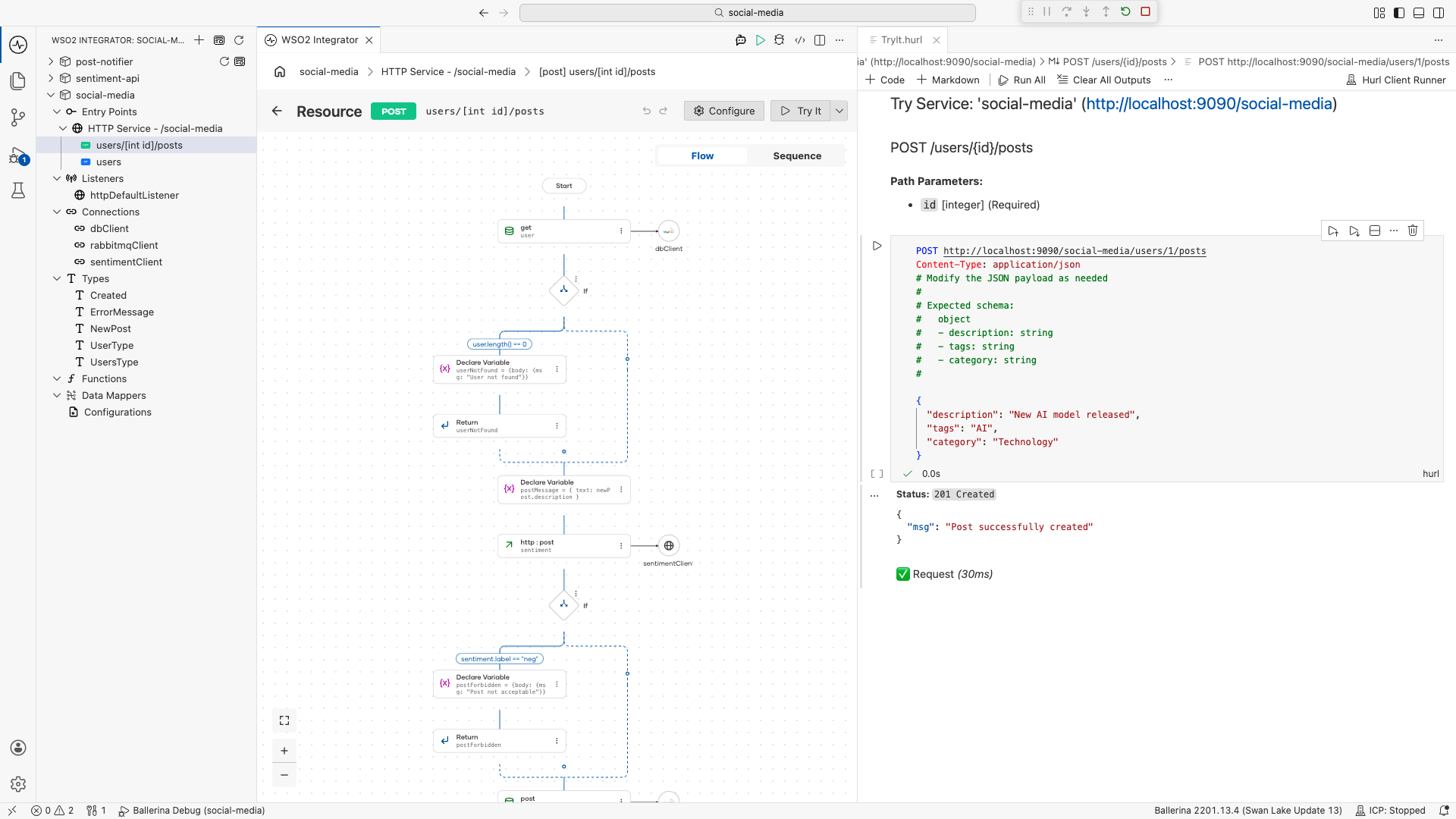
This is the resource that ties everything together. When someone posts, you confirm the user exists (a 404 if not), screen the text with the Sentiment API (a 406 if it comes back negative), store the post, announce it through RabbitMQ, and return 201.
- Visual Designer
- Ballerina Code
Build the post-creation flow
-
Add the
POST /users/{id}/postsresource with aNewPostpayload (description,tags,category), and define its typed responses:201http:Created,404http:NotFound,406http:NotAcceptable, and500error.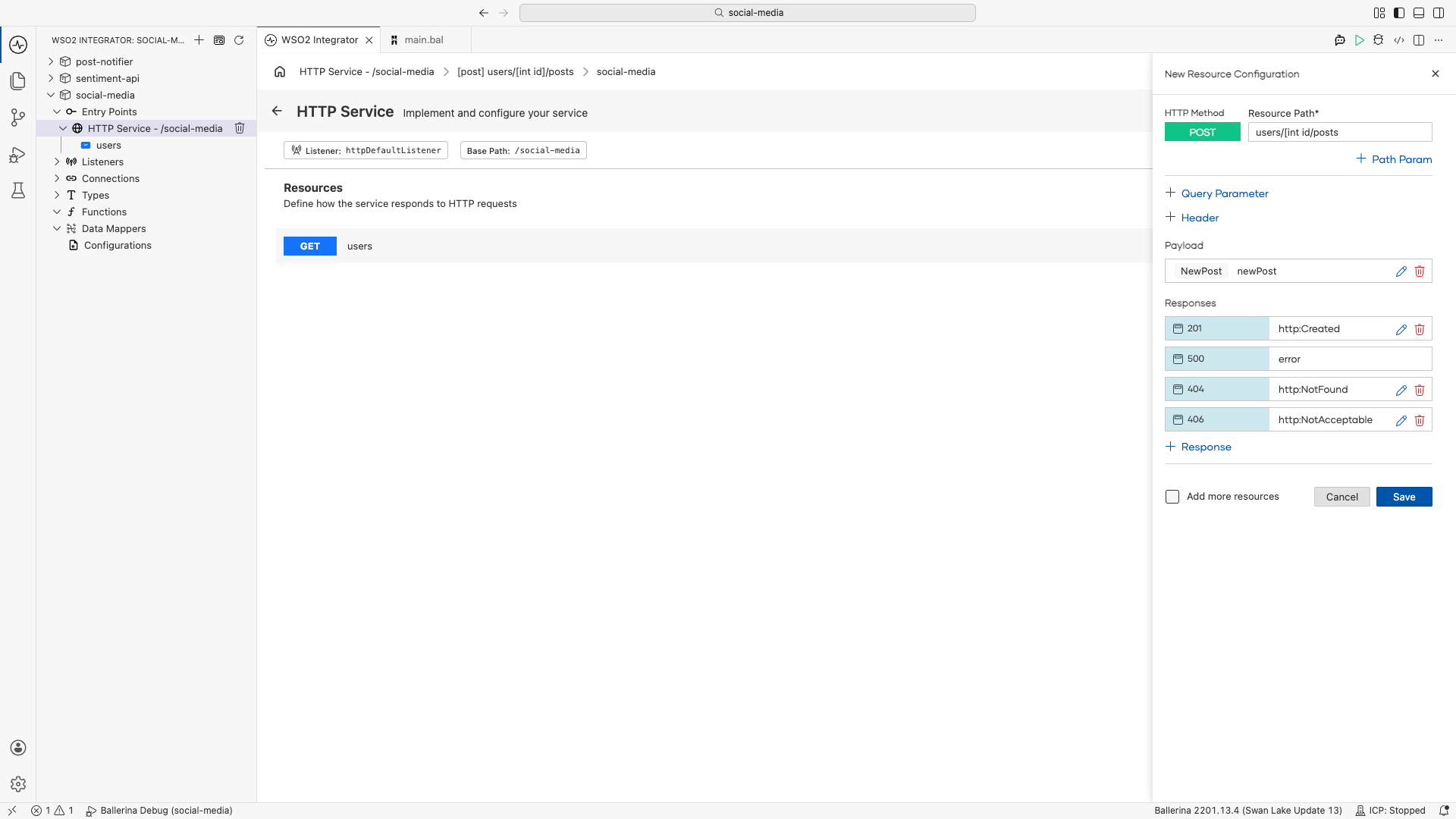
-
Confirm the user exists. In the flow, add a Get rows from users node filtered by
id(resultuser), then an If node with the conditionuser.length() == 0.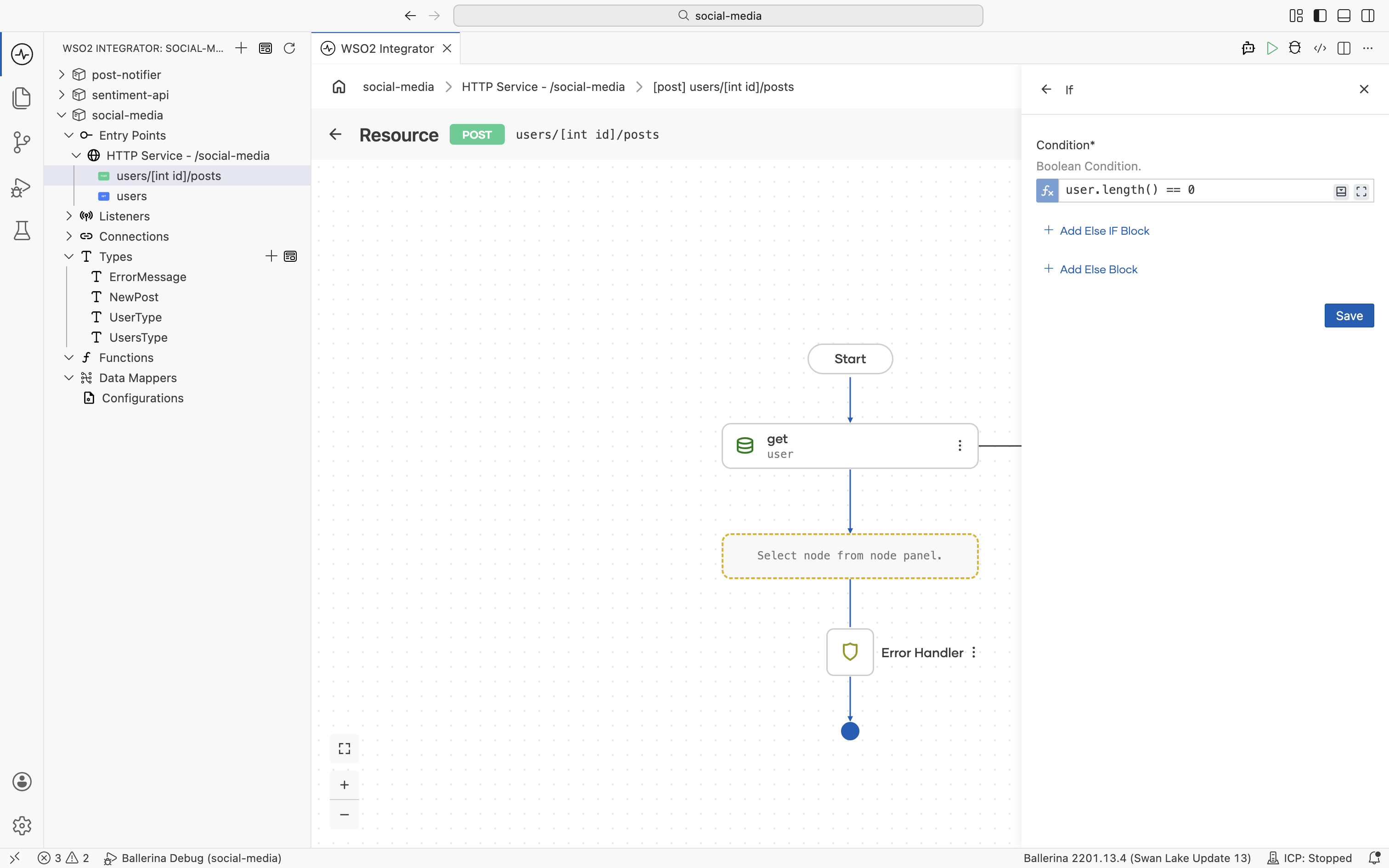
In its branch, declare an
http:NotFoundresponse with body{ msg: "User not found" }and Return it.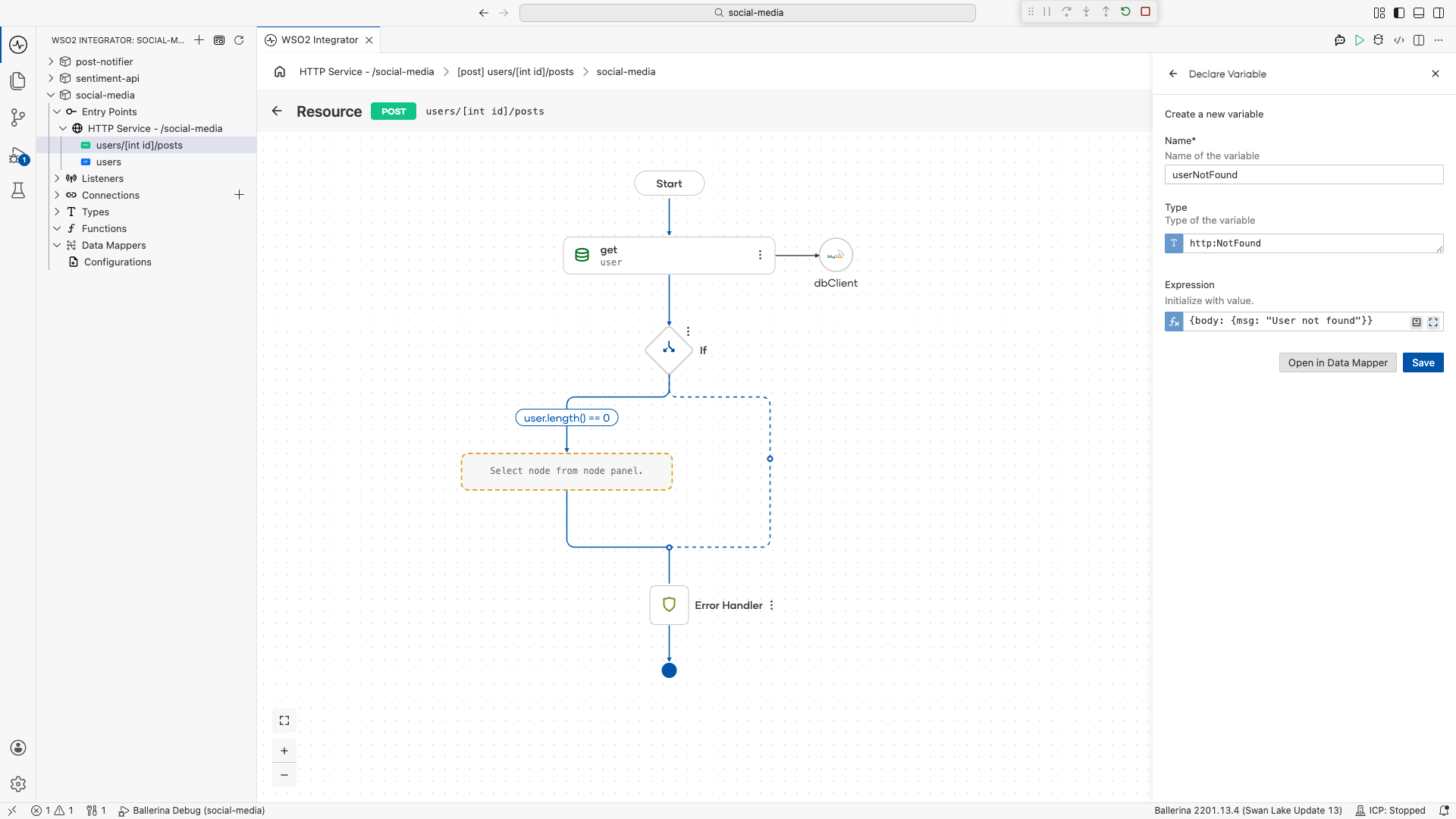
-
Screen the text. Declare a variable
postMessageholding{ text: newPost.description }.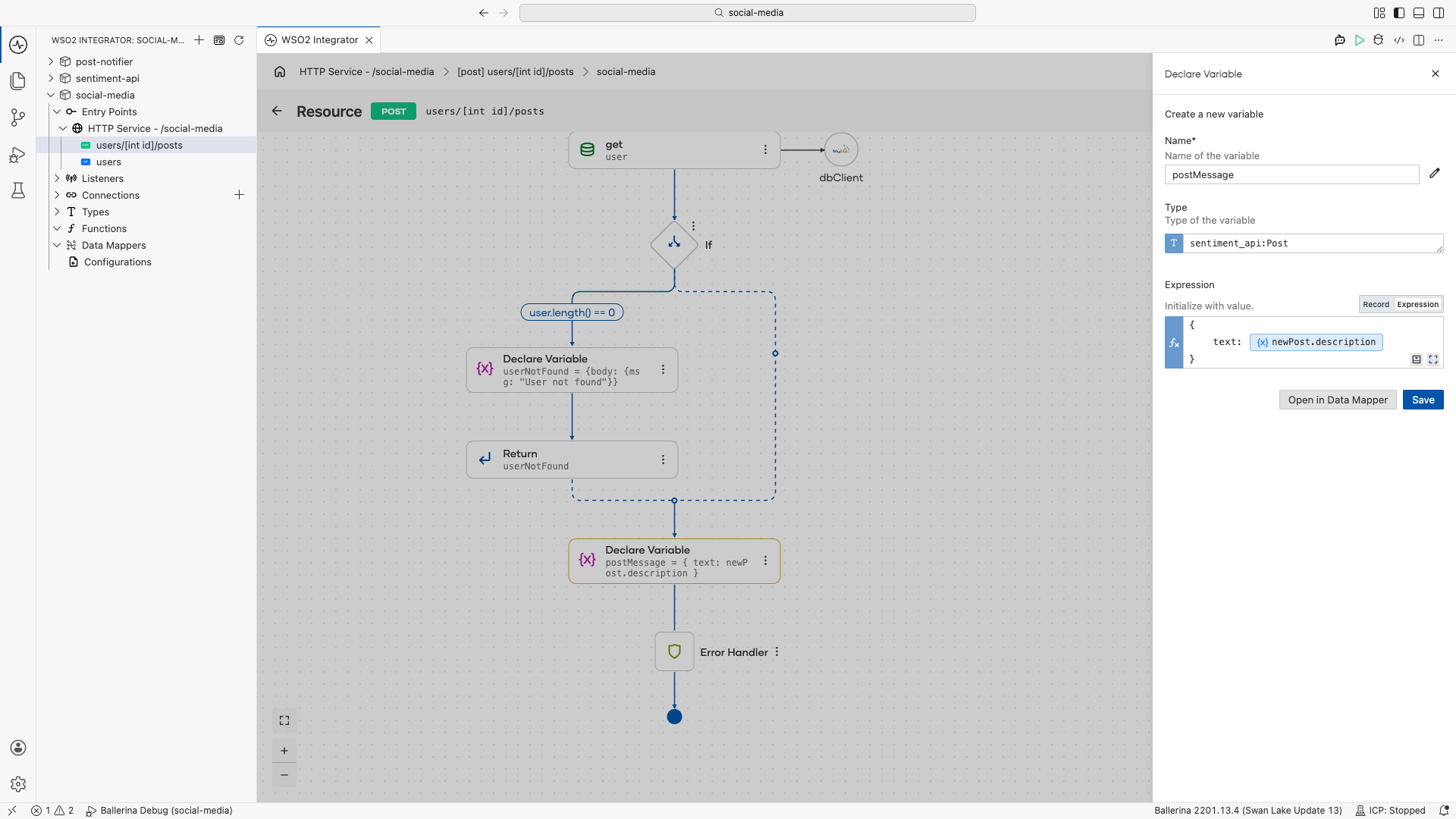
Then call
sentimentClientwith an http post to/api/sentiment, storing the result insentiment.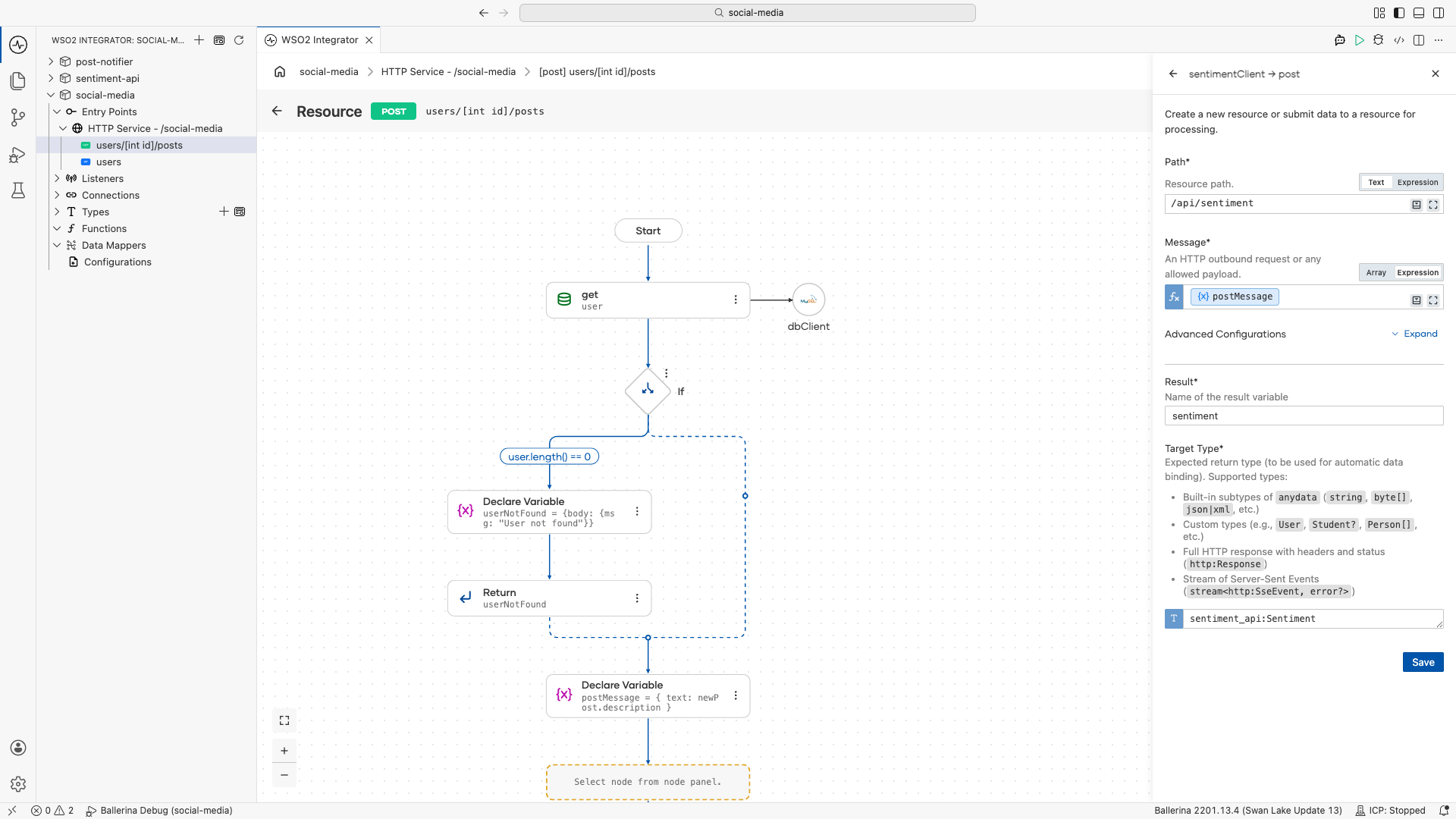
-
Reject negatives. Add an If node with the condition
sentiment.label == "neg".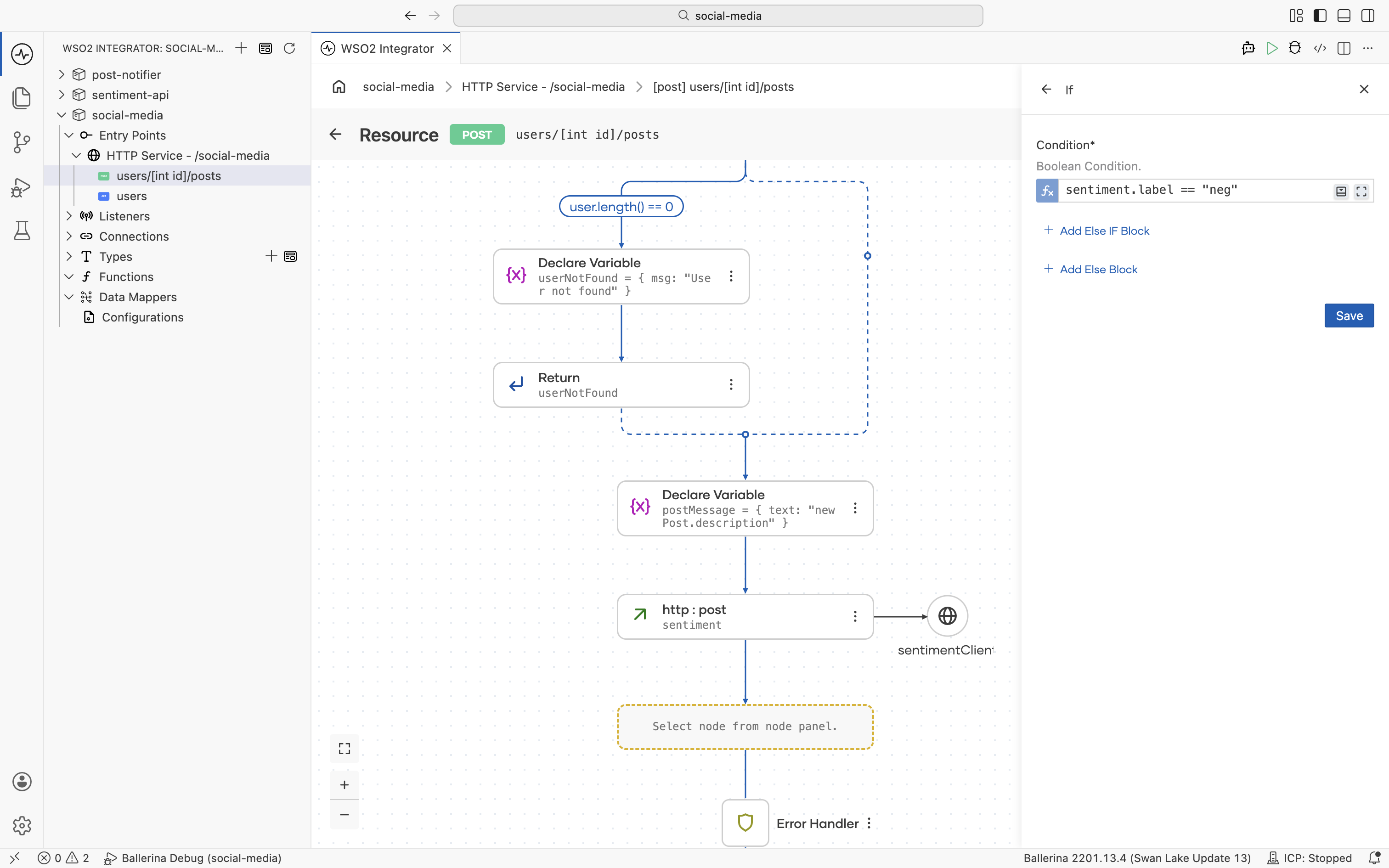
In its branch, declare an
http:NotAcceptableresponse with body{ msg: "Post not acceptable" }and Return it.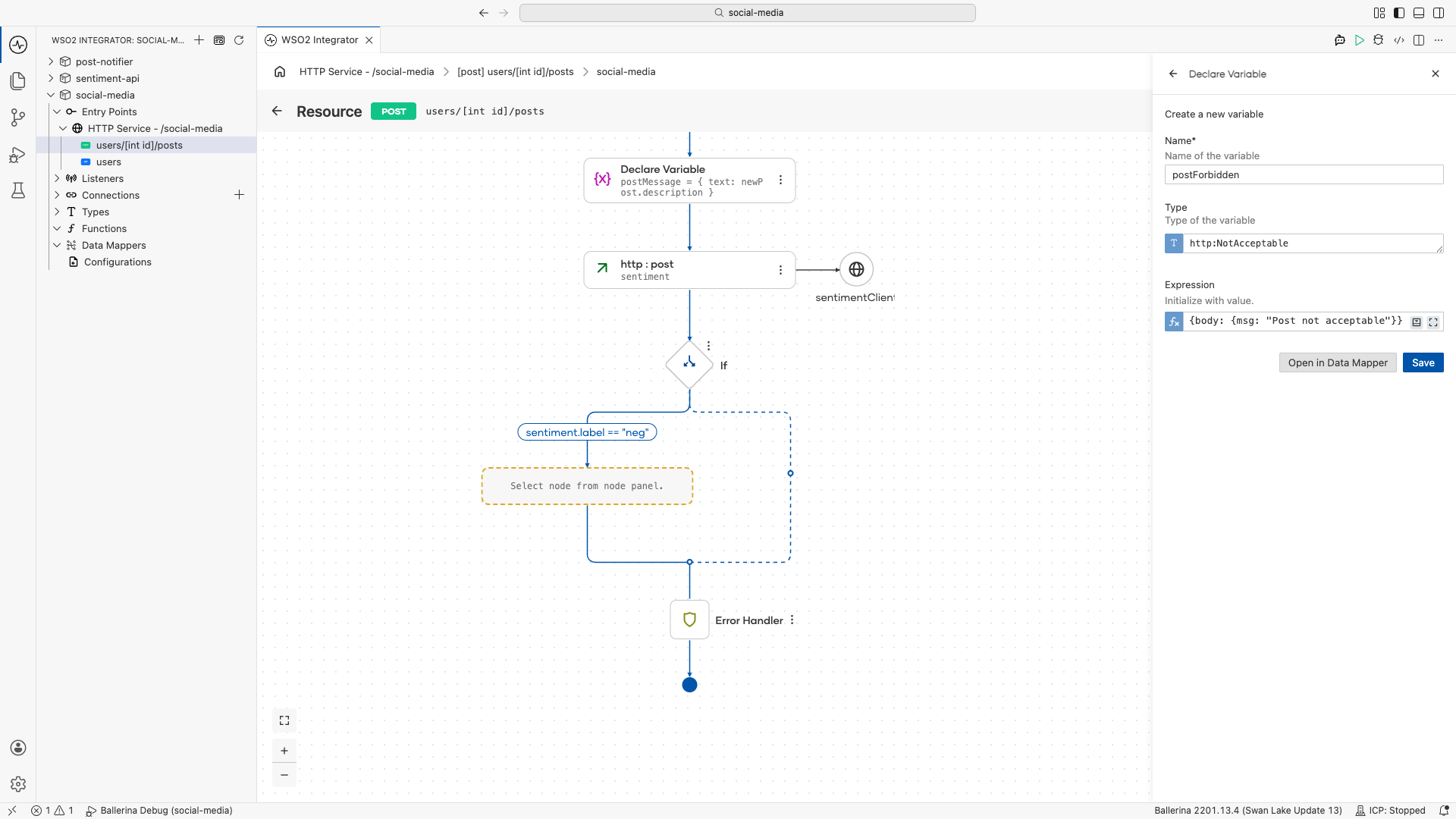
-
Store the post. Add an Insert rows into posts node on
dbClient, using the record helper to build the post fromnewPostand the path parameterid.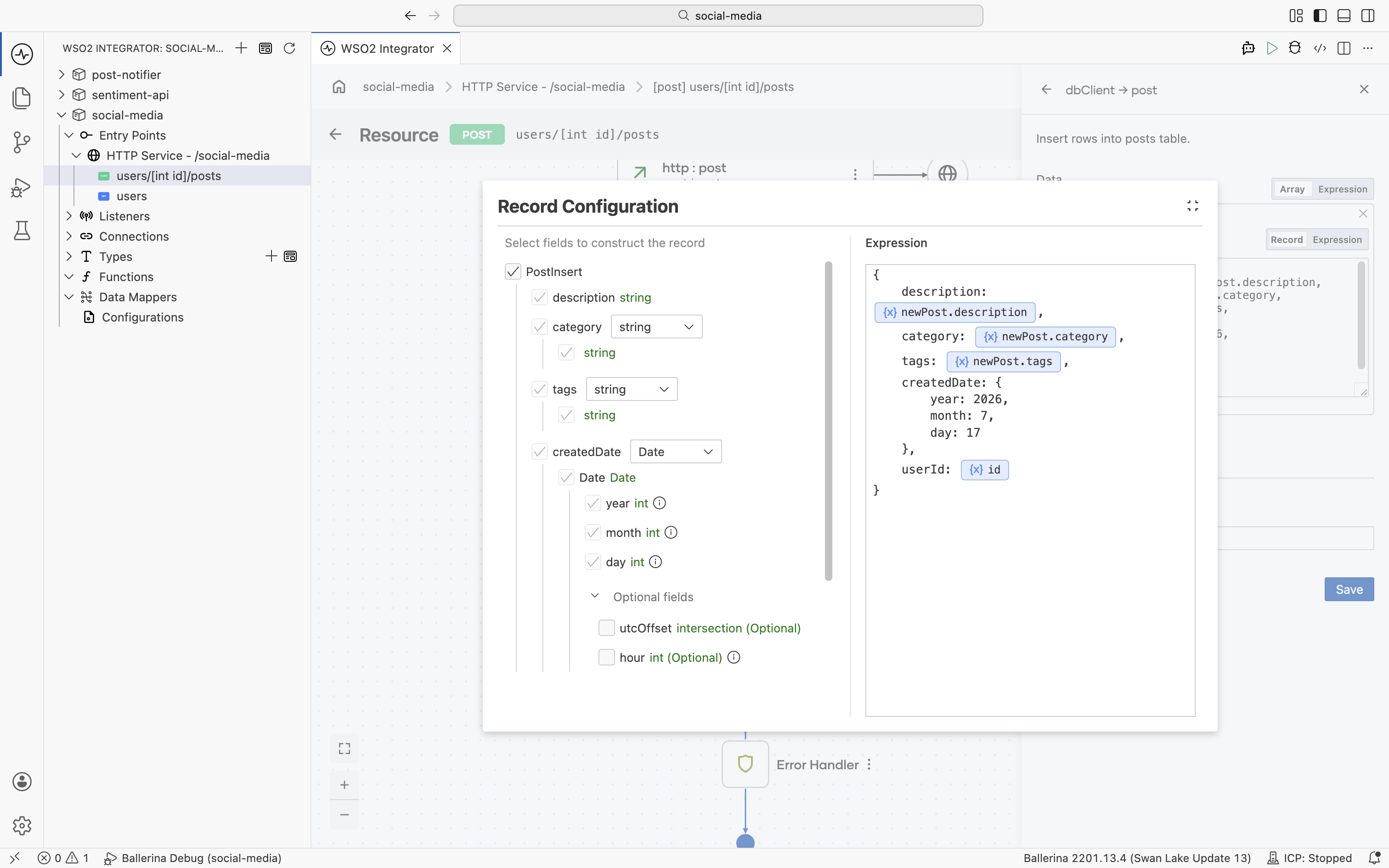
-
Announce it. Add a
rabbitmqClientpublishMessage node with content{ leaderId: id.toString() }and routing keyballerina.social.media, the queue the Post Notifier listens on.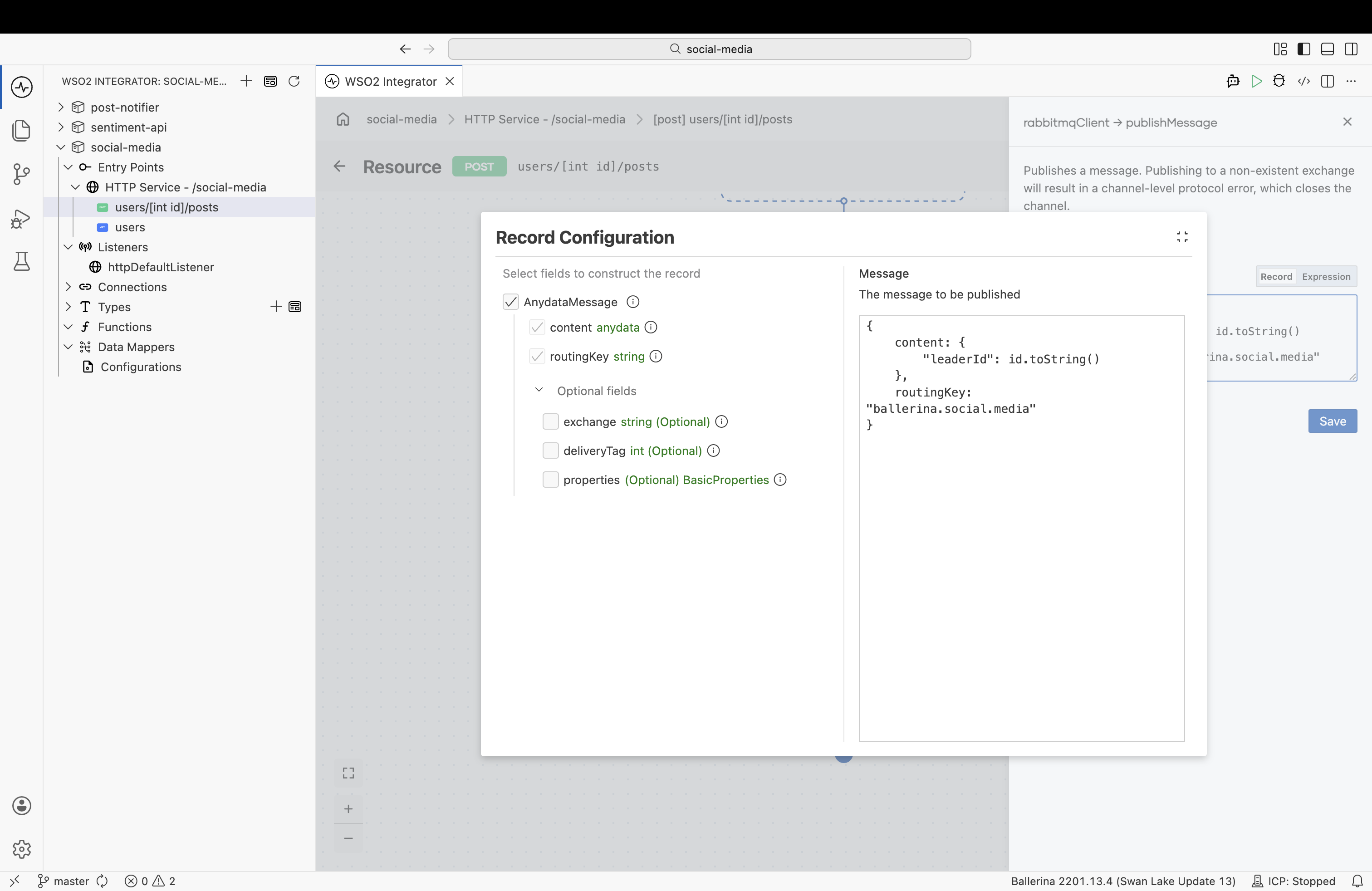
-
Return success. Declare an
http:Createdresponse with body{ msg: "Post successfully created" }and Return it.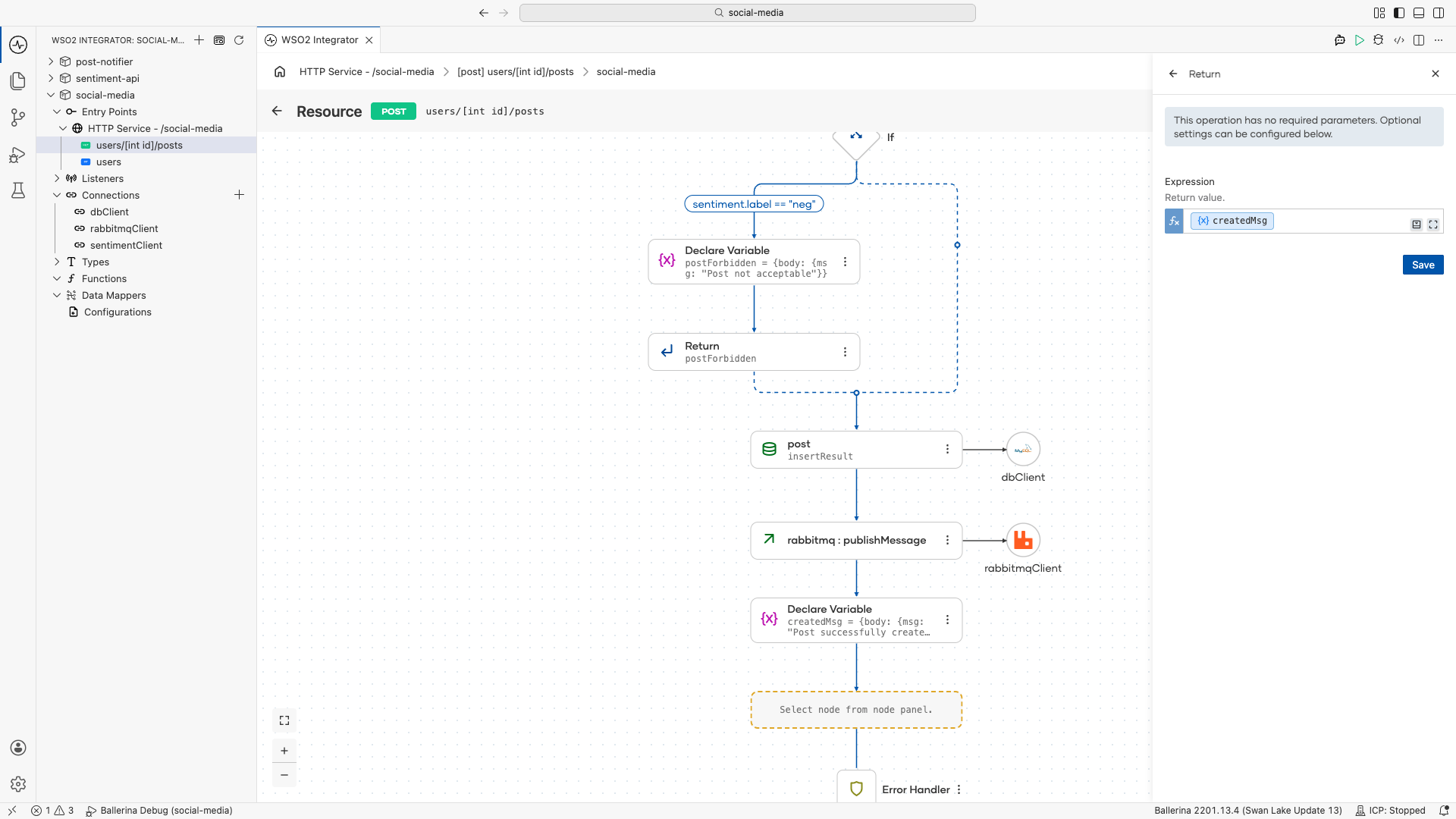
import social_media/sentiment_api; // reuse the Sentiment API's request and response types

resource function post users/[int id]/posts(@http:Payload NewPost newPost)
        returns http:Created|http:NotAcceptable|http:NotFound|error {
    do {
        // 1. The user must exist (404 if not)
        UserType[] user = check dbClient->/users.get(whereClause = `id = ${id}`);
        if user.length() == 0 {
            http:NotFound userNotFound = {body: {msg: "User not found"}};
            return userNotFound;
        }

        // 2. Screen the text with the Sentiment API (406 if negative)
        sentiment_api:Post postMessage = {text: newPost.description};
        sentiment_api:Sentiment sentiment = check sentimentClient->post("/api/sentiment", postMessage);
        if sentiment.label == "neg" {
            http:NotAcceptable postForbidden = {body: {msg: "Post not acceptable"}};
            return postForbidden;
        }

        // 3. Store the post
        int[] insertResult = check dbClient->/posts.post([
            {
                description: newPost.description,
                category: newPost.category,
                tags: newPost.tags,
                createdDate: {year: 2026, month: 7, day: 17},
                userId: id
            }
        ]);

        // 4. Announce it on the queue the Post Notifier listens to
        check rabbitmqClient->publishMessage({
            content: {"leaderId": id.toString()},
            routingKey: "ballerina.social.media"
        });

        // 5. Tell the caller it worked (201)
        http:Created createdMsg = {body: {msg: "Post successfully created"}};
        return createdMsg;
    } on fail error err {
        return error("unhandled error", err);
    }
}
Capability: Orchestration on one canvas. A single visual flow loads data with the persist client, calls another service over HTTP, branches on the result, stores a record, publishes an event, and returns the right HTTP status, all without writing code.
Step 5: Run and test
Everything is built. Make sure your MySQL and RabbitMQ instances are running and the social_media database exists (from the Prerequisites), and fill in each integration's Config.toml (the database password, the RabbitMQ host and port, and the Slack token). Then Run the three integrations.
Open the Social Media service, click Try It, and invoke a resource in place.
Calling get users, for example, returns 200 OK with the seed users:
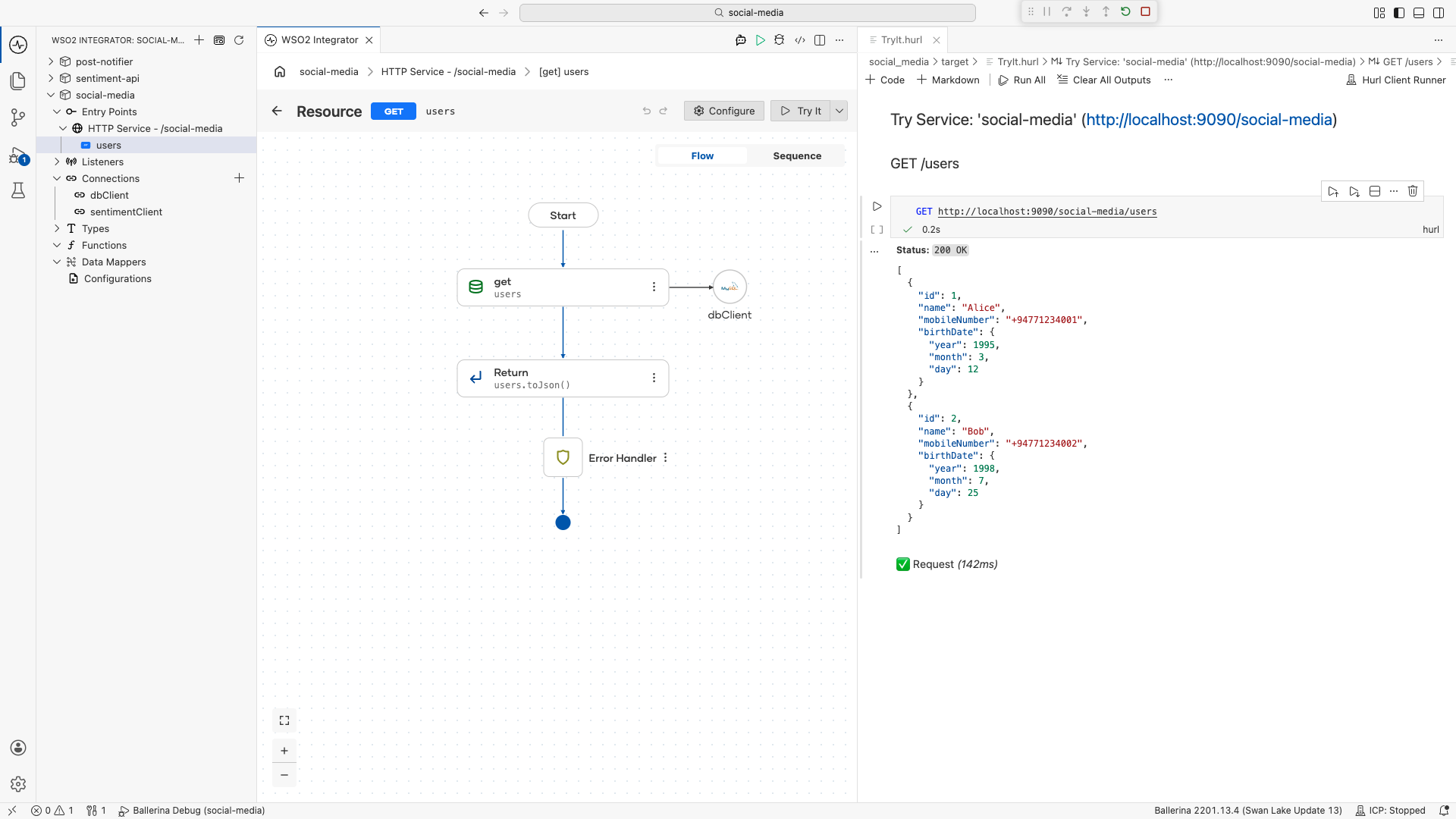
Then exercise post users/[id]/posts: a normal post returns 201 Created and posts to Slack, a post the Sentiment API scores negative returns 406 Not Acceptable, and an unknown user returns 404 Not Found.
What's next
You have built a complete, event-driven backend as three integrations, designed entirely in the Visual Designer: a REST API that screens posts with a sentiment service, stores them in MySQL through the persist feature, and announces them to Slack over a RabbitMQ pipeline.
Explore more of what you can build with WSO2 Integrator: